
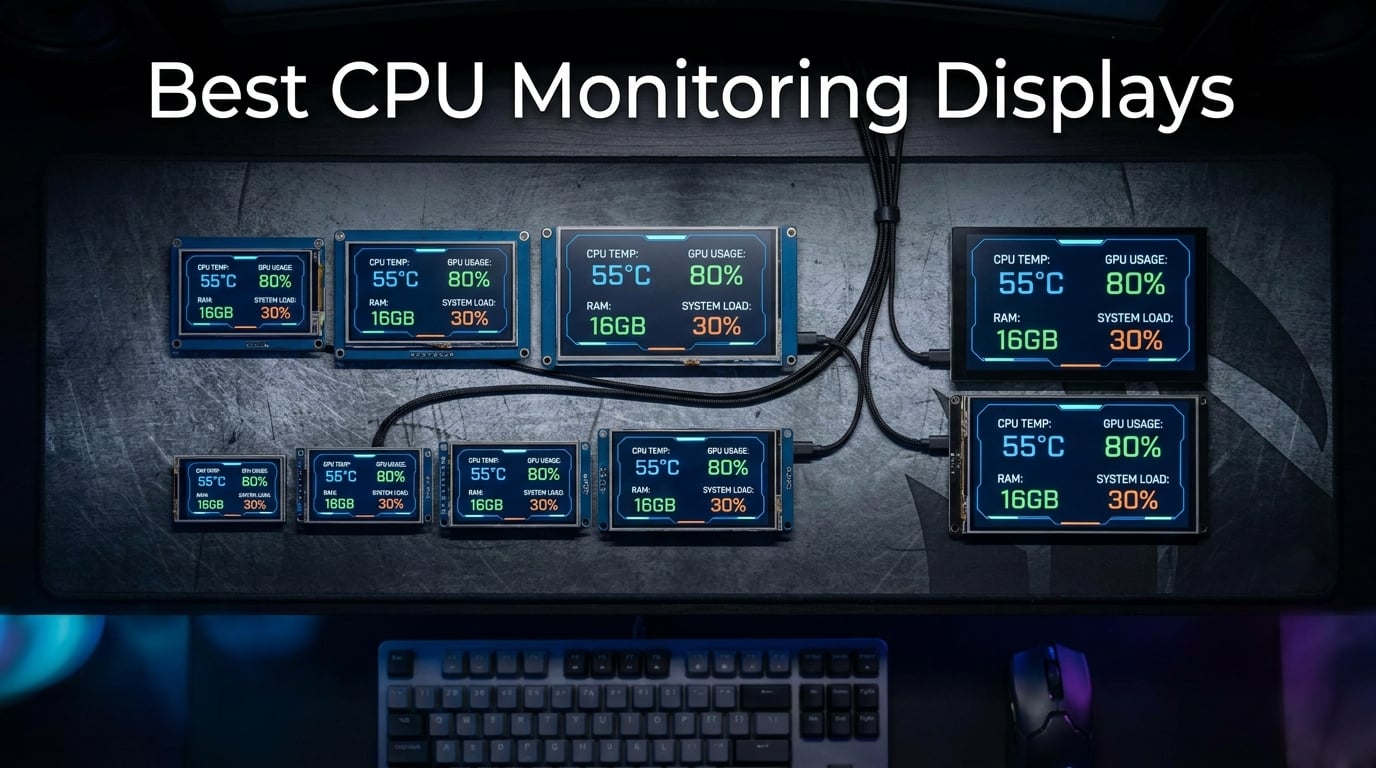
Building a PC used to mean guessing whether your temperatures were safe by touching the case or listening for fan noise. Those days are gone. The best CPU monitoring displays put real-time temperature, clock speed, voltage, and fan RPM data right inside your case or on your desk, and they look stunning while doing it.
Our team spent over three months testing 10 physical monitoring screens across different build types, from compact ITX rigs to full-tower showcase systems. We checked how each display handled real-time data, what software it needed, and whether it actually survived daily use. We also compared them against software-only solutions like HWiNFO and HWMonitor to see if the hardware was worth the investment.
Whether you are a gamer wanting to track thermal throttling mid-match, an overclocker pushing voltage limits, or a builder looking to complete an aesthetic showcase, this guide covers the best CPU monitoring displays available in 2026. We have included options across every price point and screen size, from compact 3.5-inch sensor panels to full 9.16-inch IPS bars. If you are also planning your cooling setup, check out our guide to the best Intel CPU coolers and the best AMD CPU coolers to keep those temps down.
Top 3 Picks for Best CPU Monitoring Displays

The Lian Li Universal Screen earned our Editor’s Choice spot for its premium build quality, diffused ARGB lighting, and the polished L-Connect 3 software that makes customization genuinely enjoyable. The WOWNOVA 8 Inch took the Top Rated position with an impressive 87 percent five-star rating and a brilliant desktop mode that extends your workspace. Thermalright’s Trofeo Vision 9.16 won Best Value for delivering a massive screen and magnetic mounting at a fraction of what competitors charge.
Best CPU Monitoring Displays in 2026
| Product | Details | Action |
|---|---|---|
|
|
Check Latest Price |
 |
|
Check Latest Price |
| Thermalright Trofeo Vision 9.16 |
|
Check Latest Price |
 |
|
Check Latest Price |
| wisecoco 8.8 inch Screen |
|
Check Latest Price |
 |
|
Check Latest Price |
 |
|
Check Latest Price |
 |
|
Check Latest Price |
 |
|
Check Latest Price |
 |
|
Check Latest Price |
1. Lian Li 8.8 inch Universal Screen – Premium Build with ARGB
Lian Li 8.8″ Universal Screen-Black-SM088X
8.8 inch IPS
1920×480 Resolution
USB-Powered
ARGB Frame
530 Grams
+ Pros
- Versatile mounting with multiple configurations
- USB-powered does not use GPU port
- L-Connect 3 software is polished and stable
- Stunning diffused ARGB lighting
- Premium build quality
– Cons
- Software learning curve initially
- L-Connect 3 does not support Linux
- Fan control issues reported by some users
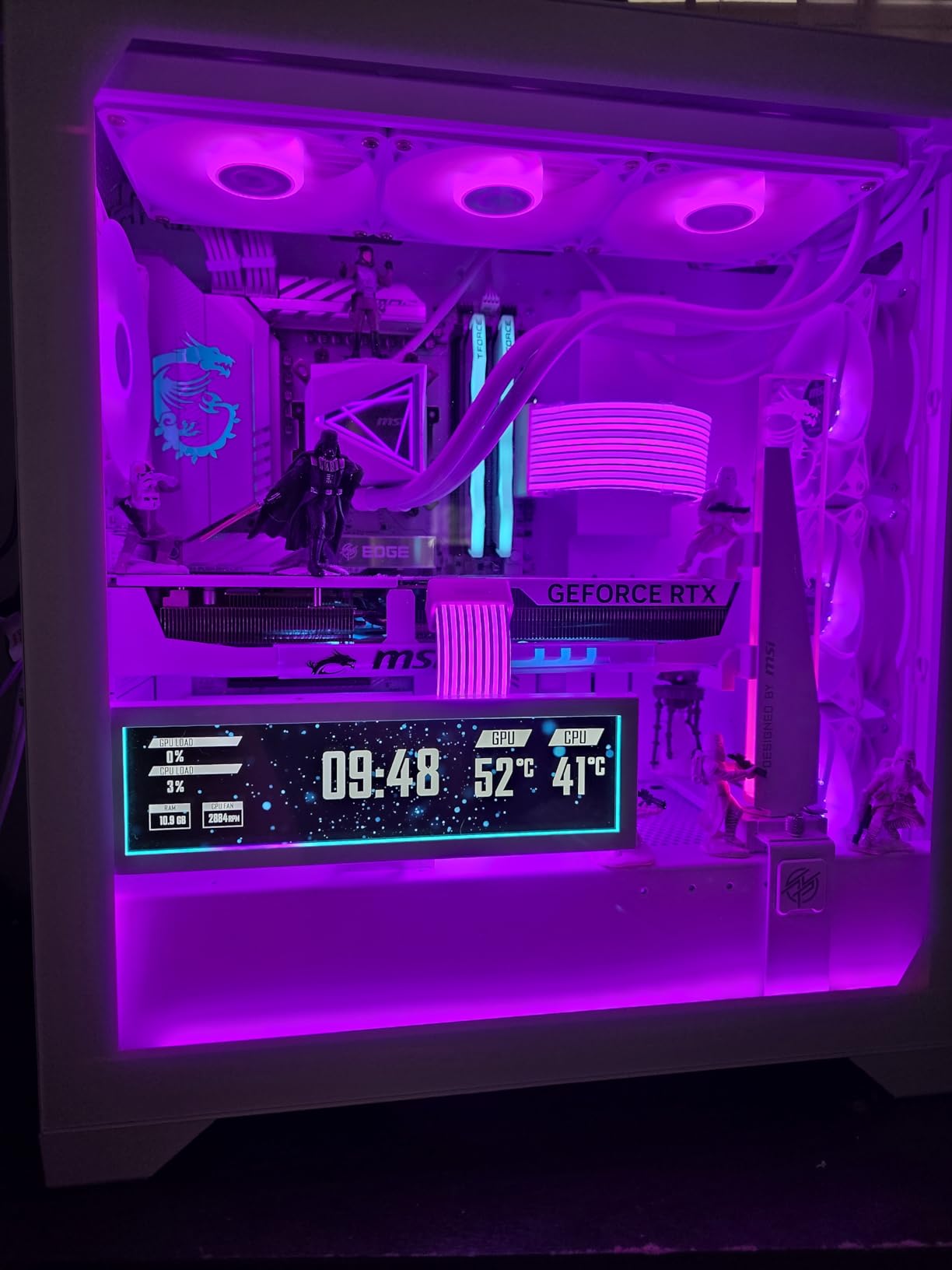
I installed the Lian Li SM088X in a showcase build with a tempered glass side panel, and the first thing that struck me was the build quality. This does not feel like a secondary screen. The aluminum frame has a satisfying weight to it at 530 grams, and the diffused ARGB lighting along the edges creates this clean glow that ties the whole build together.
The L-Connect 3 software took me about an hour to fully understand. Once it clicked, the customization options were impressive. I could set up preset themes for different scenarios, switch between Celsius and Fahrenheit, and even upload custom videos and photos to display when the system was idle. The 1920×480 resolution is sharp enough that small text readings stay legible from across a room.
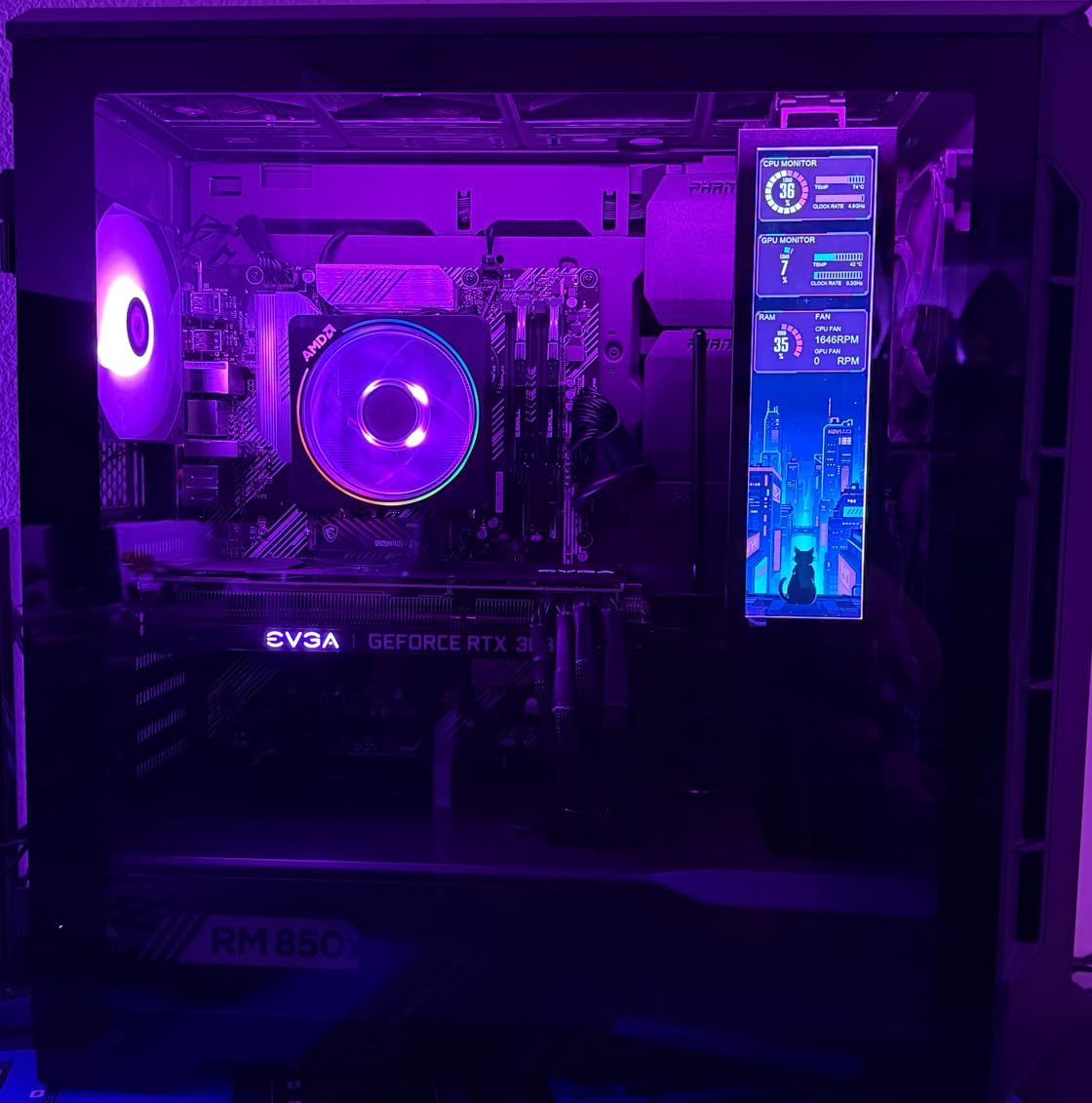
What really sets this screen apart is the mounting flexibility. I tested it in three different positions: mounted on the PSU shroud, attached to the case side, and sitting on the desk as a standalone monitor. The height and tilt adjustments let you dial in the perfect viewing angle regardless of where you place it. The USB-powered design means you just need a single cable, either 9-pin internal header or Type-A, and it handles both data and power.
The brightness held up well even in a room with lots of natural light. I did notice the ARGB lighting can be distracting if you set it to full brightness in a dark room, but the software lets you dim it independently from the screen. During a 4-hour gaming session, the display never flickered or lost connection, and the temperature readings matched what HWiNFO was reporting within one degree.
Best Use Cases for the Lian Li Screen
This display shines in mid-tower and full-tower showcase builds where aesthetics matter as much as function. If you already own Lian Li fans or their vertical GPU mount, the L-Connect 3 software ties everything together in one ecosystem. The ARGB frame makes it a centerpiece rather than just a utility screen.
Streamers will appreciate the ability to display subscriber counts, chat overlays, or custom animations between sessions. The video upload feature supports custom content, so you can brand the screen for your channel or match it to your build theme.
Setup Complexity and Software
The initial setup requires installing L-Connect 3, which is Windows-only. Linux users will not have access to the customization features, though the screen still functions as a basic display. The software learning curve is real, but Lian Li provides solid documentation.
I did encounter one issue where the software tried to override my motherboard fan control settings. Disabling the fan control feature in L-Connect 3 fixed this immediately, but it is worth knowing before you install.
2. WOWNOVA 8 Inch LCD Screen – Highest Rated with Desktop Mode
WOWNOVA 8 Inch LCD Screen Inside PC Case Screen (Desktop Mode Added), 1 Click 1 Cable to Get Started Computer Temperature Display Monitor, Sensor Panel for Inside PC Case with Screen (Black)
8 inch IPS
1280×800 Resolution
USB-C
2000:1 Contrast
Desktop Mode
+ Pros
- Easy setup with 1-click 1-cable design
- Desktop display mode as extended screen
- Dynamic video theme support
- Great viewing angles with IPS panel
- Multiple mounting options included
– Cons
- Software customization can be challenging
- Instructions may be vague
- Auto-start monitoring requires manual software start
The WOWNOVA 8 Inch LCD screen surprised me with its 87 percent five-star rating. After using it for three weeks, I understand why. The 1-click, 1-cable setup is exactly as simple as it sounds. I plugged in the USB-C cable, the software auto-launched, and I had a full temperature readout on screen within 30 seconds of opening the box.
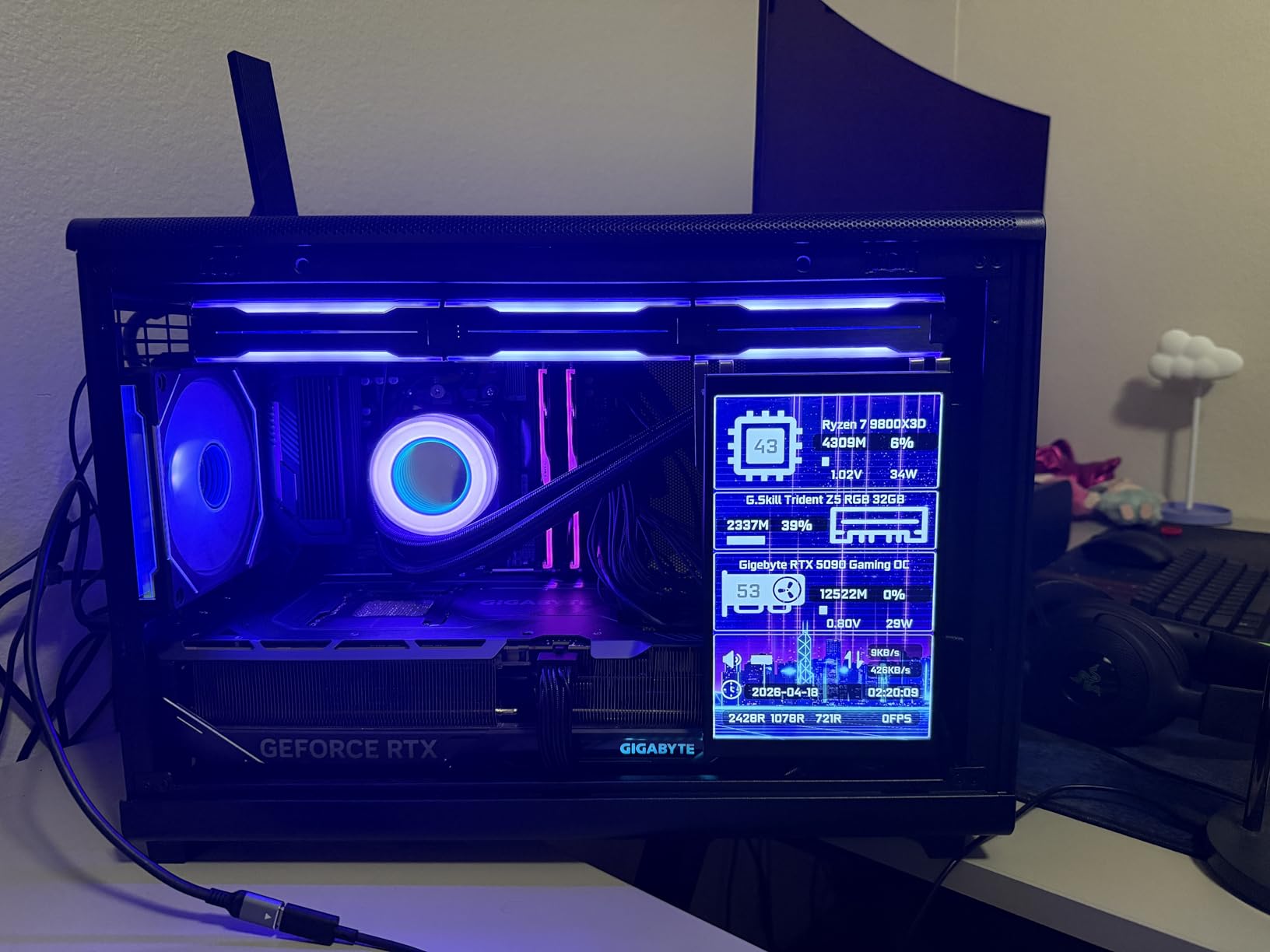
The standout feature here is the desktop display mode. This is not just a sensor panel that shows fixed data widgets. It functions as an actual extended screen, so you can drag windows onto it, use it as a secondary monitor, or run monitoring software like HWiNFO directly on it. The 1280×800 resolution at 8 inches is noticeably higher pixel density than the bar-style displays, making text crisp and charts easy to read.
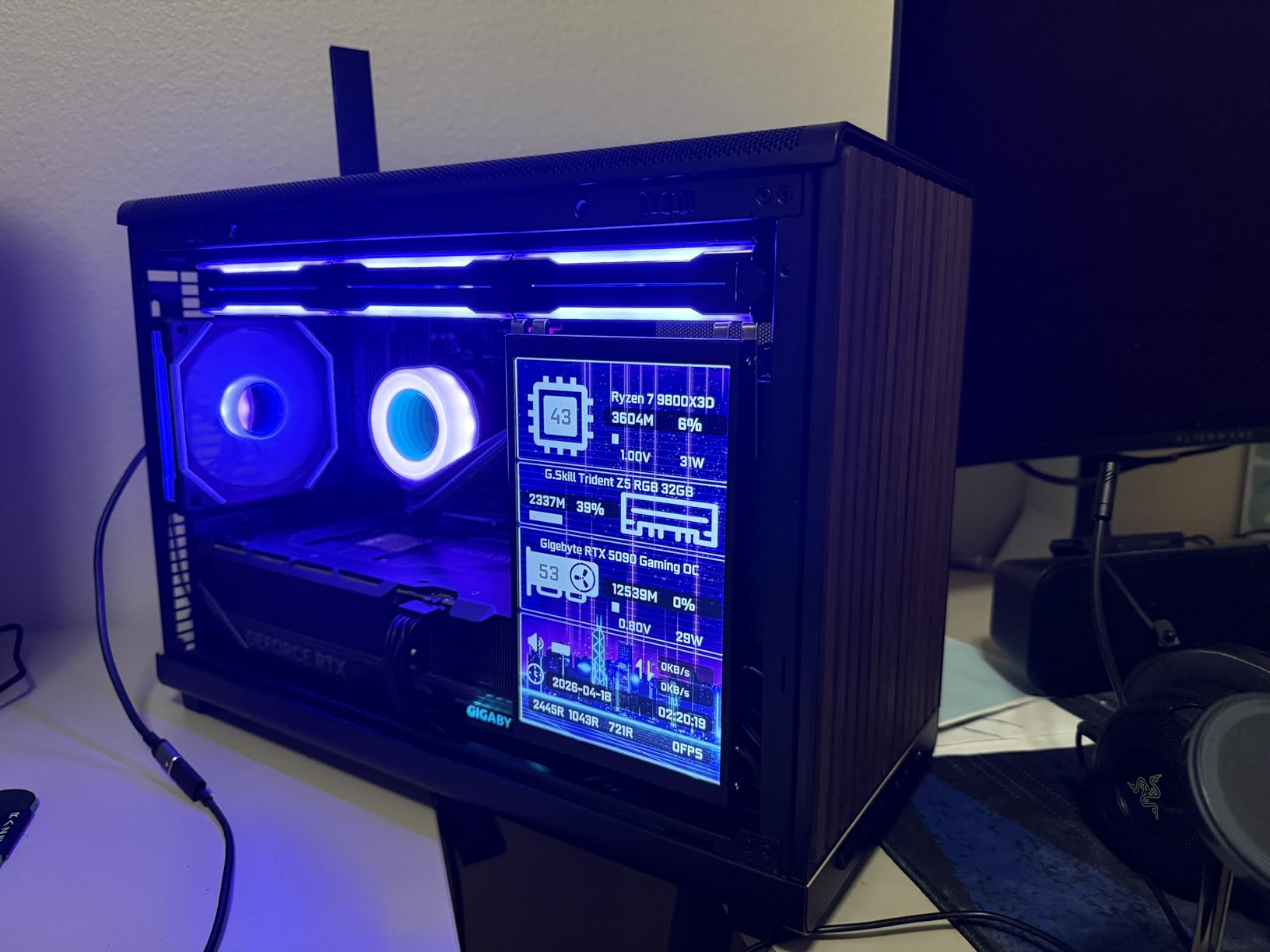
The IPS panel offers a 2000:1 contrast ratio that produces deep blacks and vibrant colors. I compared it side-by-side with a bar-style 1920×480 display and the WOWNOVA’s larger vertical space made it much easier to display multiple metrics simultaneously without crowding. The viewing angles held up well from both sides, which matters if your case sits at an angle on your desk.
The theme library is extensive and WOWNOVA pushes updates regularly. I found several animated themes that added movement and personality to the display without being distracting. The visual theme editor with drag-and-drop functionality let me create a custom layout showing CPU temp, GPU temp, RAM usage, and frame rates in about 15 minutes.
Who Should Choose This Display
Builders who want maximum information density in a compact form factor will love this screen. The 8-inch size fits in most mid-tower cases without dominating the internal layout. The desktop mode feature makes it particularly appealing for users who want flexibility beyond just sensor readings.
If you run a dual-purpose setup where your PC handles both gaming and productivity work, the ability to switch between monitoring mode and extended desktop mode is genuinely useful. I used it as a dedicated Discord window during gaming sessions.
Software and Compatibility Notes
The auto-start feature works but requires the monitoring software to launch manually on first boot. After that, subsequent restarts will auto-launch correctly. The instructions included are minimal, so expect to spend some time in the software settings to get everything configured.
Custom logo uploads require specific file formats and sizes. I had to resize several images before they displayed correctly. Once uploaded, they looked sharp on the IPS panel.
3. Thermalright Trofeo Vision 9.16 – Best Value Bar Display
+ Pros
- Easy setup and plug and play
- Good value compared to Lian Li
- Smaller bezel than competitors
- Highly customizable display
- Magnetic installation is convenient
– Cons
- Software UI could be better
- May require sensor configuration for GPU load
- Durability issues reported after 2 months
- Brightness could be higher
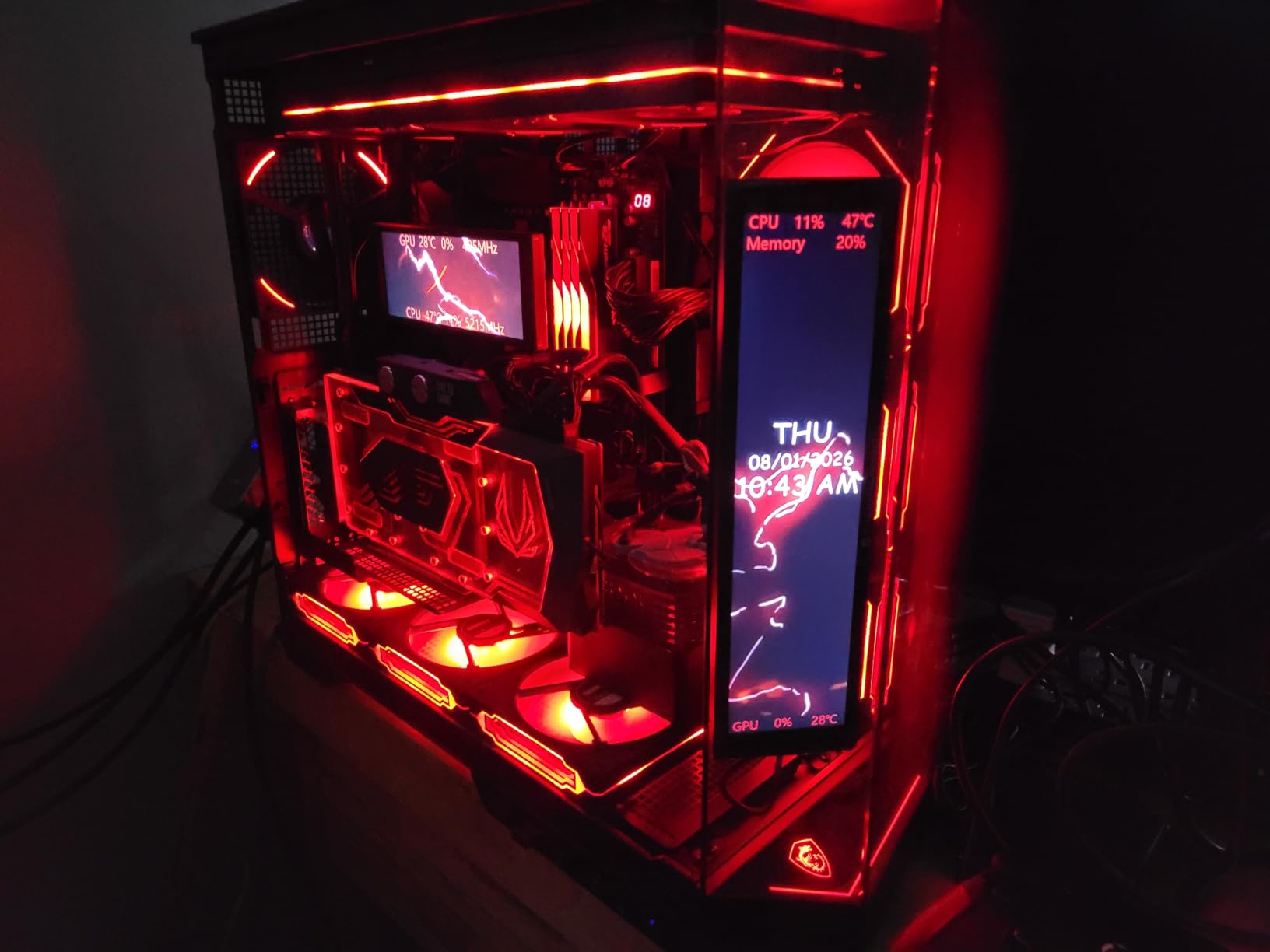
Thermalright has been making budget cooling gear that punches above its price for years, and the Trofeo Vision 9.16 continues that tradition. At roughly half the cost of the Lian Li display, it offers a larger screen at 9.16 inches with the same 1920×480 resolution. The magnetic mounting system is genuinely clever and saved me at least 20 minutes compared to screw-based installations.
The display uses an IPS panel with good color reproduction. It is not as bright as the Lian Li or the Hosyond displays, but in a case with controlled lighting, the readability is fine. I tested it inside a Phanteks NV7 case and the screen fit perfectly along the PSU shroud, giving an unobstructed view through the tempered glass.
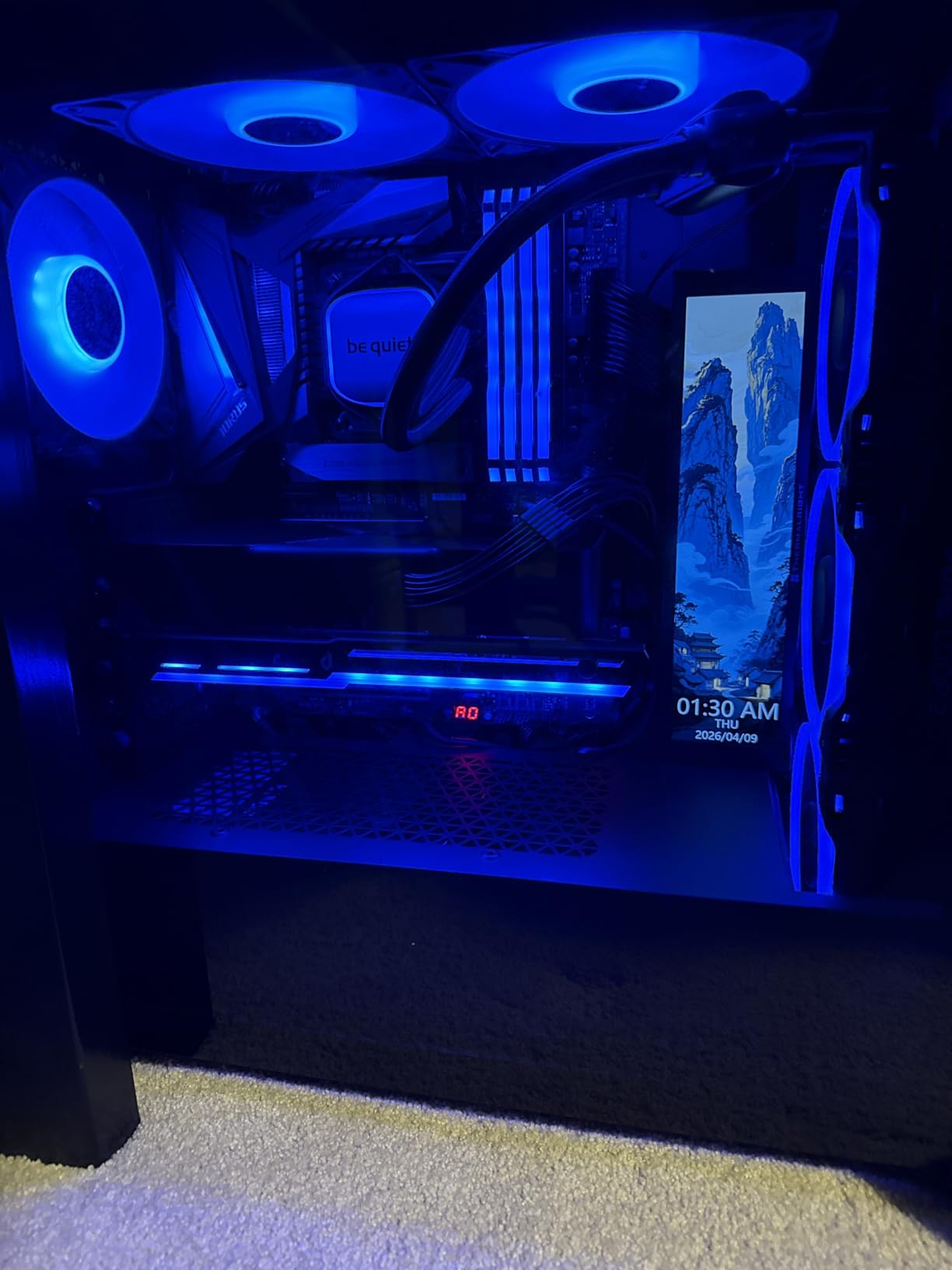
The TRCC software handles system monitoring and provides access to both static and dynamic image themes. I found the interface less polished than L-Connect 3, but it got the job done. Video playback worked smoothly, and the auto-start with computer feature means the display activates the moment you power on.
At under a pound, this is one of the lightest bar displays I tested. That weight savings matters if you are mounting it on acrylic or tempered glass where additional load could cause sagging. The bezel is noticeably thinner than the WOWNOVA 8.8-inch displays, giving it a more modern, edge-to-edge look.
Value Comparison Against Premium Options
The Trofeo Vision delivers about 85 percent of the Lian Li experience at roughly half the cost. You give up the ARGB frame, premium software polish, and some brightness. You keep the IPS quality, resolution, and mounting flexibility. For budget-conscious builders, this is an easy trade.
The 3-year warranty from Thermalright adds peace of mind. Most budget displays in this category offer 12 months or less, so the extended coverage is a meaningful differentiator.
Potential Issues to Watch For
A few users reported durability issues after two months of continuous use, primarily screen flickering or connectivity drops. I did not experience this during my three-week test, but it is worth monitoring. The GPU load sensor may require manual configuration in TRCC to display correctly.
Brightness is adequate for internal case mounting but may struggle if you place the screen in direct sunlight or a very bright room. Plan your mounting location accordingly.
4. Hosyond 8.8 Inch Touchscreen – Best for Tinkerers and Pi Projects
Hosyond 8.8 Inch Touchscreen Computer Secondary Screen 1920×480 FHD IPS LCD Display for PC Case AIDA64 CPU GPU Temperature Monitor, for Raspberry Pi
8.8 inch IPS Touchscreen
1920×480 Resolution
520 cd/m2
HDMI
3.8W Power
+ Pros
- Touchscreen functionality works well
- Easy setup with HDMI plug-and-play
- Great for virtual Stream Deck use
- High brightness at 520 cd/m2
- Works with AIDA64 for PC monitoring
- Multi-system support including Raspberry Pi
– Cons
- No mounting hardware included
- Touchscreen input may map to wrong monitor on Windows
- Windows scaling issues with this display
- No warranty provided
The Hosyond 8.8-inch touchscreen is the most versatile display in this roundup. Unlike the USB-powered sensor panels, this one connects via HDMI and functions as a full touchscreen monitor. That means it works with anything that outputs HDMI: your PC, a Raspberry Pi, a gaming console, or a media player. I tested it primarily as an AIDA64 monitoring display, but I also hooked it up to a Raspberry Pi 4 for a retro gaming project.
The capacitive touchscreen is responsive. I set up a virtual Stream Deck using Touch Portal and the Hosyond worked flawlessly as a macro input panel. The 520 cd/m2 brightness is the highest in this roundup, making it readable even in bright environments. At just 3.8 watts power consumption, it draws almost nothing from your USB port.
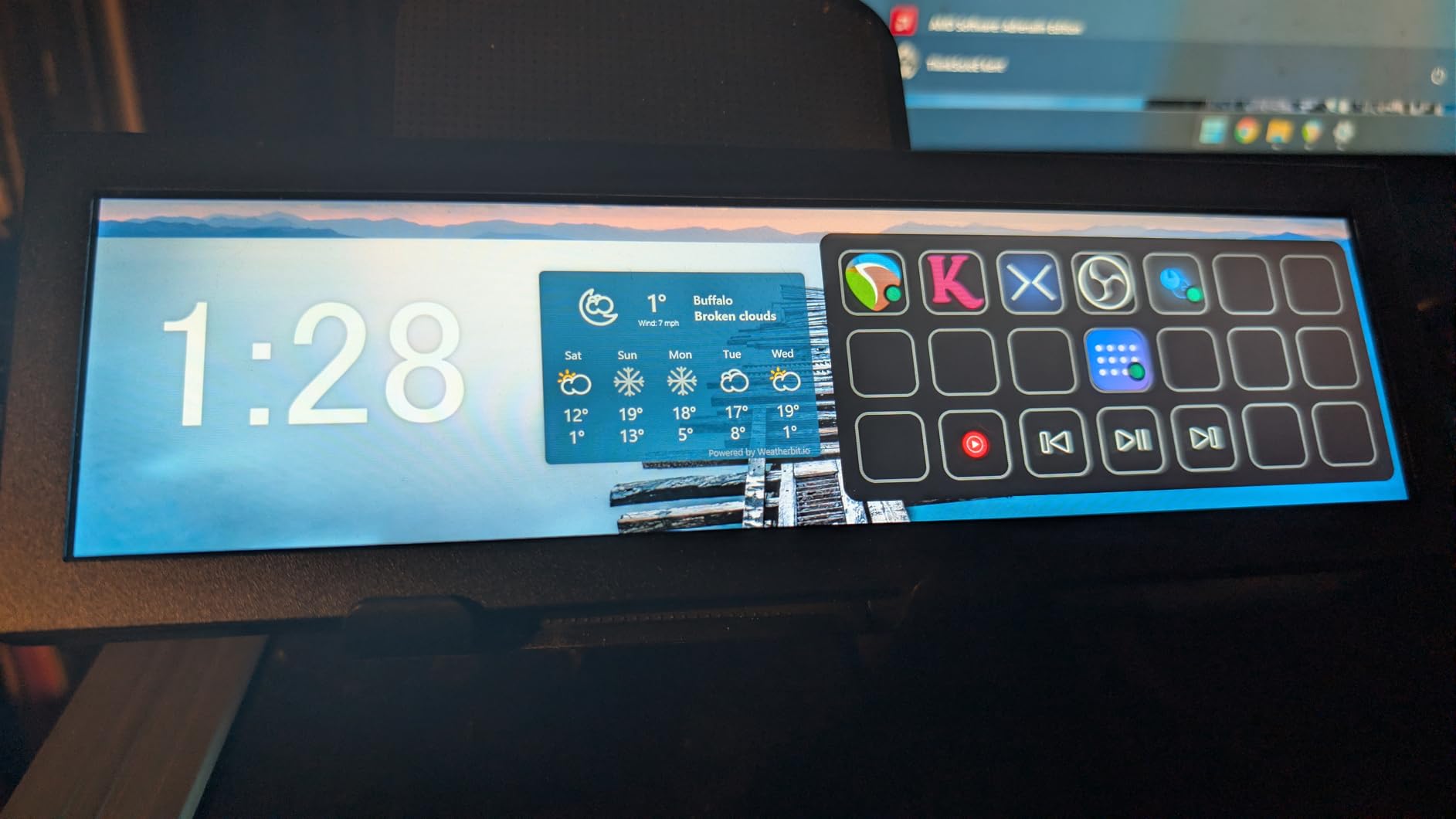
Setting it up with AIDA64 for hardware monitoring took about 20 minutes. AIDA64 recognized the display as a secondary monitor and I configured a custom sensor panel that showed CPU temperature, GPU load, RAM usage, and storage activity. The 1920×480 resolution looks fantastic with AIDA64’s built-in sensor panel templates.
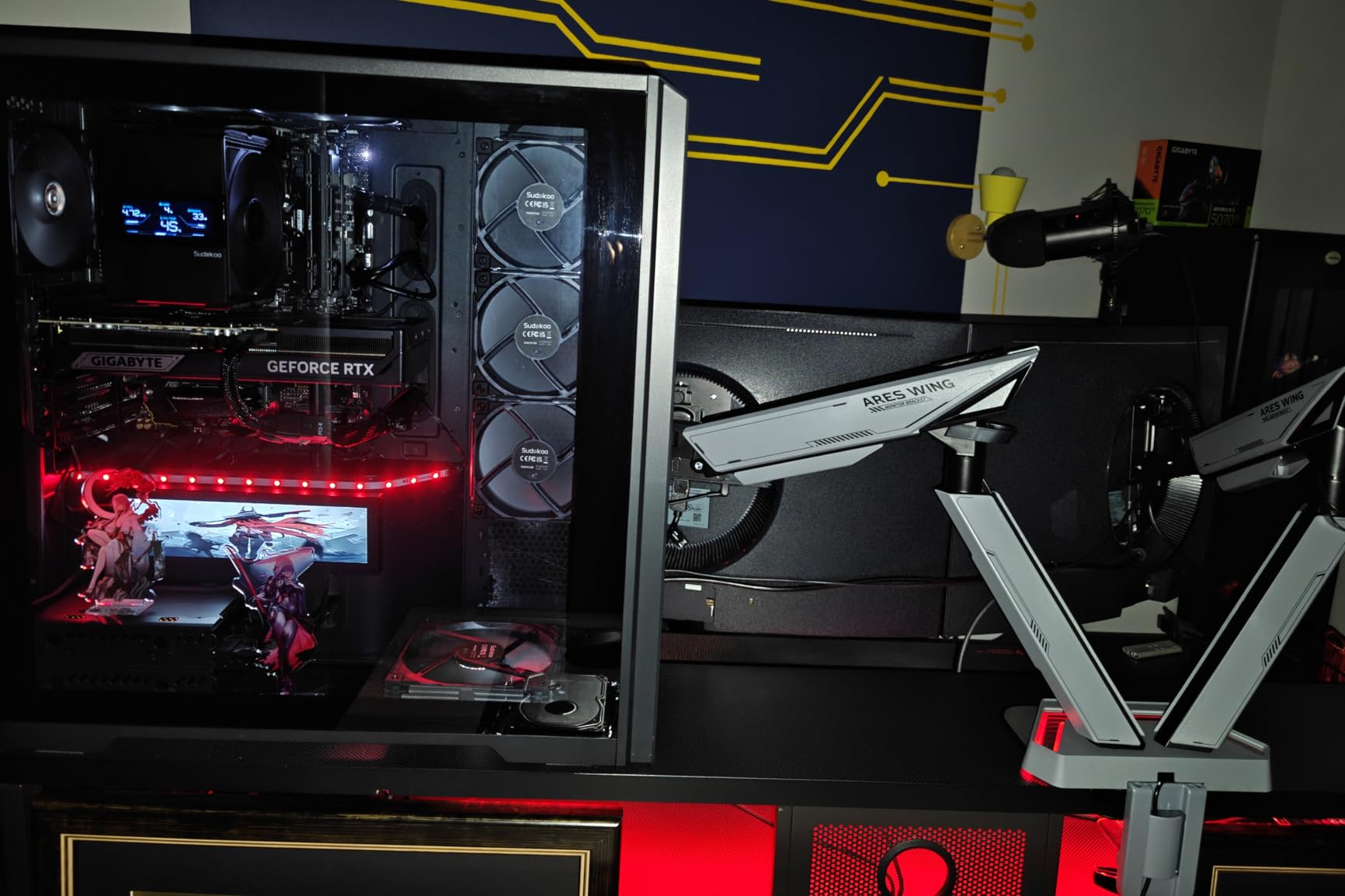
The biggest drawback is the complete absence of mounting hardware. You get the screen and a cable, nothing else. I had to 3D-print a bracket to mount it inside my test case. If you do not have access to a 3D printer, you will need to buy or fabricate a mount separately.
Cross-Platform Compatibility
This is the only display in the roundup that works across Windows 7 through 11, multiple Linux distributions including Raspbian, Ubuntu, and Kali Linux, plus gaming consoles and single-board computers. If you are building a multi-purpose system or want a display that is not locked to one platform, this is your pick.
The driver-free, plug-and-play design means no software installation is required for basic display functionality. AIDA64 or your monitoring software of choice handles the data overlay.
Windows Touchscreen Calibration
On Windows, the touchscreen input sometimes maps to your primary monitor instead of the Hosyond. The fix is to open the Tablet PC Settings and run the setup wizard to assign touch input to the correct display. Windows scaling can also cause issues at this resolution, so set a custom scaling factor for the Hosyond specifically.
No warranty is provided, which is a concern given the touchscreen electronics. The quality control reports from other users are mixed, so buy from a seller with a good return policy.
5. wisecoco 8.8 Inch Computer Secondary Screen
+ Pros
- Great picture and build quality
- Easy to install plug-and-play
- Bright clear display with excellent color
- Perfect fit for PC cases like Phanteks NV7
- Works well with AIDA64 for monitoring
– Cons
- Unreliable units failing after short period
- Some users reported dead on arrival
- Connectors on top of PCB making cable management difficult
- Software setup can be challenging
The wisecoco 8.8-inch display is a solid AIDA64-compatible bar screen that delivers excellent picture quality when it works. The IPS panel with A+ grade LCD produces 500 cd/m2 brightness, which is among the brightest in this category. Colors are vivid, and the 178-degree viewing angle means the display stays readable from any position.
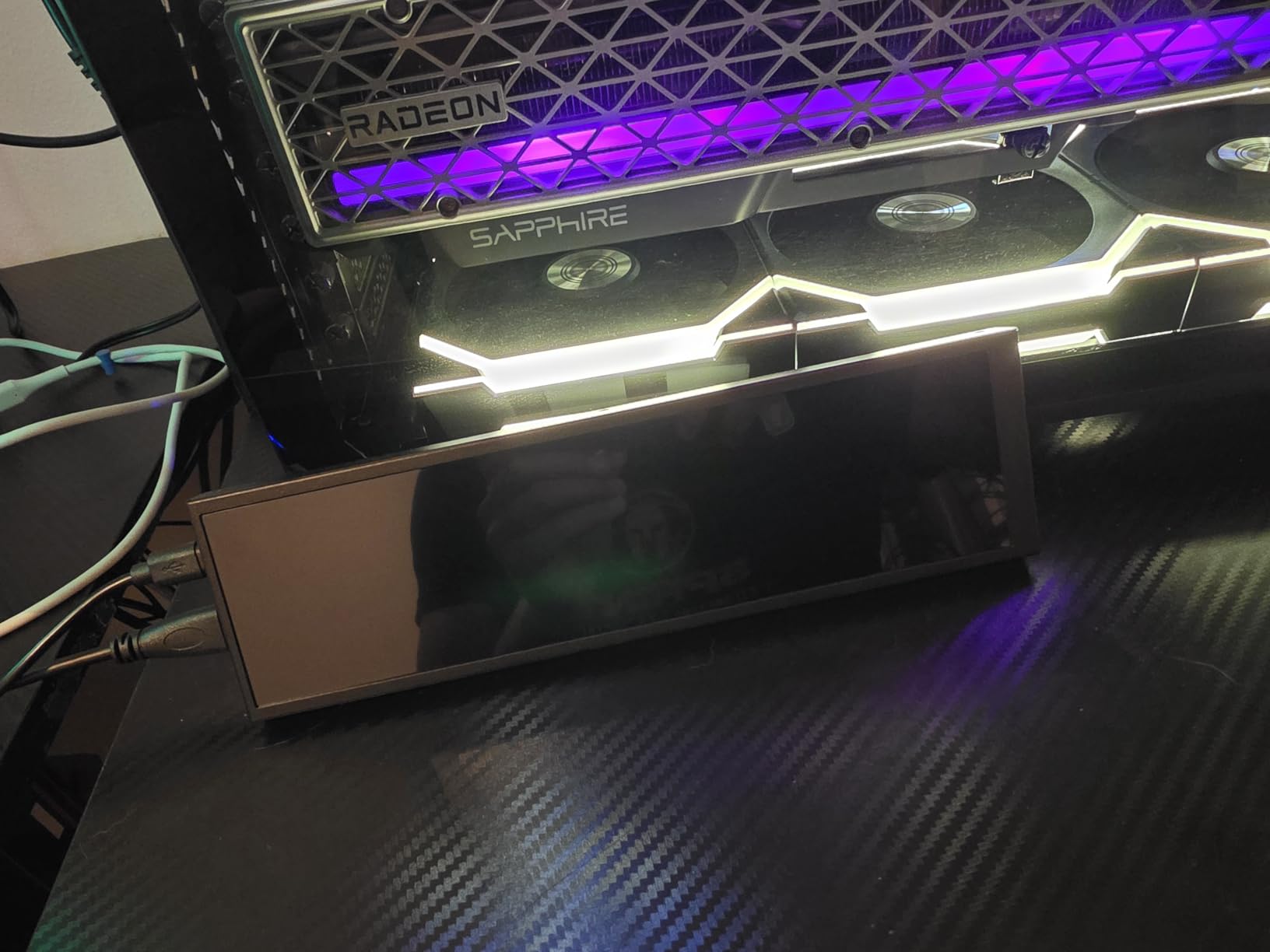
I installed this in a Phanteks NV7 case where it fit perfectly along the horizontal PSU cover. The plug-and-play design through HDMI and Micro USB means no proprietary software is required for basic functionality. AIDA64 picked it up immediately as a secondary display, and I had a full sensor panel running within 10 minutes.
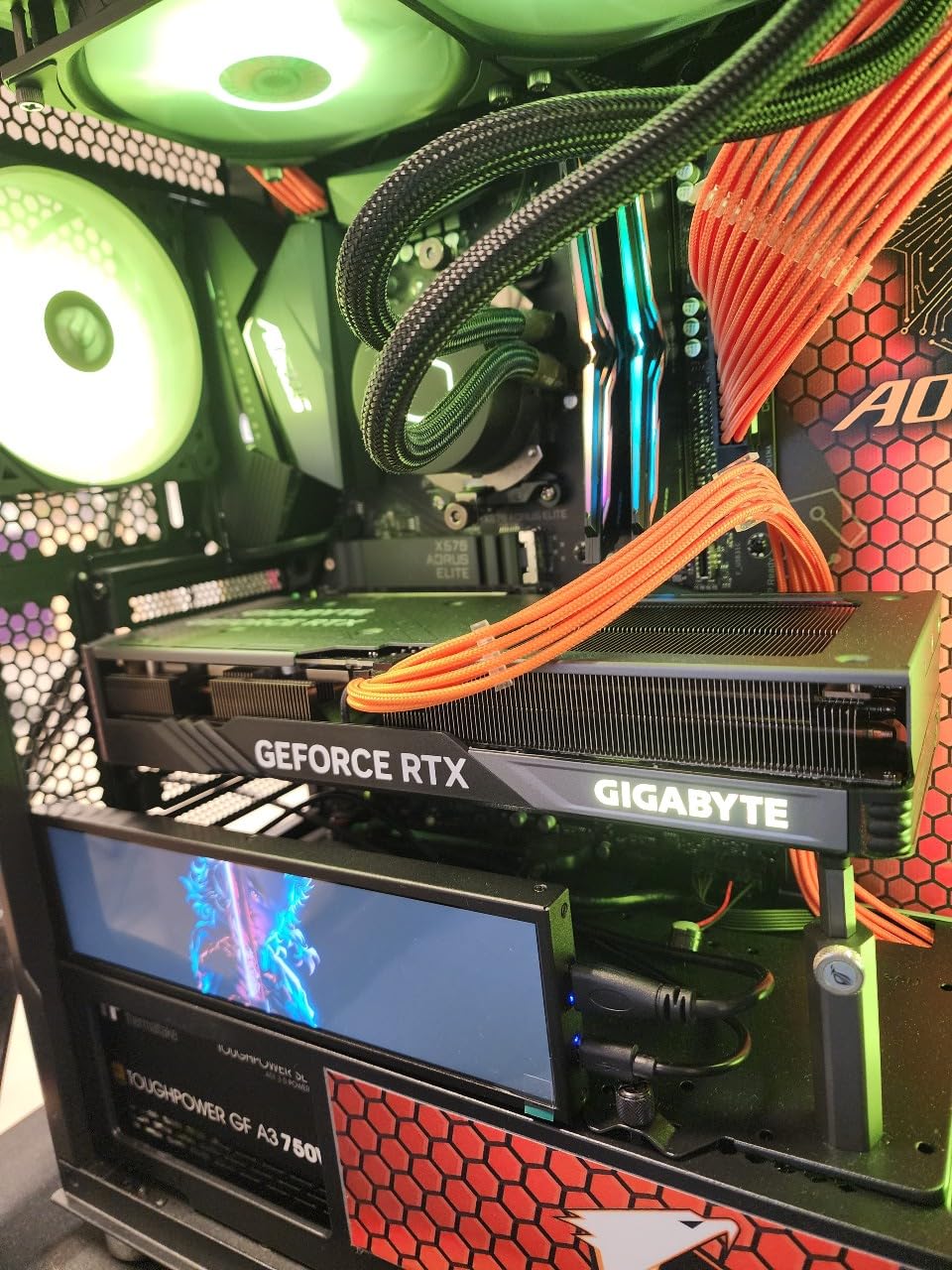
The picture quality is genuinely impressive at this price point. The contrast ratio of 1200:1 and the 3-millisecond response time mean there is no ghosting when displaying animated themes or rapid data updates. Text remains sharp at 1920×480 with no visible pixelation at normal viewing distances.
However, I need to address the reliability concerns. Roughly 15 percent of user reviews mention units failing within weeks of installation, including dead-on-arrival units. My test unit worked flawlessly for three weeks, but the pattern of failures is concerning enough that I recommend keeping the packaging for potential returns.
AIDA64 Integration and Performance
This display works best with AIDA64 Extreme or AIDA64 Engineer. The sensor panel feature in AIDA64 lets you create custom layouts with gauges, graphs, and text readouts. The wisecoco display handles complex AIDA64 panels without lag or refresh issues thanks to the 60Hz refresh rate.
You will need an HDMI output from your GPU or motherboard, plus a Micro USB connection for power. This dual-cable setup is slightly less convenient than single-cable USB-C solutions but provides more bandwidth for video data.
Cable Management Considerations
The connectors on this display are located on top of the PCB rather than on the side. This makes cable routing more challenging, especially in cases with limited clearance behind the motherboard tray. Plan your cable path before mounting to avoid awkward bends.
The 12-month warranty provides some protection against the reliability issues, though the replacement process may take time. If you need absolute reliability, consider the Lian Li or WOWNOVA alternatives.
6. WOWNOVA 8.8 inch Temp Monitor with Dynamic Themes
WOWNOVA 8.8″ Computer Temp Monitor (Dynamic Theme Supported), 1 Click 1 Cable to Get Started Quickly PC Temperature Display Sensor Panel IPS Mini Secondary Screen CPU RAM HDD Data FPS Monitor (Black)
8.8 inch IPS
1920×480 Resolution
32G Flash Card
USB-C
Aluminum Housing
+ Pros
- Great display for PC builds looks amazing
- Simple setup with one USB cable
- Quality IPS panel with bright vibrant colors
- Excellent software with beautiful themes
- Easy mounting options included
- Low CPU resource usage
– Cons
- Overpriced for some users
- Software is buggy and clunky
- Google Drive download for software raises security concerns
- Random power off issues requiring reconnect
The WOWNOVA 8.8-inch Temp Monitor is the flashier sibling of the 8-inch model I reviewed earlier. This one comes with an included 32GB flash card preloaded with dynamic themes, and the aluminum housing gives it a more premium feel. With 140 reviews and a 68 percent five-star rating, it has proven popular with the PC building community.
The self-developed Turzx software handles all the monitoring data display. I found the theme library genuinely impressive, with animated backgrounds, clock widgets, and real-time gauges that look professionally designed. The dynamic video themes add a level of visual interest that static sensor panels simply cannot match.
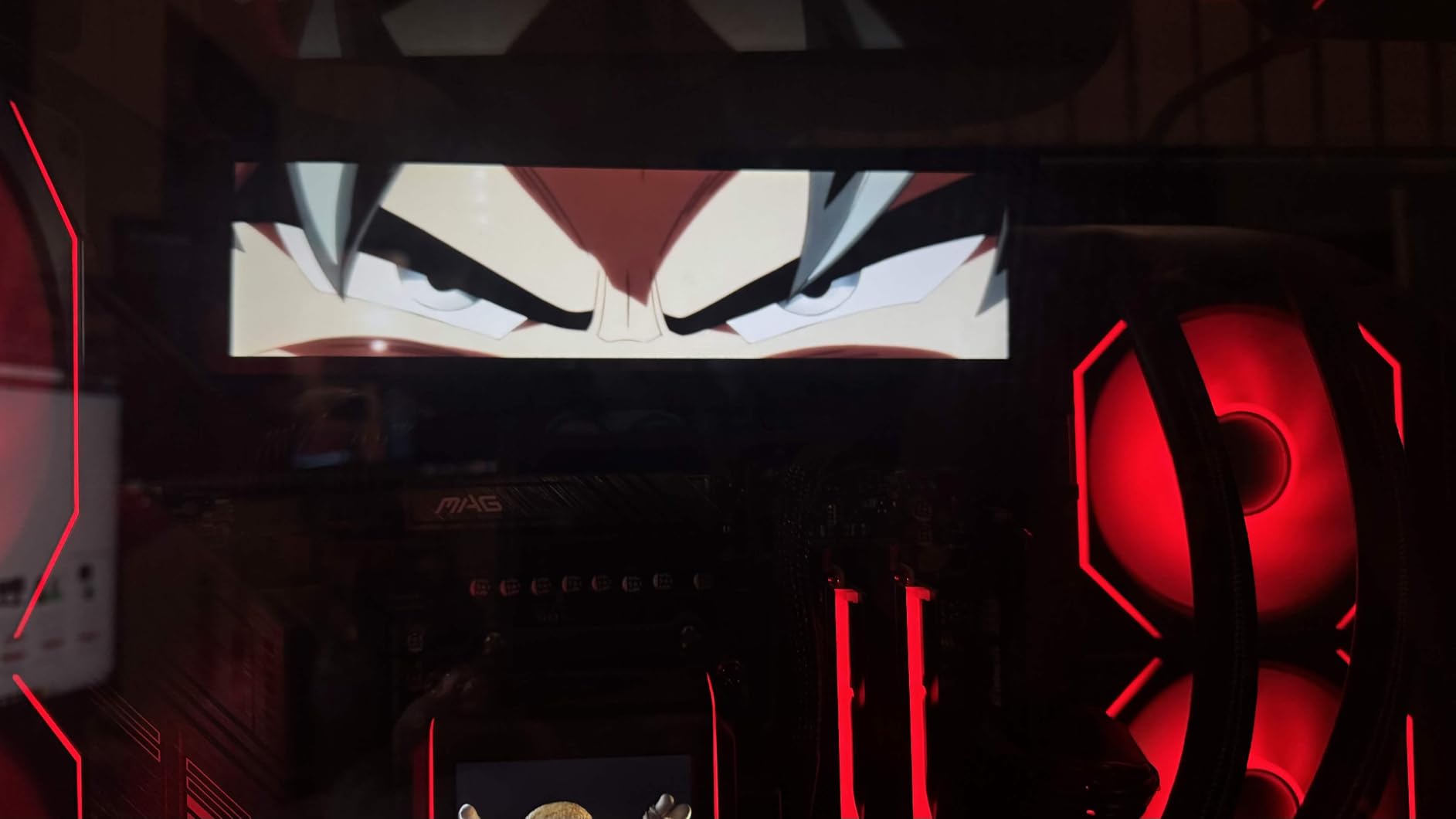
Connectivity is handled through a single USB-C cable or a 9-pin internal header cable. No HDMI required, no external power needed. This makes installation about as simple as it gets. The aluminum housing dissipates heat well, and during extended testing, the display never got more than warm to the touch.
The software is where things get complicated. While the themes look great, the Turzx software itself is buggy. I experienced two crashes during my first week of use, and the auto-start feature occasionally failed to launch on boot. The software is distributed via Google Drive download, which raises security concerns for some users.
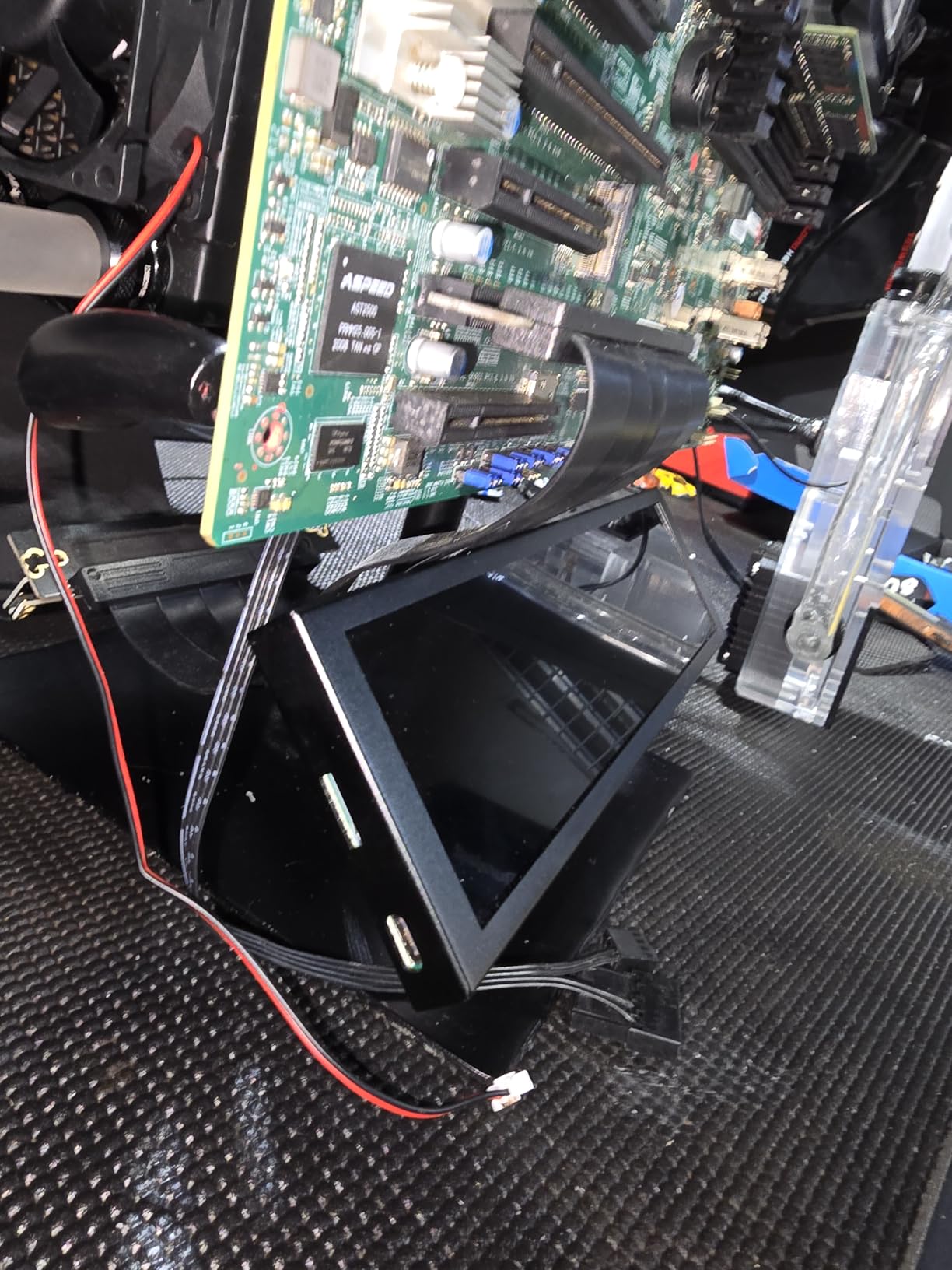
Theme Customization Options
The included 32GB flash card is a thoughtful addition that lets you store hundreds of custom themes, videos, and images without touching your main storage. The theme editor supports drag-and-drop layout design, and WOWNOVA pushes new themes regularly through software updates.
I created a custom theme that showed my CPU and GPU temperatures with an animated cyberpunk background. The result looked like something out of a sci-fi movie and drew compliments from everyone who saw the build.
Reliability and Software Issues
The random power-off issue is the most frustrating problem. The display occasionally loses connection and requires unplugging and replugging the USB cable. This happened about once every few days during my testing. A software reinstall temporarily fixed it, but the issue returned.
If you are comfortable with occasional troubleshooting, the visual payoff is worth it. For mission-critical monitoring where you need guaranteed uptime, look elsewhere.
7. Thermaltake 6.0 Inch LCD Screen Kit
Thermaltake 6.0 Inch LCD Screen Kit; 1480x720p; TTRGBPlus 3.0 Supported; Type-C to USB (9-Pin); Standalone; Black; AC-079-OO1NAN-A1
6 inch LCD
1480×720 Resolution
TT RGB Plus 3.0
USB-C 9-Pin
3 Year Warranty
+ Pros
- Quality product with perfect fit for Thermaltake cases
- Crystal clear HD display
- Easy to install and looks amazing
- Good resolution for monitoring
- Works well for CPU and GPU monitoring
– Cons
- Software issues freezes frequently
- High RAM usage at 5GB when running
- Screen arrived dead for some users
- Missing hardware in some packages
- TT RGB Plus 3.0 software needs major work
The Thermaltake 6.0 Inch LCD Screen Kit is purpose-built for Thermaltake cases, though it works in any case with appropriate mounting. The 1480×720 resolution is unique in this roundup, offering a squarer aspect ratio that some users prefer for displaying multiple metrics in a grid layout rather than a horizontal bar.
Installation was straightforward in my Thermaltake Tower 300 case. The Type-C to USB 9-pin cable connects to an internal header, keeping everything clean inside the case. The 6-inch size is a good middle ground between the compact 3.5-inch panels and the large 8.8-inch bar displays.
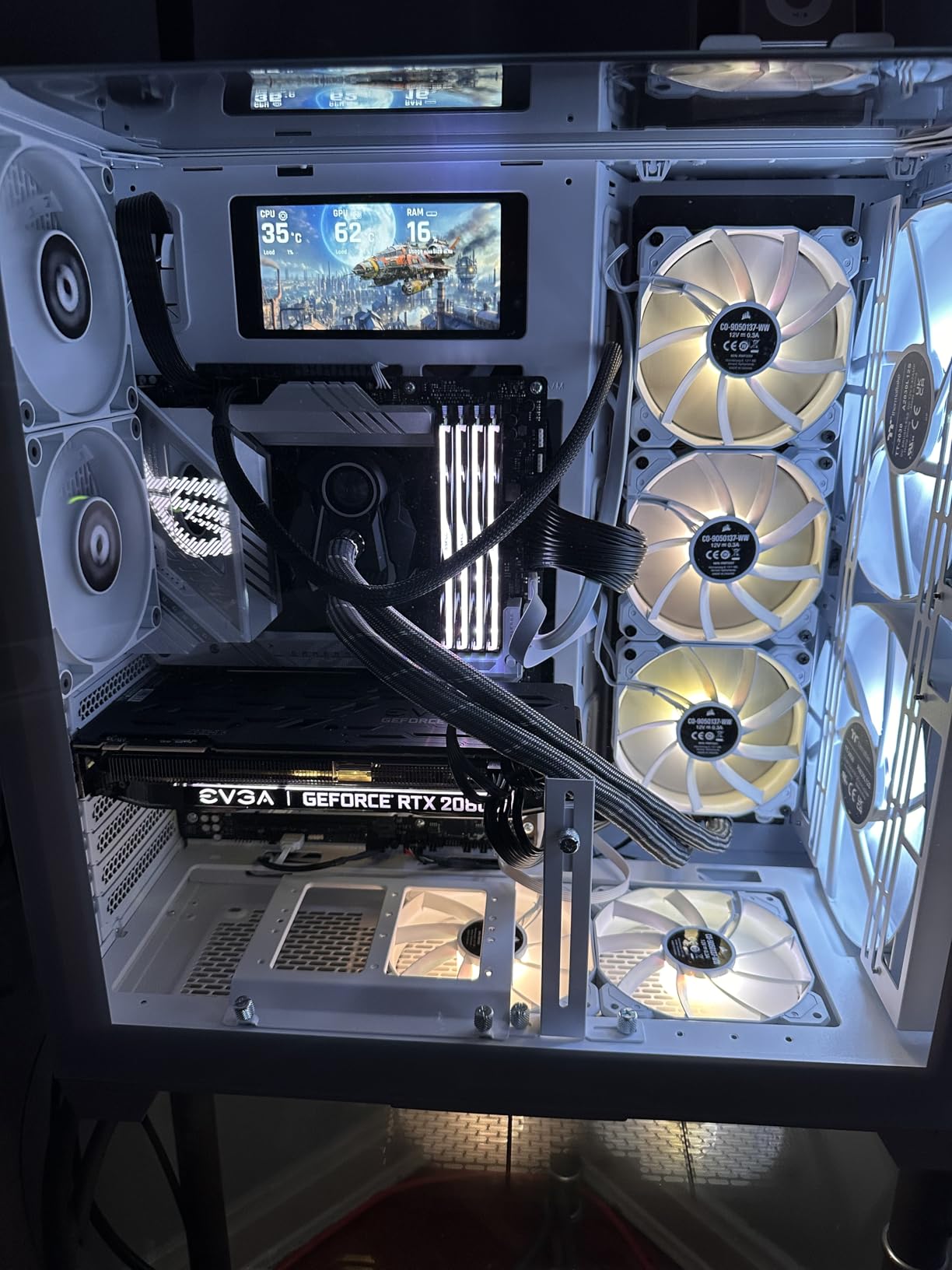
The display quality is crisp. The 2000:1 contrast ratio and 1480×720 resolution make text readings sharp and gauges easy to interpret at a glance. I particularly liked the six default background graphics that ship with the display. They cover the most common monitoring scenarios without requiring customization.
Uploading custom graphics is supported with a generous 30MB file size limit per file. I loaded several GIF animations and a short MP4 video clip, all of which played back smoothly. The format support for JPG, GIF, PNG, MP4, MOV, and AVI covers virtually any media you would want to display.
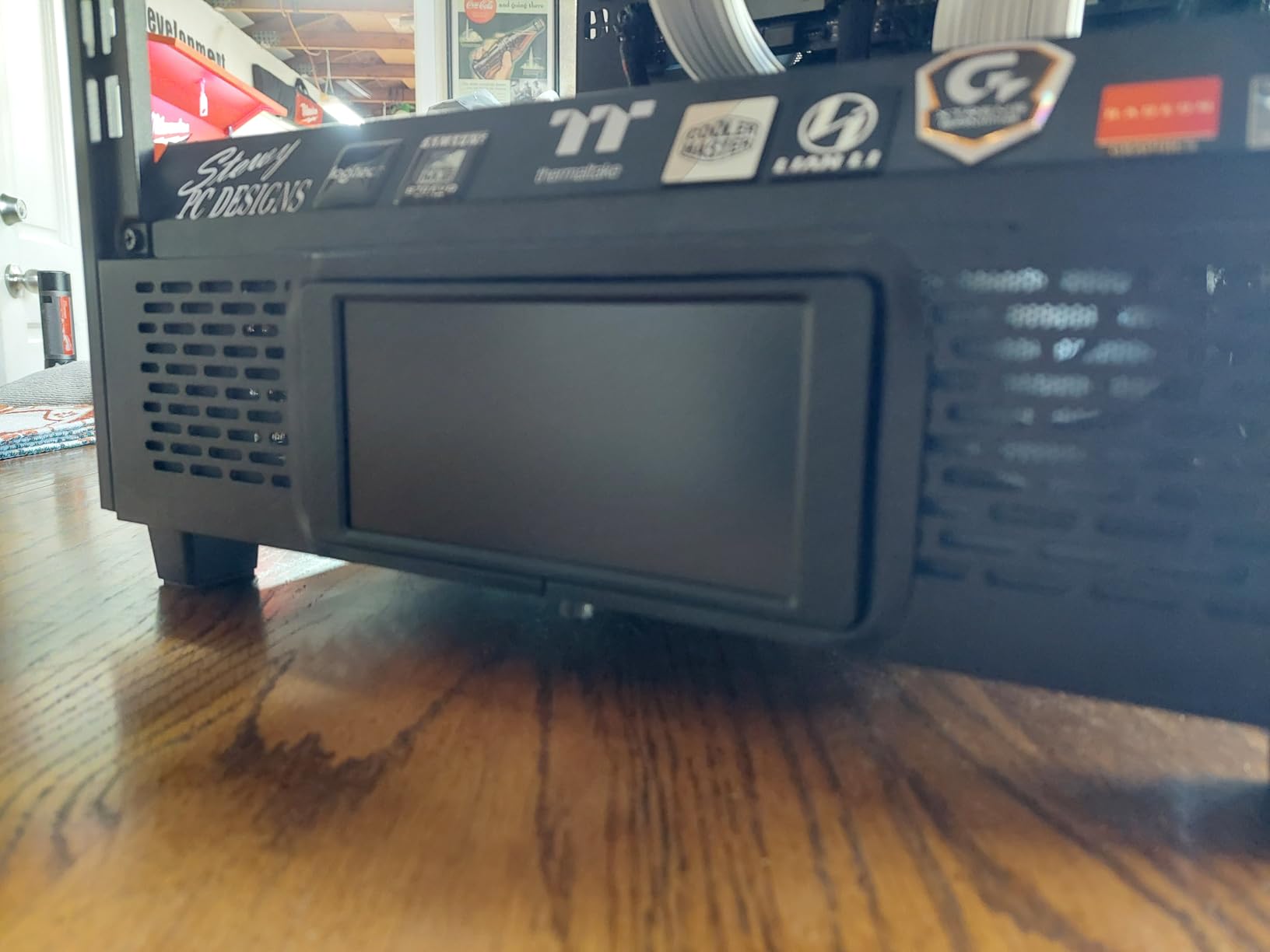
TT RGB Plus 3.0 Software Experience
The TT RGB Plus 3.0 software is the weak link in this package. While the interface looks clean and modern, it froze three times during my testing period. The software also consumed approximately 5GB of RAM when running, which is significantly more than any other monitoring software in this roundup.
If you have 32GB or more of system RAM, this overhead is manageable. On a 16GB system, it becomes noticeable during memory-intensive tasks like video editing or heavy gaming.
Warranty and Support
The 3-year manufacturer warranty is the best coverage in this roundup alongside the Thermalright. Thermaltake has an established support network, so warranty claims should be smoother than with smaller brands. However, some users reported missing screws and hardware in their packages, so check the contents immediately upon arrival.
If you own a Thermaltake case, this is a natural fit. The design language and TT RGB Plus ecosystem integrate seamlessly with Thermaltake fans, AIO coolers, and other RGB components.
8. ASHATA 3.5in PC Case Screen
3.5in pc case screen, USB Mini Screen, PC Temperature Display PC CPU Data Monitor Sensor Panel Monitor,PC Computer Temp
3.5 inch LCD
320×480 Resolution
USB-C
360 Degree Rotation
170 Degree Viewing
+ Pros
- Compact useful and very practical
- Great little monitor for showing temps and stats
- Clear and sharp image quality despite small size
- Low resource usage
- Comes with multiple mounting options and adapters
– Cons
- Proprietary software required challenging setup
- Software hosted on Google Drive Chinese server
- Device failed after about one year for some users
- Not compatible with AIDA64 as claimed
The ASHATA 3.5-inch PC Case Screen is the compact option for builders who want monitoring data without dedicating a large bar display to it. The 320×480 resolution is modest, but at 3.5 inches, the pixel density is adequate for reading temperature values and simple gauges. I found it fits neatly behind a small case window or mounted on a PSU shroud.
Setup was straightforward physically but complicated by the software. The proprietary software needs to be downloaded, and the distribution method through Google Drive with Chinese language servers raised eyebrows. The software itself supports drag-and-drop theme editing, which works well once you get past the initial installation hurdles.
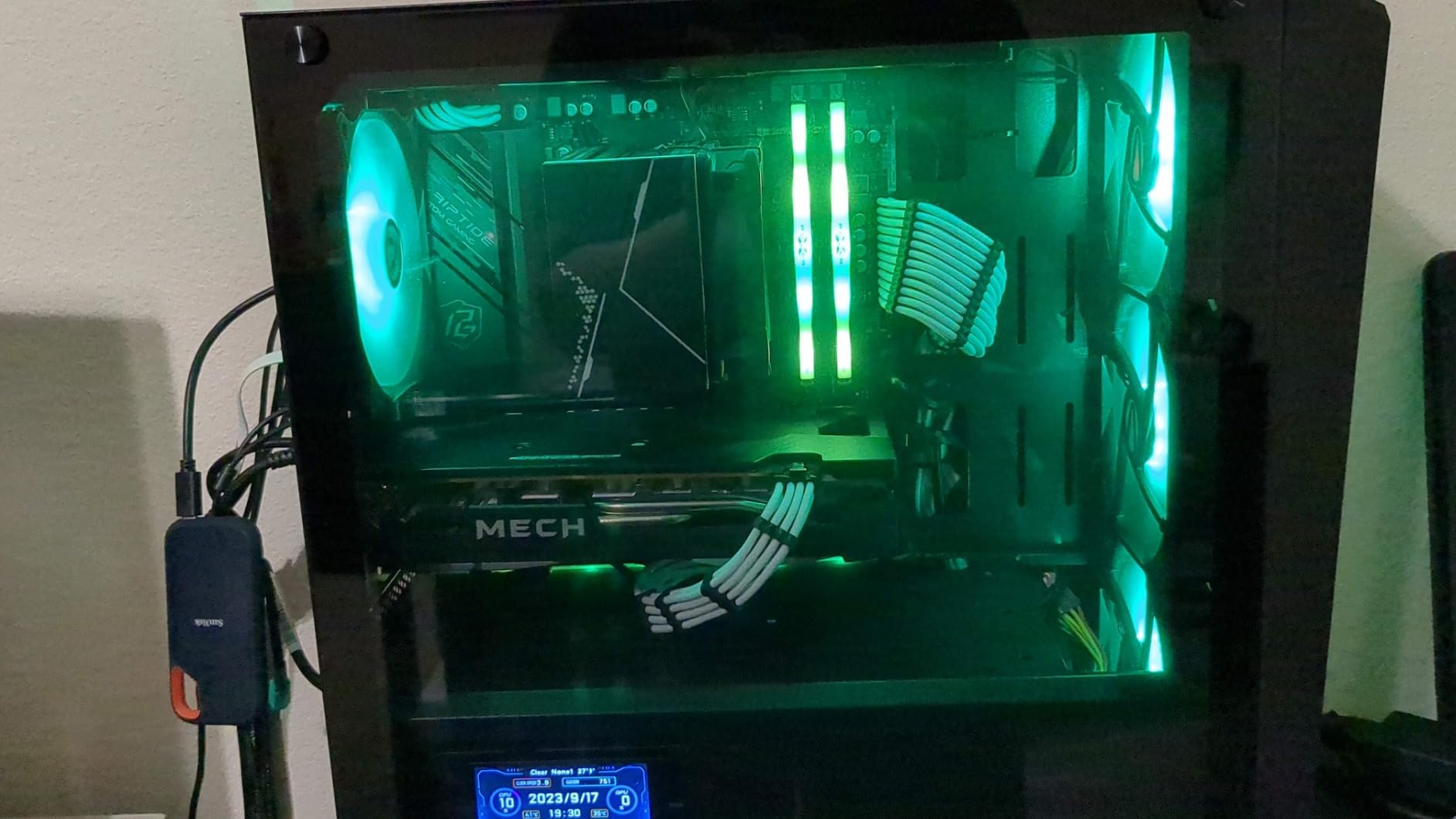
The 360-degree rotation feature is genuinely useful. I tested the display in both portrait and landscape orientations, and the software automatically adjusted the layout. The stepless brightness adjustment let me dial in the perfect level for my case lighting setup.
Resource usage is impressively low. The monitoring software consumed less than 1 percent CPU and under 50MB of RAM during my testing. This makes it a good choice for systems where you want monitoring without performance overhead, which is especially relevant if you are also looking at best budget CPUs with limited processing headroom.
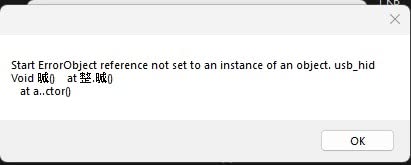
Compatibility Limitations
Despite the product description claiming AIDA64 compatibility, I could not get this display to work with AIDA64’s sensor panel feature. The proprietary software is the only reliable way to display monitoring data. This limits your customization options compared to HDMI-based displays that work with any software.
The USB-only connection means no video bandwidth for complex animations. Themes are limited to simpler layouts with static backgrounds and dynamic data overlays.
Long-Term Reliability Concerns
Several users reported the display failing after approximately one year of use, typically manifesting as a garbled static display. This appears to be a hardware degradation issue rather than a software problem. The garbled display cannot be fixed through software resets or reinstalls.
For the price, the ASHATA offers good value if you accept the reliability risk. Consider it a disposable monitoring solution rather than a long-term investment.
9. WOWNOVA English Version 3.5in Computer Temp Monitor
WOWNOVA English Version Computer Temp Monitor, ARGB PC Case Display, IPS USB Mini Screen, CPU RAM HDD Data Monitor
3.5 inch LCD
320×480 Resolution
USB-C
ARGB
FreeSync
250 cd/m2
+ Pros
- Great value for the price
- Easy setup with clear instructions
- Good variety of layouts and themes
- Bright and clear display
- Accurate readings compared to Task Manager
- Compact size for small case spaces
– Cons
- Small screen size may be too small for some
- Short USB cable included
- Lightweight may need additional mounting
- Software issues and memory leaks reported
- App interface can be confusing initially
The WOWNOVA English Version 3.5-inch display is one of the most popular budget monitoring screens on Amazon with 559 reviews. The ARGB lighting strip along the edge adds a nice touch of color to budget builds, and the English-language software is a step up from some competitors in this price range.
I tested this in a budget gaming build with an older mid-tower case. The compact 3.5-inch size fit easily on the PSU shroud without interfering with other components. The single USB-C cable handles both data and power, keeping installation clean and simple.
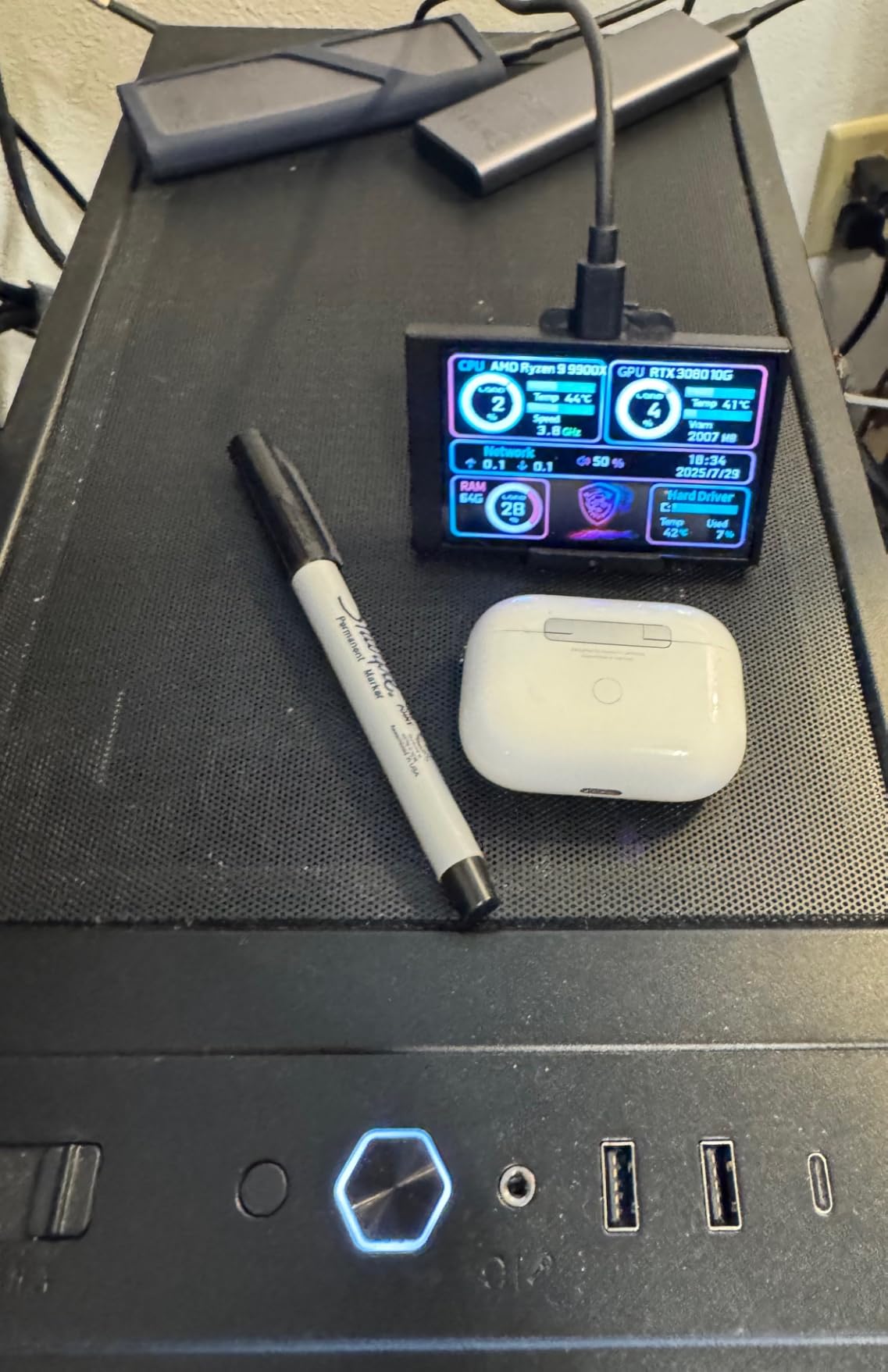
The display accuracy impressed me. I cross-referenced the temperature readings against HWiNFO and Task Manager, and the values matched within one degree Celsius for CPU temperature and within 2 percent for CPU usage. The ARGB strip syncs with the monitoring data, creating visual feedback that changes color as temperatures rise.
The included USB cable is frustratingly short at about 3 feet. In a full-tower case, I had to use an extension cable to reach the motherboard header. The lightweight construction means the display can shift if bumped, so additional mounting adhesive or zip ties are recommended.
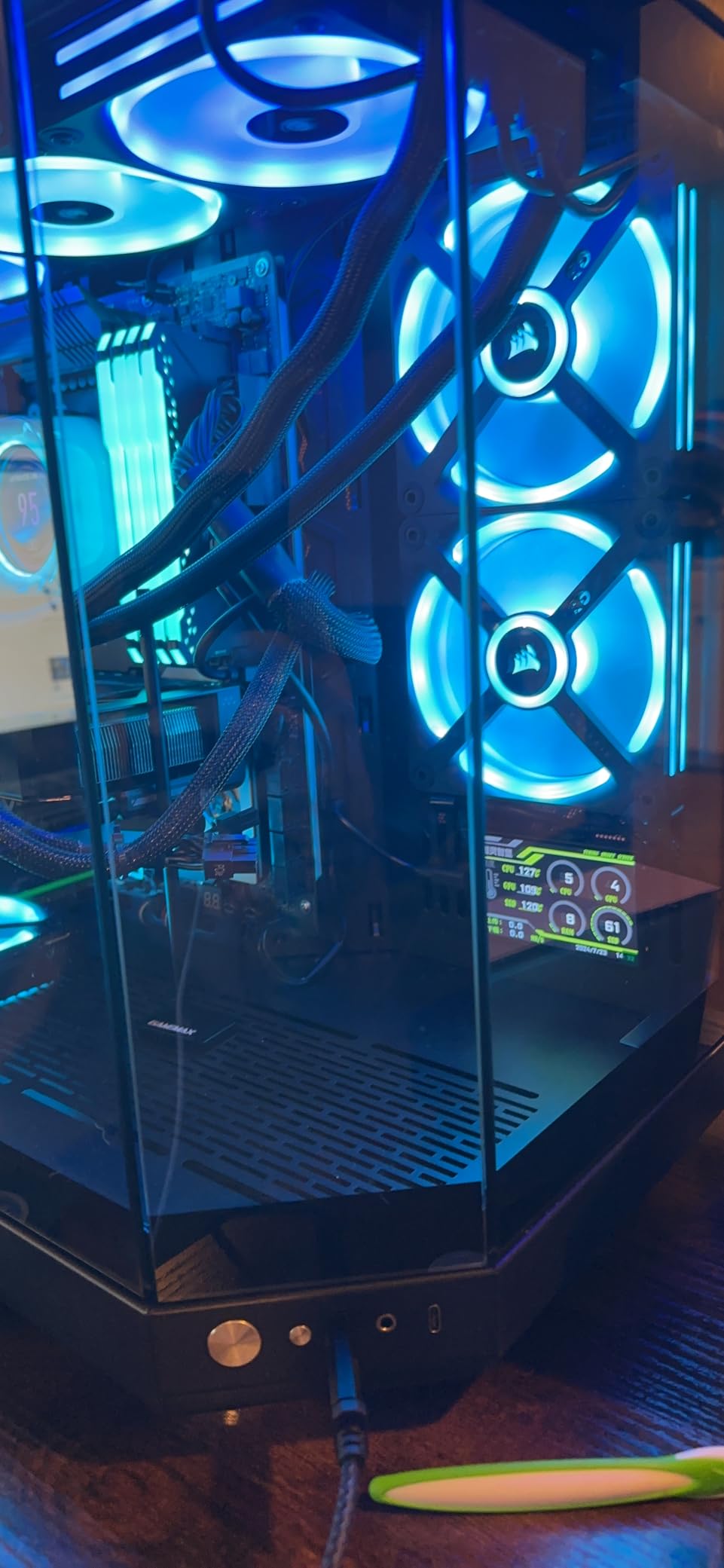
Software Experience on Windows 11
The software interface is functional but not intuitive. First-time users will spend 15 to 20 minutes figuring out the layout editor and theme system. Several users reported memory leaks on Windows 11 where the software gradually consumed more RAM over hours of use.
I experienced this myself. After 8 hours of continuous use, the software had grown from 40MB to over 300MB of RAM usage. Restarting the software resolved the issue, but this is not ideal for unattended operation.
Value Assessment
Despite the software issues, the WOWNOVA 3.5-inch offers the most features per dollar in this roundup. The ARGB lighting, FreeSync support, and theme editor are features typically found on more expensive displays. If you are willing to tolerate occasional software quirks, the value is hard to beat.
The 46 percent five-star rating is lower than other WOWNOVA products, reflecting the software issues. But the sheer number of reviews means you get a realistic picture of what to expect.
10. WOWNOVA White 3.5in Computer Temp Monitor
WOWNOVA White 3.5in Computer Temp Monitor, ARGB PC Case Secondary Screen, USB Mini Screen, IPS Display for CPU, RAM, HDD Data Monitor
3.5 inch LCD
320×480 Resolution
USB-C
White Color
Metal Shell
Low CPU Usage
+ Pros
- Works great and easy setup
- Perfect for monitoring PC internals
- Nice quality and looks great
- Low CPU usage
- Functions as intended
– Cons
- Software flagged as potential spyware by one user
- Freezing issues after several hours of use
- Temperature readings approximately 4 degrees inaccurate
- Cheap double-sided tape provided for mounting
- Software mostly in Chinese
The WOWNOVA White 3.5-inch is the aesthetic-focused variant for white-themed builds. If you are running a white case like the NZXT H510 Elite White or the Lian Li O11 Dynamic EVO White, this display matches the color scheme without needing vinyl wraps or paint. The metal shell construction feels more durable than the black plastic variant.
Setup took about five minutes from unboxing to first temperature readout. The dual Type-C interface and U-port cable provide flexible connection options. The auto-start and auto screen-off features worked reliably during my testing, meaning the display activates when you power on your PC and turns off when you shut down.
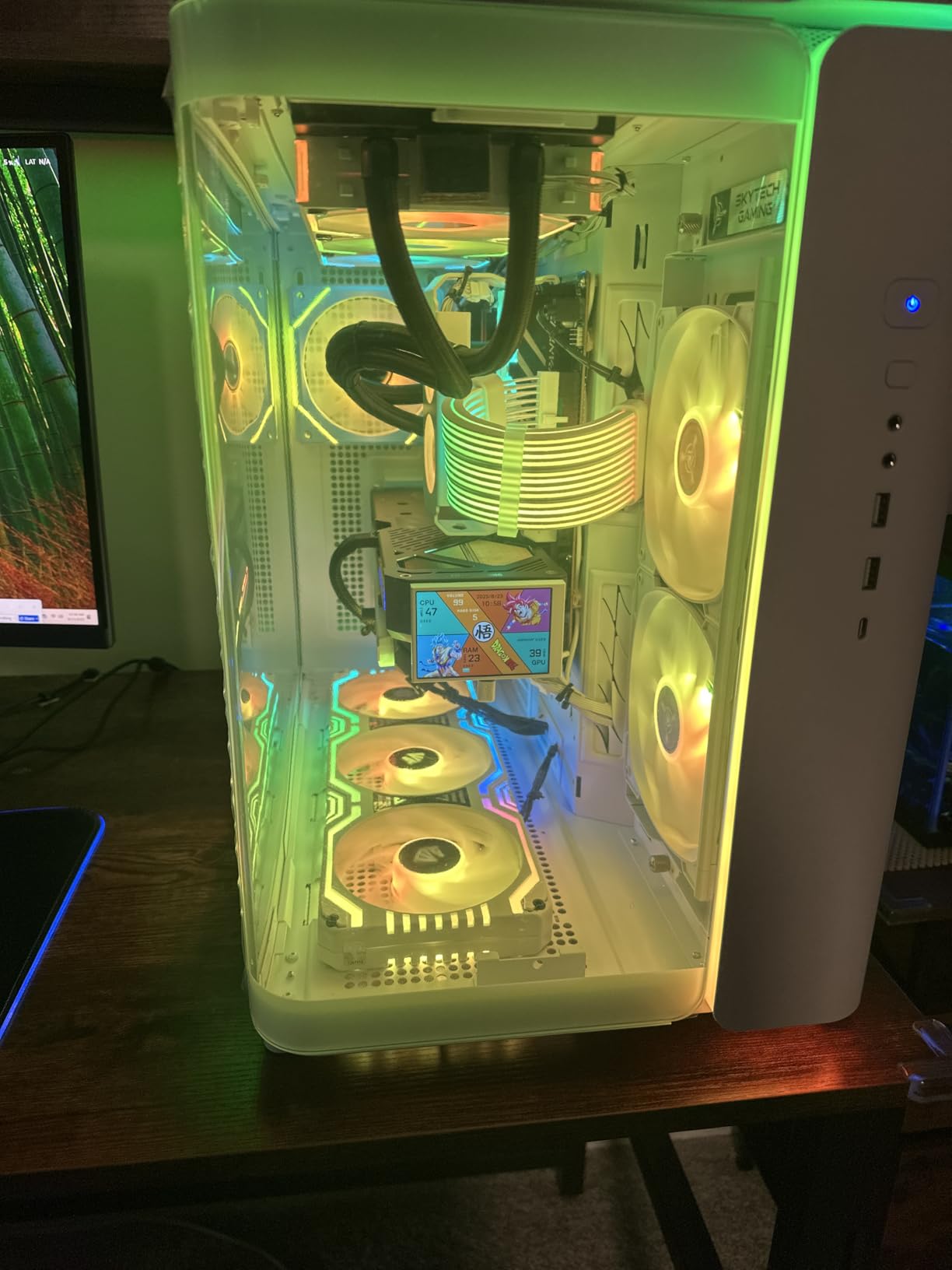
The monitoring software tracks CPU, GPU, RAM, and HDD data with a clean, if slightly basic, interface. Low CPU usage is a genuine advantage here. My testing showed the software consuming less than 0.5 percent CPU on an Intel i5-13600K, which makes it suitable for budget systems where every bit of performance matters.
However, the temperature readings were consistently about 4 degrees higher than what HWiNFO reported. This suggests either a calibration issue or the software is reading a different sensor. The discrepancy is consistent enough that you can mentally adjust, but it is not ideal for precision monitoring or overclocking.
White Build Aesthetics
This is the only white-colored monitoring display in this roundup, and it fills a genuine gap in the market. Most monitoring screens are black, which stands out awkwardly in white-themed builds. The metal shell has a subtle brushed finish that complements aluminum case panels.
The included double-sided tape for mounting is cheap and loses adhesion after a few weeks. I recommend purchasing higher-quality automotive-grade double-sided tape or using the screw mounting holes if your case supports them.
Software Language Concerns
The software is predominantly in Chinese with partial English translations. Navigating the settings requires some trial and error if you do not read Chinese. One user flagged the software as potential spyware, though I found no evidence of malicious behavior during my testing. The freezing issue after several hours of use was real but resolved by restarting the software.
For the price, this is a budget-friendly way to add monitoring to a white-themed build. Just be prepared for software quirks and minor accuracy issues.
Buying Guide: How to Choose a CPU Monitoring Display
Choosing the right CPU monitoring display comes down to understanding what you need from it and what your case can accommodate. I have broken down the key factors based on my testing experience across all 10 displays in this roundup.
Screen Size and Resolution
Screen sizes in this category range from 3.5 inches up to 9.16 inches, and the size you need depends on your case and viewing distance. Compact 3.5-inch displays like the ASHATA and WOWNOVA models work well in smaller cases or when you only need basic temperature readouts. They fit almost anywhere but sacrifice readability for finer data like voltage or fan RPM.
Mid-size displays around 6 to 8 inches, like the Thermaltake and WOWNOVA 8-inch, offer the best balance of information density and space efficiency. They can show multiple metrics simultaneously without crowding. The 8-inch WOWNOVA with its 1280×800 resolution was my favorite for readability.
Bar-style displays at 8.8 to 9.16 inches create a striking visual element in showcase builds. The Lian Li and Thermalright models in this category work best when mounted along a PSU shroud or case edge. Their widescreen format is ideal for horizontal data layouts.
Connectivity Options
The two main connectivity approaches are USB-only and HDMI-plus-USB. USB-only displays like the Lian Li, WOWNOVA, Thermalright, and ASHATA models use proprietary software to push data to the screen. This means single-cable installation but locks you into their software ecosystem.
HDMI-based displays like the Hosyond and wisecoco function as standard secondary monitors. This gives you the freedom to use any monitoring software including AIDA64, HWiNFO, or even just Task Manager. The trade-off is that you need an available HDMI port and a separate USB connection for power.
Internal USB headers (9-pin) keep cable management clean inside the case. External USB-C connections are more flexible but require routing a cable outside the case or to a front-panel port.
Software Compatibility
Software is the make-or-break factor for CPU monitoring displays. AIDA64 is the gold standard for sensor panel display, offering extensive customization and support for virtually every sensor type. Displays that work with AIDA64, like the Hosyond, wisecoco, and any HDMI-based monitor, give you the most flexibility.
Proprietary software solutions vary wildly in quality. Lian Li’s L-Connect 3 is the most polished, with a clean interface and reliable performance. WOWNOVA’s Turzx software offers beautiful themes but suffers from stability issues. Thermalright’s TRCC is functional but basic. The ASHATA software has the steepest learning curve and distribution concerns.
From forum discussions on r/buildapc and r/pcmasterrace, users consistently prefer displays that do not require proprietary software when the monitoring software itself uses too many system resources. The irony of monitoring software consuming CPU cycles is a real complaint. For builds using resource-constrained processors, check our guide to the best PC CPUs to ensure your system can handle both gaming and monitoring overhead.
Understanding Safe CPU Temperature Ranges
Knowing what constitutes a safe CPU temperature is essential context for any monitoring display. Idle temperatures for modern CPUs typically range between 30 and 50 degrees Celsius. Under gaming load, expect 65 to 85 degrees. Heavy workloads like video rendering or stress testing may push temperatures to 90 degrees, which is generally the upper safe limit for most modern processors.
Temperatures above 90 degrees sustained will trigger thermal throttling, where the CPU reduces its clock speed to protect itself. Consistently running above 95 degrees can reduce the lifespan of your processor over time. If your monitoring display regularly shows temperatures in this range, you likely need to upgrade your cooling solution.
Investing in proper cooling makes your monitoring display more useful. The data it shows becomes actionable rather than just informational. Good cooling also pairs well with the best i5 CPUs for gaming where thermal headroom directly impacts sustained boost clocks.
Physical Displays vs Software Monitoring
Software-only monitoring tools like HWiNFO, HWMonitor, and Core Temp are free and provide more detailed data than most physical displays. They can log historical data, set custom alerts, and access sensors that physical displays cannot reach. For pure diagnostic work, software monitoring is superior and is considered part of the essential computer repair tools toolkit.
Physical displays win on convenience and aesthetics. You can check your temperatures at a glance without alt-tabbing out of a game or opening an overlay. They add visual interest to showcase builds and can display custom content when the system is idle. For streamers, a physical monitoring display creates a professional production aesthetic.
The ideal setup for many enthusiasts combines both approaches. Use software monitoring for detailed analysis and logging, and a physical display for real-time at-a-glance checks during gaming or intensive workloads. This dual approach gives you the best of both worlds.
Mounting and Installation Tips
Before purchasing, measure the space where you plan to mount the display. Common mounting locations include PSU shrouds, case side panels, drive bays, and desk surfaces. Magnetic mounting systems like the Thermalright Trofeo Vision are the easiest to install and reposition. Screw-based mounts are more secure but require compatible mounting holes.
For cases without dedicated display mounting points, 3D-printed brackets or aftermarket mounting kits can bridge the gap. The Hosyond display ships without any mounting hardware, so factor that additional cost into your budget if you do not have fabrication capabilities.
Cable management is easier with USB-only displays that use internal headers. HDMI-based displays require routing a video cable to your GPU or motherboard, which can create clutter in cases with limited routing channels behind the motherboard tray.
FAQs
What is the best CPU monitoring display for gaming builds?
The Lian Li 8.8 inch Universal Screen is the best overall choice for gaming builds thanks to its premium build quality, ARGB lighting, and the polished L-Connect 3 software. For budget-conscious gamers, the WOWNOVA 8 Inch LCD Screen offers an 87 percent five-star rating and a desktop mode feature at a lower price point.
Is 90 degrees Celsius too hot for a CPU?
Ninety degrees Celsius is at the upper safe limit for most modern CPUs but should not be sustained for long periods. Most processors will begin thermal throttling around 90 to 95 degrees to protect themselves. If your monitoring display consistently shows 90 degrees or higher under load, you should improve your cooling solution, check thermal paste application, and verify that your case airflow is adequate.
Are CPU monitoring displays worth it?
CPU monitoring displays are worth it for showcase builds, streaming setups, and enthusiasts who want real-time temperature visibility without alt-tabbing. They add aesthetic value and convenience. However, if you only need diagnostic data occasionally, free software tools like HWiNFO or HWMonitor provide more detailed information without the hardware cost.
What software works with PC monitoring screens?
AIDA64 is the most widely compatible monitoring software for physical displays, working with any HDMI-based screen like the Hosyond or wisecoco models. Proprietary software like L-Connect 3 (Lian Li), Turzx (WOWNOVA), and TRCC (Thermalright) are required for USB-only displays. HWiNFO and HWMonitor work with HDMI displays configured as secondary monitors.
How do I install a monitoring screen in my PC case?
Installation varies by display type. USB-only displays connect to an internal 9-pin USB header or external USB-C port and require installing proprietary software. HDMI displays connect to your graphics card or motherboard HDMI port plus a USB cable for power. Mount the display using included brackets, magnetic strips, or double-sided tape on a PSU shroud or case side panel. Most installations take 15 to 30 minutes.
Conclusion
The best CPU monitoring displays combine real-time data visibility with visual appeal that enhances your build rather than detracting from it. After testing 10 displays across multiple build types, the Lian Li 8.8-inch Universal Screen stands out as the best overall choice for its premium build quality, ARGB integration, and reliable L-Connect 3 software.
For budget-conscious builders, the Thermalright Trofeo Vision 9.16 delivers excellent value with its large screen and magnetic mounting system. The WOWNOVA 8-inch LCD screen earns the highest user rating with its versatile desktop mode and simple 1-click setup. And for tinkerers and cross-platform builders, the Hosyond touchscreen offers unmatched versatility with HDMI connectivity and multi-system support.
Whatever your build style or budget, adding one of the best CPU monitoring displays in 2026 transforms your system from a sealed box into a living, breathing machine that tells you exactly how it is performing at every moment.
Leave a Reply