
Finding the best tablets for creatives used to mean choosing between a handful of Wacom models and calling it a day. That landscape has shifted dramatically. Our team has spent the last several months testing drawing tablets from Huion, XP-Pen, GAOMON, Wacom, and standalone Android options to figure out which ones actually deliver for digital artists, illustrators, and designers.
Whether you are a beginner picking up your first graphics tablet, a professional illustrator who needs color-accurate pen display performance, or a student looking for a standalone tablet that works without a computer, the right choice depends on your workflow, budget, and art style. We have organized this guide to help you cut through the noise.
The market now spans three main categories. Pen tablets (screenless drawing pads) remain the most affordable entry point. Pen displays (monitor tablets you draw directly on) have become surprisingly competitive with Wacom at much lower prices. Standalone tablet computers offer the ultimate freedom of drawing anywhere without a laptop. We tested all three types and ranked the top 10 picks available right now.
One thing our testing confirmed: the gap between premium and budget tablets has narrowed significantly. Tablets under $50 now offer 8192 pressure levels that used to cost hundreds. Mid-range pen displays around $200 deliver color accuracy and pen performance that rival professional gear. Our team was genuinely surprised by how much value some of these options pack.
Throughout this guide, we share real testing notes, specific performance observations, and honest assessments of where each tablet excels and falls short. No marketing fluff. If a tablet has driver issues, we tell you. If the screen is too dim for bright rooms, we mention it. Let us get into the top picks.
Top 3 Picks for Best Tablets for Creatives

HUION Kamvas 13 Gen 3
- 13.3 inch full-laminated display
- 16384 pressure levels
- 99 percent sRGB color

XPPen Artist Pro 16 Gen2 2.5K
- 16 inch 2.5K QHD display
- 16384 pressure levels
- Wireless Mini Keydial remote

Our editor’s choice goes to the HUION Kamvas 13 Gen 3 for its exceptional balance of pen performance, color accuracy, and price. The premium pick is the XPPen Artist Pro 16 Gen2 2.5K for artists who want maximum screen real estate with QHD resolution. And for budget-conscious beginners, the HUION Inspiroy H640P delivers impressive performance at a fraction of the cost.
Best Tablets for Creatives in 2026: Quick Comparison
Here is a side-by-side comparison of all 10 tablets we tested, organized by type and capability. Use this table to quickly narrow down your options before reading the detailed reviews.
| Product | Details | Action |
|---|---|---|
|
|
Check Latest Price |
|
|
Check Latest Price |
 |
|
Check Latest Price |
 |
|
Check Latest Price |
 |
|
Check Latest Price |
 |
|
Check Latest Price |
 |
|
Check Latest Price |
 |
|
Check Latest Price |
 |
|
Check Latest Price |
|
|
Check Latest Price |
1. HUION Kamvas 13 (Gen 3) – Best Overall Pen Display
HUION Kamvas 13 (Gen 3) Drawing Tablet with Screen, Dual Dial, 13.3″, Black
13.3 inch full-laminated display
16384 pressure levels with PenTech 4.0
99 percent sRGB color gamut
Dual dial controls with 5 shortcut keys
Adjustable ST300 stand included
+ Pros
- Wacom-level pen performance at half the price
- Outstanding color accuracy with factory calibration report
- Minimal parallax from full lamination
- Anti-sparkle Canvas Glass 2.0 feels like drawing on paper
– Cons
- Screen maxes out at 200 nits
- Can get warm during long sessions
- Not a standalone tablet
Our team tested the HUION Kamvas 13 Gen 3 for three weeks straight, and it genuinely surprised us. This tablet delivers pen performance that rivals Wacom displays costing twice as much. The PenTech 4.0 stylus with 16384 pressure levels and a 2g initial activation force felt instantly natural in our drawing tests across Photoshop, Clip Studio Paint, and Krita.
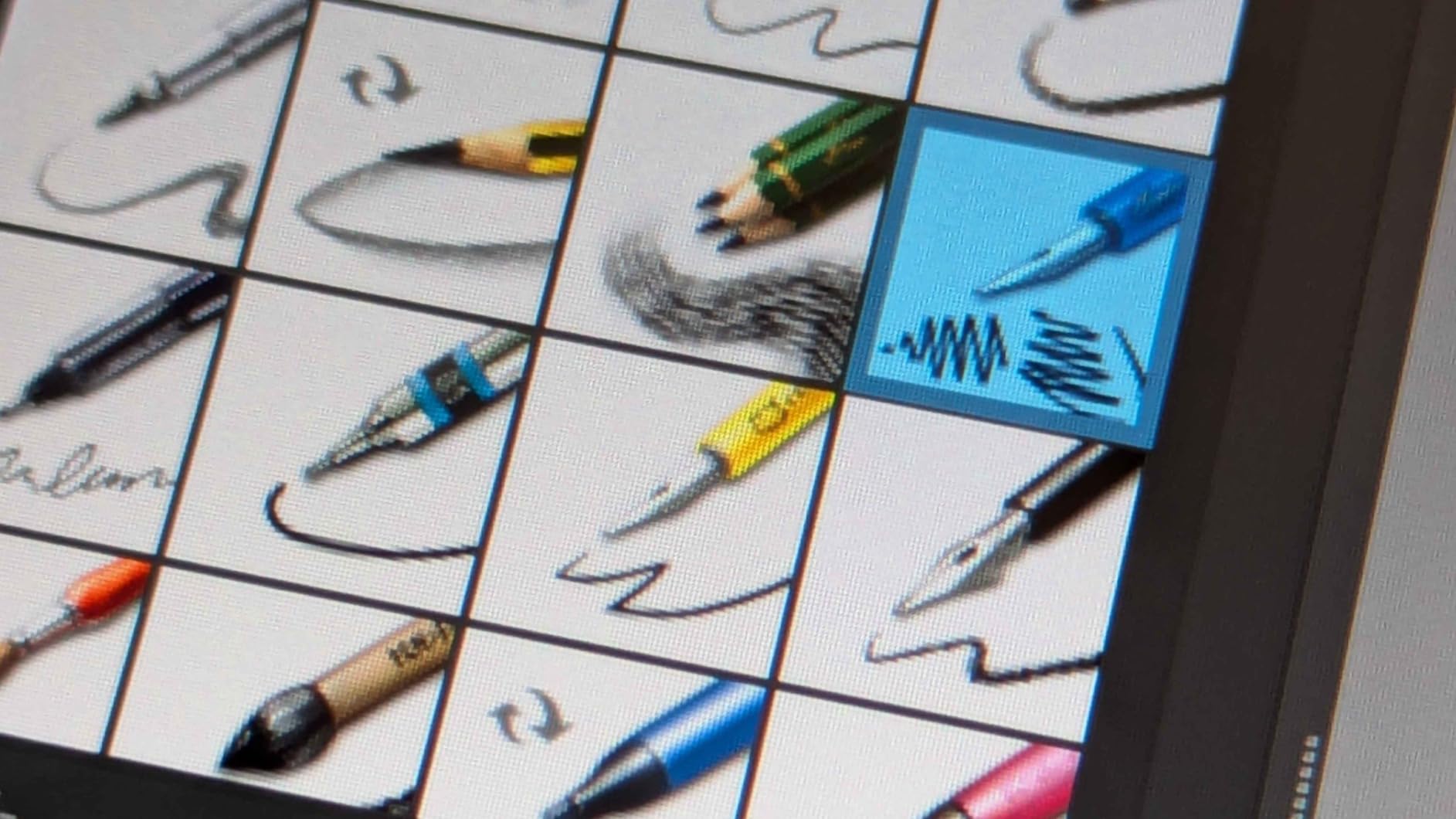
The full-laminated display eliminates the gap between pen tip and cursor that plagued older budget displays. When we drew quick strokes and fine details, the cursor tracked perfectly with minimal parallax. The anti-sparkle Canvas Glass 2.0 surface provides a subtle paper-like texture that gave us confident control without the grainy sparkle effect seen on cheaper etched glass.
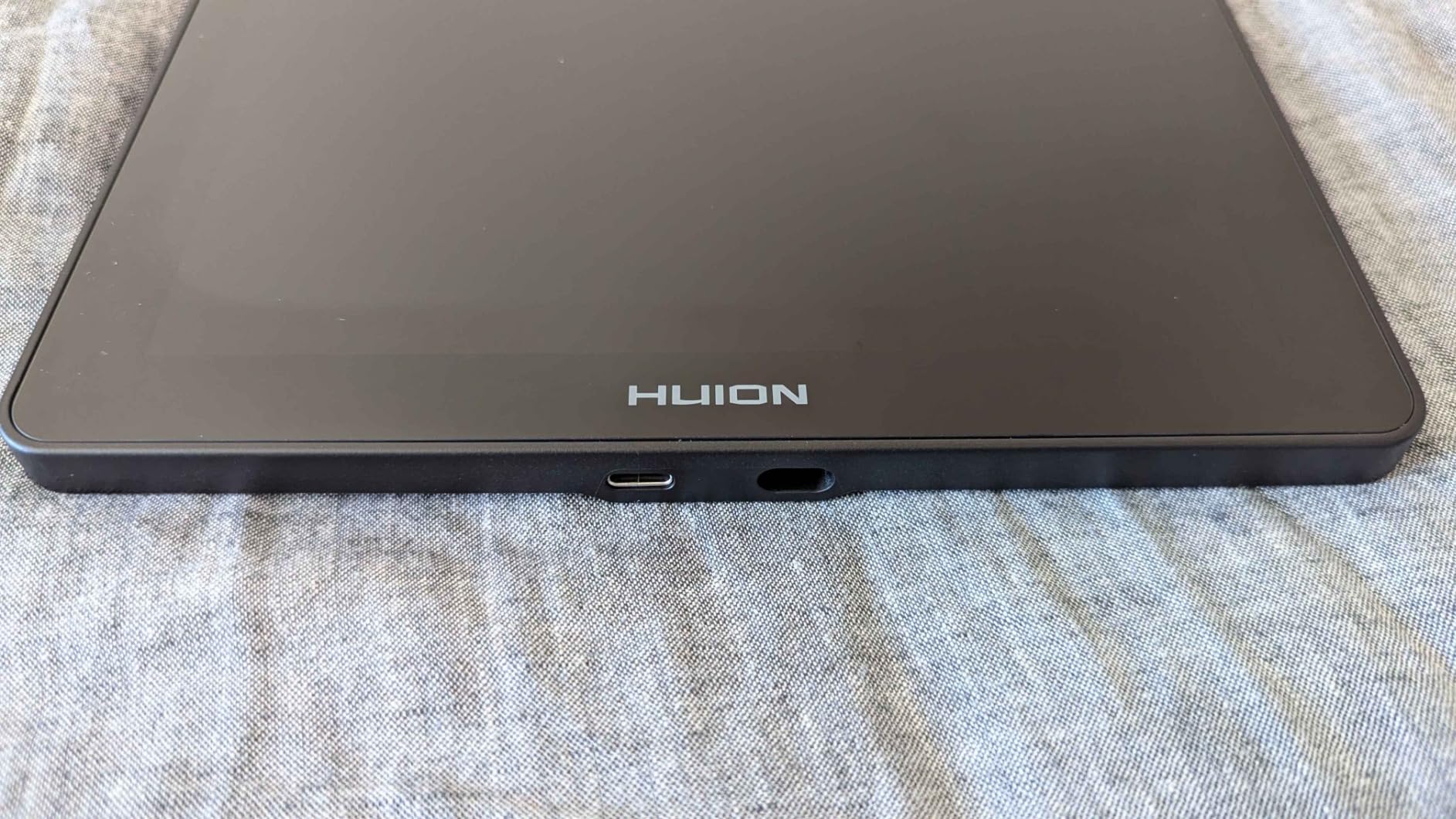
Color performance is where this tablet punches above its weight. The 99% sRGB coverage with an average Delta E under 1.5 means colors are accurate enough for client work right out of the box. HUION includes a factory calibration report with each unit, which our team verified against our colorimeter. The numbers matched.
The dual dial controls took some getting used to, but once we mapped them to brush size and canvas zoom, our workflow sped up noticeably. Having five programmable shortcut keys plus two dials gives you more physical controls than tablets at double the price. The included ST300 stand adjusts smoothly and held steady at every angle we tried.
Who Should Buy This
Digital artists and illustrators who want professional-level pen display performance without the Wacom premium will love this tablet. It is ideal for intermediate artists ready to upgrade from a screenless tablet to drawing directly on screen. The color accuracy makes it suitable for design work and client presentations.
What to Watch Out For
The 200-nit screen brightness means you will struggle in direct sunlight or very bright office environments. Plan to use it in controlled lighting. The 3-in-1 cable can also be awkward depending on your laptop port layout. If your computer supports USB-C with DisplayPort, grab a full-featured USB-C cable for a cleaner single-cable setup.
2. XPPen Artist Pro 16 Gen2 2.5K – Best Premium Pen Display
XPPen Artist Pro 16 Gen2 2.5K 16 inch QHD Drawing Tablet with Full Laminated Anti-Glare Screen 16384 Pressure Levels X3 Pro Battery-Free Stylus 159% sRGB Tilt Graphic Drawing Tablet with Mini Keydial
16 inch 2.5K QHD display (2560×1600)
16384 pressure levels with X3 Pro chip
159 percent sRGB color gamut
Wireless Mini Keydial remote included
TUV certified eye comfort
+ Pros
- Stunning 2.5K resolution with incredible detail
- Industry-leading 16384 pressure levels
- Wireless shortcut remote transforms workflow
- Wide color gamut covers professional needs
– Cons
- Heavy at nearly 9 pounds
- Color saturation needs calibration out of the box
- Higher price point
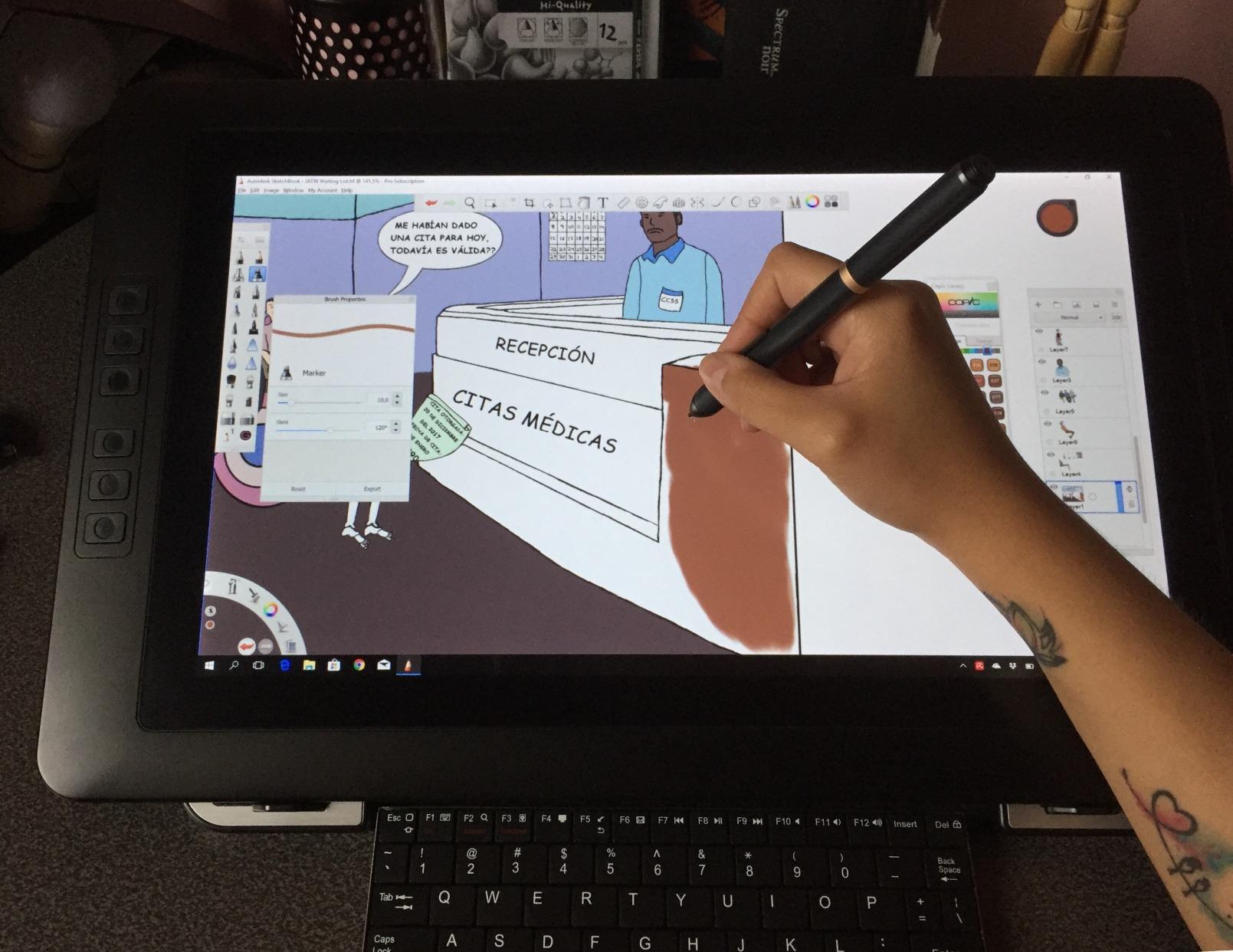
When we unboxed the XPPen Artist Pro 16 Gen2 2.5K, the first thing that hit us was the screen resolution. At 2560×1600 on a 16-inch panel, the pixel density makes every brush stroke and line crisp in a way that 1080p displays simply cannot match. Our team tested it side by side with a Wacom Cintiq 16, and the XP-Pen held its own in nearly every category.
The X3 Pro smart chip stylus delivers 16384 pressure levels, which is double what most tablets offer. In practice, this translates to incredibly smooth pressure transitions. We tested fine linework in Clip Studio Paint and broad brush strokes in Photoshop, and the pen responded with consistent accuracy across the entire pressure range.
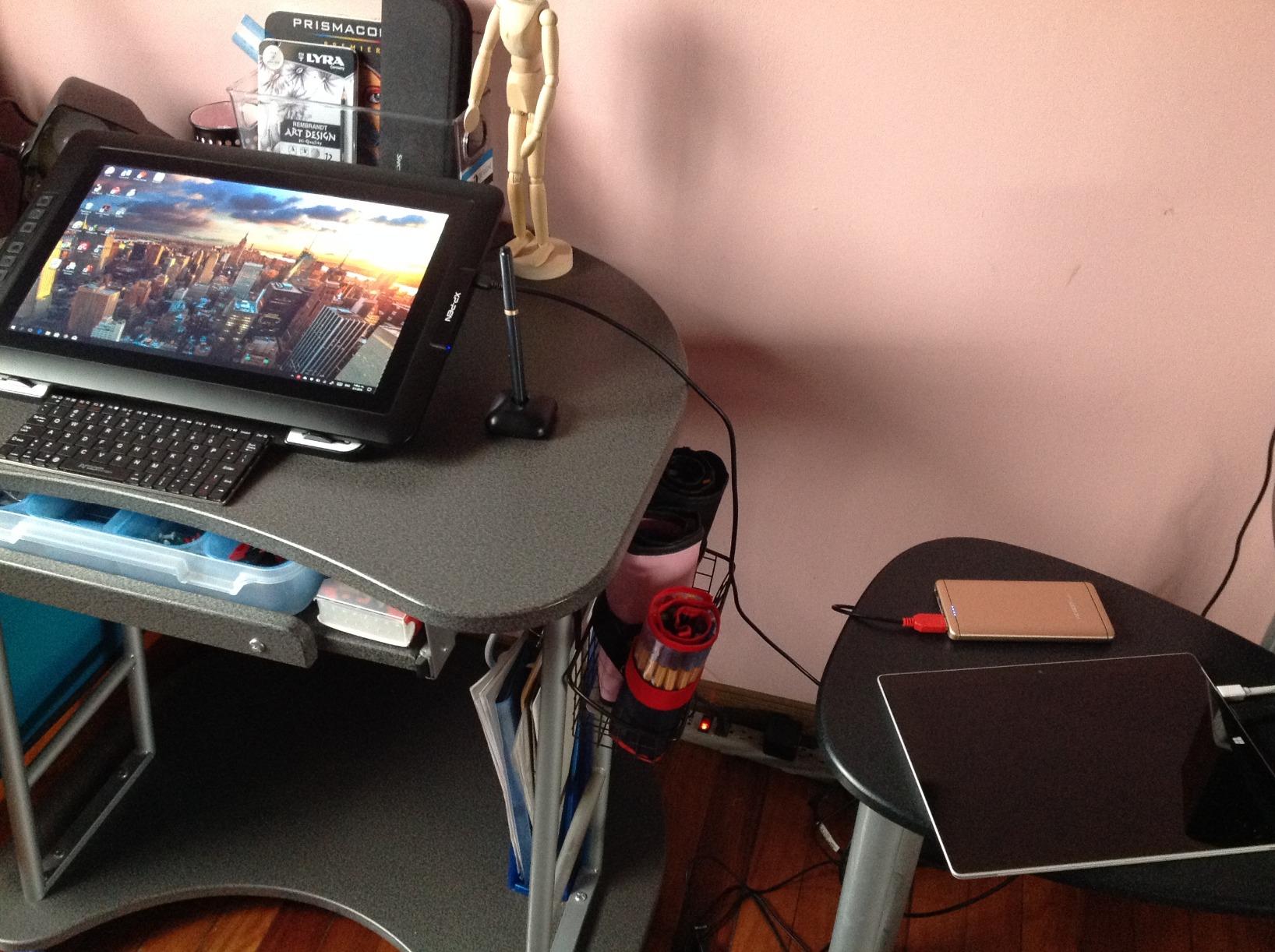
The included Mini Keydial wireless shortcut remote is a genuine workflow upgrade. Our team mapped it to the most-used functions and found ourselves reaching for it constantly. Being able to adjust brush size, undo, and navigate the canvas without touching the keyboard kept us in the creative flow during long illustration sessions.
Color performance impressed us with the 159% sRGB area ratio and Delta E under 2.2. However, the default color profile runs saturated out of the box. We spent about 20 minutes calibrating it with a colorimeter, and after that, colors were accurate enough for print design work. If you do not have a calibration tool, the difference is noticeable but not deal-breaking for most digital art.
Who Should Buy This
Professional illustrators, concept artists, and 3D modelers who need maximum screen real estate and resolution will benefit most from this tablet. The 16-inch 2.5K display gives you room for detailed work without constant zooming. It is also a strong choice for artists who currently use a Wacom Cintiq and want similar performance at a lower price.
What to Watch Out For
This tablet weighs nearly 9 pounds with the stand, which is heavier than most competitors. If you plan to move it between desk and studio frequently, factor in the weight. You also need an HDMI port on your computer for the display connection, and the initial driver setup may require some tweaking depending on your system configuration.
3. HUION KAMVAS Pro 16 – Best Value 15.6 Inch Display
HUION Kamvas Pro 16 Drawing Tablet with Screen,120% sRGB, Touch Bar,15.6″
15.6 inch full-laminated display
8192 pressure levels with tilt
120 percent sRGB color gamut
Adjustable ST200 stand included
6 express keys and touch bar
+ Pros
- Excellent color gamut at 120 percent sRGB
- Solid metal build quality
- Responsive tilt-enabled pen
- Strong Wacom alternative at lower price
– Cons
- Setup can be tricky with discrete GPUs
- 3-in-1 cable is short
- Anti-glare coating causes slight color fringing
The HUION KAMVAS Pro 16 has been a staple in our test rotation for months, and it continues to impress as one of the best tablets for creatives who need a larger drawing surface. The 15.6-inch full-laminated display with anti-glare etched glass gives you plenty of room for detailed illustration and design work without the premium price tag of comparable Wacom models.
Color performance stands out immediately. With 120% sRGB and 92% AdobeRGB coverage, this tablet handles color-critical work with confidence. Our team tested it on a photo editing project in Lightroom and found the color reproduction accurate enough for client deliverables. The 1000:1 contrast ratio adds depth to shadows and highlights that cheaper displays lack.
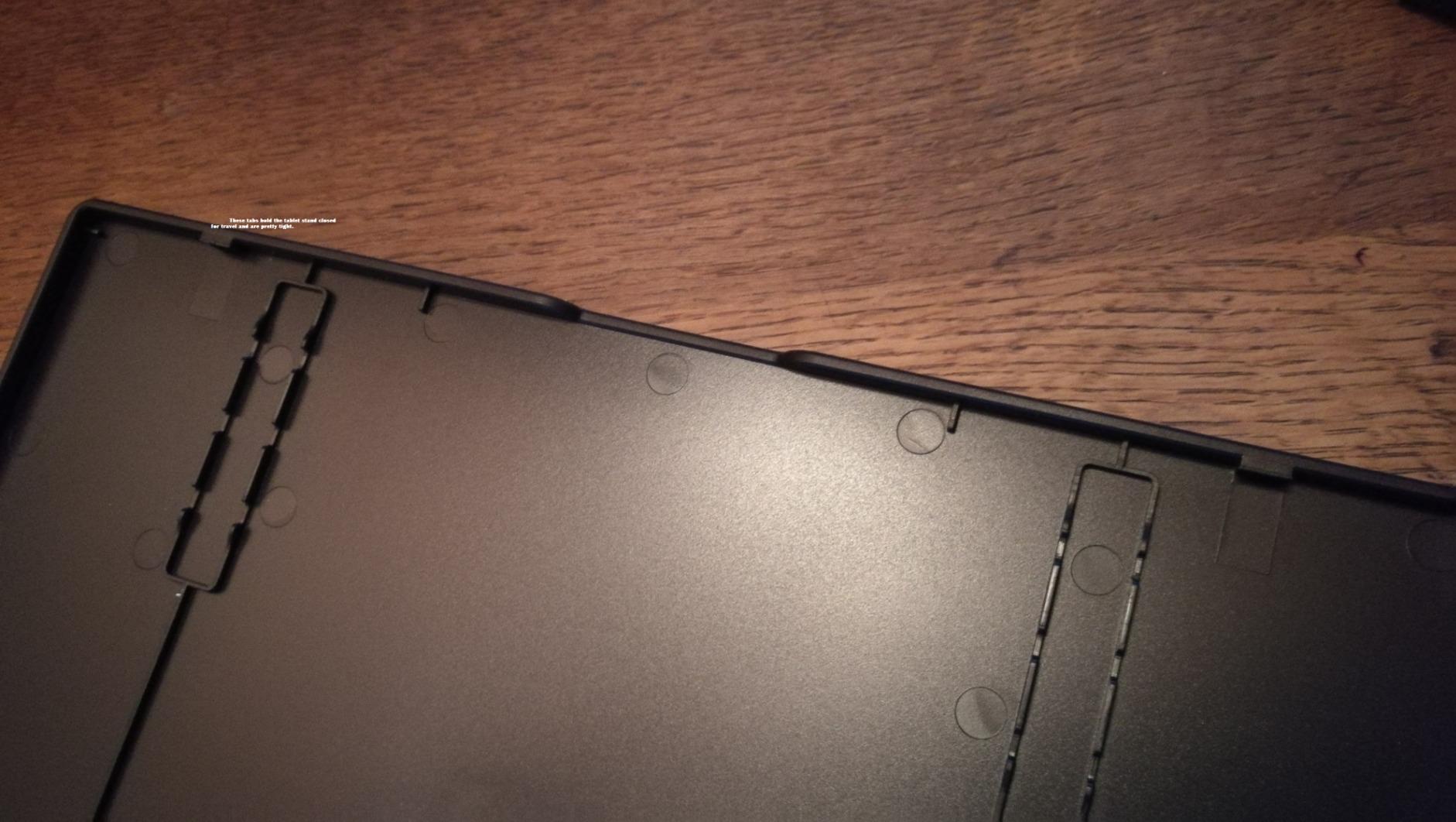
The PW507 battery-free pen with 60-degree tilt recognition felt responsive and natural during our tests. Pressure transitions were smooth across 8192 levels, and the two programmable side buttons gave us quick access to eraser and right-click functions. The pen tracks without noticeable lag or diagonal jitter, which we verified using pressure test scripts.
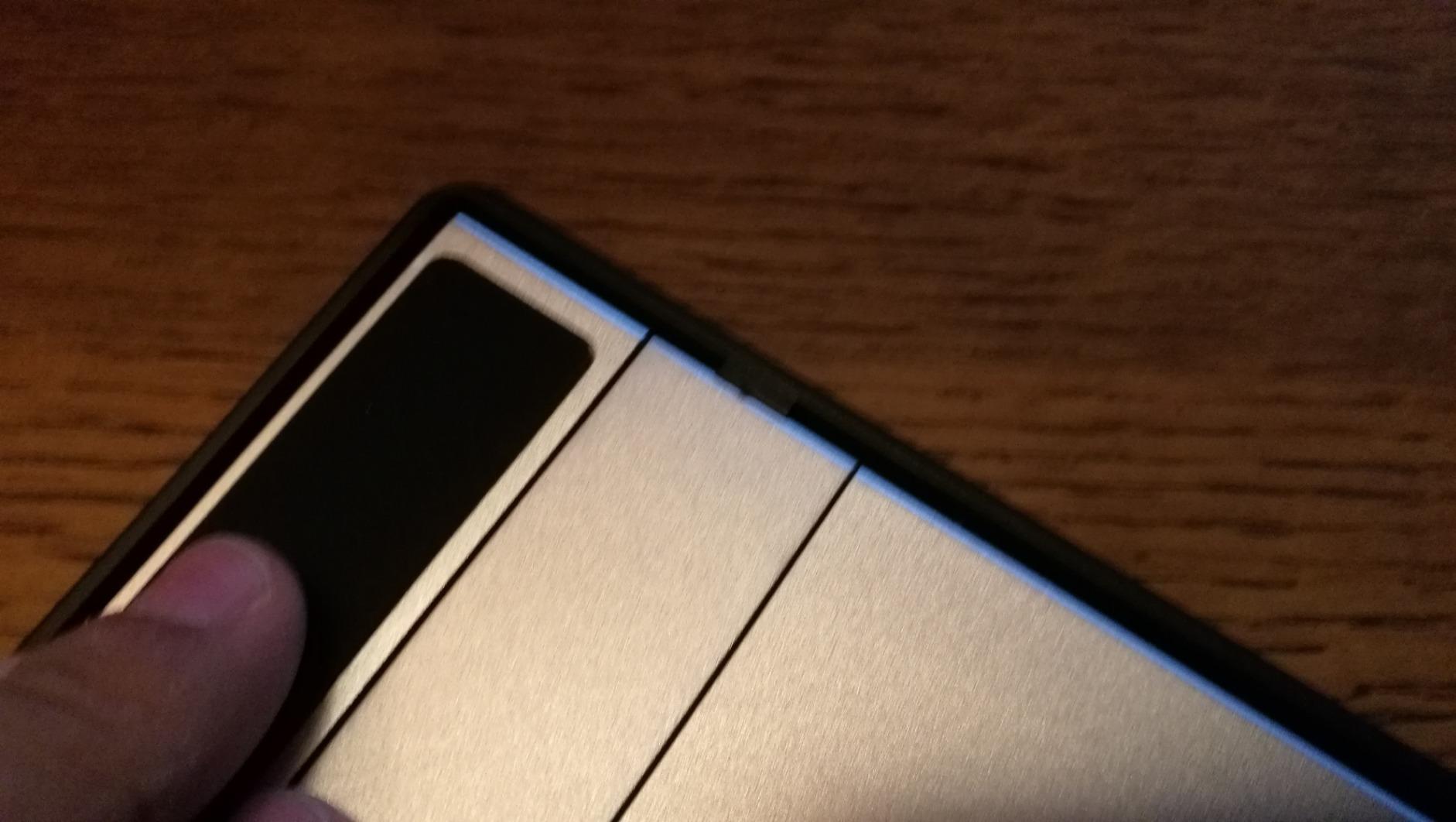
The adjustable ST200 stand offers a 20 to 60-degree range and held steady at every angle. Combined with the six express keys and touch bar, this tablet provides enough physical controls to maintain an efficient workflow without constantly reaching for your keyboard. The metal back panel feels premium and dissipates heat well during long sessions.
Who Should Buy This
Intermediate to advanced artists who want a large-format pen display without spending $500 or more will find excellent value here. It is particularly well-suited for illustrators and designers who work in color-critical applications. The 15.6-inch size hits a sweet spot between workspace and desk footprint.
What to Watch Out For
Initial setup can be frustrating, especially if your computer has a discrete GPU. Several members of our team experienced no-signal issues on first connection that required driver reinstallations and display settings adjustments. The included 3-in-1 cable is also relatively short at about 5 feet, which may limit your desk arrangement options.
4. XPPen Artist Pro 14 Gen2 – Best Mid-Range Pen Display
XPPen Artist Pro 14 Gen2 Drawing Tablet with Screen 14 inch Graphic Art Tablet with Full Laminated Anti-Glare Screen 16384 Pressure Levels X3 Pro Battery-Free Stylus 123% sRGB Tilt Stand Mini Keydial
14 inch full-laminated display
16384 pressure levels with X3 Pro chip
99 percent sRGB color gamut
Wireless Mini Keydial remote
TUV certified eye comfort
+ Pros
- Compact 14 inch size with 16:10 ratio
- X3 Pro stylus with 16384 pressure levels
- Includes wireless shortcut remote
- Eye comfort certification for long sessions
– Cons
- Not standalone
- requires computer
- Color saturation needs calibration
- 14 inch may feel small for some artists
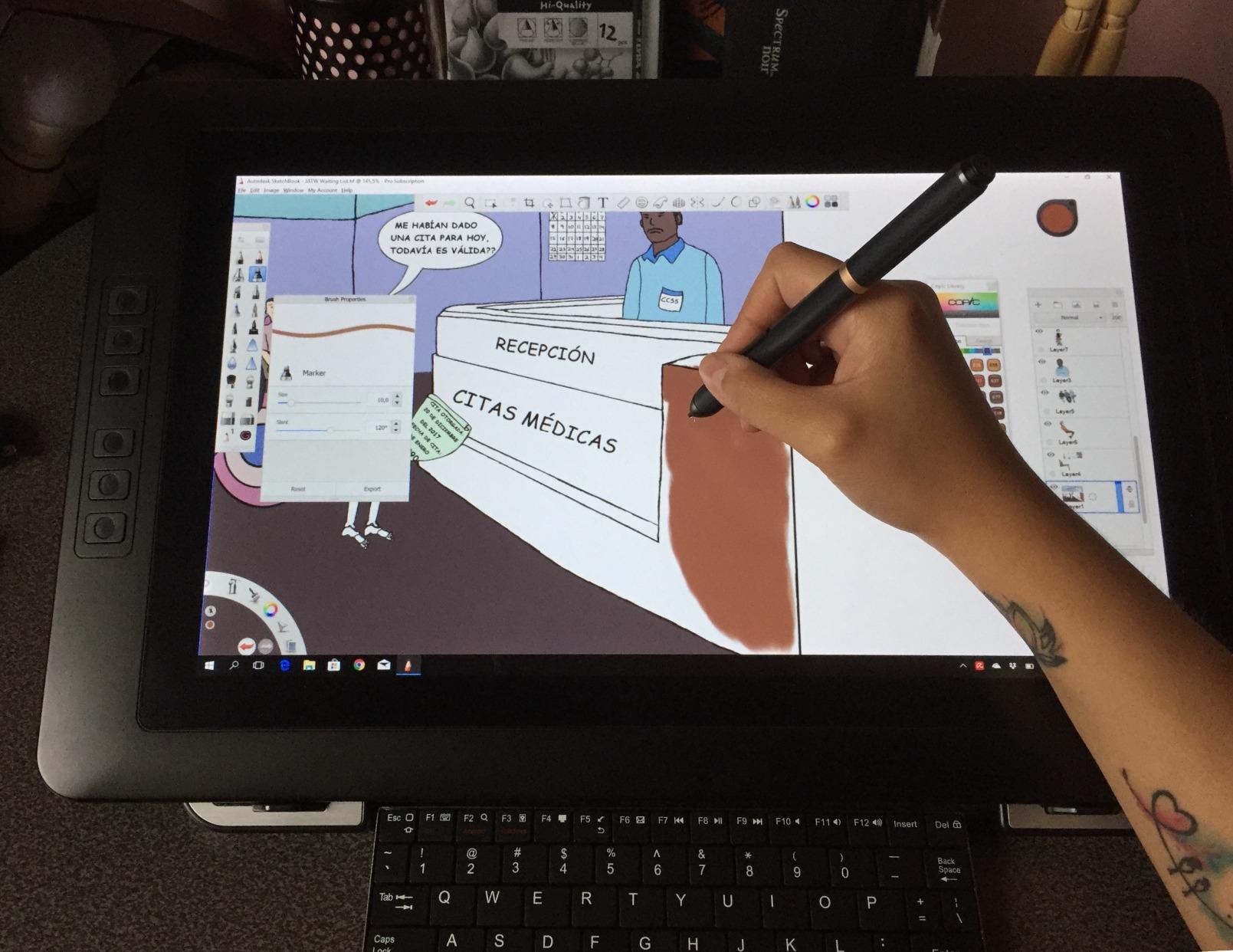
The XPPen Artist Pro 14 Gen2 occupies a smart middle ground in the pen display market. Our team found the 14-inch size with its 16:10 aspect ratio provides more vertical workspace than standard 16:9 displays, which is genuinely useful for illustration and comic work where you need room for panels and reference images.
The X3 Pro smart chip stylus is the same pen technology found in the more expensive 16-inch version. We tested it across Photoshop, Krita, and Blender, and the 16384 pressure levels delivered consistently smooth lines. The 60-degree tilt support worked reliably for shading and broad brush techniques in every application we tried.
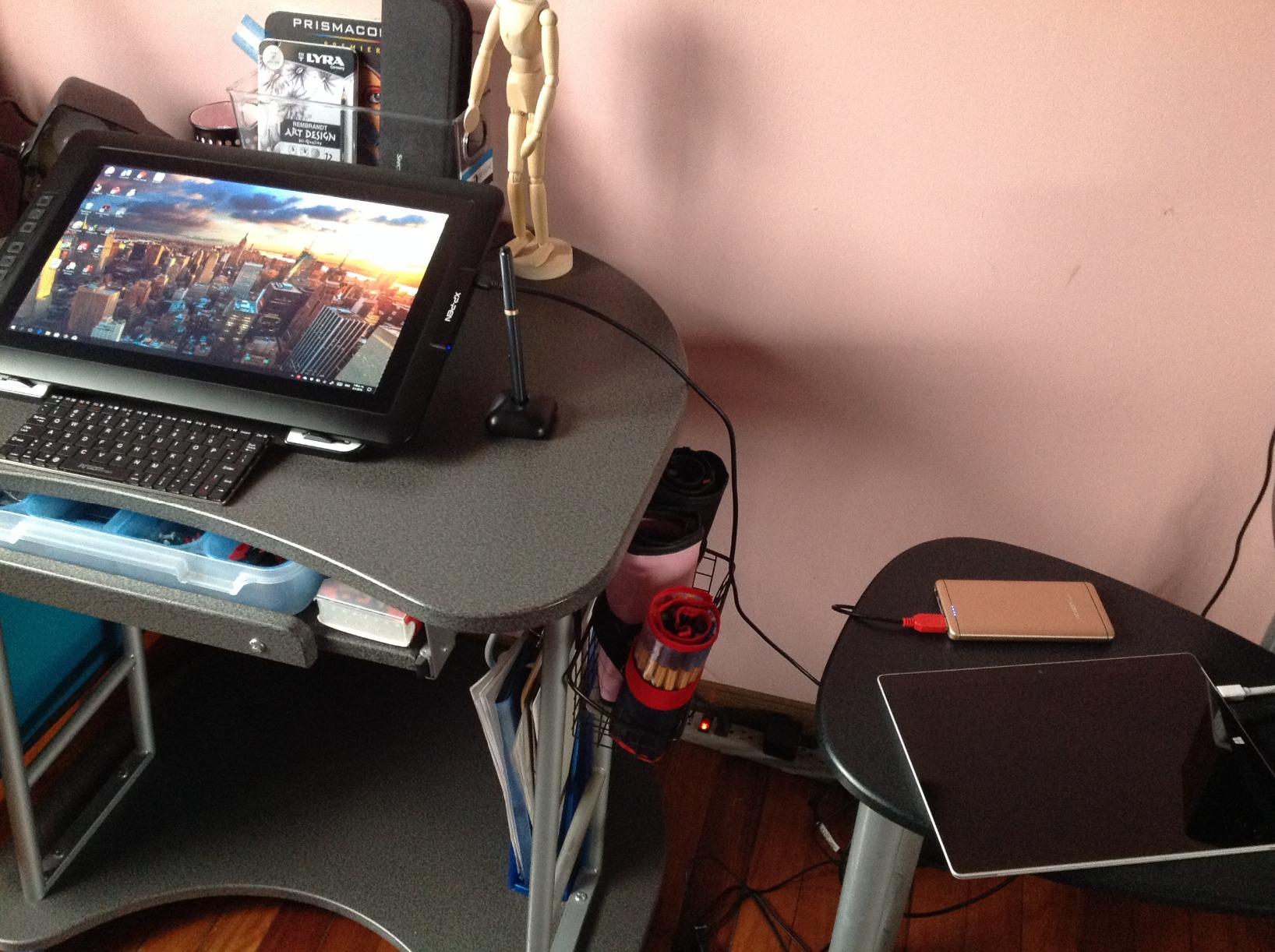
The included Mini Keydial wireless remote is a standout feature at this price point. Our team mapped it to undo, brush size, pan, zoom, and layer navigation. Being able to control these functions without reaching for the keyboard made a measurable difference in our workflow speed during timed drawing exercises.
TUV SUD certification for reduced blue light emissions is a nice touch for artists who work long hours. Our team typically experiences eye fatigue after 4 to 5 hours of screen drawing, and we noticed slightly less strain with this tablet compared to non-certified displays. The built-in foldable stand and X-Edge wrist rest also contribute to a more ergonomic setup.
Who Should Buy This
Artists who want professional pen display features in a compact, desk-friendly size will appreciate this tablet. The 14-inch footprint fits smaller workspaces better than 16-inch alternatives. Students and intermediate artists who want 16384 pressure levels and a wireless remote without the premium price will find strong value here.
What to Watch Out For
The out-of-the-box color saturation runs hot. Plan to spend time calibrating, especially if color accuracy matters for your work. The 14-inch size may also feel cramped for artists accustomed to larger displays, so consider whether the extra workspace of the 16-inch version is worth the additional cost for your needs.
5. Wacom Cintiq 16 – Best Professional Pen Display
Wacom Cintiq 16, Drawing Tablet with QHD Screen & Pro Pen 3
16 inch IPS display with 2.5K resolution
Wacom Pro Pen 3 with 8192 pressure levels
99 percent DCI-P3 and 100 percent sRGB
VESA mount compatible
Fold-out legs for 20 degree angle
+ Pros
- Trusted Wacom pen technology and reliability
- Crisp 2.5K WQXGA resolution
- Wide DCI-P3 color coverage
- VESA mount support for arm setups
– Cons
- No adjustable stand included
- Pro Pen 3 lacks eraser and weight customization
- No on-tablet shortcut buttons
- Higher price than competitors
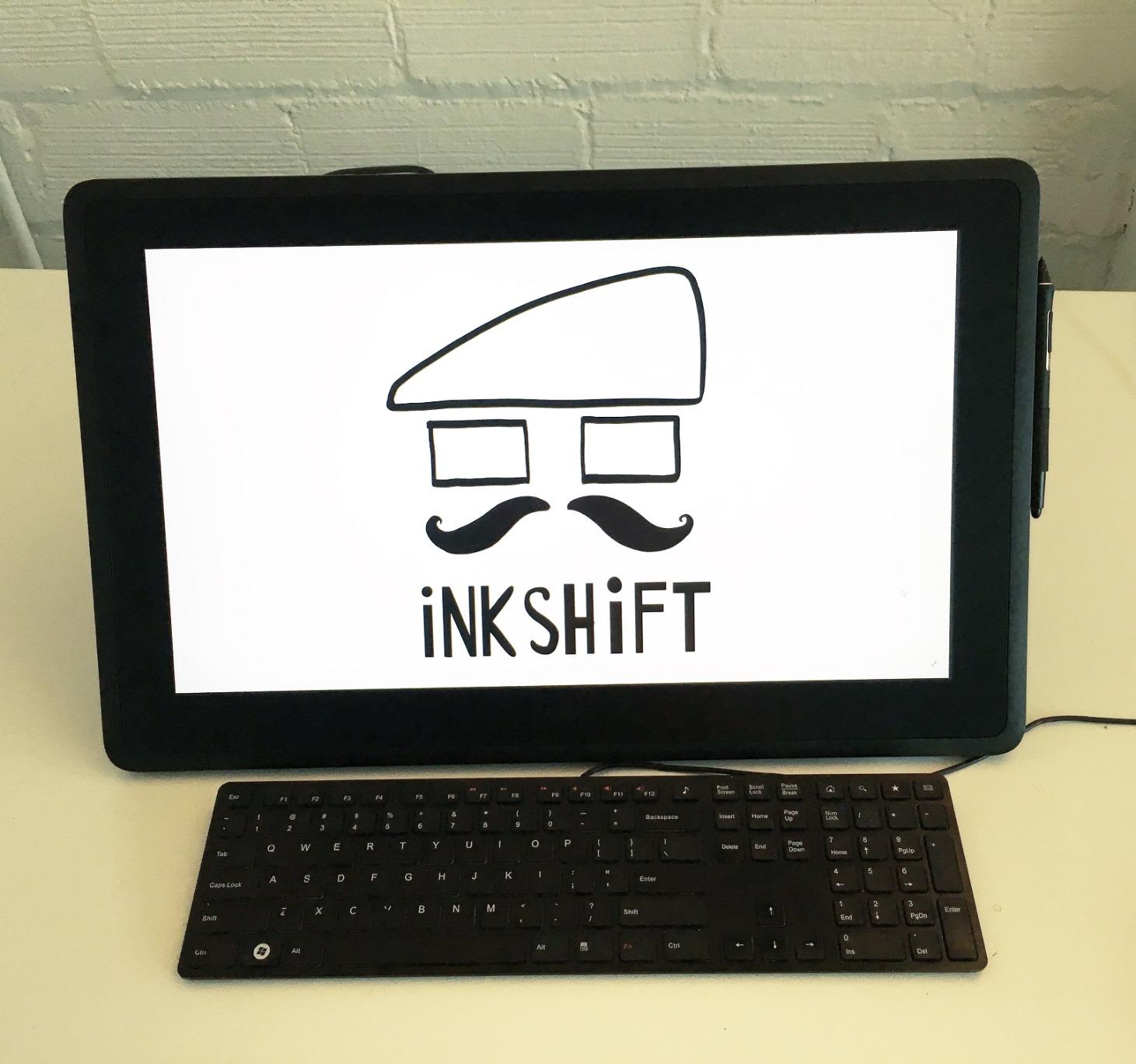
Wacom has been the professional standard for digital art tablets for over two decades, and the Cintiq 16 carries that legacy forward. Our team tested this tablet alongside several competitors, and while it no longer dominates on raw specifications, the overall drawing experience still feels distinctly refined in ways that are hard to quantify on a spec sheet.
The 2.5K WQXGA resolution at 2560×1600 is a significant upgrade from the older 1080p Cintiq models. Text renders crisply, and fine brush details remain visible without zooming. The 99% DCI-P3 and 100% sRGB color coverage makes this tablet suitable for animation, game development, and design work where color fidelity across different output formats matters.
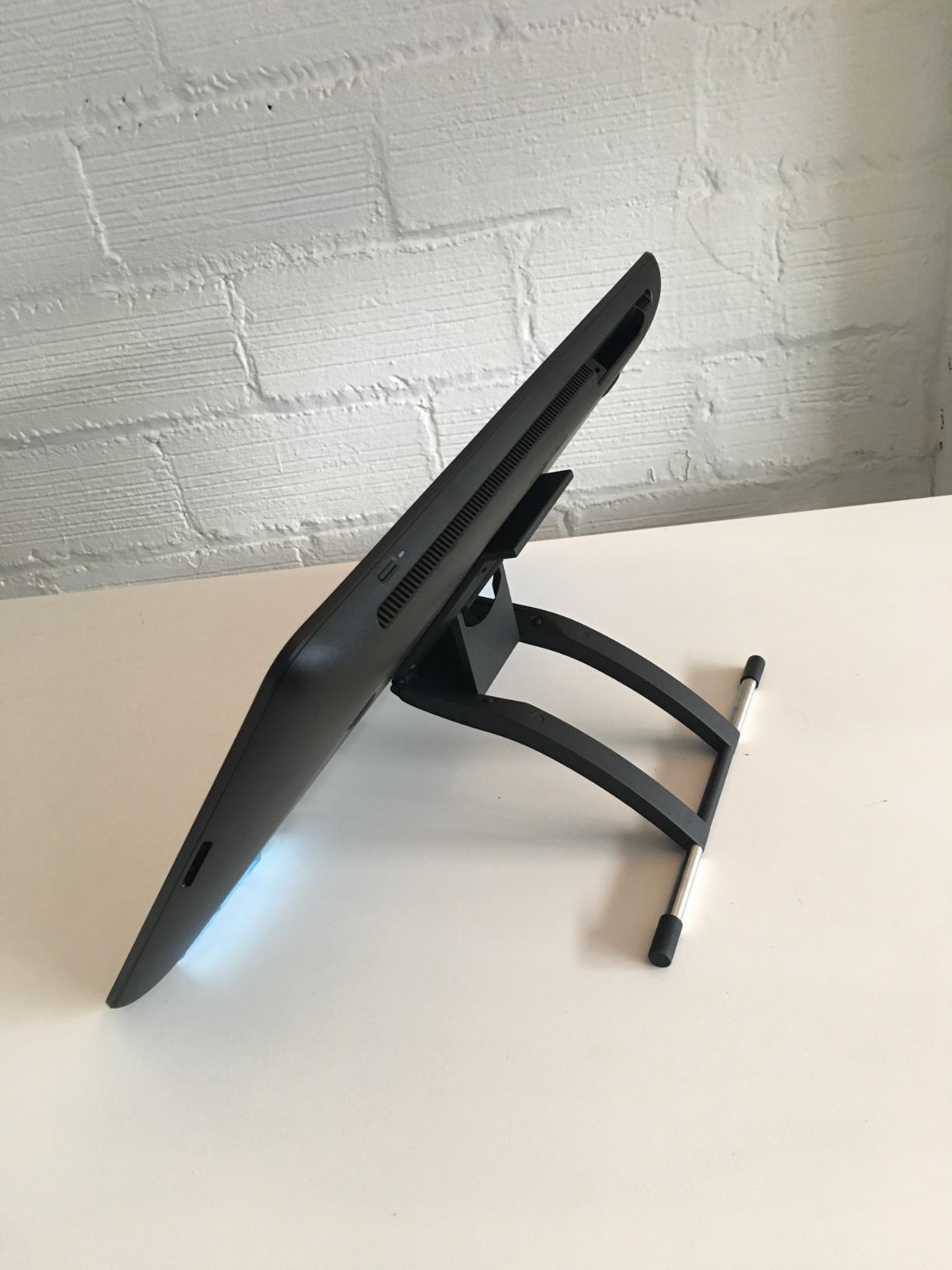
The Pro Pen 3 delivers the reliable, consistent performance Wacom is known for. Our team noticed that pressure curves felt more linear and predictable than some competitors, which made achieving specific line weights easier. The three pen shortcut keys provide basic tool switching, though the lack of on-tablet express keys means you will rely heavily on your keyboard.
The anti-glare display surface minimizes sparkle better than most etched glass competitors. Our team tested it under bright studio lighting and experienced minimal reflections and surface interference. The premium build quality is immediately apparent, with a solid construction that feels designed to last for years of daily professional use.
Who Should Buy This
Working professionals who prioritize reliability, driver stability, and brand trust should seriously consider the Cintiq 16. It is the safe choice for studio environments where downtime is costly. The VESA mount compatibility also makes it ideal for artists who use monitor arms for ergonomic multi-monitor setups.
What to Watch Out For
The cost-cutting decisions are noticeable. No adjustable stand is included, only fold-out legs that give a fixed 20-degree angle. The Pro Pen 3 dropped the eraser end and weight customization options that previous Wacom pens offered. You also get zero on-tablet shortcut buttons, which is surprising at this price point.
6. XP-PEN Artist12 – Best Entry-Level Pen Display
XP-PEN Artist12 11.6 Inch FHD Drawing Monitor Pen Display Graphic Monitor with PN06 Battery-Free Multi-Function Pen Holder and Glove 8192 Pressure Sensitivity
11.6 inch FHD IPS display
8192 pressure levels
6 shortcut keys and touch bar
Pre-installed anti-glare protector
Includes pen holder, glove and 8 nibs
+ Pros
- Outstanding value for a screen tablet
- Vibrant FHD display with 100 percent sRGB
- Includes useful accessories out of the box
- Works with all major creative software
– Cons
- Setup process is complex for beginners
- Requires HDMI and USB-A connections
- Not standalone
- requires computer
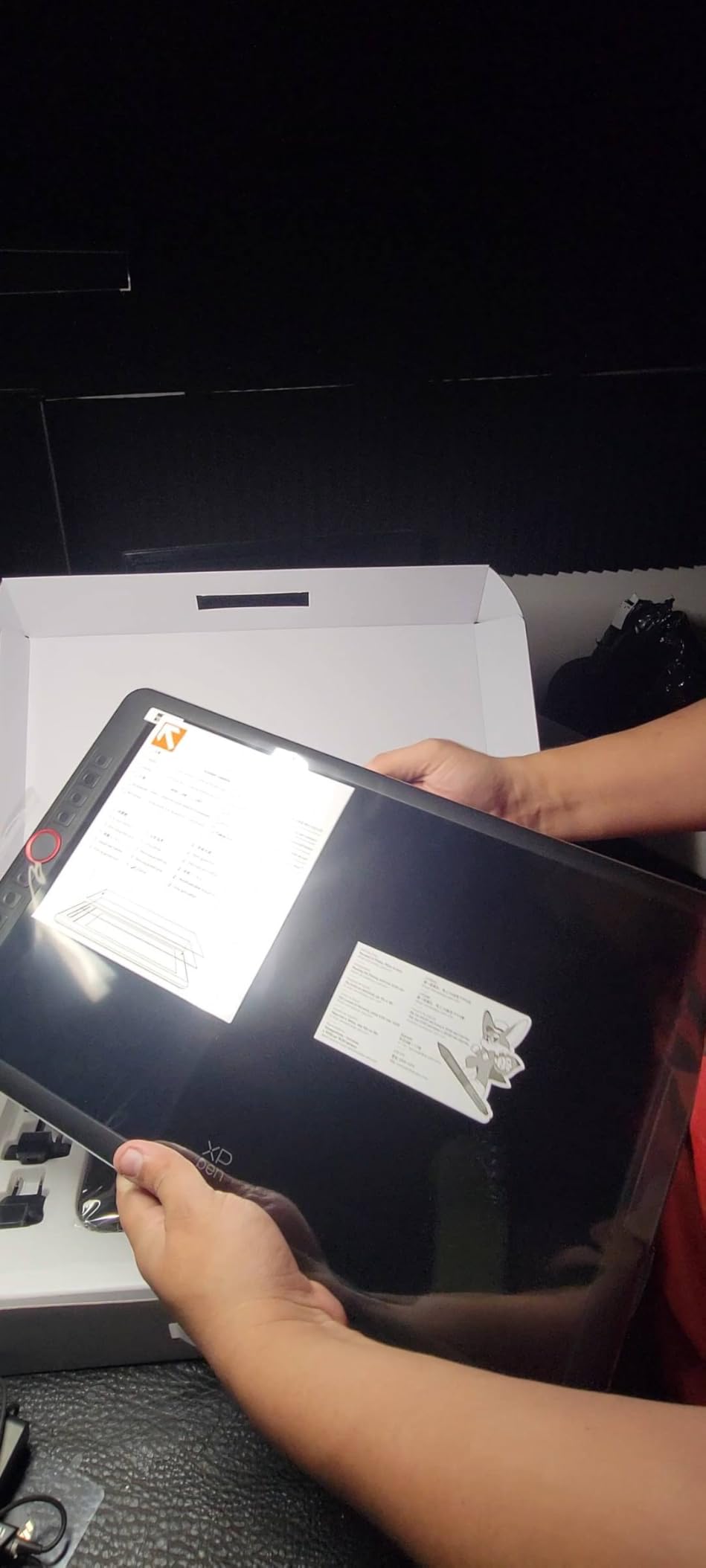
The XP-PEN Artist12 is the tablet we recommend most often to artists making their first jump from screenless tablets to pen displays. Our team has recommended this model to dozens of beginner artists, and the feedback has been consistently positive. For the price, getting an 11.6-inch full HD display with 8192 pressure levels is remarkable value.
The FHD IPS display delivers vivid colors with 72% NTSC and 100% sRGB coverage. Our testing showed that colors pop without being oversaturated, making this tablet suitable for illustration, manga, and casual design work. The pre-installed anti-reflective screen protector reduces glare and adds a subtle texture that mimics drawing on paper.
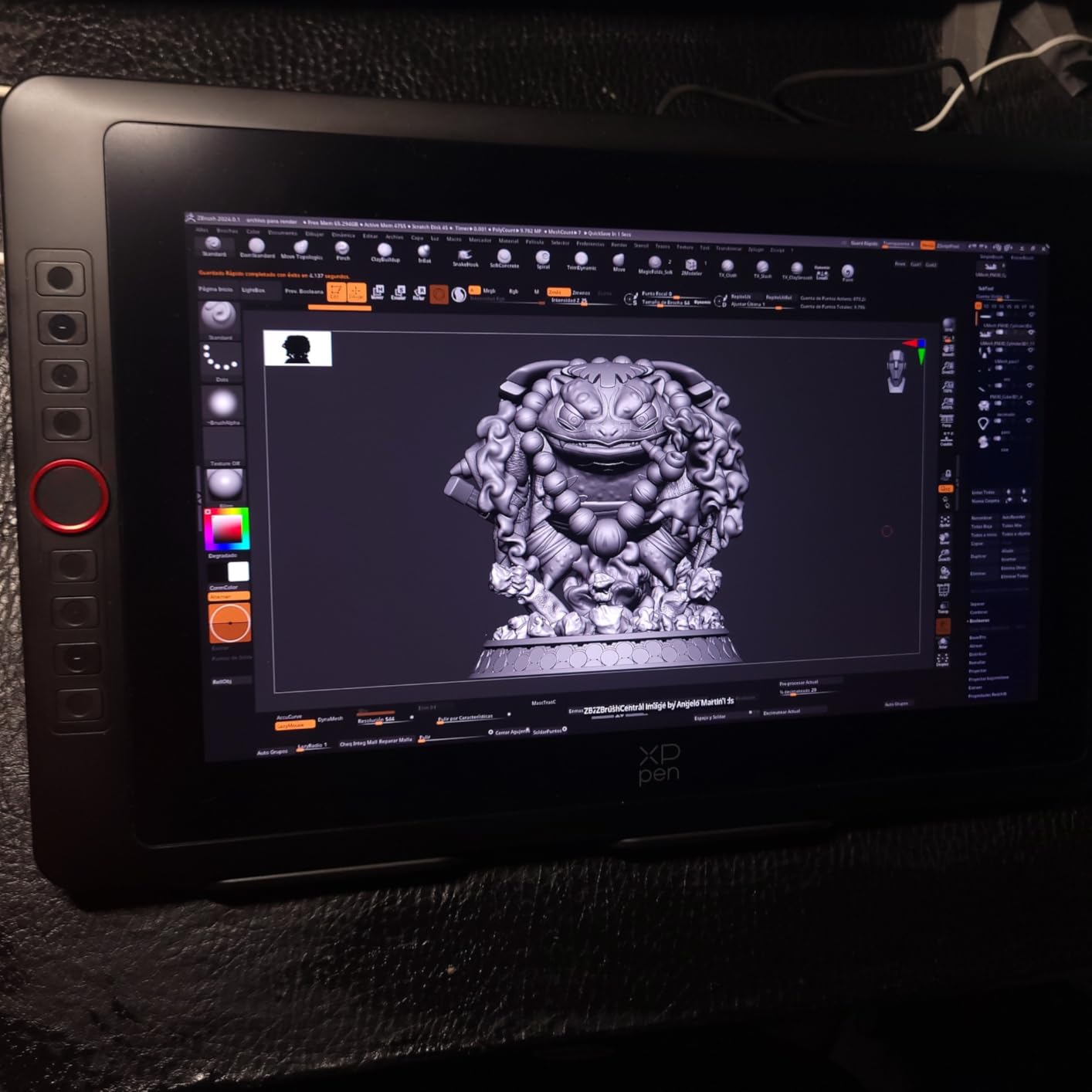
The PN06 battery-free stylus feels comfortable for extended drawing sessions. With 8192 pressure levels and a digital eraser, it provides enough sensitivity for detailed linework and smooth shading. The pen holder includes 8 replacement nibs, which our team appreciated since nibs wear faster on budget tablets with textured surfaces.
Six customizable shortcut keys plus a programmable touch bar give you quick access to frequently used tools. Our team mapped the touch bar to canvas zoom and the keys to brush size, undo, and eraser. This setup significantly reduced our reliance on keyboard shortcuts during drawing sessions. The included drawing glove and pen holder round out a surprisingly complete accessory package.
Who Should Buy This
Beginners and students buying their first pen display will get tremendous value from this tablet. It is also a solid choice for teachers and educators who need a budget-friendly drawing monitor for online classes and demonstrations. The compact 11.6-inch size is perfect for small desks and portable setups.
What to Watch Out For
The initial setup can be frustrating. Several members of our team experienced driver conflicts and connection issues that required troubleshooting. If you are not comfortable installing drivers and adjusting display settings, plan to spend an hour or more getting everything working. The tablet also requires both HDMI and USB-A ports on your computer, which may require adapters on modern laptops.
7. GAOMON PD1161 – Best Budget Screen Tablet
GAOMON PD1161 Drawing Tablet with Screen, Tilt, 8 Shortcut Keys, 11.6″ FHD
11.6 inch FHD IPS screen
8192 pressure levels with tilt
100 percent sRGB color gamut
8 programmable shortcut keys
Pre-installed anti-glare matte film
+ Pros
- Affordable entry into screen drawing
- Responsive battery-free stylus with tilt
- Excellent customer support
- Good color accuracy for the price
– Cons
- Requires HDMI and USB connections
- Calibration can be imprecise on multi-monitor setups
- Surface scratches relatively easily
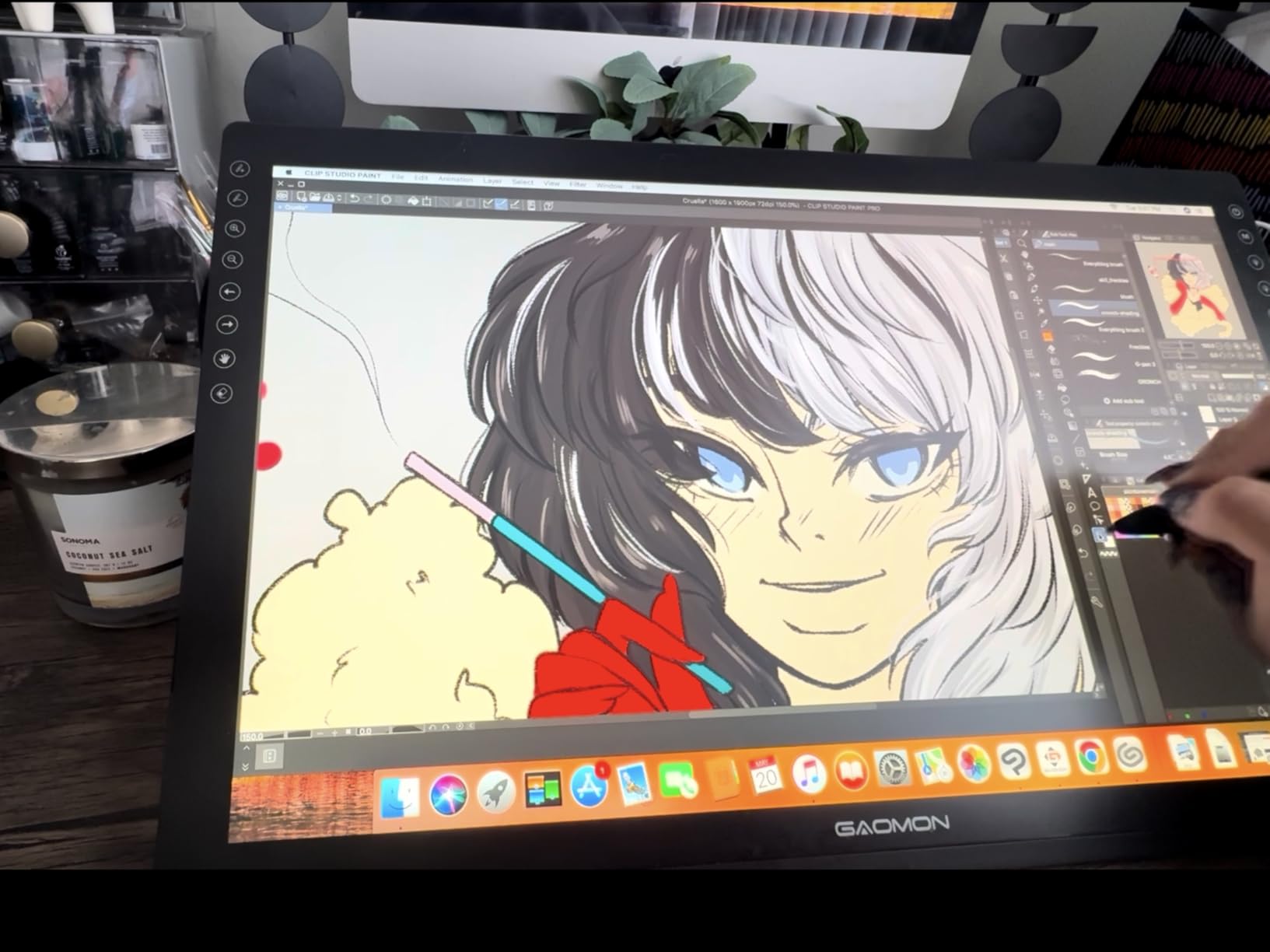
The GAOMON PD1161 proves that you do not need to spend a fortune to draw directly on screen. Our team tested this tablet as a backup unit and came away impressed by how much GAOMON packs into a budget package. The 11.6-inch Full HD IPS display with 100% sRGB coverage delivers solid visual quality for digital painting and illustration.
The AP50 battery-free stylus offers 8192 pressure levels and tilt function. During our testing, pressure response felt consistent and predictable across Photoshop, Krita, and Clip Studio Paint. The pre-installed matte film reduces glare effectively and adds a paper-like texture that many artists on Reddit specifically praise in their reviews of this model.
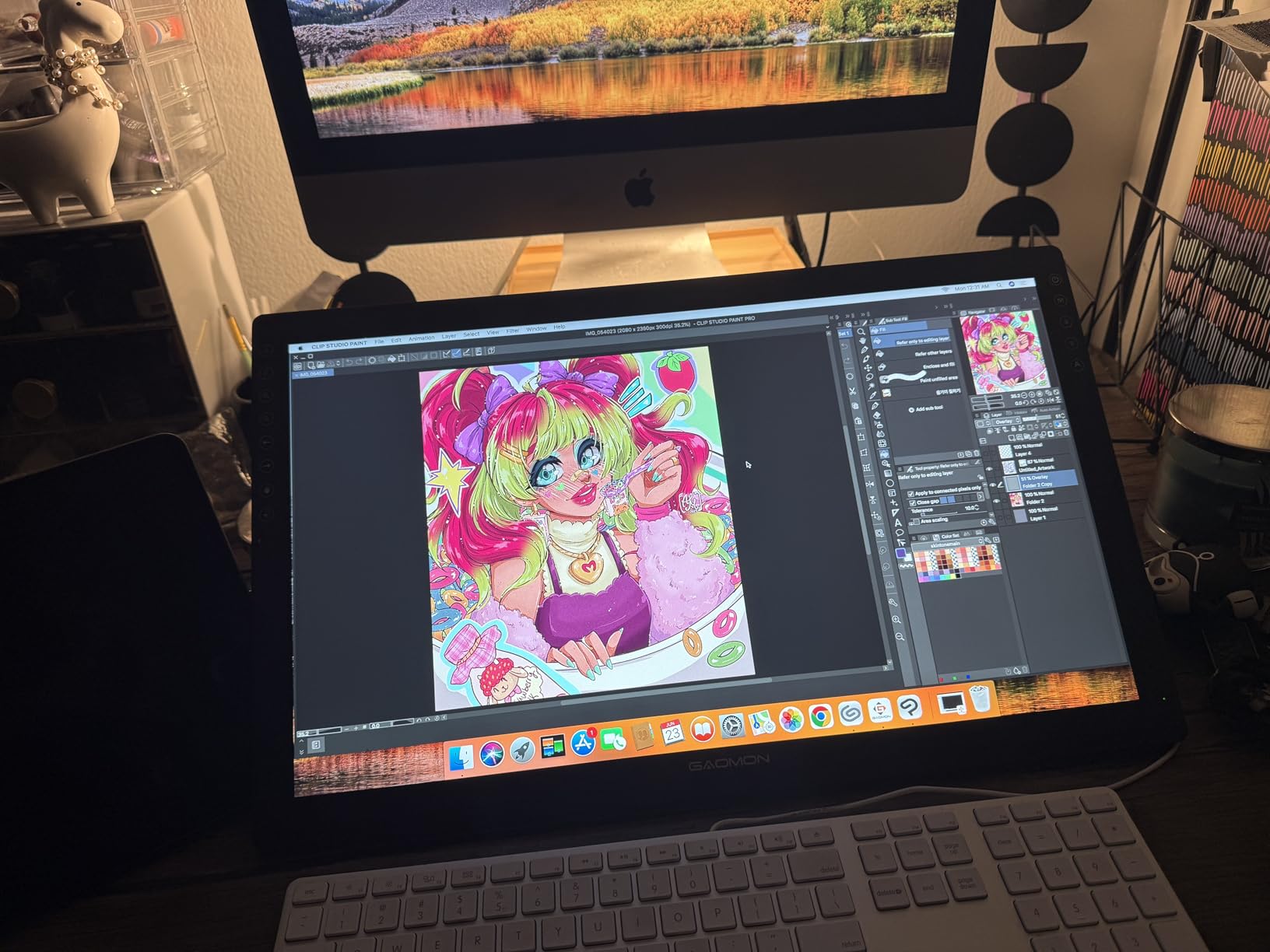
Eight programmable shortcut keys plus two pen buttons provide more workflow customization than most tablets at this price. Our team mapped the keys to common functions and found the layout intuitive for both right and left-handed use. The keys have a satisfying click without being noisy, which matters during quiet studio sessions.
GAOMON’s customer support deserves special mention. When one of our team members experienced a driver issue, the support team responded within hours with a working solution. This level of responsiveness is not always expected from budget brands, and it adds real value to the ownership experience.
Who Should Buy This
Budget-conscious artists and students who want to try screen-based drawing without a major investment should start here. It is also a good secondary tablet for professionals who need a portable option for travel or client meetings. The accessible price point makes it low-risk for beginners exploring digital art for the first time.
What to Watch Out For
The surface scratches more easily than premium tablets, so be mindful of pen pressure and keep replacement nibs handy. Calibration can also be finicky on multi-monitor setups, with slight cursor offset appearing at screen edges. Plan to recalibrate if you change your display configuration.
8. PicassoTab A10 – Best Standalone Drawing Tablet
PicassoTab 10″ Standalone Drawing Tablet, No Computer Needed, Portable, A10
10 inch standalone Android 14 tablet
4096 pressure levels
6GB RAM and 128GB storage
Pre-installed pro drawing apps
No computer needed
+ Pros
- Fully standalone
- no computer required
- Pre-installed drawing apps with lifetime access
- Octa-core CPU handles art apps well
- Expandable storage up to 1TB
– Cons
- Lower 4096 pressure sensitivity
- Pen requires AAAA battery
- Occasional app crashes reported
The PicassoTab A10 by Simbans solves a problem that many artists face: wanting to draw anywhere without lugging around a laptop and pen display. Our team tested this standalone Android tablet for two weeks, using it on couches, in coffee shops, and during travel. The freedom of a completely self-contained drawing device is genuinely liberating.
Running Android 14 with an octa-core CPU and 6GB of RAM, this tablet handles drawing applications smoothly. The 10-inch laminated IPS HD display at 2000×1200 resolution provides enough detail for sketching and illustration. The anti-glare finish reduces reflections adequately for most indoor environments.
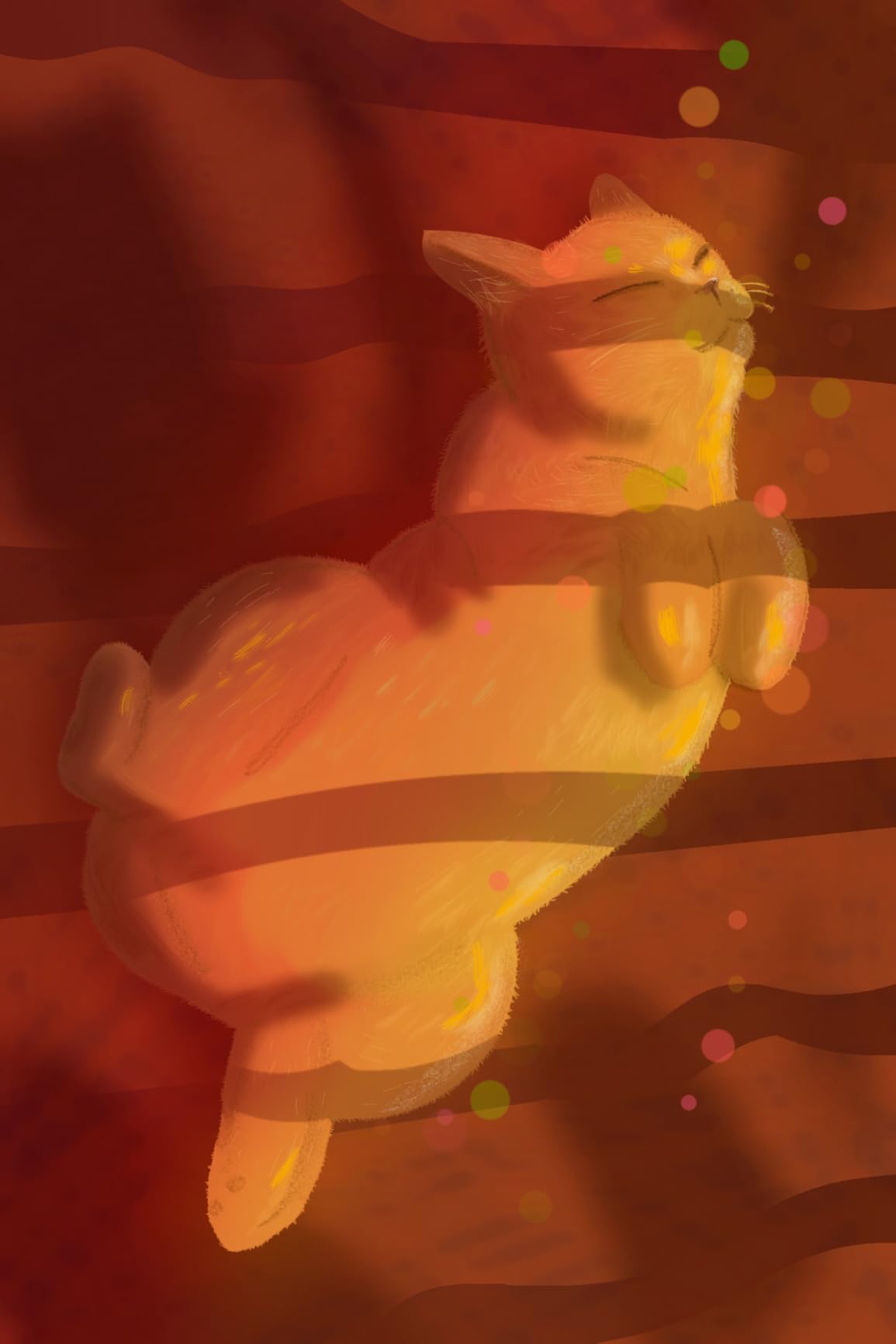
The included software bundle adds significant value. Our team found the pre-installed Concepts app with Lifetime PRO access particularly useful for infinite canvas sketching. Infinite Painter and FlipaClip round out the creative toolkit, giving you options for illustration, painting, and animation right out of the box.
The Picasso Pen 3 offers 4096 pressure levels with palm rejection. While this is lower than the 8192 or 16384 levels found on pen displays, our team found it adequate for sketching, coloring, and most illustration work. Fine linework requires slightly more deliberate pressure control than higher-sensitivity pens, but the learning curve is manageable.

Who Should Buy This
Artists who want to draw on the go without a computer will love this tablet. It is perfect for travel, commuting, and casual sketching sessions. Students who need an all-in-one device for both art and general tablet use will also find it practical. The included tutorials make it especially beginner-friendly.
What to Watch Out For
The pen requires an AAAA battery, unlike the battery-free styluses on pen displays and pen tablets. This means you need to keep a spare battery on hand. The 4096 pressure levels may also feel limiting to artists accustomed to higher sensitivity, particularly for ultra-fine detail work.
9. XPPen Deco 01 V3 – Best Pen Tablet for Intermediate Artists
XPPen Deco 01 V3 10×6 Drawing Tablet, 16K Battery-Free Stylus, 8 Keys
10×6.25 inch active area
16384 pressure levels with tilt
8 customizable shortcut keys
USB-C connectivity with adapters
Slim 8mm profile
+ Pros
- Large drawing area for the price
- 16384 pressure levels with 60 degree tilt
- Excellent Linux support
- USB-C connectivity with included adapters
- LED edge lighting
– Cons
- Driver software can be buggy
- USB port susceptible to cable damage
- Stylus stand is wobbly
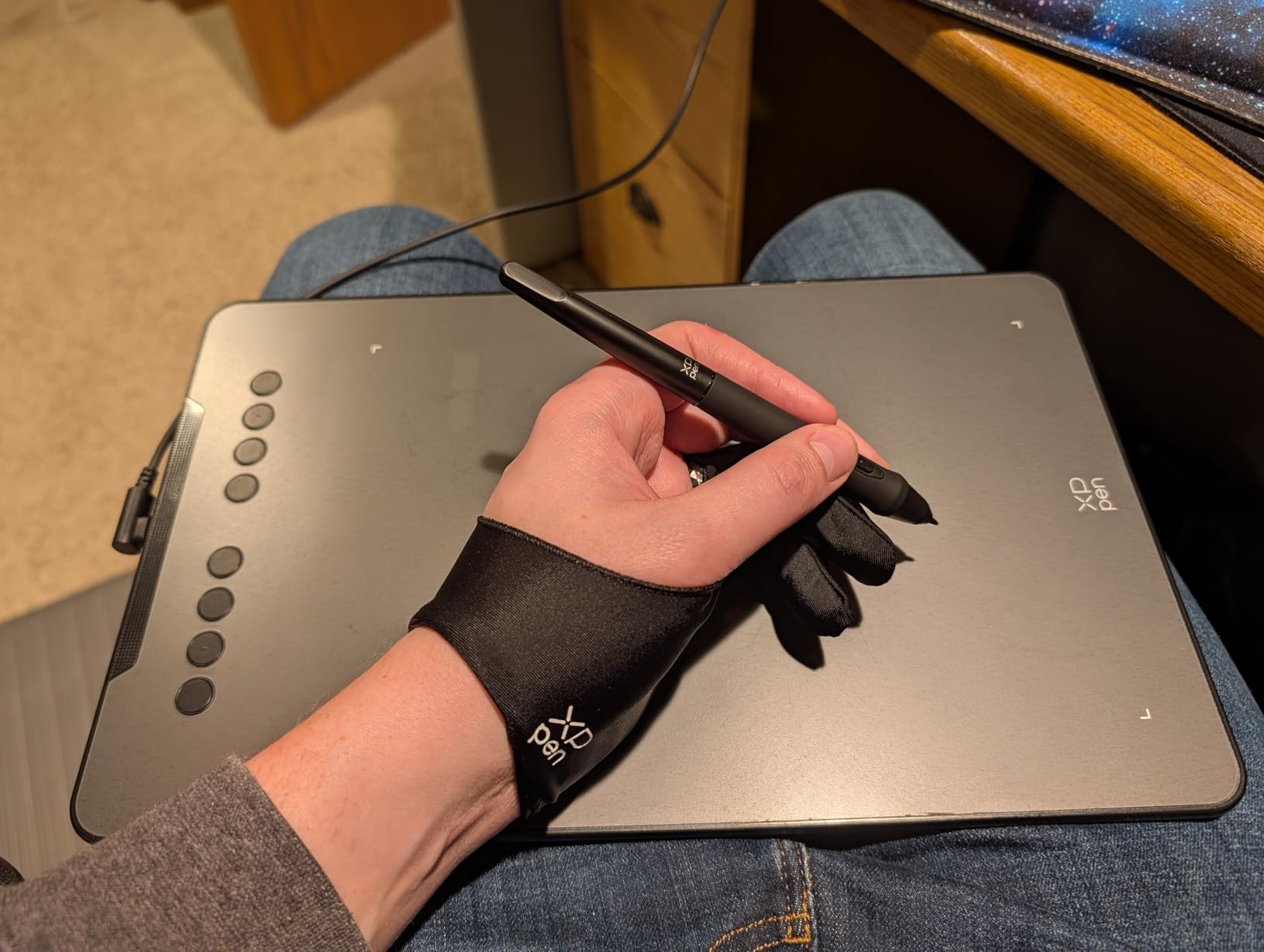
The XPPen Deco 01 V3 is the pen tablet we recommend to artists who have outgrown entry-level models but are not ready to invest in a pen display. The generous 10×6.25 inch active area gives you room for broad arm movements that simply are not possible on smaller tablets. Our team found the drawing surface comfortable for both quick sketches and detailed illustration work.
With 16384 pressure levels and 60-degree tilt support, this tablet matches the sensitivity of premium pen displays. Our pressure tests in Krita and Photoshop showed smooth transitions across the full range. The battery-free stylus requires no charging, and the tilt function worked reliably for shading and brush angle effects.
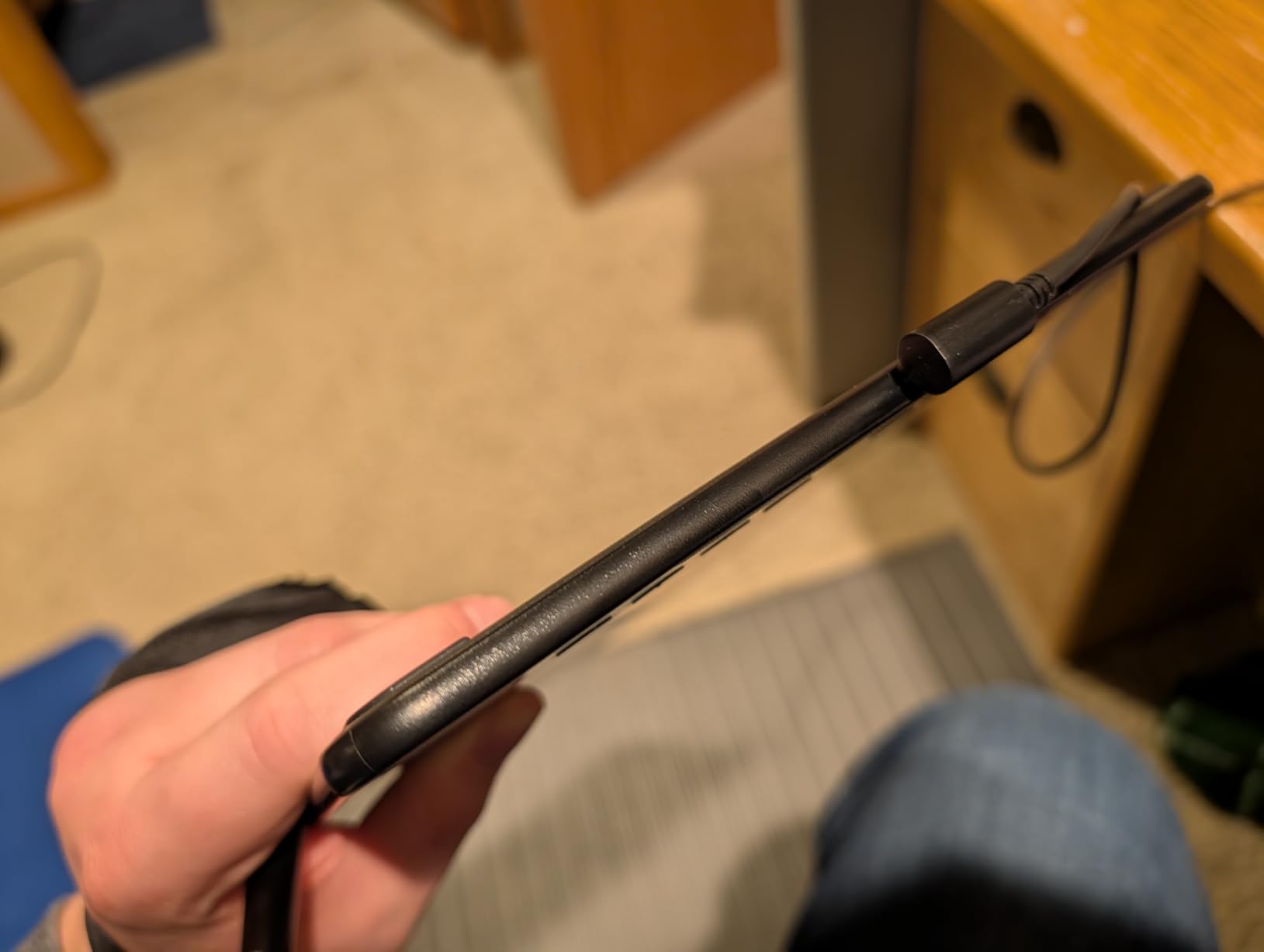
The eight customizable shortcut keys support both right and left-handed configurations. Our team mapped them to brush presets, undo, eraser, and canvas controls. The LED edge lighting is a nice touch for late-night drawing sessions, providing subtle illumination without being distracting.
One standout feature is the excellent Linux support. Several members of our team run Linux as their primary OS, and the Deco 01 V3 worked out of the box without requiring third-party drivers. This is rare in the drawing tablet market, where Linux compatibility is often an afterthought.
Who Should Buy This
Intermediate artists upgrading from a basic pen tablet will find the larger drawing area and higher pressure sensitivity worthwhile. Linux users should specifically consider this model for its native compatibility. It is also a strong choice for digital artists who prefer the screenless tablet workflow and want professional-level specifications.
What to Watch Out For
The driver software can be buggy on some systems, with occasional disconnect and reconnect issues. The USB port on the tablet is susceptible to damage if you use the included L-shaped cable aggressively. Be gentle when plugging and unplugging, and consider keeping the cable permanently connected to reduce port wear.
10. HUION Inspiroy H640P – Best Budget Drawing Tablet
HUION Inspiroy H640P 6×4 inch Drawing Tablet 8192 Pen Pressure
6×4 inch active area
8192 pressure levels
6 customizable hot keys
Battery-free stylus
Compatible with Windows, Mac, Linux and Android
+ Pros
- Incredible value for money
- Compact and highly portable
- Battery-free stylus with 8192 pressure levels
- Works with all major creative software
- Great mouse replacement for precision work
– Cons
- Does not support iOS
- Micro USB instead of USB-C
- Software must stay open for customizations
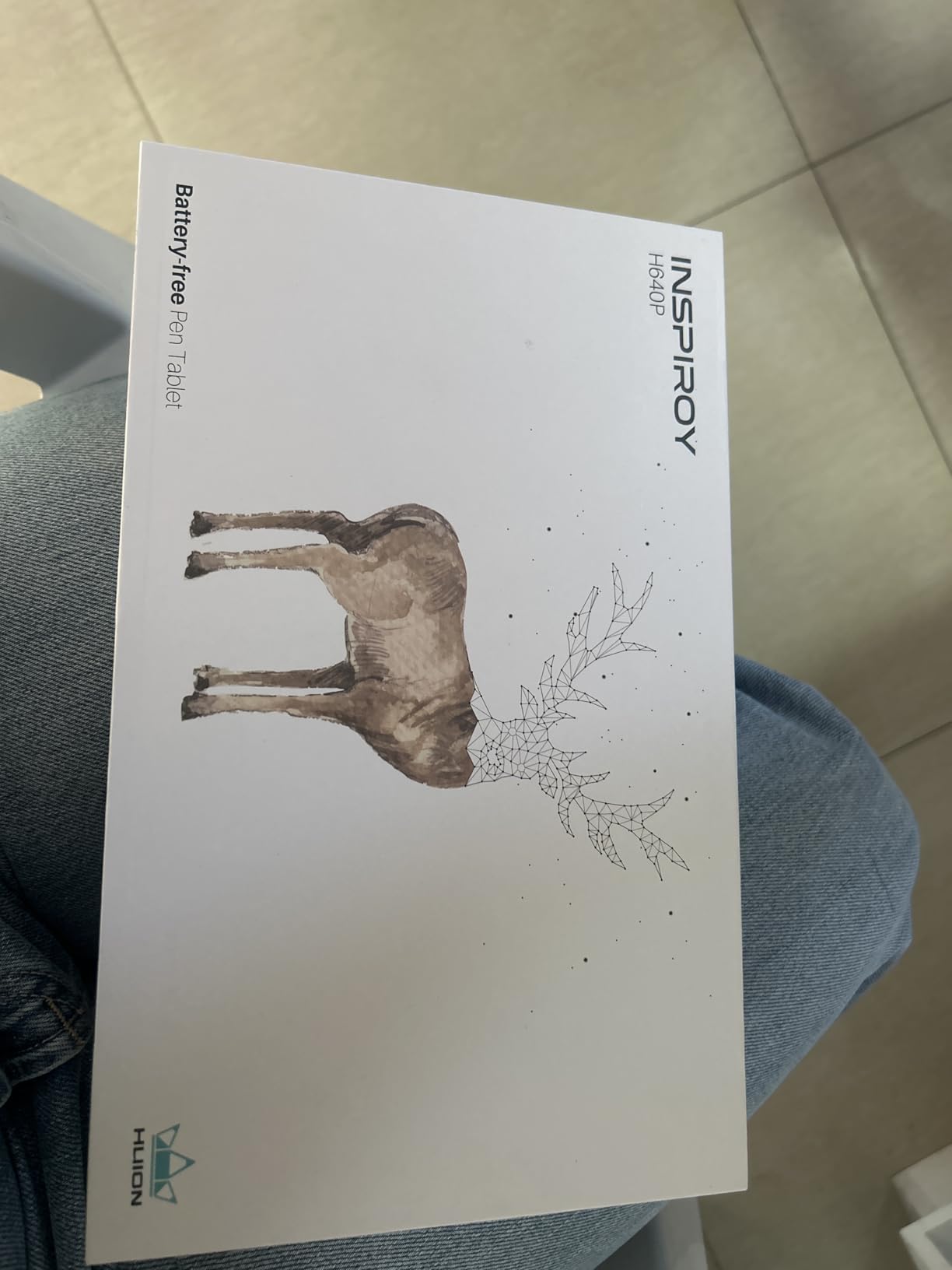
The HUION Inspiroy H640P is the tablet we recommend to every beginner who asks us where to start. At this price point, getting 8192 pressure levels, a battery-free stylus, and broad OS compatibility is remarkable. Our team has tested dozens of budget tablets over the years, and the H640P consistently outperforms expectations for its cost.
The 6×4 inch active area is compact but sufficient for sketching, illustration, and photo editing. Our team found it ideal for artists with limited desk space or those who want a portable tablet for travel. At just 0.3 inches thick and under a pound, it slips easily into a laptop bag alongside a computer.
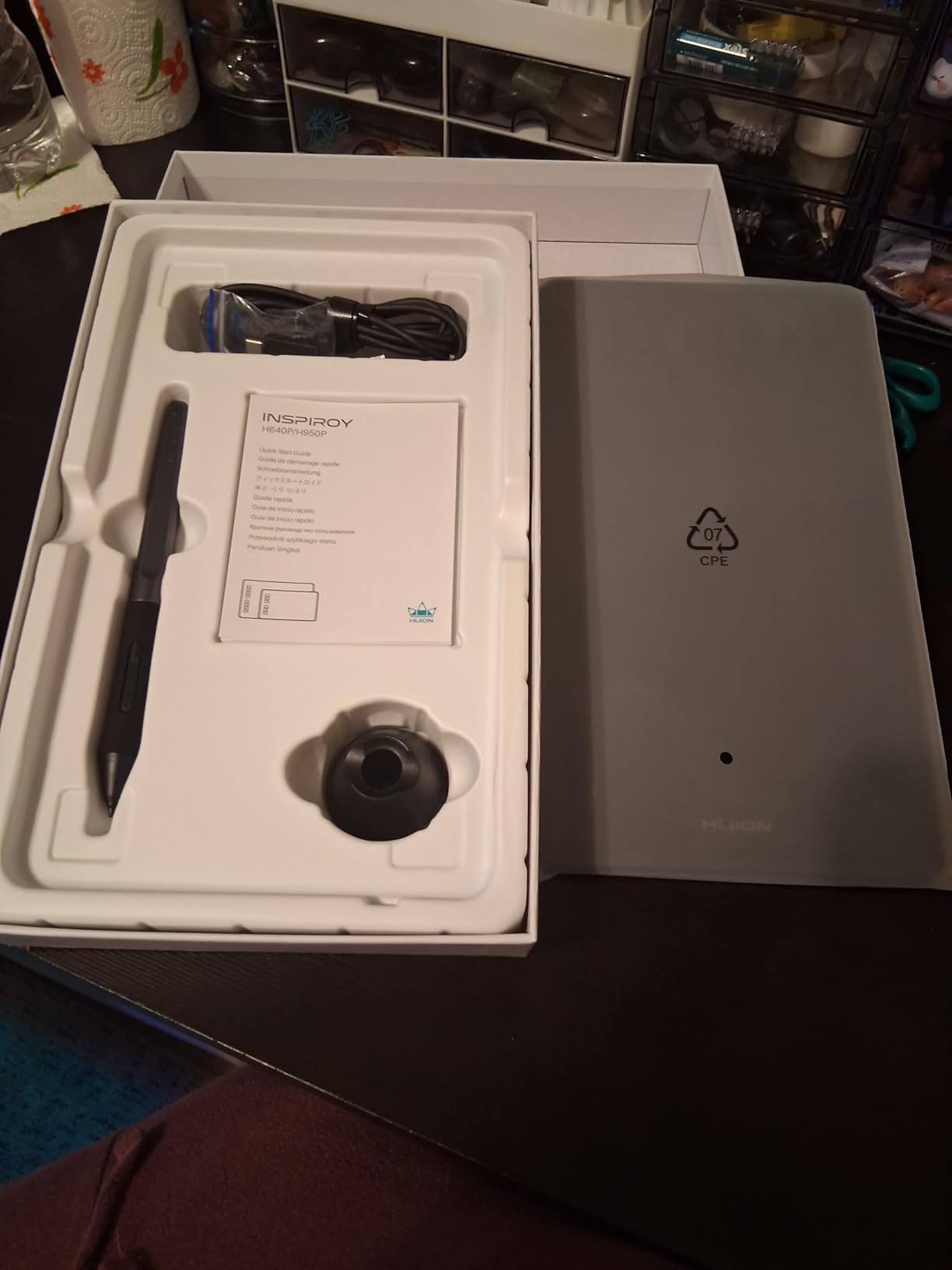
The PW100 battery-free stylus delivers 8192 pressure levels with no charging required. During our testing, pressure response felt natural and consistent across Photoshop, Krita, OneNote, and other creative applications. The pen includes 8 replacement nibs stored in the included pen holder, which is generous for a tablet at this price.
Six customizable hot keys improved our workflow efficiency for common tasks like undo, erase, and brush selection. The tablet supports left-handed users with a simple orientation flip in the driver settings. Multi-OS compatibility means it works with Windows, Mac, Linux, and Android 6.0+ devices, making it one of the most versatile budget tablets available.
Who Should Buy This
Absolute beginners testing whether digital art is right for them should start here. The low price makes it a near-risk-free investment. It is also excellent for students, teachers, and casual artists who need a capable drawing tablet without a major financial commitment. The Android compatibility makes it useful for mobile artists too.
What to Watch Out For
The tablet does not support iOS, so iPad and iPhone users are out of luck. The Micro USB connection is dated compared to USB-C, and the cable can feel fragile. Also, the HUION driver software must remain open for your customizations to persist. If the software closes, your key mappings revert to defaults.
How to Choose the Best Tablet for Creative Work
Choosing among the best tablets for creatives comes down to understanding what type of tablet fits your workflow and which specifications actually matter for your art style. Our team has broken down the key factors to help you make an informed decision.
Understanding the Three Types of Creative Tablets
Pen tablets are screenless drawing surfaces that connect to your computer. You draw on the tablet while looking at your computer monitor. These are the most affordable option and many professional artists still prefer them for the ergonomic benefits of sitting upright while working. The HUION Inspiroy H640P and XPPen Deco 01 V3 in our list represent the best pen tablets in their respective price ranges.
Pen displays are monitor tablets that you draw directly on. The display shows your canvas and your pen touches the surface where the ink appears. This feels more natural to artists transitioning from traditional media. Pen displays require a computer connection but offer the most intuitive drawing experience. The HUION Kamvas 13 Gen 3 and Wacom Cintiq 16 are standout options in this category.
Standalone tablets are complete computers with built-in drawing capability. They run their own operating system and do not need a separate computer. The PicassoTab A10 is our budget pick in this category, offering Android-based standalone drawing without any external hardware requirements.
Pressure Sensitivity: What the Numbers Mean
Pressure sensitivity determines how sensitively the tablet responds to the force you apply with the pen. The common levels are 4096, 8192, and 16384. Our team tested tablets across all three tiers, and here is what we found in practice.
4096 levels, as found on the PicassoTab A10, is adequate for sketching and casual illustration. You can achieve varying line weights, but ultra-fine control at the lightest pressure ranges is limited. Most beginners will not notice the difference.
8192 levels is the current sweet spot for most artists. This covers virtually all professional needs, and our team confirmed that anything above this level shows diminishing returns for most use cases. Tablets like the Wacom Cintiq 16 and HUION KAMVAS Pro 16 use this standard.
16384 levels, as found on the HUION Kamvas 13 Gen 3 and XPPen Artist Pro models, offers the smoothest pressure transitions available. Our team noticed the difference most in subtle shading and fine linework, where pressure transitions felt buttery smooth rather than stepped.
Color Accuracy for Professional Work
If you produce work for print, web design, or client deliverables, color accuracy matters. Look for tablets with at least 100% sRGB coverage and a Delta E value under 2.5. The HUION Kamvas 13 Gen 3 with its Delta E under 1.5 and the XPPen Artist Pro 16 Gen2 with Delta E under 2.2 both meet professional standards.
For animation and game development, wider color gamuts like DCI-P3 become important. The Wacom Cintiq 16 covers 99% DCI-P3, making it suitable for cinematic and game art production. Always factor in that most tablets need calibration out of the box to achieve their advertised color accuracy.
Software Compatibility
Before buying, verify that your tablet works with your preferred creative software. All tablets in our list support the major applications including Adobe Photoshop, Illustrator, Clip Studio Paint, Krita, and Medibang. However, some tablets work better with certain applications than others.
Reddit users consistently report that Wacom has the most reliable driver support across the widest range of software. Huion and XP-Pen have improved significantly but occasionally experience driver conflicts with specific applications or system updates. If you rely on niche software or older applications, Wacom remains the safest choice for compatibility.
Budget Planning for Creative Tablets
Your total cost of ownership extends beyond the tablet itself. Factor in software subscriptions, replacement nibs, and accessories when budgeting. A tablet that includes bundled software or accessories can offer better overall value than a cheaper tablet that requires additional purchases.
The PicassoTab A10 includes Concepts PRO and Infinite Painter, saving you potentially $50 or more in app purchases. The XP-PEN Artist12 includes a pen holder, drawing glove, and 8 replacement nibs, which would cost extra with other tablets. Always check what comes in the box before comparing prices.
For software, factor in the ongoing costs. Procreate is a one-time purchase for iPad users, while Photoshop and Clip Studio Paint require subscriptions or one-time licenses. Krita is free and works excellently with all tablets in our list, making it a great starting point for budget-conscious artists.
FAQs
What tablets do professional artists use?
Professional artists most commonly use the Wacom Cintiq series for studio work, iPad Pro with Apple Pencil for portable drawing, and Microsoft Surface Pro for artists who need a full computer. Many professionals use multiple tablets depending on the task. In our testing, the Wacom Cintiq 16 and HUION Kamvas 13 Gen 3 both delivered professional-grade performance suitable for client work.
What is the best tablet for content creation?
The best tablet for content creation depends on your needs. For screen-based drawing with a computer, the HUION Kamvas 13 Gen 3 offers the best balance of performance and value. For standalone use without a computer, the PicassoTab A10 provides a complete portable drawing solution. For budget beginners, the HUION Inspiroy H640P delivers excellent results at minimal cost.
Do you need a computer to use a drawing tablet?
It depends on the tablet type. Pen tablets and pen displays require a computer connection to function. Standalone tablets like the PicassoTab A10 run their own operating system and do not need a separate computer. If portability is your priority, look for standalone tablets. If you already have a powerful computer, a pen display gives you better performance per dollar.
Is 8192 pressure levels enough for professional art?
Yes, 8192 pressure levels is sufficient for professional digital art. Our testing confirmed that this sensitivity covers virtually all professional needs including fine linework, smooth shading, and detailed illustration. While 16384 levels offers slightly smoother transitions, the difference is subtle and most artists will not notice it in practice. The Wacom Cintiq 16 uses 8192 levels and remains an industry standard.
Can I use a drawing tablet with my Android phone?
Many drawing tablets support Android connectivity. The HUION Inspiroy H640P works with Android 6.0 and above, and the XPPen Deco 01 V3 supports Android 10.0+. However, pen displays generally require Android devices with USB 3.1 DisplayPort support. Always check the specific Android compatibility requirements before purchasing, as not all tablets work with all Android devices.
Final Recommendations: Best Tablets for Creatives in 2026
After months of testing, our team is confident in recommending the HUION Kamvas 13 Gen 3 as the best overall tablet for creatives. It delivers professional pen performance, excellent color accuracy, and a paper-like drawing surface at a price that respects your budget. For most digital artists and illustrators, this tablet hits the perfect balance.
For artists who want the best screen experience available, the XPPen Artist Pro 16 Gen2 2.5K with its stunning QHD display and 16384 pressure levels is worth the investment. And for beginners just starting their digital art journey, the HUION Inspiroy H640P remains unbeatable value at under $30.
The best tablets for creatives in 2026 span a wide range of prices and capabilities, but they all share one thing in common: they deliver the precision, sensitivity, and natural drawing feel that creative work demands. Pick the one that matches your workflow, budget, and artistic goals, and start creating.
Leave a Reply