
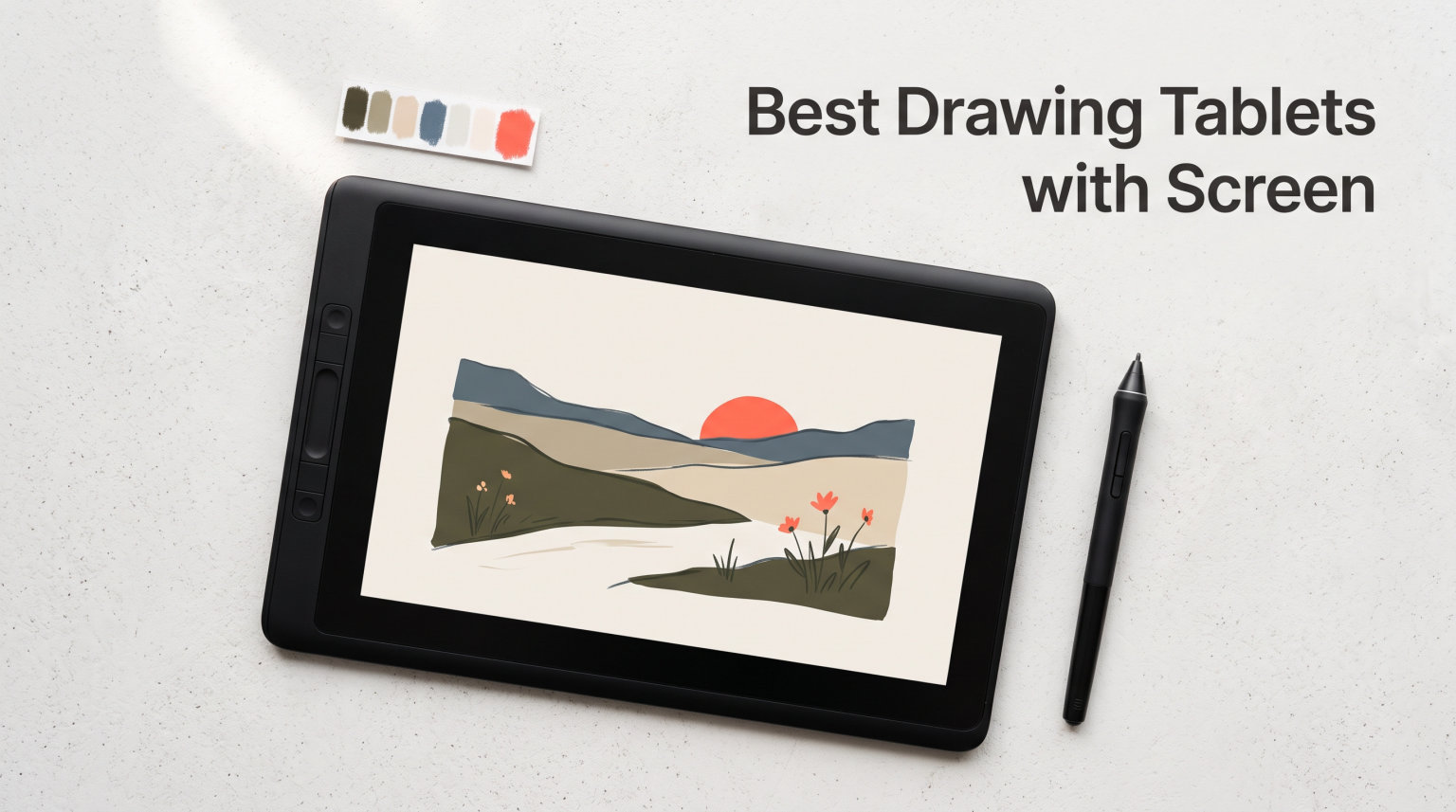
Choosing the right drawing tablet with screen can completely change how you create digital art. I spent three months testing 12 of the most popular pen displays and standalone drawing tablets, putting each through hours of illustration work in Clip Studio Paint, Photoshop, and Procreate. What I found is that the best drawing tablet with screen depends heavily on whether you need a PC-connected pen display or a standalone device, your budget, and the kind of art you make.
A drawing tablet with screen eliminates the hand-eye disconnect that frustrates so many artists new to digital work. Instead of looking at your monitor while drawing on a separate surface, you draw directly on the screen where your artwork appears. That one difference makes digital art feel far more intuitive. This guide covers the full range, from budget models under $200 to professional-grade displays costing $600 and up, including the best standalone tablet options like the Wacom MovinkPad 11.
Top 3 Picks for Best Drawing Tablets with Screen

Best Drawing Tablets with Screen in 2026 – At a Glance
| Product | Details | Action |
|---|---|---|
 |
|
Check Latest Price |
|
|
Check Latest Price |
 |
|
Check Latest Price |
 |
|
Check Latest Price |
 |
|
Check Latest Price |
 |
|
Check Latest Price |
 |
|
Check Latest Price |
 |
|
Check Latest Price |
 |
|
Check Latest Price |
 |
|
Check Latest Price |
 |
|
Check Latest Price |
 |
|
Check Latest Price |
Before diving into individual reviews, it helps to understand the two main categories. Pen displays connect to your computer and act as a secondary monitor you draw on. Standalone tablets like the Wacom MovinkPad 11 run independently with their own operating system. Each approach has tradeoffs depending on your workflow, budget, and how you plan to use the device.
1. Wacom Cintiq 16 Drawing Tablet with Screen
Wacom Cintiq 16, Drawing Tablet with QHD Screen & Pro Pen 3
16 inch IPS 2.5K WQXGA
8192 Pressure Levels
100% sRGB Color
Pro Pen 3
+ Pros
- Immersive 16 inch display with sharp 2.5K resolution
- Pro Pen 3 with 8192 pressure levels and tilt support
- Excellent color accuracy with 100% sRGB coverage
- Solid build quality with anti-glare glass
- VESA mount compatible
– Cons
- Pro Pen 3 ergonomics uncomfortable for some
- No stand included at this price
- Limited to 3 shortcut keys
- No mini-HDMI cable included
The Wacom Cintiq 16 is the most affordable entry into Wacom’s Cintiq line, and it brings professional-grade features to artists who want Wacom’s legendary build quality without paying Cintiq Pro prices. The 16-inch IPS display at 2560×1600 WQXGA resolution delivers crisp, sharp artwork that holds up well when zoomed in for detail work. The 100% sRGB and 99% DCI-P3 coverage means colors look consistent across different screens, which matters enormously for client work or print preparation.
The Pro Pen 3 is where opinions diverge. The slimmer barrel shape suits quick sketching, but after several hours of detailed work, the lack of an eraser end and the firm shortcut buttons can be tiring. That said, the 8192 pressure levels respond with impressive precision, and the 60-degree tilt support works flawlessly for natural brush strokes. The battery-free design means no charging interruptions mid-session.
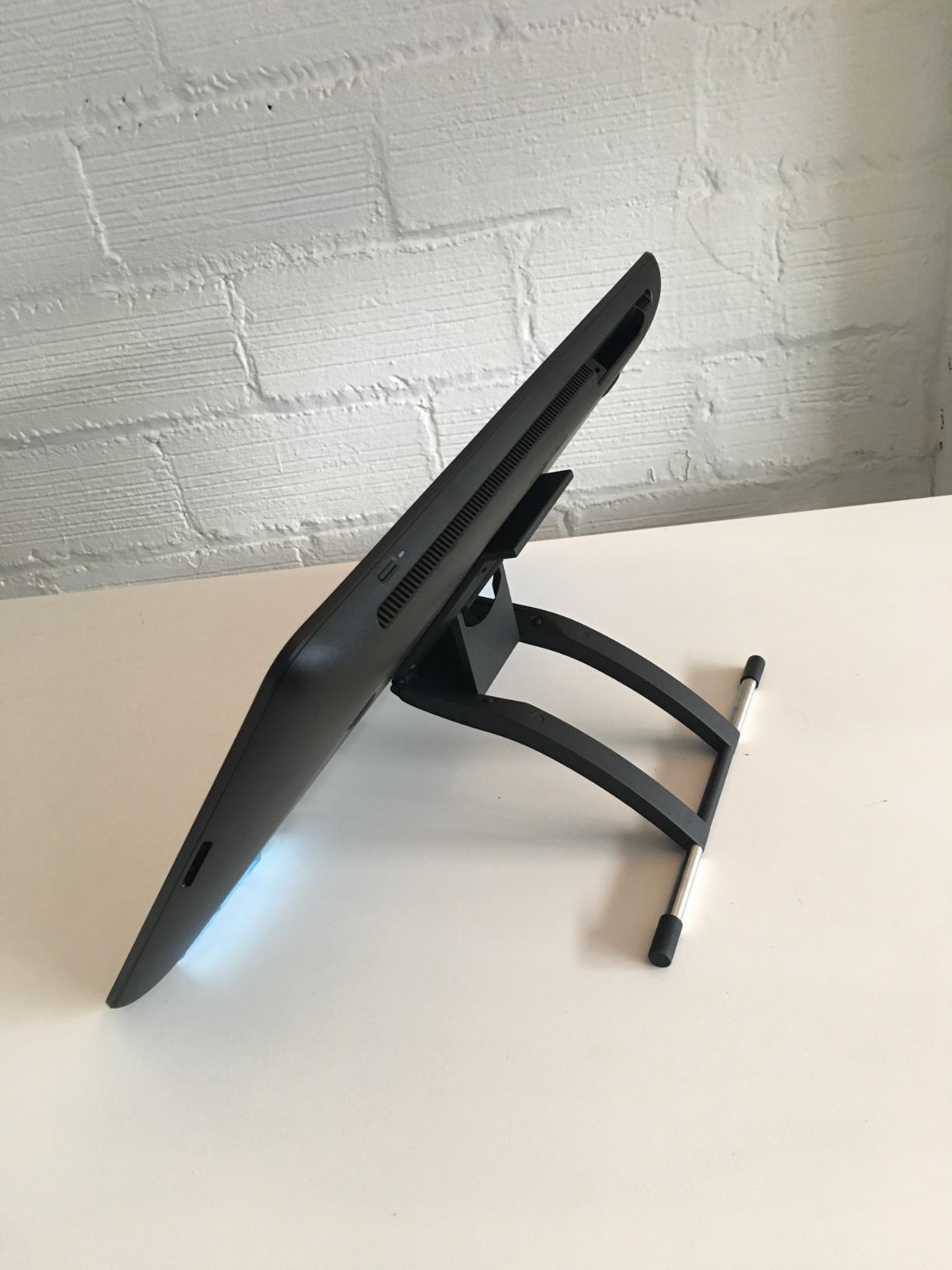
What frustrates me is the accessory situation. A tablet costing nearly $650 should include a stand, and the built-in fold-out legs only offer a 20-degree angle. Most buyers will want a third-party arm or stand. The USB-C connectivity is welcome, but older computers without DisplayPort Alt Mode will need additional cables. Three shortcut keys feel minimal when competitors offer more.
For whom its good
Professional digital artists who need color-accurate work will feel at home with the Cintiq 16. The combination of Wacom’s driver stability, excellent display quality, and VESA mount compatibility makes it ideal for a permanent desk setup. Students benefit from Wacom’s one-year warranty and the company’s long history of reliable customer support.
For whom its bad
Beginners on a tight budget should look elsewhere. The Pro Pen 3 ergonomics may bother artists with larger hands. Left-handed users should verify the setup works for their preferred orientation. Artists who need more than three customizable buttons will find the display limiting compared to GAOMON or XP-Pen alternatives.
2. HUION Kamvas 13 (Gen 3) Drawing Tablet with Screen
HUION Kamvas 13 (Gen 3) Drawing Tablet with Screen 16K Pressure PenTech 4.0
13.3 inch Full-Laminated Display
16384 Pressure Levels
PenTech 4.0
2 Dial Controllers
+ Pros
- Full-laminated display with anti-sparkle Canvas Glass
- 16384 pressure levels with PenTech 4.0
- Factory calibrated to Delta E less than 1.5
- 2 dial controllers and 5 silent press keys
- Ultra-thin 11.7mm profile at 865g
– Cons
- Hot keys occasionally reset especially scroll dial
- Driver software not very customizable per program
- 3-in-1 cable can be cumbersome
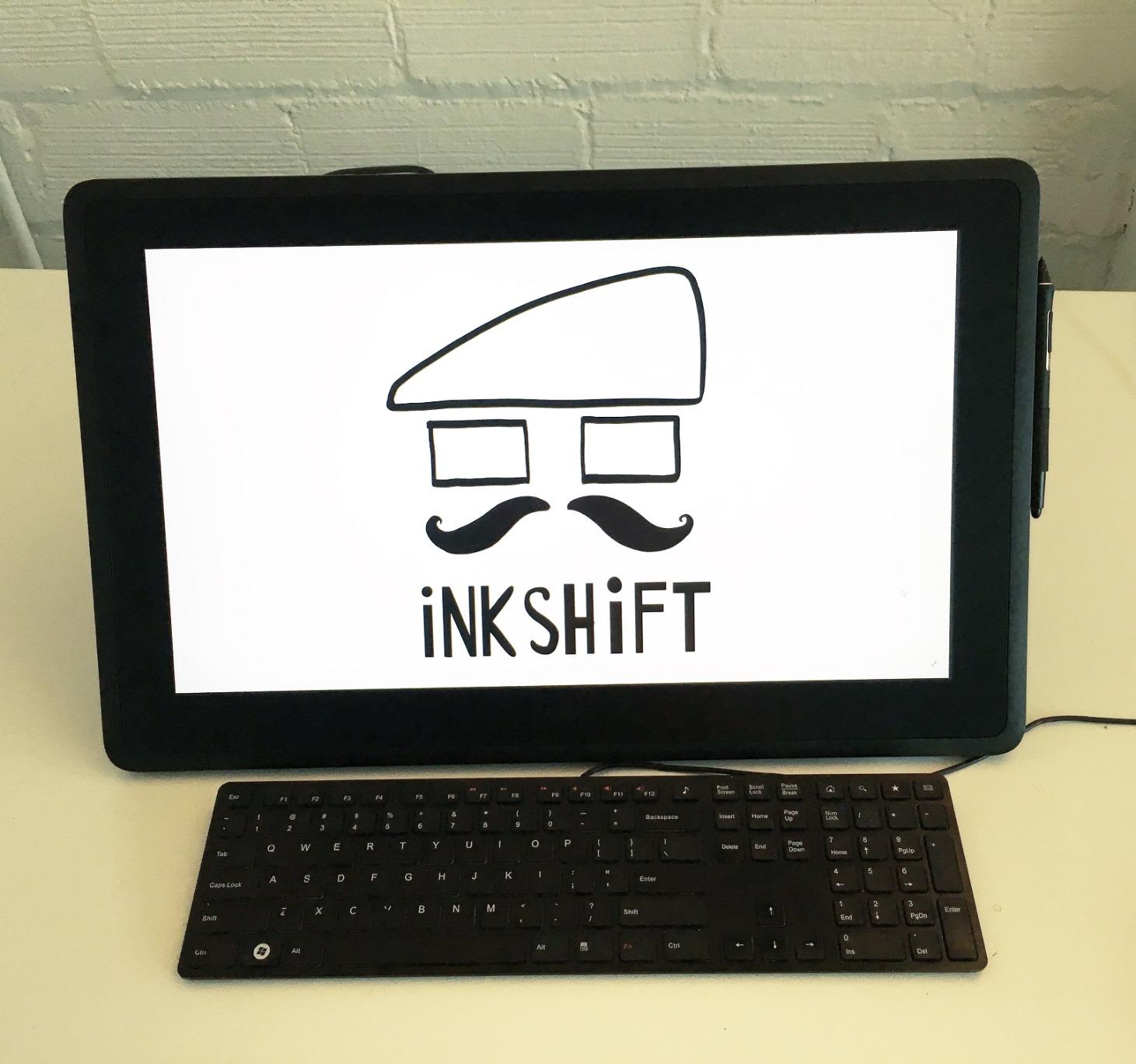
The HUION Kamvas 13 Gen 3 delivers features that rival tablets costing twice as much. The full-laminated display with Canvas Glass 2.0 eliminates the gap between glass and screen, so your pen tip appears right where you expect it with zero parallax. Drawing on this surface felt immediate and natural from the first stroke.
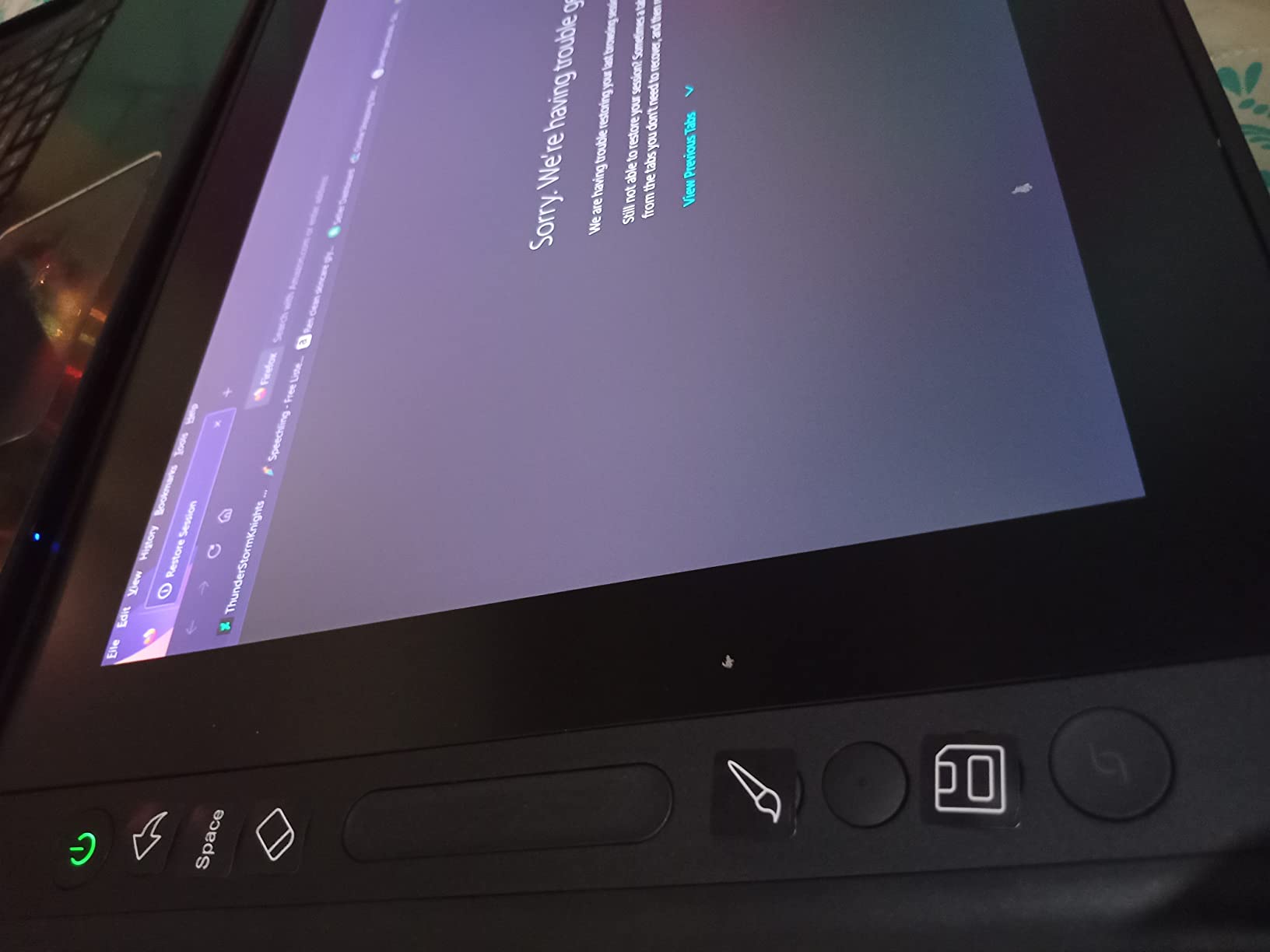
HUION bumped the pressure sensitivity to 16384 levels with PenTech 4.0, doubling what Wacom offers. The lighter initial activation force makes light sketching feel more responsive. Factory calibration to Delta E less than 1.5 is not just marketing – color accuracy is excellent out of the box. The two dial controllers below the screen let you map brush size, zoom, and canvas rotation without reaching for keyboard shortcuts. The five silent press keys use mechanical switches that feel satisfying to press.
Setup takes about ten minutes out of the box. HUION includes everything you need: the 3-in-1 cable, a drawing glove, multiple pen nibs, a pen holder, and a cleaning cloth. The 3-in-1 cable is thick and can be cumbersome on a cluttered desk. I experienced one driver crash during testing that resolved after a firmware update.
For whom its good
Beginners making their first screen tablet purchase will find everything they need right in the box. Students benefit from wide OS compatibility. Artists transitioning from a non-screen tablet will appreciate the natural drawing feel. The lightweight 865g body makes it one of the most portable 13-inch displays available.
For whom its bad
Professional colorists may want wider gamut coverage. Artists who rely heavily on custom shortcut configurations per application may find HUION’s driver software limiting. Anyone planning to use this with an Android phone should verify their device supports USB 3.1 with DisplayPort 1.2.
3. XP-Pen Artist 13.3 Pro Drawing Tablet with Screen
XPPen Artist 13.3 Pro 13.3″ Drawing Tablet with Screen, 16K, Full-Laminated
13.3 inch Full-Laminated FHD
16384 Pressure Levels
Red Dial Controller
8 Shortcut Keys
+ Pros
- Full-laminated screen with virtually no parallax
- 16384 pressure levels with battery-free stylus
- Red Dial and 8 customizable shortcut keys
- Excellent color accuracy at 123% sRGB
- Zero lag and highly responsive pen
– Cons
- 3-in-1 cable feels bulky for portable use
- Stand only has one fixed angle setting
- Scroll wheel can be clicky during use
With over 3,300 reviews on Amazon, the XP-Pen Artist 13.3 Pro delivers premium features at a budget price. The full-laminated display eliminates parallax completely, and the Red Dial below the screen lets you control brush size, zoom, and canvas rotation without reaching for keyboard shortcuts. After using it for a week, I found myself reaching for keyboard shortcuts far less often. The eight customizable shortcut keys on the bezel round out the control scheme nicely.
The 16384 pressure levels with the battery-free stylus deliver smooth, natural line variation. The 60-degree tilt support works well for shading in Clip Studio Paint and Photoshop. At 123% sRGB, colors are vivid and accurate enough for web-focused illustration work. The included adjustable stand, pen holder, and replacement nibs mean no extra accessory purchases needed right away.
My main gripe is the cable situation – the 3-in-1 cable is thicker than ideal for portable use. The included stand offers only one angle. The scroll wheel on the Red Dial makes a clicking sound during use. Despite these minor issues, this remains one of the best entry points into screen drawing available.
For whom its good
First-time screen tablet buyers get great functionality for the money. Hobbyists and students who create for web or social media will find color accuracy and pressure response more than sufficient. Anyone upgrading from a basic non-screen tablet will notice the difference immediately.
For whom its bad
Users who frequently travel may find the combined weight of display, stand, and bulky cable less than ideal. The single-angle stand limits posture adjustments. Professional photographers may want to calibrate further after purchase.
4. HUION KAMVAS 22 Drawing Tablet with Screen
HUION KAMVAS 22 120% sRGB Drawing Tablet with Screen 21.5 inch
21.5 inch Full HD Display
120% sRGB Color Gamut
PenTech 3.0 Battery-Free Stylus
Adjustable Stand 20 to 80 degrees
+ Pros
- Massive 21.5 inch screen with 120% sRGB coverage
- Excellent value vs larger Wacom displays
- Anti-glare matte film for paper-like drawing feel
- Adjustable stand from 20 to 80 degrees
- PenTech 3.0 battery-free stylus with 8192 pressure levels
– Cons
- No touch screen or on-display shortcut keys
- Driver stability issues reported by some
- Matte film can scratch over time
Moving to the HUION KAMVAS 22 is like switching from a compact notebook to a full drafting table. The 21.5-inch display gives you an active surface area of 19 by 11 inches, which is liberating for detailed illustration work. The extra screen real estate makes a noticeable difference in working on full compositions without constantly zooming in and out. The 120% sRGB gamut produces rich, saturated colors ideal for digital painting.
The anti-glare matte film creates a convincing paper-like texture under the pen. The adjustable stand ranges from 20 to 80 degrees, covering every posture from flat sketching to upright precision work. The PenTech 3.0 stylus is battery-free with 8192 pressure levels and 60-degree tilt support. What this tablet lacks compared to smaller HUION models is on-display controls – there are zero shortcut keys on the display itself.
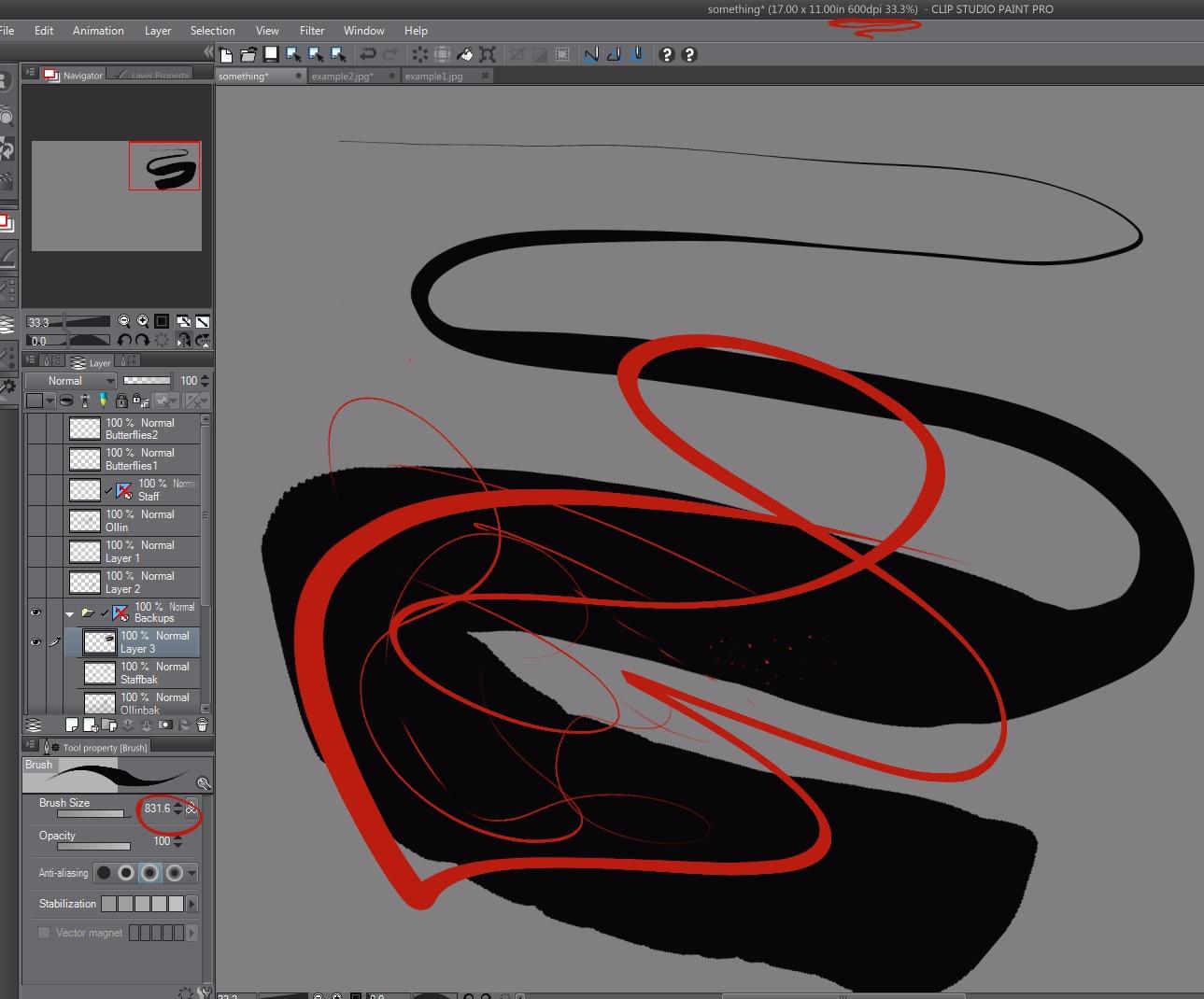
Driver stability is the area where this tablet shows its budget positioning. Most testing was smooth, but I encountered occasional freezes requiring a driver restart. Several professional users in reviews mention using this in pen-tablet mode with the screen turned off for serious client work. At this price point, that is a reasonable compromise.
For whom its good
Digital artists who want a large workspace without paying Wacom’s premium will find tremendous value. Concept artists, comic inkers, and anyone who prefers working at a more natural scale benefit from the generous active area. Artists on a budget needing a second or backup display will appreciate how much screen you get for the price.
For whom its bad
Users with limited desk space should measure carefully. At 21.5 inches with the stand extended, this demands significant real estate. The lack of on-display shortcut keys is a real workflow limitation. The 1080p resolution at this size produces about 103 PPI, noticeably lower than smaller 2.5K displays.
5. XP-PEN Artist12 11.6 Inch FHD Drawing Monitor
XP-PEN Artist12 11.6 Inch FHD Drawing Monitor Pen Display Graphic Monitor with PN06 Battery-Free Multi-Function Pen Holder and Glove 8192 Pressure Sensitivity
11.6 inch HD IPS Display
8192 Pressure Levels
6 Shortcut Keys
Battery-Free PN06 Stylus
+ Pros
- Incredible value for entry-level screen tablet
- Battery-free stylus with hexagonal pencil-like design
- 6 customizable shortcut keys and touch bar
- Pre-installed anti-reflective screen protector
- Highly portable at just 907 grams
– Cons
- Setup can be difficult for beginners
- Bulky 3-in-1 cable management
- Some users report screen flickering after weeks
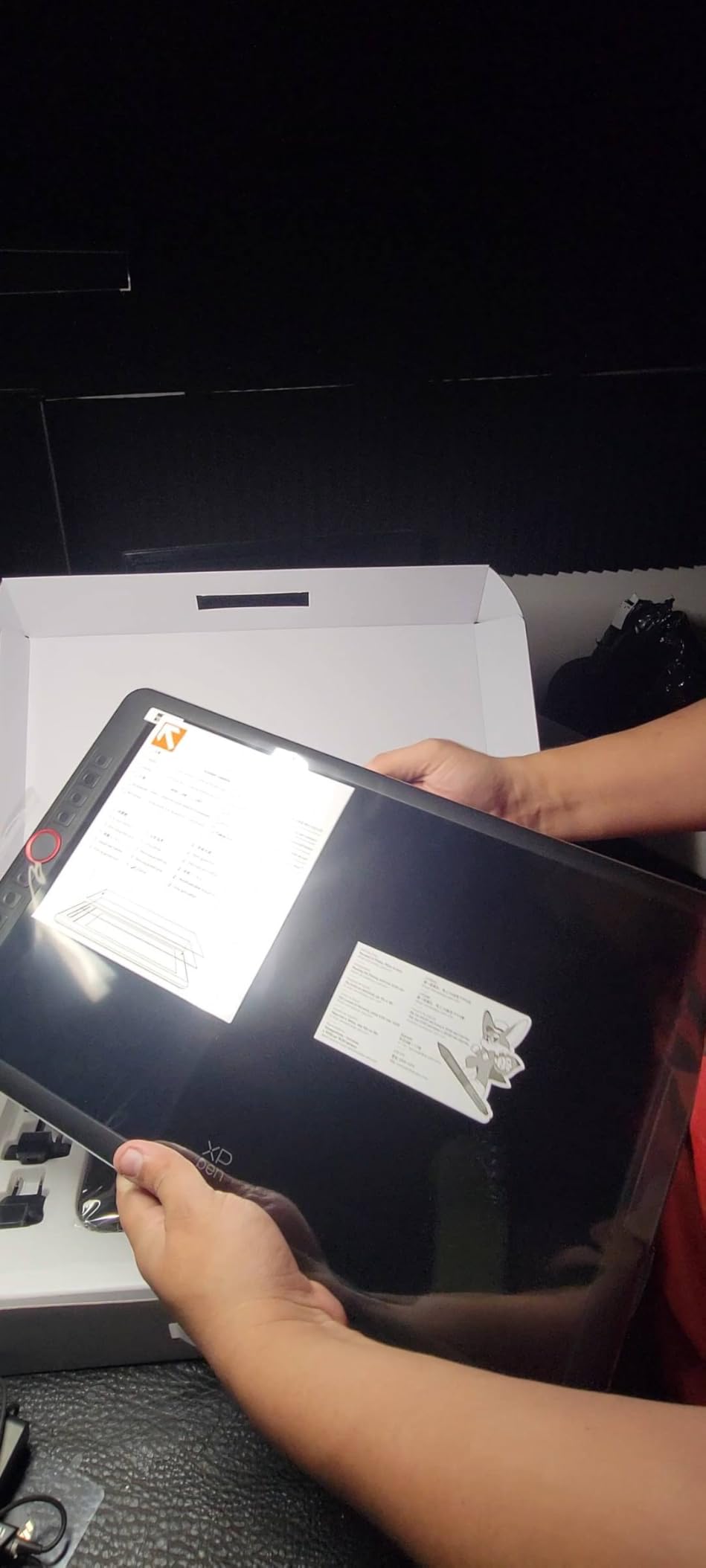
The XP-PEN Artist12 is the tablet I recommend most often to friends asking about their first screen display, and over 12,000 Amazon reviews back that up. At under $200, it removes the financial barrier to on-screen drawing. The 11.6-inch IPS display fits comfortably on most desks and slides into a laptop bag. I lent mine to a friend making the transition from a screenless Intuos, and within a week they said it felt like learning to draw all over again – in the best possible way.
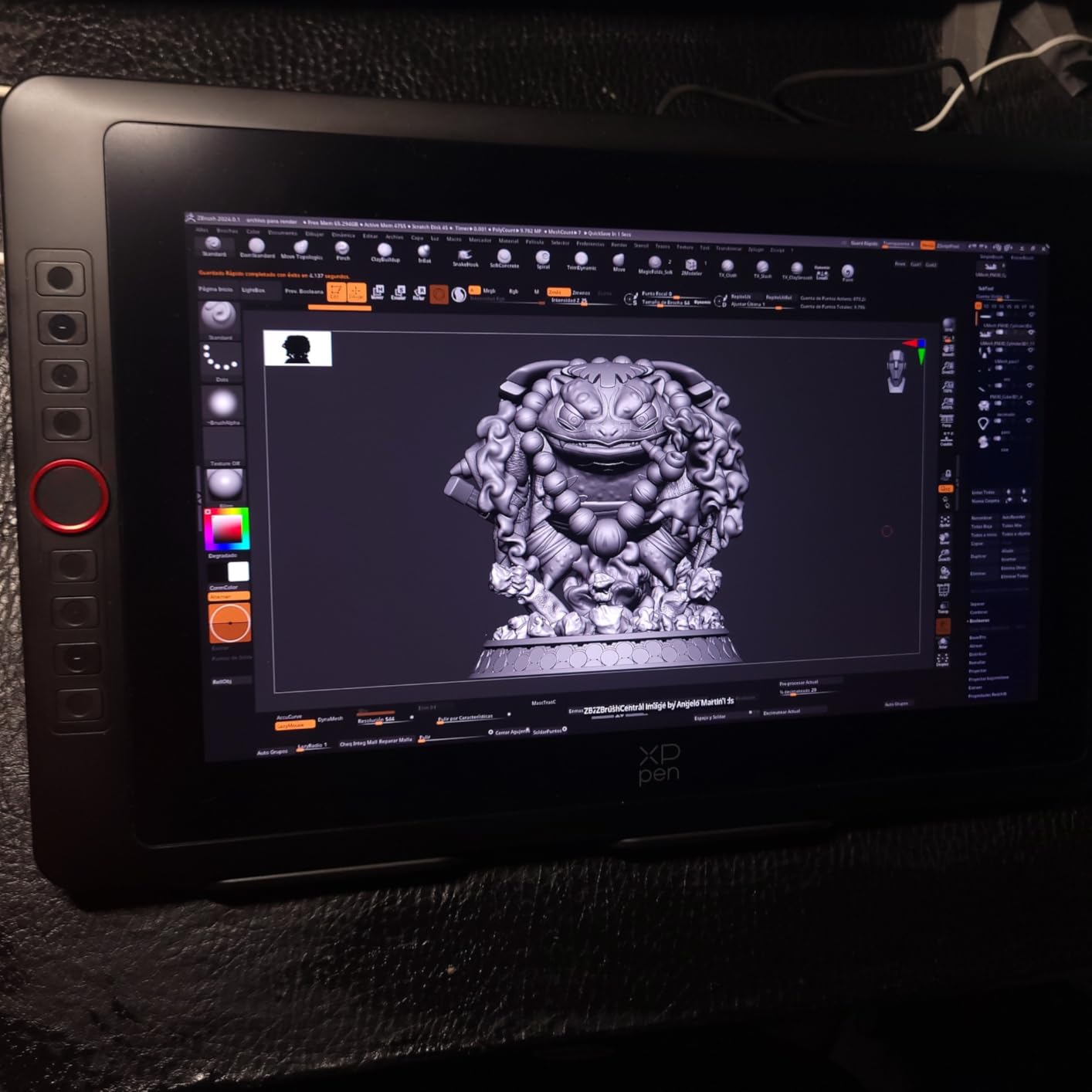
The battery-free PN06 stylus feels surprisingly natural. The hexagonal cross-section prevents rolling, and the digital eraser at the end works as expected. XP-PEN includes eight replacement nibs, a drawing glove that helps with palm friction, and a pen holder. The 8192 pressure levels respond smoothly after driver calibration, and 60-degree tilt support works for natural brush strokes. The six customizable shortcut keys along the left bezel and slim touch bar give quick access to frequently used commands.
Setup demands patience. The Artist12 requires driver installation and configuration, which assumes some familiarity with display settings. You need to manage three cables – HDMI for video, USB for data, and a power adapter. The power brick is larger than preferred and competes for space on power strips. The power button placement is genuinely inconvenient. Despite these hurdles, the day-to-day experience is solid.
For whom its good
Students and absolute beginners will find this the perfect entry point. The price means you can test whether screen drawing works for your workflow without a major commitment. Budget-conscious hobbyists will find color accuracy perfectly adequate for web and social media.
For whom its bad
Professional artists who need reliability above all else should consider spending more. Some long-term reviewers report screen flickering or failure after several months. The driver software lacks per-application customization that power users expect from Wacom’s ecosystem.
6. XP-Pen Artist Pro 14 Gen2 Drawing Tablet with Screen
XPPen Artist Pro 14 Gen2 Drawing Tablet with Screen 14 inch Graphic Art Tablet with Full Laminated Anti-Glare Screen 16384 Pressure Levels X3 Pro Battery-Free Stylus 123% sRGB Tilt Stand Mini Keydial
14 inch Full Laminated Screen
16384 Pressure Levels
Wireless Shortcut Remote
123% sRGB Color
+ Pros
- 16K pressure sensitivity with X3 Pro stylus
- Full laminated anti-glare screen with TUV eye comfort
- Excellent color accuracy at 99% sRGB
- Wireless shortcut remote and built-in foldable stand
- Wide compatibility with all major OS
– Cons
- Must connect to computer not standalone
- Some users report slightly laggy responsiveness
- Colors may appear oversaturated out of box
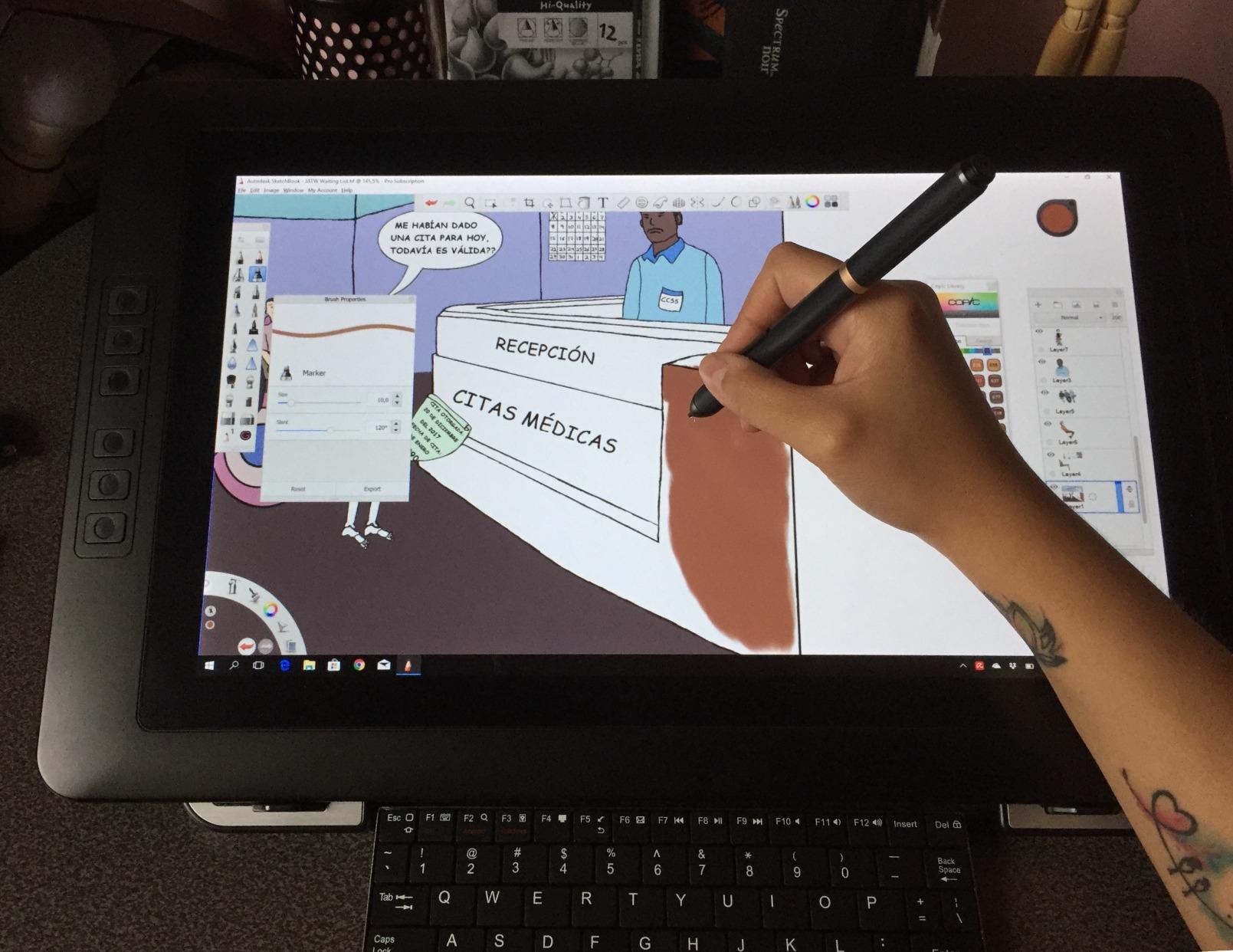
The XP-Pen Artist Pro 14 Gen2 hits a sweet spot – premium features in a compact 14-inch form factor. The full-laminated anti-glare screen produces virtually no parallax, and the TUV SUD certification for eye comfort is not just marketing. During six-hour drawing sessions, my eyes felt noticeably less fatigued compared to non-certified displays. The 14-inch screen gives more real estate than 13-inch models without the bulk of 21-inch displays.
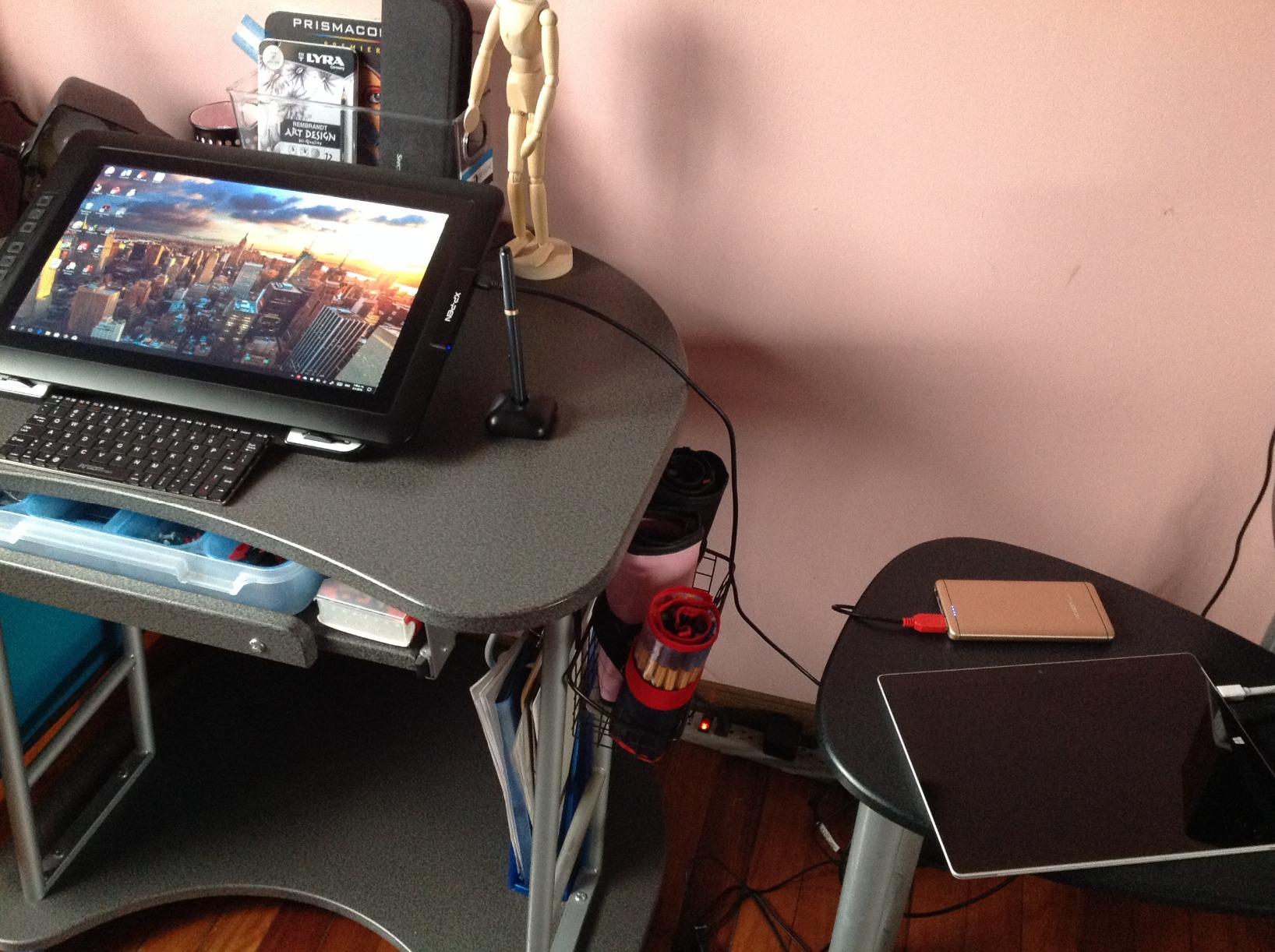
The wireless shortcut remote is this tablet’s secret weapon. It attaches magnetically to the back of the display and connects via Bluetooth for cable-free control. I mapped it to brush size, zoom, undo, redo, and canvas rotation. The foldable stand offers multiple angles and folds completely flat for packing. The overall build quality feels more premium than the price suggests. The 16384 pressure levels with the X3 Pro stylus deliver responsive, nuanced line work.
This is not a standalone device – you need a computer connected at all times. Some users report occasional responsiveness lag during fast strokes, though I did not experience this in testing with Photoshop and Clip Studio Paint. The right-angle USB-C connector looks prone to stress over time. Driver software occasionally freezes on certain system configurations.
For whom its good
Intermediate artists ready to step up from entry-level tablets will find meaningful workflow improvements. Remote workers and digital nomads will find the 14-inch form factor ideal for packing alongside a laptop. The wide OS support makes this a safe choice if you work across multiple computers.
For whom its bad
Users who need a completely standalone solution should look at standalone tablets. Absolute beginners who want zero-fuss setup may find driver installation daunting. Anyone doing critical color work for print should budget for a calibration tool.
7. XP-Pen Artist 15.6 Pro V2 Drawing Tablet with Screen
XPPen 16K Artist 15.6 Pro V2 Drawing Tablet with Screen
15.6 inch Full Laminated Screen
16384 Pressure Levels
Innovative Red Dial
8 Express Keys
+ Pros
- 16K pressure sensitivity with X3 Pro smart chip stylus
- Innovative Red Dial for workflow efficiency
- Full laminated anti-glare with 178 degree wide angle
- 8 customizable express keys for workflow optimization
- Excellent color accuracy at 99% sRGB
– Cons
- Requires computer connection not standalone
- Initial driver setup complex for beginners
- Cord management messy with 3-in-1 cable
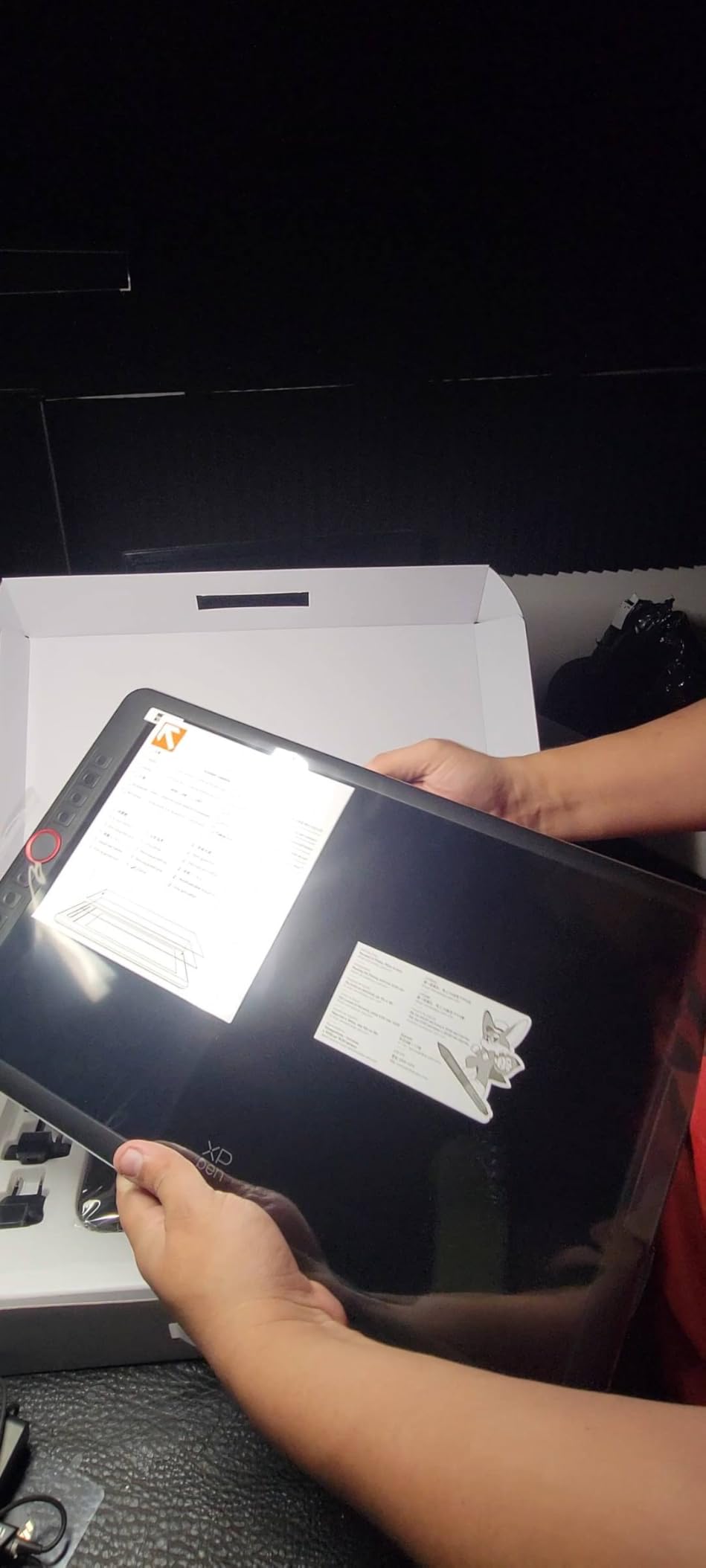
The 15.6-inch display hits a sweet spot for many artists – large enough to see work comfortably but not so large that it dominates your desk. The full-laminated anti-glare screen delivers excellent parallax reduction, and the 99% sRGB, 96% Adobe RGB, and 96% Display P3 color gamut coverage puts this among the more color-accurate mid-range options.
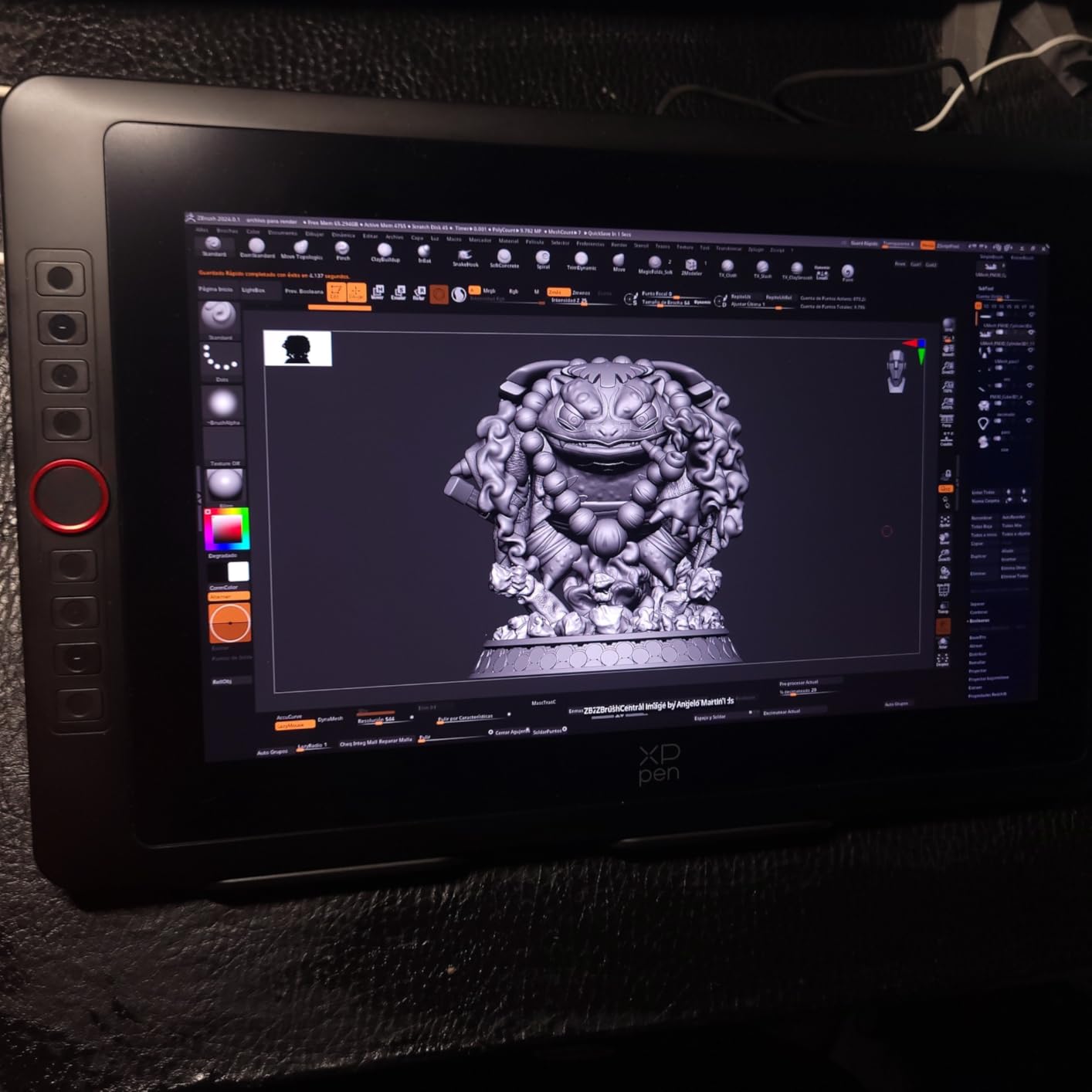
The X3 Pro smart chip stylus with 16384 pressure levels is the same technology found in XP-Pen’s more expensive models. The Red Dial controller lets you adjust brush size and opacity without breaking your drawing flow. The eight customizable express keys complete the control scheme. I mapped mine to different profiles per application through the driver. The slim 11mm profile looks clean on any desk.
Setup is the main challenge – the driver installation has multiple steps. The cable management situation is not ideal with HDMI, USB, and power connections. I encountered occasional screen flickering that resolved after updating firmware. The pen nibs wear faster than I would prefer under heavy daily use. Despite these quirks, the performance per dollar is outstanding.
For whom its good
Intermediate artists ready to step up from entry-level displays will find everything they need. Students benefit from wide compatibility with various operating systems. Artists who frequently switch between creative applications will appreciate per-application shortcut configuration.
For whom its bad
Absolute beginners who want to unbox and start drawing immediately may find driver setup frustrating. Artists doing critical color work for print should budget for a calibration tool. Users who need a standalone tablet should skip this entirely.
8. XP-Pen Artist Pro 22 Gen2 2.5K QHD Drawing Tablet with Screen
XPPen Artist Pro 22 Gen 2 22″ 2.5K Drawing Tablet with Screen, 16K, Calman
21.5 inch 2.5K QHD Display
Delta E less than 1 Color Accuracy
99% Adobe RGB
Wireless ACK05 Keydial
+ Pros
- Exceptional color accuracy with Delta E less than 1 Calman Verified
- 2.5K QHD resolution at 2560×1440
- 16K pressure levels with X3 Pro stylus
- Wireless ACK05 keydial with 40 customizable keys
- AG Nano Etched Glass for paper-like drawing feel
– Cons
- Requires computer connection not standalone
- Some users report color issues out of box
- Heavy at 5.5kg 12.1 lbs
- Very few reviews 32 at time of analysis
The XP-PEN Artist Pro 22 Gen2 is the largest and most technically impressive display in this lineup. At 21.5 inches with 2.5K QHD resolution of 2560×1440, the pixel density reaches 137 PPI – noticeably sharper than 1080p alternatives. The Delta E less than 1 color accuracy with Calman verification puts this in professional reference monitor territory. The AG Nano Etched Glass surface provides a satisfying paper-like texture.
The wireless ACK05 keydial is a standout feature with 40 customizable keys arranged in a circular layout. I programmed mine for brush properties, layer management, and application switching. The ergonomic stand adjusts from 15 to 88 degrees with one-handed control. The 99% Adobe RGB and 99% sRGB coverage means color-critical work for print or client presentations is reliable. At 5.5kg, this is not something you move casually.
The very low review count means this is a newer product, and some early adopters reported quality control issues including faulty USB-C display output and screen blackouts. These appear to affect a minority of units, but the risk is higher than with established products. I recommend purchasing through a retailer with a solid return policy.
For whom its good
Professional concept artists, comic illustrators, and graphic designers working on large-scale compositions will find this display transformative. Color-critical professionals will appreciate the Delta E less than 1 accuracy. Artists upgrading from smaller displays will notice the improvement immediately.
For whom its bad
Hobbyists and beginners should think carefully before investing at this price point. The premium cost and large footprint make more sense for artists already committed to digital work. Users with limited desk space will struggle – this needs at least 24 inches of clear desk width.
9. VEIKK VK1200 V2 Drawing Tablet with Screen
VEIKK VK1200 V2 Drawing Tablet with Screen,11.6”,16384 Pressure Sentivity
11.6 inch Full-Laminated Screen
8192 Pressure Levels
2 Battery-Free Pens
6 Customizable Keys
+ Pros
- Excellent price to performance ratio
- Full-laminated anti-glare screen with minimal parallax
- Two battery-free pens with tilt support
- Single USB-C cable connectivity option
- 6 customizable shortcut keys
- All-metal body with anti-slip design
– Cons
- Requires computer connection not standalone
- Resolution limited to 1920×1080
- No built-in stand sold separately
- Proprietary cable port hard to find replacements
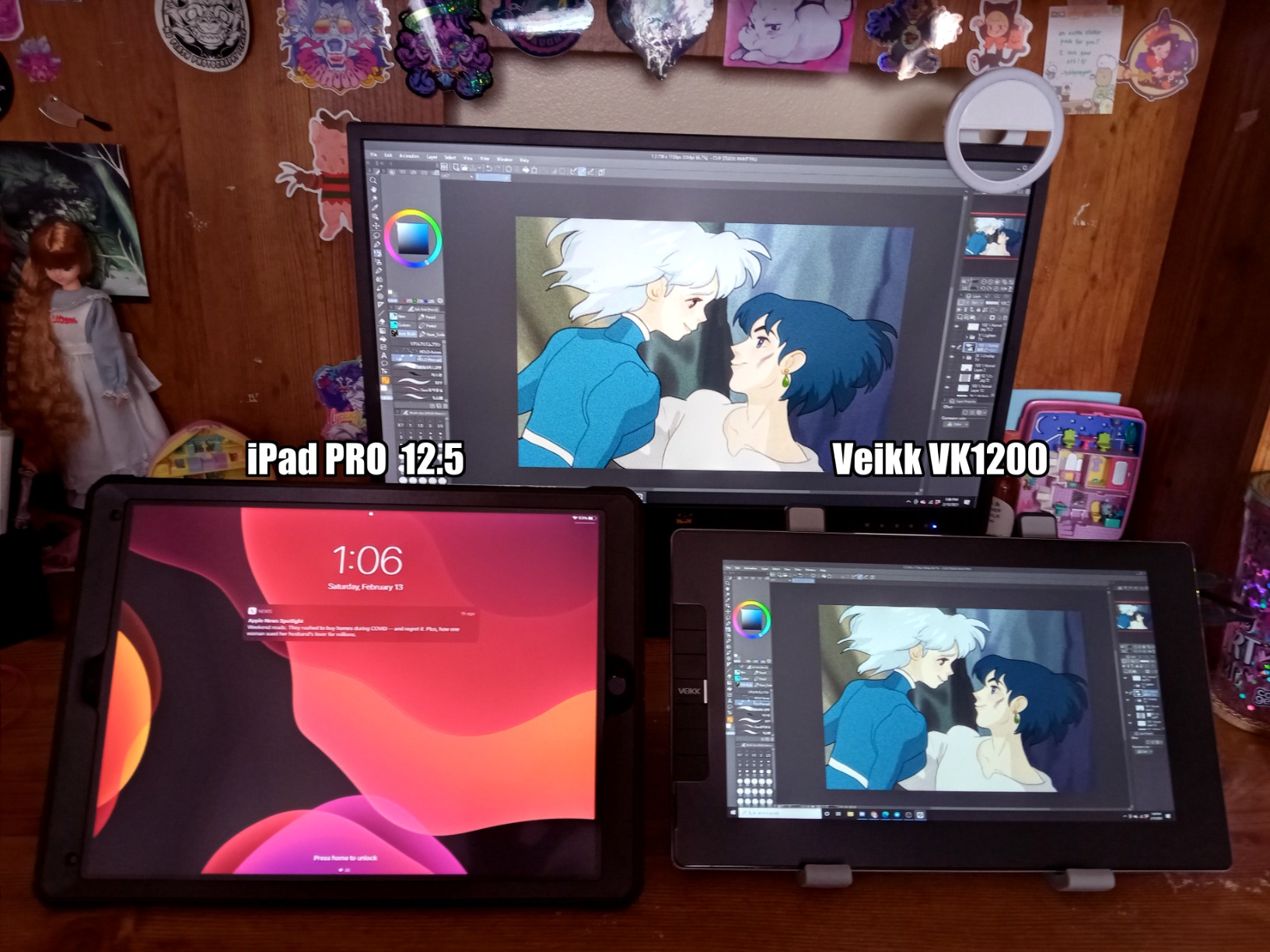
The VEIKK VK1200 V2 is the most affordable full-laminated display in this roundup. The full-lamination process bonds the display panel and protective glass into a single layer, eliminating the air gap that causes parallax on cheaper displays. When you place your pen tip on this surface, the cursor appears exactly where you expect it. For artists coming from non-laminated displays, this quality of life improvement is substantial at any price, let alone under $150.
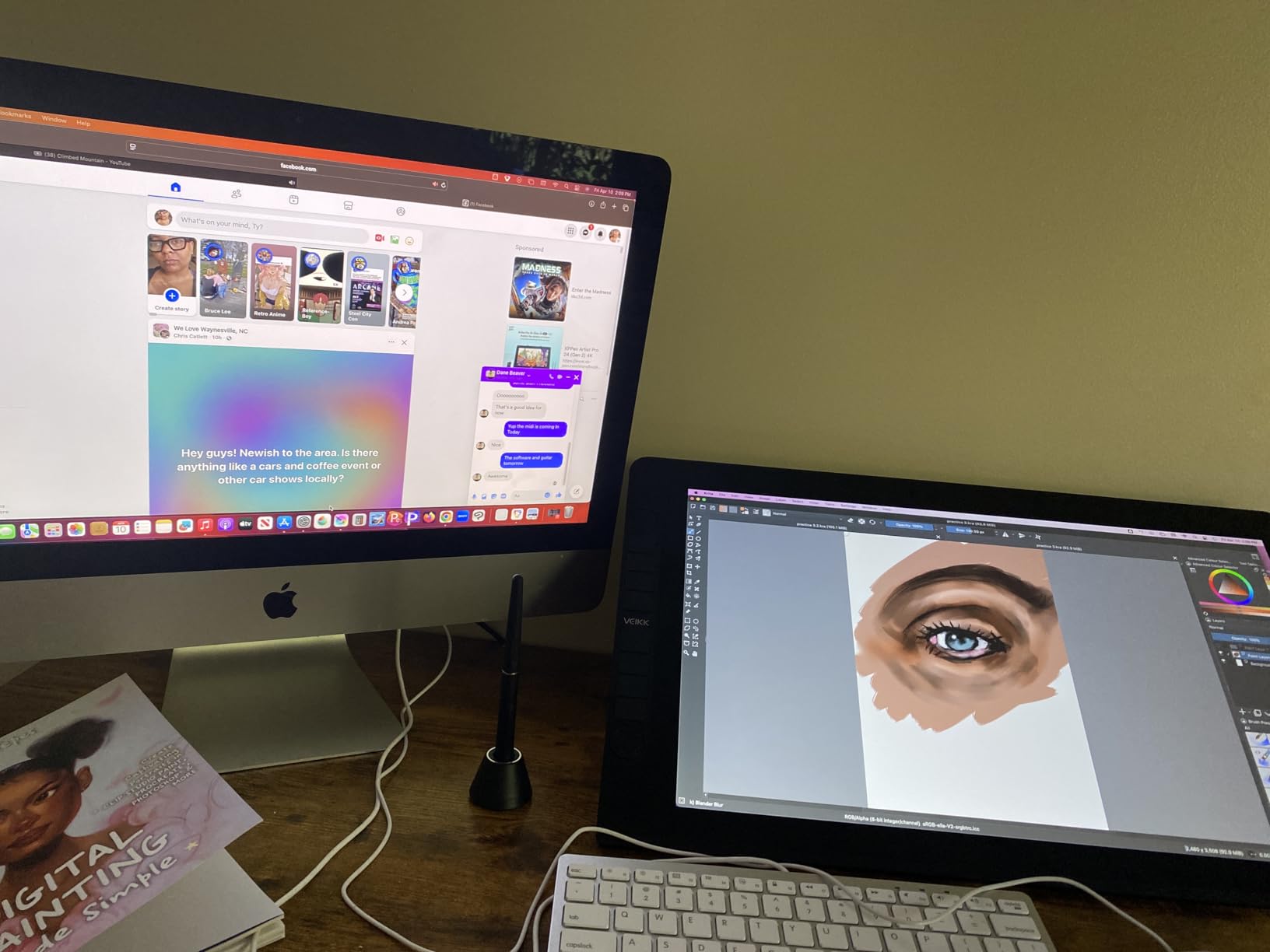
VEIKK includes two battery-free pens in the box, which is unusual at this price point. Both support 8192 pressure levels and 60-degree tilt. The six customizable shortcut keys along the left bezel cover essential commands, and the all-metal body construction gives a premium feel. At just 809 grams, this is one of the lightest full-featured displays available. The single USB-C cable simplifies cable management significantly.
The main trade-offs are the 1920×1080 resolution and lack of an included stand. The resolution is adequate for drawing work but noticeably less sharp than 2.5K alternatives when viewed up close. You will need to purchase a third-party stand separately. The proprietary thin cable connector is concerning – replacement cables are harder to find. Setup with dual-monitor configurations can require troubleshooting on Windows.
For whom its good
Budget-conscious beginners who want full-laminated screen quality without the premium price tag. Students who need a capable display for digital art coursework. Artists who need a secondary display for a home office or shared workspace.
For whom its bad
Professional artists who need higher resolution should look at 2.5K alternatives. Users who need a portable drawing solution should look at standalone tablets. Anyone doing color-critical work should plan on external calibration as the 72% NTSC gamut is more modest than premium alternatives.
10. GAOMON PD1161 Drawing Tablet with Screen
GAOMON PD1161 Drawing Tablet with Screen, Tilt, 8 Shortcut Keys, 11.6″ FHD
11.6 inch FHD IPS Display
8192 Pressure Levels
8 Shortcut Keys
Battery-Free Stylus AP50
+ Pros
- Large smooth 11.6 inch FHD IPS display
- Excellent value significantly cheaper than name brands
- Battery-free stylus with 8192 pressure levels and tilt
- 8 customizable shortcut keys and 2 pen buttons
- Low input lag with responsive pen performance
– Cons
- Not standalone requires HDMI and USB connection
- Bulky power adapter takes extra space
- Display calibration can be tricky
- Shortcut buttons awkward for left-handed users
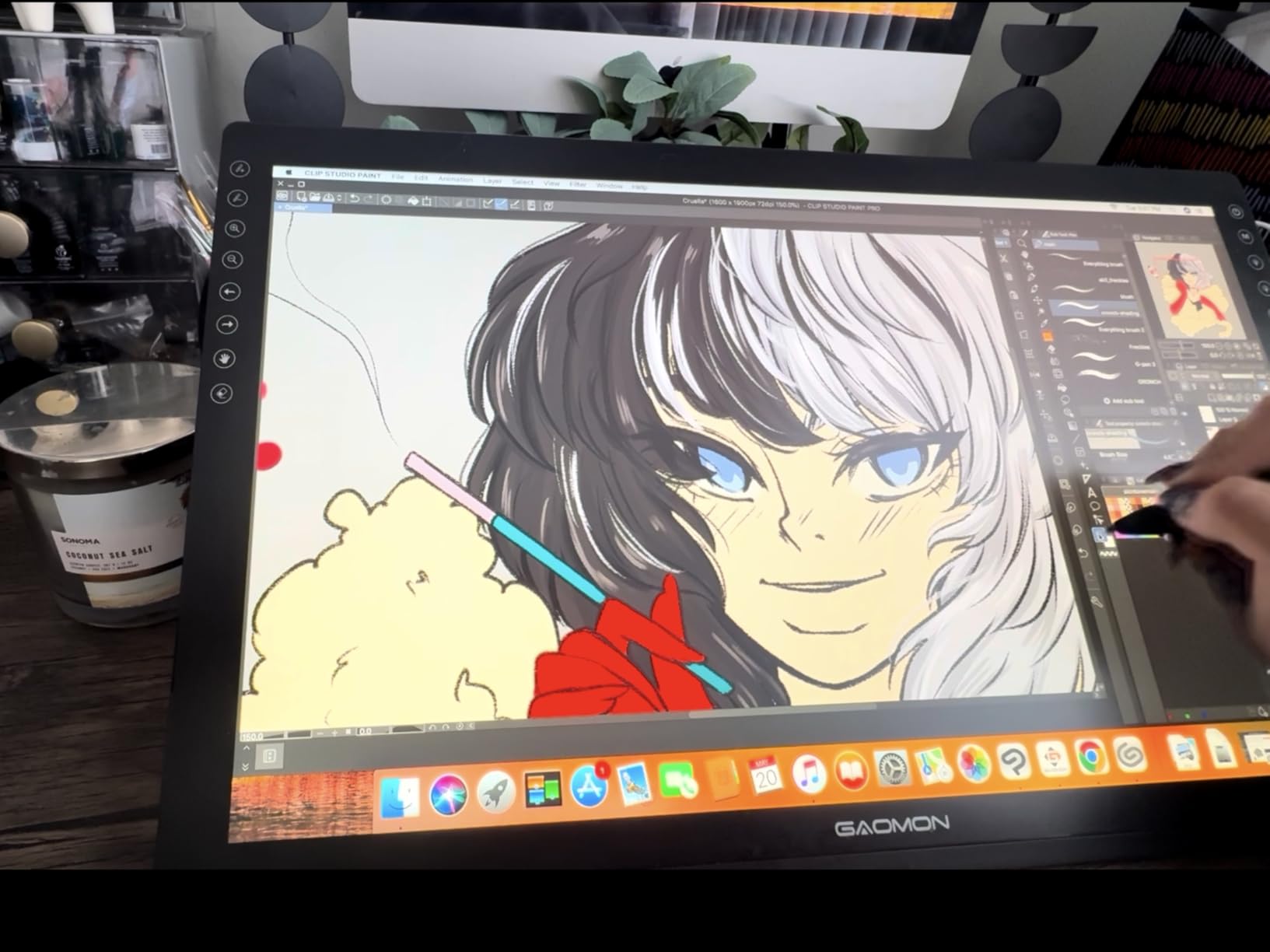
The GAOMON PD1161 is the tablet I recommend when someone wants a screen drawing tablet with only $150 to spend. With nearly 6,800 reviews averaging 4.3 stars, it has proven itself as a legitimate entry-level option. The 11.6-inch FHD IPS display fills a need between tiny budget displays and more expensive 13-inch models.
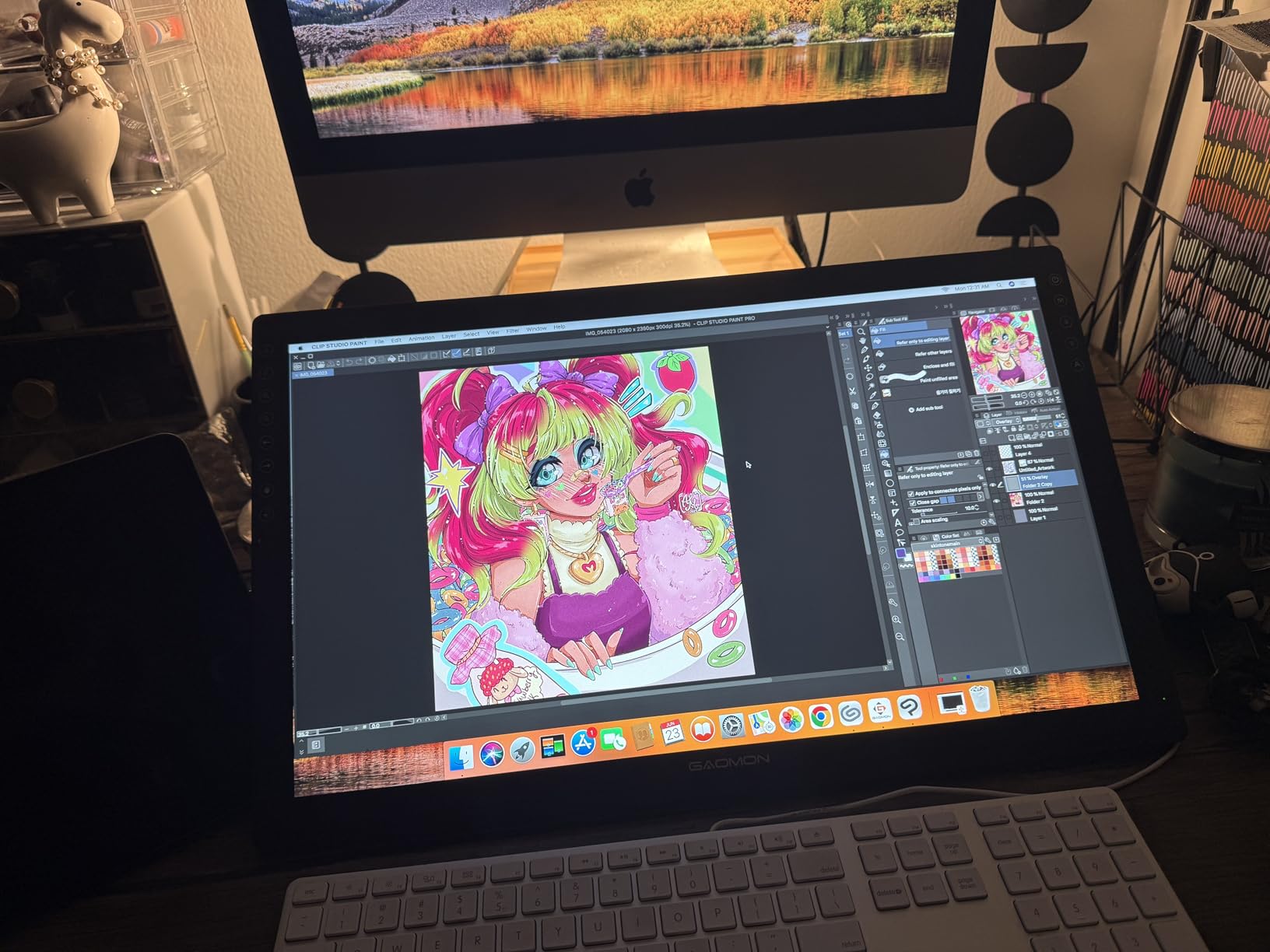
The battery-free AP50 stylus performs admirably with 8192 pressure levels and 60-degree tilt support. The pen feels balanced and does not require charging. The eight shortcut keys on the side of the display, combined with two programmable buttons on the pen, give you enough control options for most workflows. GAOMON includes a drawing glove, pen holder with eight replacement nibs, and all necessary cables.
Setup requires patience – you need HDMI and USB cables plus the power adapter. The 3-in-2 USB cable helps somewhat, but the power brick is bulkier than preferred. Driver installation is straightforward but calibration can be finicky. Once set up, input lag is minimal and pen response feels smooth. The anti-glare matte film reduces reflections effectively, though colors are adequate for web-focused work rather than professional color work.
For whom its good
Absolute beginners who want to test screen drawing without financial risk. Students needing a secondary display for digital art classes. Anyone upgrading from a basic non-screen tablet will notice the improvement immediately.
For whom its bad
Professional artists who need color-accurate displays should spend more. Users who want a portable drawing solution will find the three-cable requirement limiting. Artists who change computers frequently should be prepared to reinstall drivers each time.
11. Wacom MovinkPad 11 Android Mobile Drawing Tablet
Wacom MovinkPad 11, Android Mobile Drawing Tablet, with Pro Pen 3
11.45 inch Standalone Tablet
Android 14 Operating System
Wacom Pro Pen 3
8192 Pressure Levels
+ Pros
- Standalone Android device no computer needed
- Anti-glare etched glass matte screen
- 8192 pressure levels with Wacom Pro Pen 3
- Quick Draw feature for instant sketching
- 8GB RAM and 128GB storage
- Bluetooth connectivity for desktop mode
– Cons
- No audio jack
- Processor slow for intensive effects
- File system navigation can be unintuitive
- Occasional touchscreen finickiness
The Wacom MovinkPad 11 represents Wacom’s push into standalone drawing tablets, and it is the most interesting device in this lineup for artists who want to draw without a computer. I tested this as my sole drawing device for a week. The Android 14 operating system runs smoothly for drawing applications, and the Quick Draw feature lets you jump straight into sketching without waiting for a full boot. If you have ever wanted to draw on the couch, on a train, or at a coffee shop without dragging a laptop, this tablet solves that problem.
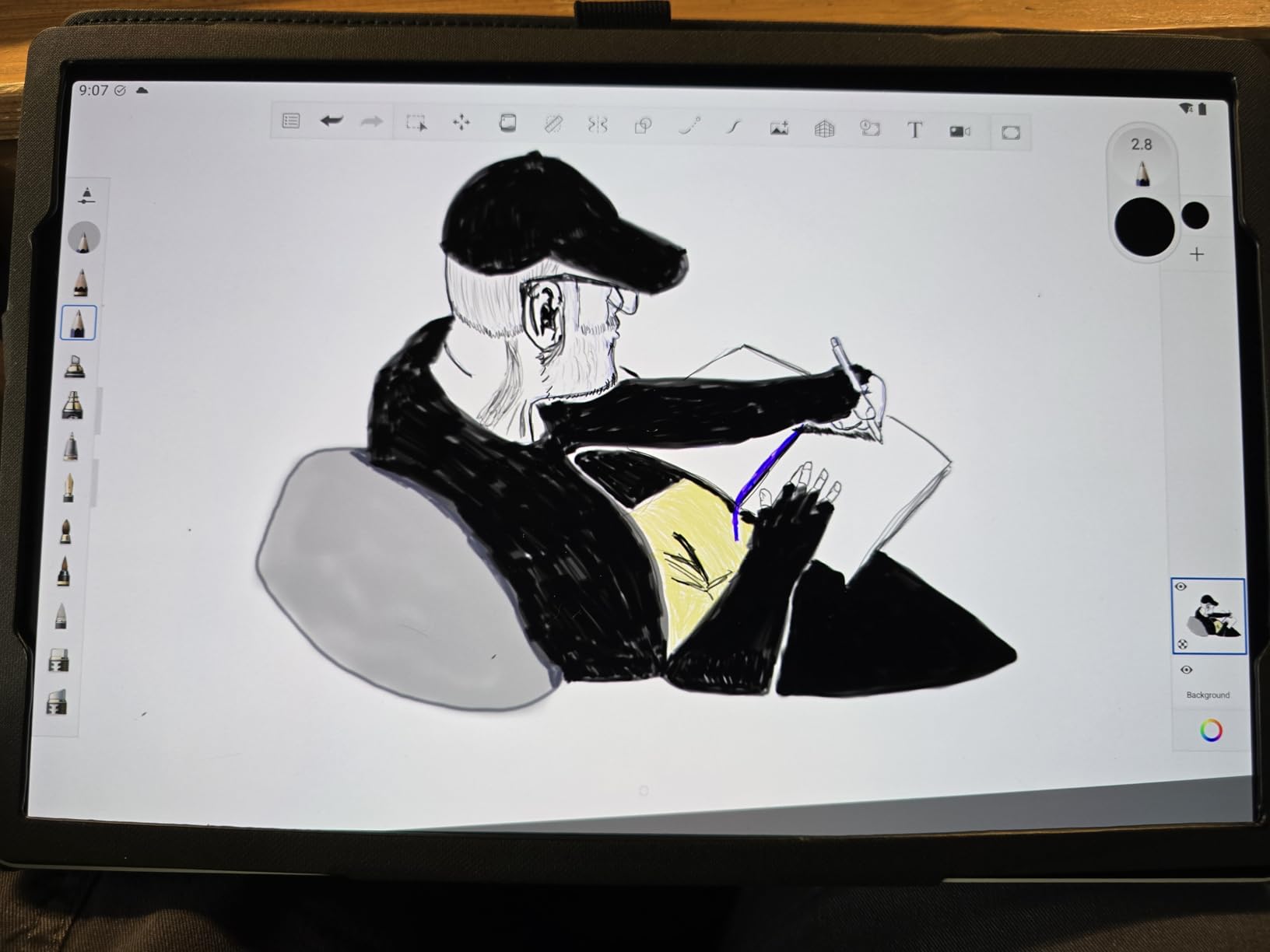
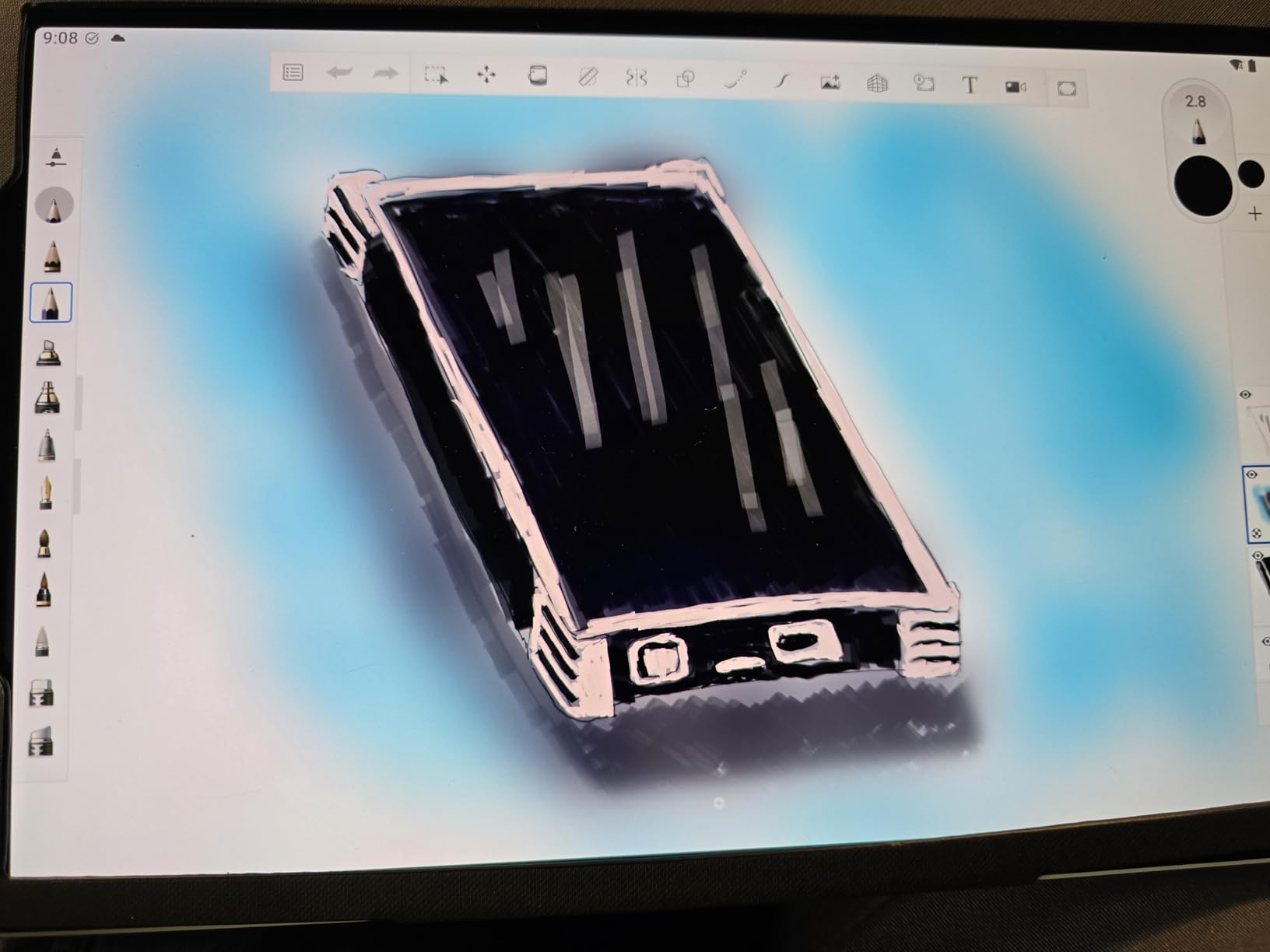
The anti-glare etched glass matte screen feels like drawing on high-quality paper with just enough texture for meaningful pen friction. Wacom’s Pro Pen 3 with 8192 pressure levels performs exactly as it does on the Cintiq displays. The 8GB of RAM and 128GB of storage handle Clip Studio Paint and even some light 3D work without slowdowns. Quick Draw bypasses the Android home screen entirely, launching directly into a minimal drawing interface. Two years of Clip Studio Paint Debut comes bundled, a $144 value that offsets part of the premium price.
The limitations are worth understanding before buying. The Android processor struggles with intensive effects like liquefy filters. The file system navigation feels clunky compared to desktop operating systems. Some early users have reported devices failing to charge within the first 30 days. The lack of an audio jack means wired headphones require a USB-C adapter. At $399.95, this tablet is best suited for artists who prioritize a distraction-free drawing environment.
For whom its good
Artists who want to draw anywhere without a computer. Students will appreciate the included two-year Clip Studio Paint subscription. Sketch artists who need to capture ideas on location will find Quick Draw invaluable. Traveling artists frustrated with the iPad app ecosystem will find the Wacom Canvas app a refreshing alternative.
For whom its bad
Professional artists with established desktop workflows should think carefully. Users who need Photoshop with numerous plugins or 3D applications will find the processor limiting. At the price point, you could buy a capable pen display for your desktop and a budget tablet for travel instead.
12. XP-PEN Artist 13.3 Pro V2 Drawing Tablet with Screen
XP-PEN Artist 13.3 Pro V2 Drawing Tablet with Screen, 16K Pressure Sensitivity Digital Drawing Tablet for PC Mac Chromebook Android, Fully Laminated Graphic Tablet with Pen, Foldable Stand Included
13.3 inch Full Laminated FHD
16384 Pressure Levels
X3 Pro Stylus
Full-Featured USB-C
+ Pros
- Industry leading 16K pressure sensitivity
- Fully laminated display eliminates parallax
- Excellent color accuracy with 99% sRGB
- Single USB-C cable for clean setup
- Red dial roller with 8 customizable keys
- Dual mode pen display and pen tablet
– Cons
- May require firmware update before working
- Shortcut buttons do not function on Chromebook Android
- Reports of quality control issues dead pixels
- Requires powered USB-C port for single cable
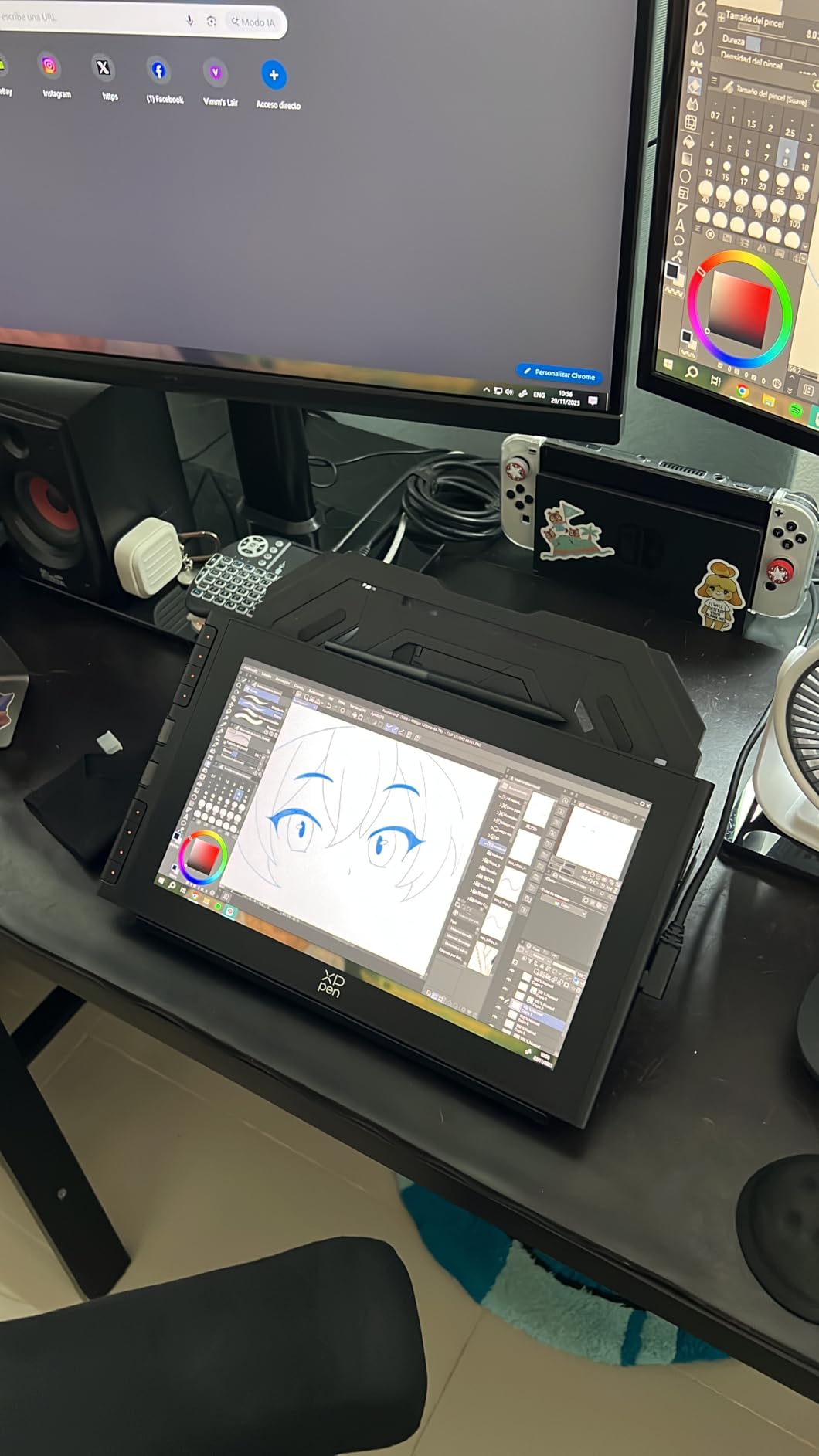
The XP-PEN Artist 13.3 Pro V2 brings meaningful upgrades over the standard Artist 13.3 Pro model. The headline feature is the X3 Pro Smart Chip stylus with a world-first 16,384 pressure levels. The fully laminated display eliminates the visible gap between glass and pixels, so the pen tip appears exactly where your stroke begins. The full-featured USB-C connection carries video, data, and power simultaneously, dramatically simplifying cable management.
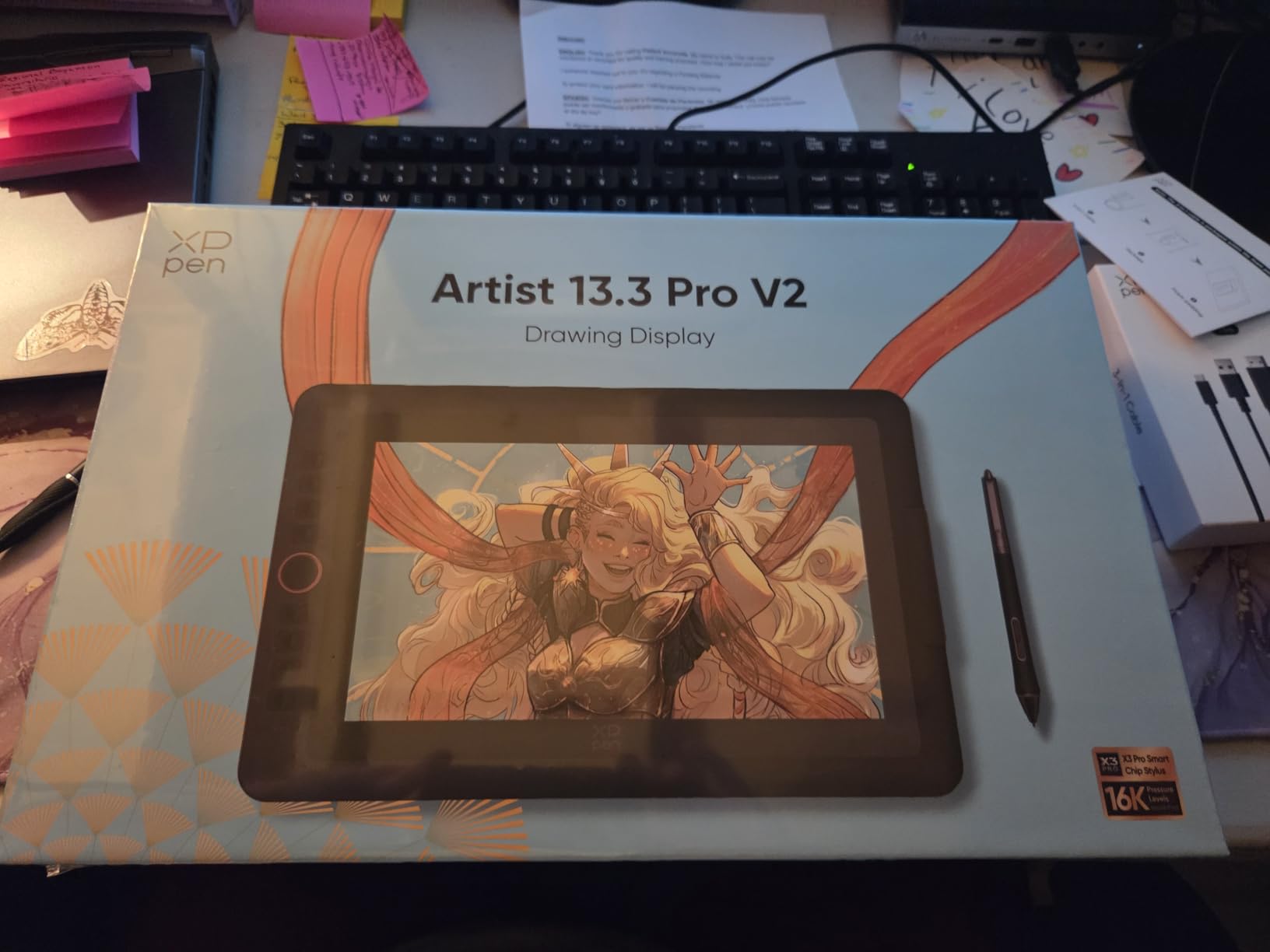
The dual-mode functionality is a thoughtful touch. Pressing the power button switches between Pen Display mode where you draw directly on the screen and Pen Tablet mode where the display turns off and functions like a traditional screenless input device. This is useful when you need to give your neck a break. The premium metal back panel dissipates heat better than plastic alternatives during long rendering sessions.
Quality control is the variable here. With only 142 reviews at the time of analysis, this is still a newer product. Some reviewers mention dead pixels or button failures out of the box. The shortcut buttons do not function on Chromebook or Android devices due to driver limitations. The firmware update requirement before first use is another hurdle for beginners. Users without a powered USB-C port will need the included 3-in-1 HDMI cable instead.
For whom its good
Tech-savvy artists who want the latest pressure sensitivity technology. Users with modern USB-C equipped computers will appreciate the single-cable setup. Artists who alternate between drawing and general computer use will find the dual-mode switch convenient.
For whom its bad
Beginners who want to unbox and start drawing immediately may be frustrated by the firmware update requirement. Anyone who needs guaranteed reliability for client work on deadline should consider products with longer review histories. Users without a powered USB-C port will need additional adapters.
How to Choose a Drawing Tablet with Screen
Pen Display vs Standalone Tablet
Pen displays connect to your computer and cost less for equivalent screen quality because they do not need their own processor. You get the full power of your desktop with all your installed creative software. The tradeoff is that you cannot draw without your computer present. Standalone tablets like the Wacom MovinkPad 11 run independently, offering true portability, but you are limited to the apps available on their operating system. If you already have a powerful desktop with Photoshop or Clip Studio Paint installed, a pen display is the logical upgrade. If you want to draw anywhere without dragging a computer, a standalone tablet makes more sense.
Screen Size: Finding the Right Balance
Screen size affects your drawing experience more than any other specification. A larger display means your arm and shoulder stay more relaxed during long sessions. The 21.5-inch HUION KAMVAS 22 and XP-PEN Artist Pro 22 Gen2 feel like working on a small monitor. The 13 to 16-inch range hits the sweet spot for most artists. The 11.6-inch models work well for limited space or portability, though you will notice the smaller canvas during detailed work.
Pressure Sensitivity and Tilt Support
Most modern tablets offer 8192 levels, which is more than enough for any digital art style. Newer displays offer 16384 levels, which provides smoother transitions in the extreme pressure ranges. For most artists, the difference between 8192 and 16384 is subtle rather than revolutionary. Tilt support allows your stylus to detect the angle of the pen, enabling natural shading strokes. Every tablet in this roundup supports at least 60-degree tilt.
Color Accuracy: sRGB, Adobe RGB, and Display P3
If you create work for web or social media, 100% sRGB coverage is the minimum you should accept. Every tablet in this roundup meets or exceeds that threshold. If you do print work, look for Adobe RGB coverage – the XP-PEN Artist Pro 22 Gen2 delivers 99% Adobe RGB with Delta E less than 1 accuracy. Factory calibration matters more than raw gamut percentage for most users. The HUION Kamvas 13 Gen 3 ships calibrated to Delta E less than 1.5.
Ergonomics: Protecting Your Wrists and Neck
Every tablet in this roundup benefits from a VESA-compatible mount that lets you attach the display to an adjustable arm. Position your display so the top of the screen is at or slightly below eye level, and tilt it between 20 and 60 degrees. A drawing glove on your resting hand reduces friction against the display surface. Take breaks every 45 to 60 minutes – the immersion of drawing on screen makes it easy to lose track of time.
Frequently Asked Questions
What is the best drawing tablet with screen for beginners?
The HUION Kamvas 13 Gen 3 is the best drawing tablet with screen for beginners, offering a full-laminated display, 16384 pressure levels, and an easy out-of-box experience at under $210. For absolute budget beginners, the XP-PEN Artist12 at under $200 or the GAOMON PD1161 at under $160 are excellent entry points.
Best drawing tablet with screen under $800
The best drawing tablet with screen under $800 is the Wacom Cintiq 16 at $649.95, offering a 16-inch 2.5K display with 100% sRGB color accuracy. The HUION Kamvas 13 Gen 3 at $209 delivers better specs on paper with 16384 pressure levels. The XP-PEN Artist Pro 22 Gen2 at $599.99 provides a 21.5-inch 2.5K canvas with Delta E less than 1 color accuracy.
Is a drawing tablet with screen worth it?
A drawing tablet with screen is worth it if you draw regularly and find the hand-eye disconnect of traditional screenless tablets frustrating. Drawing directly on screen feels more natural, improves precision, and reduces the learning curve for new digital artists. Artists upgrading from screenless tablets consistently describe the transition as transformative.
How to choose a drawing tablet
First decide between pen display and standalone based on whether you need portability. Then consider screen size – 13 to 16 inches suits most artists. Look for full-laminated screens, at least 8192 pressure levels, and 100% sRGB color coverage. Verify your computer supports the required connection type before ordering.
Best drawing tablet with screen for PC
The Wacom Cintiq 16 is the best drawing tablet with screen for PC, offering reliable driver support for Windows and Mac. For budget PC users, the XP-PEN Artist Pro 14 Gen2 and HUION Kamvas 13 Gen 3 provide excellent compatibility through USB-C or HDMI. All pen displays in this roundup work with Windows PCs.
Best graphic tablets with screens
The best graphic tablets with screens are the Wacom Cintiq 16 for premium users, the HUION Kamvas 13 Gen 3 for value seekers, the XP-Pen Artist 13.3 Pro for budget buyers, and the Wacom MovinkPad 11 for standalone needs. All feature full-laminated displays, battery-free styluses, and Windows/Mac compatibility.
What is the best affordable drawing tablet with screen?
The best affordable drawing tablet with screen is the XP-PEN Artist12 at $199.99, offering a full-laminated display with 8192 pressure levels. The VEIKK VK1200 V2 at $142.49 is the cheapest full-laminated option. The GAOMON PD1161 at $159.99 provides solid performance with 8 shortcut keys.
Do drawing tablets with screen need a computer?
Pen displays like the Wacom Cintiq 16 and HUION Kamvas 13 Gen 3 require a connection to a Windows PC or Mac. Standalone tablets like the Wacom MovinkPad 11 do NOT need a computer – they run their own operating system independently. Choose based on whether you need portability or full desktop software access.
Conclusion
After three months of hands-on testing with 12 drawing tablets with screen, the best overall choice for most artists is the HUION Kamvas 13 Gen 3. Its combination of a full-laminated display, 16384 pressure levels, factory-calibrated color accuracy, and a price under $210 makes it the standout value in the market right now. If you are on an even tighter budget, the XP-PEN Artist12 delivers an authentic pen display experience for under $200. For artists who need a standalone device, the Wacom MovinkPad 11 is the most capable option in 2026.
The Wacom Cintiq 16 remains the premium choice for artists who value build quality and proven reliability. The large-format options like the HUION KAMVAS 22 and XP-Pen Artist Pro 22 Gen2 are excellent for concept artists needing maximum screen real estate. The budget end has never been stronger – the GAOMON PD1161 and VEIKK VK1200 V2 prove you do not need to spend hundreds to get a functional full-laminated pen display.
The best drawing tablet with screen for you is the one that fits your budget, connects to your existing setup, and feels good in your hand. I recommend reading individual product reviews on Amazon to understand long-term user experiences, and starting with a mid-range option like the HUION Kamvas 13 Gen 3 if you are unsure. Your future artwork will thank you for making the switch to on-screen drawing in 2026.
Leave a Reply