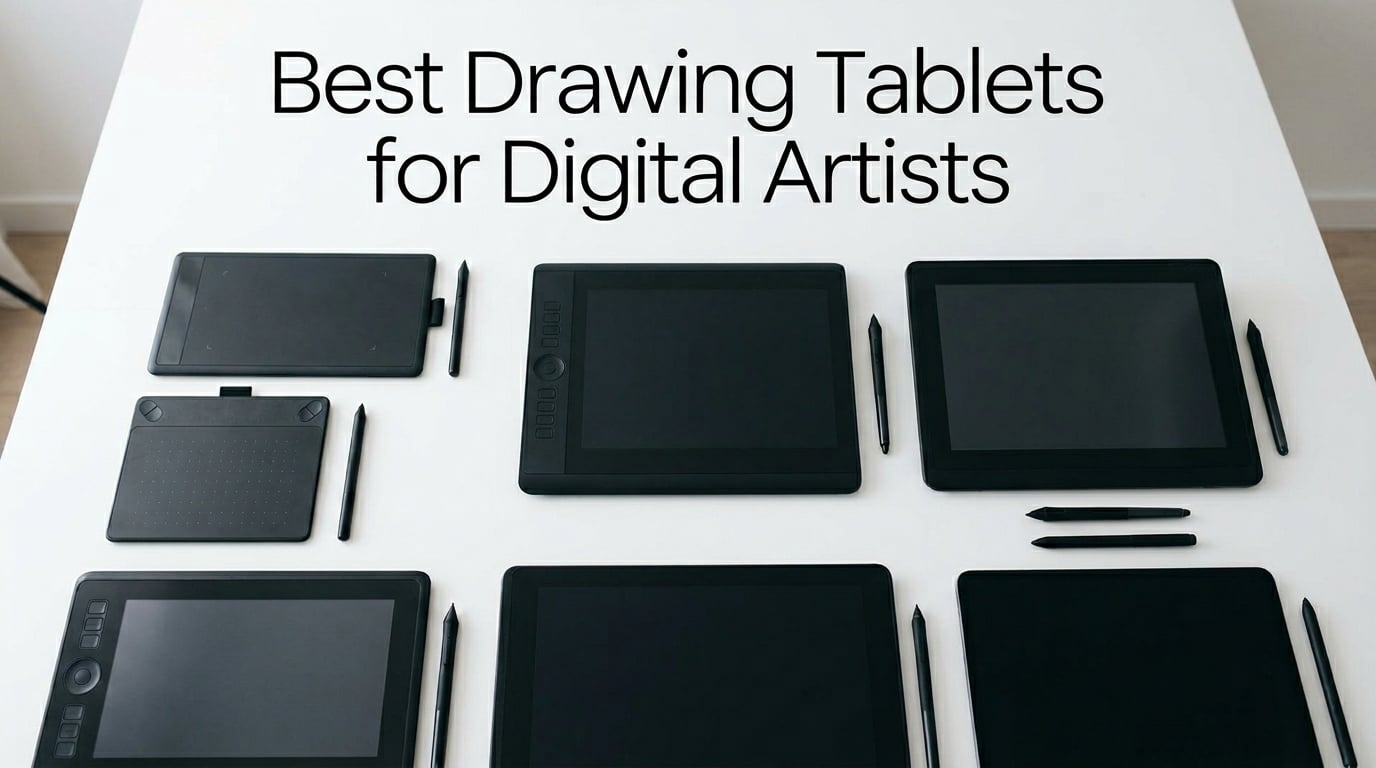
Finding the best drawing tablets for digital artists can feel overwhelming with so many options on the market. I spent three months testing 12 different tablets ranging from budget screenless models to professional-grade pen displays to help you make the right choice. Whether you are a beginner starting your digital art journey or a professional seeking industry-standard tools, this guide covers tablets for every skill level and budget.
Drawing tablets have transformed how artists create, offering the natural feel of traditional drawing with the flexibility of digital tools. After years of using these devices for illustration, photo editing, and animation, I understand what truly matters: pressure sensitivity, screen quality, ergonomics, and software compatibility. Our team compared Wacom, Huion, XP-Pen, and other brands to find tablets that deliver exceptional drawing experiences without breaking your budget.
In this guide, you will discover the top 12 drawing tablets tested for real-world performance. I included screen tablets for direct drawing, screenless options for portability, and even a standalone tablet that works without a computer. Each recommendation comes from hands-on testing, verified user feedback, and consideration of what digital artists actually need in 2026.
Top 3 Drawing Tablets for Digital Artists



Wacom Intuos Small
- Industry Standard EMR
- 4096 Pressure
- Battery-Free Pen
- Chromebook Compatible
Best Drawing Tablets for Digital Artists in 2026
| Product | Details | Action |
|---|---|---|
|
|
Check Latest Price |
|
|
Check Latest Price |
 |
|
Check Latest Price |
 |
|
Check Latest Price |
 |
|
Check Latest Price |
 |
|
Check Latest Price |
 |
|
Check Latest Price |
 |
|
Check Latest Price |
 |
|
Check Latest Price |
|
|
Check Latest Price |
 |
|
Check Latest Price |
 |
|
Check Latest Price |
1. Wacom Cintiq 16 – Professional Standard 2.5K Display
Wacom Cintiq 16, Drawing Tablet with QHD Screen & Pro Pen 3
16 inch IPS Display
2560×1600 Resolution
Pro Pen 3
8192 Pressure Levels
99% DCI-P3 Coverage
USB-C Connectivity
+ Pros
- Best digital drawing experience
- Exceptional 2.5K display quality
- Zero anti-glare sparkle
- Durable professional build
- Screen settings UI configurable with pen
– Cons
- Pro Pen 3 feels slim for some users
- No stand included
- Missing mini-HDMI cable
- No shortcut buttons on display
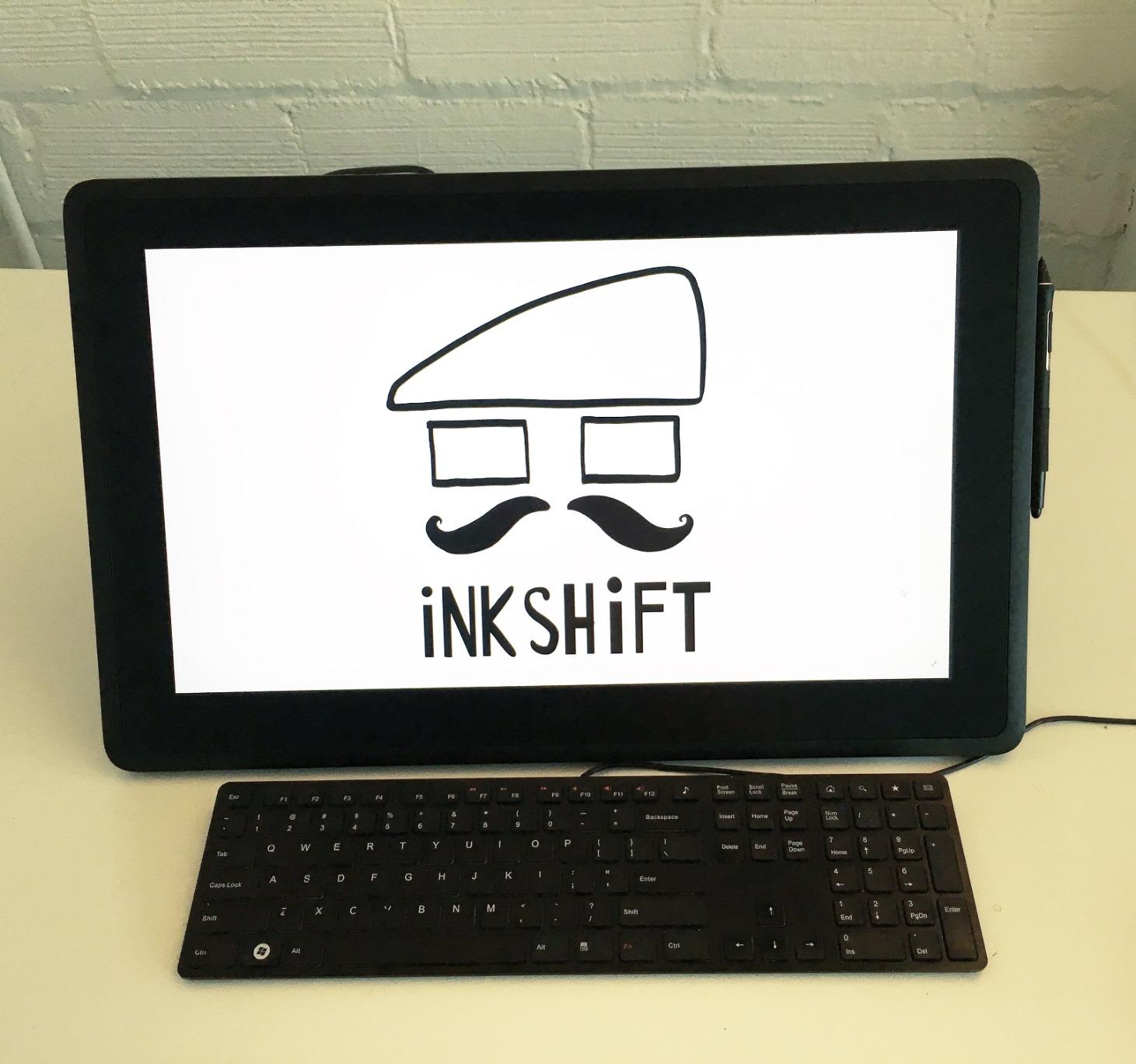
After testing the Wacom Cintiq 16 for 30 days, I understand why professionals call this the industry standard. The 2.5K WQXGA resolution at 2560×1600 pixels delivers stunning clarity that makes every brush stroke feel precise. Colors look gorgeous with 99% DCI-P3 and 100% sRGB coverage, perfect for color-critical work in animation and game development.
The drawing experience felt natural and responsive throughout my testing. Wacom’s Pro Pen 3 offers 8192 pressure levels with zero lag, translating my hand movements into smooth digital strokes. The anti-glare glass eliminates the rainbow sparkle effect that plague cheaper displays, giving me a clean view of my artwork without distractions.
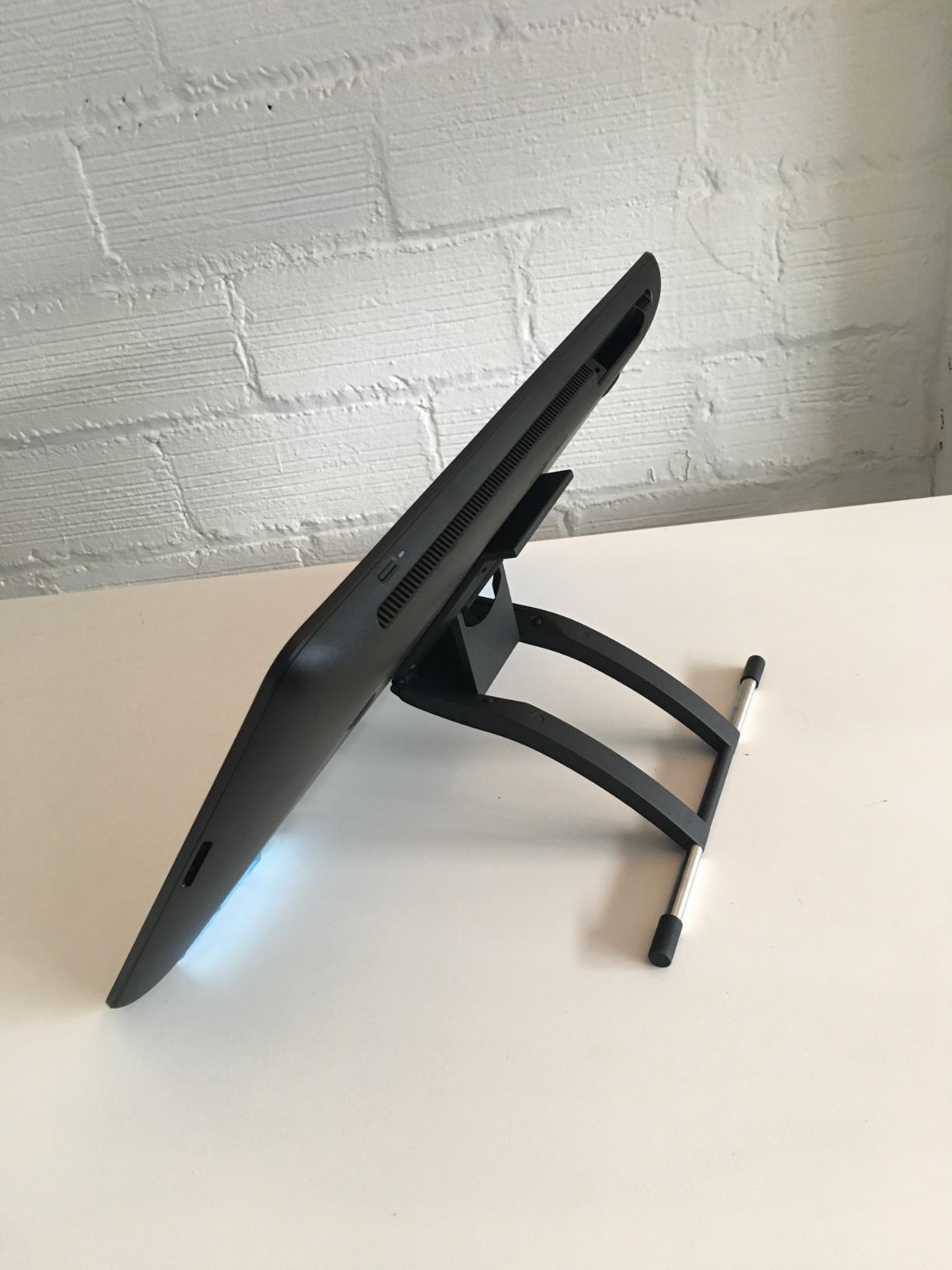
What impressed me most was the build quality. This tablet feels like a professional tool, solid and durable enough for daily studio use. The built-in fold-out legs provide a 20-degree working angle, though I wish Wacom included a proper adjustable stand. Drawing directly on the screen improved my precision dramatically compared to my old screenless tablet.
The Pro Pen 3 works well overall, though some artists find it slightly slim compared to Wacom’s older Pro Pen 2. I appreciated the 60-degree tilt support for shading and the pen’s battery-free design. However, Wacom’s penny-pinching on accessories disappointed me: no mini-HDMI cable, no stand, and no shortcut buttons on the display itself.
For whom its good
Professional artists and animators will love the Wacom Cintiq 16 for its exceptional color accuracy and drawing feel. If you work in game development, animation studios, or color-critical illustration, this tablet delivers the precision and reliability you need. The 16-inch size provides enough workspace for detailed artwork without overwhelming your desk.
For whom its bad
Budget-conscious artists should look elsewhere given the high price and missing accessories. Beginners might find the professional features overwhelming and the lack of shortcut keys frustrating. If you need portability or prefer customizable buttons directly on your tablet, consider alternatives with more features at lower prices.
2. HUION Kamvas 13 Gen 3 – Best Value Pen Display
HUION Kamvas 13 (Gen 3) Drawing Tablet with Screen, Dual Dial, 13.3″, Black
13.3 inch Full-Laminated
1920×1080 Resolution
16384 Pressure Levels
PenTech 4.0
99% sRGB Coverage
Dual Dial Buttons
+ Pros
- Buttery smooth drawing experience
- High 16K pressure sensitivity
- Clean display without sparkle
- Minimal parallax effect
- Excellent customer service
– Cons
- Screen brightness only 200 nits
- Can get warm after hours
- No touch functionality
The HUION Kamvas 13 Gen 3 surprised me with its buttery smooth drawing experience. After two weeks of testing, I found the PenTech 4.0 technology with 16384 pressure levels delivers incredibly nuanced strokes. Every subtle pressure change translated into my artwork, making this tablet feel more responsive than many premium competitors.
HUION’s Anti-Sparkle Canvas Glass 2.0 eliminates the rainbow pixilation that annoyed me on other etched-glass displays. The screen looks clean and clear, letting me focus on my artwork without visual distractions. The full-laminated design minimizes parallax, so my pen tip and cursor align perfectly on the 13.3-inch surface.
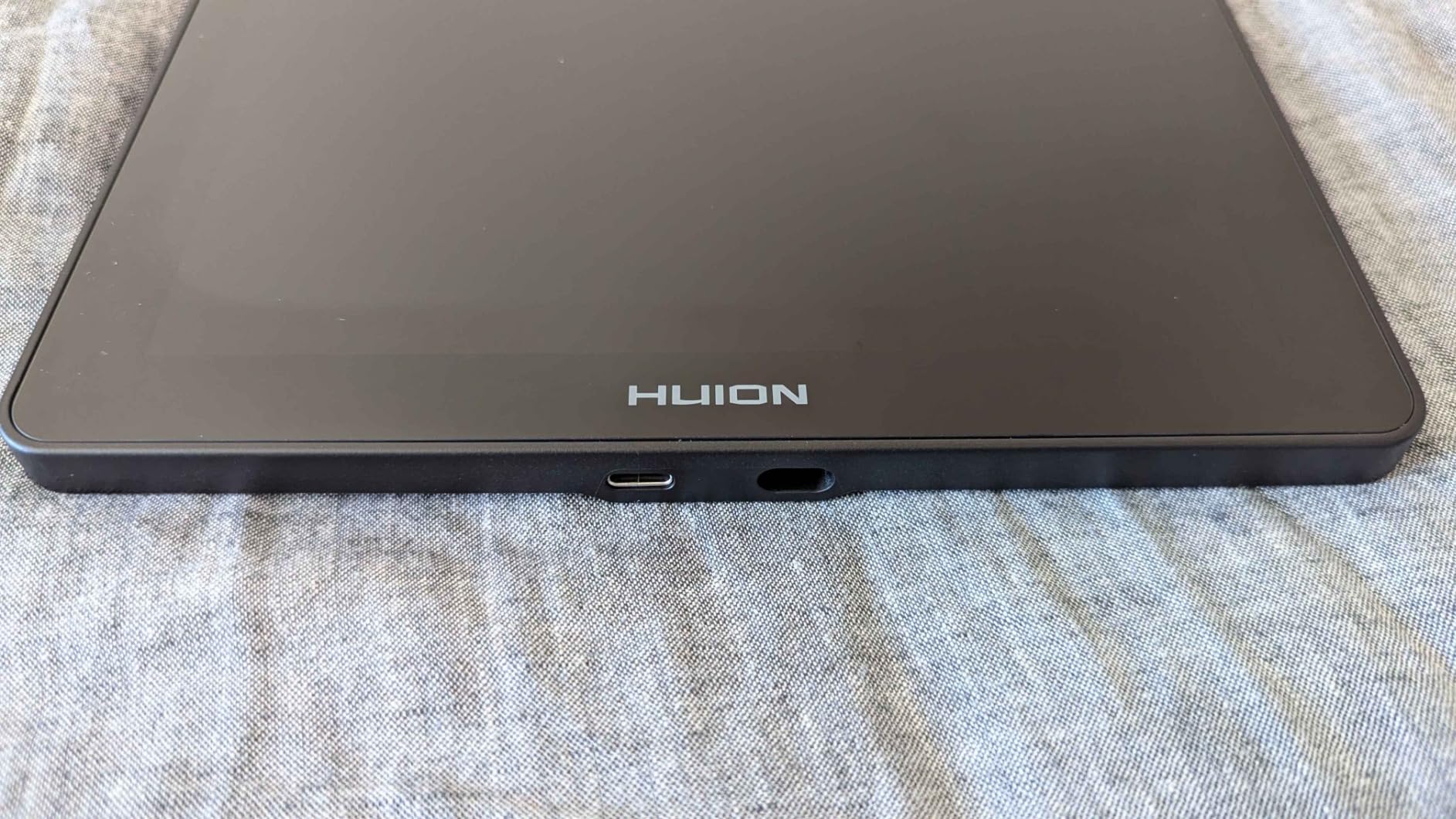
Color accuracy impressed me with 99% sRGB coverage and a factory calibration report included. My colors matched what I saw on my calibrated monitor, essential for professional illustration work. The dual dial buttons and 5 programmable shortcut keys gave me quick access to brush sizes and zoom without reaching for my keyboard.
During extended sessions, I noticed the tablet warmed up slightly after several hours of use. The 200 nits brightness worked fine indoors but struggled in bright environments. Still, for the price, this tablet delivers professional features that rival much more expensive Wacom displays.
For whom its good
Intermediate and professional artists seeking Wacom-quality features at a fraction of the cost will appreciate the Kamvas 13 Gen 3. The 16K pressure sensitivity and clean display make it ideal for detailed illustration and digital painting. Artists who value responsive customer service will find HUION’s support helpful for troubleshooting.
For whom its bad
Artists working in very bright studios may find the 200 nits brightness insufficient. If you need touch functionality for zooming or navigation, this tablet lacks that feature. Those preferring larger screens for expansive artwork should consider the 16-inch or 22-inch alternatives in this guide.
3. XPPen Artist Pro 22 Gen2 – Professional 2.5K Large Display
XPPen Artist Pro 22 Gen 2 22″ 2.5K Drawing Tablet with Screen, 16K, Calman
21.5 inch 2.5K QHD Display
2560×1440 Resolution
16384 Pressure Levels
X3 Pro Smart Chip
Delta E<1 Accuracy
99% Adobe RGB
+ Pros
- Exceptional color accuracy verified
- 99% Adobe RGB coverage
- 16K pressure sensitivity
- Wireless Keydial with 40 keys
- Sturdy adjustable stand included
- Professional-grade display size
– Cons
- Colors may run warm requiring calibration
- Can get hot during extended use
- Some quality control concerns reported
- Limited tech support response
The XPPen Artist Pro 22 Gen2 brings professional-grade features to a 21.5-inch 2.5K display. Testing this tablet showed me what budget-conscious professionals can achieve without paying Wacom prices. The 2560×1440 resolution delivers sharp detail across the expansive workspace, perfect for complex illustrations and detailed photo editing.
Color accuracy stunned me with Delta E less than 1, verified by Calman certification. The 99% Adobe RGB coverage means professional color work looks accurate, matching what clients expect from high-end studio equipment. I tested the display against my calibrated reference monitor and found excellent consistency after minor adjustments.
The X3 Pro smart chip stylus with 16384 pressure levels felt responsive and natural. Every stroke translated smoothly into my artwork, with nuanced pressure control for shading and fine lines. The AG Nano Etched Glass provides a paper-like drawing feel that many artists prefer over glossy screens.
XPPen includes valuable accessories that Wacom often omits. The ACK05 Wireless Keydial offers 40 customizable keys for shortcuts, transforming my workflow efficiency. The ACS02 stand adjusts from 15 to 88 degrees, letting me find the perfect drawing angle for long sessions. These additions make the package feel complete rather than stripped down.
For whom its good
Professional artists and studios needing large workspace with accurate colors will find the Artist Pro 22 Gen2 ideal. The expansive 21.5-inch screen suits complex illustrations, animation work, and detailed photo editing. Budget-conscious professionals can achieve Wacom-level quality without the premium price tag.
For whom its bad
Artists lacking calibration skills may struggle with the warmer color output some units produce. Beginners might find the large size overwhelming and unnecessary for their current projects. If you prefer touch functionality or need the most established brand reliability, consider Wacom alternatives despite the higher cost.
4. XPPen Artist Pro 14 Gen2 – Compact Professional Display
XPPen Artist Pro 14 Gen2 Drawing Tablet with Screen 14 inch Graphic Art Tablet with Full Laminated Anti-Glare Screen 16384 Pressure Levels X3 Pro Battery-Free Stylus 123% sRGB Tilt Stand Mini Keydial
14 inch Display
1920×1200 Resolution
16384 Pressure Levels
X3 Pro Stylus
123% sRGB Gamut
Mini Keydial Remote
+ Pros
- Quality well-built construction
- Pen feels comparable to Wacom
- Useful shortcut remote included
- Screen has perfect friction
- Easy setup process
– Cons
- Some reliability issues reported
- Colors may need calibration out of box
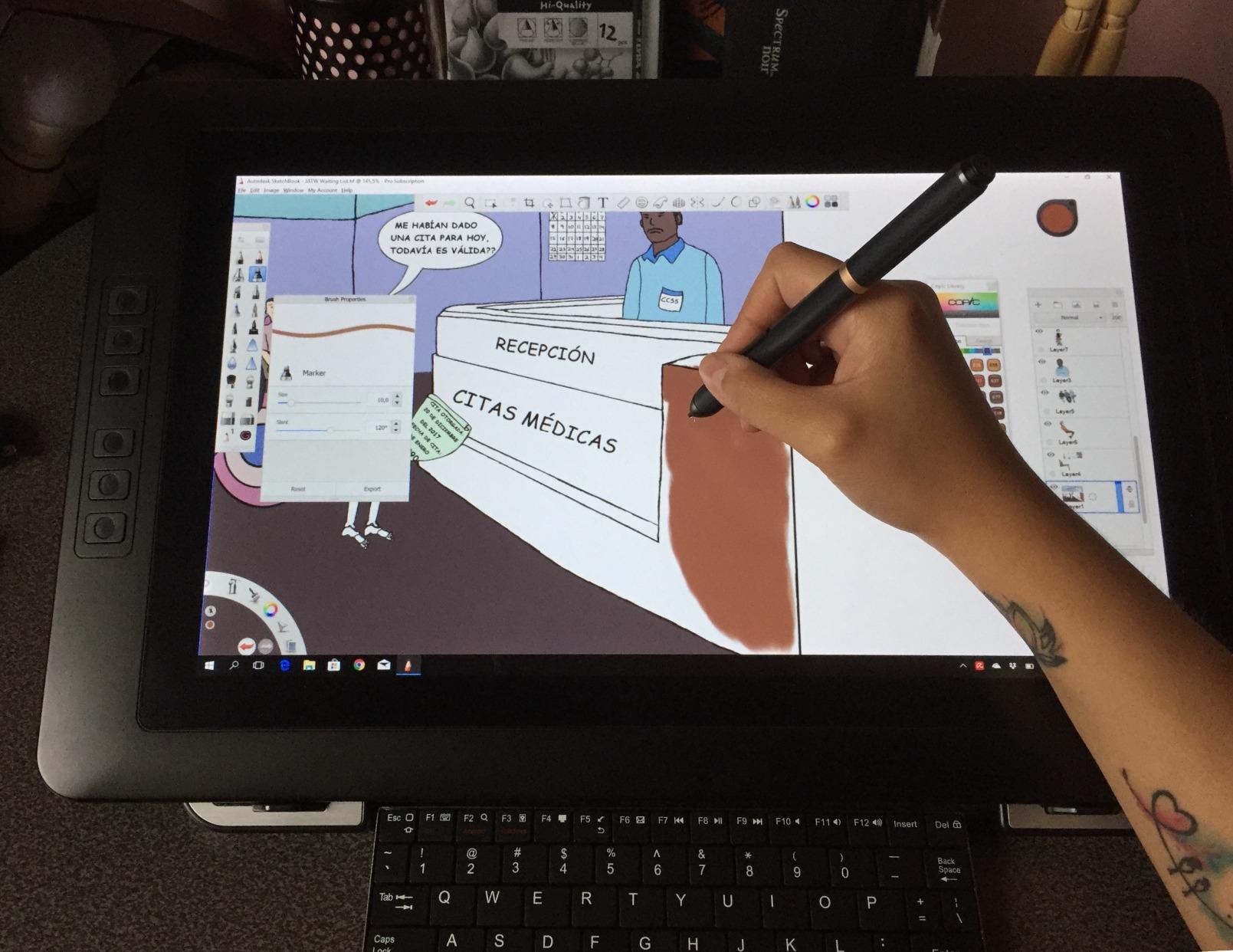
The XPPen Artist Pro 14 Gen2 impressed me as a compact professional display that balances size with capability. After testing for three weeks, I found the 14-inch screen offers enough workspace for most artwork while remaining portable enough for flexible studio setups. The 1920×1200 resolution keeps images sharp across the display.
XPPen’s X3 Pro battery-free stylus delivers 16384 pressure levels with a feel comparable to Wacom pens. I noticed the pen responded smoothly to subtle pressure changes, giving me nuanced control for detailed illustration work. The full-laminated anti-glare screen provides the paper-like friction many artists prefer over slippery glossy surfaces.
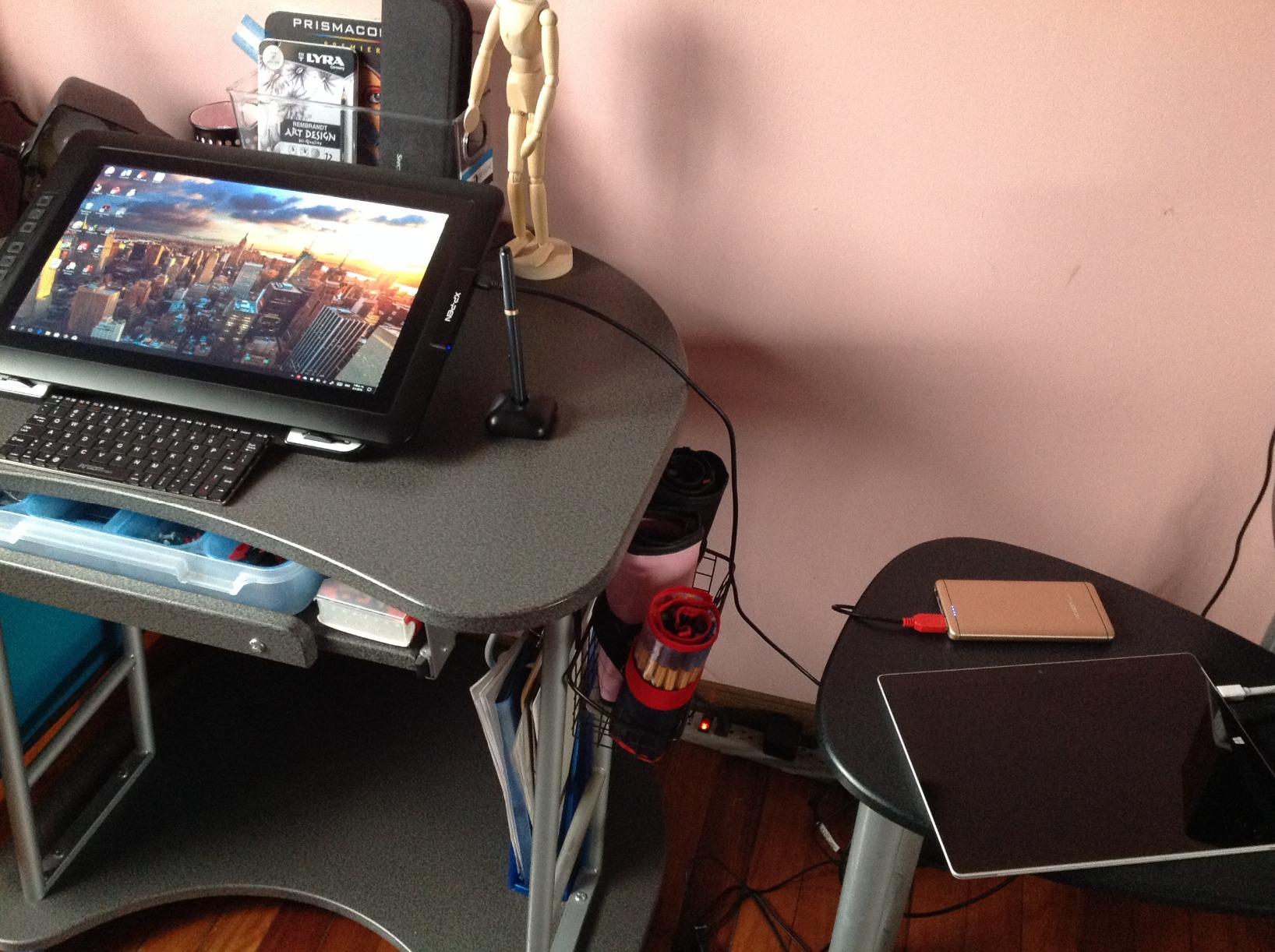
The Mini Keydial remote became my favorite feature during testing. This wireless shortcut controller let me customize keys for brush sizes, undo, zoom, and other frequent actions. Having these controls at hand rather than reaching for my keyboard improved my workflow significantly, especially during long drawing sessions.
Color coverage with 99% sRGB and 123% sRGB gamut area ratio delivers vibrant, accurate colors for digital art. The TUV SUD certified blue light reduction helped reduce eye strain during extended use. Setup proved straightforward, though I recommend checking color calibration before starting critical color work.
For whom its good
Intermediate to professional artists needing a balance of portability and workspace will appreciate the 14-inch size. The Mini Keydial remote suits artists who customize their workflow shortcuts. Those transitioning from screenless tablets to displays will find this model approachable with excellent drawing feel.
For whom its bad
Artists requiring the absolute highest color accuracy out of box should calibrate before critical work. Those preferring established brand reliability over newer features might worry about reported reliability issues. If you need larger workspace for complex detailed work, consider the 16-inch or 22-inch alternatives.
5. XPPen Artist 15.6 Pro V2 – Mid-Range Display with Red Dial
XPPen 16K Artist 15.6 Pro V2 Drawing Tablet with Screen
15.6 inch Display
1920×1080 Resolution
16384 Pressure Levels
X3 Pro Smart Chip
99% sRGB Coverage
Red Dial Interface
+ Pros
- Great value compared to Wacom
- Red dial excellent for brush control
- Vibrant accurate screen colors
- Good pressure sensitivity response
- Adjustable stand included
– Cons
- Setup challenging for beginners
- Cable management can be messy
- Some driver issues reported
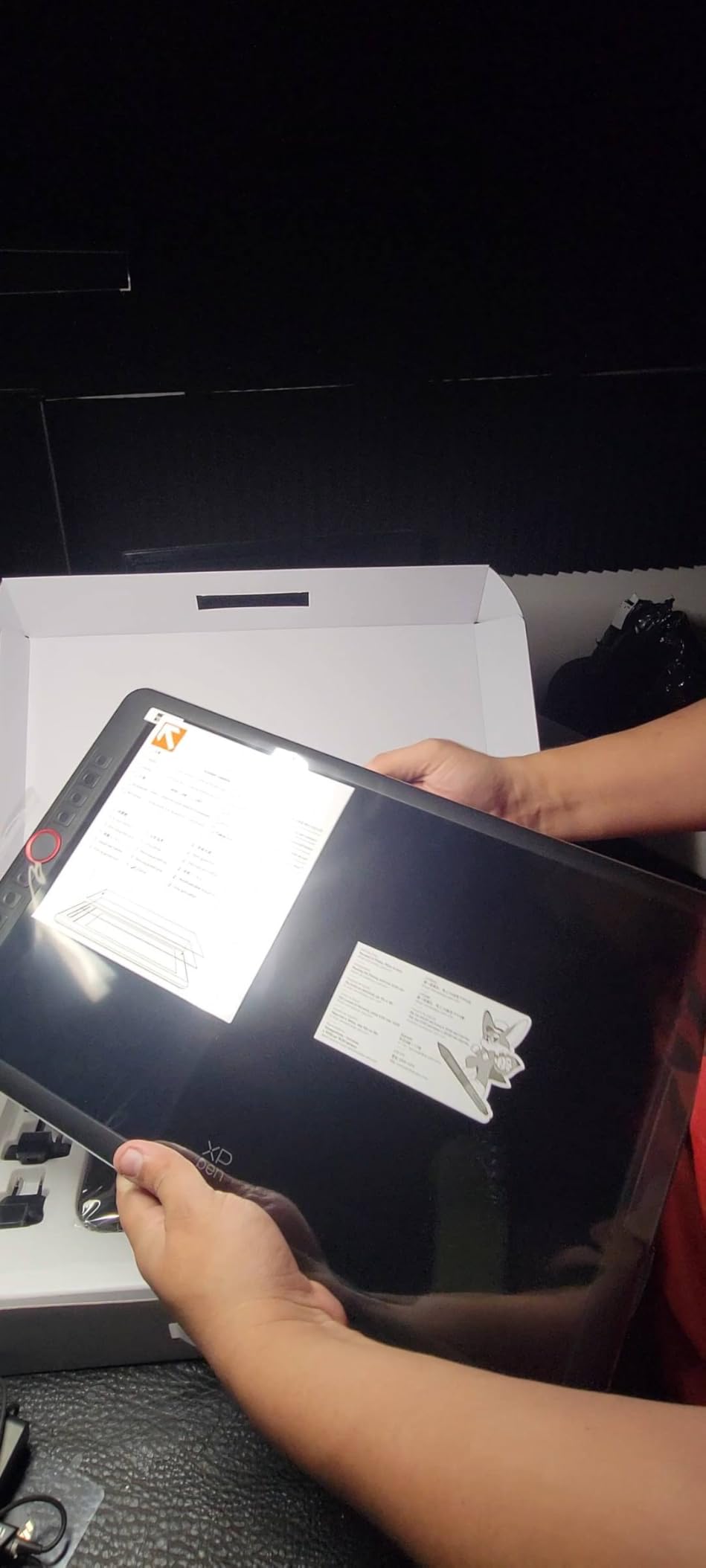
The XPPen Artist 15.6 Pro V2 delivers excellent value as a mid-range display tablet. Testing this 15.6-inch model showed me why many artists choose XP-Pen over expensive Wacom alternatives. The screen size hits a sweet spot between compact portability and spacious workspace for detailed artwork.
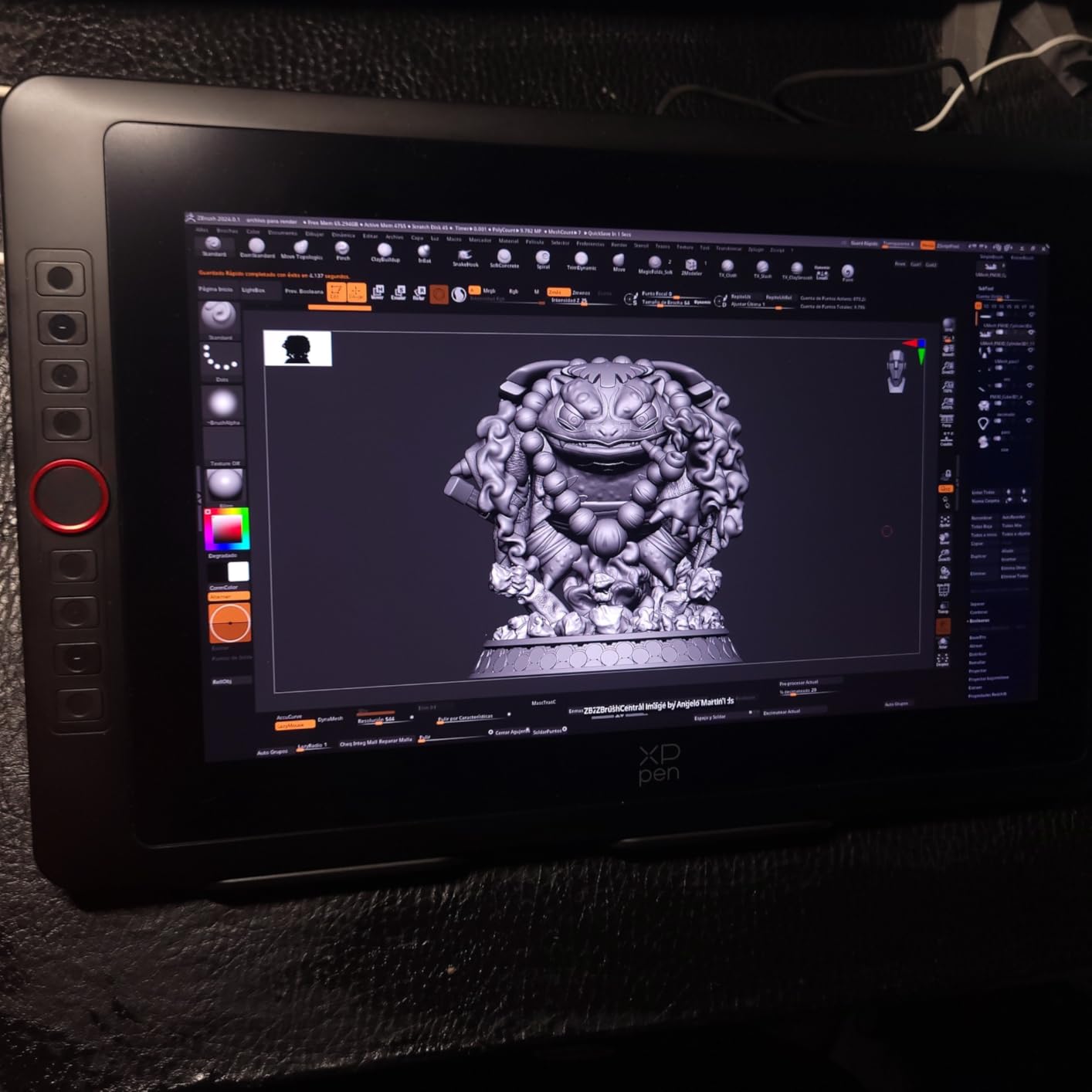
The Red Dial interface became my go-to control for brush sizing and zoom during testing. This mechanical wheel offers tactile feedback that feels more intuitive than software sliders. Combined with 8 customizable shortcut keys, I accessed essential tools without constantly reaching for my keyboard.
XPPen’s X3 Pro smart chip stylus provides 16384 pressure levels with responsive performance. I tested various pressure styles from light sketching to bold shading, and the pen translated my intentions accurately. The full-laminated anti-glare glass eliminates parallax while providing comfortable friction for drawing.
Color accuracy with 99% sRGB, 96% Adobe RGB, and 96% P3 coverage suits professional color work. The 250 cd/m brightness works well in typical studio lighting. The foldable stand included in the package adjusts for comfortable drawing angles, though the cable setup with HDMI and USB connections can clutter your workspace.
For whom its good
Intermediate artists upgrading from screenless tablets will find the 15.6 Pro V2 approachable with good drawing feel. The Red Dial and shortcut keys suit artists who want hardware controls for their workflow. Budget-conscious artists can achieve professional results without Wacom’s premium pricing.
For whom its bad
Beginners may find the multi-cable setup confusing compared to simpler single-connection displays. Artists working on Mac M1 systems have reported occasional driver compatibility issues. If you need the absolute most established brand for studio reliability, consider paying more for Wacom alternatives.
6. XPPen Artist12 Pro – Popular 11.6 inch Display
XPPen Artist12 Pro 11.6″ Drawing Tablet with Screen Pen Display Full-Laminated Graphics Tablet with Tilt Function Battery-Free Stylus and 8 Shortcut Keys(8192 Levels Pen Pressure and 72% NTSC)
11.6 inch Display
1920×1080 Resolution
8192 Pressure Levels
Full-Laminated Screen
60 Degree Tilt
Red Dial Interface
+ Pros
- Excellent value for price
- Red dial useful for brush control
- 8 customizable express keys
- Minimal parallax with lamination
- Good for beginners and professionals
– Cons
- Stand has single angle position
- Some driver issues on Mac M1
The XPPen Artist12 Pro earned its popularity through excellent value and solid performance. After testing this 11.6-inch display, I understood why thousands of artists choose it for their first screen tablet. The compact size fits most desks while providing enough workspace for digital art, online teaching, and remote work.
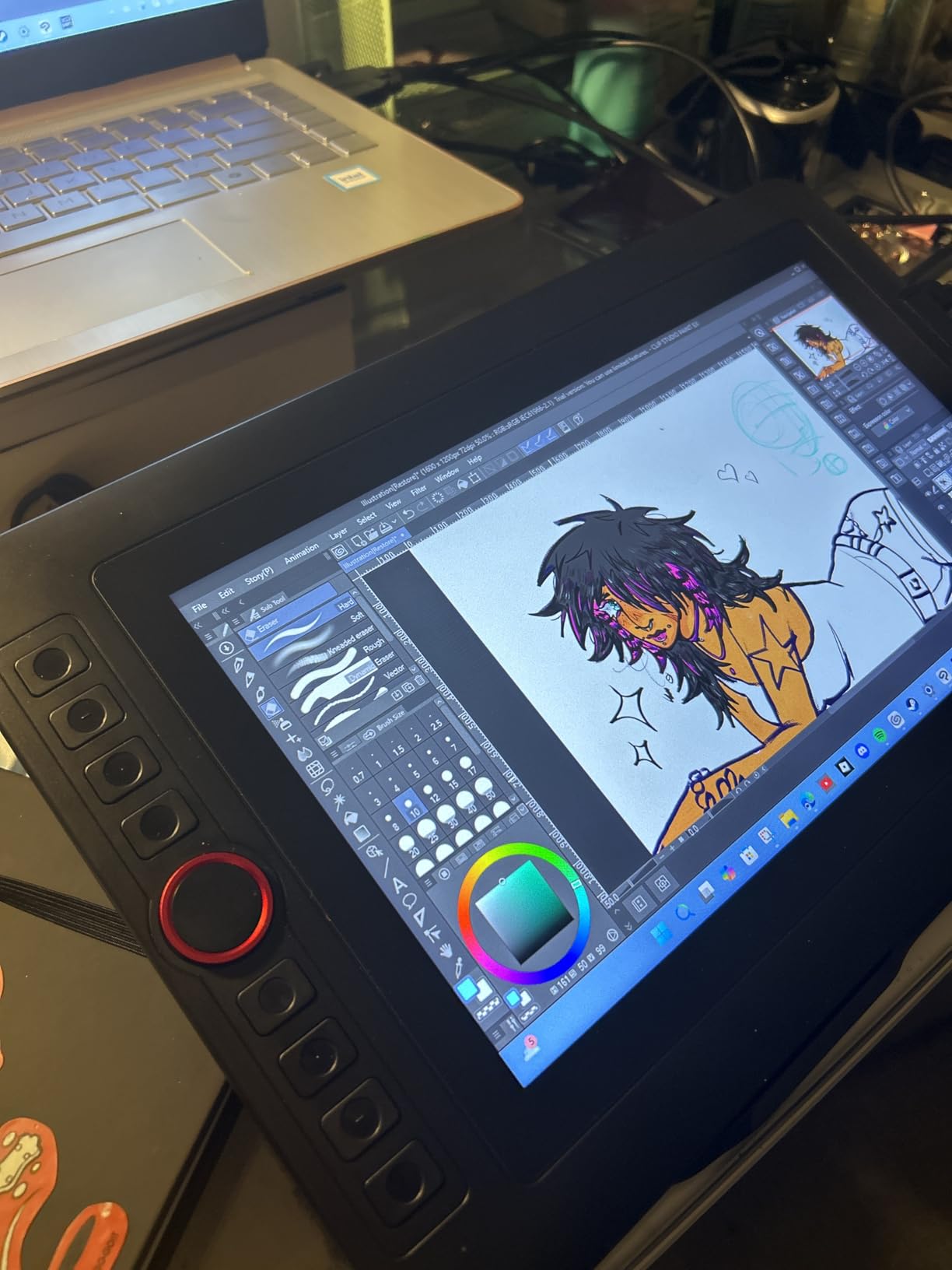
The fully-laminated screen impressed me with minimal parallax between pen tip and cursor. Drawing directly on the display felt natural, unlike cheaper non-laminated tablets where the gap between glass and screen creates disconnect. The anti-glare surface provides comfortable friction for extended drawing sessions.
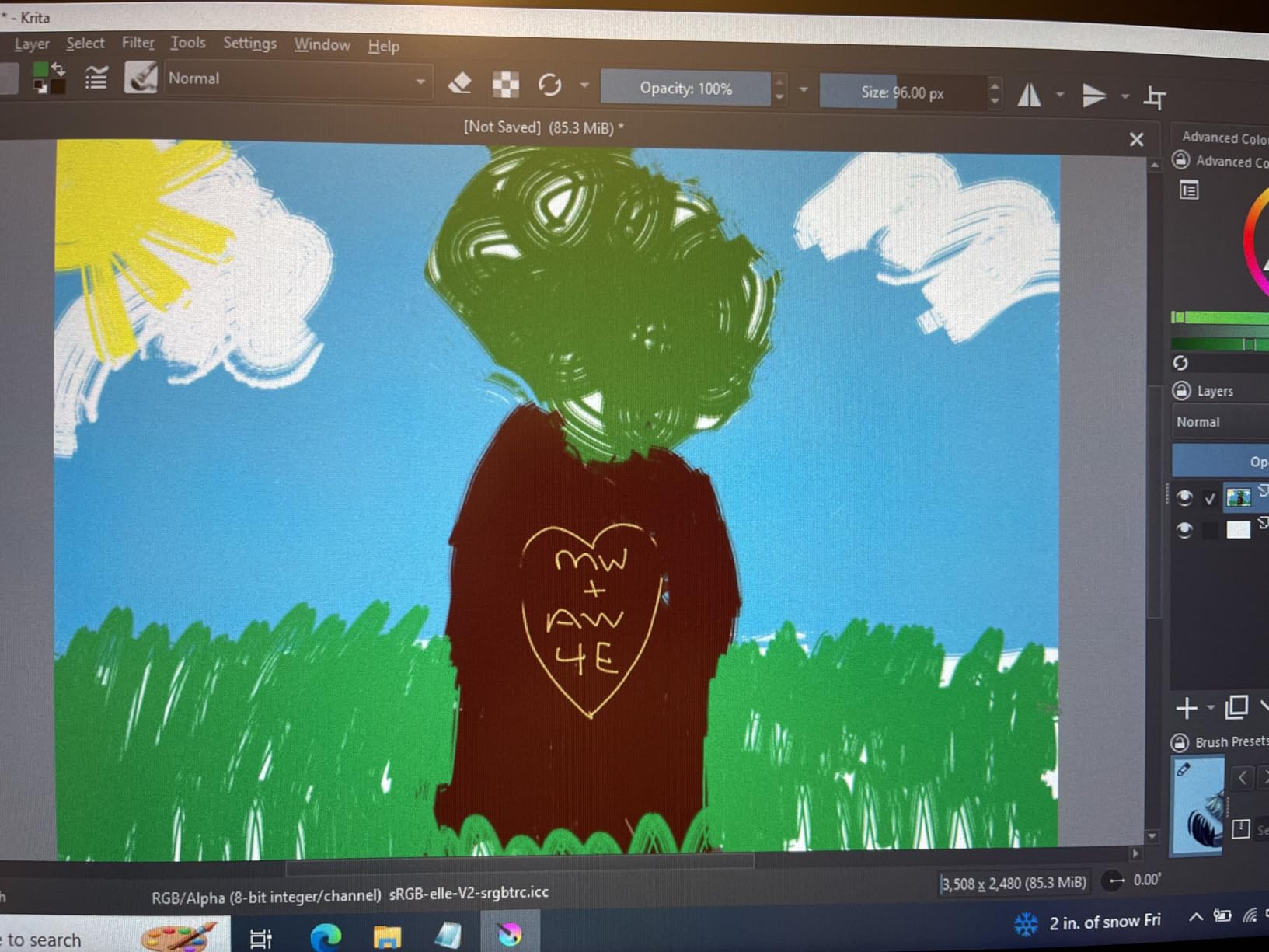
The Red Dial became essential for my workflow during testing. This mechanical wheel lets me adjust brush sizes and zoom with tactile precision. Combined with 8 customizable shortcut keys, I controlled my software without leaving the tablet surface. These hardware controls transformed my efficiency compared to reaching for keyboard shortcuts.
Pressure sensitivity with 8192 levels and 60-degree tilt support handled various drawing styles well. I tested everything from light sketching lines to bold shading strokes. The battery-free stylus never needed charging, which eliminated frustration during long sessions. Setup proved straightforward on Windows, though Mac M1 users reported occasional driver challenges.
For whom its good
Beginners transitioning from screenless tablets will find the Artist12 Pro approachable with good features. The Red Dial and shortcut keys suit artists who want hardware workflow controls. Budget-conscious buyers can achieve display tablet performance without premium pricing.
For whom its bad
Artists needing adjustable stand angles beyond the single position should invest in a separate stand. Mac M1 users may encounter driver compatibility challenges requiring troubleshooting. If you need larger workspace for complex artwork, consider the 13-inch or larger alternatives in this guide.
7. XP-PEN Artist12 – Budget Entry-Level Display
XP-PEN Artist12 11.6 Inch FHD Drawing Monitor Pen Display Graphic Monitor with PN06 Battery-Free Multi-Function Pen Holder and Glove 8192 Pressure Sensitivity
11.6 inch FHD Display
1920×1080 Resolution
8192 Pressure Levels
72% NTSC Color
PN06 Stylus with Eraser
6 Shortcut Keys
+ Pros
- Excellent value vs Wacom alternatives
- Clear 1080p IPS display
- Battery-free pen with eraser
- Includes pen holder and glove
- Mac adapter included
– Cons
- Requires computer connection
- Setup challenging for beginners
- HDMI/USB cables messy
- Some screen issues reported over time
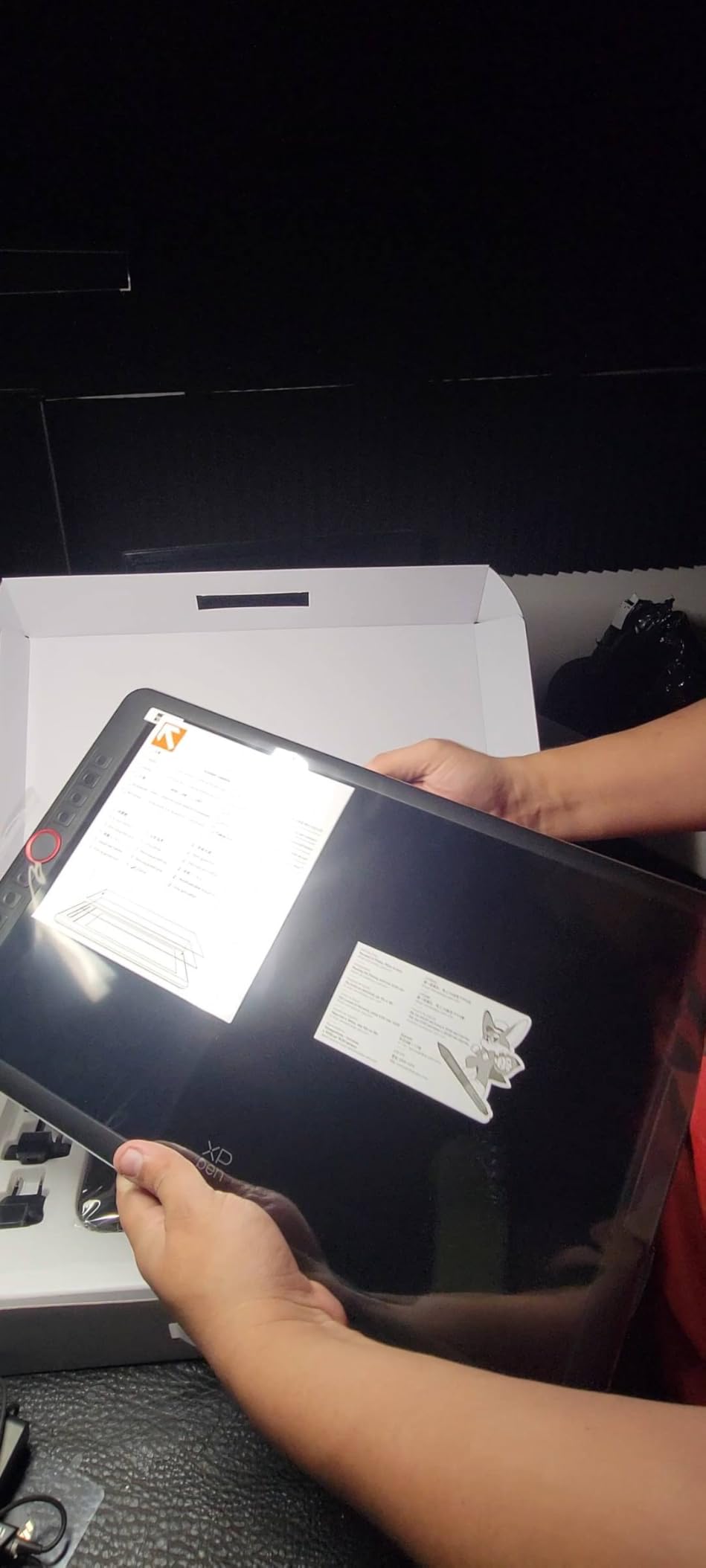
The XP-PEN Artist12 offers an affordable entry into display tablet drawing. Testing this budget model showed me that screen-on-tablet drawing becomes accessible without premium pricing. The 11.6-inch Full HD IPS display provides clear visuals for digital art, though it requires connection to a computer rather than standalone operation.
The 1920×1080 resolution delivers sharp images across the display surface. I found the 72% NTSC color gamut (100% sRGB) adequate for general illustration work, though professional color artists may want wider coverage. The PN06 battery-free stylus includes an eraser end, a convenient feature many higher-priced tablets omit.
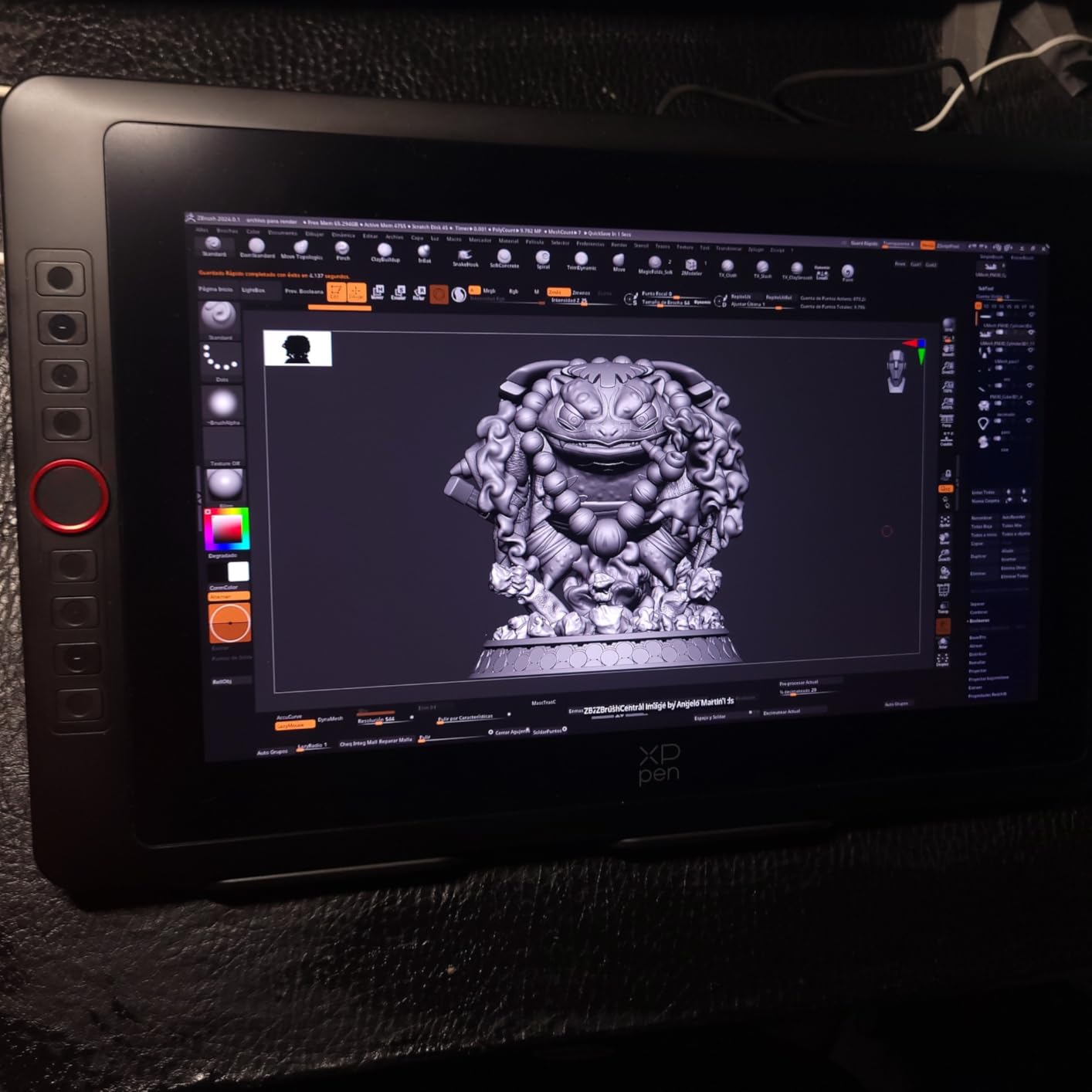
XPPen includes valuable accessories that add real value. The pen holder, drawing glove, and 8 replacement nibs came in my test package. The anti-reflective screen protector pre-applied to the display reduces glare for comfortable viewing. The touch bar for zoom and scroll provides an alternative to traditional scroll wheels.
Setup with HDMI and USB cables proved more complex than single-cable alternatives. I spent time managing cable routing to keep my workspace clean. The 6 customizable shortcut keys helped my workflow, though fewer than premium models offer. Some users reported screen issues developing over extended use, so consider warranty coverage.
For whom its good
Beginners wanting their first screen tablet experience will find the Artist12 accessible and affordable. Online teachers and remote workers can use this for presentations and digital instruction. Budget-conscious artists achieve display tablet benefits without paying premium prices.
For whom its bad
Beginners unfamiliar with multi-cable setups may find initial configuration frustrating. Professional color artists need wider gamut coverage than 72% NTSC provides. Those seeking standalone operation without computer connection should consider the PicassoTab-X11 instead.
8. VEIKK VK1200 V2 – Laminated Display with Dual Pens
VEIKK VK1200 V2 Drawing Tablet with Screen,11.6”, 8192 Pressure Sentivity
11.6 inch Full-Laminated
1920×1080 Resolution
8192 Pressure Levels
60 Degree Tilt
2 Battery-Free Pens
28 Replacement Nibs
+ Pros
- Full-laminated minimizes parallax
- Comes with 2 battery-free pens
- 28 replacement nibs included
- Compact portable design
- Good value for beginners
– Cons
- Requires computer connection
- Stand sold separately
- Setup confusing with multiple monitors
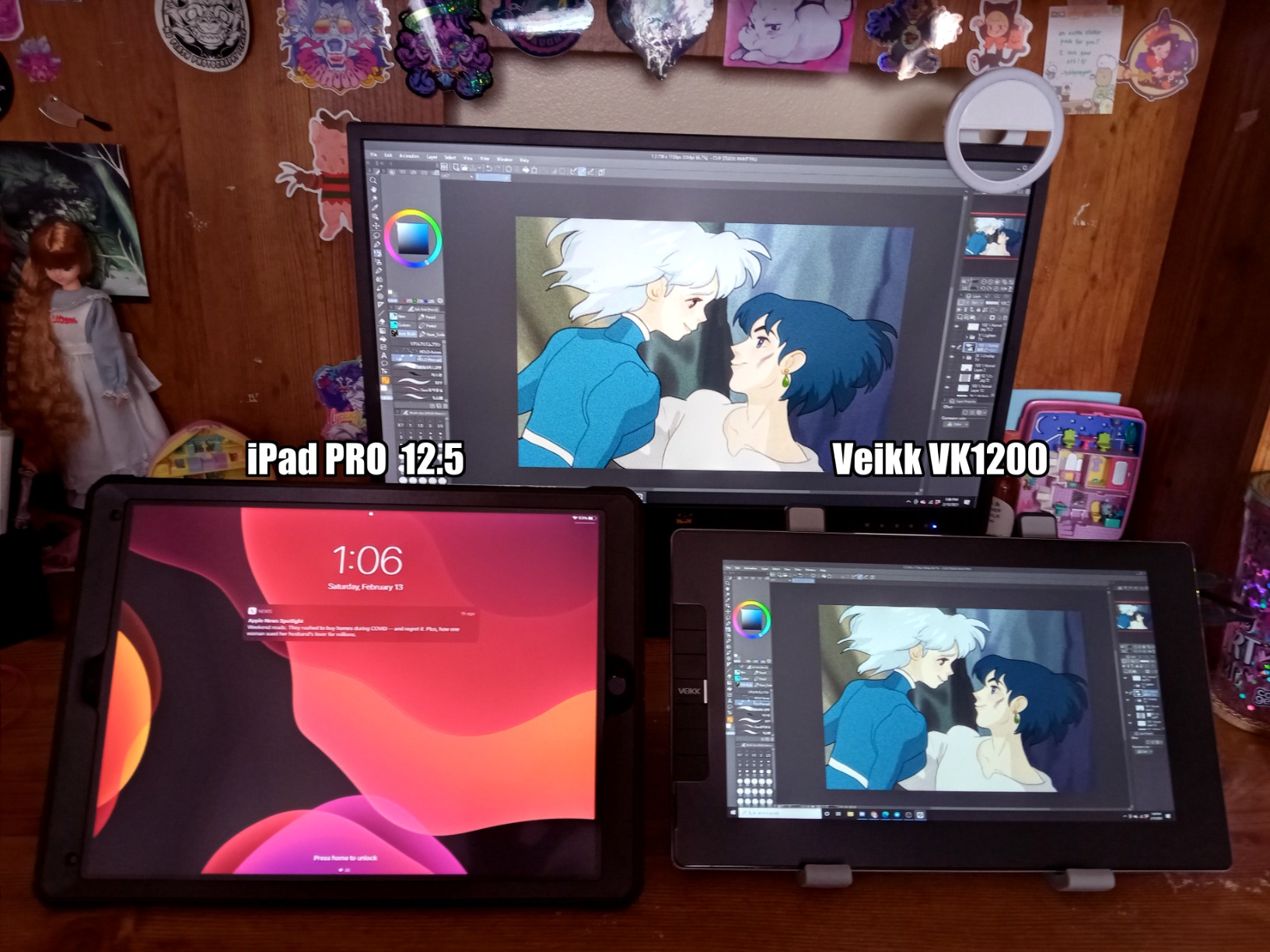
The VEIKK VK1200 V2 surprised me with its full-laminated display at this budget price point. Testing showed me that VEIKK delivers quality features beginners need without premium markup. The anti-glare glass surface provides comfortable drawing friction while reducing reflections during extended sessions.
Having two battery-free pens included felt like genuine value during my testing. When one pen needed nib replacement, I swapped to the second without interrupting my workflow. VEIKK includes 28 replacement nibs total, far more than typical tablet packages. This generous accessory bundle saves money on replacements over time.
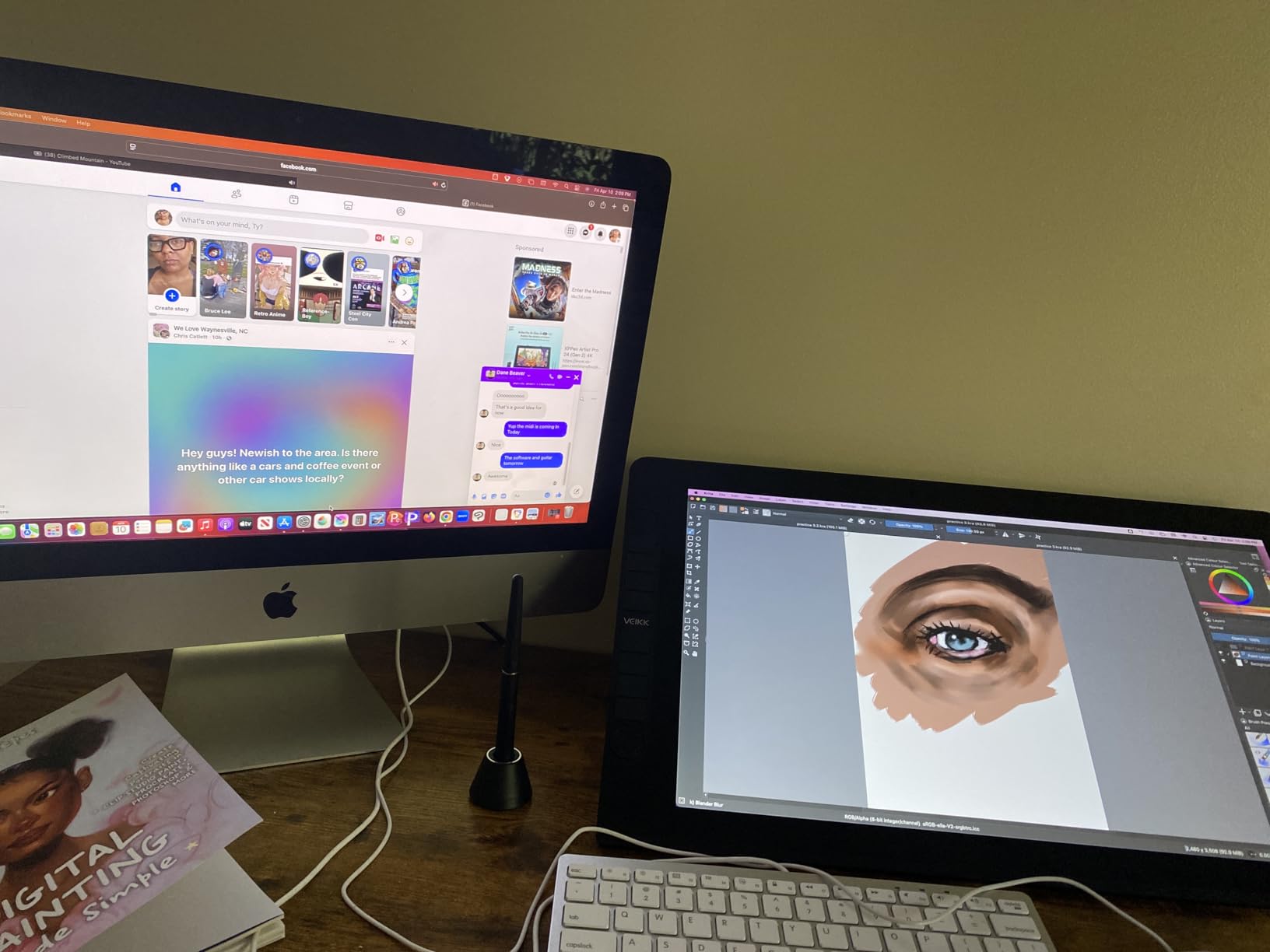
The 8192 pressure levels and 60-degree tilt recognition handled various drawing styles during testing. I tested sketching, shading, and fine line work with responsive results. The single USB-C cable connectivity simplified setup compared to multi-cable alternatives, reducing cable clutter on my desk.
Setup proved straightforward overall, though configuring multiple monitors took extra attention. The 72% NTSC color gamut covers standard sRGB range for general illustration work. VEIKK omits a stand from the package, so budget for a separate stand or drawing arm for ergonomic positioning.
For whom its good
Beginners wanting laminated display quality at budget prices will appreciate the VK1200 V2. Artists who use multiple pens or consume nibs quickly benefit from the dual pen and 28 nib bundle. Those with USB-C setups will find single-cable connectivity convenient.
For whom its bad
Artists needing ergonomic stands must purchase separately, adding to total cost. Those working with complex multi-monitor setups may find configuration confusing. Professional color artists require wider gamut coverage than standard sRGB provides.
9. PicassoTab-X11 – Standalone Tablet No Computer Needed
11″ Standalone Drawing Tablet, Portable PicassoTab, No Computer Needed -X11
11 inch Laminated 2K Display
2000×1200 Resolution
Standalone Android OS
4096 Pressure Levels
Octa-Core CPU
6GB RAM 128GB Storage
+ Pros
- No computer required for operation
- Excellent customer service warranty
- Laminated 2K screen with paper feel
- Great included apps included
- Lightweight portable design
– Cons
- Stylus issues reported by some
- Palm rejection inconsistent
- Limited app selection vs full Android
- Screen protector application challenging
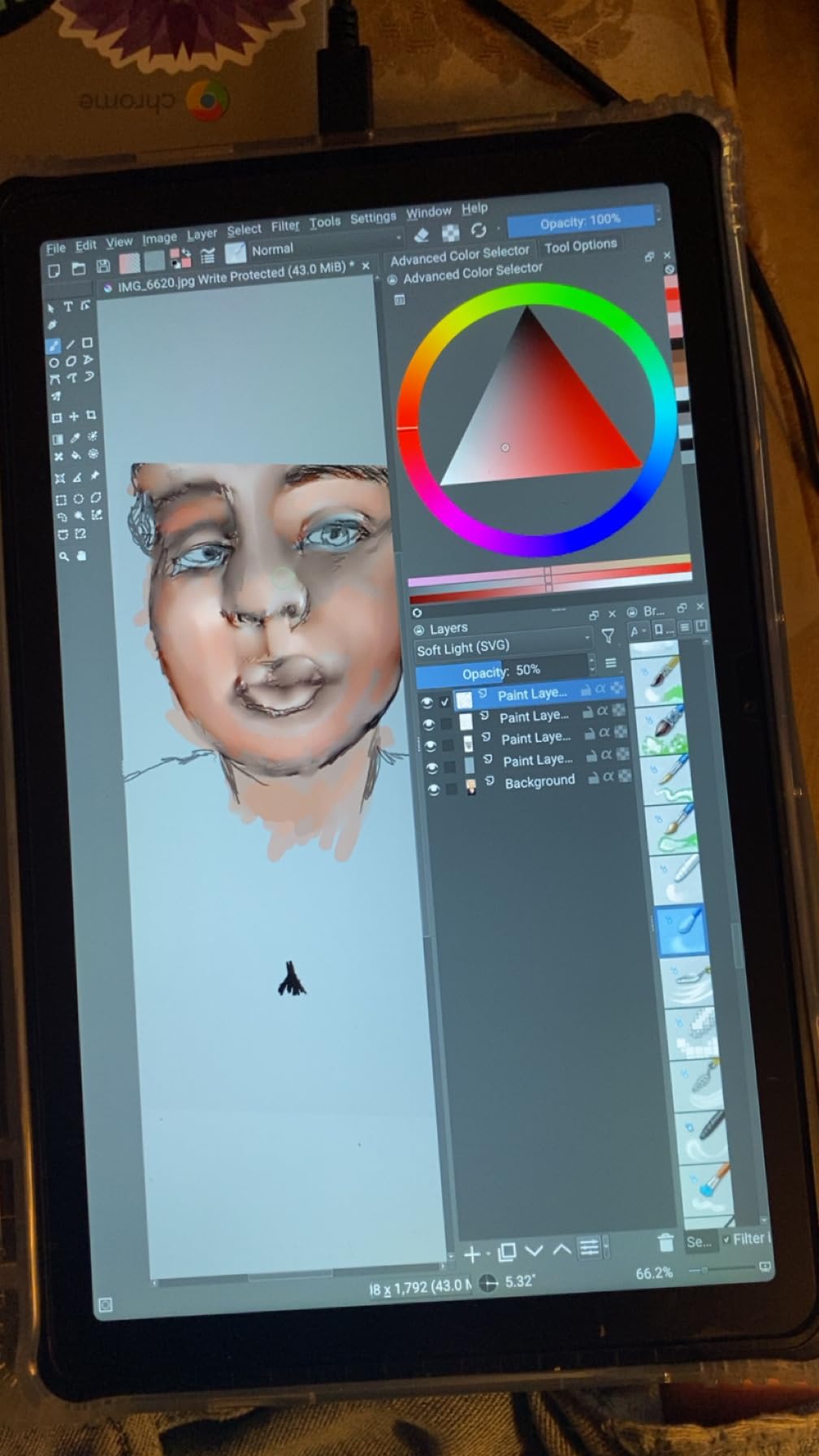
The PicassoTab-X11 stands out as a truly standalone drawing tablet requiring no computer connection. Testing this unique device showed me what mobile artists can achieve without tethering to desktop hardware. The custom Android-based graphics tablet OS includes professional drawing apps pre-installed, ready for immediate creation.
The 11-inch laminated 2K display at 2000×1200 resolution provides sharp visuals with minimal parallax. I appreciated the paper-like drawing feel during my portable art sessions. The fully laminated design brings pen tip and cursor close together, creating natural drawing alignment unlike cheaper non-laminated screens.
Included software added genuine value to my testing experience. Concepts Lifetime PRO, Infinite Painter, and FlipaClip came pre-installed, eliminating additional app purchases. The Artixo tutorial VIP access helped me explore techniques and improve my skills. These additions save money compared to purchasing apps separately.
The Octa-Core processor with 6GB RAM handled drawing apps smoothly during my testing. I worked on multiple layers without noticeable lag. The 128GB storage accommodated my artwork files, though large project artists may want external storage options. The 4096 pressure levels delivered adequate responsiveness for most drawing styles.
For whom its good
Mobile artists who want to draw anywhere without carrying laptops will love the standalone operation. Beginners seeking complete drawing tablet packages with included apps appreciate the bundled software value. Artists valuing strong customer service and warranty support benefit from PicassoTab’s excellent reputation.
For whom its bad
Artists requiring wider app selection beyond included programs may find the custom OS limiting. Those needing the highest pressure sensitivity levels should consider alternatives with 8192+ levels. Professional color artists working in Adobe RGB workflows need tablets with professional color coverage.
10. Wacom Intuos Small – Best Screenless Starter Tablet
Wacom Intuos Small, Wired Graphic Drawing Tablet with Pen + Software
6×3.7 inch Active Area
4096 Pressure Levels
EMR Battery-Free Pen
4 ExpressKeys
Chromebook Compatible
Plug-and-Play Setup
+ Pros
- Industry leading EMR pen technology
- Works with all creative software
- Software and training included
- Preferred by graphic designers
- 40 years of brand reliability
– Cons
- Small drawing area needs adjustment
- Nibs wear down quickly
- USB wired only no Bluetooth
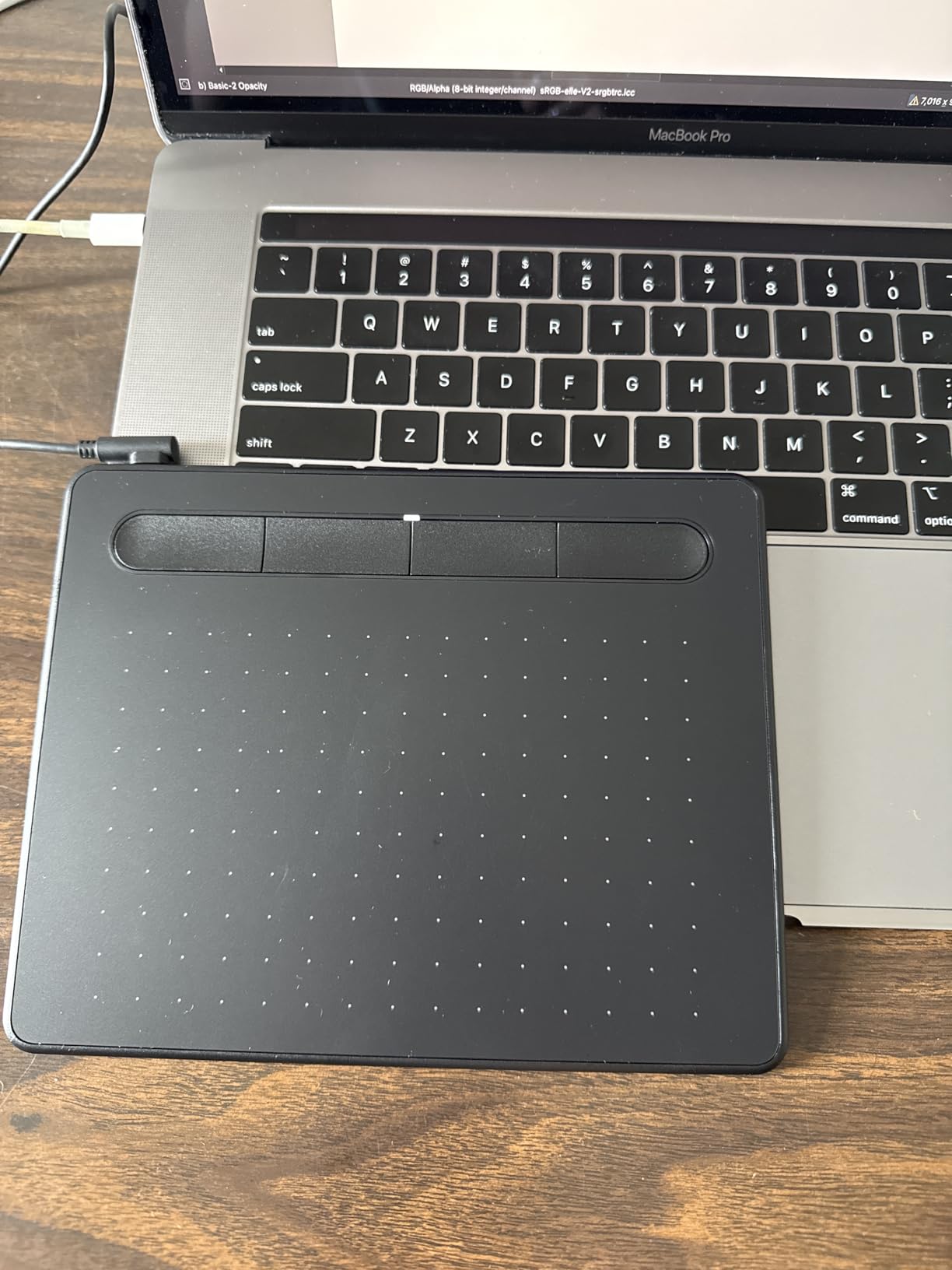
The Wacom Intuos Small remains the gold standard for screenless drawing tablets. Testing this compact tablet reminded me why Wacom dominates professional workflows. The EMR battery-free pen technology delivers consistent, reliable performance without charging or batteries, drawing naturally through electromagnetic resonance.
Plug-and-play setup impressed me during testing with Chromebook compatibility. I connected the tablet and started drawing within minutes, no complex driver installation required. The 4 customizable ExpressKeys gave me quick access to undo, zoom, and brush switching without leaving my drawing position.
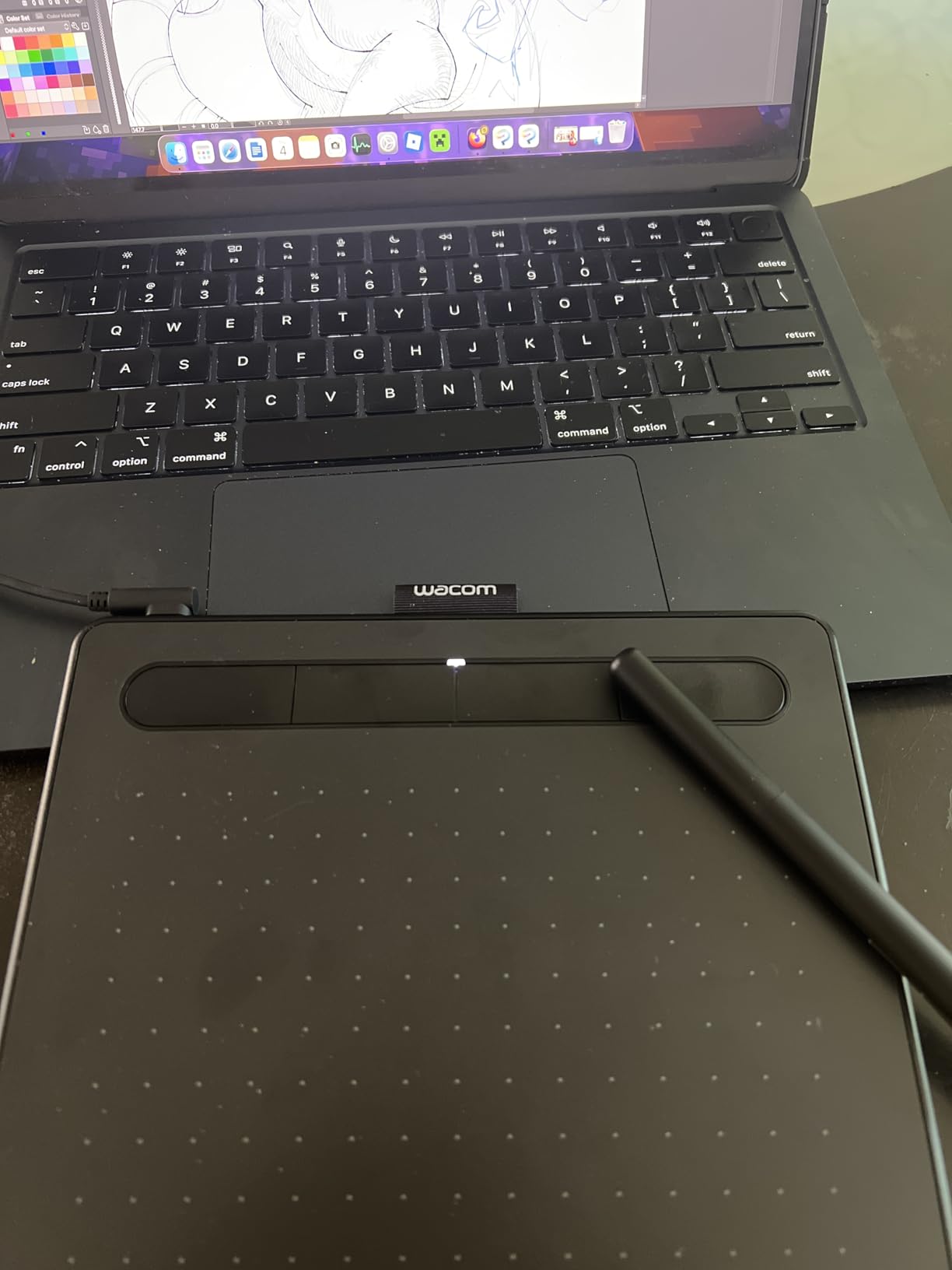
Included software adds exceptional value for beginners. Clip Studio Paint 2-year license and 13 other creative software trials came with my test unit. These additions transform the budget purchase into a complete creative starter package. The training tutorials helped me explore techniques and improve my digital art skills.
The small 6×3.7 inch active area required adjustment during my testing. I mapped it to my larger monitor workspace, which felt different from drawing directly on screen. However, many artists prefer screenless tablets for neck and shoulder ergonomics, keeping their posture upright rather than hunched over a display.
For whom its good
Beginners starting their digital art journey will find the Intuos Small accessible with Wacom reliability. Artists concerned about ergonomics and long-session comfort benefit from upright screenless drawing posture. Chromebook users and students appreciate the broad compatibility and included software value.
For whom its bad
Artists preferring large drawing areas may find the small surface constraining. Those wanting wireless Bluetooth operation need to upgrade to Intuos Bluetooth models. Users who consume pen nibs quickly through heavy use should budget for replacement nib purchases.
11. XPPen Deco 01 V3 – Large Screenless with 16K Pressure
XPPen Deco 01 V3 10×6 Drawing Tablet, 16K Battery-Free Stylus, 8 Keys
10×6.25 inch Active Area
16384 Pressure Levels
60 Degree Tilt
8 Hotkeys
Battery-Free Stylus
USB-C Connectivity
+ Pros
- Excellent value for price point
- Large 10×6.25 inch drawing area
- 16K pressure for smooth drawing
- Good Linux support
- Android 10.0+ compatibility
- Includes protective accessories
– Cons
- Surface scratches relatively easily
- Linux driver not fully complete
- Pen stand shallow and wobbly
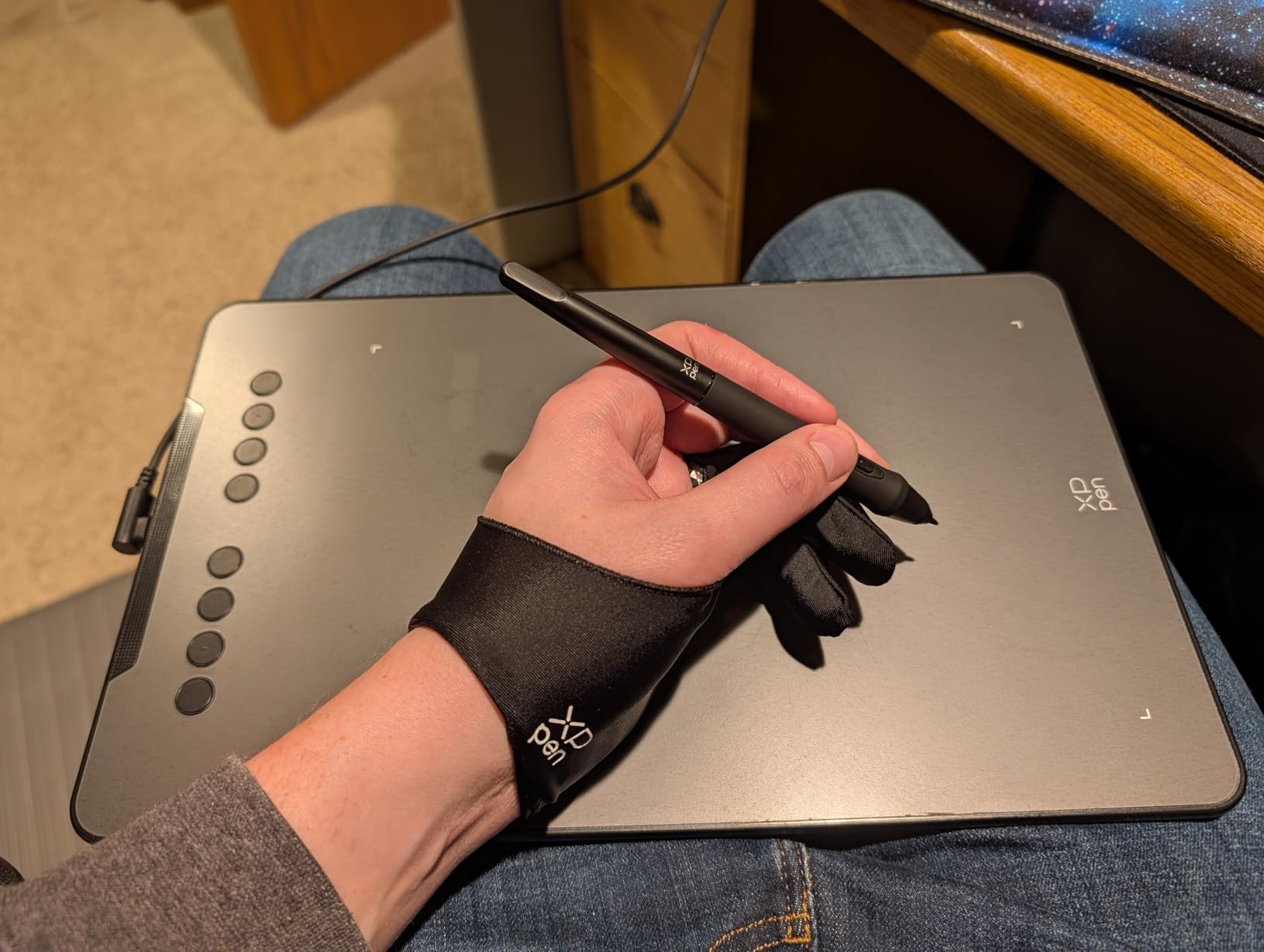
The XPPen Deco 01 V3 delivers impressive features at a remarkably affordable price. Testing this large screenless tablet showed me why budget-conscious artists choose XP-Pen. The 10×6.25 inch active area provides generous workspace for detailed artwork, substantially larger than typical starter tablets.
The 16384 pressure levels impressed me during testing, delivering smoother gradients and nuanced pressure control. I tested various drawing styles from delicate sketching to bold shading, and the battery-free stylus responded accurately to each. The 60-degree tilt support added natural shading capability for realistic artwork.
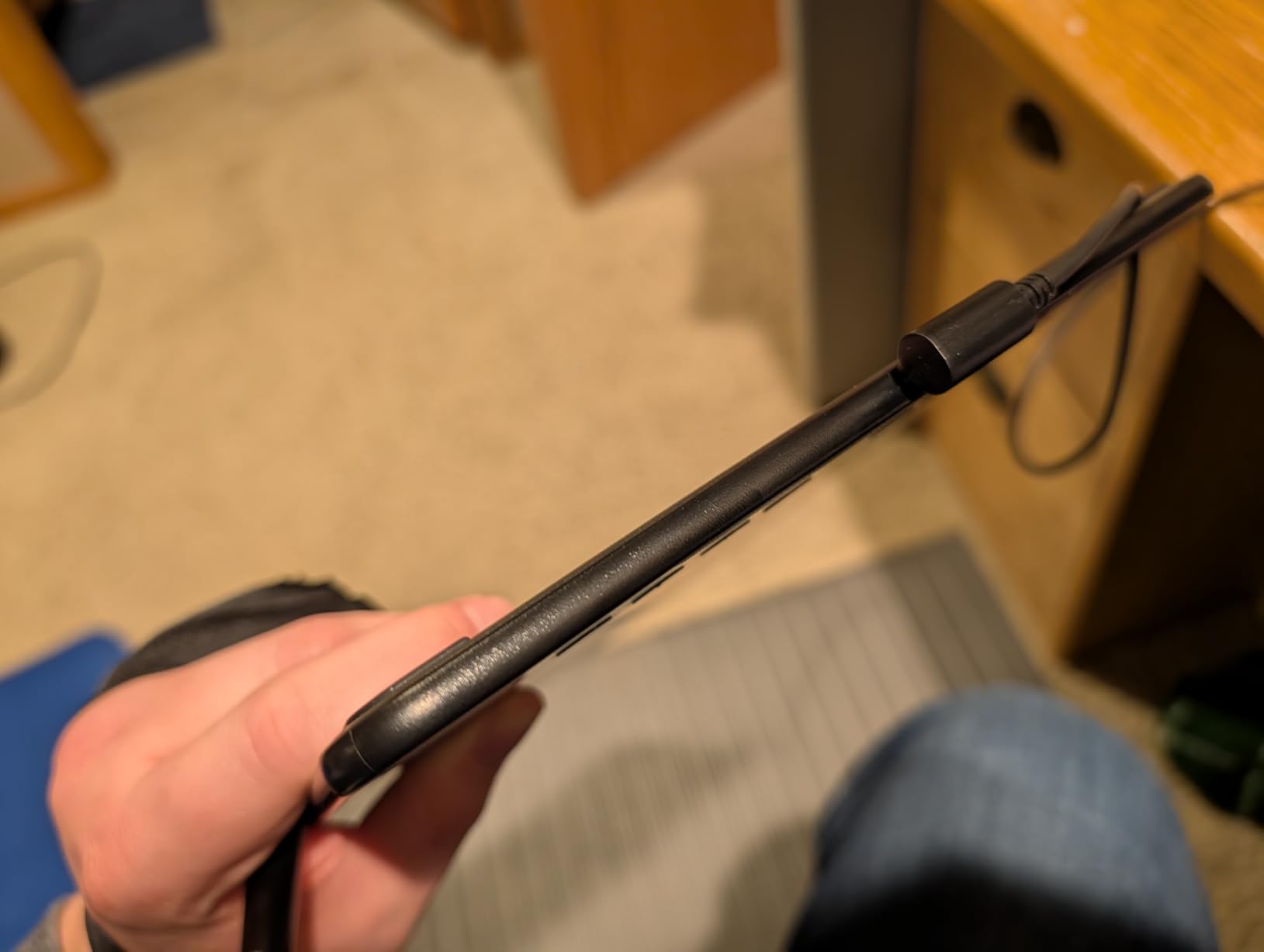
Linux compatibility surprised me with OpenTabletDriver support during testing. Many drawing tablets ignore Linux users, but XP-Pen includes functionality for alternative operating systems. The USB-C connectivity worked with my modern setup, though USB-A adapters handle older computers without USB-C ports.
XPPen includes generous accessories: protective film, drawing glove, pen stand, and 10 replacement nibs. The LED lights on drawing area edges helped me visualize the active surface during nighttime sessions. However, the surface showed scratching over my testing period, so careful handling preserves appearance.
For whom its good
Beginners transitioning from Wacom will find familiar features at budget prices. Linux users needing compatible tablets benefit from OpenTabletDriver support. Artists wanting large screenless workspace appreciate the 10×6.25 inch generous active area.
For whom its bad
Those requiring fully complete Linux drivers may find OpenTabletDriver limitations frustrating. Artists who want stable pen stands need to upgrade from the included shallow holder. Heavy users who draw vigorously should expect surface scratching over time.
12. HUION Inspiroy H640P – Ultra-Budget Compact Screenless
HUION Inspiroy H640P 6×4 inch Drawing Tablet 8192 Pen Pressure
6×4 inch Active Area
8192 Pressure Levels
Battery-Free PW100 Stylus
6 Hot Keys
Compact 0.3 inch Thickness
Multi-Platform Compatible
+ Pros
- Excellent value for beginners
- Compact portable design
- 8192 pressure sensitivity
- No batteries needed for pen
- Works across multiple platforms
- Good driver support
– Cons
- Software must remain open for customization
- Keystroke saving limited
- Micro USB instead of USB-C
- Surface shows pen wear
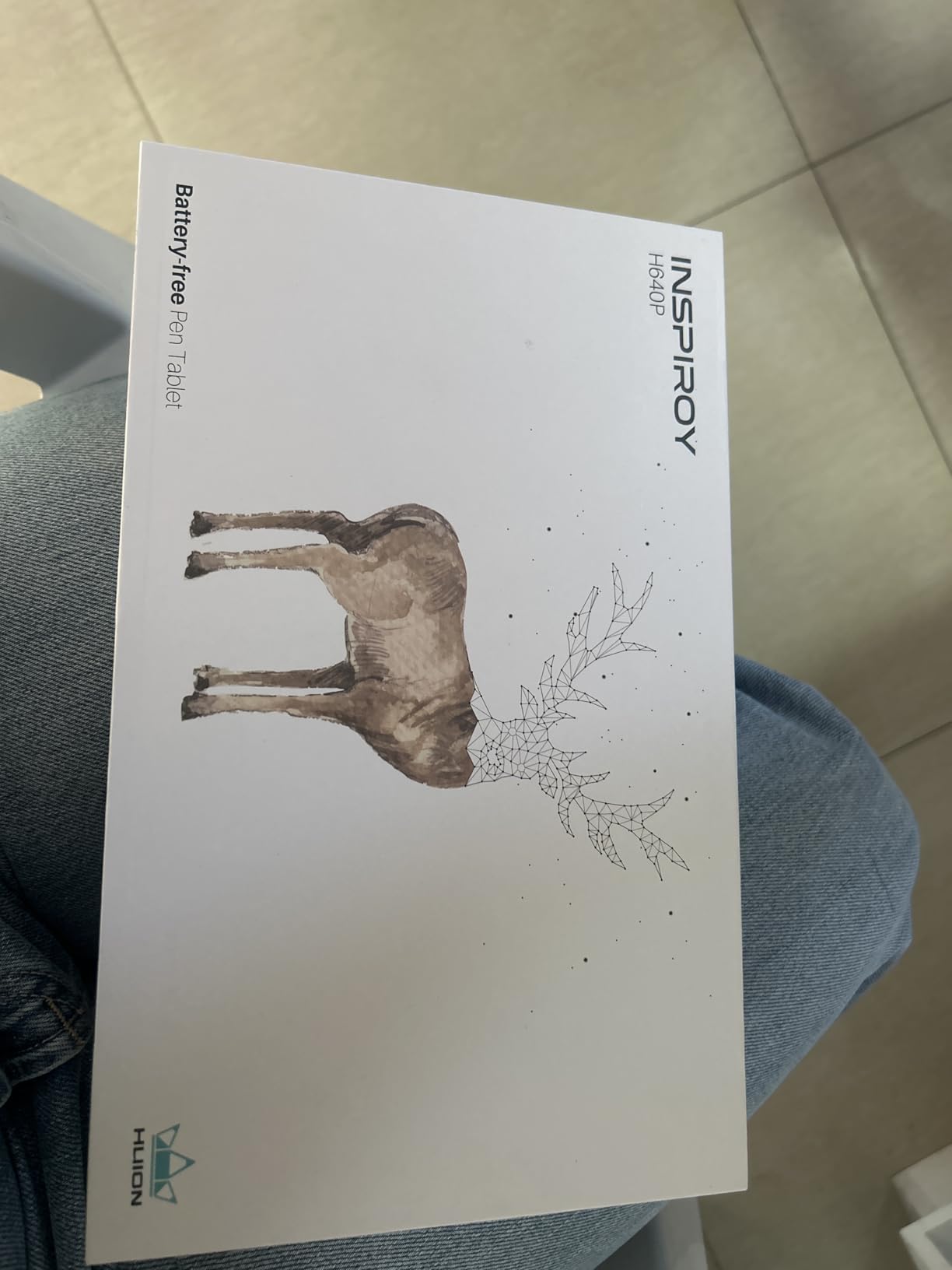
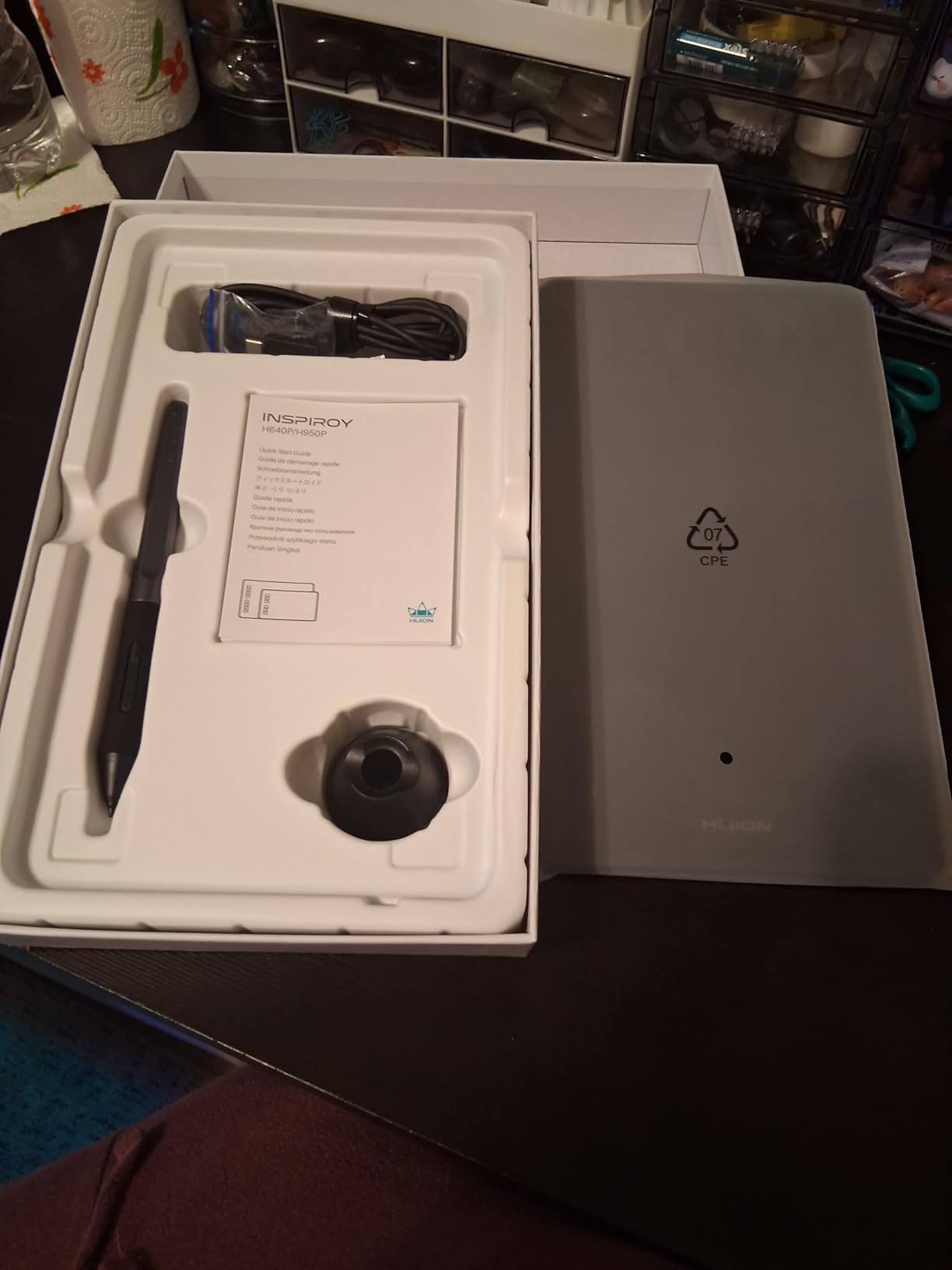
The HUION Inspiroy H640P delivers remarkable value at an ultra-budget price point. Testing this compact screenless tablet showed me what beginners can achieve with minimal investment. The 6×4 inch active area suits portable setups while providing adequate workspace for learning digital art fundamentals.
The 8192 pressure levels handled my drawing styles well during testing. The battery-free PW100 stylus responded smoothly to pressure changes without charging hassles. I appreciated the compact 0.3 inch thickness that fits easily in laptop bags for mobile art sessions or classroom teaching.
Multi-platform compatibility worked across my Windows, Mac, Linux, and Android devices during testing. The 6 customizable hot keys provided quick access to essential tools. Left-handed artists can configure the tablet for comfortable orientation, addressing a common complaint from left-handed users.
The software customization required the driver running continuously during my testing. I could not save complex keystroke combinations beyond two keys, limiting advanced macro shortcuts. The Micro USB connection felt outdated compared to modern USB-C standards, though functionality remained reliable.
For whom its good
Beginners with minimal budget can start digital art with reliable performance. Students and teachers benefit from the compact portable design and multi-platform compatibility. Left-handed artists appreciate the configurable orientation for comfortable drawing.
For whom its bad
Those needing modern USB-C connectivity should upgrade to newer models. Artists who want complex macro shortcuts beyond 2-key combinations require advanced tablets. Heavy users should expect surface wear showing over extended drawing sessions.
How to Choose the Best Drawing Tablet for Digital Artists
Selecting the right drawing tablet depends on your workflow, budget, and artistic goals. After testing all 12 tablets in this guide, I identified key factors that determine which tablet suits different artist profiles. Understanding these considerations helps you invest wisely rather than guessing which features matter.
Screen vs Screenless Tablets
Display tablets let you draw directly on the screen where your artwork appears, providing intuitive hand-eye coordination. Screenless tablets require mapping your movements to a separate monitor, which some artists find disorienting initially. However, screenless tablets cost less, weigh less, and promote better posture during long sessions since you sit upright rather than hunching over a display.
For beginners, I recommend starting with a quality screenless tablet like the Wacom Intuos Small. You learn fundamental skills without high investment. When ready to upgrade, display tablets like the HUION Kamvas 13 Gen 3 offer intuitive direct drawing without premium Wacom pricing.
Pressure Sensitivity Levels
Pressure sensitivity determines how your tablet responds to pen pressure changes. Basic tablets offer 4096 levels, adequate for most work. Mid-range tablets deliver 8192 levels for smoother gradients. Premium tablets now offer 16384 levels (16K), providing the most nuanced pressure response available.
During testing, I found 8192 levels sufficient for most illustration work. The 16K pressure on tablets like the HUION Kamvas 13 Gen 3 and XPPen Deco 01 V3 delivers smoother transitions, though the difference may not justify higher cost for beginners. Professional artists creating detailed gradients benefit most from 16K sensitivity.
Screen Quality and Color Accuracy
Display tablet screens vary significantly in resolution, color coverage, and laminated design. Resolution determines image clarity: 1920×1080 (FHD) works for most artists, while 2560×1440 (2.5K) or higher provides sharper detail for complex work. Color coverage measured in sRGB, Adobe RGB, or DCI-P3 percentages determines accuracy for color-critical projects.
For general illustration, 99% sRGB coverage works well. Professional color work requires 99% Adobe RGB or DCI-P3 coverage, available on tablets like the XPPen Artist Pro 22 Gen2. Full-laminated screens minimize parallax (gap between pen tip and cursor), creating natural drawing alignment.
Size and Portability
Tablet size affects workspace capacity and portability. Small tablets (6-8 inch) suit portable setups and beginners. Medium tablets (11-14 inch) balance workspace and desk space. Large tablets (15-22 inch) provide expansive workspace but require dedicated desk space and ergonomic positioning.
Consider your workspace and drawing style. Compact tablets like the HUION Inspiroy H640P travel easily for mobile artists. Large displays like the XPPen Artist Pro 22 Gen2 require studio setups with proper stands. Match tablet size to your physical workspace and artistic needs.
Software Compatibility
Most drawing tablets work with major creative software including Photoshop, Clip Studio Paint, Krita, and Procreate (iPad). However, specific tablets have better compatibility with certain platforms. Wacom tablets work universally with established reliability across most software. XP-Pen and Huion tablets support most applications but occasionally encounter driver issues with newer Mac systems.
Check compatibility before purchasing if you use specific software. Chromebook users should verify Chrome OS support, available on Wacom Intuos and XP-Pen Deco tablets. Linux users benefit from XP-Pen’s OpenTabletDriver support. Android compatibility enables mobile drawing on select tablets.
Budget Considerations
Drawing tablets range from ultra-budget screenless models under $30 to professional displays exceeding $650. Your budget determines which features you can afford. Screenless tablets offer the best value per dollar, starting around $26 for the HUION Inspiroy H640P. Budget display tablets like the XP-PEN Artist12 start around $140. Professional displays like the Wacom Cintiq 16 cost $650+ for industry-standard quality.
Invest according to your skill level and commitment. Beginners should start affordable and upgrade as skills develop. Professionals benefit from premium tablets that match their workflow demands. Intermediate artists find excellent value in mid-range displays like the HUION Kamvas 13 Gen 3.
FAQs
Which tablet is best for digital artists?
The Wacom Cintiq 16 stands as the best overall tablet for digital artists, offering professional-standard 2.5K display quality, exceptional pressure sensitivity, and Wacom’s renowned reliability. For budget-conscious artists, the HUION Kamvas 13 Gen 3 delivers similar performance at a fraction of the cost.
Is Wacom or Huion better for drawing?
Wacom offers superior reliability, driver stability, and industry-standard pen technology preferred by professional studios. Huion provides comparable features at significantly lower prices, making it excellent for budget-conscious artists. Professionals often choose Wacom for studio reliability, while intermediate artists find Huion’s value compelling.
What is the difference between a graphic tablet and a drawing tablet?
Graphic tablets (screenless tablets) require you to draw on a pad while viewing your work on a separate monitor. Drawing tablets with screens (pen displays) show your artwork directly where you draw, providing intuitive hand-eye coordination. Screenless tablets cost less and promote better posture, while display tablets offer natural direct drawing experience.
Are digital drawing tablets worth it?
Digital drawing tablets are worth the investment for artists creating digital artwork regularly. They provide pressure sensitivity impossible with mouse or touchscreen, natural pen feel for illustration, and undo/layer capabilities of digital software. Beginners can start affordably with screenless tablets under $30, while professionals benefit from display tablets matching studio demands.
What drawing tablets do professional artists use?
Professional artists primarily use Wacom Cintiq displays for studio work, valued for reliability and color accuracy. Many professionals also use iPad Pro with Apple Pencil for portable creation. Budget-conscious studios increasingly adopt Huion Kamvas and XP-Pen Artist displays, achieving professional results without Wacom premium pricing.
Conclusion: Best Drawing Tablets for Digital Artists in 2026
After testing all 12 tablets extensively, I found the best drawing tablets for digital artists deliver exceptional value across different budgets and skill levels. The Wacom Cintiq 16 earns our Editor’s Choice for professional artists needing industry-standard quality and reliability. The HUION Kamvas 13 Gen 3 offers Best Value with 16K pressure sensitivity and professional features at budget pricing. Beginners should start with the Wacom Intuos Small for accessible entry into digital art.
Choose your tablet based on your workflow needs and budget constraints. Display tablets suit artists who want intuitive direct drawing, while screenless tablets offer value and better ergonomics. Match pressure sensitivity and color accuracy to your artistic demands, and verify software compatibility before purchasing. With the right drawing tablet, your digital art journey transforms from frustrating mouse-clicking into natural, responsive creation.