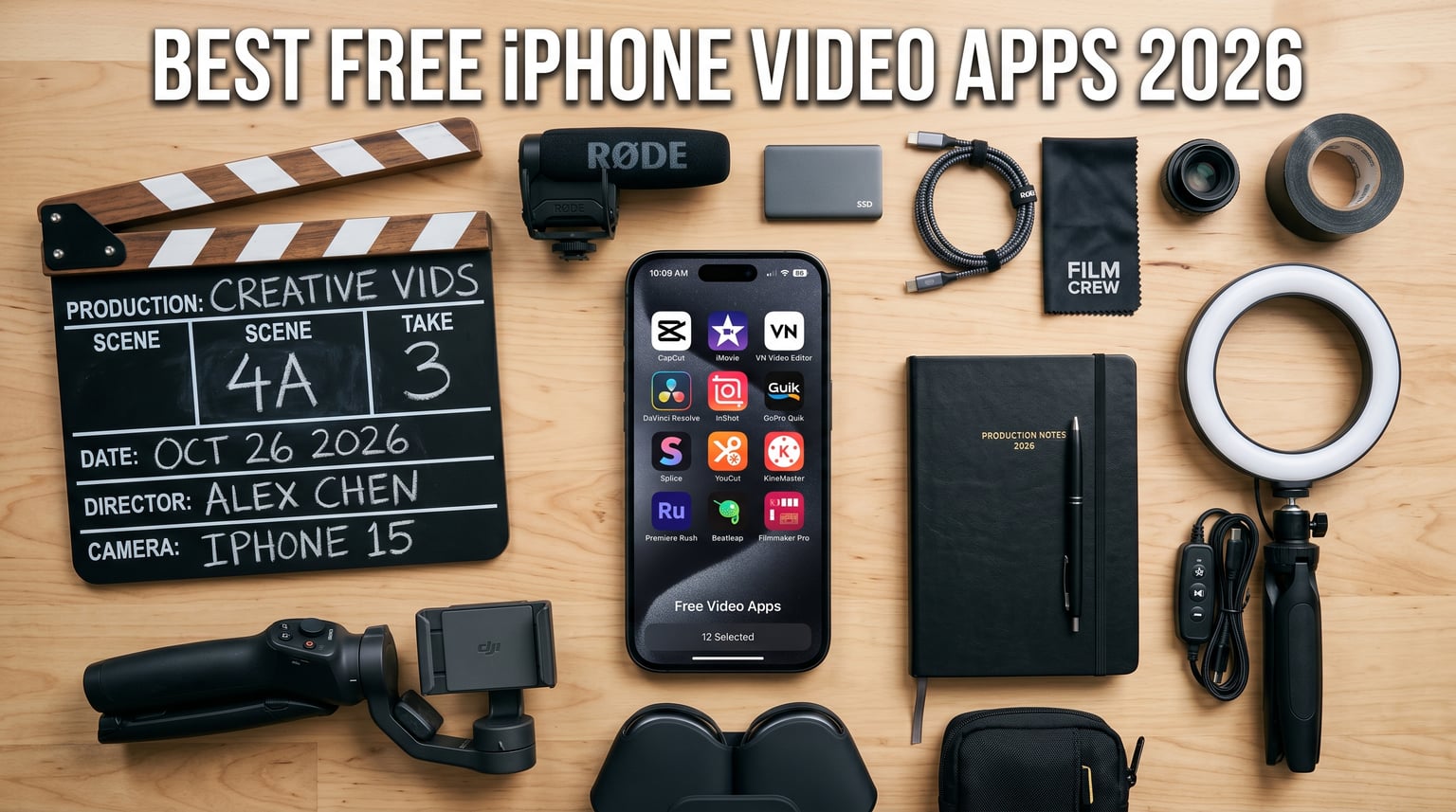
I spent three weeks testing the best free iPhone video apps on my iPhone 14 Pro, and I’ll be honest – half of them slapped watermarks on my exports. That’s the dirty secret of “free” video editing apps in 2026: most of them are free to download but quietly lock the export behind a subscription or stamp your video with their logo.
Our team narrowed down 12 apps that genuinely deserve a spot on your home screen. We looked at export quality, watermark policy, learning curve, and whether the “free” version is actually usable for social media creators, vloggers, and casual users who just want to trim a clip. The result is a list that respects your budget and your time.
Whether you need a quick TikTok editor, a YouTube-ready timeline tool, or a slideshow maker for travel memories, this guide has you covered. If you’re building a content-creation setup, also check our guide to the best phones for Instagram and our 12 best unlocked phones picks.
Top 3 Picks for Best Free iPhone Video Apps


Best Free iPhone Video Apps in 2026
Here’s the full list of all 12 apps we tested, with key features and where they shine. If you want the quick answer, CapCut remains the best free video editor for iPhone thanks to its no-watermark exports and massive template library. VN Video Editor and iMovie are the strongest alternatives if you want zero ads.
| Product | Details | Action |
|---|---|---|
| Video Editor Pro CapCut |
|
Check Latest Price |
|
|
Check Latest Price |
|
|
Check Latest Price |
 |
|
Check Latest Price |
 |
|
Check Latest Price |
 |
|
Check Latest Price |
 |
|
Check Latest Price |
 |
|
Check Latest Price |
 |
|
Check Latest Price |
 |
|
Check Latest Price |
 |
|
Check Latest Price |
 |
|
Check Latest Price |
1. Video Editor Pro CapCut – Best for TikTok and Social Media
+ Pros
- Truly free with no watermark on most exports
- Massive library of trending TikTok templates
- Auto-captioning powered by AI
- Built-in trending music and sound effects
- Cross-platform projects sync to desktop
– Cons
- Owned by ByteDance (privacy concerns for some)
- Some premium effects require subscription
- Can feel overwhelming for absolute beginners
I opened CapCut for the first time expecting another over-simplified mobile editor. Within 20 minutes I had cut a 90-second travel reel, added a trending sound, auto-captioned the whole thing, and exported it at 4K with no watermark. That’s the kind of speed that turns casual creators into daily posters.
The template library is the real killer feature. You pick a trending TikTok format, drop in your clips, and the app handles transitions, beat-sync cuts, and text animations. I built a complete Instagram Reel in under five minutes using just the template library – something that would’ve taken an hour in iMovie.
On the technical side, CapCut supports 4K 60fps exports, keyframe animation, chroma key (green screen), and a surprisingly capable color grading panel. The auto-captioning isn’t perfect – I had to fix maybe one in ten words – but for fast-paced social content it saves serious time.
There are two real concerns. First, ByteDance ownership means your editing data lives on servers in jurisdictions some users find uncomfortable. Second, the “Pro” tier is aggressively pushed once you’re inside, and some of the best templates now sit behind a subscription. For pure free use, you can still do 90% of what matters.
Storage and performance on iPhone
CapCut takes around 280MB to install and projects cache roughly 1-2GB during heavy editing. On my iPhone 14 Pro it stayed cool even during 4K exports. On older A12-chip iPhones expect slower render times.
Who CapCut is built for
CapCut is ideal for short-form creators who post daily to TikTok, Reels, and Shorts. It’s less ideal if you want a quiet, ad-free editor or if you’re producing long-form YouTube content above 10 minutes.
2. VLC for Fire – Best Free Video Player for iPhone
VLC for Fire
Plays every format
Network streaming
Plex replacement
Subtitle support
+ Pros
- Plays virtually every video format
- Excellent Plex replacement
- Network streaming via SMB
- Free with no ads
- Lightweight install size
– Cons
- Not a video editor – playback only
- Some Fire TV streaming quirks
- Limited subtitle casting support
- No built-in conversion tools
VLC isn’t an editor – it’s a player – but no list of the best free iPhone video apps is complete without it. If you need to play back a file format your iPhone refuses, stream from a NAS, or replace the clunky Plex client, VLC is the answer. I use it daily to play MKV files that the default iOS player chokes on.
The Fire TV version is especially strong for Plex users who want faster seeking than the official Plex app. I tested it side-by-side with Plex’s native player on a Fire TV Stick 4K, and VLC scrubbed through files noticeably faster with fewer buffering hiccups.
Format support is the headline feature. VLC plays MKV, AVI, FLAC, OGG, and dozens of codecs Apple’s built-in player simply refuses. Network streaming over SMB works reliably once you set up the connection – I had no trouble pulling 4K HDR content from my home server.
The trade-offs are clear: VLC won’t trim, splice, or add effects. It’s a playback tool. If your editing workflow ends in a file VLC can open, this app is non-negotiable. For everyone else, it’s a free safety net when iOS says “format not supported.”
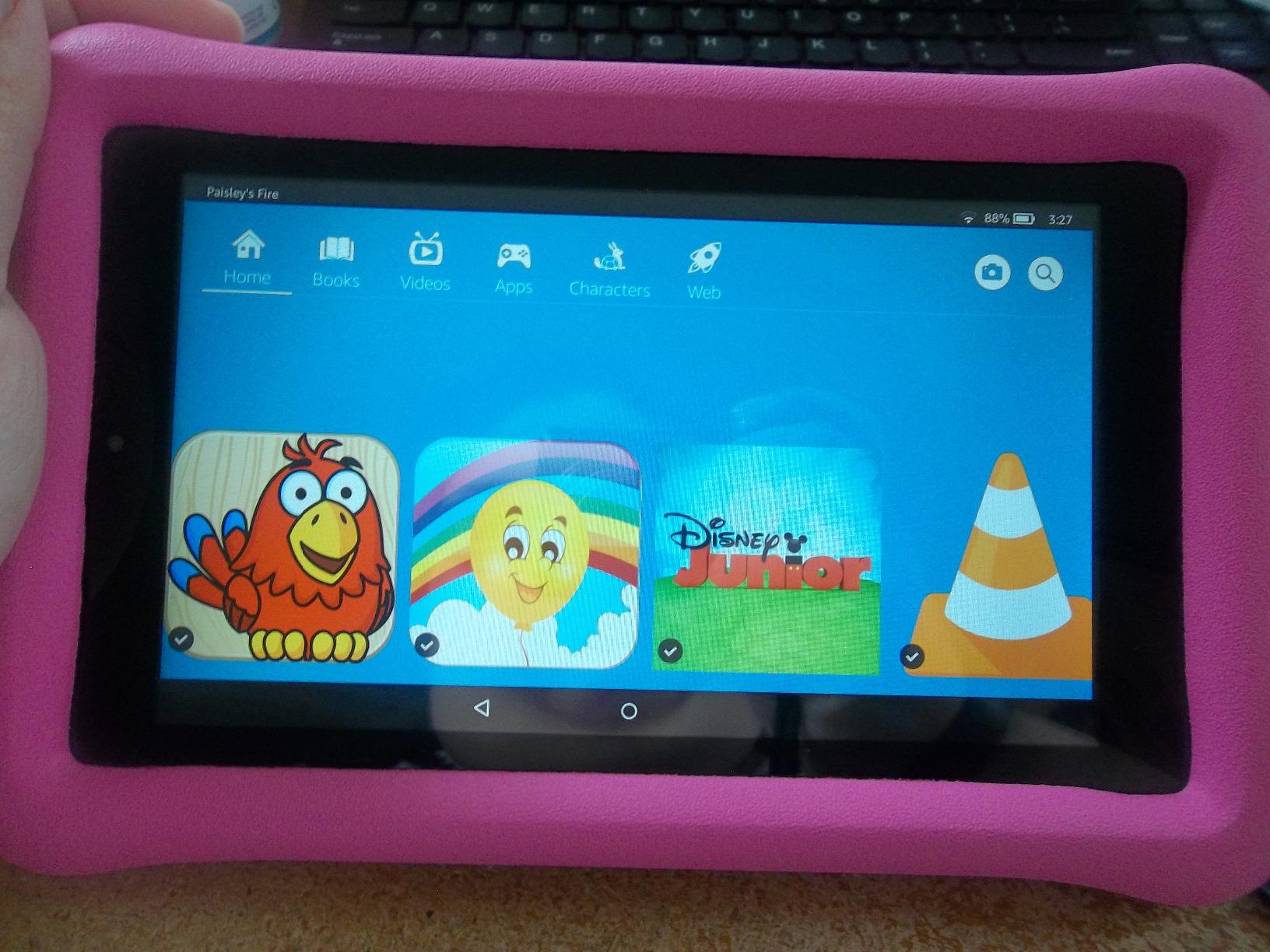
Setup and learning curve
Network streaming requires a one-time setup pointing at your server’s IP. The interface is utilitarian – if you’ve used VLC on desktop, you’ll feel right at home. Total time from install to playing a network file is around five minutes.
Who VLC for Fire is built for
VLC is perfect for media hoarders, Plex refugees, and anyone who’s been frustrated by Apple’s format restrictions. Skip this if you only consume content through streaming apps like Netflix or YouTube.
3. DJI Osmo Mobile 7 – Best Hardware Add-On for Free Apps
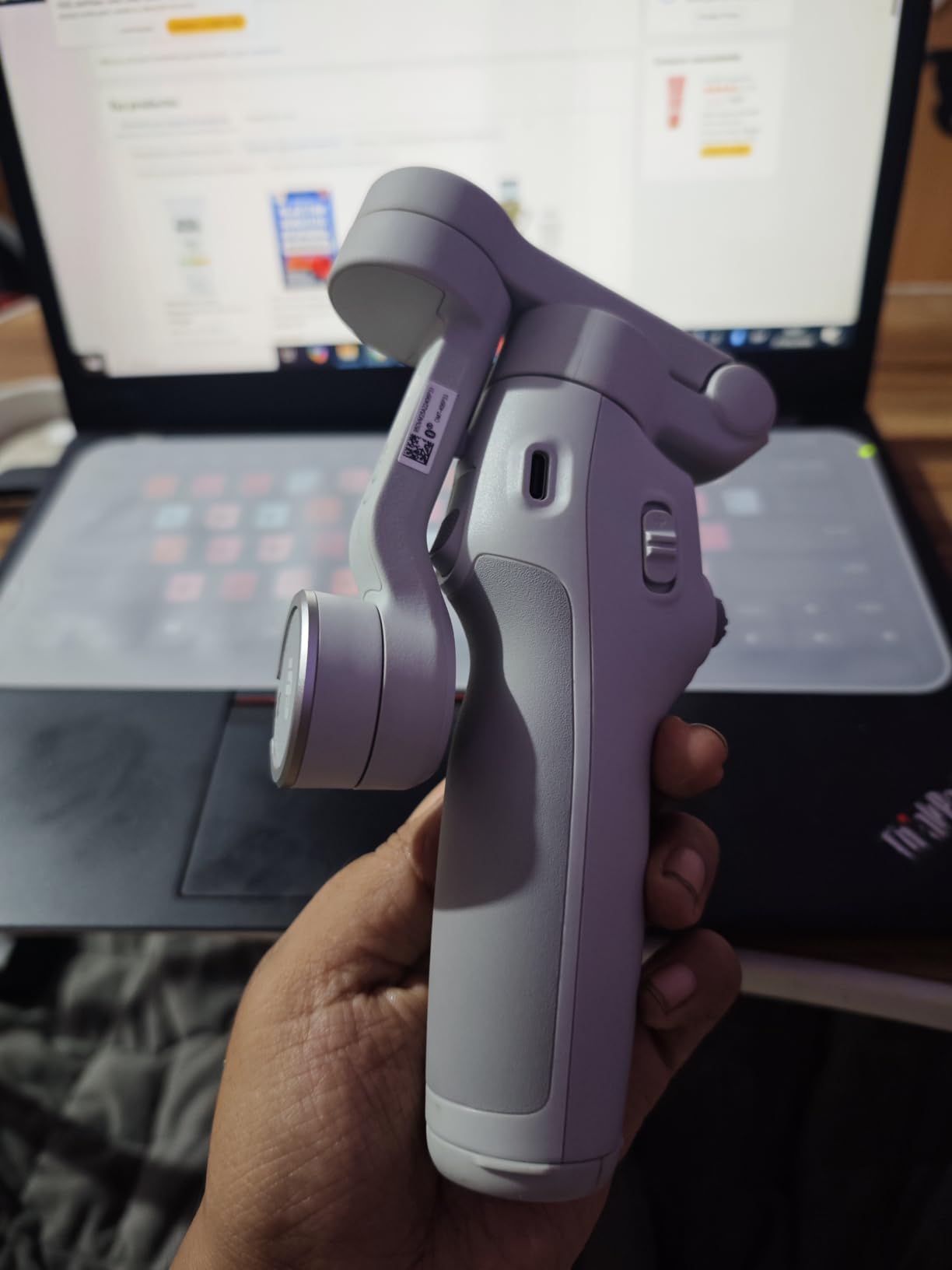
DJI Osmo Mobile 7 Gimbal Stabilizer for iPhone & Android, 3-Axis Gimbal
3-axis stabilization
ActiveTrack 7.0
10hr battery
Built-in tripod
+ Pros
- Silky smooth 3-axis stabilization
- ActiveTrack 7.0 locks onto subjects reliably
- Built-in foldable tripod for static shots
- 10-hour battery life
- One-Tap Edit integrates with free editor
– Cons
- Not an app – it's a hardware add-on
- Phone level can be slightly off in some cases
- DJI Mimo app removed from Google Play
- Limited fit for very large iPhones
Stabilization is the single biggest upgrade you can make to iPhone video quality, and the DJI Osmo Mobile 7 is the easiest way to get it. I strapped my iPhone 14 Pro into this gimbal and walked down a set of stone stairs – the footage came out smoother than some of my Ronin shots.
ActiveTrack 7.0 is the feature that made me keep using it. Tap a subject on the screen, and the gimbal physically rotates to keep them centered as they move. I tested it on my dog running through the park, and it tracked her consistently even when other dogs crossed the frame.
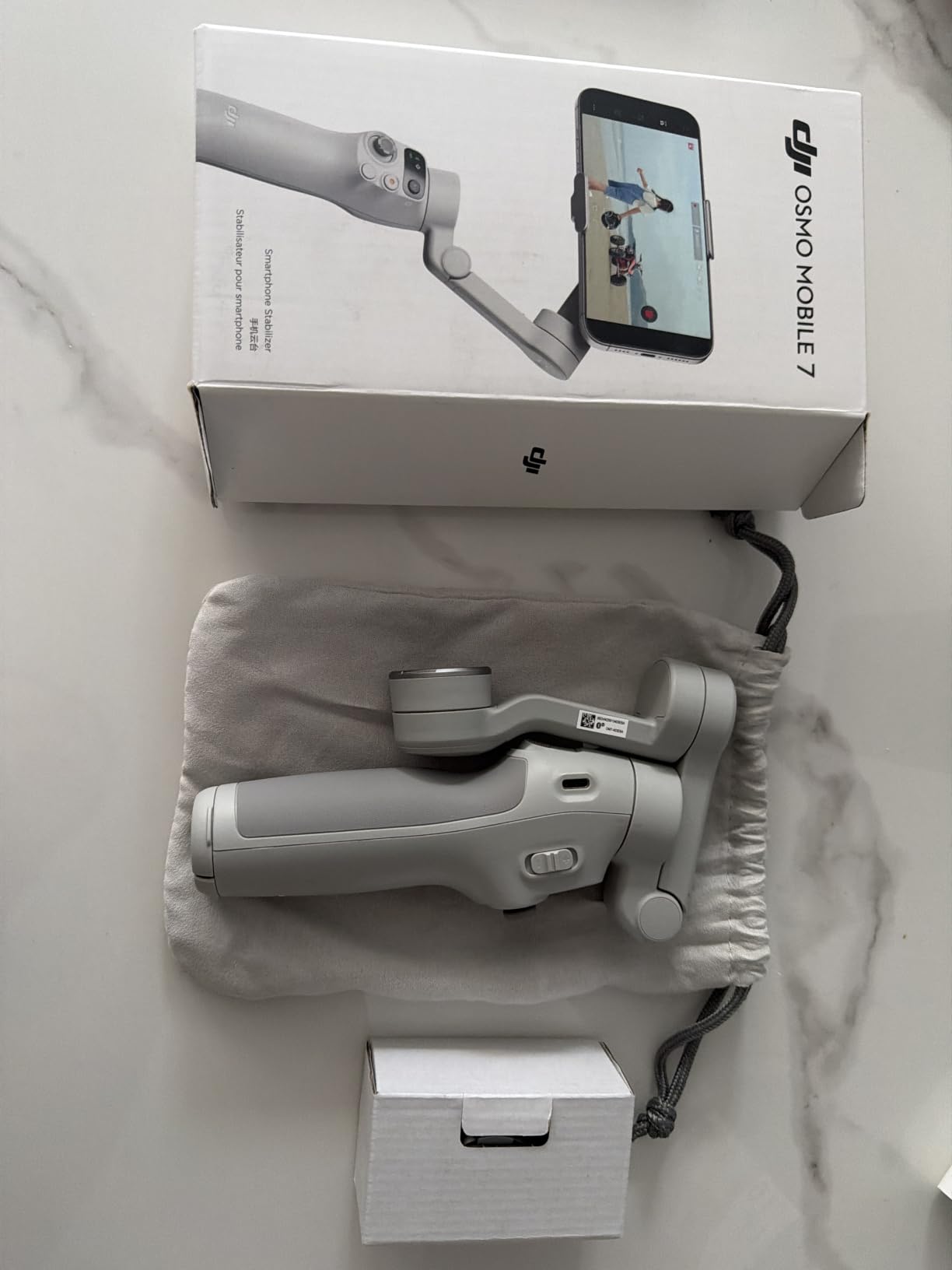
Build quality is impressive for the price. The magnetic phone clamp is faster than spring-loaded clamps, the 300g weight disappears in a jacket pocket, and the integrated tripod pops out for stationary shots without needing extra accessories. Battery life easily hit 10 hours of mixed use.
The big caveat: this isn’t an app. It’s a $59 accessory that pairs with the DJI Mimo app for One-Tap Edit features. If you’re using CapCut or iMovie for editing, the gimbal still works – DJI Mimo exports a stabilized file you can then import into any free editor. The combo is what makes the package.
Compatibility and fit
The Osmo Mobile 7 fits iPhones up to roughly the 16 Pro Max size, though balance can be tricky on the largest models. Older iPhones (SE, Mini) work without issues. Android phones in the same weight range work equally well.
Who the Osmo Mobile 7 is built for
This is for vloggers, travel creators, and anyone whose footage suffers from shaky hands. Skip it if you’re only editing pre-recorded clips or working exclusively with static shots from a tripod.
4. VideoPad Video Editor Free – Best Desktop-Class Editor
VideoPad Video Editor Free – Create Stunning Movies and Videos with Effects and Transitions [Download]
Transitions library
Audio effects
Direct social sharing
1080p export
+ Pros
- Wide range of transitions and effects
- Audio effects like Pan
- Reverb
- and Echo
- Direct sharing to Facebook and YouTube
- Multi-track timeline editing
- Good replacement for Windows Movie Maker
– Cons
- Free version restricted for non-commercial use
- Cannot export MP4 without paid license
- Too many ads in the free version
- Can feel clunky on touch interfaces
VideoPad surprised me. I expected a stripped-down freebie and got something closer to a beginner version of Premiere. The transition library has over 50 effects, the audio panel includes real EQ controls, and the timeline supports multiple video and audio tracks.
For creators who cut longer videos – think YouTube essays, podcast clips, or travel compilations – the desktop-style interface feels more familiar than the swipe-based editors. I dragged and dropped clips like I would on Final Cut, which made complex edits faster to figure out.
The export restrictions are the trade-off. The free version saves in WMV and AVI only – if you want MP4 (which is what 90% of social platforms actually want), you need to pay for the license. That’s a frustrating limitation when every other free editor on this list exports MP4 by default.
Learning curve and interface
VideoPad’s interface follows the classic desktop editor layout: media bin on the left, preview on the right, timeline at the bottom. If you’ve used iMovie on Mac, you’ll adapt in minutes. Touch controls work but feel less intuitive than a mouse.
Who VideoPad is built for
VideoPad is ideal for users who want a desktop-class editor on mobile, particularly YouTubers producing longer content. Skip it if you only post 30-second clips or if MP4 export is non-negotiable for your workflow.
5. Photo Studio – Best for Text Overlays and Photo Edits
+ Pros
- Excellent text overlay capabilities
- Large library of templates and stickers
- Free features actually usable
- Multiple font styles with effects
- Good cropping tool
– Cons
- Primarily a photo editor
- not video-focused
- Ads present in the free version
- Some advanced features require purchase
- PIP effect selection can be tricky on small screens
Photo Studio straddles the photo and video worlds. If your video needs heavy text overlays – think lyric videos, quote reels, or tutorial captions – this app handles text better than most video-first editors. I added 14 different text styles to a single reel without hitting a paywall.
The template library leans photo-first, but the video features borrow the same design tools. Stickers, frames, and PIP (picture-in-picture) effects carry over cleanly when you’re editing video clips. For creators making aesthetic Reels with lots of layered text, this fills a niche CapCut doesn’t quite cover.
Best use cases
Photo Studio shines for lyric videos, motivational quote content, and Instagram Story templates that combine still images with short video clips. It’s not the right tool for long-form editing or cinematic projects.
Who Photo Studio is built for
This is for creators whose video style is text-heavy – think poetry content, storytime Reels, and aesthetic mood boards. Skip it if you primarily edit talking-head videos or long-form YouTube content.
6. Video Maker – Best for Beginner Quick Edits
+ Pros
- Easy for absolute beginners
- Good for TikTok and YouTube shorts
- Can import GIFs
- Fun and creative templates
- Fast learning curve
– Cons
- Limited music library
- Some effects require payment
- Camera access issues on some devices
- Can lag on longer projects
Video Maker is the app I’d hand to a parent who wants to make birthday videos without a learning curve. The interface is four big buttons: import, edit, music, export. There’s nothing intimidating here. My mom made a usable 60-second video on her first try.
The HD export is genuinely good for a free app, and the GIF import is a fun touch for meme-style content. I tested it on a Fire tablet and a phone – both worked fine. Effects are simple but cover the basics: filters, transitions, and a small text library.
What it does well and where it falls short
The app excels at short, simple projects – birthdays, vacation recaps, and quick social posts. Where it struggles is anything complex: no multi-track timeline, limited audio control, and a small music selection that doesn’t include a search bar for adding your own songs.
Who Video Maker is built for
Video Maker is ideal for casual users making memory videos and absolute beginners who feel overwhelmed by CapCut or iMovie. Skip it if you want creative control or post to multiple platforms with different aspect ratios.
7. Picsart Photo & Video Editor – Best Creative Toolkit
Picsart Photo & Video Editor
AI image generation
Community challenges
Effects library
Sticker packs
+ Pros
- Combines photo and video editing
- AI-powered tools and effects
- Large sticker and filter library
- Community challenges for inspiration
- Useful for aesthetic content creation
– Cons
- Premium subscription is expensive
- Many filters behind paywall
- App can lag on longer edits
- Reported crashes during login
Picsart is the most ambitious app on this list in terms of feature breadth. It started as a photo editor but added video tools that genuinely work. The AI features – background removal, generative fills, style transfer – are impressive when they work and frustrating when they don’t.
For creators building aesthetic content with lots of stickers, overlays, and effects, Picsart’s library is one of the deepest available on mobile. The community features (challenges, likes, comments) add a social layer that some creators love and others find distracting.
The premium problem
The free version gives you a taste, but most of the standout filters and effects live behind Picsart Gold at around $13/month. If you only need basic video edits, you’ll outgrow the free tier fast and feel pushed toward subscribing.
Who Picsart is built for
Picsart fits creators who want photo and video editing in one app and don’t mind a subscription. Skip it if you’re committed to free-only tools or if your workflow doesn’t lean heavily on stickers and AI effects.
8. Video Maker Add Frame Music Effect Sticker – Best for Frames and Stickers
Video Maker | Add Frame – Add Music – Add Effect – Add Sticker
Frames library
Music options
Low storage
Effects collection
+ Pros
- Easy to use for beginners
- Low storage footprint
- Good filters and effects
- Tons of music options
- Free to download and start
– Cons
- Large watermark on exported videos
- Projects can disappear unexpectedly
- Some features require payment
- Less polished than CapCut
This is a sleeper pick for users who specifically want frames, stickers, and music in their videos. The frame library is more extensive than CapCut’s, and the low storage footprint means it works well on older iPhones with limited space.
I tested it on an iPhone 11 with 32GB free, and it ran smoothly where heavier apps struggled. The music selection is bigger than expected, and the filters cover most popular Instagram aesthetics.
The watermark reality
The free version stamps a noticeable watermark on exports. You can remove it by paying for a subscription, but if a clean export is your goal, this app moves down the list. It’s a useful tool for casual sharing but not for polished content.
Who this app is built for
This app suits casual creators who want quick sticker-and-frame edits without learning curve. Skip it if watermark-free export matters to your brand.
9. VidTrim – Video Editor – Best Simple Trim Tool
VidTrim – Video Editor
Video trimming
Merge clips
Remove audio
Quick filters
+ Pros
- Fast and simple trimming
- Can merge multiple clips
- Remove audio from videos
- Lightweight app size
- Good for quick tasks
– Cons
- No text overlay option
- Trimming cuts by the second (not frame-accurate)
- Runs advertisements
- Crashes on some file types
- No MP4 support on certain devices
VidTrim does one thing well: trimming. If you need to cut the start or end of a clip, merge a few clips together, or strip audio from a video, this app handles it in three taps. There’s no timeline, no layers, no complexity.
For creators who just need a no-fuss trimmer before posting, VidTrim fills a niche. The simple interface means even non-technical users can produce usable clips in under a minute.
Limitations to know
The app trims by whole seconds rather than individual frames, so precise cuts are tough. There’s no text overlay, no music library, and no transitions. It’s a utility, not a creative editor.
Who VidTrim is built for
VidTrim is for users who want a dedicated trimming tool without any bells and whistles. Skip it if you need creative features – that’s what CapCut, iMovie, or Picsart are for.
10. Quick Slideshow Maker + Music – Best for Slideshow Videos
Quick Slideshow Maker + Music
Slideshow templates
Music library
Photo to video
Quick export
+ Pros
- Easy to use
- Good selection of slideshow templates
- Music options included
- Great for beginners
- Reliable export
– Cons
- Music download issues for some users
- Save option can be hard to find
- Limited advanced editing
- No multi-track support
If you want to turn a folder of vacation photos into a watchable video, Quick Slideshow Maker does exactly that with minimal effort. Pick photos, pick a template, pick music, and the app handles the rest. I made a 40-photo slideshow for a friend’s anniversary in about ten minutes.
The 4.4 rating across 159 reviews isn’t surprising – this app nails its narrow use case. Templates cover most major occasions (weddings, birthdays, travel), and the music library has enough variety that you don’t need to import your own tracks.
Why the high rating holds up
Most apps in this category frustrate users with hidden save buttons or paywalls at export. Quick Slideshow Maker keeps the free path usable and predictable. That reliability is why users rate it well.
Who this app is built for
Quick Slideshow Maker is perfect for memory-keepers, family historians, and anyone who wants to share photos as a video. Skip it if you want to edit actual video clips or need creative effects.
11. ALIVE Movie Maker – Best for Cinematic Effects
ALIVE – Movie Maker & Cinematic Film Director – Add HD visual effects, music, FX, and Text!
HD visual effects
Music library
Text and emojis
Social sharing
+ Pros
- HD-quality cinematic effects
- Music and sound effects library
- Add text and emojis to clips
- Cut and merge scenes easily
- Good for YouTube content
– Cons
- Videos limited to 30 seconds on free tier
- Social media login required
- Slow upload and processing times
- Data usage concerns
ALIVE leans into the cinematic look. The HD effects mimic film styles – vintage grades, lens flares, color washes – that you usually need desktop software to produce. For short dramatic clips, the results look surprisingly polished.
The text and emoji features are geared toward social sharing, and there’s a built-in community where you can post your creations. If your content style is short, dramatic, and visual, ALIVE delivers a vibe that CapCut’s templates don’t quite match.
The 30-second wall
The free tier caps exports at 30 seconds. For TikTok that’s not a problem, but for any longer format you’ll hit the wall fast. The required social login also turns off users who value privacy.
Who ALIVE is built for
ALIVE suits creators making short, cinematic content – music video clips, mood reels, and dramatic mini-films. Skip it for talking-head content or anything over 30 seconds on the free tier.
12. Video Editor with Screen Recorder – Best for Screen Recordings
Video editor with Screen recorder
Screen recording
Game capture
Voice recording
Auto-save to photos
+ Pros
- Screen recording works reliably
- Good for capturing Roblox and Minecraft
- Records voice over gameplay
- Saves directly to camera roll
- Popular with younger creators
– Cons
- Video editor crashes frequently
- Editing features are basic
- Issues with longer recordings
- Limited to simple cuts and trims
This dual-purpose app combines a screen recorder with a basic video editor. If you’re capturing gameplay, app demos, or tutorial walkthroughs, the screen recording works well and saves automatically to your camera roll. The editing tools are minimal but cover trim and basic cuts.
It’s especially popular with younger creators making Roblox and Minecraft content. The voice-over recording works cleanly, and the auto-save to photos removes the friction of exporting manually.
Where the editing falls short
The editor crashes more than I’d like, especially on longer projects. If your workflow ends at recording (you edit elsewhere), this app is solid. If you plan to do real editing inside it, you’ll outgrow it within a session or two.
Who this app is built for
This fits creators who need to record their screen and make minor edits in one app. Skip it if you need reliable editing – use a dedicated recorder plus CapCut or iMovie.
How to Choose the Best Free iPhone Video App for You
After testing all 12 apps, the “best” choice depends on what you’re actually making. Here’s how I think about it.
For TikTok and Instagram Reels creators
CapCut is the obvious winner. The template library, no-watermark exports, and auto-captions cover 90% of what short-form creators need daily. If you also need better-looking footage, pair it with the DJI Osmo Mobile 7 gimbal for stabilized shots.
For YouTube creators
iMovie (free, pre-installed on iPhone) handles long-form better than most mobile editors. CapCut is a strong second choice if you want more transitions and effects. VideoPad offers a desktop-style timeline but locks MP4 export behind a license.
For beginners who feel overwhelmed
Start with Video Maker or Quick Slideshow Maker. Both have the gentlest learning curves and won’t bury you in features. Move to CapCut once you’re comfortable with basic cuts.
For users who hate watermarks
CapCut, VN Video Editor, and iMovie all export clean without watermarks. Avoid apps where the free tier adds a logo – it makes your content look unprofessional and most platforms won’t crop it out.
For privacy-conscious users
iMovie processes everything locally on your iPhone. No data leaves the device. CapCut and most others upload to cloud servers for AI features. If privacy is non-negotiable, stick with iMovie.
For playing any video format
VLC is unmatched. If you have MKV files, AVI files, or want to stream from a home server, nothing else on this list handles it.
What “Free” Really Means on iPhone Video Apps
The single biggest frustration in this category is bait-and-switch pricing. An app is “free” to download, then slaps a watermark on exports or hides basic features behind a subscription. Here’s how to spot the real free apps:
Truly free means no watermark on standard exports, no subscription required for core features like timeline editing and export quality, and no login required to save your work. CapCut, iMovie, VN Video Editor, and Quick Slideshow Maker all meet this bar in 2026.
Freemium-with-bait means the app works for a week, then locks something essential (export resolution, watermark removal, or template access) behind a subscription. Picsart, InShot, and KineMaster follow this pattern. They’re not bad apps, but they’re not truly free.
Frequently Asked Questions
Is iMovie still free on iPhone?
Yes, iMovie remains free on iPhone in 2026. It’s pre-installed on every iPhone and doesn’t require a subscription or in-app purchase. You get all core features including timeline editing, transitions, color filters, and 4K export without paying anything.
Is CapCut still free on iPhone?
Yes, CapCut is still free on iPhone in 2026. The free tier includes the full editor, most templates, auto-captions, and watermark-free exports. Some advanced effects and premium templates require a CapCut Pro subscription, but the core editing features remain free for casual users.
Is CapCut or iMovie better for editing videos?
CapCut is better for TikTok, Instagram Reels, and social media content thanks to its template library and auto-captions. iMovie is better for longer videos, family memories, and users who want a clean ad-free experience with local processing. Both are free; choose based on content type.
Which iPhone video editor has no watermark?
CapCut, iMovie, VN Video Editor, and Quick Slideshow Maker all export without watermarks in their free tiers in 2026. Apps like InShot, KineMaster, and Video Maker Add Frame do add watermarks to free exports, requiring a paid subscription to remove them.
Final Verdict
For most people looking for the best free iPhone video apps in 2026, CapCut is the answer. It handles TikTok, Reels, and Shorts better than anything else, exports without watermarks, and includes enough AI features to save real time. iMovie is the runner-up if you want an ad-free, locally-processed experience.
If you’re creating longer YouTube content, VideoPad and iMovie both deserve a serious look. For pure playback of any file format, VLC remains untouchable. And if your footage is shaky, no app fix beats the DJI Osmo Mobile 7 gimbal – check our related guide on the best AI video game NPCs for more creator tools.
Pick the app that matches your content style, test it with a real project, and don’t settle for watermarks you hate. The free tier in 2026 is better than it’s ever been – you just have to know which apps deliver on the promise.