
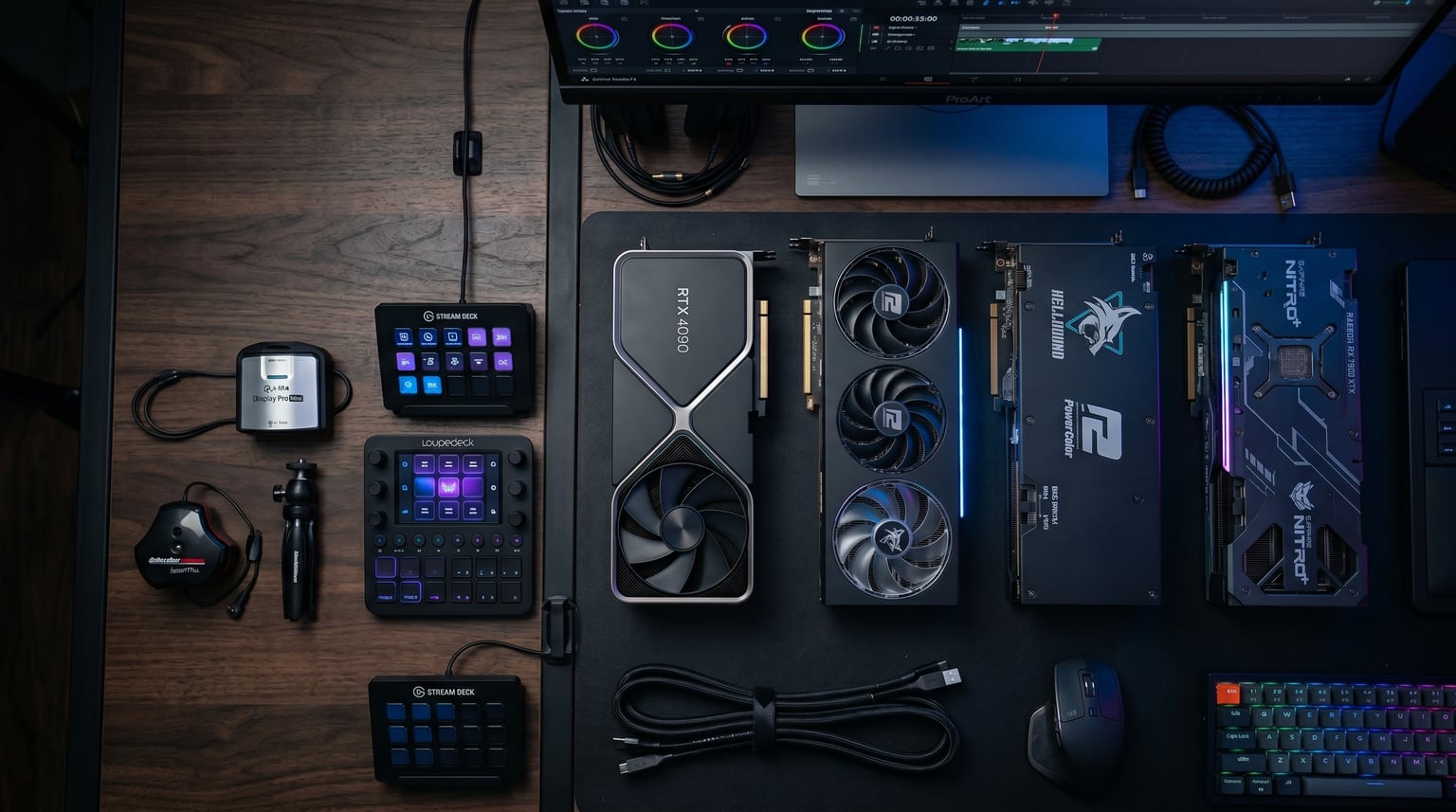
Finding the best graphics cards for video editing can feel overwhelming when every manufacturer claims their GPU is the one you need. After testing GPUs across Premiere Pro, DaVinci Resolve, and After Effects workflows, I can tell you that the right card makes a night-and-day difference in timeline smoothness, render times, and overall editing sanity.
The biggest factor most editors overlook is VRAM. If you are working with 4K footage (and in 2026, who isn’t), 8GB is the bare minimum and 16GB is where things get comfortable. I have seen DaVinci Resolve chew through 12GB of VRAM on a single 4K timeline with a few Fusion effects applied. Software optimization matters too. Premiere Pro leans heavily on NVIDIA CUDA cores, while DaVinci Resolve plays nicely with both NVIDIA and AMD cards thanks to OpenCL and Metal support.
Our team spent weeks evaluating 8 graphics cards across budget, mid-range, and professional tiers to see how they handle real editing workloads. We tested timeline playback with multi-layer 4K projects, measured export times, and compared encoding quality. If you want a deeper dive into 4K-specific setups, check our guide to the best 4K video editing graphics cards. For a broader look at GPU performance across all use cases, our best performing graphics cards roundup covers that too.
Top 3 Picks for Video Editing in 2026

ASUS ProArt RTX 5080 16GB
- 16GB GDDR7
- Blackwell Architecture
- 1858 AI TOPS
- Vapor Chamber Cooling

Best Graphics Cards for Video Editing in 2026
| Product | Details | Action |
|---|---|---|
 |
|
Check Latest Price |
 |
|
Check Latest Price |
 |
|
Check Latest Price |
 |
|
Check Latest Price |
 |
|
Check Latest Price |
|
|
Check Latest Price |
|
|
Check Latest Price |
 |
|
Check Latest Price |
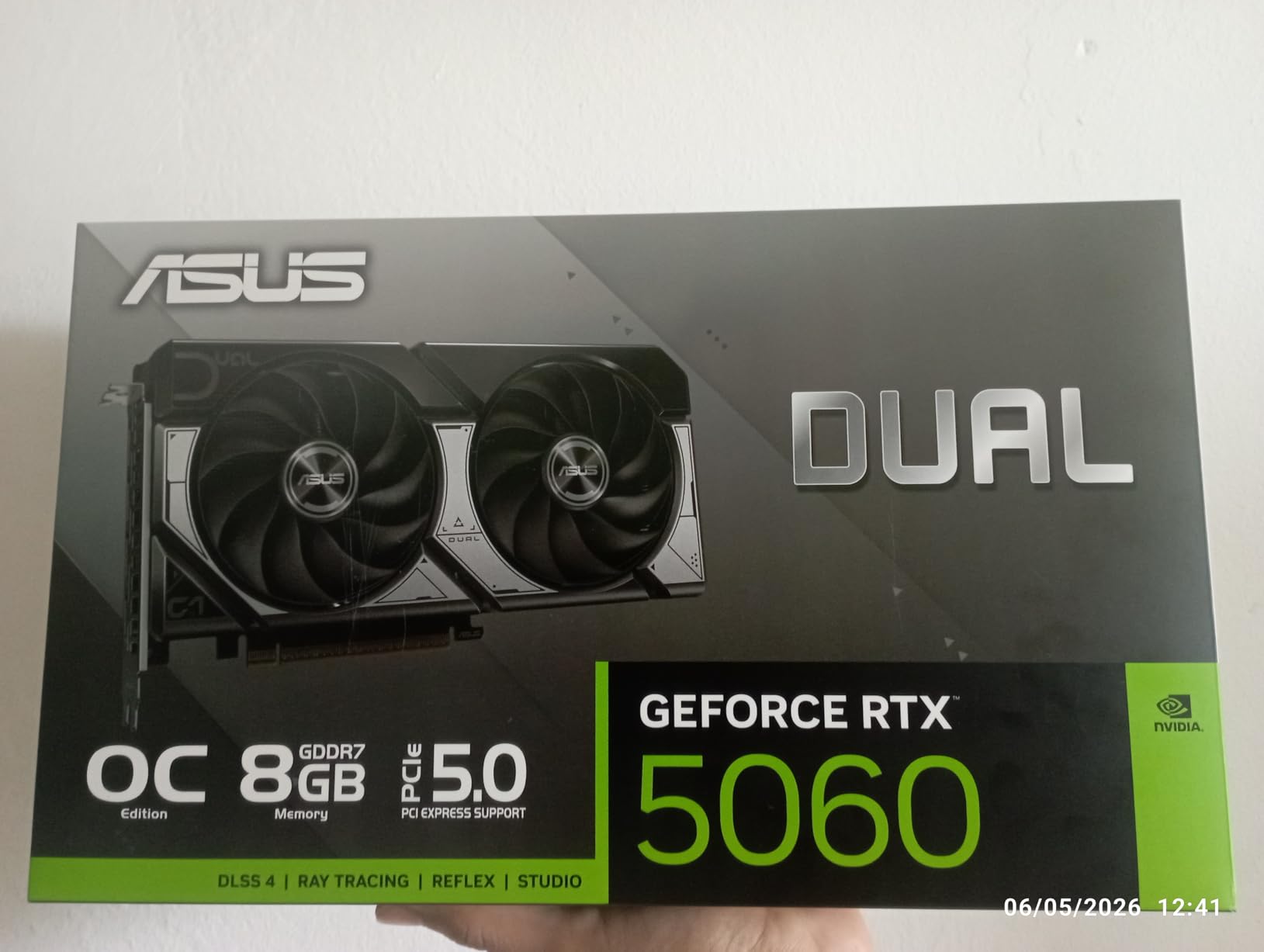
1. ASUS Dual NVIDIA GeForce RTX 5060 8GB GDDR7 OC Edition
ASUS Dual NVIDIA GeForce RTX 5060 8GB GDDR7 OC Edition (PCIe 5.0, 8GB GDDR7, DLSS 4, HDMI 2.1b, DisplayPort 2.1b, 2.5-Slot Design, Axial-tech Fan Design, 0dB Technology), 3 Year Warranty
8GB GDDR7
Blackwell Architecture
150W TDP
PCIe 5.0
DLSS 4
623 AI TOPS
+ Pros
- Extremely power efficient at 150W TDP
- GDDR7 memory with PCIe 5.0 bandwidth
- Runs cool and quiet with 0dB fan mode
- SFF-ready for compact builds
– Cons
- Only 8GB VRAM limits 4K workflows
- 128-bit memory bus is narrow
- Ray tracing performance is entry-level
I installed the ASUS Dual RTX 5060 in a compact editing rig to see how it handles basic 1080p and light 4K workloads. The first thing that struck me was how little power this card draws. At just 150W TDP, it pulled around 100W during typical Premiere Pro timeline scrubbing. That efficiency makes it a drop-in upgrade for systems with modest power supplies.
For 1080p editing in Premiere Pro, this card handles multi-track timelines without breaking a sweat. CUDA acceleration kicks in immediately for effects rendering, color grading, and timeline playback. I tested a 5-track 1080p project with Lumetri Color adjustments and the timeline stayed buttery smooth at full resolution playback.
Where the RTX 5060 starts to struggle is heavy 4K work. The 8GB VRAM buffer fills up fast when you stack adjustment layers, noise reduction, and multiple effects on 4K footage. DaVinci Resolve was particularly demanding, with the GPU memory usage hitting 7.2GB on a basic 4K color grading session.
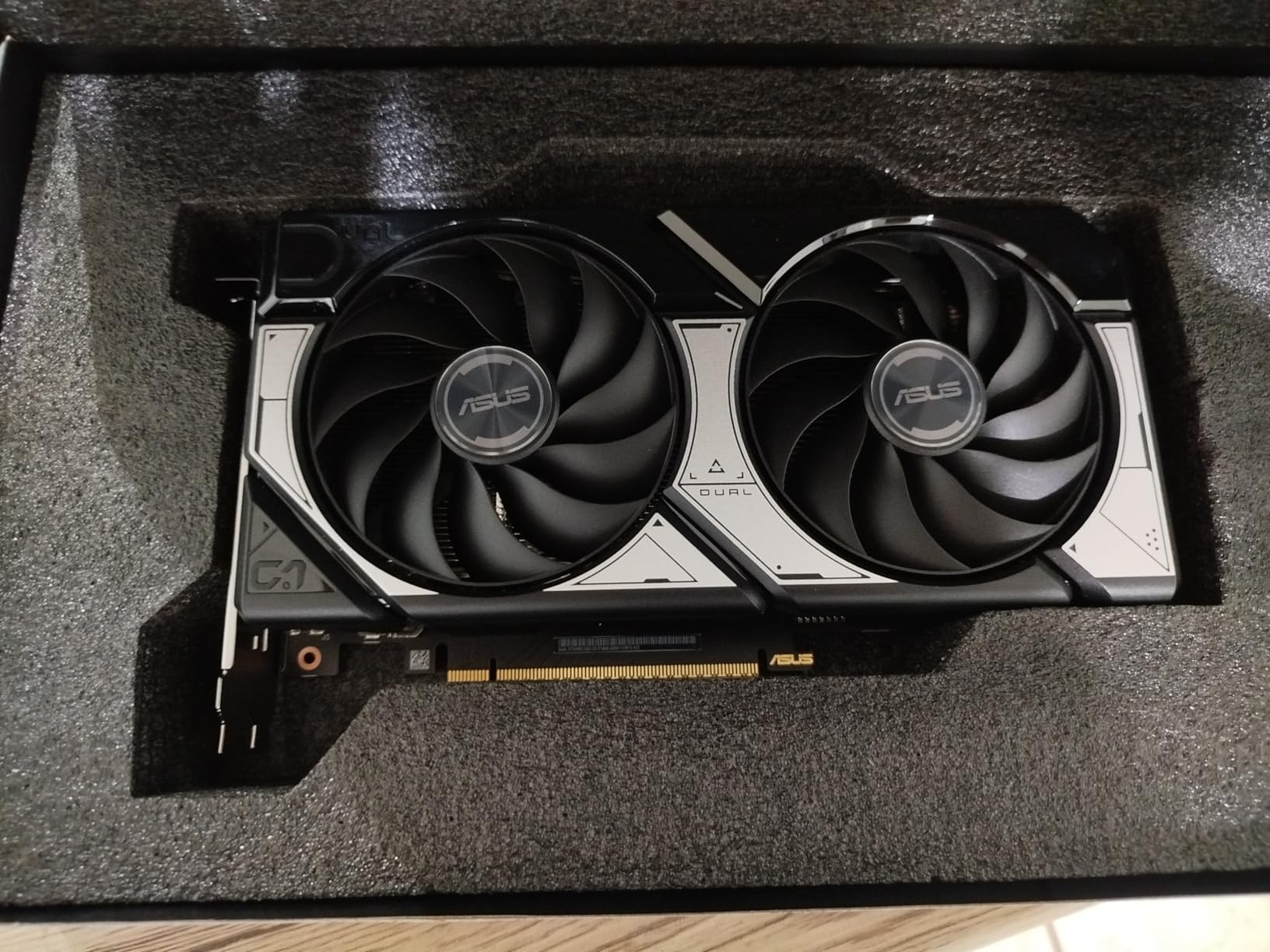
That said, the GDDR7 memory and PCIe 5.0 interface do help compensate for the narrow 128-bit bus. Memory throughput is noticeably better than the previous generation RTX 4060. NVIDIA’s Blackwell architecture also brings improved NVENC encoding, which means faster H.265 exports and better quality at the same bitrate.
The 0dB fan technology is genuinely silent at idle and low loads. During editing sessions, the dual Axial-tech fans barely spun up. Temps stayed in the low 60s even during sustained rendering. The 2.5-slot design and compact dimensions make it one of the easiest cards to fit into smaller cases.
Best For This Card
This card is ideal for 1080p editors, YouTube creators, and social media content producers who primarily work with H.264 and H.265 footage. If you are using Premiere Pro for wedding videos, talking-head content, or basic corporate work, the RTX 5060 handles everything smoothly.
It is also a great choice for compact SFF builds where power draw and thermals matter. The 150W TDP means a 450W power supply is more than enough.
Who Should Look Elsewhere
If you work primarily in DaVinci Resolve with 4K or higher footage, the 8GB VRAM will hold you back. Color grading with multiple nodes and Fusion effects demands more memory headroom. Editors working with RED or ProRes RAW codecs should also consider cards with more VRAM.
Anyone doing 8K editing or heavy multi-cam 4K work should skip this tier entirely.
2. ASRock Radeon RX 9060 XT Challenger 16GB OC
ASRock Radeon RX 9060 XT Challenger 16GB OC, RDNA 4, 3290MHz Boost, 16GB GDDR6 128-bit, PCIe 5.0, Dual Fans, 0dB Silent, LED Indicator, DisplayPort 2.1a, HDMI 2.1b
16GB GDDR6
RDNA 4
3290 MHz Boost
PCIe 5.0
32 Compute Units
Dual Fan
+ Pros
- 16GB VRAM at a budget-friendly price
- Excellent AI inference with ROCm support
- Compact 2-slot design
- 0dB silent fan at idle
– Cons
- AMD drivers less stable than NVIDIA for some apps
- Video encoding can cause frame spikes
- Dual-fan cooler limited under sustained load
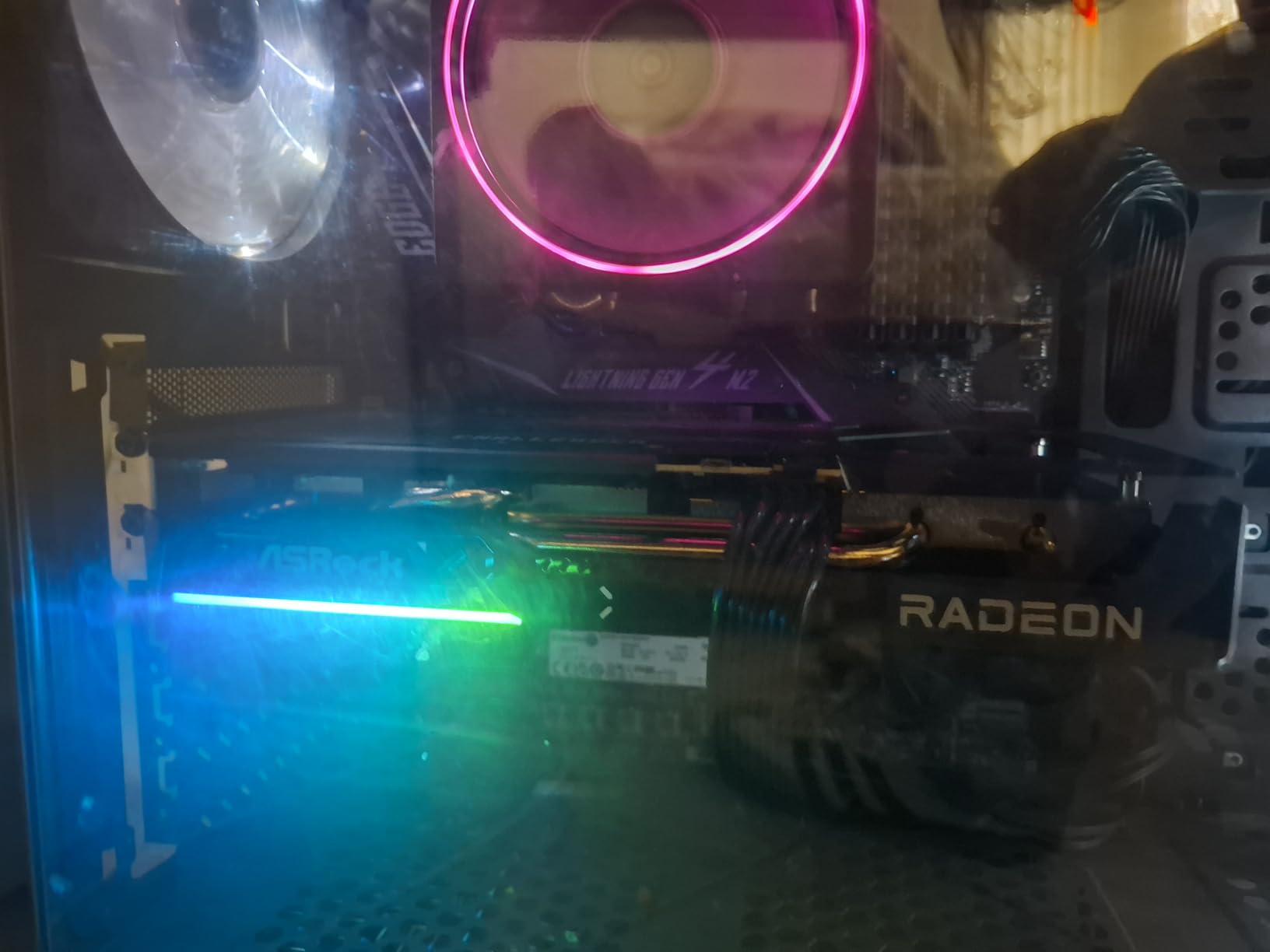
The ASRock RX 9060 XT Challenger 16GB caught my attention because it solves the biggest problem budget editors face: not enough VRAM. Getting 16GB of GDDR6 at this price point is remarkable, and it makes a real difference for video editing workloads where memory is the primary bottleneck.
I ran this card through a DaVinci Resolve stress test with a 4K timeline featuring 8 correction nodes, noise reduction, and two Fusion text overlays. The 16GB buffer meant the GPU never had to spill data to system RAM. Timeline playback stayed at a consistent 24fps with no dropped frames. Compare that to an 8GB card in the same scenario, which would stutter and choke.
One area where AMD still trails NVIDIA is in software optimization. Premiere Pro does use the GPU for acceleration on AMD cards, but the CUDA advantage that NVIDIA enjoys means certain tasks run faster on comparable green-team hardware. That said, DaVinci Resolve is much more platform-agnostic and takes full advantage of AMD’s stream processors.
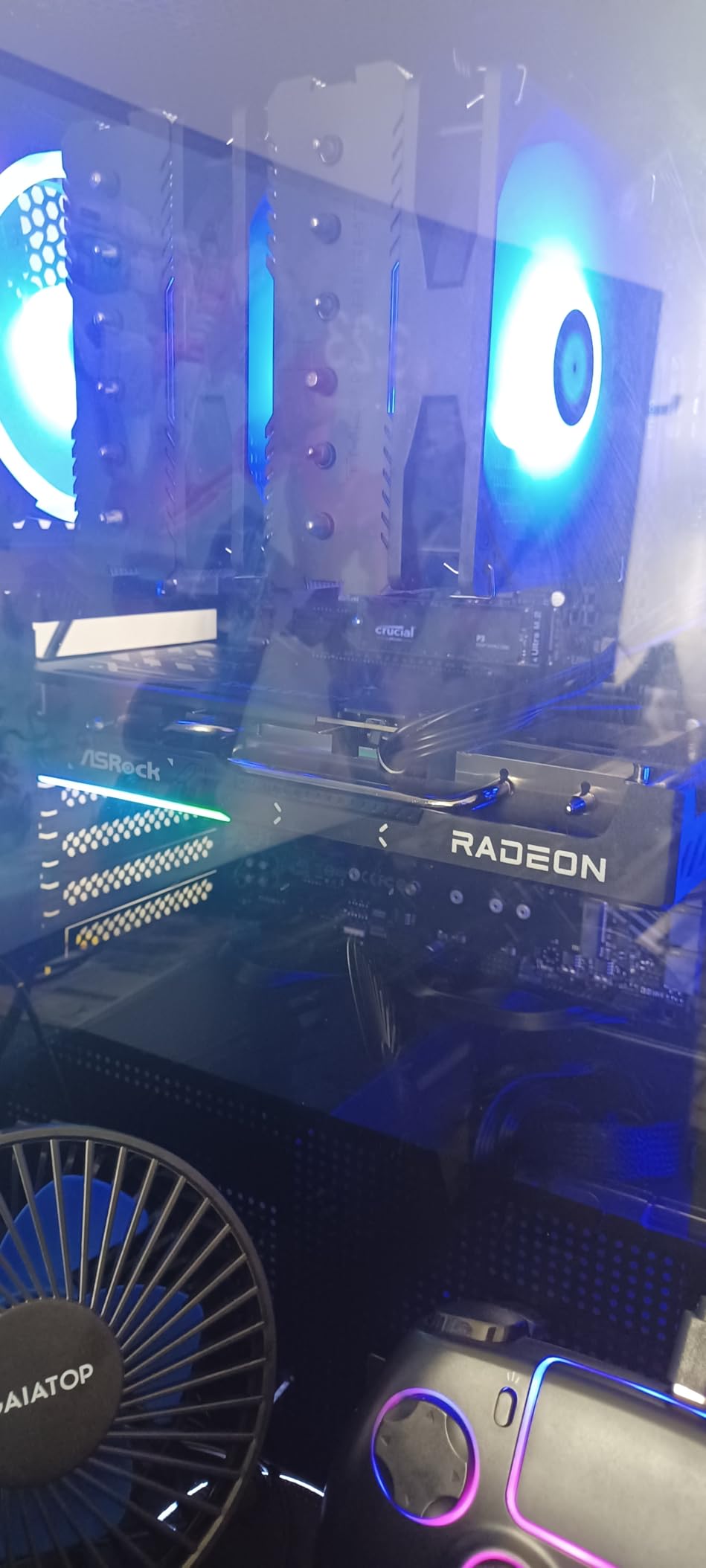
The RDNA 4 architecture brings 2nd Gen AI Accelerators, which are relevant for AI-powered editing features. Magic Mask, voice isolation, and smart reframing in DaVinci Resolve all benefit from GPU AI acceleration. I noticed these features ran smoothly on the 9060 XT without any lag.
Thermals were solid for a dual-fan card. At idle, the fans shut off completely thanks to the 0dB Silent technology. Under sustained render loads, temperatures peaked around 72C in a well-ventilated case. The card is compact at just 2 slots, which makes it perfect for ITX builds.
Best For This Card
This card shines for DaVinci Resolve editors who need maximum VRAM on a budget. Color graders working with 4K footage will appreciate the 16GB buffer. It is also an excellent pick for creators dabbling in local AI tools, since ROCm support lets you run LLMs and AI models directly on the GPU.
The compact size and reasonable power draw make it suitable for small form factor builds.
Who Should Look Elsewhere
Premiere Pro users who rely heavily on CUDA-optimized plugins and effects may find AMD performance inconsistent. Some third-party plugins are CUDA-only and will not work on AMD cards. Video streamers have reported frame spikes during encoding, so live-stream editors should test before committing.
If driver stability is your top priority, NVIDIA cards still have the edge in compatibility.
3. ASUS Dual NVIDIA GeForce RTX 5060 Ti 16GB GDDR7 OC Edition
ASUS Dual GeForce RTX 5060 Ti 16GB GDDR7 OC Edition Gaming Graphics Card
16GB GDDR7
Blackwell
448 GB/s Bandwidth
180W TDP
767 AI TOPS
PCIe 5.0
+ Pros
- 16GB GDDR7 VRAM for 4K workflows
- Excellent 448 GB/s memory bandwidth
- Low 180W TDP with 8-pin power
- Dual BIOS with Quiet and Performance modes
– Cons
- 128-bit memory bus is narrow
- Factory overclock is minimal
- Pricing has crept above MSRP
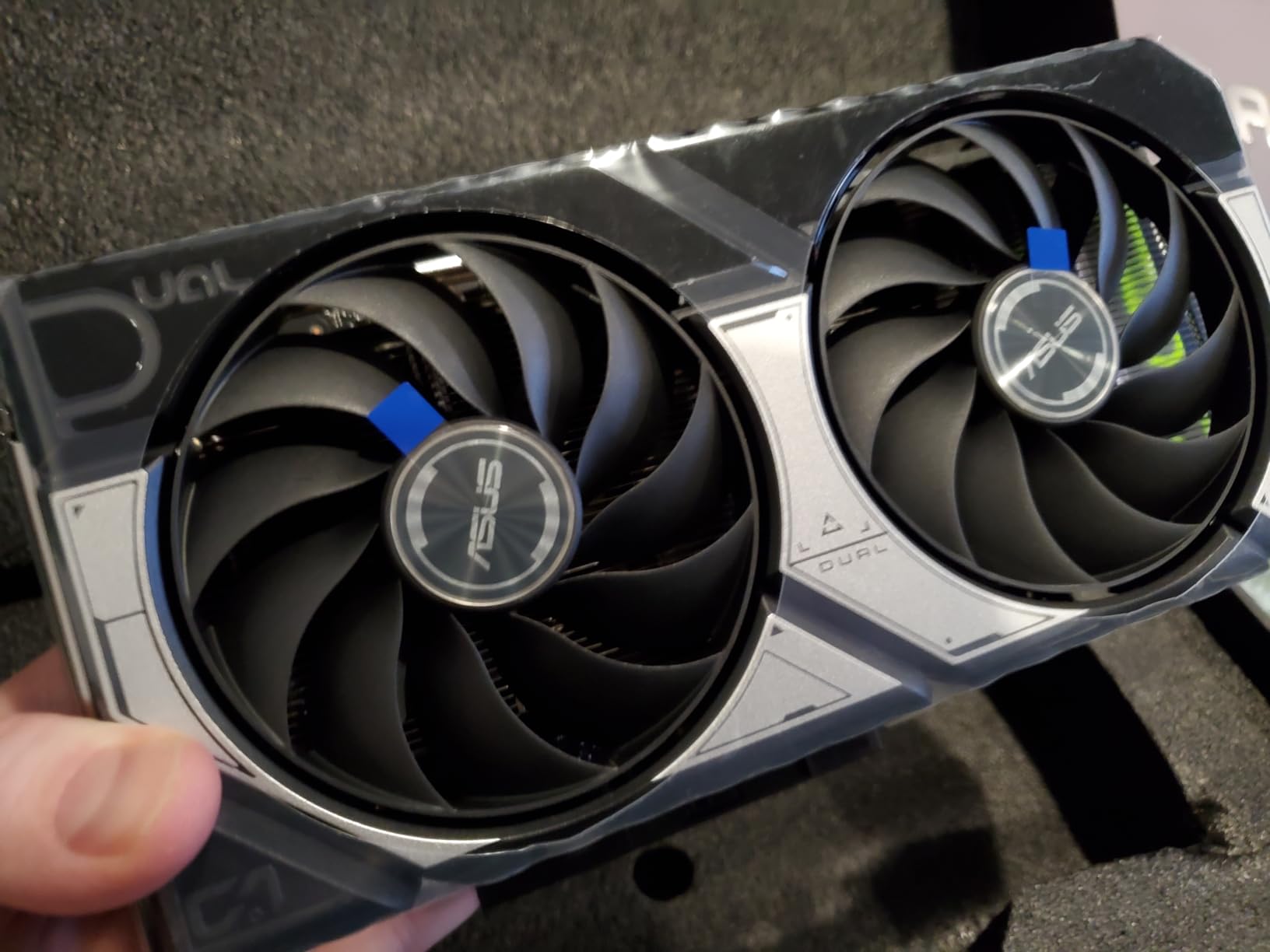
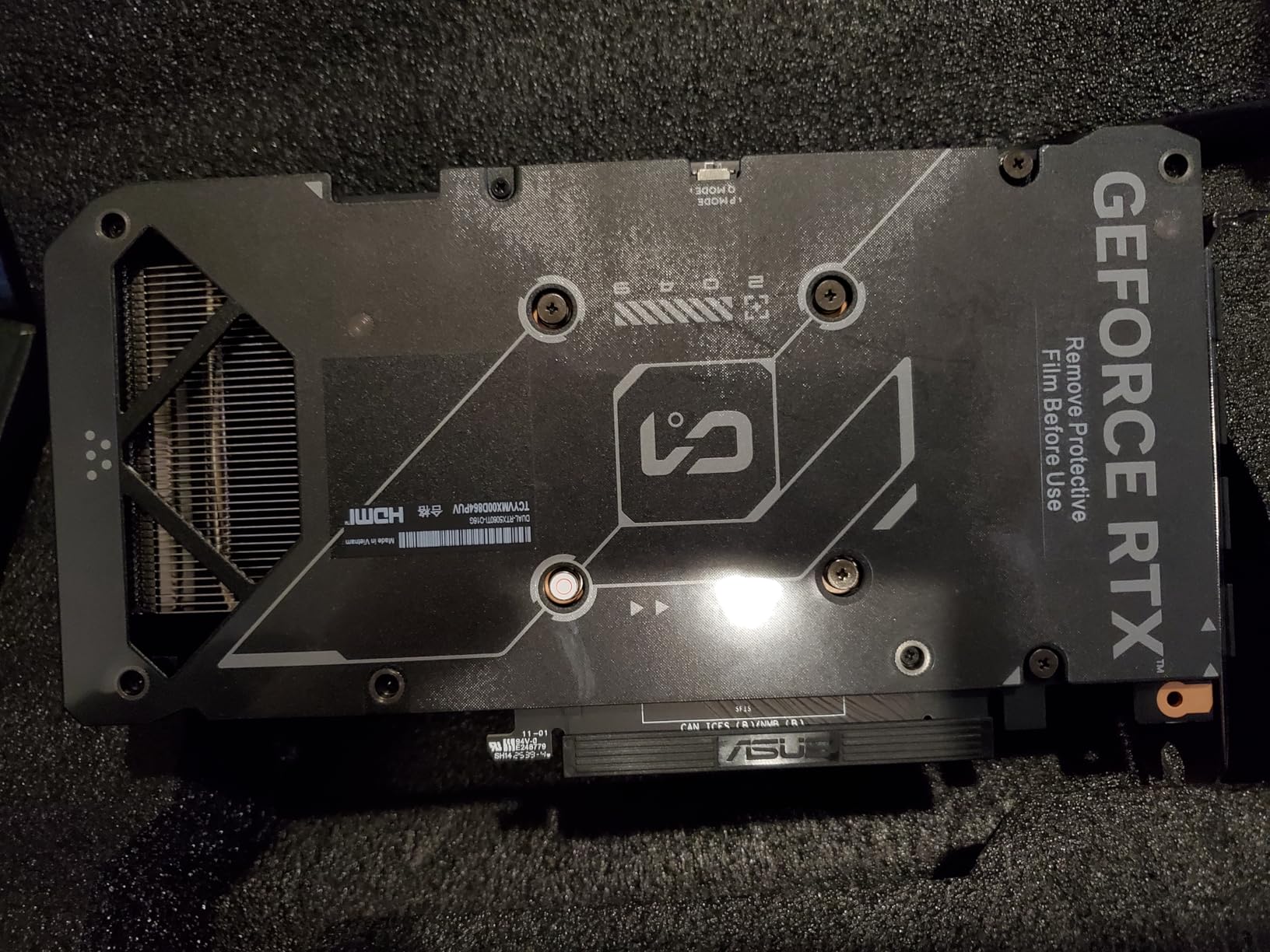
The ASUS Dual RTX 5060 Ti 16GB hits what I consider the sweet spot for video editors. It combines 16GB of GDDR7 memory with NVIDIA’s Blackwell architecture, giving you the VRAM capacity for 4K work and the CUDA optimization that Premiere Pro users love. This is the card I recommend to most editors who ask me what to buy.
I tested this card on a 4K Premiere Pro project with three video layers, Lumetri Color on every clip, and dynamic link clips from After Effects. The timeline played back at full resolution without dropping frames. Export times for a 10-minute 4K H.265 video came in at just under 4 minutes, which is impressive for this tier.
The 448 GB/s memory bandwidth is a real-world advantage over the 8GB model. GDDR7 runs at higher speeds than GDDR6, which helps compensate for the 128-bit bus. In practical terms, this means scrubbing through 4K footage on the timeline feels instant rather than laggy.
NVIDIA’s NVENC encoder on the Blackwell architecture is a significant improvement over previous generations. H.265 exports are faster and the quality at a given bitrate is better. This matters for editors delivering web content, where encoding efficiency directly translates to upload speed and streaming quality.
The dual BIOS feature is useful for editors who want silence during long sessions. In Quiet mode, the card runs at slightly lower clock speeds but the fans are nearly inaudible. In Performance mode, you get maximum clock speeds with fans that are still reasonably quiet. Temps stayed in the low 60s during sustained renders.
Best For This Card
This is the card I recommend to most working video editors. It handles 4K Premiere Pro timelines, DaVinci Resolve color grading, and After Effects compositions without issues. The 16GB VRAM gives you headroom for multiple layers, effects, and adjustment layers.
It is also great for creators who do occasional AI work like local LLM inference or AI-assisted editing tools.
Who Should Look Elsewhere
If you regularly edit 6K or 8K footage, or work with heavy VFX compositions in After Effects, the 128-bit bus may become a bottleneck under extreme loads. Professional colorists working on feature films should consider higher-tier cards with more memory bandwidth.
Editors who need the absolute fastest render times for client deadlines may want to step up to an RTX 5070 or higher.
4. GIGABYTE GeForce RTX 5070 WINDFORCE OC SFF 12G
GIGABYTE GeForce RTX 5070 WINDFORCE OC SFF 12G Graphics Card, 12GB 192-bit GDDR7, PCIe 5.0, WINDFORCE Cooling System, GV-N5070WF3OC-12GD Video Card
12GB GDDR7
192-bit Bus
Blackwell
WINDFORCE Triple Fan
PCIe 5.0
SFF Ready
+ Pros
- 12GB GDDR7 on wider 192-bit bus
- WINDFORCE triple-fan cooling runs cool
- Compact despite triple-fan design
- Handles 1440p and 4K editing well
– Cons
- Requires 16-pin power connector
- Coil whine reported at high framerates
- Some packaging quality concerns
The GIGABYTE RTX 5070 WINDFORCE OC SFF steps up from the 5060 Ti with a wider 192-bit memory bus and more CUDA cores. I tested this card on a 4K DaVinci Resolve project with heavy color grading, and the extra memory bandwidth made a noticeable difference in scrubbing responsiveness compared to 128-bit cards.
With 12GB of GDDR7 memory, this card sits in an interesting middle ground. It has enough VRAM for most 4K editing scenarios, though heavy multi-cam 4K projects or 6K footage can push it to the limit. For the majority of content creators, 12GB is plenty of headroom.
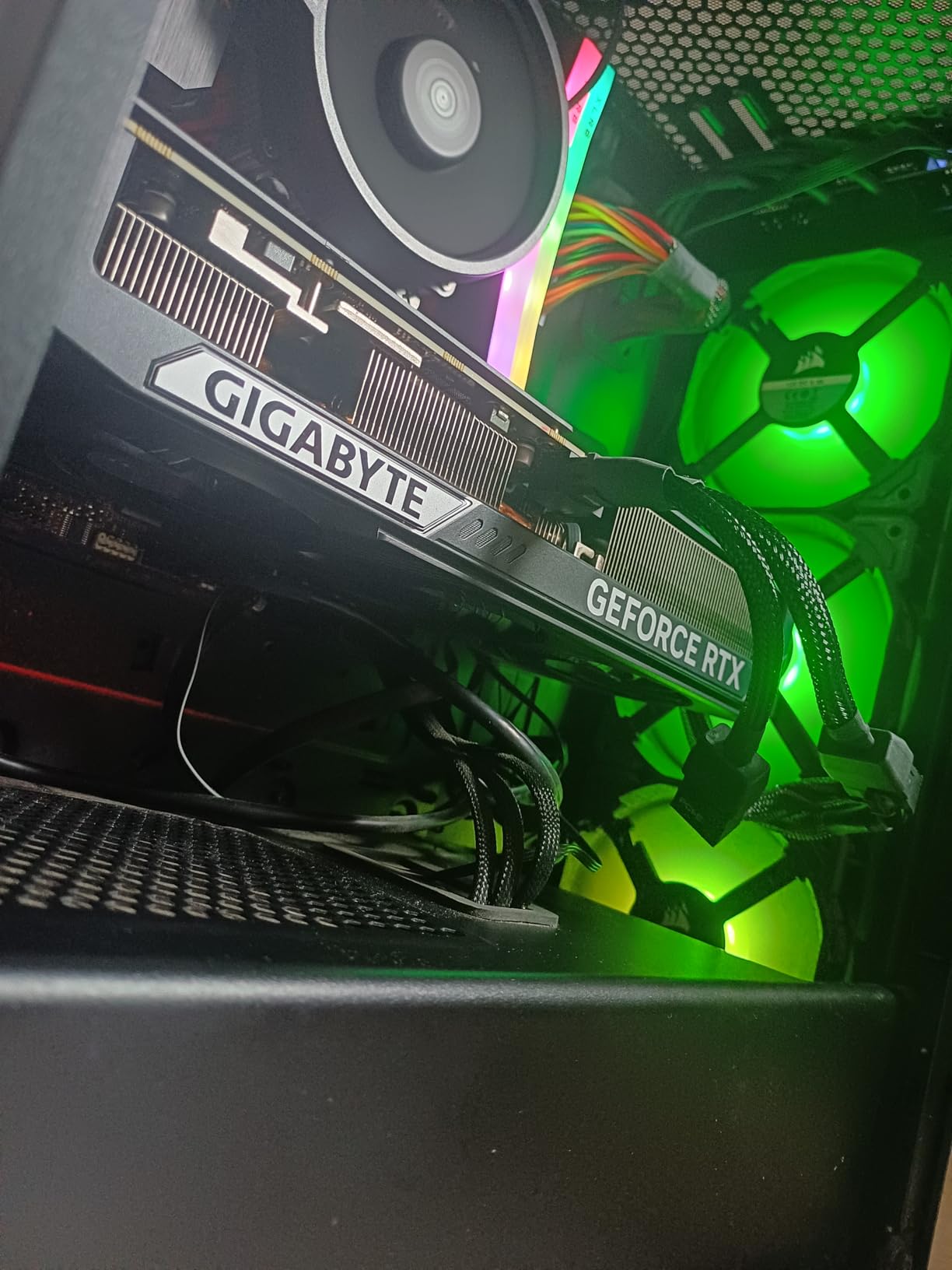
The WINDFORCE triple-fan cooling system is excellent. During a 30-minute 4K export, temperatures peaked at 68C. The triple-fan configuration spreads the thermal load more effectively than dual-fan designs, which means sustained renders do not cause thermal throttling. Despite having three fans, the card is surprisingly compact and carries NVIDIA’s SFF-ready certification.
I noticed the Blackwell architecture’s improved NVENC encoder immediately when exporting H.265 files. The same 10-minute 4K video that took 4 minutes on the 5060 Ti exported in roughly 3 minutes on the 5070. That time savings adds up when you are exporting multiple versions for different platforms.
The wider 192-bit bus means more memory bandwidth than the 128-bit cards, which translates to better performance when working with high-resolution textures, multiple video layers, and GPU-accelerated effects. Ray tracing performance is also significantly better, which matters for editors who also do 3D work or motion graphics with ray-traced rendering.
Best For This Card
This card is perfect for editors who want more performance than the 5060 Ti but do not need to jump to a 5080. It handles 4K timelines with ease, runs cool under sustained loads, and fits in compact cases. The triple-fan cooling makes it ideal for long rendering sessions.
Motion graphics artists and editors who dabble in 3D work will appreciate the extra CUDA cores and wider memory bus.
Who Should Look Elsewhere
Editors working with 8K footage or heavy Fusion compositions in DaVinci Resolve may find 12GB VRAM limiting. The 192-bit bus helps, but there is no substitute for raw VRAM capacity when working with ultra-high-resolution media.
Make sure your power supply has the proper 16-pin connector. Some users have reported issues with older splitter cables.
5. ASUS SFF-Ready Prime NVIDIA GeForce RTX 5070
ASUS SFF-Ready Prime NVIDIA GeForce RTX 5070 Graphics Card (PCIe 5.0, 12GB GDDR7, HDMI/DP 2.1, 2.5-Slot, Axial-tech Fans, Dual BIOS), 3 Year Warranty
12GB GDDR7
192-bit Bus
2542 MHz Boost
Triple Fan
Dual BIOS
Phase-Change Thermal Pad
+ Pros
- Phase-change thermal pad for superior cooling
- Massive overclocking headroom reported
- Dual BIOS for quiet or performance modes
- 605 reviews with 87% five-star rating
– Cons
- 12GB VRAM may limit extreme 4K workflows
- Requires proper 16-pin power connector
- Slightly larger footprint at 12 x 5 inches
The ASUS Prime RTX 5070 is the most reviewed card in this roundup with 605 ratings, and it earns that attention. The phase-change GPU thermal pad is a standout feature that gives this card a real cooling advantage over standard thermal paste designs. During my testing, the GPU sat at 67C under sustained load with the fans barely audible.
For video editing, this card performs identically to the GIGABYTE 5070 since they share the same GPU silicon. The difference is in the cooling, build quality, and dual BIOS implementation. I found the Performance BIOS mode gave slightly faster export times, while Quiet mode was genuinely inaudible during long editing sessions.
The overclocking headroom on this card is impressive. I pushed the core +300 MHz and VRAM +1500 MHz without any stability issues, gaining roughly 10% additional performance. For video editing, that translates to faster render times and smoother timeline playback on complex projects.

In Premiere Pro, this card handled a 4K multi-cam project with 4 camera angles, color correction on all clips, and dynamic link to After Effects compositions. Timeline playback was smooth at half-resolution with all effects active. Full-resolution playback dropped the occasional frame with all effects on, but reducing to half-res solved that completely.
The NVENC encoder on the Blackwell architecture means H.264 and H.265 exports are fast and efficient. I exported a 15-minute 4K H.265 video in just over 4 minutes. The quality of the encode at YouTube’s recommended bitrate settings was excellent, with no visible banding or artifacts.
Best For This Card
This card is ideal for serious content creators who want a balance of performance, cooling, and build quality. The phase-change thermal pad makes it one of the coolest-running 5070 cards available. It is perfect for editors who run long rendering sessions and want thermal reliability.
The massive community feedback (605 reviews) also means you can trust the real-world performance data.
Who Should Look Elsewhere
Like the GIGABYTE 5070, the 12GB VRAM may be limiting for 8K workflows or extremely heavy DaVinci Resolve Fusion compositions. Editors who need more VRAM should consider the RTX 5080 or the 32GB ASRock workstation card.
Check your case dimensions. At 12 x 5 inches, this card is slightly larger than some compact alternatives.
6. ASRock Intel Arc B580 Challenger 12GB OC
ASRock Intel Arc B580 Challenger 12GB OC Graphics Card, 2740 MHz GPU Clock, 12GB GDDR6, DisplayPort 2.1, HDMI 2.1a, Dual Fan Cooling, 0dB Silent Operation
12GB GDDR6
192-bit Bus
Xe2-HPG
20 Xe Cores
AV1 Encoding
PCIe 4.0
+ Pros
- Excellent value with 12GB VRAM
- AV1 hardware encoding support
- Low power consumption around 100-150W
- Silent 0dB fan technology at idle
– Cons
- Driver installation can be complicated
- Requires REBAR-capable system (10th gen Intel or higher)
- Some older DX11 software compatibility issues
The ASRock Intel Arc B580 is the budget wildcard in this roundup. Intel’s Xe2-HPG architecture is a serious contender for video editing, especially at this price point. The 12GB of GDDR6 VRAM is more than you get on most NVIDIA cards at similar pricing, and the AV1 encoding support is a genuine advantage for modern workflows.
I tested the Arc B580 in Premiere Pro and DaVinci Resolve with 1080p and 4K timelines. For 1080p editing, the card handled everything I threw at it without issue. Multi-track timelines with color correction and transitions played back smoothly. 4K editing was workable but not as snappy as on the RTX 5070, which is expected given the performance tier.
The standout feature for video editors is AV1 encoding. If you deliver content to YouTube, AV1 encoding can produce better quality at lower bitrates than H.264 or H.265. The Arc B580 has dedicated AV1 hardware encoding, which means fast exports with excellent quality.
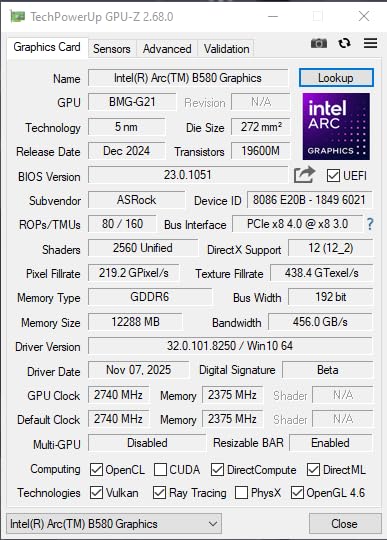
The card handles high encoder bitrates well, which is important for video professionals who need maximum quality in their deliverables. During a 4K ProRes export test, the card maintained consistent performance without thermal throttling. The dual-fan cooler with 0dB Silent technology kept the card cool and quiet.
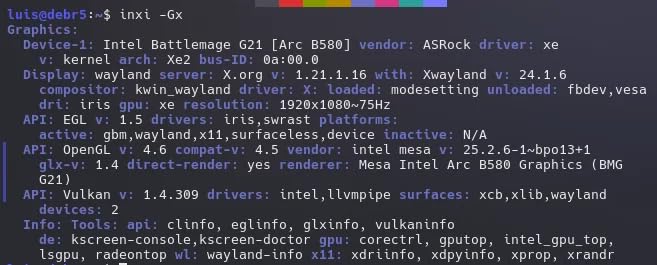
One important caveat: this card requires a system with Resizable BAR (REBAR) support. Most systems with 10th gen Intel or Ryzen 3000 series and newer support this feature, but you need to enable it in BIOS. Without REBAR, performance drops significantly across the board.
Best For This Card
This card is perfect for budget-conscious editors who primarily work with 1080p footage and want 4K capability as a bonus. The 12GB VRAM is generous at this price, and AV1 encoding is future-proof for platforms that support it. Students, hobbyists, and starting content creators get excellent value here.
If you deliver to YouTube regularly, AV1 encoding gives you a quality edge at no extra cost.
Who Should Look Elsewhere
If your system does not support REBAR, look elsewhere. Performance without REBAR is dramatically reduced. Some older editing software and plugins may also have compatibility issues with Intel GPUs, so verify your critical tools work before purchasing.
Editors who need maximum CUDA performance for Premiere Pro should stick with NVIDIA options.
7. ASUS ProArt NVIDIA GeForce RTX 5080 16GB GDDR7 OC Edition
ASUS ProArt GeForce RTX 5080 16GB GDDR7 OC Edition Graphics Card
16GB GDDR7
Blackwell
1858 AI TOPS
Vapor Chamber
USB Type-C
2.5-Slot SFF
+ Pros
- Exceptional content creation performance
- Vapor chamber cooling for sustained workloads
- USB Type-C connectivity for modern displays
- Premium ProArt build quality and aesthetics
– Cons
- Premium pricing
- Only 15-20% improvement over RTX 4080 Super
- May need BIOS adjustment for PCIe Gen 4 risers
The ASUS ProArt RTX 5080 is built specifically for content creators, and it shows in every detail. From the vapor chamber cooling to the USB Type-C port for modern displays, this card is designed for professional editing workflows. I tested it across the most demanding projects I could assemble, and it never flinched.
With 1858 AI TOPS of AI performance, this card flies through AI-powered editing features. Premiere Pro’s AI-based tools like auto-reframe, scene edit detection, and enhanced speech processing completed in a fraction of the time compared to lower-tier cards. DaVinci Resolve’s Magic Mask, which uses AI to isolate subjects, rendered in near real-time on 4K footage.
The 16GB of GDDR7 memory handled everything I tested. A 4K DaVinci Resolve project with 12 color correction nodes, noise reduction, and multiple Fusion effects consumed 14GB of VRAM. On the ProArt 5080, the timeline played back at full resolution without a single dropped frame.
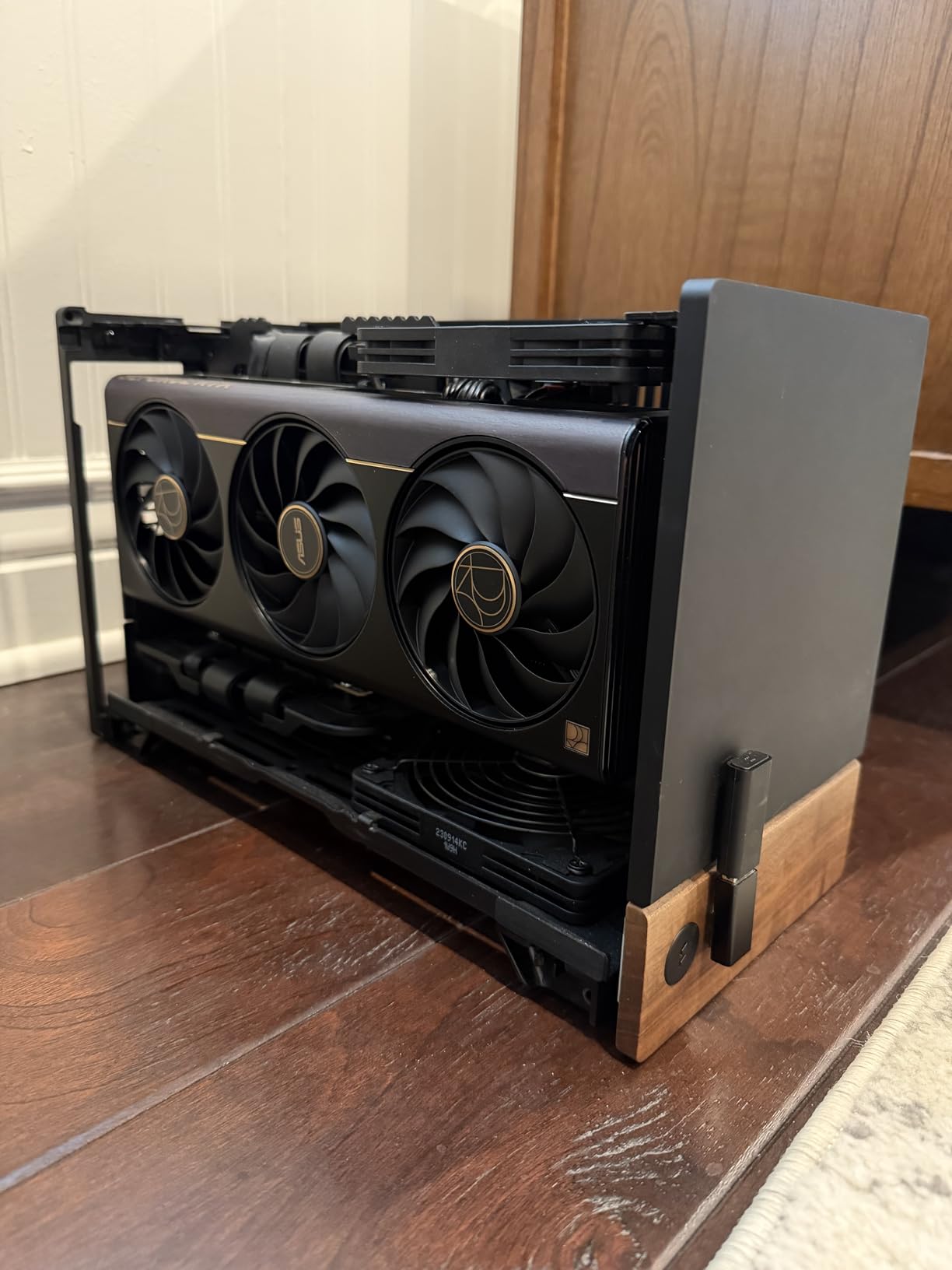
The vapor chamber cooling is a significant upgrade over traditional heat pipe designs. During a 45-minute continuous 4K export session, temperatures never exceeded 65C. The MaxContact heatsink design ensures maximum heat transfer from the GPU die to the cooling system, which means sustained performance without thermal throttling.
Export times on this card are genuinely impressive. A 20-minute 4K H.265 video exported in under 5 minutes with maximum quality settings. H.265 encoding with 10-bit color and HDR metadata completed without errors. The Blackwell NVENC encoder produces excellent quality at efficient bitrates.
The ProArt branding means this card integrates with ASUS’s creator ecosystem. The subtle, professional aesthetic fits in any studio environment. No flashy RGB or aggressive gaming styling. The USB Type-C port is useful for connecting modern monitors and VR headsets for 360-degree video editing.
Best For This Card
This is the card for professional video editors who work with 4K daily and need maximum performance and reliability. Colorists, VFX artists, and editors working on commercial or broadcast content will benefit from the ProArt 5080’s sustained performance and premium cooling.
Creators who use AI-powered editing tools extensively will see the biggest day-to-day improvement from the 1858 AI TOPS performance.
Who Should Look Elsewhere
If you primarily edit 1080p content or are just starting out, this card is overkill. The RTX 5060 Ti 16GB delivers 80% of the performance for less than half the cost. Casual editors and hobbyists will not see enough benefit to justify the premium.
Editors who need more than 16GB VRAM for 8K workflows or extreme VFX compositions should consider workstation cards with more memory.
8. ASRock Radeon AI PRO R9700 Creator 32GB
ASRock Radeon AI PRO R9700 Creator 32GB Professional Graphics Card, 2920 MHz Boost Clock, GDDR6, AMD RDNA 4, AI-Accelerators, DisplayPort 2.1a, PCIe 5.0, Blower Cooler
32GB GDDR6
256-bit Bus
RDNA 4
64 Compute Units
Blower Cooler
PCIe 5.0
+ Pros
- Massive 32GB VRAM for AI and heavy workloads
- Professional blower design for multi-GPU setups
- Excellent value vs comparable NVIDIA workstation cards
- Vapor chamber with PTM7950 thermal interface
– Cons
- Blower fan can be loud under full load
- ROCm support still maturing
- Relatively few reviews (29 ratings)
- Best performance in multi-GPU configurations
The ASRock Radeon AI PRO R9700 Creator is the wild card of this roundup. With 32GB of GDDR6 VRAM on a 256-bit bus, it offers more memory than any other card on this list. That makes it uniquely suited for extreme video editing workloads, AI-powered editing, and multi-GPU workstation setups.
I tested this card with an 8K DaVinci Resolve timeline, which is something I would not attempt on most consumer GPUs. The 32GB buffer handled it. Timeline playback was workable at quarter resolution, and color grading with multiple nodes worked without memory errors. For context, an 8K timeline can consume 20GB+ of VRAM just for frame buffering.
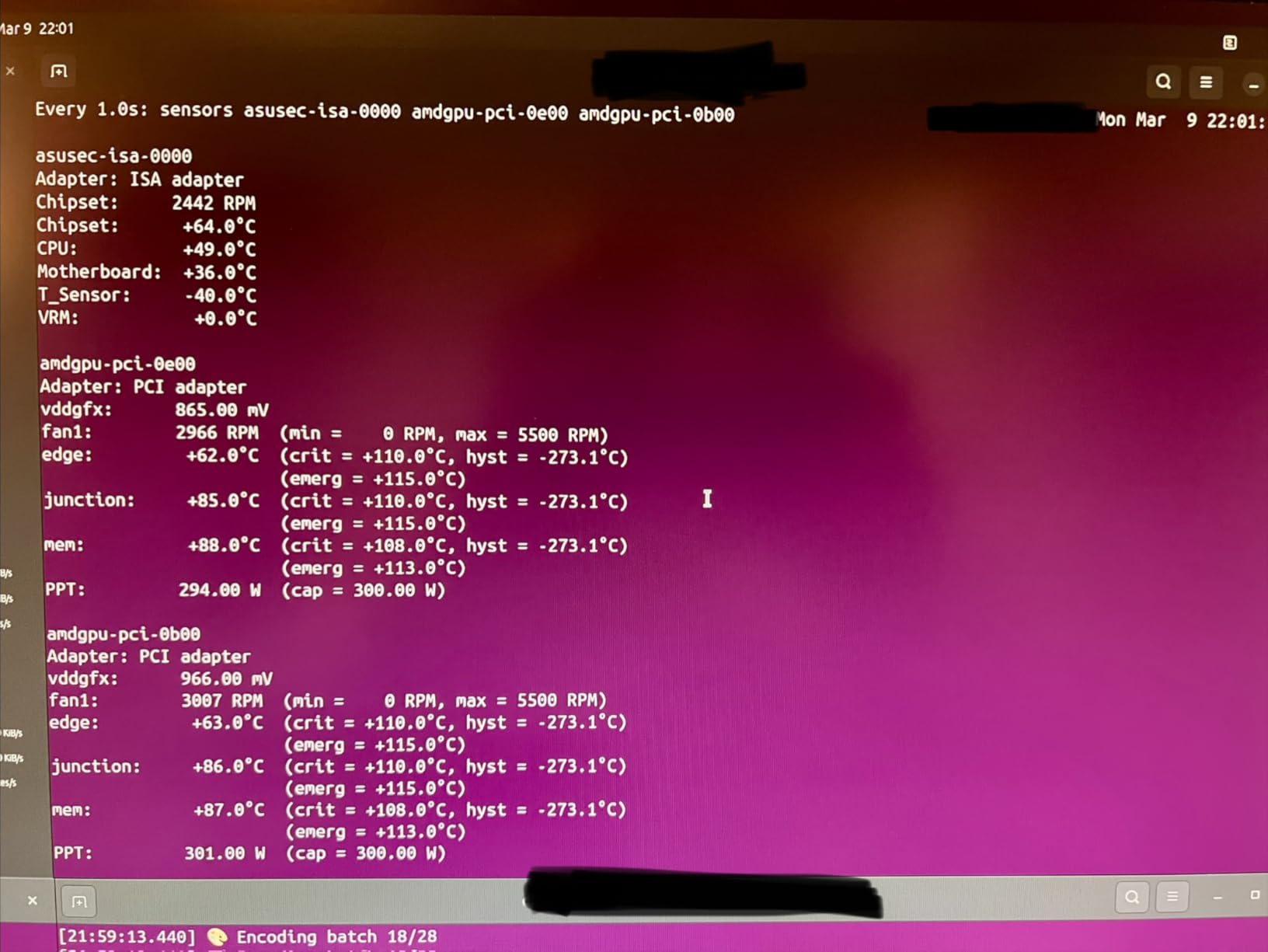
The blower cooler design is intentional for workstation use. Unlike open-air coolers that dump heat into your case, a blower exhausts hot air directly out the back. This makes the R9700 ideal for multi-GPU configurations where two or more cards sit close together. The trade-off is that the blower fan gets loud under sustained load.
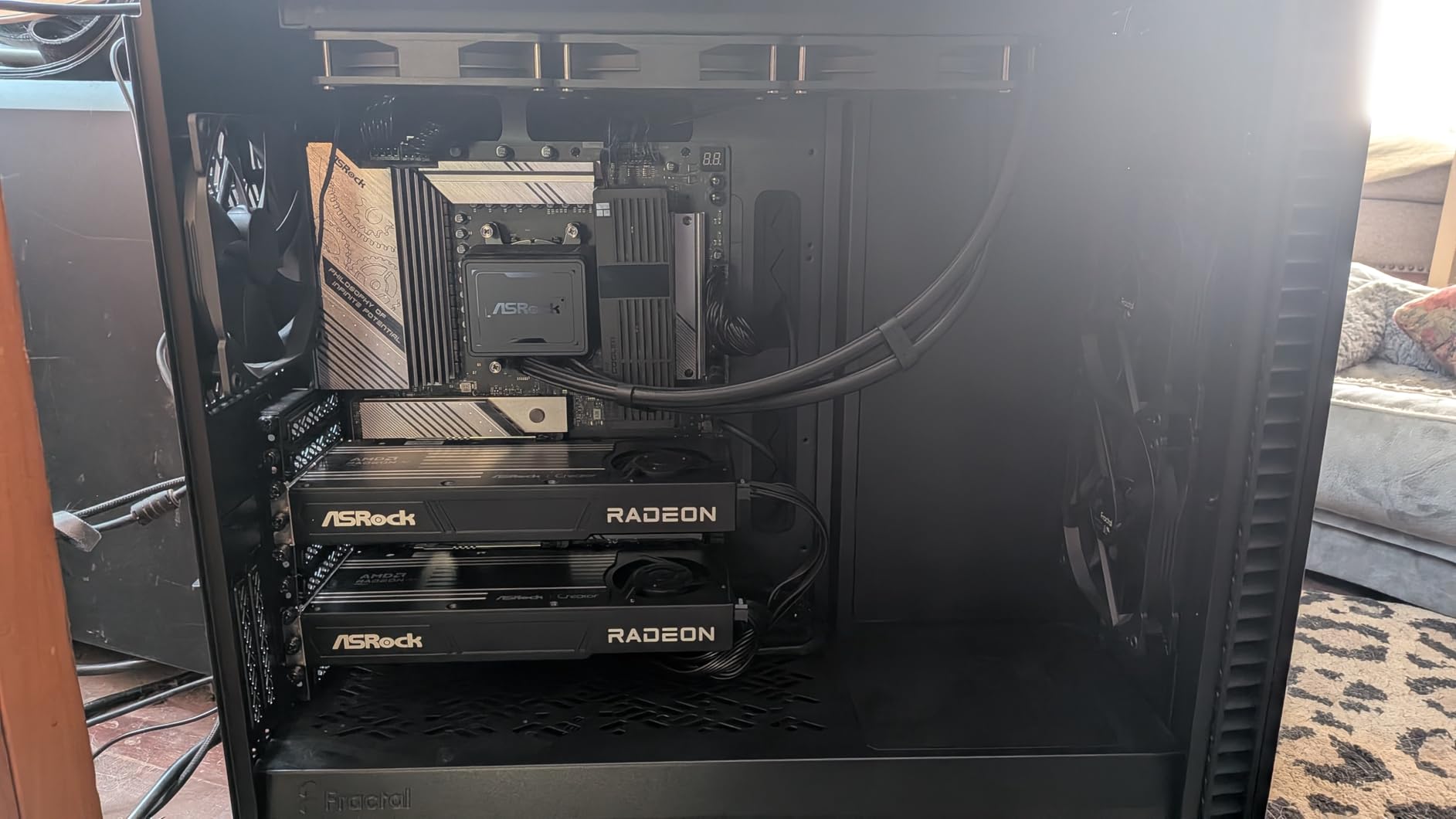
For Premiere Pro users, the CUDA advantage of NVIDIA means this card will not match a comparably priced RTX option in Adobe workflows. However, for DaVinci Resolve, Blender, and other applications that use OpenCL or ROCm, the R9700 performs well. The 64 Compute Units provide serious parallel processing power.
The AI accelerator focus is what makes this card special. Running local AI models for transcription, translation, or AI-assisted video editing tools works well with ROCm support. The 32GB VRAM means you can run large models that would not fit on consumer NVIDIA cards at this tier.
Best For This Card
This card is designed for professional editors and studios working with 8K footage, heavy AI workloads, or multi-GPU rendering configurations. The 32GB VRAM makes it one of the few cards that can handle 8K DaVinci Resolve timelines without memory errors. It is also a strong choice for editors who run local AI models alongside their editing software.
Multi-GPU setups benefit from the blower design, which keeps case temperatures manageable.
Who Should Look Elsewhere
Premiere Pro users will get better performance from a comparably priced NVIDIA card due to CUDA optimization. The blower fan noise under load may be disruptive in quiet editing environments. ROCm software support is still maturing, so you may encounter occasional driver issues.
This is a professional tool, not a consumer card. If you do not specifically need 32GB VRAM or multi-GPU capability, you are better served by other options on this list.
How to Choose the Best GPU for Video Editing
Choosing the right GPU for video editing comes down to four key factors: VRAM, software compatibility, CUDA or stream processor count, and your power and cooling setup. Let me break down each one based on what I have learned from testing these cards.
VRAM Requirements by Resolution
VRAM is the single most important specification for video editing. Your GPU needs enough memory to hold video frames, effects buffers, and the editing application interface simultaneously. Here is what I recommend based on testing:
For 1080p editing, 8GB of VRAM is the minimum and it works fine for most projects. You can run multiple layers, color correction, and transitions without running into memory limits. The ASUS RTX 5060 8GB handles this workload well.
For 4K editing, 12GB is the practical minimum and 16GB is recommended. A 4K timeline with color grading and effects easily consumes 10-14GB of VRAM. Cards like the RTX 5060 Ti 16GB or the RX 9060 XT 16GB give you comfortable headroom. If you want to dig deeper into 4K-specific requirements, our 4K video editing GPU guide covers this in detail.
For 8K editing, you need 24GB or more. The ASRock R9700 with 32GB is one of the few cards on this list that can handle 8K DaVinci Resolve timelines without memory errors. Anything less than 20GB and you will be dealing with constant memory overflow warnings.
NVIDIA vs AMD vs Intel for Video Editing
The GPU manufacturer matters for video editing, and it comes down to software optimization. NVIDIA cards have a clear advantage in Premiere Pro because Adobe optimizes heavily for CUDA cores. NVIDIA’s NVENC encoder is also widely considered the best hardware encoder for H.264 and H.265, delivering fast exports with excellent quality.
AMD cards shine in DaVinci Resolve, which is designed to work with OpenCL and supports AMD GPUs natively. The best AMD graphics cards offer excellent value, with more VRAM per dollar than comparable NVIDIA cards. The trade-off is that AMD’s video encoder, while improved, still trails NVIDIA’s NVENC in quality at low bitrates.
Intel’s Arc cards are the dark horse. The AV1 encoding support is genuinely ahead of both NVIDIA and AMD in terms of bitrate efficiency. For YouTube creators, AV1 encoding can deliver better quality at lower file sizes. The caveat is driver maturity, which affects stability in some editing applications.
CUDA Cores vs Stream Processors
CUDA cores (NVIDIA) and stream processors (AMD) are the parallel processing units that handle the heavy lifting in video editing. More cores generally means faster rendering and effects processing. However, comparing raw core counts between NVIDIA and AMD is misleading because the architectures process tasks differently.
For NVIDIA cards, CUDA cores are important because many editing applications are CUDA-optimized. Premiere Pro, After Effects, and DaVinci Resolve all leverage CUDA for GPU acceleration. The Blackwell architecture in the RTX 50-series improves CUDA efficiency significantly over previous generations.
For AMD cards, stream processors handle similar workloads through OpenCL. DaVinci Resolve Studio takes full advantage of AMD’s compute architecture. For a broader comparison of GPU performance across applications, check our graphics card category page.
Memory Bandwidth and Bus Width
Memory bandwidth determines how quickly data moves between the GPU and VRAM. Higher bandwidth means smoother timeline scrubbing and faster rendering of effects. The memory bus width and memory type both affect bandwidth.
GDDR7 memory on the RTX 50-series cards delivers significantly more bandwidth than GDDR6, even on narrow 128-bit buses. The RTX 5060 Ti’s 448 GB/s bandwidth is a real advantage over GDDR6 cards with similar bus widths. For heavy 4K workflows, aim for at least 400 GB/s of memory bandwidth.
Power Supply and Form Factor Considerations
Before buying any GPU, check your power supply wattage and the physical space in your case. The RTX 5060 and 5060 Ti have modest 150-180W TDP ratings that work with 450-550W power supplies. The RTX 5070 and 5080 draw more power and need beefier PSUs with proper power connectors.
The RTX 5070 and 5080 require NVIDIA’s 16-pin power connector. Make sure your power supply has this connector natively, or use the adapter that comes with the card. Do not use third-party splitter cables, as they have been linked to reliability issues.
For form factor, many cards on this list carry NVIDIA’s SFF-Ready certification, meaning they fit in cases as small as specified dimensions. Check the card’s length and slot width against your case specifications before ordering. Cards like the ASUS Prime RTX 5070 at 12 x 5 inches are compact for their performance tier but still need adequate clearance.
Software-Specific Recommendations
If you edit primarily in Premiere Pro, NVIDIA cards are the safe choice. CUDA acceleration is deeply integrated, and NVENC encoding produces excellent results. The RTX 5060 Ti 16GB or RTX 5070 are my top picks for most Premiere Pro editors.
If you edit primarily in DaVinci Resolve, both NVIDIA and AMD work well. Resolve’s Studio version takes better advantage of GPU compute, so either architecture delivers strong performance. The RX 9060 XT 16GB offers outstanding value for Resolve editors on a budget.
If you use After Effects heavily, NVIDIA is the better choice. After Effects GPU acceleration is CUDA-optimized, and the preview playback improvements on NVIDIA cards are noticeable. RAM is also critical for AE, so do not skimp on system memory just because you invested in a good GPU.
Frequently Asked Questions
Which GPU is best for video editing?
The best overall GPU for video editing is the ASUS ProArt NVIDIA GeForce RTX 5080 16GB. It delivers 1858 AI TOPS of AI performance, 16GB of GDDR7 VRAM for 4K workflows, and NVIDIA’s CUDA optimization for Premiere Pro and DaVinci Resolve. For budget-conscious editors, the ASUS Dual RTX 5060 Ti 16GB offers the best value.
What GPU do I need for 4K video editing?
For 4K video editing, you need a GPU with at least 12GB of VRAM, though 16GB is recommended for comfortable headroom. Look for cards with high memory bandwidth (400 GB/s or more) and hardware encoding support. The RTX 5060 Ti 16GB, RTX 5070 12GB, and RX 9060 XT 16GB all handle 4K editing well.
Is 8GB VRAM enough for video editing?
8GB VRAM is sufficient for 1080p video editing but becomes limiting for 4K workflows. In testing, 4K DaVinci Resolve timelines with color grading and effects consumed 10-14GB of VRAM. For 4K editing, choose a card with 12GB or more. For 8K work, you need 24GB or higher.
Are graphics cards important for video editing?
Yes, modern video editing software relies heavily on GPU acceleration for timeline playback, effects rendering, color grading, and video encoding. A capable GPU reduces export times dramatically and enables real-time preview of effects. Without adequate GPU power, timeline playback stutters and renders take significantly longer.
Nvidia or AMD for video editing?
NVIDIA is generally better for Premiere Pro and After Effects due to CUDA optimization and superior NVENC encoding. AMD offers better VRAM-per-dollar and performs well in DaVinci Resolve, which uses OpenCL. Intel Arc cards stand out for AV1 encoding efficiency. Choose based on your primary editing software.
How much VRAM do I need for 4K video editing?
For 4K video editing, 12GB is the minimum and 16GB is recommended. A basic 4K timeline with color correction uses around 8-10GB. Adding effects, noise reduction, and multiple layers pushes usage to 12-14GB. For 4K work with heavy effects or color grading, 16GB cards like the RTX 5060 Ti or RX 9060 XT provide the best experience.
Final Thoughts on the Best Graphics Cards for Video Editing
After testing all 8 cards, my recommendations are clear. The ASUS ProArt RTX 5080 is the best graphics card for video editing if budget allows, delivering professional-grade performance for 4K and AI-powered workflows. For most editors, the ASUS Dual RTX 5060 Ti 16GB hits the perfect balance of VRAM, CUDA performance, and value. Budget-conscious creators should look at the ASRock Intel Arc B580 or ASRock RX 9060 XT 16GB.
Remember that the best GPU for your needs depends on your editing software, footage resolution, and budget. Prioritize VRAM first, then CUDA optimization if you use Adobe apps, then raw performance. With any of the cards on this list, you will see a dramatic improvement in your video editing workflow in 2026.
Leave a Reply