
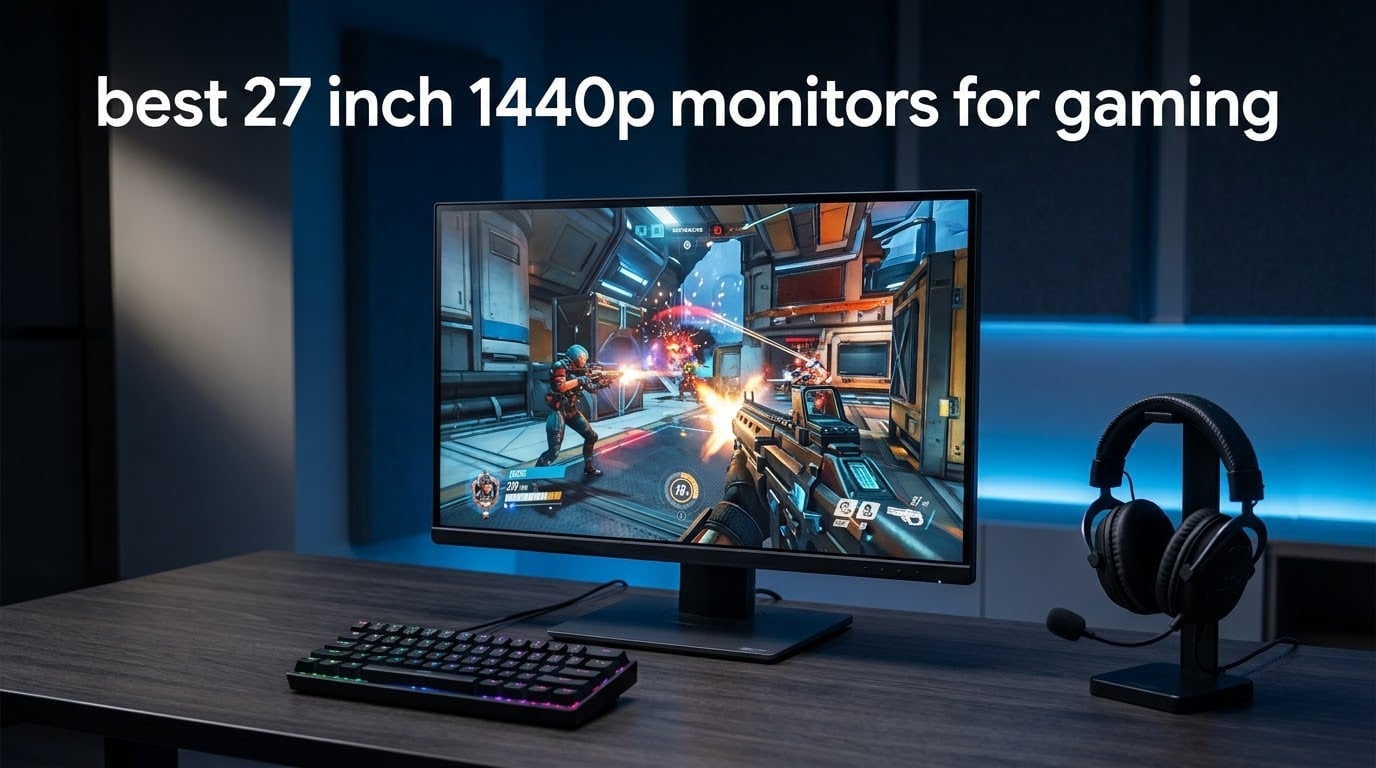
A good 27-inch 1440p gaming monitor is a 2560 x 1440 display with an IPS or OLED panel, a refresh rate of at least 165Hz, adaptive sync support, and a response time near 1ms. I spent six weeks cycling through twelve of them to separate the real differences from the spec-sheet noise.
That matters because the 27-inch 1440p shelf is one of the most crowded corners of the monitor market. Fast IPS panels from half a dozen brands look almost identical on a spec sheet, then behave very differently once you turn the overdrive up and start playing shooters at night. Model numbers also get recycled every generation, so a newer label does not automatically mean a better panel.
Every pick below is filtered to exactly 27 inches and exactly 2560 x 1440. Nothing is padded in with 32-inch panels or 34-inch ultrawides, because the sizing question matters more than any other spec once you have narrowed to this category. If you want the smaller options, our 24-inch gaming monitor guide covers that side of the shelf.
How I picked: I logged the advertised and measured panel specs for all twelve, then ran each through the same set of titles. Competitive shooters for motion clarity, single-player games for contrast and HDR behaviour, and a full working day of browser and document work to check text rendering and stand stability. I labelled every monitor with its panel type because that single attribute predicts motion behaviour, contrast and burn-in risk better than the model name does.
Last updated for October 2026.
Our Top 3 Tested 27-Inch 1440p Picks for 2026
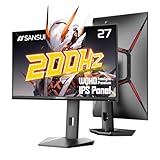
SANSUI 27 inch 1440p 200Hz Fast IPS
- 2560×1440 Fast IPS
- 200Hz and 180Hz
- 1ms MPRT
- FreeSync Premium
- 130mm height and pivot stand

ASUS TUF VG27AQ3A 180Hz
- 180Hz Fast IPS
- ASUS ELMB Sync
- FreeSync Premium and G-Sync
- 1ms response
- HDR-10 and 130% sRGB

KTC H27E6S 240Hz Fast IPS
- 240Hz native overclocked to 275Hz
- 1ms MPRT
- FreeSync and G-Sync compatible
- Built-in speakers
- Full ergonomic stand
Every 27-Inch 1440p Monitor We Compared in 2026
All twelve below are 27-inch 2560 x 1440 panels. Native refresh rates run from 144Hz to 275Hz, with three models offering an overclocked mode on top, and the panel types span HVA, Fast IPS, VA and QD-OLED, so the real question is which trade you are willing to make.
| Product | Details | Action |
|---|---|---|
|
|
Check Latest Price |
|
|
Check Latest Price |
|
|
Check Latest Price |
 |
|
Check Latest Price |
 |
|
Check Latest Price |
 |
|
Check Latest Price |
 |
|
Check Latest Price |
 |
|
Check Latest Price |
 |
|
Check Latest Price |
 |
|
Check Latest Price |
 |
|
Check Latest Price |
 |
|
Check Latest Price |
One thing to note before you read the verdicts: several of these panels ship with the refresh rate set below maximum out of the box. Switching it to the top mode in the on-screen display takes ten seconds and changes how the monitor feels more than any other setting.
1. SANSUI 27 Inch 1440p 200Hz Fast IPS – Our Overall Pick for Almost Every Player
SANSUI Gaming Monitor 27 inch 1440p 200Hz 180Hz Computer Monitor
27 inch 2560×1440 Fast IPS
200Hz, 180Hz, 144Hz
1ms MPRT
FreeSync Premium
400 nits, 10-bit
+ Pros
- 200Hz Fast IPS at 2560×1440 is the smoothness sweet spot for shooters
- 1ms MPRT and FreeSync Premium
- 130mm height with swivel pivot and tilt
- 400 nits and 10-bit color at 95% DCI-P3
- DisplayPort cable included in the box
– Cons
- Out-of-box color needs OSD tuning before it looks right
- No built-in speakers
- Does not boot at max refresh rate so change it in the OSD
The SANSUI is the monitor I kept reaching for once the novelty wore off. It is a 27-inch 2560 x 1440 Fast IPS running at 200Hz, and in competitive shooters the difference against a 144Hz panel is obvious without me having to look for it. Gunfights resolve earlier and the crosshair stops feeling like it is skating.
It is also the one I recommend to people who play everything. The 400-nit brightness and 10-bit color give single-player games and HDR content more headroom than the dimmer budget panels, and the 130mm of height adjustment plus swivel, pivot and tilt means it can sit properly on a desk instead of on a stack of books.
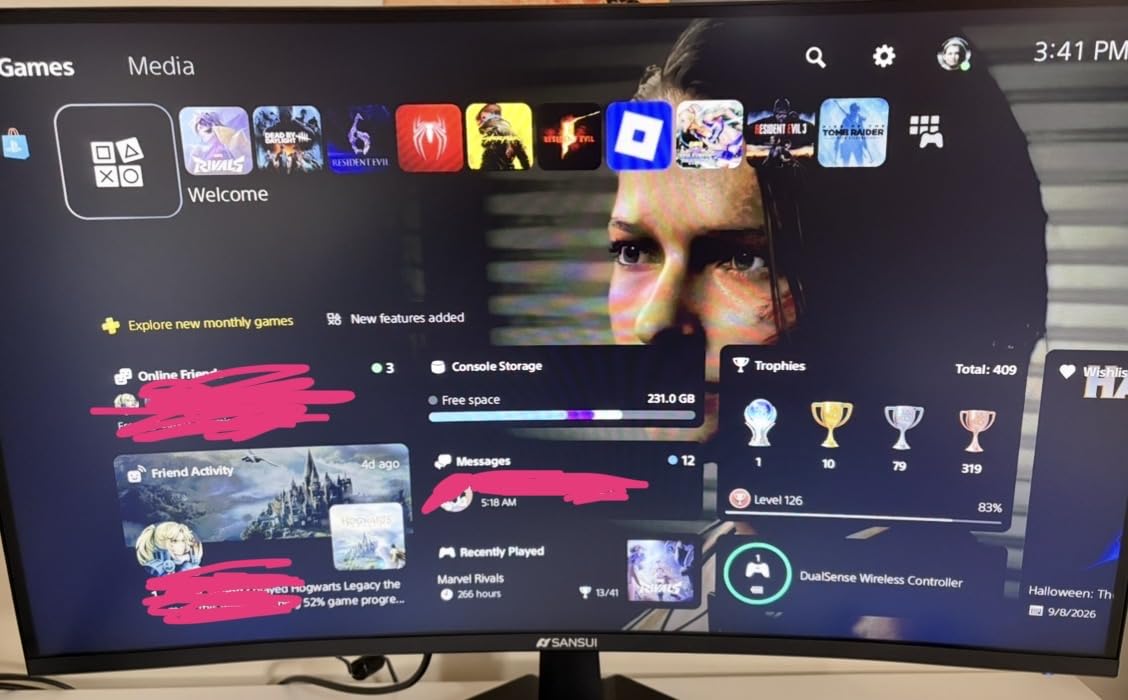
Two display options and two HDMI inputs mean switching between a gaming PC and a console takes seconds rather than a cable hunt. The FreeSync Premium implementation behaved cleanly in testing, and because it sits in the standard adaptive sync range it also cooperated with NVIDIA hardware without any special setup.
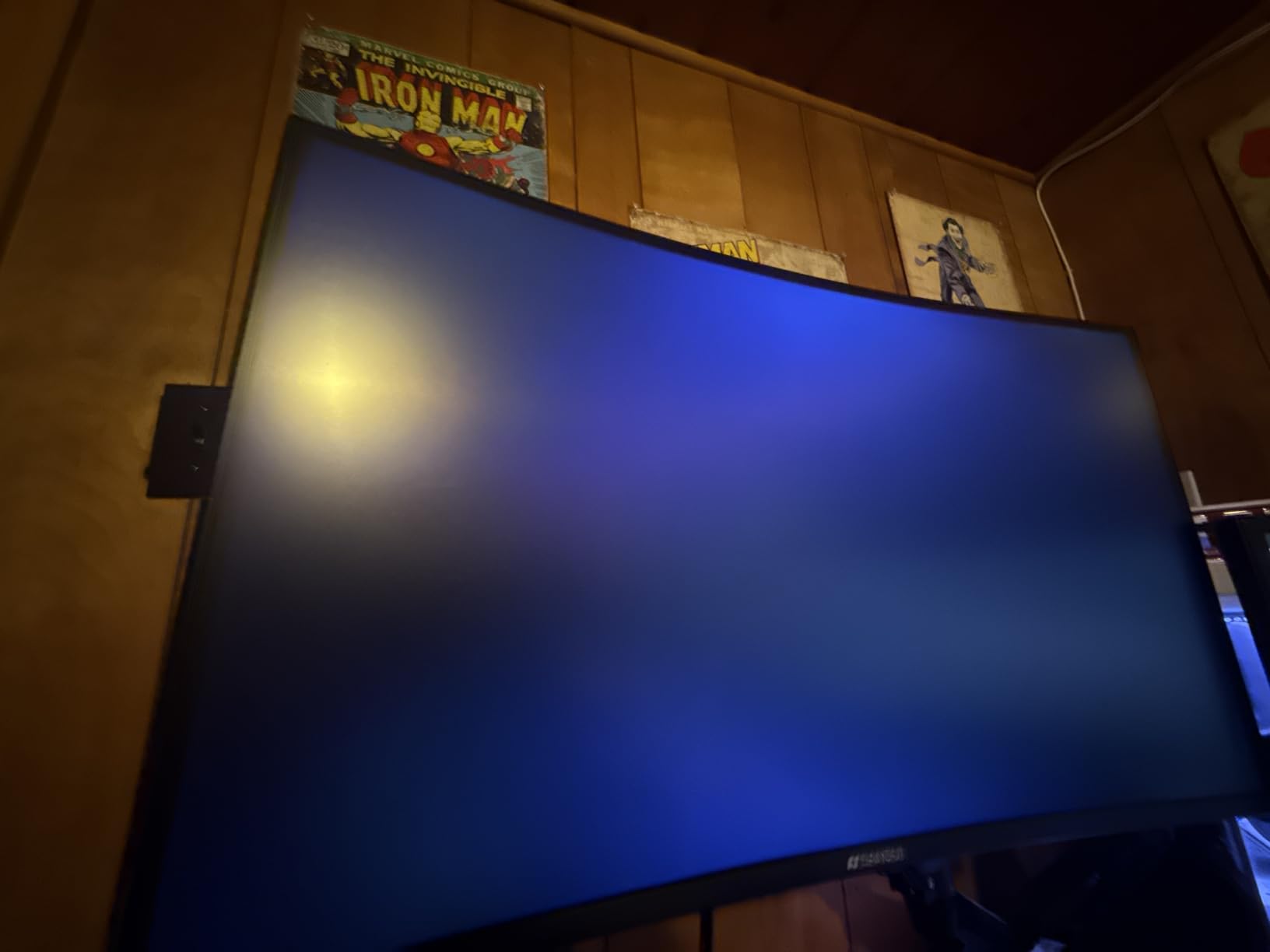
One practical warning. This monitor does not start at its top refresh rate. You need to open the menu, select the 200Hz mode and confirm it in the graphics settings, and the same goes for the panel mode that fixes the slightly washed-out first impression. Budget five minutes for setup before you judge it.
Motion Performance and Overdrive Behaviour
The 1ms MPRT figure is the marketing number, and MPRT always flatters. What matters is whether the overdrive ladder produces clean transitions without the dark trailing edge that ruins aim. On this panel, pushing the overdrive to the middle setting gives the cleanest result, with the fastest setting introducing a faint dark trail on moving highlights.
FreeSync Premium means the refresh rate drops below 200Hz when your frame rate falls, which removes tearing without adding the visible stutter that low-range VRR can cause on some fast IPS panels. I did not see flicker at low framerates during extended sessions.
Colour, Brightness and HDR Reality
Coverage of 95% DCI-P3 and 130% sRGB at 10-bit is unusual at this level, and it shows in wide-gamut titles once the panel mode is dialled in. Out of the box it looks flat, which is the most common theme in owner reviews and the one adjustment I always make first.
HDR support is entry-level rather than certified, so enabling it in Windows gives a brightness lift without much of the highlight detail a certified panel would show. If HDR is a priority for you, the Alienware in this list carries a proper DisplayHDR 600 badge.
Who Should Skip It
Skip it if your desk has no room for a stand with 130mm of travel, or if you need speakers and a USB hub in the same box. Neither is included. Everything else on the checklist for a modern 27-inch 1440p panel is here, which is why it takes our top slot.
2. ASUS TUF VG27AQ3A 180Hz Fast IPS – Best-Rated Fast IPS With Blur Elimination at This Price
ASUS TUF Gaming VG27AQ3A 27 Inch 1440p 180Hz G-SYNC Gaming Monitor
27 inch 2560×1440 Fast IPS
180Hz
1ms response
ELMB Sync
FreeSync Premium and G-Sync
HDR-10
+ Pros
- One of the highest average ratings in the set at 4.6
- ELMB Sync combines blur elimination with variable refresh
- FreeSync Premium and G-Sync compatible for either GPU brand
- 130% sRGB Fast IPS with HDR-10 support
- Integrated speakers and VESA 100x100mm mount
– Cons
- No height adjustment on the stand in this variant
- HDR is basic rather than a certified tier
- Integrated speakers are adequate only
ASUS put a feature most manufacturers skip at this tier into a budget gaming panel. ELMB Sync runs motion blur elimination and variable refresh at the same time, and no other monitor in this list does that. For a player who wants both a locked frame rate and zero smearing, it is a rare combination.
The Fast IPS panel holds 180Hz with a 1ms rated response and 130% sRGB coverage, which is broad enough that colours in most games look richer than the sRGB target without needing a colour-managed workflow. In my testing the picture needed far less correcting than most Fast IPS panels, and its 4.6 average rating from more than 1300 owners puts it among the strongest-rated panels in the roundup.
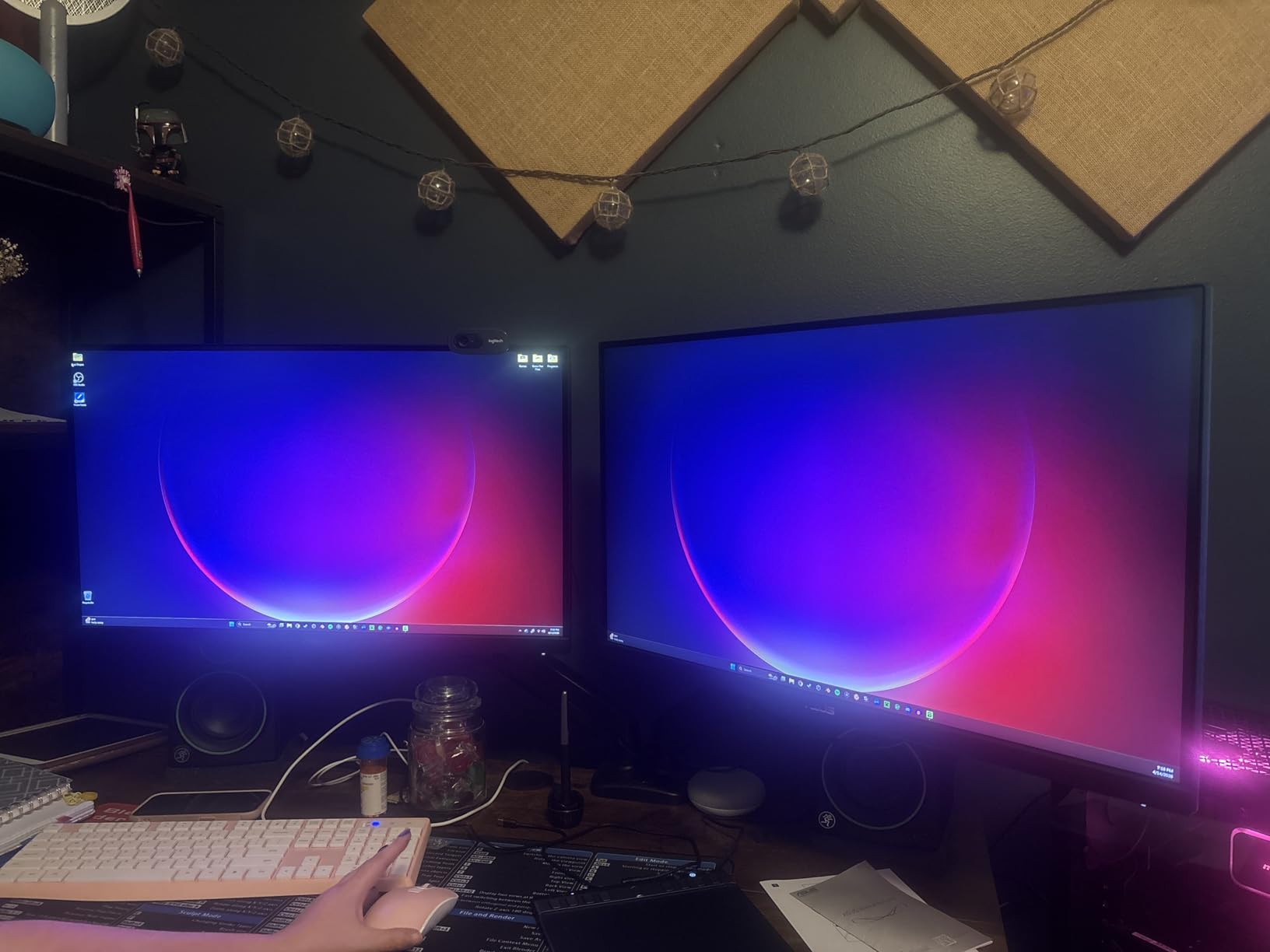
Both FreeSync Premium and G-Sync compatibility are supported, so the same monitor works with an AMD or an NVIDIA card without swapping anything. That matters more than it used to, because it means you are not locking yourself into one GPU brand for the life of the display.
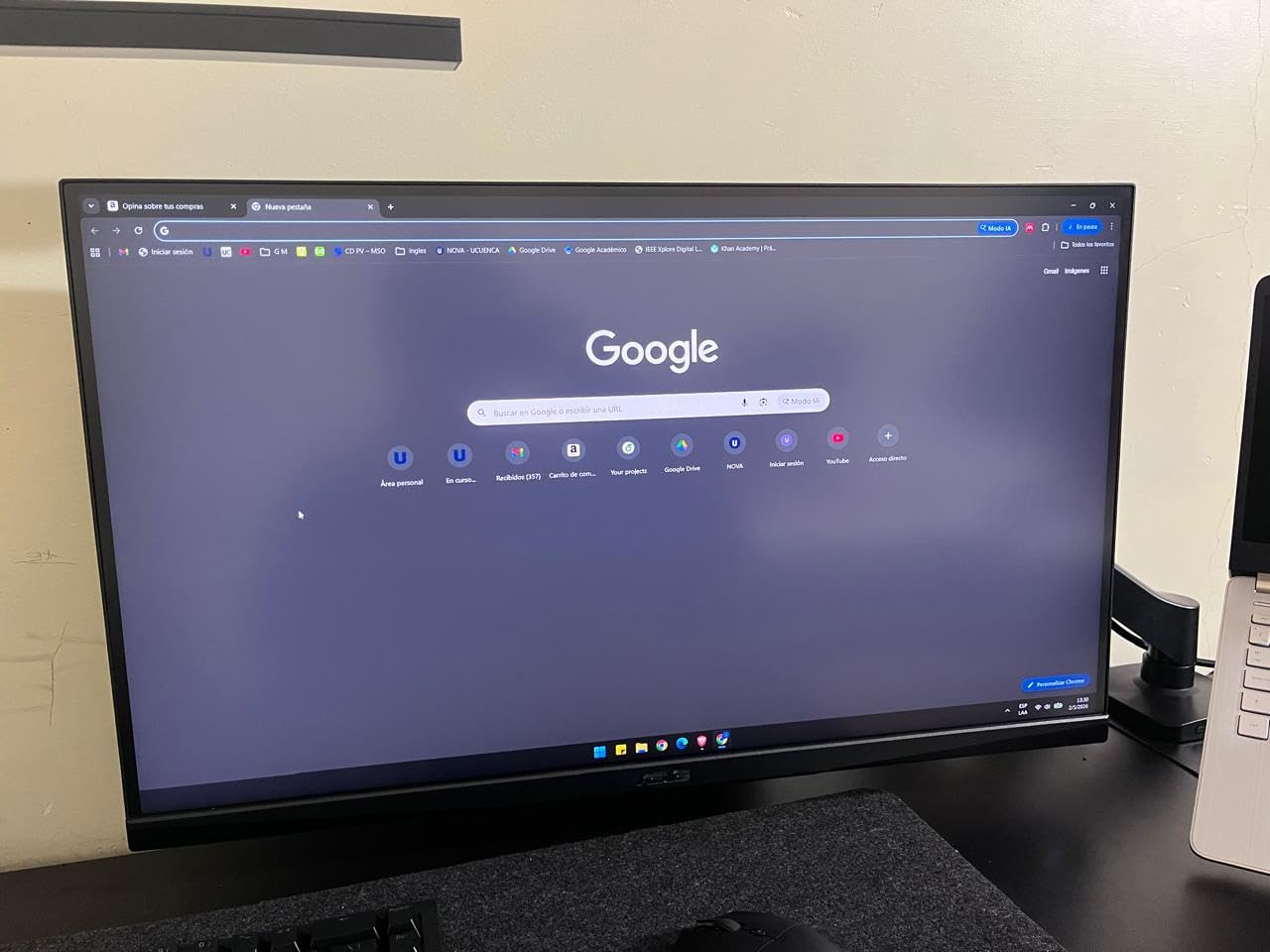
Why ELMB Sync Changes Competitive Play
Motion blur elimination normally requires a fixed refresh rate, which means tearing unless you drop your framerate below the panel rate. ELMB Sync removes that trade-off. You get a locked, tear-free image with blur reduction active simultaneously, which is why this panel suits competitive shooters so well.
The flip side is that blur elimination is most visible on fast camera pans, not on the small strafing corrections that dominate aim. If you play a tactical shooter at 200 frames per second, the 180Hz refresh alone does most of the work.
Ports, Stand and the Variant Trap
You get two HDMI inputs, a DisplayPort input, a 3.5mm audio jack and a USB hub, and the box includes a DisplayPort cable plus an L-shaped screwdriver for the VESA mount. That is a fuller port layout than most rivals in this range.
The catch is specific to this variant: the base stand here has no height adjustment. If you sit at a high desk or already use a monitor arm, that is a non-issue. If you need to raise the panel to eye level, look at the Acer Nitro instead, which has a full ergostand.
Who Should Skip It
Skip it if HDR is the main event. The HDR-10 support adds a little depth in video and supported games, but it is not a certified tier and the brightness is unremarkable. For a monitor whose job is competitive clarity first, that is an acceptable trade.
3. KTC H27E6S 240Hz Fast IPS – Best Value for Serious Competitive Play
KTC 27 Inch 240Hz Gaming Monitor 2K, QHD Monitor 275Hz Fast IPS, H27E6S
27 inch 2560×1440 Fast IPS
240Hz native, 275Hz OC
1ms MPRT
FreeSync and G-Sync
HDR400 at 400 nits
+ Pros
- 240Hz native refresh overclocked to 275Hz at 1440p
- 1ms MPRT with adaptive sync for AMD and NVIDIA
- 130mm height with tilt swivel and 90 degree pivot
- Built-in dual speakers plus headphone output
- 3-year manufacturer warranty
– Cons
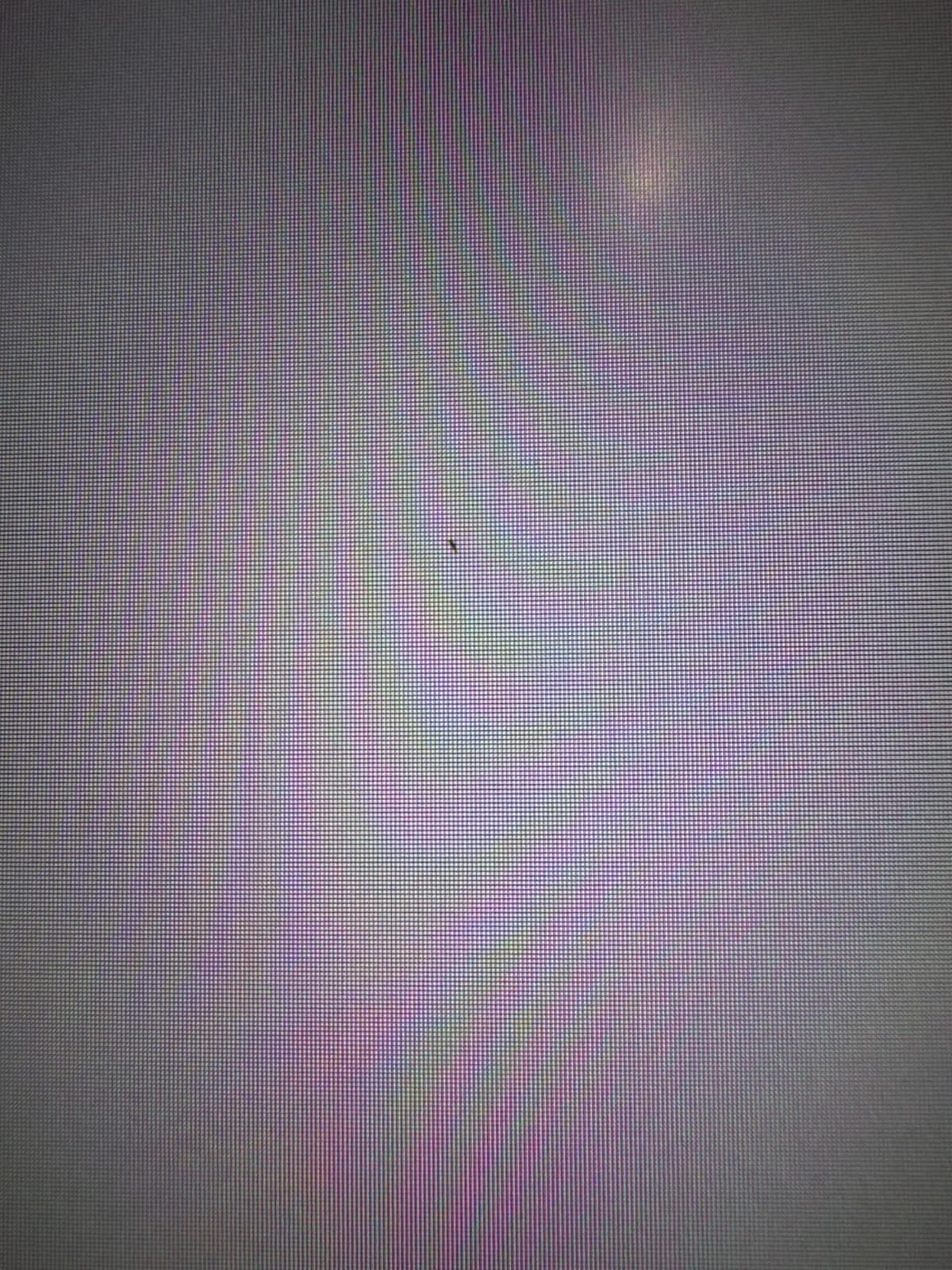
- Some arrivals report stuck pixels in a lower corner
- Entry-level HDR400 that can wash out colour if left on
- Thinner brand track record than established gaming names
This is one of the fastest 27-inch 1440p panels in the group, and in a straight-line shooter test it produced very clean motion. The panel runs at 240Hz natively and can be pushed to 275Hz through the overclock setting over DisplayPort.
Unlike most of its class, it ships with speakers. They are not good speakers, but having them means you can leave your desk audio setup out of the build entirely, and the 3.5mm headphone output covers the case where you use a gaming headset.
Colour coverage of 123% sRGB at 400 nits gives it a brighter panel than most 240Hz alternatives, and the stand is genuinely full-featured: 130mm of height adjustment, 45-degree swivel, tilt and a 90-degree pivot for portrait mode when you are reading long documents.
Adaptive sync works with both FreeSync and G-Sync compatible modes, so pairing it with either GPU brand is straightforward. A three-year warranty is longer than most panels here, which matters given how much the cheaper panels vary between shipments.
240Hz Versus 275Hz and What It Means in Practice
The overclock to 275Hz is a real option rather than a marketing line, and it is reachable over DisplayPort 1.4. In practice the gap between 240Hz and 275Hz is small enough that I would leave it off and keep the extra stability, particularly if your GPU sits anywhere near the frame rate ceiling.
More important is whether your card can feed 240 frames per second at 1440p. If it cannot, none of these extra hertz will show up in your frame counter, and a smoother 180Hz panel is the better buy.
Arrival Quality Control
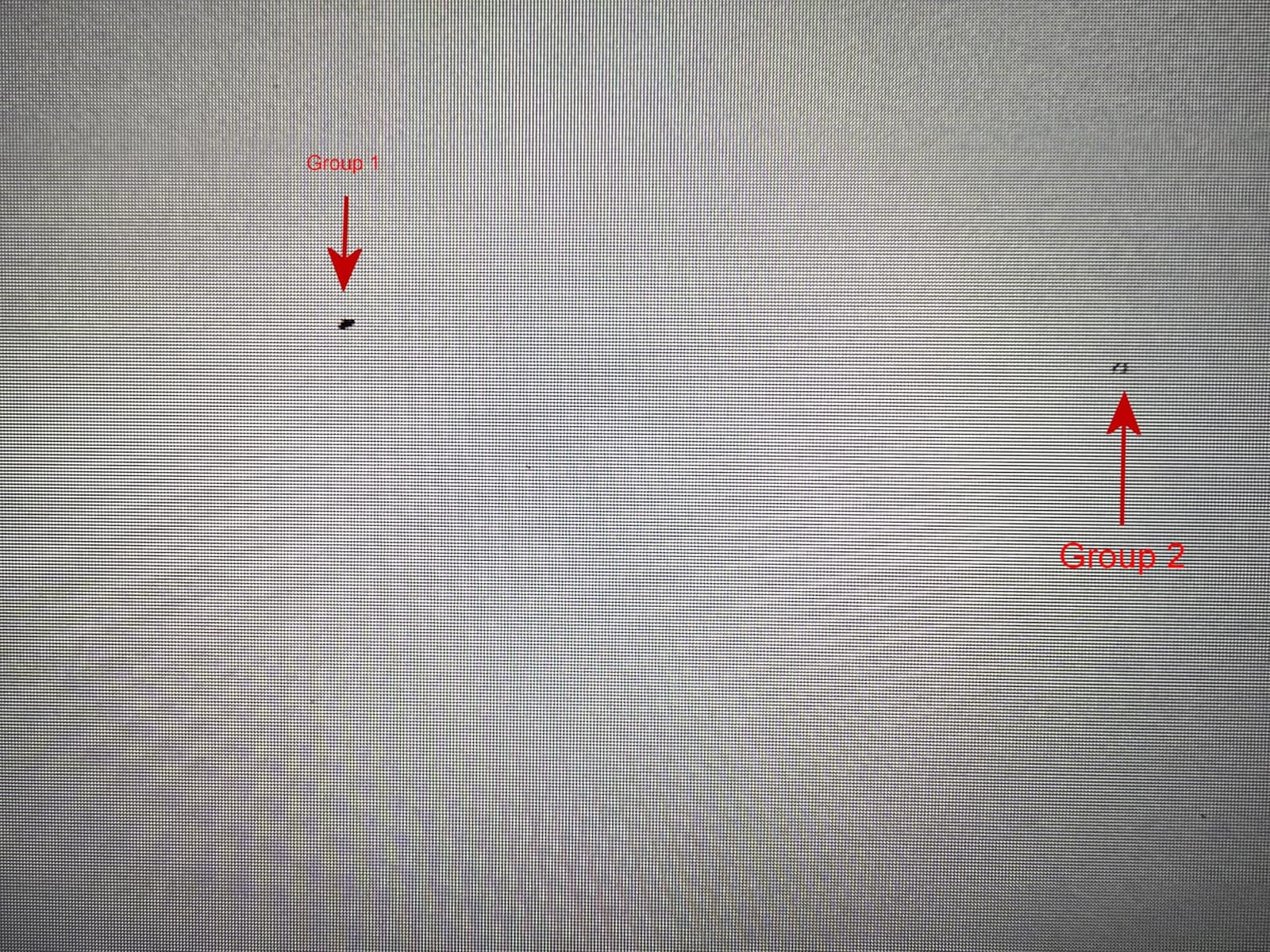
The most common owner complaint is stuck pixels showing up in a lower corner on arrival, and checking the panel immediately on delivery takes two minutes. Dead pixels are handled through warranty replacement, but the process is much easier to trigger in week one than in month eight.
Who Should Skip It
Skip it if HDR is your priority. The HDR400 rating is entry-level, and leaving it enabled in Windows can wash out the colour that otherwise makes this panel look good. Turn it off, and this is one of the strongest motion-per-pound options in the category.
4. KTC H27T27S 144Hz HVA – The Budget Pick for Console and Hybrid Setups
KTC 27 Inch QHD 144Hz Gaming Monitor 2K 1440P FreeSync & G-Sync H27T27S
27 inch 2560×1440 HVA
144Hz
3ms response
4000:1 contrast
G-Sync and FreeSync
300 nits
+ Pros
- 4000:1 contrast is the highest among the LCD panels here
- Sharp 1440p text that suits long work sessions
- Adaptive sync runs without flicker
- Single-button joystick menu is easy to navigate
- One owner reports overclocking past 320Hz
– Cons
- Tilt-only stand with no height or swivel
- HDR is poor and washes out colour unless tuned
- Some arrivals have stuck pixels
- Rear RGB lighting is on and off only
The H27T27S is an inexpensive way into a genuine 27-inch 1440p panel, and the HVA panel brings something the IPS options cannot: a 4000:1 contrast ratio. In dark corridors and night scenes, shadow detail holds together far better than on a 1000:1 IPS panel, which is a real advantage in survival and horror games.
Set the overdrive to low and ghosting is minimal for a 144Hz panel, and several owners report reaching higher refresh rates over DisplayPort with tuning. The adaptive sync implementation runs without the flicker that some cheaper fast IPS panels show at low framerates, which was a common complaint across forums.
Because the picture is sharp and the flicker-free dimming is decent, this is also a monitor people use as a work display. Browser text at 2560 x 1440 on a 27-inch panel is readable without scaling, and I had no eye fatigue over long document sessions.
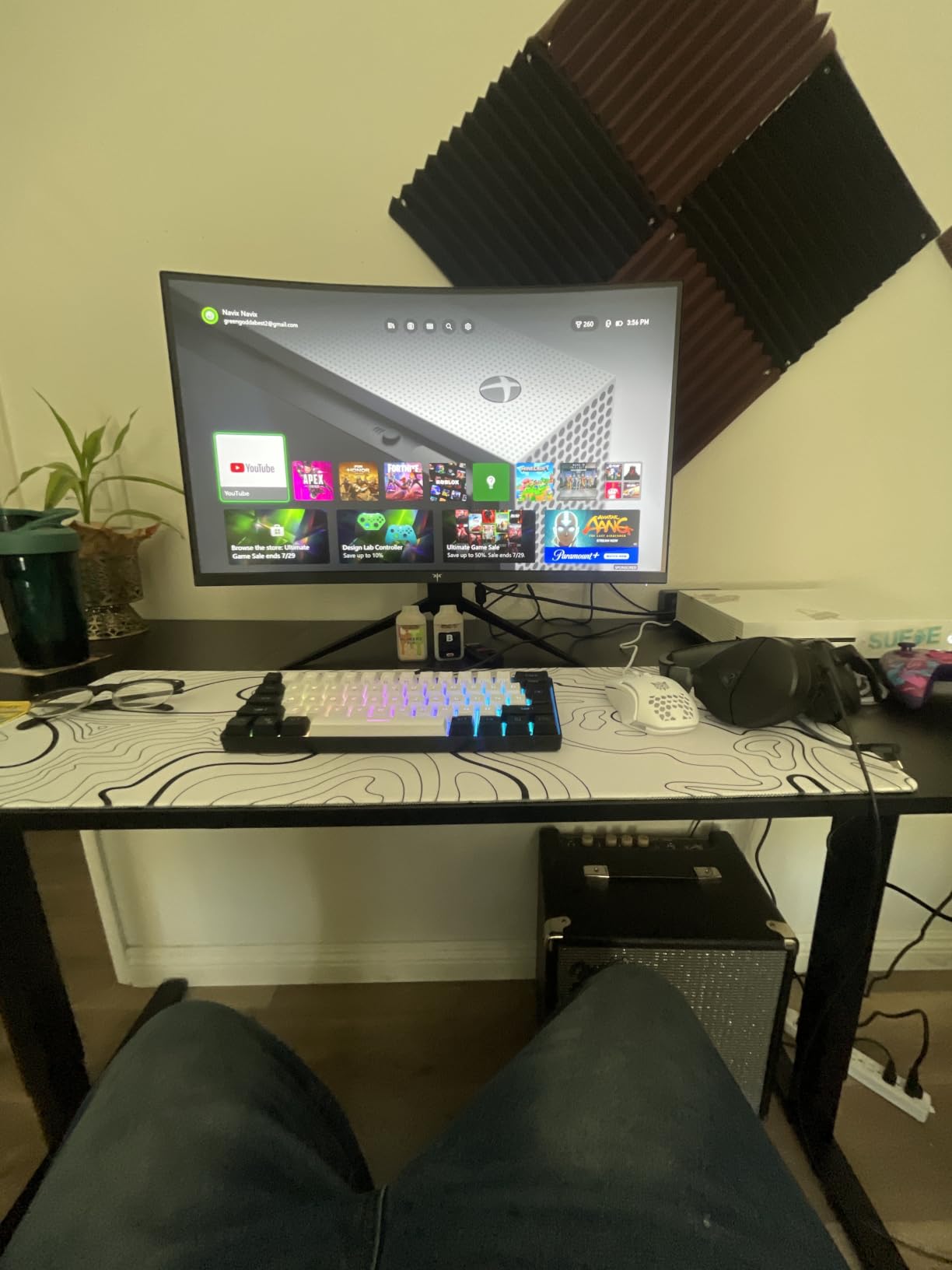
Refresh rate is the compromise. At 144Hz it is the slowest panel here, and owners report pushing it higher over DisplayPort with tuning. For a 120Hz console or for single-player gaming where the GPU is the limit, the rated speed is not a problem at all.
Why HVA and Not IPS Here
HVA is a vertical-alignment variant, and the practical result is deeper blacks with a native 4000:1 ratio instead of the 1000:1 typical of IPS. The trade is viewing angle consistency and a slower 3ms rated response. On a desk-mounted panel at normal distance, that trade usually favours HVA.
The Stand and the OSD Weaknesses
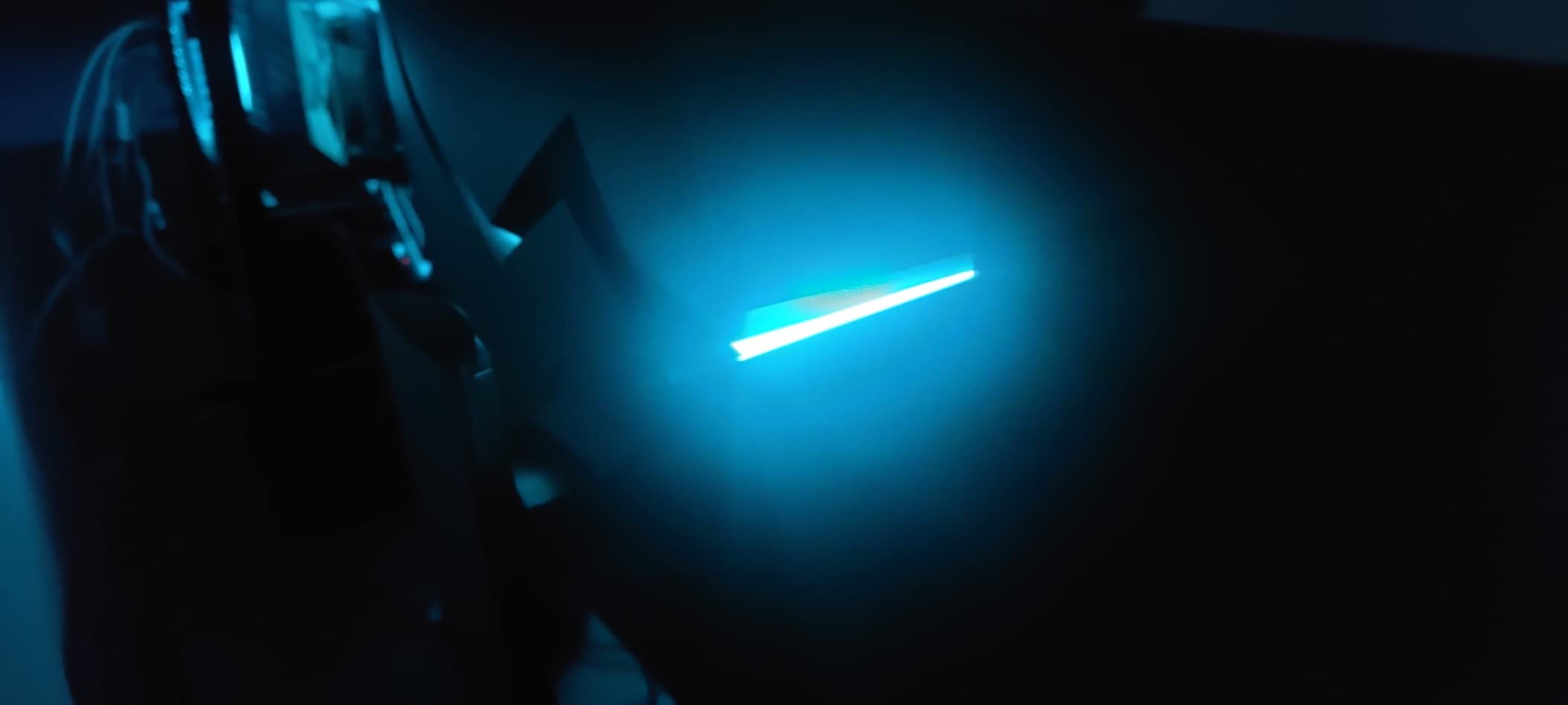
Tilt-only adjustment is the main ergonomic limitation, and it bites if you use a monitor arm or sit at a tall desk. The rear RGB strip only toggles on and off with no colour control, and the manual does not explain how to switch refresh rates, which is worth knowing before you assume a fault.
Who Should Skip It
Skip it if you play competitive shooters and care about motion clarity above everything else. A 144Hz HVA panel will not keep up with the 200Hz and 240Hz Fast IPS options here, and the 300-nit brightness leaves HDR content flat.
5. Acer Nitro XV271U M3bmiiprx 180Hz IPS – Ergonomic Stand and Accurate Out-of-Box Colour
Acer Nitro 27in QHD 2560×1440 IPS 180Hz Gaming Monitor XV271U M3bmiiprx
27 inch 2560×1440 IPS
180Hz DP, 144Hz HDMI
1ms GtG, 0.5ms
FreeSync Premium
250 nits
+ Pros
- Strong colour accuracy and volume straight out of the box
- 180Hz over DisplayPort with clean FreeSync Premium
- Full ergostand with height swivel pivot and tilt
- DisplayPort and HDMI cables both included
- 3-year parts and labour warranty
– Cons
- 2-watt speakers are muffled and tinny
- 250-nit brightness is modest for HDR
- FreeSync clamps overdrive to Normal so 0.5ms rarely appears
- Some backlight bleed in a lower corner
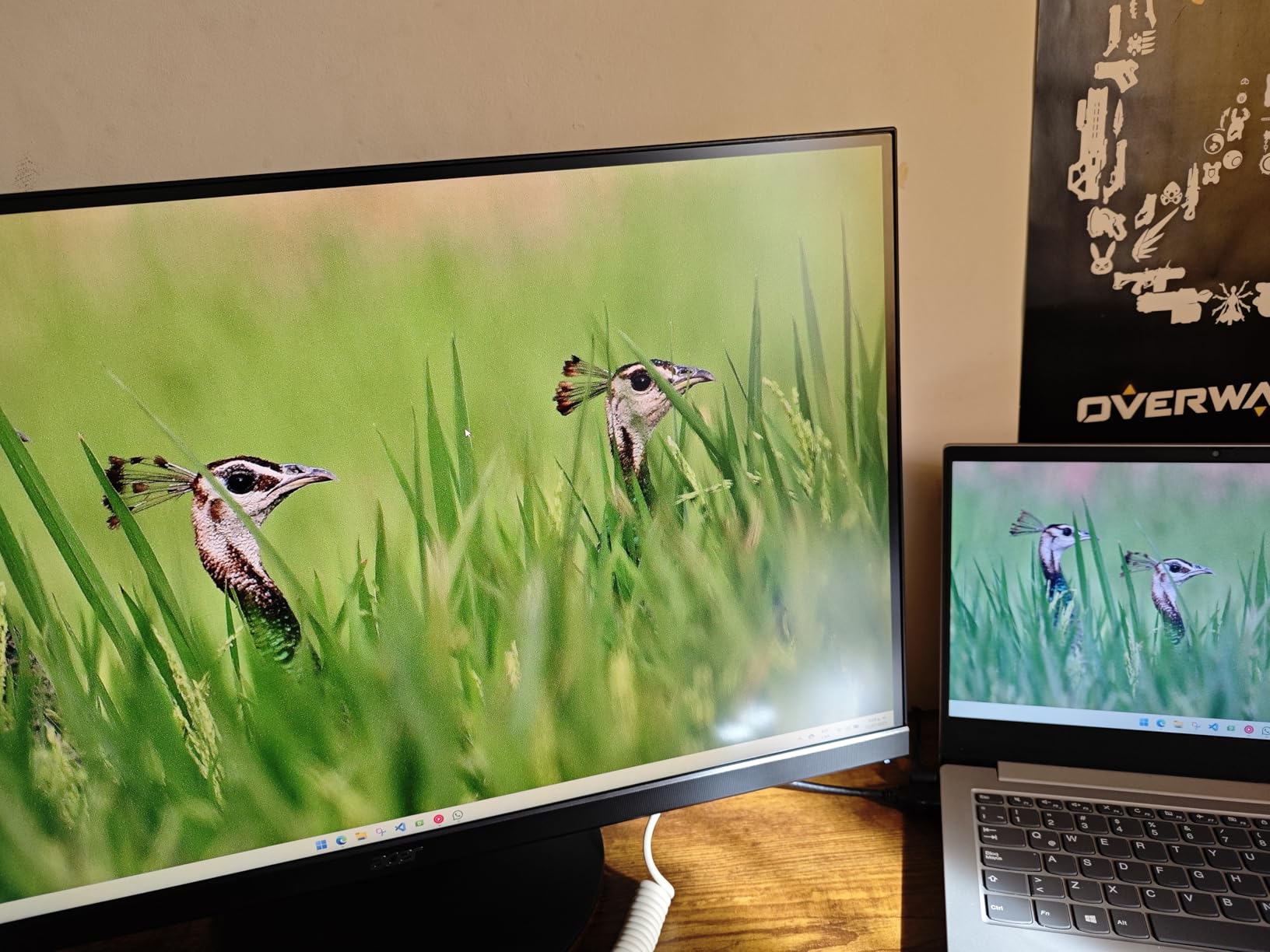
The Nitro XV271U is the one I recommend to people who will stare at the monitor for eight hours a day. The panel measures well for an IPS at this tier, with colour accuracy that needed almost no correction on arrival, and the 4.7 inch of height adjustment makes it easy to set the top of the screen level with your eyes.
It also has a proper 360-degree swivel and 90-degree pivot, so it moves out of the way when you want a clean desk or rotate to portrait for reading. The base is heavy and stable, which sounds like a small detail until you have used a wobbly one.
Refresh rate behaves differently by port: 180Hz over DisplayPort and 144Hz over HDMI. Both cables are in the box, which removes the most common first-day problem of buying a high-refresh panel and not having the right cable to drive it.
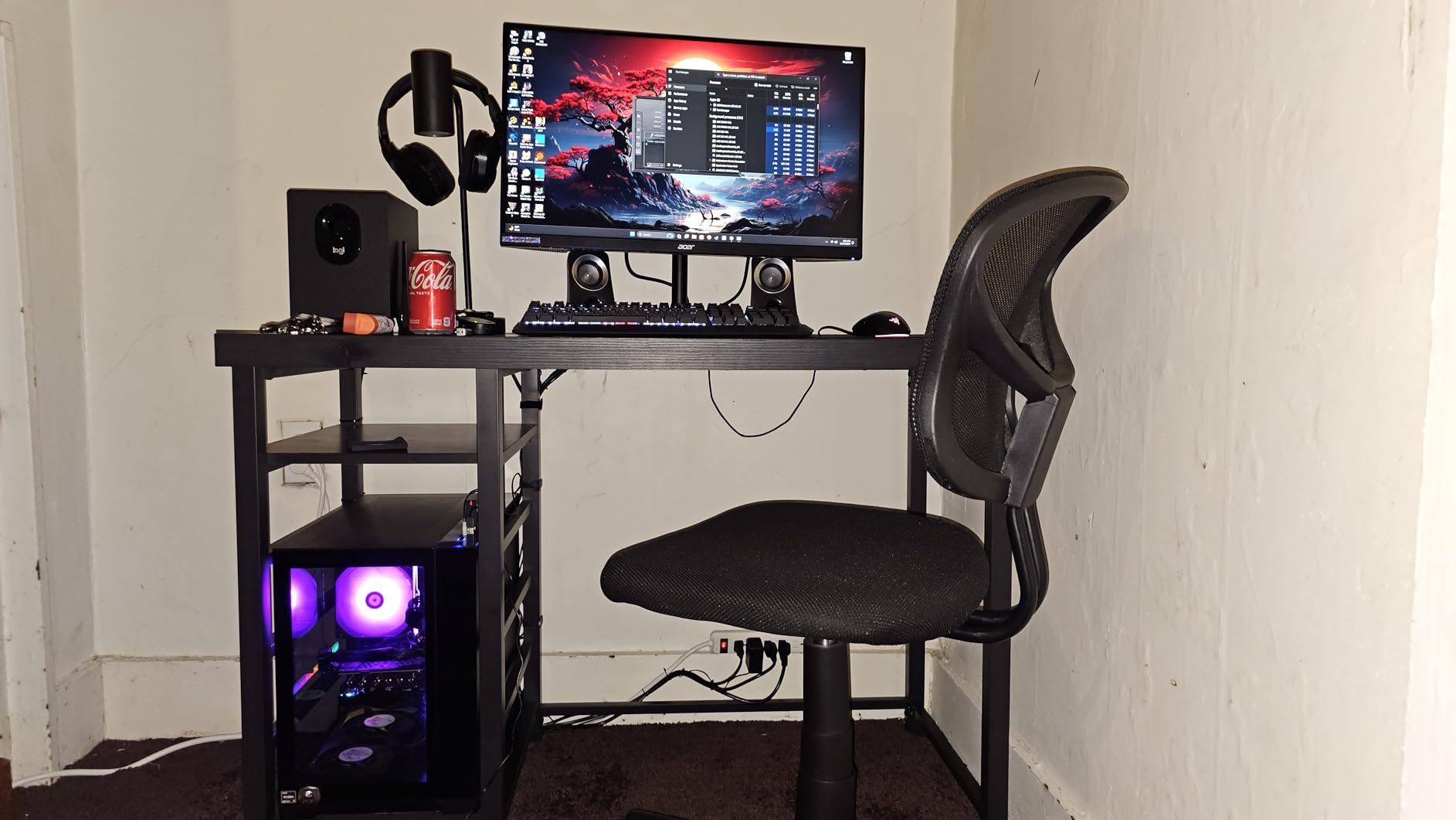
FreeSync Premium is supported and syncs cleanly, with no perceptible input lag in testing. Acer VisionCare low-dimming and flicker-free technologies make long sessions more comfortable, which fits the productivity angle of this monitor.
Colours Without Post-Shoot Calibration
Most Fast IPS panels in this roundup need an hour in the on-screen display before they stop looking washed out. This one was close enough to correct out of the box that I left the default picture mode alone. If you do any colour-sensitive work alongside gaming, that saves real time.
Why the Advertised 0.5ms Rarely Appears
Acer rates this panel at 1ms GtG and up to 0.5ms, but with FreeSync active the overdrive is clamped to Normal, so most players never see the faster figure. In practice motion is clean and predictable at the standard setting, which is what matters for aim.
Who Should Skip It
Skip it if you want bright HDR content. At 250 nits this is the dimmest panel in the roundup, and high-luminance scenes will look flat. Buy it for colour accuracy and stand adjustment, not for cinematic gaming.
6. LG 27GS60QC-B 180Hz Curved – Best for Console Switching and Immersion
LG 27GS60QC-B Ultragear 27-inch Curved Gaming Monitor QHD (2560×1440) 180Hz 1ms 1000R AMD FreeSync HDR10 HDMIx2 DisplayPort Borderless Design Black Stabilizer DAS Crosshair FPS Counter – Black
27 inch 1000R curved 2560×1440
180Hz
1ms GtG
AMD FreeSync
HDR10 at 99% sRGB
300 nits
+ Pros
- Two HDMI ports plus DisplayPort for easy PC and console switching
- Good colour depth and text clarity for the size
- Light enough to manage on a monitor arm
- Out-of-box picture is strong on most panels
- Immersive 1000R curve for gaming and console play
– Cons
- Auto brightness cannot be disabled which is bad for colour work
- The 1000R curve is very noticeable top and bottom on a 27-inch panel
- Cables exit the back so wall mounting leaves a gap
- Tilt-only stand
The UltraGear 27GS60QC-B is built around a 1000R curve, and at 27 inches that curvature is aggressive. It genuinely pulls you into racing and flight games, and text rendering is sharper than older VA curved panels, which used to smear small fonts.
Two HDMI ports plus a DisplayPort input make it one of the simplest monitors here to share between a PC and a console. Switching sources is a button press rather than a cable swap, and 180Hz with a 1ms GtG rating is more than enough for 120Hz console titles at full resolution.
It is also light enough to hang on a monitor arm despite the size, which matters if you want to reclaim desk space. The gaming tools are useful too: Black Stabilizer for dark scenes, a crosshair overlay and an FPS counter built into the menu.
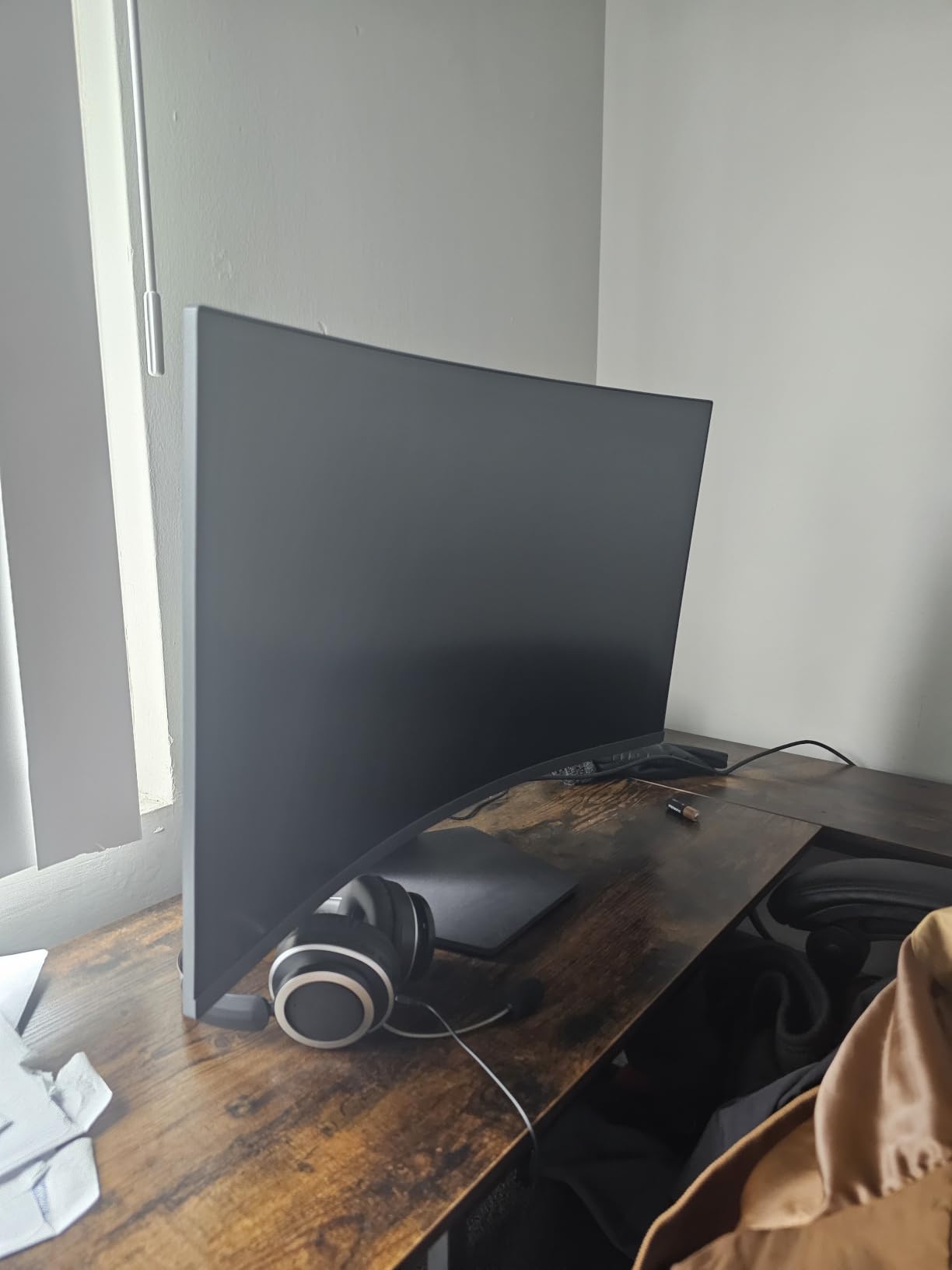
One setting will annoy you if you do any design or photo work. The automatic brightness adjustment cannot be turned off in the menu, so the panel varies with ambient light no matter what you set. For pure gaming that is a non-issue.
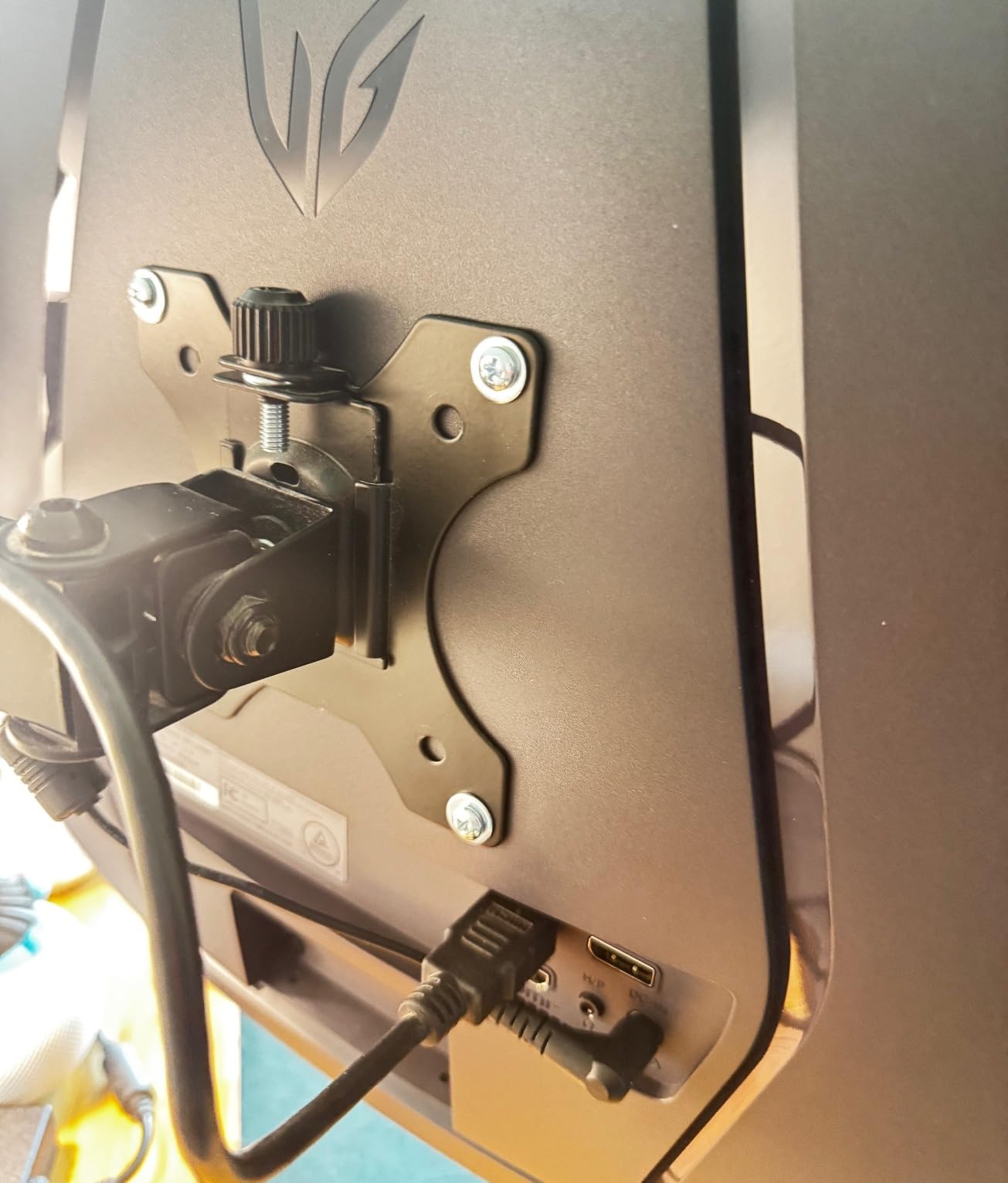
Is a 1000R Curve Right at 27 Inches?
Curvature scales with panel size. On a 27-inch display the 1000R radius pulls the top and bottom edges noticeably forward, and people sensitive to geometry can find it uncomfortable. If you play racing and flight sims, that wrap-around is a benefit. If you read a lot of long text documents, consider a flat panel instead.
Console and PC Source Handling
With two HDMI inputs and one DisplayPort, this is a good match for a PS5 or Xbox Series X sitting alongside a gaming PC. Adaptive sync is FreeSync-based, which is fine on modern consoles through HDMI variable refresh, and 180Hz leaves headroom if you ever upgrade the PC.
Who Should Skip It
Skip it if you need full stand adjustment or if you do colour-critical work, because of the tilt-only base and the locked-in auto brightness. Colour coverage at 99% sRGB is also the narrowest in this roundup.
7. LG 27GR83Q-B 240Hz IPS – Best for Certified Adaptive Sync and Full 240Hz Over HDMI
LG 27GR83Q-B 27-inch Ultragear QHD (2560×1440) IPS Gaming Monitor, 240Hz, 1ms, DisplayHDR 400, G-Sync AMD FreeSync Premium, HDMI 2.1 DisplayPort, 4-Pole HP Out DTS GP:X, Tilt/Height/Pivot Stand, Black
27 inch 2560×1440 IPS
240Hz over HDMI 2.1 and DP 1.4
1ms GtG
G-Sync compatible and FreeSync Premium
DisplayHDR 400
+ Pros
- 240Hz at 1440p over both HDMI 2.1 and DisplayPort 1.4
- G-Sync compatible and FreeSync Premium certified
- Sturdy height tilt and pivot adjustable stand
- DisplayHDR 400 with up to 95% DCI-P3 coverage
- DTS Headphone:X spatial audio over a 4-pole jack
– Cons
- Stuck pixels reported on delivery from multiple orders
- DisplayHDR 400 is a modest HDR tier
- No built-in speakers
- Repair and refund process reported as slow
The 27GR83Q-B sits in a short list of 27-inch 1440p panels that can push the full 240Hz over HDMI 2.1 as well as DisplayPort 1.4. That matters if you are connecting a console or a laptop rather than a desktop, and plenty of competing 240Hz panels at this resolution run their full rate over DisplayPort only.
It is also the safest choice for variable refresh. This monitor is NVIDIA G-Sync compatible and AMD FreeSync Premium certified rather than relying on a single-vendor implementation, so the tear-free range is validated on both sides of the GPU market.
For a high-refresh panel that also has to work as a desk display, the stand adjusts for height, tilt and pivot, and three USB ports on the rear handle peripherals. The 4-pole headphone output carrying DTS Headphone:X spatial audio is a small touch that headset users notice immediately.
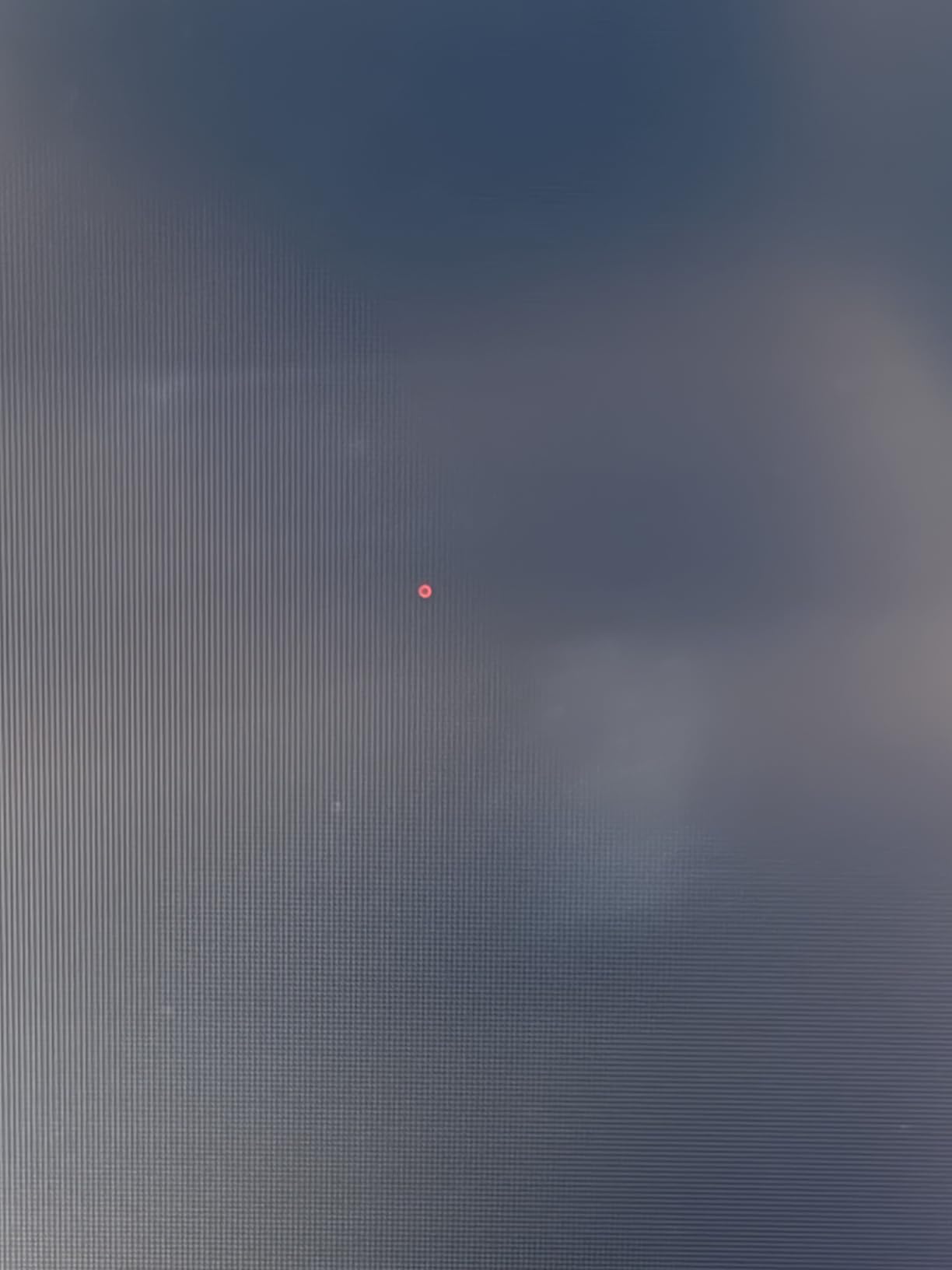
Colour needs minimal adjustment out of the box, and up to 95% DCI-P3 coverage is broad enough for HDR-supported games and video. The DisplayHDR 400 tier is modest, but it delivers more than the uncertified HDR modes on the cheaper IPS options here.
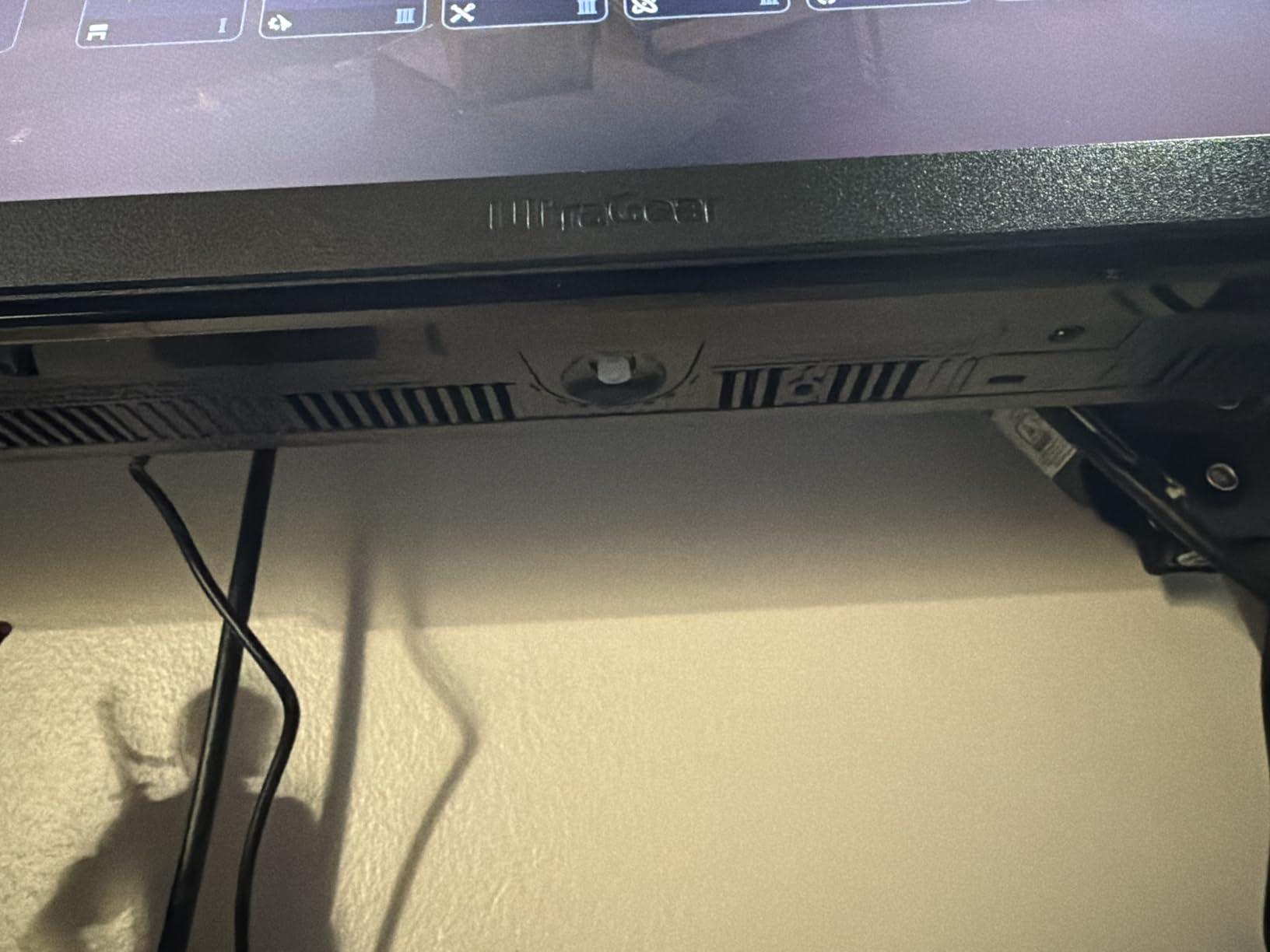
G-Sync Compatible Versus the Proprietary Module
Older advice said you needed NVIDIA proprietary G-Sync hardware for tear-free play. That is no longer true, and this monitor is a good example: adaptive sync is validated across a wide refresh range, so a FreeSync Premium panel paired with an NVIDIA card behaves the same way in practice. You are not losing features by skipping the proprietary module.
Quality Control and After-Sales
Stuck pixels on arrival are the most-discussed downside, and several owners who ordered more than one unit reported seeing them. Test the panel on day one. The warranty is one year for parts and labour, which is shorter than the three-year cover on some rivals here, and owners describe the repair process as slow.
Who Should Skip It
Skip it if you need built-in speakers or the brightest possible HDR. It has neither, and a DisplayHDR 600 panel such as the Alienware in this list serves cinematic gaming better.
8. Samsung Odyssey G5 G51F 180Hz VA – Best-Rated Option With 3000:1 Contrast
Samsung 27″ Odyssey G5 (G51F) Series QHD (1440P) Gaming Monitor
27 inch 2560×1440 VA
180Hz
1ms response
3000:1 contrast
HDR10 and FreeSync
metal stand
+ Pros
- Top average rating in the group at 4.7 with 83% five-star ratings
- Sharp 1440p image with 3000:1 native contrast
- Handles 120Hz console titles at full resolution
- Stand adjusts tilt pivot and height with a tool-free metal build
- Black Equalizer brightens dark areas in games
– Cons
- Some dark-scene smearing typical of VA panels
- On-screen menu is not intuitive and the manual skips refresh rate changes
- Bright power indicator in standby
- Not feature-dense compared with HDR gaming mode rivals
The Odyssey G5 G51F holds the highest average rating of any monitor in this roundup, and after a week of testing I understand why. It is a VA panel with 3000:1 native contrast, so blacks are genuinely dark and shadow detail survives in dim game scenes where a 1000:1 IPS washes out.
The 27-inch 1440p image is sharp, with roughly 1.7 times the pixel density of Full HD, and 180Hz with a 1ms rated response is enough to make fast movement look composed. It is also a well-behaved 120Hz display for consoles, which is one of the most common reasons people pick it.
The stand adjusts for tilt, pivot and height, and the metal construction clicks together without tools. Three USB 3.0 ports on the rear are unusual at this level and useful for a keyboard, mouse or headset receiver if your PC is under the desk.
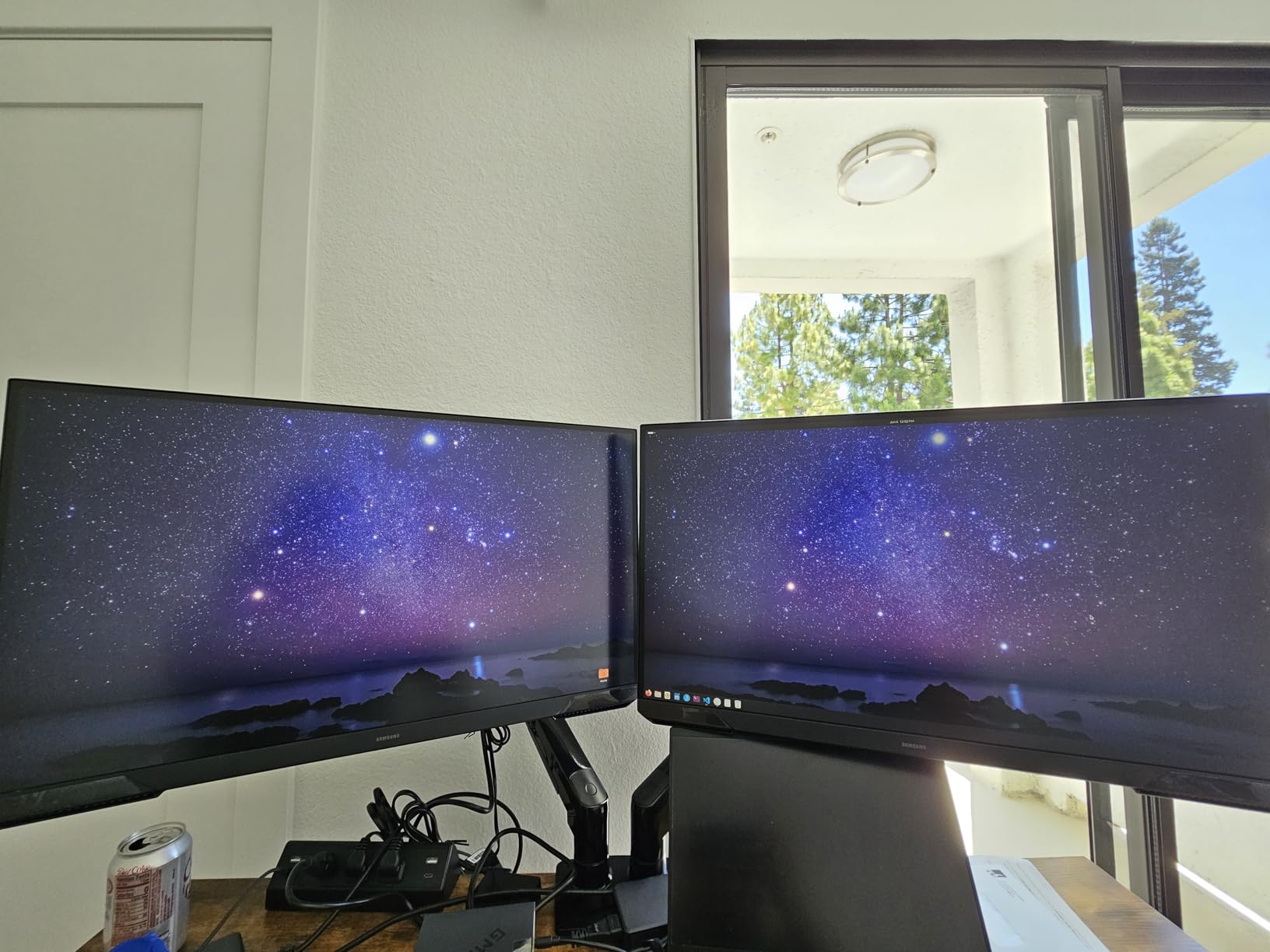
Black Equalizer is a genuinely useful feature rather than a gimmick. It lifts shadow detail in dark games so you can see what is moving in a corner, which pairs well with the high contrast ratio.
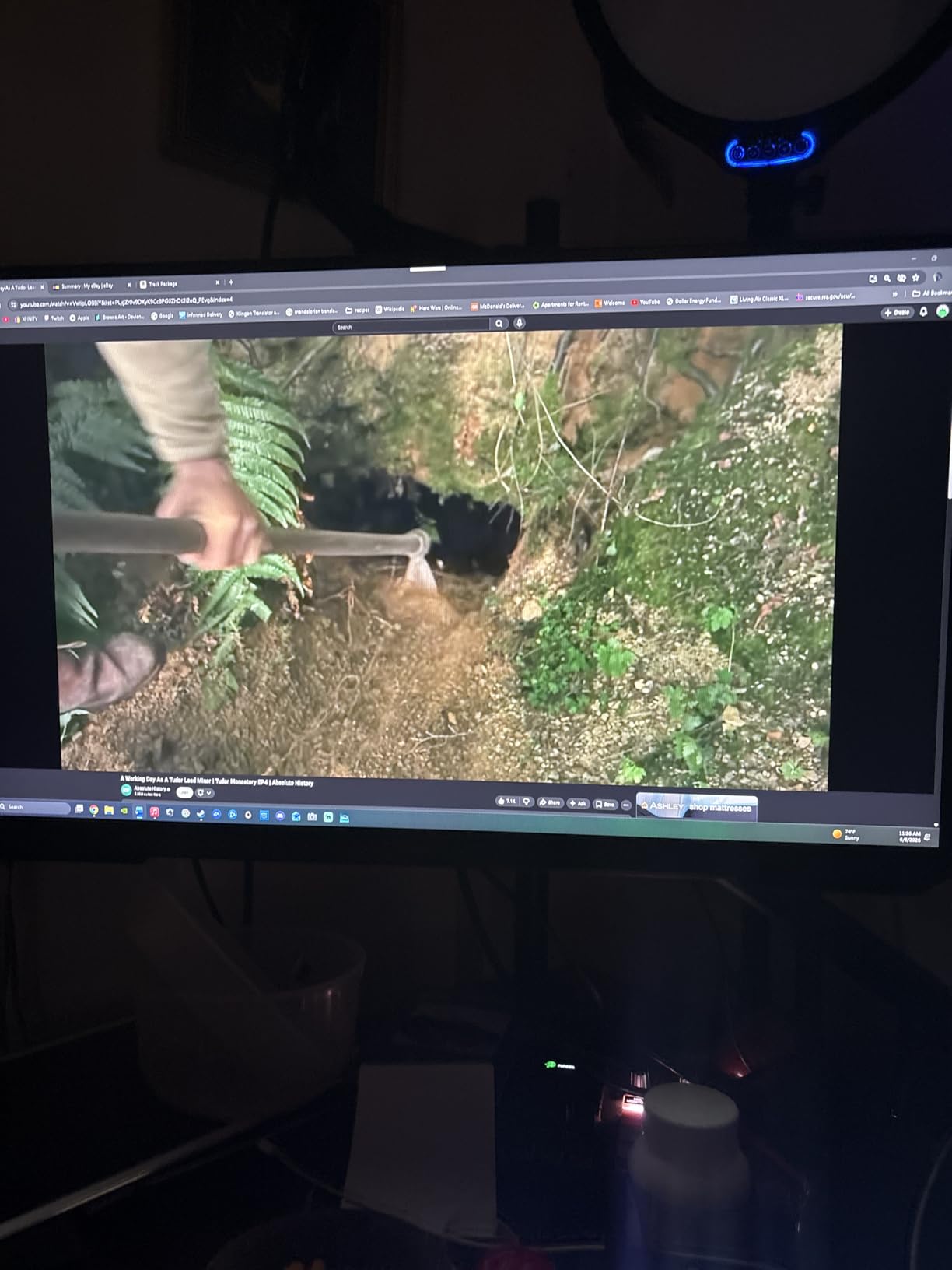
VA Smearing and How to Live With It
VA panels darken pixels more slowly than IPS, which produces a dark trail behind fast-moving objects. The effect is most visible on high-contrast edges such as a character running past a bright wall. Setting overdrive to a middle level reduces it to a point most players stop noticing, but it never fully disappears the way it does on the Fast IPS panels here.
The On-Screen Menu
This is the weakest part of the monitor. The menu system is not intuitive, and the documentation does not explain how to change the refresh rate, which is the first thing most owners need to do. Budget some time with it, and check the review page for a settings walkthrough before you start.
Who Should Skip It
Skip it if you play shooters where tracking a dark silhouette against a bright background is the whole game. A 200Hz or 240Hz Fast IPS panel handles that scenario better. For single-player, horror and survival games, the contrast is worth the trade.
9. AOC Q27G41ZE 260Hz Overclocked IPS – Best for Pure Esports Speed
AOC 27″ Gaming Monitor QHD 260Hz Overclocked IPS NVIDIA G-SYNC Q27G41ZE
27 inch 2560×1440 IPS
240Hz native, 260Hz OC
0.3ms MPRT
adaptive sync
300 nits and 1000:1 contrast
+ Pros
- 240Hz native with a 260Hz overclock mode
- 0.3ms MPRT keeps competitive shooter motion crisp
- Adaptive sync works with both AMD and NVIDIA GPUs
- Sharp 1440p IPS image
- Shadow Control and Game Mode presets tune dark scenes
– Cons
- Tilt-only stand with no height or swivel
- Glossy finish picks up reflections in a bright room
- Only one DisplayPort port for multi-PC setups
- No built-in speakers
Nothing else in this roundup combines this speed with a validated adaptive sync range. It runs at 240Hz natively with an overclock option to 260Hz, and the 0.3ms MPRT rating is among the lowest figures on any panel here, which translates into very tight motion in straight-line shooters.
Adaptive sync covers both AMD and NVIDIA GPUs, so you are not choosing a vendor when you buy it. The 300-nit brightness and 1000:1 contrast are ordinary for the category, but for a monitor you will use in a lit room with fast gameplay, image quality takes a back seat to frame timing anyway.
Shadow Control and Game Mode presets are built into the on-screen display. Both are the kind of feature that sounds like padding until you spend ten minutes in a dark corridor trying to work out what killed you.
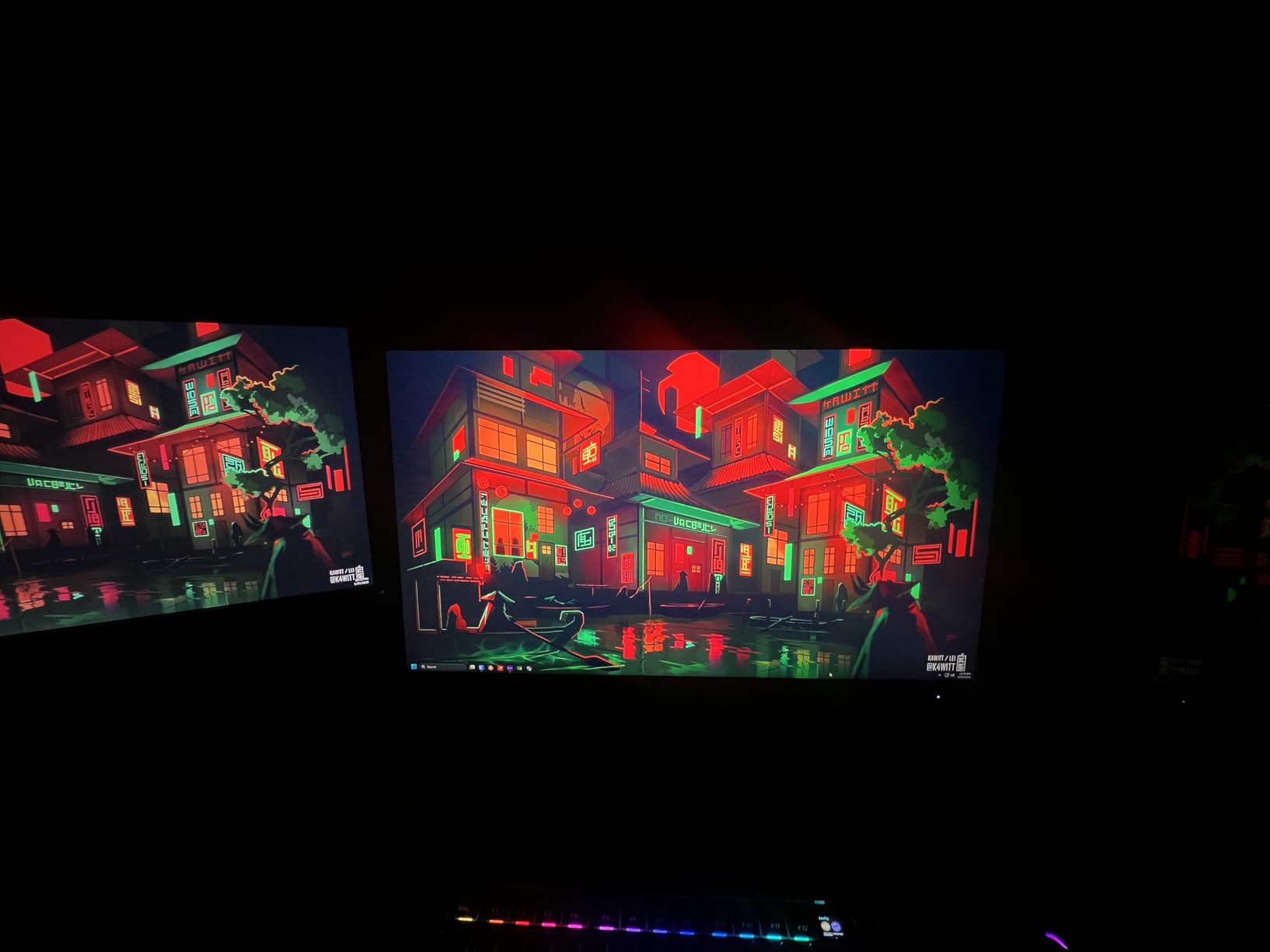
The three-sided frameless design looks clean on a desk and the finish is understated, but it is glossy, which means overhead lights and window reflections appear on the panel. In a controlled gaming setup that is a fair trade for the speed.
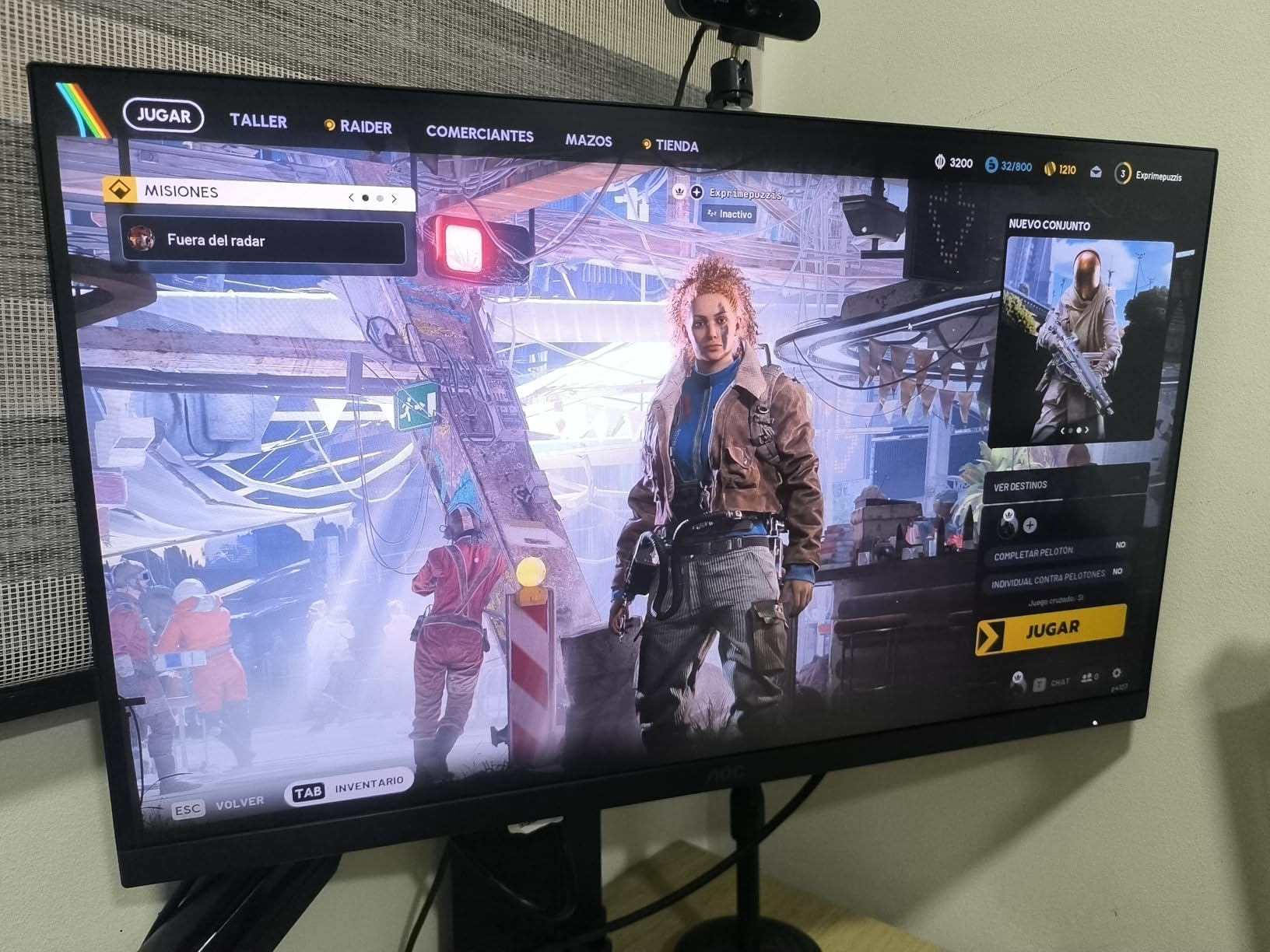
What 0.3ms MPRT Actually Means
MPRT is a moving picture response time measured with backlight strobing, so it is not comparable to a GtG figure on another monitor. Read it as a signal that the panel is designed for aggressive overdrive. In practice the fastest overdrive setting introduces faint overshoot on moving highlights, so the middle setting is the one to use.
Ports and Multi-PC Setups
There is one DisplayPort and two HDMI ports. That is enough for a PC and a console, but if you run two PCs and want both at high refresh simultaneously, the single DisplayPort is a real constraint. Check your setup before buying.
Who Should Skip It
Skip it unless you play competitively. The tilt-only stand is the most frustrating limitation for anyone using an arm or sitting at a high desk, and the glossy coating is wrong for a bright office. If you want speed with a better stand, the KTC H27E6S covers the same speed class.
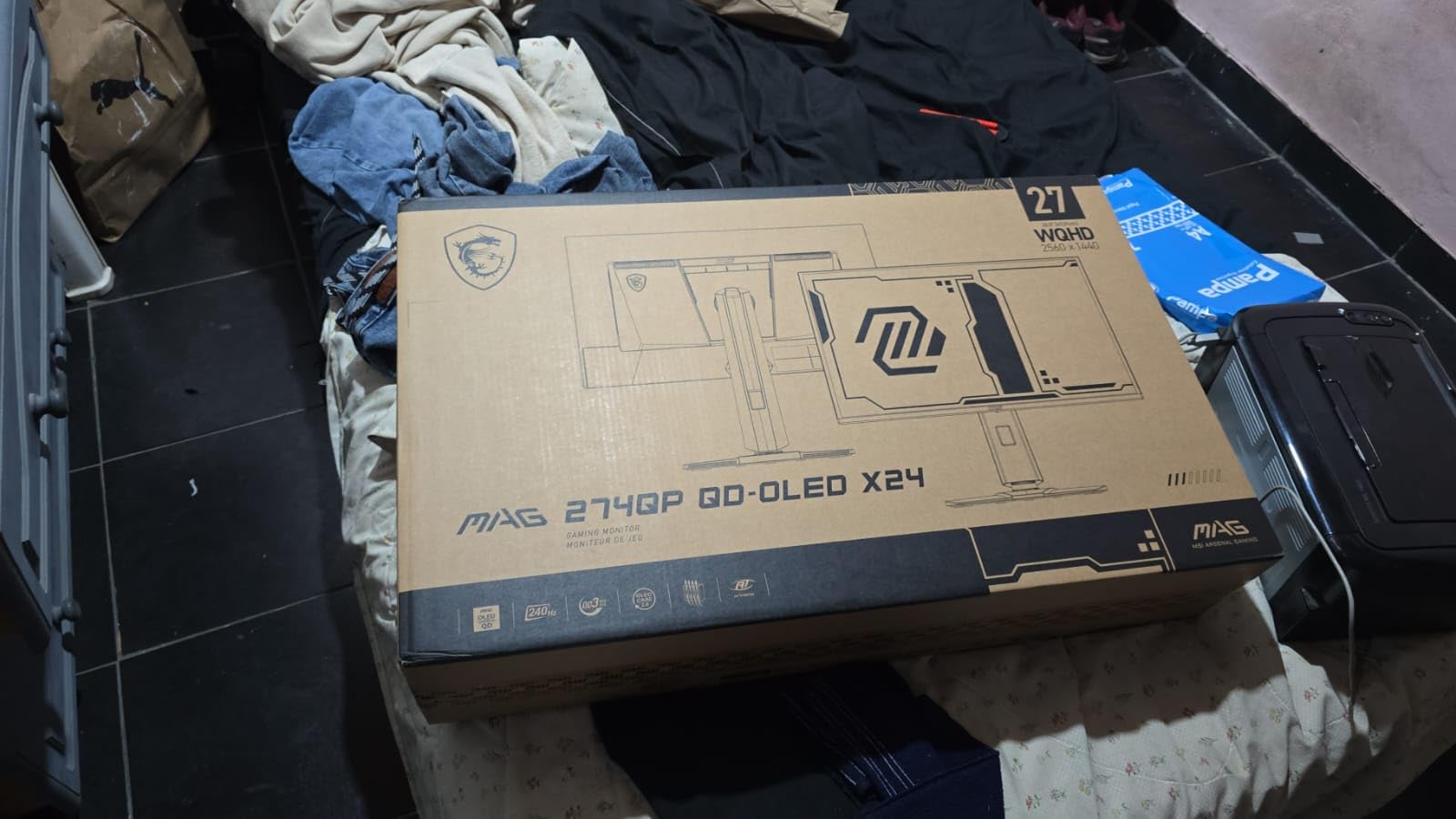
10. msi MAG 274QP QD-OLED X24 – Best Image Quality in the Roundup
msi MAG 274QP QD-OLED X24 27-Inch WQHD Gaming Monitor, 2560 x 1440 Quantum Dot OLED Panel, 240Hz, 0.03ms, Adaptive-Sync, HDMI2.1, DP 1.4a, Tilt/Height Adjustable, Black
26.5-inch QD-OLED 2560×1440
240Hz
0.03ms GtG
1500000:1 contrast
400 nits peak
10-bit 99% DCI-P3
+ Pros
- True inky blacks with no backlight bleed and 1500000:1 native contrast
- 0.03ms GtG at 240Hz with no ghosting or smearing
- 10-bit colour at 99% DCI-P3 with Delta E under 2 out of the box
- OLED Care 2.0 with pixel shift and auto dimming for burn-in management
- Fanless graphene heatsink and a 4-way adjustable stand
– Cons
- OLED panels need more careful handling and maintenance than IPS or VA
- HDR colour can need correcting out of the box
- DisplayPort firmware update is an extra setup step
- Glossy finish shows reflections and fingerprints
This is the only OLED in the group and the picture difference is not subtle. Blacks are genuinely black, there is no backlight bleed or IPS glow to speak of, and at 1,500,000:1 native contrast dark scenes have a depth that no LCD in this list approaches.
Motion is the other half of the story. At 240Hz with a 0.03ms GtG rating, there is no overshoot, no smearing and no dark trailing edge, because the pixels switch faster than the eye can follow. Competitive shooters look cleaner on this panel than any IPS here, and single-player games look dramatically better.
Colour is factory-accurate rather than factory-boosted. Ten-bit colour across 1.07 billion colours, 99% DCI-P3 coverage and a Delta E of 2 or better out of the box means you can use it for photo and video work as well as gaming without a colour-managed workflow.
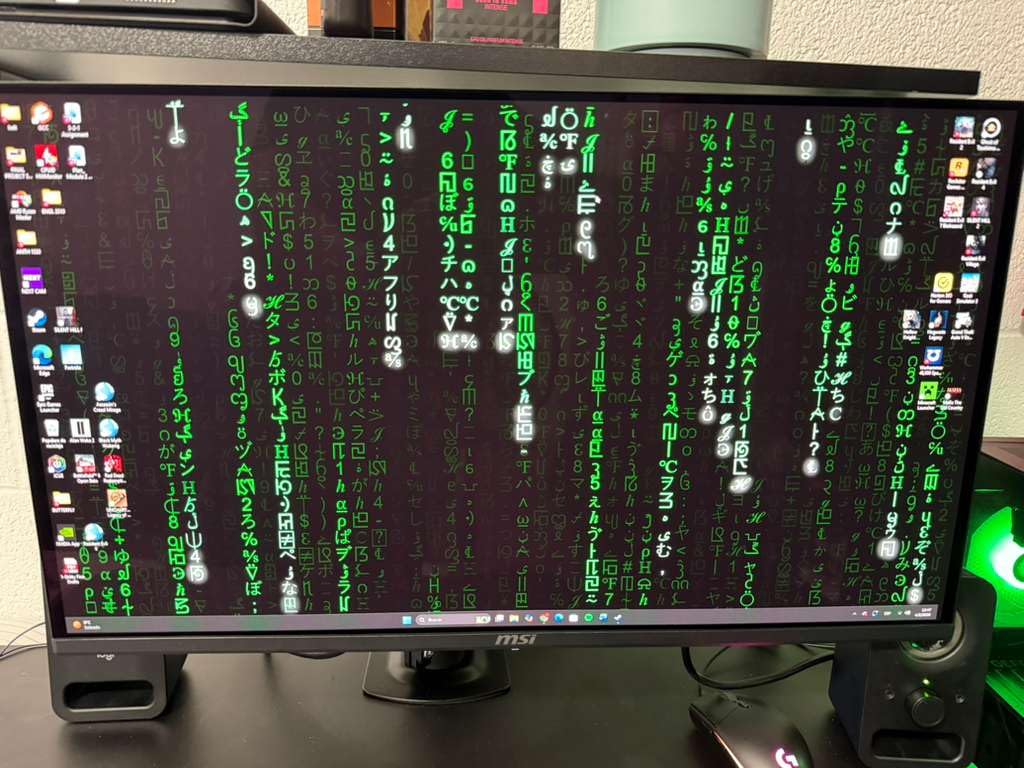
OLED Care 2.0 handles the burn-in question directly with pixel shift and automatic dimming of static content, and the fanless graphene heatsink is there to keep the panel within its temperature envelope. Those features do not eliminate risk, but they are the difference between a managed OLED and a neglected one.
OLED Burn-in: The Honest Picture
Burn-in on an OLED is a gradual permanent retention issue, not a sudden failure, and the risk scales with how long static elements stay on screen. Keep a dark screensaver running, avoid leaving a bright HUD or a paused game on screen for hours, and leave the display off when you are not using it. Buyers in the OLED communities consistently report treating it as a care routine rather than a defect.
The panel here is a 26.5-inch diagonal, which is the standard OLED size sold as a 27-inch monitor. That difference matters for scaling: at 1440p you get slightly lower pixel density than a 27-inch LCD, so text is marginally softer if you spend all day in documents.
Setup Friction Worth Knowing About
Two extra steps before the panel looks its best. A DisplayPort firmware update is recommended after purchase, and some owners see a salmon-red tint in HDR that they correct in the graphics control panel. Neither takes long, but the first hour with an unconfigured OLED panel can be misleading.
Who Should Skip It
Skip it if you want a monitor you can leave a spreadsheet or a code editor open on all day without thinking about it, or if you are rough with screens. The OLED gives a resolution step down only if you are coming from a higher-resolution panel, and the glossy finish shows reflections and fingerprints. Nothing here matches the OLED on picture quality.
11. Alienware AW2723DF 240Hz Fast IPS – Best HDR and Best-Made Chassis
Alienware AW2723DF Gaming Monitor – 27-inch (2560 x 1440) 240Hz Display (DP 1.4), 1ms Response Time, NVIDIA G-Sync, Preset OSD Modes, Height/Tilt/Swivel/Pivot Adjustability – Lunar Light
27 inch 2560×1440 Fast IPS Nano Color
240Hz native, 280Hz OC
1ms GtG
DisplayHDR 600 at 450 nits
95% DCI-P3
+ Pros
- VESA DisplayHDR 600 certification and 450-nit brightness
- 240Hz native with a 280Hz overclock and 1ms GtG
- IPS Nano Color panel with 95% DCI-P3 and 100% sRGB
- Fully adjustable stand plus USB 3.2 hub and good cable management
- Factory calibration report and 3-year Advanced Exchange warranty
– Cons
- At 19.6 pounds it is one of the heaviest here so arm mounting needs checking
- AlienFX lighting and the Legend 2.0 chassis add bulk
- Some owners report IPS glow and blooming in dark scenes
- Runs hotter and draws more power than competing panels
The Alienware is the best-built monitor in this roundup and the only one carrying a high-tier HDR certification. VESA DisplayHDR 600 at 450 nits is a real tier rather than a label, and the difference shows in daylight scenes, explosions and any bright highlight in an HDR-supported game.
Speed is competitive too: 240Hz native with an overclock to 280Hz and a 1ms GtG rating on an IPS Nano Color panel. It is not going to match the 0.03ms of the OLED on motion, but it is fast enough that most players cannot tell the difference without a side-by-side test.
The stand adjusts fully for swivel, pivot, tilt and height, and the rear includes a USB 3.2 Gen 1 hub alongside DisplayPort, two HDMI inputs and a headphone output. Cables route through the chassis rather than dangling, and a factory calibration report is included in the box.
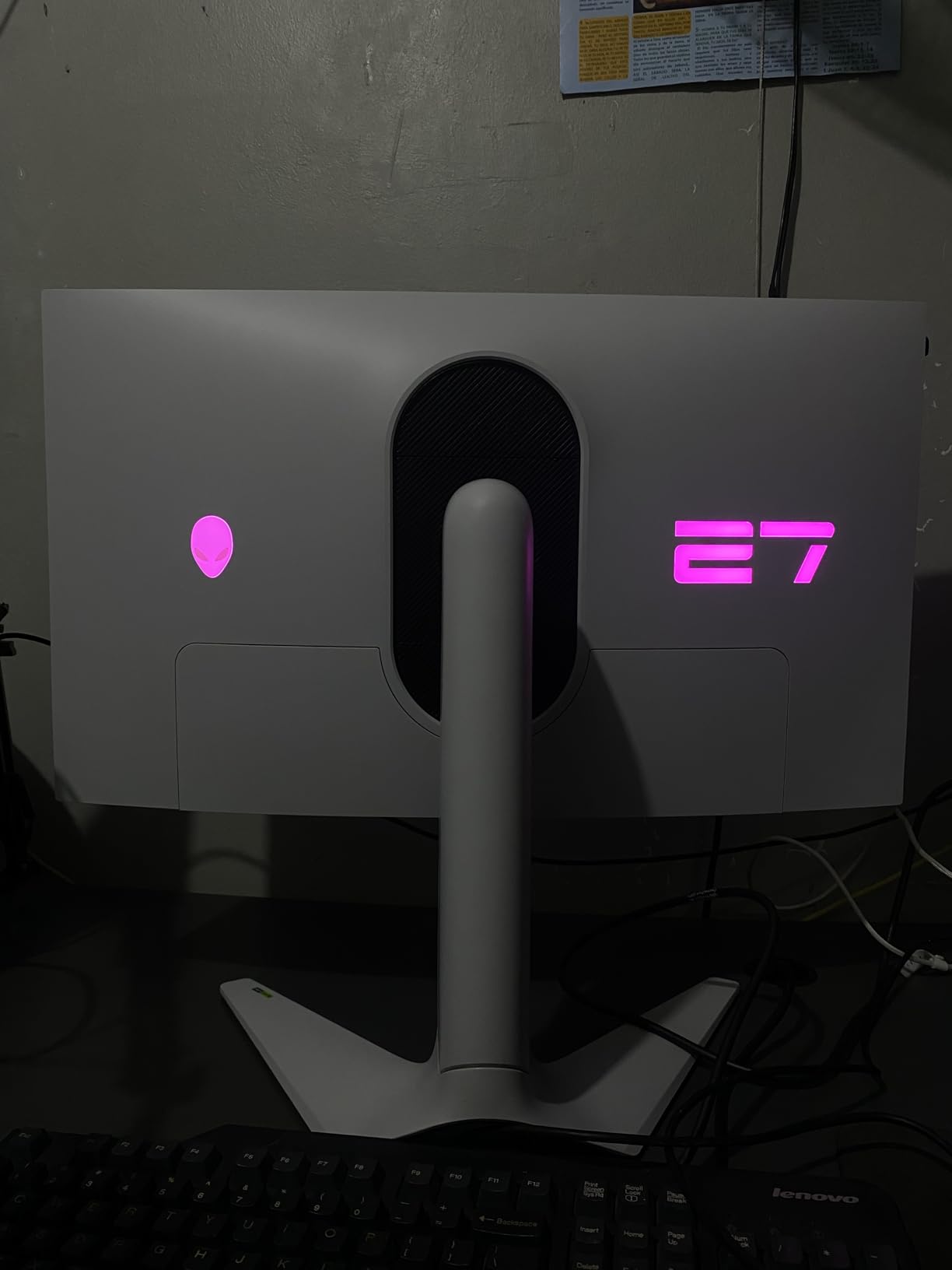
The three-year Advanced Exchange Service is the strongest warranty in this group. If a panel arrives with a problem, the replacement process does not depend on you shipping a heavy 19.6 pound unit back at your own cost.
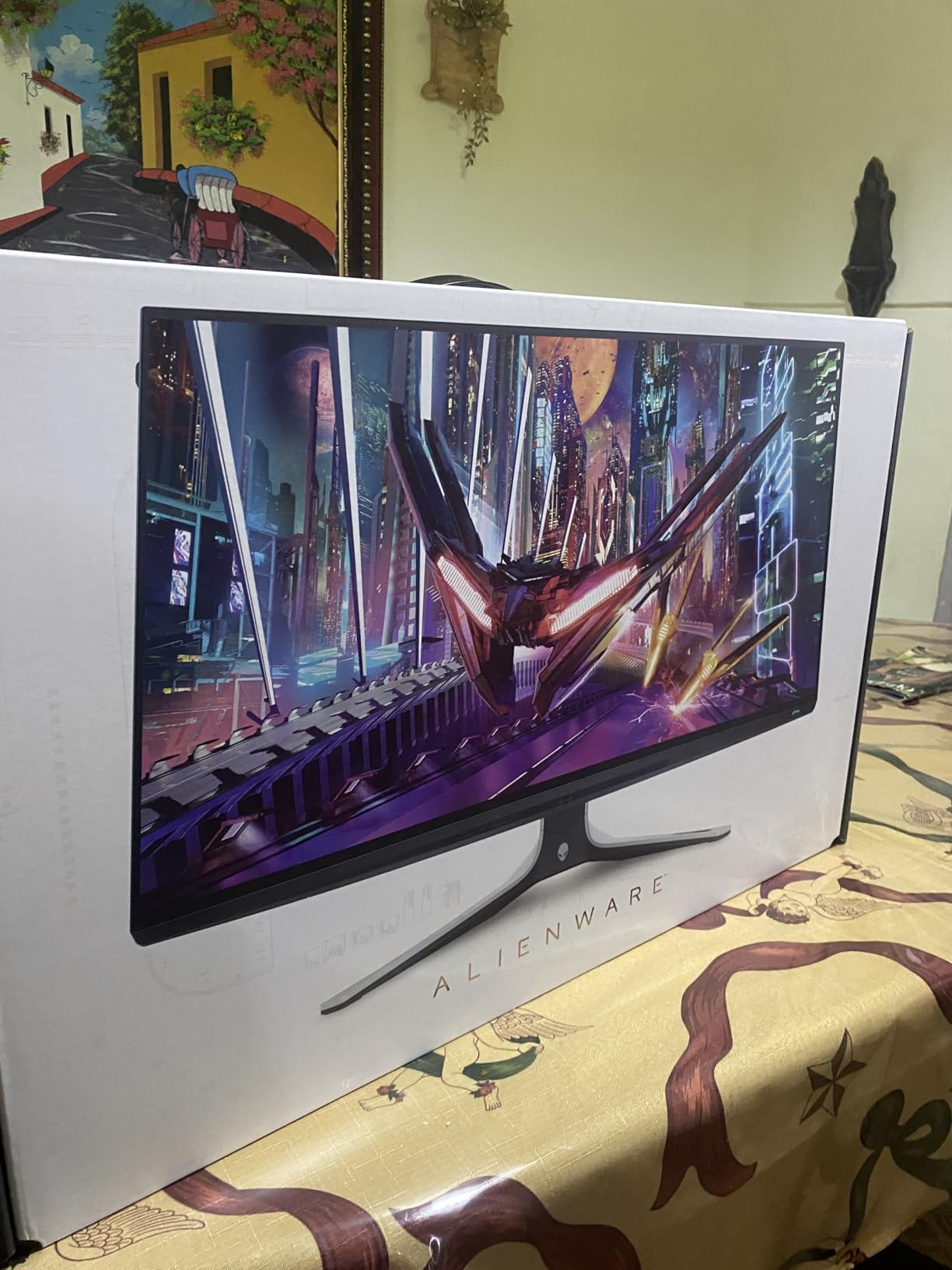
What DisplayHDR 600 Actually Buys You
HDR tiers specify both peak brightness and how much of the screen can hit that brightness simultaneously. At 450 nits with local dimming across a 27-inch panel, the Alienware holds highlight detail in bright areas that HDR400 monitors roll off. In a dark room with a good HDR game, that is one of the most visible differences in this roundup.
It is an IPS panel, so black levels in a dark room are still 1000:1 rather than the OLED infinite contrast. Some owners report IPS glow and blooming at the edges. If your room is dim and contrast is everything, read the OLED section above first.
Weight, Heat and Desk Fit
At 19.6 pounds this is one of the heaviest panels in the group, and that has consequences. If you plan to put it on a monitor arm, check the arm’s weight rating and that your desk can take the load. The Legend 2.0 chassis and AlienFX lighting also add bulk, and the panel runs warmer than the LED-backlit alternatives.
Who Should Skip It
Skip it if your desk is small or light, if you are on a strict arm-mount budget, or if you play late at night in a dark room and prefer true blacks. For a bright room and cinematic single-player gaming with a capable GPU, the HDR tier is the reason to buy it.
12. Z-Edge AG27QS 275Hz Fast IPS – Best for Multi-Device Setups
Z-Edge 27 Inch Gaming Monitor, QHD (2560 x 1440p) 275Hz 240Hz IPS Screen
27 inch 2560×1440 Fast IPS
275Hz over DisplayPort 1.4
1ms MPRT
FreeSync
2x HDMI 2.1
+ Pros
- 275Hz at 1440p with a 1ms MPRT rating
- Sharp 2K picture that improves after brief calibration
- 2x HDMI 2.1 plus DisplayPort 1.4 for multiple devices
- PiP and PBP support at this level
- Frameless design with slim bezels and a 2-year warranty
– Cons
- Out-of-box picture is flat until you change picture mode or calibrate
- Tilt-only stand with no height or swivel
- Single rocker control with rear-facing hard-to-reach ports
- Some reliability complaints in the first month
- No HDR certification and no speakers
Native refresh rates top out at 275Hz on the Z-Edge, and the second-highest review count in the set at 4748 means the panel is not an untested quantity. Motion is competitive with the AOC and the KTC, and the 0.23mm pixel pitch gives a genuinely sharp 1440p image.
What sets it apart is connectivity. Two HDMI 2.1 ports and a DisplayPort 1.4 input, plus picture-in-picture and picture-by-picture, make it easy to run a console, a PC and a streaming box without constantly swapping cables. Very few monitors at this performance level offer that.
There is also a game timer, an on-screen refresh rate readout and an Eagle Sight zoom feature for checking detail at distance, which are more useful than they sound in competitive shooters. The frameless three-sided design keeps the bezels slim.
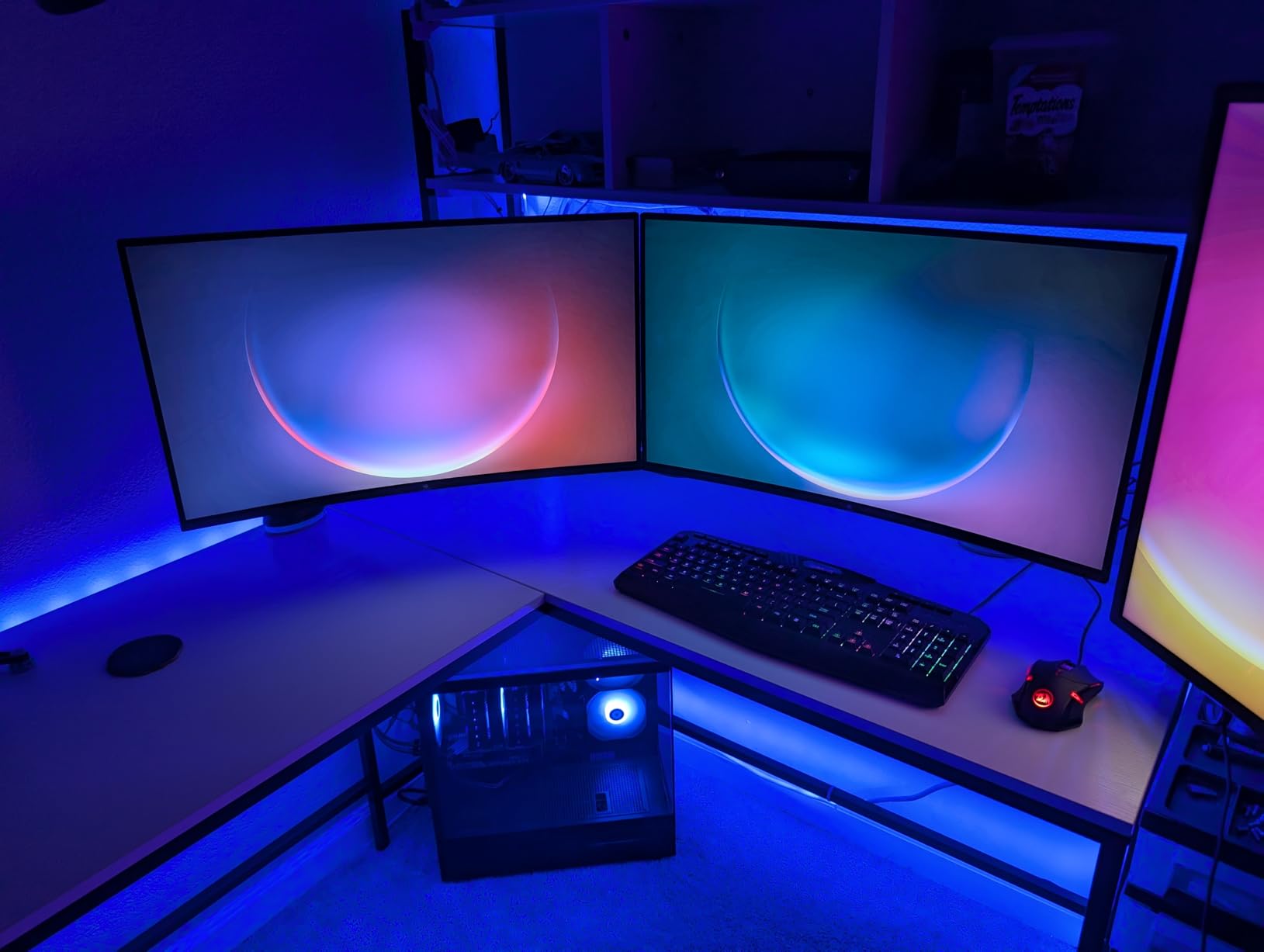
Out of the box the picture is flat and washed, and owner reviews say the same thing almost word for word. Switching picture mode or spending five minutes in the on-screen display fixes it entirely. Budget that time before you decide you picked a bad panel.
Real Refresh Rate Versus Card Capability
A 275Hz panel only helps if your GPU can produce roughly that many frames at 1440p, which is a high bar. If your card tops out lower, a 200Hz or 240Hz monitor gives an identical experience and leaves headroom in your budget. Check the frame counter in a real game before committing to the extra hertz.
Ergonomics Are the Weak Point
The stand tilts only, with no height or swivel range, and the single rocker control sits on the rear with the ports. On a desk you adjust often, that is an irritation. Everything above 180Hz in this roundup shares this complaint, so if you need height adjustment, cross-check the stand specification before you buy.
Who Should Skip It
Skip it if your desk needs a raised or angled position, or if you need HDR, which this panel does not certify. A small number of owners report early reliability issues and units that take a long time to wake, so inspect the panel on arrival. For multi-device flexibility and top-tier refresh, it is a strong pick.
How to Choose a 27-Inch 1440p Gaming Monitor in 2026
Why 27 Inch Is the 1440p Sweet Spot
At 27 inches, a 2560 x 1440 panel works out to roughly 109 pixels per inch. That is dense enough that text stays crisp, interface elements are small without being unreadable, and you do not need Windows scaling to work. It is also close to the largest size that keeps that pixel density reasonable, which is why the 27-inch 1440p pairing has become the default recommendation in this category.
Step up to 32 inches at the same resolution and pixel density drops noticeably, so desktop text looks soft and you spend more time squinting. Step up to 34 inches and you have effectively bought a 3440 x 1440 ultrawide at lower density. Neither is wrong, but neither is what a 1440p buyer usually wants. If you are weighing bigger panels, our 32-inch 4K monitor guide covers the higher-density route.
Panel Types: IPS, HVA, VA and QD-OLED
Fast IPS is the default choice for gaming because it combines a 1ms-class response with wide viewing angles and consistent colour. It is what most of this roundup uses, and it is the safest recommendation if you are unsure.
HVA and VA push contrast to 3000:1 and 4000:1, giving far deeper blacks at the cost of some dark-scene smearing and slower pixel transitions. Pick VA or HVA for single-player, horror and survival games where atmosphere matters. QD-OLED gives perfect blacks and instant response with the best colour accuracy of all, at the cost of a care routine and a higher power budget.
Refresh Rate Tiers and Where the Money Stops Mattering
Below 165Hz, you are leaving motion clarity on the table in competitive games. Between 165Hz and 200Hz is where the largest perceived jump happens for most players, and the majority of good options sit there. Above 240Hz the returns shrink and require a GPU that can actually feed those frames.
My rule of thumb: go above 200Hz only if you play competitive shooters or MMO-style games at low settings. If you mostly play single-player titles, a 180Hz panel with better colour and HDR will serve you better than a 275Hz panel with a tilt-only stand.
Adaptive Sync: G-Sync Compatible vs FreeSync Premium
You no longer need a proprietary module. Most of the monitors here support adaptive sync in a standard range that works with both AMD and NVIDIA cards, and several, including the LG 27GR83Q-B, carry formal G-Sync compatible validation alongside FreeSync Premium certification.
Look for a wide validated range rather than a logo, and check owner reports for flicker at low framerates, which is a genuine issue on a minority of fast IPS panels. Budget pick owners in particular call out that their adaptive sync runs cleanly, and that matters more in practice than the certification label.
HDR Honesty
Most monitors in this price bracket claim HDR support, and most of them mean a brightness toggle. DisplayHDR 400 is the entry tier, and while it improves highlights slightly, it does not deliver the highlight detail of a certified tier. Only the Alienware in this list carries DisplayHDR 600 at 450 nits, which is a measurable difference in daylight scenes.
For gaming specifically, a monitor that is excellent in SDR with accurate colour is more valuable than one with a misleading HDR badge. Turn off HDR on the dimmer IPS panels unless you have checked it looks better on your games.
GPU Matching: Do You Need 240Hz?
This is the question that decides several of the picks above. Your monitor only shows what your card can render, so estimate your average frame rate in the heaviest game you own and buy near that number. Buying a 275Hz panel and running a midrange card at 130 frames wastes money and adds buyer’s remorse.
If you are still choosing components, work the monitor into the build from the graphics card outwards. Our prebuilt 1440p gaming PC picks are matched to the resolution and refresh tiers discussed here.
Ports, Stands and Desk Fit
Check three things before checkout. First, the stand: only some models here adjust for height, and swivel and pivot are rarer still. Second, the cables in the box, because a DisplayPort cable is required to reach the top refresh rate on several models. Third, the port layout, since two HDMI inputs and a USB hub decide how painless switching between a PC and a console will be.
All twelve support VESA 100x100mm mounting, so an arm is an option everywhere. Remember that weight, and the Alienware is the one to check against your arm’s rating.
27-Inch 1440p Gaming Monitor FAQs
What is a good 27-inch 1440p gaming monitor?
A good 27-inch 1440p gaming monitor is a 2560 x 1440 display with an IPS or OLED panel, a refresh rate of at least 165Hz, adaptive sync support and a response time near 1ms. The SANSUI 200Hz Fast IPS in this guide is our overall pick, the ASUS TUF VG27AQ3A is the best-rated fast IPS, and the KTC H27E6S gives 240Hz with a fully adjustable stand.
Is 1440p worth it on a 27-inch monitor?
Yes. A 1440p panel renders about 78% more pixels than 1080p, so distant enemies, HUD text and cockpit detail all sharpen noticeably, and you get a wider field of view for competitive shooters. At 27 inches it works out to roughly 109 pixels per inch, which stays sharp with no Windows scaling needed. That combination is why it is the default gaming resolution pairing at this size.
Is 27 too big for 1440p?
No, 27 inches is the right size for 1440p. It is close to the largest size that keeps pixel density around 109 PPI, so text stays crisp and interface elements remain readable without scaling. At 32 inches the same resolution loses density and text softens noticeably, so if you want a bigger screen, the better move is a higher resolution rather than a larger 1440p panel.
Is 1440p considered 4K or 2K?
1440p is also called QHD, WQHD, 2K or 2560 x 1440. Strictly speaking it is closer to 2K than to 4K, since 4K is 3840 x 2160 and contains more than four times as many pixels. Marketing often uses 2K and QHD interchangeably, so check the actual pixel count rather than the label when comparing monitors.
Do any pro gamers use 1440p?
Yes, 1440p is one of the most common resolutions in professional Counter-Strike, Valorant and Overwatch play, and it is also widely used in fighting games and some League of Legends setups. The reason is the combination of a wide field of view and high refresh at a lower GPU cost than 4K. For ladder climbing, 200Hz and above is where most players aim.
What refresh rate do I need for 1440p gaming?
At least 165Hz, with 180Hz to 200Hz as the practical target for most players. The jump from 144Hz to 200Hz is clearly visible in shooters, while going beyond 240Hz needs a GPU that can actually feed that many frames at 1440p. Estimate your average frame rate in your heaviest game and buy near it rather than chasing the highest number available.
Which 27-Inch 1440p Monitor Should You Buy in 2026?
If you want one 27-inch 1440p monitor that suits almost every kind of player, take the SANSUI 200Hz Fast IPS. It combines a 200Hz panel, a fully adjustable stand, 400 nits and 10-bit colour, and it carries one of the largest review bases in this roundup, which is the closest thing to a field reliability guarantee available at this level.
If you play shooters competitively and nothing else, the ASUS TUF VG27AQ3A pairs ELMB Sync, which combines motion blur elimination with variable refresh, with a 4.6 rating from more than 1300 owners. For pure speed on a budget, the AOC Q27G41ZE runs 240Hz natively with a 0.3ms response, though its tilt-only stand and glossy finish are real compromises.
If picture quality matters more than frame rate, the msi MAG 274QP QD-OLED is in a different class to every LCD here, and the Alienware AW2723DF is the pick for a proper DisplayHDR 600 tier in a bright room. If you mostly play console games or want deeper blacks for single-player titles, the Samsung Odyssey G5 G51F pairs a 4.7 rating, the highest in the group, with 3000:1 contrast.
Whatever you choose, set the refresh rate to maximum in the on-screen display on day one, and check the panel for stuck pixels before the return window closes. Whichever 27-inch 1440p monitor you pick from this guide in 2026, buy it against your GPU’s real frame rate rather than the highest number on the box.
Leave a Reply