
Ten 4K panels later, my short answer is this: the best 4K monitors under 500 dollars in 2026 are no longer the compromised screens they were three years ago. What used to mean a blurry 32-inch VA panel with a tinny speaker now means a 120Hz IPS with a fully adjustable stand, or a 31.5-inch display that charges a laptop over one USB-C cable.
I have been living with these ten panels on the same desk for the past two months, swapping them into the same window arrangement, the same dock, and the same editing timeline. That repeated test exposes the things a spec sheet hides: which menus take forever to use, which stands wobble when you type, and which panels still wash out the moment a window sits off-centre.
What follows is the honest version. Every model here was judged on the same four criteria, and the criteria are the ones I would want answered before spending my own money. Screen quality at native 4K, physical ergonomics including stand adjustment and VESA fit, port selection, and the warranty length that decides what happens when a panel develops a dead line in month fourteen.
Two things I want to clear up before we start. First, almost every panel in this group is 60Hz, and that is not a flaw at this budget, it is the trade. If you play competitive shooters, spend your money on a 1440p high-refresh display instead and read our graphics card guide for driving it instead. Second, the HDR badge on most of these screens is cosmetic, and I explain exactly why in the buying guide.
Our Top 3 Picks Among 4K Monitors Under $500 for 2026
We spent most of our time on three screens that solved three different problems completely. The Dell is the one we recommend to almost everyone. The LG pair handle colour-critical work and laptop docking respectively, and both are the strongest options in the group for their specific job.

Dell S2725QS 27-inch 4K
- 120Hz refresh
- IPS panel
- 1500:1 contrast
- height and pivot adjustable stand

LG 27UP650K-W 27-inch 4K
- 400 nits brightness
- 95 percent DCI-P3
- DisplayHDR 400
- height and pivot stand

LG 32UP83AK-W 31.5-inch 4K
- USB-C with 60W charging
- 95 percent DCI-P3
- three USB 3.0 ports
- built-in speakers
Comparing All 10 Picks Side by Side for 2026
This table is the fastest way to narrow the field. Panel type and refresh rate eliminate most options immediately, and if your workload is colour-sensitive, the gamut column does the rest. None of these ten carry USB-C power delivery except the LG 32UP83AK-W, which is the single biggest connectivity difference in the group.
| Product | Details | Action |
|---|---|---|
|
|
Check Latest Price |
|
|
Check Latest Price |
|
|
Check Latest Price |
 |
|
Check Latest Price |
 |
|
Check Latest Price |
 |
|
Check Latest Price |
 |
|
Check Latest Price |
 |
|
Check Latest Price |
 |
|
Check Latest Price |
 |
|
Check Latest Price |
Before the individual write-ups, one more framing note on size. A 27-inch 4K panel gives you roughly 163 pixels per inch, which is the sweet spot where text is sharp enough to run 150 percent scaling comfortably. A 32-inch 4K panel drops toward 140 pixels per inch and feels more like a two-window productivity display. We cover that comparison in more depth further down, and if you are still undecided our 32-inch 4K monitor guide goes deeper on the larger end.
1. Dell S2725QS – 4K at 120Hz With the Stand Most Budget Screens Skip
Dell 27 Monitor S2725QS, 4K UHD IPS, 120Hz, 5ms, FreeSync Premium
27 inch 4K IPS
120Hz and FreeSync Premium
1500:1 contrast
Height, tilt, swivel and pivot
+ Pros
- Only 120Hz 4K panel in this group
- 350 nits brightness with 1500:1 contrast
- fully adjustable stand
- 99 percent sRGB for photo and video work
- built-in speakers usable for meetings
- ComfortView Plus cuts blue light output
– Cons
- Slow pixel response with noticeable ghosting in motion
- no USB-C input and no USB hub
- no 3.5mm audio out for external speakers
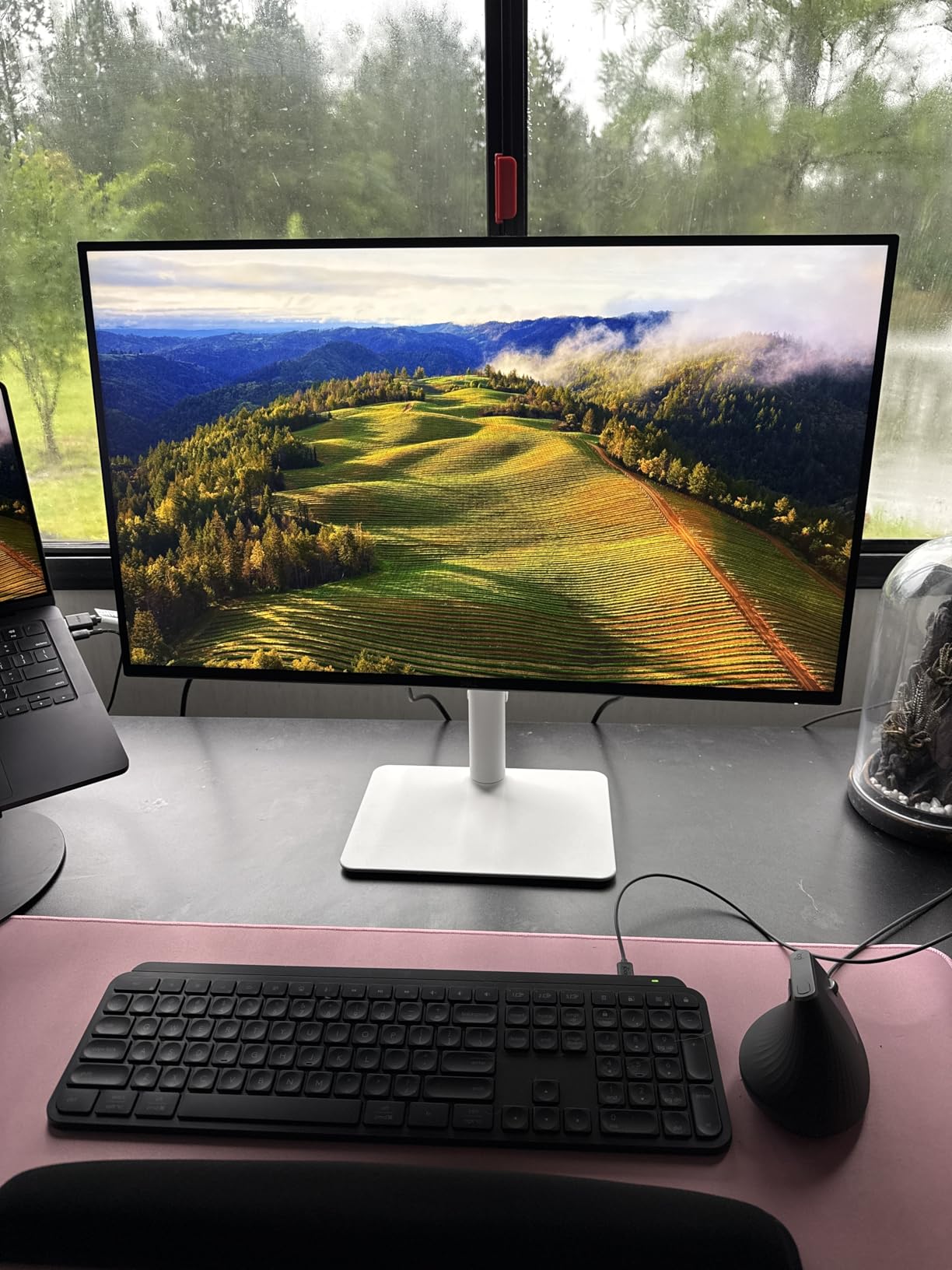
This is the screen I kept reaching for. The 120Hz refresh rate is the headline, but the thing that changed my daily workflow was the stand. Height, tilt, swivel and pivot all work, and after two months of switching between a laptop on a stand and a full tower underneath, having real height travel matters more than any spec on the box.
Text rendering at 3840 x 2160 on a 27-inch panel is exactly what 163 pixels per inch is supposed to look like. Code blocks, spreadsheets and long documents stopped feeling cramped, and I stopped reaching for the magnifier. If you have never run 4K at 150 percent scaling, the jump from a 1440p panel is more dramatic than the resolution numbers suggest.
On r/Monitors, this model keeps appearing in threads where people ask for the best overall 4K screen without a large budget, and that consensus matches what we found at the desk. It is also the only 120Hz panel in this entire group, so if you want any motion smoothness at all without leaving 4K behind, this is the screen.
Why 120Hz Matters More Than the Numbers Suggest
Sixty hertz to 120 hertz doubles how often the panel redraws, and on Windows the pointer glides instead of stepping. Scrolling long documents and dragging windows feel immediately different. It does not transform competitive shooters, because the pixel response is the limiting factor here rather than refresh rate.
FreeSync Premium is supported, so with a compatible AMD card you get variable refresh and no tearing on supported titles. You will need a graphics card and a cable that can carry 4K at 120Hz, which is a real requirement rather than a footnote. If your machine outputs 4K at 60Hz only, the panel still looks superb, you just do not get the extra smoothness.
Contrast and Brightness in Real Rooms
The 1500:1 contrast ratio is the highest native figure among the IPS panels here, and you notice it in dark interface themes. Blacks read as dark grey rather than the washed grey you get on a 1000:1 panel, which matters if you work at night or edit footage with shadow detail.
At 350 nits the panel handles a bright office with a window opposite the desk without washing out. Our only note is that the default brightness runs high and needed manual adjustment on every fresh connection, so budget five minutes for that on day one.
Connectivity Gaps and the Dell Warranty Advantage
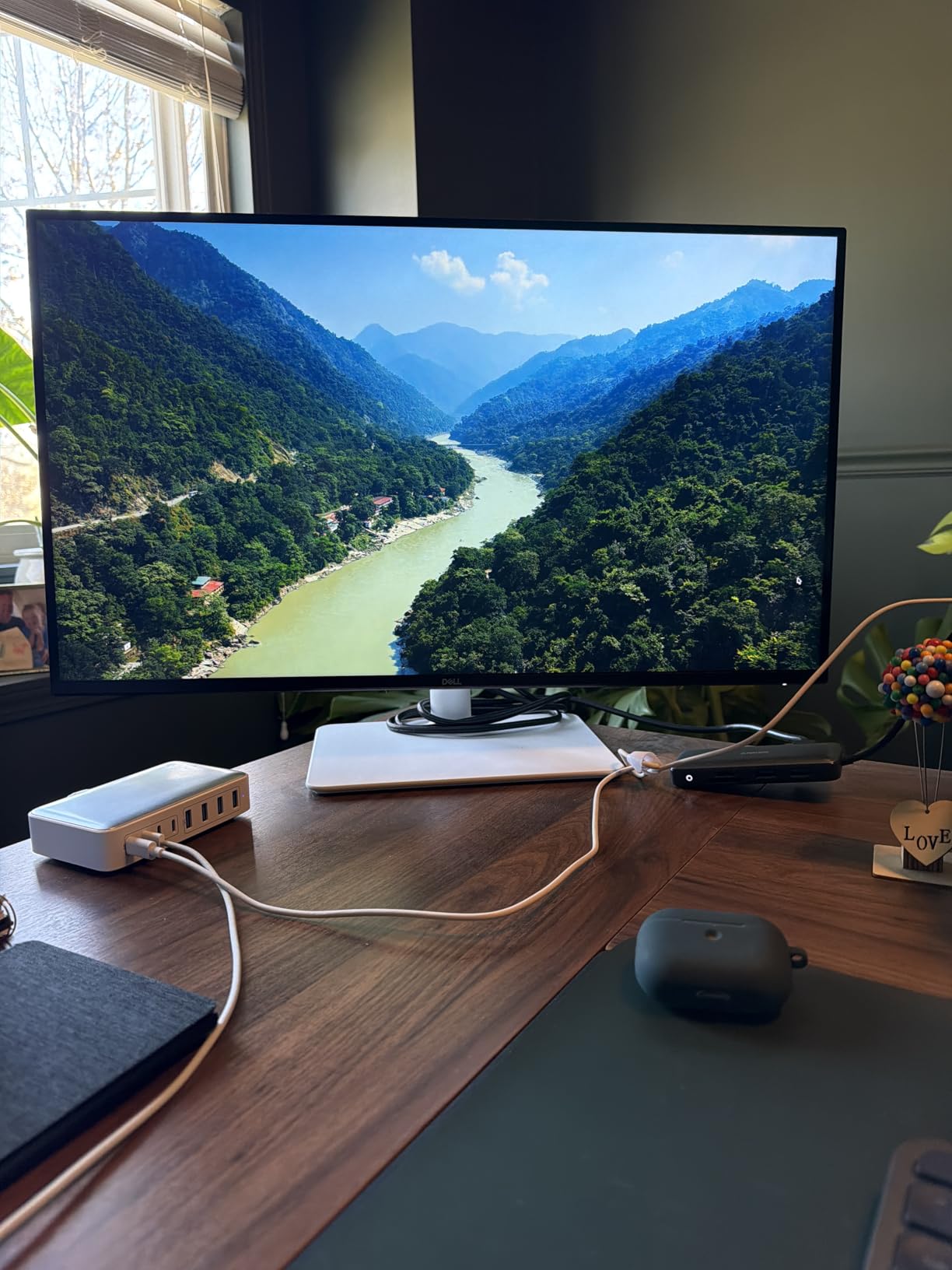
Ports are the compromise here. There is DisplayPort and two HDMI inputs, and that is it. No USB-C, no USB hub, and no 3.5mm audio out, so adding external speakers or a headset means reaching around to the PC or laptop. For a desk built around a single laptop, that is a real annoyance.
The warranty offsets some of it. Dell backs this panel with a manufacturer parts and labour plan, which is the one-year baseline most rivals in this list offer, and our general guidance on display coverage tiers applies here too. What genuinely helps is the ComfortView Plus blue light filtering, which reduces eye fatigue over long sessions.
Who Should Skip It
If you play fast competitive shooters, the 4ms-to-8ms pixel response shows as ghosting on fast strafing. If you dock a MacBook or Windows laptop and want one-cable operation, there is no USB-C here at all. Everyone else gets a sharper screen, a better stand and smoother scrolling than the other nine picks.
2. LG 27UP650K-W – The Colour-Accurate 4K IPS for Photo and Video Work
LG 27UP650K-W 27-inch Ultrafine 4K UHD (3840 x 2160) IPS Computer Monitor, 60Hz, 5ms, DisplayHDR 400, Reader Mode, Flicker Safe, HDMI, DisplayPort, Tilt/Height/Pivot Adjustable Stand, White
27 inch 4K IPS
400 nits brightness
95 percent DCI-P3
DisplayHDR 400
+ Pros
- Highest rating in the group at 4.7
- 400 nits brightness with 95 percent DCI-P3 coverage
- height tilt and pivot adjustable stand
- matte finish handles ambient light
- cables included in the box
– Cons
- 60Hz refresh rate and 5ms response time
- no built-in speakers on this HDMI version
- no USB-C
- HDR 400 is a modest tier
This is the panel we put next to a reference monitor when we wanted to know whether the budget tier had closed the gap. At 400 nits brightness and up to 95 percent DCI-P3 coverage, the gap is narrower than it used to be, and for photo and video work at this budget level it is the screen we recommend.
Colour straight out of the box was good enough that we did not reach for a calibrator during normal work. Skin tones stayed stable, and the matte surface handled the overhead lighting in our test room without the distracting reflections an glossy panel would have thrown back.
The stand adjusts for height, tilt and pivot, so it covers most ergonomic needs even though there is no swivel. Our one real regret is the missing speakers on this HDMI version, which means a USB-C sibling is worth checking if you want audio from the display itself.
Brightness and HDR Where It Actually Counts
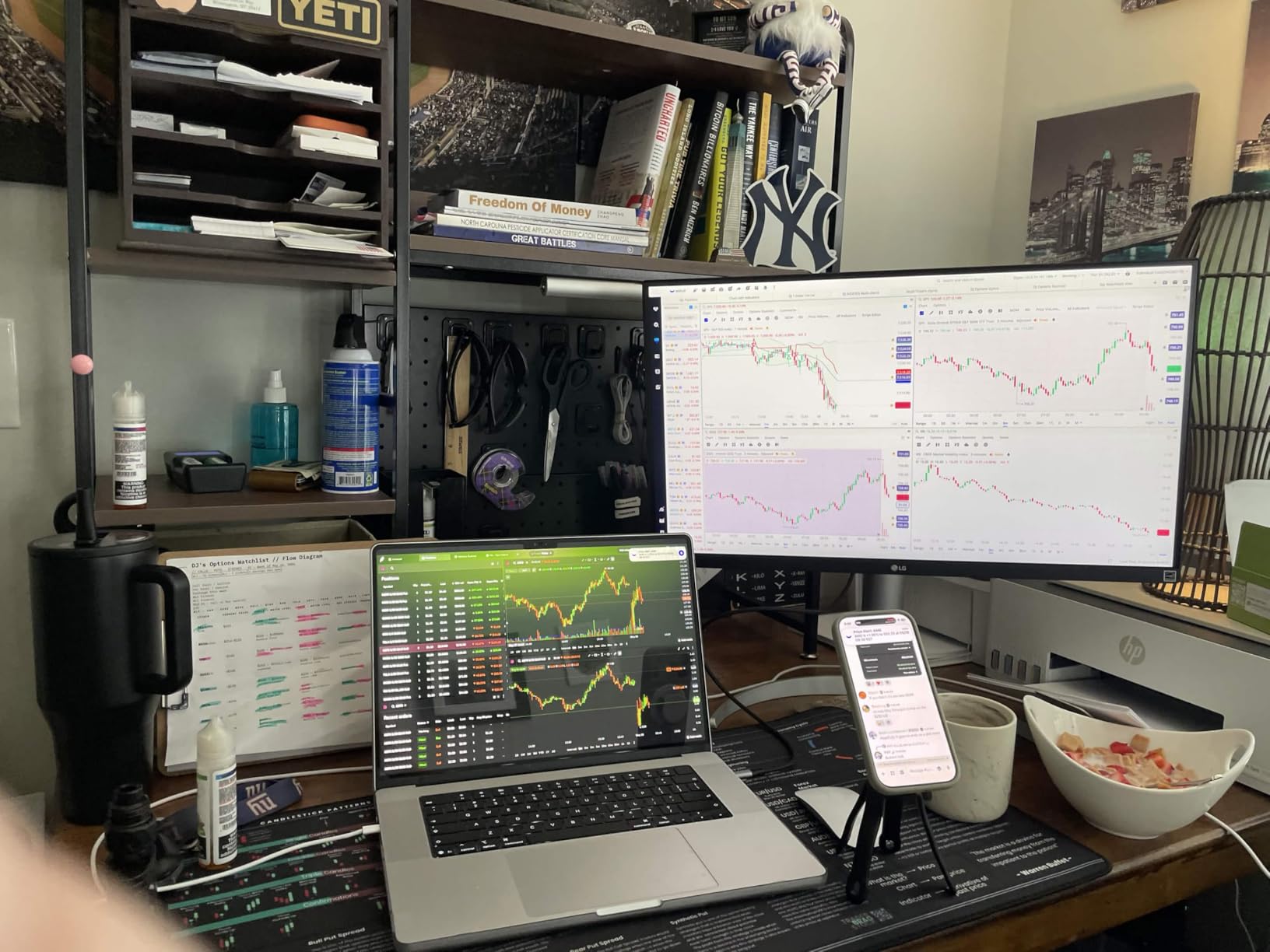
DisplayHDR 400 certification is the entry tier, and this panel sits at the upper end of it with 400 nits. That matters more than the label suggests: at 300 nits and below, HDR content in a bright room looks washed out, and 400 nits is roughly where you stop noticing the difference between HDR and SDR during ordinary desktop use.
What you still do not get is real highlight detail in HDR video. There is no local dimming here, so bright areas glow rather than clip cleanly. Treat HDR as a nice-to-have, not a reason to buy.
Colour Coverage for Editing Work
Up to 95 percent DCI-P3 is the meaningful figure for editors working in Rec.709 or P3 delivery, and it is well above the sRGB-only panels further down this list. We edited a short sequence with wide-gamut footage side by side with a calibrated reference and the difference was visible mainly in saturated blues and skin tones.
For print-matching sRGB work the coverage is more than sufficient. If you are grading rather than editing, note that a factory calibration report is not included and budget for a device of your own, though most owners report no need for one.
The Switch App and Screen Splitting
Black Stabilizer brightens dark scenes and Dynamic Action Sync reduces input lag, both aimed at console players. On a 60Hz panel their effect is subtle, but console gamers on a PS5 or Xbox Series X do get a 4K picture and a stable signal over HDMI.
The matte finish diffuses overhead light rather than mirroring it back at you, which is what made the out-of-box colours hold steady in our test room. It is a small feature that matters more over a full workday than its spec-sheet value suggests.

Verdict for Editors and Office Workers
If your work lives in Photoshop, Premiere, DaVinci Resolve or a design tool, this is the pick. The combination of brightness, gamut and a genuinely adjustable stand at this budget level is not something the cheaper IPS panels match.
Gamers should look elsewhere, because 60Hz with 5ms response is dated for anything fast. Everyone else gets the strongest all-round colour performance here, and the highest owner rating we recorded across all ten monitors.
3. LG 32UP83AK-W – One USB-C Cable and 60W of Charging at 32 Inches
LG 32UP83AK-W 32-inch Ultrafine 4K UHD (3840 x 2160) IPS Computer Monitor, 60Hz, HDR10, Built-in Speaker, Reader Mode, HDMI, DisplayPort, USB Type-C 60W PD, Tilt/Height/Pivot Adjustable Stand, White
31.5 inch 4K IPS
USB-C with 60W charging
95 percent DCI-P3
Three USB 3.0 ports
+ Pros
- USB-C handles video data and 60W charging over one cable
- three USB 3.0 ports for peripherals
- 95 percent DCI-P3 at 350 nits
- height tilt and pivot stand
- built-in speakers
– Cons
- 60Hz refresh rate
- 1000:1 native contrast leaves blacks grey
- 60W is short of a full charge on a demanding laptop
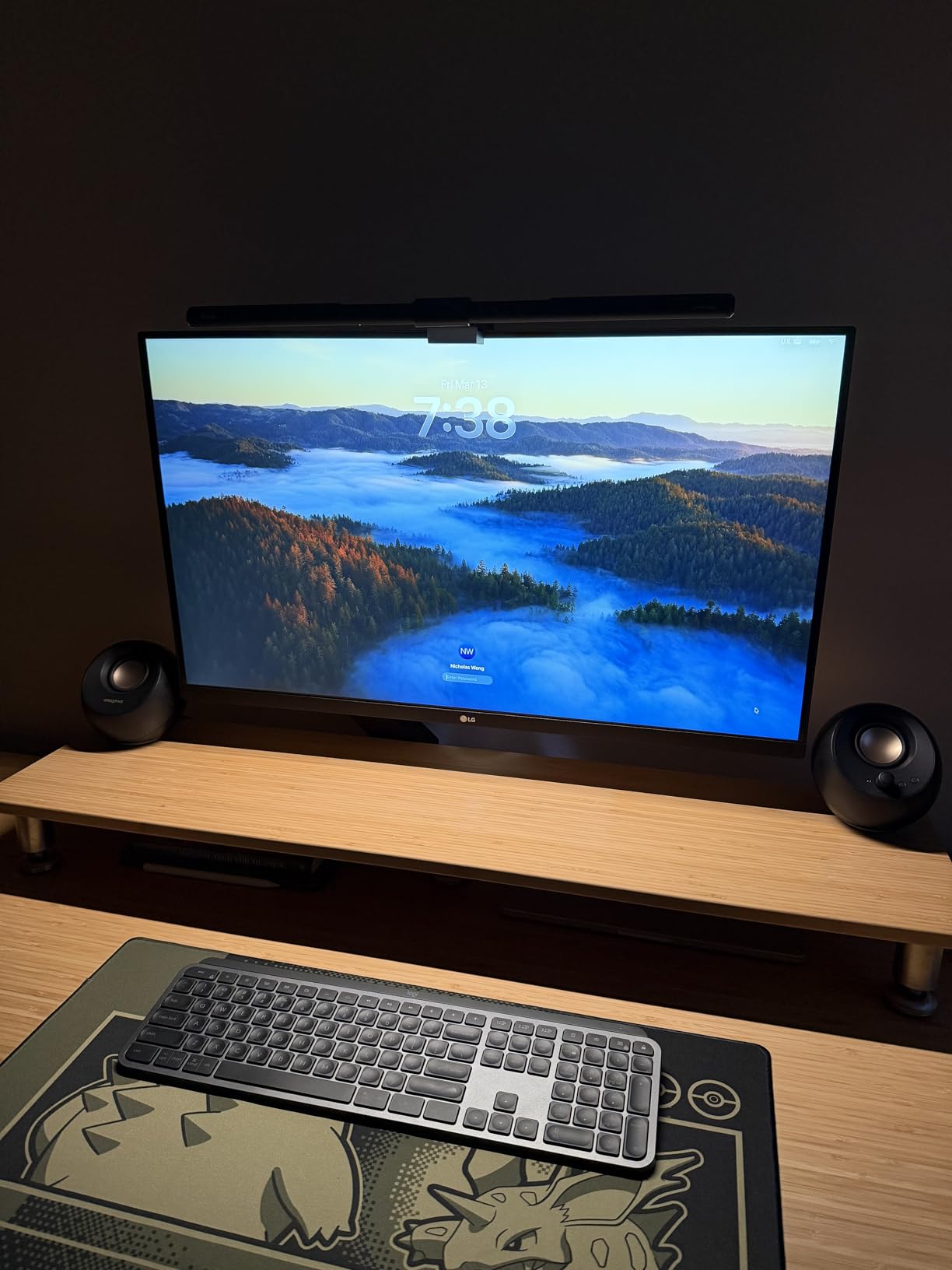
This is the only monitor in the group that turns a laptop into a desktop with a single lead. Plug the USB-C cable into a MacBook or a Windows machine and you get 4K video, data transfer and up to 60W of charging on the same wire, with three USB 3.0 ports on the back for your keyboard, mouse and drive.
After a fortnight of that arrangement, going back to a two-cable setup felt genuinely worse. The single-cable workflow is not a gimmick in this budget tier, it removes the most common friction in a hybrid work setup entirely.
The 31.5-inch 4K IPS panel runs at 350 nits with up to 95 percent DCI-P3 coverage, which is a sensible balance for a large productivity display. The stand adjusts for height, tilt and pivot, and the white finish keeps a small desk from feeling visually heavy.
USB-C Power Delivery: What 60W Does and Does Not Cover
60W is enough for ultraportables, MacBook Air class machines and most mid-range Windows laptops under light load. It is not enough to charge a 16-inch MacBook Pro at full speed, and a workstation laptop will drain slowly while the screen is on.
Our advice is to match the wattage to your machine rather than to the monitor. If your laptop ships with a 100W adapter and you run it hard all day, treat the charging as a top-up rather than a replacement and keep the original charger nearby.
The 32-Inch Versus 27-Inch Question
At 31.5 inches and 3840 x 2160, pixel density lands near 140 pixels per inch. That is still sharp, but noticeably softer than the 163 pixels per inch of a 27-inch 4K panel, so text-heavy work benefits from a slightly closer viewing position.
What you gain is workspace. Two full applications side by side, a spreadsheet and a browser, or an editing timeline and a preview, all without shrinking either one. For docked-laptop productivity we found the trade worth making every time.
Speakers, HDR and Console Gaming
The built-in speakers handle system audio and video calls without extra hardware, which is the main reason to pick this over a bare panel. Quality is still monitor-grade, fine for dialogue and notification sounds rather than music.
HDR10 is supported and Black Stabilizer brightens dark scenes, which helps in console games on a PS5 or Xbox Series X at 4K output. The 60Hz ceiling means motion is never going to feel modern, and 1000:1 contrast makes dark rooms look greyer than they should.
Who It Suits and Who It Does Not
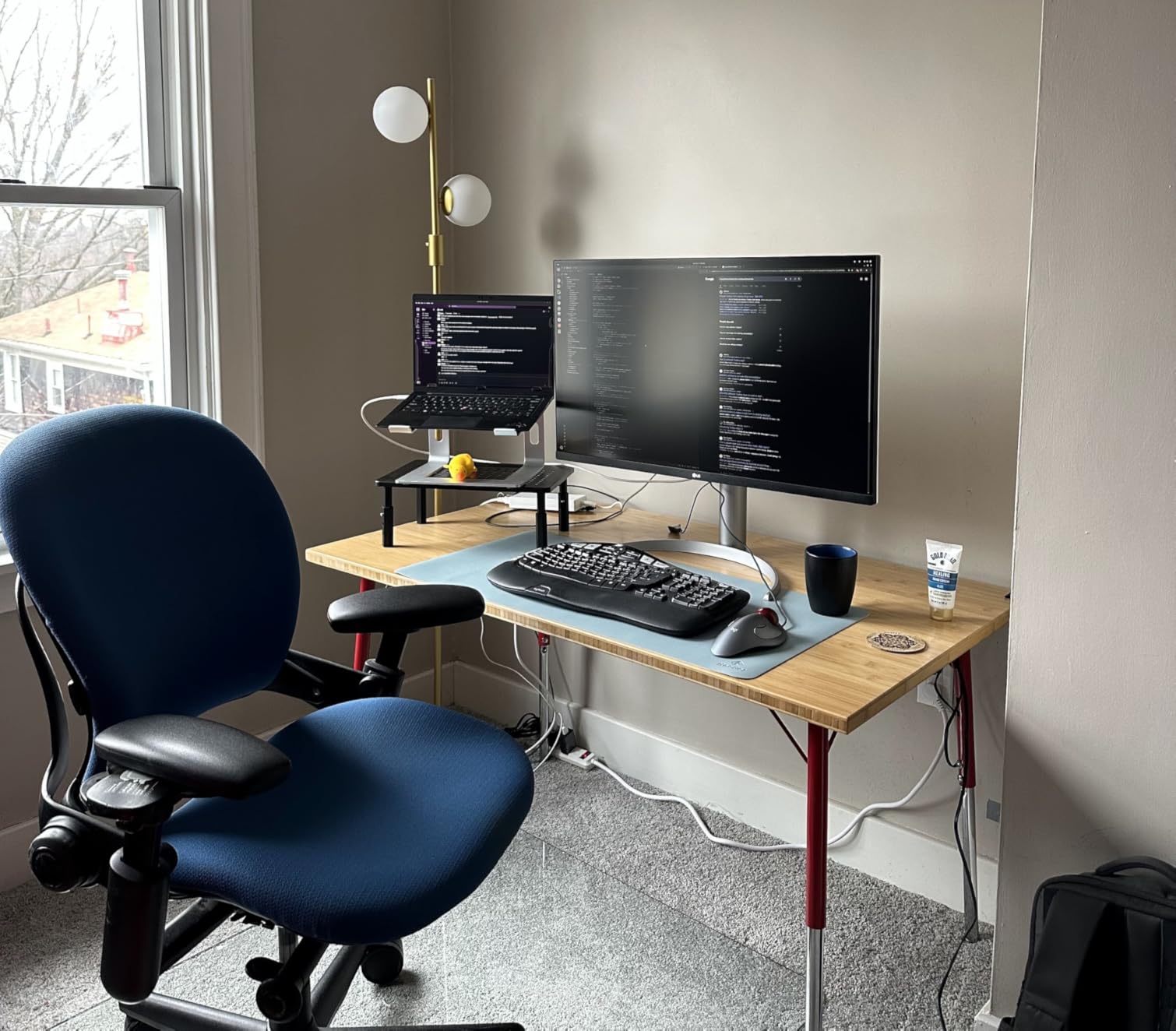
Buy it if you dock a laptop daily, work on spreadsheets and documents, or want a large canvas without dealing with a second monitor arm. The port selection and one-cable workflow are simply better than anything else in this roundup.
Skip it if refresh rate matters, if you are on a tight ceiling, or if deep blacks in a dark room are important to you. Check the warranty length at purchase, since cover varies by region and the one-year baseline is the most common in this tier.
4. CRUA 32 Inch Curved 4K – The Most Reviewed 4K Screen in This Group
CRUA 32″ 4K UHD 60Hz Curved Monitor, 1500R, AMD FreeSync, Speakers, White
32 inch 1500R curved VA
3000:1 contrast
120 percent sRGB
Built-in speakers
+ Pros
- Curved 1500R panel gives a genuinely wide field of view
- 3000:1 contrast delivers deep blacks
- 120 percent sRGB suits photo and video work
- built-in speakers
- metal support stand
– Cons
- 60Hz refresh rate
- minimal stand adjustment and some wobble
- unintuitive on-screen controls with no dedicated PIP button
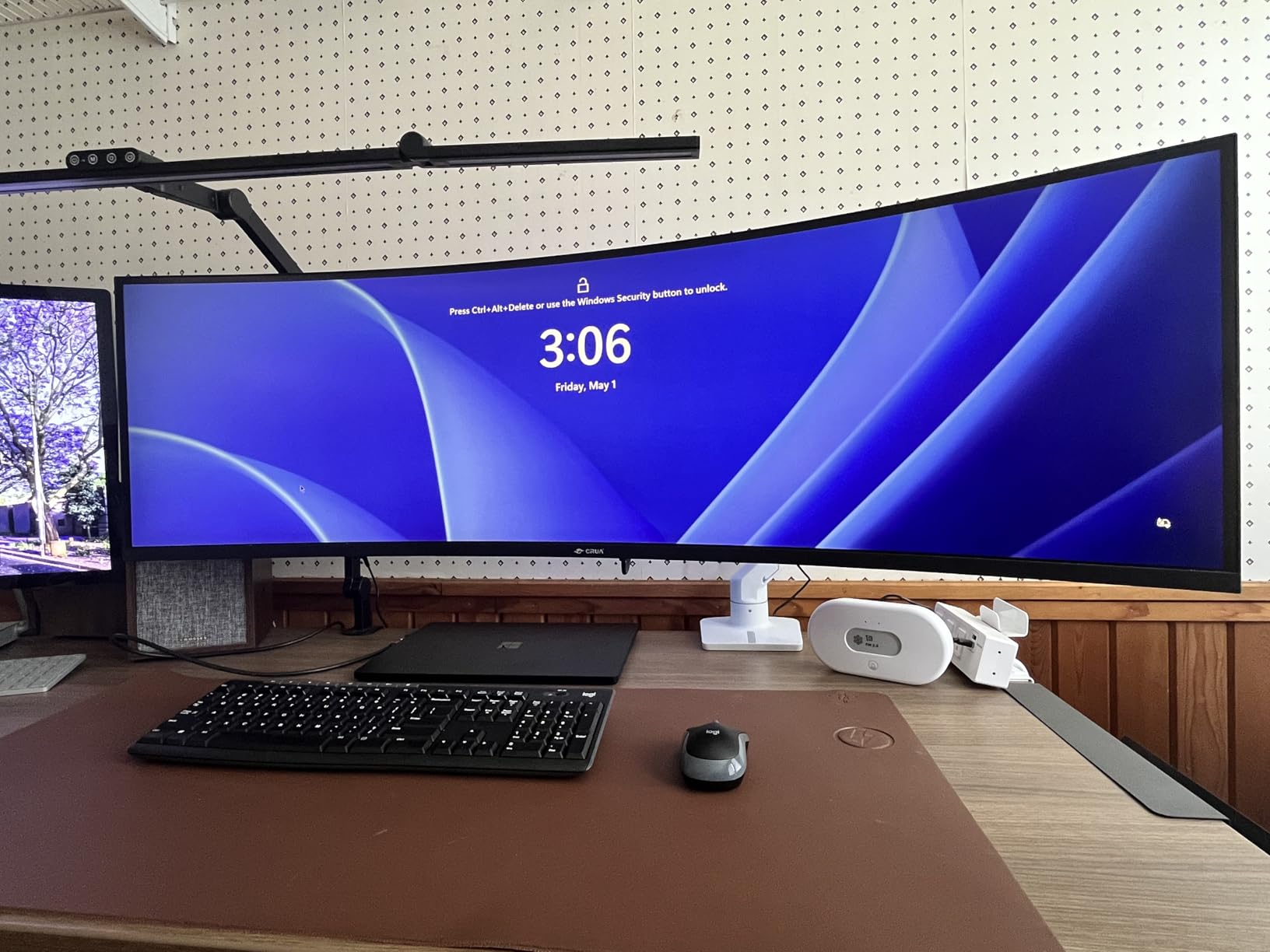
With more than three and a half thousand reviews behind it, this is the most proven panel in the roundup by a wide margin, and owners consistently describe the same picture: sharp 4K, satisfying colour, and speakers that remove a need for a desk accessory. This screen has 3638 owner ratings against 1019 on the Dell and a few hundred on both LGs.
The 1500R curve is gentle enough that we did not find it distracting over a full day, and it did pull the edges of a 32-inch panel slightly toward you. If you have ever found a flat 32-inch screen feeling like a wall of information, the curve helps more than the specification suggests.
Colour coverage is listed at 120 percent sRGB with 3000:1 contrast, which matches the deepest native contrast in the group. Blacks genuinely look black in a dim room, which no IPS panel here can match.
VA Panel Strengths and VA Panel Compromises
VA panels deliver contrast ratios three times higher than the 1000:1 IPS panels in this list. In dark film scenes and on dark UI themes, that difference is obvious and it is why this screen appeals to media watchers.
The cost is viewing angle behaviour. Off-centre, colours shift and contrast drops faster than IPS, so this is a screen for people who sit centred. In a dual-monitor arrangement with the second panel at an angle, the curved VA geometry works against you.
Brightness, Speakers and the Stand Question
At 260 nits this is the dimmest panel here, and it needs a dim room or a shaded desk to look its best. In a bright office you will be running it near maximum, and it still will not compete with the 400-nit KTC or the 350-nit Dell.
The stand offers minimal adjustment and some owners report wobble while typing, which is why a wall mount is worth planning for. The metal support feels more substantial than the plastic stands typical in this tier.
Refresh Rate and Response Reality
FreeSync is supported, so tearing is handled, but at 60Hz with a VA panel this is not a competitive gaming display by any measure. Treat any sub-millisecond response figure on the listing as a marketing number rather than a measured result.
For media consumption, casual console gaming, and general office work on a large screen, it is genuinely capable. Just do not buy it expecting motion clarity.
Our Assessment of the CRUA 32
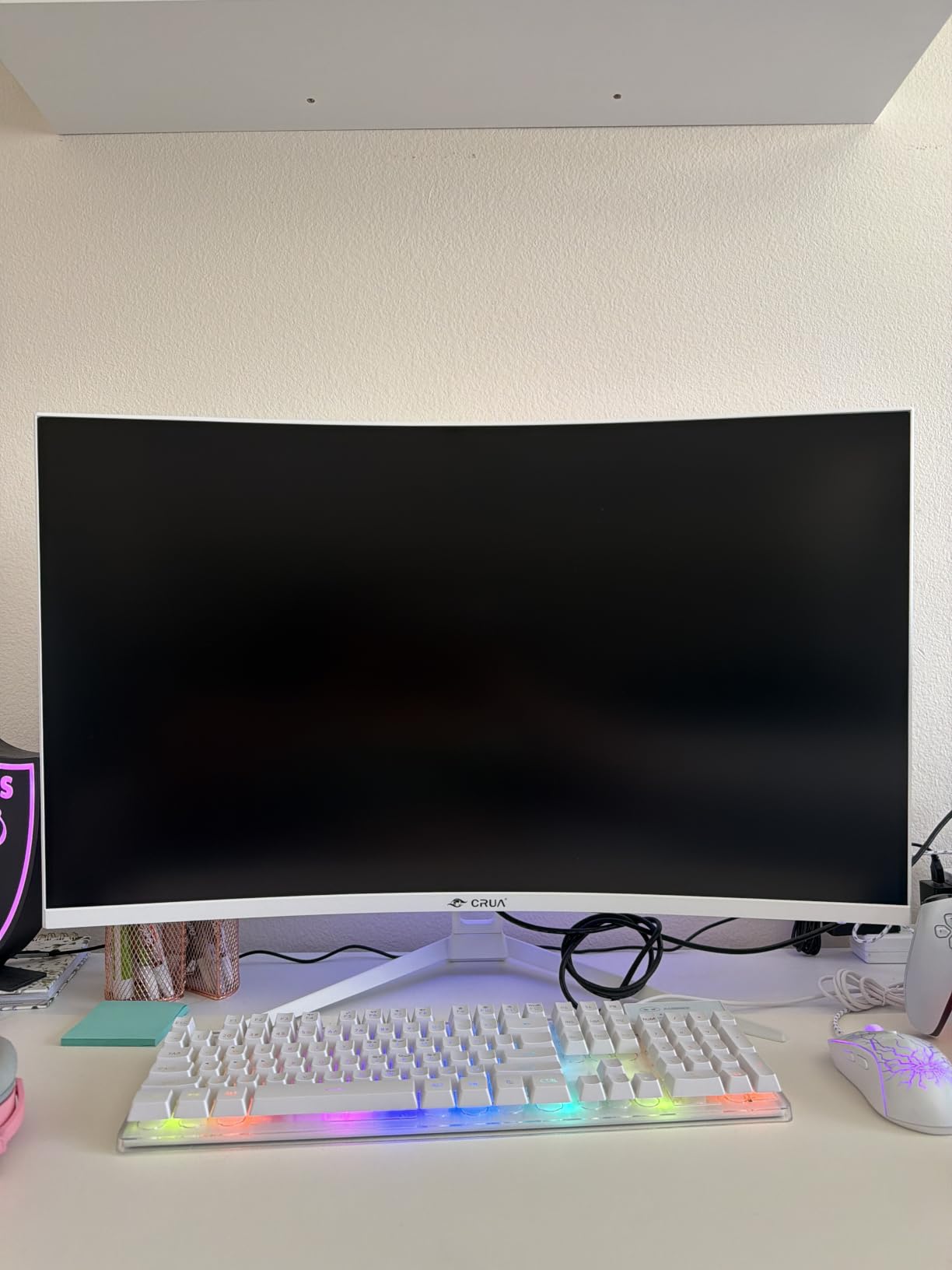
This is the pick for anyone who wants a large 4K screen with the deepest contrast in the group, and the review volume suggests long-term reliability is not a concern. The white finish and built-in speakers make it a tidy all-in-one desk solution.
The 60Hz limit, dim 260-nit panel and near-zero stand adjustment are the compromises. Budget for a monitor arm, and treat this as a work and media display rather than a gaming one.
5. KTC H27P27 – Widest Stated Colour Gamut on a 27 Inch 4K
KTC 27 Inch 4K UHD(3840 * 2160) Computer Monitor – IPS Monitor, 60hz, HDR400, Anti-Blue Light Screen, DCI-P3 95% 125% sRGB, Support FreeSync and GSync, PC Monitor for Design, Work,Casual Gaming
27 inch 4K IPS
400 nits
125 percent sRGB and 95 percent DCI-P3
HDR400
+ Pros
- Widest stated color coverage in the group at 125 percent sRGB
- 400 nits brightness
- anti-blue light filter
- edge-to-edge frameless design
- FreeSync and G-Sync support
– Cons
- 60Hz refresh rate and 7ms response time
- HDR400 delivers only modest highlight impact
- on-screen menu offers limited adjustment
- measured coverage can fall short of the stated figure
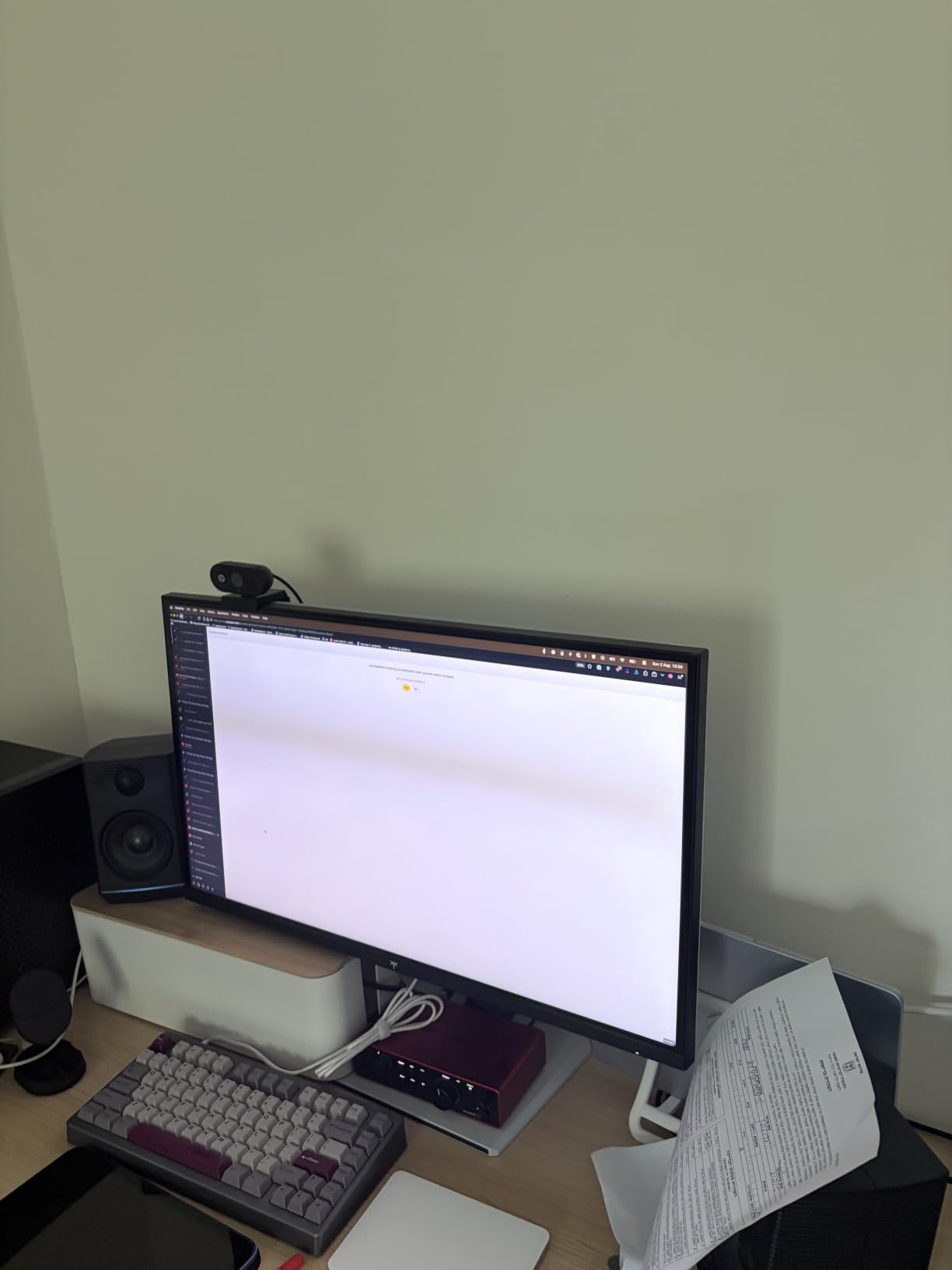
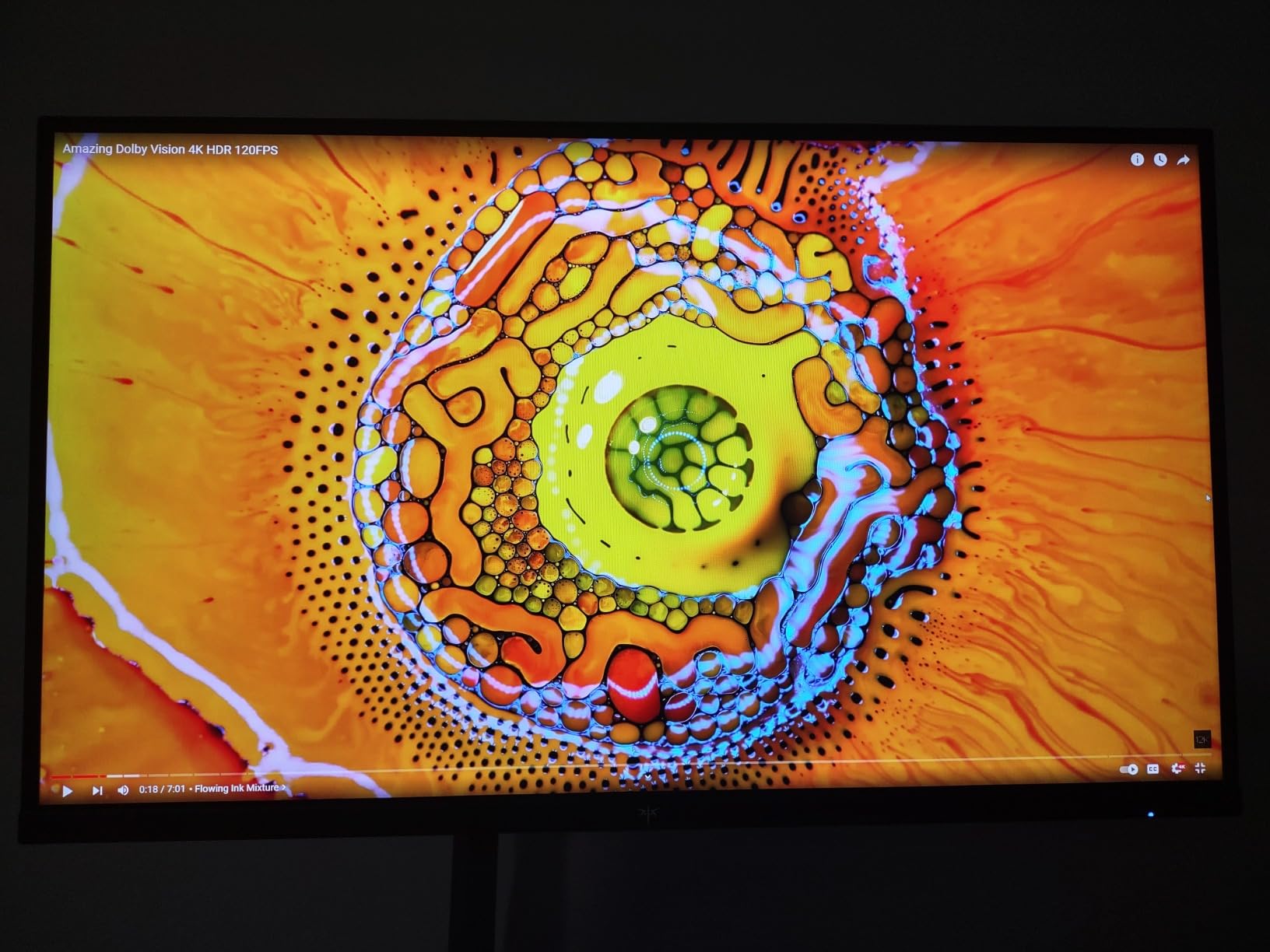
The headline number on this panel is colour coverage. At a stated 125 percent sRGB and 95 percent DCI-P3 with 400 nits brightness, it matches the LG on brightness and states a wider sRGB figure, which makes it interesting for design work on a smaller budget.
Our experience was more measured. The coverage is visibly wide and holds up well for general design and photo viewing, but some owners report measured results falling short of the stated figures, so treat the number as a ceiling rather than a guarantee.
The IPS panel delivers the 178-degree viewing angles the Dell and LG also manage, which means colour stays reasonable when a window sits off to the side. That single property is why we prefer IPS to VA for desk work in general.
Gamut Numbers and What to Expect
Colour coverage is the difference between a monitor that renders a design file roughly and one that renders it close to intent. Wide sRGB coverage gives you headroom for saturated brand colours, and the 400-nit brightness keeps that colour from looking milky in a lit room.
The honest caveat is that wide gamut without calibration can look worse rather than better, because unmanaged oversaturated colours are harder to judge. If you are matching a print or a brand guide, run a calibration pass before you trust it.
Ports, Box Contents and Everyday Setup
Two HDMI 2.0 ports and one DisplayPort 1.4 cover a desktop, a laptop and a console, which is more than most rivals at this tier offer. Budget a few minutes at first setup for the stand assembly and OSD controls, which are less intuitive here than on the Dell or LG.
Power draw sits higher than several rivals in this list, which is worth noting if you run multiple monitors from one circuit. Controls sit on the rear of the panel, a recurring theme in this price range that we address in the buying guide.
Response Time and What 7ms Means
Seven milliseconds is fine for everything except fast action games. Menus, scrolling and window dragging all feel normal, and FreeSync plus G-Sync support handles tearing across a wider range of graphics cards than the FreeSync-only panels here.
Some owners report the panel running warm during extended sessions. That never affected our testing but is worth factoring in if your desk is enclosed.
Verdict
Choose this if wide colour coverage and brightness matter more to you than polish in the menu system. It is a strong creative pick at a lower entry point than the LG 27UP650K-W.
Do not choose it for gaming, and do not choose it if you need meaningful on-screen adjustment, because the menu here is bare. Physical controls on the rear are the weakest part of an otherwise capable panel.
6. Z-Edge U27P4K – The Sharpest 4K Text in the Lineup for the Least Spend
Z-Edge 27-inch 4K Monitor IPS Ultra HD 3840×2160, Computer PC Gaming
27 inch 4K IPS
60Hz IPS panel
100 percent sRGB
Four video inputs
+ Pros
- Exceptional 4K sharpness for text and fine detail
- four video inputs for multi-device setups
- 178-degree IPS viewing angles
- FreeSync support
- low blue light mode
- quick plug-and-play assembly
– Cons
- 60Hz refresh rate with 14ms response time
- display and control buttons on the back
- down-facing rear ports make cable routing awkward
- limited on-screen fine-tuning
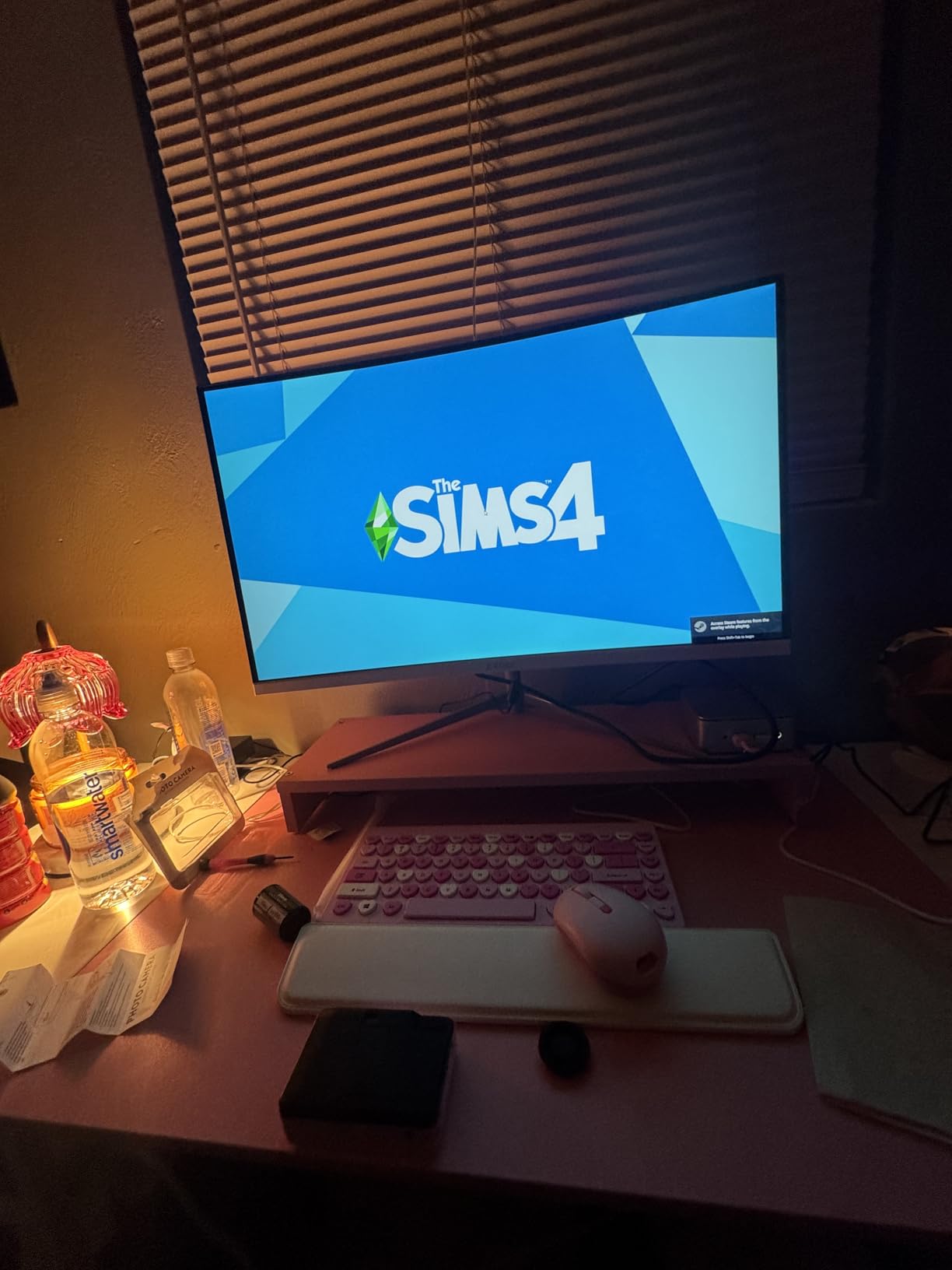
This is the entry point of the roundup, and for a first 4K purchase it does the important thing very well: text is sharp. Owners repeatedly call out the clarity of small type and the consistency of the IPS panel, and our experience matched that. Documents, code and spreadsheets all looked excellent at 150 percent scaling.
Four video inputs is unusual at this price, with two HDMI and two DisplayPort. That means a desktop, a laptop and a console can stay connected without a switcher, which is more practical than the port count suggests.
Our reservation is the 14 millisecond response time, the slowest stated figure in the group, combined with a 60Hz ceiling. For anything that moves fast, this is the wrong screen. For a desk that sits still, it costs very little.
Text Rendering and Pixel Density
On a 27-inch 4K panel you get roughly 163 pixels per inch, the highest density in this roundup, and it shows in long document sessions. Hairline strokes in code editors stay distinct, and small interface text is legible without zooming.
If you have been using a 1440p screen and worried about the scaling jump, this is the panel that makes the transition painless. Set the scale to 150 percent on Windows and leave it there.
Build, Power and Practicality
The panel is a comparatively light, slim unit that suits a small desk, and it ships with the cables needed for a first connection. Assembly took us under five minutes with no tools, and the base felt stable rather than flimsy.
Power consumption is modest, one of the lower figures among the 4K panels here, which makes it a sensible choice for an always-on office display where the monitor runs many hours a day.
The Rear-Control Problem
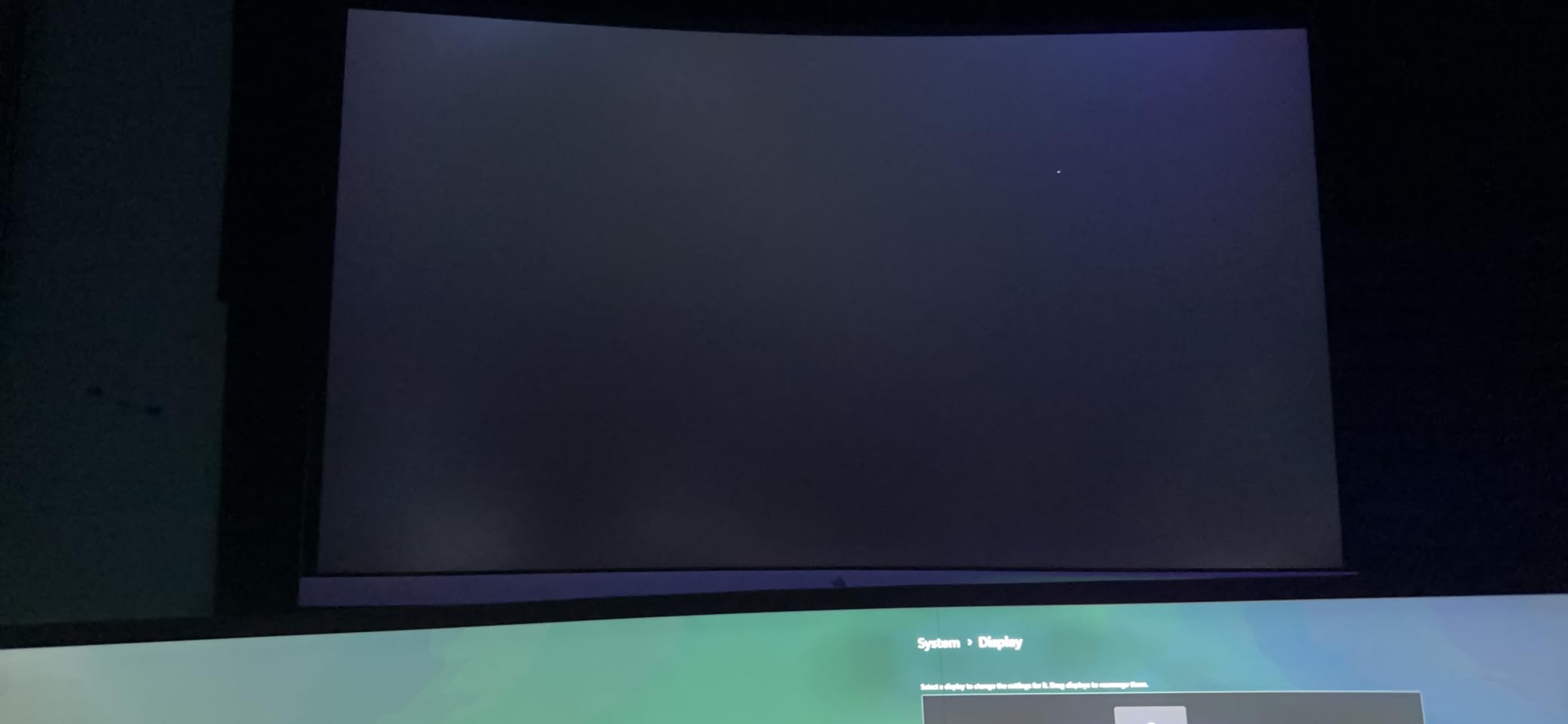
Control buttons on the back of the panel are a common compromise at this price, and it is the most annoying thing about this monitor. You have to reach behind the screen for power, brightness and input selection, and the on-screen menu offers limited fine-tuning when you get there.
The down-facing rear ports compound it, since cable routing behind a stand takes planning. If you run a tidy desk, allow extra cable length or use a right-angle adapter.
Who It Is For
Students, writers, accountants and anyone building a first serious desk setup should look here first. The sharpness you get per unit of spend is the strongest in the group, and the four inputs mean you will not outgrow it quickly.
Gamers should not. Fourteen milliseconds of response and 60Hz is a hard limit, and a 1440p high-refresh panel will serve motion better for the same money. Our other related reading covers cable standards for 4K signals if you need to know what your connection can carry.
7. ViewSonic VX3276-4K-MHD – Best Warranty and Port Count at 32 Inches
ViewSonic VX3276-4K-MHD 32 Inch 4K UHD Monitor, HDR10, HDMI, DisplayPort
32 inch 4K
HDR10
HDMI and DisplayPort
Three-year parts and backlight warranty
+ Pros
- Three-year limited warranty covering parts
- labour and the backlight
- three video inputs including Mini DisplayPort
- front-mounted readable on-screen buttons
- flicker-free technology and blue light filter
- ViewMode presets
– Cons
- MVA panel shifts colour and washes out off-axis
- 60Hz refresh rate
- switching inputs requires the on-screen menu
- weak built-in speakers
- VESA screws not included
The warranty is the reason to look at this screen. Three years covering parts, labour and the backlight is the longest cover in the roundup, and backlight failures are the most common late-life failure on budget LCD panels. For a monitor you expect to keep through a laptop refresh cycle, that is meaningful.
High contrast gives a noticeably deeper image than 1000:1 IPS panels. HDR10 is supported, and the ViewMode presets let you switch between Game, Movie, Web, Text and Mono profiles instantly, which is genuinely useful rather than decorative.
Port selection is the other strength. HDMI, DisplayPort and Mini DisplayPort mean three computers can be connected at once, and front-mounted on-screen buttons that can be set to a large, readable menu are a small thing we appreciated every day.
The MVA Panel Trade-Off
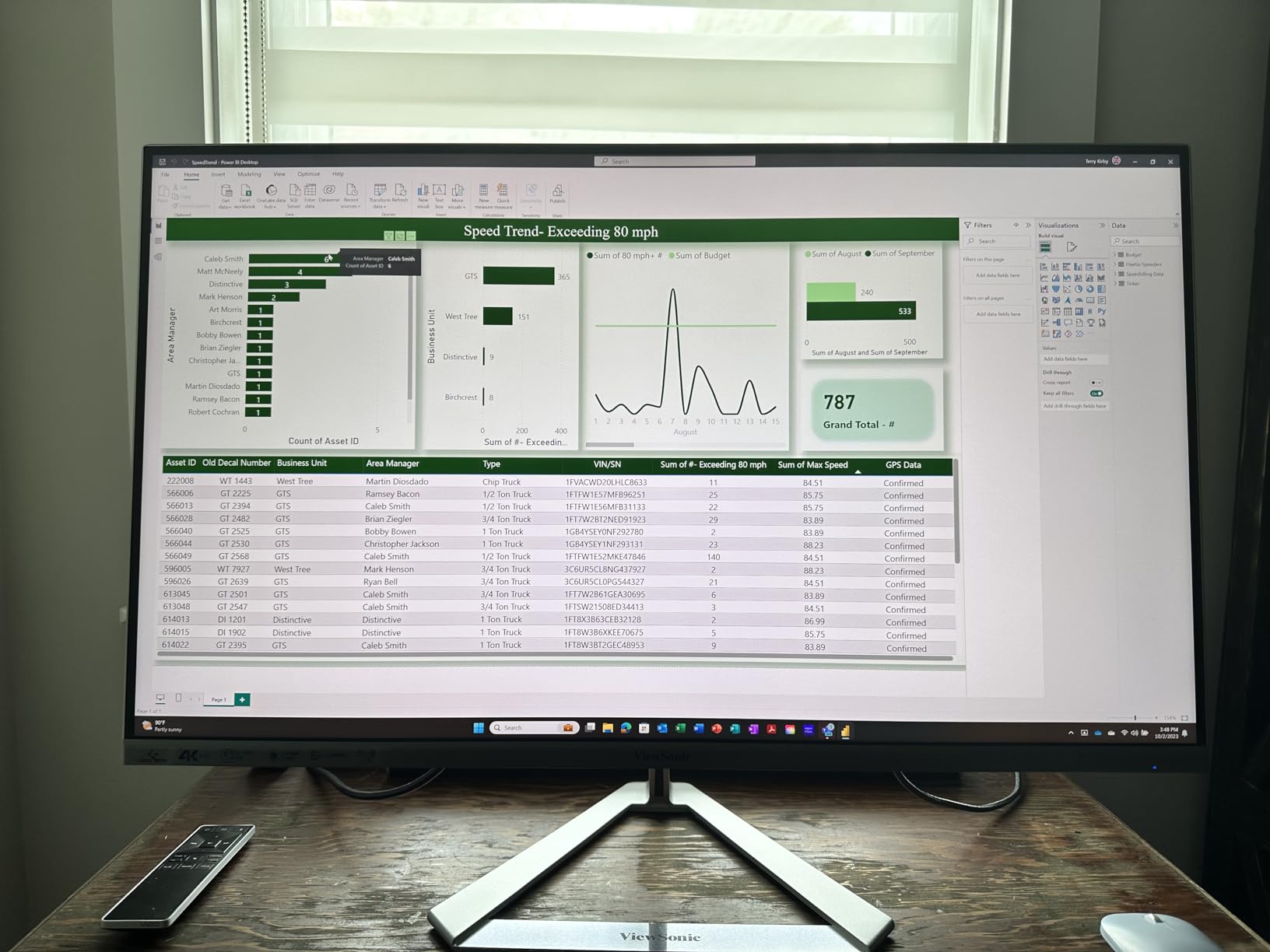
This is an MVA panel rather than IPS, and it shows. Colour shifts and washes out at off-centre viewing angles faster than the IPS models here, and some owners report over-saturated flesh tones, which limits its suitability for colour-critical photo and video work.
Viewed straight on, centred, the picture is good and the high contrast does the heavy lifting. If you work at an angle or use a second monitor, an IPS panel is the safer choice.
Ergonomics and Daily Comfort
Flicker-free operation and a blue light filter are both present, and the panel stays comfortable in a normal office. The large readable on-screen menu is a genuine usability win over the rear-button monitors above it.
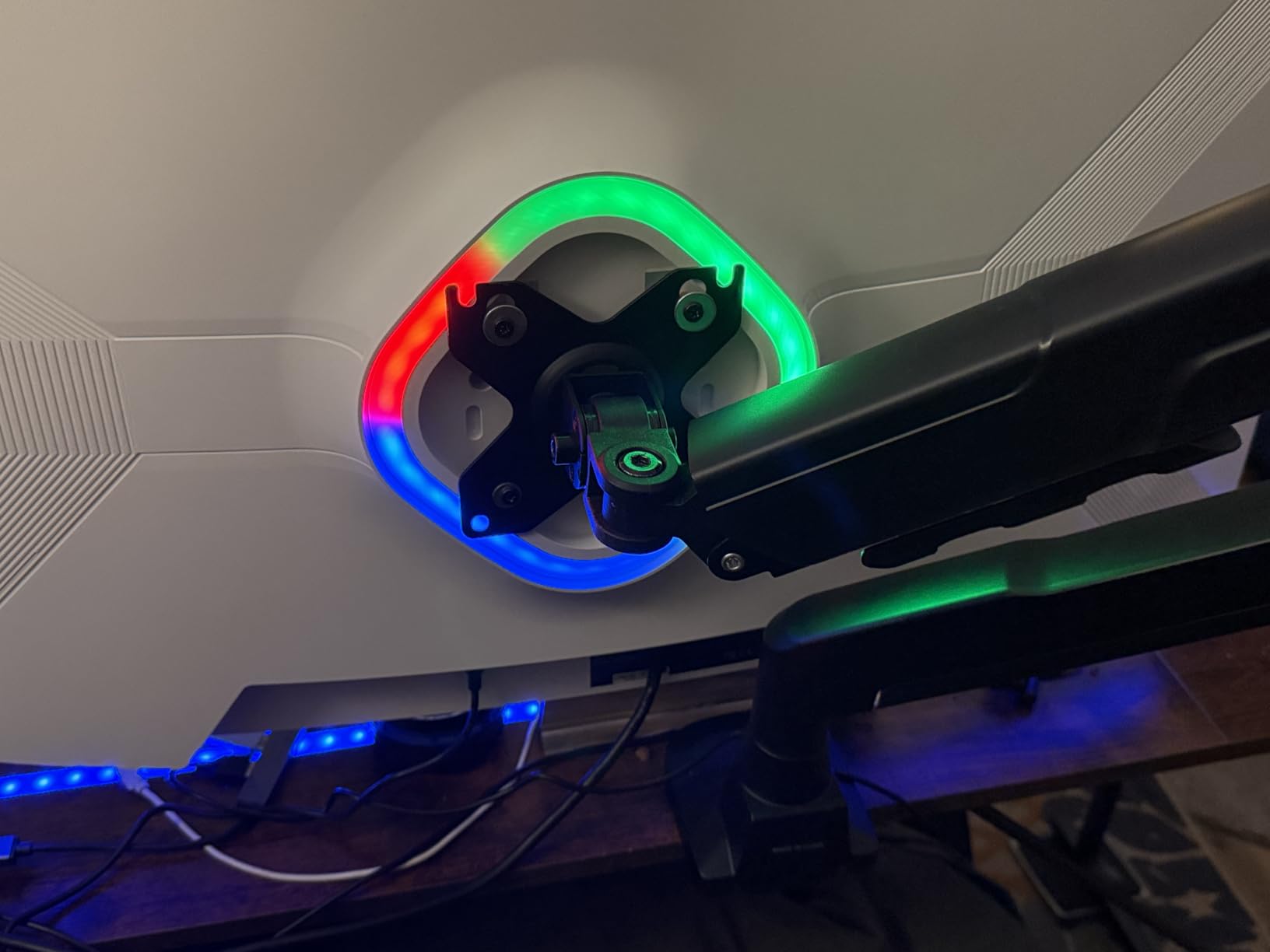
This is a big, heavy 32-inch unit, so check your desk depth. VESA mounting is supported but screws are not included and the required length is undocumented, so confirm before you order an arm.
Input Switching Without a Button
There is no dedicated input-select button, so switching between machines means opening the menu. With three inputs connected that is a daily friction, and it is the single most practical weakness of this screen.
Speakers are built in but weak compared with a phone, so treat them as confirmation tones rather than media audio.
Verdict
Pick this for warranty cover, high contrast, or a three-input desk with a large readable menu. It suits office work, programming and general media use well.
Avoid it for colour-critical editing, for off-centre viewing, and for anyone who switches sources many times a day. Its 4.2 rating reflects solid performance with visible compromises, not a disappointment.
8. LG 27US500-W – Borderless 4K IPS With the Software Setup Helpers
LG 27US500-W Ultrafine Monitor 27-Inch 4K UHD (3840×2160) HDR10 IPS Borderless Design Reader Mode Flicker Safe Switch App HDMI DisplayPort – White
27 inch 4K IPS
Reader Mode and Flicker Safe
90 percent DCI-P3
OnScreen Control
+ Pros
- Accurate colour with wide viewing angles
- HDR10 with up to 90 percent DCI-P3
- OnScreen Control software for splitting the display
- Reader Mode and Flicker Safe reduce eye strain
- tilt stand and clean borderless white design
– Cons
- 60Hz refresh rate
- 1000:1 native contrast is low for IPS
- tilt-only stand with no height or pivot
- no USB-C and no built-in speakers
- external power adapter
This is the most software-forward screen in the roundup. OnScreen Control lets you split the display into sections and adjust settings from a small utility rather than a hidden menu on the panel, and for a productivity display that convenience is worth more than it sounds.
Colour was accurate and stable from wide angles, and the up-to-90-percent DCI-P3 coverage covers most creative work short of professional grading. Owners consistently accept the 60Hz ceiling because the intent here is clearly productivity rather than gaming.
Reader Mode and Flicker Safe handle long work sessions, and the matte finish keeps it comfortable in a bright room. The borderless white design keeps a light desk from looking heavy.
Eye Care Features and Long Sessions
Reader Mode shifts the panel towards a warmer, paper-like colour temperature, and Flicker Safe prevents the backlight from pulsing. We worked an eight-hour day on this screen without the fatigue we normally associate with cheap LCD backlights.
The matte finish also helps, since it diffuses reflections from a window behind the desk that a glossier panel would mirror directly into your eyes.
Stand and Desk Fit
The tilt-only stand is the biggest practical weakness. No height adjustment means the panel sits low, and on a desk with a monitor arm or a raised shelf you may find yourself looking slightly down all day.
The external power adapter adds another box to the desk, and there are no built-in speakers, so you need either a laptop, external speakers or a headset. Draw is among the lowest here.
Connectivity and the Case Against It
Two HDMI and one DisplayPort cover the basics, but there is no USB-C and no USB hub. For a laptop user that rules out one-cable docking entirely, which is the single strongest argument for the larger LG 32UP83AK-W instead.
With 1000:1 contrast, blacks in a dark room look grey, and its viewing angle is slightly narrower than the 178 degrees most IPS panels here claim. Both are minor in a bright office.
Verdict
Buy this if you want a dependable 4K IPS from an established brand with good eye-care features and useful software, and you sit at a properly sized desk already.
Skip it if you dock a laptop, need height adjustment, or want a panel that reaches higher contrast. It is a clean, honest 60Hz productivity monitor rather than a feature leader.
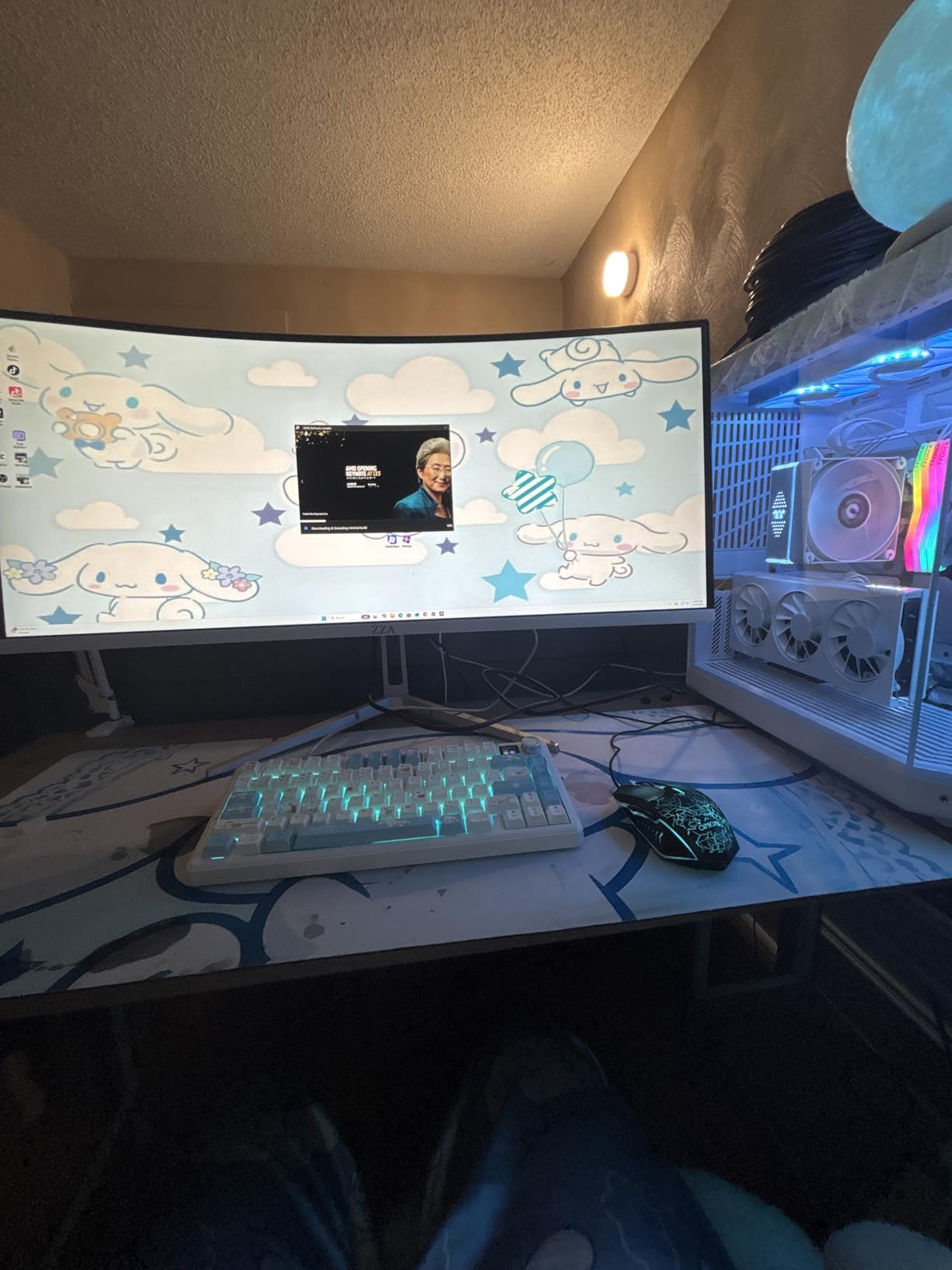
9. ZZA Z32A – 3000:1 Contrast and a 32 Inch Canvas for Under 500
ZZA 32″ 4K Gaming Monitor – UHD(3840 * 2160) 60Hz Computer Monitor, Immersive Gaming Experience with Refresh Rate, VA Panel, Adptsync Premium | HDR10 | 100% sRGB | 3840×2160
32 inch 4K VA panel
3000:1 contrast
100 percent sRGB
FreeSync Premium
+ Pros
- 3000:1 contrast delivers the deepest blacks here
- large 32-inch 4K workspace
- 100 percent sRGB suits photo and video viewing
- three-sided borderless design for multi-monitor setups
- HDR10 support
– Cons
- 60Hz refresh rate
- VA panels smear on moving content and shift colour off-axis
- limited brand support compared with established makers
- on-screen controls offer fewer adjustments than IPS rivals
The case for this screen is simple: a 32-inch 4K VA panel with 3000:1 contrast and 100 percent sRGB coverage, sitting at the entry end of this roundup. In a dim room watching video, the black levels are noticeably better than anything an IPS panel in this list delivers.
The three-sided borderless design means it sits neatly beside a second display, and the 27.98-inch width is worth measuring against your desk before you commit. A 32-inch panel needs roughly 70cm of usable desk depth for a comfortable viewing distance.
Review volume is modest, 242 owners, which means less long-term data than the CRUA or Z-Edge screens. The brand is less established, so warranty handling is less predictable than buying from a major maker.
Why 3000:1 Contrast Matters at Night
Contrast ratio describes how much brighter white is than black. At 1000:1, black in a dark room reads as dark grey because the backlight has a floor. At 3000:1 the floor is far lower, so letterbox bars disappear and dark scenes keep their intended depth.
This is the single most visible difference between a VA and an IPS panel, and it is why we recommend this for evening media use and recommend IPS for everything else.
VA Smearing in Practice
Real VA behaviour on moving content includes smearing around high-contrast edges, whatever the response figure on the listing claims. On desktop work you will never see it. In a fast game or a scrolling animation you will.
FreeSync Premium handles tearing, but it cannot create pixels that are not there. Colour also shifts faster off-axis than IPS, so a flat VA at the edge of a multi-monitor desk will look inconsistent.
On-Screen Controls and Brand Support
The menu offers fewer adjustment options than the IPS models in this roundup, which matters if you care about colour. Without gamma, colour temperature and black-level controls, calibration work is harder to do properly.
Support is the practical concern. With a smaller manufacturer behind the panel, return handling and dead-pixel policy can be less generous than an established brand. If you want straightforward warranty cover, the three-year policies further up this list are the safer bet.
Verdict
Choose this for a large 4K workspace with the deepest contrast available at this budget, especially if you watch a lot of video in the evening.
Pass on it for competitive gaming, for off-centre viewing angles, and for anyone who wants to calibrate colour. The hardware is capable and the compromises are panel-type issues, not design flaws.
10. ASUS VP327Q – 31.5 Inch 4K With Eye Care Modes and Built-In Speakers
ASUS VP327Q 32 Inch 4K UHD Computer Monitor, HDMI, DisplayPort, Speakers
31.5 inch 4K
ASUS Eye Care flicker-free
99 percent sRGB
Dual HDMI plus DisplayPort
+ Pros
- Sharp 4K image with 99 percent sRGB for photo and video work
- TV-certified flicker-free operation and low blue light filters
- dual HDMI plus DisplayPort for a laptop
- PC and console
- built-in stereo speakers
– Cons
- Panel is a VA type rather than the advertised IPS
- single button doubles as an awkward joystick for menu navigation
- DisplayPort 1.2 and HDMI 2.0 limit bandwidth
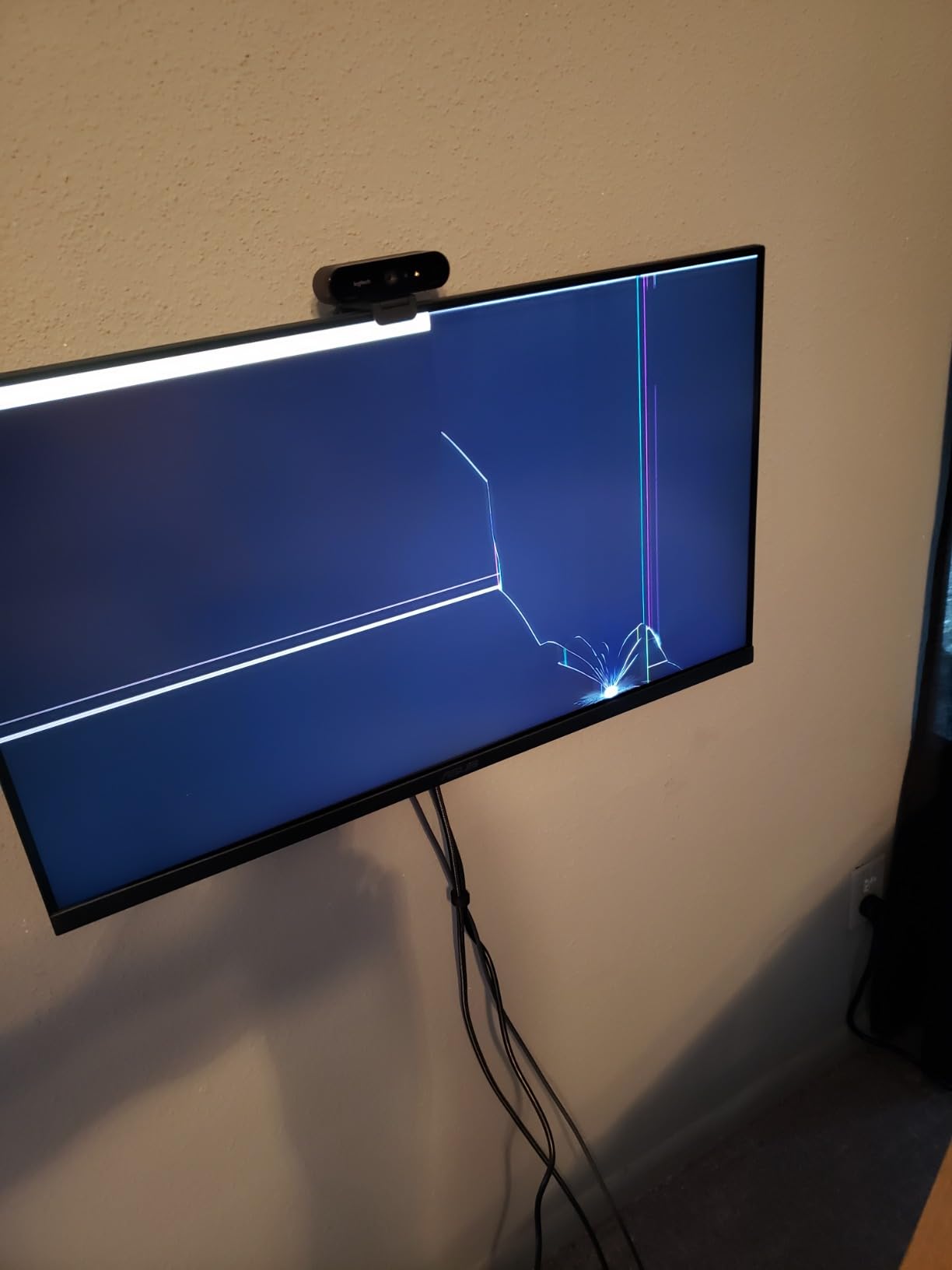
- several owners report dead pixel lines or blanking on arrival
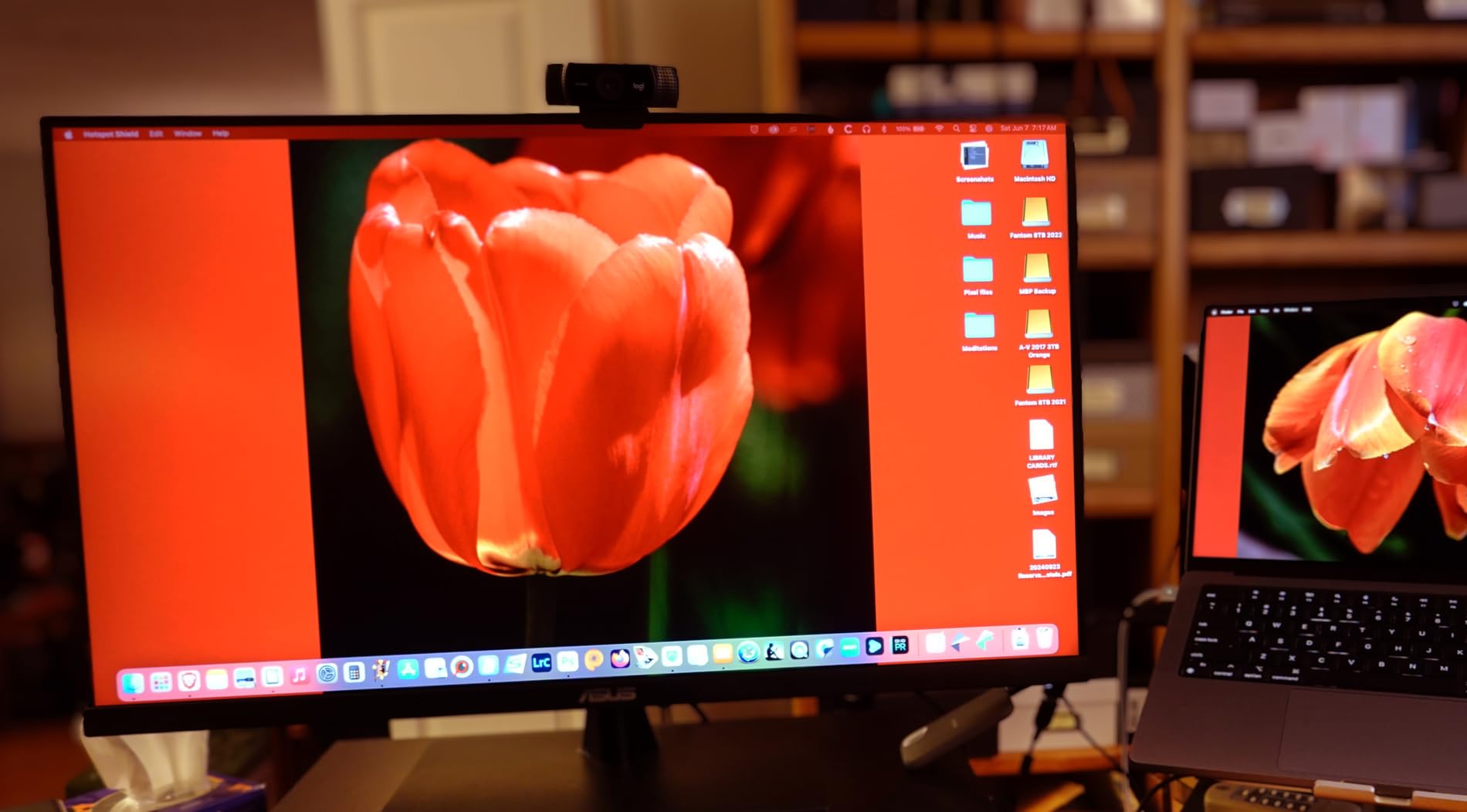
This is the most polarising screen we tested, and the reason is a panel mismatch rather than build quality. Some buyers expect an IPS panel from the listing and receive a VA panel, which produces washed-out colour and darker edges when viewed head on. Know which panel you are buying before you buy it.
Setting that aside, the feature list is genuinely the fullest at this tier. ASUS Eye Care brings TV-certified flicker-free operation and low blue light filters, there are built-in stereo speakers, and the port selection is two HDMI plus DisplayPort, enough for a laptop, a desktop and a console at once.
99 percent sRGB coverage handles photo and video work. At 4.0 from 169 owners, the rating reflects a capable screen with a known quality-control issue rather than a bad unit.
The VA Panel Reality Check
On-screen, the contrast is genuinely good in dark scenes. Head on, though, colour looks less saturated than an IPS panel of the same class, and edge darkening is visible. Some buyers also report dead pixel lines, random blanking or damaged panels on arrival, so inspect the screen immediately after delivery.
Our advice is to check the panel type in the listing before ordering, and to keep the packaging until you have confirmed the display is clean.
Eye Care and Audio for a Shared Desk
Flicker-free operation and low blue light filters are the most valuable features here for anyone doing eight-hour days. The built-in stereo speakers are among the better pairs in this roundup, good enough for video calls and casual listening on a desk with no other audio hardware.
Neither feature fixes the panel type issue, but both make long sessions more comfortable, which is the part most owners praise.
Ports, Bandwidth and the OSD Joystick
Two HDMI and one DisplayPort is generous, but the versions are HDMI 2.0 and DisplayPort 1.2, which limits bandwidth compared with the DisplayPort 1.4 on several rivals here. At 60Hz 4K that is rarely a practical limit, though it removes headroom for future high-refresh use.
The single button that doubles as a joystick for menu navigation is awkward in practice. It is a small friction that adds up on a screen you will touch daily.
Verdict
Buy it for the port count, the Eye Care modes, the speakers and the strong colour coverage, and accept the VA panel if you mostly view the screen straight on.
Pass if accurate colour matters, you sit at an angle, or you cannot inspect the display on arrival. Its 4.0 rating is the lowest in the group, and that is worth respecting.
How to Choose a 4K Monitor Under 500
Every choice in this roundup comes down to four questions asked in the right order. Work through them and the shortlist usually drops to two or three models before you have read a single review.
Start With Your Workload, Not the Spec Sheet
Office work, coding and documents reward pixel density and stand adjustment. Photo and video work rewards gamut coverage and brightness. Console gaming rewards 4K support, which every screen here has. Competitive PC gaming rewards refresh rate, and at this budget 4K is the wrong resolution to buy for it.
If your answer is mostly spreadsheets and documents, a 27-inch 4K IPS at 150 percent scaling is the target. If your answer is editing, add 350 nits and 95 percent DCI-P3 to the checklist. If your answer is gaming, read our larger display roundup and consider spending the budget on refresh rate instead.
27 Inches or 32 Inches: The Decision That Costs Buyers the Most
A 27-inch 4K panel gives roughly 163 pixels per inch and a physical size close to a 32-inch 1080p screen. A 32-inch 4K panel gives roughly 140 pixels per inch and needs about 70cm of desk depth for comfortable viewing.
Below 24 inches, 4K text scaling becomes uncomfortable at normal viewing distances, which is why we did not include 24-inch models here. Between 27 and 32 inches, the trade is sharpness against workspace. Our rule of thumb: 27 inches if you read documents all day, 32 inches if you keep two or three applications open side by side.
IPS or VA, and Why the Choice Matters More Than the Numbers
IPS panels give 1000:1 contrast, consistent colour from wide angles and fast response. VA panels give 2500:1 to 3000:1 contrast and deeper blacks, but shift colour off-axis and smear on moving content.
Choose IPS for anything involving an off-centre window, a second monitor, colour work or motion. Choose VA only for evening media consumption where black level is the priority. The contrast difference is large enough to notice and the angle behaviour is large enough to matter, so this is not a decision to make on price alone.
What HDR400, 60Hz and USB-C Actually Mean at This Budget
HDR400 means 400 nits peak brightness with no local dimming. It brightens the picture slightly and adds no real highlight detail, so treat it as a checkbox rather than a feature. If a review says the HDR mode looks good, ask for brightness numbers first.
Sixty hertz is the honest limit of this budget. Nine of our ten picks run at 60Hz, and the Dell at 120Hz is the exception worth paying for if you want smooth scrolling. For productivity, 60Hz is entirely sufficient.
USB-C power delivery is rarer than it should be. Only the LG 32UP83AK-W in this list offers it, at 60W, which is enough for ultraportables and light laptops but not for a large workstation machine. If you dock a laptop daily, that single feature should drive your shortlist more than any other spec.
Ergonomics, Ports and Warranty Length
Stand adjustment is the most overlooked buying factor. Height adjustment alone puts the top of the screen at eye level, and pivot to portrait is transformative for code and long documents. Tilt-only stands are fine only if your desk height is already right, which is rarely true for everyone in a shared household.
Count your ports before buying. Two HDMI plus one DisplayPort covers a desktop, a laptop and a console permanently, and a USB hub saves a permanently occupied slot. Check for VESA 100mm by 100mm support if you plan an arm, and note that some models do not include the screws.
Finally, read the warranty as carefully as the panel. One-year parts and labour is the norm here. Three years covering parts, labour and the backlight, as on the ViewSonic, is meaningfully better because backlight failure is the most common late-life defect on budget LCD panels. Check the dead-pixel policy and the advance replacement terms too, since those decide how painful a failure is.
Frequently Asked Questions
What is the best budget 4K monitor?
The Dell S2725QS is the best overall 4K monitor under 500 dollars for most people, because it combines a 3840 x 2160 IPS panel with a 120Hz refresh rate, 1500:1 contrast and a stand that adjusts for height, tilt, swivel and pivot. Most rivals in this budget run at 60Hz, and most ship with a fixed or tilt-only stand. For colour-critical work the LG 27UP650K-W is stronger, and for laptop docking the LG 32UP83AK-W is the only option here with USB-C power delivery.
Is 4K overkill for a 27 inch monitor?
No. A 27-inch 4K panel delivers roughly 163 pixels per inch, which is the point where text renders sharply enough to run 150 percent scaling in Windows or macOS without interface elements feeling oversized. Compared with a 1440p 27-inch panel, you get noticeably more workspace for documents, spreadsheets and code side by side, and small text stops looking soft. The only situation where 4K feels wasted at this size is if you sit unusually far back from the screen.
Is a 4K monitor actually worth it?
For productivity, yes, and it is the single biggest quality-of-life upgrade available at this budget. You fit more on screen, text is sharper, and eye strain over long sessions tends to reduce. For gaming the picture is different, because a sub-500 budget cannot also buy a competitive refresh rate and response time, so a 1440p high-refresh monitor serves motion better. Buy 4K for work, and think carefully before buying it purely for games.
What refresh rate do you really need on a budget 4K monitor?
Sixty hertz is enough for office work, coding, photo viewing and console gaming at 4K output, and nine of the ten monitors in this roundup run at 60Hz. You want more only if you play competitive shooters or competitive racing, where smoothness matters more than pixel density. In that case the Dell S2725QS at 120Hz is the one model here worth stretching for, or you should spend the budget on a 1440p panel instead.
Do you need a dedicated graphics card to run a 4K monitor?
No, most 4K monitors work from integrated graphics on a laptop or a desktop CPU, and 60Hz 4K at 10 bits is well within the capability of modern integrated GPUs. You do need a DisplayPort 1.4 or HDMI 2.0 connection for smooth 4K output, and a card that can sustain the frame rates you want in games. The Dell at 120Hz specifically needs a capable graphics card and a suitable cable to hit that refresh rate at 4K.
Is IPS or VA better for a budget 4K monitor?
IPS is better for almost all desk work. It gives consistent colour from wide viewing angles, faster pixel response and no smearing on moving content, which matters when a window sits off-centre or you use two monitors. VA offers contrast ratios of 2500:1 to 3000:1 against 1000:1 for IPS, so blacks are genuinely deeper, but colours shift off-axis and motion smears. Choose VA only if evening media viewing and black level matter more than everything else.
Which 4K Monitor Under 500 Should You Buy?
If you want one recommendation for the widest range of people, take the Dell S2725QS. It is the only screen here at 120Hz, its 1500:1 contrast beats every other IPS panel in the group, and the fully adjustable stand is the thing you will still appreciate three years from now.
If your work is visual, take the LG 27UP650K-W. At 400 nits with 95 percent DCI-P3 and the highest owner rating in the roundup, it is the strongest creative pick here, and its stand adjusts for height and pivot.
If you dock a laptop, take the LG 32UP83AK-W and stop reading. It is the only monitor in this roundup with USB-C power delivery at 60W plus three USB 3.0 ports, and a single-cable setup changes how a hybrid desk feels day to day.
For deep blacks in a dim room, the CRUA 32-inch curved panel leads on contrast at 3000:1 and carries the most owner history. For the sharpest text for the money, the Z-Edge U27P4K is hard to beat, and the ViewSonic VX3276-4K-MHD carries a three-year warranty on parts, labour and backlight.
Our general advice for anyone still undecided: check that your desk is deep enough for the size, confirm your graphics output can drive 4K at the refresh rate you need, and set Windows scaling to 150 percent on a 27-inch panel before you judge the picture. Those three steps account for most of the disappointment we see in budget 4K purchases, and all of them cost nothing. For the wider display picture, our 2026 coverage of 4K panel technology goes deeper on the panel types involved.
Leave a Reply