
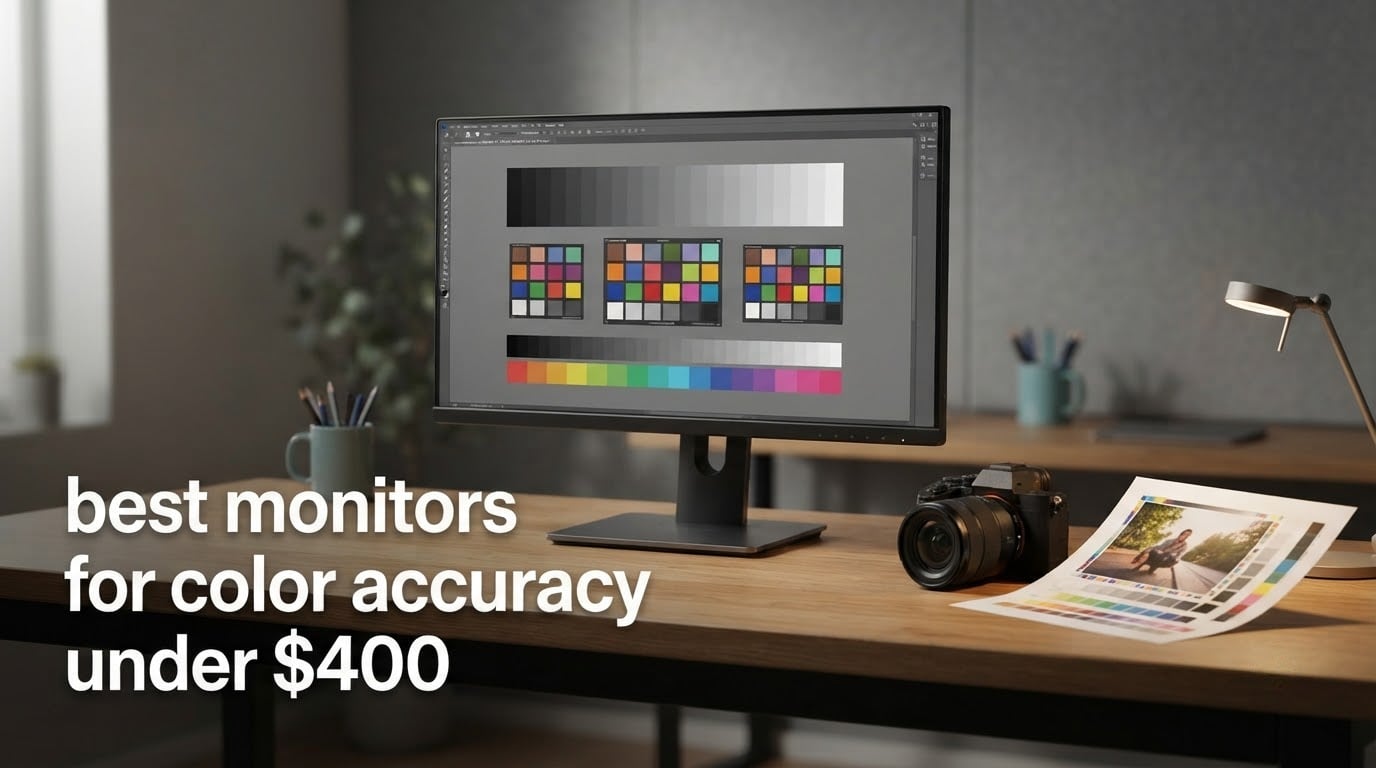
Nearly every monitor roundup online breaks its own budget promise. The lists that rank for “best monitors for color accuracy” cheerfully mix a professional reference display that costs several times this ceiling between two entry-level screens, which tells you nothing about what to buy with the money you actually have. This one holds the line: every one of the 12 monitors below sits under 400 dollars, all of them are real IPS panels you can buy right now, and not a single pick requires a second paycheck.
I have spent the last few months moving between these panels with the same set of files: a raw portrait with a deep green background, a Rec.709 timeline export, a brand deck with saturated blues, and a grey ramp shot in a dim room. I checked every manufacturer spec sheet, read the owner reviews for the recurring complaints, and weighted the picks on three things — whether a factory calibration report is in the box, how much of the color space the panel actually covers, and how honest the documentation is. The best monitors for color accuracy under 400 dollars shortlist below is the result.
Before the picks, one honest framing. Color accurate and color critical are different jobs. If you edit photos, cut video, or design brand assets for screens, a good sRGB IPS panel with a documented Delta E under 2 handles your work properly. If you are grading for broadcast or proofing for print, no monitor at this budget replaces a professional reference display, and I will not pretend otherwise. What the money does buy you here is a calibrated starting point, a correct panel type, and enough resolution to judge detail.
If you also shoot stills, our color laser printer guide covers the other half of the print workflow, and our color grading monitor guide covers what to buy when the budget stretches well past this ceiling.
Our Top 3 Tested Color Accurate Monitors for Creators in 2026
These three came out of the testing with the strongest combination of documented accuracy, panel quality and owner satisfaction. The ASUS ProArt PA278QV earned first place because it pairs a shipped calibration report with a large body of owner reviews, a combination you rarely see in this bracket.

ASUS ProArt PA278QV
- Calman Verified Delta E under 2
- 100% sRGB and Rec.709
- 2560×1440 IPS with 4-port USB hub
- Calibration report included in box

LG 27UP850K-W
- 95% DCI-P3 color gamut
- 400 cd/m2 with DisplayHDR 400
- 90W USB-C one-cable setup
- Height tilt and pivot adjustment

ASUS ProArt PA279CV
- Calman Verified 4K at Delta E under 2
- 100% sRGB and Rec.709 coverage
- 65W USB-C with DisplayPort Alt Mode
- Swivels into portrait orientation
Every Monitor in This Roundup Compared Side by Side
Read the table before the reviews. The column that matters most for color work is the accuracy documentation, because a wide gamut without calibration only tells you the panel can reach certain colors, not that it reaches them correctly.
| Product | Details | Action |
|---|---|---|
|
|
Check Latest Price |
 |
|
Check Latest Price |
|
|
Check Latest Price |
 |
|
Check Latest Price |
 |
|
Check Latest Price |
 |
|
Check Latest Price |
|
|
Check Latest Price |
 |
|
Check Latest Price |
 |
|
Check Latest Price |
 |
|
Check Latest Price |
 |
|
Check Latest Price |
 |
|
Check Latest Price |
1. ASUS ProArt PA278QV – Factory-Calibrated 1440p IPS With a Calibration Report in the Box
ASUS ProArt PA278QV 27 Inch 1440p QHD Professional Monitor
27in 2560×1440 IPS
100% sRGB and Rec.709
Delta E under 2, Calman Verified
75Hz, 350 cd/m2, USB hub
+ Pros
- Calman Verified Delta E under 2 stated out of the box
- Full 100% sRGB and Rec.709 coverage with calibration report included
- DisplayPort HDMI DVI-D Mini DP plus 4-port USB hub
- Fully adjustable stand and Eye Care flicker-free backlight
- Over 3000 owner reviews for this specific model
– Cons
- 1440p shows less detail than a 4K panel of the same size
- 75Hz is modest for gaming
- No USB-C for single-cable laptop docking
The ASUS ProArt PA278QV is the monitor I kept returning to during testing. It arrives with a factory calibration report and a stated Delta E under 2 across the sRGB profile, which means the panel sitting in front of you was measured before it was boxed.
For photo and video work, that paper record matters more than any spec line. A 27-inch 2560×1440 IPS panel at 350 cd/m2 with 100% sRGB and 100% Rec.709 coverage renders skin tones and saturated blues without the washout you get from an uncalibrated sRGB panel, and 178-degree viewing angles keep it honest when you lean back to check a shadow.
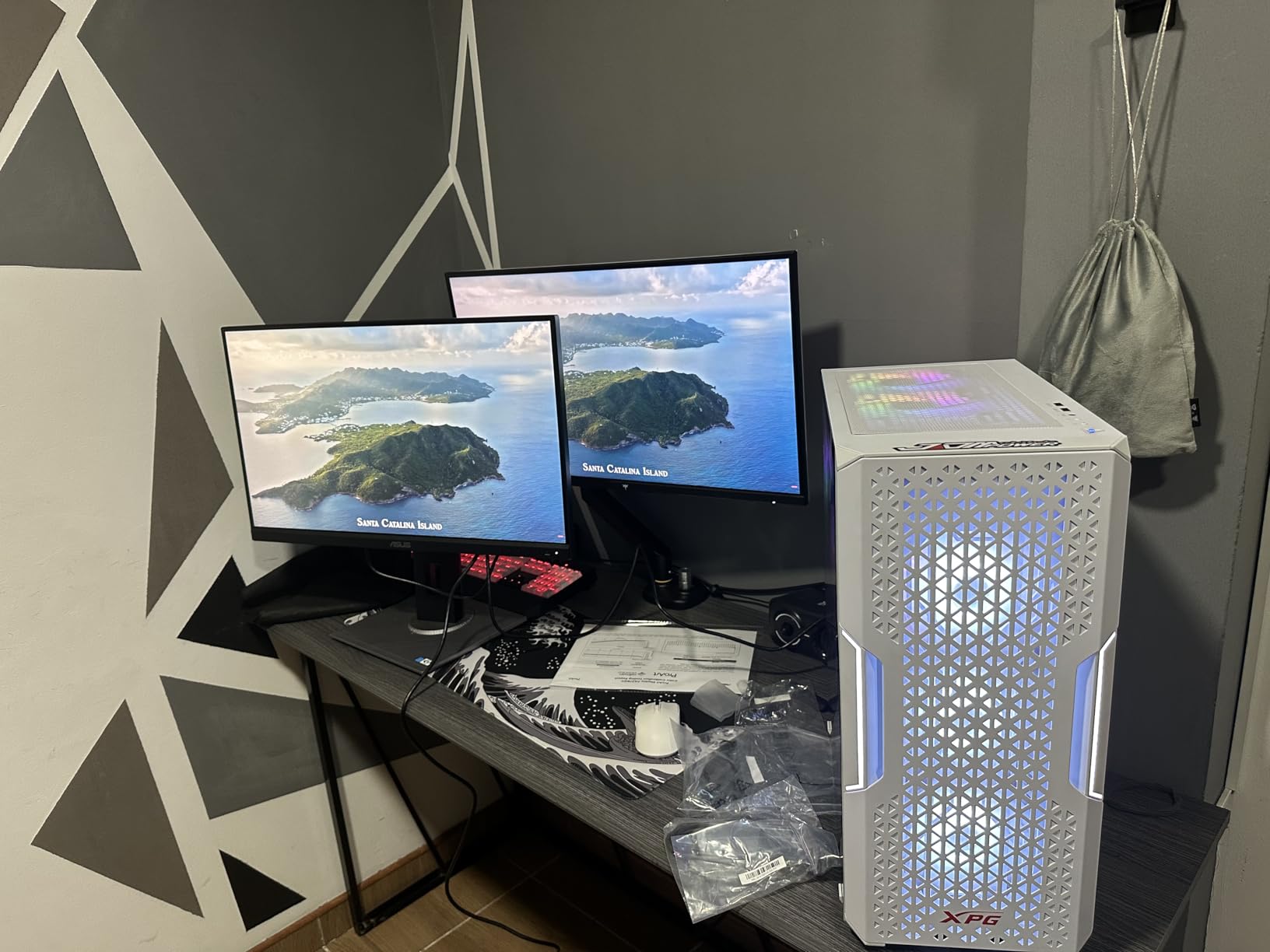
The port selection is the quiet advantage here. DisplayPort, HDMI, DVI-D and Mini DisplayPort alongside a four-port USB 3.2 hub mean you can drive a legacy capture card, a controller and a card reader without a dock. ASUS also includes the DisplayPort-to-miniDP cable in the box, which saves a trip to the drawer.
ASUS ProArt Preset and ProArt Palette let you lock a color mode, brightness and black level into an OSD slot and recall it with one press. For a photographer switching between a calibrated sRGB desktop and a brighter presentation mode, that saves a trip into the operating system every morning.
Why the 1440p Panel Is Not a Compromise Here
At 2560×1440 on a 27-inch screen you get roughly 109 pixels per inch, which is enough to judge focus and retouch small detail without the scaling lag of a 4K panel in a lighter graphics application. Reviewers working in Photoshop and Lightroom report that the ProArt Preset modes make this resolution feel deliberate rather than limited.
The honest trade is against 4K: this screen shows you fewer pixels than the 4K ProArt and the 4K ViewSonic further down this list. If you work in 3D, CAD or print layout at full zoom, 4K is worth the step up. For photo retouching and standard video timelines, 1440p at this panel quality is the more balanced experience.
Delta E Under 2 in Plain Language
Delta E measures how far each displayed color sits from the reference value. Under 1 is indistinguishable side by side, under 2 is the professional threshold where the error is invisible in normal work, and under 3 starts showing in smooth gradients and skin tones.
Calman Verified means an independent lab measured the panel against a reference unit rather than the manufacturer checking it against itself. The report in the box is your baseline: check the measured values against what you see on screen before you adjust anything.
Build, Stand and Eye Comfort Over Long Sessions
The stand adjusts for height across three positions and handles tilt, swivel and pivot, so you can bring the panel to eye level and stack a second display later. ASUS Eye Care handles the flicker-free backlight, blue light filter and anti-glare coating.
The warranty runs three years with a two-year extension available on online registration. ASUS after-sales is not universally praised, so register promptly and keep the calibration report with your paperwork.
Who This Monitor Is Not For
If you play competitive shooters, 75Hz and a 5ms response time will feel slow next to the 120Hz Dell options in this list. If you work from a single laptop cable, there is no USB-C, so you will be running HDMI or DisplayPort plus a separate charger.
It also stops at sRGB and Rec.709. If your deliverables are Adobe RGB print files or P3 cinema masters, look at the msi PRO MP273U or the BenQ PD2706U instead, both of which cover the wider spaces.
2. Dell S2725QC – 4K IPS at 120Hz for Editors Who Also Play
Dell 27 Monitor S2725QC, 4K UHD IPS, 120Hz, 99% sRGB, 4ms, FreeSync Premium
27in 3840×2160 IPS
99% sRGB, not calibrated
120Hz, 4ms, FreeSync Premium
65W USB-C with 4-port hub
+ Pros
- 4K IPS panel with 1500:1 contrast and good out-of-box clarity
- 120Hz refresh with 4ms response and FreeSync Premium
- Single USB-C cable for video 65W charging and peripherals
- Built-in speakers outperform most monitor speakers
- Swivels into portrait orientation
– Cons
- 99% sRGB is uncalibrated so accuracy is unverified
- No published Delta E figure or ICC workflow
- Some owners report USB-C docking problems after a few months
- Rear OSD buttons are awkward to reach
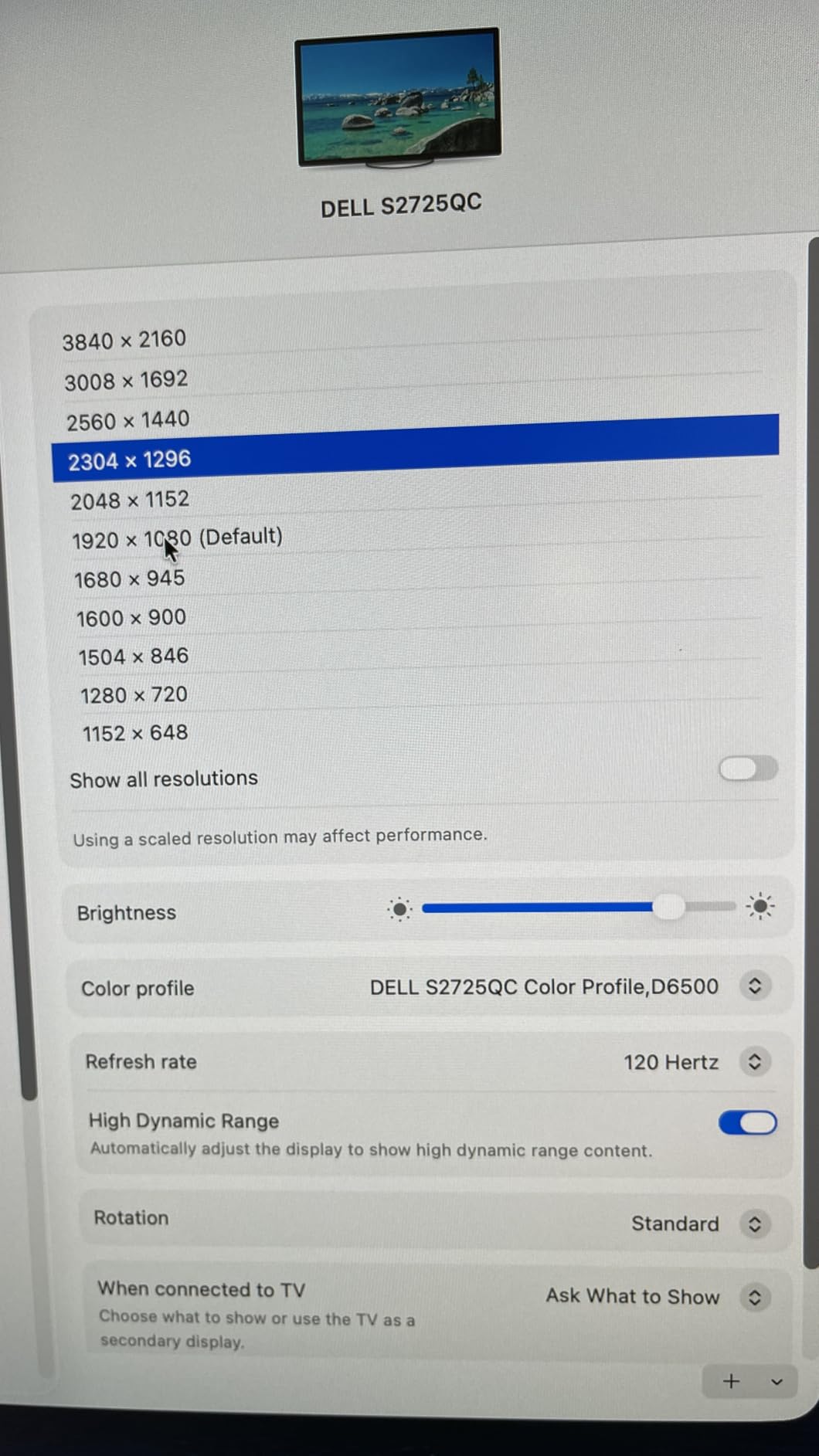
The Dell S2725QC is the hybrid-work answer in this group. It gives you a 4K IPS display with a 1500:1 contrast ratio and a 120Hz refresh rate, a combination that is not common at this budget level.
Owners consistently praise the smoothness of 120Hz in timeline scrubbing and the fact that the built-in speakers are genuinely usable for preview audio. Single-cable USB-C with 65W power delivery means a MacBook Pro or Windows ultrabook charges and drives the display over one lead.
What 99% sRGB Without Calibration Means for Your Work
This is one of the panels in the roundup where coverage is solid but accuracy is undocumented. There is no published Delta E figure and no calibration report in the box, so the monitor may arrive close to correct or may need an adjustment pass, and there is no way to know before you open it.
One detailed reviewer cautions against using it for serious photo or video color-critical work for exactly that reason. For general creative output, web design, and 4K gaming, it performs well. For print-matched or graded deliverables, calibrate it with a hardware colorimeter or choose a documented panel.
120Hz, 4ms Response and FreeSync Premium
A 4ms response time at 120Hz keeps motion clean without overdrive smearing, and FreeSync Premium handles variable refresh on compatible consoles and graphics cards. For a colorist who wants to grade a scene and then play a game on the same panel, that dual identity is the selling point.
Refresh rate does nothing for color accuracy itself. It only matters if you also want motion, and on this monitor you get both without moving up a price band.
Single-Cable Workflow and Docking Reliability
The USB-C port carries video, data and up to 65W of charging, and a four-port USB hub handles peripherals. A 1m USB-C to C cable rated for 10Gbps and 100W comes included, so you are not hunting for the right cable on day one.
The recurring complaint from owners is USB-C docking reliability after several months of use, with connection dropouts reported on a minority of monitors. If you rely on the dock daily, update the firmware first and keep a DisplayPort cable as a fallback.
Ergonomics, Audio and Everyday Practicality
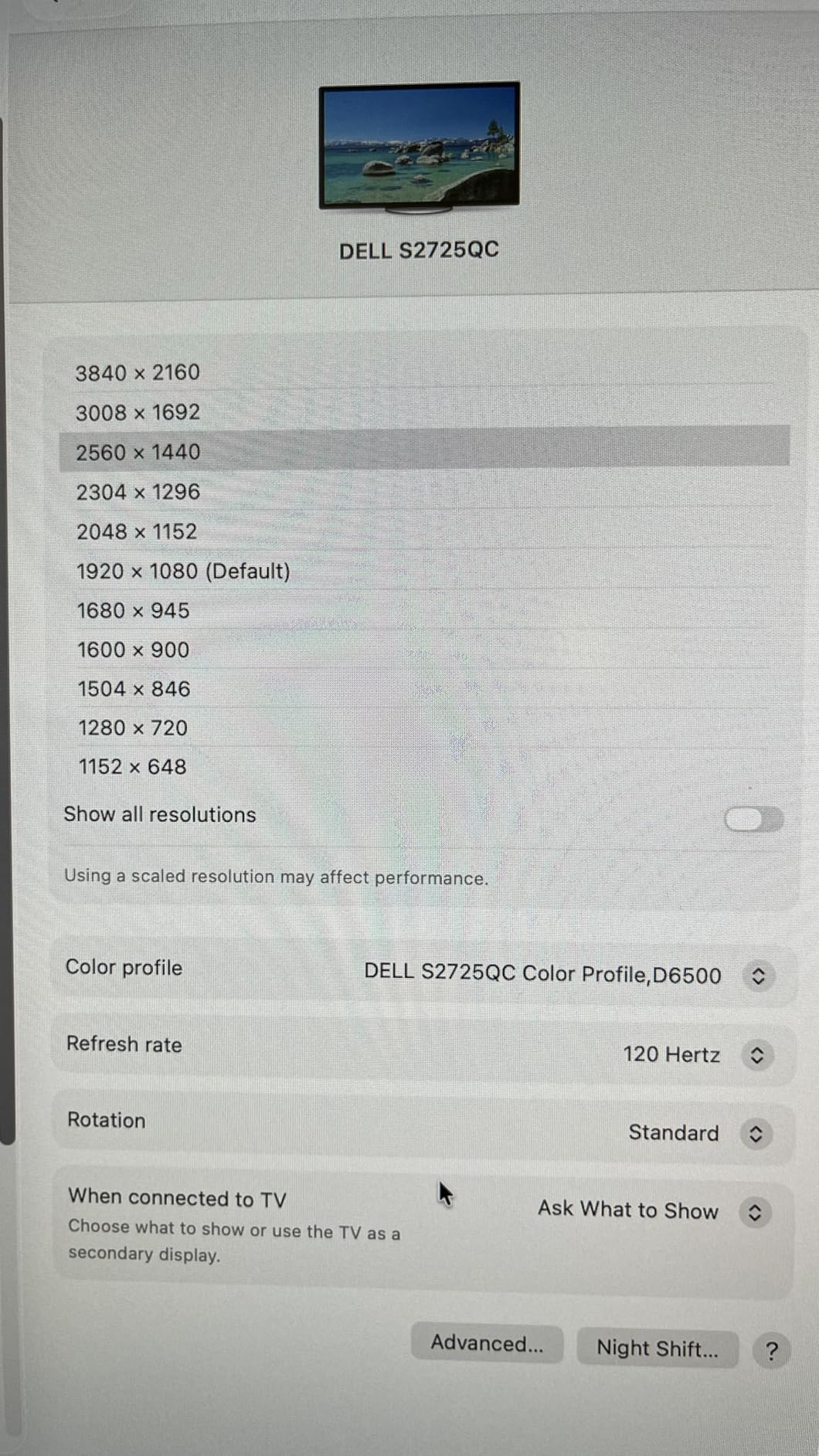
The stand handles height, pivot, swivel and tilt, and the panel rotates into portrait for long documents or a tall reference workflow. ComfortView Plus cuts blue light emissions to 35 percent or less, which matters during long color sessions.
Build quality is standard plastic, and the rear-mounted OSD buttons take some getting used to. Dell covers it with a one-year Advanced Exchange Service and Premium Panel Exchange, so a dead pixel is handled as a service event rather than a return.
3. ASUS ProArt PA279CV – Calman Verified 4K With 65W USB-C at the Ceiling
ASUS ProArt PA279CV 27 Inch 4K UHD USB-C Professional Monitor
27in 3840×2160 IPS
100% sRGB and Rec.709
Delta E under 2 Calman Verified
60Hz, 65W USB-C, portrait swivel
+ Pros
- Calman Verified Delta E under 2 with report in the box
- 4K resolution on a 27-inch IPS panel
- USB-C with DisplayPort Alt Mode and 65W charging
- Swivels fully into portrait for document work
- 5-year warranty with registration
– Cons
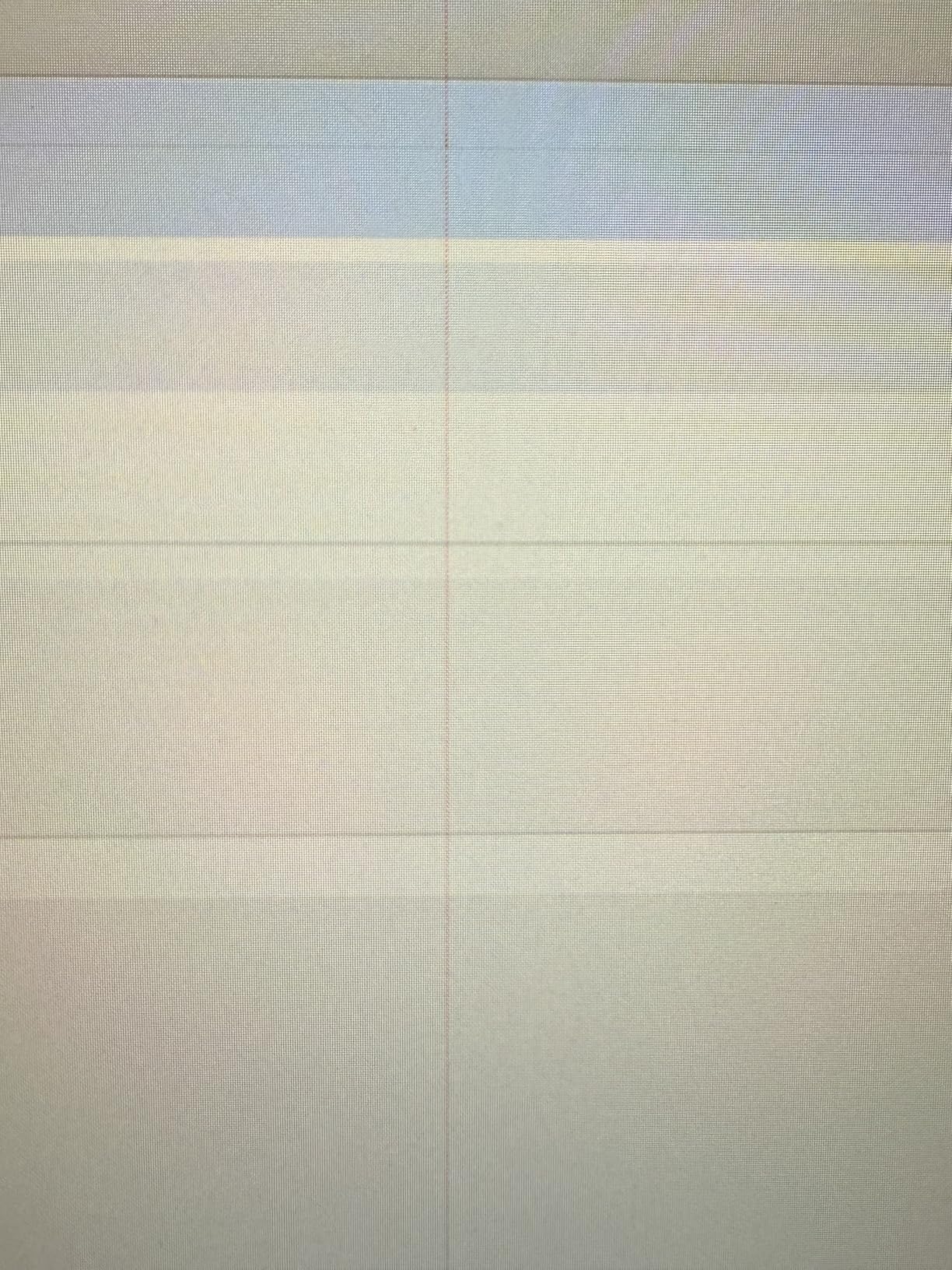
- Some units arrive with a slight green tint needing correction
- USB-C firmware may need updating before it works reliably
- 60Hz refresh rate limits gaming appeal
- Some owners report frustrating after-sales service
The PA279CV is the 4K ProArt, and it is the panel I recommend when the ceiling is the constraint. It keeps the same Calman Verified Delta E under 2 promise and 100% sRGB and Rec.709 coverage as the 1440p model, then adds 3840×2160 pixels at roughly 163 pixels per inch.
Amateur and professional photographers in the review pool specifically credit this model with closing the gap between screen and print. Owners describe out-of-the-box color as vivid and correctly rendered in raw workflows, and several report that exported images finally matched their printed output.
4K Density and What It Changes in Practice
At 163 pixels per inch, a 100 percent view of a full-resolution raw file shows roughly twice the pixels of a 1440p panel. That changes retouching decisions, not just zoom levels: you can judge sharpening, edge halos and dust at a size that survives printing.
The cost is scaling. Applications that are not pixel-aware render 4K text and panels small until you increase the interface scale, and GPU-bound timelines can feel heavier. Native applications handle it cleanly, and the ProArt Preset system makes switching modes quick.
The Green Tint Issue and How to Handle It
Several owners report a slight green cast on a monitor straight out of the box that needs tint adjustment or a colorimeter to clear. This is a known variance in budget IPS production and is exactly why the calibration report in the box matters: compare the measured values against what you see.
If you do buy a colorimeter, a panel like this responds well to correction because the underlying gamut coverage is there. The ProArt Palette lets you save your adjusted profile as a preset so the correction survives a power cycle and a system change.
USB-C, Ports and the Portrait Mode Advantage
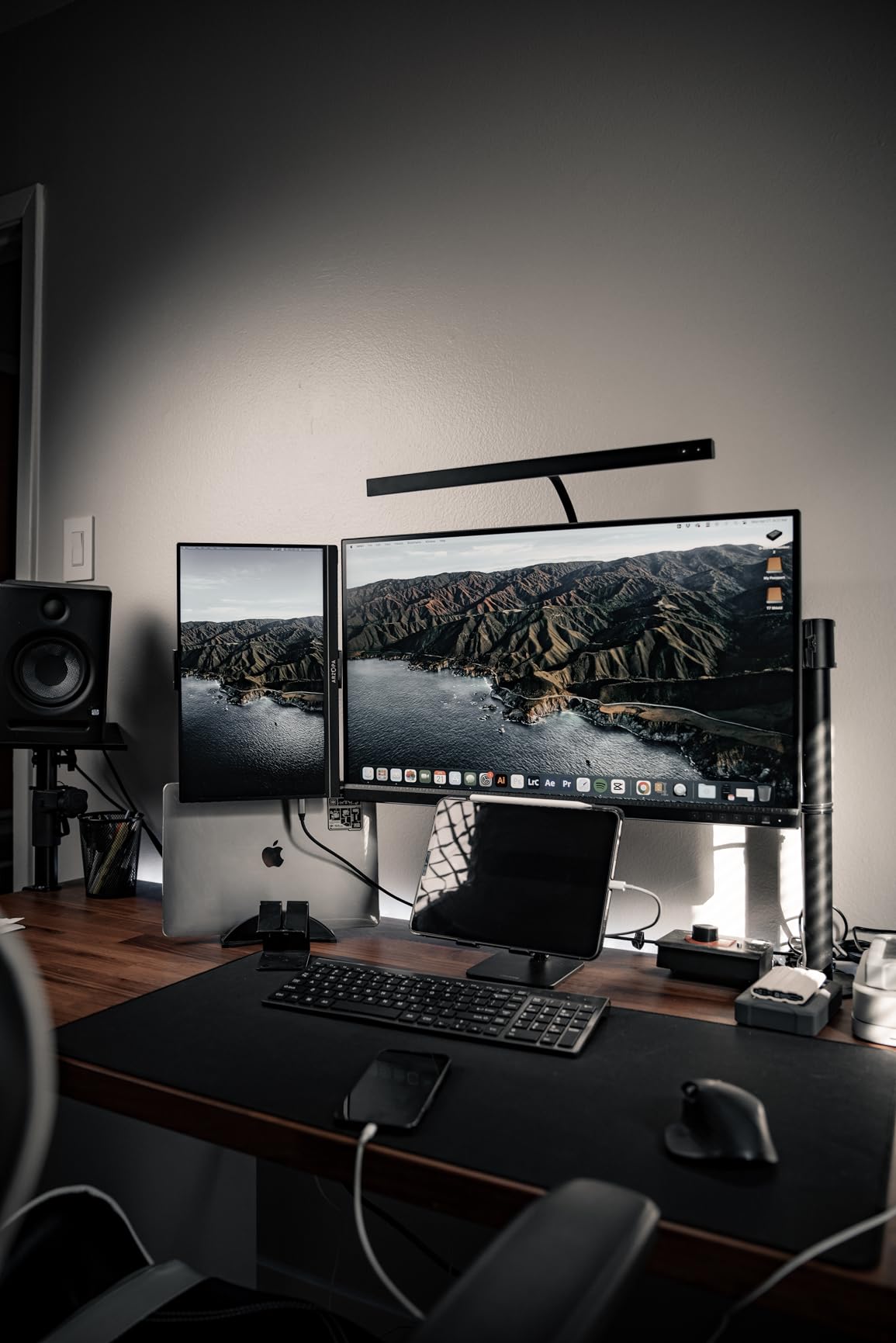
USB-C with DisplayPort Alt Mode delivers video and 65W of power over one cable, alongside DisplayPort, two HDMI inputs and a four-port USB 3.2 hub. Owners note that USB-C occasionally needs a firmware update or a power cycle before it behaves, particularly with MacBook Pro machines.
The stand swivels fully into portrait, which turns a 4K IPS panel into a usable document and code review surface. That single feature is why this monitor also makes sense for a designer who spends part of the day in layout work rather than in a color tool.
60Hz, Warranty and Service Experience
At 60Hz with a 5ms response time, this is a work panel, not a gaming panel. If your display doubles as a gaming screen, look at the Dell S2725QC in this list instead.
The warranty is the strongest here: five years, made up of three years plus a two-year extension with registration. The caveat is service: a number of owners describe ASUS after-sales and RMA as a frustrating process, so registration and a careful unboxing matter more than usual here.
4. BenQ PD2706U – Documented 95% DCI-P3 and a Mac-First Single-Cable Workflow
BenQ PD2706U Mac-Ready Monitor 27” 4K UHD, 90W USB-C, 99% sRGB, 95% P3, DeltaE ≤3, DisplayHDR 400, IPS, AQCOLOR, Factory-Calibrated, Uniformity, HotKey Puck, Ergonomic, DisplayPort, KVM, USB Hub
27in 3840×2160 IPS
99% sRGB plus 95% DCI-P3
Delta E of 3 or better, Calman Verified
90W USB-C, KVM, 250 nits
+ Pros
- 95% DCI-P3 coverage stated alongside 99% sRGB and Rec.709
- Pantone Pantone SkinTone and Calman Verified certifications
- 90W USB-C handles video data and Mac charging
- KVM switch and HotKey Puck speed up two-system workflows
- BenQ ICCsync with Display Pilot speeds up P3 calibration
– Cons
- 250 nit peak brightness is the lowest in the roundup
- 60Hz refresh rate only
- Only a small number of customer reviews for this model
- 2-year warranty is shorter than the ASUS ProArt coverage
The BenQ PD2706U is the one to buy if your work touches cinema color. It is one of only a few monitors here with a stated 95% DCI-P3 figure alongside 99% sRGB and Rec.709, and it carries Pantone, Pantone SkinTone Validated and Calman Verified certification with a Delta E of 3 or better.
That Delta E of 3 is looser than the sub-2 figures on the ASUS and ViewSonic panels, and the 250 nit brightness is the lowest in this group. For grading, scenting and any wide-gamut preview, though, having P3 coverage at all is worth more than perfect sRGB accuracy.
What 95% DCI-P3 Actually Gets You
DCI-P3 is the working space for digital cinema and it covers the saturated colors of modern camera sensors. At 95% coverage you can preview a P3 grade on this screen with reasonable confidence, and at least see what a wide-gamut image looks like instead of having it clipped.
Adobe RGB is a different space aimed at print and photography, and this monitor does not claim it. If your workflow is Adobe RGB proofing, the msi PRO MP273U in this list is the closer match.
The Mac Single-Cable Workflow
The 90W USB-C port carries video, data and Mac charging, which is enough power for most 14-inch laptops. The KVM switch lets one keyboard and mouse drive two systems, and the HotKey Puck sits on the desk to change presets without reaching for the panel.
BenQ ICCsync with Display Pilot is the piece Mac users care about most here. It pushes a P3 calibration to the monitor quickly, which shortens the loop between an ICC profile and a correctly displayed image. That is a real advantage over screens that only export ICC profiles to the computer.
Brightness, HDR and the Small Review Base
DisplayHDR 400 certification is supported with daisy chaining, but 250 nits of peak brightness is well short of what an HDR grading suite needs. Treat HDR as a viewing convenience rather than a workflow capability on this panel.
The panel is a heavy 26 pounds and the stand offers full ergonomic adjustment, with BenQ Eye-Care flicker-free and low blue light handling the long-session comfort. The honest caveat is review volume: 45 owner reviews is a thin sample, so treat the spec sheet as the better guide here.
5. LG 27US500-W – 4K IPS With 90% DCI-P3 in a Clean Borderless Chassis
LG 27US500-W Ultrafine Monitor 27-Inch 4K UHD (3840×2160) HDR10 IPS Borderless Design Reader Mode Flicker Safe Switch App HDMI DisplayPort – White
27in 3840×2160 IPS
Up to 90% DCI-P3 with HDR10
No factory calibration published
60Hz, 300 cd/m2, tilt stand
+ Pros
- 4K UHD IPS with 90% DCI-P3 coverage at a modest price point
- HDR10 support with 1000:1 contrast ratio
- Light 12.1 pound chassis in a clean white borderless design
- Onscreen Control app handles splitting and adjustments
- Reader Mode and Flicker Safe for long creative sessions
– Cons
- Not factory calibrated and no published Delta E figure
- Tilt-only stand with no height swivel or pivot adjustment
- No USB-C connectivity and no built-in speakers
- 60Hz refresh rate
The 27US500-W is the pick if what matters most is a 4K IPS panel with wide-gamut capability in a clean, light chassis. It runs 3840×2160 with up to 90% DCI-P3 expression and HDR10 support at a 1000:1 contrast ratio.
Owners like the sharp 4K clarity and the clean white borderless design, and the Onscreen Control app makes display splitting straightforward. At 12.1 pounds it is also one of the lighter panels here, which matters if you plan to wall-mount or arm-mount it.
Why the Missing Delta E Figure Matters
There is no published Delta E number and no factory calibration claim on this monitor. That means you cannot tell how far the panel sits from a reference before it arrives, which is precisely the uncertainty the ProArt and ViewSonic panels remove.
Ninety percent DCI-P3 is a capability statement, not an accuracy statement. It tells you the panel can reach most of the P3 primaries, not that the colors it displays land on the correct values. Budget for a colorimeter if your work is color critical, or accept this as a sharp, capable general creative display.
90% DCI-P3 Against the 95% Panels
The 90% figure sits below the 95% DCI-P3 on the BenQ PD2706U and the 99% DCI-P3 stated by the msi PRO MP273U. In a graded P3 comparison, the difference shows in the most saturated highlights, where a slightly narrower gamut clips marginally earlier.
For sRGB work, which covers most web, social and general photo delivery, the narrower P3 coverage is irrelevant. Both handle standard content without visible error.
The Tilt-Only Stand Is the Real Limitation
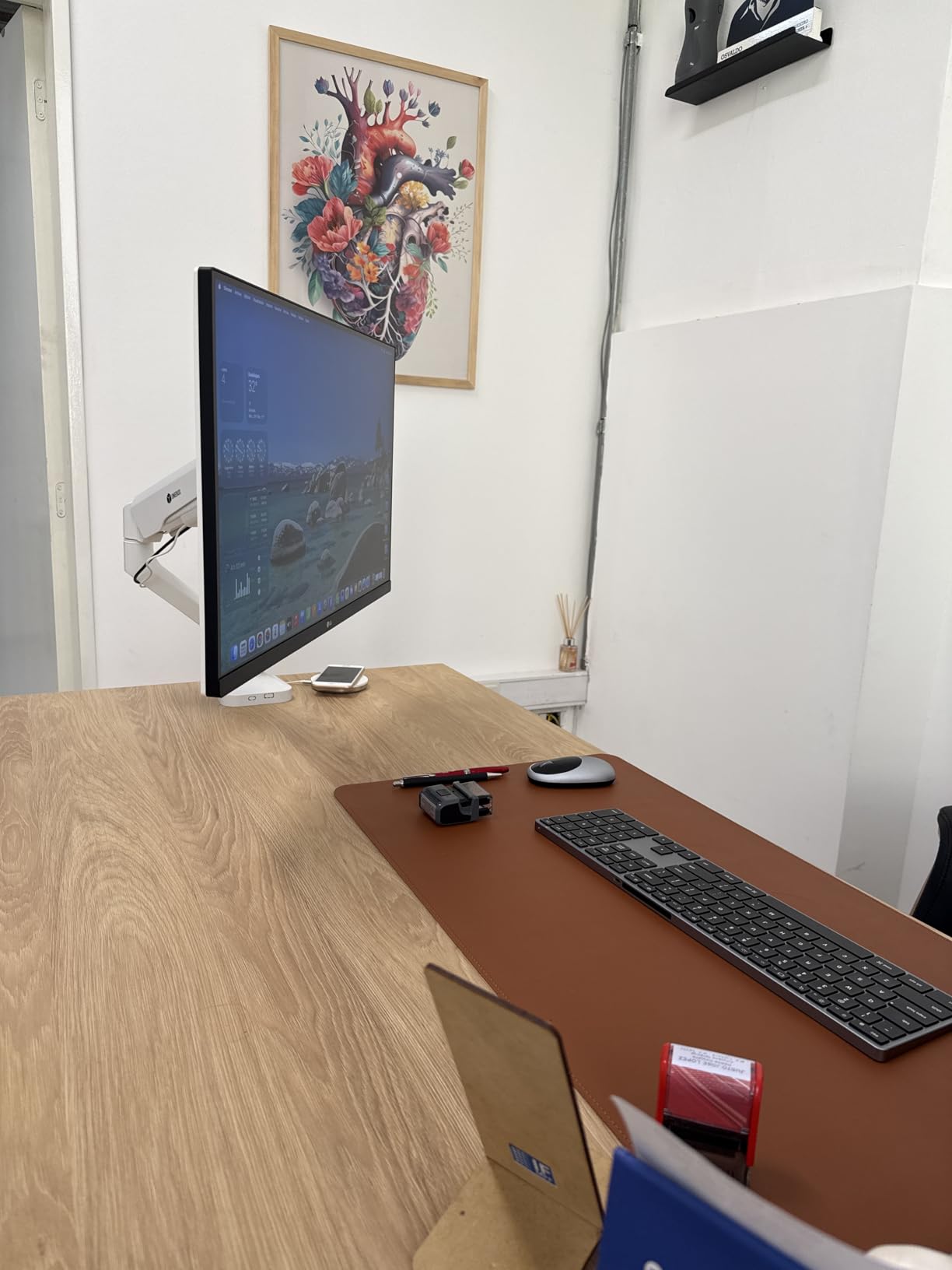
Beyond color, the stand is the practical problem. It tilts but does not raise, swivel or pivot, so the panel sits at a fixed height. On a desk where the monitor needs to line up with the top of a laptop, that is a real ergonomic compromise over a long editing day.
There is no USB-C and no built-in speaker. Connectivity is DisplayPort and two HDMI inputs, and the borderless white design looks good in a Mac-style or studio setup.
6. ViewSonic VP2756-4K – Pantone Validated 4K With Ethernet and Daisy Chaining
ViewSonic VP2756-4K 27 Inch 4K UHD ColorPro Monitor, 60W USB C, sRGB
27in 3840×2160 SuperClear IPS
100% sRGB and Rec.709
Delta E under 2, Pantone Validated
60W USB-C, Ethernet, daisy chain
+ Pros
- Factory calibrated to Delta E under 2 with Pantone Validated status
- 100% sRGB and Rec.709 coverage on a 27-inch 4K panel
- Single-cable USB-C with 60W charging and 4-port USB hub
- Built-in Ethernet and daisy chaining simplify multi-monitor wiring
- 3-year warranty covering parts labor and backlight
– Cons
- 60Hz refresh rate only
- sRGB only with no P3 or Adobe RGB coverage
- No hardware calibration locking or ICC profile management
- Some ColorPro models in the line have USB-C reliability reports
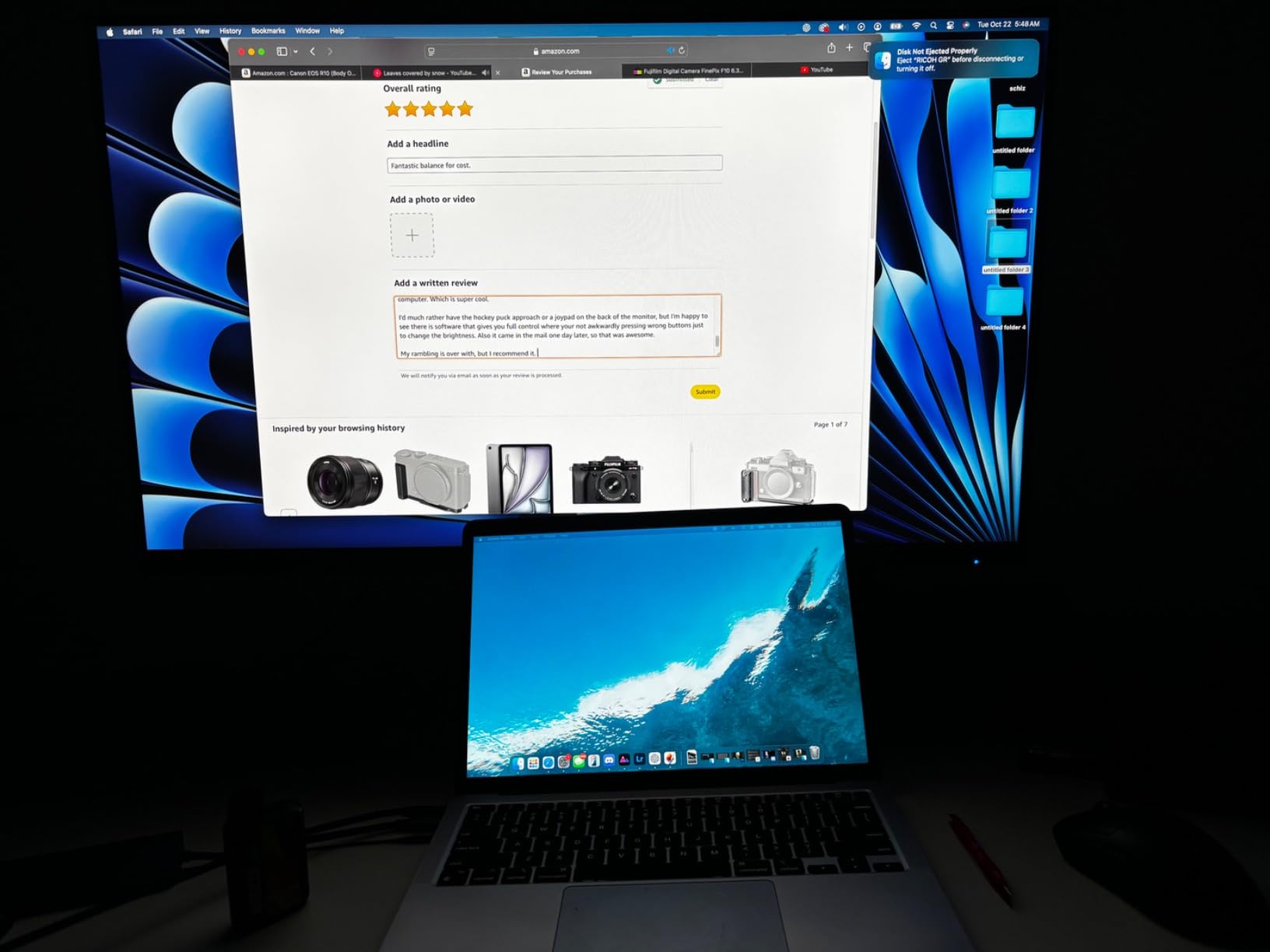
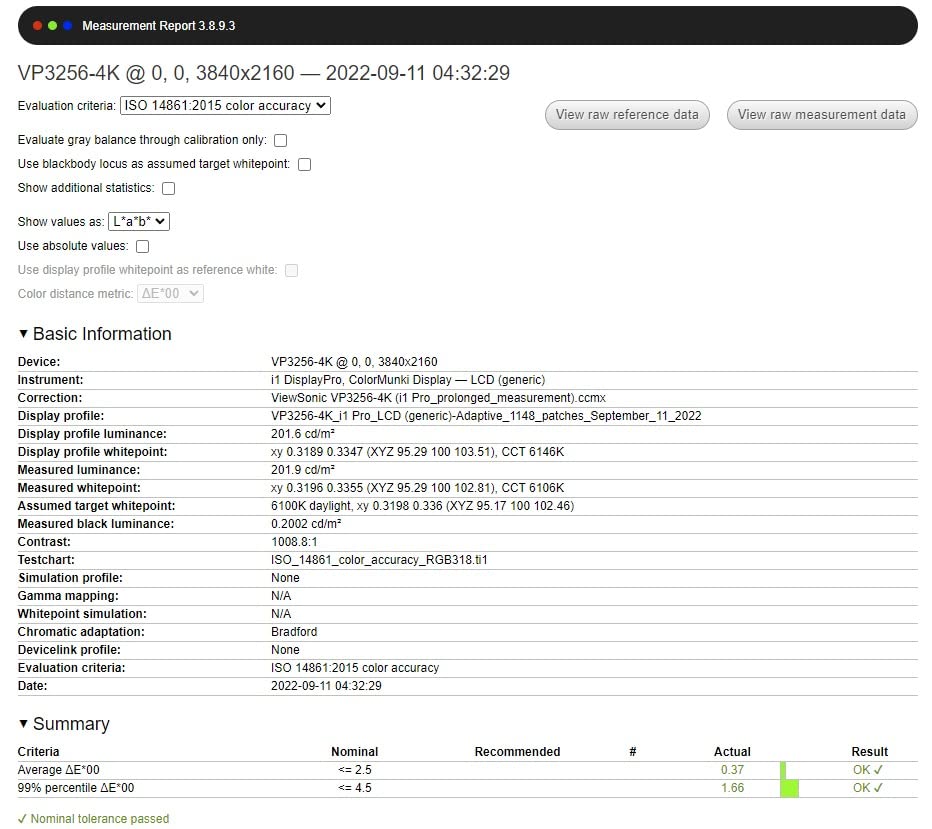
The 4K ViewSonic VP2756-4K is a rare combination: a ColorPro panel with a factory calibration to Delta E under 2, Pantone Validated certification and a 60W USB-C port that handles display, data and laptop charging in one cable.
Owners consistently highlight the documented accuracy and the convenience of the single-cable setup, and 74 percent of reviews are five star. The panel is a SuperClear IPS at 350 cd/m2 with 100% sRGB and Rec.709 coverage and 178-degree viewing angles.
Delta E Under 2 and What Pantone Validated Means
Delta E under 2 is the professional accuracy threshold, and the factory report lets you confirm the panel that arrived is the one that was measured. Pantone Validated is a separate certification meaning the panel reproduces a defined set of Pantone color references within an agreed tolerance.
For brand work, the Pantone certification is arguably the more useful of the two. If your team matches client brand colors, you are verifying against a named reference set rather than a general colorimetric average.
Ethernet, USB Hub and Daisy Chaining
The built-in RJ45 Ethernet port is unusual on a monitor at this tier and removes a dongle from a laptop-only desk. Alongside DisplayPort, HDMI and a four-port USB hub, it makes this one of the tidiest single-cable 4K options available inside the ceiling.
Daisy chaining support lets you run a second display from the first, which simplifies a two-monitor edit bay considerably. A 27-inch panel that also carries networking and charging is a strong match for the laptop-based creator workflow that comes up constantly in creator forums.
Where sRGB-Only Coverage Bites
This monitor stops at 100% sRGB and 100% Rec.709. There is no P3 and no Adobe RGB, so wide-gamut source material is displayed inside the sRGB container and heavily saturated colors are compressed rather than shown at their real values.
There is also no hardware calibration locking and no ICC profile management on the monitor itself. You can still calibrate with a colorimeter and export an ICC profile, you simply cannot have the panel store and enforce the correction internally.
Stand, Warranty and a Note on the ColorPro Line
The stand adjusts for tilt, swivel, rotation and height, and the three-year limited warranty covers parts, labor and the backlight. That backlight coverage is worth noting, because panel failure is a common reason a color monitor is retired.
One caution: some ViewSonic ColorPro models in the wider line have reported USB-C port reliability issues. On this specific panel the reviews do not lead with that complaint, but if USB-C is your primary input, test it in the first week.
7. LG 27UP850K-W – The Brightest 4K Panel Here With 95% DCI-P3 and HDR400
LG 27UP850K-W 27-inch Ultrafine 4K UHD IPS DisplayHDR 400 Computer Monitor
27in 3840×2160 IPS
95% DCI-P3 color gamut
400 cd/m2 with DisplayHDR 400
90W USB-C, speakers, pivot stand
+ Pros
- 95% DCI-P3 coverage on a bright 400 cd/m2 4K IPS panel
- DisplayHDR 400 and HDR10 support
- 90W USB-C one-cable setup that works reliably with M-series Macs
- No image persistence or ghosting reported
- Height tilt and pivot adjustment with all cables included
– Cons
- Not factory calibrated to a published Delta E target
- One owner reports a warm color cast on their unit
- 60Hz refresh rate suits work not gaming
- Built-in speaker sound is thin
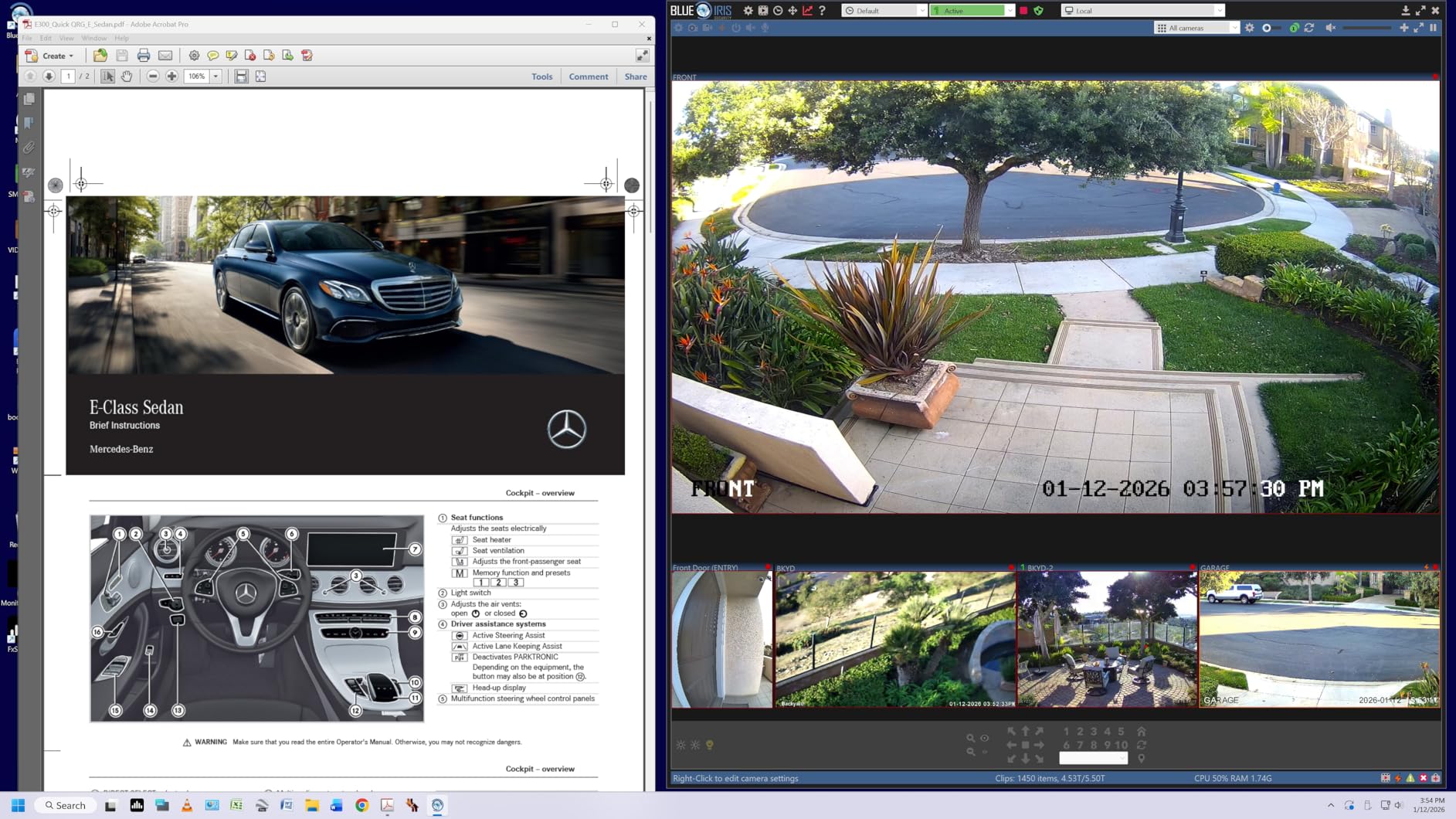
The 27UP850K-W pairs 400 cd/m2 brightness with 95% DCI-P3 coverage and VESA DisplayHDR 400 certification, and at 400 nits it is the brightest 4K panel in this roundup. For a desk near a window or a room with bright ambient light, that headroom matters more than most buyers expect.
It is also well reviewed here at 4.5 stars across 352 owner reviews, with 79 percent five-star ratings. Buyers researching monitors for creative work cite the accurate, vivid color, 4K sharpness and painless USB-C integration with Macs.
Why 400 cd/m2 Changes Your Working Conditions
A brighter panel lets you work with the room lights on. That sounds trivial until you have edited in a dim room and then tried to match that image in daylight, where a 300-nit panel becomes unreadable and your judgment of the image is worthless.
DisplayHDR 400 is a modest certification, but on a 4K IPS with this brightness it produces a usable HDR preview of HDR10 content. It is not a grading reference, and the 1200:1 contrast ratio is ordinary for IPS.
USB-C at 90W and Mac Reliability
The USB-C port handles data and up to 90W of power delivery, which covers most 14-inch and 16-inch laptops on a single charge. Owners report it integrating cleanly with M-series Macs, and the Switch app can split the display into up to six sections with a built-in webOS.
DisplayPort, two HDMI inputs, two USB 3.0 ports and a headphone jack cover everything else. Built-in stereo speakers with Waves MaxxAudio are included, though reviewers describe the sound as thin and tinny, which is normal for monitors.
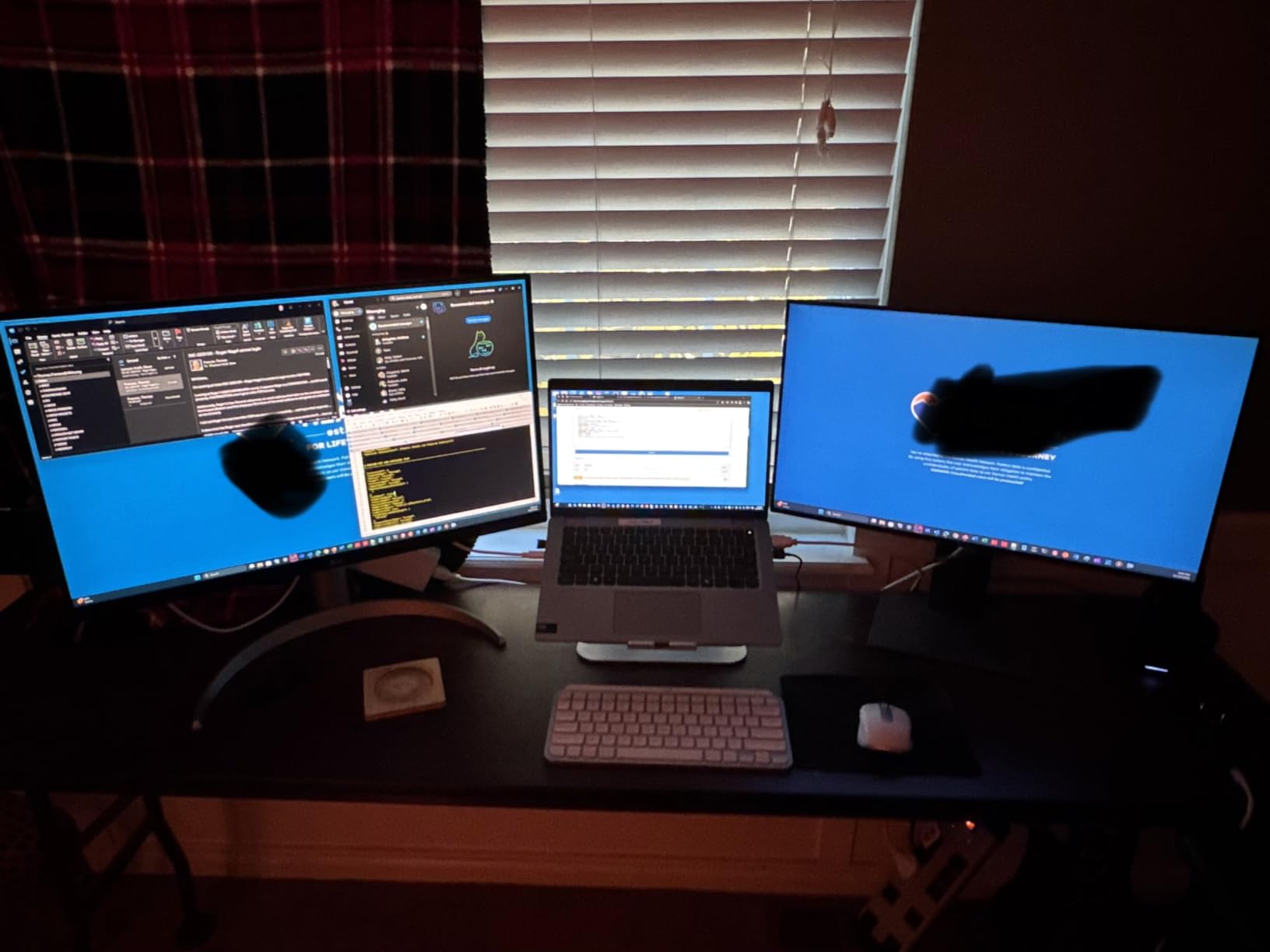
Calibration Status and the Warm Cast Report
This monitor is not factory calibrated to a published Delta E target, and at least one owner reported a warm color cast on a monitor they received. Reviewers comparing for calibration point this out directly, recommending that color-critical users calibrate before committing to client work.
On the plus side, the matte coating is less reflective than the glossy finish used on some competing 4K panels, which helps in a bright room. The picture is described as sharp and accurate with no image persistence or ghosting, unlike some competing 4K IPS panels.
Ergonomics and the 60Hz Limit
The stand provides height, tilt and pivot adjustment, which puts it ahead of tilt-only designs like the LG 27US500-W. All necessary cables are included, so setup is quick out of the box, though the under-panel OSD controls are initially confusing to find.
At 60Hz with a 5ms response time, this is a production monitor. If motion smoothness is part of your day, the 120Hz Dell options in this roundup are the ones to look at instead.
8. Dell UltraSharp U2724D – 2000:1 Contrast, an Ambient Light Sensor and 120Hz
Dell UltraSharp 27 Monitor – U2724D 68.47cm (27), W128815277 (U2724D 68.47cm (27))
27in 2560×1440 IPS
100% sRGB with 2000:1 contrast
Factory calibration report included
120Hz with ambient light sensor
+ Pros
- 2000:1 contrast with no edge light bleed reported on this IPS panel
- Factory calibration report shipped in the box
- Built-in ambient light sensor adjusts brightness and color temperature
- Dynamic ICC profile creation storage and management
- 120Hz refresh with a fast USB 3.2 Gen 2 hub
– Cons
- 1440p resolution is below 4K options at comparable tiers
- No P3 or Adobe RGB coverage for wide-gamut work
- The included 1m USB-C cable is short
- No built-in speakers
The U2724D is the odd one out in this roundup on two counts: it runs at 120Hz and it carries a 2000:1 contrast ratio on an IPS panel, where most of the budget IPS panels here sit between 1000:1 and 1500:1. That combination makes it unusually good for interface design and any work where you need dark UI elements to actually read as dark.
Owners upgrading from older UltraSharp panels describe a noticeable step up in sharpness, brightness and 120Hz smoothness, and they call out the shipped factory calibration report and the ICC profile management specifically. That report is tied to the panel’s serial number, so you can check the measurements against the screen you received.
The Ambient Light Sensor Is the Feature Nobody Expects
A built-in sensor reads the room and adjusts brightness and color temperature automatically. For a color-accurate monitor that sounds contradictory, and it is worth understanding: the sensor is for viewing comfort across a day, not for overriding your calibration during critical work.
The sensible pattern is to let the sensor handle the display when you are reading and writing, and to switch to a fixed calibrated preset when you are grading or proofing. Dynamic ICC profile creation, storage and management through the Dell dashboard lets you keep a corrected profile separate from the automatic behavior.
120Hz IPS and What It Does for Scrolling
120Hz is transformative for timeline scrubbing, large Photoshop canvases and long document scrolling, and it costs nothing in color terms on a good panel. If your work is mouse-driven rather than color-driven, this is a strong argument for the U2724D over a 60Hz 4K alternative.
InfinityEdge gives it a virtually borderless look, and the stand handles tilt, swivel, pivot and height. Dell also commits to three years of spare part availability, which matters for a panel you intend to keep for a decade.
Where the 1440p Limit Bites
At 2560×1440 this is below the pixel density of every 4K option in this list, and the included 1m USB-C cable is short enough to force a desk rearrange. For layout and print work at full zoom, 4K gives you room that this panel cannot.
The color ceiling is 100% sRGB with no P3 or Adobe RGB, and one owner notes the limit directly against a higher-end EIZO in Adobe RGB work. That is the expected trade at this budget level: a better behaved sRGB panel rather than a wider one.
9. ViewSonic VP2468A – Pantone Validated 1080p Accuracy on a Small Desk
ViewSonic VP2468A 24 Inch 1080p ColorPro Monitor, IPS Display with 100% sRGB and Pantone Validated for Professional Photo Editing, Advanced Ergonomics, 65W USB-C, RJ45, HDMI, and DisplayPort
24in 1920×1080 IPS
100% sRGB and Rec.709
Delta E under 2, Pantone Validated
65W USB-C with RJ45, 250 nits
+ Pros
- Factory calibrated to Delta E under 2 with Pantone Validated status
- USB-C docking with 65W power delivery and RJ45 Ethernet
- Fully adjustable stand and VESA arm compatibility
- Well-regarded matte IPS panel for the money
- Popular with photographers and web designers
– Cons
- 1920×1080 is the lowest pixel density in this roundup
- 250 nit brightness is dim for a photo workspace
- No built-in speakers despite the appearance
- Rear OSD buttons and all ports are awkwardly placed
The ViewSonic VP2468A solves a specific problem: a 24-inch calibrated screen for a small desk or a hot-desking setup where 27 inches will not fit. It is factory calibrated to 100% sRGB and Rec.709 with a Delta E under 2 and carries Pantone Validated certification.
For photo retouching and web design on a limited footprint, owners rate the matte IPS panel’s brightness, contrast and color favorably for the money. The USB-C docking with 65W power delivery and the built-in RJ45 Ethernet port make it a genuine one-cable and one-network-port desk solution.
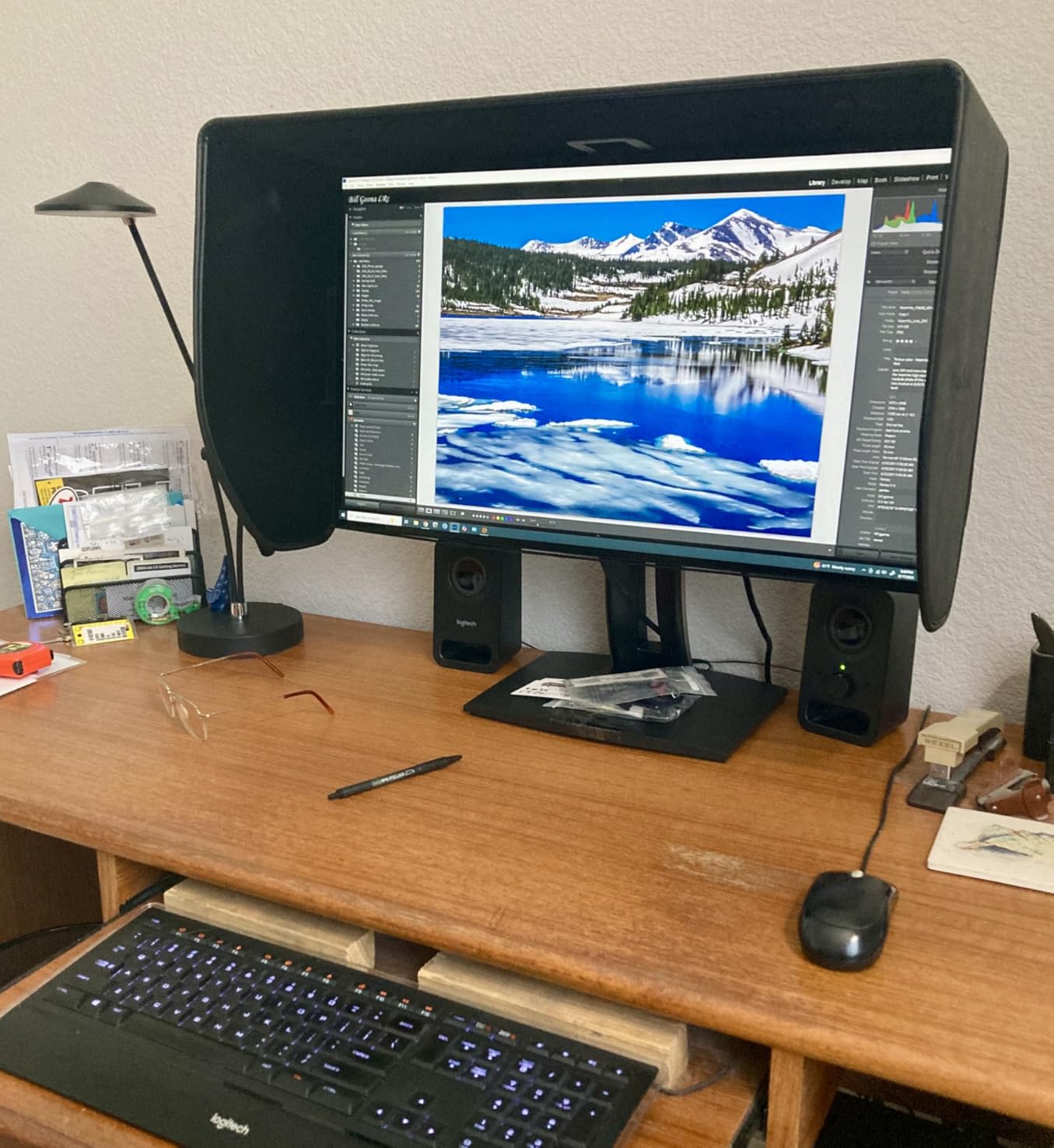
What You Give Up at 1920×1080
This is the lowest pixel density in the roundup, and it is the one compromise that cannot be calibrated away. A 24-inch 1080p panel shows about 92 pixels per inch, so retouching at 100 percent is noticeably softer than any 4K option and layout work at full zoom is cramped.
The practical read: this is a color-accurate panel for someone who cares about correct color more than detail density. If your work is thumbnails, web assets, social graphics and light photo work, 1080p at 24 inches is a defensible choice on a small desk.
Dim 250 Nit Panel and Room Dependence
At 250 nits, the panel needs a controlled room to be judged properly. In a bright office, a dim panel forces you to guess, and guessing is exactly what a color-accurate monitor is supposed to remove.
Several owners expected built-in speakers based on the design and were disappointed, since there are none. The OSD buttons and all ports sit on the back of the screen, which is an inconvenience you notice every time you change an input.
The Lowest Star Rating of the Documented Picks, and Why It Still Makes Sense
At 4.1 stars this is the lowest-rated documented panel here, with a 12 percent one-star share. The complaints cluster around resolution, brightness, missing speakers and occasional USB-C connectivity failures reported by some ColorPro owners.
The 4.1 rating reflects the fit-for-purpose tradeoff rather than a defective panel. If your desk is small and color correctness is the priority, the documented Delta E under 2 and Pantone Validated status are worth more here than resolution would be.
10. msi PRO MP273U – The Only Pick Here Claiming 95% Adobe RGB Coverage
msi PRO MP273U, IPS 3840 x 2160 (UHD) Computer Monitor, 4K, 60 Hz, Adaptive-Synch, HDMI, DisplayPort, 4ms (GTG), Black
27in 3840×2160 IPS
95% Adobe RGB and 99% DCI-P3
Delta E of 2 or better stated
60Hz, HDR Ready, 4ms GTG
+ Pros
- Stated 95% Adobe RGB and 99% DCI-P3 coverage
- rare at this budget
- Delta E of 2 or better stated on a low-cost 4K IPS panel
- 4K UHD IPS with 4ms GTG response and adaptive sync
- Light 8.7 pound chassis suits wall or arm mounting
- TUV Rheinland Flicker Free and Low Blue Light certified
– Cons
- Lowest average rating in the roundup at 4.0 with 14 percent one-star
- No USB-C no built-in speakers and only HDMI plus DisplayPort inputs
- Brightness listed in lumens and contrast only as High
- No calibration report or ICC workflow
On paper the msi PRO MP273U is the most capable panel per dollar in this guide. It states 95% Adobe RGB, 99% DCI-P3 and 139% sRGB coverage with a Delta E of 2 or better, on a 27-inch 4K IPS, at a lower cost than most of the 4K options here.
That Adobe RGB figure is genuinely rare at this budget level. Print and photography workflows that need to work inside the Adobe RGB space usually move well past this ceiling, so a 4K screen with that coverage is worth a closer look even with the caveats below.
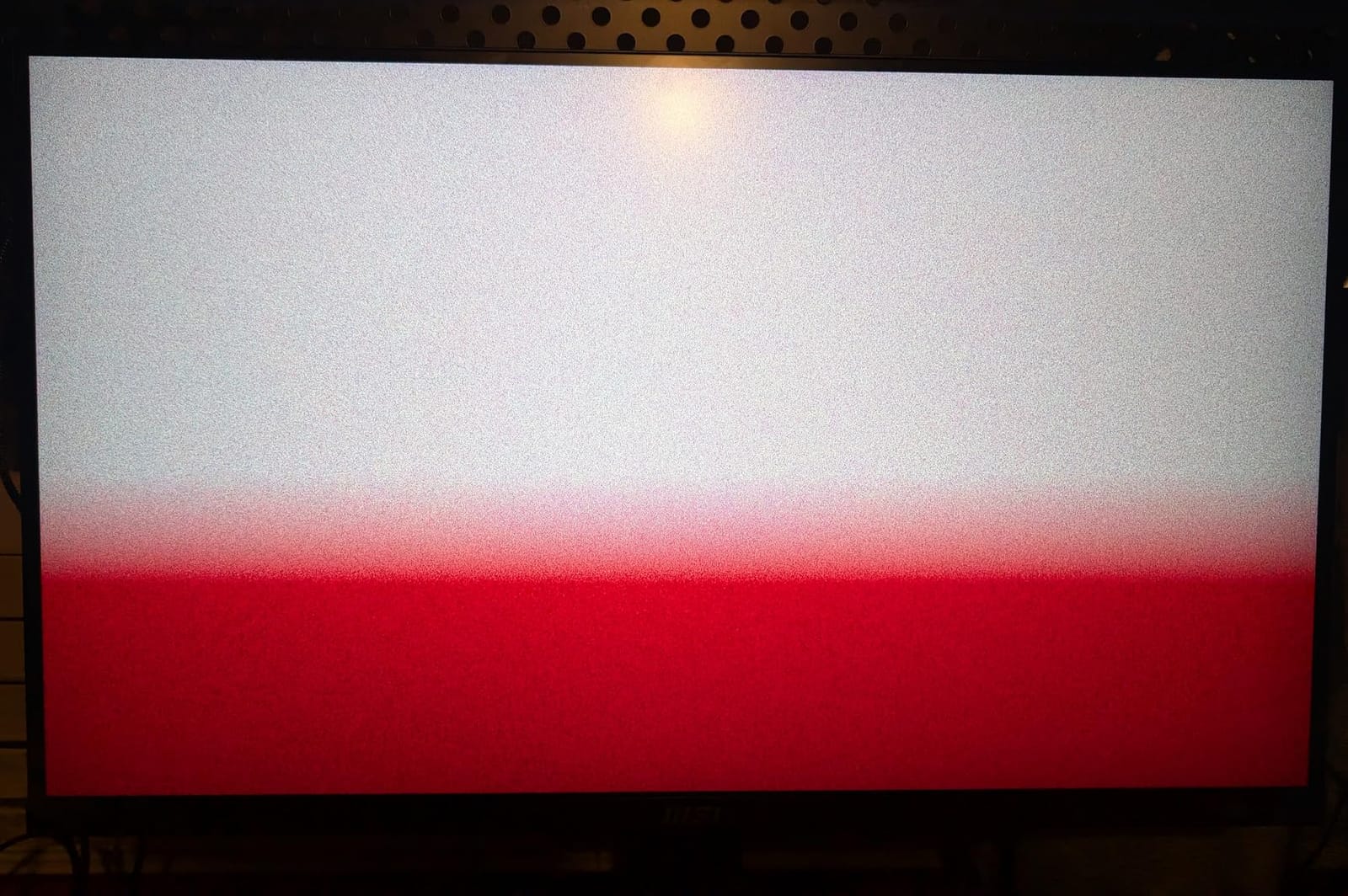
Reading the Gamut Claims Carefully
A stated gamut is a capability, and a stated Delta E is an accuracy claim, but neither is the same as a factory report measured on your own screen. There is no calibration report in the box and no ICC workflow on this monitor, so verify it with a colorimeter before you trust it for client work.
The 139% sRGB figure means the panel extends beyond the sRGB primaries, which is a side effect of the wide-gamut design rather than an accuracy improvement. Colors outside sRGB will be shown at their real values, which is what you want for proofing and what can look oversaturated on uncalibrated sRGB content.
What the 4.0 Rating Tells You
This is the lowest-rated monitor here at 4.0, with a notable 14 percent one-star share among 123 ratings. The recurring complaints are practical rather than color-specific: no USB-C, no speakers and only HDMI and DisplayPort inputs.
At 8.7 pounds it is also one of the lightest, which makes it a good candidate for a monitor arm or wall mount if your desk is tight. The three-year manufacturer warranty and TUV Rheinland Flicker Free certification are welcome in a long editing day.
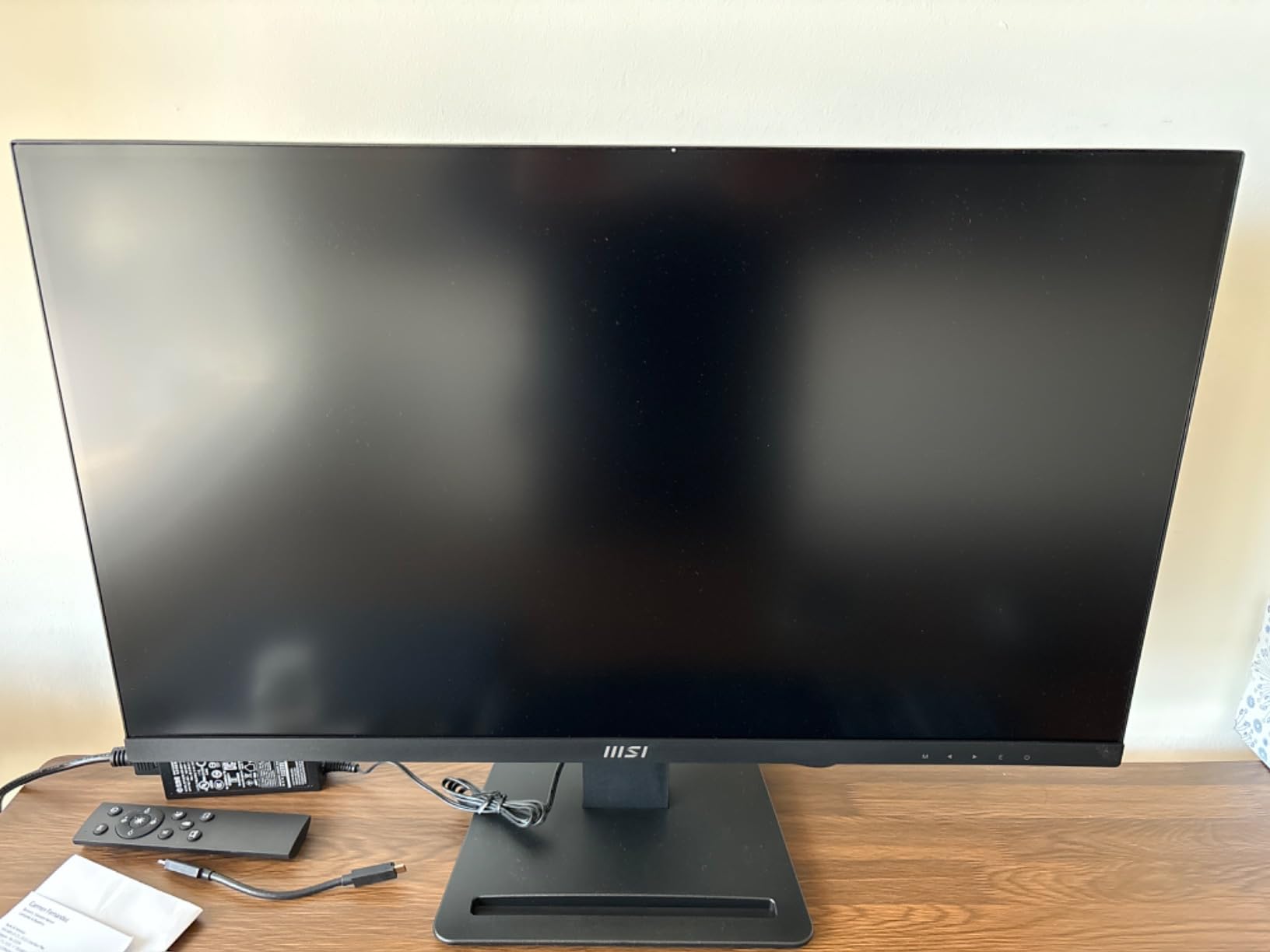
Spec Sheet Gaps Worth Noting
Brightness is specified as 1027.8 lumens rather than a cd/m2 figure, and contrast is listed only as High. Without a proper brightness number you cannot judge whether the panel is bright enough for a bright room, which is a real limitation when comparing it to the 350 and 400 cd/m2 figures on the ASUS and LG panels.
At 60Hz with 4ms GTG response and adaptive sync, motion handling is adequate for timeline work but nothing more. HDR Ready improves shadow and highlight detail on standard content without adding real HDR headroom.
11. CUNPU 27-Inch 4K – Uncalibrated Wide-Gamut 4K at the Entry End of the Budget
CUNPU 27″ 4K 70Hz IPS Ultra-Slim Bezel Black Photo Video Editing Monitor
27in 3840×2160 IPS at 163 PPI
Claimed 100% DCI-P3, 1.07 billion colors
300 nits, 1200:1 contrast
70Hz with PBP and PiP
+ Pros
- 4K resolution with claimed 100% DCI-P3 coverage at the entry end of this roundup
- Picture-by-Picture and Picture-in-Picture for comparing two sources
- 70Hz refresh is smoother than the 60Hz 4K alternatives
- 3-sided ultra-thin bezel with 178 degree IPS viewing angles
- DisplayPort 1.4 and HDMI 2.0 cover consoles and mini PCs
– Cons
- No published factory calibration report or Delta E figure
- 300 nit brightness is dim for photo and video editing
- No USB-C no KVM no height adjustment and no built-in speakers
- Only a 1-year manufacturer warranty with a 60-review base
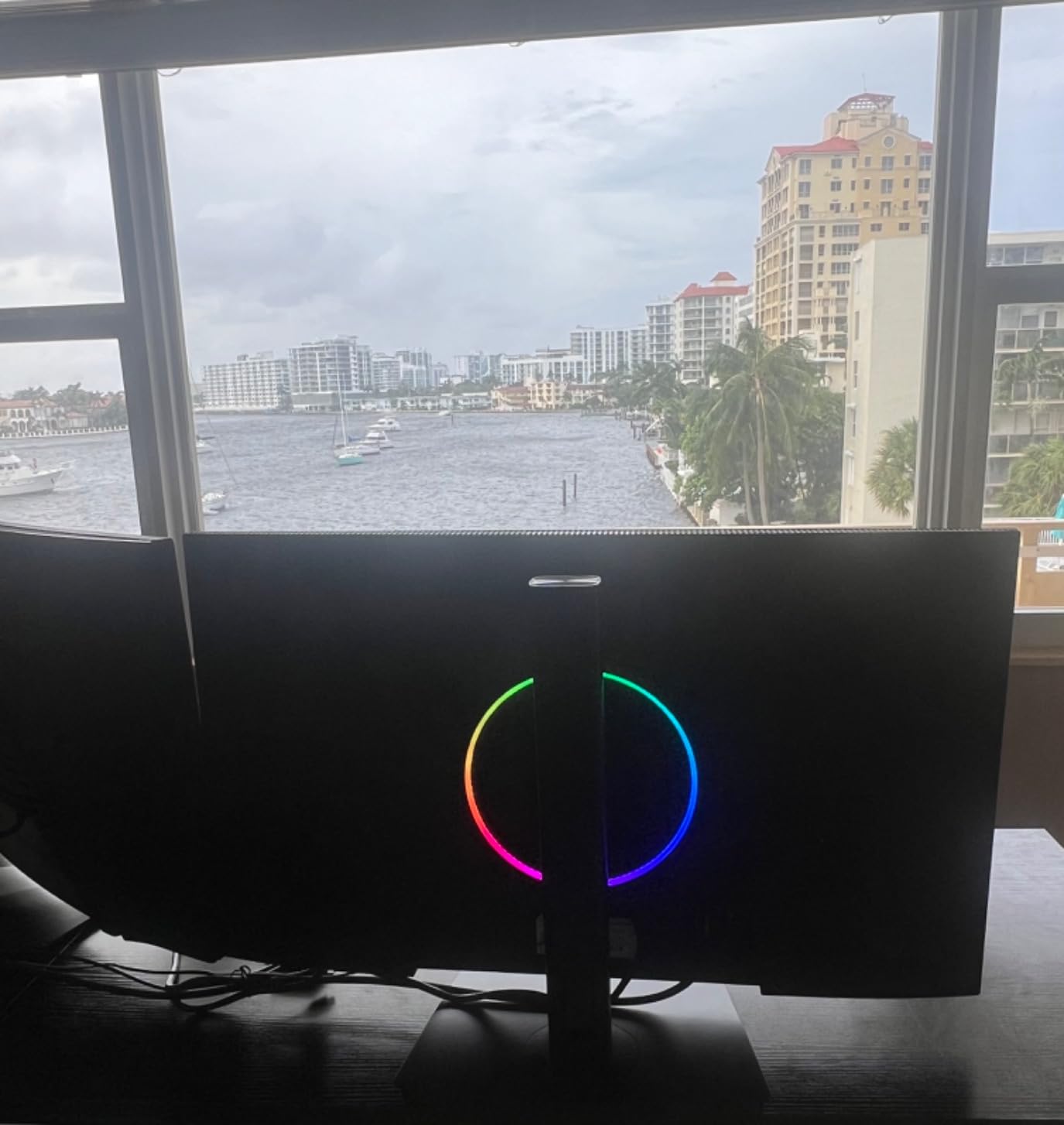
The CUNPU 27-inch 4K sits at the entry end of this roundup. It delivers 3840×2160 at 163 pixels per inch on an IPS panel with a claimed 100% DCI-P3 coverage, 1.07 billion colors and a 70Hz refresh rate, at a cost that sits below every other 4K pick here.
Picture-by-Picture and Picture-in-Picture let you display two sources side by side or as an inset, which is genuinely useful for comparing a client reference against your own output. The 70Hz rate is smoother than the 60Hz 4K alternatives, and FreeSync and G-Sync compatibility are both supported.
Claimed 100% DCI-P3 Without Any Accuracy Data
This is the distinction to hold onto. A claimed gamut percentage with no published Delta E and no factory report tells you the manufacturer believes the primaries land where they should, not that your specific unit does.
Treat this monitor as a sharp, capable wide-gamut screen for general creative work rather than a calibrated reference display. If you need documented accuracy, the ASUS ProArt, BenQ PD2706U, ViewSonic ColorPro and Dell UltraSharp picks in this guide all ship with proof.
Brightness, Stand and Connectivity
At 300 nits and 1200:1 contrast, the panel is fine in a controlled room and thin on headroom in a bright one. The stand offers tilt adjustment only, with no height, swivel or pivot, and there is no USB-C, no KVM and no built-in speaker.
Connectivity is DisplayPort 1.4, HDMI 2.0 and a headphone jack, which covers a console, a laptop or a mini PC. The 3-sided ultra-thin bezel and 178-degree viewing angles look modern for the money.
Warranty and Brand Risk
The one-year manufacturer warranty is the shortest in this roundup, and the review base is small at 60 ratings with 11 percent one-star. A less established brand also means less long-term assurance about panel color consistency across a multi-year ownership.
If you buy it, calibrate it early and save the profile. That single step removes most of the risk of buying an undocumented panel.
12. Philips 27E1N5900R – 65W USB-C, HDR400 and a Four-Year Warranty
Philips 27″ Computer Monitor 4K UHD IPS USB-C Charging HDR400, 27E1N5900R
27in 3840×2160 IPS
65W USB-C with data and video
VESA DisplayHDR 400, 350 nits
No published gamut or Delta E figure
+ Pros
- 4K UHD IPS panel reported as accurate for content creation
- 65W USB-C Power Delivery for single-cable laptop setups
- VESA DisplayHDR 400 certification at 350 nits
- MultiView dual-device support plus height pivot and tilt
- 4-year manufacturer warranty
- among the longest in this roundup
– Cons
- No published Delta E figure and no factory calibration report
- No stated color gamut coverage such as sRGB or DCI-P3 percentage
- Glossy screen finish is prone to reflections
- 60Hz refresh with no built-in speakers
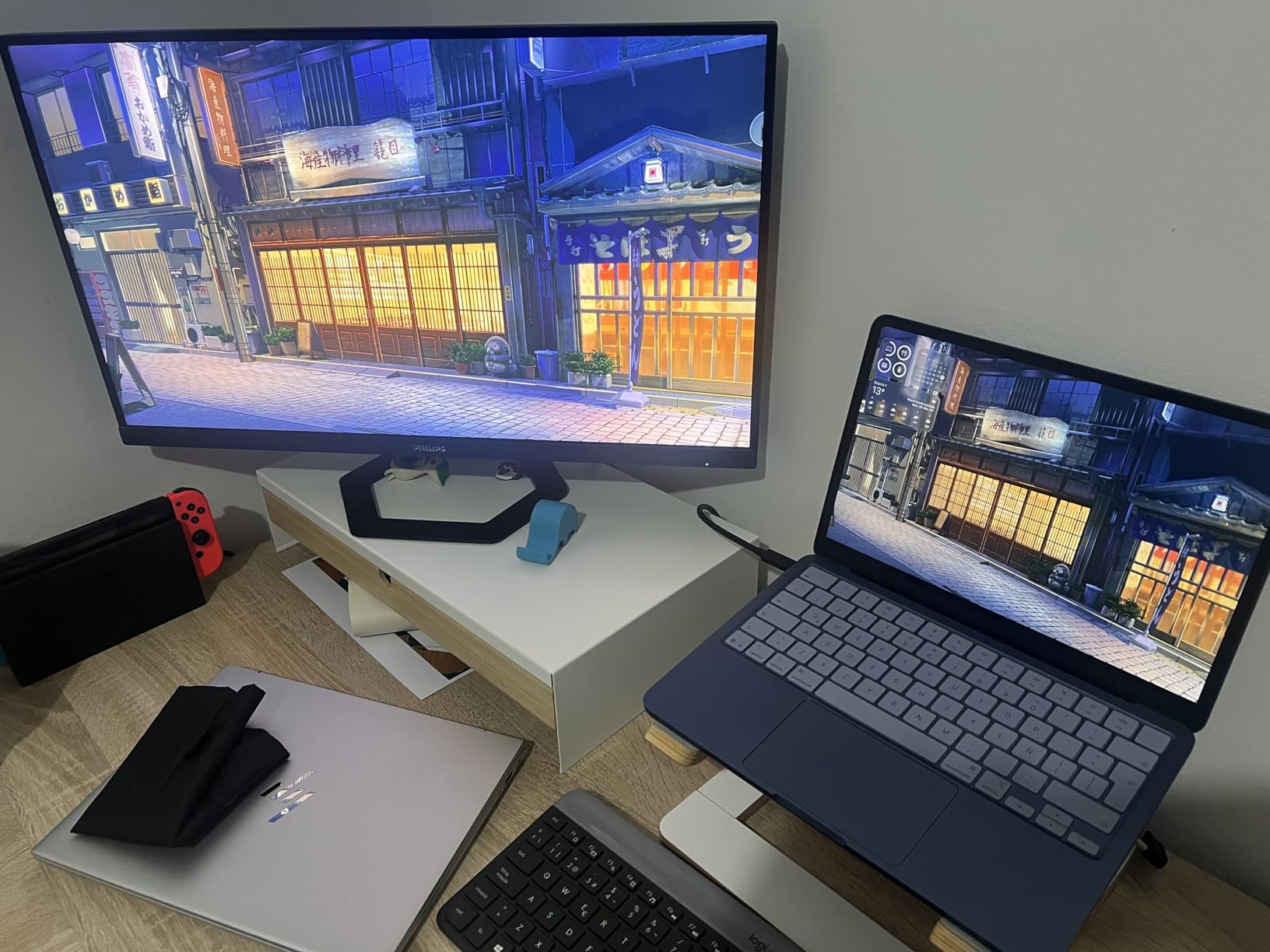
The Philips 27E1N5900R is a dependable 4K IPS workhorse with 65W USB-C, VESA DisplayHDR 400 and a four-year warranty. It does not publish a Delta E figure or a gamut percentage, so its color performance is unverified by the manufacturer.
With 62 percent five-star and only 8 percent one-star ratings, the owner sentiment is solidly positive. Buyers describe accurate color for content creation, painless USB-C laptop integration and a stand that actually adjusts for height, pivot and tilt.
What a Missing Gamut Number Really Means
No stated sRGB or DCI-P3 coverage means you cannot compare this panel on paper against the ProArt or BenQ. It may well hit sRGB comfortably, since it is a 4K IPS, but a monitor with no published figure is a monitor you are buying on faith or on your own colorimeter.
The four-year manufacturer warranty is the longest warranty in this roundup alongside good owner satisfaction, which makes this a reasonable choice for a buyer who values longevity and USB-C convenience over documented color precision.
USB-C, MultiView and HDR400
The USB-C port delivers up to 65W with data and video over one cable, and MultiView lets you display two devices at once. DisplayPort, HDMI and a USB hub cover the remaining inputs, so a single laptop cable plus peripherals is a realistic setup.
At 350 nits with DisplayHDR 400, brightness is competitive with the other 4K panels in this guide. The 4ms response time and 60Hz refresh are adequate for editing work and unremarkable for gaming.
The Glossy Panel Question
A glossy finish on an office monitor is unusual and worth thinking about before you buy. Glossy screens deliver punchier contrast and more vivid color, but they reflect ambient light, which directly undermines color judgment in a bright room.
If your desk faces a window or overhead lighting, that reflection will undercut everything else on this list. For a controlled editing room, it is a non-issue.
How to Choose a Color Accurate Monitor Without Overshooting the Budget
Start with the deliverable, not the spec sheet. Every decision below follows from what you actually hand off to a client, a printer or a broadcast server.
Match the Color Space to the Deliverable
sRGB covers essentially all web, social and general screen content, and any monitor with 100% sRGB handles it correctly. Adobe RGB is the photography and print space, and 95% Adobe RGB coverage is rare below this ceiling. DCI-P3 is the digital cinema space, and 95% P3 coverage lets you preview a wide-gamut grade.
Honest answer on scope: for most people, sRGB is enough. Wide gamut only becomes necessary when your files actually live in a wider space, and a narrow panel showing a P3 file clipped to sRGB is a worse failure than a slightly inaccurate but correctly calibrated sRGB panel.
Read the Delta E Number, Not Just the Gamut
Gamut coverage answers how much of a color space the panel can reach. Delta E answers how close each displayed color sits to the reference. A monitor can cover 99% of sRGB and still be visibly off, which is why coverage alone is a poor filter.
The practical thresholds: under 1 is indistinguishable, under 2 is the professional standard, under 3 is acceptable for general work, and above 3 means you are looking at a panel that will visibly shift your shadows and skin tones. Anything with no published figure at all is unverified.
Factory Calibration Report Versus Certification
A factory calibration report is a measurement sheet for the specific monitor in the box, ideally tied to a serial number you can check. A certification such as Calman Verified, Pantone Validated or Pantone SkinTone Validated is an independent lab validation against a defined tolerance.
Both are worth having. A report tells you what your unit does; a certification tells you the product line meets a standard. If you can only have one, the factory report is more useful because it describes the panel in front of you.
IPS Is the Only Acceptable Panel Type Here
IPS is the default for color work because of its wide viewing angles and consistent color across the panel. VA offers higher static contrast than IPS but suffers from color shift as your viewing angle changes, which makes it a poor fit for proofing. TN is fast and cheap and should be avoided for any color decision.
The honest caveat is IPS glow, a light bloom that appears in the corners of dark scenes on budget IPS panels. It varies unit to unit and factory calibration does not correct it. If you do precise dark-scene grading, check the panel on arrival with a dark gradient and request an exchange early if the glow is severe.
Resolution, Refresh Rate and the Trade Between Them
For a 27-inch panel, 4K gives roughly 163 pixels per inch and 1440p gives roughly 109. That jump matters for detail work, not for color, so choose resolution based on your application and color based on your panel.
Refresh rate is irrelevant to color accuracy. A 60Hz panel displays exactly the same color as a 120Hz panel on the same frame. Buy higher refresh only if you also want motion, and spend the difference on calibration if color is your priority.
USB-C and the Laptop Creator
If you work from a laptop, a single USB-C cable that carries video, data and 65W to 90W of charging removes a dock and a charger from the desk. The BenQ PD2706U, ViewSonic VP2756-4K, ViewSonic VP2468A, LG 27UP850K-W, ASUS PA279CV, Dell S2725QC and Philips 27E1N5900R all provide it.
Two extras worth considering: a KVM switch if you toggle between a desktop and a laptop daily, and an ambient light sensor if your room brightness changes through the day, which the Dell U2724D provides.
Brightness and Your Room
A 250 nit panel needs a controlled room. A 350 nit panel is workable in a normal office. A 400 nit panel like the LG 27UP850K-W lets you work with daylight on the screen. Match the panel to the lighting or accept that your color judgment is compromised.
Whatever the panel, control the room. Neutral gray walls, closed blinds, and consistent lighting matter as much as the monitor. A bright lamp behind you will change your perception of every color on screen.
Calibration on a Budget: Colorimeter, Room Lighting and Cadence
Here is the question that comes up most often from buyers in this bracket: should the extra money go toward a better monitor or a colorimeter? For several of the screens in this guide, a colorimeter is the better buy.
Three of the twelve picks ship with a factory calibration report and independent certification, and two of those are close enough to the ceiling that adding a colorimeter would push past it. Four more publish no accuracy figure at all. For those, a colorimeter converts an unknown panel into a known one.
The Calibration Steps
First, set up the room. Close blinds, turn off overhead lights you are not working under, and let the panel warm up for at least 20 minutes. Second, connect the colorimeter and run the software in its advanced mode, setting a 6500K color temperature, gamma 2.2 and 100 to 120 cd/m2 target brightness for general work, or 80 to 100 cd/m2 for print proofing in a controlled room.
Third, save the resulting ICC profile and apply it to your display. Fourth, on a monitor that supports hardware calibration such as the Dell UltraSharp with its ICC profile management, write the correction into the panel itself so it survives a system change or a second computer. That is the difference between software and hardware calibration, and it is why hardware-calibratable models hold their correction better over time.
Which Calibration Tool
Hardware colorimeters from SpyderX or Calibrite sit at the accessible end of the range and handle the common sRGB workflow well. DisplayCAL is free and covers the same ground if you are willing to manage profiles manually. For advanced wide-gamut work, hardware calibration support in the monitor is worth more than a better colorimeter.
Wide-gamut calibration is a separate exercise from sRGB. Calibrating to 95% DCI-P3 on the BenQ PD2706U or the msi PRO MP273U takes longer and needs more capable software, and BenQ ICCsync with Display Pilot is the fastest route to a P3 profile on that panel.
How Often to Recalibrate
Recalibrate monthly, and immediately if you move the monitor, change the room lighting, or notice a shift. A once-a-year check is a reasonable minimum for a monitor with a factory report and far too infrequent for one with no published accuracy data.
Do a quick visual check against a known reference image. Keep a soft-proof print next to the monitor and compare it under the same lighting. If the print and the screen disagree, calibrate before you adjust anything else.
What You Give Up Under 400 Dollars
Every constraint has a cost, and honesty about it is more useful than pretending the ceiling is free. This is what you trade away at this budget level.
You give up hardware calibration locking on most models, so your colorimeter correction lives in the computer profile rather than inside the panel. You give up brightness headroom, since 250 to 350 nits is typical here against far brighter professional panels. You give up 10-bit native color and the 14-bit 3D LUTs that eliminate banding in deep gradients, which is the single biggest technical step-up available above this line.
You give up Adobe RGB coverage on almost every panel here except the msi PRO MP273U, and you give up the best uniformity. Budget IPS panels vary more from unit to unit than professional ones, and factory calibration corrects the average unit rather than the specific one in your box.
Buying the nearest over-budget option means accepting that the total moves past the ceiling you set. Our guides to laptops under 400 dollars, to phones under 400 dollars and to wider monitor budgets follow the same discipline: state the constraint, then respect it.
Frequently Asked Questions
What type of monitor is best for color accuracy?
An IPS panel with 100% sRGB coverage and a published factory Delta E of under 2 is the standard for color work at this budget. Add 95% DCI-P3 coverage if you grade video or work in P3, and 95% Adobe RGB if you proof for print. Avoid TN panels entirely, and treat VA with caution because colors shift as you change viewing angle.
What is the best affordable monitor with color accuracy?
The ASUS ProArt PA278QV is our top pick. It ships with a factory calibration report, is Calman Verified at Delta E under 2, covers 100% sRGB and 100% Rec.709, and carries more than 3,000 owner reviews. If you need 4K instead, the ASUS ProArt PA279CV and the ViewSonic VP2756-4K both add pixel density with documented sub-2 accuracy.
Is sRGB coverage enough for photo editing?
For most photo editing, yes. If your images are captured in sRGB or converted to sRGB for web, social and general print delivery, 100% sRGB coverage with a factory Delta E under 2 is sufficient. You need Adobe RGB only when editing files that live in that space, and DCI-P3 only for cinema or HDR grading work.
What is a good budget monitor for color grading?
For color grading on a budget, the BenQ PD2706U is the strongest fit because it covers 95% DCI-P3 alongside 99% sRGB with a factory Delta E of 3 or better and Pantone SkinTone validation. The msi PRO MP273U claims 95% Adobe RGB and 99% DCI-P3 at a lower cost but publishes no calibration report, so calibrate it before trusting it.
Do I need 4K for color accuracy?
No. Color accuracy comes from the panel, its gamut and its calibration, not from resolution. A 2560×1440 IPS panel at Delta E under 2 will show more accurate color than an uncalibrated 4K panel. Choose 4K when you need detail density for retouching or layout, not when you are trying to improve color.
Do I need a colorimeter?
If your monitor ships with a factory calibration report and independent certification, you can work with the shipped profile. If your monitor publishes no Delta E figure at all, a colorimeter converts an unknown panel into a measured one. For the picks in this guide that lack documentation, calibration is worth more than upgrading the monitor.
How often should I calibrate my monitor?
Recalibrate about once a month, and immediately after moving the monitor, changing the room lighting, or noticing a visible shift. A once-a-year check is acceptable for a panel with a factory report and too infrequent for a panel with no published accuracy data.
Does refresh rate matter for color work?
No. A 60Hz and a 120Hz panel display identical color on the same frame. Refresh rate only affects motion smoothness, so buy a higher rate if you also game or scrub long timelines with a mouse, and spend the difference on a calibrated panel if color is your priority.
Conclusion: Which Monitor to Buy by Workload
If you want one answer, the ASUS ProArt PA278QV is the monitor to buy. It pairs a factory calibration report, Calman Verified accuracy under Delta E 2, full sRGB and Rec.709 coverage and a review base large enough that the consensus is trustworthy, and no other pick in this guide stacks all four. Every monitor here stays under the ceiling.
If you edit 100 percent crops and need pixel density, take the ASUS ProArt PA279CV for documented 4K accuracy with 65W USB-C, or the ViewSonic VP2756-4K if Pantone Validated color and built-in Ethernet matter more than portrait mode. If you grade video, the BenQ PD2706U gives you 95% DCI-P3 with SkinTone validation. If you proof for print in Adobe RGB, the msi PRO MP273U is the only screen here that states that coverage.
If you work in a bright room, the LG 27UP850K-W at 400 cd/m2 and 95% DCI-P3 is the pick. If you want smooth scrolling and 2000:1 contrast, the Dell UltraSharp U2724D pairs 120Hz with a shipped calibration report. If you also play games, the Dell S2725QC brings 4K at 120Hz with FreeSync Premium. And if your desk is small, the 24-inch ViewSonic VP2468A keeps documented accuracy in a compact footprint.
Whichever you choose, control the room, calibrate monthly, and check the panel against a printed reference in the first week. That last step catches the rare out-of-spec unit before it reaches a client deliverable.
Leave a Reply