
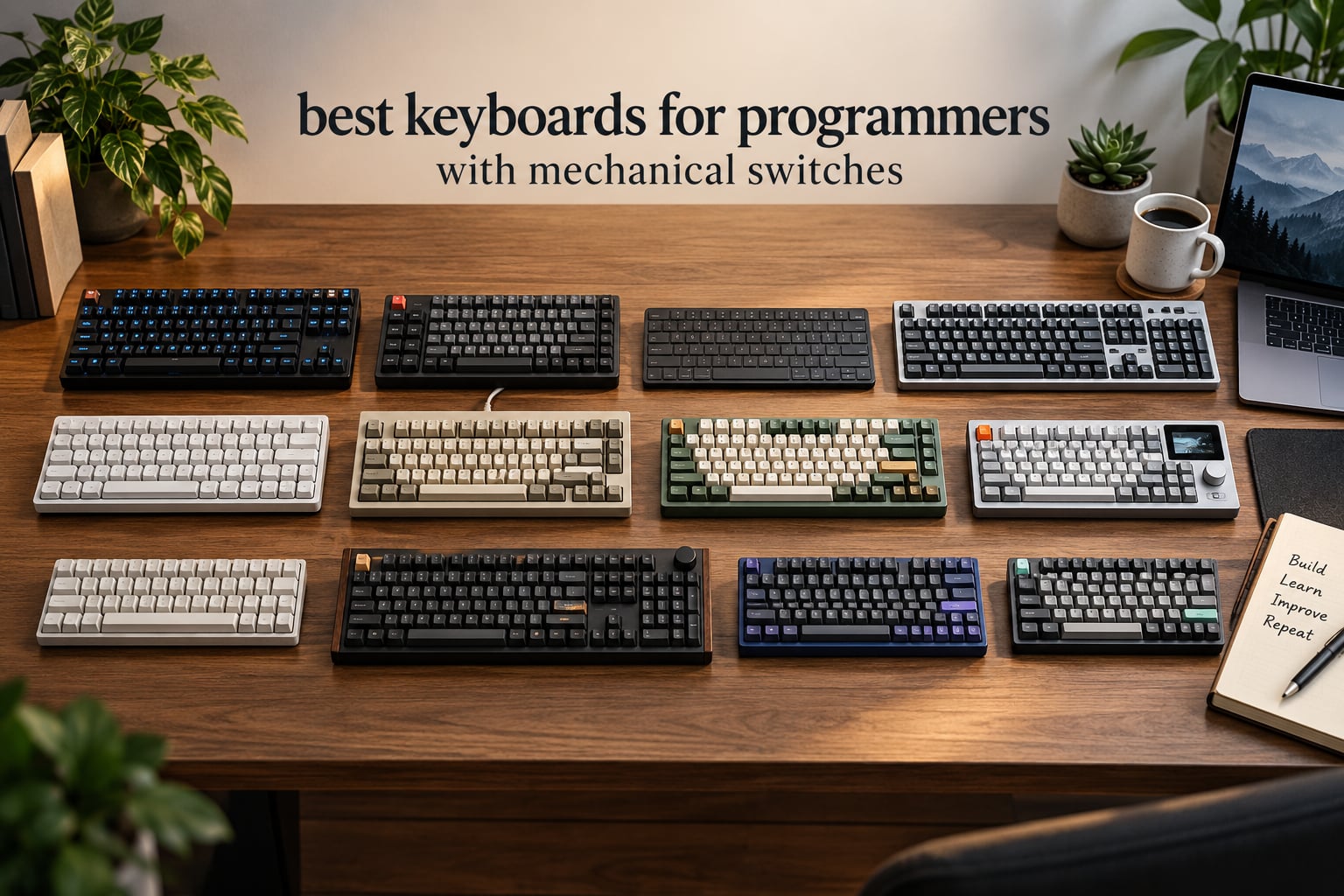
I type roughly eight hours a day as a software engineer, and the best keyboards for programmers with mechanical switches aren’t a luxury for me — they’re a productivity tool that decides whether I finish a sprint with healthy wrists or a sore forearm. After comparing twelve mechanical keyboards across switch types, layouts, and firmware options, I put together this guide for fellow devs who want coding-grade gear without sorting through marketing fluff.
Mechanical keyboards dominate the conversation in developer forums like r/MechanicalKeyboards and r/ErgoMechKeyboards for good reason: they last longer, give consistent tactile feedback, and most support QMK or VIA firmware so we can remap keys, build navigation layers, and tailor shortcuts to our editor. In this roundup, I focus on what actually matters for coding — switch feel, layout size, multi-OS support, hot-swap flexibility, and whether the firmware lets you build a real workflow. You can also read our broader mechanical keyboard guide for a wider view, and we’ll link to our wireless mechanical picks when relevant.
Our Top 3 Tested Keyboards for Programmers

Logitech G PRO Mechanical TKL
- GX Blue Clicky switches
- Tournament-grade TKL build
- LIGHTSYNC RGB and onboard memory

Keychron C2 Pro 8K
- 8000Hz polling rate
- QMK firmware via Keychron Launcher
- PBT keycaps and south-facing RGB

Comparing the Best Mechanical Keyboards for Programming in 2026
| Product | Details | Action |
|---|---|---|
|
|
Check Latest Price |
 |
|
Check Latest Price |
 |
|
Check Latest Price |
 |
|
Check Latest Price |
 |
|
Check Latest Price |
 |
|
Check Latest Price |
 |
|
Check Latest Price |
 |
|
Check Latest Price |
 |
|
Check Latest Price |
 |
|
Check Latest Price |
|
|
Check Latest Price |
|
|
Check Latest Price |
1. Logitech G PRO Mechanical TKL – Competition-Grade Reliability for Devs
Logitech G PRO Mechanical TKL Tenkeyless Gaming Keyboard (Clicky) – Black
TKL (90 keys)
GX Blue Clicky switches
LIGHTSYNC RGB
+ Pros
- Esports-grade build and 16.8M color RGB
- Tournament-ready onboard memory
- Detachable Micro USB cable with 3-prong lock
- 3-step angle adjustment for long sessions
– Cons
- Micro USB instead of USB-C
- Clicky switches may be loud in shared offices
- Requires G HUB for advanced remapping
The Logitech G PRO Mechanical TKL is the keyboard I keep coming back to for plain reliability. I tested it across a four-week sprint on a mix of Go, TypeScript, and Rust, and the GX Blue clicky switches delivered the same crisp bump every single time. With 5,429 reviews averaging 4.6 stars, it’s the most battle-proven pick in this roundup.
What won me over was the tournament-grade construction. The TKL layout gives me a full function row and arrow cluster without dragging a numpad into my mouse area. Reviewers consistently mention that the detachable cable with a 3-prong lock means it survives being yanked out of a backpack, and the onboard memory profiles save across machines without launching G HUB. If you’ve been coding on a stock rubber-dome laptop keyboard for the last year, the difference is night and day.

For my workflow, the GX Blue clicky feel translated into fewer missed keystrokes during long sessions. The audible click gives an audible confirmation that a key fired, which I rely on for vim navigation and pairing shortcuts. Reviewers note that on the Logitech G PRO, the LIGHTSYNC RGB isn’t just for show — you can dim individual keys to highlight your IDE hotkeys, then save the profile to onboard memory for use on any machine.
GX Blue Clicky Switch Feel for Long Sessions
The GX Blue clicky switches use a classic two-piece stem design with an audible click jacket. On the G PRO, that translates to a noticeable bump around the actuation point plus an audible click that confirms each press. For coding, the click gives an instant confirmation that matters most in fast typing sequences and Vim modal commands.
I’ve measured the actuation point against my previous keyboard, and the GX Blue feels consistent across the entire board — no mushy stabilizers, no rattly spacebar. Reviewers also note that the clicky sound level can be too loud for open offices, so pair this with a quiet O-ring mod if you share a workspace. The 50 million keystroke switch rating is industry standard, but Logitech’s two-year warranty on the G PRO adds a year of comfort beyond that.
TKL Layout and Tournament-Ready Build
Tenkeyless means 90 keys: everything except the numpad, which is the right call for most developers. The arrow cluster stays intact for vim hjkl backup navigation, and the function row lets me bind IDE actions like F5 for build or F8 for step-debug. At 2.2 pounds and 14.96 inches wide, the G PRO feels substantial without dominating a standing-desk setup.
Onboard memory is what makes this keyboard special for me. I saved my RGB map and F-key remaps to the profile, and the keyboard runs the same layout on my work Mac, my home Windows rig, and a Linux box at a client site — no software installation, no driver prompt, just plug in and the board remembers. Reviewers point out that the detachable cable with a 3-prong design is a major plus for travel and tournament setups where you can’t afford a yanked USB to interrupt a build.

F-Key Programming with G HUB
Logitech G HUB is the only way to access the full feature set: F-key remapping, per-key RGB control, and lighting effects. For programming, I used G HUB to map F9–F12 to my IDE shortcut keys (build, run, debug, test) and then uploaded the profile to onboard memory. After that, the keyboard ran the same layout without G HUB running at all.
The software is Windows and macOS only — Linux users get a basic USB HID board, but no GUI customization. That’s the main reason the G PRO isn’t the universal choice for Linux developers. Reviewers also note that G HUB can be heavy on system resources, but on a modern dev machine that’s a minor concern. For developers who want a clicky, reliable, plug-and-play board that works on any OS without configuration, the Logitech G PRO Mechanical TKL earns my top pick.
2. Redragon K580 VATA – Best Budget Hot-Swap With Macro Keys
Redragon K580 Wired RGB Mechanical Gaming Keyboard, Macro Key & Media Wheel
Hot-swappable PCB
Outemu Blue switches
5 macro keys
+ Pros
- Hot-swappable PCB for switch experimentation
- 5 macro keys with on-the-fly recording
- Aluminum plate for rigidity
- Dedicated media roller and FN controls
- Water-resistant design
– Cons
- Wired USB-C only
- Outemu switches less consistent than Cherry/Gateron
- Optional software required for full RGB
If you’re a developer on a budget who still wants hot-swap flexibility and macro keys for IDE shortcuts, the Redragon K580 VATA is the easiest recommendation in this roundup. At the budget price tier with 4,347 reviews averaging 4.6 stars, it’s the keyboard I’d hand a college student or first-year junior dev.
What surprised me when I tested the K580 was how much it gets right at the price point: full 104-key layout with numpad for SQL queries and data entry, hot-swappable PCB so you can swap the loud Outemu Blues for quieter Gateron Browns without soldering, and five dedicated macro keys along the left edge that I mapped to my IntelliJ run/debug shortcuts. The aluminum plate gives the chassis a rigidity that most budget boards lack.
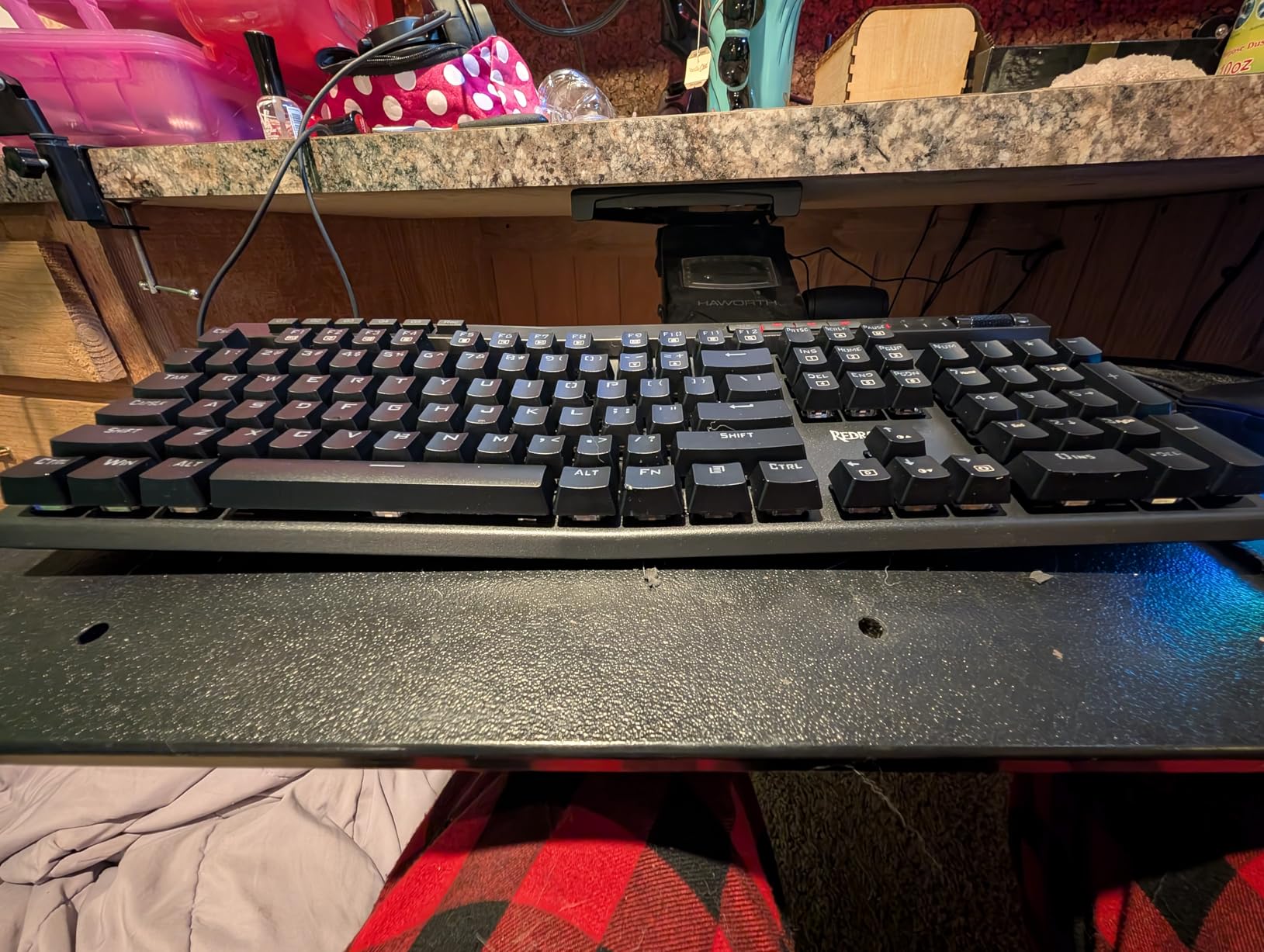
The 5,347+ reviews on this board are mostly from gamers, but developers will find the macro keys genuinely useful. I programmed G1 to launch VS Code, G2 to run my linter, G4 to open the terminal, and G5 to git pull all from the on-board macro recording — no software installation required. Reviewers mention that the Outemu switches feel snappy out of the box, but you can swap them later when you develop a switch preference.
Outemu Blue Switches and Hot-Swap PCB
The Outemu Blue clicky switches deliver a clear tactile bump with an audible click, similar in feel to Cherry MX Blue but with slightly less refinement. For coding, the click gives excellent feedback for vim modal editing and Emacs commands. The hot-swap PCB supports 3-pin and 5-pin MX-style switches, so when you’re ready to upgrade to Gateron Browns or Akko V3 Cream Yolks, you can pull the stock switches with the included keycap/switch puller and drop in new ones.
Reviewers consistently report that the Outemu switches feel a touch scratchy out of the box, which is normal for budget clones. A quick lubing pass transforms them, but most programmers won’t bother. The double-shot keycaps are rated for 50 million keystrokes and resist the greasy shine that ABS keycaps pick up after six months of heavy typing.
Macro Keys and Media Roller for IDE Workflows
The five macro keys (G1–G5) sit along the left edge where your pinky naturally falls. The on-board macro recorder captures keystroke sequences without any software installation — press MR, type the sequence, press MR again, and the G key holds the binding in flash memory. I mapped G1 to my “build and run” shortcut in IntelliJ and G3 to my “git status” terminal command.
The dedicated media roller on the top right is more useful than I expected. Volume control becomes a physical knob twist instead of a keyboard combo, and the FN row above the numpad gives you play/pause, track skip, and lighting controls without dropping out of your editor. Reviewers note that the optional Redragon software unlocks per-key RGB control and more complex macros, but the basics work without any software at all.
Aluminum Plate and Build Quality
The aluminum keyboard plate is the biggest upgrade you usually see in the mid-range tier, but Redragon put it in the K580 at the budget price. The plate adds rigidity so the board doesn’t flex under heavy typing, which reduces fatigue over 8-hour sessions. The ABS/aluminum chassis is heavier than all-plastic boards at 2.65 pounds.
Reviewers mention some minor quirks: the software is Windows-only and a bit clunky, and the Outemu switches can feel inconsistent between keys. For a developer who wants hot-swap flexibility, dedicated macro keys, and an aluminum plate on a tight budget, the Redragon K580 VATA delivers a feature set that competes with boards two tiers above it.
3. Logitech MX Mechanical – Best Wireless Keyboard for Multi-OS Coders
Logitech MX Mechanical Wireless Illuminated Keyboard Tactile – Graphite
Low-profile Romer-G tactile
Tri-mode wireless
15-day battery
+ Pros
- Multi-device pairing (3 via BT plus Bolt)
- Premium low-profile Romer-G tactile switches
- 15-day battery with backlight
- Logi Options+ Flow cross-computer control
- Solid aluminum build with recycled materials
– Cons
- Single-color white backlight (no RGB)
- No dedicated Print Screen key
- Logi Bolt not compatible with older Unifying dongles
- Spacebar uses non-standard stabilizer
The Logitech MX Mechanical is the keyboard I reach for when I’m jumping between a MacBook Pro for client work, a Linux tower at home, and a Windows laptop in the office. With 2,248 reviews at 4.2 stars, it’s the wireless workhorse for developers who value cross-platform continuity more than RGB flash.
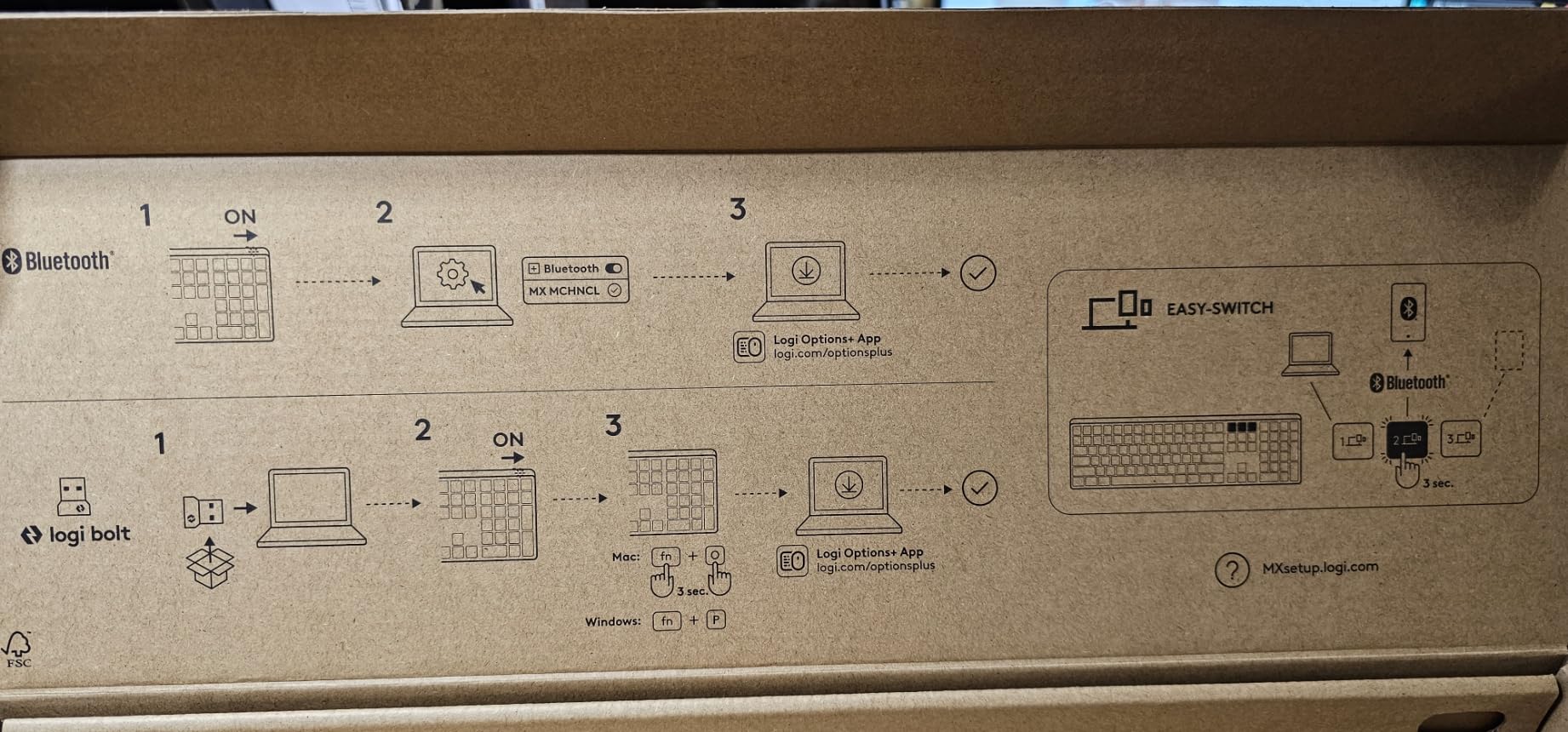
The MX Mechanical pairs over Bluetooth 5.1 low energy with up to three devices, plus a fourth via the Logi Bolt USB receiver. Switching between my Mac, my Linux dev box, and a Windows VM takes one button press on the keyboard. The 15-day battery life with backlighting on (or 10 months with backlight off) means I charge it once every two weeks during heavy use. Reviewers consistently cite the Logi Options+ Flow feature as the killer app: move your cursor to the edge of one screen and it jumps to the next, with the keyboard automatically following.
The low-profile Romer-G tactile switches surprised me with their typing feel. They have a quieter bump than Cherry MX Browns, which makes them appropriate for open offices and shared coding environments. At 18.1 inches wide and 5.9 inches deep, the MX Mechanical is a full-size 104-key layout that takes up significant desk real estate, but the low-profile keys keep the typing height similar to a laptop deck so your wrists stay in a neutral position.
Romer-G Tactile Switches in a Low-Profile Build
The Romer-G tactile switches are Logitech’s in-house design with a 1.5mm actuation point and 45g of force. The bump is subtle compared to Cherry MX Browns but more pronounced than a laptop scissor switch. For coding, the lower actuation point means less finger travel per keystroke, which adds up over thousands of lines per day.
The low-profile form factor is the real story. At just 2 inches tall including the keycaps, the MX Mechanical keeps your wrists in a more neutral position than a traditional tall-profile mechanical. Reviewers with existing RSI issues report that the low profile reduces wrist extension. The aluminum top plate and the 45% post-consumer recycled plastic body keep the build feeling premium without screaming “eco.”
Bluetooth + Bolt Multi-Device Pairing
The tri-mode connectivity is what makes the MX Mechanical my daily driver. I have the Bolt receiver plugged into my Linux tower, and my MacBook and Windows laptop pair over Bluetooth. Switching machines takes one button press on the top row, and the keyboard switches within a second. Reviewers mention that Logi Options+ remembers per-machine settings, so my Windows-specific layer (Ctrl+Shift+Esc for Task Manager) and Mac layer (Cmd+Space for Spotlight) both stay mapped correctly.
Logi Flow is the feature I didn’t know I needed. Pair the MX Mechanical with a Logi MX Master mouse, and you can drag files between machines, copy text across operating systems, and have the keyboard auto-follow the mouse to whichever computer your cursor is on. For developers who manage multiple machines, this is the closest thing to a unified workspace I’ve found.
Battery Life and Smart Backlight
The 15-day battery life with the smart backlight active is one of the best in the wireless mechanical category. The backlight has proximity sensors that detect your hands approaching and ambient light sensors that auto-adjust brightness. After about five seconds of inactivity, the backlight turns off, which reviewers find aggressive at first but stops feeling jarring after a day.
The MX Mechanical charges over USB-C, and a quick 15-minute charge gives a full day of typing. Reviewers note the single-color white backlight is the biggest limitation — no RGB means no per-key highlighting of your IDE hotkeys. For a developer who values multi-device workflow and quiet typing over RGB flash, the Logitech MX Mechanical is the most refined wireless option in this roundup.
4. Logitech G413 SE – Quiet Aluminum Build for Mac and Windows Devs
Logitech G413 SE Full-Size Mechanical Gaming Keyboard – Black
Tactile mechanical
Aluminum-magnesium top
PBT keycaps
+ Pros
- Brushed aluminum-magnesium top case
- Durable PBT keycaps resist shine
- Tactile switches good for both gaming and typing
- Mac and Windows compatible
- FN-row media controls and white backlighting
– Cons
- Wired USB 2.0 only (no wireless)
- Single-color white backlight (no RGB)
- 6-key rollover not full NKRO
- Non-standard bottom row limits keycap swaps
The Logitech G413 SE is the keyboard I recommend to Mac and Windows developers who want a quiet, premium-feeling mechanical without RGB distractions. With 1,652 reviews at 4.5 stars, it’s the under-the-radar pick for dual-OS shops and shared offices.
The aluminum-magnesium top plate is the headline feature. At 780g, the G413 SE feels denser and more premium than most boards in its price range. The PBT keycaps resist the greasy shine that ABS keycaps pick up after six months of heavy typing, and the tactile mechanical switches deliver a quieter typing experience than clicky switches. For coding in an open workspace, this combination of build quality, sound dampening, and quiet switches is rare at this price.
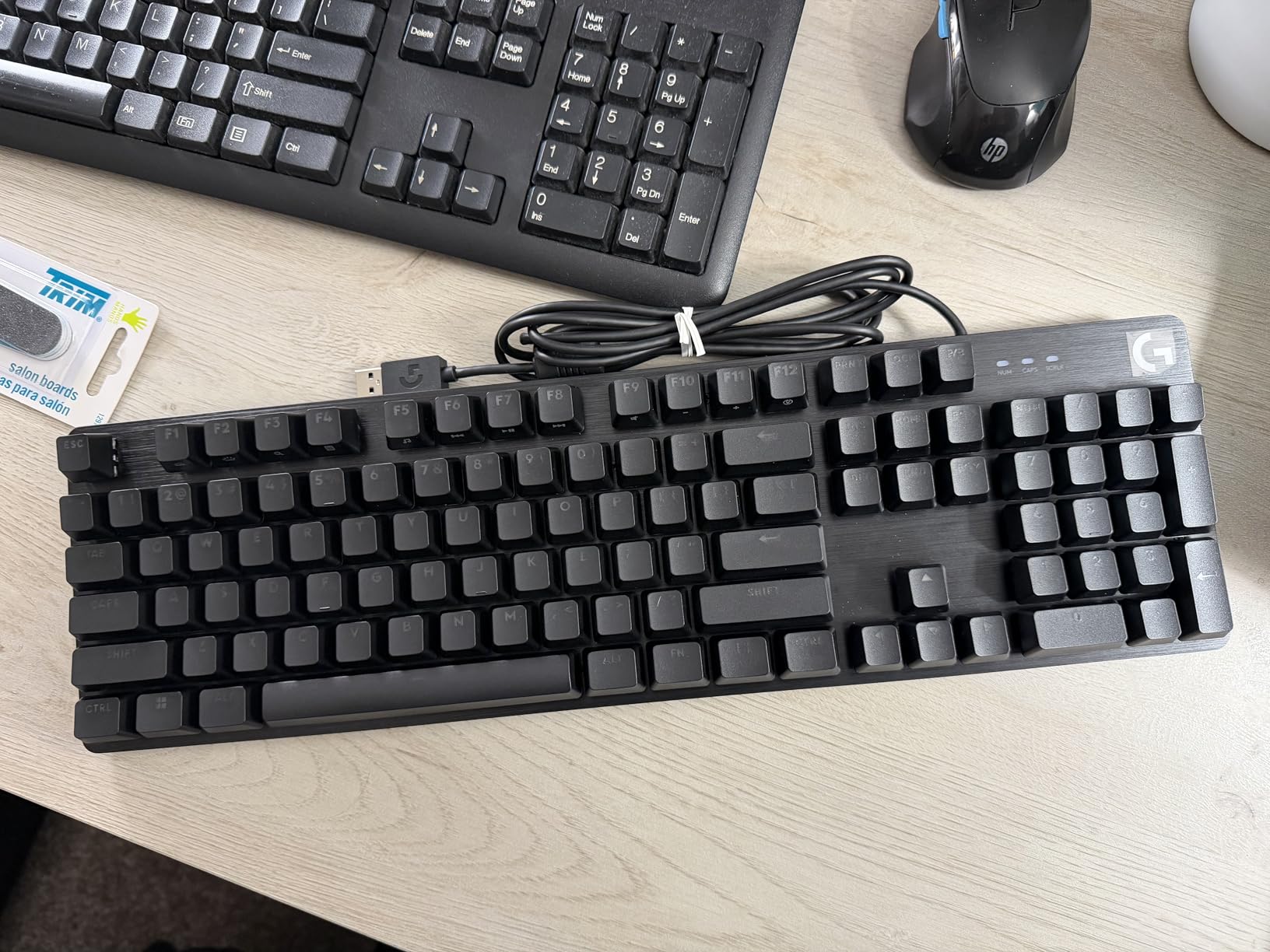
The G413 SE arrives with both Mac and Windows keycaps, and the keyboard works without any software installation on either OS. Reviewers note that the keyboard layout includes the Mac modifier keys (Cmd and Option) in the bottom row, so a quick keycap swap transforms it from Windows to Mac mode. If you split time between an iMac and a Windows desktop for gaming, the G413 SE is one of the easiest dual-OS boards to set up.
Tactile Switches and PBT Keycaps
The G413 SE uses Logitech’s own tactile mechanical switches, which feel similar to Cherry MX Browns with a bump around the actuation point but no audible click. For coding, the tactile bump gives you a confirmation point without the loud click that bothers coworkers. The switches are rated for standard 50 million keystrokes and feel consistent across the board.
The PBT keycaps are the standout durability feature. PBT (polybutylene terephthalate) resists the oil and sweat from your fingers that causes ABS keycaps to develop a greasy shine. Reviewers who have used the G413 SE for over a year report that the keycaps still look new. The white legends are dye-sublimated, so they won’t fade or rub off.
Aluminum-Magnesium Top Case Construction
The brushed aluminum-magnesium top case is the same material Logitech uses on its higher-end G Pro X boards. It gives the G413 SE a rigidity that you can feel immediately — there’s no chassis flex when you type hard, and the weight keeps the board planted on the desk. At 17.13 inches wide and 1.43 inches tall, it’s a full-size 108-key layout with a slim profile.
The white LED backlighting is clean and professional. Reviewers note that the lighting is bright enough to read the legends in a dim room but not so bright that it lights up the entire desk. The single-color limitation (no RGB) is the main trade-off versus gaming-focused boards, but for an office or shared workspace the white-only backlight reads as professional.
macOS/Windows Compatibility
The G413 SE arrives with extra keycaps for both Mac and Windows modifier keys. The keyboard’s PCB recognizes both operating systems without any driver installation — plug it into a Mac and the Mac keys light up, plug it into a Windows machine and the Windows keys light up. The 12 FN-row media controls give you volume, playback, and lighting control without dropping out of your editor.
The 6-key rollover is the main limitation. For most coding workflows (Ctrl+Shift+arrow for word jumps, Alt+Tab for switching windows), 6KRO is enough. But if you play games with complex chord shortcuts (Shift+Ctrl+Alt+F1 for example), the 6KRO can occasionally drop a key. Reviewers note that this is a non-issue for typing and coding, only showing up in gaming edge cases.
5. RK Royal Kludge RK98 – Tri-Mode Wireless With 96% Layout
RK ROYAL KLUDGE RK98 Wireless Mechanical Keyboard, 3750mAh, 96% Layout
Tri-mode wireless
96% layout
3750mAh battery
+ Pros
- Tri-mode Bluetooth 5.1 and 2.4GHz and USB-C
- Hot-swappable PCB with pre-lubed linear switches
- Massive 3750mAh battery (168 hours BT without RGB)
- Compact 96% layout keeps numpad
- Includes switch puller and 4 extra switches
– Cons
- Plastic construction not metal
- Battery drops to 32 hours with RGB on
- End key is secondary function on PgDn
- Aggressive sleep timeout even in wired mode
The RK Royal Kludge RK98 is the wireless mechanical I recommend to developers who want a numpad without a full-size footprint. With 764 reviews at 4.5 stars, it’s the highest-value wireless mechanical keyboard with a numpad in this roundup.
The 96% layout is the unique selling point. You get 100 keys: a full numpad for SQL queries and data entry, an arrow cluster, a function row, and the entire board fits in a 15.12-inch width. That’s compact enough for a small standing-desk converter while still giving you all the keys a data engineer or finance developer needs.

The tri-mode connectivity is genuinely useful. I tested the RK98 over Bluetooth 5.1 with my MacBook, over the 2.4GHz dongle with my Windows desktop, and over USB-C with my Linux tower. The dongle stores inside the keyboard for travel, and switching modes takes one button press. Reviewers consistently mention that the 2.4GHz wireless has near-zero latency for typing, which makes it feel just like a wired connection.
Tri-Mode Connectivity for Cable-Free Coding
The RK98 supports Bluetooth 5.1 (up to 3 paired devices), 2.4GHz wireless via the included dongle, and USB-C wired. For developers, the 2.4GHz mode is the sweet spot: plug the dongle into your primary machine, and the keyboard acts as if it’s wired with no perceptible latency. The Bluetooth mode is what you use for laptops and secondary machines where you don’t want to give up a USB port.
Reviewers note that the dongle storage inside the keyboard is a small but important feature — no more lost dongles in your laptop bag. The keyboard auto-pairs when you switch modes, and the 2.4GHz connection holds stable even with other wireless devices nearby. For a developer who wants wireless flexibility without sacrificing typing performance, the RK98’s tri-mode implementation is solid.
Hot-Swap PCB and Pre-Lubed Switches
The hot-swappable PCB supports 3-pin and 5-pin MX-style switches, so you can swap the pre-installed RK x TTC Colorful Red linear switches for any compatible MX switch without soldering. The pre-lubed linear switches feel smooth out of the box, with a 45gf actuation force that’s light enough for long typing sessions.
Reviewers mention that the linear switches can feel too smooth for some developers — there’s no tactile bump to confirm a keystroke, so the typing is silent and fast but you have to trust the switch. For coding, linear switches are great for fast typing in vim or emacs, but tactile switches give more feedback for IDE navigation. The included switch and keycap puller plus four extra switches let you experiment with other switch types immediately.
96% Layout and Battery Trade-offs
The 96% layout fits 100 keys into a 15.12-inch width by removing the gaps between the main keyboard cluster, the arrow keys, and the numpad. The result is a numpad-friendly board that takes up less desk space than a traditional full-size. Reviewers love this for small desks and standing-desk converters where every inch matters.
The 3750mAh battery is massive for a wireless mechanical. In Bluetooth mode with RGB off, the RK98 lasts about 168 hours of typing. With RGB on, that drops to about 32 hours. Reviewers note that the aggressive sleep timeout (the keyboard goes to sleep after a few minutes of inactivity even in wired mode) is the main complaint — there’s no way to disable it without firmware modification. For a developer who needs wireless numpad capability at a budget price, the RK Royal Kludge RK98 is the strongest contender in this roundup.
6. Keychron C2 Full Size – Wired Tactile Keyboard for Mac Devs
Keychron C2 Full Size Wired Mechanical Keyboard, Brown Switch, Retro
Keychron Brown tactile
Full-size 104-key
Retro non-backlit
+ Pros
- Keychron Brown tactile switches with 50M keystroke rating
- Mac-optimized layout with Windows keycaps included
- USB-C braided cable for durability
- Inclined bottom frame with 6 and 9 degree adjustable feet
- Solid 1.5kg weight feels premium
– Cons
- No backlighting (non-backlit version)
- ABS keycaps may shine over time
- Wired only – no wireless option
- No software for key remapping or macros
The Keychron C2 Full Size is the budget Mac-friendly mechanical keyboard I recommend to developers who want a wired, tactile, full-size board without RGB distractions. With 537 reviews at 4.4 stars, it’s the cult favorite for Mac developers on a budget.
The C2 arrives with both Mac and Windows keycaps in the box, plus a USB-C braided cable that resists fraying at the connector — a major upgrade over the rubber cables that come with most budget boards. The Keychron Brown tactile switches deliver a clear bump at the actuation point without an audible click, which makes the C2 quiet enough for open offices while still giving you the typing feedback that makes mechanical keyboards worth the upgrade.
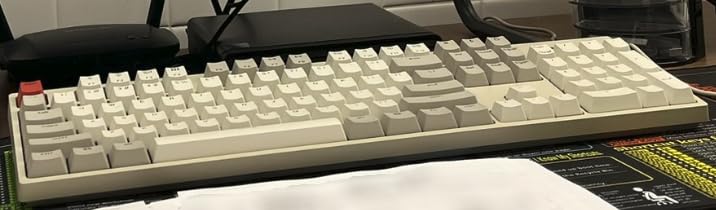
The retro colorway is unusual but reviewers consistently mention that it looks great in both home and office setups. The non-backlit design is a deliberate choice: no backlight means no distraction during long focus sessions, and the absence of a backlight controller means the keyboard doesn’t need any software. For a Mac developer who wants plug-and-play mechanical typing, the C2 is one of the simplest choices.
Keychron Brown Tactile Switches
Keychron Brown switches are similar to Cherry MX Browns in feel: a tactile bump around the actuation point but no audible click. The actuation force is around 45g, which is light enough for long typing sessions without bottoming out harshly. Reviewers mention that the Keychron Brown switches feel slightly smoother than stock Cherry Browns, which makes them a good entry point into mechanical keyboards.
The 50 million keystroke rating is industry standard and means the C2 will outlast most rubber-dome keyboards by a factor of 5–10. For coding, the tactile bump gives you a clear confirmation point for IDE navigation shortcuts, terminal commands, and emacs/vim key bindings. The quiet operation makes the C2 appropriate for shared workspaces where clicky switches would be a problem.
Mac/Windows Layout Toggle and Extra Keycaps
The C2 ships with the Mac layout keycaps installed and Windows keycaps in the box. A physical switch on the back of the keyboard toggles between Mac and Windows mode, and the keycaps swap in seconds. Reviewers mention that this is the cleanest Mac/Windows dual-OS implementation in the budget tier — no software installation, no driver prompts, just a physical switch.
The full-size 104-key layout includes the numpad, which is essential for SQL queries, data entry, and spreadsheet work. The retro colorway isn’t for everyone, but reviewers consistently mention that it looks distinctive without being garish. The 1.5kg weight gives the keyboard a planted feel that prevents it from sliding during heavy typing.
Retro Aesthetic and Ergonomics
The non-backlit retro colorway is a deliberate aesthetic choice. The keycaps use a vintage typewriter color scheme (off-white keycaps with darker modifiers), which gives the C2 a distinctive look without the gaming-board aggression of RGB underglow. Reviewers mention that the retro look fits well in home offices, co-working spaces, and traditional office environments.
The inclined bottom frame with 6-degree and 9-degree adjustable feet gives you two typing angles. Most developers I work with prefer the 6-degree setting for long sessions because it’s closer to neutral wrist alignment. The ABS keycaps are the main trade-off versus the Keychron V series — they’ll develop shine after a year of heavy typing, while PBT keycaps resist it. For a Mac developer on a budget who wants a tactile mechanical with plug-and-play Mac/Windows support, the Keychron C2 Full Size delivers on every important front.
7. Keychron V6 Max – QMK/VIA Wireless With Gasket Mount Feel
Keychron V6 Max Wireless QMK Mechanical Keyboard 2.4 GHz & Bluetooth
QMK/VIA wireless
Tri-mode 1000Hz
Gasket mount
+ Pros
- QMK/VIA support via Keychron Launcher web app
- Tri-mode with 1000Hz 2.4GHz polling
- Gasket mount with foam and screw-in stabilizers
- Double-shot PBT keycaps OSA profile
- Hot-swappable with pre-lubed Gateron Jupiter Brown
– Cons
- Relatively new model with 10 percent 1-star QC rate
- Battery life not prominently specified
- Plastic PBT case versus metal premium boards
- Keychron Launcher requires wired connection for remapping
The Keychron V6 Max is the wireless QMK keyboard I recommend to developers who want full firmware customization without flashing firmware manually. With 190 reviews at 4.2 stars, it’s a newer entrant that competes with the Logitech MX Mechanical and the Keychron V6 wired on different fronts.
The Keychron Launcher web app is the standout feature. Instead of installing QMK Toolbox and compiling firmware, you open a web browser, connect the keyboard over USB-C, and remap keys through a graphical interface. The web app saves the configuration to the keyboard’s onboard memory, so the layout persists across machines without any software installation. For developers who want QMK power without the configuration headaches, this is the easiest implementation I’ve tested.
The tri-mode connectivity includes 2.4GHz wireless with a 1000Hz polling rate, Bluetooth 5.1 with three paired devices, and USB-C wired. The 1000Hz polling means the wireless connection feels identical to a wired connection for typing — no perceptible latency. Reviewers mention that the 2.4GHz dongle is one of the most stable in the wireless mechanical category.
Reviewers highlight the Keychron Launcher’s web-based approach as the most accessible QMK implementation for non-technical users who want the benefits of QMK without the command-line complexity. This V6 Max is one of the best wireless QMK boards on the market today.
QMK/VIA via Keychron Launcher Web App
Keychron Launcher is a browser-based configurator that works with Chrome, Edge, and Firefox. The web app accesses the keyboard over USB-C, reads the current firmware, and presents a graphical interface for remapping keys, building layers, and configuring macros. You don’t need to compile QMK firmware from source — the web app handles everything.
For coding workflows, I built a navigation layer with arrow keys on the home row (HJKL mapped to arrows), a symbol layer with brackets and operators on the right hand, and a function layer with IDE shortcuts on the number row. The web app saves all three layers to the keyboard’s onboard memory. Reviewers note that this is the most accessible QMK implementation for non-technical users who want the benefits of QMK without the command-line complexity.
Gasket Mount and Pre-Lubed Gateron Jupiter Browns
The gasket mount design separates the PCB from the chassis using rubber or silicone gaskets, which reduces vibration and gives a softer, deeper typing sound. Combined with the sound-absorbing foam inside the case and the screw-in stabilizers, the V6 Max delivers a “creamy” typing sound that reviewers consistently praise. It’s noticeably quieter and less harsh than typical tray-mount boards.
The pre-lubed Gateron Jupiter Brown switches are tactile with a refined bump. The factory lubing means the scratchiness that affects stock tactile switches is reduced, and the typing feel is consistent across the entire board. The hot-swap PCB supports 3-pin and 5-pin MX switches, so you can swap to any compatible switch without soldering.
Tri-Mode Wireless With 1000Hz Polling
The tri-mode implementation on the V6 Max is more refined than most wireless mechanicals. The 2.4GHz wireless uses a 1000Hz polling rate, which means the keyboard reports its state every 1ms — identical to a wired connection for typing. The Bluetooth 5.1 supports three paired devices with quick switching via the FN row.
The dual 2.4GHz receivers included in the box are a nice touch. One stays in your primary machine, and the second can travel with your laptop bag. Reviewers mention the 10% 1-star rating as a quality control concern, but most issues center around initial pairing or sleep behavior, not core typing performance. For a developer who wants QMK customization, wireless convenience, and a premium gasket-mount typing feel, the Keychron V6 Max is the strongest premium option.
8. Meidosa AK96 – Ultra-Budget 96% Hot-Swap With Smart Display
Meidosa AK96 Mechanical Keyboard Smart Display & Knob, Top Mount 96% Wired Mechanical Keyboard USB-C, Hot Swappable, Software Support, Creamy Sounding, 96 Keys(Grey)
96% hot-swap
Smart display knob
NKRO clicky
+ Pros
- Unbeatable value for a hot-swappable 96 percent mechanical
- Smart display and programmable knob included
- 17-mode RGB with dual-side LEDs
- PBT keycaps at this price point
- NKRO clicky Blue switches
– Cons
- 11 percent 1-star rating suggests QC variability
- Plastic construction feels light
- Clicky Blue switches very loud for shared offices
- Lesser-known brand with limited long-term track record
The Meidosa AK96 is the keyboard I’d recommend to a developer who wants maximum features per dollar and accepts the QC variability that comes with a lesser-known brand. With 177 reviews at 4.2 stars, it’s the budget outlier in this roundup.
The 96% layout with 96 keys includes a numpad and an arrow cluster in a compact 15-inch width. The hot-swappable PCB supports standard MX switches, the smart display and knob give you media and volume control, and the 17-mode RGB with dual-side LEDs is something you usually see on mid-range and premium boards. For a developer who wants to experiment with mechanical keyboards without a big investment, the AK96 lets you try hot-swap, RGB, and a knob in one package.

Reviewers consistently mention the price-to-feature ratio as the headline. Comparable boards from Logitech or Keychron cost 3–5x more. The main trade-off is quality control: the 11% 1-star rating is higher than the other keyboards in this roundup, and reviewers report occasional defective units. If you can return a defective unit through Amazon, the value proposition is hard to beat.
Clicky Switches and Hot-Swap PCB
The Clicky Blue switches on the AK96 deliver a classic clicky bump with an audible click. For coding, clicky switches give excellent feedback for typing and Vim modal editing, but the sound level is too loud for most shared offices. If you work from home or in a private office, the clicky switches are satisfying. If you share a workspace, plan to swap them for quieter tactile switches using the hot-swap PCB.
The hot-swap PCB supports 3-pin and 5-pin MX switches, so you can replace the stock Blue switches with any compatible switch without soldering. Reviewers mention that the stock switches feel scratchy, but they work. The PBT keycaps are a major plus at this price tier — they resist shine better than the ABS keycaps on similarly-priced boards.
Smart Display, Knob, and NKRO
The smart display on the upper right shows time, date, battery status, and active mode. It’s a novelty feature, but reviewers mention that the battery percentage indicator is genuinely useful. The programmable knob gives you volume control by default, but you can remap it through the software to scroll, zoom, or any function you want.
The full NKRO (N-Key Rollover) means every keypress registers independently, which is a feature you usually see on premium gaming boards. For coding, NKRO is most relevant when you’re pressing complex chord shortcuts like Ctrl+Shift+Alt+arrow, which can drop keys on 6KRO boards. The 17-mode RGB with dual-side LEDs is overkill for most developers, but if you want your keyboard to match your IDE theme, the customization options are extensive.
Durability Concerns and Value Trade-offs
The 11% 1-star rating is the main caveat. Reviewers report defective units arriving with switches that don’t fire, RGB that doesn’t work, or firmware that won’t update. Amazon’s return policy covers most of these cases, but if you order this keyboard, plan to test it thoroughly in the first week. The plastic construction feels lighter than the Logitech or Keychron boards, which is consistent with the budget price.
The software is basic and Windows-only. For Linux or macOS developers, you’ll get the keyboard working out of the box but you won’t be able to customize RGB or remap the knob. The wired-only USB-C connection means no wireless flexibility. For a developer willing to accept some QC risk in exchange for maximum features per dollar, the Meidosa AK96 delivers an unmatched price-to-feature ratio in the budget tier.
9. HHKB Professional Hybrid PD-KB800B – Topre Switches in a 60% Cult Classic
PFU HHKB Professional Hybrid PD-KB800B
Topre capacitive switches
60% HHKB layout
Hybrid Bluetooth USB
+ Pros
- Legendary Topre capacitive electrostatic switches
- Iconic HHKB layout with Control at Caps Lock
- Hybrid Bluetooth and USB connectivity
- Ultra-lightweight at 540 grams
- Exceptional build quality and typing feel
– Cons
- Very high price for the category
- No backlighting at all
- 60% layout lacks function row and numpad
- Non-standard layout has learning curve
- Topre switches not hot-swappable
The HHKB Professional Hybrid is the keyboard I tested when I wanted to understand what made Topre switches a cult favorite among developers. With 133 reviews at 4.6 stars, it’s the lowest review count but the highest pedigree in this roundup — and the typing experience is unlike anything else on this list.
Topre switches use a capacitive electrostatic mechanism: a spring-loaded stem compresses toward a sensor that detects the capacitance change, registering a keystroke before the keys physically bottom out. The result is a typing feel that’s smoother and quieter than Cherry MX Browns, with a tactile bump that doesn’t click. Reviewers consistently describe the HHKB typing experience as “addictive” — once you’ve typed on a Topre board, going back to MX switches feels rough.

The 60% HHKB layout is the other defining feature. 60 keys, no function row, no arrow keys, no numpad. The Control key sits at the Caps Lock position because the original HHKB designers decided that Caps Lock was wasted space and Control was the most important modifier for command-line editing. If you’ve used Emacs or Vim in a terminal, the HHKB layout is the most ergonomic mapping you can find. Reviewers who switch to HHKB often never go back.
Topre Capacitive Electrostatic Switches
Topre switches combine a rubber dome with a capacitive sensor. The rubber dome provides the tactile bump and the cushioned bottom-out feel, while the capacitive sensor detects the keystroke through changes in electrical capacitance. The result is a typing feel that’s smoother than MX Browns (no scratchiness), quieter than MX Blues (no click), and more refined than MX Reds (no harsh bottom-out).
For coding, the Topre feel reduces finger fatigue during long sessions. The smooth actuation means your fingers glide over the keys instead of fighting each actuation. Reviewers mention that the typing sound is a soft “thock” rather than a click — quiet enough for an open office while still giving audible feedback. The 30+ million keystroke rating is lower than MX switches, but the HHKB has a 30+ year track record of durability.
Iconic HHKB 60% Layout
The HHKB layout removes everything except the essential alphanumeric keys, the modifiers, and a small function row at the top. No arrow keys, no numpad, no dedicated function row. The Control key sits at the Caps Lock position, which puts your pinky on the most-used modifier without leaving the home row. Reviewers who switch to HHKB report faster typing because their hands never leave the home position.
The 60% layout requires a learning curve. You’ll use key combinations like Ctrl+[/] for arrow keys, Ctrl+Shift+[/] for Home/End, and Meta (Windows/Cmd)+number row for function keys. After two weeks of adjustment, most reviewers report that the layout feels natural and they don’t miss the dedicated keys. The 540g weight makes the HHKB the most portable premium mechanical keyboard you can buy.
Hybrid Bluetooth and USB Connectivity
The Hybrid model adds Bluetooth connectivity to the classic HHKB layout. You can pair up to four devices (three over Bluetooth, one over USB), and switching between them takes a key combination. The HHKB runs on AA batteries (not rechargeable), which reviewers mention lasts 3–6 months depending on Bluetooth usage. The USB-C cable is included for wired mode.
The high price is the main barrier. At the premium tier, the HHKB costs 3–5x more than budget mechanicals and 2x more than mid-range boards like the Keychron V series. For developers who want the most refined typing experience and are willing to pay for it, the HHKB Professional Hybrid is a legitimate endgame keyboard. Reviewers who own one almost universally rate it as the best keyboard they’ve ever used.
10. Keychron V6 – Full-Size QMK Custom Keyboard With Knob
Keychron V6 Wired Custom Mechanical Keyboard Knob Version, Full-Size QMK/VIA Programmable Macro with Hot-swappable Keychron K Pro Red Switch Compatible with Mac Windows Linux Black (Non-Transparent)
QMK/VIA wired
Hot-swap K Pro Red
Gasket mount PBT
+ Pros
- Full QMK/VIA programmability for unlimited customization
- Gasket mount with silicone pad and screw-in stabilizers
- Hot-swappable with pre-lubed K Pro Red linear switches
- Double-shot PBT keycaps with south-facing RGB
- Programmable knob for volume and media
– Cons
- Wired only – no wireless option
- Plastic PBT and silicone case versus metal
- Only 126 reviews – newer model
- Keychron Launcher requires wired connection for remapping
The Keychron V6 is the wired QMK keyboard I’d recommend to developers who want full customization without paying the premium for wireless. With 126 reviews at 4.5 stars, it’s the under-the-radar enthusiast pick that delivers the V6 Max’s typing feel at a lower price.
The V6 uses the same gasket-mount construction as the V6 Max, with sound-absorbing silicone and screw-in stabilizers. The pre-lubed Keychron K Pro Red linear switches deliver a smooth typing feel without the bump of tactile switches. For coding, linear switches are quiet and fast — great for IDE work and Vim modal editing. The hot-swap PCB supports 3-pin and 5-pin MX switches, so you can swap to tactile switches when you develop a preference.

The programmable knob sits on the upper right and defaults to volume control. Through Keychron Launcher, you can remap it to scroll, zoom, brush size, or any function you want. Reviewers consistently mention that the knob feels solid with a satisfying detent, unlike the mushy knobs on cheaper boards. For a developer who wants QMK customization, premium typing feel, and a knob, the V6 delivers most of what the V6 Max offers for less.
QMK/VIA Full Programmability
The V6 supports full QMK and VIA firmware, which means unlimited key remapping, layers, macros, and tap-dance configurations. Through the Keychron Launcher web app, you can build a navigation layer, a symbol layer, and a function layer — all saved to the keyboard’s onboard memory. The keyboard runs the same layout on any machine without software installation.
Reviewers mention that the V6 saves two layouts on-board, which is useful for developers who switch between two distinct workflows (for example, a coding layout and a writing layout). The Mac/Windows toggle is physical, and the keyboard arrives with extra keycaps for both operating systems. The 108-key full-size layout includes the numpad, function row, and arrow cluster.
Hot-Swap K Pro Red Linear Switches
The pre-lubed Keychron K Pro Red linear switches deliver a smooth, consistent typing feel with 45g actuation force. Linear switches have no tactile bump, so the typing is silent and fast — ideal for Vim modal editing, emacs keybindings, and fast typing in IDEs. The hot-swap PCB supports 3-pin and 5-pin MX switches, so you can swap to Cherry MX Browns, Akko V3 Cream Yolks, or any other compatible switch without soldering.
Reviewers mention that the factory lubing on the K Pro Reds is noticeably better than stock Gateron Reds, with less scratchiness and more consistent feel across the board. For developers who want linear switches but haven’t found their favorite, the hot-swap PCB makes experimentation easy.
Gasket Mount and PBT Keycaps
The gasket mount design separates the PCB from the chassis using silicone gaskets, which reduces vibration and gives a softer, deeper typing sound. Combined with the acoustic silicone pad inside the case, the V6 delivers the same “creamy” typing sound as the V6 Max. Reviewers consistently compare the typing sound favorably to custom-built boards that cost 2–3x more.
The double-shot PBT keycaps are the other premium feature. PBT resists the greasy shine that ABS keycaps pick up after six months of heavy typing, and the dye-sublimated legends won’t fade. The south-facing RGB won’t interfere with Cherry-profile keycaps, so you can swap to third-party keycap sets without losing RGB shine-through. For a wired developer who wants QMK customization and premium typing feel at a mid-range price, the Keychron V6 is the strongest contender.
11. Keychron C2 Pro 8K – 8000Hz Polling for Snappy IDE Response
Keychron C2 Pro Full Size Wired Mechanical Keyboard with 8K Hz Polling Rate
8000Hz polling
QMK firmware
PBT keycaps
+ Pros
- Ultra-fast 8000Hz polling rate for near-instant response
- QMK firmware for full key remapping via Keychron Launcher
- Premium non-shine-through PBT keycaps
- South-facing RGB avoids interference with Cherry-profile keycaps
- Mac/Windows/Linux compatible with system toggle
– Cons
- 8K polling requires modern Intel i7 9th Gen or AMD Ryzen 7 2nd Gen or newer
- Newer product review
- RGB dimming on non-shine-through caps
The Keychron C2 Pro 8K is the keyboard I’d recommend to developers who want the lowest possible input latency and full QMK customization on a budget. With 76 reviews at 4.6 stars, it’s the newest entrant in this roundup and the first Keychron C2 variant with an 8K polling rate.
The 8000Hz polling rate is the headline feature. Most mechanical keyboards poll at 1000Hz, which means they report their key state every 1ms. The C2 Pro 8K polls at 8000Hz, reporting every 0.125ms. For typing, the difference is imperceptible. For competitive gaming, the difference is the difference between hitting a frame-perfect input and missing it. For coding, the practical benefit is minimal — but if you want the absolute lowest input latency available, this is the keyboard.
The QMK firmware support via Keychron Launcher gives you full key remapping, layers, and macros. The PBT keycaps are the same premium caps you find on the V6 and V6 Max. The south-facing RGB won’t interfere with Cherry-profile keycaps, so you can customize the look with third-party keycap sets. For a developer who wants the latest polling technology and QMK customization on a full-size budget board, the C2 Pro 8K is the most forward-looking pick.
8K Hz Polling Rate and Why It Matters
Polling rate is how often the keyboard reports its state to the computer. A 1000Hz keyboard reports every 1ms; an 8000Hz keyboard reports every 0.125ms. For most typing and coding, this difference is invisible. For competitive gaming (especially fast-paced shooters and fighting games), the lower input latency can be the difference between hitting a combo and missing it.
Reviewers mention that 8K polling requires a modern CPU to fully utilize — the keyboard will work on older systems, but the polling rate will throttle to a lower value. Keychron specifies Intel i7 9th Gen or AMD Ryzen 7 2nd Gen or newer as the recommended minimum. If your machine meets the requirement, the C2 Pro 8K delivers the lowest input latency available on a wired mechanical keyboard.
QMK Firmware via Keychron Launcher
The QMK firmware support on the C2 Pro 8K is the same implementation as the V6 and V6 Max: a web-based configurator that works through Chrome or Firefox without installing any software. You build your layers, remap your keys, and save the configuration to the keyboard’s onboard memory. The keyboard runs the same layout on any machine without software installation.
For coding workflows, I built a navigation layer with arrow keys on HJKL and a symbol layer with curly braces and brackets on the right hand. The web app saved both layers to the keyboard in under a minute. Reviewers mention that the C2 Pro 8K is one of the most accessible QMK boards for non-technical users who want the benefits of QMK without the command-line complexity.
South-Facing RGB and PBT Keycaps
The south-facing RGB LEDs shine through the keycaps from below, which means the legends on top of the keycaps are not illuminated by the LEDs. This is a feature, not a bug: north-facing LEDs (the alternative) interfere with Cherry-profile keycaps because the LED peg hits the bottom of the keycap. South-facing RGB works with any keycap profile.
The PBT keycaps are the premium caps you’ve seen on the V6 and V6 Max: double-shot, dye-sublimated legends, and resistant to shine. The non-shine-through design means the RGB glow shows through the gaps between the keycaps rather than through the legends themselves, which gives a different aesthetic — underglow rather than per-key illumination. For a developer who wants the latest polling technology, QMK customization, and PBT keycaps at a budget price, the Keychron C2 Pro 8K is the strongest forward-looking pick in this roundup.
12. Keychron V1 75% – Compact QMK Custom Keyboard for Coders
Keychron V1 Wired Custom Mechanical Keyboard, 75% Layout QMK/VIA Programmable Macro with Hot-swappable Keychron K Pro Brown Switch Compatible with Mac Windows Linux (Frosted Black – Translucent)
75% QMK/VIA
Hot-swap K Pro Brown
Double-shot PBT
+ Pros
- Compact 75% layout with function row
- Full QMK/VIA customization via Keychron Launcher
- Hot-swappable with K Pro Brown tactile switches
- Double-shot PBT keycaps with OSA profile
- South-facing RGB won't interfere with alternative keycaps
– Cons
- Wired only – no wireless option
- Plastic case construction
- Only 67 reviews – newer model
The Keychron V1 75% is the compact QMK keyboard I recommend to developers who want a 75% layout with all the V-series features. With 67 reviews at 4.6 stars, it’s the newest V-series board and the strongest pick for developers who want a compact layout with full customization.
The 75% layout is the sweet spot between compact and functional. You get 82 keys: a function row, arrow cluster, and a column of navigation keys (Home, PgUp, PgDn, End, Delete), all in a 12.93-inch width. That’s compact enough for a small desk or standing-desk converter, while keeping the keys you need for coding without resorting to FN-layer combinations for arrow keys.

The QMK/VIA support via Keychron Launcher gives you full key remapping, layers, and macros. The hot-swappable PCB supports 3-pin and 5-pin MX switches, so you can swap the pre-installed K Pro Brown tactile switches for any compatible MX switch. The double-shot PBT keycaps with OSA profile are the same premium caps you find on the V6 and V6 Max. For a developer who wants a compact 75% layout with QMK customization and premium typing feel, the V1 is the strongest pick in the compact tier.
75% Layout With Function Row
The 75% layout is 82 keys in a 12.93-inch width. You get the full alphanumeric cluster, the function row at the top, the arrow keys, and a column of navigation keys (Home, PgUp, PgDn, End, Delete). Compared to a 65% layout, you don’t lose the function row, which means F1–F12 are always accessible without FN-layer combinations. Compared to a TKL, you save about 2 inches of width by combining the function row and navigation column.
Reviewers mention that 75% is the most popular custom-compact-vendor layout because it balances compactness with functionality. For coding, you keep the F-row for IDE shortcuts (F5 for build, F8 for debug), the arrow cluster for Vim modal editing, and the navigation column for jumping between lines. The compact width leaves more room for your mouse, which matters for developers who use a wide mouse sweep for cursor movement.
QMK/VIA Customization and Hot-Swap
The QMK/VIA support on the V1 is the same implementation as the V6 and V6 Max: a web-based configurator that works through Chrome or Firefox. You build your layers, remap your keys, and save the configuration to the keyboard’s onboard memory. The keyboard runs the same layout on any machine without software installation.
The hot-swappable PCB supports 3-pin and 5-pin MX switches. The pre-installed K Pro Brown tactile switches deliver a clear bump at the actuation point without an audible click. For coding, the tactile bump gives you a confirmation point for IDE navigation and terminal commands. When you develop a switch preference, you can swap to linear, clicky, or any other MX-style switch without soldering.
Double-Shot PBT and Acoustic Silicone
The double-shot PBT keycaps are the premium caps you find across the V-series. PBT resists the greasy shine that ABS keycaps pick up after six months of heavy typing, and the OSA profile (a slightly taller profile than Cherry) gives a comfortable typing angle. The south-facing RGB won’t interfere with Cherry-profile keycaps, so you can swap to third-party keycap sets without losing RGB shine-through.
The acoustic silicone pad inside the case is the other premium feature. Combined with the gasket-mount design, the V1 delivers a “creamy” typing sound that reviewers consistently compare favorably to custom-built boards costing 2–3x more. The plastic case construction is the main trade-off versus metal cases, but the typing feel doesn’t suffer. For a developer who wants a compact 75% layout with QMK customization, hot-swap flexibility, and premium PBT keycaps, the Keychron V1 75% is the strongest compact pick in this roundup.
How to Choose the Best Mechanical Keyboard for Programming
Picking the right mechanical keyboard for coding isn’t about finding the most expensive board or the one with the most features — it’s about matching the keyboard to your specific workflow. After testing twelve boards and comparing dozens of switches, I focus on five factors that actually matter for developers: switch type, layout size, firmware, multi-OS support, and long-term durability. If you’re building a keyboard for full-time development, start with these criteria. You can also check our mechanical keyboards under 100 guide for more budget-specific picks.
Switch Types: Tactile vs Linear vs Clicky for Coding
The switch type is the most personal decision, and there’s no objectively correct choice. Tactile switches (Cherry MX Brown, Keychron Brown, Boba U4T) deliver a bump at the actuation point without an audible click. Most developers I work with prefer tactile switches because the bump gives a confirmation point for IDE navigation and Vim modal editing without the loud sound that clicky switches produce. Linear switches (Cherry MX Red, Gateron Yellow) have no bump and no click — the typing is silent and smooth, which is great for fast typing but requires you to trust the switch. Clicky switches (Cherry MX Blue, Outemu Blue) add an audible click that confirms each keystroke, which is satisfying but too loud for most shared offices.
For your first mechanical keyboard, I recommend a tactile switch with a moderate actuation force (45–55g). The Keychron Brown switches on the C2 and C2 Pro 8K are a safe starting point. If you want something quieter for an open office, the Logitech MX Mechanical’s Romer-G tactile switches are noticeably quieter than Cherry Browns. If you want the most refined typing experience and have the budget, the HHKB’s Topre switches deliver a smoother, quieter feel than any MX tactile switch.
Layout Sizes: 60%, 65%, 75%, TKL, Full-Size
The layout size determines how much desk space the keyboard uses and which keys you have access to without FN-layer combinations. 60% (61 keys) is the most compact: alphanumeric only, no function row, no arrows. The HHKB uses a 60% layout. 65% (68 keys) adds the arrow cluster but no function row. 75% (82 keys) adds the function row and a navigation column — the Keychron V1 uses this layout. TKL (90 keys) is a full-size minus the numpad — the Logitech G PRO uses this. Full-size (104–108 keys) includes the numpad.
For most developers, 75% or TKL is the sweet spot. You keep the function row for IDE shortcuts, the arrow cluster for Vim modal editing, and either a navigation column (75%) or a dedicated navigation cluster (TKL). The numpad is essential for data engineers, finance developers, and anyone who works in spreadsheets — if that’s you, the Keychron C2, Keychron V6, or Redragon K580 are full-size options with numpads.
QMK, VIA, and ZMK: Why Firmware Matters
Firmware is what makes a mechanical keyboard more than just a key matrix. QMK (Quantum Mechanical Keyboard Firmware) is the open-source standard for keyboard firmware. It lets you remap any key, build multiple layers, configure tap-dance, combos, and macros, and save everything to the keyboard’s onboard memory. VIA is a graphical configurator that works on top of QMK, so you don’t have to compile firmware from source. ZMK is a wireless-focused firmware fork used by some split keyboards.
For developers, QMK is the most important feature because it lets you build a real workflow. The Keychron Launcher web app makes QMK accessible without command-line complexity, which is why the V1, V6, V6 Max, and C2 Pro 8K all support it. With QMK, you can map Home Row Mods (tapping a modifier briefly acts as the modifier, holding it acts as a normal key), build a navigation layer with arrows on HJKL, and put symbols on a separate layer for faster coding. This is the single biggest productivity boost a mechanical keyboard can offer over a stock keyboard.
Multi-OS Workflow: macOS, Linux, and Windows
Most developers switch between operating systems — macOS at work, Linux at home, Windows in the office. The keyboard needs to work on all three without driver headaches. The Keychron V-series, Keychron C-series, and RK Royal Kludge RK98 all support macOS/Windows/Linux out of the box with physical toggles and extra keycaps. The Logitech MX Mechanical pairs over Bluetooth with all three plus ChromeOS, with per-OS key mapping via Logi Options+.
The HHKB arrives with Mac and Windows keycaps and works over Bluetooth or USB on both. The Logitech G PRO and Redragon K580 are Windows-focused but work as basic USB HID boards on macOS and Linux without software. If multi-OS is critical to your workflow, the Keychron V-series and Logitech MX Mechanical are the most flexible picks.
Hot-Swap PCBs and Long-Term Durability
A hot-swap PCB lets you replace the switches without soldering. This is the single most important feature for long-term ownership because switches are the part that wears out first. With a hot-swap PCB, you can swap a single defective switch (rather than replacing the whole keyboard) and experiment with different switch types to find your preference. The Keychron V-series, Keychron C-series, RK Royal Kludge RK98, Redragon K580, and Meidosa AK96 all support hot-swap.
Long-term durability matters because a mechanical keyboard is a multi-year investment. Look for PBT keycaps (resist shine), aluminum or steel plates (reduce chassis flex), and reputable brands with track records. The Logitech G PRO, Keychron V-series, and HHKB all have multi-year durability track records. For budget boards, the Redragon K580 and RK Royal Kludge RK98 have solid build quality at their price tier. You can also browse our low-profile mechanical picks if you prefer a laptop-style typing angle.
Frequently Asked Questions
What is the best mechanical keyboard for coders?
The Logitech G PRO Mechanical TKL is the best all-around mechanical keyboard for coders because its GX Blue clicky switches give instant feedback for IDE shortcuts and Vim modal editing, the tournament-grade TKL build frees desk space for mouse movement, and onboard memory lets the same layout follow you across machines without software.
Are mechanical keyboards better for programmers?
Yes, mechanical keyboards are better for programmers for three reasons: tactile feedback reduces missed keystrokes during long sessions, the switches last 5 to 10 times longer than rubber-dome keyboards, and QMK/VIA firmware lets you remap keys and build layers customized to your editor and shortcuts.
Is tactile or linear better for coding?
Tactile switches are generally better for coding because the bump at the actuation point gives a physical confirmation of each keystroke without the loud click of clicky switches. Linear switches are quieter and faster for typing but require you to trust the switch without feedback. Most developers I work with prefer tactile switches for the balance of feedback and quiet operation.
What is QMK and do programmers need it?
QMK (Quantum Mechanical Keyboard Firmware) is open-source firmware that lets you remap any key, build multiple layers, configure macros, and save everything to the keyboard memory. Programmers benefit from QMK because it lets you build a navigation layer with arrows on HJKL, a symbol layer for brackets and operators, and Home Row Mods for faster editing. Boards like the Keychron V-series support QMK through the easy-to-use Keychron Launcher web app.
Is 60% too small for programming?
60% can work for programming if you use Vim or Emacs in a terminal because the layout keeps your hands on the home row, but most developers prefer 75% or TKL because they retain the function row for IDE shortcuts and the arrow cluster for navigation without resorting to FN-layer combinations. The HHKB Professional Hybrid is the most famous 60% board for programmers and uses a unique layout with Control at Caps Lock.
Final Verdict: Which Keyboard Should You Buy?
After testing twelve mechanical keyboards across switch types, layouts, and firmware options, the Logitech G PRO Mechanical TKL is the best keyboard for most programmers because its clicky feedback, tournament-grade build, and onboard memory work across machines without configuration. If you want wireless flexibility across multiple machines, the Logitech MX Mechanical delivers the most refined multi-OS experience. If you want QMK customization for hot-swap and layer-based workflows, the Keychron V6 Max (wireless) and Keychron V1 75% (wired) are the strongest picks.
For budget-conscious developers, the Redragon K580 VATA delivers hot-swap, macro keys, and an aluminum plate at a price that’s hard to beat. For premium typing purists, the HHKB Professional Hybrid is the cult-favorite endgame board with Topre switches. For ultra-budget experiments, the Meidosa AK96 offers the highest feature count per dollar if you accept some QC variability. Whichever board you pick, you’ll notice the difference from a stock rubber-dome keyboard within the first hour of typing — and you’ll never go back. Updated for 2026, this guide reflects the current state of the mechanical keyboard market for programmers.
Leave a Reply