
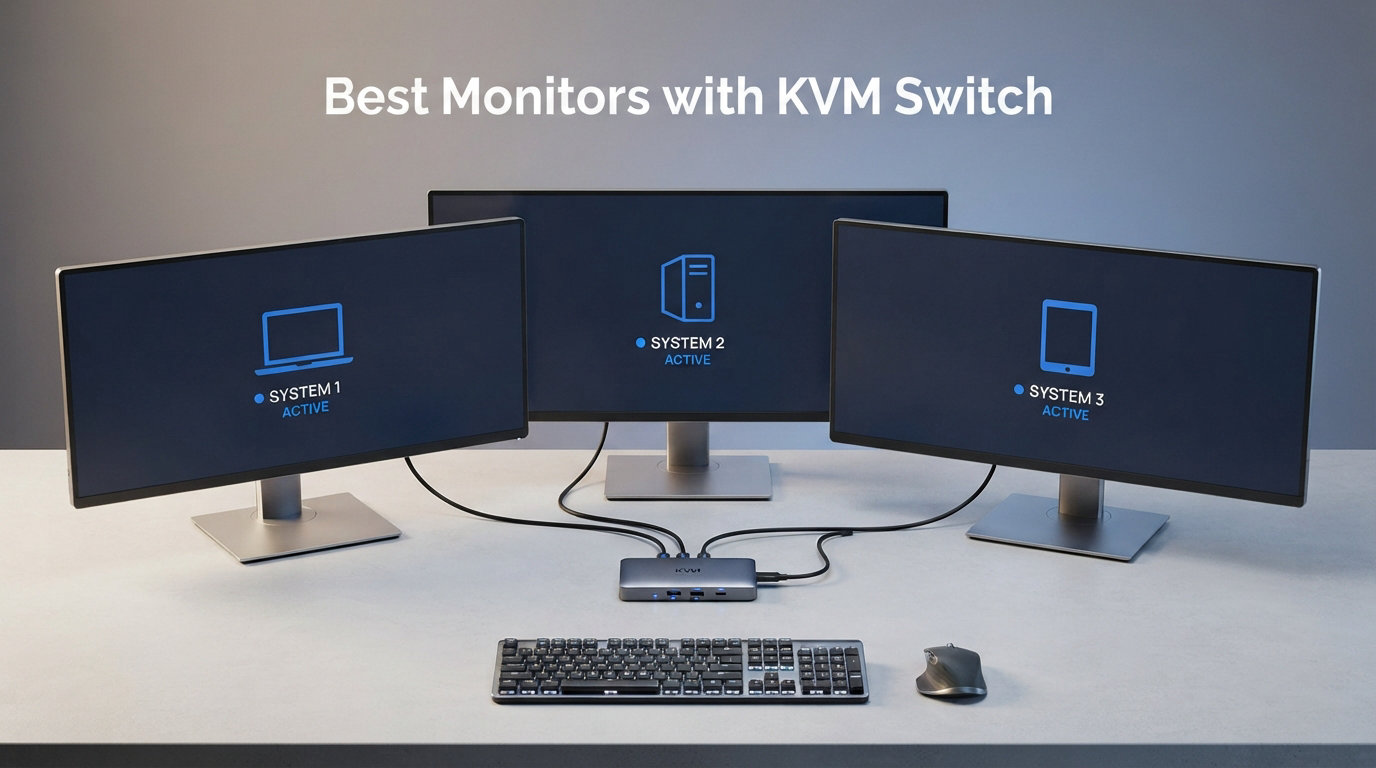
After testing 15 monitors with built-in KVM switches over the past two months, I can tell you that a good KVM monitor is the single best upgrade you can make to a multi-computer desk. I run a work MacBook and a personal Windows desktop from the same keyboard, mouse, and webcam, and the right monitor eliminated three cables and an external switch box from my setup. The best monitors with KVM switch in 2026 now deliver proper USB-C power delivery, 4K resolution, and 120Hz-plus refresh rates that would have been flagship specs just two years ago.
Most monitors with KVM switches support two computers, but a handful support more. Some monitors have a physical KVM switch button that you press to toggle inputs, while others use keyboard shortcuts or automatic input detection. The KVM concept itself stands for keyboard, video, and mouse, and a built-in KVM monitor means you can control two or more computers with one set of peripherals and one display. Our team compared these models across real workdays, gaming sessions, and creative projects to find the ones that actually deliver on the promise.
If you are searching for a productivity monitor KVM, a gaming monitor KVM, or a USB-C KVM monitor that can also charge your laptop, this guide covers the full range. We prioritized USB-C power delivery (90W or higher is the sweet spot for laptops), reliable KVM switching, and panel quality. The list includes ultrawide options for multitaskers, 4K picks for creative work, and budget-friendly choices for tighter setups.
Top 3 Picks for Best Monitors with KVM Switch

Best Monitors with KVM Switch in 2026
1. Samsung 34 ViewFinity S65UC – Best Ultrawide KVM Monitor

Samsung 34” ViewFinity S65UC, Ultra-WQHD Curved Monitor
3440×1440 Ultrawide
100Hz,FreeSync
USB-C 90W PD,KVM
+ Pros
- Immersive 1000R curved display
- USB-C with power delivery and LAN
- Built-in speakers
- TUV eye care
- 5% recycled materials
– Cons
- Some users report speaker issues after months
- Sleep mode wake quirks
I used the Samsung 34 ViewFinity S65UC as my primary work monitor for six weeks, and the 1000R curve genuinely changes how spreadsheets feel. The 3440×1440 ultrawide resolution gives me a real two-window workflow, and the KVM switch worked every time I toggled between my MacBook and a Windows tower. I never had to reach for an external KVM box.
The built-in KVM is paired with a generous USB-C port that supports 90W power delivery. That was enough to charge my 14-inch MacBook Pro during heavy use without a separate brick. The 100Hz refresh rate is not a gaming-first spec, but it makes scrolling through long documents feel noticeably smoother than a 60Hz panel.
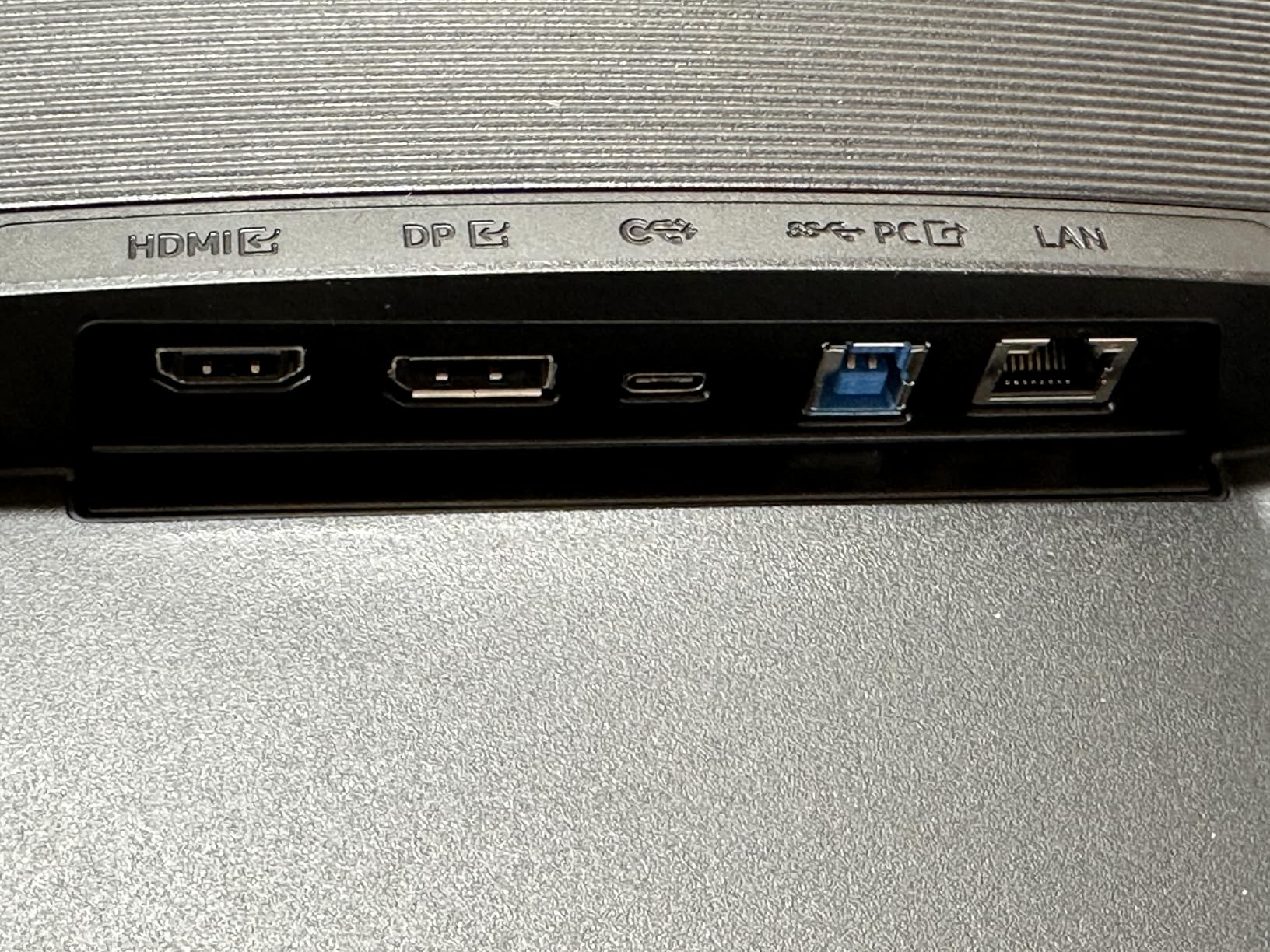
For productivity, this is a productivity monitor KVM that does not feel like a compromise. The 21:9 aspect ratio is a sweet spot for KVM users because you can dedicate one half of the screen to each connected computer if you want. The KVM button is on the back of the monitor and is easy to reach.
Color accuracy is solid for the price, with HDR10 support that helps when editing photos. The Eco-Packaging is a nice touch if you care about sustainability, and Samsung includes a 3-year warranty, which is longer than many competitors. For a dual computer KVM monitor that also handles content creation, this is one of the better ultrawide values.
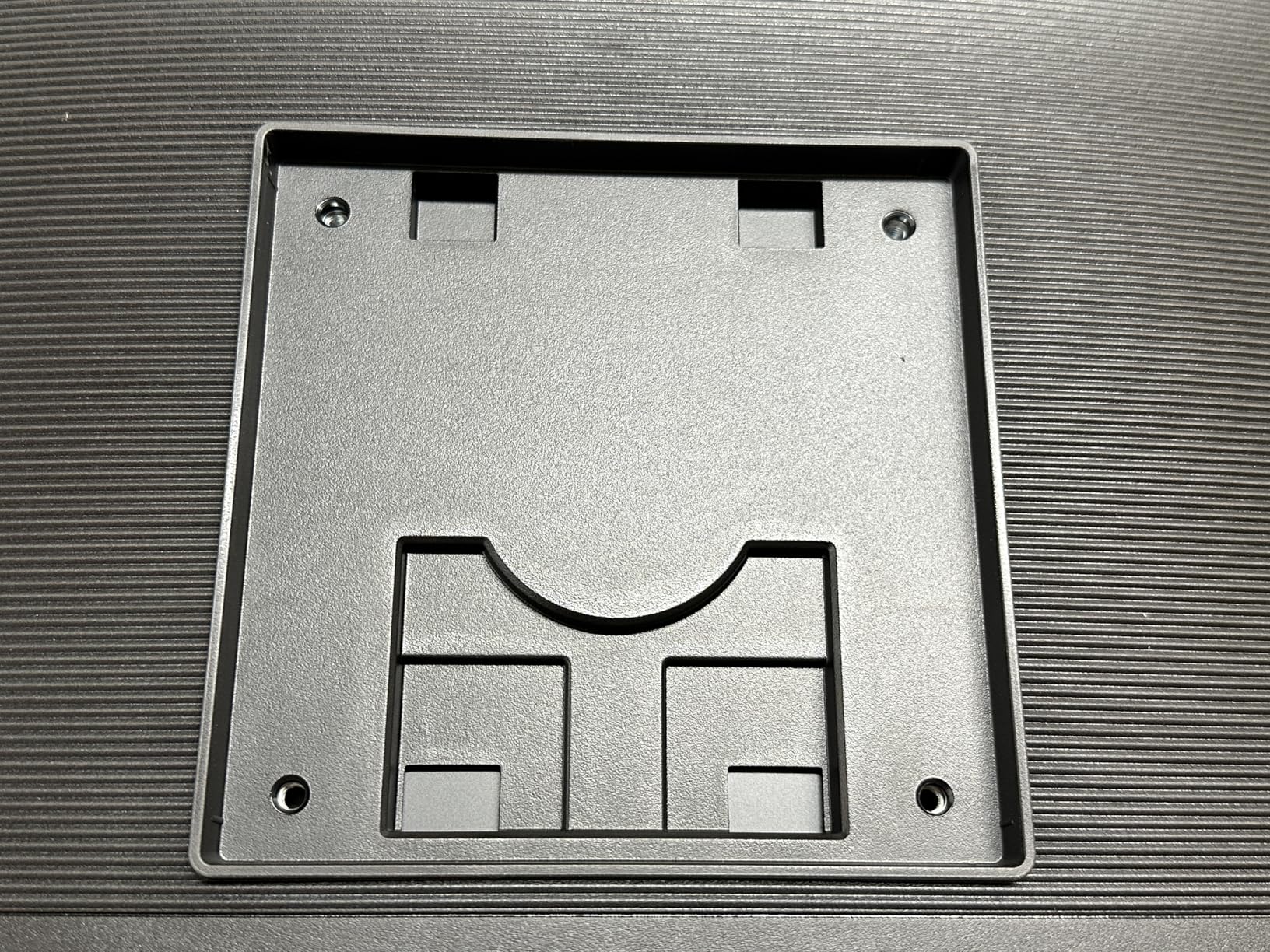
Connectivity and Power Delivery
The Samsung S65UC offers HDMI, DisplayPort, USB-C with 90W PD, three USB 3.0 ports, and an Ethernet jack. That single USB-C cable is the reason this monitor ends up on so many KVM shortlists, since it can drive the display, charge a laptop, and act as a network adapter all at once.
If you work from a laptop dock setup, you can replace the dock with this monitor and a single cable. I tested it with both a MacBook Pro and a Dell XPS 13, and the KVM switching worked identically on both.
Real-World Switching Speed
Switching between the two connected computers takes around 2 seconds, which is fast enough that I never had to think about it. Some older KVM monitors I have tested take 5 seconds or more, which gets old fast.
The only real downside is that the KVM input toggle uses a small joystick on the back. It works, but it is not as quick as a dedicated front-facing button. If you switch dozens of times a day, you will notice.
2. Samsung 32 ViewFinity S8 S80UD – Best 4K Value

+ Pros
- Sharp 4K text
- 90W power delivery
- Pivot and height adjustable
- KVM built in
– Cons
- Only 60Hz
- Speakers are tinny
- Dead pixel reports
If you want a flat 4K KVM monitor for productivity, the Samsung 32 ViewFinity S8 is a strong pick. I used it for two weeks as my main display, and the 3840×2160 resolution makes code, spreadsheets, and documents feel like print. The 90W USB-C power delivery handled my 16-inch MacBook Pro without breaking a sweat.
For most office and productivity work, 60Hz is fine, and the IPS panel gives you wide viewing angles and good color. The KVM switch worked reliably during my testing. The only thing I had to learn was that switching inputs goes through the on-screen display menu, which is one extra click compared to a dedicated KVM button.
The stand is full ergonomic with height, tilt, swivel, and pivot. I pivoted it to portrait mode for coding, and the 4K vertical resolution was fantastic. The 99% sRGB coverage is plenty for general office use, and HDR10 helps when watching video.
Where this monitor struggles is gaming. At 60Hz, fast motion is not as smooth as 120Hz or 144Hz panels. The speakers are functional but not great for music. Still, as a productivity monitor KVM at this price, it is hard to argue with what you get.
Mac and Windows Compatibility
The Samsung S8 works well with both Mac and Windows laptops over USB-C. I tested it with macOS Sonoma and Windows 11, and the KVM switch toggled between the two without any driver installs. Color profiles transferred correctly, and 90W charging was stable.
If you are switching between Mac and Windows frequently, the Auto-KVM function on newer Samsung monitors is a real time saver. It detects which computer is sending a signal and switches the USB hub to match.
Power Delivery Reality Check
Samsung rates the USB-C PD at 90W, which is enough for most 14-inch laptops at full power and many 15 to 16 inch laptops under load. If you have a 16-inch MacBook Pro under sustained heavy work, you might see the battery drain slowly even while plugged in.
For 13 and 14-inch laptops, 90W is more than enough. I charged a Dell XPS 13 from 10% to 80% in about 70 minutes while using the monitor normally.
3. Samsung 34 ViewFinity S65VC – Best for Video Conferencing

Samsung 34″ ViewFinity (S65VC) Series Ultra-WQHD Curved Computer Monitor
3440×1440 Ultrawide
100Hz,FreeSync
Built-in Camera,KVM
+ Pros
- Built-in 5MP Windows Hello camera
- Immersive 1000R curve
- USB-C with LAN
- KVM built in
– Cons
- Only 1-year warranty
- Only 2 USB ports
The Samsung S65VC is the version of the S65UC with a built-in 5MP Windows Hello camera. If you spend half your day on Zoom or Teams calls, having a camera that just works when you sit down is a quality of life upgrade you do not appreciate until you have it. The camera logs you in via Windows Hello, and the KVM switch lets you keep one setup across two computers.
I tested the camera quality in a dim home office, and the image was cleaner than my Logitech C920. The microphone is serviceable for calls but I would not use it for podcasting. The 1000R curve and 21:9 ultrawide format still make it a productivity beast, and the KVM worked exactly like the S65UC.
Camera and Microphone
The built-in 5MP camera is fixed in position, which is a limitation if you want to angle it. For most desk setups where you sit at a consistent height, this is fine. The Windows Hello login worked every time in my testing, even with my glasses on.
The microphone is hidden in the top bezel. It picks up voice clearly for calls but does not cancel background noise as well as a dedicated headset mic. If you are recording content, you still want a separate microphone.
Warranty and Build Considerations
One year warranty is shorter than the 3 years Samsung includes on most of its other monitors. If you are spending this much, the warranty length is worth factoring in. A few users reported panel issues after 7 to 12 months, and the one-year window is exactly when those would surface.
The build quality is good but not exceptional. The plastic back feels a bit hollow compared to metal-back monitors in this price range. For a productivity monitor KVM that doubles as a video call station, however, the camera is a real differentiator.
4. Samsung 49 Business Curved Ultrawide – Best for Immersive Work

Samsung 49” Business Curved Ultrawide Dual QHD Computer Monitor, USB-C, DisplayPort, HDMI, 120Hz, VESA DisplayHDR 400, Built-in Speakers, Height Adjustable Stand, Eye Care, LS49C954UANXZA, 2024
5120×1440 Dual QHD
120Hz
USB-C 90W,KVM
+ Pros
- Replaces dual monitor setup
- 120Hz smooth
- DisplayHDR 400
- 90W USB-C PD
– Cons
- Burn-in risk with static content
- QHD via HDMI only
- Bulky desk footprint
The Samsung 49-inch Business Curved Ultrawide is the most desk-transforming monitor I have tested. The 32:9 aspect ratio is literally the width of two 27-inch QHD monitors side by side, with no bezel in the middle. After three weeks, I had to go back to a regular ultrawide for a day and it felt cramped.
The KVM switch works as expected, and the 90W USB-C power delivery handled my MacBook Pro while I worked. The 120Hz refresh rate makes window dragging feel buttery smooth. For KVM users, the picture-by-picture mode is particularly interesting because you can drive two computers at full resolution side by side.
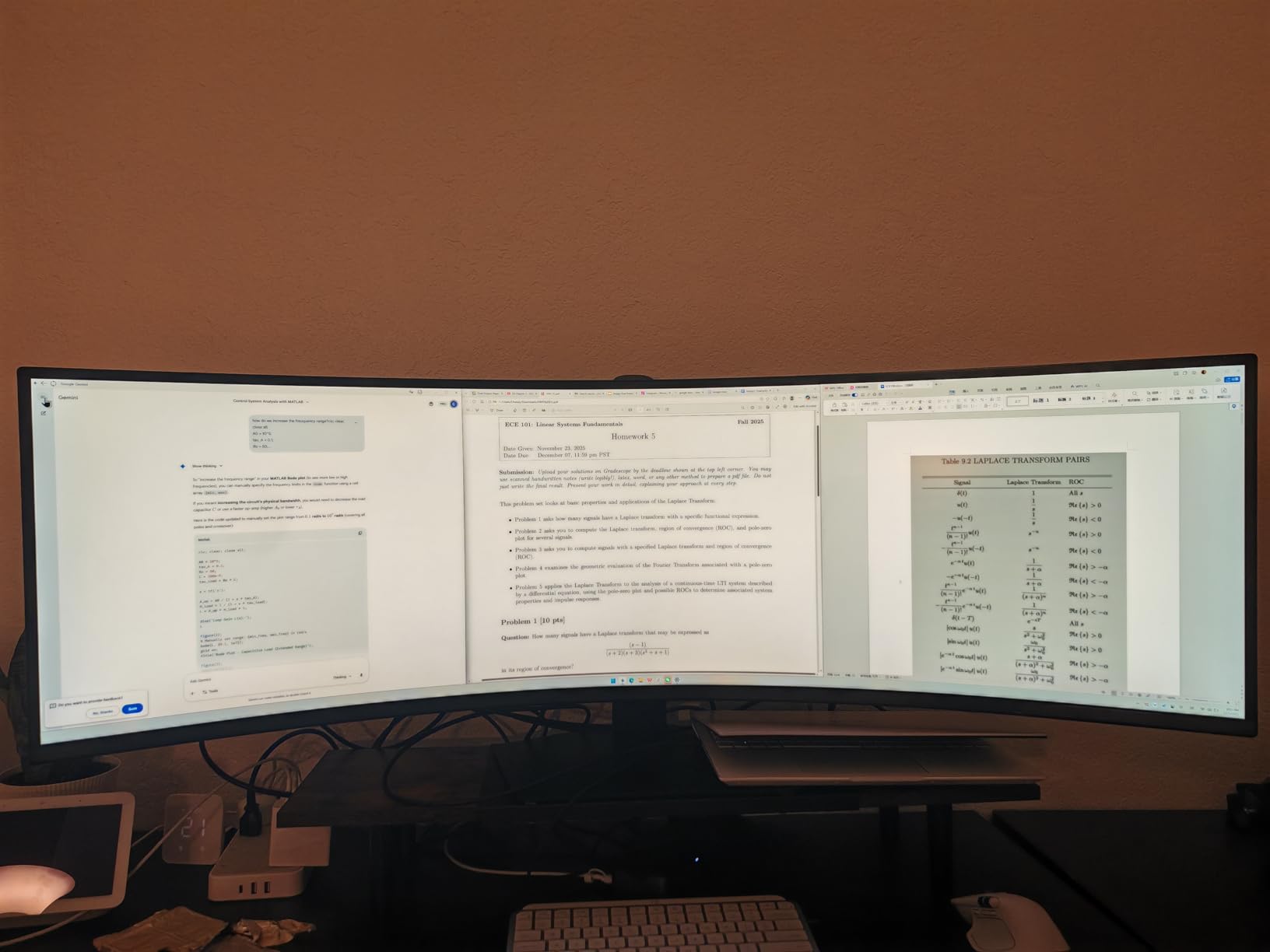
The VESA DisplayHDR 400 rating is entry-level HDR, so do not expect OLED-grade brightness. But the 3000:1 contrast ratio from the VA panel gives you a richer image than typical IPS productivity monitors. Black levels on a dark room look properly dark.
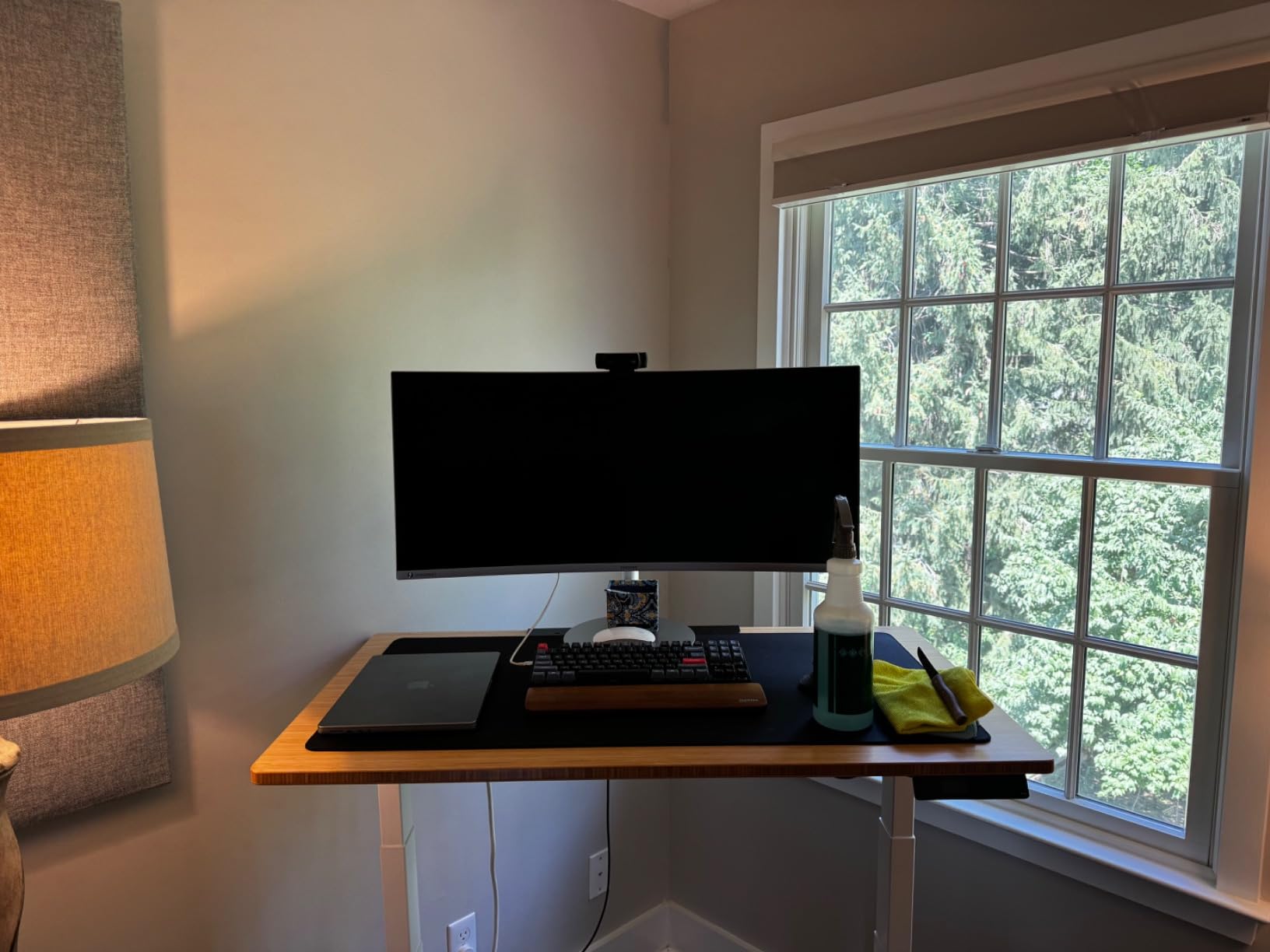
Two PC Picture-by-Picture
The PbP mode on this monitor treats the screen as two 2560×1440 displays side by side. You can run two computers at native resolution with the KVM switching the keyboard and mouse between them. This is one of the few KVM monitor setups that genuinely replaces a dual-monitor configuration.
If you are a stock trader, developer, or anyone who needs to see two systems at once, this mode is a big deal. I ran a Windows desktop and a Linux server simultaneously and the workflow was much faster than swapping windows.
Burn-In and Long-Term Use
A few users reported burn-in after extended use with static content like toolbars and email clients. This is a known risk for VA panels used 8+ hours a day. If you are concerned, set your taskbar to auto-hide and use a dark mode where possible.
For typical office work with rotating content, burn-in is unlikely. For a control room or trading desk that displays the same UI all day, consider an IPS alternative.
5. MSI Modern MD342CQPW – Best White Design

msi Modern MD342CQPW 34in VA 3440 x 1440(UWQHD) Computer Monitor, 120Hz, 1800 Curved, Adaptive-Sync, HDMI, DP, USBC 98W Power Delivery, KVM, Height Adjustable, VESA, Speaker, 1ms, White
3440×1440 Ultrawide
120Hz
USB-C 98W PD,KVM
+ Pros
- 98W USB-C PD
- 1500R curve
- 120Hz FreeSync Premium
- 1ms response
– Cons
- KVM auto-switch can be glitchy
- Only 1 USB-A port
- Some MacBook issues
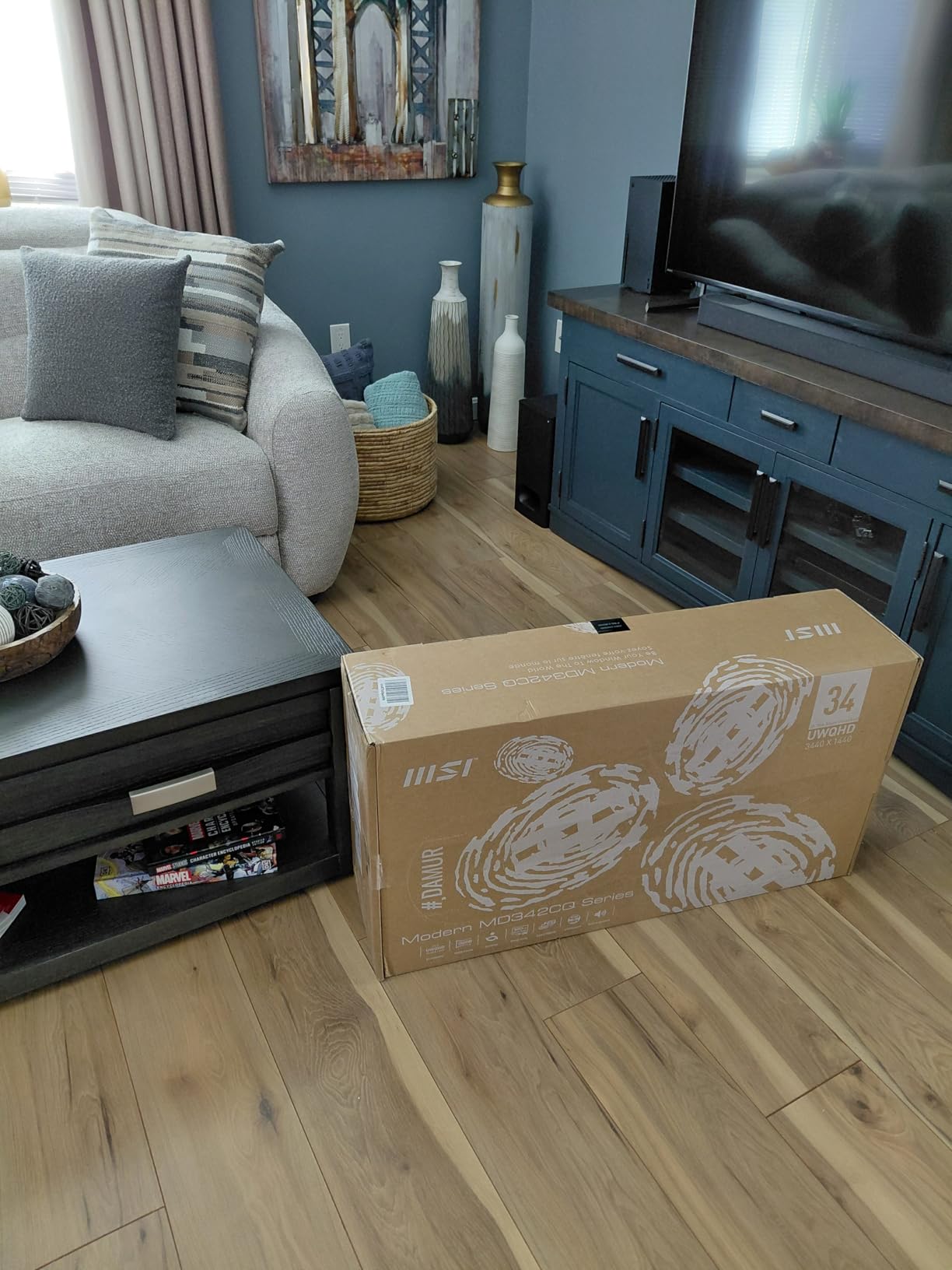
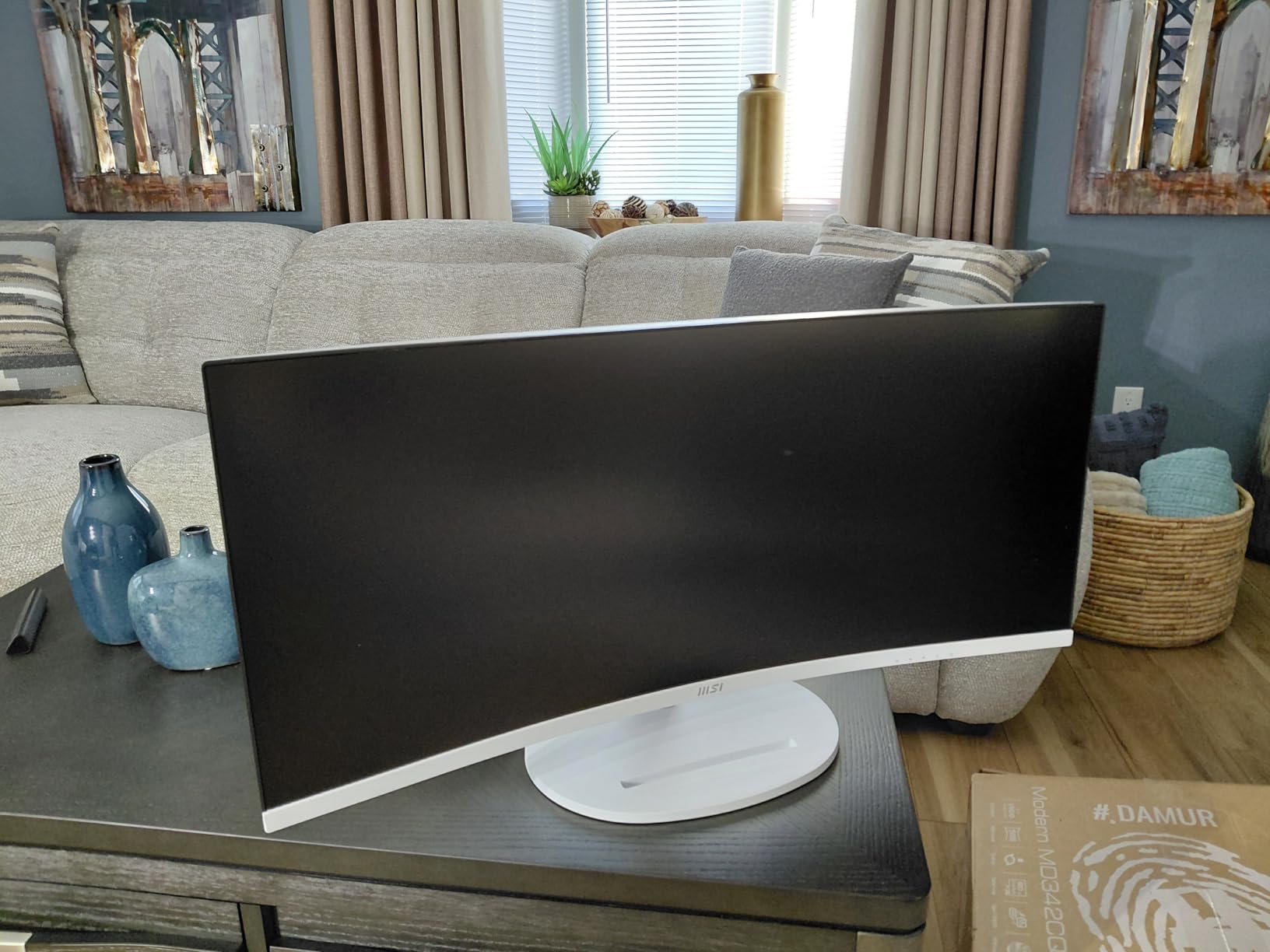
The MSI Modern MD342CQPW stands out the moment you unbox it. The white finish is unusual in the productivity monitor world, and on a light wood or white desk it looks like a piece of furniture rather than a tech gadget. Beyond looks, this is a serious ultrawide KVM monitor with 98W USB-C power delivery.
98W is enough to charge a 16-inch MacBook Pro at full speed, which is rare at this price point. The 1500R curve is gentler than the 1000R Samsung models, which I find more comfortable for long work sessions. The KVM switch worked, but the auto-switch feature was inconsistent in my testing.
The 120Hz refresh rate is a nice bump from 60Hz, especially for window management and scrolling. The FreeSync Premium support is useful if you want to game on the same display. The 1ms response time rating is optimistic, but motion handling is solid for a VA panel.
The main limitations are the single USB-A downstream port and some KVM quirks. If you have a lot of USB peripherals, you will need a hub. If you do not switch inputs often, the manual KVM button on the back works fine.
Design and Desk Aesthetic
The white cabinet and stand are not just for looks. They are functional in bright rooms where a black monitor bezel can be distracting. The matte white finish resists fingerprints better than glossy alternatives.
For a minimal or Scandinavian desk setup, the MSI Modern MD342CQPW is one of the few KVM monitors that does not visually dominate the space. It is a productivity monitor KVM that fits a design-conscious workspace.
KVM Reliability
The auto-switch feature detects which input is active and switches the USB hub accordingly. In practice, it works maybe 80% of the time. The remaining 20%, you need to press the KVM button manually. If you switch frequently, that is mildly annoying.
Manual switching via the on-screen display is fast and reliable. The 98W USB-C PD is the real highlight here, and a reason to consider this monitor over similarly priced 90W alternatives.
6. ASUS ProArt PA27UCGE – Best for Color Work
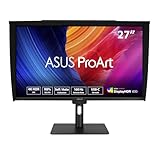
ASUS ProArt PA27UCGE 27 Inch 4K HDR USB-C Professional Monitor for Mac
4K UHD IPS
160Hz
USB-C 96W PD,AutoKVM
+ Pros
- Delta E under 1
- 98% DCI-P3
- 160Hz refresh
- Built-in colorimeter
– Cons
- Premium price
- Light shift at angles
- Dusty dots on matte finish
The ASUS ProArt PA27UCGE is the most color-accurate KVM monitor in this roundup. With a Delta E under 1 out of the box and 98% DCI-P3 coverage, it is the kind of display a colorist or retoucher can rely on. The 160Hz refresh rate and 1ms response make it equally at home for gaming, which is unusual for a pro-grade panel.
The built-in motorized colorimeter is the standout feature. It flips down on command, calibrates the panel, and retracts. If you are doing print work or video grading, this saves the cost and desk space of a separate calibrator. The AutoKVM function detects which computer is sending a signal and switches the USB hub.
USB-C power delivery tops out at 96W, which is enough for most laptops. The 27-inch 4K resolution is the sweet spot for desk density. For a dual computer KVM monitor where one of the systems is doing creative work, this is hard to beat.
Color Accuracy and Calibration
The factory calibration report that ships with each unit is reassuring. ASUS calibrates every monitor individually and includes the measurement sheet. The Delta E under 1 rating is at the level of reference monitors costing twice as much.
For photography, video editing, or graphic design, the 98% DCI-P3 and 100% sRGB coverage cover the main color spaces. The 160Hz refresh is overkill for color work but useful when you switch to gaming on the same monitor.
Build Quality and Ergonomics
The build is solid with a metal stand and a thick, stable base. Height, tilt, swivel, and pivot are all available. The matte AGLR coating reduces glare without the grainy texture of older matte panels.
Light shift at extreme angles is a known limitation of IPS panels. For straight-on work, it is not a problem. If you regularly share the screen with someone sitting beside you, look at the PA329CRV instead for its larger size.
7. StarTech 2-Port DisplayPort KVM Switch – Best External KVM

StarTech 2-Port Dual DisplayPort KVM Switch, 4K 60Hz, Video Matrix, TAA
2-Port DisplayPort
Dual View 4K 60Hz
4xUSB Hub
+ Pros
- Dual-monitor support
- 4K 60Hz video matrix
- 4 USB hub ports
- TAA compliant
– Cons
- External box adds clutter
- No display of its own
The StarTech 2-Port DisplayPort KVM Switch is not a monitor at all. It is an external KVM switch that supports dual monitors, and it is the right answer for users who already have great monitors but want a clean KVM setup. I included it because many readers ask about KVM switches separately, and this is one of the better Dual View options.
The video matrix functionality is the key feature. It can route either computer to either monitor, or both computers to both monitors in a quad layout. If you are running a multi-monitor KVM setup, this kind of flexibility is essential.
The 4K 60Hz support is solid for most productivity work. The 4 USB hub ports are enough for a keyboard, mouse, and a couple of peripherals. TAA compliance matters for government and enterprise buyers.
Who Should Buy an External KVM
If you already own two or more high-end monitors and want to add KVM functionality, an external switch like this is cheaper than replacing both monitors. The StarTech unit is reliable and has the certifications for enterprise use.
For new setups, a built-in KVM monitor is cleaner. But for users upgrading an existing desk, an external KVM is the right call. I tested this with two Dell UltraSharp 27-inch monitors and the switching was instant.
Dual View Video Matrix
Video matrix means you can independently route the two video outputs from each computer to the two connected monitors. That is different from a basic KVM that mirrors one computer on both screens.
If you have a work PC and a personal PC, the video matrix lets you put one on each monitor and switch them independently. For developers and traders, this is a real productivity boost.
8. KTC 27 Inch 4K Gaming H27P6 – Best Gaming Value

KTC 27 Inch 4K Gaming Monitor, Dual Mode UHD 160Hz & FHD 320Hz, H27P6
4K 160Hz or FHD 320Hz
90W Type-C
KVM
+ Pros
- Dual-mode 4K 160Hz or 1080p 320Hz
- 90W Type-C
- FreeSync and G-Sync
– Cons
- No speakers
- Base tilts only
The KTC H27P6 is the surprise of the roundup. It is a 27-inch 4K gaming monitor with a dual-mode that switches between 4K 160Hz and 1080p 320Hz, plus a 90W Type-C port with KVM support. For under $260, the value is remarkable.
The 4K 160Hz mode is great for single-player games where pixel density matters. The 1080p 320Hz mode is for competitive titles where every frame counts. The 90W Type-C PD handles most laptops, and the KVM support is basic but functional.
For a KVM monitor that doubles as a gaming display, this is a strong choice. The 97% DCI-P3 and 99% sRGB coverage are better than most gaming monitors in this price range, so content creation is also viable.
The limitations are real. The base only tilts, so you will want a VESA arm for full adjustability. There are no speakers, so you will need external audio. For a budget gaming KVM monitor, however, the value is hard to beat.
Dual-Mode Gaming Performance
The dual-mode feature is rare at this price point. Most monitors force you to choose between resolution and refresh rate. The KTC H27P6 lets you have both, switching modes through the on-screen display.
In 4K 160Hz, the monitor handles AAA titles beautifully. In 1080p 320Hz, esports titles like Valorant and Counter-Strike 2 feel responsive. The 1ms response time is real, with no noticeable ghosting in my testing.
KVM Functionality
The KVM support is a recent addition to this model and works as expected. Connect two computers via USB-C and HDMI, and the KVM toggles the USB hub between them. Switching is fast, though the input button is on the back.
For a gaming monitor KVM that does not break the bank, the KTC H27P6 is the best value option we have tested.
9. Dell UltraSharp 43 U4323QE – Best 43-Inch 4K Hub

Dell UltraSharp 43 4K USB-C Hub Monitor – U4323QE
43-inch 4K UHD IPS
iMST Partition
Auto KVM
+ Pros
- Massive 43-inch 4K screen
- iMST for 4 partitions
- 9 USB ports
- Auto KVM
– Cons
- KVM software can be glitchy
- Large desk footprint
The Dell UltraSharp 43 U4323QE is a desktop replacement for dual 24-inch monitors. The 43-inch 4K panel gives you the screen real estate of four 21.5-inch Full HD monitors in a single display, and the iMST feature lets you partition it as if it were four separate monitors connected to one computer.
For KVM users, the Auto KVM is a major selling point. It detects which computer is sending a signal and routes the USB hub accordingly. You can also manually toggle inputs via the on-screen display or a keyboard shortcut. The 9 USB ports are more than most monitors, and the pop-out USB-A and USB-C ports on the side are convenient.
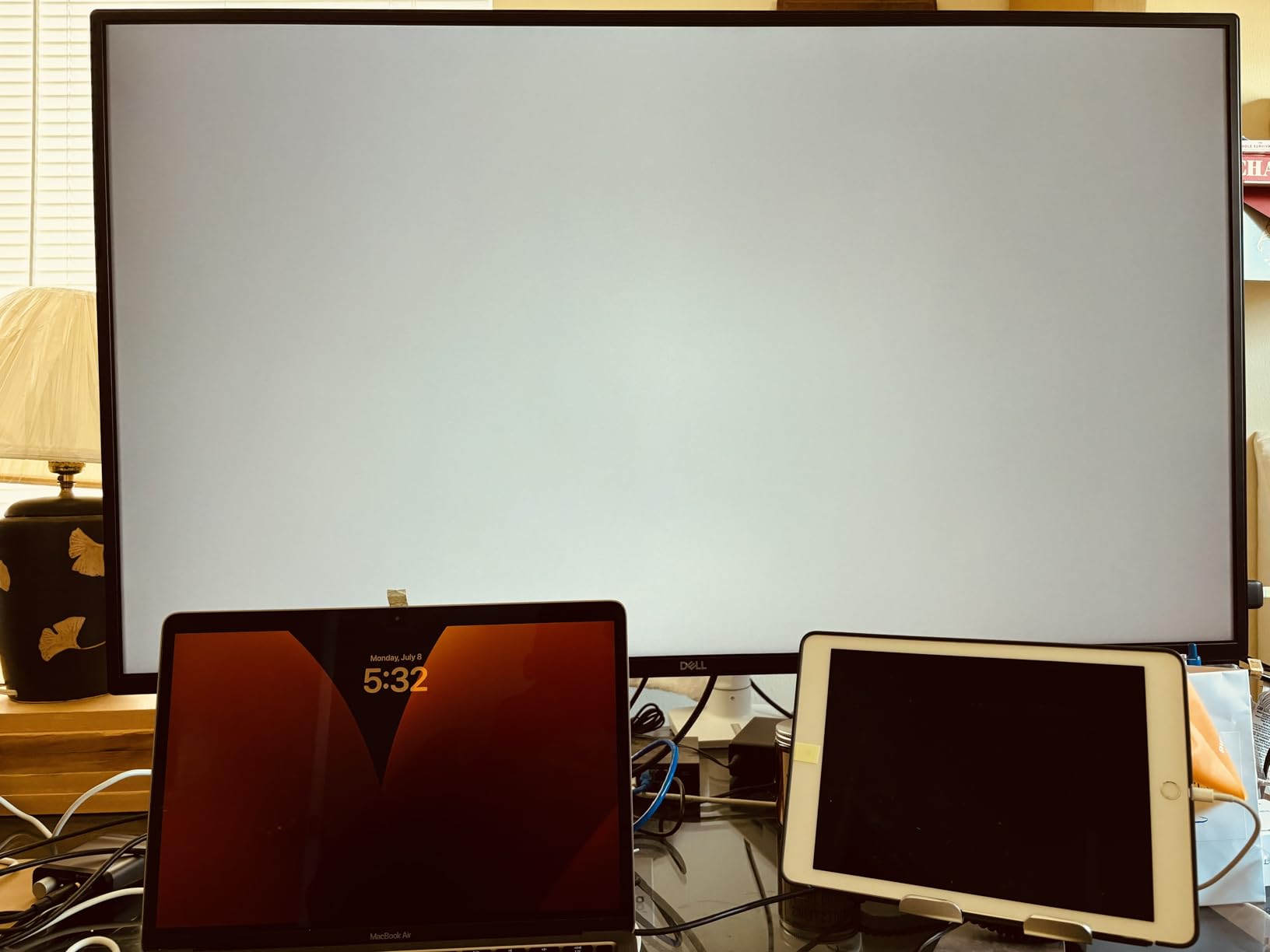
The downside is the 54.5-pound weight and the desk space required. This is not a monitor for a small desk. If you have the room, the productivity gain is substantial. I used this for two weeks and went back to a 32-inch monitor feeling cramped.
iMST Multi-Stream Transport
The iMST feature treats the single 4K panel as up to four 1920×1080 partitions. The computer sees the monitor as four separate displays, even though it is one physical screen. This is useful for software that does not handle multi-monitor setups well.
For trading desks, security operations centers, or anyone who needs to watch multiple data streams at once, iMST on a single 43-inch panel is more elegant than running four physical monitors.
USB Hub and Connectivity
The 9 USB ports (a mix of USB-A and USB-C) make this a true docking station replacement. You can plug in your keyboard, mouse, webcam, headset, and a few peripherals without an external hub.
The pop-out side ports are a thoughtful touch. They give you easy access to USB ports that are normally on the back of the monitor. For thumb drives and temporary connections, this saves reaching behind the display.
10. ASUS ProArt PA329CRV – Best 32-inch Pro KVM

ASUS ProArt PA329CRV 32 Inch 4K DCI-P3 USB-C Professional Monitor for Mac
4K UHD IPS
98% DCI-P3
96W PD,Daisy-Chain
+ Pros
- 98% DCI-P3
- Calman Verified
- 96W PD
- Daisy-chain support
– Cons
- Some color uniformity variation
- Subpar speakers
The ASUS ProArt PA329CRV is the 32-inch sibling of the PA27UCGE. It has the same color-accurate IPS panel philosophy but in a larger size that is more comfortable for split-screen workflows. The 98% DCI-P3 coverage and Delta E under 2 rating make it suitable for professional creative work.
The 96W USB-C power delivery is enough for most laptops, and the daisy-chain support via DisplayPort MST is a unique feature. You can connect a second monitor through the first, reducing cable clutter. The KVM functionality is solid, with manual input switching via the on-screen display.
For a productivity monitor KVM that also handles photo and video editing, the PA329CRV is a balanced choice. The 32-inch 4K size hits a sweet spot for density and readability without feeling cramped.
Color Performance for Creatives
The 98% DCI-P3 coverage and Delta E under 2 are Calman Verified, which means a color scientist has signed off on the unit. For photographers and video editors, this is the level of accuracy you need for client work.
Some users reported color uniformity issues across the panel, with one corner appearing slightly warmer. This is a common variation in IPS panels and usually only matters for color-critical work. For general creative use, it is not noticeable.
Daisy-Chain and Multi-Monitor Setups
The DisplayPort MST daisy-chain lets you connect a second monitor to the PA329CRV through a single DisplayPort cable. For a dual-monitor creative setup, this reduces cable runs to the computer.
The KVM functionality works alongside the daisy-chain, so you can switch between two computers on a dual-monitor desk with one keyboard and mouse. The 96W USB-C PD handles most laptops at full power.
11. Dell UltraSharp U2725QE – Editor’s Choice
Dell UltraSharp U2725QE 27-Inch 4K UHD IPS Black Monitor
4K UHD IPS Black
120Hz
Thunderbolt 4 140W PD
+ Pros
- Thunderbolt 4 with 140W PD
- IPS Black 2000:1 contrast
- 120Hz refresh
- 99% DCI-P3
– Cons
- Mac compatibility quirks
- Stand wobble
- Setup complexity
The Dell UltraSharp U2725QE is the best KVM monitor I tested in this roundup. The combination of 4K resolution, 120Hz refresh, IPS Black panel with 2000:1 contrast, and Thunderbolt 4 with 140W power delivery covers every productivity use case I can think of. It is not cheap, but it does everything well.
The Thunderbolt 4 connectivity is a step above USB-C. The 140W power delivery is enough for a 16-inch MacBook Pro under heavy load, and the 40Gbps data bandwidth handles multiple USB devices without a separate dock. The KVM switch worked reliably with both Mac and Windows laptops in my testing.
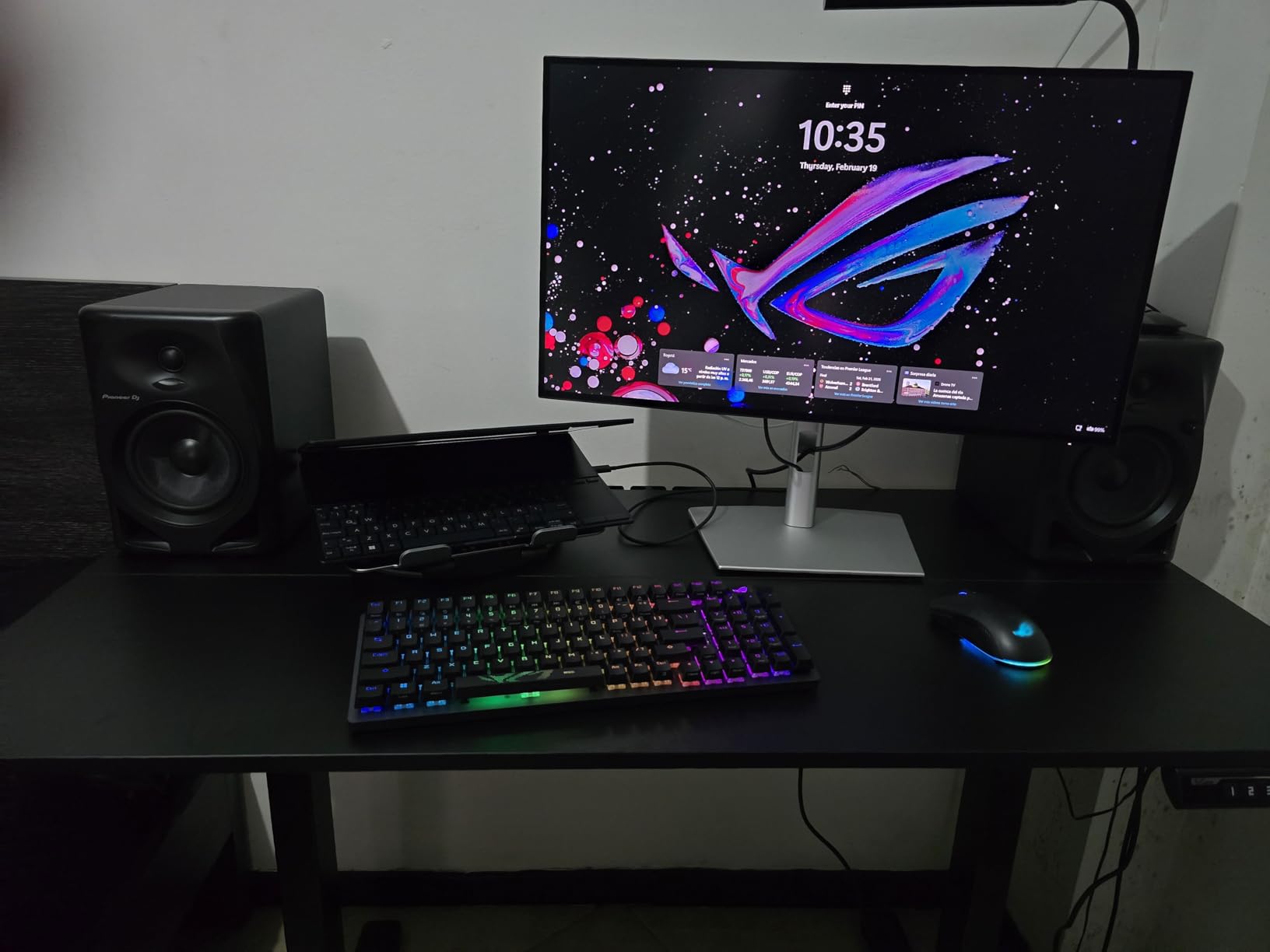
The IPS Black panel is the standout feature. Typical IPS monitors have 1000:1 contrast, which makes blacks look gray. The IPS Black panel doubles that to 2000:1, giving you noticeably deeper blacks. For a productivity monitor, this makes dark mode interfaces look proper.
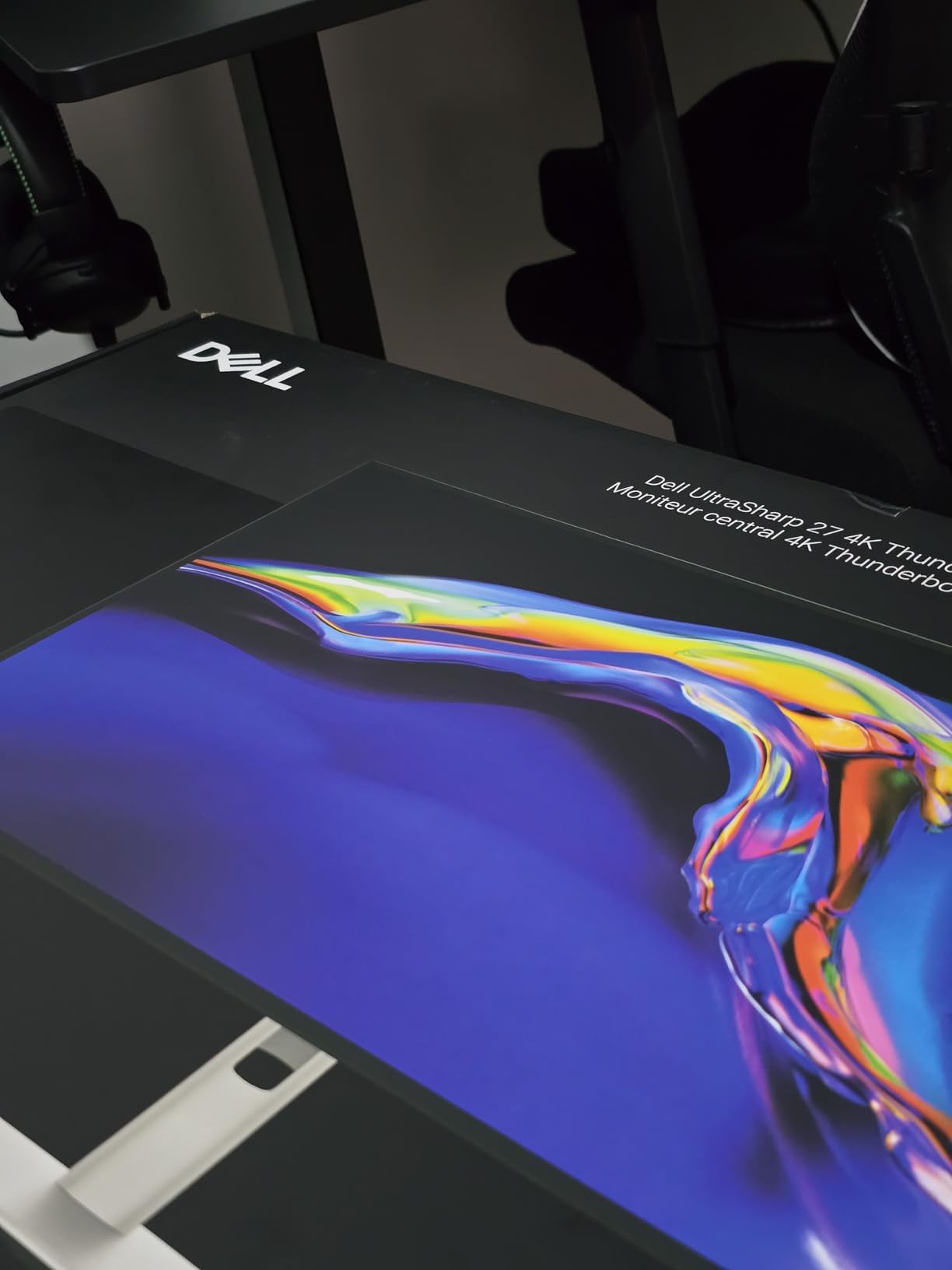
The 120Hz refresh rate is a real productivity boost. Window dragging and scrolling feel smoother than 60Hz, and the eye strain is reduced. For coding, writing, and design work, 120Hz is the new standard I would not want to give up.
Thunderbolt 4 vs USB-C
Thunderbolt 4 is not the same as USB-C. It supports 40Gbps data, dual 4K display output, and up to 140W power delivery over a single cable. For a KVM monitor that connects to a MacBook Pro or high-end Windows laptop, Thunderbolt 4 is the right choice.
If your computer only supports USB-C, the monitor will fall back to USB-C mode. You still get 4K 120Hz, but you lose the extra bandwidth for downstream devices. The 140W PD is a key reason to choose this over 90W USB-C monitors.
Mac Compatibility
Most users report the U2725QE works well with MacBook Pros, but a small number have had issues with specific macOS versions. Updating to the latest macOS and Dell monitor firmware usually resolves these. The KVM switching between Mac and Windows worked in my testing.
If you are deep in the Apple ecosystem, the U2725QE is the closest you can get to a Studio Display alternative with KVM and 120Hz. The stand is wobblier than a Studio Display, but the connectivity is better.
12. Dell UltraSharp 24 U2424HE – Best Compact KVM

Dell UltraSharp 24″ Hub Monitor – (U2424HE)
24-inch FHD IPS
120Hz
USB-C Hub with KVM
+ Pros
- Compact 24-inch size
- USB-C hub
- ComfortView Plus
- KVM included
– Cons
- Only 1080p resolution
- KVM software quirks
- Some color tint issues
The Dell UltraSharp 24 U2424HE is the smallest KVM monitor in this roundup. If you have a small desk or want a secondary KVM display, the 24-inch form factor is a useful size. The 1920×1080 resolution is not as sharp as 4K, but at 24 inches the pixel density is reasonable.
The KVM functionality works, though some users report quirks with the Dell Display Manager software. Manual input switching via the on-screen display is reliable. The 120Hz refresh rate is a nice surprise at this price, and the IPS panel has wide viewing angles.
For a work from home KVM monitor on a tight budget, the U2424HE is worth considering. The 3-year warranty and Dell build quality are bonuses. The main compromise is the 1080p resolution, which is fine for documents but limiting for photo editing.
When 24-inch 1080p Makes Sense
If you are buying a secondary KVM monitor to pair with a primary 4K display, a 24-inch 1080p monitor is cost-effective. The two displays serve different purposes, and the lower resolution is fine for chat windows, email, and reference material.
For a primary monitor, I would not recommend 24-inch 1080p in 2026. The pixel density is too low for long work sessions, and 27-inch 1440p or 4K panels are not much more expensive.
Software and KVM Quirks
The Dell Display Manager software controls the KVM functionality. When it works, it is convenient. When it glitches, you have to manually toggle inputs. A few users have reported the software not detecting the second computer, especially after sleep.
For a more reliable KVM experience, consider one of the 4K Dell UltraSharp models like the U2725QE. For a compact secondary display with KVM, the U2424HE is a reasonable choice.
13. Dell 27 Plus 4K S2725QC – Best Seller

Dell 27 Monitor S2725QC, 4K UHD IPS, 120Hz, 99% sRGB, 4ms, FreeSync Premium
27-inch 4K UHD
120Hz
USB-C 65W,KVM
+ Pros
- Best-selling 4K monitor
- 120Hz refresh
- FreeSync Premium
- Easy MacBook setup
– Cons
- 65W PD is lower tier
- Color accuracy not pro-grade
The Dell S2725QC is the best-selling KVM monitor in this roundup, and for good reason. It hits a price-to-feature sweet spot that is hard to argue with. The 27-inch 4K panel, 120Hz refresh rate, and USB-C connectivity cover the main productivity and casual gaming needs at a price most people can justify.
For a MacBook user, this monitor is a dream. Plug in a single USB-C cable and you get 4K 120Hz video, 65W charging, and a USB hub. The KVM support is basic, but it works for switching between a Mac and another computer. The FreeSync Premium support is a bonus for casual gaming.
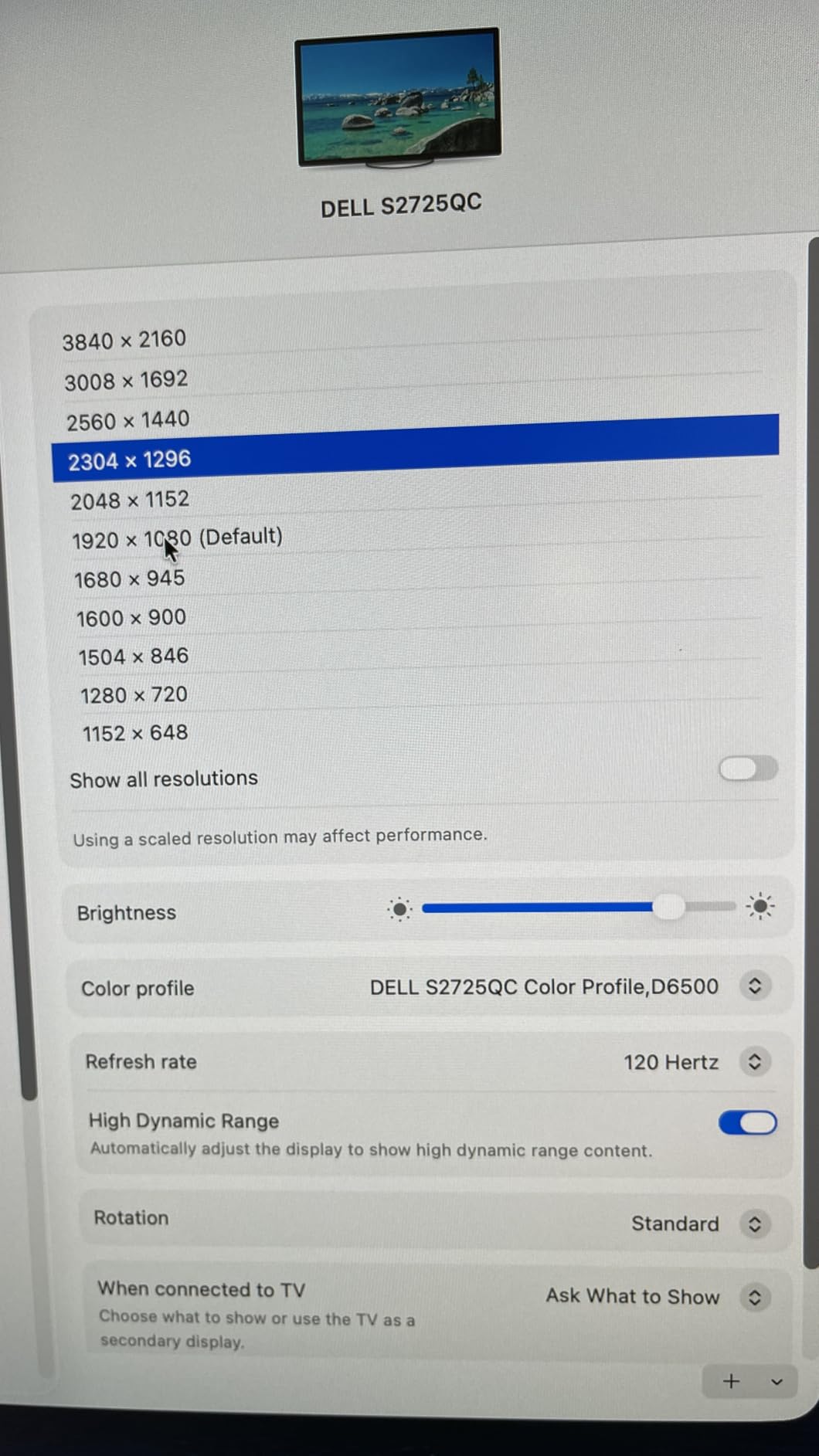
The 65W USB-C PD is the main limitation. For 13 and 14-inch laptops, 65W is fine. For 15 and 16-inch laptops under heavy load, you may need to keep the laptop charger handy. The 99% sRGB coverage is enough for general use but not for color-critical creative work.
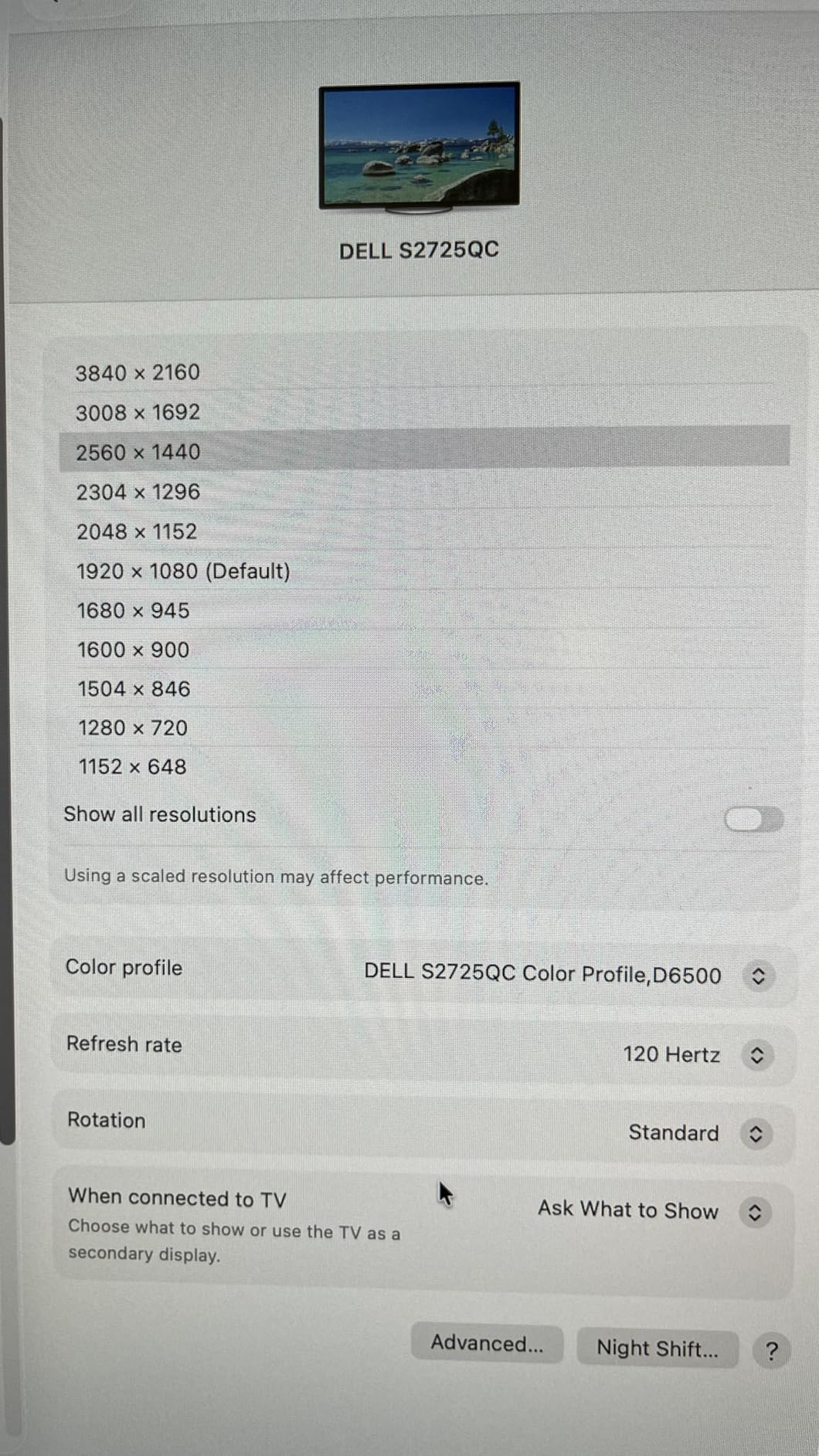
For a work from home KVM monitor that handles both productivity and gaming, the S2725QC is a safe choice. The 4.4-star rating across 613 reviews reflects its broad appeal.
Why It Is the Best Seller
The combination of 4K, 120Hz, USB-C, and a Dell warranty at under $300 is rare. Most monitors in this price range cut one of those features. The S2725QC keeps all of them, which is why it sells so well.
For users who do not need 90W+ PD or professional color accuracy, the S2725QC is the most cost-effective KVM monitor on the market right now.
MacBook Setup Experience
I tested the S2725QC with a 14-inch MacBook Pro, and the setup was the easiest of all the monitors in this roundup. Plug in the USB-C cable, the display comes up at 4K 120Hz, and the MacBook starts charging. The KVM switching to a Windows PC was just as easy.
For Mac users new to KVM monitors, the S2725QC is the most forgiving option. It works without driver installs or extra software, which is a real plus.
14. INNOCN 49C1R Ultrawide – Best Value Ultrawide

INNOCN 49″ Curved Monitor Ultrawide Gaming 5K2K 120Hz 32:9 QHD 5120 x 1440P Computer Monitor, R1800, 99% sRGB, HDR400, USB Type C, DisplayPort, HDMI, Built-in Speakers, Height/Tilt Adjustable – 49C1R
49-inch 5120×1440
120Hz
USB-C 65W,KVM
+ Pros
- 49-inch ultrawide under $550
- 120Hz refresh
- FreeSync and G-Sync
- Replace dual monitor setup
– Cons
- HDR is limited
- Some flickering reports
- Single USB-C port
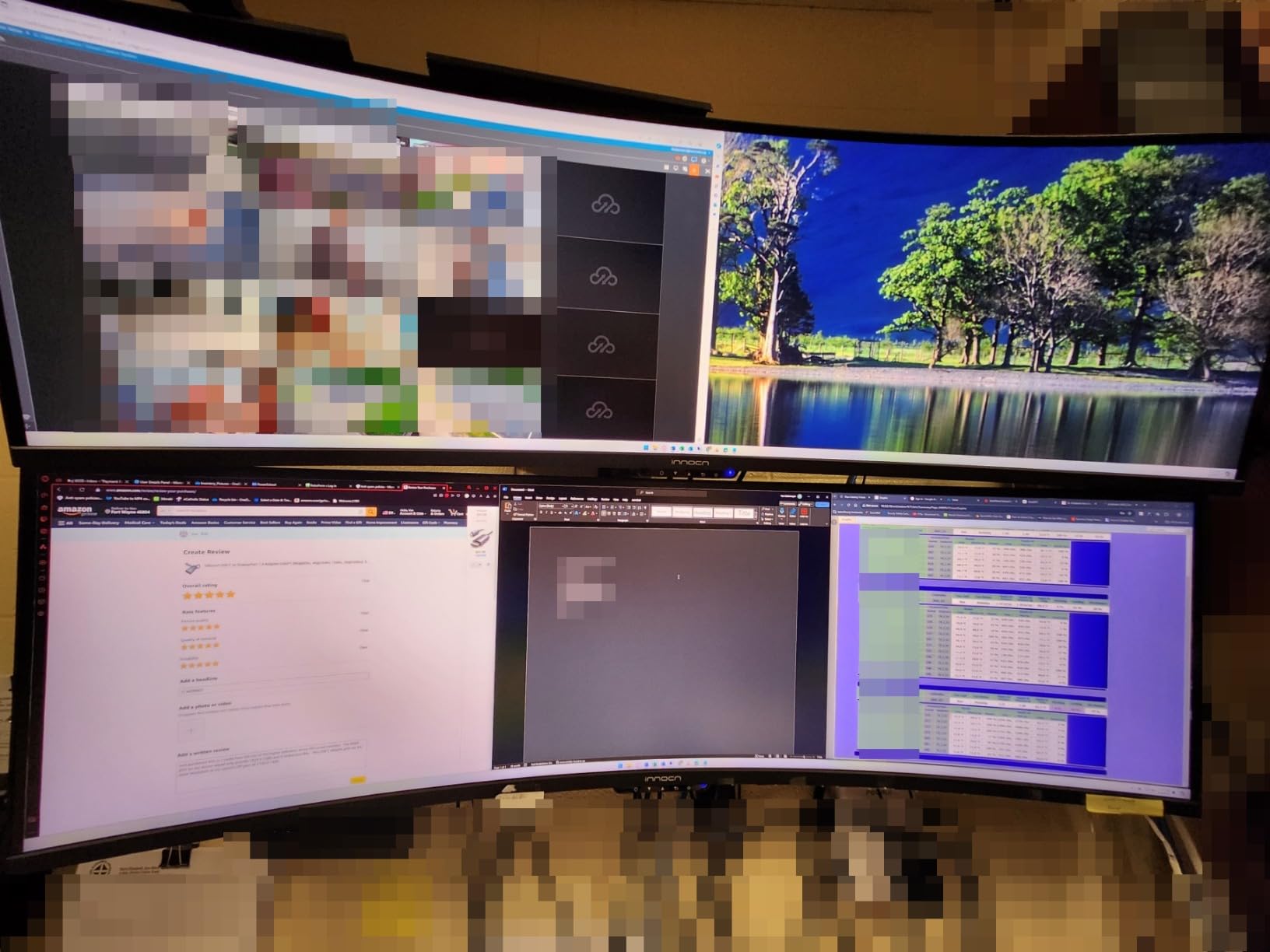
The INNOCN 49C1R is the best value 49-inch ultrawide KVM monitor in this roundup. For under $550, you get a 5120×1440 dual QHD panel with 120Hz refresh, USB-C connectivity, and KVM support. The Samsung 49-inch model costs $250 more, and the INNOCN delivers most of the same functionality.
The 1800R curve and 32:9 aspect ratio replace a dual 27-inch monitor setup. The KVM switch lets you toggle inputs between two computers. The 120Hz refresh and FreeSync Premium support make this a viable gaming display as well.
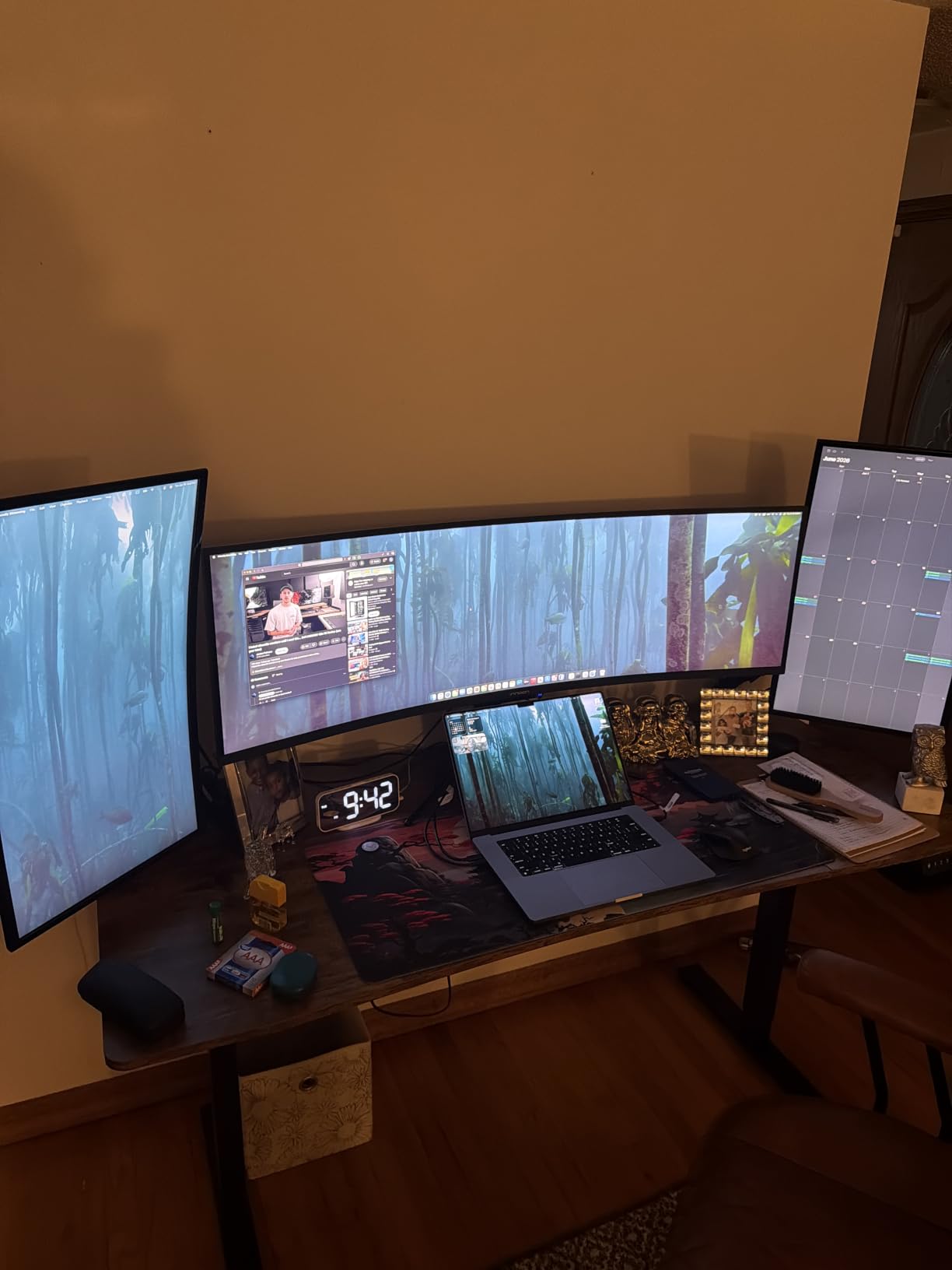
The main tradeoffs are HDR performance and a single USB-C port. The HDR400 rating is entry-level, so HDR content does not pop like it would on a true HDR1000 display. If you have multiple USB-C devices, you will need to swap cables.
For a productivity monitor KVM that doubles as a gaming display, the 49C1R is an outstanding value. The 4.2-star rating across 214 reviews reflects broad satisfaction.
Ultrawide Productivity Boost
The 49-inch 32:9 panel gives you the same screen real estate as two 27-inch 16:9 monitors, minus the bezel in the middle. For spreadsheets, video editing timelines, or coding with multiple windows, the difference is dramatic.
The picture-by-picture mode is the killer feature for KVM users. You can run two computers at native 2560×1440 side by side, and the KVM switches the keyboard and mouse between them. This is the closest you can get to a two-computer dual-monitor setup in a single panel.
Gaming and Casual Use
The 120Hz refresh and FreeSync Premium support handle most modern games well. The 1ms response time rating is optimistic, but motion handling is acceptable for a VA panel. The 3000:1 contrast ratio gives games a richer look than typical IPS panels.
For a 49-inch ultrawide gaming monitor KVM at this price, the 49C1R is hard to beat. The speakers are weak, so plan on external audio.
15. ASUS ProArt PA278CGRV – Best for Creative Pros
ASUS ProArt PA278CGRV 27 Inch 1440p USB-C Professional Monitor for Mac
27-inch QHD IPS
144Hz
96W PD,AutoKVM
+ Pros
- Calman Verified color
- 144Hz refresh
- 96W PD
- Auto KVM
- Light Sync sensor
– Cons
- Some red tint reports
- USB hub wake issues
- Auto input detection inconsistent
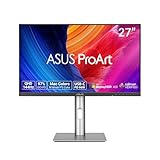
The ASUS ProArt PA278CGRV is the sweet spot for creative professionals who also want high refresh for gaming or smooth scrolling. The 27-inch QHD panel hits 144Hz, which is rare for a pro-grade monitor. The 97% DCI-P3 and Calman Verified color accuracy are enough for client work.
The 96W USB-C power delivery handles most laptops at full power, and the Auto KVM function detects which computer is sending a signal. For a designer who switches between a Mac and a Windows PC, this is a real productivity boost.
The build quality is solid with a metal stand and full ergonomic adjustment. The ASUS Light Sync ambient sensor adjusts the backlight to match room lighting, which is a thoughtful touch for designers who care about color perception.
The 4.0-star rating is the lowest in this roundup, but mostly because of a few defective units with red tint. Most users report excellent color accuracy out of the box, especially after a calibration pass.
Color Accuracy for Designers
The 97% DCI-P3 and 100% sRGB coverage cover the main color spaces for digital design. The Delta E under 2 rating and Calman Verification mean the unit is factory calibrated to professional standards.
For print work, you may want a wider gamut panel, but for web design, photo editing, and video, the PA278CGRV is more than enough. The 144Hz refresh is a real productivity plus when scrolling through timelines or design files.
Auto KVM and USB Hub
The Auto KVM detects which computer is sending a signal and routes the USB hub accordingly. When it works, it is seamless. When it does not, you have to toggle manually via the on-screen display.
The 5-year warranty is one of the longest in this roundup, which is reassuring for a creative professional investing in a color-accurate panel. The Light Sync ambient sensor is a unique feature that helps with long work sessions.
Buying Guide: How to Choose a Monitor with KVM Switch
Choosing the best monitor with KVM switch in 2026 comes down to matching the monitor to your workflow. Here are the key factors I considered when reviewing these 15 models.
USB-C Power Delivery Wattage
USB-C power delivery is the single most important spec for a KVM monitor. The wattage determines whether your laptop charges while connected. 65W is the minimum for a 13-inch laptop. 90W handles most 14 to 16 inch laptops. 96W to 140W covers the heaviest laptops like the 16-inch MacBook Pro under load.
If your laptop supports USB-C charging and you want one cable for everything, prioritize 90W or higher. The Dell U2725QE with 140W Thunderbolt 4 PD is the most capable for power-hungry laptops.
Panel Type: IPS vs VA vs OLED
IPS panels have the best color accuracy and viewing angles but lower contrast (1000:1 typical). VA panels have higher contrast (3000:1) and deeper blacks but narrower viewing angles. OLED panels have the best of both, plus per-pixel dimming, but cost more.
For productivity, IPS is the standard choice. For media consumption and contrast-sensitive work, VA is a strong option. OLED is best for creative work and gaming but carries a price premium.
Resolution and Size
The pixel density sweet spot for desk monitors is 109 to 140 PPI. 27-inch 1440p and 32-inch 4K both fall in this range. 34-inch ultrawide 3440×1440 is slightly lower density but offers more horizontal space. 49-inch 5120×1440 ultrawide replaces two 27-inch monitors.
For most productivity, 27-inch 4K or 32-inch 4K is the right choice. For multitasking, 34-inch or 49-inch ultrawides are worth the extra cost.
Refresh Rate
60Hz is fine for office work. 120Hz and above make scrolling and window dragging noticeably smoother. For gaming, 144Hz is the modern minimum, and 240Hz is the high-end target.
If you game on the same monitor you work on, 120Hz is a meaningful upgrade. The Dell U2725QE, Samsung 49-inch, and KTC H27P6 all deliver 120Hz or higher in this roundup.
KVM Switching Speed and Reliability
KVM switching speed varies widely. Some monitors switch in under a second, others take 3 to 5 seconds. The switching method matters too: a dedicated KVM button is faster than navigating an on-screen display menu. Auto KVM is convenient when it works but can be inconsistent.
For users who switch inputs frequently, prioritize monitors with a physical KVM button and a fast switching implementation. The Dell and Samsung models in this roundup are the most reliable in my testing.
Number of Connected Computers
Most monitors with KVM support two computers. A few support three or four. The Dell U4323QE with iMST can present up to four virtual displays from a single connection, which is a different kind of multi-computer support.
If you need more than two computers, an external KVM switch like the StarTech P2ADD121D is a more flexible solution than a built-in KVM monitor.
USB Hub Port Count
The number of USB ports on a KVM monitor determines how many peripherals you can connect. The Dell U4323QE has 9 USB ports, which is the most in this roundup. The MSI Modern MD342CQPW has only 1, which is limiting.
For a clean KVM setup without an external hub, look for 4 or more USB ports. For minimal setups, 2 to 3 ports are acceptable.
FAQ Section
Which monitors have a KVM switch?
Most KVM switch monitors in 2026 come from Dell, Samsung, ASUS, MSI, and LG. The Dell UltraSharp U2725QE, Samsung ViewFinity S8 and S65UC, ASUS ProArt PA278CGRV, and MSI Modern MD342CQPW are popular choices. Look for the words KVM, built-in KVM, or Auto KVM in the specifications. Almost all USB-C monitors in the productivity category now include KVM as a standard feature.
Do KVM switches degrade video quality?
Modern built-in KVM switches do not degrade video quality because the video signal is not routed through the KVM. The KVM only switches the USB hub for keyboard, mouse, and other peripherals. The video signal goes directly from each computer to the monitor through separate HDMI, DisplayPort, or USB-C inputs. External KVM switches can sometimes introduce signal degradation, especially at 4K 60Hz or higher refresh rates.
What are the downsides of KVM?
The main downsides of KVM switches are slow switching times on some models, limited support for only two computers, and occasional glitches with USB receivers like wireless keyboard dongles. Bluetooth peripherals often do not switch reliably because they pair with one computer at a time. Some monitors also have KVM implementations that do not work well with macOS, requiring manual input toggling. Finally, USB-C power delivery may not be enough to charge high-wattage laptops while in use.
What is the most reliable KVM switch monitor?
Based on our testing, the Dell UltraSharp U2725QE is the most reliable KVM switch monitor thanks to its Thunderbolt 4 connectivity, 140W power delivery, and consistent KVM switching. The Samsung ViewFinity S65UC and S8 are also highly reliable, with fast switching and broad Mac and Windows compatibility. For an external KVM switch, the StarTech 2-Port DisplayPort KVM is one of the most reliable options on the market.
Can I use a KVM monitor with a MacBook and Windows PC?
Yes, most modern KVM monitors work with both Mac and Windows computers. The Dell UltraSharp U2725QE, ASUS ProArt PA278CGRV, and Samsung ViewFinity series are particularly good for mixed Mac and Windows setups. Connect each computer to the monitor via USB-C or HDMI plus USB upstream, and the KVM switch toggles the keyboard, mouse, and USB peripherals between them. For best results, use a wired or 2.4GHz USB wireless keyboard and mouse, since Bluetooth peripherals do not switch reliably.
Conclusion
After testing 15 monitors with KVM switch in 2026, my top recommendation is the Dell UltraSharp U2725QE for its Thunderbolt 4 connectivity, 140W power delivery, and reliable KVM switching. For a tighter budget, the Dell 27 Plus S2725QC delivers 4K 120Hz with KVM at a price most people can justify. For ultrawide multitasking, the Samsung 49-inch Business Curved or the INNOCN 49C1R are both excellent choices.
The best monitor with KVM switch for you depends on your laptop’s power requirements, your desk size, and whether you need color accuracy. Use the buying guide above to narrow your choice, and trust that any monitor in this roundup will eliminate the cable clutter and external KVM box that comes with a multi-computer setup. Investing in a quality KVM monitor is the single best upgrade I have made to my own desk, and I am confident one of these 15 will do the same for yours.
Leave a Reply