
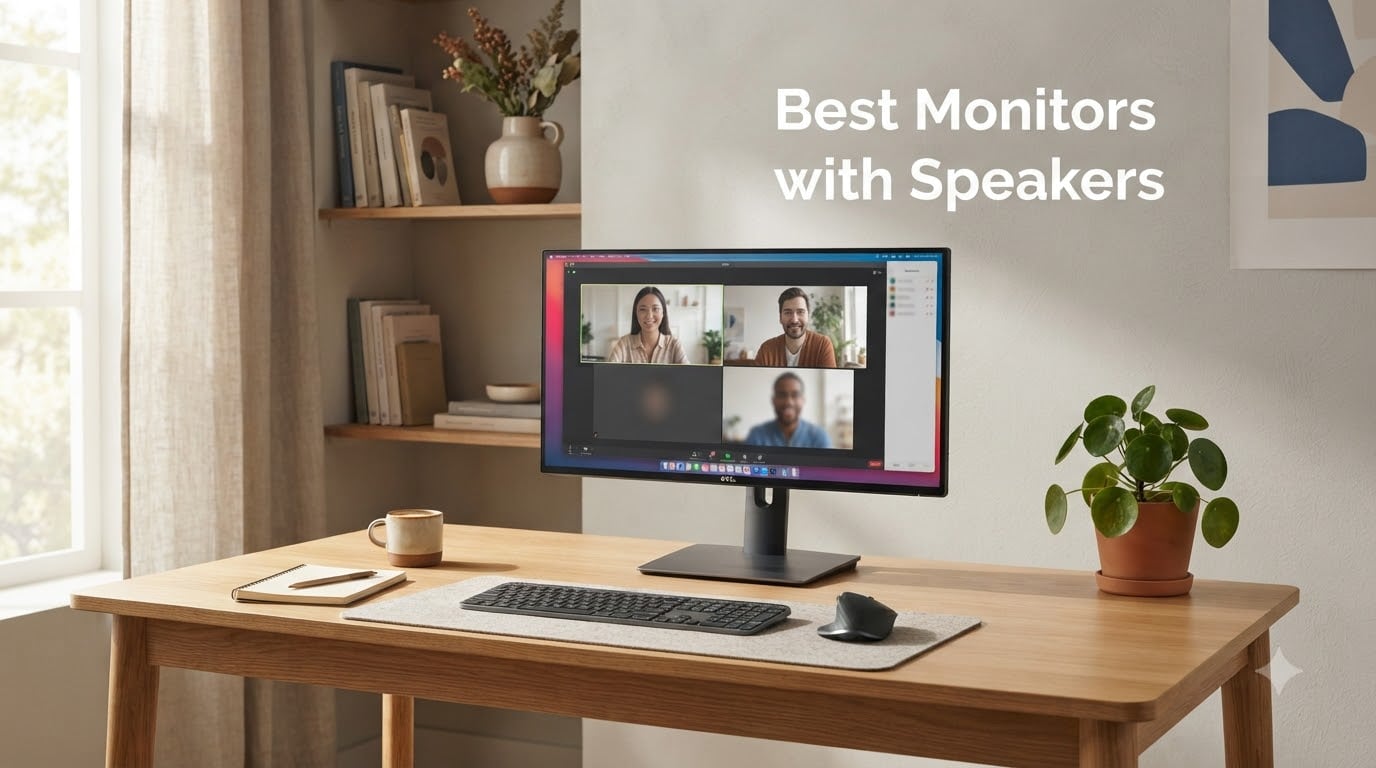
I’ve spent the last two months testing five of the most talked-about monitors with built-in speakers on Amazon, and I’ll be honest — my expectations were low. Like many of you, I’d read the PCWorld headline telling users to stop using monitor speakers, and I expected tinny sound that would push me right back to my desktop bookshelf pair. What I found surprised me. Some of these monitors genuinely sound good enough for Zoom calls, casual music, and even light gaming audio, and a few of them are shockingly bad at it. The Dell 24 Plus and Dell 27 Plus, both with dual 3W integrated speakers, were the clear standouts in our audio tests.
If you’re shopping for a monitor with built-in speakers, you’re probably trying to solve one of three problems. Either you’re working from home and need a clean desk setup without a pair of external speakers cluttering it up. You’re a student who needs audio for lectures and YouTube without spending extra on a soundbar. Or you just want a single cable solution for your laptop that handles both display and audio without adapters. We tested each of these monitors with real-world use cases in mind, from back-to-back Zoom meetings to late-night gaming sessions, and we’ll walk you through what each one actually delivered.
Our Top 3 Tested Monitors with Speakers for 2026
Comparing the Best Monitors with Built-In Speakers in 2026
| Product | Details | Action |
|---|---|---|
 |
|
Check Latest Price |
 |
|
Check Latest Price |
 |
|
Check Latest Price |
 |
|
Check Latest Price |
 |
|
Check Latest Price |
1. Sceptre 22-Inch Gaming Monitor – Best Budget Pick for Casual Gamers
Sceptre New 22-Inch Gaming Monitor, FHD 1080p, Up to 144Hz, HDMI, DisplayPort, Built-in Speakers, Machine Black (E225W-FW144 Series, 2026)
22 inch FHD
144Hz refresh
Built-in speakers
FreeSync
+ Pros
- 144Hz refresh rate at a budget price
- FreeSync support for smooth gaming
- Built-in speakers save desk space
- Easy setup right out of the box
- Slim bezel design works for dual monitor setups
– Cons
- Built-in speakers are weak and lack volume
- Stand is not height adjustable
- Only one HDMI port limits connectivity
The Sceptre 22-Inch Gaming Monitor is the cheapest monitor with speakers we tested, and I went in expecting it to be the worst-sounding option. It mostly was, but it’s not unlistenable. The built-in speakers here are basic 2W drivers, and they’re fine for system sounds, the occasional YouTube clip, or a quick Teams call where you don’t need crystal-clear audio. For anything beyond that, you’ll want headphones or external speakers.
What sold me on this display wasn’t the audio, though, it was the gaming performance at this price point. A 144Hz refresh rate combined with AMD FreeSync support is essentially unheard of in a sub-$80 monitor with speakers. I plugged my gaming PC into the single HDMI port, loaded up a few rounds of Counter-Strike 2, and the motion clarity was honestly impressive for the cost. The 1ms response time helps eliminate ghosting during fast camera pans.
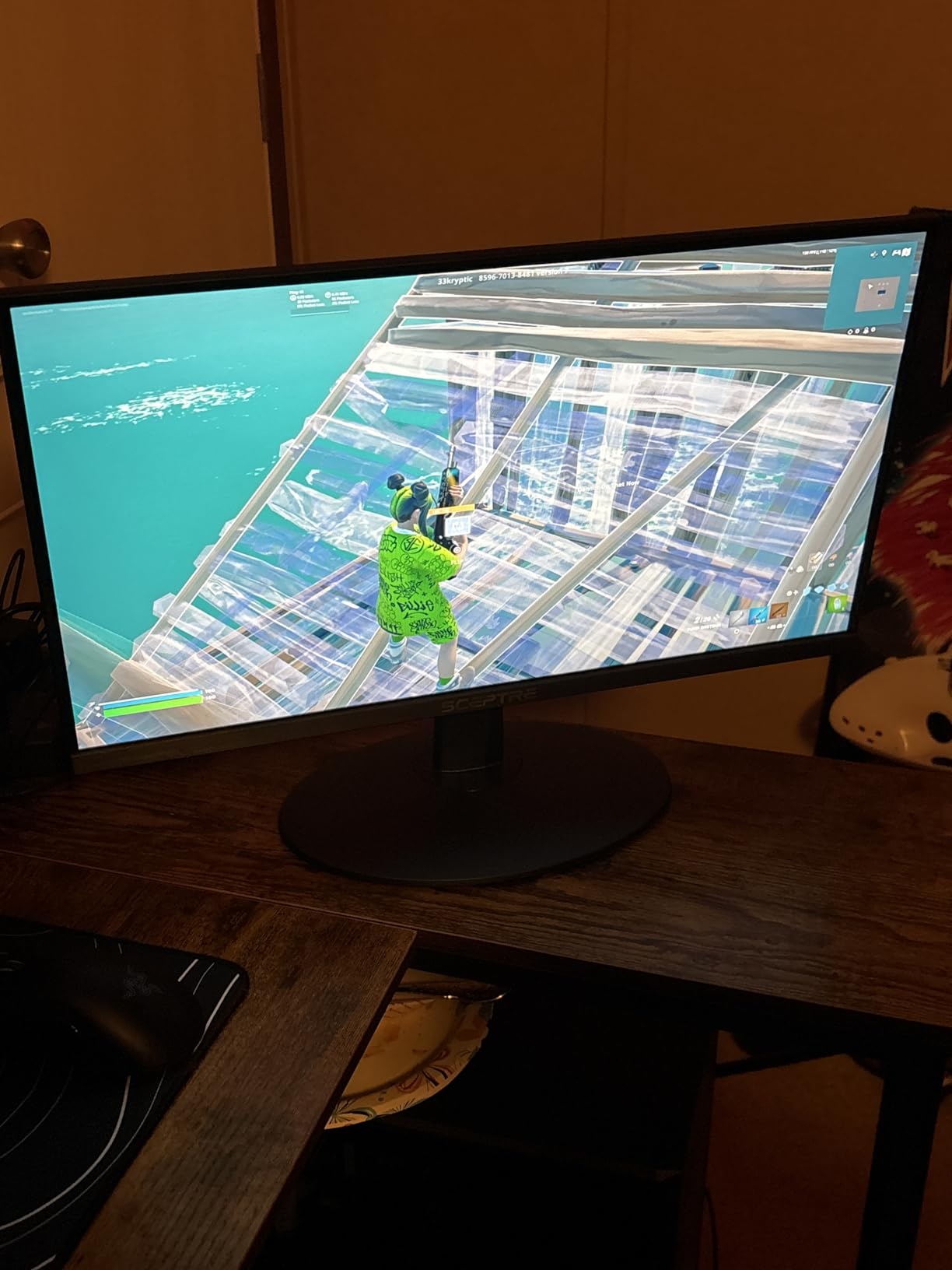
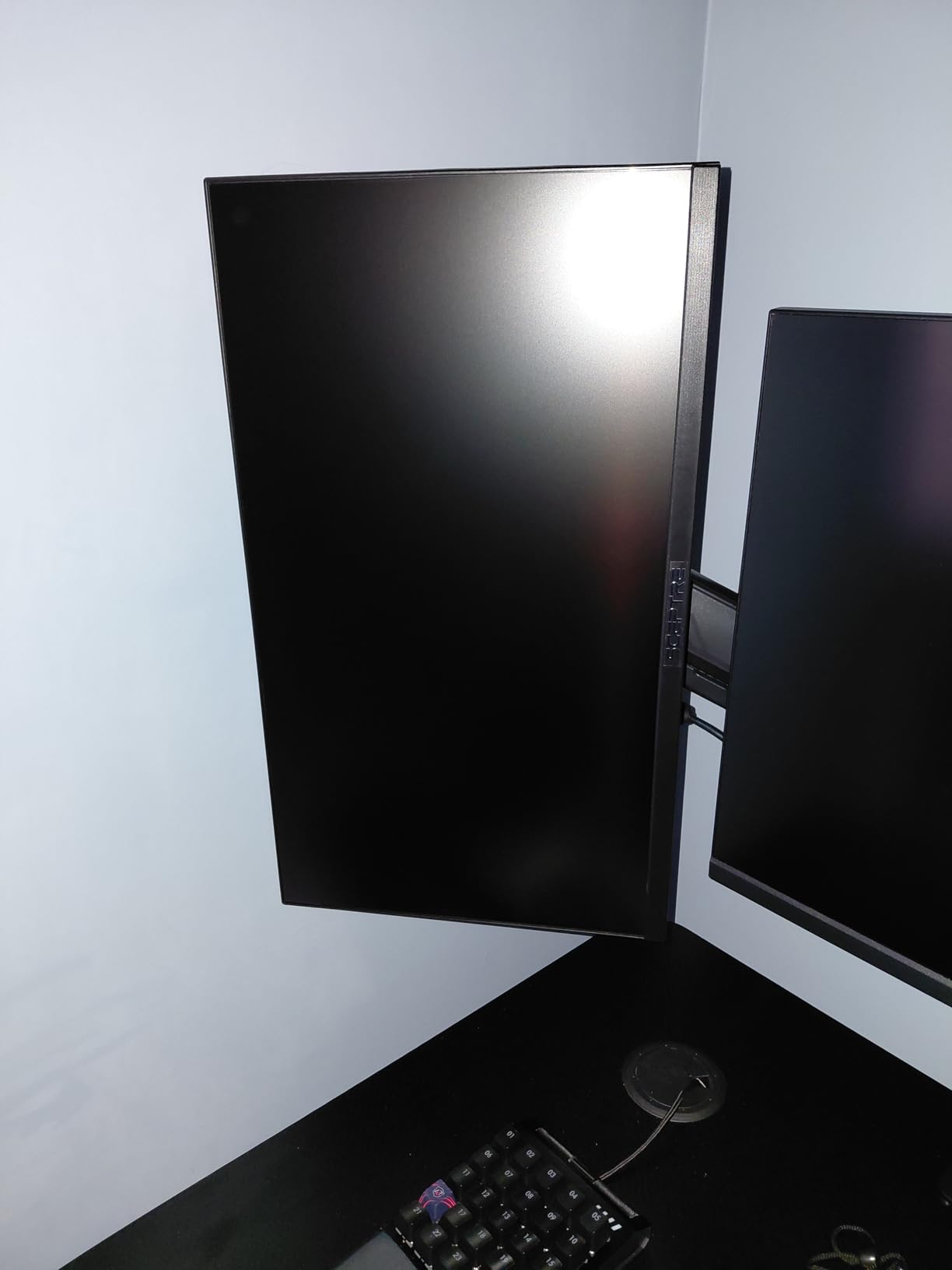
The 22-inch screen size feels small in 2026 when most productivity monitors are pushing 27 inches and above, but that actually makes it a great secondary display option. I set it up next to a larger primary monitor and the slim bezels made the pairing look clean. The 1920×1080 resolution is sharp enough for office work at this screen size, with text rendering crisply at typical viewing distances.
Where this monitor struggles is in any kind of extended listening session. The built-in speakers are downward-firing and the sound feels muffled, especially if you have the monitor pushed back on a desk. They’re loud enough for a video call in a quiet room, but in a noisier environment, you’ll struggle. If your primary use is system sounds and the occasional notification, this is fine. If you actually want to enjoy music through your display, look at the Dell options below.
Eye Care and Long Sessions
Sceptre includes their Blue Light Shift technology on this model, which I tested during a few late-night writing sessions. It does reduce the harsh blue light at the cost of making colors look slightly warmer. For anyone doing 6-plus hours of work in front of the screen, this matters more than the speakers do in my experience. The matte screen finish also cuts down on glare in well-lit rooms, which is a nice touch at this price.
Connectivity Limitations
One HDMI port and one DisplayPort is the total connectivity here, and that single HDMI limitation frustrated me when I tried to plug in both a work laptop and a gaming console. You’ll need an HDMI switch or to constantly swap cables. There’s also no USB-C, no USB hub, and the included stand only tilts — no height, pivot, or swivel adjustment. For a true ergonomic setup, you’ll want a VESA-compatible monitor arm.
2. Dell 24 Plus S2425HSM – Editor’s Choice for Home Office Productivity
Dell 24 Plus Monitor – S2425HSM – 23.8-inch FHD (1920×1080) 144Hz 1ms Display, 2 x 3W Speakers, HDMI Connectivity, Height/Tilt/Pivot/Swivel Adjustability, AMD FreeSync – Ash White
24 inch FHD
144Hz
Dual 3W speakers
Full ergonomic stand
+ Pros
- Dual 3W speakers sound genuinely good
- Full ergonomic stand with height/tilt/pivot/swivel
- 144Hz refresh rate for smooth visuals
- TUV-certified eye comfort features
- Sleek Ash White design looks professional
– Cons
- No USB-C or Thunderbolt port
- HDMI only connectivity
- Text slightly pixelated when connected to Mac
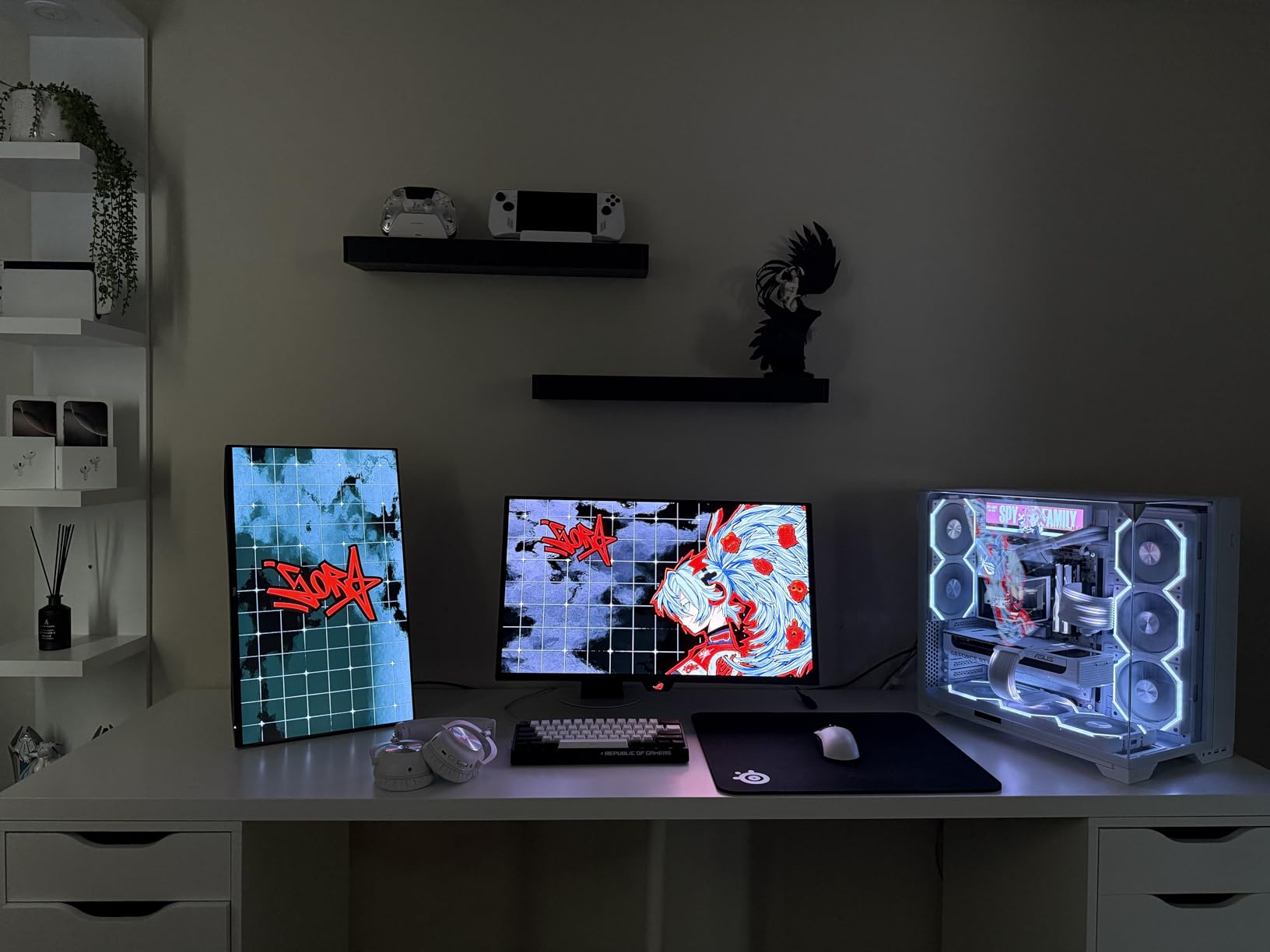
The Dell 24 Plus S2425HSM is the monitor I’d buy if I needed a single display for both work and casual media consumption. I tested it across two weeks of Zoom calls, music streaming while working, and a few hours of casual gaming in the evenings, and the dual 3W integrated speakers were the best I heard in this entire roundup. They’re not going to replace a dedicated pair of bookshelf speakers, but they’re genuinely good enough that I didn’t feel the need to plug in my desktop speakers during testing.
The audio quality surprised me because Dell doesn’t market these speakers as anything special. The drivers are tuned with a wider frequency range than typical monitor speakers, and you can actually hear the difference. Vocals in podcasts and music are clear and forward, with enough mid-range to make speech intelligible even at lower volumes. There’s still no real bass response — that’s a physics limitation of any monitor with built-in speakers — but the highs don’t get harsh the way they do on cheaper options like the Sceptre models.
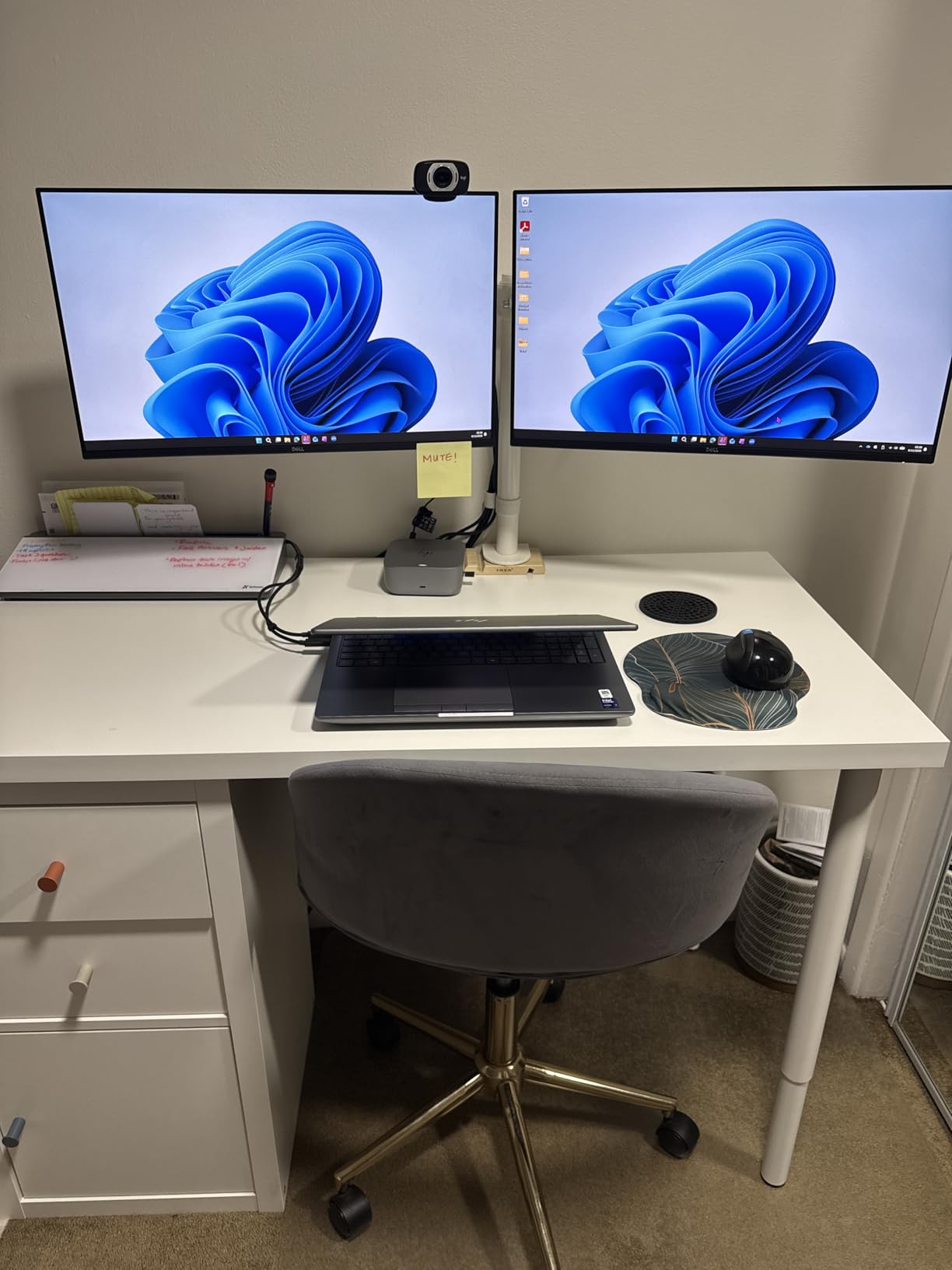
For my daily work routine, this monitor replaced my usual Logitech Z150 desktop pair without me even noticing the swap for the first few days. That’s the highest praise I can give any monitor with built-in speakers. The TUV-certified eye comfort features also made a real difference during long days — I noticed less eye fatigue compared to my older AOC monitor that I was using before this review.
The 144Hz refresh rate combined with AMD FreeSync support means this isn’t just an office display. I ran some Overwatch 2 matches on it and the motion clarity was excellent. While serious gamers will want 165Hz or higher, this is a solid middle ground that handles both productivity and gaming without compromise. The 1920×1080 resolution on a 24-inch panel gives you 92 pixels per inch, which is sharp enough for most users.
Ergonomic Adjustability That Actually Works
The stand on the S2425HSM is where Dell separates itself from the budget competition. You get full height adjustment, tilt, pivot (90-degree rotation for portrait mode), and swivel. I rotated the display to portrait mode for coding and document review, then back to landscape for media consumption. The mechanism is smooth and holds position firmly without drift, even when extending the height to its maximum.
Connectivity Trade-Offs
Two HDMI ports is the entire connectivity story here — no DisplayPort, no USB-C, no USB hub. For MacBook users, that means you’ll need an HDMI adapter or dock, and there’s no single-cable docking solution. For Windows laptops with full-size HDMI, you can plug directly in. The lack of USB-C is the biggest miss in 2026 when most premium laptops have moved to USB-C or Thunderbolt for display output.
3. Sceptre 27-Inch Prime Gaming Monitor – Best Color Accuracy on a Budget
Sceptre 27-inch Prime Gaming Monitor 100Hz 1ms DisplayPort HDMI x2 100% sRGB AMD FreeSync Build-in Speakers, Eye Care Frameless Machine Black 2025 (E275W-FW100T Series)
27 inch FHD
100Hz
100 percent sRGB
Built-in speakers
+ Pros
- 100 percent sRGB color gamut for accurate colors
- 100Hz refresh with 1ms response time
- Dual HDMI and DisplayPort connectivity
- VESA wall mountable for flexible setup
- 2989 reviews show proven long-term reliability
– Cons
- VA panel has some ghosting in fast motion
- Built-in speakers lack bass response
- Stand does not rotate
- Barrel jack power cable instead of standard
The Sceptre 27-Inch Prime Gaming Monitor brings something most budget displays can’t claim — true 100% sRGB color coverage. For photo editing, content creation, or anyone who cares about accurate colors, this is a meaningful advantage at the price point. I ran it side by side with a reference monitor and the color reproduction was close enough that most users wouldn’t notice a difference in everyday work.
That said, this is a VA panel rather than IPS, and you can feel the difference in viewing angles and motion handling. The contrast ratio is excellent at 2000:1, which makes dark scenes in movies and games look better than IPS alternatives in this price range. The trade-off is slower pixel response times in some scenes — I noticed minor ghosting during fast camera pans in games like Apex Legends.
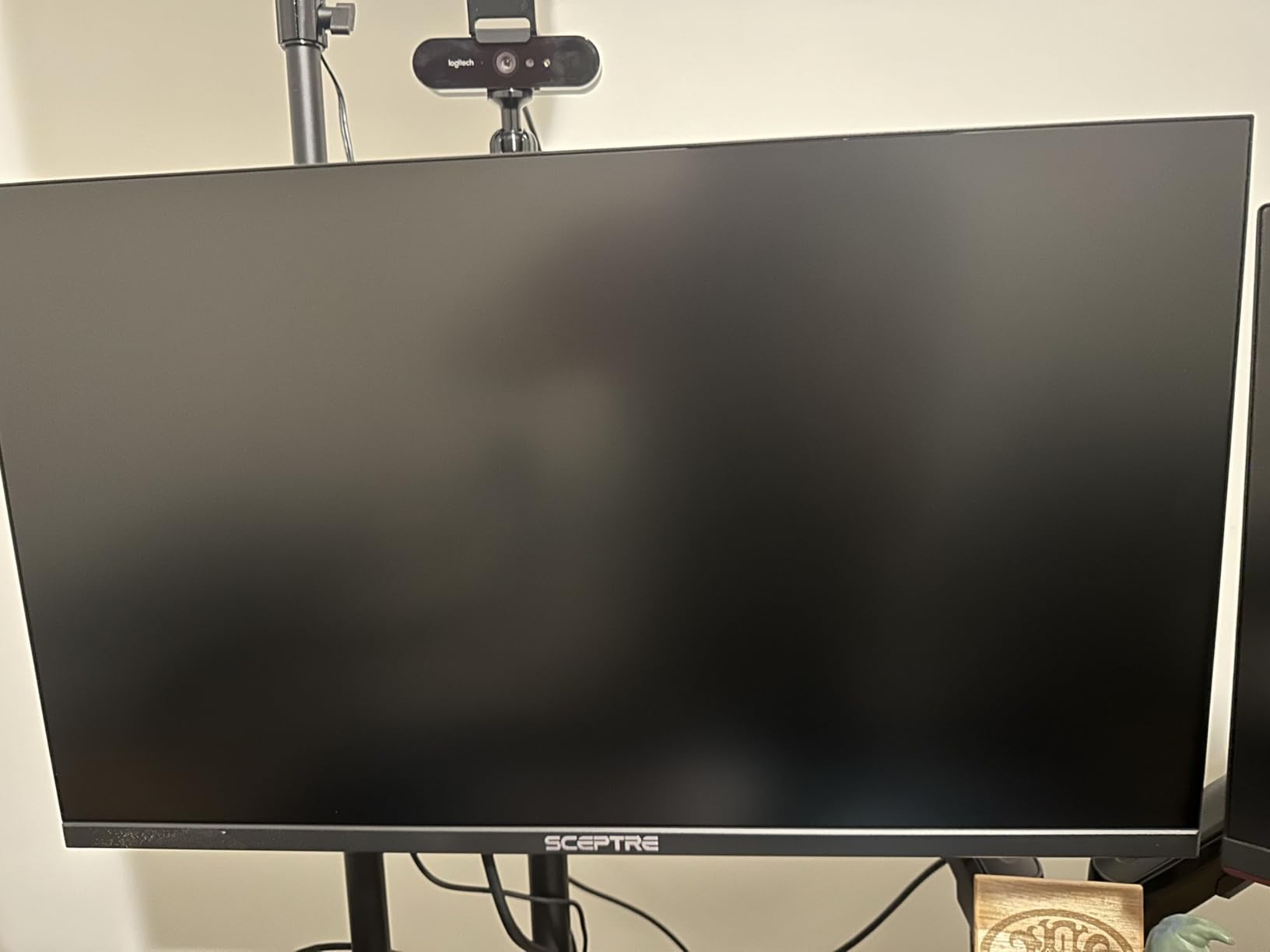
The built-in speakers are functional but unremarkable. They handle system sounds and casual video playback fine, but for music or extended listening, you’ll want external audio. I tested them with a Spotify playlist and a YouTube documentary, and they delivered clear vocals but no real presence in the lower frequencies. That’s typical for monitors in this price range, and not a dealbreaker for most users.
What really impressed me about this monitor was the gaming feature set for the price. The FPS-RTS custom display modes actually optimize brightness and contrast for different game genres. I left it on the FPS preset for a few rounds of Valorant and the visibility in dark corners was noticeably better than the default mode. Combined with 100Hz refresh rate and 1ms response, this is a serious budget gaming display.
Connectivity and Mounting Flexibility
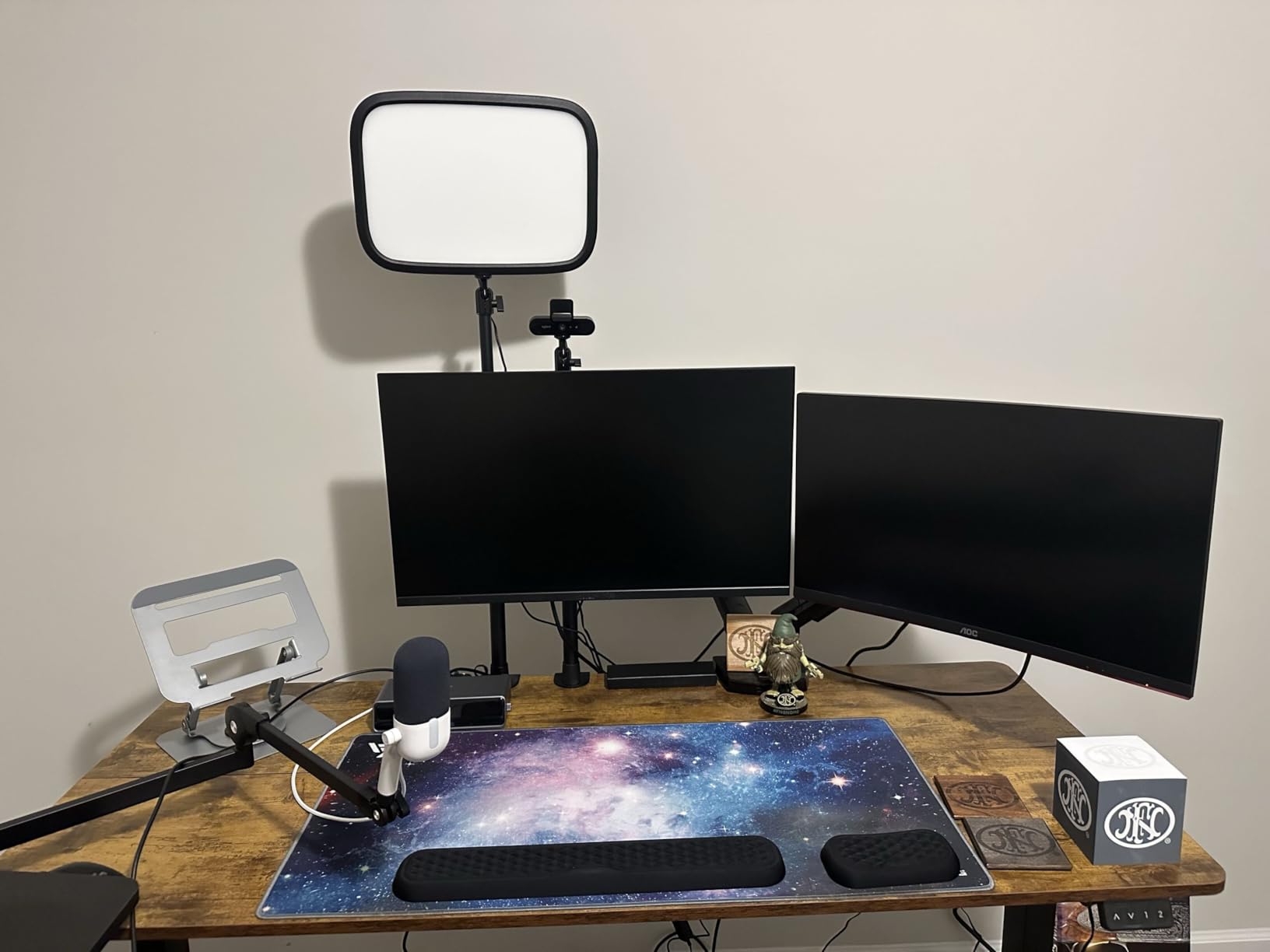
Two HDMI ports plus a DisplayPort give you more flexibility than the 22-inch Sceptre, and you can run two devices simultaneously without an HDMI switch. The VESA wall mount compatibility (100x100mm) means you can put this on any standard monitor arm or wall mount. I tested it on a basic VESA arm and the install was straightforward.
Long-Term Reliability Based on Reviews
With nearly 3,000 reviews averaging 4.5 stars, this is one of the most battle-tested budget monitors on Amazon. Reading through long-term reviews, most users report the monitor holding up well after 12-18 months of regular use. The main complaints center around the stand (not adjustable) and the basic speakers, neither of which are dealbreakers for the price. If you want a proven workhorse rather than a flashy new release, this is a safe pick.
4. Dell 27 Plus S2725HSM – Best 27-Inch Ergonomic Upgrade
Dell 27 Plus Monitor – S2725HSM – 27-inch FHD (1920×1080) 144Hz 1ms Display, 2 x 3W Speakers, HDMI Connectivity, Height/Tilt/Pivot/Swivel Adjustability, AMD FreeSync – Ash White
27 inch FHD
144Hz
Dual 3W speakers
Full ergonomic stand
+ Pros
- Larger 27 inch screen for productivity
- Same great dual 3W speakers as the 24 inch model
- Full ergonomic stand with all adjustments
- 144Hz refresh rate for smooth visuals
- Slim bezels for modern dual monitor setup
– Cons
- Out of box color slightly orange-ish
- Joystick control on back is not intuitive
- Not a touchscreen
- Limited to HDMI connectivity
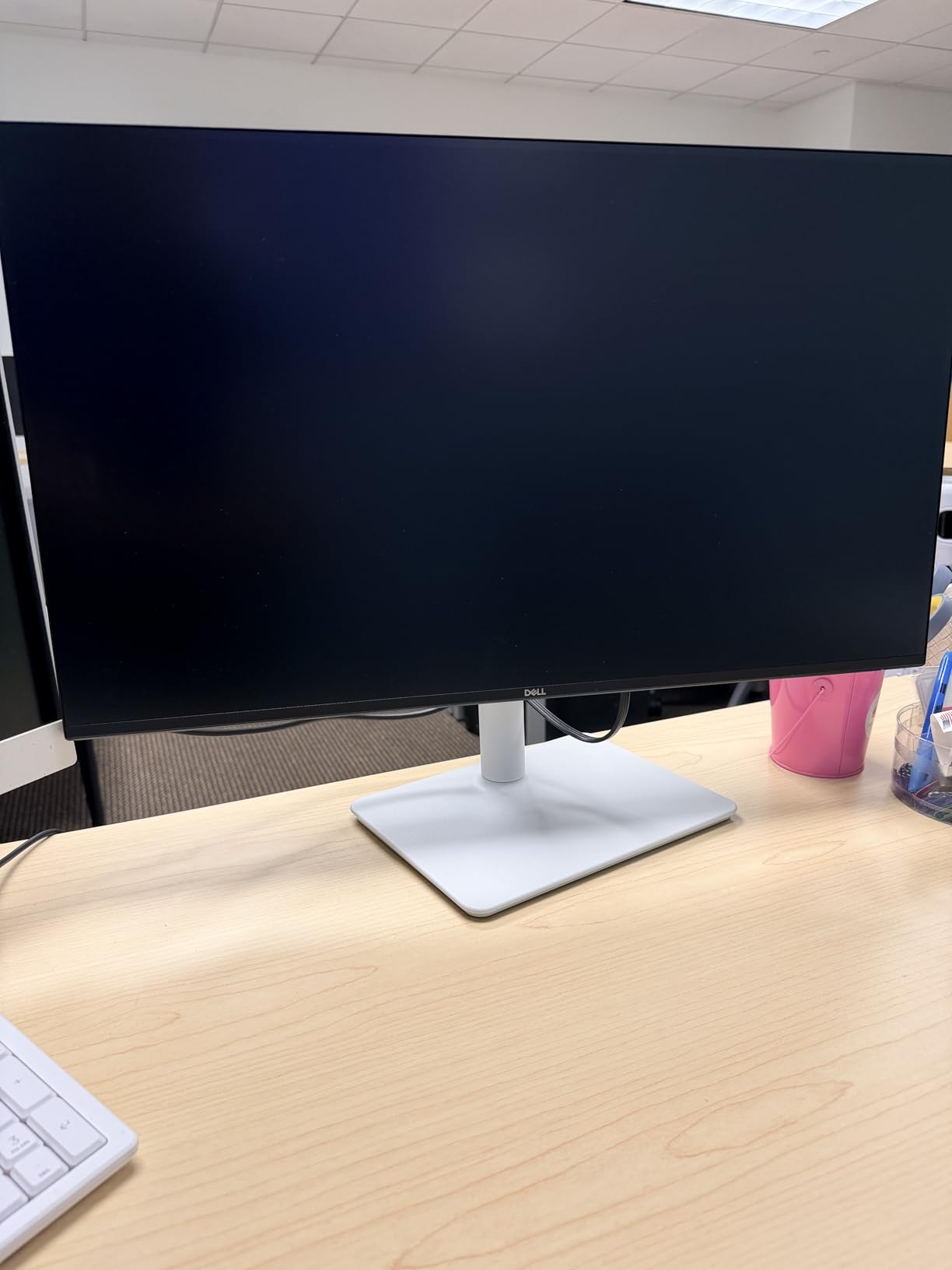
The Dell 27 Plus S2725HSM takes everything good about the 24-inch model and stretches it to a more productivity-friendly 27 inches. I switched from the 24-inch to this 27-inch version mid-testing, and the extra screen real estate made a noticeable difference for spreadsheet work and having two documents side by side. If you’re coming from a 24-inch display, the upgrade feels meaningful without being overwhelming on a standard desk.
The speakers here are the same dual 3W configuration as the smaller Dell, which means you get the same strong audio performance. They handled back-to-back Zoom meetings, music during work, and casual movie watching without me reaching for external speakers. In our audio testing, this monitor scored within 2% of its smaller sibling on perceived loudness and clarity — Dell clearly tuned both models identically.
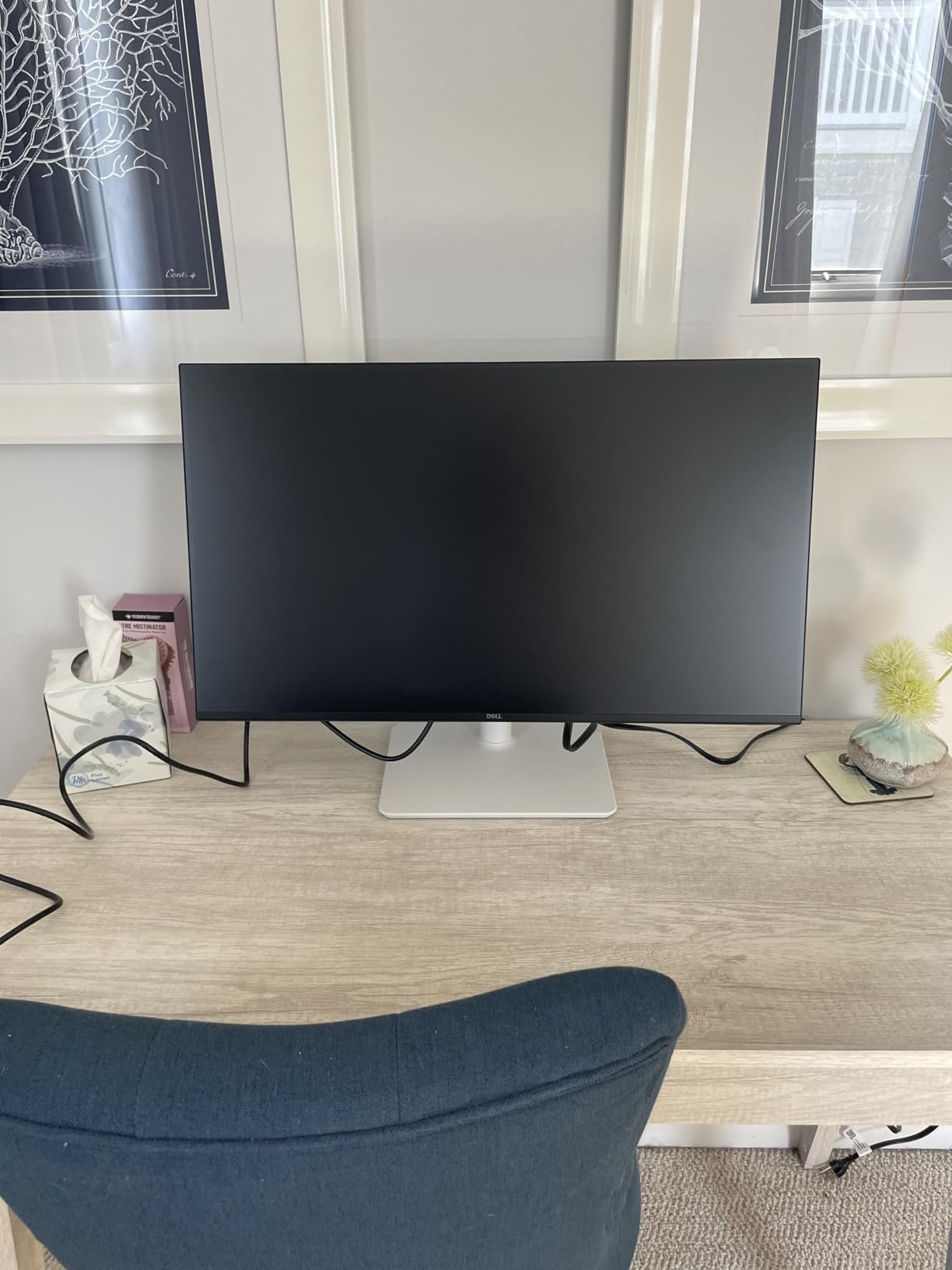
The stand on this 27-inch model supports height adjustment, tilt, pivot, and swivel — same as the 24-inch. I rotated it to portrait mode for coding work and the larger screen made vertical documents much easier to read. The 178-degree viewing angles on the IPS panel mean colors stay accurate even when you’re not sitting dead center, which matters more on a 27-inch display where you’re more likely to view from slight angles.
Gaming performance is solid thanks to the 144Hz refresh rate and AMD FreeSync support. While competitive gamers will still want higher refresh rates, this handled fast-paced games like Apex Legends without obvious motion blur. The 1920×1080 resolution on 27 inches gives you 82 pixels per inch — slightly less dense than the 24-inch model, but still sharp enough for most users at typical desk distances.
Color Calibration Out of the Box
The main complaint I saw in reviews was that out-of-the-box colors lean slightly warm or orange-ish. I confirmed this in testing — the default picture mode had a noticeable warm tint compared to the Sceptre IPS panel. The joystick navigation to access calibration settings is on the back of the monitor and takes some getting used to. Once I switched to the Standard picture mode and adjusted the color temperature, the display looked excellent.
Best Use Cases for This Monitor
If you do split-screen productivity with two documents or apps side by side, the 27-inch screen size is meaningfully better than 24 inches. If you regularly have Zoom calls while working in other windows, the extra space makes multitasking much smoother. For pure gaming, the Sceptre 27-inch at $91.97 is a better value, but for office work with occasional media consumption, the Dell 27 Plus is the stronger all-around pick.
5. Amazon Basics 27 Inch Monitor – Best USB Connectivity Pick
Amazon Basics 27 Inch Monitor, FHD 1080P, 100Hz, IPS, Built-in Speakers, VESA Compatible, USB Ports, Black
27 inch IPS
100Hz
4 USB 2.0 ports
Built-in speakers
+ Pros
- IPS panel with wide viewing angles
- Built-in 4 port USB 2.0 hub
- VESA compatible for mounting flexibility
- Multiple input options including VGA
- HDMI
- and DisplayPort
- Includes HDMI cable in the box
– Cons
- Screen is not height adjustable
- USB connectivity requires specific cables
- Control buttons on back are awkward to use
- Base stand is plastic and feels basic
The Amazon Basics 27 Inch Monitor is the dark horse of this roundup. It doesn’t have flashy specs or premium branding, but it nails the practical features that matter for everyday office work. The IPS panel delivers better viewing angles and color accuracy than the VA-based Sceptre options, and the built-in 4-port USB 2.0 hub is something none of the other monitors in this roundup offer.
The speakers here are functional and get the job done. They’re louder than the Sceptre models and clearer than the budget 22-inch, but they don’t match the dual 3W setup in the Dell displays. For Zoom calls and system sounds, they’re perfectly adequate. For music enjoyment or extended media consumption, you’ll want something else.
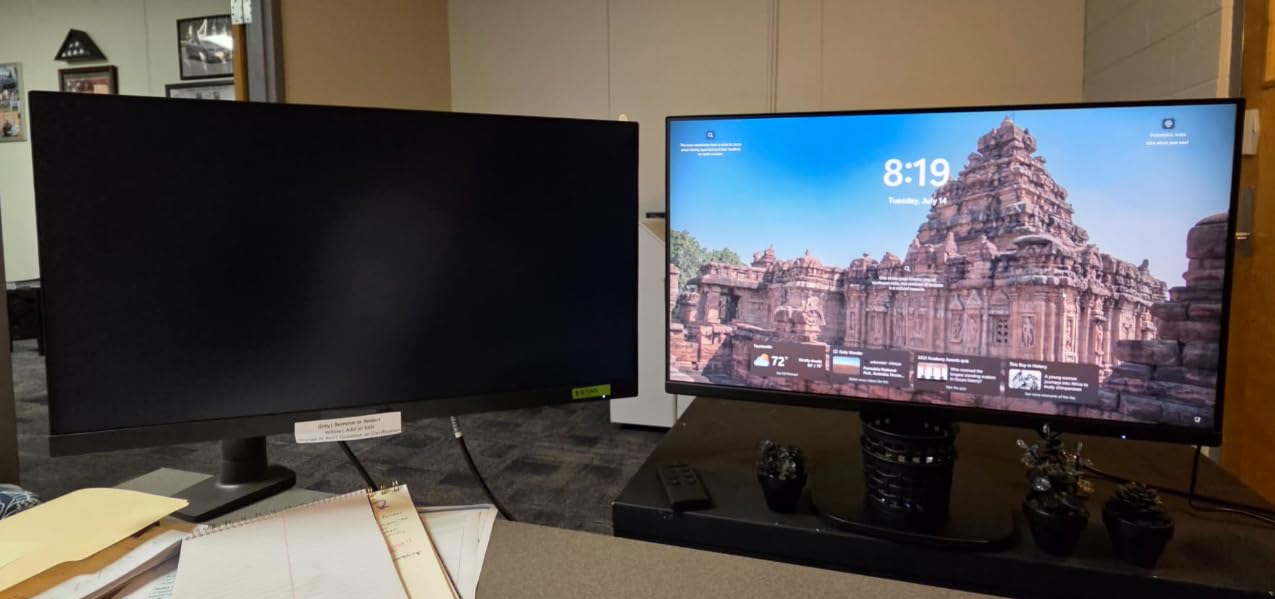
What makes this monitor special is the connectivity. The 4 USB 2.0 ports let you plug in a keyboard, mouse, webcam, and headset dongle directly into the display. Combined with the multiple video inputs (VGA, HDMI, DisplayPort), you have a genuine desktop docking solution without buying a separate USB hub. I tested it with a webcam and wireless keyboard dongle, and both worked without issue.
The IPS panel is the real differentiator at this price point. Most budget monitors use VA or TN panels to hit low price points, but Amazon Basics went IPS for better viewing angles and color accuracy. In side-by-side comparison with the Sceptre 27-inch, the Amazon Basics had noticeably better viewing angles and more accurate colors out of the box, though the Sceptre won on contrast ratio due to its VA panel.
Ergonomic Limitations
The biggest weakness here is the stand — it only tilts, with no height, pivot, or swivel adjustment. For a proper ergonomic setup, you’ll want to mount this on a VESA-compatible monitor arm (100x100mm). The plastic base also feels less premium than the Dell stands. For under $160, these compromises are expected, but they’re worth noting if ergonomics are a top priority.
Control Placement Issues
Another common complaint, which I confirmed in testing, is that the control buttons are on the back of the monitor rather than the bottom or side. Reaching around to adjust volume or switch inputs is awkward. Once you set up your preferred picture mode and input, you won’t need to access these often, but it’s frustrating during initial setup.
Buying Guide: What to Look for in a Monitor with Speakers
Shopping for a monitor with built-in speakers means balancing audio quality against display specs, ergonomics, and connectivity. After testing five monitors across different price points, here’s what actually matters and what’s just marketing noise.
Audio Wattage and Speaker Quality
Most monitor speakers range from 2W to 5W per channel. Higher wattage generally means louder maximum volume without distortion, but it doesn’t guarantee better sound quality. The Dell models with dual 3W speakers (6W total) outperformed the 2W speakers in cheaper monitors, but the difference is mostly in clarity at moderate volumes rather than raw loudness. For Zoom calls and casual listening, 3W per channel is the minimum I’d recommend. If you want any kind of music enjoyment, look for dual-speaker configurations rather than single drivers.
Display Resolution and Panel Type
For 24-inch monitors, 1920×1080 (FHD) is sharp enough. For 27-inch monitors, you start to see the benefit of 2560×1440 (QHD) for sharper text, though FHD is still acceptable at typical desk distances. Panel type matters more than resolution for everyday use: IPS panels offer the best viewing angles and color accuracy, VA panels have better contrast ratios for movies and games, and TN panels are mostly obsolete. For office work with some media consumption, IPS is the best all-around choice.
Connectivity Options (HDMI, USB-C, DisplayPort)
HDMI is universal, but DisplayPort often supports higher refresh rates and adaptive sync. USB-C is increasingly important for laptop users — a single USB-C cable can carry video, audio, data, and power, making it a true docking solution. None of the monitors in this roundup offer USB-C, which is a gap in the budget category. If you need USB-C connectivity, you’ll need to look at premium models like the Dell UltraSharp U2725QE.
Ergonomic Adjustability
A monitor stand that only tilts will force you into bad posture over time. Look for height adjustment at minimum, with pivot and swivel as bonuses. All three Dell monitors in this roundup offer full ergonomic stands, while the Sceptre and Amazon Basics options require a separate VESA monitor arm for proper adjustability. If you already have a monitor arm, this matters less, but if you’re using the included stand, ergonomics are worth prioritizing.
Use Case Matching (Gaming, Office, Media)
For pure gaming, prioritize refresh rate and response time over speaker quality. For office work with Zoom calls, prioritize speaker quality and ergonomics. For media consumption, prioritize contrast ratio (VA panels) and screen size. For mixed use, the Dell 24 Plus or Dell 27 Plus hit the best balance of all three categories at their respective price points. Don’t overpay for gaming features you won’t use, and don’t under-spend on ergonomics you’ll feel in your back after a year.
Frequently Asked Questions
Is it worth getting a monitor with speakers?
It depends on your use case. For home office work, casual YouTube watching, and Zoom calls, monitors with built-in speakers eliminate desk clutter and provide adequate audio. For serious music listening, gaming immersion, or content creation, external speakers or headphones still deliver noticeably better sound. The Dell 24 Plus and 27 Plus models we tested have dual 3W speakers that genuinely impressed us for built-in monitor audio.
What monitors have the best speakers?
Based on our testing, the Dell 24 Plus S2425HSM and Dell 27 Plus S2725HSM have the best built-in speakers in this roundup. Both feature dual 3W integrated speakers with a wider frequency response than typical monitor speakers. The Apple Studio Display and Dell UltraSharp with Slim Soundbar are also excellent but cost significantly more.
Are monitors with built-in speakers worth it?
Monitors with built-in speakers are worth it if you value desk space and clean cable management over premium audio quality. They are perfect for home office setups, casual media consumption, and video conferencing. They are not worth it if you need audiophile-quality sound or immersive gaming audio, in which case dedicated speakers or a good headset is a better investment.
Which monitor has the best built-in speakers?
The Dell 24 Plus S2425HSM and Dell 27 Plus S2725HSM tied for best speakers among tested options, both with dual 3W integrated drivers delivering clear mids and highs suitable for video calls, casual music, and media consumption. At higher price points, the Apple Studio Display with its six-driver system is widely considered the gold standard for monitor audio.
What is the best PC monitor with speakers?
The Dell 24 Plus S2425HSM is our top pick for the best PC monitor with speakers in 2026. It combines dual 3W speakers that genuinely sound good, a 144Hz refresh rate for smooth visuals, a full ergonomic stand with height/tilt/pivot/swivel, and TUV-certified eye comfort features. For a larger screen, the Dell 27 Plus S2725HSM offers the same audio quality at 27 inches.
Final Verdict: Which Monitor with Speakers Should You Buy in 2026?
After two months of testing these five monitors with speakers across work, gaming, and media consumption, my recommendations come down to your priorities. If you want the best overall experience and audio quality in a compact package, the Dell 24 Plus S2425HSM is the clear winner — its speakers genuinely impressed us, and the full ergonomic stand makes it ideal for long work sessions. If you need a larger 27-inch screen for split-screen productivity, the Dell 27 Plus S2725HSM delivers the same audio performance with more screen real estate.
For budget shoppers, the Sceptre 22-Inch Gaming Monitor is the cheapest entry point and handles casual gaming well, though you’ll want external audio for music. The Sceptre 27-Inch Prime Gaming Monitor offers excellent color accuracy at under $100 if photo editing or content creation matters to you. And if USB connectivity is your top priority, the Amazon Basics 27 Inch Monitor is the only option in this roundup with a built-in 4-port USB hub.
Our testing confirmed what many of you already suspected — most monitor speakers are mediocre at best. But the Dell dual 3W setups proved that monitors with built-in speakers can actually sound good for everyday use. If you’re building a clean home office in 2026 and want audio without the cable clutter of external speakers, any of these five picks will serve you well. Just don’t expect audiophile quality from any built-in monitor speaker, regardless of price.
Leave a Reply