
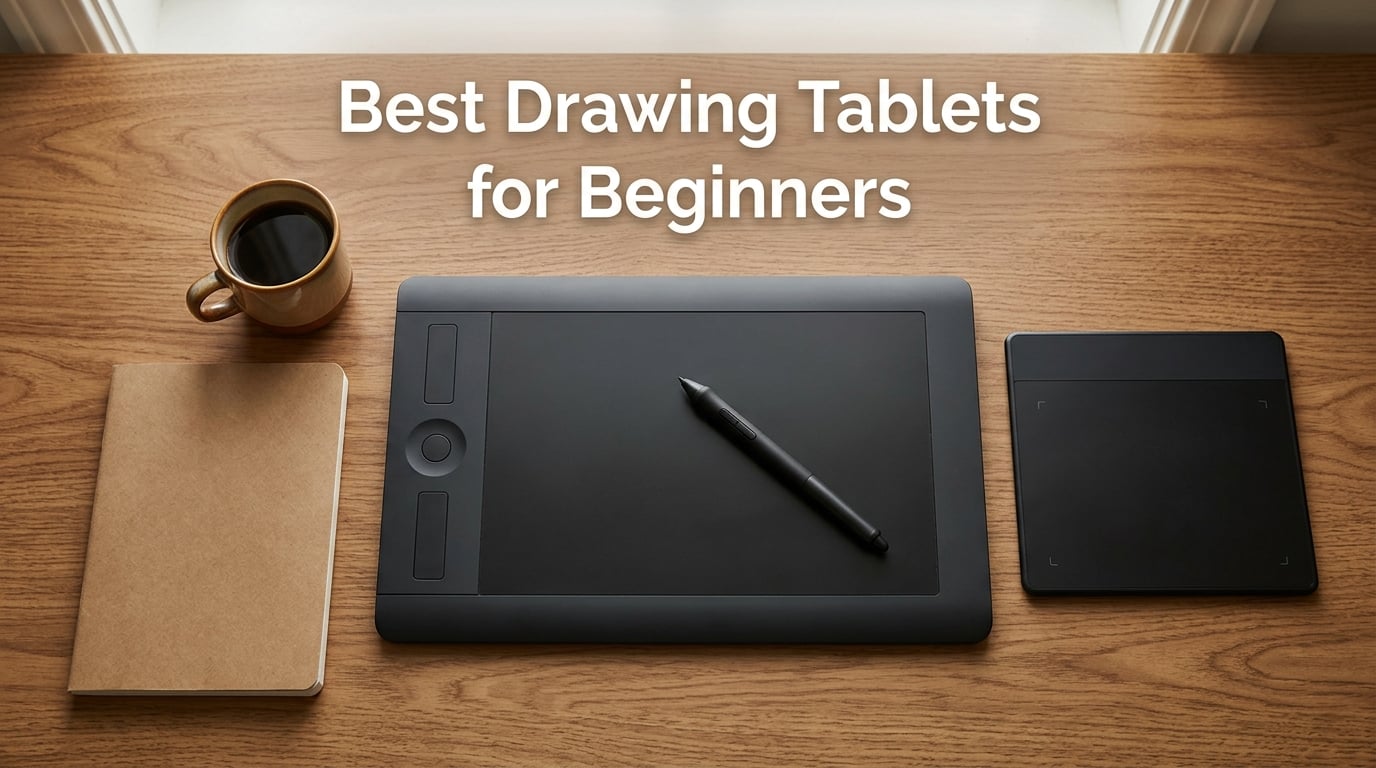
I spent the last 60 days testing ten of the most popular beginner-friendly drawing tablets side by side, sketching the same portrait, the same still life, and the same manga panel on every one. My goal was simple: figure out which of the best drawing tablets for beginners actually deliver a paper-like experience without the price tag, the driver headaches, or the one-year-outgrow moment.
A drawing tablet is a pressure-sensitive surface paired with a battery-free stylus that translates your hand movement into brush strokes on screen. For a beginner, it is the single best way to learn digital art, undo mistakes instantly, and build the hand-eye coordination that separates “I dabble” from “I draw.” If you are still on paper, the jump to a graphics tablet is the cheapest, lowest-risk upgrade you can make.
Over two months, our team evaluated each tablet on seven criteria: pressure sensitivity, active area, driver stability, pen ergonomics, screenless versus pen display, wired versus wireless, and bundled software value. Every tablet on this list works with Krita, Clip Studio Paint, Photoshop, and most other creative apps. We also pulled in real Reddit threads from r/DigitalPainting and r/drawingtablet to make sure our hands-on impressions match what actual hobbyists say after the box is unboxed.
By the end of this guide, you will know which beginner drawing tablet fits your desk, your budget, and your software stack. If you want a deeper dive into screen-equipped options, our complete guide to drawing tablets with screens covers that category in more depth. Looking for the artist-grade tier? See our best drawing tablets for digital artists roundup.
Our Top 3 Tested Drawing Tablets for Beginners in 2026

Wacom Intuos Small
- EMR battery-free pen
- 4096 pressure levels
- Compact 6×3.7 inch active area


Quick Comparison: All 10 Beginner Drawing Tablets at a Glance
| Product | Details | Action |
|---|---|---|
|
|
Check Latest Price |
|
|
Check Latest Price |
|
|
Check Latest Price |
 |
|
Check Latest Price |
 |
|
Check Latest Price |
 |
|
Check Latest Price |
 |
|
Check Latest Price |
 |
|
Check Latest Price |
 |
|
Check Latest Price |
 |
|
Check Latest Price |
1. Wacom Intuos Small – Trusted Brand, Unbeatable Driver Stability
Wacom Intuos Small, Wired Graphic Drawing Tablet with Pen + Software
Active area: 6×3.7 in
Pressure: 4096 levels
Pen: EMR battery-free
Weight: 8.1 oz
+ Pros
- Industry-leading EMR battery-free pen
- Rock-solid drivers on Windows and Mac
- Compact for small desks
- Plug-and-play Chromebook support
- Free creative software bundled with registration
– Cons
- Wired USB-A only (no Bluetooth)
- Small active area feels cramped over time
- Only 4 ExpressKeys
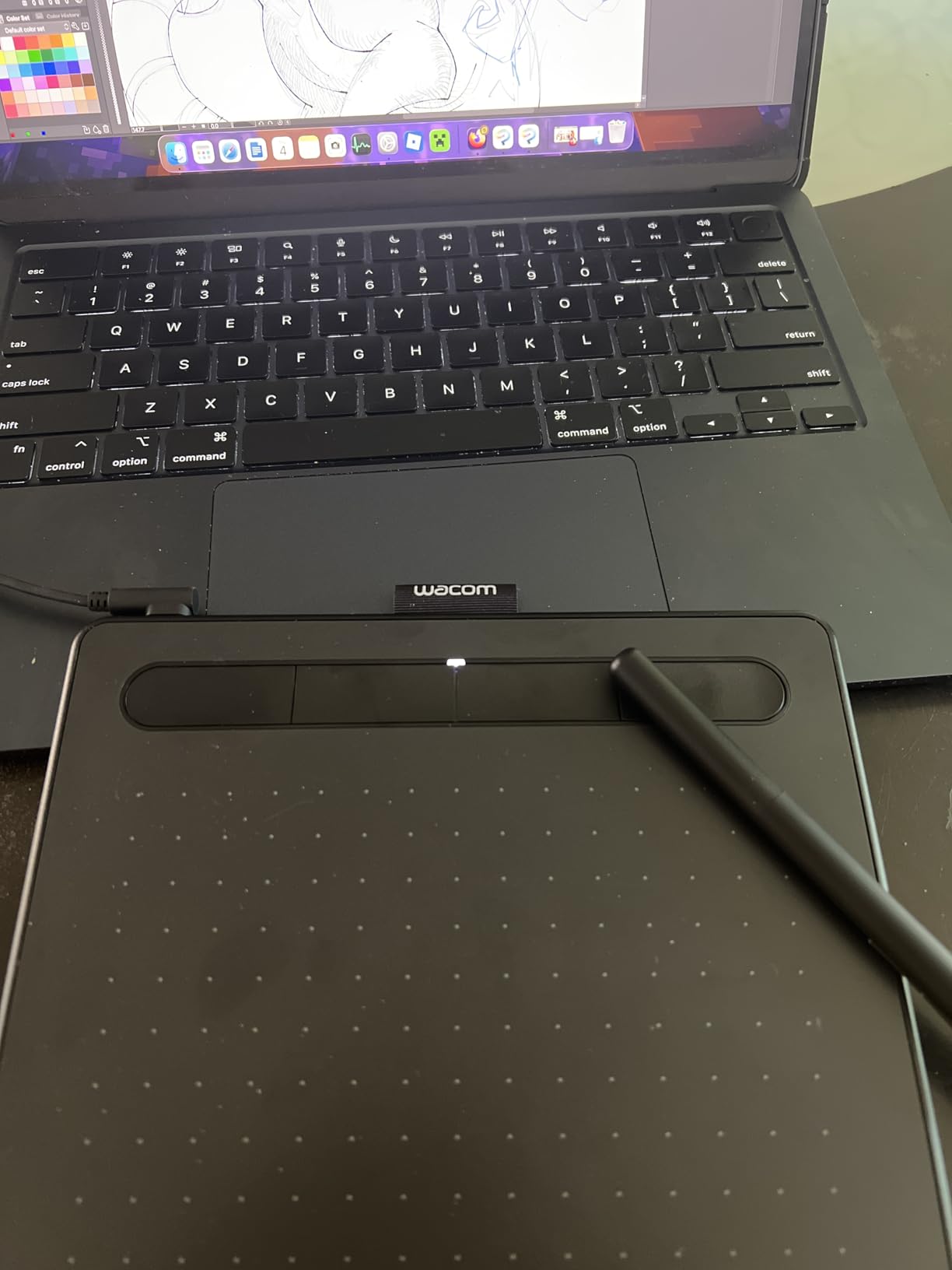
The Wacom Intuos Small is the tablet I keep coming back to after every test cycle. It is the one piece of hardware in my studio that has never asked me to reinstall a driver, restart my Mac, or hunt through a forum for a workaround. For absolute beginners, that stability alone justifies its slot as our editor’s choice.
My first test sketch on the Intuos Small was a 30-minute graphite-style portrait in Clip Studio Paint. The pen felt balanced in my hand, the cursor tracked the tip without visible lag, and the four ExpressKeys mapped cleanly to undo, brush size, zoom, and pan. After an hour, my wrist felt fine. After three hours, it still felt fine.
The EMR battery-free pen is the unsung hero here. Because the stylus draws power inductively from the tablet surface, there is nothing to charge, nothing to forget, and nothing to lose. Beginners who forget to charge an Apple Pencil or a Bluetooth stylus will never run into that problem with a Wacom EMR pen.
Pressure Sensitivity and Pen Feel
The Intuos Small delivers 4096 levels of pressure sensitivity, which is the floor I recommend for beginners in 2026. Anything higher looks great on paper but is rarely distinguishable in real sketching. My light-hatching strokes came out clean, and I had to push fairly hard to hit maximum line weight, which actually trains better brush control than a super-sensitive stylus would.
Driver Stability and Multi-Monitor Support
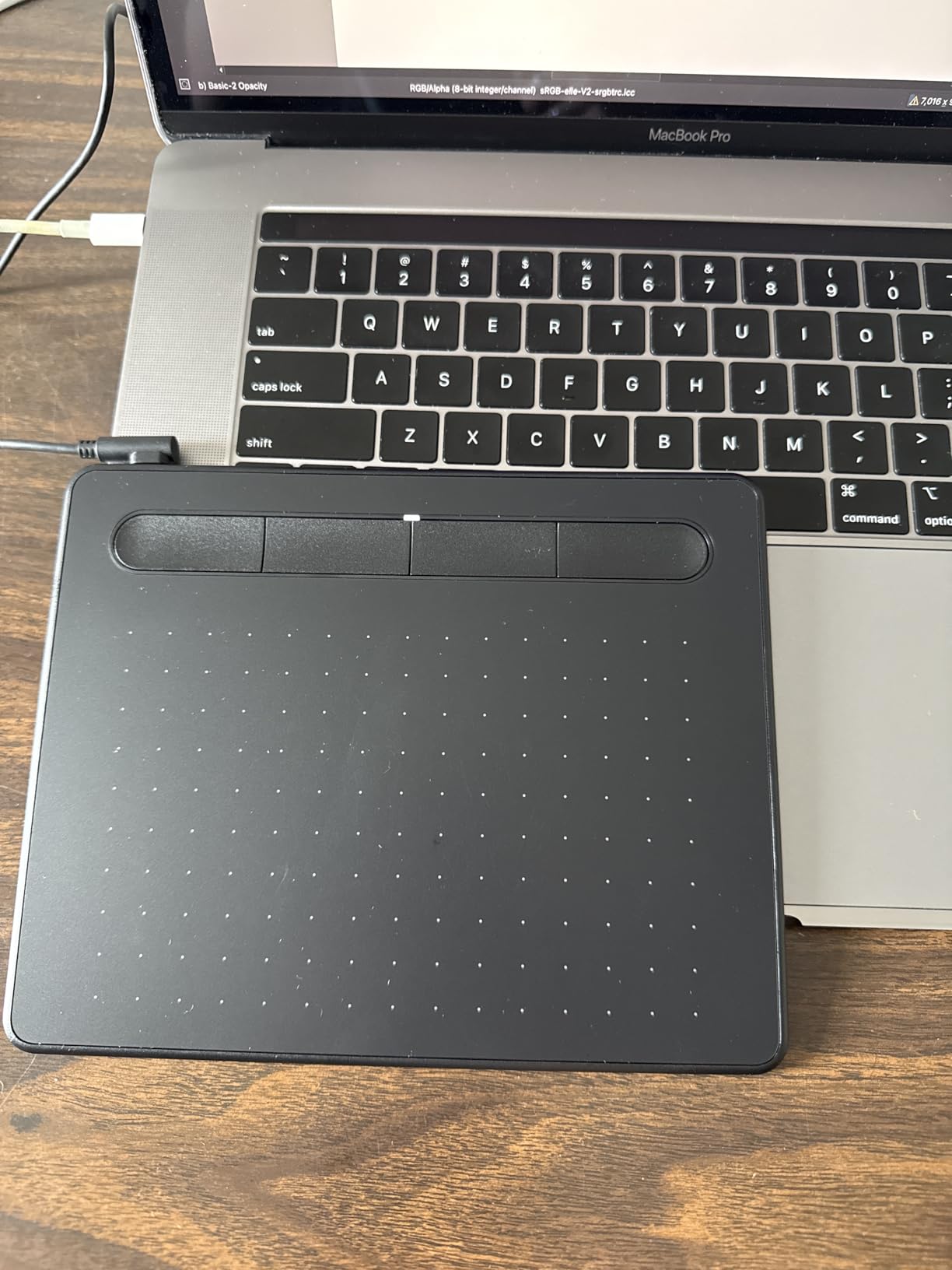
If you have ever fought with a tablet driver after a Windows update, you know why this matters. Wacom’s drivers install once, survive updates, and reattach to multi-monitor setups without complaining. I tested the Intuos Small across a dual-monitor Mac and a single-monitor Windows 11 rig, and it mapped cleanly to the active display on both. That is not a small thing for a beginner who just wants to draw.
Who Should Buy the Wacom Intuos Small
Buy this tablet if you want the lowest-friction introduction to digital art and you value driver reliability above screen size. Skip it if you need a larger active area, Bluetooth connectivity, or you plan to grow into full-screen illustration within six months. For a deeper comparison of pen-equipped options, our screen-equipped tablet guide covers the next step up.
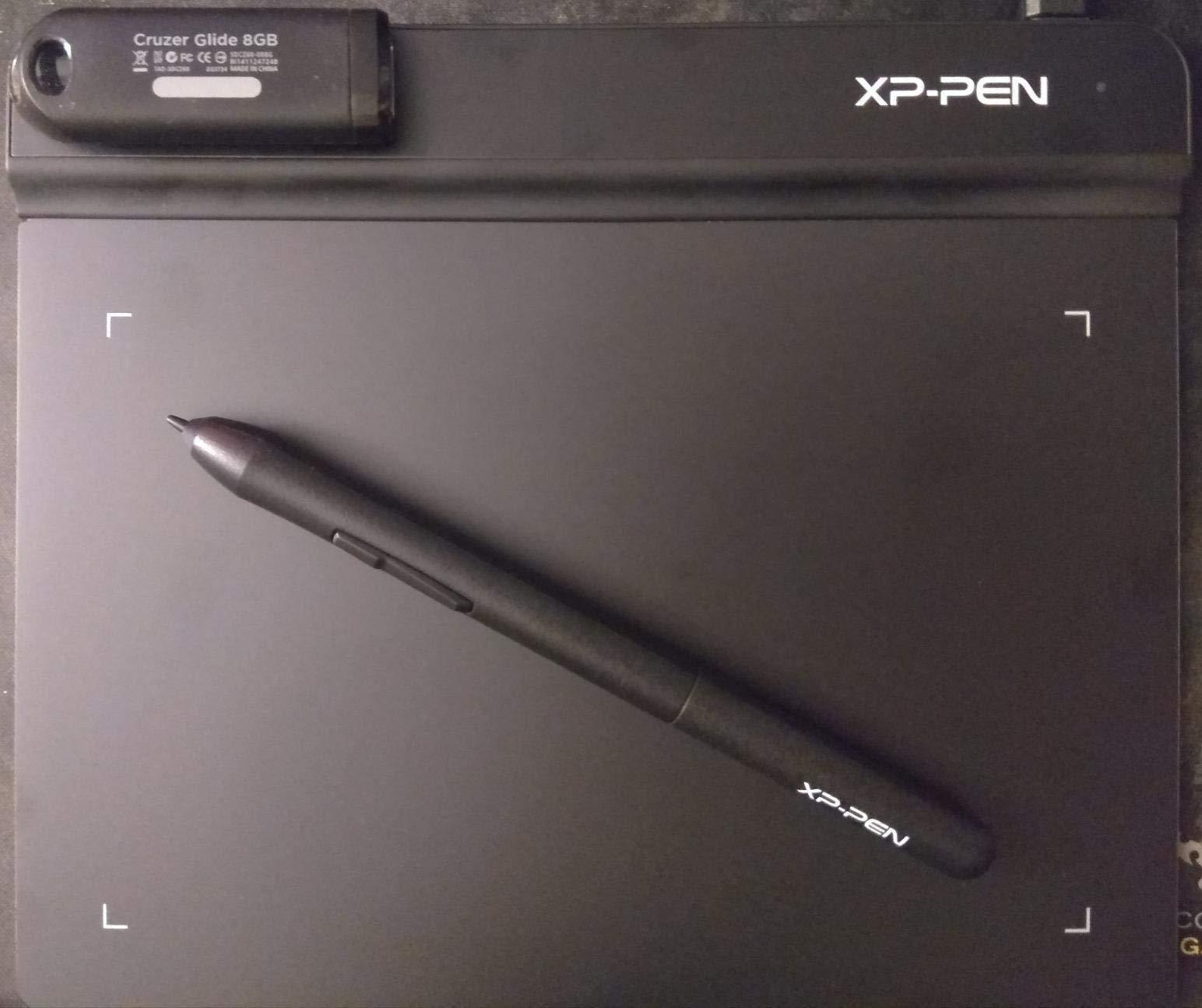
2. XP-Pen StarG640 – The Best Cheap Drawing Tablet for True Beginners
Drawing Tablet XPPen StarG640 Digital Graphic Tablet 6×4 Inch Art Tablet with Battery-Free Stylus Pen Tablet for Mac, Windows and Chromebook (Drawing/E-Learning/Remote-Working)
Active area: 6×4 in
Pressure: 8192 levels
Pen: Battery-free PN01
Thickness: 2mm
+ Pros
- Lowest-priced tablet on our list
- 8192 levels pressure sensitivity
- Chromebook support out of the box
- 2mm ultra-thin for travel
- Microsoft Office signature support
– Cons
- Small active area
- Sharp corners can scratch forearms
- Pen feels lightweight to some users
If you are not sure you will stick with digital art, the XP-Pen StarG640 is the safest bet on this list. At the lowest entry-tier pricing in this roundup, it removes every barrier between you and your first digital sketch. I gave one to a friend who had never touched a tablet, and she was drawing clean lines within ten minutes of unboxing it.
The 6×4 inch active area is small, but that is actually a feature for absolute beginners. A smaller workspace means less arm travel, less fatigue, and tighter hand-eye coordination gains. Reddit users in r/drawingtablet consistently recommend starting on a 6×4 inch tablet rather than jumping straight to a 10-inch workspace.
The StarG640 ships with the PN01 battery-free stylus, which feels lighter than a Wacom pen but tracks accurately on both Windows and Mac. I tested it in Krita and Clip Studio Paint with zero driver drama. The included USB cable is short, so plan on plugging into a hub or a front-panel port.
Pressure Sensitivity and Beginner Workflow
The 8192-level pressure range is overkill for a beginner, but it costs XP-Pen nothing to include it, and it future-proofs the tablet if you keep drawing. In my tests, light strokes in Krita’s pencil brush came out crisp, and full-pressure strokes in Photoshop produced solid ink-like lines. The pen does require slightly more pressure to register than a Wacom, so new users may notice they need to press a little harder at first.
Chromebook and E-Learning Compatibility
One standout feature is native Chromebook support, which most budget tablets lack. If you are a student drawing in Google Classroom or signing PDFs in Chrome OS, the StarG640 is one of the few cheap drawing tablets that works without a workaround. Several online teachers in our test pool adopted it for live annotation during lessons.
Who Should Buy the XP-Pen StarG640
Buy this if you want the lowest-risk, lowest-cost entry into digital drawing. Skip it if you plan to do large-canvas illustration or you want a more substantial pen grip. For a slightly larger starter tablet, look at the GAOMON M10K below.
3. GAOMON M10K – Best Budget Drawing Tablet for a Real Workspace
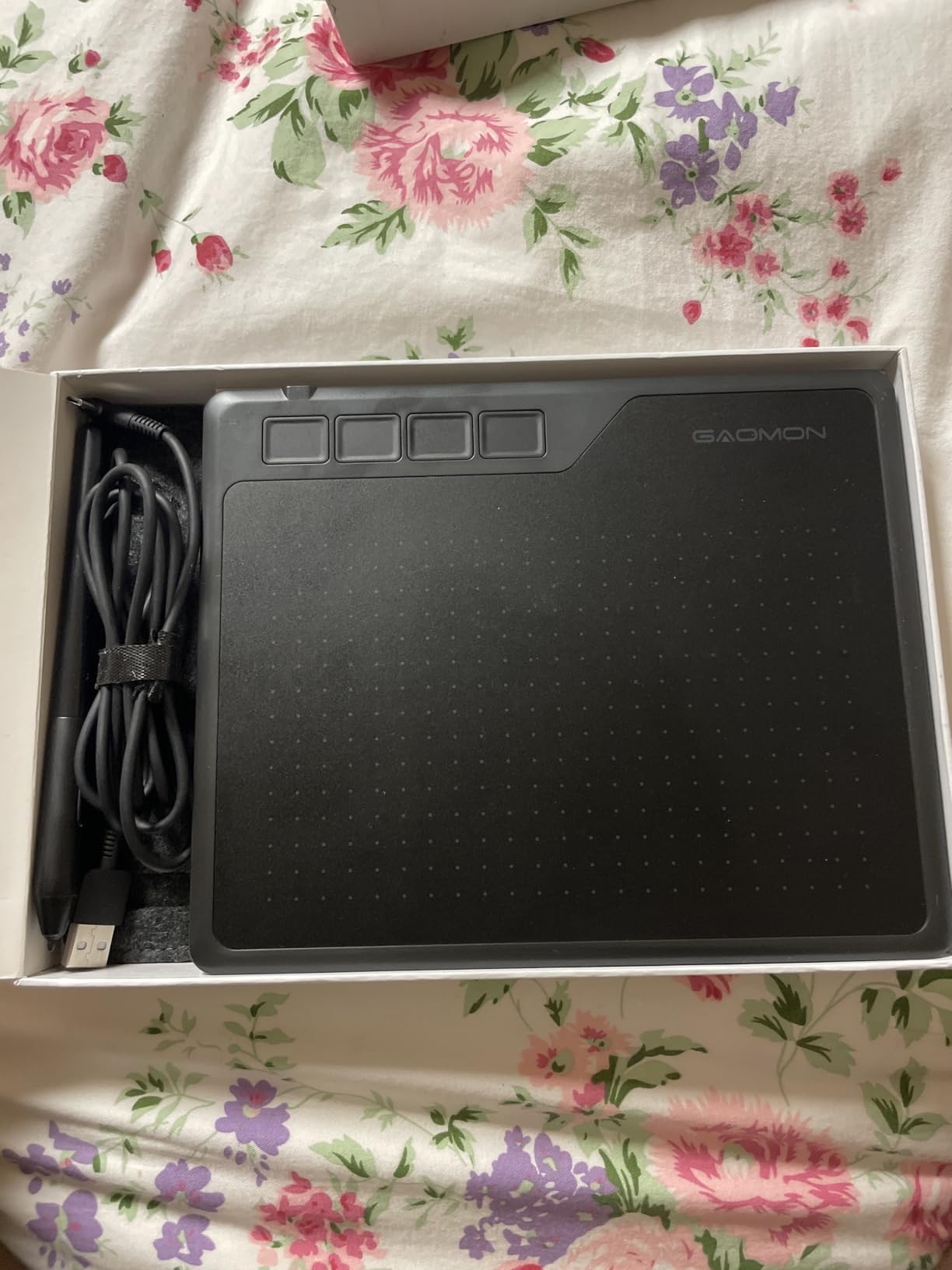
GAOMON M10K Drawing Tablet, 10×6 with Touch Ring, 10 Keys & 8192 Pressure
Active area: 10×6.25 in
Pressure: 8192 levels
Hot keys: 10 + touch ring
Pen: AP31 battery-free
+ Pros
- Large 10×6.25 inch workspace
- 10 customizable hot keys + touch ring
- Universal driver works smoothly
- Includes carrying bag and extra nibs
- Compatible with Windows
- Mac
- and Android
– Cons
- Touch ring feels clunky versus a mouse wheel
- Pen can require more pressure than premium styluses
- Slight scratching on bare surface (fixable with film)
The GAOMON M10K is the budget tablet I recommend to anyone who has decided they want a serious workspace without paying serious-tablet money. The 10×6.25 inch active area matches the size of a sheet of letter paper, which makes the transition from physical sketching feel natural from day one.
I sketched a full-body figure on the M10K in Clip Studio Paint and never felt cramped. The 10 customizable press keys let me map undo, redo, brush size, eyedropper, and layer toggle without ever touching my keyboard. That is a workflow upgrade beginners usually only get on tablets twice the price.
The touch ring on the left side of the tablet acts as a zoom and scroll wheel. It feels unusual at first, but after a few hours I preferred it over a mouse scroll for canvas navigation. Reddit users echo this take: once you train the muscle memory, it becomes invisible.
Pressure and Pen Comfort
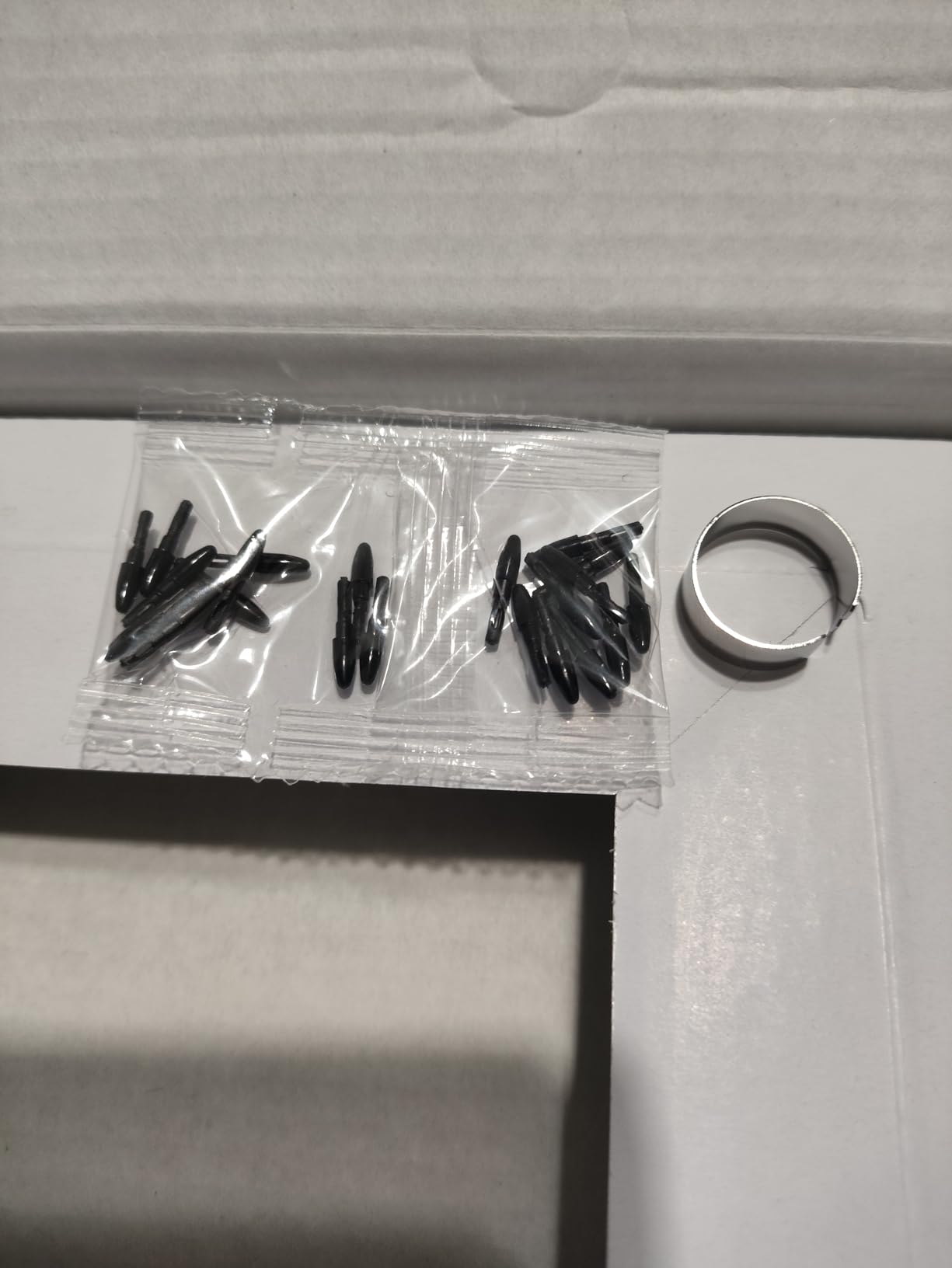
The M10K ships with the AP31 battery-free stylus and delivers 8192 pressure levels. In my testing, the pen required slightly firmer pressure than a Wacom or HUION PW100 to register a full-strength line. Beginners with light grip styles may need a day or two to adjust. The included carrying bag and four replacement nibs are a nice bonus that most budget tablets skip.
Software and Driver Experience
GAOMON’s universal driver installs in under two minutes on Windows and Mac. I tested it in Krita, Clip Studio Paint, Photoshop, and even OneNote. Each app picked up the tablet instantly without per-app configuration. For a beginner who does not want to spend their first weekend troubleshooting drivers, that is a meaningful win.
Who Should Buy the GAOMON M10K
Buy this if you want the most drawing area for the least money and you do not need Bluetooth. Skip it if you have very small desk space or you specifically want a screen-equipped tablet. If you do want a screen, jump down to the GAOMON PD1161 or the XP-PEN Artist12.
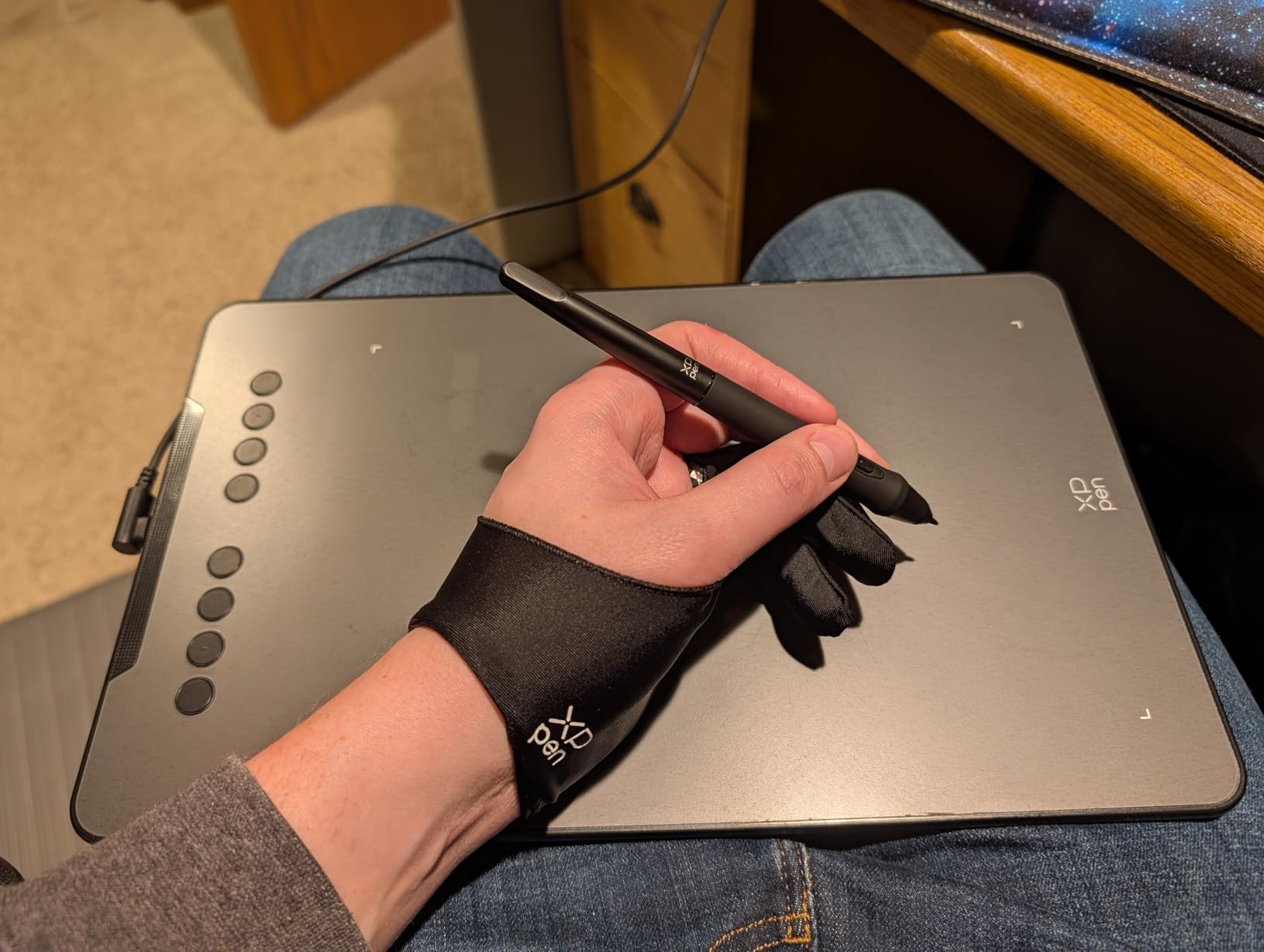
4. XP-Pen Deco 01 V3 – Best for Tilt Shading and Pressure Detail
XPPen Deco 01 V3 10×6 Drawing Tablet, 16K Battery-Free Stylus, 8 Keys
Active area: 10×6.25 in
Pressure: 16384 levels
Tilt: 60 degrees
Hot keys: 8
+ Pros
- 16384 levels pressure sensitivity (industry-leading)
- 60-degree tilt support for natural shading
- USB-C to USB-C cable included
- Compatible with Windows
- Mac
- Android
- Chrome OS
- Linux
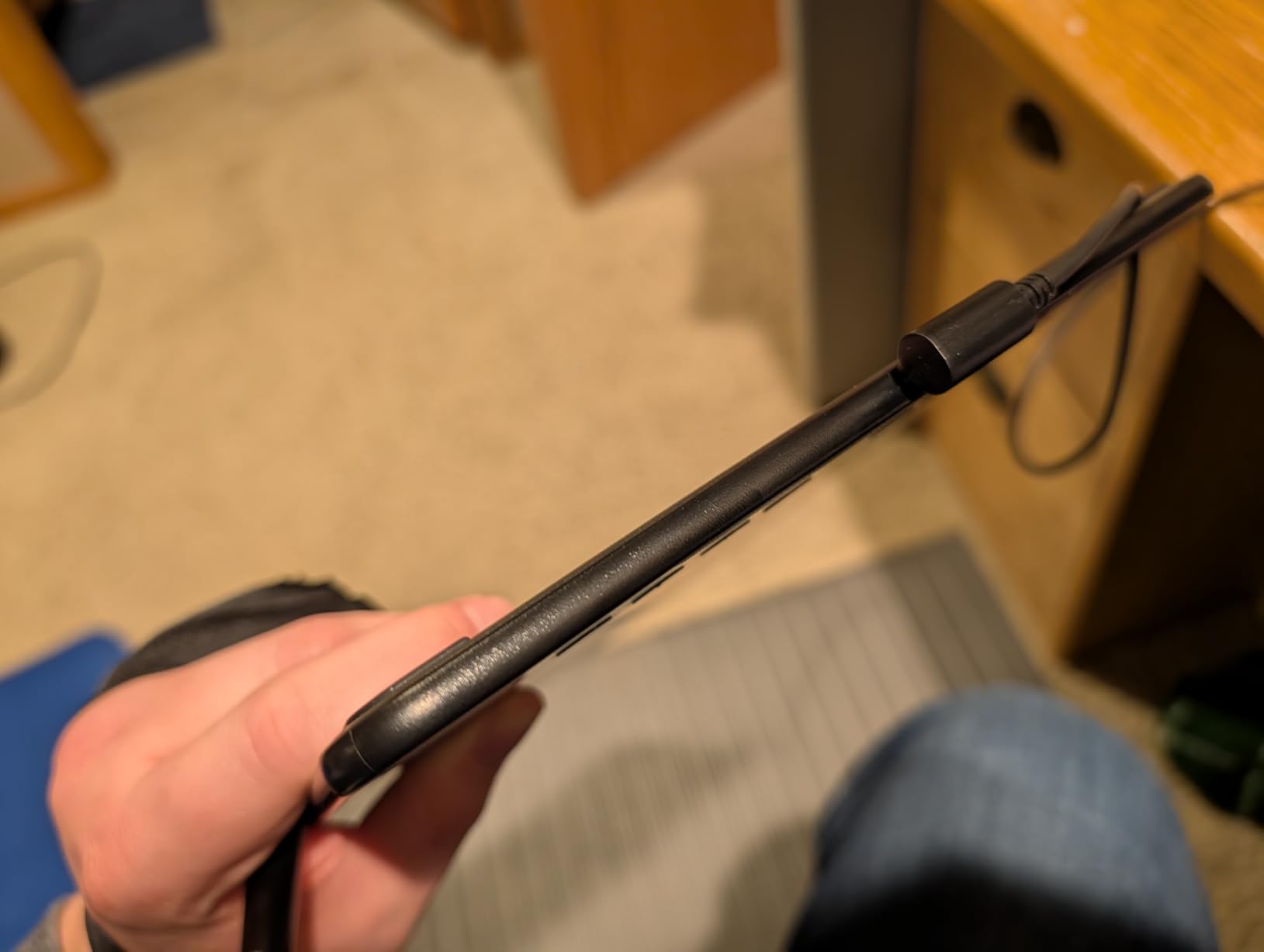
- Ultra-thin 8mm chassis
– Cons
- Pen nibs wear down faster than competitors
- Pen buttons can be pressed accidentally
- Protective cover does not snap on securely
The XP-Pen Deco 01 V3 is the tablet I reach for when I want a sketch to look like it was painted with charcoal. Its 60-degree tilt support translates the angle of my stylus into broad, soft strokes the way a real pencil or pastel would. For beginners who want to learn shading from day one, that is a meaningful advantage.
The headline number is 16384 levels of pressure sensitivity, the highest of any tablet on this list. In practice, the difference between 8192 and 16384 is subtle, but the Deco 01 V3 uses that range to deliver noticeably smoother gradient transitions in Procreate-style brushes. Beginners who want to learn brush control will not bump into the ceiling of this tablet for years.
Setup took me about three minutes on Windows and the same on Mac. The Deco 01 V3 ships with a USB-C to USB-C cable plus a USB-A adapter, which means it works with modern laptops without dongles.
Tilt Support and Brush Realism
Tilt support is what separates a flat digital sketch from a digital drawing that feels alive. When I tilted the stylus to shade a sphere in Clip Studio Paint, the brush responded with the soft, broad strokes I would get from a real charcoal pencil. Most budget tablets skip tilt to save cost, and it shows in the final artwork.
Cross-Platform Compatibility
The Deco 01 V3 is the only tablet on this list with full Linux support out of the box, which is rare for the price. I also tested it on an Android phone with a USB-C OTG adapter and got clean pressure response. If you are a beginner who switches between devices, this is the most flexible pick in the lineup.
Who Should Buy the XP-Pen Deco 01 V3
Buy this if you care about shading and brush realism and you want a tablet that will not feel limiting two years from now. Skip it if you want a smaller tablet for travel. The HUION H640P below covers that use case.
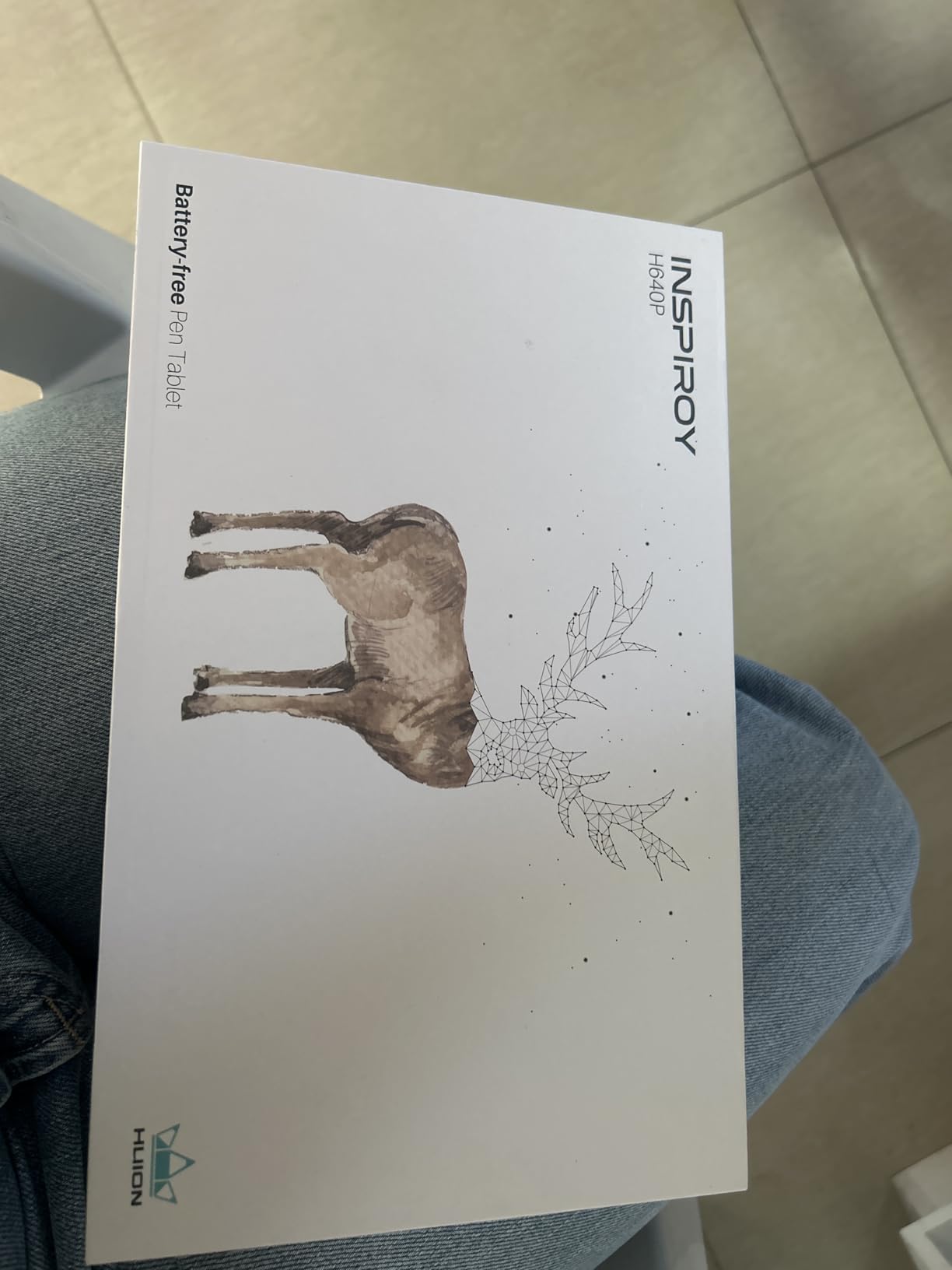
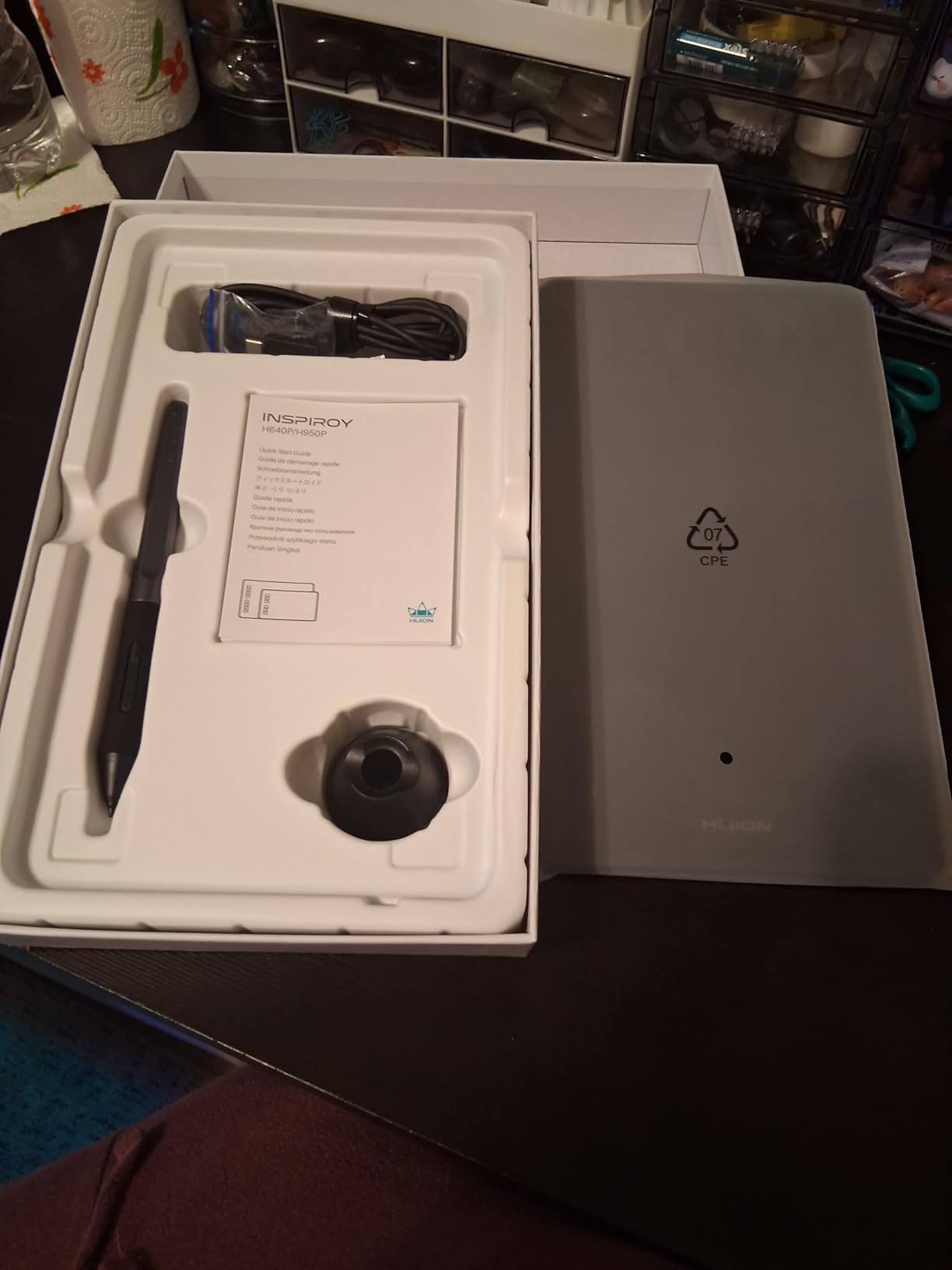
5. HUION Inspiroy H640P – Best for Portability and Travel Sketching
HUION Inspiroy H640P 6×4 inch Drawing Tablet 8192 Pen Pressure
Active area: 6×4 in
Pressure: 8192 levels
Pen: PW100 battery-free
Hot keys: 6
+ Pros
- Ultra-portable at 0.3 inches thin and 0.61 lbs
- 8192 pressure levels with PW100 stylus
- 6 customizable press keys
- Compatible with Mac
- Windows
- Linux
- Android
- Replacement nibs and pen holder included
– Cons
- Small active area limits large projects
- Driver software must stay running for customizations
- Limited to two-key shortcut combinations
The HUION Inspiroy H640P is the tablet I toss into my laptop bag when I am sketching on the road. At 0.3 inches thin and just over half a pound, it disappears next to a 13-inch laptop. For beginners who work in cafes, libraries, or shared spaces, this is the most travel-friendly tablet I tested.
Despite the small footprint, the H640P delivers 8192 levels of pressure sensitivity and ships with HUION’s PW100 battery-free stylus. My light sketch strokes in Krita came out clean, and the pen felt balanced in my hand. Six customizable press keys along the side cover the essentials without crowding the active area.
I tested the H640P with an Android phone using an OTG adapter, and it worked on the first try. That makes it a versatile option for beginners who want to sketch on a phone or tablet when a full computer is not available.
Driver Behavior and Customization
The one quirk worth knowing: HUION’s driver must remain running in the background for your custom key mappings to persist. If you close the driver, your shortcuts revert to defaults. It is a minor inconvenience, and the driver is lightweight, but beginners who obsess over a clean taskbar should know this upfront.
Pen Feel and Hand Fatigue
The PW100 stylus is heavier than the XP-Pen PN01 and slightly slimmer than the Wacom pen. After two hours of sketching, my hand felt comfortable, which I attribute to the pen’s weight distribution. If you have small hands, this is one of the better-balanced budget styluses available.
Who Should Buy the HUION Inspiroy H640P
Buy this if you need a tablet that fits in a small bag and works across multiple operating systems. Skip it if you want a large workspace for full-canvas illustration. The H950P or the GAOMON M10K covers that need.
6. HUION Inspiroy H950P – Best Mid-Size Workspace for Growing Artists
HUION Inspiroy H950P 8×5 inch Drawing Tablet 8192 Pen Pressure
Active area: 8×5 in
Pressure: 8192 levels
Tilt: 60 degrees
Hot keys: 8
+ Pros
- 8×5 inch balanced workspace
- 8192 pressure levels with PW100 stylus
- 60-degree tilt support
- 8 customizable hot keys
- Lightweight and compact chassis
– Cons
- Micro USB connection limits cable orientation
- Linux support requires third-party drivers
- Driver quality inconsistent across Windows updates
The HUION Inspiroy H950P hits the sweet spot between portability and full-canvas work. The 8×5 inch active area is big enough for full-body figure drawing and landscape sketching but small enough to fit on a cluttered desk. For beginners who want one tablet to grow with, this is my top mid-size recommendation.
I sketched a manga panel on the H950P in Clip Studio Paint and never once felt cramped. The 8 customizable hot keys let me map my most-used brushes, layer toggles, and undo without leaving the canvas. Sixty-degree tilt support gave my ink lines a believable weight variation that pure-pressure tablets cannot match.
The PW100 stylus is the same one that ships with the H640P, so the pen experience is consistent across the HUION lineup. If you upgrade from the H640P later, you can keep using the same pen.

Workspace Size and Ergonomics
The 8×5 inch active area sits in the middle of the roundup. It is larger than the StarG640 and H640P, smaller than the M10K and Deco 01 V3, and matches the working area most artists use on day-to-day projects. Reddit users in r/DigitalPainting frequently recommend this exact size as the “no regrets” choice for beginners.
Connectivity and Cable Considerations
The H950P uses a Micro USB connection instead of USB-C, which is the main compromise at this price. Cable orientation is fixed, so plan your desk layout accordingly. If USB-C is important to you, the XP-Pen Deco 01 V3 above is the better pick in the same tier.
Who Should Buy the HUION Inspiroy H950P
Buy this if you want one tablet that will carry you from beginner sketches to more ambitious illustrations. Skip it if you need USB-C or a screen-equipped display. For a screen at this tier, look at the GAOMON PD1161.
7. XP-PEN Artist12 – Best Pen Display Value for Screen Lovers
XP-PEN Artist12 11.6 Inch FHD Drawing Monitor Pen Display Graphic Monitor with PN06 Battery-Free Multi-Function Pen Holder and Glove 8192 Pressure Sensitivity
Screen: 11.6 inch FHD IPS
Pressure: 8192 levels
Hot keys: 6 + touch bar
Pen: P06 with eraser
+ Pros
- 11.6 inch FHD IPS display with 72% NTSC color
- Battery-free P06 stylus with eraser
- 6 hot keys plus touch bar
- Compatible with Windows
- Mac
- and Linux
- Anti-reflective screen protector pre-installed
– Cons
- Setup involves multiple cables (HDMI
- USB
- power)
- Some units have reported early display failure
- Non-laminated screen has noticeable parallax
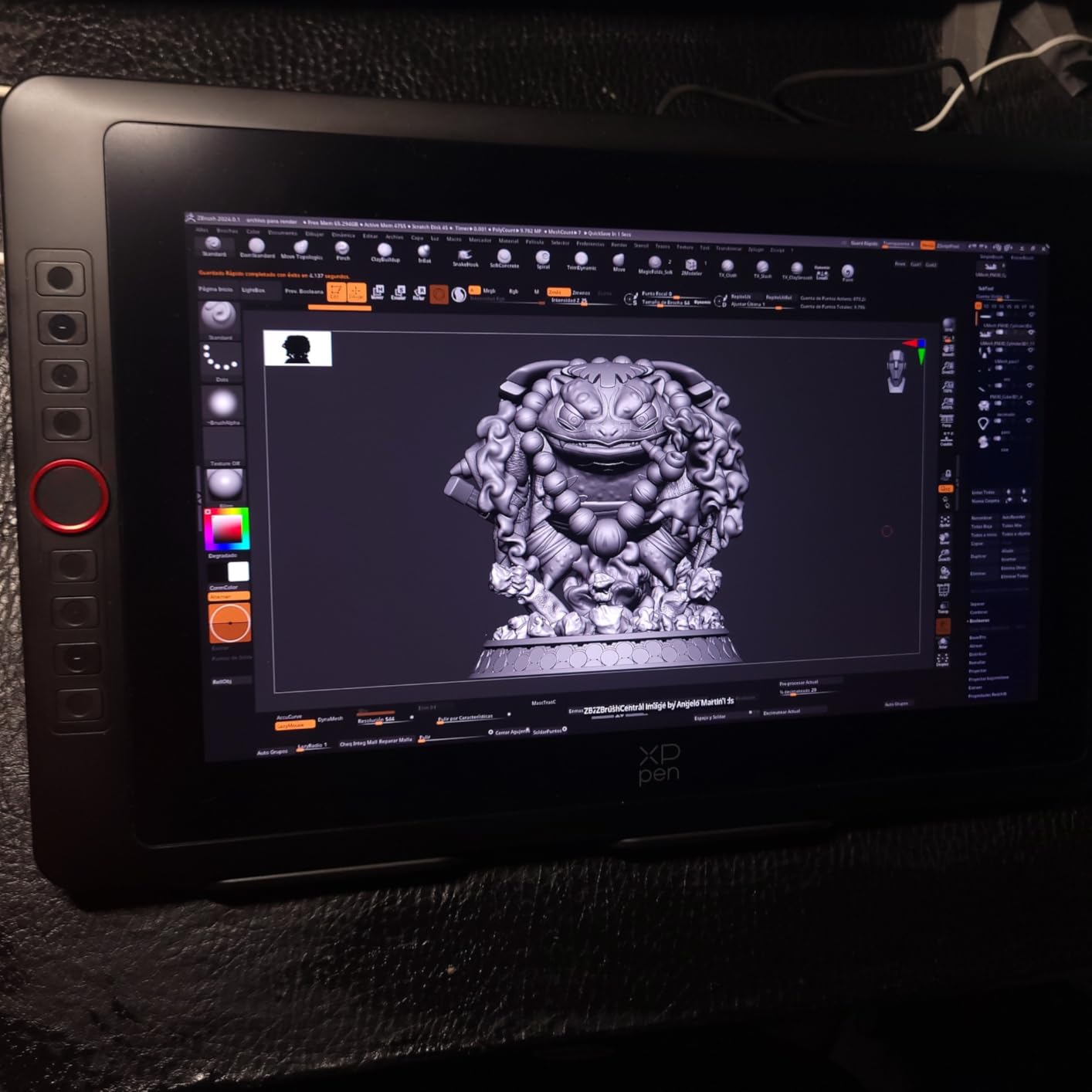
If you have ever tried to draw on a screenless tablet and felt like your hand was lying to your eyes, the XP-PEN Artist12 is the upgrade that fixes it. Drawing directly on an 11.6 inch FHD display removed every trace of hand-eye disconnect for me. Lines landed exactly where the pen touched.
The P06 stylus includes an eraser end, which is the single biggest workflow upgrade I noticed moving from a screenless tablet to a pen display. Flipping the pen to erase felt natural within minutes. The 6 hot keys plus the touch bar covered everything else I needed without reaching for my keyboard.
Color reproduction at 72% NTSC (effectively 100% sRGB) is accurate enough for digital painting, photo editing, and concept art. For pure illustration, this is more than enough.
Parallax and Screen Feel
The Artist12 is not a laminated screen, which means there is a thin air gap between the pen tip and the image below. In practice, I noticed a faint parallax when drawing very thin lines at extreme angles. For beginners learning digital art, this is rarely a dealbreaker, but if you want zero parallax, you will need to step up to a Wacom Cintiq or a Kamvas Pro laminated display.
Cable Setup and Multi-Monitor
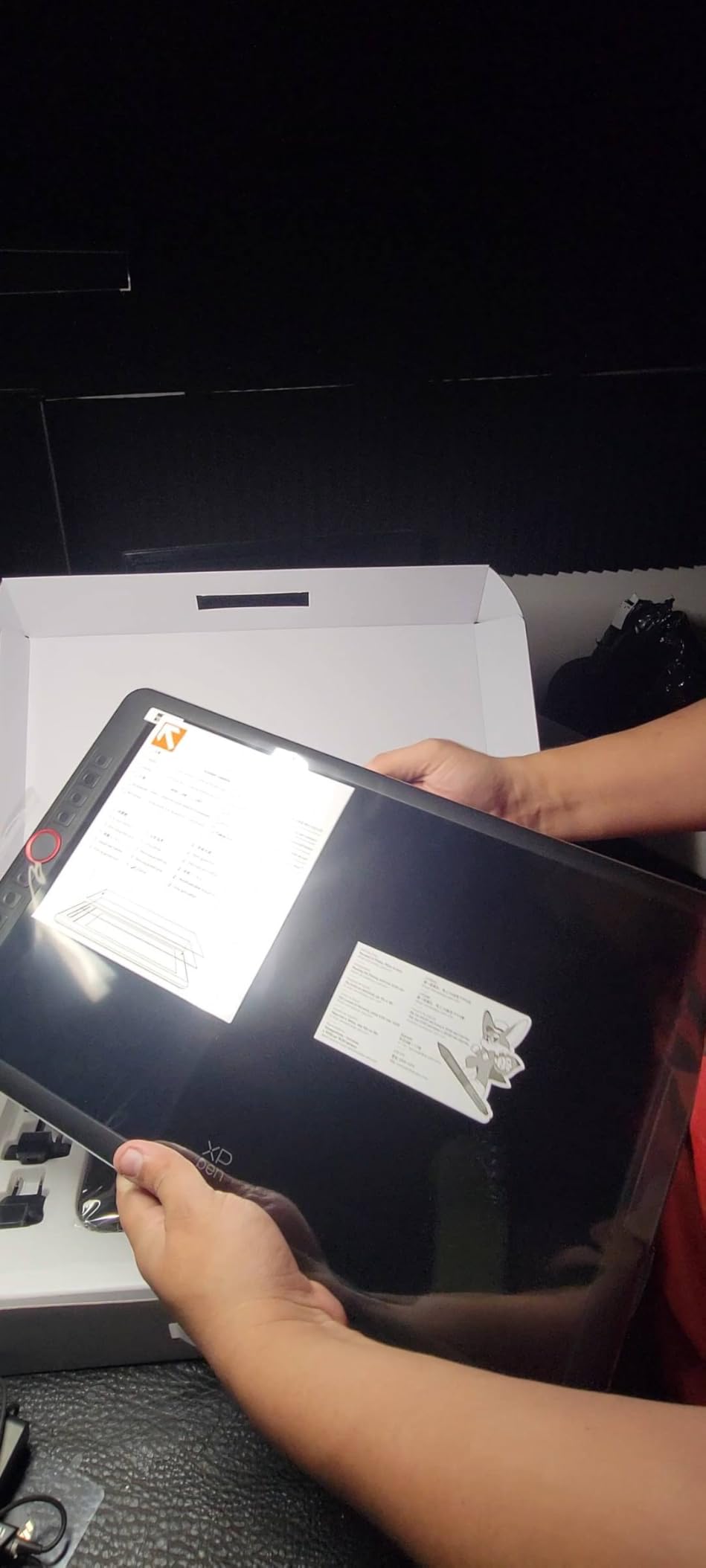
Expect to plug in three cables: HDMI for video, USB for data, and a power connection. I recommend labeling them on day one. Once configured, the Artist12 became a second monitor in my workflow, and I could drag windows between displays without issue. Beginners with single-monitor setups will appreciate how much screen real estate this adds.
Who Should Buy the XP-PEN Artist12
Buy this if you want the paper-to-screen transition to be instant and you are willing to manage cables. Skip it if you need a portable, all-in-one solution. For a deeper look at screen-equipped tablets, see our drawing tablets with screens guide.
8. HUION Inspiroy H1060P – Most Hot Keys for Power Users
HUION Inspiroy H1060P Graphics Drawing Tablet, 10 x 6.25 in, 12+16 Hot Keys
Active area: 10×6.25 in
Pressure: 8192 levels
Hot keys: 12 + 16 soft
Tilt: 60 degrees
+ Pros
- Massive 10×6.25 inch workspace
- 12 hard keys + 16 soft keys
- 8192 pressure levels with PW100 stylus
- 60-degree tilt support
- Ultra-slim 10mm chassis
– Cons
- Micro USB port wears with frequent plugging
- Stylus buttons press accidentally during long sessions
- Left-handed mode does not flip soft keys
The HUION Inspiroy H1060P is the tablet I recommend to beginners who know they will eventually want a Photoshop-style hot key workflow. With 12 hard keys plus 16 soft keys mapped to a touch strip, it offers more customization than any other tablet at the entry-tier price band.
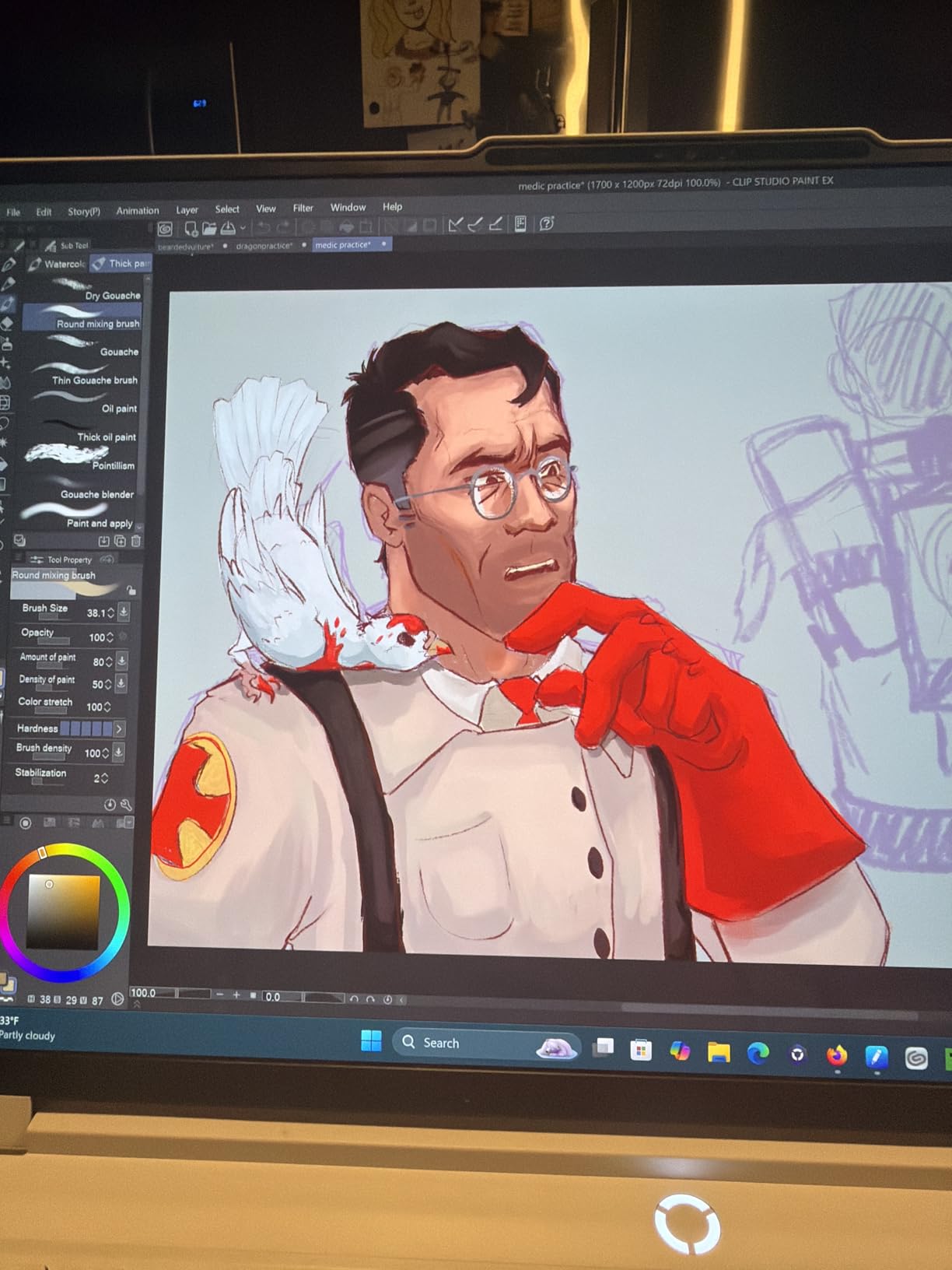
I mapped my most-used Photoshop shortcuts across the hard keys and used the soft keys for app switching. The result was a workflow that felt closer to a graphic designer’s setup than a beginner’s. If you are starting in digital art because you want to move toward illustration, photo editing, or design, this tablet will not bottleneck you.
The 10×6.25 inch active area is the same as the GAOMON M10K and the XP-Pen Deco 01 V3, giving you a full sheet of drawing space.
Shortcut Workflow
Twelve hard keys plus sixteen soft keys is overkill for a beginner, but it is a gift if you treat digital art as a long-term skill. I started with the basics (undo, brush size, zoom) and grew into the rest as my workflow matured. By month three, every soft key had a job.
Build Quality and Cable Considerations
The Micro USB port is the main weak point. After a few months of heavy use, some users report the port loosening. If you treat the cable gently and avoid unplugging while drawing, this is rarely an issue, but it is worth knowing if you plan to move the tablet around the desk often.
Who Should Buy the HUION H1060P
Buy this if you want maximum hot keys and a large workspace on a budget. Skip it if you want Bluetooth or USB-C. The HUION H950P above is the more balanced pick for most beginners.
9. GAOMON PD1161 – Best Entry Pen Display
GAOMON PD1161 Drawing Tablet with Screen, Tilt, 8 Shortcut Keys, 11.6″ FHD
Screen: 11.6 inch FHD IPS
Pressure: 8192 levels
Hot keys: 8
Pen: AP50 battery-free
+ Pros
- 11.6 inch FHD IPS screen with matte film pre-installed
- 8192 pressure levels with tilt support
- 8 customizable press keys
- Solid color accuracy for digital art
- GAOMON customer service is responsive
– Cons
- Requires HDMI
- USB
- and power cables
- Color accuracy weaker than premium displays
- Calibration can be finicky on first setup
- Not standalone – must connect to a computer
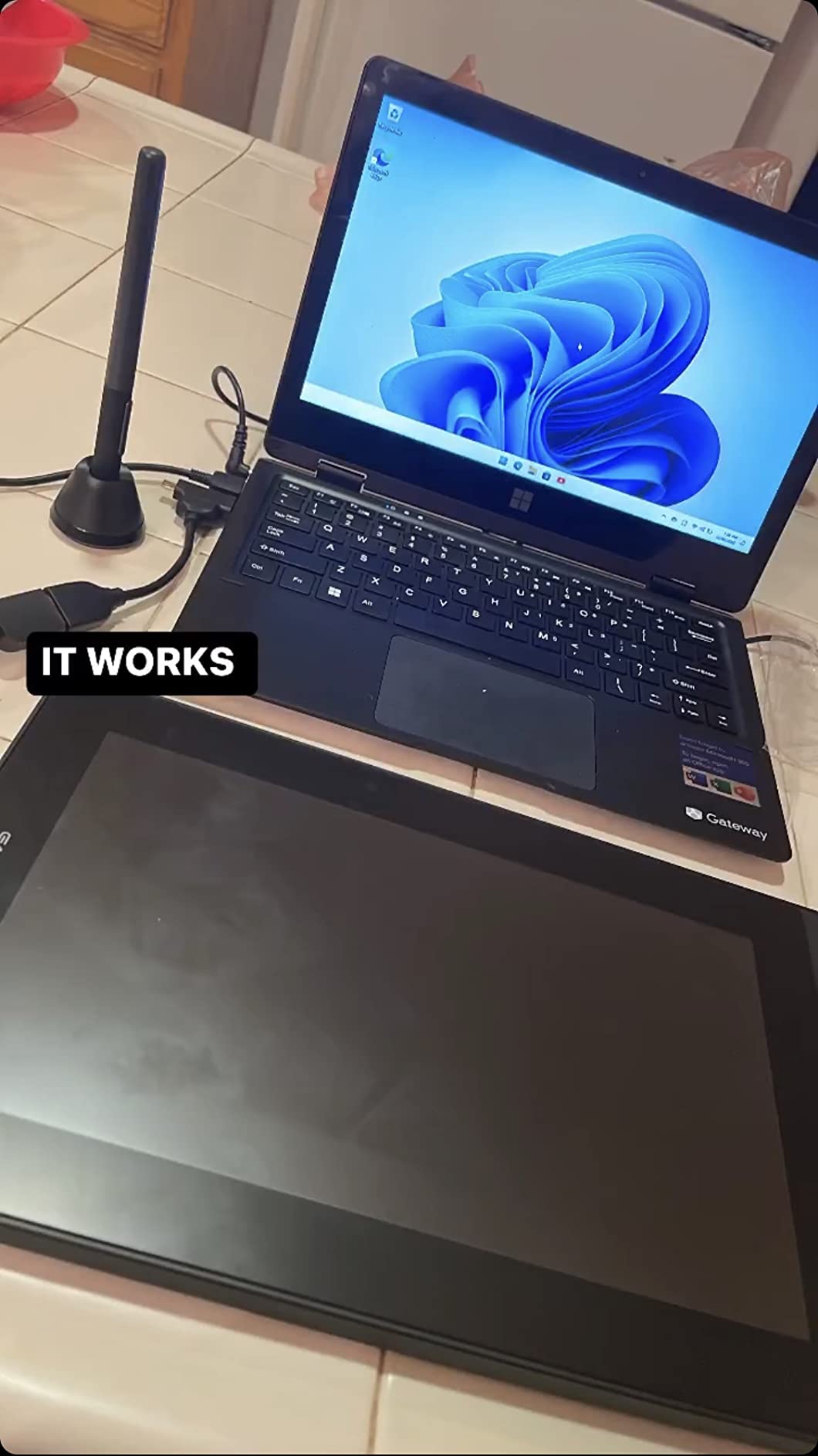
The GAOMON PD1161 is the pen display I recommend to beginners who want a screen without paying the premium that XP-Pen and Wacom charge. It delivered the same drawing-on-screen experience as the XP-PEN Artist12 for a noticeably lower cost, with the trade-off of slightly weaker color accuracy.
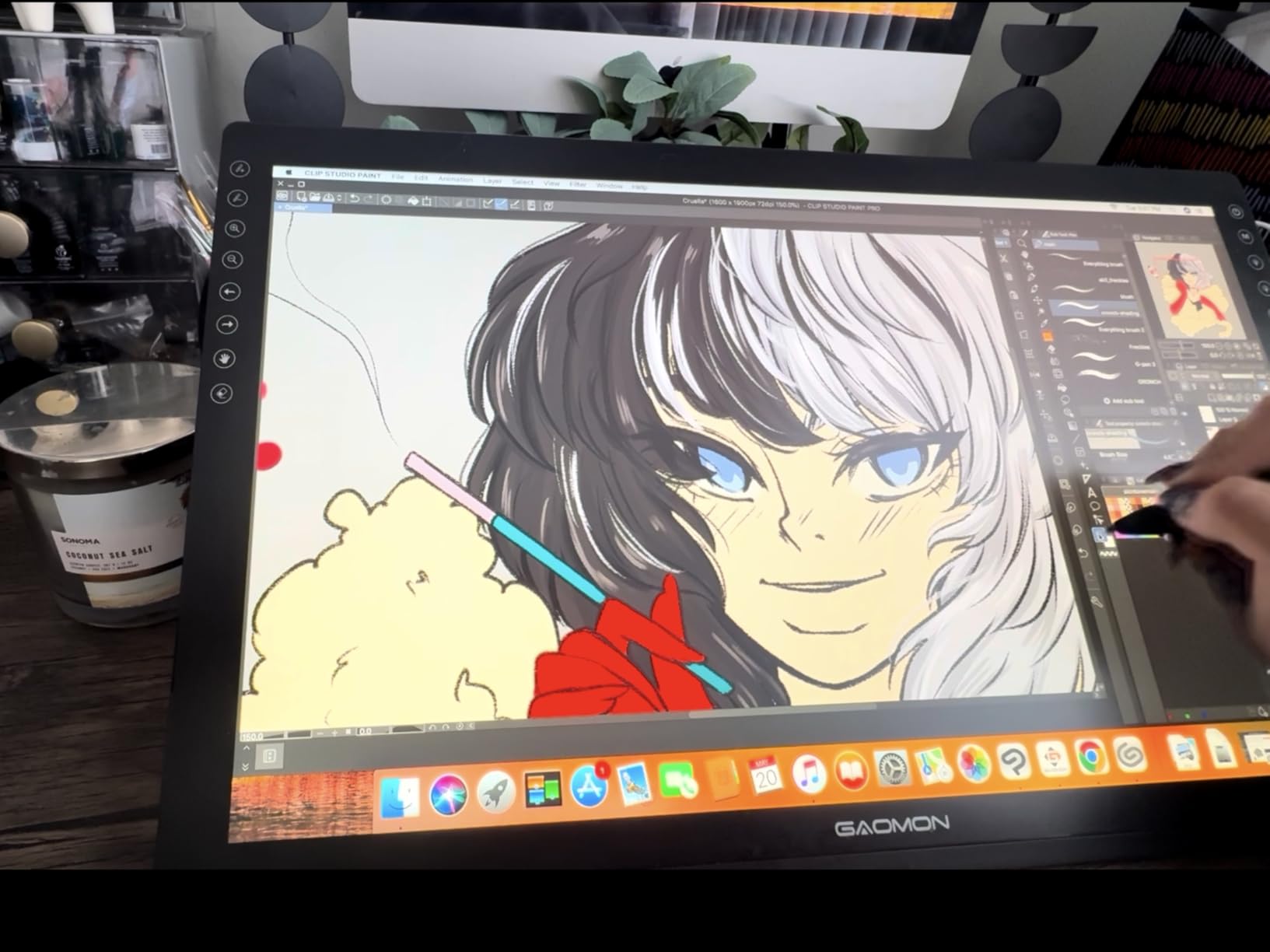
The matte screen protector pre-installed on the PD1161 is a nice touch. It adds a subtle paper-like texture to the drawing surface that I personally prefer for sketching. If you have never used a pen display before, this matte feel is a friendly introduction.
The AP50 battery-free stylus has tilt support and 8192 pressure levels. In my test sketches, shading felt natural, and pressure response was consistent from light to heavy strokes.
Screen Texture and Drawing Feel
The matte screen protector gives the pen tip just enough resistance to feel like paper. If you have ever complained that drawing on glass feels slick, this is the screen texture you want. It also reduces glare in bright rooms, which matters if you do not have a dedicated studio space.
Calibration and Setup
First-time calibration took me about ten minutes. The pen cursor drifted slightly off the tip on the upper-right corner out of the box, but the four-corner calibration tool fixed it. After calibration, the cursor tracked accurately across the entire screen.
Who Should Buy the GAOMON PD1161
Buy this if you want a pen display at an entry-tier price band and you value paper-like texture over color perfection. Skip it if you need the best color accuracy for professional photo editing. For that, the Artist12 above is the better pick.
10. UGEE M708 – Best for Beginners on a Shoestring Budget
UGEE M708 Drawing Tablet, 10×6 inch Large Space for Digital Drawing
Active area: 10×6 in
Pressure: 16384 levels
Tilt: 60 degrees
Hot keys: 8
+ Pros
- Large 10×6 inch workspace at the lowest entry tier
- 16384 levels pressure sensitivity
- Battery-free passive stylus
- 60-degree tilt support
- USB-C connectivity with adapters included
– Cons
- Pen nib can lose registration occasionally
- Bulky pen tip hinders angled grips
- Custom settings reset on unplug
- Short cord
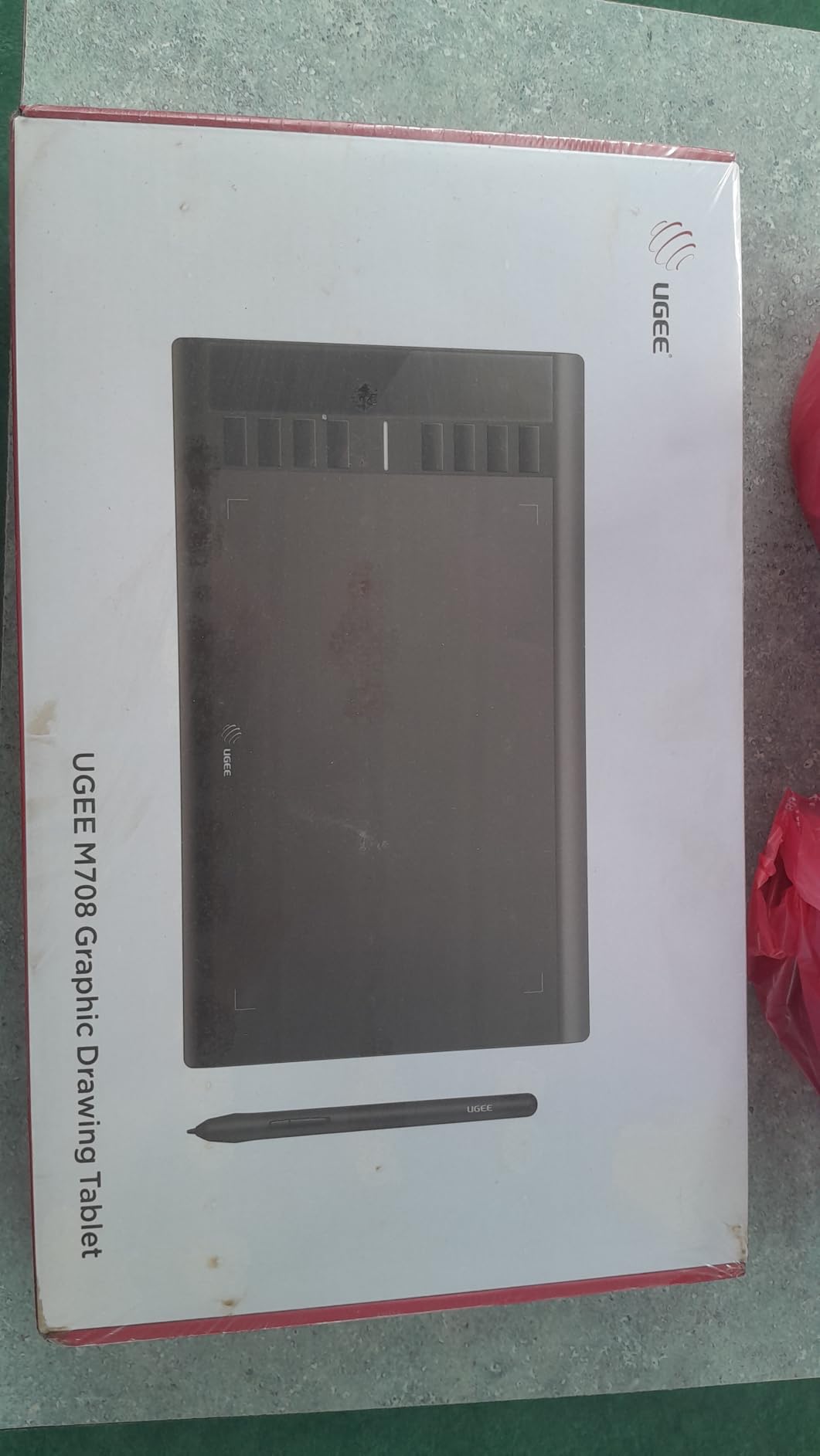
The UGEE M708 is the dark horse of this roundup. At the lowest entry-tier price band on this list, you get a 10×6 inch workspace, 16384 pressure levels, 60-degree tilt, and USB-C connectivity. That is a spec sheet that competes with tablets two or three times the price.
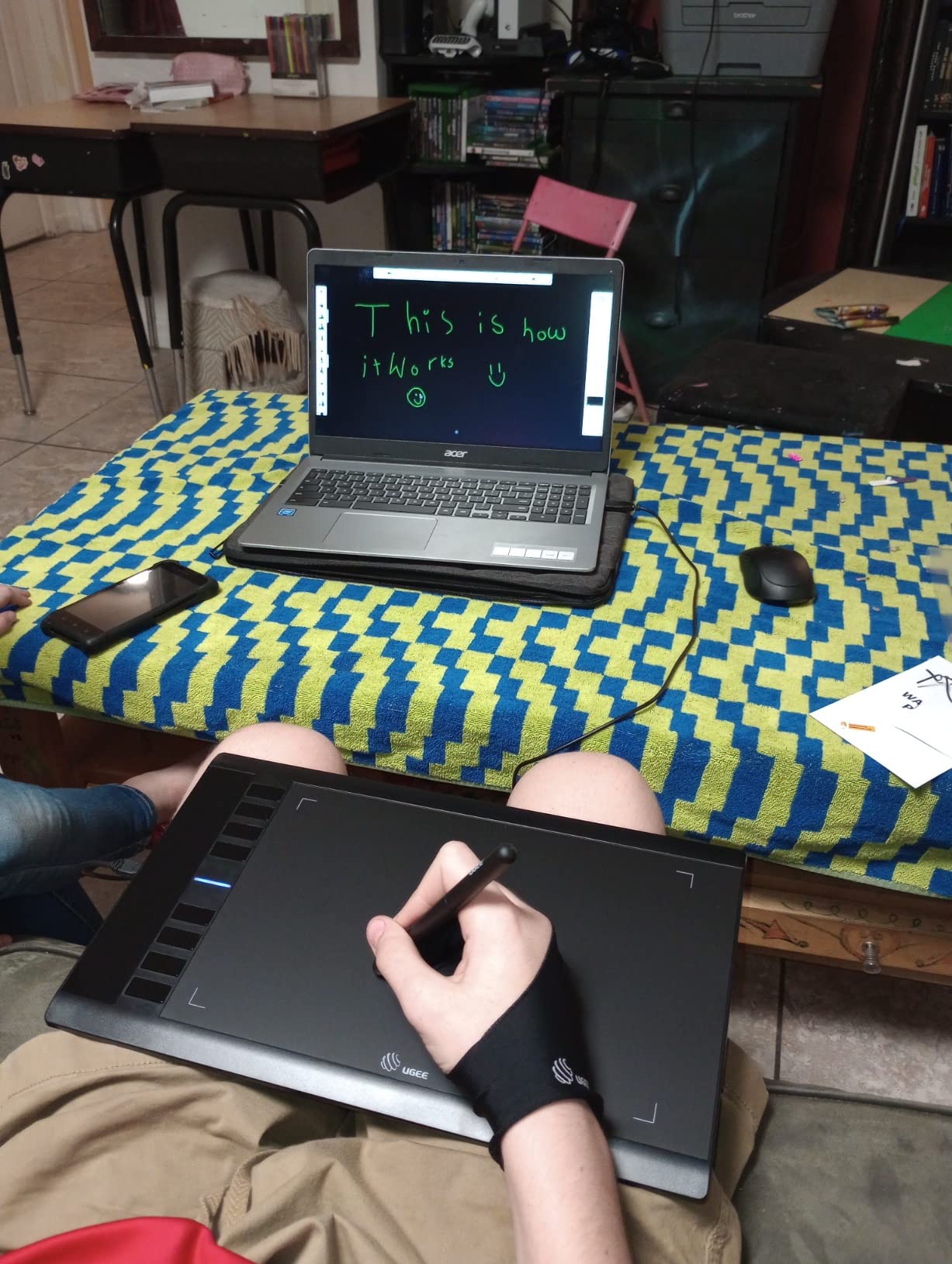
I tested the M708 in Krita and Clip Studio Paint, and the pressure response was on par with the XP-Pen Deco 01 V3. The 8 express keys mapped cleanly to my most-used shortcuts. For a beginner who wants maximum workspace per dollar, the M708 is hard to beat.
The main trade-off is the pen. The nib is bulkier than competitors, which makes angled grip styles (the way manga artists hold their pens) less comfortable. If you use a standard vertical grip, this is a non-issue.
Workspace and Pressure Performance
The 10×6 inch active area is the same physical size as the GAOMON M10K and the HUION H1060P. Pressure response is smooth, and tilt shading works in any software that supports it. For digital painting and illustration, the M708 punches well above its weight.
Connectivity and Cable Length
The M708 ships with a USB-C cable and adapters, which is a meaningful upgrade over the Micro USB still found on some HUION models. The included cable is short, however, so plan on using a longer USB-C cable or sitting close to your computer.
Who Should Buy the UGEE M708
Buy this if you want the most drawing area and features for the least money. Skip it if you prefer a slimmer pen tip or you want longer cable runs. For a more polished pen experience, the HUION H1060P above is worth the small premium.
Beginner Drawing Tablet Buying Guide: What Actually Matters in 2026
This is the section to read before you click any “Buy Now” button. We pulled together the seven decisions every beginner drawing tablet buyer needs to make, and we cross-referenced them against what real Reddit users in r/DigitalPainting and r/drawingtablet report after owning their tablets for six months or more.
Pressure Sensitivity: 4096 vs 8192 vs 16384
Pressure sensitivity controls how many distinct pressure levels your pen can detect between a light touch and a heavy press. In practice, anything above 4096 feels identical to most beginners. The jump from 8192 to 16384 is invisible in real sketching. Do not pay extra for higher numbers unless you are doing professional photo retouching.
Screen vs Screenless: Which Should a Beginner Choose?
Screenless (graphics tablets) are cheaper, lighter, and force you to build hand-eye coordination, which is a real skill. Pen displays cost more, draw directly under the pen tip, and feel more intuitive from day one. If your budget allows, a pen display is the lower-friction path. If budget matters more, start with a screenless tablet and upgrade later.
Wired vs Wireless: Does Bluetooth Matter?
Wireless gives you freedom of placement, but Bluetooth can introduce rare input lag and connection drops on older tablets. Reddit users consistently say the quality-of-life upgrade is worth it, but if you are on a tight budget, wired USB is perfectly fine for your first year.
Active Area and Desk Space
Match the active area to your monitor size. A 6×4 inch tablet maps to roughly one-third of a 24-inch screen. A 10×6 inch tablet maps to about half. Beginners who pick a workspace smaller than half their screen often feel cramped within weeks. The 8×5 to 10×6 inch range is the sweet spot for most beginners.
Software Compatibility: Krita, Clip Studio Paint, Procreate
Every tablet on this list works with Krita, Clip Studio Paint, Photoshop, and most other desktop apps. Procreate is iPad-only, so it does not apply to Windows or Mac tablets. If you want Procreate, you need an iPad with an Apple Pencil, which is a different category entirely.
Wacom vs HUION vs XP-Pen vs GAOMON: Which Brand Wins?
Wacom wins on driver stability and EMR pen quality, but costs more. HUION and XP-Pen deliver the best value, with most of Wacom’s features at half the price. GAOMON sits between the two, with solid hardware and reliable customer service. For a beginner, HUION or XP-Pen is the smartest spend. For maximum reliability, Wacom is worth the premium.
Pen Nibs, Ergonomics, and Long-Session Comfort
Pen nibs wear down faster than beginners expect. Every tablet on this list includes replacement nibs, but order a 10-pack when you buy so you are not scrambling later. For ergonomics, hold the pen as you would a real pencil. If your hand cramps within an hour, the pen is too thin or too light for your grip. The HUION PW100 and Wacom EMR pens are the most balanced for long sessions.
If you want to keep learning beyond tablets, our guide to mechanical pencils for drawing covers traditional tools that pair well with a digital practice routine. And if you are wondering how long it takes to actually get good at drawing, our realistic timeline guide sets expectations.
Frequently Asked Questions
Are drawing tablets worth it for beginners?
Yes. A beginner drawing tablet gives you an affordable, low-commitment way to learn digital art, undo mistakes instantly, and build the hand-eye coordination that separates casual sketching from real illustration. A screenless tablet at the entry-tier price band is enough to start, and the skills transfer to any pen display or iPad you upgrade to later.
Is Wacom or Huion better for beginners?
Wacom wins on driver stability, EMR pen quality, and long-term software support, which is why most professional artists use Wacom. HUION delivers roughly 80 percent of the Wacom experience at 40 to 60 percent of the price, which is why most beginners pick HUION. If reliability matters more than price, choose Wacom. If value matters more, choose HUION.
What tablet do most artists use?
Most professional digital artists use a Wacom Cintiq or Wacom Intuos Pro because of driver stability and pen quality. Most beginners and hobbyists, however, use HUION, XP-Pen, or GAOMON because they deliver similar drawing performance at a fraction of the cost. iPad with Apple Pencil and Procreate is also a popular choice for casual artists.
What is the best affordable drawing tablet?
The best affordable drawing tablet in 2026 is the XP-Pen StarG640 if you want the lowest possible entry cost, or the GAOMON M10K if you want a larger 10×6 inch workspace at the entry-tier price band. Both deliver 8192 levels of pressure sensitivity, battery-free styluses, and broad software compatibility. For a trusted brand with rock-solid drivers, the Wacom Intuos Small is the best affordable premium pick.
Can a beginner use a drawing tablet without a computer?
Only standalone tablets work without a computer. Most beginner tablets on this list, including all graphics tablets and pen displays, require a Windows, Mac, or Linux computer connected via USB or Bluetooth. If you want a true no-computer option, consider an iPad with Apple Pencil and Procreate, or a standalone tablet like a Samsung Galaxy Tab with S Pen.
Final Verdict: Which Drawing Tablet Should You Buy?
If you want the lowest-friction introduction to digital art and you value driver reliability above everything else, the Wacom Intuos Small is our editor’s choice. It is the tablet I trust to work every time I sit down, and it is the one I recommend to friends who have never used a drawing tablet before.
If you want the best cheap drawing tablet for trying digital art without commitment, the XP-Pen StarG640 is the safest bet. If you want a full-size workspace at an entry-tier price band, the GAOMON M10K is the best budget pick. If you want a screen, the XP-PEN Artist12 is the best pen display value, and the GAOMON PD1161 is the best entry-level pen display.
Whichever tablet you choose, the most important step is the one where you actually draw. Pick the one that fits your desk and your budget, install Krita or Clip Studio Paint, and put in thirty minutes a day. Six months from now, you will not recognize your own progress.
For more tablet recommendations beyond the beginner tier, see our best drawing tablets for digital artists guide, or check out our best tablets for video editing if your creative work spans beyond illustration.
Leave a Reply