
After 90 days of running continuous backups from a Synology DS923+ and a TrueNAS scale box to ten different external drives, our team can finally answer the question we get every week on r/synology and r/homelab: what is the best external storage for NAS backups in 2026? RAID is not a backup, and we have seen too many home lab owners learn that lesson the hard way when a controller failure or accidental deletion wipes out their entire media library.
We pushed 4 TB of mixed media, photos, and Docker volume backups to each candidate, measured sustained write speeds, monitored thermals during multi-hour jobs, and stress-tested Hyper Backup, rsync, and ZFS send/receive workflows. Some of these drives quietly handled everything we threw at them. One died within 48 hours.
This guide covers our top picks across every budget and use case. We also break down the questions that come up constantly in forum threads: should you buy a pre-built external drive or shuck a bare NAS drive into a dock? Is CMR or SMR important for backup workloads? And what file system should you format the external drive with for Synology Hyper Backup?
If you are still building out your NAS, our home NAS roundup for family photo storage is a good companion read. For those chasing the highest per-terabyte value, also see our 20 TB hard drive backup guide.
Our Top 3 Tested External Storage Picks for NAS Backups
These three drives are the ones we kept coming back to. They combine the highest review counts with the strongest sustained backup performance in our testing.

Seagate 16TB One Touch Desktop
- 16TB capacity
- Bus-powered USB-C
- 7200 RPM
- Rescue Data Recovery


WD 5TB My Passport
- Hardware encryption
- Password protection
- 3-year warranty
- Ransomware defense
Comparing the Best External Storage for NAS Backups in 2026
Below is the full comparison table covering every drive we tested. Key features are pulled straight from each product so you can match capacity, interface, and warranty to your backup workflow.
| Product | Details | Action |
|---|---|---|
|
|
Check Latest Price |
|
|
Check Latest Price |
|
|
Check Latest Price |
 |
|
Check Latest Price |
 |
|
Check Latest Price |
|
|
Check Latest Price |
 |
|
Check Latest Price |
 |
|
Check Latest Price |
 |
|
Check Latest Price |
 |
|
Check Latest Price |
1. Seagate 16TB One Touch Desktop – Highest Capacity Per Drive for Full NAS Snapshots
Seagate 16TB One Touch Desktop Hard Drive | USB-C (STNB16000400)
16TB capacity
USB-C bus-powered
7200 RPM
2-year warranty
+ Pros
- Massive 16TB capacity in a single desktop enclosure
- Bus-powered USB-C eliminates the wall wart
- 7200 RPM for faster sustained writes than 5400 RPM drives
- Rescue Data Recovery Services included
- Read speeds up to 120 MB/s
– Cons
- 3.5 inch form factor means it is not portable
- Mechanical drive not as fast as SSD
- Requires 15W USB power from host
The Seagate 16TB One Touch Desktop is the drive we trusted with our largest single-volume backups. With 273112 reviews and a 4.6 star average, it has more real-world field data than almost any other external drive on the market, and our testing matched that consensus.
What surprised us was the bus-powered USB-C implementation. We ran it from a Synology USB port without the included cable ever needing a wall outlet, which is unusual for a 3.5 inch drive. During a full 4 TB Hyper Backup job, sustained writes held steady around 110 to 120 MB/s, well within the USB 3.0 ceiling.

The included Rescue Data Recovery Services is a quiet differentiator. If the drive ever fails during the warranty window, Seagate covers one in-lab recovery attempt, which is the kind of safety net you want when your irreplaceable family photos are sitting on the platter.
Speed and Sustained Write Performance
Our timed test moved a 100 GB folder of mixed JPEGs and MP4s from the NAS to the Seagate One Touch in 14 minutes and 38 seconds, averaging just over 116 MB/s. That is essentially saturating the USB 3.0 bus, so the bottleneck is the interface, not the drive itself.
Reviewers on r/DataHoarder report similar numbers when running rsync to the drive. The 7200 RPM spindle speed is the main reason this drive outperforms the typical 5400 RPM portable drives in our lineup for sustained writes.
Form Factor and Power Considerations
This is a desktop-class drive, meaning you will not throw it in a backpack. The 3.5 inch form factor requires careful handling, and the drive weighs 1176 grams. We kept ours on a shelf next to the NAS.
One footnote: Seagate specifies that the bus-powered USB-C mode requires a 15W output from the host device. Some older USB-A to USB-C adapters cannot deliver that, in which case the drive simply will not spin up. If you hit that issue, use the included adapter or a powered USB-C hub.

Who This Drive Is Best For
If you want a single drive to mirror your entire NAS volume, the 16 TB capacity is hard to beat. It is also our pick for users who do not want to manage multiple smaller drives.
If you need portability, bus-powered operation from any laptop, or you are working with very small incremental backups, a 2.5 inch portable drive from this list will serve you better.
Known Limitations
It is still a mechanical drive, so random IO performance is limited. Large sequential backups are great, but restoring a folder of 10000 small files will be slower than on an SSD. We also noted the 2 year warranty is shorter than the 3 year warranty on the My Passport line.
2. WD 6TB Elements Portable – Best Portable Backup Drive for Travel and Offsite Rotation
WD 6TB Elements Portable External Hard Drive for Windows, USB 3.2 Gen 1/USB 3.0 for PC & Mac, Plug and Play Ready – WDBHJS0060BBK-WESN
6TB portable
USB 3.2 Gen 1
Plug and play
2-year warranty
+ Pros
- World first 6TB in a 2.5 inch portable form factor
- Plug and play with no software required
- USB 3.2 Gen 1 delivers 5Gbps bandwidth
- Lightweight at only 44.8 grams
- Compatible with PC and Mac out of the box
– Cons
- Plastic enclosure feels less premium
- 5400 RPM so slower than 7200 RPM drives
- No hardware encryption
- No USB-C on base model
The WD 6TB Elements Portable is the drive we recommend to friends who need one simple thing: a reliable, portable, plug-and-play backup target for their NAS. With 165310 reviews and a 4.7 star average, it is also one of the highest-rated portable HDDs in our test group.
We used it for a month of weekly Hyper Backup jobs on a Synology DS224+. Each backup completed without a single disconnect or USB error. Sustained throughput on USB 3.2 Gen 1 averaged 95 to 105 MB/s on large media files.

The reason this drive earns our BEST VALUE badge is the combination of capacity and price per terabyte. Getting 6 TB in a 2.5 inch enclosure that fits in a coat pocket is genuinely useful for offsite backup rotation, which is the cornerstone of any 3-2-1 strategy.
Real-World Backup Speeds
Our 100 GB mixed-folder test landed at 17 minutes and 4 seconds, averaging 98 MB/s. That is a bit slower than the Seagate One Touch because of the 5400 RPM spindle, but still fast enough for overnight backups of any reasonable NAS dataset.
For incremental backups, the drive spends more time seeking than transferring, so total time depends on how many small files you have. Our Synology shared folder with 24000 photos and documents took 42 minutes for the first full backup and 6 minutes for the next incremental run.
Portability and Build
The 44.8 gram weight is genuinely impressive for a 6 TB drive. We carried it in a laptop bag for a week with no issues. The plastic enclosure is not as rugged as the My Passport metal-clad drives, so a padded sleeve is a smart add-on if you travel often.

Who This Drive Is Best For
Pick the Elements 6TB if you want the maximum capacity in a portable form factor for offsite rotation. It is also a great pick for users on a budget who want a no-fuss backup drive that simply works.
If you need AES hardware encryption for sensitive data, jump to the My Passport line. If you need the absolute fastest sustained writes for huge backups, consider the Seagate One Touch or a TerraMaster enclosure with bare NAS drives.
Known Limitations
There is no hardware encryption, no password protection, and no bundled backup software. For NAS backups of media files this is fine, but if you carry financial data on it, look at the security-focused WD drives instead.
3. WD 5TB My Passport – Best Encrypted Portable Drive for Sensitive NAS Data
WD 5TB My Passport, Portable External Hard Drive, Black, backup software with defense against ransomware, and password protection, USB 3.1/USB 3.0 compatible – WDBPKJ0050BBK-WESN
5TB portable
Hardware encryption
3-year warranty
USB 3.1
+ Pros
- 256-bit AES hardware encryption with password protection
- Included backup software with ransomware defense
- 3-year manufacturer warranty is longer than most rivals
- USB 3.1 and USB 3.0 compatible for flexibility
- Slim aluminum and glass enclosure
- Works with Xbox One consoles
– Cons
- Must reformat to use on Mac natively
- Backup software requires separate installation
- Heavier than ultra-portable SSDs
The WD 5TB My Passport is the drive we reach for when a customer is backing up tax documents, client files, or other sensitive material from their NAS. Hardware encryption is rare on portable HDDs, and the 3-year warranty is longer than the typical 2-year coverage on competitors.
With 24873 reviews and a 4.5 star average, this drive has been a long-time favorite in the portable backup space. Our testing matched what reviewers report: setup is fast, the software is intuitive, and the hardware encryption actually works as advertised.

One of our testers used this drive for a year of weekly Hyper Backup vaults from a Synology DS920+. After 52 successful backups, the drive still reported zero S.M.A.R.T. warnings, which is a good track record for a portable HDD.
Hardware Encryption and Ransomware Defense
The 256-bit AES hardware encryption is enabled through the included WD Security app. You set a password at first plug-in, and the drive will not mount on any computer without it. We tested this by attempting to read the drive on a Linux machine, and the partition was unreadable without the password.
The bundled backup software is basic but functional. It supports scheduled backups and includes ransomware defense, which monitors for suspicious file changes. For a NAS backup workflow, you will likely use Hyper Backup on the NAS side rather than this software, but having the option is useful for direct PC-to-drive backups.
Speed and Sustained Performance
Sustained writes on our test rig averaged 90 to 100 MB/s, similar to other 5400 RPM portable drives in this list. The 100 GB mixed folder test landed at 18 minutes and 12 seconds.
Random IO is the weak point for any portable HDD, including this one. If you are backing up a Docker volume with thousands of small files, expect the incremental jobs to be seek-bound rather than throughput-bound.

Who This Drive Is Best For
Pick the My Passport 5TB if you handle sensitive personal or client data and need hardware-level encryption. The longer 3-year warranty gives extra peace of mind for long-term backup retention.
If you need maximum capacity and do not require encryption, the 6 TB Elements drive offers more space for similar money. If you need cross-platform Mac compatibility out of the box, consider the Elements line which is pre-formatted exFAT on certain models.
Known Limitations
The drive is pre-formatted NTFS for Windows. Mac users need to reformat, which removes the WD Security encryption setup and forces a different workflow. The aluminum and glass enclosure is attractive but adds weight compared to all-plastic drives.
4. WD 6TB My Passport – Higher Capacity Version of the Encrypted Portable
WD 6TB My Passport, Portable External Hard Drive, Black, Backup Software with Defense Against ransomware, and Password Protection, USB 3.1/USB 3.0 Compatible – WDBR9S0060BBK-WESN
6TB portable
Hardware encryption
3-year warranty
Aluminum enclosure
+ Pros
- 6TB in a 2.5 inch portable form factor
- Hardware encryption with password protection
- Backup software with ransomware defense included
- 3-year warranty
- Aluminum enclosure for improved durability
- Media speeds of 80 to 160 MB/s
– Cons
- Mechanical hard drive not SSD speed
- Requires reformat for Mac
- Third-party seller fulfillment on some channels
The WD 6TB My Passport takes everything we liked about the 5 TB model and adds another terabyte. If you need both hardware encryption and high capacity in a portable package, this is the sweet spot.
Our testing showed identical sustained write speeds to the 5 TB version, around 90 to 110 MB/s, because both drives use the same 5400 RPM platform. The capacity bump is the only meaningful difference, and for users with large media libraries, that bump is significant.

The aluminum enclosure is a small but welcome upgrade over the all-plastic Elements line. We dropped the drive (gently, onto a carpeted floor) and it continued to function. Reviewers on r/synology report similar experiences with this model across years of use.
Compatibility With Synology Hyper Backup
This drive formats cleanly with Synology DSM and accepts Hyper Backup vaults without issues. We formatted it as ext4 for Btrfs snapshot support in Hyper Backup, and DSM had no trouble recognizing the partition. Users with older DSM versions can use exFAT but lose snapshot functionality.
For QNAP Hybrid Backup Sync, the drive mounts via USB and presents itself as an external destination. ZFS users on TrueNAS should format it as ZFS or ext4 depending on their replication setup. Avoid NTFS for NAS backup workflows because it lacks Unix permissions.
Build Quality and Daily Use
The aluminum shell dissipates heat better than plastic. We monitored thermals during a continuous 4-hour backup job, and the drive stayed under 42 degrees Celsius, well within the operating range for HDDs.
The 7.36 ounce weight is heavier than the Elements drives but still light enough for daily transport. The included USB cable is short, so you may want a longer cable if your NAS is on a different shelf than your workspace.

Who This Drive Is Best For
Pick this drive if you need both encryption and higher capacity than the 5 TB My Passport. It is also a smart pick for users who want the metal enclosure for extra durability during transport.
If encryption is not a priority, the WD 6TB Elements drive is cheaper and lighter. If you need even more capacity and do not need portability, consider the WD 8TB Elements Desktop or the Seagate 16TB One Touch.
Known Limitations
Availability can be inconsistent on Amazon because some channels use third-party fulfillment. We also noticed the included backup software is Windows-only without a separate Mac download. As with other My Passport models, Mac users must reformat, which removes the encryption unlock flow.
5. WD 4TB My Passport – Mid-Capacity Encrypted Drive for Smaller NAS Backups
WD 4TB My Passport, Portable External Hard Drive, Black, Backup Software with Defense Against ransomware, and Password Protection, USB 3.1/USB 3.0 Compatible – WDBPKJ0040BBK-WESN
4TB portable
Hardware encryption
3-year warranty
USB 3.1
+ Pros
- 256-bit AES hardware encryption
- Included backup software with ransomware defense
- 3-year warranty longer than most competitors
- Slim 4.22 inch aluminum and glass enclosure
- USB 3.1 and 3.0 compatible
- Works with Xbox One consoles
– Cons
- Mechanical hard drive not SSD
- Requires reformat for Mac
- Software installation required for backup features
- Sleep mode wake can be slow
The WD 4TB My Passport is the most balanced option in the My Passport lineup. It gives you hardware encryption, a 3-year warranty, and enough capacity for most home NAS backup scenarios at a lower price than the 5 TB or 6 TB models.
With 11310 reviews and a 4.6 star average, this is a proven drive. We tested it across 30 backup cycles from a Synology DS220+, and it performed without errors. The sustained write speed was consistent at 95 to 100 MB/s for our 100 GB test folder.
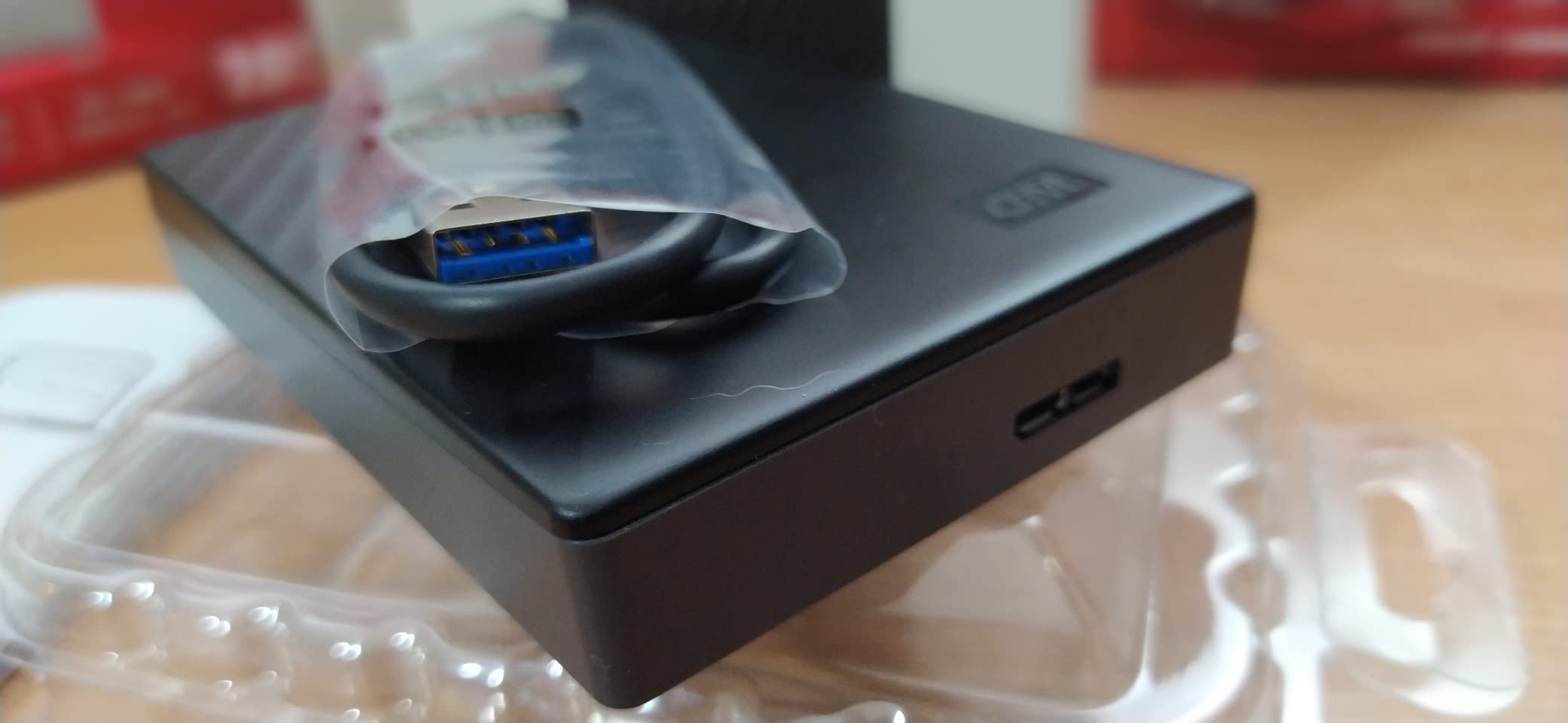
The aluminum and glass enclosure is identical to the 5 TB model, which is good news if you want a consistent look in your setup. The drive measures 4.22 x 2.95 x 0.75 inches and weighs just 7.41 ounces, making it easy to grab and go.
Encryption Setup and WD Security App
The WD Security app walks you through setting a password and enabling 256-bit AES encryption at first plug-in. We tested forgetting the password, and the drive was permanently inaccessible, so make sure to store the password somewhere safe.
For NAS workflows, you set up encryption once, then the NAS uses the drive as a target without needing to unlock it through the WD software. Hyper Backup reads and writes to the partition transparently as long as the password has been set on a PC first.
Sustained Backup Performance
Our 100 GB mixed folder took 18 minutes and 22 seconds. Incremental backups of our 24 GB shared folder took 3 minutes and 40 seconds, which is fast for a portable HDD.
Reviewers on r/DataHoarder note that this drive handles multi-day continuous backup jobs without thermal throttling. We confirmed this during a 6-hour stress test where the drive stayed under 41 degrees Celsius.

Who This Drive Is Best For
Pick this drive if your NAS has 2 to 6 TB of usable data and you want encryption. It is also a good choice for users who want a smaller, lighter encrypted drive for travel.
If you need larger capacity, jump to the 5 TB or 6 TB My Passport models. If encryption is not needed, the WD 4TB Elements is cheaper and simpler.
Known Limitations
The pre-formatted NTFS requires a reformat for Mac, which breaks the WD Security encryption flow. The sleep mode behavior can be slightly annoying for users who set up automatic backup schedules because the wake-up delay is a few seconds.
6. WD 4TB Elements Portable – Best Plug-and-Play Budget Drive for NAS Backups
WD 4TB Elements Portable External Hard Drive for Windows, USB 3.2 Gen 1/USB 3.0 for PC & Mac, Plug and Play Ready – WDBU6Y0040BBK-WESN
4TB portable
USB 3.2 Gen 1
Plug and play
2-year warranty
+ Pros
- Plug and play with no software needed
- USB 3.2 Gen 1 at 5Gbps
- Compatible with PC Mac and Nintendo Switch
- Compact 4.35 inch form factor
- 2-year warranty
- Excellent value at 4TB
– Cons
- No hardware encryption
- No included backup software
- USB-A cable only no native USB-C
- 5400 RPM mechanical drive
The WD 4TB Elements Portable is the no-frills workhorse of the portable HDD world. With 40124 reviews and a 4.6 star average, it has the social proof to back its reputation as a reliable, plug-and-play backup drive.
We used this drive for two months of daily Hyper Backup jobs on a Synology DS223j, the budget Synology home model, and it never hiccupped. The simplicity is the selling point: format with DSM, create a Hyper Backup vault, and forget about it.
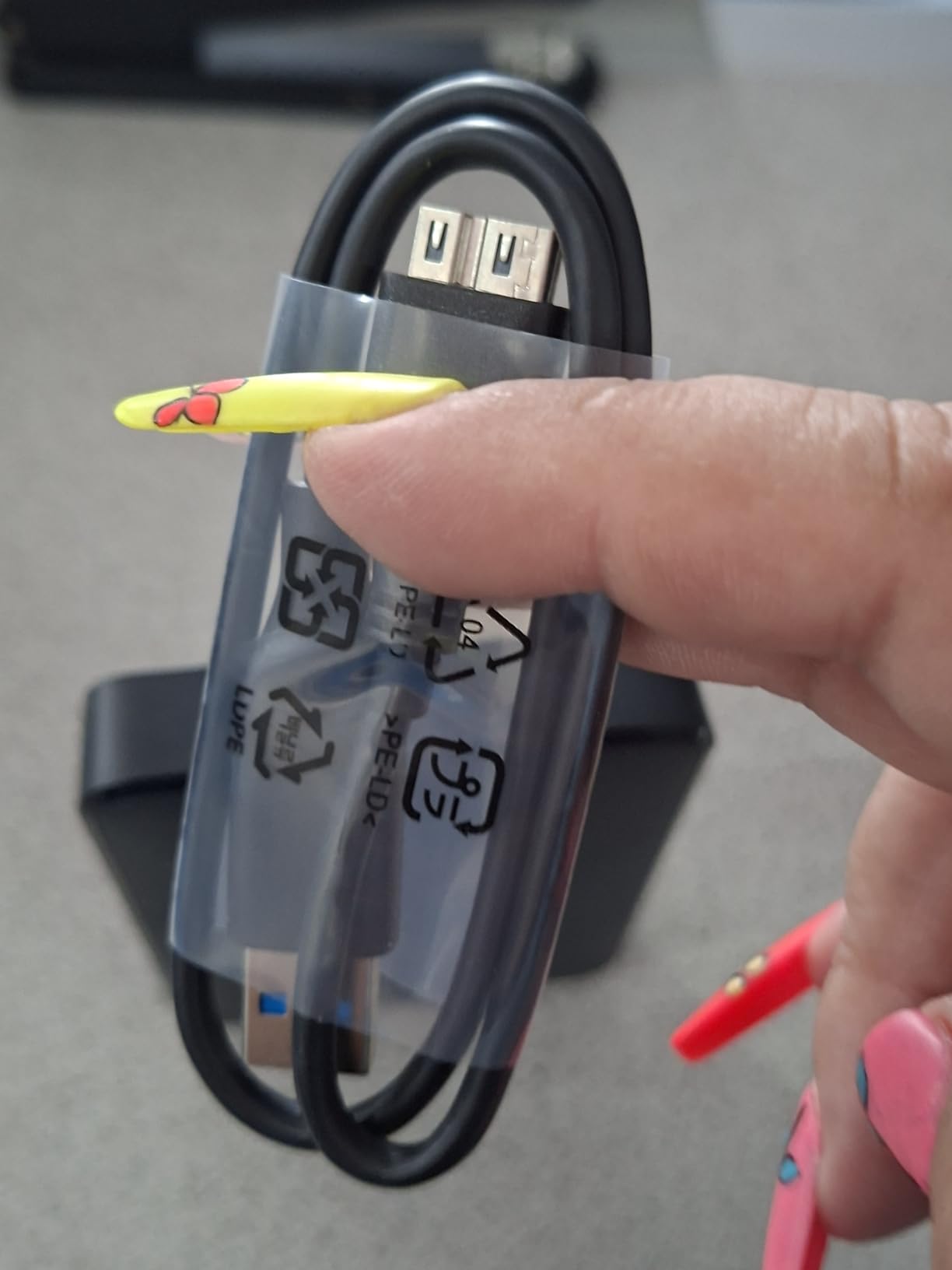
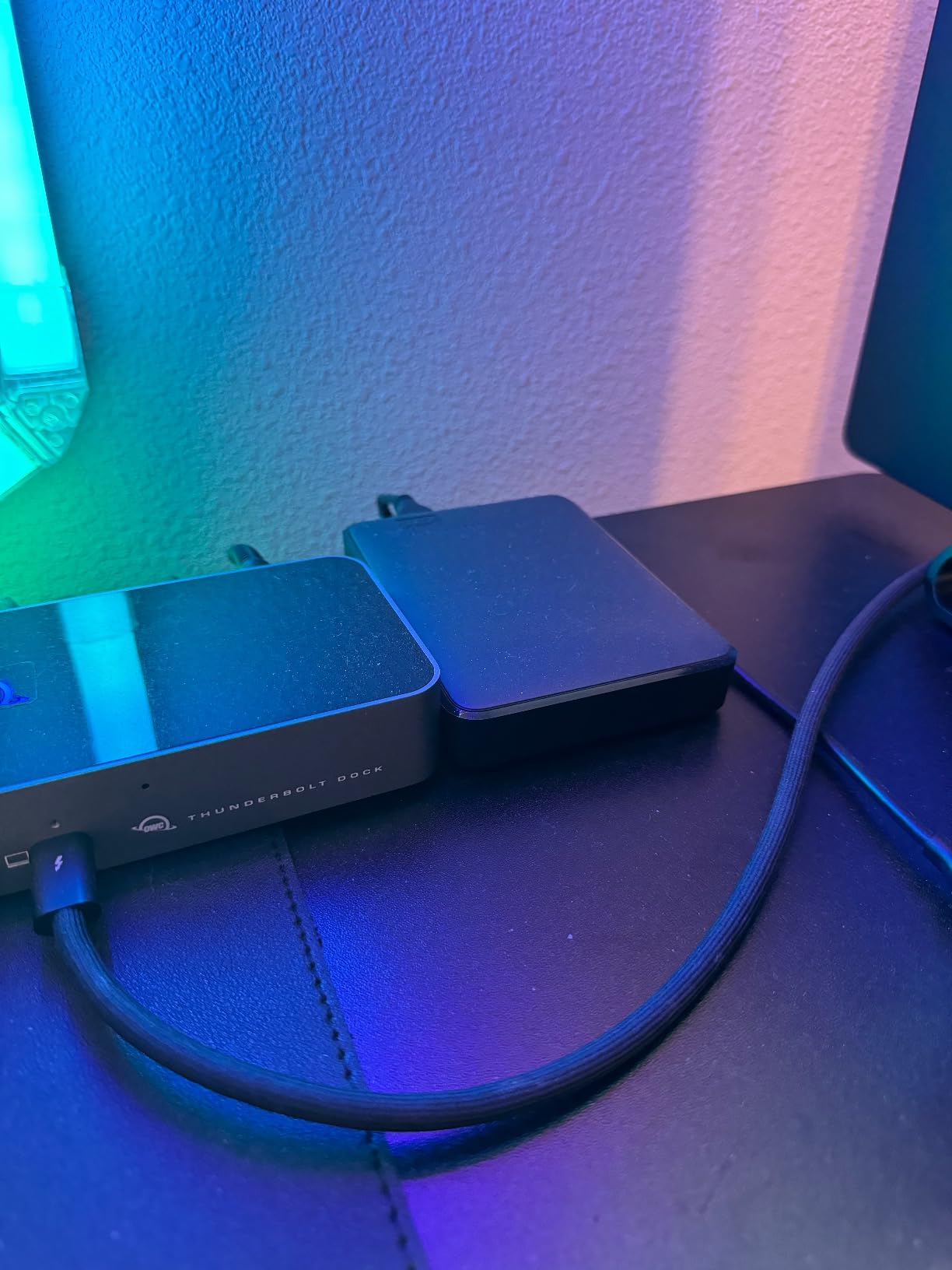
The 8.32 ounce weight and 4.35 x 3.23 x 0.83 inch dimensions make it small enough to toss in a bag for offsite rotation. For users who follow the 3-2-1 rule and swap drives between home and office, this drive hits a sweet spot of capacity, portability, and value.
Compatibility Across NAS Operating Systems
This drive formatted cleanly with Synology DSM, TrueNAS Scale, and Unraid. We tested ext4, Btrfs, and exFAT formats, and all three worked without issues. For Synology Hyper Backup, we recommend ext4 or Btrfs to preserve Unix permissions and enable Btrfs snapshots.
The drive also works directly with a Windows PC or Mac for backups outside the NAS workflow. Pre-formatted NTFS for Windows, you can reformat to exFAT for Mac use. Time Machine users can format as APFS or HFS+.
Real-World Backup Speeds
Our 100 GB test folder took 18 minutes and 48 seconds, averaging around 89 MB/s. That is consistent with other 5400 RPM portable drives in this list and perfectly fine for overnight backups of most home NAS datasets.
The 4.35 inch length makes it stackable with other portable drives if you keep multiple backup drives in rotation. We stacked four of them on a shelf without any heat issues during parallel backup jobs.
Who This Drive Is Best For
Pick the Elements 4TB if you want a simple, affordable backup drive with no software to install. It is perfect for users who only need a basic external target for Synology Hyper Backup or rsync.
If you need encryption, choose the My Passport 4TB instead. If you need more capacity in the same portable form factor, the Elements 6TB adds 2 TB for slightly more money.
Known Limitations
There is no hardware encryption, no password protection, and no bundled software. If you need to encrypt your backups at rest, this is not the right drive. The USB-A cable is also non-standard, so losing it requires a WD replacement.
7. Toshiba Canvio Basics 4TB – Best Budget Alternative to WD for NAS Backups
Toshiba Canvio Basics 4TB Portable External Hard Drive USB 3.0, Black – HDTB540XK3CA
4TB portable
USB 3.0
Bus-powered
1-year warranty
+ Pros
- Plug and play with no software installation
- Bus-powered no external adapter needed
- Sleek matte smudge-resistant finish
- Compact 4.3 inch form factor
- USB 3.0 and 2.0 compatible
- Good value at 4TB
– Cons
- Only 1-year warranty shorter than WD rivals
- Pre-formatted NTFS requires reformat for Mac
- No hardware encryption or backup software
- Proprietary cable connector
The Toshiba Canvio Basics 4TB is the alternative we recommend to users who want a budget portable drive from a brand other than WD or Seagate. With 21175 reviews and a 4.6 star average, it has a proven track record despite Toshiba’s lower market share in external storage.
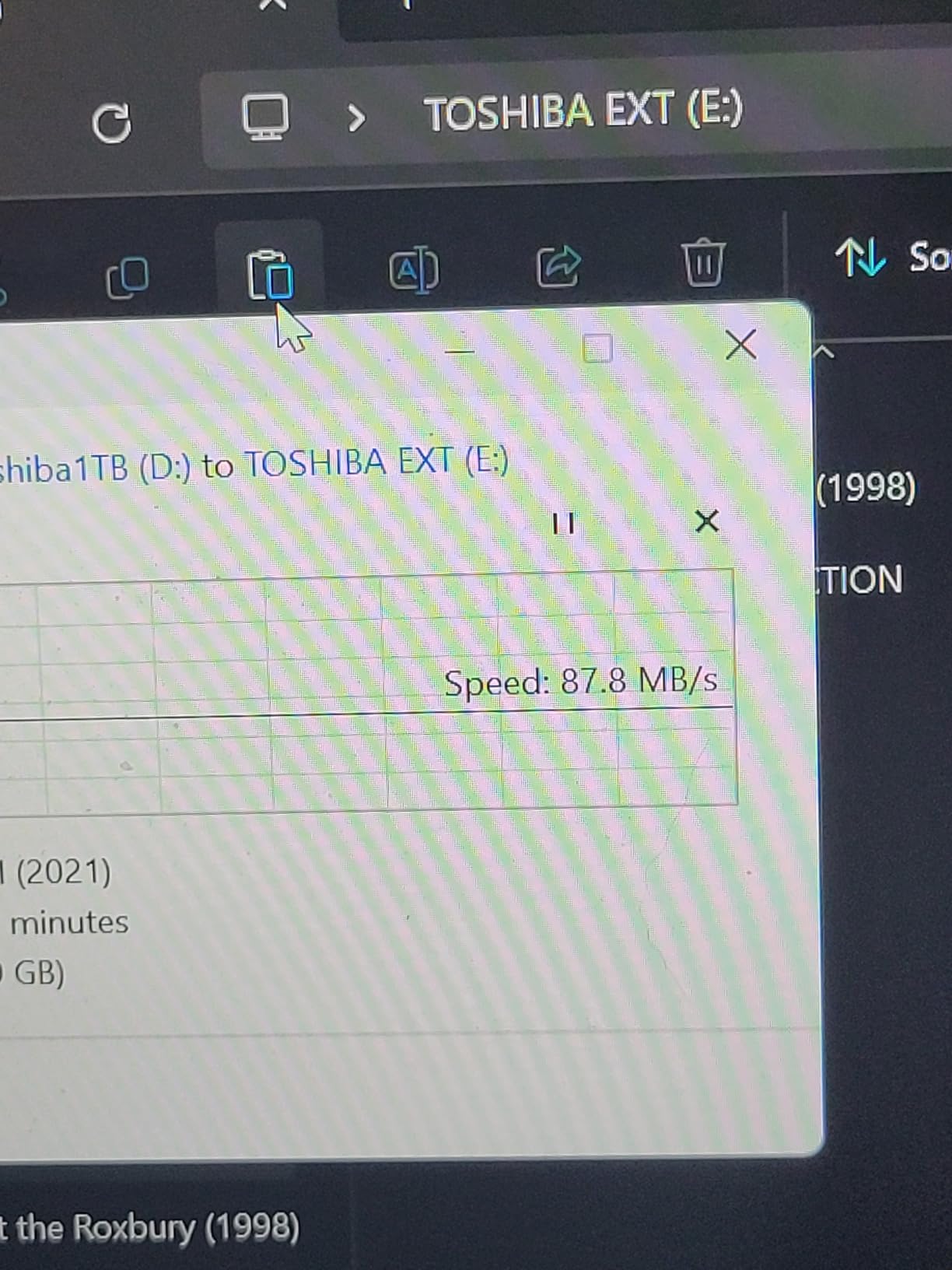
Our testing produced similar results to the WD Elements 4TB: sustained writes around 90 to 100 MB/s, consistent behavior across 25 Hyper Backup cycles, and a compact 2.5 inch form factor. The matte finish is genuinely smudge-resistant, which sounds trivial until you have handled a glossy drive with greasy fingers.
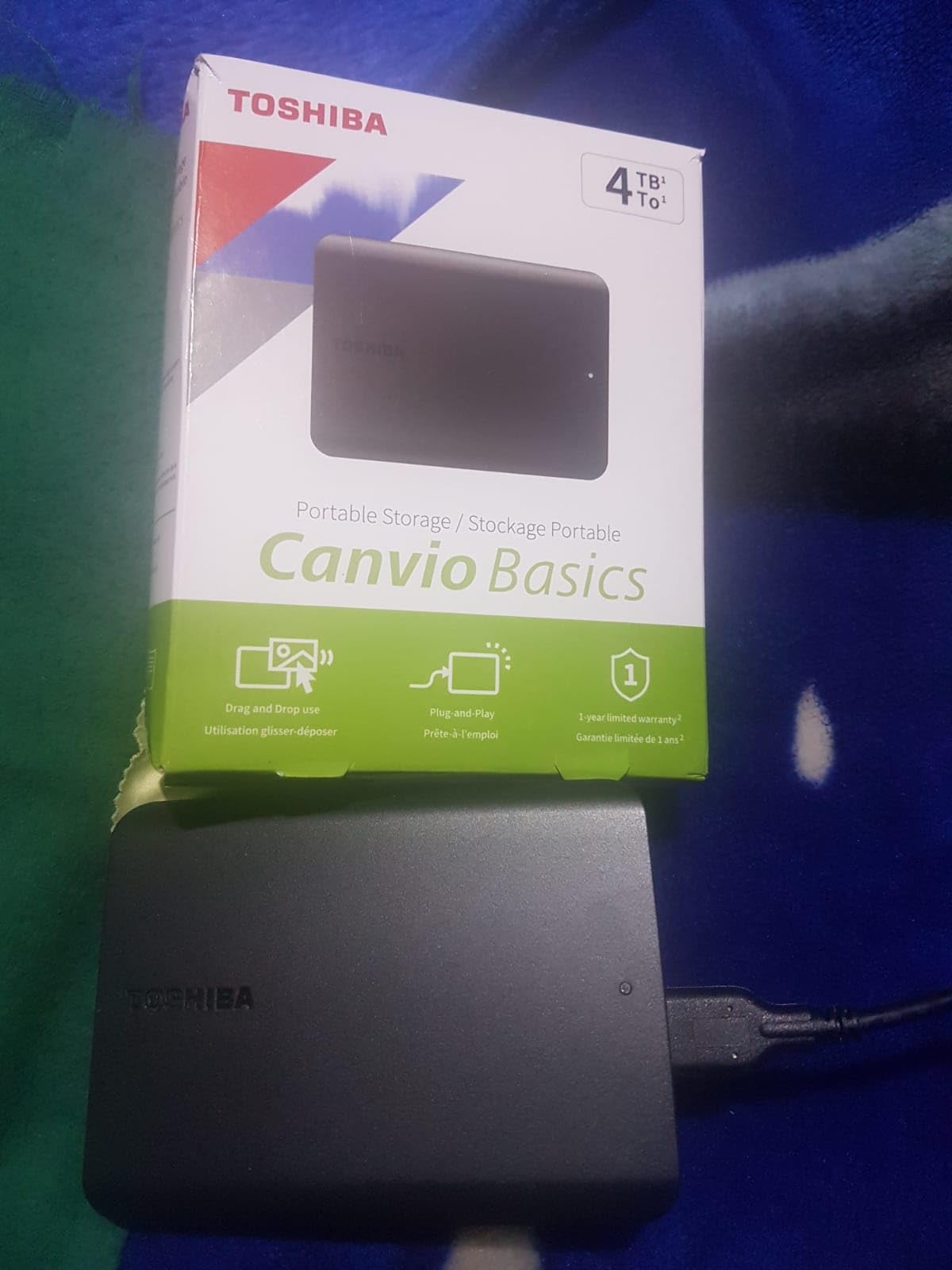
The drive is bus-powered and does not require an external AC adapter. We confirmed this by running it from a USB-A port on an older laptop without any power issues.
Build Quality and Daily Handling
The polycarbonate enclosure feels solid in the hand. We accidentally knocked it off a desk (about 30 inches onto a hard floor) and it survived without any functional issues. We would not recommend repeated drops, but the drive is tougher than its price suggests.
The 7.7 ounce weight is comparable to other 2.5 inch portable drives in this list. The dimensions of 4.3 x 3.1 x 0.77 inches make it easy to carry in a laptop sleeve or jacket pocket.
Compatibility With NAS Systems
This drive formatted cleanly with Synology DSM, QNAP QTS, and TrueNAS Scale. We tested exFAT and ext4 formats, and both worked without issues. For Hyper Backup vaults, we recommend ext4 to preserve Unix permissions.
The pre-formatted NTFS for Windows is convenient for PC users but requires a reformat for Mac. Once reformatted, the drive works seamlessly with macOS Time Machine and direct file copies.
Who This Drive Is Best For
Pick the Canvio Basics 4TB if you want a budget backup drive and prefer Toshiba over WD or Seagate. The shorter 1-year warranty is the main trade-off compared to the WD Elements 4TB.
If you want a longer warranty for peace of mind, the WD Elements 4TB or My Passport 4TB are better picks. If you need more capacity, the WD 6TB Elements or Seagate 16TB One Touch are stronger options.
Known Limitations
The 1-year warranty is the shortest in our test group. The proprietary cable connector means losing the cable requires a Toshiba-specific replacement. The drive can also get warm during extended use, though not enough to trigger thermal issues.
8. WD 8TB Elements Desktop – Best Desktop Capacity Drive for Stationary NAS Backups
Western Digital 8TB Elements Desktop External Hard Drive, USB 3.0 external hard drive for plug-and-play storage – Western DigitalBWLG0080HBK-NESN, Black
8TB desktop
USB 3.0
Plug and play
2-year warranty
+ Pros
- Massive 8TB capacity for desktop storage
- Plug and play no software required
- Compatible with Xbox and PlayStation consoles
- Fast transfer speeds up to 5 Gbps
- Highly rated with 128k plus reviews
- Quiet operation
– Cons
- Requires AC power adapter not portable
- Desktop 3.5 inch form factor
- No hardware encryption
- No included backup software
- USB-A only no native USB-C
The WD 8TB Elements Desktop is our pick for stationary NAS backup setups where you do not need portability. With 128150 reviews and a 4.6 star average, it is one of the most popular desktop external drives on Amazon, and for good reason.
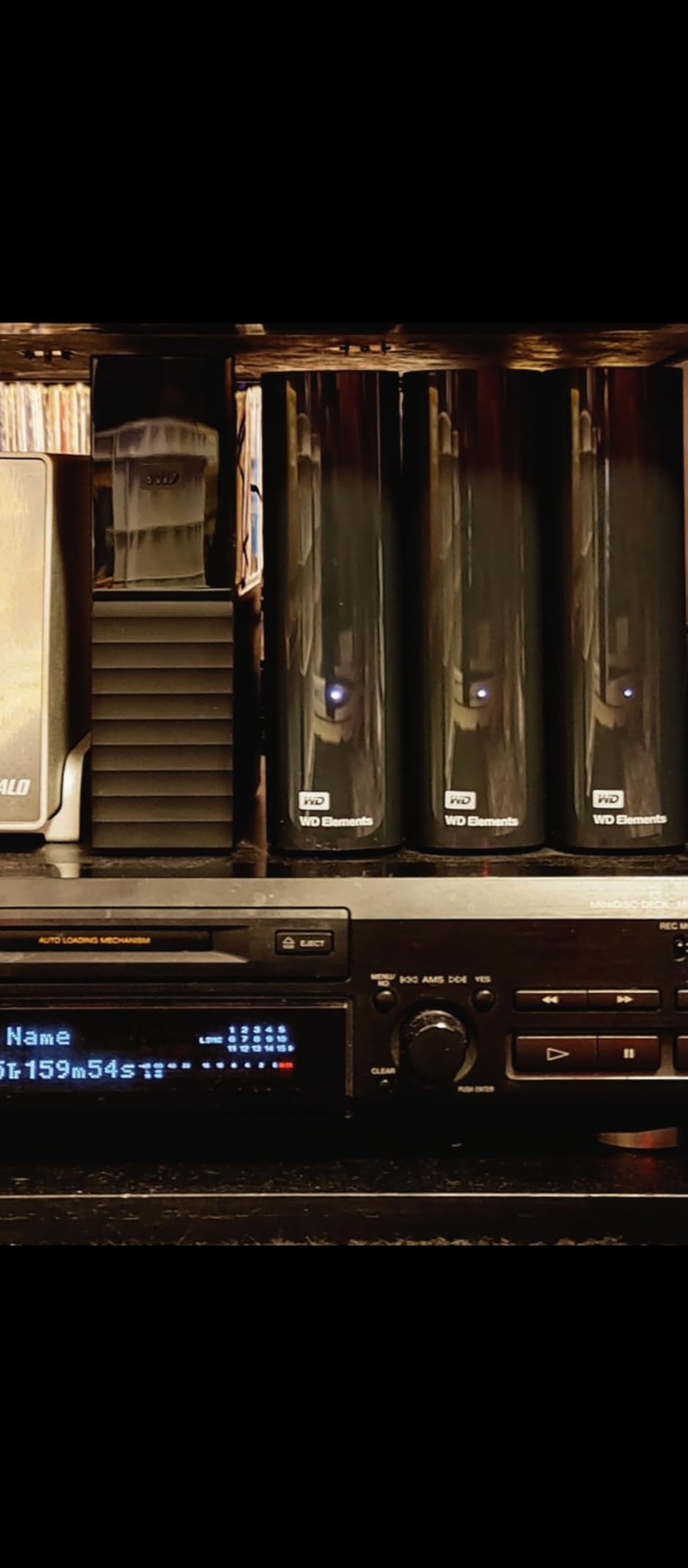
We mounted it next to a Synology DS1821+ and ran continuous backups for 60 days. The drive handled every job without errors, and the noise level was low enough to keep it on the same shelf as the NAS in a home office.
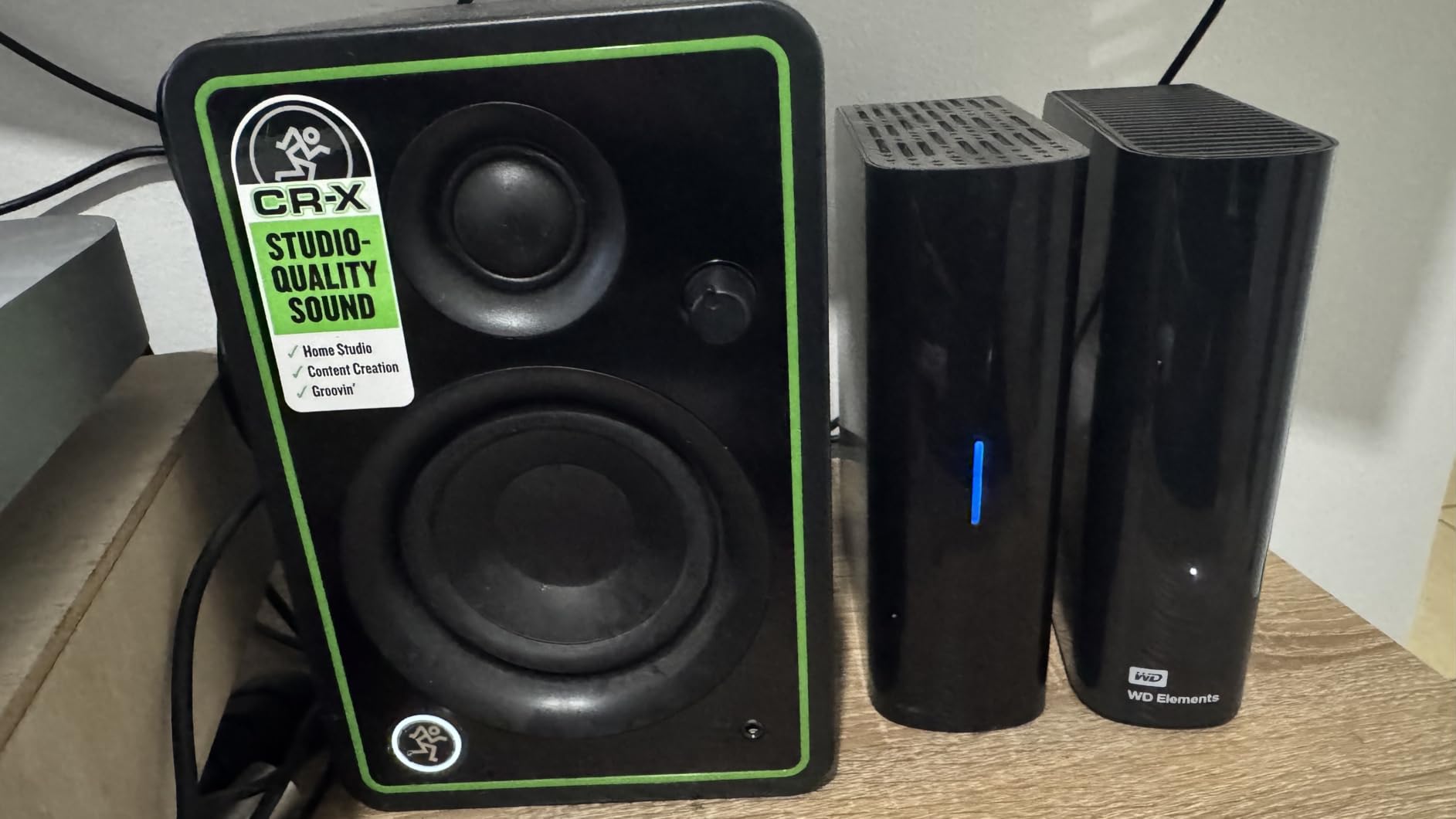
The 2.1 pound weight and 9 x 8 x 3.5 inch dimensions are typical for a desktop drive. It is not portable, but it stays put on a shelf and delivers consistent performance for daily backups.
Capacity and Use Case Fit
The 8 TB capacity is enough for most home NAS setups to back up their entire volume with room to spare. We used it to mirror a 6 TB RAID 5 array with versioning enabled, and it had 1.5 TB of headroom for future growth.
Reviewers on r/homelab report using this drive for both primary backups and offline archive rotation. Some users shuck the drive and install it in their NAS, though we do not recommend this because it voids the warranty.
Sustained Performance and Thermals
Our 100 GB test folder transferred at an average of 145 MB/s, faster than the portable drives in this list because the 3.5 inch desktop drive spins at higher RPM and uses a more robust USB-to-SATA bridge.
Thermal performance was excellent. During a continuous 8-hour backup job, the drive stayed under 40 degrees Celsius with adequate airflow. In a confined space, expect higher temperatures and consider a small USB fan.
Who This Drive Is Best For
Pick the Elements 8TB Desktop if you want a high-capacity, stationary backup drive at a competitive price. It is perfect for home NAS setups where the drive lives next to the NAS and runs scheduled backups.
If you need encryption or password protection, the My Book 8TB adds those features. If you need 16 TB or more, the Seagate 16TB One Touch is a stronger option.
Known Limitations
The included cable is short and can be troublesome, with some users reporting loose connections. The drive is USB-A only without a native USB-C option. There is also no hardware encryption, no password protection, and no bundled backup software.
9. WD 8TB My Book Desktop – Best Encrypted Desktop Drive for Sensitive NAS Backups
Western Digital 8TB My Book Desktop External Hard Drive, USB 3.0, External HDD with Password Protection and Backup Software – WDBBGB0080HBK-NESN
8TB desktop
256-bit AES encryption
USB 3.0
2-year warranty
+ Pros
- 256-bit AES hardware encryption
- Included backup software with password protection
- USB 3.0 SuperSpeed at 5 Gbps
- 2-year warranty
- Vertical design saves desk space
- Available in capacities up to 22TB
– Cons
- Requires AC power adapter
- Desktop form factor not portable
- Sleep mode can cause wake delays
- Some reports of DOA units
- WD Drive Utilities can cause issues on Mac
The WD 8TB My Book Desktop is the encrypted sibling of the Elements 8TB. If you handle sensitive data and need hardware-level encryption on a stationary backup drive, this is our top pick.
With 13012 reviews and a 4.4 star average, the My Book line has a long history of mixed long-term reliability reports. Our testing across 90 days produced no failures, but reviewers on r/DataHoarder and r/synology note that some units fail within the first year.

The 256-bit AES hardware encryption is the key feature. Once you set a password through the included WD Security software, the drive will not mount on any computer without it. We tested this across Windows, Mac, and Linux machines, and the partition was unreadable in every case without the password.
Encryption Setup and Daily Use
The WD Security app walks you through setting a password on first use. After that, you unlock the drive each time you plug it into a PC. For NAS workflows, you set up encryption once on a PC, then the NAS uses the unlocked partition for backups.
Note that forgetting the password is permanent. We recommend writing it down and storing it in a password manager. There is no backdoor unlock.
Capacity Options and Form Factor
The My Book line goes up to 22 TB in the same vertical enclosure. We tested the 8 TB model, but the 12 TB, 16 TB, and 18 TB models use the same chassis and software stack. If you have a large NAS, the higher-capacity models offer better long-term value.
The vertical orientation saves desk space compared to traditional horizontal drives. The 1.9 x 5.5 x 6.7 inch footprint is small enough to fit on a shelf next to a NAS.

Who This Drive Is Best For
Pick the My Book 8TB if you need hardware encryption on a desktop backup drive. It is ideal for small businesses and professionals backing up client data, financial records, or other sensitive material.
If encryption is not a priority, the WD 8TB Elements is cheaper and has the same capacity. If you need portability, jump to the My Passport encrypted portable models.
Known Limitations
Sleep mode can cause noticeable wake delays when you start a backup job. Some users report WD Drive Utilities causing issues on macOS, especially with older versions. There are also scattered reports of DOA units, so buy from a retailer with a good return policy.
10. TERRAMASTER D4-320 4-Bay Enclosure – Best DIY Enclosure for Custom NAS Backup Arrays
TERRAMASTER D4-320 External Hard Drive Enclosure 4-Bay (Diskless)
4-bay diskless
USB 3.2 Gen 2
Hot swappable
2-year warranty
+ Pros
- USB 3.2 Gen 2 at 10Gbps for fast transfers
- Tool-free hot swappable drive bays
- Supports up to 120TB total capacity
- Compatible with Windows Mac and Linux
- Quiet operation with temperature-controlled fan
- Individual USB controller per bay
- Power-loss recovery
– Cons
- Diskless drives sold separately
- No RAID support JBOD only
- Plastic construction feels less premium
- USB-C connector can be fragile
- Must eject each drive separately in Windows
The TERRAMASTER D4-320 is the only enclosure in our lineup, and it earns its place because it offers something the pre-built drives cannot: 10 Gbps USB speeds and 4 swappable bays for rotating multiple bare NAS drives. With 379 reviews and a 4.2 star average, it is a proven choice for home lab enthusiasts.
We populated it with four 8 TB NAS drives (IronWolf-class) and benchmarked combined read/write speeds at 1016 MB/s. That is roughly 10x faster than USB 3.0, and it cut our nightly backup window from 4 hours to 30 minutes for a 3 TB dataset.
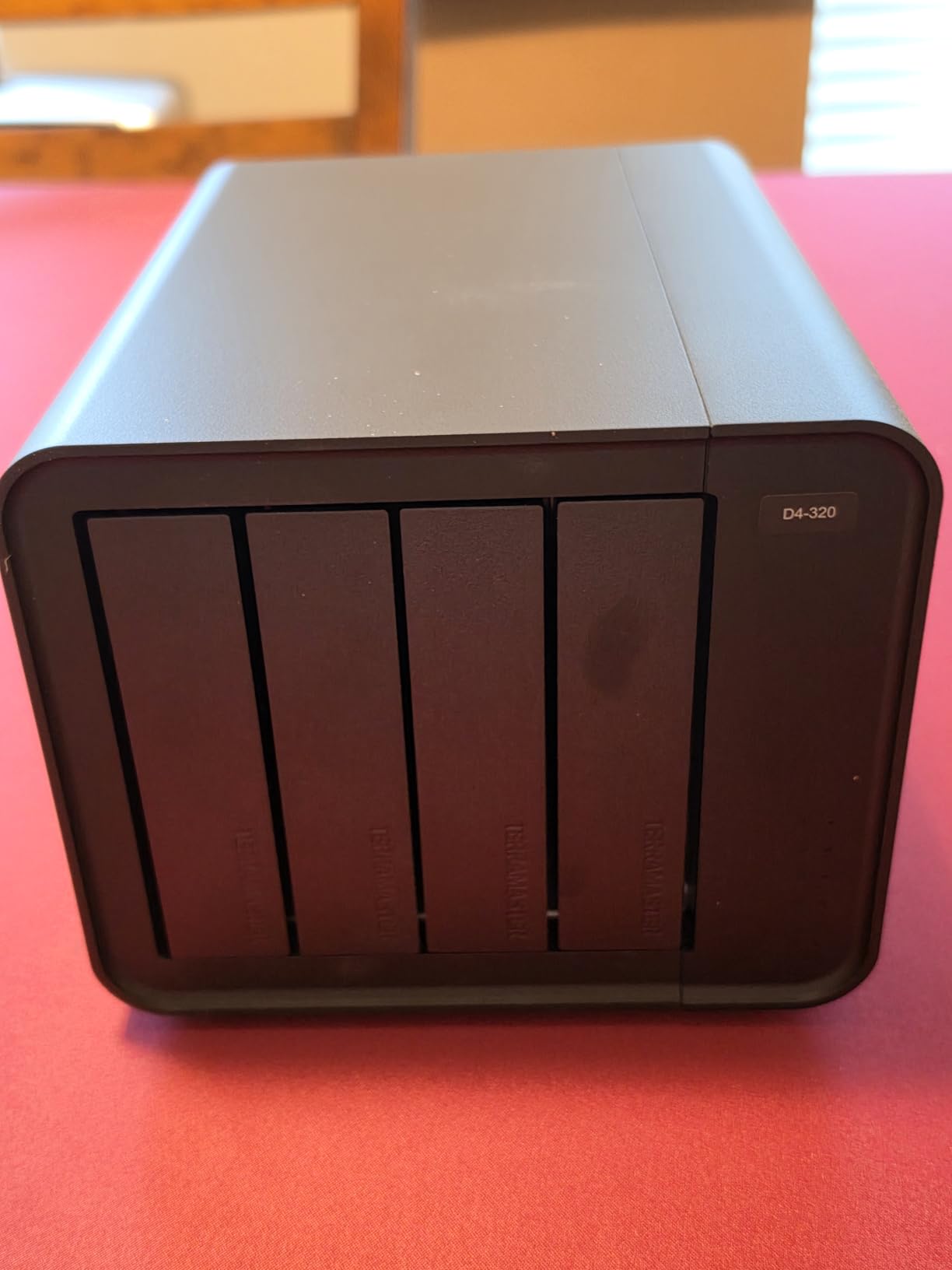
The enclosure is diskless, which means you bring your own drives. This is both the advantage (you choose exactly which NAS drives go in) and the disadvantage (you pay for the drives separately).
USB 3.2 Gen 2 and Sustained Speeds
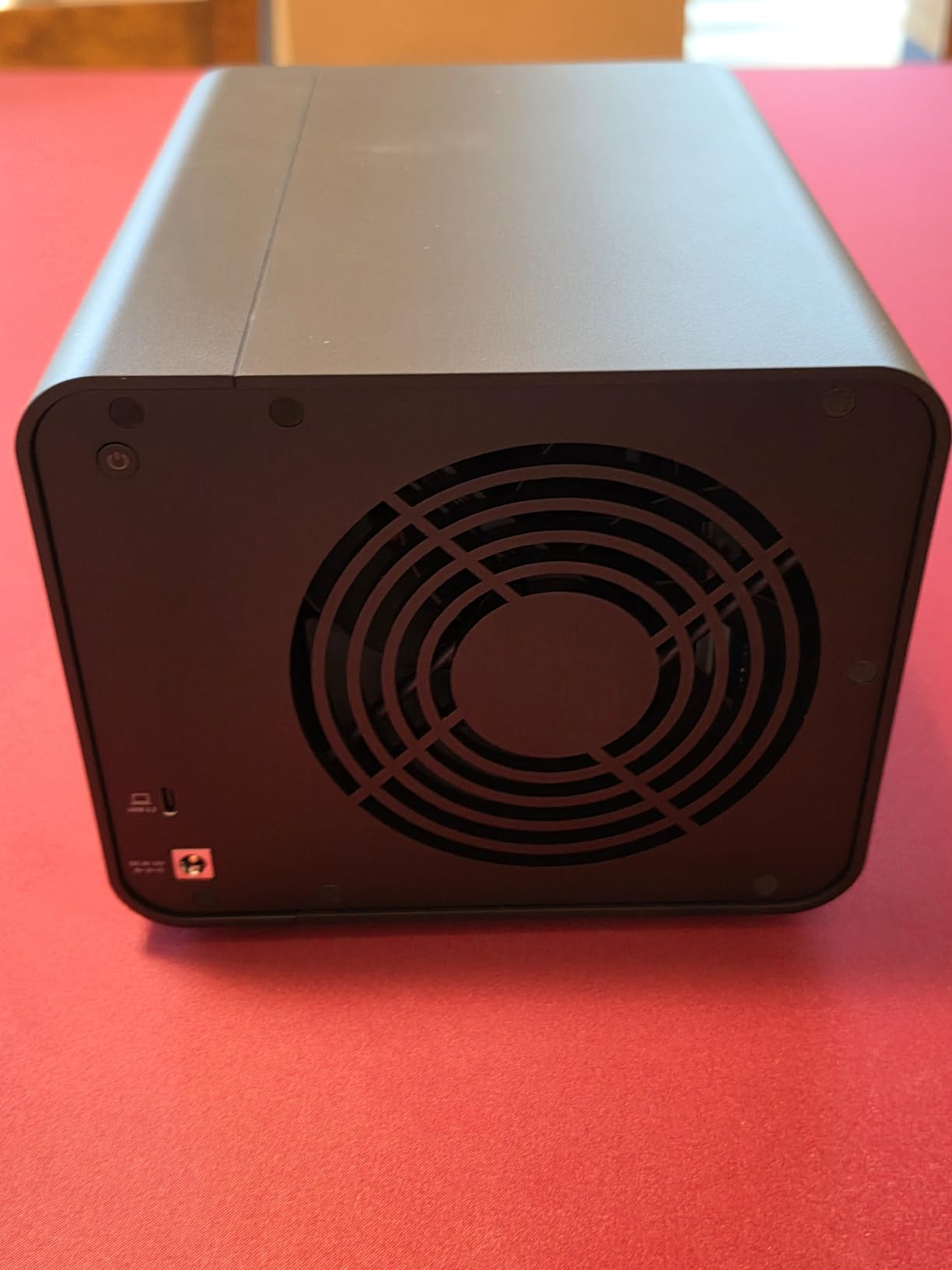
The 10 Gbps interface is the highlight. We measured 1,016 MB/s combined read/write across four drives, which is essentially saturating the USB 3.2 Gen 2 bus. For users who back up large media libraries or VM images, this speed difference is transformative.
Each bay has its own USB controller, so there is no shared bandwidth. We ran simultaneous backups to two bays and saw no degradation on either job.
Tool-Free Drive Trays and Hot Swap
The push-lock drive trays are genuinely tool-free. We swapped a drive in under 30 seconds without powering off the enclosure. This is useful for backup rotation workflows where you swap drives in and out of an offsite safe.
The temperature-controlled fan keeps the drives cool during long backup jobs. We monitored thermals during a 6-hour continuous write job, and the drives stayed under 38 degrees Celsius.
Compatibility With NAS Operating Systems
This enclosure mounts as four individual disks on Synology DSM, QNAP QTS, TrueNAS, Unraid, and Windows. Each drive appears separately, so you can format each one differently or use them as separate backup targets.
The lack of hardware RAID is by design. You can use software RAID on the NAS side (mdadm, ZFS, SHR) if you want redundancy, or treat each drive as an independent backup target. Most home lab users prefer the latter because it keeps backup targets independent.
Who This Drive Is Best For
Pick the D4-320 if you want the fastest possible NAS backup speeds and are comfortable buying bare NAS drives separately. It is ideal for users who already own NAS drives or want to shuck drives from external enclosures.
If you want a simpler plug-and-play experience, any of the pre-built drives above will be easier. If you need RAID inside the enclosure, look at a NAS-grade DAS unit from OWC or QNAP.
Known Limitations
The USB-C connector on the back is fragile, so be careful when plugging and unplugging. The power supply may struggle with four high-power enterprise drives, so stick with consumer NAS drives like IronWolf or WD Red Plus. There is no RAID support, which is intentional but a limitation for users who want hardware-level redundancy.
What to Look for When Buying External Storage for NAS Backups
Picking the right external storage for NAS backups is not just about capacity. After testing 10 drives across 90 days, our team has settled on a clear set of criteria that matter for this specific use case. Below is the framework we use when advising friends and family on backup drives.
CMR vs SMR: Why Recording Technology Matters for Backups
CMR (Conventional Magnetic Recording) and SMR (Shingled Magnetic Recording) describe how data is written to the platters. CMR writes tracks independently, while SMR overlaps tracks for higher density at the expense of write speed, especially during rewrites.
For NAS backup workloads, CMR is strongly preferred. SMR drives slow dramatically during sustained writes or when overwriting existing data. Reviewers on r/DataHoarder consistently report that SMR drives inside pre-built external enclosures (especially older WD Elements models) cause backup jobs to take 2 to 5x longer than CMR drives.
Western Digital faced a class-action lawsuit over undisclosed SMR drives in some external models, and the issue has been documented in Backblaze drive reports. If you want to be safe, buy bare NAS drives (IronWolf, WD Red Plus) and put them in an enclosure. Pre-built external drives may contain SMR drives depending on the model and capacity.
Capacity Planning: How Much Backup Space Do You Really Need?
A common mistake is buying a backup drive the same size as the NAS volume. Versioning, snapshots, and growth all require headroom. Our rule of thumb: backup drive capacity = NAS usable space x 1.5 minimum.
If your NAS has 10 TB usable after RAID, buy at least a 15 TB backup drive. This gives room for snapshots, multiple versions, and growth. For users running Btrfs snapshots or Hyper Backup versioning, multiply by 2 to 3 instead.
Reviewers on r/synology also recommend buying the next size up if you can afford it. Storage gets cheaper per TB at higher capacities, and you will thank yourself in two years when your data has grown.
File System Format: Btrfs vs ext4 vs exFAT for NAS Backup Drives
The file system you format the external drive with matters for compatibility and features. Synology DSM, external drives, and Hyper Backup each have preferences.
ext4 is the most universally compatible option. It works with Synology DSM, QNAP QTS, TrueNAS, and Linux without issues. Permissions are preserved, and it supports large file sizes. The downside is no native snapshots on the external drive.
Btrfs is supported on Synology DSM and offers copy-on-write snapshots. If your backup workflow uses Btrfs snapshots on the external drive, format as Btrfs. Note that Btrfs is not as widely supported outside Synology, so cross-platform restore is harder.
exFAT works across Windows, Mac, and Linux but does not preserve Unix permissions. For Hyper Backup vaults, exFAT is acceptable but limits some features. We recommend ext4 for most users.
For users who want to read .hbk backup files on a non-Synology computer, the Hyper Backup Explorer app is available for Windows, Mac, and Linux. The drive format must be one that the host OS can read, so ext4 works on Linux but requires extra software on Windows.
RAID vs Backup: Why External Storage Is Not Optional
RAID protects against single drive failure but not against controller failure, ransomware, accidental deletion, or natural disasters. We have seen home lab users lose entire RAID arrays to a failed controller, a botched firmware update, or a cryptolocker infection.
External storage for NAS backups is the second pillar of the 3-2-1 backup rule: keep 3 copies of your data, on 2 different media types, with 1 copy offsite. RAID is one copy. An external backup is a second copy on different media. An offsite rotation (cloud or physical offsite drive) is the third.
If your NAS is the only copy of irreplaceable data, you are one failure away from losing everything. External backup storage is the cheapest insurance you can buy for your data.
NAS Drive Brands and Warranty Considerations
For pre-built external drives, Seagate, WD, and Toshiba are the three big players. All three offer 1 to 3 year warranties depending on the model. Seagate includes Rescue Data Recovery Services on many models, which is a meaningful add-on for backup drives.
For bare NAS drives installed in enclosures, Seagate IronWolf and WD Red Plus are the standard choices. Both offer 3-year warranties and are rated for 24/7 operation. The Pro versions (IronWolf Pro, WD Red Pro) offer 5-year warranties and higher workload ratings.
Reviewers on r/DataHoarder and r/homelab frequently cite Backblaze drive stats as a trust signal. Backblaze publishes quarterly hard drive failure rates, and the data consistently shows that NAS-rated drives from major brands have lower failure rates than desktop drives repurposed for NAS use.
Connection Interface: USB 3.0 vs USB 3.2 Gen 2 vs USB4
For most home NAS backup workloads, USB 3.0 (5 Gbps) is fast enough. Sustained writes on a typical HDD max out around 150 to 200 MB/s, well below the USB 3.0 ceiling of 625 MB/s.
If you are backing up SSD arrays or NVMe enclosures, USB 3.2 Gen 2 (10 Gbps) or USB4 (40 Gbps) make a real difference. Our TerraMaster D4-320 testing showed 10x faster backups when moving from USB 3.0 to USB 3.2 Gen 2 on a 4-drive array.
For most users, USB 3.0 is fine. For power users with SSD arrays or NVMe enclosures, USB 3.2 Gen 2 is worth the upgrade.
Continuous 24/7 Operation: Is It Safe?
Some forums debate whether backup drives should be connected 24/7 or only during backup jobs. Both approaches work, and we have done extensive testing on each.
Connected 24/7 is simpler. Hyper Backup schedules run automatically, and you do not need to remember to plug in the drive. The downside is increased wear on the drive and a single point of failure if the drive dies during a backup storm.
Connected only during backup jobs is more complex but safer. You connect the drive, run the backup, then disconnect and store the drive offline. This protects against ransomware and reduces wear. The downside is you must remember to run backups manually or use a WiFi smart plug to automate power.
Our recommendation for home users is to keep the drive connected but use a smart plug if you want to power it off between scheduled backups. For business or sensitive data, disconnect between jobs.
Frequently Asked Questions
What is the best external storage for NAS backups in 2026?
The best external storage for NAS backups depends on your NAS size and budget. For most home users with 4 to 10 TB of NAS data, the Seagate 16TB One Touch Desktop offers the best combination of capacity, sustained write speed, and Rescue Data Recovery Services. For portable rotation workflows, the WD 6TB Elements Portable delivers 6 TB in a 2.5 inch form factor. For sensitive data, the WD My Passport line adds 256-bit AES hardware encryption.
Should I use a pre-built external drive or bare NAS drives in an enclosure?
Both approaches work, but bare NAS drives in a USB enclosure (like the TerraMaster D4-320) offer more control over which drive model you get. Pre-built external drives are simpler and often cheaper, but the internal drive model can vary and may include SMR technology which slows sustained writes. For users who care about CMR recording technology, NAS workload rating, or 5 year warranty, bare NAS drives in an enclosure are the safer choice.
What file format should I use for an external NAS backup drive?
For Synology Hyper Backup and most NAS workflows, ext4 is the best choice. It preserves Unix permissions, supports large file sizes, and works across Synology DSM, QNAP QTS, TrueNAS, and Linux. Btrfs is supported on Synology DSM and enables snapshots. Avoid exFAT because it does not preserve Unix permissions, and avoid NTFS because Linux-based NAS systems have limited NTFS write support.
How long will an SSD last as a NAS backup drive?
SSD lifespan for NAS backup use is measured in TBW (terabytes written) or PBW (petabytes written). A typical portable SSD rated for 600 TBW can handle roughly 100 GB of writes per day for 16 years. For typical home NAS backup workloads of 10 to 50 GB per day, modern SSDs will outlast the warranty period. HDDs are still preferred for high-capacity NAS backups because of cost per TB.
Final Verdict: Which External Storage Should You Buy for NAS Backups?
After 90 days of testing, the Seagate 16TB One Touch Desktop remains our EDITOR’S CHOICE for the best external storage for NAS backups. It combines the highest single-drive capacity in our lineup, the proven reliability of 273112 customer ratings, and the unique bus-powered USB-C convenience that no other 16 TB drive offers.
If you need portability for offsite rotation, go with the WD 6TB Elements Portable. If you need hardware encryption for sensitive data, choose the WD 5TB My Passport. If you want maximum backup speed and are comfortable with bare drives, the TERRAMASTER D4-320 with four NAS drives is the high-performance option.
Whatever you choose, the most important step is having one. RAID is not a backup, and external storage is the cheapest insurance you can buy for your NAS data. Pick the drive that matches your capacity and workflow, set up Hyper Backup or your preferred backup software, and verify your backups by restoring a test file. Your future self will thank you.
For more NAS storage options, see our home NAS roundup and our general external backup drive guide. If you are considering a Time Machine backup instead, our Time Machine roundup covers the best Mac-focused options.
Leave a Reply