

If you spend your working day in AutoCAD, the best mice for AutoCAD are the ones that give you a real middle button, a sensor you can dial down for linework, and a shape your hand survives for eight hours. Most general-purpose office mice fail on all three counts, and the mismatch shows up as aching in the middle finger, cursor drift on long diagonal lines, and slow view navigation through large drawing sets.
We assembled this list of the best mice for AutoCAD by reading the hands-on owner reviews on each device, then cross-checking every specification against what drafting software actually asks of a pointing device: a dedicated center button for pan, a scroll function for zoom, programmable extras for OSNAP and ZOOM, and a control surface that does not need a flat, empty desk. Every product here was written up from published specification data and owner feedback, and we updated the whole list for 2026.
Two things surprised us. First, eight of the ten picks are 6DoF or trackball devices rather than conventional mice, which is why we lean on our separate coverage of the best trackball mice for designers when we talk about hand strain. Second, the dedicated 6DoF devices are not replacements for a mouse at all: they are a second hand that rotates the view, and that distinction changes how you should budget for them.
Read on for the short version, then work through the individual reviews. If you are choosing hardware for a whole drafting room rather than one desk, you will also want our AutoCAD and CAD laptop guide and the graphics card roundup to complete the workstation.
Our Top 3 Picks for AutoCAD Drafting in 2026
The 3Dconnexion SpaceMouse Compact is the strongest all-round choice here because it carries a 4.6 rating on more than a thousand reviews and pairs a weighted steel base with a six-degrees-of-freedom sensor that makes view rotation feel deliberate rather than twitchy. The Logitech Ergo M575S is the value pick: a trackball with a 4.5 rating across more than 2,300 reviews that removes arm movement entirely. The Logitech MX Vertical is the wrist-relief pick, a 57-degree body with 4000 DPI that drafters with forearm pain switch to and keep.

3Dconnexion SpaceMouse Compact
- Six-degrees-of-freedom sensor
- Two radial menu buttons
- Weighted brushed steel base


Comparing 10 CAD Pointing Devices for AutoCAD
This table lists all ten devices in the order we recommend them, with the feature that matters most for drafting work in each case. The SpaceMouse entries are navigation companions, not primary pointers, so they only make sense as a pair with a conventional device.
| Product | Details | Action |
|---|---|---|
|
|
Check Latest Price |
 |
|
Check Latest Price |
 |
|
Check Latest Price |
 |
|
Check Latest Price |
|
|
Check Latest Price |
 |
|
Check Latest Price |
 |
|
Check Latest Price |
 |
|
Check Latest Price |
 |
|
Check Latest Price |
|
|
Check Latest Price |
A note on that list: only the ELECOM M-CAD01UBBK includes a genuinely wheel-free center button, which is the single most CAD-specific hardware decision in this roundup. Everything else gives you a clickable wheel or a trackball in place of that button, and AutoCAD treats all three as the same pan command once configured.
1. 3DConnexion SpaceMouse Compact – the Best CAD Navigation Companion
3DConnexion 3DX-700059 Spacemouse Compact 3D Mouse
6DoF navigation sensor
Two radial menu buttons
Brushed steel base
480 g
Windows macOS Linux
+ Pros
- Precise six-axis view control
- Heavy stable base resists sliding
- Radial menus hold 8 commands each
- Compact desk footprint
- Works outside CAD software too
– Cons
- Steep learning curve before it feels automatic
- Only two buttons on the device
- Default sensitivity outgrows quickly
The SpaceMouse Compact is not a mouse and it will never replace one. You push and tilt the puck, the model rotates and pans, and the mouse on your desk still does the picking, snapping, and command entry. Once you accept that split, it becomes the fastest way to get around a large assembly or a site model without memorising a view command for every situation.
What separates this model from the generic joystick-style devices is mass. The brushed steel base and 480 g weight mean the puck does not creep when you push hard into a diagonal orbit, and in drafting terms that translates into a view that stays exactly where you put it while your cursor picks a line.
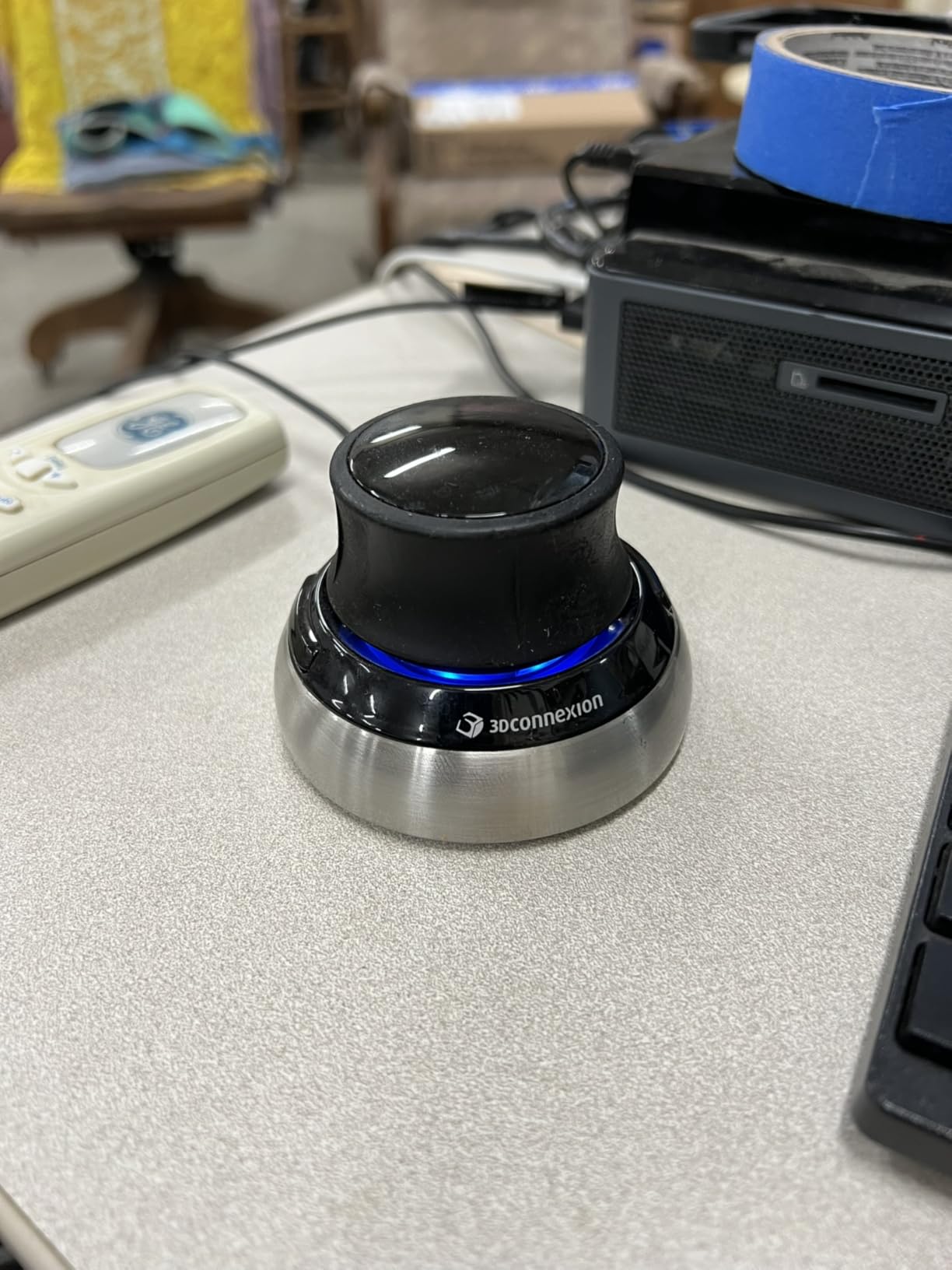
Six-degrees-of-freedom control for pan, zoom, and orbit
AutoCAD treats rotation, elevation, and orthographic view changes as three separate operations, and on a flat mouse each one costs a command. This puck returns them to a single continuous gesture. Reviewers consistently describe the first week as slower than their old workflow, then a noticeable speed gain once the muscle memory settles.
The practical caveat is that the vertical axis is where the control is least intuitive, and the software ships with a default sensitivity that most owners raise within a few sessions. Spend ten minutes in the configuration tool on day one rather than a month fighting it.
Radial menus replace memorized view shortcuts
Each of the two buttons opens its own radial menu holding up to eight of your favourite commands. For drafting, the useful set is usually ZOOM, previous view, the mouse pan mode you actually use, and a handful of drawing commands you run on every sheet.
The configuration utility lets you set per-application profiles, which means the same puck can orbit in Revit, pan in AutoCAD, and behave in a 3D printing slicer without being re-taught. That cross-programme consistency is the reason CAD offices hand these out rather than buying one device per seat and hoping.
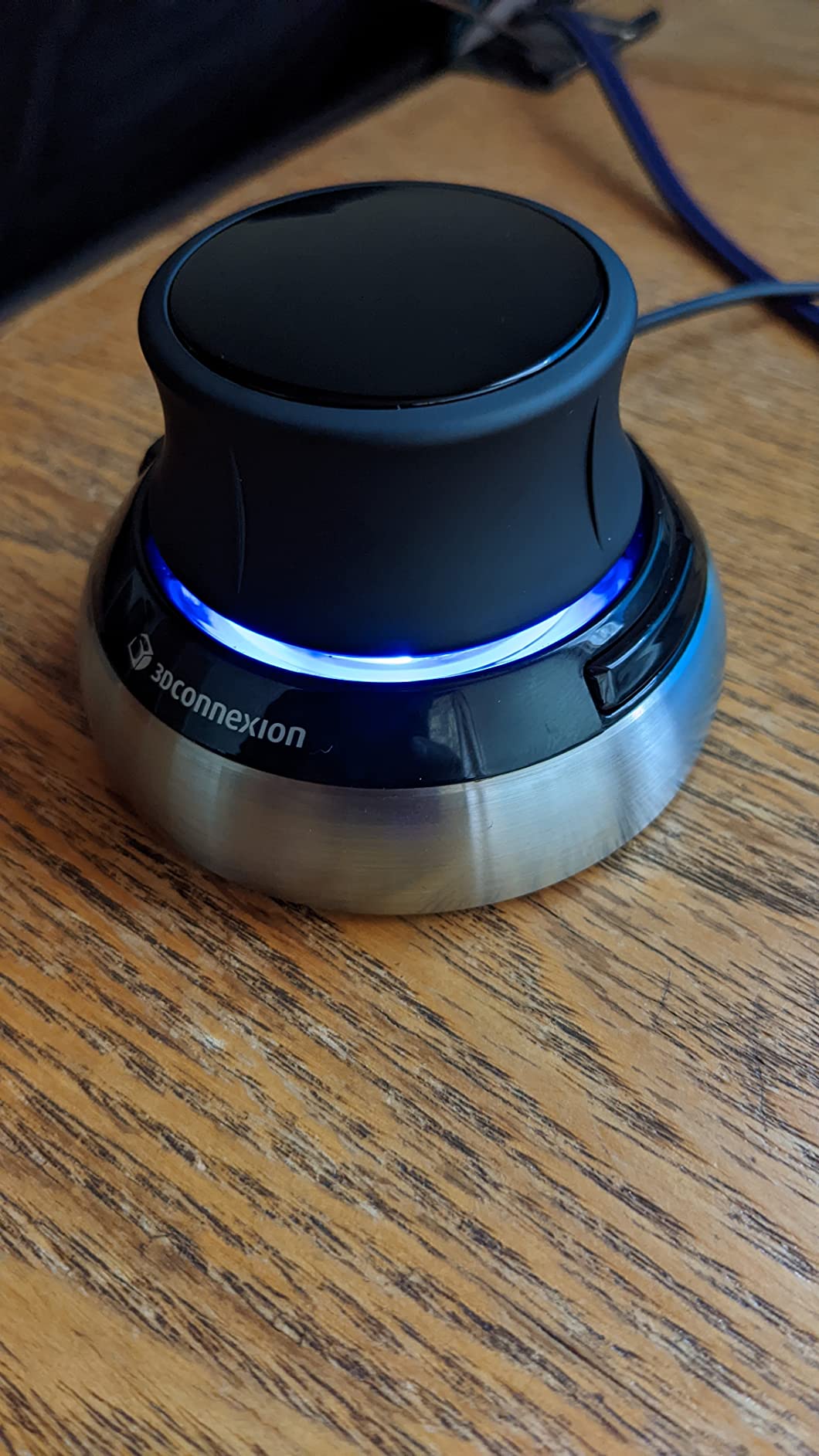
Built to stay planted on a busy desk
The compact footprint suits a drafting table already crowded with keyboard, reference prints, and a mug. The steel base also means the puck still works on surfaces where a plastic optical sensor would struggle, and the two-year manufacturer warranty is among the longest coverage in this roundup.
Owners do report the puck sliding for some users who push without a mat or holder, so a desk mat is worth adding if your table surface is slick. On macOS, button behaviour needs manual setup, and non-standard 3D software sometimes receives a rougher experience than the CAD tools the device was designed for.
Verdict: if your work involves orbiting a 3D model, viewing a Civil 3D site, or checking Revit sections, this is the device to pair with whatever mouse you already own. If your drafting is almost entirely 2D linework on paper space, you will use it a few times a week and wish you had spent the budget elsewhere.
2. 3Dconnexion SpaceMouse Wireless – Cord-Free 6DoF Navigation
3Dconnexion SpaceMouse Wireless – Bluetooth Edition 3DX-700115
Wireless 6DoF navigation
Bluetooth and USB-C
Rechargeable battery
Two programmable buttons
+ Pros
- Works across FreeCAD Blender Fusion 360 and AutoCAD with no per-app setup
- Heavy grippy base stays put
- Wireless freedom with USB-C desktop option
- Carry case included
– Cons
- Steep learning curve with a temporary productivity dip
- Push-pull knob response can feel sluggish
- Heavy base is awkward to travel with
This is the wireless sibling of the Compact, and the reason to choose it over the wired puck is logistics rather than feel. Site visits, client meetings, and hot-desking all become easier when the navigation device is not tethered to a tower under the desk, and the included zip case makes it a single-item bag addition.
Owners of professional workflows describe it as a view-navigation accelerator: the same push and tilt gestures, the same radial menus, but no cable competing for desk space beside the keyboard you use for command entry.
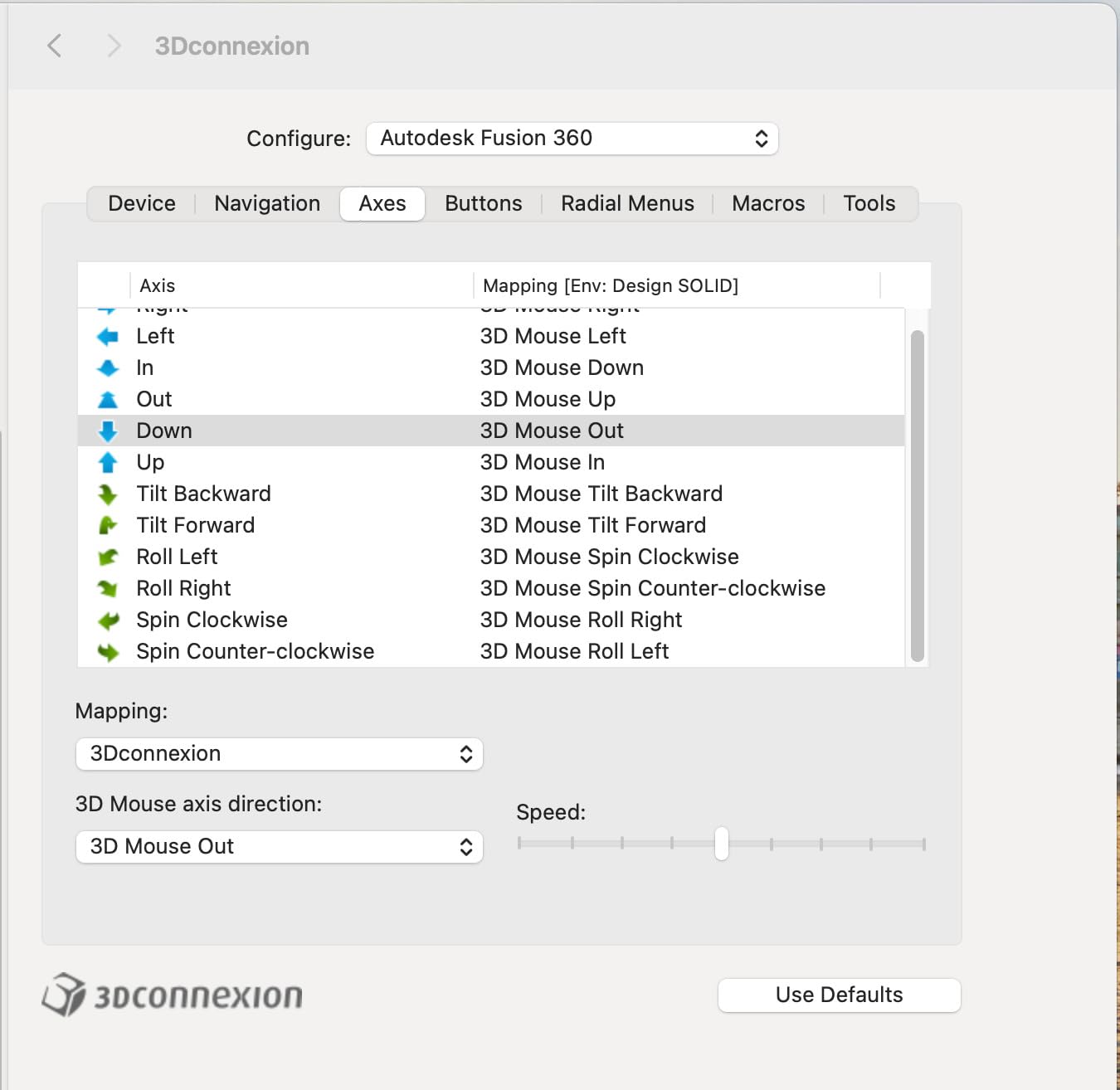
One puck, many CAD applications
The strongest review theme is plug-and-play consistency across FreeCAD, Blender, Fusion 360, AutoCAD, and exocad without per-application configuration. For a practice that runs several packages, that matters more than any single spec, because the alternative is a separate navigation device for each seat and each program.
The two programmable side buttons cover the handful of view operations you cannot reach with the puck itself, and the rechargeable battery runs up to a month between charges. Desktop users can drop the USB-C cable in and keep working indefinitely.
Wireless freedom, with one honest limitation
Owners frequently flag the push-pull response on the vertical axis as feeling sluggish even at high sensitivity settings, and some find the vertical axis imprecise for fine work. If your drafting involves delicate elevation changes on a 3D model, tune the axis down and give it a week before judging it.
Configuration software is described as slightly buggy on Windows by some owners, so keep a note of your settings. The weight that makes it stable on a desk makes it a poor travel companion despite the wireless design, which is worth knowing before you buy it for a laptop bag.

Who this suits and who it does not
This is a daily professional purchase, not a curiosity. If you orbit models every single day, the learning curve pays for itself quickly. If you touch 3D navigation twice a week, the Compact’s wired stability and longer warranty are the better spend, and you can read our wireless mouse roundup for a conventional wireless pointer to pair with it.
Verdict: the best pick for the drafter who navigates constantly and changes desk three days a week. Everyone else should look at the wired Compact first.
3. ELECOM M-CAD01UBBK – the Purpose-Built Budget CAD Mouse
ELECOM -Japan Brand- Wired Connection, Basic 3D-CAD Mouse, No Scroll Wheel, 3 Button Computer Mouse with Smooth Optical Tracking, Blue LED, 600/1200 DPI, for Windows/Mac (M-CAD01UBBK)
Wheel-free 3 button layout
Switchable 600 and 1200 DPI
Blue LED tracking
59 inch USB cable
+ Pros
- Center button instead of a scroll wheel as the designers intended
- Blue LED tracks on almost any surface
- No drivers or software to install
- Long cable removes mid-work cable management
– Cons
- 600/1200 DPI is low by modern standards
- Only 3 buttons with no programmable extras
- Light 3 oz body feels less stable
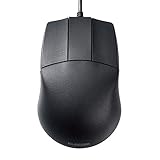
This is the only mouse in the roundup designed from the ground up for CAD, and you can tell within thirty seconds of unboxing it. There is no scroll wheel. There is a small, flat, always-available center button that your middle finger lands on without the device tilting, which is the single most common source of AutoCAD hand pain in the forums we reviewed.
Everything else about it is deliberately plain: a blue LED sensor, a two-position DPI switch at 600 and 1200, and a 59-inch cable. There is no configuration software, no driver, and nothing to install. You plug it in and the center button pans.
Why removing the wheel matters
On a standard mouse, the pan button is the wheel itself, and pressing it requires rolling the wheel downward first. Drafters do that thousands of times a session, and the reported result in CAD forums is an aching, sometimes swollen middle-finger joint after a couple of years of daily work. A fixed center button removes that roll-and-click motion entirely.
If you take one practical tip from this entire guide, take this one: check what your current mouse does when you press its middle button. If the wheel moves before the click registers, that is a mechanical problem, not a software setting.
Optical tracking that works anywhere on the desk
The blue LED sensor tracks reliably on nearly any surface, which matters in a studio where the drawing surface might be a laminate table, a drawing board, or a sheet of paper over plywood. No mouse mat is required, and no surface switching is required either.
Switchable 600 and 1200 DPI gives you a fast cursor for panning across a large sheet and a slow cursor for snapping a line to a point. For 1:1 plots, 1200 DPI with a slightly reduced pointer speed in AutoCAD is a workable pairing. It is not a high-resolution sensor, and buyers who want fine control over a long diagonal will feel the ceiling.
The trade-offs you accept to save money
Three buttons means no extras to map to OSNAP, ZOOM, or layer switching, and 1200 DPI is low compared with the 4000 and 12000 DPI sensors elsewhere in this list. The 3-ounce body is feather-light, so it will not stay put the way the 480 g SpaceMouse does.
Note that the listed compatibility for this model centres on Windows, with limited Mac support described. If your drafting workstation is a Mac, check before you commit.
Verdict: an excellent first CAD mouse, a training-room standard, and the right answer for anyone who wants zero configuration and a real center button without researching sensor specs. Upgrade later when you know which shortcuts you actually use.
4. Logitech MX Ergo S – the Best Ergonomic Trackball for Drafting
Logitech MX Ergo S Advanced Wireless Trackball Mouse USB C – Graphite
20-degree tilt angle
2048 DPI optical sensor
Six customizable buttons
USB-C quick charge
+ Pros
- Tilt and thumb control measurably reduce forearm strain
- 80 percent quieter clicks suit shared studios
- Speed and precision toggle button for drafting
- Excellent battery with fast USB-C charging
– Cons
- Sculpted shape sized for medium-to-large hands
- Ball and bearings need periodic cleaning
- Logi Bolt receiver adds a second dongle for older keyboards
The MX Ergo S pairs a high button count with a shape you can still hold comfortably, and that combination is why we rate it so highly for drafting. Six customizable buttons plus a speed and precision tracking toggle gives you room to bind OSNAP, object snap, layer control, and a view command to physical switches instead of memorising them.
The 20-degree tilt keeps the hand in a more natural position than a flat mouse, and Logitech’s own figures claim a 27 percent reduction in muscle strain from that angle. Whether or not you hit exactly that number, owners consistently report less forearm tension across long drafting days.
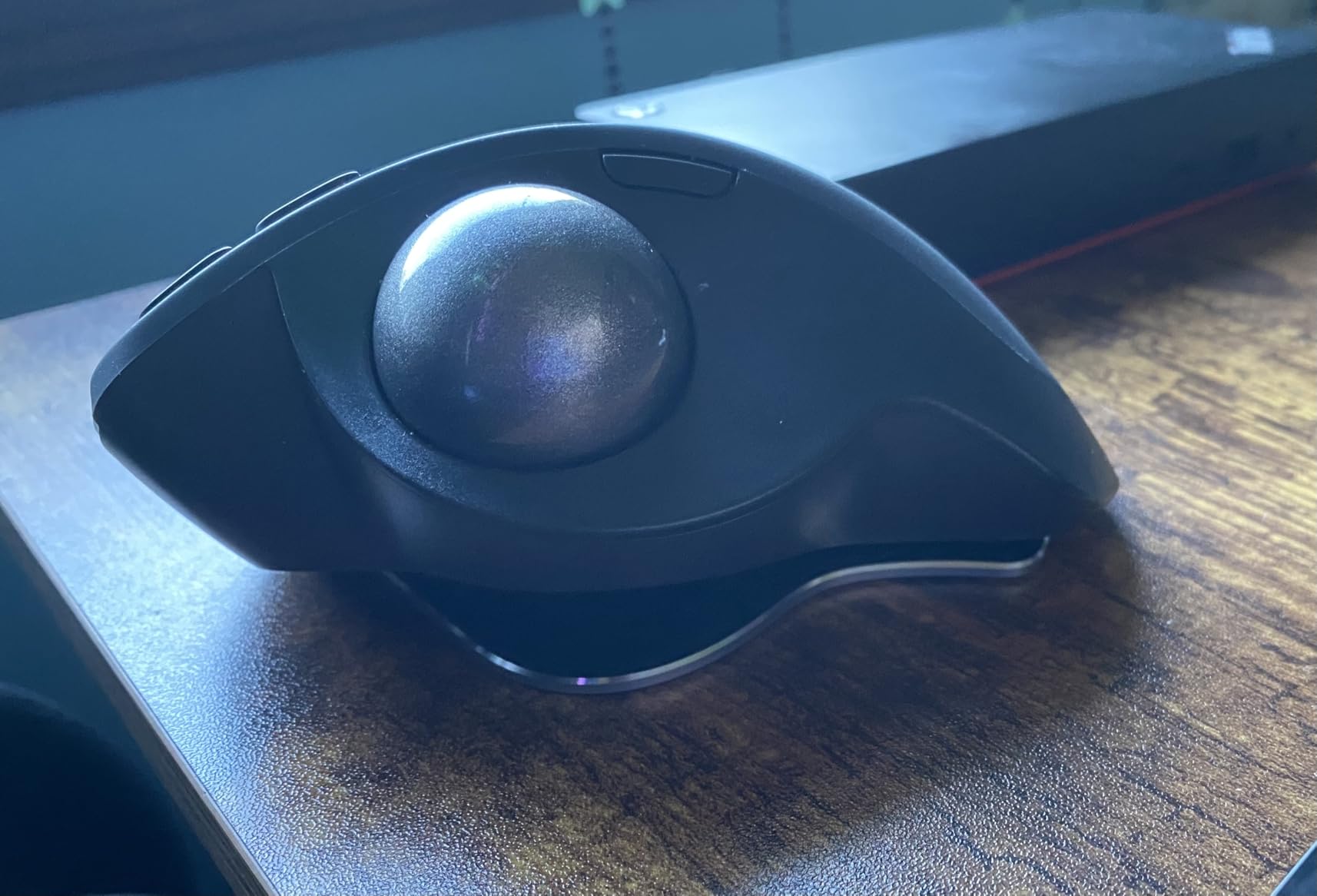
Six programmable buttons and a precision toggle
AutoCAD rewards keyboard shortcuts, but binding the ones you use constantly to mouse buttons is faster. Through Logi Options+ you can set per-application profiles, so the same physical buttons can drive a different command set when you switch from AutoCAD to a browser for a reference lookup.
The dedicated precision button drops the tracking speed on demand, which is the trackball equivalent of holding Shift to slow the cursor. On a tight mechanical detail, toggling into precision and placing a snap point is faster than opening a dialog to change pointer speed.
Charging and connectivity that survive a full week
USB-C quick charging gives up to 24 hours of use from a one-minute charge, and a full charge runs up to 120 days on the manufacturer’s figures. For a drafter who never wants a flat battery mid-sheet, that removes a category of problem entirely.
Connectivity covers Bluetooth and an included Logi Bolt receiver. If you still use an older Logitech keyboard on the Unifying receiver, plan on carrying two dongles, which is the most common complaint in the reviews and the only real setup friction here.
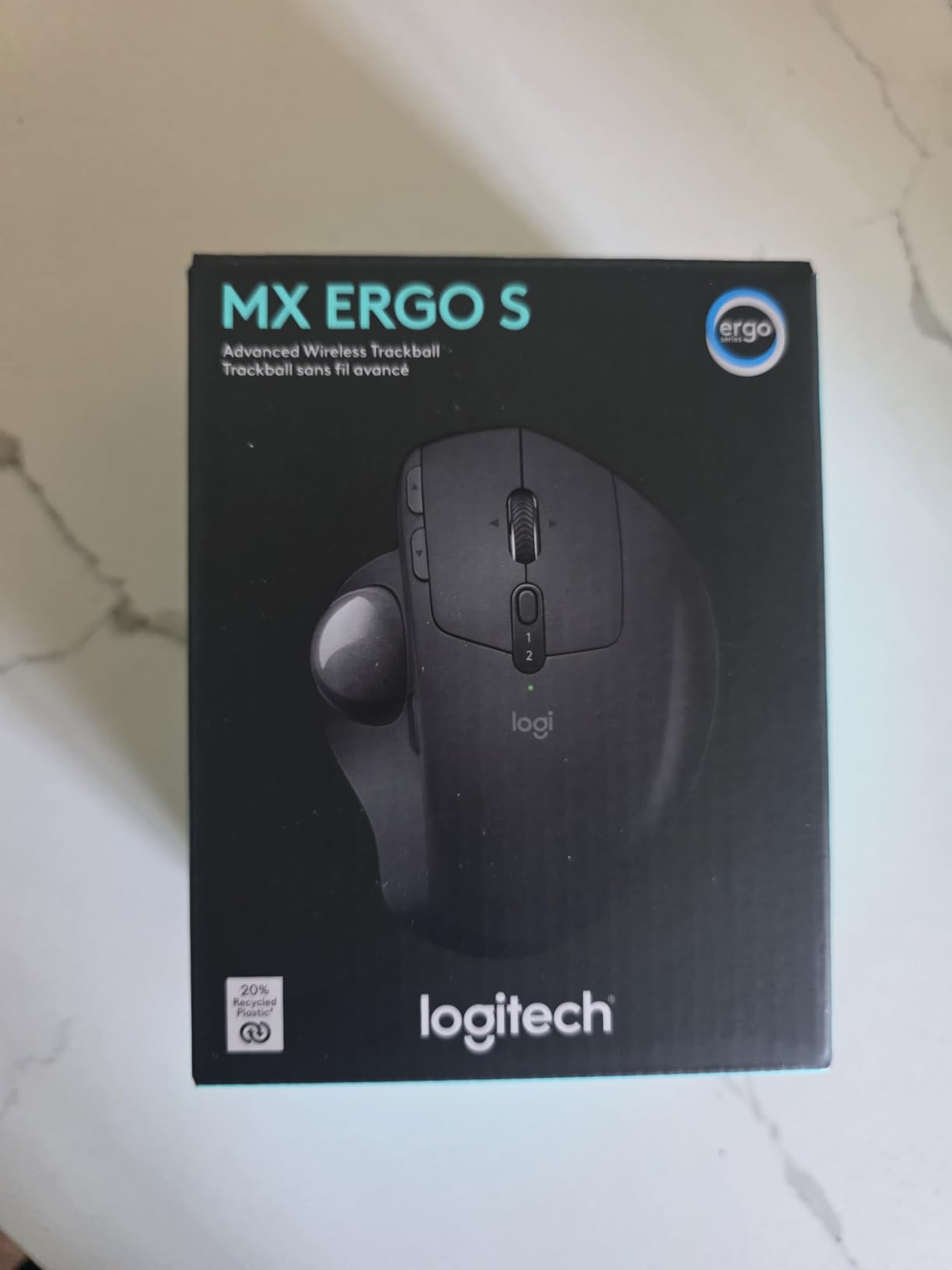
Fit, cleaning, and the honest limitations
The sculpted shape is built for medium-to-large hands. Users with small hands report that the forward and back buttons are difficult to reach without regripping, and if your hand is on the smaller end of the scale, read our vertical mouse guide before committing.
The trackball ball and its bearings collect finger oil and need periodic cleaning to stay smooth, and the Logi Options+ app may require a system restart to load correctly after an update. Neither is serious, but both are maintenance rather than a one-time setup.
Verdict: the best balance of programmability and comfort here. It suits drafters who want a full set of command buttons and an answer to wrist discomfort, and it will not suit someone who refuses to clean a ball every few weeks.
5. Logitech Ergo M575S – a Proven Trackball for Low-Movement Drafting
Logitech Ergo M575S Wireless Bluetooth Trackball Mouse – Graphite Blue Ball
Thumb-operated trackball
2000 DPI sensor
18 month AA battery
Three customizable buttons
+ Pros
- Removes arm movement entirely during long sessions
- Smooth high-resolution ball aids fine cursor placement
- Silent switching suits shared offices
- Works on any surface with minimal desk space
– Cons
- Several days of adjustment for fine precision work
- Ball cage needs cleaning every couple of weeks
- Right-handed sculpt suits most but not all hands
The M575S has more than 2,300 reviews behind it and a 4.5 rating, and that combination of evidence base and score is the reason it takes the value slot. It is one of the most widely used trackballs among reviewers who draft daily, which means its long-term failure modes are well documented rather than surprising.
Rotating the ball with your thumb moves the cursor without moving your arm. On a large sheet where you pan thousands of millimetres, that removes a lot of shoulder and wrist travel, and Logitech’s testing claims 25 percent less forearm muscle strain with the sculpted shape.
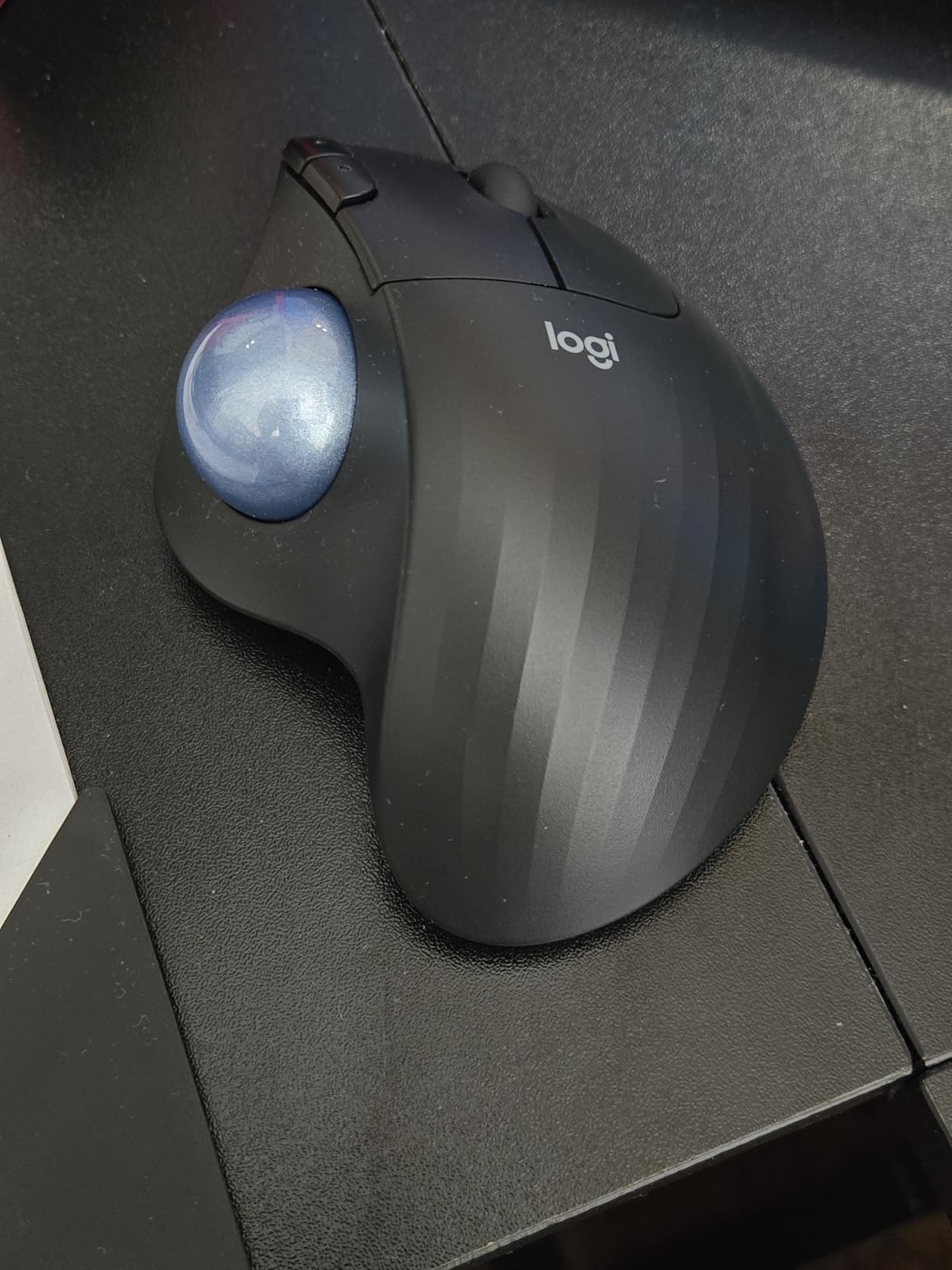
Three buttons, mapped the way you draft
Three customizable buttons through Logi Options+ is fewer than the MX Ergo S, but three well-chosen buttons cover the working set: a pan or zoom command, a view reset, and one object-snap or layer control. Any fourth command belongs on a keyboard shortcut anyway.
Silent switching is a genuine upgrade over older generations and makes the device usable in an open-plan studio or a shared office where a clicky mouse becomes a complaint. The ball can also be ejected for cleaning, which is the single most useful maintenance feature on a trackball.
Battery life that disappears from your workflow
Up to 18 months on a single AA cell is the kind of specification that removes a decision. You will not be mid-drawing wondering whether the pointer is about to stop, and there is no charging cable to lose in the drawer.
Connectivity is Bluetooth or the included Logi Bolt receiver, and the device works on any surface, so it can sit on a drawing board, a drafting table, or a lap. As with the MX Ergo S, older Logitech keyboards on the Unifying receiver mean two dongles in the same hub.
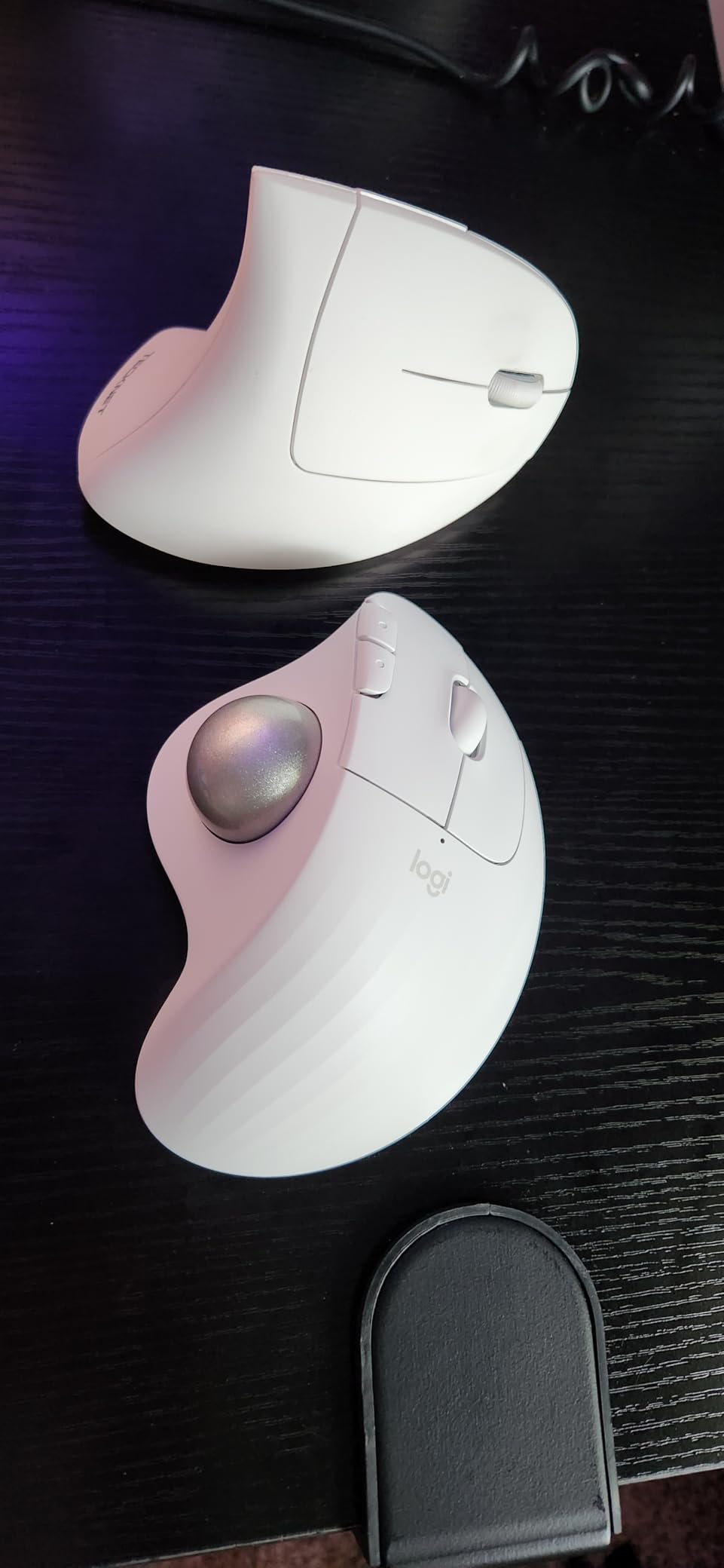
Where the trackball learning curve bites
Coming from a mouse, expect a few days where fine cursor placement is harder than it should be. That is a control problem, not a hardware problem: raise the default cursor speed first, because most owners who struggle initially were simply running it too slow.
Two other recurring notes. The ball cage needs cleaning roughly every couple of weeks to keep the ball tracking smoothly, and the right-handed sculpt puts the forward and back buttons out of comfortable reach for small hands. The warranty here is one year, shorter than the three years offered by the Kensington trackballs in this list.
Verdict: the best-value choice for anyone whose arm or wrist hurts at the end of a drafting week, and the most heavily reviewed device here. Read our trackball roundup if you want to see how the alternatives compare on ball size.
6. Kensington Expert Wireless Trackball – a Large Ball for Measured Control
Kensington Expert Wireless Trackball Mouse (K72359WW) Black, 3.5″ x 6.1″ x 8″
55 mm ball with optical tracking
Patented scroll ring
Four customizable buttons
3 year parts coverage
+ Pros
- Large 55 mm ball gives well-controlled precise movement
- Scroll ring rated as unmatched by many owners
- Ambidextrous with a detachable wrist rest
- Bluetooth LE and 2.4 GHz with auto-sleep
- 3 year parts and labor warranty
– Cons
- Scroll ring can be activated accidentally while moving
- High-profile body leaves wrist tension over a full day
- Unsupported on Windows ARM machines
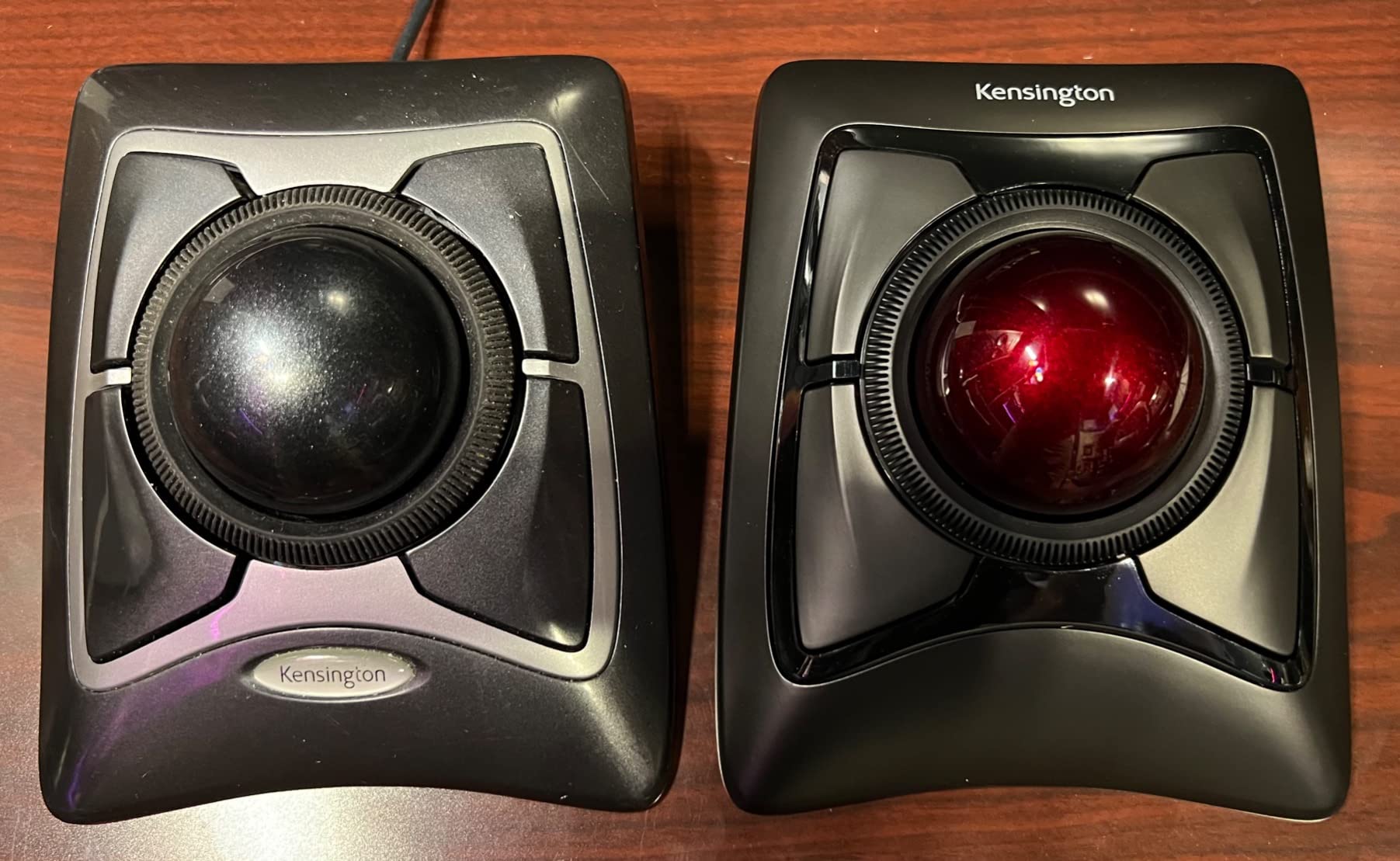
The Expert Wireless Trackball’s 55 mm ball and its scroll ring are the feature owners mention most across more than 5,400 reviews, which makes this the most heavily reviewed trackball in the roundup. If you move between drawing sheets and schedules all day, that ring is the reason: it spins the ball for scrolling without tipping the device, so the cursor never shifts while you page through a drawing set.
Scroll ring and a ball sized for control
Diamond Eye optical tracking across a 55 mm ball gives a controlled resolution feel, because a larger ball travels more distance per degree of rotation than the 36 mm ball on the IST PRO later in this list. On a 1:1 plot, that translates into finer placement with less effort.
The scroll ring is rated by many owners as an exceptionally smooth scrolling implementation. The catch, and it is the most common complaint in the reviews, is that the ring can be activated accidentally while you are pushing the ball. It takes a few days of conscious thumb placement to stop doing it, and it is worth the adjustment.
Ergonomics that work for either hand
Several devices in the list are ambidextrous, and with a detachable wrist rest this is the only one you can adjust to your own preference. That matters in drafting offices where hand dominance varies and nobody wants to issue a device that only suits half the team.
The trade-off is the raised base angle. Some owners report wrist tension building over a full day despite the wrist rest, because the body holds your hand higher than a low-profile trackball. If wrist angle is already your main complaint, the low-profile SlimBlade covered later in this list may serve you better.
Configuration, compatibility, and longevity
Four customizable buttons plus scroll and cursor speed are set in KensingtonKonnect. Note that the extra buttons are effectively dead weight without that software installed, so set them up on day one or you will conclude the device has more functionality than it really offers.
Connectivity covers Bluetooth LE and a 2.4 GHz USB dongle with auto-sleep, and it works with Windows, macOS, and Chrome OS. Windows ARM-based computers are not supported, which matters increasingly for users on ARM laptops. A 3-year parts and labor warranty with lifetime technical support is tied for the longest coverage in the roundup.
Verdict: the best trackball here for anyone whose draft is precision-first, who works with both hands, or who wants three years of parts and labor coverage. Skip it if wrist angle is your primary pain point.
7. Kensington SlimBlade Wired – the Best Wired Trackball for AutoCAD
Kensington Wired SlimBlade Trackball Mouse (K72327U), Black
Ball-twist scrolling
Laser tracking
Four programmable buttons
Wired connection with no battery
+ Pros
- Ball-twist scrolling widely rated as exceptionally smooth by owners
- 55 mm ball and large buttons reduce precision effort
- Low-profile angle rests the forearm on the desk
- Wired means no batteries and no pairing lag
- Owners report decade-plus service life
– Cons
- Upper buttons need Kensington software and are limited on macOS
- Rollers need periodic cleaning and ball removal
- Real learning curve before control feels natural
The SlimBlade is the longest-serving design in this roundup and the one with the most striking longevity reports: owners frequently describe units still in service after ten or more years. For an office that buys pointing devices once and expects them to survive a career, that service-life evidence matters as much as any specification.
Its signature feature is ball-twist scrolling. Rather than spinning the ball itself or tipping the device, you roll the outer ring with a side finger, and the whole ball rotates to scroll. No tilt, no accidental click, no momentum wobble.
Scrolling that does not disturb your cursor
Because the ring controls scroll independently of the ball, moving down a drawing sheet never disturbs cursor position. In AutoCAD, where scroll is zoom and every cursor displacement means re-snapping, that separation is more valuable than it sounds.
The 55 mm ball with laser tracking gives precise, low-effort placement, and the large click buttons are easier to hit without looking down than the tiny switches on a compact mouse. For a drafter alternating between the keyboard for commands and the mouse for picking, the lower travel distance adds up.
Wired means wired, and that is the feature
No battery, no pairing, no receiver to lose, and no chance of a pointer dropout during a client walkthrough. The physical cable also removes any question of wireless latency, which some drafters notice on fine snap operations even though the difference is small.
Because it is a physical connection, this suits a fixed workstation perfectly. It is a poor fit for a drafting laptop you carry between sites, where a wireless trackball is the only sensible option.
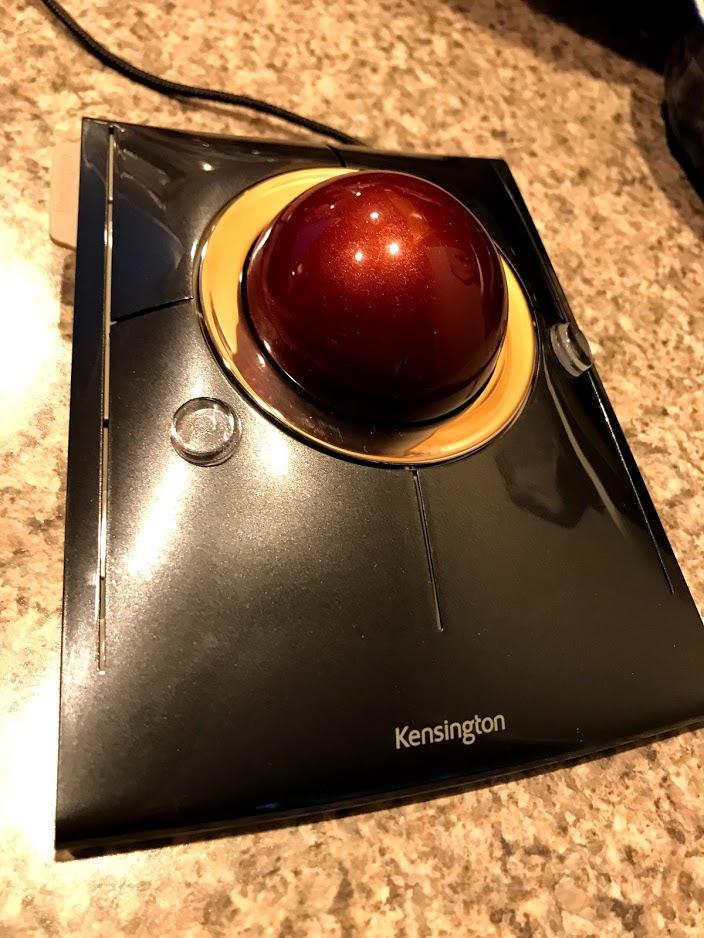
Low profile, real endurance, honest costs
The low-profile angled body lets your forearm rest on the desk rather than being held up, which is why many long-term users moved to it from older, taller trackballs. KensingtonWorks software provides custom actions along with slow-pointer and single-axis movement modes, useful if you want to lock a ball axis for specific tasks.
The costs are real. The top two buttons are only programmable with Kensington software and are limited on macOS. The ball must be lifted out and the rollers cleaned periodically. The chrome paint around the ball and the rubber feet wear with heavy long-term use. And it is a genuine learning curve, plus a poor choice if you also game.
Verdict: the best wired trackball here, and the one owners keep longest. Choose it for a fixed desk where scrolling dominates; choose a wireless model if you move between machines.

8. Kensington SlimBlade Pro Wireless – Three Ways to Connect
Kensington SlimBlade™ Pro Wireless Trackball, Rechargeable Battery, Bluetooth 2.4GHz Connection Options (K72080WW)
55 mm ball with dual sensors
Bluetooth 2.4 GHz and wired
Rechargeable 4 month battery
3 year warranty
+ Pros
- Three connection options cover desktop laptop and dongle setups
- Rechargeable battery runs about four months per charge
- Dual sensors give accurate tracking and scrolling
- Low-profile body suits both hand orientations
– Cons
- Lowest average rating here with a notable share of 1-star reviews
- Ball and bearings need regular cleaning
- Base angle less wrist-friendly than the wired SlimBlade
The SlimBlade Pro keeps the ball-twist scroll and large 55 mm ball that made the original a drafting favourite, then solves the only serious drawback of a wired trackball by adding Bluetooth, 2.4 GHz, and a wired option on the same body. You pick the connection per workstation, not per device purchase.
It carries a 4.1 rating across more than 1,000 reviews, with a noticeable share of one-star feedback compared with the rest of the group. That is worth understanding before you commit rather than after.
Three connection modes on one body
Bluetooth handles the laptop and the second workstation, the 2.4 GHz dongle handles desktops that lack Bluetooth or that you want a dedicated link, and the wired mode keeps you drawing through a dead battery. A USB-C charging cable is included, along with a dongle and adapter.
The rechargeable cell lasts about four months per charge, which is far less than the 18 months from a single AA cell in the Logitech trackballs. It is still several months between charges, and the convenience of not hunting for a cell is real.
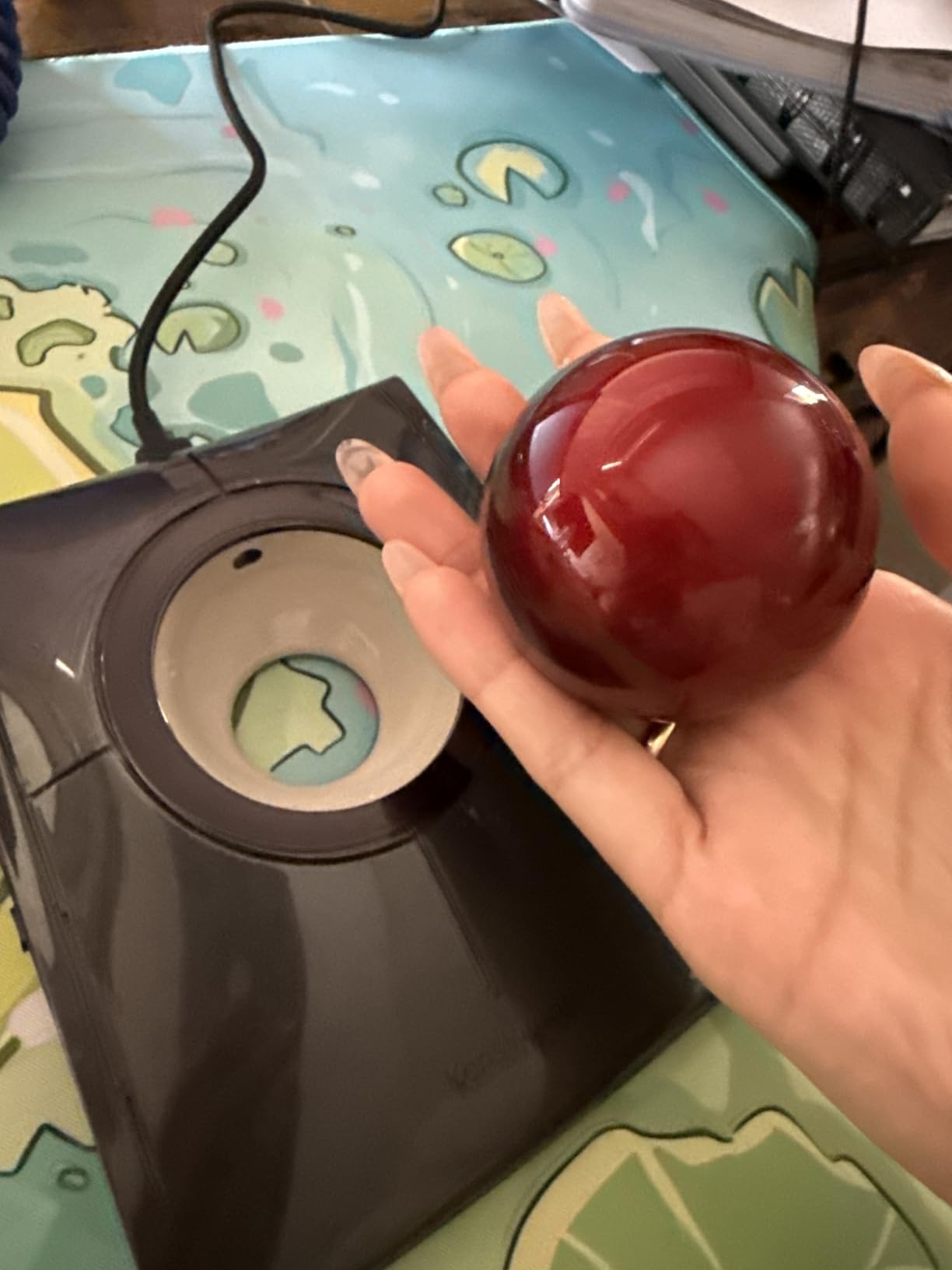
Dual sensors and programmable sets
Dual sensors track the large 55 mm ball, and the combination of ball-twist scrolling and dual sensor tracking is what gives it the same controlled feel as the wired original. KensingtonKonnect software assigns functions across eight sets of programmable buttons.
That many programmable sets is more than most users need, and it is worth knowing that support does not cover Windows ARM-based computers. If your drafting machine is ARM-based, this is a dealbreaker rather than an inconvenience.
Where the rating comes from
Complaints concentrate in three places: cleaning needs for the ball and bearings, build and reliability longevity over years of service, and the number of buttons that are genuinely programmable in practice. Some users also find the base angle less wrist-friendly than the original wired SlimBlade, which is the device we recommended earlier in this list.
Verdict: the pick for a drafter who works across a laptop and a fixed desk and wants one device that does both without a dongle. If you work at one desk, the wired SlimBlade is the simpler and longer-lived option.
One more note: the low-profile body works for right- and left-handed users, which is rare among the sculpted trackballs in this list. If you are left-handed, this and the Expert Wireless are the two devices here that need no modification.
9. ELECOM IST PRO Trackball – High Sensor Resolution and Ten Buttons
ELECOM IST PRO Trackball Mouse, 6 Device Connection, 3 Way Connectivity, Bluetooth 5.3, Wireless 2.4GHz, Wired, 12,000 DPI Sensor, 36mm Ergonomic, 10 Custom Buttons, Silent Click, Swappable Bearings
12000 DPI Pixart sensor
1000 Hz report rate
36 mm thumb trackball
10 programmable buttons
+ Pros
- Exceptionally smooth ball action with selectable bearings
- Noticeably quieter clicks than competing trackballs
- Multi-device pairing to 6 machines with onboard profiles
- Three DPI settings and report rate configuration
- Silent switches suit open-plan offices
– Cons
- Swappable bearings are tiny and jam on lint
- Bearing choice is limited and replacement is fiddly
- Software is Chinese-only
The IST PRO is the specification outlier in this roundup: a 12,000 DPI Pixart sensor with a 1000 Hz report rate, ten programmable buttons, and a 36 mm thumb trackball. Nobody in the owner reviews describes it as a compromise, and enthusiasts who have owned nearly every trackball rate it as the smoothest and most precise thumb-operated model they have used.
For drafting, the fine-grained control matters. You can drop to a low DPI setting for a snap point and raise it for a fast pan across a large sheet, and the report rate keeps the movement clean at higher speeds where lesser sensors stutter.
Ten buttons and three DPI settings
Ten programmable buttons plus a tilt wheel cover more command needs than any other device here, which means OSNAP, object snap tracking, layer control, view reset, and pan can all live on the device rather than in a keyboard shortcut memorisation exercise.
Three DPI settings, report rate, and scroll speed are all configurable, giving fine-grained control for detailed CAD work. Multi-device pairing to six computers, tablets, and phones with onboard profile memory means the device moves between a workstation, a meeting-room laptop, and a tablet without reconfiguring from scratch.
The bearing system is the deciding factor
Swappable bearings let you choose between steel and ruby bearings for the ball, and the smoothness owners report is a direct result. The problem is scale: the bearings are very small and can jam on a single hair or piece of lint, which means daily tweezer cleaning and fiddly replacement.
Three further warnings from owners: the software is Chinese-only and manufacturer support does not reply to English enquiries, the wheel feels cheap and the trackball-wheel mode requires holding a button to activate, and Bluetooth mode can lag where the 2.4 GHz receiver stays reliable. Budget for maintenance and pick the receiver.
Verdict: the pick for someone who wants maximum precision, the most command buttons, and one device that pairs to six machines. It demands more maintenance and a language tolerance than the rest of this list.
10. Logitech MX Vertical – the Best Vertical Mouse for Wrist Relief
Logitech MX Vertical Wireless Mouse Ergonomic Design – Graphite
57-degree vertical angle
4000 DPI sensor
Four buttons
Three device pairing with USB-C charging
+ Pros
- 57-degree angle measurably reduces wrist and forearm strain
- 4000 DPI plus cursor speed switch cuts hand movement
- Three device pairing suits multi-monitor workstations
- Charges over USB-C and works while plugged in
– Cons
- About a week of adjustment before the angle feels normal
- Fewer controls and ratcheting-only wheel for drafting
- Needs a proper mouse surface
- Right-handed design
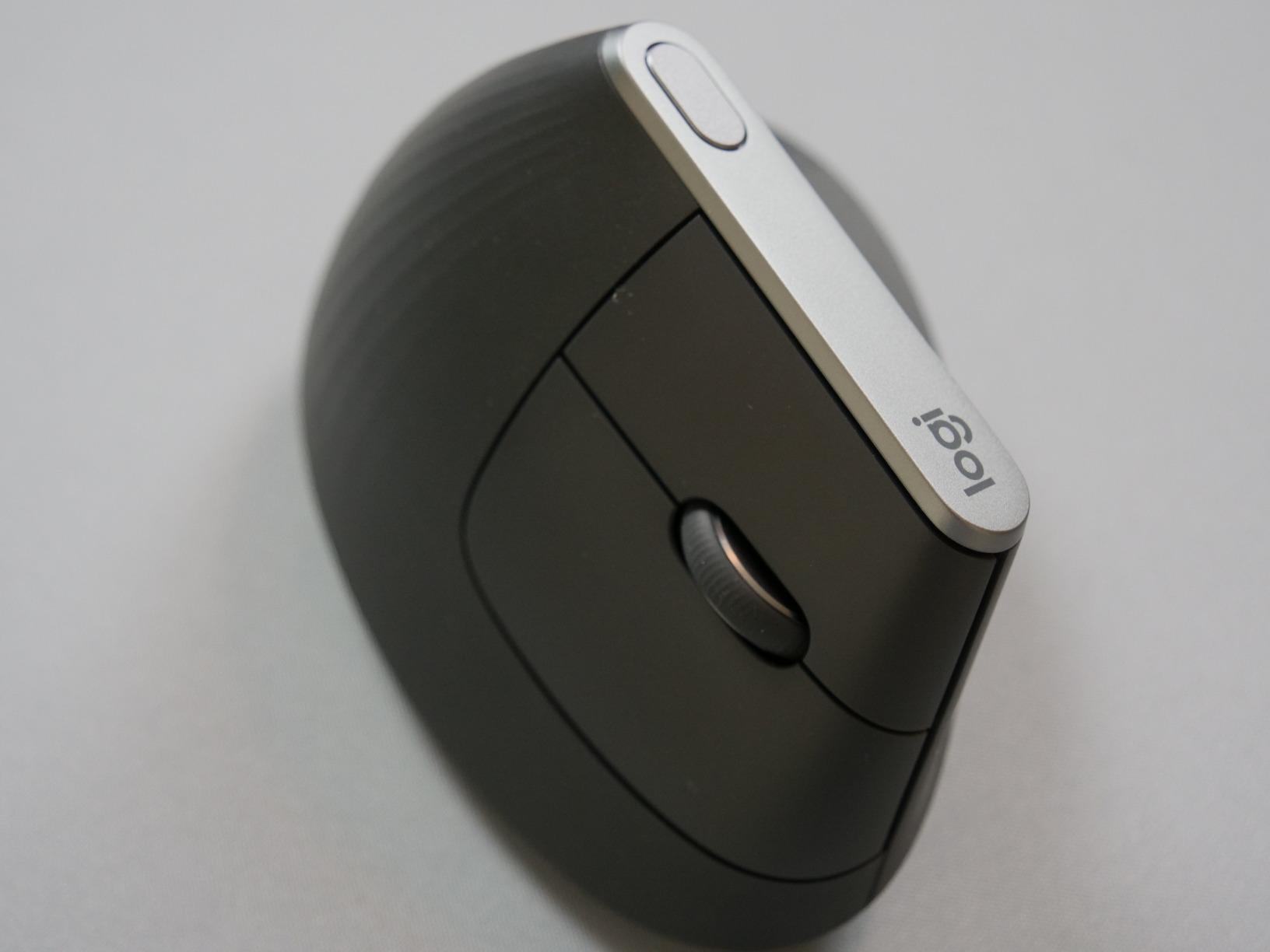
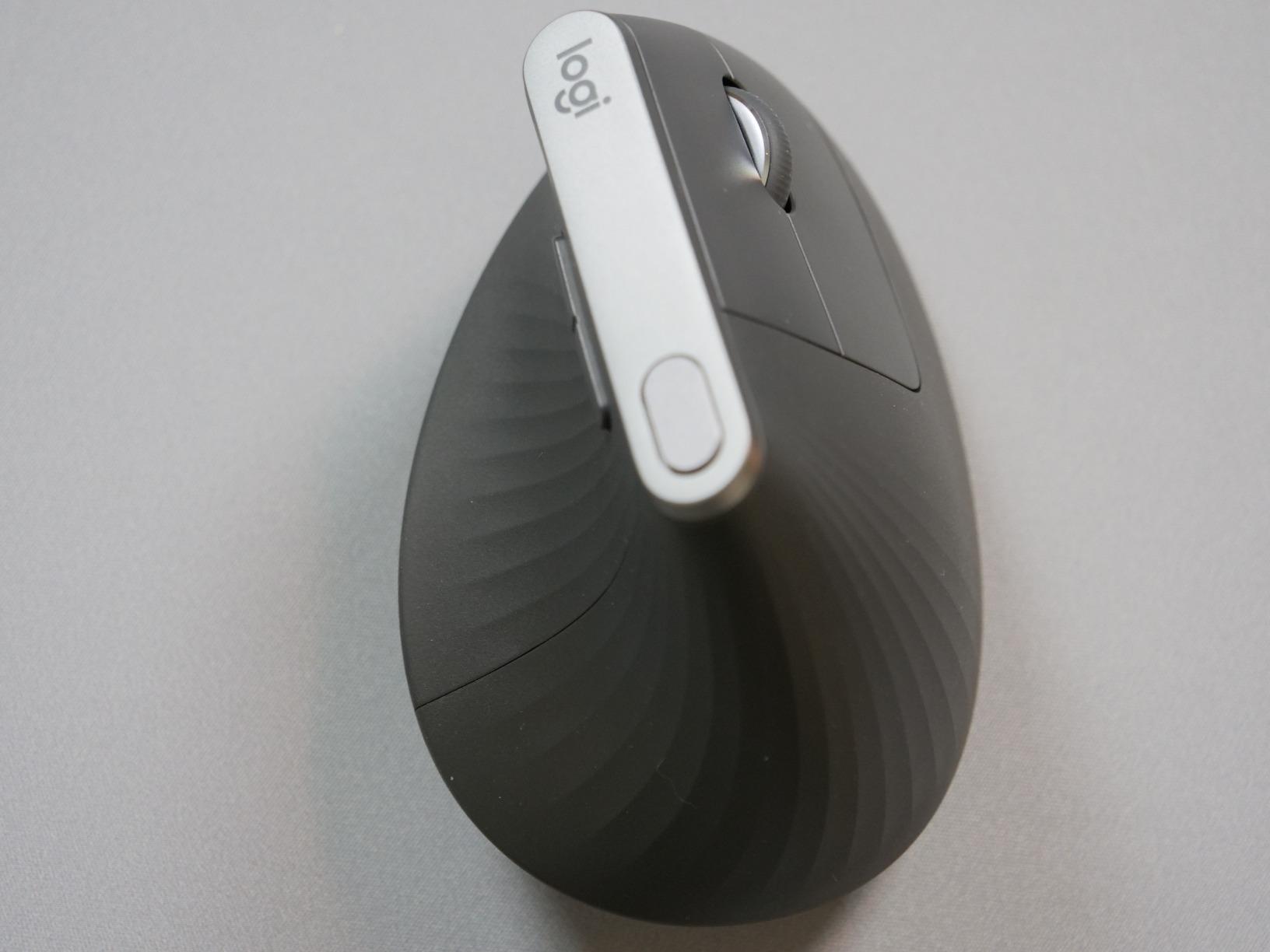
The MX Vertical is the default answer when a drafter says their wrist hurts. The 57-degree body puts the hand in a handshake position rather than a flat one, and Logitech’s own testing reports 10 percent lower muscular activity than a standard mouse. With more than 15,000 reviews behind it, it is also one of the most thoroughly documented pointing devices we could compare.
The 4000 DPI sensor is a step up from the entry-level CAD sensors in this roundup, and the on-body cursor speed switch lets you drop into a slower mode for precision work and back out for fast panning without opening a single dialog.
What a 57-degree angle actually fixes
A flat mouse forces your forearm to rotate outward and rest flat on the desk, which loads the wrist extensors. CAD work holds that position for hours. Tilting the body brings the forearm closer to vertical alignment with the upper arm, and owners report the difference within the first week of a drafting day.
That first week matters. Nearly every reviewer mentions an adjustment period of roughly a week where the vertical angle feels wrong, and the people who report the biggest gains are the ones who pushed past it instead of returning to their old mouse after two days.
Controls, connectivity, and surface requirements
Four buttons with per-application customisation through Logitech software, and pairing with up to three devices makes it easy to move between a laptop and a multi-monitor CAD workstation. It charges over USB-C and keeps working while plugged in, so a dead battery never interrupts a drawing session.
Two limitations for CAD work specifically. There is less button and scroll functionality here than on a full-size productivity mouse, and the wheel is ratcheting only, which matters if you want smooth wheel zoom. It also needs a proper mouse surface and will not track on glass or a bare desk.
Where a trackball beats a vertical mouse
A vertical mouse fixes wrist angle but still requires you to move your arm across the desk. If your problem is total hand volume rather than wrist rotation, a trackball solves more of it. Our vertical and ergonomic mouse guide covers the alternative shapes if the 57-degree angle is not steep enough for you.
Also worth knowing: the rubber texture coating wears and migrates after a couple of years of daily use, the design is right-handed, and it is not suited to sub-millimetre cursor placement or fast-paced gaming.
Verdict: the pick for a drafter whose forearms and wrists ache at the end of a long day but who still wants a conventional mouse they can pick up and use anywhere. Give it a full week before judging it.
How to Choose the Right Mouse for AutoCAD
The right pointing device depends less on which software you run than on how your drawing day is structured. 2D drafting on sheets rewards precise cursor placement and effortless panning. 3D modelling rewards fast, continuous view control. Long sessions with existing wrist pain reward devices that remove movement entirely. Work through the criteria below in order and the answer usually becomes obvious.
1. Get a real middle button before anything else
AutoCAD’s most-used control is the middle button: press to pan, scroll to zoom, double-click to zoom extents. On many modern mice, that button is the scroll wheel, and pressing it means rolling the wheel downward first. The result, reported repeatedly in CAD forums, is an aching middle-finger joint after a couple of years of daily drafting.
Three hardware solutions exist. A mouse with a fixed center button and no wheel solves it completely, and the ELECOM M-CAD01UBBK in this roundup is built that way. A trackball with a dedicated pan button or a separate scroll ring solves it by separating scroll from click. A standard productivity mouse solves it in software, by remapping the pan command to a side button you can reach without rolling anything.
2. Match the sensor to your drawing scale
DPI is the number of cursor steps per inch of hand movement. Higher is not automatically better. For 1:1 plots and mechanical details, a moderate resolution with a slower pointer speed gives finer control; for panning across a large sheet, higher resolution covers distance with less hand travel.
What matters is adjustability. The 600/1200 DPI switch, the three settings on the IST PRO, the cursor speed toggles on the MX Ergo S and MX Vertical, and the 2000 and 4000 DPI sensors in between all let you tune this. A fixed, low-resolution sensor leaves you no room, which is the main limitation of the budget CAD mouse in this list.
3. Decide between a mouse and a trackball for long sessions
A trackball rotates in place, so your hand stays put while the cursor travels. If your pain is volume-related, if your desk is cramped, or if you draft eight hours a day, a trackball removes more strain than any shape change. Our trackball buying guide covers ball sizes and bearings in more depth.
A conventional mouse wins on one thing: a low initial adjustment period. Trackballs have a learning curve of a few days, and anyone who abandons a device in the first forty-eight hours never gets past it. If you have never used one, give it a full week before you judge the experience.
4. Choose wireless for mobility, wired for reliability
Wired devices have no battery, no pairing, and no dropouts, and they work on every machine without a receiver. For a fixed drafting desk that runs eight hours a day, that is the low-risk choice, and it is why the wired SlimBlade and the wired CAD mouse both earn their place here.
Wireless is the better answer when you move between a laptop, a meeting room, and a site visit. All the wireless devices here use either Bluetooth or a 2.4 GHz receiver, and reviews across the group show one consistent pattern: where lag is reported, it is almost always in Bluetooth mode, and the 2.4 GHz receiver is the more reliable link. Battery life on modern devices has moved the mid-drawing dropout from a common complaint to a rare one.
5. Count the buttons you will actually bind
Programmable buttons only earn their cost if you map them. Two to three buttons cover the working set for most drafters: a pan or zoom command, a view reset, and one object-snap or layer control. Ten buttons, as on the IST PRO, cover everything but take real time to configure properly.
Check the software story before buying, because it is the most common disappointment. A device whose extra buttons depend on vendor software is dead weight until you install and configure it, and some of that software is limited on macOS or unavailable in your language. Confirm the application works on your operating system first.
6. Factor in hand size and shape before anything else
Forum experience is consistent on this point: a mouse that does not fit the hand fails regardless of its specifications. Sculpted devices here are built for medium-to-large hands, with small-hand users reporting that buttons fall out of reach. Several models work with either hand, and the low-profile SlimBlade Pro in particular needs no modification for a left-handed user.
For vertical shapes specifically, the community split is real: some drafters are happier with a large, heavy conventional mouse than with a vertical body. The only way to know is to try a shape for a full working week.
7. Set the buttons up inside AutoCAD
Hardware is only half the configuration. AutoCAD’s interface can be adapted to your mouse rather than the other way around, and this is the step almost every guide skips.
Open the CUI, load the desired partial menu, and assign commands to mouse buttons directly. Most CAD users want the middle button permanently set to pan, a double-click of that same button bound to zoom extents, and object snap and layer commands placed on the two side buttons. Do this once, save the workspace, and your pointing device becomes a set of command triggers rather than an input device.
Two settings matter as much as the bindings. Turn on object snap tracking so the cursor snaps to geometry rather than to pixels, and slow the pointer speed in AutoCAD’s options rather than in the mouse driver, so the pointer speed follows your drawing file to any workstation.
Frequently Asked Questions
What is the best mouse for CAD drawings?
The best mouse for CAD drawings has a dedicated middle button for panning, an adjustable sensor, and programmable extras you can map inside AutoCAD. For 2D drafting the ELECOM M-CAD01UBBK is the purest CAD layout, with a fixed center button and no scroll wheel. For 3D navigation, the 3Dconnexion SpaceMouse Compact is the strongest companion device. For long sessions with hand pain, a trackball such as the Logitech Ergo M575S removes arm movement entirely.
Is a trackball mouse better for CAD?
A trackball is often better for CAD because the ball rotates in place, so your hand stays still while the cursor moves. Drafters who report wrist, forearm, or hand-volume pain after long sessions usually notice the biggest improvement on a trackball. The trade-off is a few days of adjustment for fine precision work and periodic ball cleaning. Trackballs also suit cramped desks and laptop-based drafting, where there is no surface to move across.
What is the best CAD mouse right now?
The 3Dconnexion SpaceMouse Compact is the best overall pick here, rated 4.6 across more than a thousand reviews, because its six-degrees-of-freedom sensor and weighted steel base make 3D view control fast and stable. It pairs with a conventional mouse rather than replacing one. For 2D drafting on a fixed desk, the ELECOM M-CAD01UBBK is the simplest and most CAD-specific choice, and for hand pain, the Logitech M575S trackball leads.
What mouse do architects use?
Architects most often use a productivity mouse with several programmable buttons, a dedicated middle button for panning, and an ergonomic or vertical shape for long drafting days. Dedicated CAD devices from 3Dconnexion are common in practices that work heavily in 3D, usually as a left-hand companion rather than a replacement. In practice, hand size and grip fit decide the choice more often than specification sheets do, and a week of real drafting settles the question faster than any comparison.
Do I need a CAD-specific mouse for AutoCAD?
Usually not. AutoCAD responds well to any mouse with a reliable middle button and configurable DPI, and a good productivity mouse can be mapped to your commands. A CAD-specific mouse earns its place when you draft 3D models daily, need a fixed center button to stop middle-finger pain, or want programmable buttons beyond what a basic office mouse offers. If you already have hand pain, spend on ergonomics rather than on CAD branding.
Which Mouse Should You Buy for AutoCAD?
If you orbit 3D models every day, buy the 3Dconnexion SpaceMouse Compact and keep your existing mouse as the picking hand. If you draft 2D sheets and want a real center button with nothing to configure, the ELECOM M-CAD01UBBK is the simplest answer. If your wrist or forearm already aches after a long week, the Logitech Ergo M575S trackball removes arm movement entirely, and the Logitech MX Vertical is the conventional-mouse alternative.
Where you need more command buttons than any of those offer, the ELECOM IST PRO gives you ten of them and a 12,000 DPI sensor, at the cost of a Chinese-only configuration tool and fussy bearings. For a fixed desk that never moves, the wired Kensington SlimBlade is the longest-serving design in the roundup, and for a large ball with either hand and three years of coverage, the Kensington Expert Wireless Trackball is the one to beat.
Whichever you pick, spend twenty minutes in the CUI binding pan, zoom extents, and object snap to physical buttons before your next sheet. That configuration, more than the hardware, is what turns a general mouse into a CAD mouse. This roundup was reviewed and updated for 2026.
Leave a Reply