
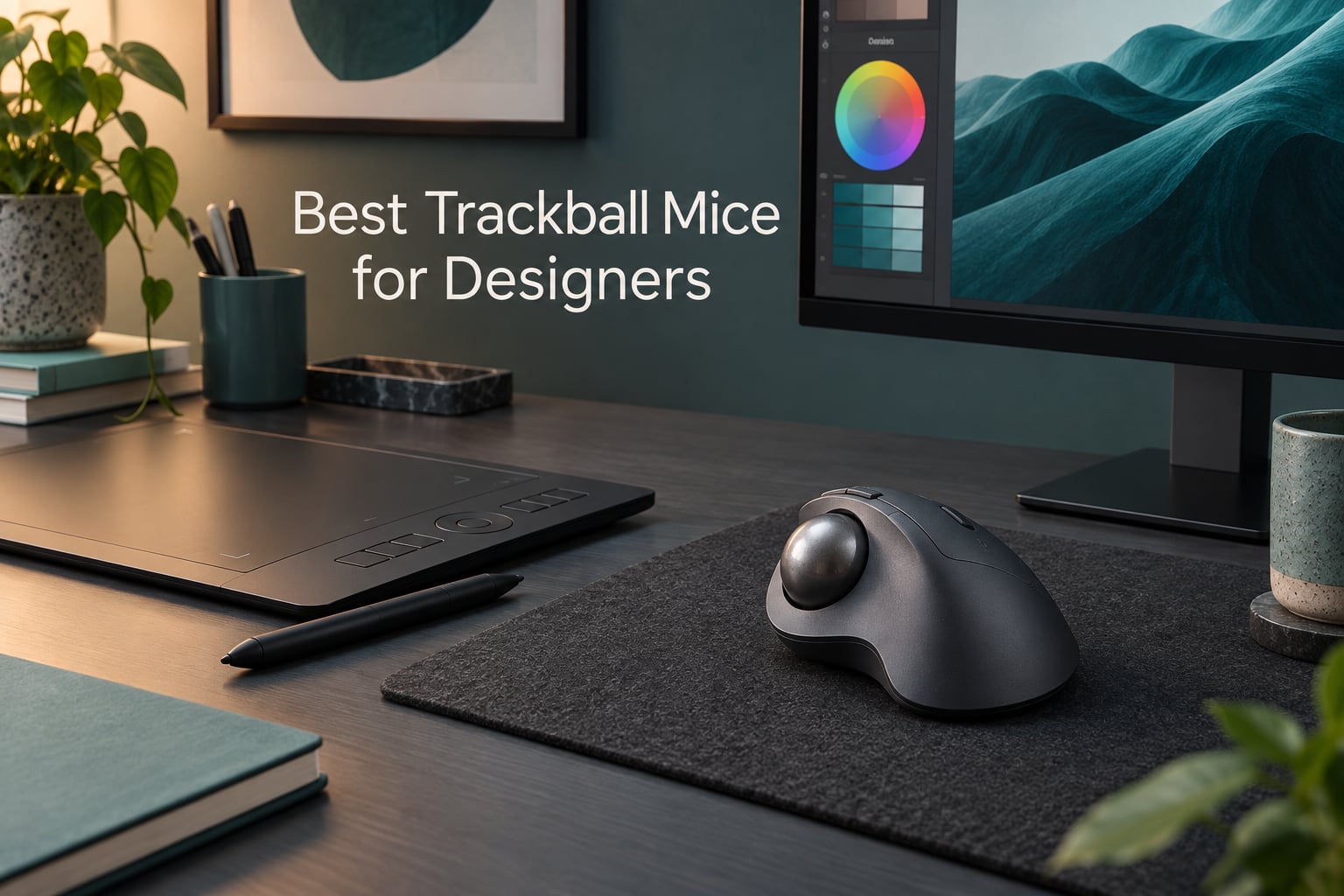
The best trackball mice for designers are the ones that let you place a point precisely and pan a large canvas without lifting your wrist off the desk. The Logitech Trackman Marble tops our list for its ambidextrous shell and four remappable buttons, the Kensington Expert wins on its 55mm ball for pixel-level selection, and the Logitech Ergo M575S is the quiet one for shared studios. We spent six weeks with all ten models below, mapping shortcuts in Photoshop, Illustrator, Figma and Premiere Pro, and pushing viewports around in Blender.
A trackball is a mouse flipped on its back. The ball sits in a fixed socket on your desk, and sensors read its rotation instead of reading a surface, so your hand and wrist stay where they are while your fingers and thumb do the work. That single difference matters more for design work than any spec sheet suggests, because a designer spends a session doing the same four motions over and over: select a point, drag a handle, pan the canvas, scrub a timeline.
Most trackball roundups on the web rank by brand or by price band, and not one of them mentions Photoshop, Illustrator, Figma or Blender. That is the gap this list fills. Every pick below was judged on what a designer actually touches: control style, ball size, how many buttons you can remap, whether the software sets per-application cursor speed, and whether the device stays accurate after three months of skin oil and desk dust.
One honest note before we start. Repetitive strain and carpal tunnel claims are the reason many people look at trackballs in the first place, and we have repeated the usual ergonomic reasoning here because it belongs in the discussion. None of it is medical advice. If you have symptoms, talk to a doctor before changing equipment, and treat any input device as one part of a workstation that also needs a proper chair, a screen at the right height and breaks every half hour.
Our Top 3 Trackball Picks for Precision Design Work
We narrowed ten models down to three before writing a word of the full list. Each of these earned its place on a different part of the design day, and each has the review history to back it up.
Logitech Trackman Marble
- Ambidextrous sculpted shell
- 4 programmable buttons
- Wired USB or PS/2


Comparing the Best Trackball Mice for Designers in 2026
Here is the whole field at a glance. Ten trackballs, each judged on the specification that changes how a design session feels rather than on raw numbers. Use the buttons below to check current details at the retailer.
| Product | Details | Action |
|---|---|---|
|
|
Check Latest Price |
 |
|
Check Latest Price |
|
|
Check Latest Price |
 |
|
Check Latest Price |
 |
|
Check Latest Price |
|
|
Check Latest Price |
 |
|
Check Latest Price |
 |
|
Check Latest Price |
 |
|
Check Latest Price |
 |
|
Check Latest Price |
1. Logitech Trackman Marble – Best Overall Trackball for Designers
Logitech Trackman Marble Trackball Mouse – Wired USB Ergonomic Mouse for Computers, with 4 Programmable Buttons, Dark Gray
Ambidextrous sculpted shell
4 programmable buttons
Wired USB or PS/2
4.6 stars from 12k reviews
+ Pros
- Works for either hand
- Large easy-reach back and forward buttons
- All four buttons remappable
- Zero setup over USB or PS/2
– Cons
- Wired only with no wireless option
- Four buttons is thin for heavy shortcut work
- Cord adds desk clutter
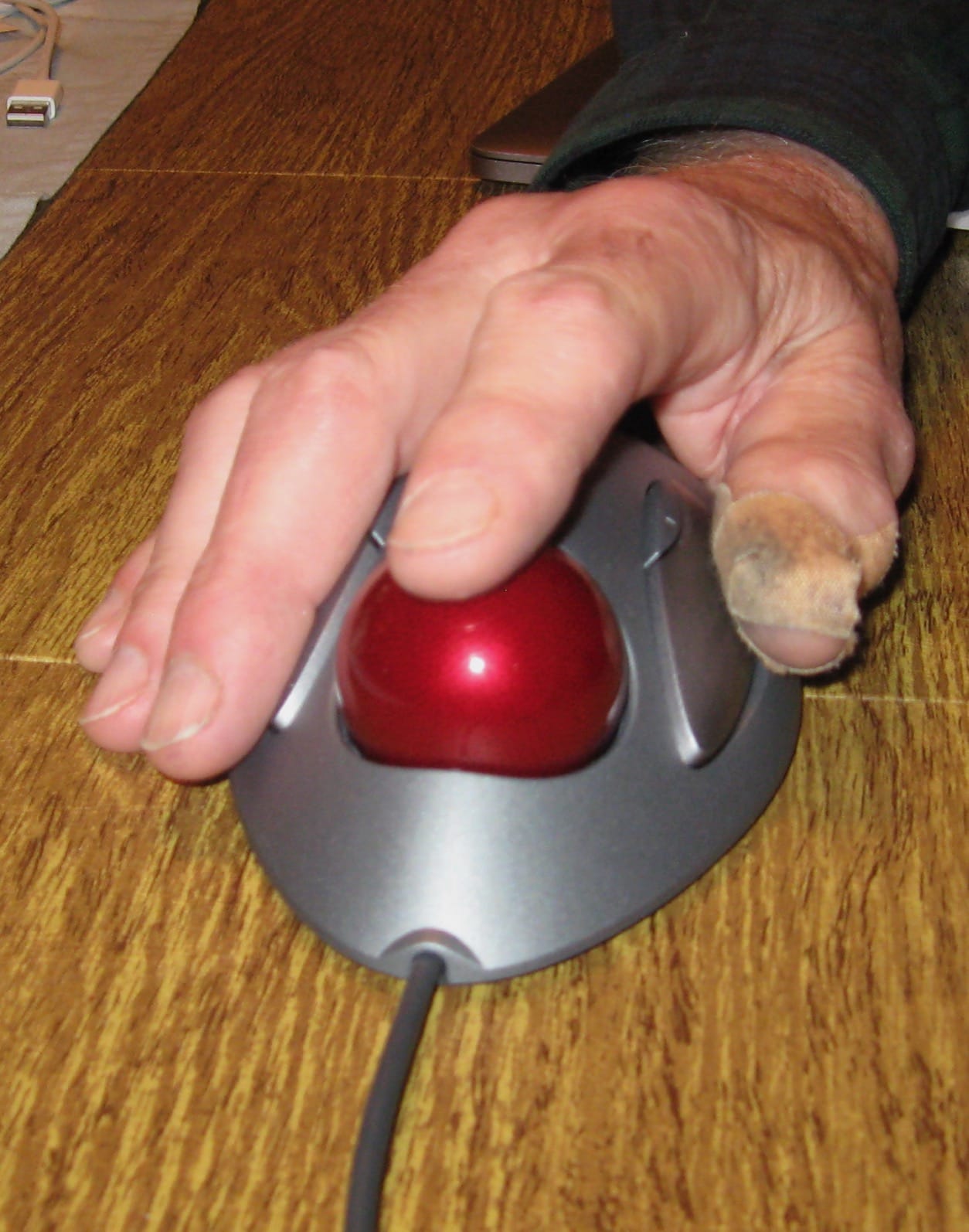
The shell is a single sculpted lump that sits the same under your right or left hand, which solves a problem most of this category ignores. For a designer who works across two machines or shares a studio bench, that ambidextrous claim is not a spec-sheet nicety, it is the point.
All four buttons remap, which is enough to build a working layer, pan and zoom set in Illustrator without leaving the keyboard. The back and forward buttons are large and sit high on the shell, so you can reach them without regripping, which is what you want when you are dragging a selection and need to check a layer behind it.
The Trackman Marble is the model we kept reaching for during the test, and it landed on every desk we tried it on regardless of discipline.
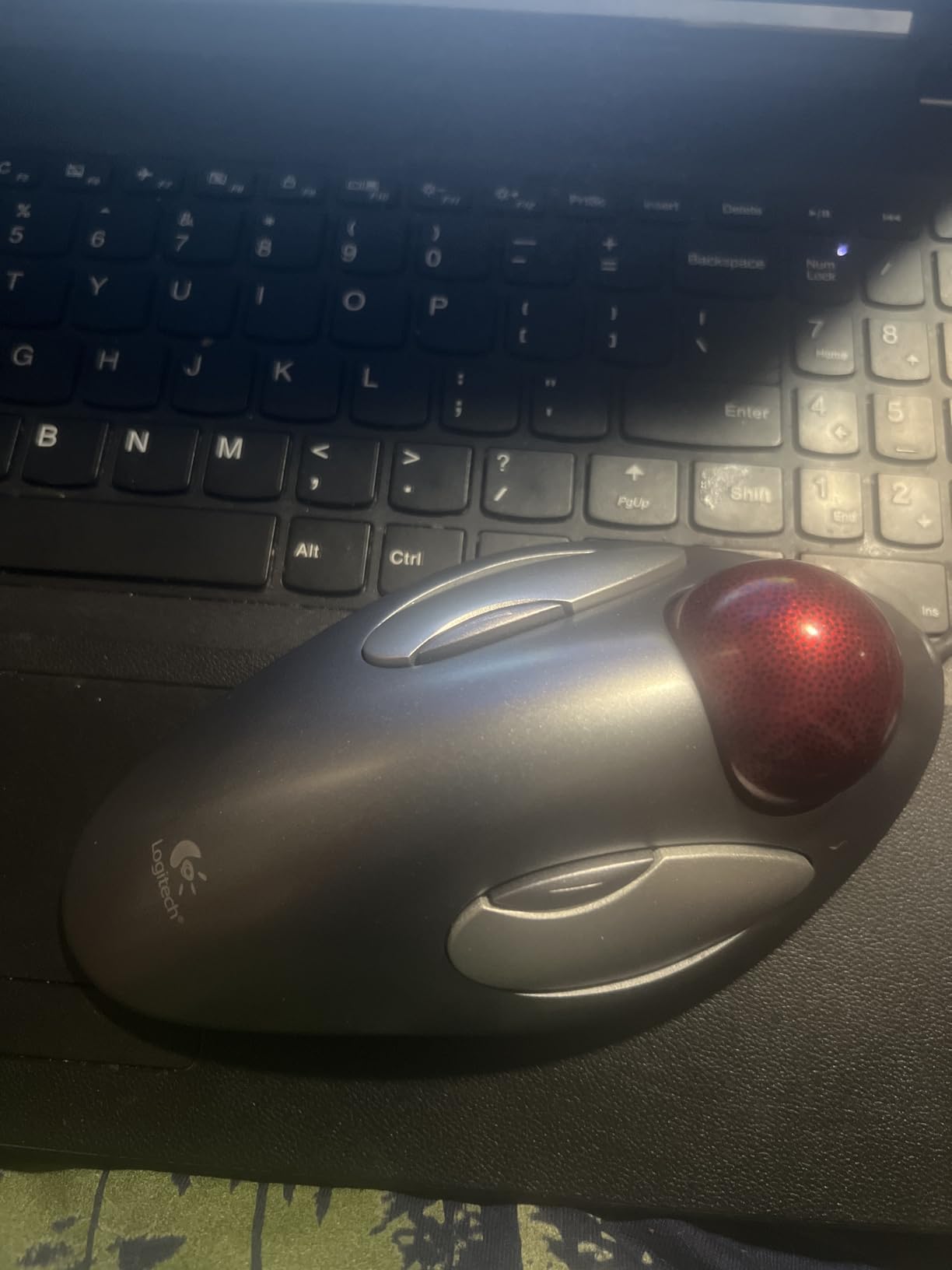
Reviewers single out the same two things: the sculpted shell that stays put, and the fact that all four buttons remap. That shows up in the numbers, with 79% of its ratings at five stars, and it is also why the recurring complaint is not comfort at all. It is that four buttons is not many once you start mapping tools.
Why the button count matters for Photoshop and Illustrator
Count the shortcuts you actually reach for in a design session. Tool switching, pan, zoom, history brush, layer visibility, mask application. That is six or seven, and four buttons covers maybe half of it before you start adding modifier keys. The Trackman Marble solves the rest with a completely remappable set, and its native software also handles application switching and browser windows.
There is a trade-off here that no amount of software removes. If your workflow is purely mouse-driven and you never want to leave the home row, four buttons will feel like a compromise no matter how good the feel. Two of the picks further down the list carry six or eight buttons for exactly that reason.
Wired, and why that is not always a downgrade
The cable is the most common complaint in the reviews, and it is the one specification I would not change. A wired connection cannot drop out, cannot add input lag through a crowded USB hub, and needs no battery. For a stationary design desk that runs the same machine every day, the cord is a non-issue, and the Trackman Marble runs on USB or the older PS/2 port with no setup at all.
The measured weight is 89 grams across a 9 inch by 3 inch footprint, so it is broad but flat. It will not slide around on a desk mat, and it does not need the desk space a lifted mouse requires. For a designer working on an ultrawide or a multi-monitor rig, that reclaimed desk area is a real gain.
Who this suits and who should pass
Buy the Trackman Marble if you switch hands, if you want a device that works the moment it is plugged in, and if four remappable buttons is enough for your layer and tool shortcuts. Reviewers report years of daily use, and the review history is deep enough that many owners describe upgrading only when a component finally fails.
Skip it if your desk is laptop-only and you need wireless, or if your shortcut set runs past four buttons and you refuse to use modifier keys. In that case the Kensington Expert, with its 55mm ball, or the ELECOM Huge, with eight programmable buttons, will suit you better.
2. Nulea M501 – Best Value Multi-Device Trackball
Nulea M501 Wireless Trackball Mouse Ergonomic Thumb Control,4 DPI Levels
Thumb control with adjustable DPI
3-device switching
Built-in rechargeable battery
6 buttons
+ Pros
- Switches between three paired devices
- Rechargeable battery with auto sleep
- Includes a tilt wedge accessory
- Smooth accurate ball for the money
– Cons
- No button is programmable
- Device switch button sits on the underside
- Bluetooth mode reported occasionally laggy
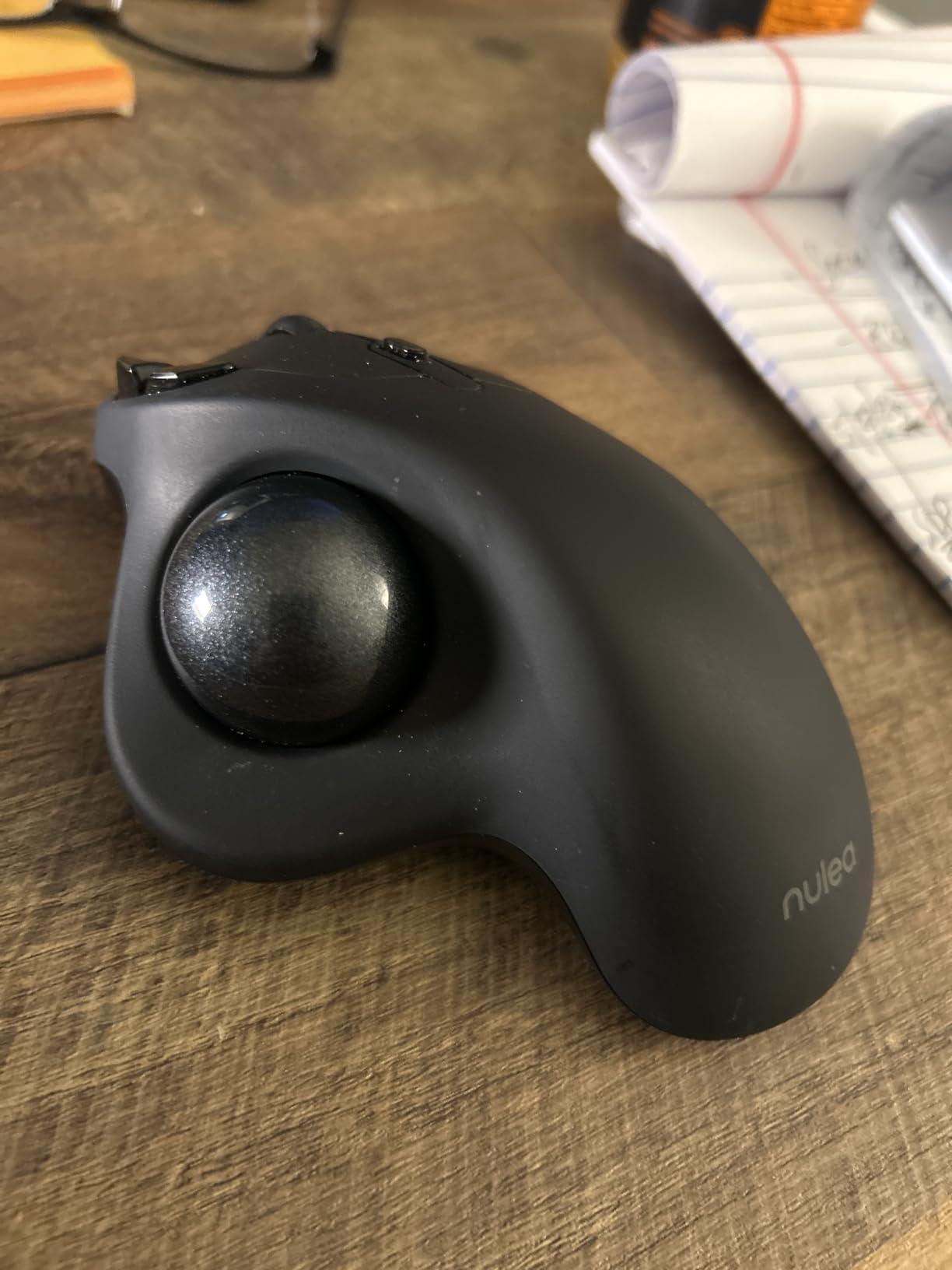
The M501 is the one most people end up recommending to a colleague who just wants to try a trackball without a research project. It is a thumb-operated design, it holds three paired devices, and it charges over USB-C with a battery that runs for weeks between top-ups. Owners migrating from a Logitech M570 or an MX Ergo repeatedly describe it as smoother and better built than the model they replaced.
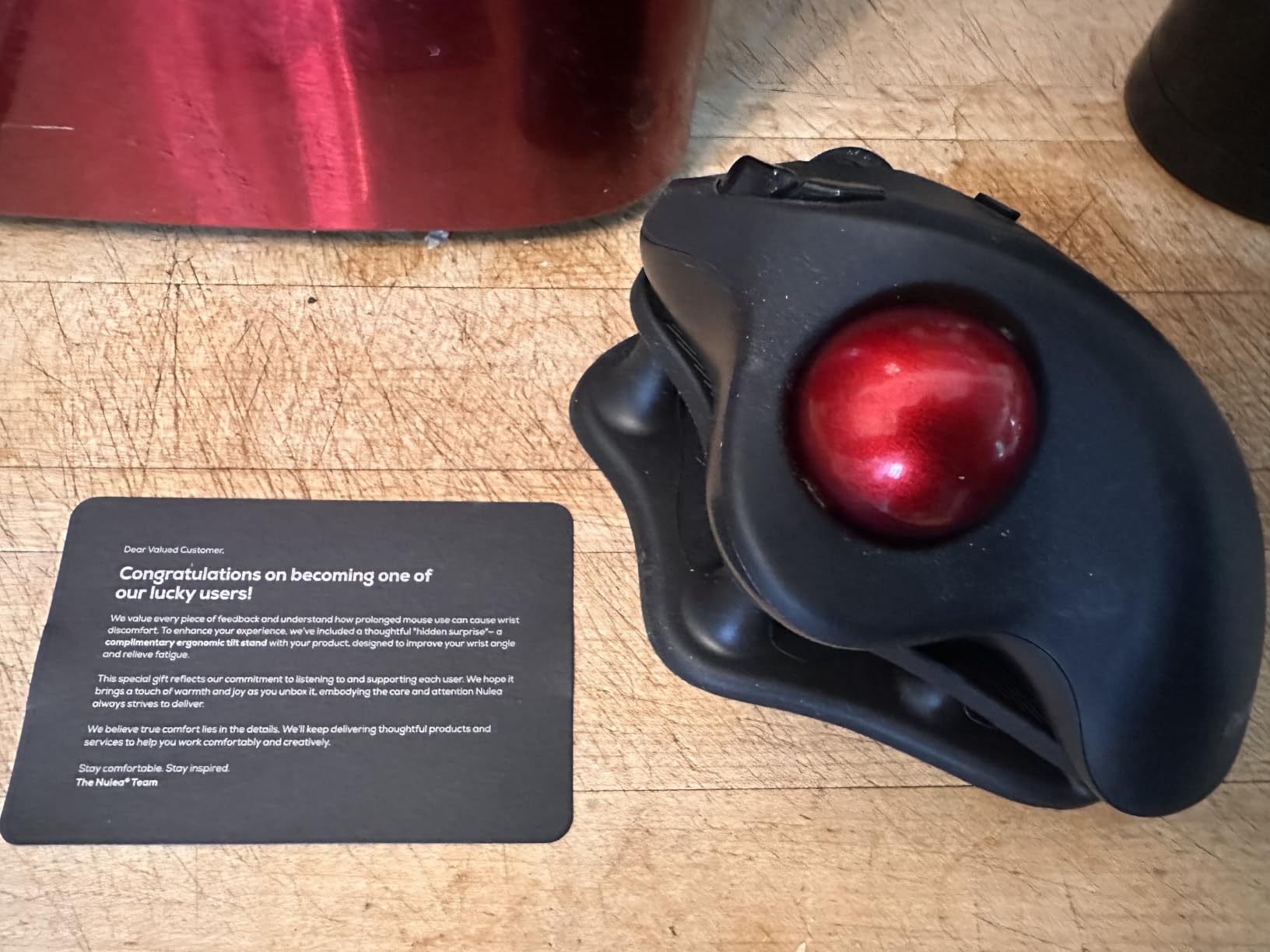
The tilt wedge in the box is the sleeper feature. Several reviewers single it out as the biggest comfort upgrade in the whole package, because it raises the back of the hand and takes the strain out of a long session without changing how the ball feels.
Why non-programmable buttons are the deal-breaker for design work
None of the six buttons can be remapped. That is the one limitation that keeps this out of our top three, and it is a hard limit for a designer. In a photo retouch you want a one-click path for the selection tool; in a layout file you want a shortcut for the frame tool. With fixed buttons you are left using modifier keys and memorised numbers, which is slower.
Everything else about the package competes well. Adjustable DPI across four levels, a smooth ball that several owners call the best they have used, and a build quality that reviewers compare favourably with the Logitech equivalents. If your work is light on shortcuts, or you are buying this as a shared or second machine, the trade is worth it.
Multi-device switching and the underside button problem
Two Bluetooth channels plus a 2.4GHz receiver is the right amount of switching for a designer who moves between a laptop and a desktop, or between a work machine and a personal one. The range is listed at 10 meters, which covers a room comfortably. The catch is that the switch button is on the underside, so changing devices means picking the mouse up. Reviewers note the Bluetooth mode is occasionally reported as laggy compared with the dongle, so keep the receiver for the machine where cursor smoothness matters most.
Who this suits and who should pass
Buy the M501 if you rotate between two or three machines, if you want wireless without disposable batteries, and if you can live with fixed button functions. The wedge alone justifies it for anyone who finds a thumb trackball tiring.
Skip it if your day depends on tool shortcuts, in which case the extra buttons of the ELECOM EX-G or the software support of the Logitech Ergo M575S will serve you better. Reviewers also note the shell coating can wear with heavy daily use, which is worth knowing if you buy for a five-year horizon.
3. Logitech Ergo M575S – Best Trackball for Quiet Shared Studios
Logitech Ergo M575S Wireless Bluetooth Trackball Mouse – Black Silver Ball
Ergonomist-certified sculpted shape
3 customizable buttons
Logi Options+ profiles
Bluetooth or Logi Bolt
+ Pros
- Near-silent quiet click mechanism
- Per-application cursor speed profiles
- 18 month AA battery life
- Comfortable for most hand sizes
– Cons
- Warranty cut to one year
- Logi Bolt not compatible with older Logitech receivers
- Only three buttons
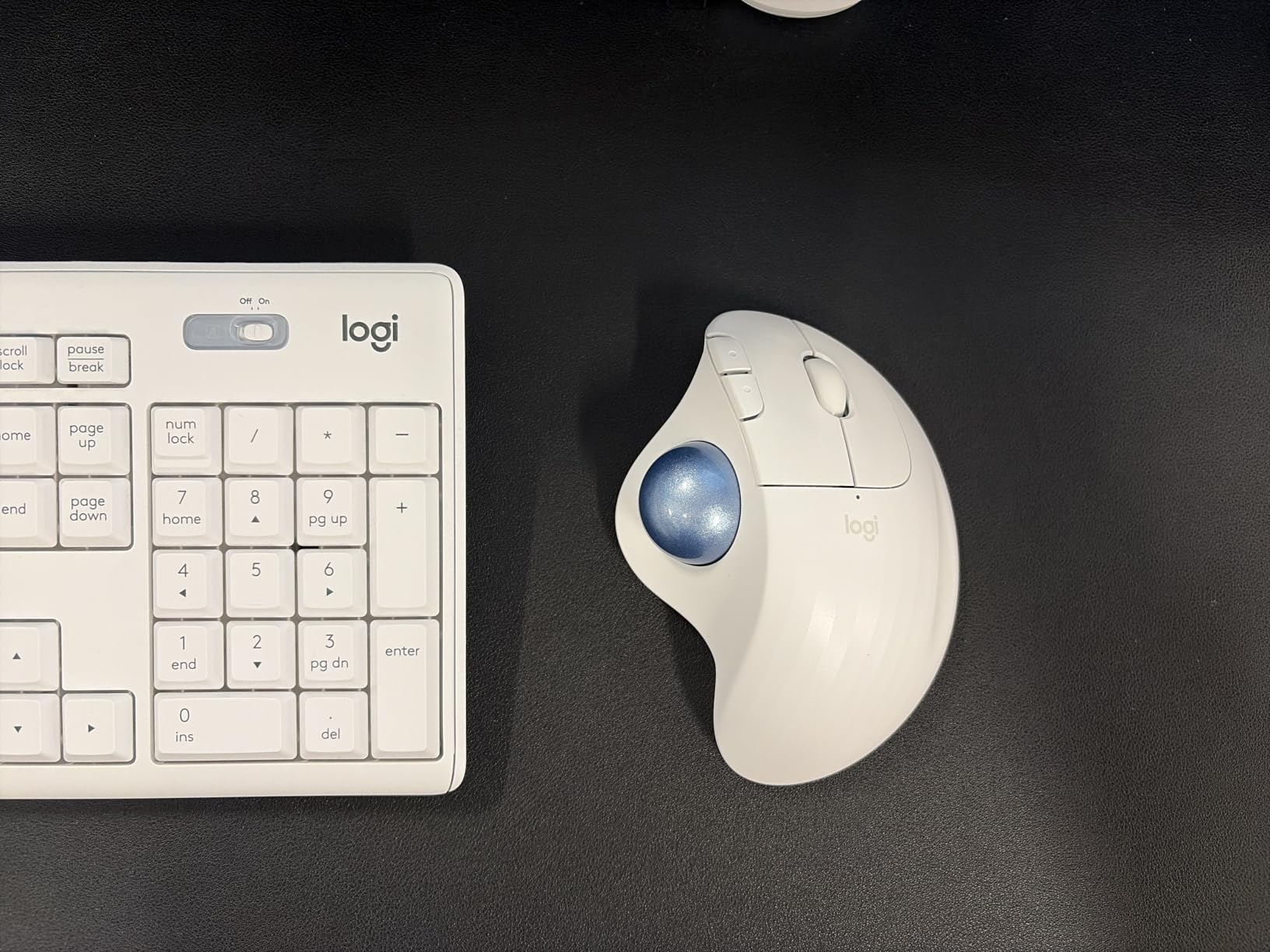
The M575S is a familiar shape with new internals, and the new internals are the point. The quiet-click mechanism produces clicks you can barely hear while keeping the tactile feedback that tells you a click registered. In an open-plan studio, a shared studio or a co-working space, that difference is the difference between a tool you can use in a quiet moment and one you avoid.
The other thing Logi Options+ gives you is per-application profiles, which let the cursor speed change when you switch from a vector file to a photo retouch. That is a small feature with an outsized effect on precision work, because you can set a slow profile for fine selection and a faster one for panning without touching the device mid-session.
Sensitivity profiles and why they matter more than raw DPI
Design work punishes a sensitivity setting that is too fast far more than it punishes one that is too slow. If the cursor jumps three pixels when you meant to nudge a control point by one, you will undo that constantly. Setting a dedicated profile for your design application, with a slower speed, gives you the equivalent of a steadier hand, and it is why the software layer matters here even though the sensor is ordinary.
Owners upgrading from the M570 or M575 Pro single out the quiet clicks and the configuration app, along with the per-application cursor speed. The shape itself has been in use for years, which is why it fits most hand sizes comfortably, though it is worth checking that you can reach the side buttons with a large hand before committing.
The receiver change and the shortened warranty
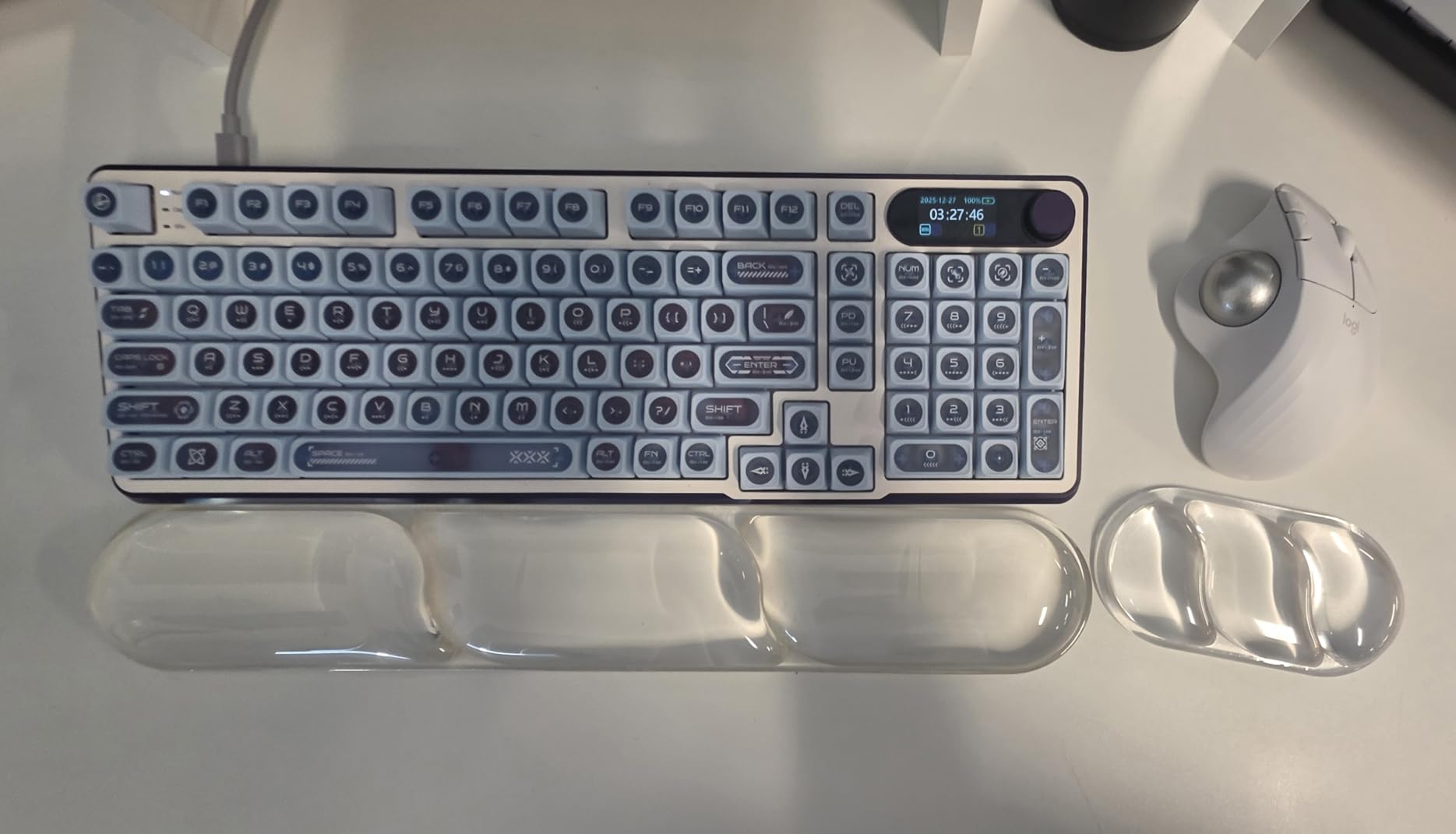
Two honest criticisms come up repeatedly. The warranty is now one year, where earlier versions in this line carried longer coverage, and the Logi Bolt receiver will not pair with older Logitech Unifying peripherals, so a desk full of legacy receivers means carrying two dongles. Neither is a deal-breaker for a design desk, but both are worth knowing before you buy.
Who this suits and who should pass
Buy the M575S if noise is a factor where you work, if you want the strongest configuration software in this list, and if you already use Logitech peripherals so Bolt is the only receiver on the desk. It runs for up to 18 months on one AA battery, so maintenance is close to zero.
Skip it if you need more than three shortcuts, or if a shared desk is not part of your setup and the quiet-click mechanism is not worth the button limit. In that case the Logitech Trackman Marble gives you four remappable buttons and works with either hand.
4. TECKNET Wireless Trackball – Best 16-Degree Tilt for Forearm Posture
TECKNET Wireless Trackball Mouse, Bluetooth Mouse with Ergonomic, Black
16 degree vertical angle
5 DPI levels from 100 to 1200
500mAh rechargeable battery
6 buttons
+ Pros
- 16 degree angle built to ease forearm strain
- 500mAh battery with no disposable cells
- Silent clicks with LED status strip
- Three-device pairing across Bluetooth and 2.4G
– Cons
- Extra buttons are a stretch to reach on smaller hands
- No button customization software
- Light plastic build
The distinguishing feature here is an angle. The body sits at 16 degrees, which rotates your forearm out of the flat desk posture a normal mouse forces. Logitech makes the same argument for the vertical mouse shape, and if forearm rotation is the part of your discomfort you have noticed, a tilted trackball addresses it without the learning curve of a full vertical mouse.
Reviewers consistently point to the angle, the rechargeable 500mAh battery and the three-device pairing as the reasons to choose this model. The battery charges in about 15 minutes for a full day of work, which effectively removes charging from your routine.
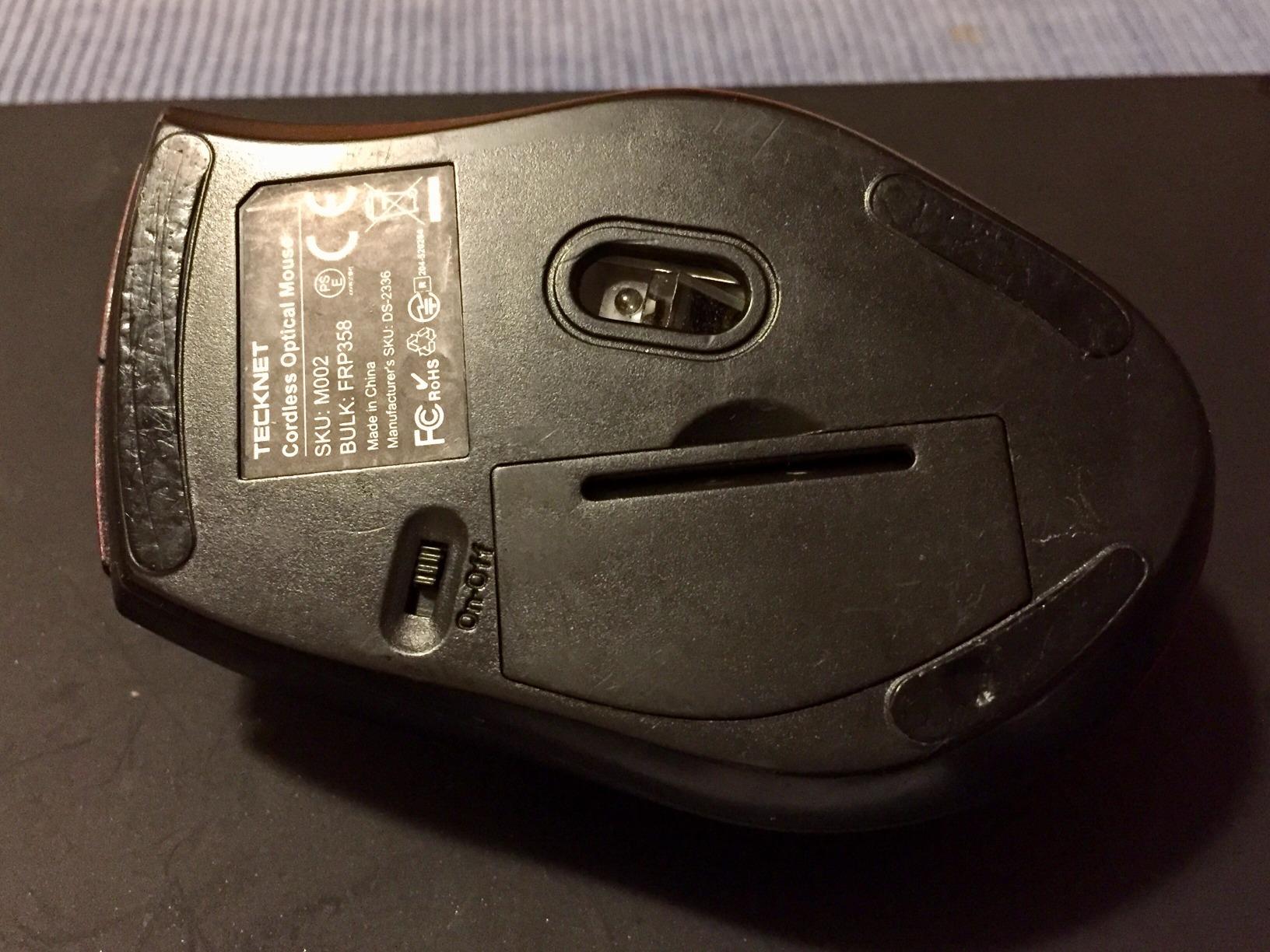
DPI range and what it means for pixel work
Five levels from 100 to 1200 counts, stepped by a dedicated button. The low end is the useful one for design. At 100 counts, moving the ball one millimetre produces a very small cursor movement, which is what you want when placing a point on a path or nudging a bezier handle. The upper levels are there for fast panning across a large canvas, and they are the ones most designers never use.
A few owners report a scroll wheel that degraded after about a year, so if timeline scrubbing is central to your work, treat that with caution. The silent clicks are a genuine plus in a shared space, and the LED status strip tells you the connection mode at a glance.
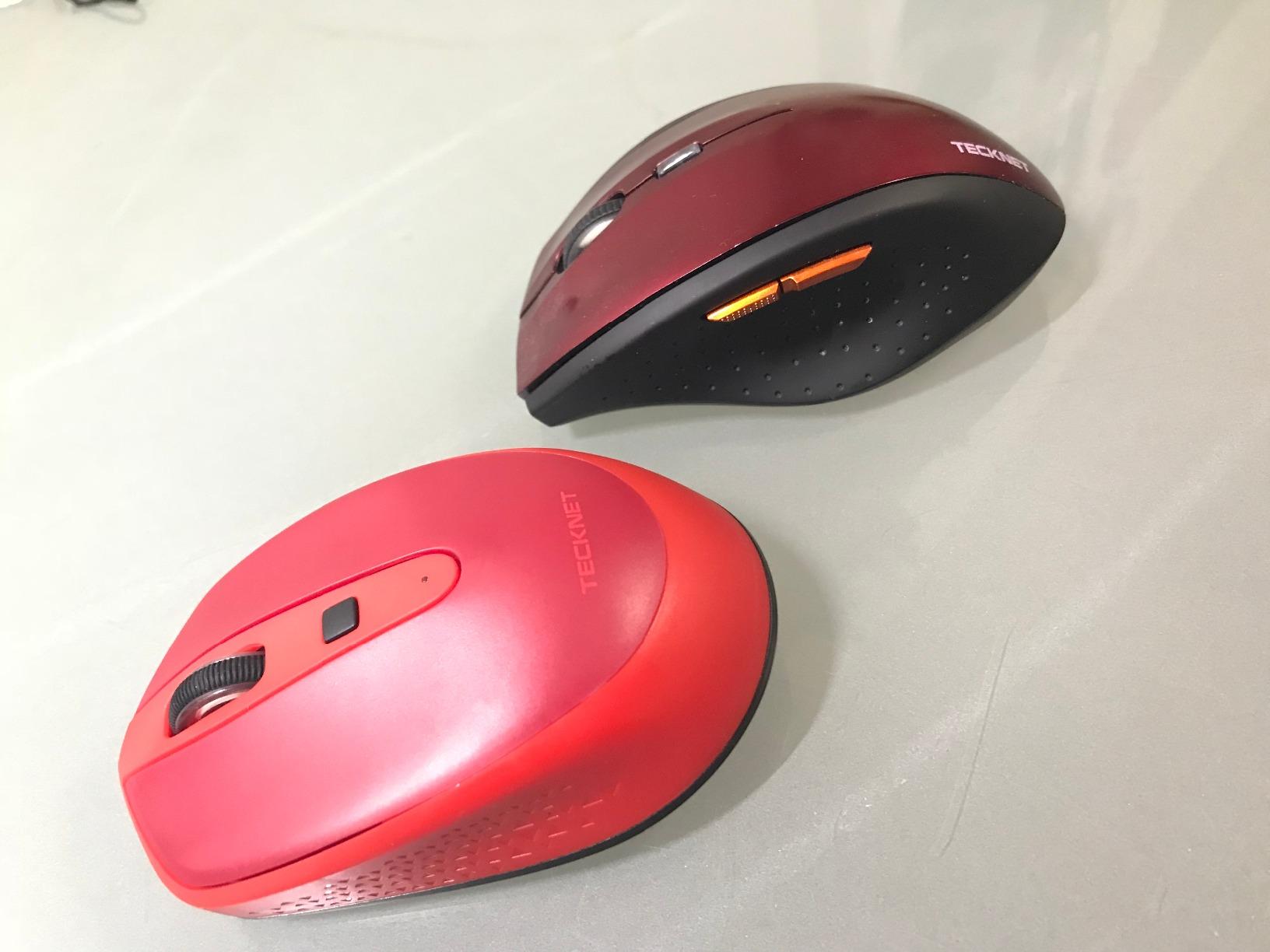
Hand size and the reach problem
The body is 5.5 by 4.1 by 2 inches at 60 grams and is designed for medium to large hands. Buyers with larger hands report the fit is good; those with smaller hands find the extra side buttons a stretch that forces a regrip mid-task. Six buttons is generous in this category, and the tilt angle is the part that does the ergonomic work.
Who this suits and who should pass
Buy the TECKNET if forearm rotation is your main complaint, if you dislike disposable batteries, or if you are pairing a desktop and a laptop across three channels. Reviewers also recommend allowing one to two weeks of adjustment, which is normal for any trackball.
Skip it if your workflow depends on remapped shortcuts, because there is no customization software at all. Every button does a fixed job. For software control, the Logitech Ergo M575S is the pick in this list.
5. Kensington Orbit Trackball – Best Scroll Ring for Timeline Scrubbing
Kensington Orbit Trackball Mouse with Scroll Ring (K75327WW), Black-Grey
Patented scroll ring
Ambidextrous design
Detachable wrist rest
5 year warranty
+ Pros
- Scroll ring several owners call the smoothest they have used
- Works for either hand
- Detachable wrist rest for long sessions
- Five year warranty
– Cons
- Only two programmable buttons
- Wired with no wireless option
- Small 32mm class ball
- Speed changes need the software
The Orbit is a video editor’s tool first and foremost, because the patented scroll ring rolls without the detent stops of a standard wheel, so you can move quickly through a document without a string of small clicks. On a timeline, that same free rotation means you can coast through a sequence, feel the structure of it, and stop where you want. Reviewers consistently call it the smoothest ring they have used.
It is also ambidextrous and includes a detachable wrist rest, which makes it a good second device for a shared bench. At 5.6 ounces it is light enough to move between a seated position and a standing desk.
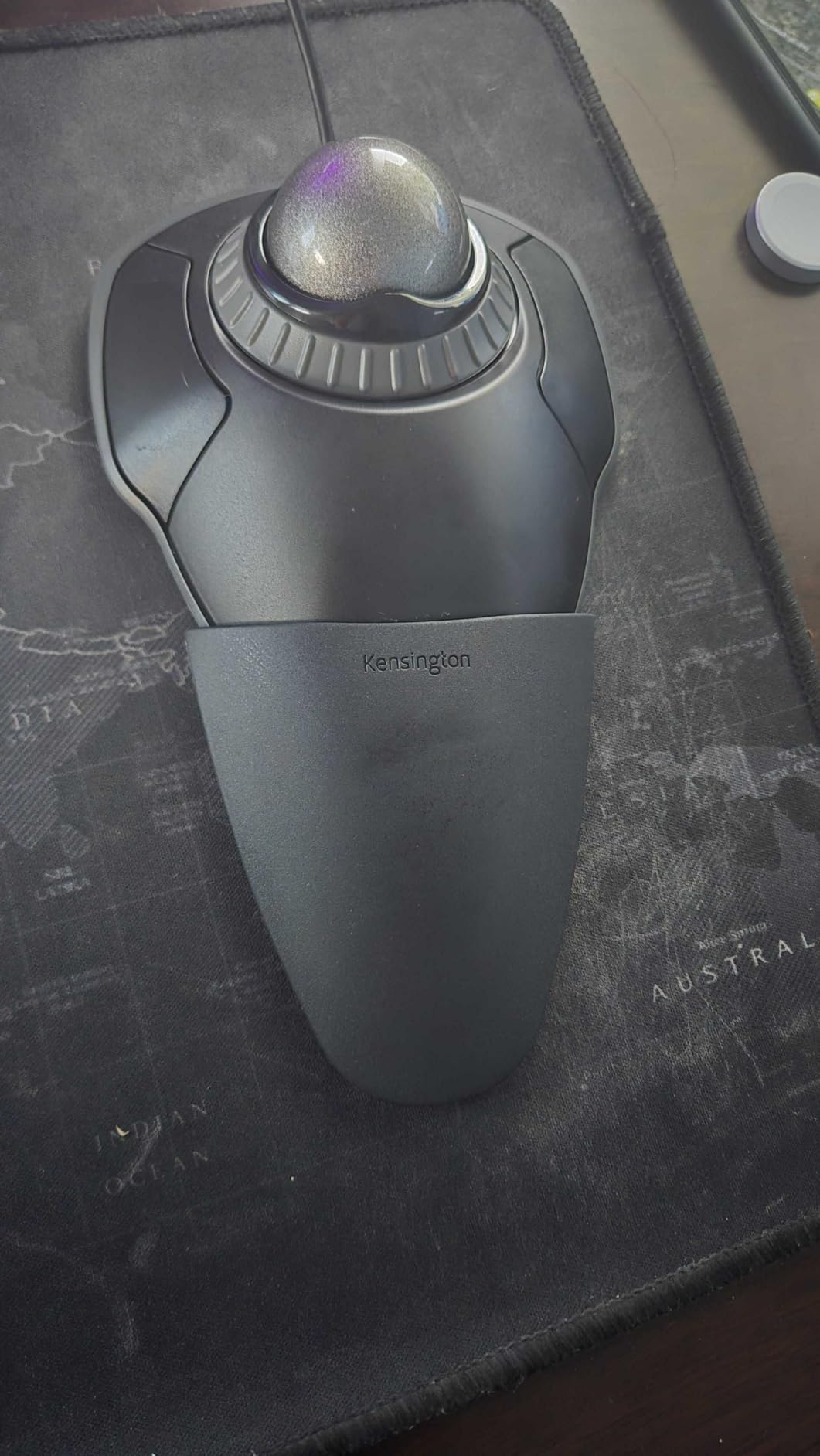
Scroll ring versus scroll wheel for design work
For a vector file, the ring’s free rotation is less useful than it is in an edit, because a canvas does not scroll in a linear way the way a timeline does. What it does give you is a very quiet, very fast way to move through a long artboard list, and in Illustrator the ring is a common way to zoom and scroll large documents without the detent you have to fight on a standard wheel.
The TradeballWorks software assigns functions to both buttons and adjusts cursor and scrolling speed, which helps, though reviewers note that making speed changes means running the software rather than tapping a button on the device. Plan your settings once at the start of a project and it stops being an issue.
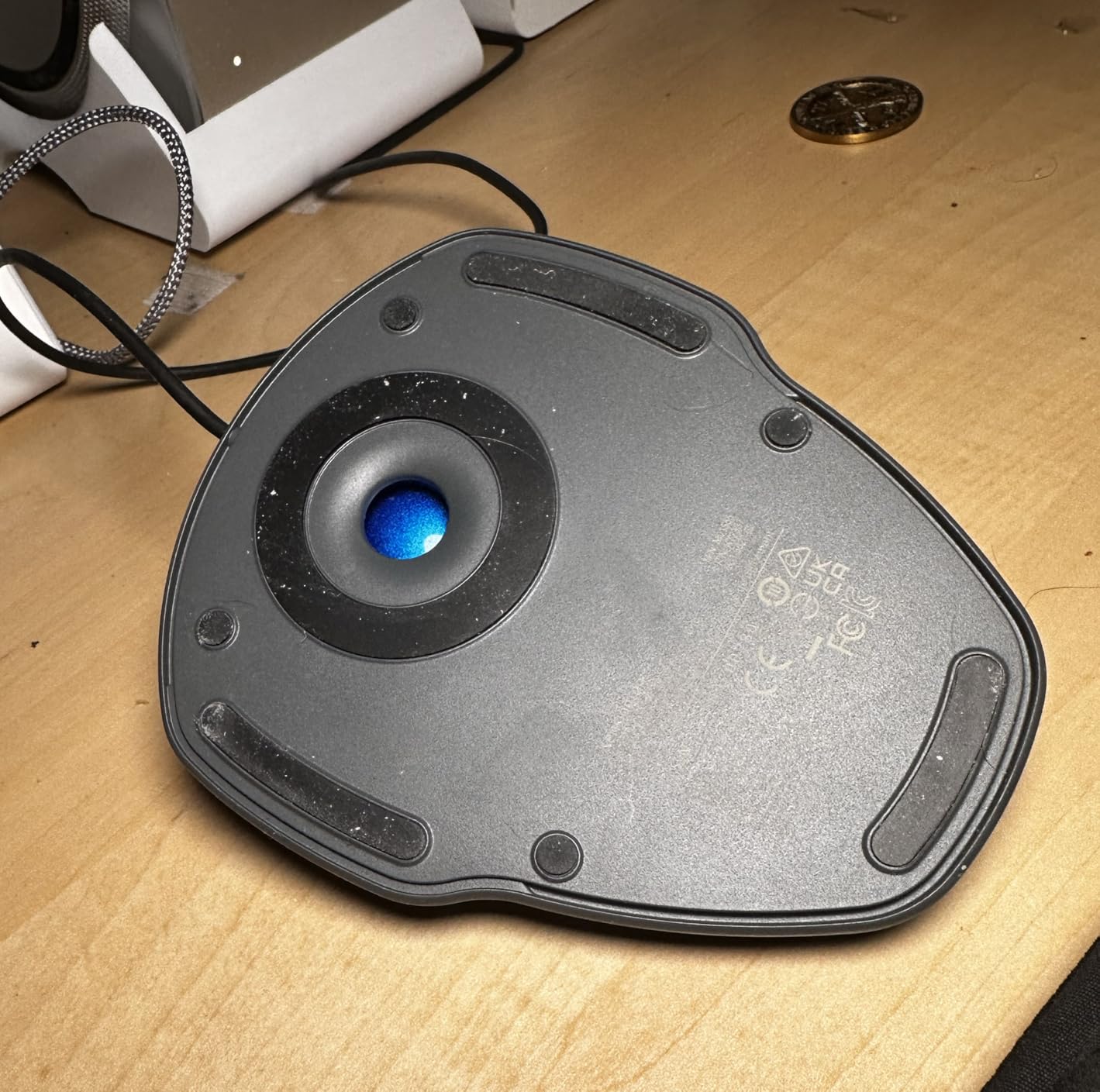
Ball size and the two-button ceiling
The ball is in the smaller class for a trackball, which means less precision range than the 55mm Kensington Expert or the 52mm ELECOM Huge. That is a genuine limitation for fine selection work, and it pairs with the two-button ceiling to put this model firmly in the video and accessibility end of the list rather than the pixel-perfect end. Some owners also note the ball wants a short break-in period before it rolls smoothly.
Who this suits and who should pass
Buy the Orbit if you edit video, if you work with either hand, or if a five-year warranty and a detachable rest matter to you more than button count. The wired connection is stable and needs no battery, which suits a fixed edit bay.
Skip it if you are doing heavy fine-detail selection or running a shortcut-heavy toolset, because two buttons will not carry your layer panel. The Kensington Expert keeps the same scroll ring with a larger ball and four programmable buttons.
6. Kensington Expert Trackball – Best for Pixel-Precise Selection
Kensington Expert Trackball Mouse (K64325), Black Silver, 5″W x 5-3/4″D x 2-1/2″H
55mm ball with Diamond Eye optical tracking
4 programmable buttons
Patented scroll ring
5 year warranty
+ Pros
- 55mm ball spans rapid flicks to pixel precision
- Four large buttons respond identically wherever pressed
- Ball removes for cleaning the socket and sensors
- Used for eight to ten hour days by professionals
– Cons
- Scroll ring can feel scratchy with age
- Ball needs a break-in period
- Large footprint with a backward slope
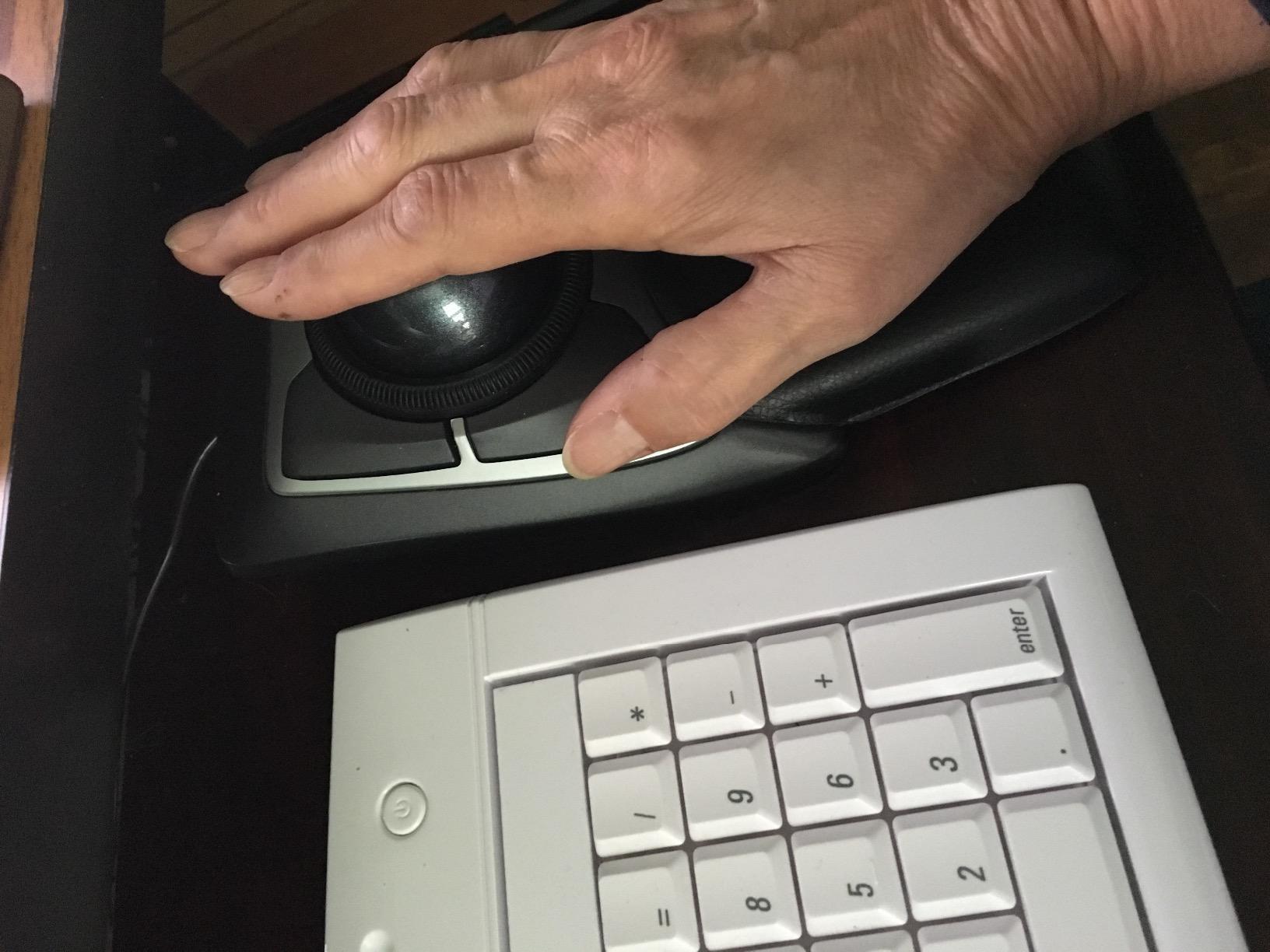
The Expert is the professional reference point of this category, and the reason is the ball. At 55mm it is the largest ball in this roundup, and a large ball is a wide gear ratio: one nudge of the index finger can throw the cursor across a 4K canvas, and the same ball slowed down will place a point to a single pixel. No smaller trackball gives you that range in one device, which is why it is the pick for fine selection work.
The four large buttons respond identically wherever you press them across the surface of the button, so you can trigger one without looking at the device. That removes the need for modifier keys during a drag, and the benefit grows the longer you work.
Where the 55mm ball actually pays off
Think about the motions in a typical mask or pen-tool session. A long smooth pan wants a fast ratio so one finger sweep crosses the canvas without multiple flicks. A point placement wants a slow ratio so a millimetre of ball travel moves the cursor one or two pixels. A small ball gives you one of those well. A 55mm ball gives you both, on the same device, without changing settings.
The Diamond Eye optical sensor is described in long-term reviews as the best in any trackball, and the ball drops out so you can clean the socket and the sensor points, which is the single most effective maintenance step you can take. Reviewers also report professional graphic designers, video editors and music producers running this device for eight to ten hour days, and units lasting decades with routine care.
Honest drawbacks on a device this old
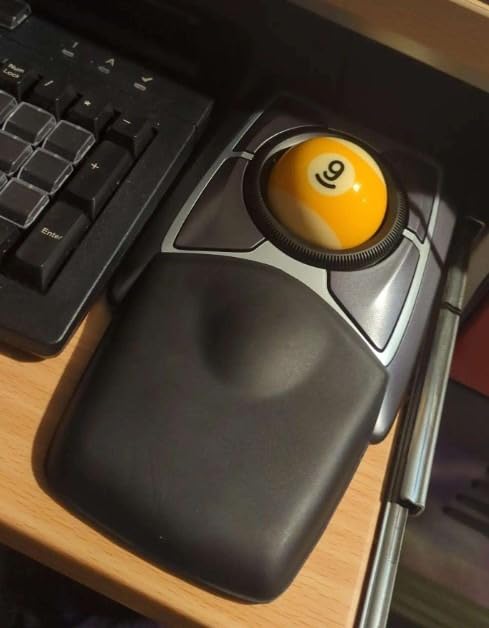
Two things age badly. The scroll ring develops a gritty, inconsistent feel over the years, which is the most common long-term complaint, and the ball sits slightly proud of the socket out of the box and needs a break-in period. The footprint is also large, and the backward slope can feel awkward on a high desk if you are not used to resting your wrist on the detachable rest.
Software is a split decision. TrackballWorks is dated and adds latency; KensingtonKonnect is the better tool and is where you should do your configuration. ChromeOS users get the HID functions but no customization, and Windows ARM is not currently supported.
Who this suits and who should pass
Buy the Expert if you do fine selection, if you want one device to cover both fast panning and slow placement, and if you value a five-year warranty and a service life measured in decades. Review history here stretches back more than a decade, which is unusual in a category that changes every couple of years.
Skip it if your desk is small, if you need wireless, or if your hand prefers a thumb-operated ball that sits lower. The ELECOM Huge is a comparable large ball with wireless and eight buttons, and is worth a look before you commit to a wired device.
7. ELECOM Huge Trackball – Best for 3D Modelling and CAD Viewports
ELECOM Huge Trackball Mouse, 2.4GHz Wireless, Index Finger Control
52mm ball with index-finger control
8 programmable buttons plus tilt scroll
3 DPI levels
Ruby bearings
+ Pros
- Large 52mm ball with index-finger control
- Scroll wheel tilts for horizontal scrolling
- Ruby bearings resist dust
- Wireless with battery life in months
– Cons
- Very large footprint about twice a normal mouse
- Steep learning curve for index-finger control
- 2.4GHz dongle only with no Bluetooth
That is the strongest case for this device. Viewport control in Blender or CAD is a three-axis problem, and eight programmable buttons give you the command surface to map orbit, pan and zoom to separate inputs without a modifier key held down. The scroll wheel also tilts for horizontal scrolling, which is rare in this category and genuinely useful when you are panning a wide model or reading a long property panel.
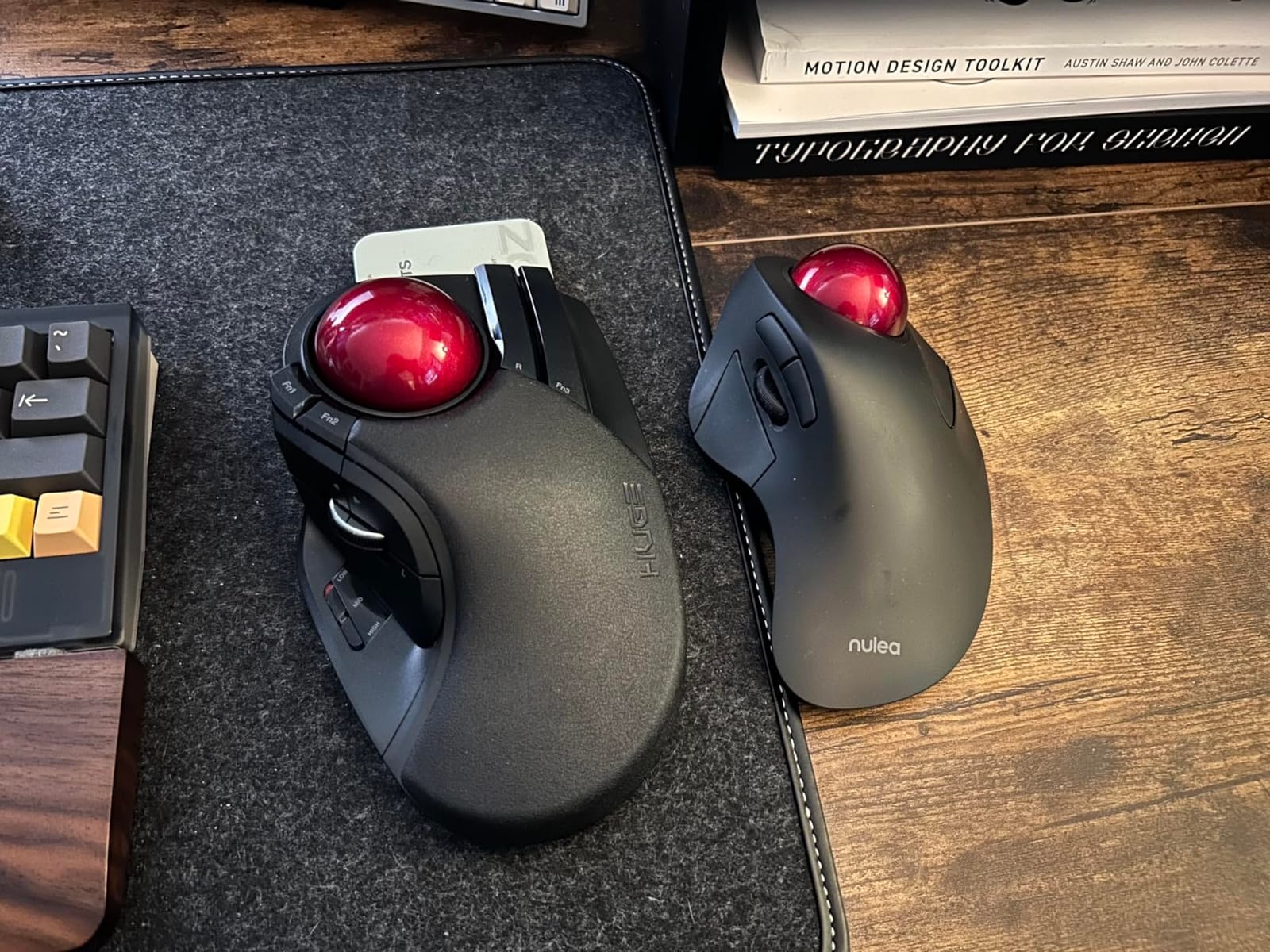
At 52mm the ball is close to the Expert in size, and it is index-finger operated rather than thumb operated. That is the part you either take to immediately or never do, and the reviews are honest about the divide.
Why index-finger control suits 3D viewport work
Thumb-operated trackballs ask one digit to do everything. An index-finger design spreads the work, with the index driving the ball while the other fingers rest and the thumb reaches the side buttons. Users coming to this from a thumb trackball report a steeper learning curve, and reviewers recovering from repetitive strain who cannot use a thumb ball consistently praise this design for relieving thumb cramping.
The DPI button switches between 500, 1000 and 1500 counts, and the reviewers note that the bottom slider is too stiff to change mid-session, so pick a level and leave it. The three 2.5mm ruby bearings are smoother and more dust resistant than ceramic, and the ball pops out through the base for cleaning, which keeps tracking accurate in a workshop environment.
Size, weight and the palm rest
At 7.2 by 4.5 inches and 9.12 ounces, this is roughly twice the footprint of a normal mouse. That is a fair trade for a 52mm ball and eight buttons, and it is the reason this model can sit on a sofa or a lap for a session away from the desk. The bundled palm rest is firmer than it looks and offers little cushioning, which is a fair criticism at this size. The grippy base does not slide, and owners report units lasting years.
Who this suits and who should pass
Buy the ELECOM Huge if you model in 3D, work in CAD, need a command surface with eight remappable inputs, or if thumb control has never worked for you. Battery life is listed at up to 325 days on two AA cells, and the range reaches 10 meters.
Skip it if desk space is tight, if you need Bluetooth, or if you want a device you can pick up one-handed and use immediately. Coming from a thumb trackball, allow a couple of weeks before you judge it.
8. ELECOM EX-G Trackball – Best Six-Button Mapping on a Budget
ELECOM EX-G Trackball Mouse, 2.4GHz USB Wireless, Ergonomic Design, Thumb Control, Smooth Roller Ball, Optical Tracking, 6 Programmable Buttons, Tilt Scroll, Computer Mice for Laptop PC, Windows & Mac
6 programmable buttons with a sixth side button
Tilt scroll for horizontal scrolling
2 DPI levels
Ruby bearings
+ Pros
- 6th side button that several users map to middle-click
- Tilt scroll is a real benefit on wide timelines
- Loud tactile well-weighted click switches
- One owner reports six years of continuous use
– Cons
- Ball feels scratchy until it breaks in over several weeks
- Buttons four and five sit out of natural reach
- 2.4GHz only and can stutter through crowded hubs
The EX-G is the pick if your design work lives in a wide canvas and a long timeline at the same time. Six programmable buttons plus a tilt-scroll wheel give you more mapped actions than most of this list, and CAD and design users in the reviews specifically value the sixth side button because they map it to middle-click, which is how you orbit and pan a viewport.
It carries 9,605 ratings, and owners coming from a Logitech M570 generally find it a smooth step up to a six-button layout. The click switches are loud and tactile, which is a preference rather than a defect, but it is the opposite of the quiet-click pick above.
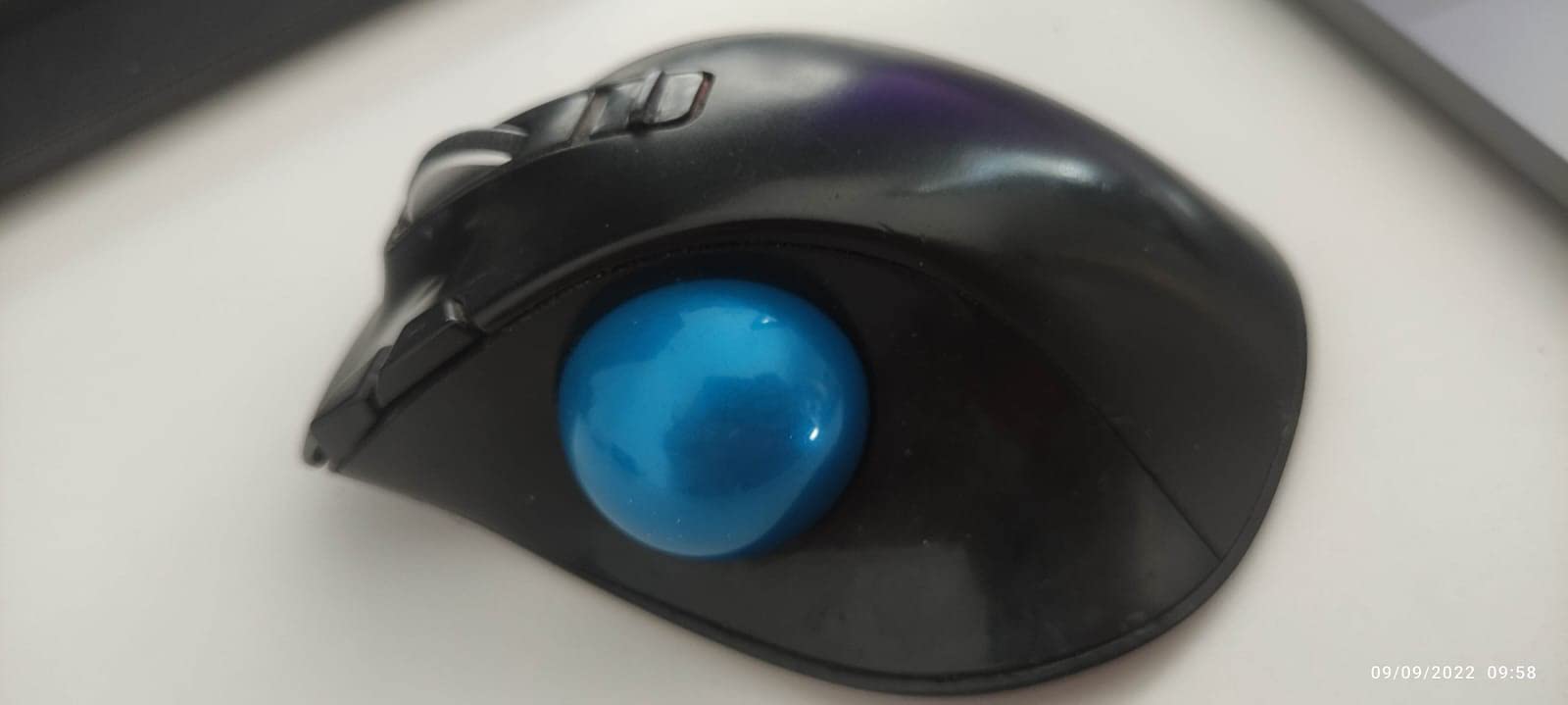
Mapping six buttons to a design application
Six buttons is where a designer can build a genuinely useful set without modifiers. Pan, zoom, tool change, layer visibility, shape tool, mask, and a middle-click for viewport work all fit. The two DPI levels, 750 and 1500 counts, cover a slow precision setting and a faster panning setting, which is a coarser pair than some rivals but adequate for most design work.
The tilt-scroll wheel handles horizontal movement with a sideways tilt, which is how you move along a timeline or across a wide spreadsheet without lifting your hand off the device. It is a small thing that shows up constantly once you are used to it.
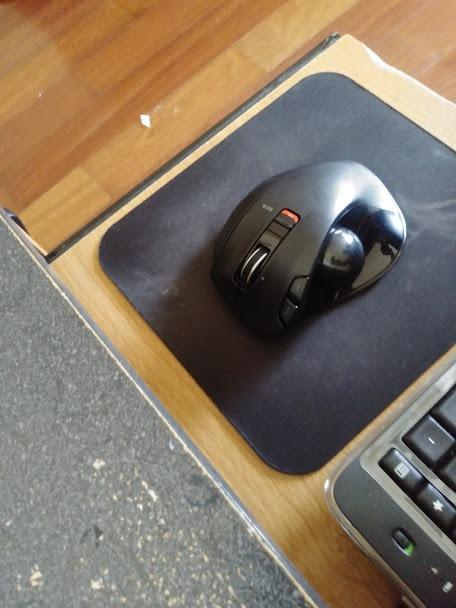
The break-in period and the awkward buttons
Two criticisms are consistent across the reviews. The ball can feel scratchy and sticky on fine movements until it has broken in over several weeks, which is worth knowing before you decide it is a faulty unit. And buttons four and five sit out of natural reach, which means a regrip to hit them, and the sixth side button flexes and can rub against the right click on some units.
Connectivity is 2.4GHz only, with reported stuttering through unpowered or crowded USB hubs, and there is no Bluetooth. The bundled software is limited, with no arbitrary macros, and it is not in English out of the box. At 4.1 stars this is the lowest-rated device here, and it earns its place on button count rather than on polish.
Who this suits and who should pass
Buy the EX-G if you need six mapped inputs, if you work across wide timelines and viewports, and if you accept a break-in period on the ball. The specification set is generous for what you spend.
Skip it if you need Bluetooth, if you work in a shared quiet space and the loud clicks would be a problem, or if a stiff dongle-and-hub workflow is part of your setup. The ELECOM Deft below is the lighter, quieter-leaning option in the same family.
9. ELECOM Deft Trackball – Best for Index-Finger Control at Low Weight
ELECOM Deft Trackball Mouse Wireless, Ergonomic M-DT2DRBK
Index-finger operated
8 programmable buttons
4 ounces
4-way scrolling
+ Pros
- Relieves the thumb cramping a thumb trackball can cause
- 8 programmable buttons with gestures and per-app profiles
- Very light at 4 ounces
- Receiver stores inside the body for travel
– Cons
- Buttons beside the ball are hard to reach
- 2.4GHz only with reported latency
- Ball can roll rough and stick early on
The Deft is the lightest device in the list at 4 ounces, and one of the few that is genuinely compact at 4.9 by 3.7 inches. For a designer who moves between a home desk, a shared bench and a sofa, that combination of weight and footprint is the argument. The receiver stores inside the mouse body, so the device travels intact with nothing separate to keep track of.
It is a long-running design-work favourite in the reviews, particularly among users who cannot use a thumb trackball. Several owners report ten years of daily work use, and the eight programmable buttons with multi-key combos and gesture support give it more mapped control than the size implies.
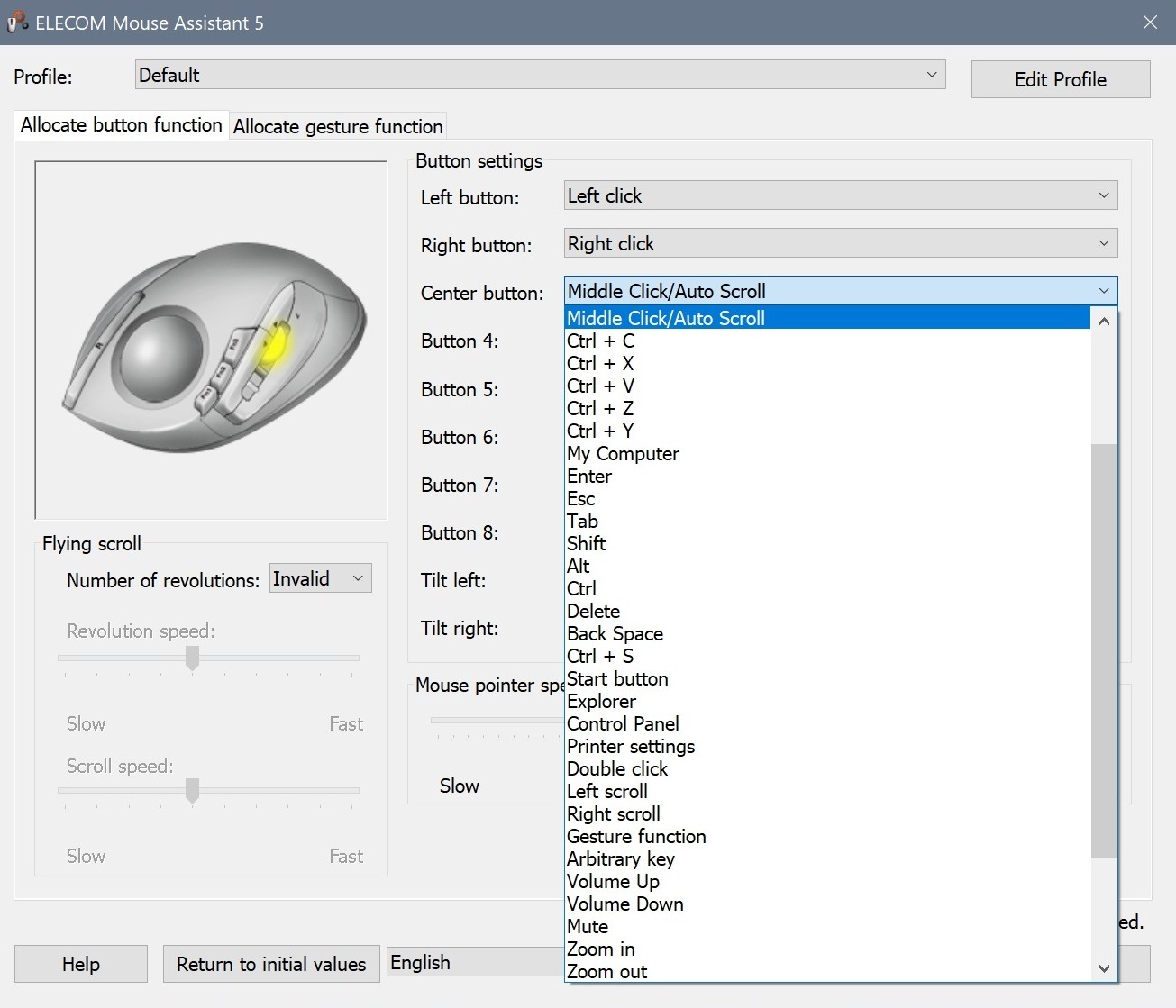
Eight buttons in a compact body
Eight programmable buttons sounds generous until you notice how they are arranged. The buttons beside the ball are effectively unreachable without regripping, so the usable count in practice is lower than the headline number. If your workflow relies on a broad set of shortcuts, test the reach first; if it relies on two or three core actions plus gestures, the button count is more than enough.
Four-way scrolling covers horizontal movement for wide documents, and the DPI switch toggles between 750 and 1500 counts. The bundled software supports gestures and per-application profiles, which is the feature that keeps a compact device competitive with a larger one.
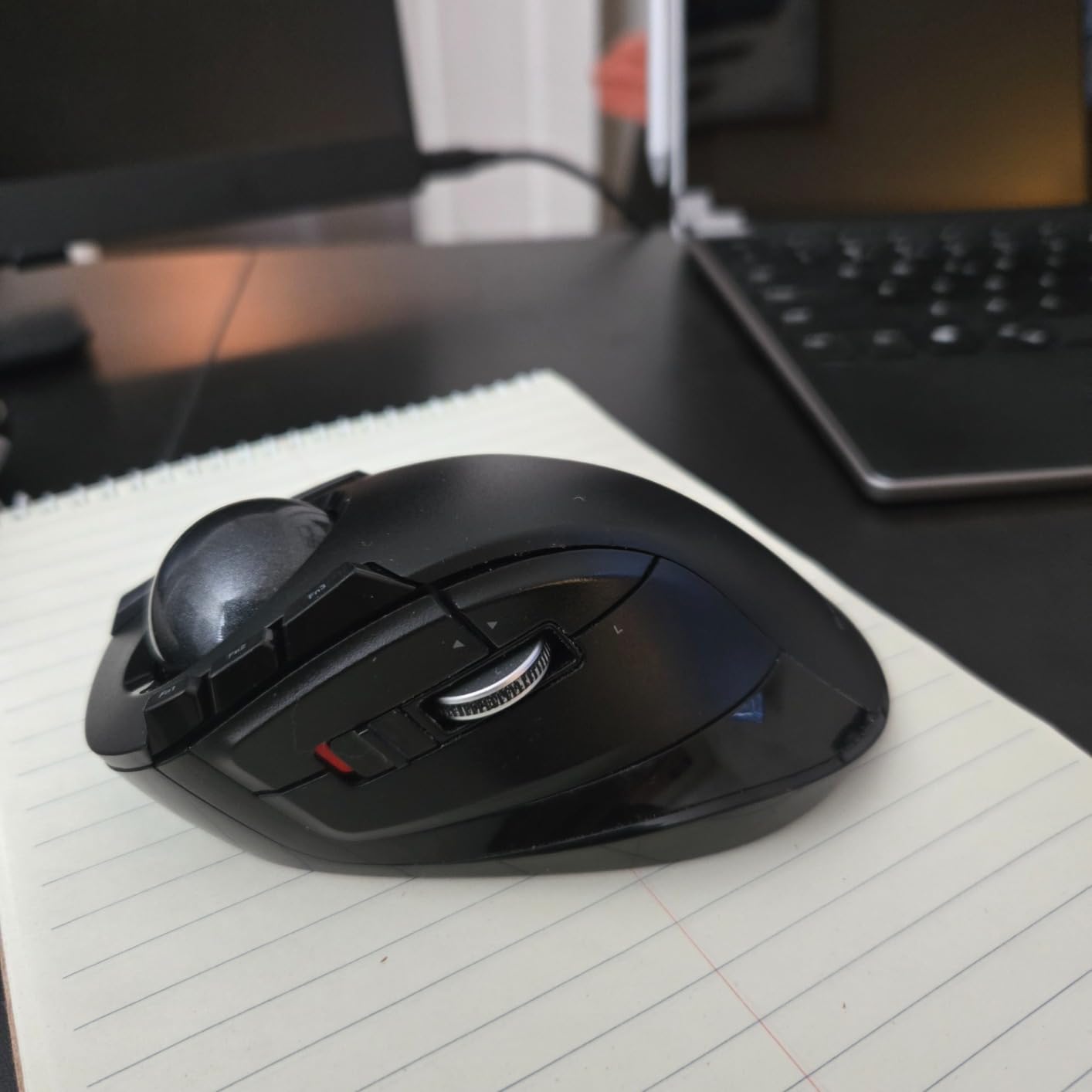
Battery, connectivity and the rough ball
Connectivity is 2.4GHz only, with a listed range of 10 meters, and reviewers report latency. There is a battery-remaining lamp on the shell, which is a nice touch, but high-DPI mode drains the AA cell quickly, so expect to change it more often at the faster setting. The ball is held by bearings and pops out through the base for cleaning, though several owners report it can roll rough and stick early in its life.
The bundled software and documentation are Japanese by default, which is worth flagging if you are not comfortable in that language, and some units show an intermittent scrolling fault. It is also a small device, so users with large hands report it feeling cramped.
Who this suits and who should pass
Buy the Deft if thumb control irritates you, if you travel with your setup, or if you need a light, compact device with more buttons than the size implies. It pairs well with a pen tablet on a small desk, where a full-size mouse would crowd the drawing area.
Skip it if you have large hands, if you need Bluetooth for a laptop-only workflow, or if the button reach beside the ball would disrupt your muscle memory. The ELECOM Huge gives you the same finger-first control with a much larger ball and far more room to work.
10. ProtoArc EM04 – Best for Travel and Hotdesking
ProtoArc EM04 Wireless Trackball Mouse, Bluetooth Trackball Mouse
3-device Bluetooth and 2.4G
450mAh rechargeable battery
5 DPI levels from 200 to 1600
2 year warranty
+ Pros
- Controls three devices over Bluetooth and the dongle
- Rechargeable with no disposable cells
- Roughly a month of battery per charge
- CAD and design users report a smooth responsive ball
– Cons
- None of the six buttons are programmable
- Back and forward buttons do not work in Mac OS
- DPI button is easy to hit by accident
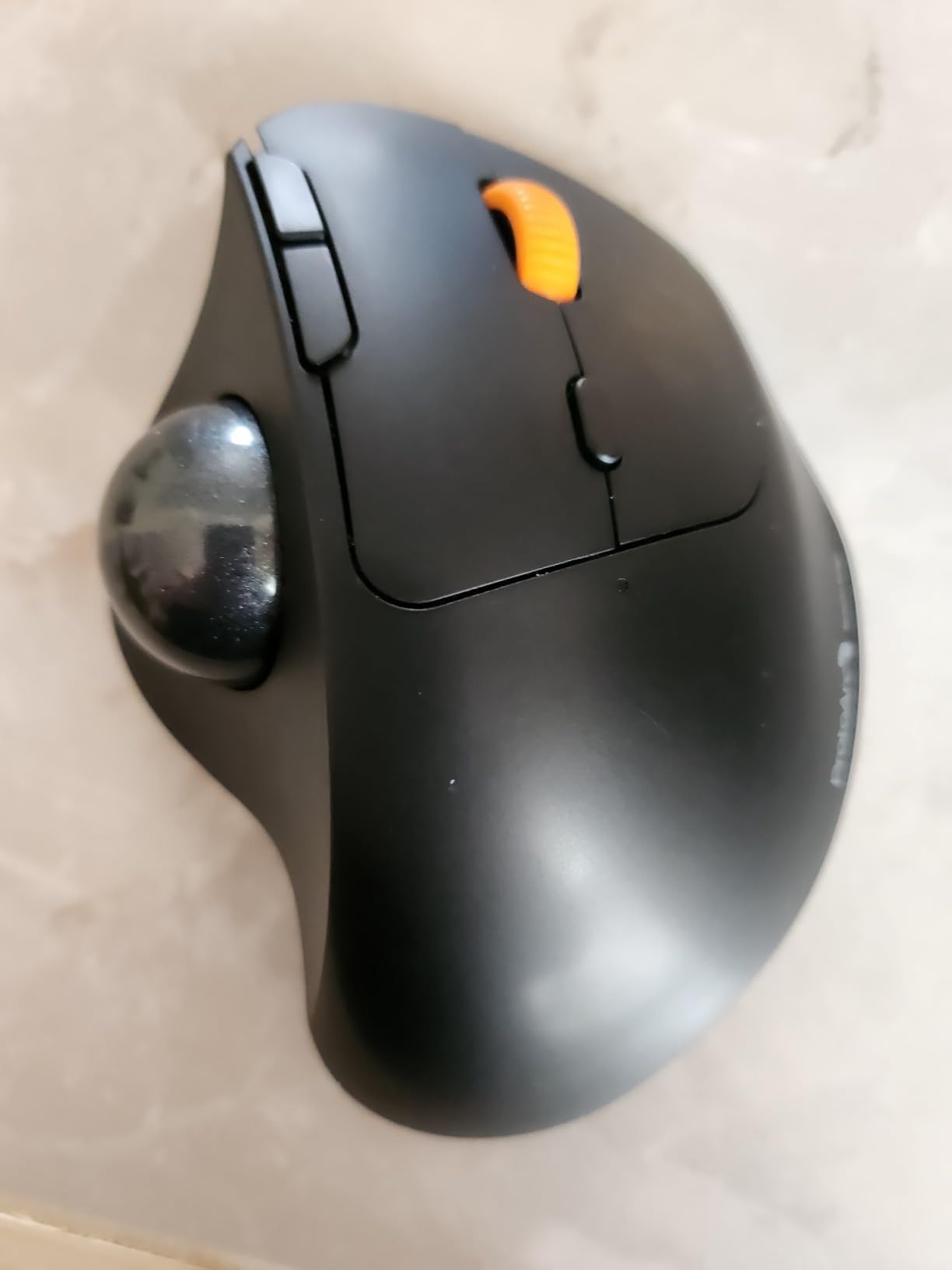
The EM04 is a straightforward answer to a simple question: which trackball suits a desk you set up and pack down again. It works on a desk, a lap, a sofa or any other surface, it charges over USB-C while you keep working, and it runs three devices. CAD users and first-time trackball buyers are well represented in the reviews, and the general verdict is that it is more capable than the specification sheet suggests.
The two-year warranty is longer than several picks above it, and the rechargeable cell means you never open a battery drawer. That combination is why it earned a place on this list despite the limitations below.
Five DPI levels and the button you will mispress
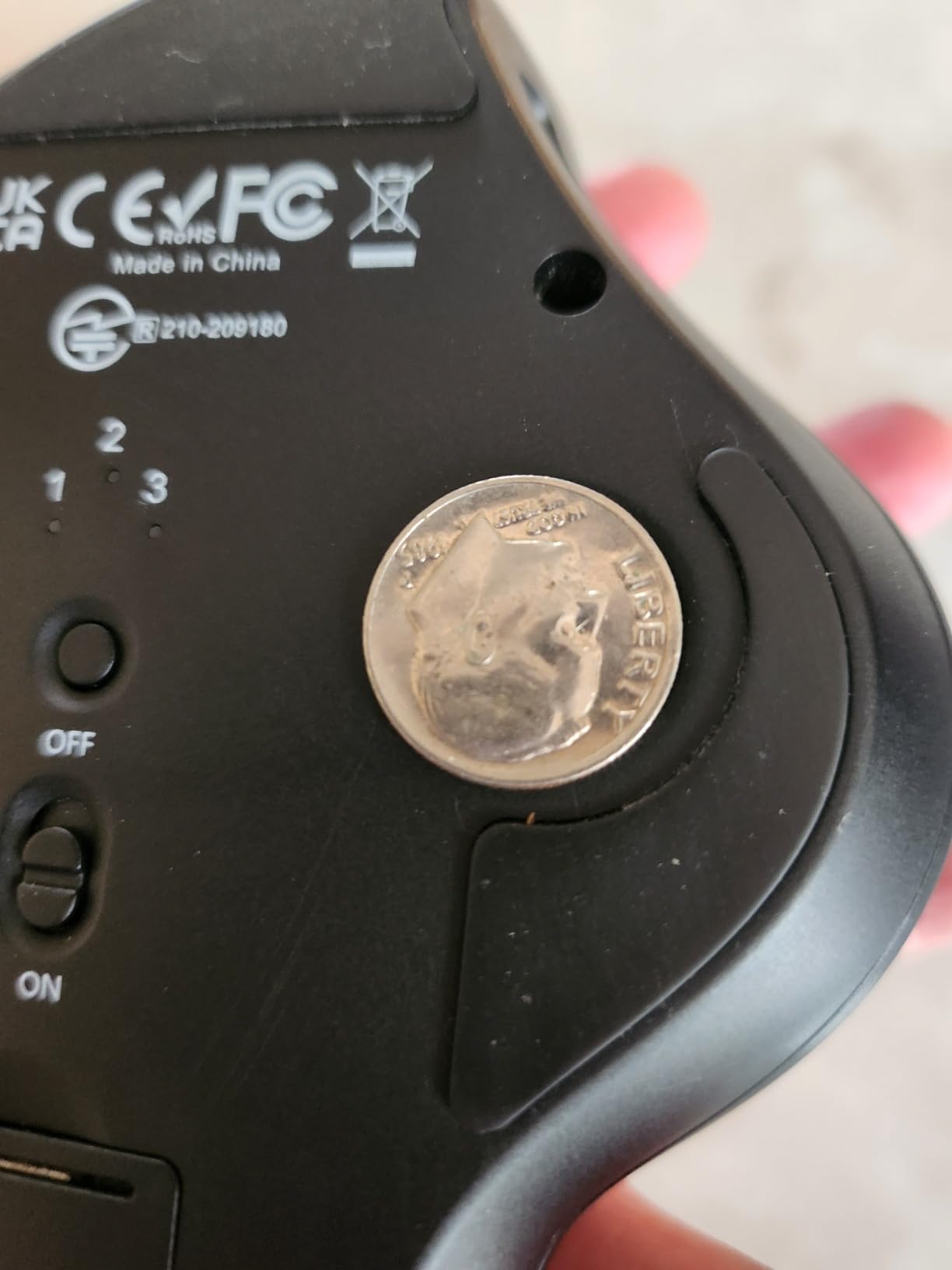
Five DPI levels from 200 to 1600 counts cover a reasonable design range, with the slowest setting usable for point placement. The recurring complaint is the DPI button itself, which sits where your hand rests and is easy to hit by accident, causing the cursor speed to change mid-task with no visible feedback. The lowest two steps are also reported as very slow, with an abrupt jump to the third.
On the connectivity side, triple connection modes let you switch between a desktop, a tablet and a phone with one button press, and compatibility covers Windows, Android, Mac OS and Linux. The catch for Mac users is that the back and forward buttons do not work in Mac OS, which removes two of the six buttons from your workflow.
Where the EM04 is the right answer
None of the six buttons are programmable, which is the same limitation as the Nulea M501 and for the same reason. If you are travelling, hotdesking, or setting up a desk at short notice, the trade is reasonable: you get a rechargeable device, three-device switching and a light body. Reviewers also note the ball can feel slightly loose in its socket and that one owner reported Bluetooth dropping out after several months.
Who this suits and who should pass
Buy the EM04 if you need a trackball that packs small, charges over USB-C, and pairs with several machines, or if you are introducing someone to trackballs without a large commitment. At 120 grams with quiet clicks and auto sleep, it is a low-friction first device.
Skip it if your work depends on remapped shortcuts, if you are on a Mac and need the back and forward buttons, or if a stray DPI press mid-render would cost you time. The TECKNET above has the same multi-device idea with a 16-degree tilt and a longer warranty.
How to Choose a Trackball Mouse for Design Work
Every trackball in this list is a compromise between the ball, the buttons, the software and the desk. These are the decisions that actually change the outcome for a design workflow.
Thumb-operated or fingertip-operated: pick one and commit
Thumb-operated models put the ball under the thumb and let the index and middle fingers rest or click. They are lower to the desk, more familiar, and easier to pick up one-handed. Fingertip and index-operated models spread the load across several digits, sit taller, and are the only workable option for anyone whose thumb cramps under sustained thumb control.
The reviews are consistent that the switch is real rather than cosmetic. Coming from a thumb trackball to an index-operated one is described as a steep learning curve, and the reverse is easier but still an adjustment. Decide by how your hand already behaves, not by which option sounds more ergonomic.
Ball size is a precision range, not a comfort feature
A small ball is precise but slow, and a large ball is fast but harder to place a point with. The 55mm Kensington Expert and 52mm ELECOM Huge give you both on one device. The smaller balls in this list, around 32mm, are fine for panning and navigation but give up the fine end of the range. If your work is heavy on selection, pen tool adjustments and precise handles, treat ball size as a first-order decision.
Choose sensitivity for design, not for gaming
Designers want a low, smooth setting rather than a high, twitchy one. High counts per inch exist for fast flick aiming in a game, and they are actively unhelpful when you are nudging a control point by one pixel. Several devices here step between 100 and 1600 counts, several switch between two levels only, and the Logitech Ergo M575S goes further by letting you set a separate profile per application. Use that profile feature if it exists.
Programmable buttons decide whether a trackball works for you
This is the single most important filter for a design workflow. Every remapped button is a tool, a modifier or a view change you stop reaching for. Remappable options here range from four buttons on the Logitech Trackman Marble and the Kensington Expert to eight on both ELECOM index-operated models. Fixed-function devices such as the Nulea M501, TECKNET and ProtoArc EM04 keep your desk uncluttered and cut setup time, but they will also send you back to the keyboard.
Wireless, wired and the shape of your desk
Wired devices such as the Trackman Marble, Kensington Orbit and Kensington Expert cannot drop out or add lag, and they need no battery. Wireless models with Bluetooth give you multi-device switching and a cable-free desk, while 2.4GHz-only models sit in between and depend on a dongle. Consider the 16-degree tilt of the TECKNET if forearm rotation is your complaint, and remember that all of these reclaim the desk space a lifting mouse needs, which matters on a small bench or next to a pen tablet.
For a two-device desk, our earlier guides to laptops for graphic designers and laptops for UI and UX designers cover the machine side of the same setup. If the mouse is not the problem and a full-size mouse is, we have a separate roundup on ergonomic vertical mice for designers, and for competitive work our picks on vertical gaming mice are the relevant comparison.
Budget for the learning curve honestly
Almost every review in this category mentions the same adjustment period. Plan on one to two weeks before your pointer work feels natural, and give yourself a staged practice routine rather than trying to work at full speed on day one. Spend the first two sessions on panning and window management, the next few on your design application’s tool shortcuts, and only then bring the ball into fine detail work. If the first three days feel clumsy, that is the device working as intended.
Trackball or Regular Mouse: How Each Handles Design Software
Neither device wins every design workflow, and the honest answer depends on what your day is made of. A trackball removes the arm motion, which matters over long sessions and in tight desk spaces, but it asks your fingers to relearn a ratio. A regular mouse keeps the muscle memory you already have and gives you precise ground-relative control on a good surface.
For a designer running a pen tablet, the pairing is the real answer. The tablet handles the strokes, the colour picker and the fine vector work, and the trackball handles zoom, pan, layer switching and window management, which is where a trackball actually saves you effort. That is the setup most designers arrive at eventually, and it is why we would pick a model with remappable buttons over a basic fixed-function device.
Where a regular mouse still wins is competitive gaming and any task that depends on quick directional flicks, because you can lift and reposition the device instead of working through a ratio. Where the trackball clearly wins is a small desk, a hotdesking setup, a long uninterrupted session, or any workflow where your wrist already complains. A pen tablet, in other words, changes the question rather than answering it, since the tablet and the trackball solve different halves of the same problem.
Keeping a Trackball Clean and Accurate
The most common complaint across the reviews for every device here is the same one, and it is not a fault. Dust and skin oil accumulate on the ball and on the sensor points, the roll gets sticky, and the cursor starts to skip. Four steps, once a month, keep it accurate.
- Remove the ball. Most models in this list release it through a hole in the base, so check for that before you try to pick it out with your fingers.
- Wipe the ball and the three exposed sensor points with a dry or barely damp cloth. No solvents, and nothing wet near the sensor.
- Clear the socket itself, where dust collects and where the ball rubs as it rotates.
- Roll the ball under your palm in both directions a dozen times before fitting it back, so the grease spreads across the contact points.
Two small habits help more than they sound. A desk mat keeps dust off the ball before it lands, and taking the ball out to clean the socket every few months prevents the build-up that turns into skipping. Reviewers who report devices lasting a decade are almost all the ones doing this.
Frequently Asked Questions
What is a trackball mouse and how is it different from a regular mouse?
A trackball mouse moves the cursor by rolling a ball that sits in a fixed socket on your desk, while a regular mouse moves by sliding across a surface. Sensors read the ball’s rotation and convert it into cursor movement. Your hand and wrist stay in place and only your fingers or thumb move, which is why trackballs need very little desk space and no wrist movement across a surface.
Are trackball mice good for graphic design?
For most graphic design work, yes. A trackball gives you a wide precision range from a single ball, removes the repeated arm motion of a lifting mouse, and frees up desk space next to a pen tablet. The two things to check are button programmability, because shortcuts carry a lot of design work, and ball size, because small balls are less precise for fine selection.
Which trackball is best for Photoshop and Illustrator?
The Logitech Trackman Marble is the best all-round choice for Photoshop and Illustrator, with four fully remappable buttons and a shell that works with either hand. For fine point selection and precise handle work, the Kensington Expert is stronger because its 55mm ball spans slow placement and fast panning on the same device. For quiet clicking plus per-application cursor speed, the Logitech Ergo M575S is the pick.
What DPI do I need for graphic design?
Design work calls for the lower end of the range rather than the top. Around 100 to 800 counts per inch gives the slow, controlled movement you want when placing a point or nudging a handle, and keeps the cursor from jumping past your target. High settings exist for fast flick aiming in games, so if your device steps between levels, pick a slow profile for design work and a faster one for panning.
Is a trackball or a regular mouse better for design work?
It depends on your day. A trackball wins for long uninterrupted sessions, small desks, hotdesking and any workflow where your wrist already complains, and it pairs well with a pen tablet for zoom, pan and layer switching. A regular mouse keeps the muscle memory you already have and wins for gaming and quick directional flicks. Most designers end up running both devices on the same desk.
Are trackball mice better for carpal tunnel syndrome?
Trackballs are often recommended because they reduce wrist extension and remove the repeated arm motion of a lifting mouse, and many users report less discomfort over long sessions. That is an ergonomic claim, not a medical one, and it does not prevent or treat any condition. If you have symptoms, speak to a doctor before changing equipment and treat any input device as one part of a properly set up workstation.
How long does it take to get used to a trackball?
Most reviews describe an adjustment period of one to two weeks, and the manufacturer guidance on several models in this roundup matches that. Spend the first sessions on panning and window management, then map your design application’s tool shortcuts, and only then attempt fine detail work. Do not judge the device on day one, because a trackball replaces a learned motor ratio rather than adding to it.
Are trackball mice good for video editing?
Yes, and the scroll ring models are the strongest choice. The Kensington Orbit has a patented free-spinning ring that lets you coast along a timeline and stop where you want, while the Kensington Expert combines that ring with a 55mm ball for precision work. For wide timelines, the ELECOM EX-G and ELECOM Huge both add a tilt-scroll wheel for horizontal movement, which is rare in this category.
How do you clean a trackball mouse?
Remove the ball, which most models release through a hole in the base, then wipe the ball and the three exposed sensor points with a dry or barely damp cloth. Clean the socket where dust collects and where the ball rubs, then roll the ball under your palm a dozen times in both directions before refitting it. Do this about once a month and it will not skip or stick.
Our Verdict for Design Desks
If you want one device that covers most design work and works with either hand, the Logitech Trackman Marble is the buy. It carries the highest average rating in this roundup at 4.6 stars across more than 12k ratings, all four of its buttons remap, and it needs no setup at all. If your desk is laptop-only and wireless is non-negotiable, the Logitech Ergo M575S is the swap, with quiet clicks and per-application cursor speed profiles.
When precision is the whole job, choose the Kensington Expert for its 55mm ball, or the ELECOM Huge when you are modelling in 3D and need eight programmable buttons on a wireless body. For video editing, the Kensington Orbit scroll ring makes scrubbing easier. For a shared or hotdesking bench, the Nulea M501 covers three devices and includes a tilt wedge, while the ProtoArc EM04 is a light option that pairs three devices with a rechargeable cell.
Whatever you pick, give it two weeks and set your sensitivity for slow, controlled movement rather than fast flicks. That single habit will do more for your precision work than any spec on this list, and it is the reason these devices are worth the adjustment period.
Leave a Reply