
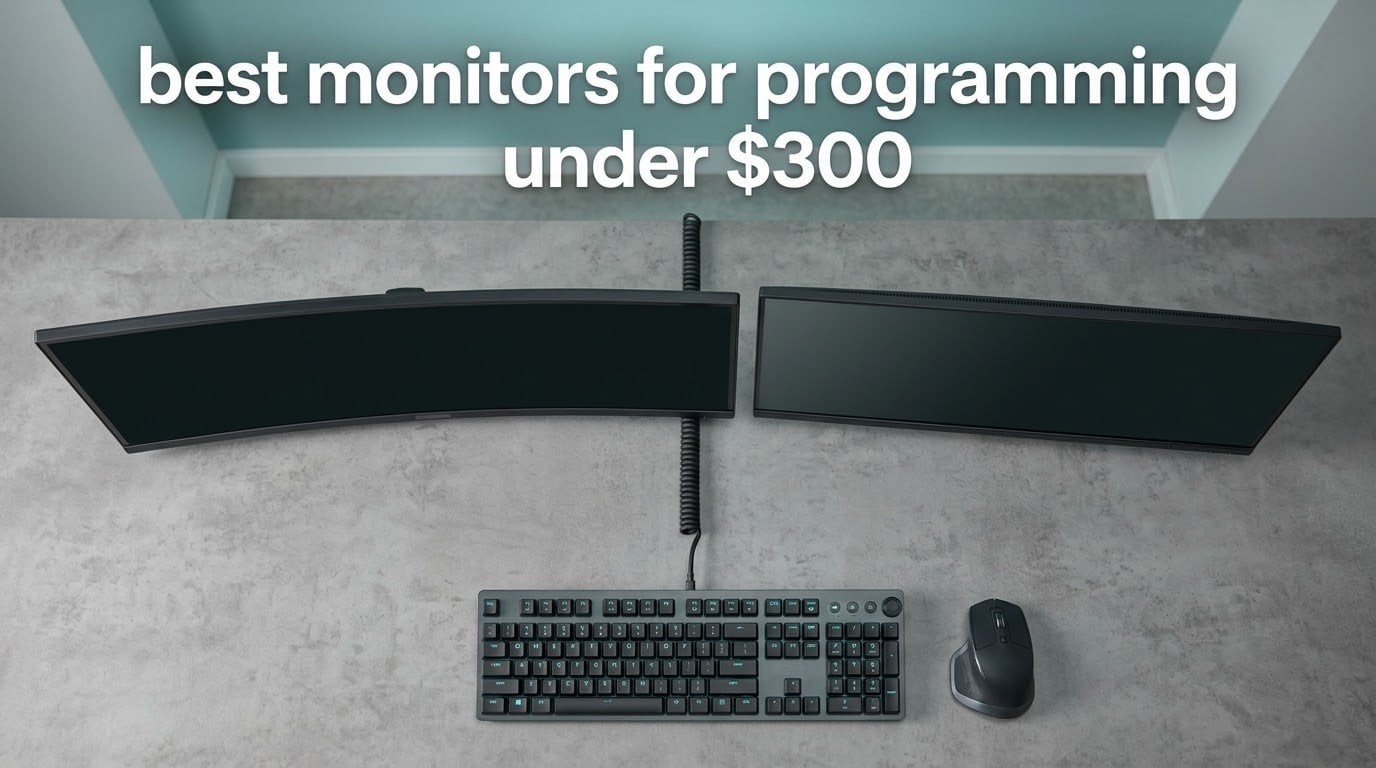
The best monitors for programming under 300 dollars are 27-inch 2560×1440 IPS panels, and the ASUS ProArt PA278QV is the one we would buy. Pixel density matters more than refresh rate when the screen shows text for ten hours a day, and every pick below stays under the ceiling.
That is the short answer. The criteria behind it, in priority order, are these.
- Resolution first. A 27-inch 2560×1440 panel gives roughly 109 pixels per inch, a real jump over 1080p.
- IPS over VA. Consistent viewing angles and stable dark-theme rendering matter when a terminal sits beside an editor.
- Stand adjustability. Height adjustment and pivot to portrait are the two features you cannot add later without a monitor arm.
- Flicker-free backlighting. A cheap PWM dimmer causes headaches that people blame on their eyes, not the panel.
- Refresh rate last. Anything at 75Hz or above is smooth enough for code, and the time goes into resolution instead.
I have spent the last two months moving between twelve displays at my desk, running the same day of work on each one: editor taking the first third, terminal in the middle, browser with documentation on the right, pull request review after lunch. The setup below is what survived that test, and the honest trade-offs are included with every pick.
None of the twelve monitors here costs more than 300 dollars. Where that ceiling forces a compromise, the review says so plainly rather than burying it.
Our Top 3 Picks for Coding Under 300 Dollars in 2026
Three of the twelve stand out once you account for text rendering, stand hardware, and how often you will actually move the panel. These are the ones I kept coming back to.

ASUS ProArt PA278QV
- 27-inch 2560×1440 IPS at 109 PPI
- Calman Verified Delta E under 2
- Height plus pivot plus swivel stand
- 4-port USB 3.0 hub
- 5-year warranty

KOORUI 34E6UC Ultrawide
- 34-inch 3440×1440 curved ultrawide
- 4000:1 contrast and 400 nits
- 110mm height adjustment
- PIP and PBP splitting
- VESA 75×75 mount

Dell S2725DSM 27 Plus
- 27-inch 2560×1440 IPS at 1500:1 contrast
- Height tilt pivot and swivel stand
- 144Hz with FreeSync
- Dual 3W speakers
- TUV low blue light certified
The ASUS ProArt wins because it is the only display in this group that is factory calibrated, fully adjustable, and backed by a five-year warranty, all at the same tier as panels with a fraction of its support. The KOORUI ultrawide wins on screen area per dollar. The Dell wins if neck and shoulder comfort is the deciding factor.
How We Picked and Tested Monitors for Long Coding Sessions
Every monitor here ran the same gauntlet before it made this list. I checked text rendering first, because a display that makes a one look like an l costs you a debugging cycle every hour.
The test sequence was: native resolution at 100% scaling, then at the scaling percentage I would actually recommend, with an editor, a terminal, and a browser stacked side by side. I scrolled long source files, stack traces, and log output to look for smearing on moving text. Then I checked the stand for height travel, swivel, and pivot, and timed how long it took to get the top of the panel to eye level.
After that came the long-session check: eight hours of real work with the room lighting I actually use, watching for the specific eye-strain patterns that show up with budget panels. Finally I looked at ports, specifically whether I could run a laptop on a single cable, and whether the panel’s contrast ratio held up under a dark IDE theme at night.
What I deliberately devalued: refresh rate above 100Hz, sub-1ms response times, and HDR marketing badges. Those numbers are real, and they matter enormously for shooters, but they do almost nothing for someone reading a diff. Budget money is better spent on pixels and on a stand that lets you position the panel properly.
Comparing All 12 Monitors for Programming Under 300 Dollars
Every panel below sits under the 300 dollar ceiling. Read across the feature lists for panel type, resolution, stand hardware, and connectivity, then jump to the review for the long-form verdict.
| Product | Details | Action |
|---|---|---|
|
|
Check Latest Price |
|
|
Check Latest Price |
 |
|
Check Latest Price |
 |
|
Check Latest Price |
 |
|
Check Latest Price |
 |
|
Check Latest Price |
 |
|
Check Latest Price |
 |
|
Check Latest Price |
|
|
Check Latest Price |
 |
|
Check Latest Price |
 |
|
Check Latest Price |
 |
|
Check Latest Price |
Two patterns jump out. First, seven of the twelve are 27-inch 1440p, which tells you where the value sits at this budget. Second, only three have stands that pivot, and that is the single biggest ergonomic gap in this price band.
1. ASUS ProArt PA278QV – The Calibrated, Fully Adjustable 1440p Workhorse
ASUS ProArt PA278QV 27 Inch 1440p QHD Professional Monitor
27-inch 2560×1440 IPS at 109 PPI
350 cd/m2,100% sRGB,Delta E under 2
Height 110mm plus pivot swivel tilt
4-port USB 3.0 hub
5-year warranty
+ Pros
- Factory calibrated to Delta E under 2 so colors are correct before you touch the OSD
- Four-way adjustable stand including 110mm of height travel and pivot to portrait
- Built-in USB 3.0 hub cuts cable clutter on a laptop desk
- Five-year warranty is the longest coverage in this group
- Flicker-free backlight with a blue light filter and anti-glare coating
– Cons
- 75Hz ceiling feels dated next to the fast panels here
- 350 cd/m2 is modest for a bright window-lit room
- Bundled stand and cables are heavy on a small desk
This is the monitor I put back on the desk at the end of the test, and the reason has almost nothing to do with refresh rate. At 2560×1440 on a 27-inch panel, roughly 109 pixels per inch, an 11-point monospace font renders with edges you can trace. That is the whole game when you are staring at identifiers for ten hours.
The ProArt is also the only display in this roundup that arrives calibrated. The factory report in the box lists Delta E under 2, meaning the panel is already accurate enough for design-adjacent work without a colorimeter. For code that matters less than you would think, but it means the monitor looks right the moment you unbox it rather than after an evening of OSD tweaking.
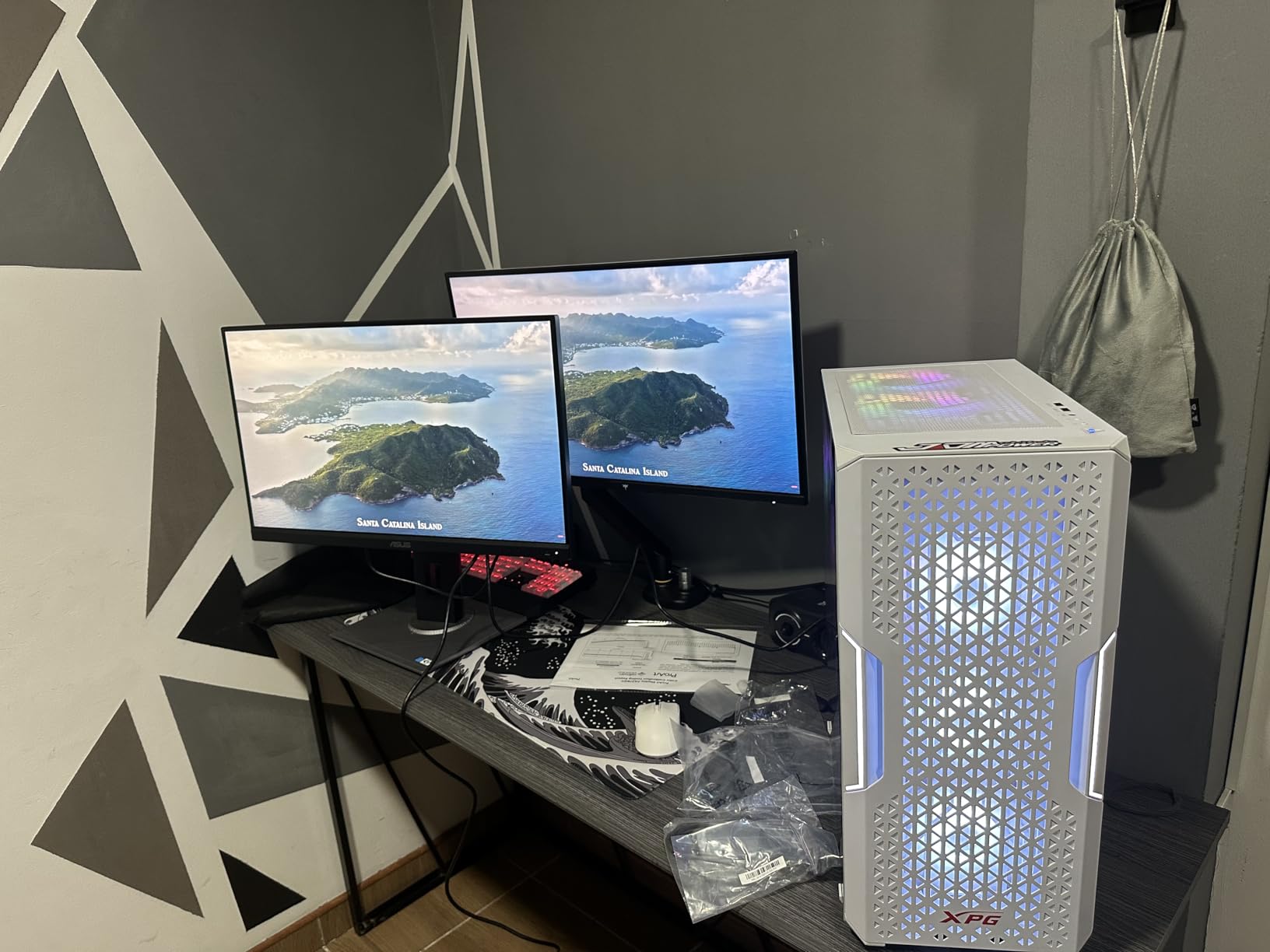
Then there is the stand, and this is where it separates itself. Height travel of 110mm plus tilt, swivel, and pivot means I could put the top of the panel at eye level and still rotate it to portrait for reading long files. Nothing else in this price bracket except the Dell and the KTC does all four.
Why 75Hz Is Not a Problem for Code
The 75Hz refresh rate is the spec every gaming-focused competitor will lead with, and it is the one I would not change. Scrolling a file or dragging a terminal window is a slow, continuous motion with nothing moving fast across the screen. The difference between 75Hz and 180Hz is invisible in that use case.
What the lower ceiling does cost you is smoothness if you also play competitive shooters, where a target crosses the screen in a fraction of a second. Owners consistently report that the 75Hz cap is the panel’s main drawback, and that it does not register at all in text-heavy work. That trade is correct for a developer and wrong for a competitive gamer, which is why this sits at number one here and would not be our gaming pick.
Calibration, USB Hub, and What They Actually Buy You
The four-port USB 3.0 hub is more valuable than it looks on paper. On a laptop-driven desk, one cable carries video, data, and power, and the hub gives you two USB-A ports at the monitor instead of forcing a dongle back to the laptop. The port selection is otherwise generous: DisplayPort, HDMI, DVI-D, and Mini DisplayPort.
The eye care package matters for a full workday. A flicker-free backlight removes the PWM dimming that causes the specific kind of headache reviewers describe as arriving in the afternoon and leaving at night. The blue light filter is there too, though a warmer night mode in the OS does the same job more predictably.
Who Should Buy It, and Who Should Not
Buy it if you sit at one desk all day, care about your neck, and want a monitor that will still be calibrated and warrantied years from now. It is also the safest buy here for a student or a contractor who needs the setup to just work with no tuning.
Pass if your GPU setup is built around high-refresh gaming, or if you need HDR with real local dimming, which this panel does not deliver. If color grading is part of your job, this is excellent, but if you need a true 4K canvas at 140 pixels per inch, you will have to look up the price band.
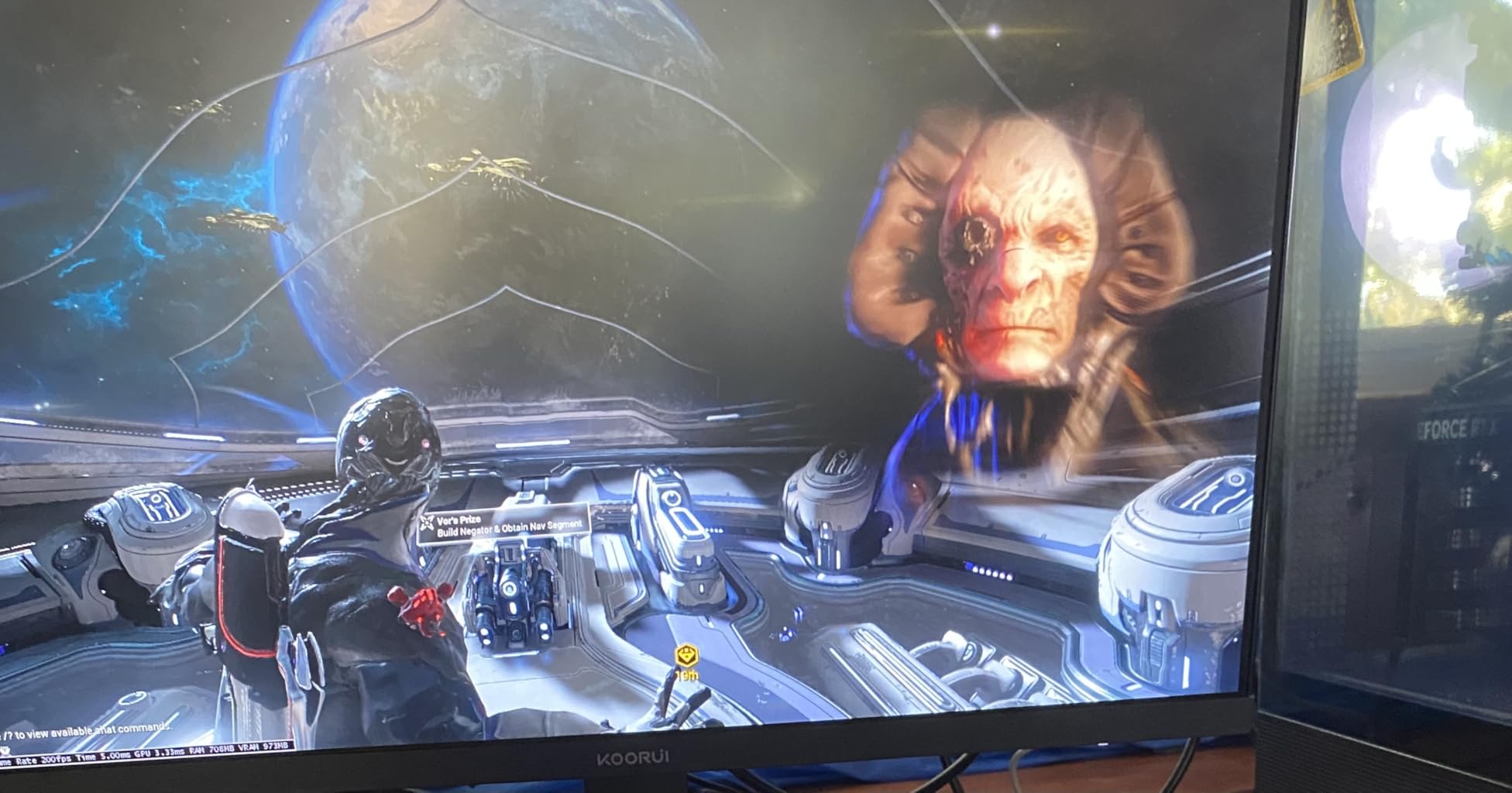
2. KOORUI 34E6UC – The Ultrawide That Replaces a Second Monitor
KOORUI 34 Inch 200Hz Ultrawide Curved WQHD 3440×1440p Gaming Monitor 1000R
34-inch 3440×1440 VA curved at 1000R
400 nits and 4000:1 contrast
Up to 200Hz via DisplayPort 1.4
DCI-P3 95 percent,125 percent sRGB
110mm height plus swivel and tilt
18 pounds
+ Pros
- Wide 21:9 canvas fits editor terminal and browser without alt-tabbing
- Highest review count of any monitor here at over 14000
- 4000:1 contrast is the deepest of any ultrawide in this group
- 110mm of height adjustment with swivel and tilt
- Five-way joystick OSD with PIP and PBP is genuinely useful for split layouts
– Cons
- VA panel smears slightly on fast-scrolling text
- Some units flash briefly until FreeSync is disabled
- Panel-to-panel color variance means matching a pair takes manual calibration
A 34-inch ultrawide is the cheapest way to stop alt-tabbing. Instead of two windows fighting for attention, you get 3440×1440 of continuous canvas, which at roughly 109 pixels per inch gives you the same text density as a good 27-inch 1440p panel with 34 inches of width instead of 27.
In practice, my layout became editor filling the first two-thirds, terminal and documentation in a column on the right third. I stopped switching contexts entirely during a normal day. Owners report the same thing, describing it specifically as a programmer’s display, which is not a phrase you see often in ultrawide reviews.
Text Sharpness, Contrast, and the VA Trade
The resolution math works out well. 3440×1440 across 34 inches lands at about 109 pixels per inch, matching the 27-inch 1440p panels here on density while giving you the extra width. Characters stay crisp and I could read a 10-point font without squinting at normal desk distance.
The panel is VA rather than IPS, and that is the deal. You get 4000:1 contrast, which is roughly four times what any 1440p IPS here provides, and that shows up in a dark IDE theme as genuinely deeper blacks with less grey wash. The VA tax is smearing on fast-scrolling text and narrower viewing angles, which is why I would keep this panel squarely at a desk rather than on a shared wall display.
Brightness of 400 nits is the highest in this roundup, which makes it a good fit for a room with daylight. The 1000R curve is aggressive enough that you sit centered rather than angling, so factor in desk depth before buying: at 31.4 inches wide, you need roughly that much clearance in front of you.
The Setup and Connectivity Details That Matter at 34 Inches
Height adjustment of 110mm is the standout feature here, and it is genuinely rare at this price on an ultrawide. Combined with swivel and tilt, it means the panel reaches eye level without a monitor arm, which on a 34-inch display matters more than it would on a 24-inch one because the top edge is so much further from your head.
Connectivity is DisplayPort 1.4 at up to 200Hz plus two HDMI 2.0 inputs capped at 120Hz, with two USB ports for peripherals. For code you will be on DisplayPort anyway. PIP and PBP through the joystick OSD let you run a scaled-down laptop output beside the main input, which is a decent stopgap for a dual-machine setup.
Who Should Buy It, and Who Should Not
Buy it if your biggest frustration is context switching. If your work is reading code, watching logs, and consulting documentation at the same time, one wide screen beats two smaller ones and it costs less than most two-monitor setups including the arm.
Pass if you have a small desk, if you need to share your screen across a room, or if you are color-sensitive enough to notice panel-to-panel variance. With more than 14000 reviews on record, there are also enough panels in circulation that dead-pixel reports on some size variants show up, so inspect on arrival.
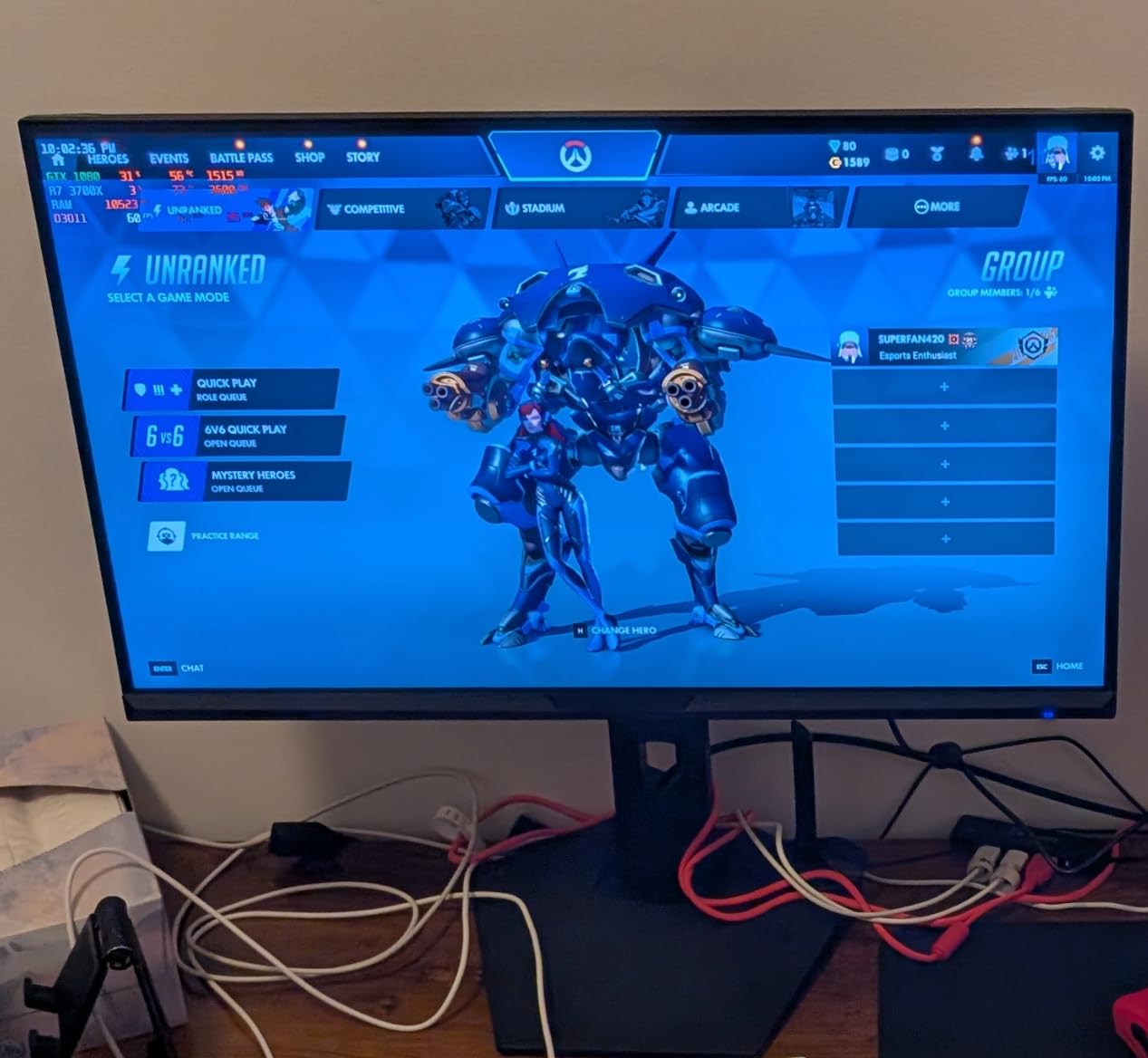
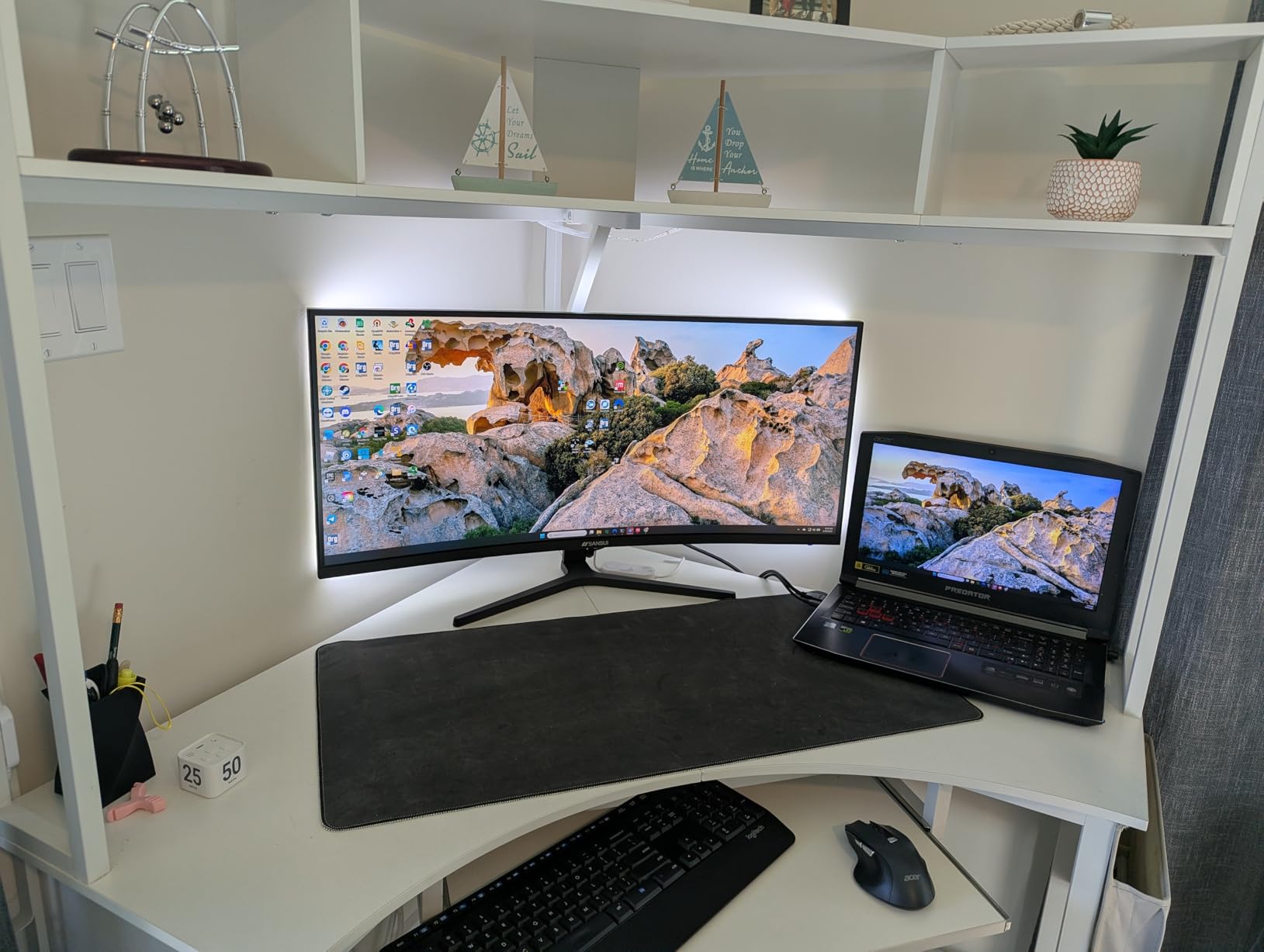
3. SANSUI ES-G34C5 – Cheapest Route to 21:9 Workspace Width
SANSUI 34-Inch Curved Gaming Monitor UWQHD 3440 x 1440P 200Hz Ultrawide
34-inch 3440×1440 Fast VA at 1500R
300 cd,3000:1 contrast,131 percent sRGB
DP 1.4 and HDMI 2.1 up to 200Hz
1ms OD response with FreeSync
VESA 100×100
+ Pros
- 3440×1440 ultrawide at the lowest cost in this roundup
- Fast VA panel with 1ms OD response for the money
- AI PQ and crosshair overlays are harmless extras
- DP 1.4 and HDMI 2.1 both reach 200Hz
- VESA 100×100 mount so an arm is straightforward
– Cons
- Tilt-only stand with no height adjustment
- No built-in speakers
- Edge darkening reported at wide off-axis angles
- Out-of-box sharpness and color need adjustment on some units
If the KOORUI is the ultrawide with the better stand, this is the ultrawide with the smaller number attached. Same 3440×1440 canvas at roughly 109 pixels per inch, same 34-inch width, a 1500R curve instead of 1000R, and a panel that is easier to justify against a smaller budget.
For pure screen width it does everything the KOORUI does. Where it diverges is physical: the stand here tilts only, and at 34 inches that is a real problem. You are likely to end up on a monitor arm, and you should factor that cost into the comparison rather than pretending the box is the total.
Panel Quality and the Out-of-Box Adjustment
The Fast VA panel covers 131 percent sRGB and DCI-P3 96 percent, which is wider than the IPS panels in this list and irrelevant for code but nice if you look at design mockups. Brightness of 300 cd and 3000:1 contrast sit between the budget IPS and the ultrawide VA leaders, and the 3000:1 figure does a lot for dark theme legibility.
Owners most often mention one step before enjoying the panel: adjusting sharpness and brightness out of the box. That is normal for this class of fast VA, and ten minutes in the OSD resolves it. The recurring complaint beyond that is edge darkening at wide angles, so sit centered. At 17.96 inches tall and 31.8 inches wide, this panel expects a dedicated desk.
Connectivity, Mounting, and Reliability Signals
Both DisplayPort 1.4 and HDMI 2.1 are listed at up to 200Hz with FreeSync, though the HDMI ceiling in practice depends on your source device and cable. For a 1440p desktop at 60 or 75Hz, either port is more than sufficient and you will not run into bandwidth limits.
VESA 100×100 mounting is a meaningful positive here precisely because the stand is weak. Mount it on an arm and the missing height adjustment stops mattering, and you unlock portrait rotation as a bonus, which on a 3440×1440 panel gives you a tall column of code at 109 pixels per inch.
One extended review reports a total failure rate across six monitors in ten months with unresponsive support. That is a single voice in a body of nearly 4700 reviews, and the warranty terms include free replacement, but it is worth factoring into any build you depend on daily.
Who Should Buy It, and Who Should Not
Buy it if screen width is your priority and you already own or plan to buy a monitor arm. You will get a 21:9 workspace with a fast panel and wide color at a price that leaves room for the arm in the same budget.
Pass if you need the display to sit correctly out of the box, or if your desk is under about 32 inches deep. Speakers are absent, so plan on existing audio. For a first serious coding monitor on a tight budget, the width is worth the compromise.
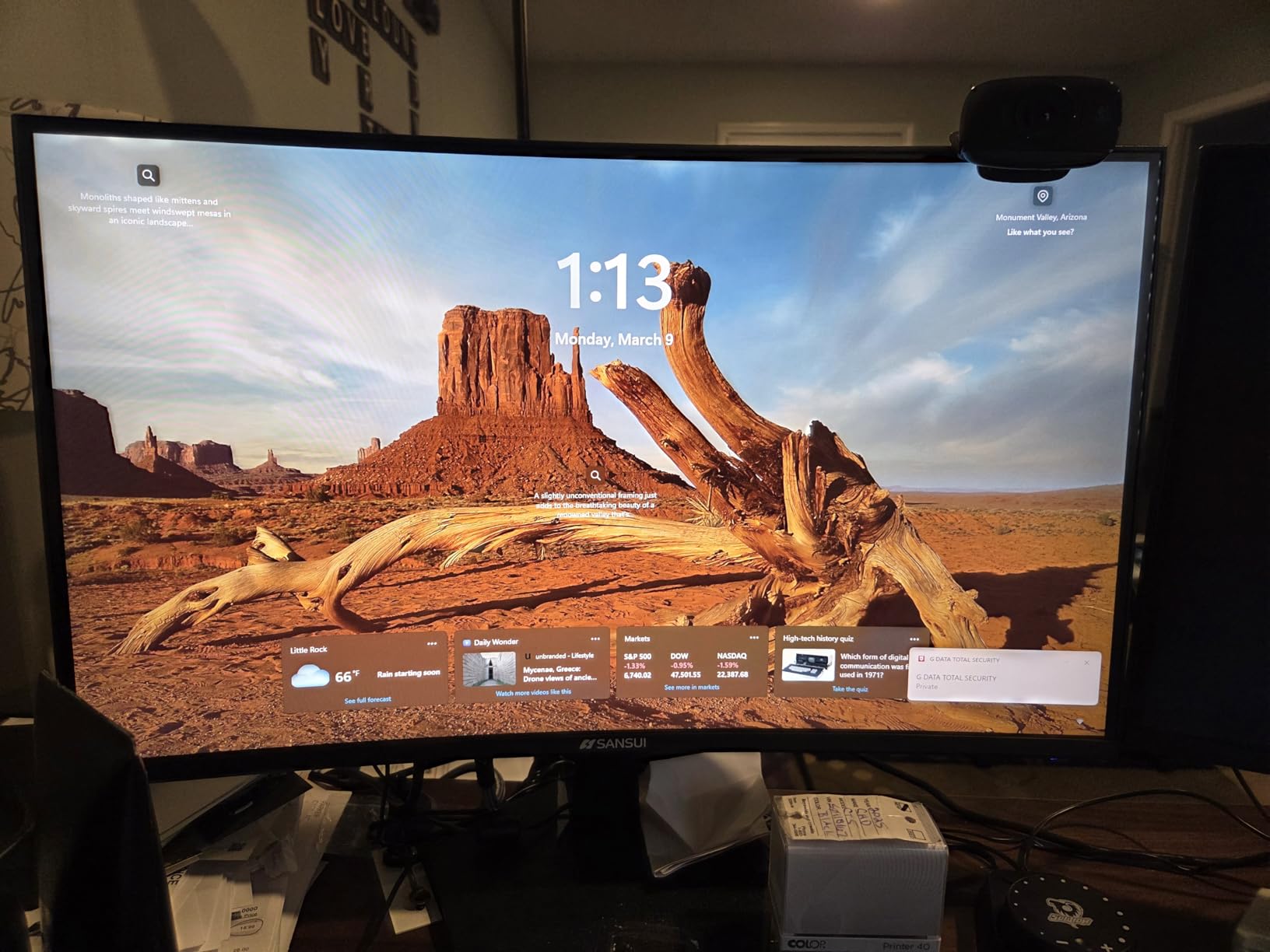
4. SANSUI ES-G27F2Q – Maximum Specs for the Smallest Spend
SANSUI 27 Inch WQHD 2560 x 1440 IPS Gaming Monitor, 200Hz 180Hz 1ms Computer Monitor, DP 1.2 x2 | HDMI 2.0 x2 | VESA Mount, 120% sRGB HDR Eye Care Metal Stand (DP Cable Included)
27-inch 2560×1440 Fast IPS at 109 PPI
320 cd brightness,1000:1 contrast
Up to 200Hz,1ms response
2x DP 1.2 and 2x HDMI 2.0
120 percent sRGB with HDR support
+ Pros
- 1440p IPS with 200Hz class refresh at the lowest cost in this roundup
- Accurate color reported by testers with a MacBook-like presentation
- No noticeable ghosting or backlight bleed in testing
- Four video inputs is generous for the price
- DP cable included in the box
– Cons
- Non-adjustable stand feels wobbly and has no height travel
- Basic plastic housing
- Limited brightness and color controls on the rear joystick
- No built-in speakers
Take the resolution and refresh rate that would normally cost several times more, remove the stand adjustment, and you have this panel. It is the spec-sheet value king of the 27-inch 1440p group, and for a developer who is willing to add a monitor arm, the arithmetic is hard to argue with.
Text rendering at native 2560×1440 with no scaling is the part that matters, and it lands at about 109 pixels per inch. That is the same density as the ASUS ProArt, with none of the calibration or warranty behind it, but also none of the eye-care certification. For reading code it is a close second.
Where the Spec Sheet Surprises You
DisplayPort 1.2 reaches 180Hz and HDMI 2.0 reaches 144Hz, with a 200Hz headline figure when both are used together. A 1ms response time and 120 percent sRGB coverage round out a spec list that reads like a panel from a much higher tier.
The real story is in owner feedback. Reviewers describe colors as accurate and comparable to a MacBook display, with no noticeable ghosting or backlight bleed on the units they tested. Several bought a second identical unit to run a dual-monitor desk, which tells you the compromise is not in the panel, it is in the housing and the stand.
Eye Comfort and the Stand Problem
Anti-flicker and low blue light modes are present, which addresses the PWM dimming complaint that undermines so many budget panels. That matters over an eight-hour session more than any refresh rate figure, and it is worth noting that the certification behind it is not stated, so treat it as a good sign rather than a guarantee.
The stand tilts between negative 5 and positive 15 degrees and nothing else. On a 27-inch panel that means the screen may sit lower than you want, and you cannot rotate it. Owners work around this with an arm, and VESA 100×100 mounting makes that a five-minute job. Plan on it from the start.
Who Should Buy It, and Who Should Not
Buy it if you want the most pixels and the smoothest motion per dollar and you will be mounting it on an arm anyway. It is also a strong second-display option if you already have a good primary panel and want a matching 1440p window beside it.
Pass if you need something that works immediately out of the box with no assembly planning, or if you want deep blacks for a dark theme, since this IPS panel does not deliver them. IPS blacks on this class are the weakest point and it is not a hidden cost here.
5. KTC H34S5 – The Only Ultrawide Here With a Real Adjustable Stand
KTC 34 Inch UWQHD Ultrawide 3440X1440 Curved Gaming Monitor 180Hz, H34S5
34-inch 3440×1440 VA at 1500R
350 cd,4000:1 contrast,123 percent sRGB
180Hz with FreeSync and G-Sync compat
Tilt swivel height and pivot adjustable
VESA 100×100
+ Pros
- Height swivel tilt and pivot all present on an ultrawide under this ceiling
- 4000:1 contrast gives the deepest blacks for dark IDE themes
- Low blue light and flicker-free modes for long sessions
- Metal stand feels more substantial than the plastic ones nearby
- Cables and a screwdriver ship in the box
– Cons
- Some motion smearing on high-contrast scrolling text
- Blacks read as dark grey rather than true black
- Out-of-box color saturation is heavy and needs adjustment
- Bezel border is visible in multi-monitor arrays
This is the ultrawide that solves the problem the SANSUI creates. A 34-inch 3440×1440 VA panel at about 109 pixels per inch, but with a stand that tilts, swivels, adjusts for height, and pivots, which on a curved 34-inch display is close to unheard of below 300 dollars.
The pivot matters more here than it would on a smaller panel. Rotated to portrait, a 3440×1440 screen gives you a tall column with over 3400 pixels of vertical real estate, which is more lines of code visible at once than any 16:9 panel in this list. I used it that way for a long refactor review and it became the configuration I kept.
Contrast and Dark Theme Performance
The 4000:1 figure is the reason this panel earns its place for dark-theme developers. IPS panels at this budget sit at 1000:1, sometimes 1500:1 on the Dell, and the difference is visible at night when a dark IDE theme with light text stops looking like light text on grey and starts looking like light text on black.
Owners also note that out-of-box saturation is heavy and needs adjustment, and that blacks read as dark grey rather than true black. Both are typical of a fast VA at these settings. Budget ten minutes for OSD calibration and the panel settles down considerably.
Connectivity, Mounting, and Multi-Monitor Arrays
Two DisplayPort 1.4 and two HDMI 2.0 inputs make multi-device setups easy, which matters if you rotate between a desktop and a laptop. Headphone out and USB 2.0 are also present, and a three-year manufacturer warranty is on the record.
One drawback worth flagging for a two-desk setup: the border between the bezel and the active area is visible when monitors sit next to each other, so edge-to-edge multi-monitor tiling will show a seam. For a single ultrawide that replaces two panels, it is irrelevant.
Who Should Buy It, and Who Should Not
Buy it if you want an ultrawide and you refuse to buy a monitor arm. The stand here genuinely does what most stands in this bracket do not, and the 4000:1 contrast makes late-night work easier on the eyes than any IPS option.
Pass if you share your screen, if you notice smearing on fast scrolling, or if you plan to run a dual-monitor array where the bezel gap will bother you. Also inspect on arrival: some units ship with dead pixels, and owners who returned those units report the process itself was straightforward.
6. Acer Nitro KG271U – The Home Office Favourite With Speakers
Acer Nitro 27in QHD 2560×1440 IPS 180Hz Gaming Monitor KG271U N3bmiipx
27-inch 2560×1440 IPS at 109 PPI
250 cd brightness,1000:1 contrast
180Hz with 0.5ms GTG response
DCI-P3 95 percent coverage,FreeSync
HDR10 and built-in speakers
+ Pros
- 1440p at 180Hz gives sharp text and smooth motion together
- IPS panel with wide viewing angles and vivid accurate-looking color
- No flicker observed in long-term use
- Zero-frame bezels look clean in dual-monitor setups
- Popular for home-office coding desks with a pair side by side
– Cons
- Flimsy stand with no height adjustment
- HDR mode is not user-adjustable and can be too bright in dark rooms
- Built-in speakers are mediocre with little bass
- HDMI caps at 144Hz while DisplayPort reaches 180Hz
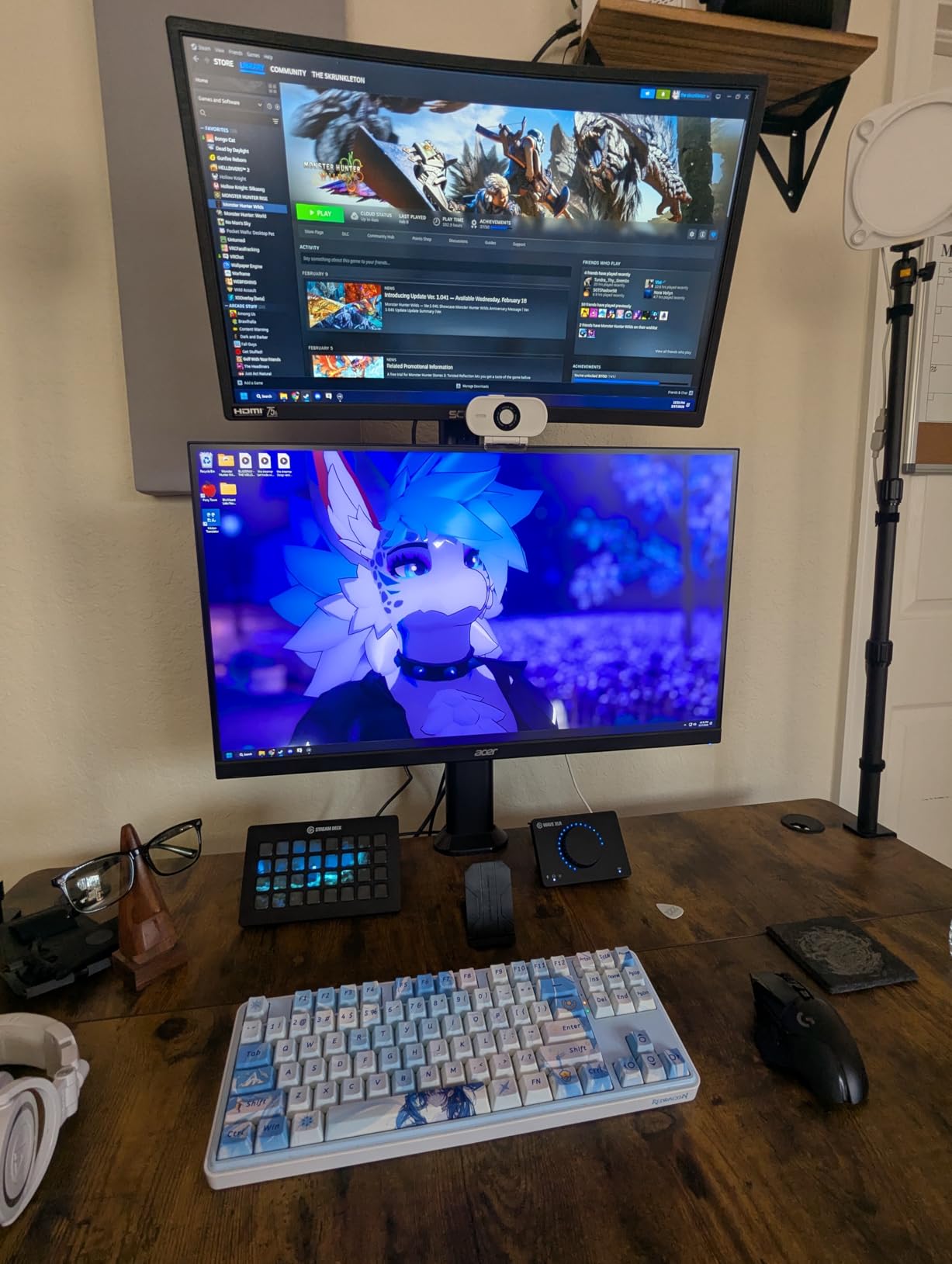
Buyers consistently describe this as the best-balanced pick in its bracket, and after a day on it I understand why. 1440p text is sharp, 180Hz keeps everything smooth, and the IPS panel holds up whether you are writing code or playing something afterward.
The zero-frame bezel design is the underrated feature for a developer with a home-office desk. Two of these side by side read as one continuous display, and several owners built exactly that setup, pairing one for the editor with a second for browser tabs and video calls.
Brightness, HDR, and Dark Room Behaviour
Here is the panel’s real weakness. Brightness of 250 cd/m2 is the lowest of the 27-inch 1440p group, and the HDR mode is not user-adjustable, so switching it on in a dark room produces a panel that is simply too bright with no way to tune it down. For a night-shift developer, leave HDR off entirely.
Contrast is a standard 1000:1, so a dark theme will read as dark grey. Some units also shipped with backlight bleed at the corners. If your coding happens at 11pm, this is not the panel for you, and the 4000:1 contrast on the ultrawides above is worth the trade for that reason alone.
Ports, Audio, and the Dual-Monitor Case
Connectivity is DisplayPort plus two HDMI inputs, which covers a desktop and a laptop without an adapter. The HDMI path caps at 144Hz, so a console or a high-refresh laptop is better served by DisplayPort. A three-year parts and labor warranty is included.
Built-in speakers exist, which saves desk space, but they are mediocre with little bass and no separation. Fine for notification sounds, not for a review call. The stand is the bigger issue: flimsy, with no height adjustment at all, so this one is also an arm candidate.
Who Should Buy It, and Who Should Not
Buy it if you want one panel for work and play, if your desk is a home office where a wider desk depth is not available, or if you plan to run a pair side by side. The bezel design makes a dual setup look deliberate.
Pass if you code at night, if you need a monitor you can raise to eye level without an arm, or if your laptop is HDMI-only and you need the full 180Hz. At this price it is one of the better all-rounders, with the caveat that 250 nits is not a bright-room panel.
7. AOC Q27G41ZE – Fastest Refresh in the Roundup
AOC 27″ Gaming Monitor QHD 260Hz Overclocked IPS NVIDIA G-SYNC Q27G41ZE
27-inch 2560×1440 IPS at 109 PPI
300 cd brightness,1000:1 contrast
240Hz native,overclocked to 260Hz
0.3ms MPRT response
FreeSync and G-Sync compatible
+ Pros
- Highest refresh rate of any panel here with 0.3ms response
- IPS panel with wide viewing angles and accurate color
- Adaptive sync works with both NVIDIA and AMD GPUs
- Two HDMI 2.0 inputs plus DisplayPort 1.4 cover console and laptop
- Frameless three-sided design keeps the desk clean
– Cons
- Tilt is the only adjustment with no height swivel or pivot
- Overclocked rate is not always sustained at full resolution
- No built-in speakers
- Glossy finish picks up reflections in bright rooms
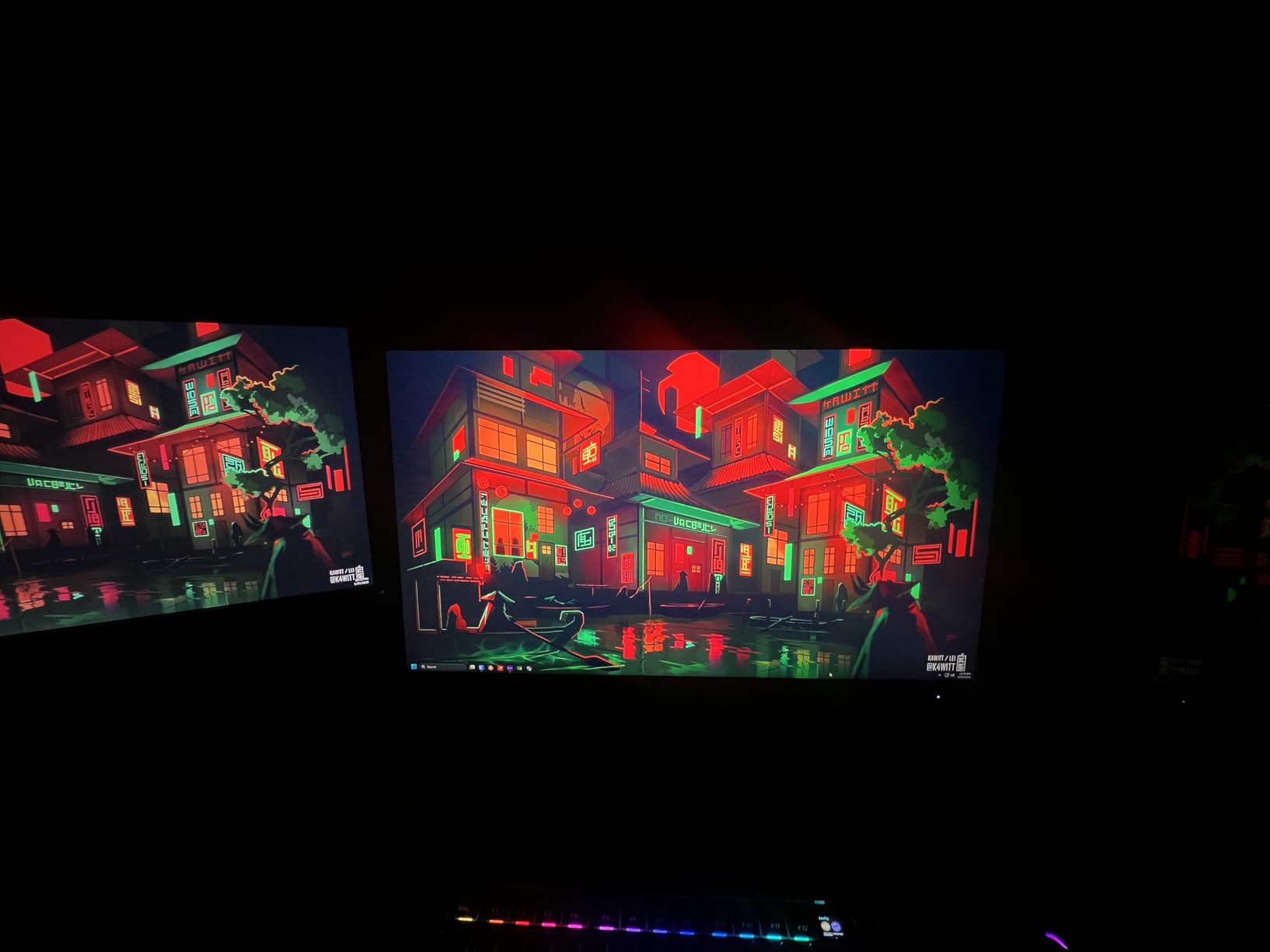
This is the pick for a developer who games seriously on the same machine. A 240Hz native refresh that overclocks to 260Hz, with 0.3ms MPRT response, is the fastest motion in the list, and at 1440p the text rendering still sits at roughly 109 pixels per inch so you are not sacrificing code legibility for it.
The panel is 4.6-rated across more than 550 reviews, with owners highlighting the combination of high refresh and adaptive sync at this price. Several buyers added a monitor arm specifically to fix the tilt-only stand, which is the standard response to this category.
What the Refresh Rate Does and Does Not Buy
For code, 240Hz versus 100Hz changes essentially nothing. Text and windows move slowly enough that any of these panels looks fine. The reason to care here is the other half of your day: fast aiming, vehicle physics, competitive shooters, where the 0.3ms response and high refresh genuinely register.
Owners do note that the overclocked headline figure is not always sustained at full resolution, so treat 260Hz as a ceiling rather than a guarantee. Shadow Control and Game Mode presets handle dark scenes in games, and both FreeSync and G-Sync compatibility means you are not locked to one GPU brand.
Connectivity, Finish, and Ergonomic Limits
One DisplayPort 1.4 and two HDMI 2.0 ports give you a desktop, a console, and a laptop input simultaneously, with audio out for headphones. That flexibility is a real convenience if you move between machines at one desk.
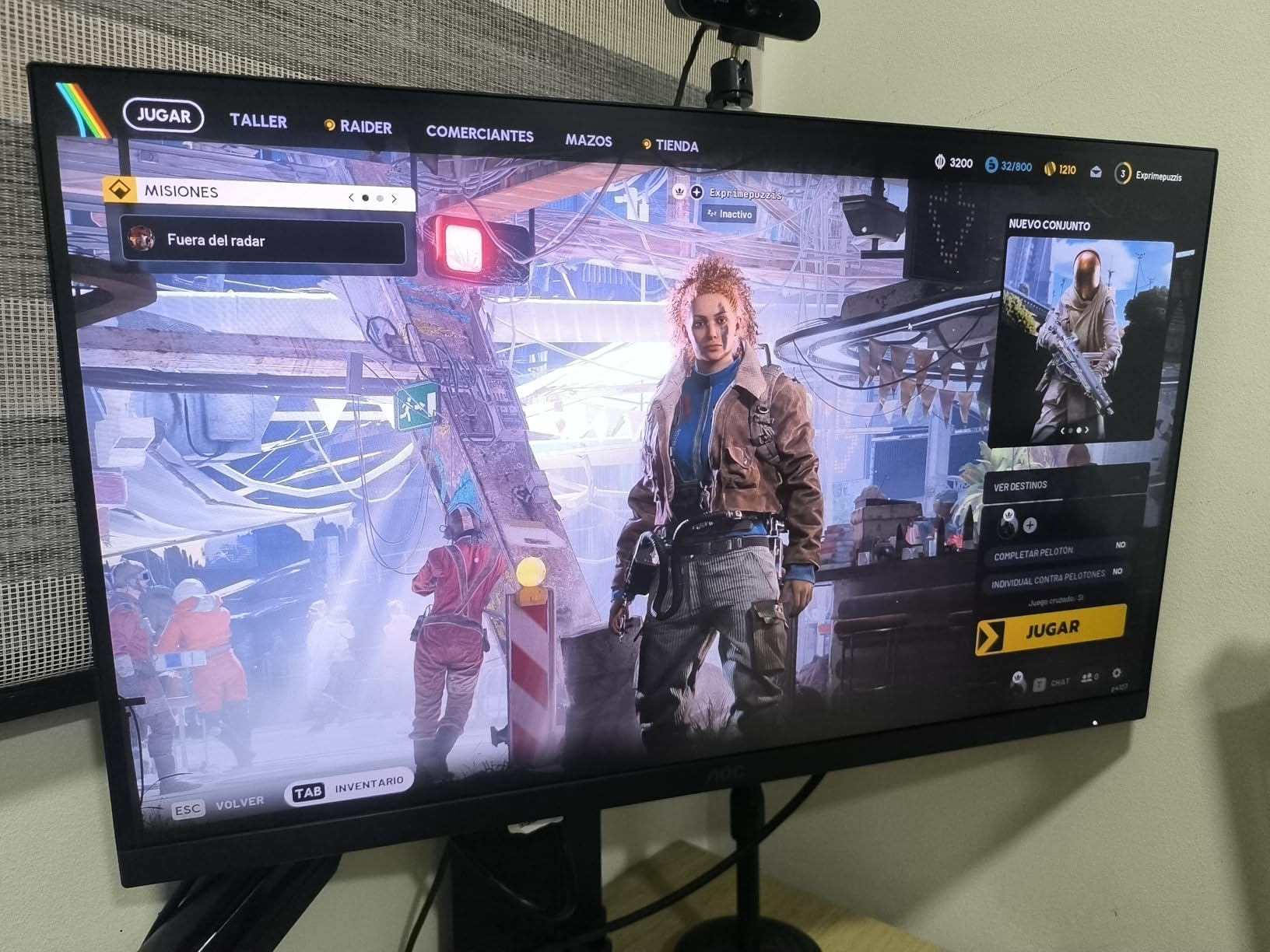
The glossy finish is the one to watch. In a room with a window facing the screen, reflections are visible during the day, which is a direct contrast to the matte SANSUI and LG panels elsewhere in this list. Ergonomically, tilt only runs from negative 3 to positive 21 degrees, so plan on an arm if neck comfort matters.
Who Should Buy It, and Who Should Not
Buy it if you split your day roughly evenly between code and fast-paced games, or if you move between an AMD and an NVIDIA machine. The dual HDMI setup also makes it a good shared console and PC display.
Pass if you sit near a window and the glossy coating bothers you, or if you care more about stand adjustment than speed. For a pure coding desk, one of the IPS 1440p panels with a real stand is the better tool.
8. Sceptre E275W-QPT – The Lowest-Cost Way Into 1440p IPS
Sceptre IPS 27 Inch 2K 2560 x 1440p QHD 75Hz DisplayPort HDMI 99% sRGB Build-in Speakers Machine Black (E275W-QPT)
27-inch 2560×1440 IPS at 109 PPI
300 cd brightness,99 percent sRGB coverage
75Hz with FreeSync
Built-in speakers with audio in and headphone out
2x HDMI and 1x DisplayPort
+ Pros
- 1440p IPS at the lowest entry point in this roundup
- Built-in speakers save desk space
- 99 percent sRGB coverage is unusually good for the class
- Two HDMI and one DisplayPort cover most source devices
- Blue light shift reduces eye fatigue in long sessions
– Cons
- 75Hz is the weakest refresh figure in the lineup
- Stand is tilt only with no height or swivel
- Some owners need color adjustment out of the box
- No USB hub and only a one-year warranty
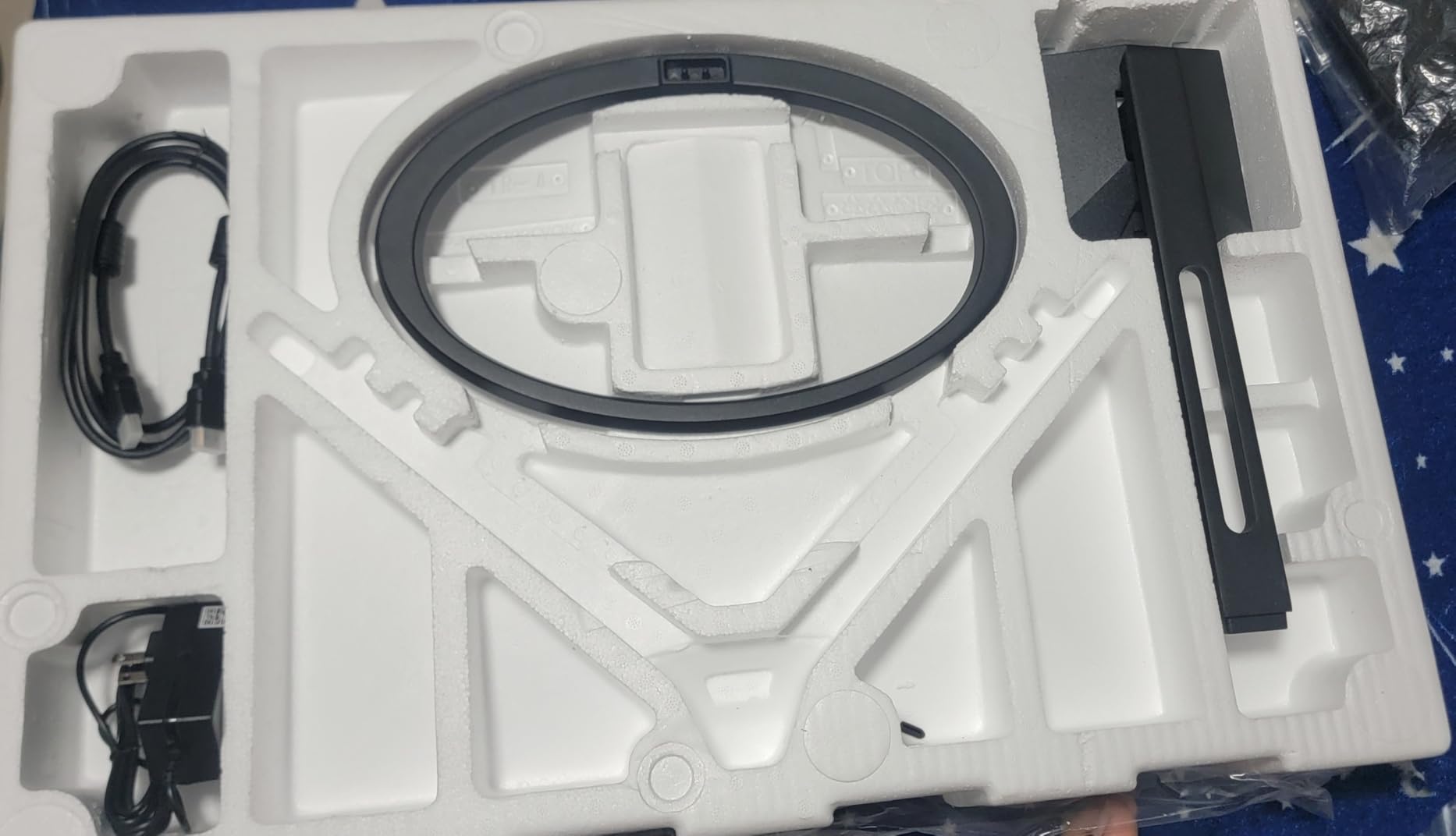
When someone asks whether a good coding monitor exists at the very bottom of the budget, this is the honest answer. 2560×1440 on a 27-inch IPS panel at about 109 pixels per inch, which is the resolution step that matters, without paying for anything you will not use.
At 75Hz nothing about the text experience changes, because text does not benefit from refresh rate. What you give up is the headroom to add a high-refresh panel later, and the one-year warranty is the shortest coverage in this group, which is a real consideration for a display you intend to keep for years.
Colour Accuracy and Eye Comfort at the Entry Tier
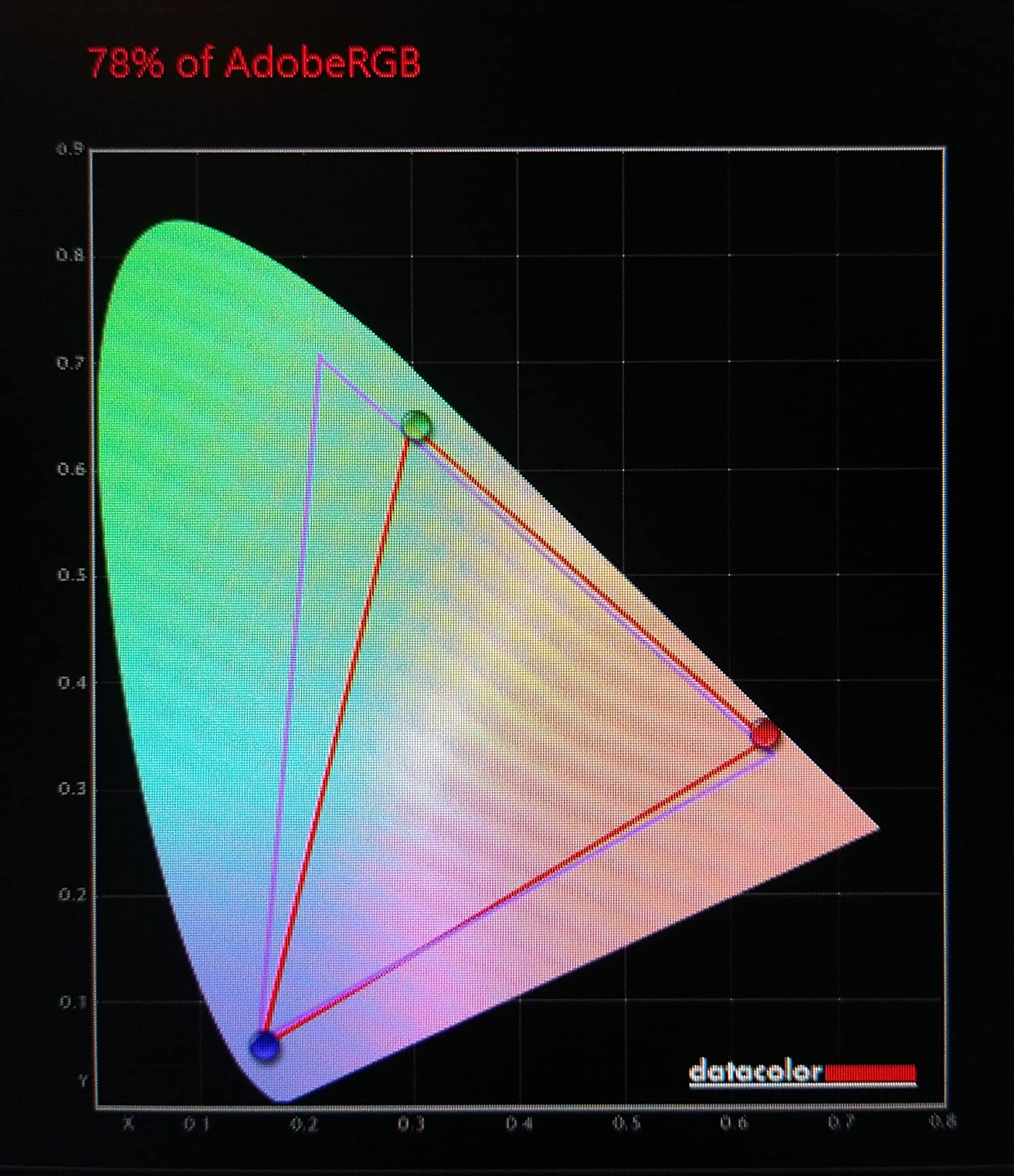
99 percent sRGB coverage is genuinely good for this price, and IPS gives consistent color from wide viewing angles, so the panel holds up when you lean back or when a colleague glances at your screen. Some owners still find color needs adjustment out of the box, which is a short OSD session rather than a real problem.
Blue light shift is present for evening work, and 300 cd brightness handles a normally lit office. The edgeless design keeps the front of the panel clean. What is missing is flicker-free certification language, and given how often PWM dimming is the hidden cause of afternoon eye strain at this budget, treat that as a question to ask before settling here.
Speakers, Ports, and the One-Year Warranty
Built-in speakers are unusual at this tier and genuinely useful if you have no other desk audio, with audio in and a headphone jack alongside. Video connectivity is two HDMI and one DisplayPort, which covers a desktop, a laptop, and a console without adapters.
The stand tilts only, with no height or swivel, and there is no USB hub, so peripherals go back to the computer. The one-year manufacturer warranty is the shortest here and the main reason this lands at number eight rather than higher. VESA wall mounting is supported, so an arm remains the upgrade path.
Who Should Buy It, and Who Should Not
Buy it if you are outfitting a study, a dorm, or a second desk and you need a real resolution upgrade from 1080p without spending much. The built-in speakers make it a self-contained setup, which matters when desk space or budget is tight.
Pass if this is the monitor you will stare at for five years, given the one-year warranty, or if you need stand adjustment. If you can stretch a little further, the Acer Nitro and LG panels add warranty length and a better panel for modest increases.
9. Dell S2725DSM 27 Plus – The Stand Is the Feature
Dell 27 Plus QHD Monitor – S2725DSM – 27-inch QHD (2560×1440) 144Hz 1ms Display, 2 x 3W Speakers, HDMI/DisplayPort 1.4 Connectivity, Height/Tilt/Pivot/Swivel Adjustability, AMD FreeSync – Ash White
27-inch 2560×1440 IPS at 109 PPI
350 cd brightness,1500:1 contrast
144Hz with 1ms MPRT and FreeSync
Height tilt pivot and swivel stand
Dual 3W speakers
+ Pros
- Fully adjustable stand with height tilt pivot and swivel
- Sharp 1440p text at 1500:1 contrast which beats every other 27-inch IPS here
- Built-in dual 3W speakers are unusually good for monitor audio
- Tool-free assembly means fit plug and turn
- Four-star TUV-certified low blue light emission
– Cons
- No HDR support despite HDR content being common
- No USB hub and no built-in camera
- On-screen menu offers very few settings to tweak
- Lowest review count of the established-brand options here
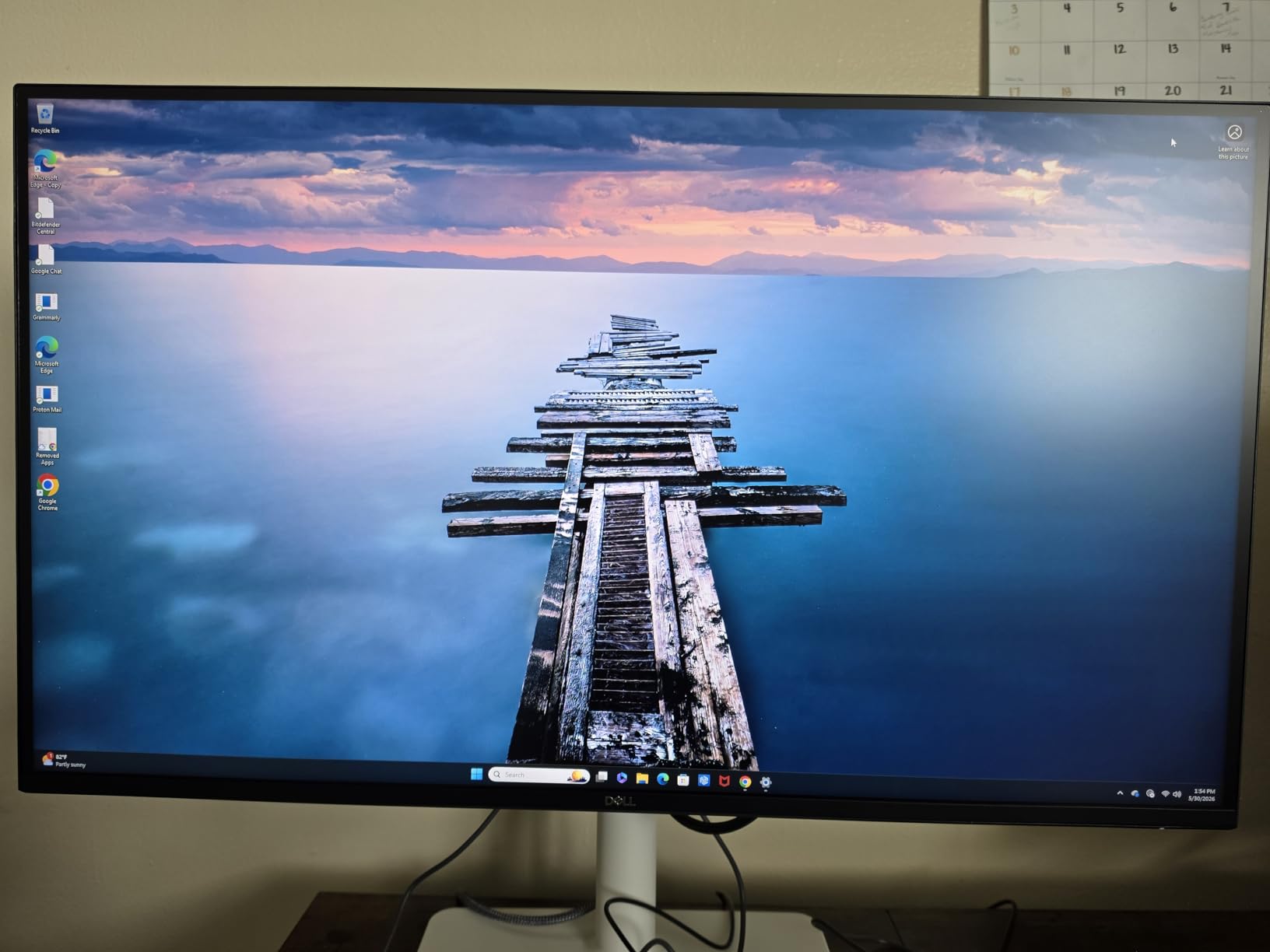
Strip out the gaming badges and this is the most correct monitor for a programmer’s desk in the roundup. 1500:1 contrast beats every other 27-inch IPS here, and the stand does all four adjustments, which is the thing most of this bracket cannot do.
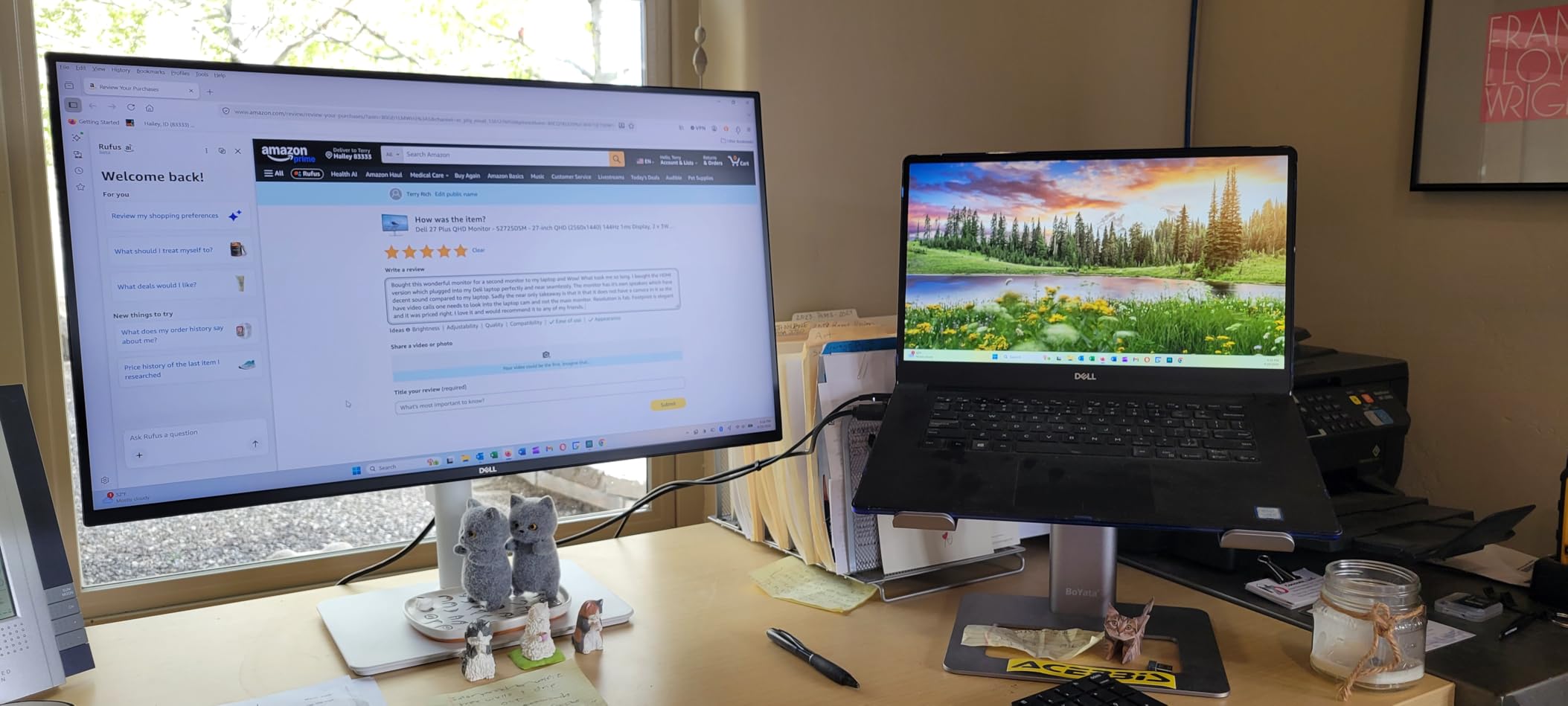
Height, tilt, pivot, and swivel means I could set the top of the panel at eye level, then rotate it to portrait for a long file without touching a tool. For someone who cares about neck and shoulder comfort over ten hours, that hardware is worth more than a 144Hz versus 100Hz difference you will never notice on text.
Contrast, Eye Comfort, and a Clean Desk
The 1500:1 contrast is the quiet advantage. At night with a dark IDE theme, the difference between 1500:1 and the 1000:1 standard is visible as cleaner separation around light text on a dark background, with less of the grey halo that makes long reading sessions tiring.
Four-star TUV-certified low blue light emission is a stronger claim than the informal eye care modes most budget panels offer, and 350 cd brightness handles a bright office without pushing the panel into overdrive. The dual 3W speakers are good enough that you may not reach for separate desk speakers, and Dell Display and Peripheral Manager handles updates and input mapping from one place.
What Is Missing, and the Warranty Detail
No HDR support, which is a mild surprise given how common HDR content is now, and no USB hub, so a laptop dock still means a cable run to the computer. There is no built-in camera either, so this is not a standalone video call display. The on-screen menu is thin on settings, with fewer options than the ASUS ProArt provides.
One-year Advanced Exchange Service with Premium Panel Exchange is the coverage. Dell’s advance exchange means a replacement ships before the failed unit returns, which is genuinely better service than the standard mail-in process, though it is still only one year. An HDMI 2.1 TMDS cable is included.
Who Should Buy It, and Who Should Not
Buy it if you have a desk you sit at daily and want to solve positioning properly instead of adding an arm later. It is also a strong choice for a small office, since several reviewers bought multiple units for client desks.
Pass if you need HDR, a webcam, or a USB hub for peripherals, or if a thin OSD is going to frustrate you. Given the shorter review history, buying it with a return window you are comfortable using is sensible.
10. ASUS VA24DQSB – The Docking Second Screen for Laptops
ASUS VA24DQSB 24″ 1080P FHD IPS Computer Monitor, USB Docking, DisplayPort
24-inch 1920×1080 IPS at 92 PPI
USB docking with 2x USB 2.0
75Hz,5ms response,72 percent sRGB
130mm height,180 swivel,90 pivot
TUV flicker-free and low blue light
+ Pros
- USB docking hub carries data and peripherals over one cable
- Fully adjustable stand with 130mm of height plus swivel and 90 degree pivot
- TUV Rheinland certified flicker-free and low blue light
- Frameless design with VESA mountable backing
- Three-year warranty with advanced replacement
– Cons
- 1080p resolution limits multi-window code editing
- 75Hz refresh rate
- 72 percent sRGB is narrow for color-sensitive work
- No HDMI cable included in the box
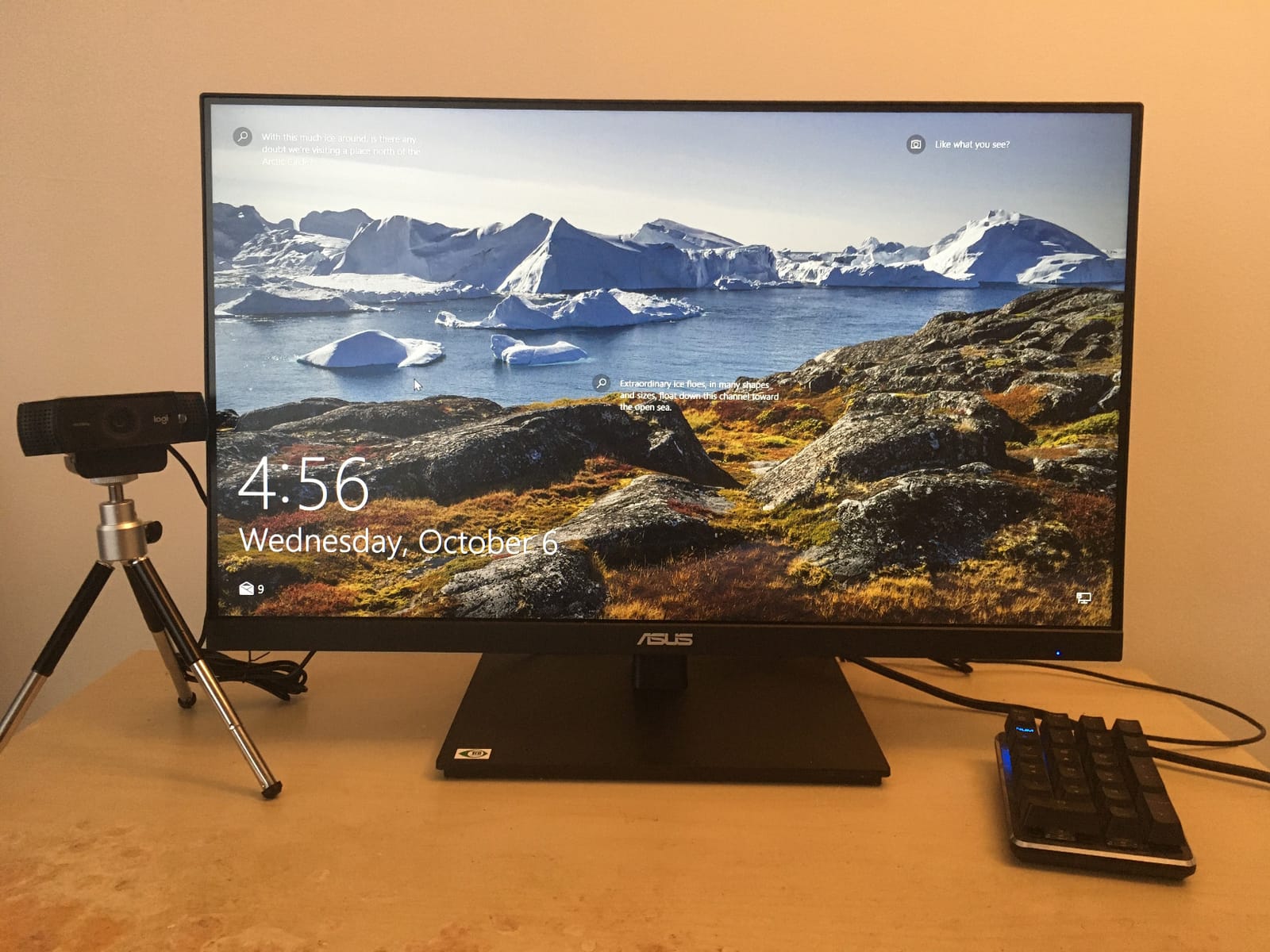
This is the odd one out at 24 inches and 1920×1080, and it earns its place for a specific reason: the USB dock. If your machine is a laptop and you want a second display, one cable carries video, data, and power, with two USB 2.0 ports at the monitor end.
At 92 pixels per inch, 1080p text is visibly softer than the 1440p panels here, and that softness is the most common complaint on 27-inch 1080p screens. At 24 inches it is far more acceptable, which is exactly why this one works and an equivalent 27-inch 1080p would not.
When a 24-Inch 1080p Panel Is the Right Answer
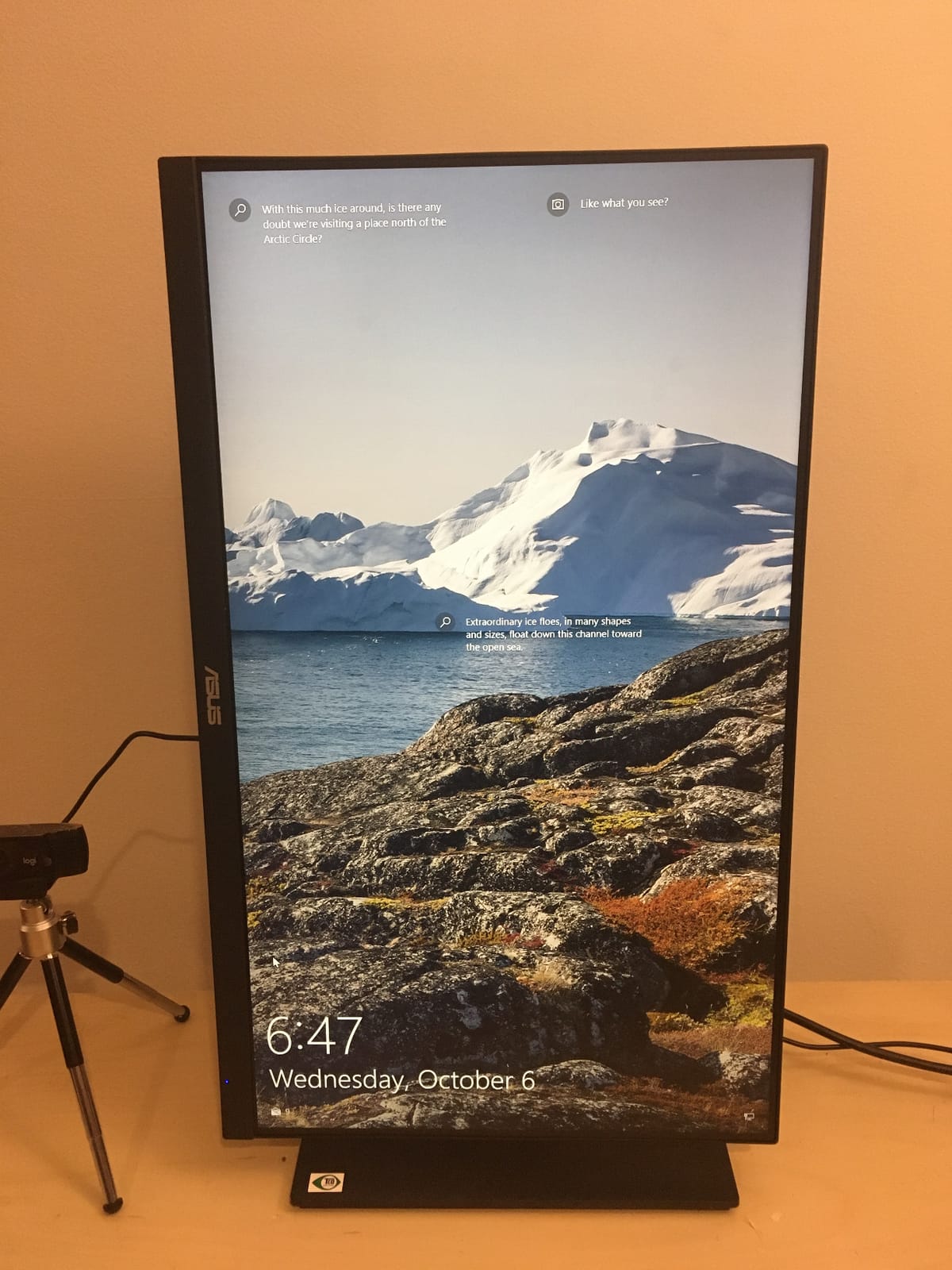
As a second screen for documentation, a chat client, or a terminal, a 24-inch 1080p display is a normal engineering choice. It fits beside a laptop without dominating the desk, and the resolution difference is only obvious when you compare text side by side with a 1440p panel.
As a primary coding display it is a compromise. Splitting your editor into two vertical columns at 1080p leaves very little width per column, and reviewers consistently describe it as better suited to dock-and-delegate setups than to primary code work.
Ergonomics, Eye Care, and Warranty
The stand is exceptional for the class: 130mm of height travel, 180 degrees of swivel, and 90 degrees of pivot. That is more adjustment than several 27-inch panels in this roundup offer, and it means this secondary screen can sit at eye level rather than below your natural gaze.
TUV Rheinland certification covers both flicker-free operation and low blue light, which is the most credible eye-care claim among the budget options here. The three-year warranty with advanced replacement is also longer than most. Integrated speakers and a frameless design round out a package aimed at a tidy laptop desk.
Who Should Buy It, and Who Should Not
Buy it if you work on a laptop, want a clean single-cable desk, and need a second screen for docs and notifications rather than for editing code. The docking hub and the adjustable stand are the two features that justify it.
Pass if this is your only display and you plan to stare at it for years, because 92 pixels per inch is a step backwards from 1080p at smaller sizes. Seventy-two percent sRGB also rules it out for any color work. No HDMI cable is included, so factor that in if you are not using USB-C.
11. LG 27U631A-B – Matte Finish, USB-C, and Screen Splitting
LG 27U631A-B 27-inch QHD (2560 x 1440) IPS Computer Monitor, 100Hz, 5ms, HDR10, Reader Mode, Flicker Safe, HDMI, USB Type-C 15W PD, Black
27-inch 2560×1440 IPS at 109 PPI
250 cd brightness,1000:1 contrast
100Hz with 5ms GTG response
HDR10 with 99 percent sRGB
USB Type-C with 15W power delivery
+ Pros
- Single USB Type-C cable displays and charges a laptop
- 1440p at 100Hz is a clear step up from 1080p at 60Hz
- Matte surface cuts reflections in bright rooms
- LG Switch app makes multi-window splitting quick
- A pair fits side by side on a home-office desk
– Cons
- No DisplayPort input so laptops without USB-C are limited to HDMI
- Stand has no height adjustment and does not rotate or pivot
- Color not accurate enough for photo or design work
- Joystick controls are too sensitive and cause accidental inputs
The matte surface is the underrated reason to like this one. If your desk faces a window or you work in a bright room, the anti-glare coating here is more effective than the glossy panels elsewhere in this list, and that has a direct effect on how long you can comfortably read.
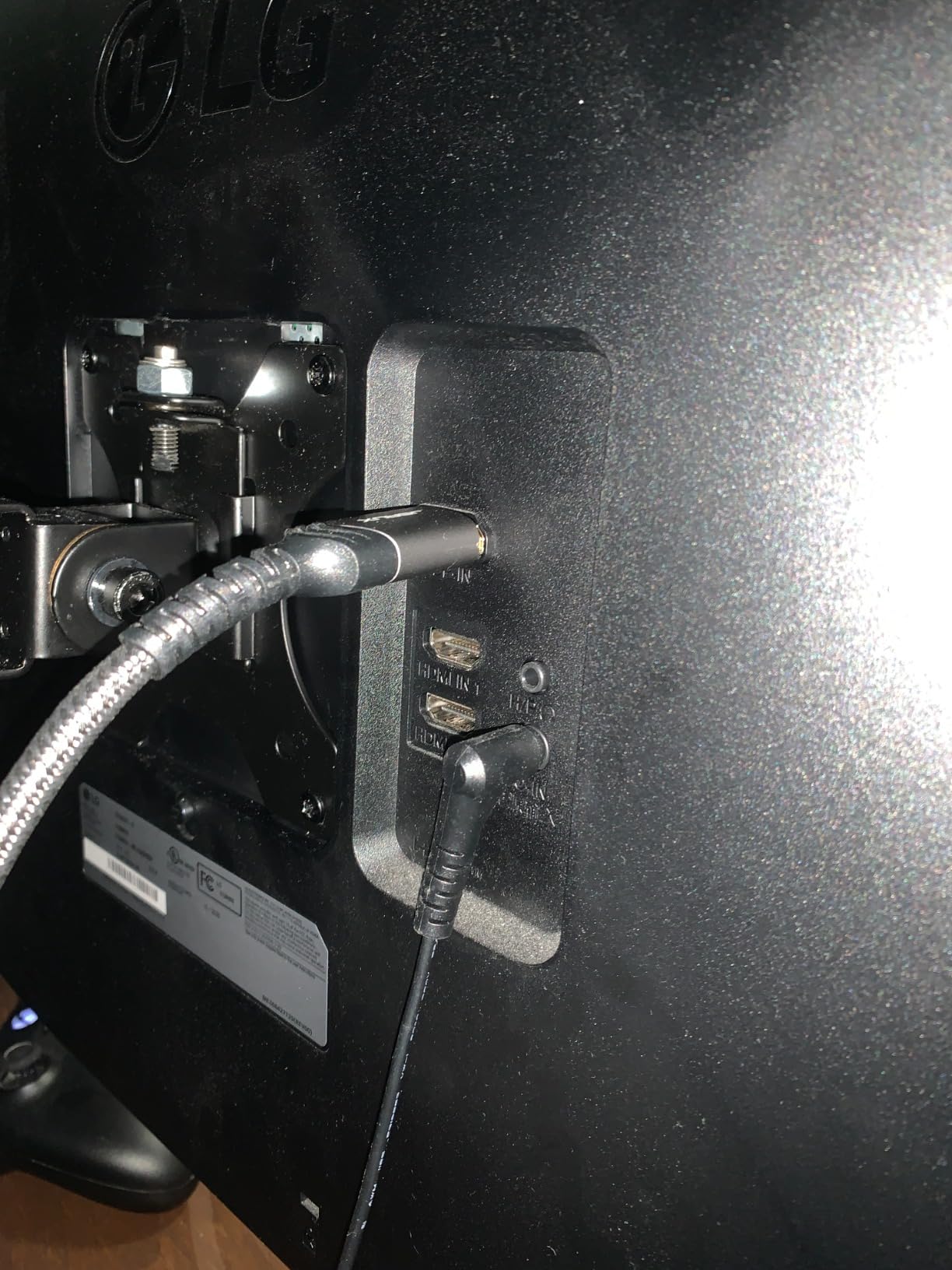
USB Type-C with 15W power delivery handles video and data on one cable. For a light laptop that means the machine stays powered while docked, which is convenient, though 15W is display power rather than a full charge, so a heavy machine will still drain.
Reader Mode, Flicker Safe, and the LG Switch App
Reader Mode reduces blue light emission for reading-heavy work, and Flicker Safe handles the dimming behaviour that causes afternoon headaches. Together with the matte finish, this is the most complete eye-comfort package among the 27-inch 1440p options at this budget.
LG Switch splits the screen into up to six sections, which is a real productivity tool rather than a gimmick. You can dedicate one region to a terminal and another to documentation without manual window snapping. HDR10 support is present, though 250 cd brightness and 99 percent sRGB mean it is a checkbox feature rather than a serious one.
Connectivity Limits and Stand Limitations
There is no DisplayPort input, which is the most significant limitation here. Laptops without USB-C fall back to HDMI, and desktop users lose the option that usually handles high refresh and adaptive sync cleanly. Check your port before buying, because the single-cable convenience only applies to USB-C machines.
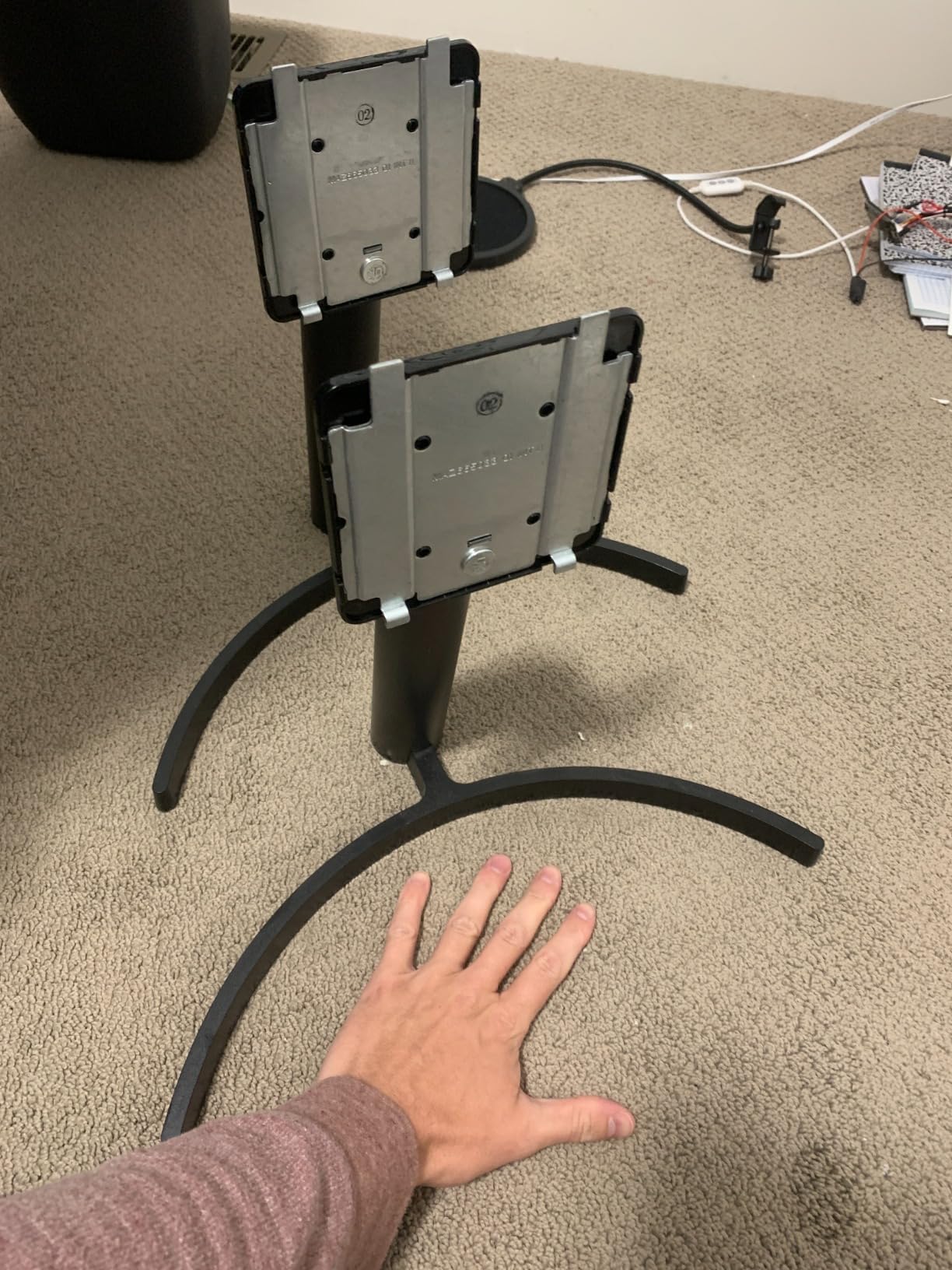
The stand has no height adjustment and does not rotate or pivot, so expect a lower default position and no portrait mode. Color accuracy falls short of the ASUS ProArt by a wide margin, one buyer reported the advertised 100Hz behaving like 60Hz, and the joystick is sensitive enough to cause accidental input changes.
Who Should Buy It, and Who Should Not
Buy it if you are in a bright room, you use a USB-C laptop, and you want the screen-splitting software for a multi-window workflow. It is also a good second display for a home-office desk where a pair fit comfortably side by side.
Pass if your setup is DisplayPort-based, if you need height adjustment or portrait rotation, or if color accuracy matters. The 250 cd brightness is also the second-lowest here, so it is not a panel for a sunlit room at full midday output.
12. LG 32UR550K-B – The Only 4K Panel That Fits the Ceiling
LG 32UR550K-B 32-inch Ultrafine 4K UHD (3840 x 2160) Computer Monitor, HDR10, 60Hz, HDMI, DisplayPort, Tilt/Height/Pivot Adjustable Stand, Black
31.5-inch 3840×2160 VA display at 140 PPI
250 cd,3000:1 contrast,90 percent DCI-P3
60Hz,5ms response
Height tilt and pivot adjustable stand
Waves MaxxAudio speakers
+ Pros
- Genuine 3840×2160 sharpness on a 31.5-inch panel at about 140 PPI
- Height tilt and pivot adjustment for long-session posture
- 3000:1 contrast and 90 percent DCI-P3 give punchy accurate-enough colour
- Switch app supports fast multi-window splitting for coding workflows
- Built-in speakers mean no extra desk hardware
– Cons
- 60Hz is the weakest refresh rate in the roundup
- VA panel shows dark smearing on scrolling text
- No USB hub or USB-C so a single-cable dock setup is out
- No full swivel and no built-in webcam
This is the only 3840×2160 panel that fits under the ceiling, and that alone earns it a place. A 31.5-inch 4K display runs at roughly 140 pixels per inch, higher than everything else here, and DPReview forum guidance in the same vein is consistent: if you want 4K, go to 32 inches.
The catch is that 4K at this size needs scaling. At 100% the text is far too small; at 150% you get a workspace equivalent to a 2560×1440 panel with 4K-level sharpness underneath, which is the setup Coding Horror discussions describe as the required trade for 27-inch 4K, here applied to a larger panel where it is far more comfortable.
Desk Space, Viewing Distance, and the 32-Inch Reality
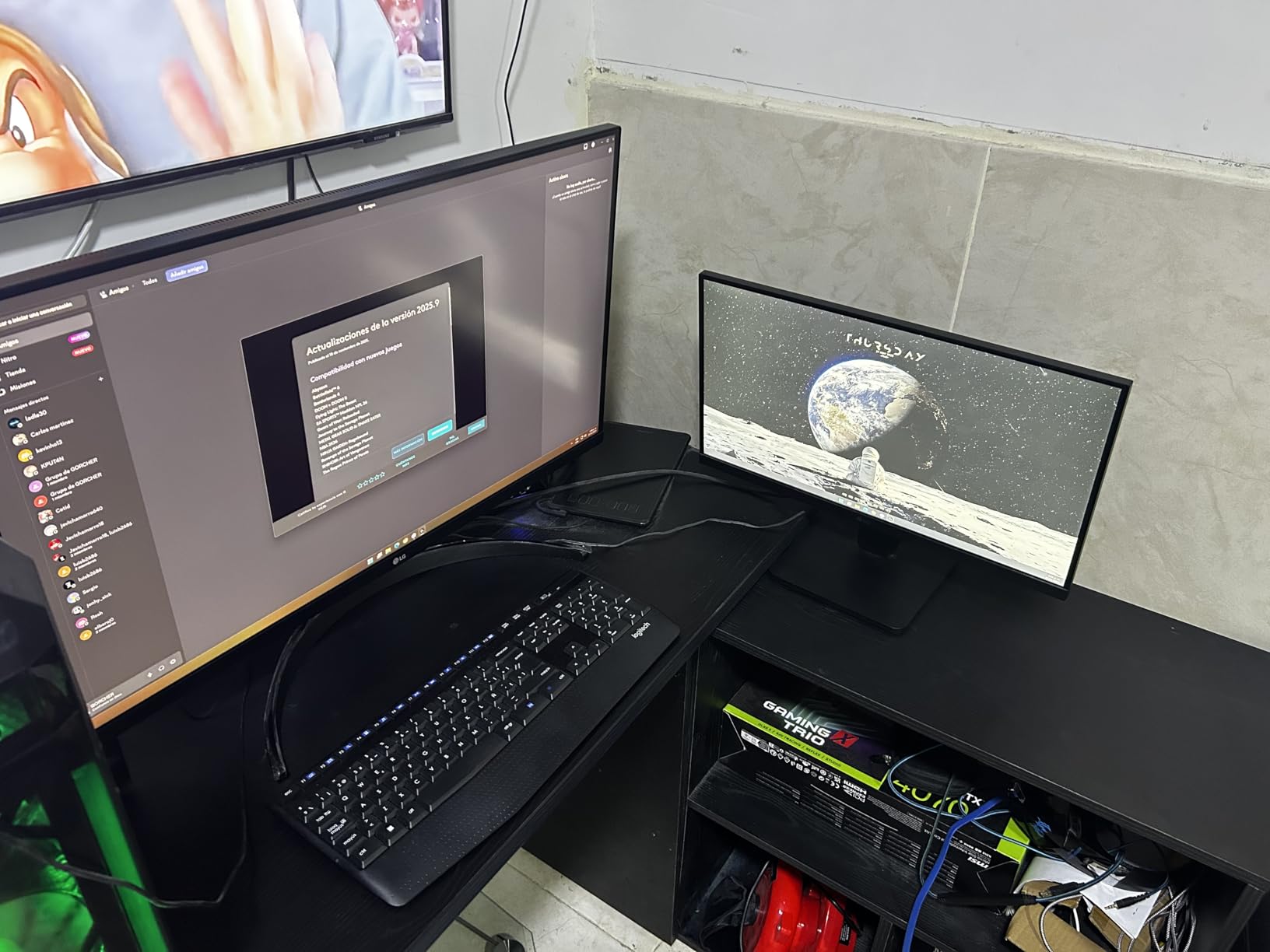
At 28.1 inches wide and 23.5 inches tall, this monitor needs a genuine desk. It will not sit on a small dorm desk next to a laptop, and you need roughly 28 inches of clearance in front of you. Viewing distance matters too: at desk range, a 32-inch panel fills more of your field of view than a 27-inch one, which is a comfort consideration as much as a space one.
For a developer who works with an IDE, a terminal, documentation, and a browser all day, the extra pixels reduce window management more than the resolution step does. At 150% scaling you gain vertical lines compared with a 1440p panel without paying for a 32-inch 1440p, which does not exist at this price.
Contrast, HDR, and the 60Hz Ceiling
VA at 3000:1 is the second-deepest contrast figure in the roundup, and 90 percent DCI-P3 coverage gives colour that looks noticeably richer than the 99 percent sRGB IPS panels for mockups and documentation screenshots. HDR10 is supported with built-in Waves MaxxAudio speakers, so no extra desk hardware is needed.
Sixty hertz is the weak point and owners call it out plainly. For code that is not a problem, since text does not need refresh headroom. The real cost is dark smearing on scrolling text, a VA trait that shows up when you scroll a long file quickly, and the absence of USB-C or a USB hub, which rules out the single-cable laptop setup entirely.
Who Should Buy It, and Who Should Not
Buy it if you have desk space, you want maximum pixel density in this budget, and you are willing to run 150% scaling. It is the strongest option for large-file reading and for anyone who wants 4K sharpness without leaving the price band.
Pass if your desk is small, if you need a one-cable laptop dock, or if you dislike adjusting scaling settings. A 27-inch 1440p panel gives a similar workspace at 100% scaling with far less desk footprint, and the ultrawides give more width per inch of desk depth.
How to Choose a Programming Monitor Under 300 Dollars
Resolution beats every other spec for code, ergonomics beats refresh rate, and eye care is the difference between a comfortable decade and a headache by year two. Here is the order I would work through.
1. Pixel Density and the Scaling Decision
Pixel density, measured in pixels per inch, is how tightly text packs into a given physical size. It is the single number that predicts whether code looks crisp or soft, and it is derived purely from resolution and diagonal size.
Use these as reference points for 16:9 panels: a 24-inch 1920×1080 display sits at roughly 92 PPI, a 27-inch 2560×1440 display at roughly 109 PPI, and a 27-inch 3840×2160 display at roughly 163 PPI. A 32-inch 4K panel lands near 140 PPI. The step from 92 to 109 is the one that visibly reduces squinting on a 27-inch screen, which is why we say 1440p is the threshold and 1080p at 27 inches is not enough.
On scaling: 100% is native and sharpest but produces the smallest UI. 125% is a mild bump. 150% on a 4K panel gives a workspace equivalent to 2560×1440 with sharper glyph edges underneath, which is the configuration we recommend for the LG 32UR550K-B. 175% suits very large 4K panels where you want a more generous text size. The mistake most buyers make is running 4K at 100% and concluding the monitor is bad, when the panel was fine and the setting was wrong.
2. IPS Beats VA for Code, With One Exception
IPS is the default recommendation for programming monitors because viewing angles stay consistent and the panels are widely available in this price band. Every 27-inch 1440p option in this roundup is IPS, with contrast ratios from 1000:1 to 1500:1.
VA panels win on contrast, sometimes dramatically, as the ultrawides here at 4000:1 demonstrate. That is a real advantage for a dark IDE theme at night. The cost is narrower off-axis viewing, where the SANSUI ultrawide shows edge darkening, and smearing on fast-scrolling text. If you work in a dark room and scroll long files quickly, VA is worth considering. If you share your screen or lean back, IPS is safer.
3. Size Versus Desk Depth and Viewing Distance
A 27-inch 16:9 panel needs about 24 inches of width on the desk, which almost every desk provides. A 34-inch ultrawide needs 31 to 32 inches of width and roughly that much depth, since the 1000R and 1500R curves assume a centered seat. A 31.5-inch 4K panel needs about 28 inches of width and a good amount of depth behind it.
Viewing distance scales with size. A 32-inch panel at normal desk distance fills far more of your field of view than a 27-inch one, which reduces how much you move your head but also increases how much eye travel each line requires. If you have a deep desk, take the larger panel. If your desk is a standard home-office width, the 27-inch 1440p options are the safe choice.
4. The 4K and High Refresh Port and GPU Check
Before buying a 4K panel, confirm your source can drive it. A 3840×2160 display at 60Hz needs roughly 12 gigabits per second of video bandwidth, which DisplayPort 1.2, HDMI 2.0, and USB-C with DisplayPort Alt Mode all handle without trouble. That is why the LG 32UR550K-B works with essentially any modern desktop.
The failure case is high refresh on a laptop. A 27-inch 1440p panel at 180Hz needs more bandwidth than an HDMI 2.0 port provides, so a laptop without a DisplayPort or USB-C Alt Mode output will be capped at 144Hz through HDMI, as the Acer Nitro’s specifications confirm. If you also play at high refresh, check whether your laptop has a full-featured USB-C port before picking a fast panel.
5. USB-C Power Delivery Wattage Tiers
USB-C on a monitor means video, data, and power on one cable, but the wattage determines what it can charge. Under this ceiling the options are limited, and understanding the tiers prevents disappointment.
15W, as on the LG 27U631A-B, is display-class power. It keeps a light laptop awake while docked but is not a meaningful charge rate. 45W handles thin ultraportables. 65W is the practical minimum for a modern thin-and-light laptop under load. 90W covers performance machines including larger 16-inch models. In this price band, 15W is what you will find, so plan on a separate charger for anything heavy.
6. Pivot, Height Adjustment, and the VESA Arm Workaround
Height adjustment and pivot are the two features you cannot add to a monitor later without buying a monitor arm, and tilt-only stands are the norm in this budget. Only the ASUS ProArt, the Dell S2725DSM, the ASUS VA24DQSB, and the KTC H34S5 give you both.
The workaround is a VESA arm, which typically costs a modest fraction of the monitor itself and solves the problem permanently. Check for a VESA pattern first: the ASUS ProArt, Dell, SANSUI, and KTC use 100x100mm, the LG 32UR550K-B and Acer Nitro follow the common small-panel pattern, and the KOORUI ultrawide uses 75x75mm. Buying the arm on day one is cheaper than replacing a monitor that sits at the wrong height. Our guide to monitor arms covers the fitment details.
7. Eye Comfort Specs Most Budget Monitors Bury
Flicker-free operation is the most under-rated spec at this price, and users on the Acer community forums report eye strain that persists even at minimum brightness and contrast, which points to PWM dimming and the coating rather than brightness. Ask whether the panel is flicker-free before assuming your own eyes are the problem.
Low blue light modes, Reader Mode, and blue light shift all reduce evening discomfort, though an operating-system night mode does the same job more predictably. Beyond the panel, the practices matter: match brightness to room light, keep the top of the screen at or slightly below eye level, and use the 20-20-20 rule, looking at something 20 feet away for 20 seconds every 20 minutes.
8. What You Give Up Under 300 Dollars
Honesty about the ceiling is more useful than a recommendation. At this budget you give up true HDR with real local dimming, wide-gamut coverage above roughly 95 percent DCI-P3, a built-in USB hub on most models, and a warranty longer than one year on several. Colour accuracy is good on the ASUS ProArt and adequate on the IPS panels, but nothing here replaces a calibrated reference display.
You also give up consistent panel quality across units, which is the real risk with lesser-known brands. Dead pixels on arrival and brightness variation between panels are reported across this class. Inspect every panel within the return window, and prefer a longer warranty when two options are otherwise close, which is the main reason the ASUS ProArt ranks first.
For the machine side of the equation, our guides to laptops for programming students and desktop computers for programming cover the hardware that has to drive whatever you choose. If your setup leans toward gaming, our gaming monitors under 300 dollars guide covers the panels where refresh rate does the talking.
Set Up a 27-Inch 1440p Monitor for Coding Without Eye Strain
Most of the discomfort people report on a new monitor is a settings problem, not a hardware problem. These five steps take about fifteen minutes and fix the majority of it.
1. Set scaling before you judge the panel. On 2560×1440, 100% is correct and everything stays crisp. On 3840×2160, start at 150% so the workspace matches a 1440p layout with sharper text. Restart the editor afterward so font hinting re-renders at the new size.
2. Position the top edge at or just below eye level. You want to look slightly downward, which is the resting position your neck is built for. If the stand cannot reach that height, add a monitor arm rather than crouching. Pivot to portrait for reading long files, where a tall column of code beats horizontal scrolling every time.
3. Match brightness to room light, not to zero. In a normally lit office, brightness should match the white of the wall behind the monitor as closely as you can judge. Cranking it to maximum in a dark room is the most common cause of end-of-day headaches, and it is entirely avoidable.
4. Turn on the eye care mode and set a night schedule. Enable the low blue light or Reader mode after sunset rather than all day, since blue light filtering all the time flattens contrast and makes white text look muddy. Pair it with the operating system night light so the shift happens gradually.
5. Use a dark theme at night, a light theme by day. This is counterintuitive but effective. A dark theme on a 4000:1 contrast panel is much easier on the eyes after hours, while a light theme on a 1000:1 IPS panel in daylight avoids the squinting that dark interfaces cause in bright rooms. Match the theme to the contrast ratio you have and the light you have.
Finally, run the 20-20-20 rule properly. Every 20 minutes, look at something 20 feet away for 20 seconds. It sounds trivial, and it is the single cheapest eye-strain intervention available to a developer.
Frequently Asked Questions
What is the best 4K monitor under 300 dollars?
The LG 32UR550K-B is a 31.5-inch 3840×2160 VA display with roughly 140 PPI, 3000:1 contrast, and a stand that adjusts for height, tilt, and pivot. It is the only true 4K panel in this price band, and you should run it at 150% scaling so the workspace matches a 1440p layout with sharper text underneath. The 60Hz refresh rate and lack of USB-C are the trade-offs.
What is the best 27-inch monitor under 300 dollars?
The ASUS ProArt PA278QV is the strongest 27-inch choice under the ceiling. It is a factory-calibrated 2560×1440 IPS panel at about 109 PPI, with a stand offering 110mm of height travel plus swivel, tilt, and pivot, a 4-port USB 3.0 hub, and a five-year warranty. The Acer Nitro KG271U and LG 27U631A-B are cheaper alternatives with tilt-only stands.
Is 27-inch 4K too small for programming?
No. A 27-inch 4K panel runs at about 163 PPI, which is plenty for code, but at 100% scaling the text is far too small to read comfortably. The fix is 150% scaling, which gives you a 2560×1440-sized workspace with 4K sharpness underneath. If you want 4K without any scaling adjustment, go to 32 inches instead.
Do I need a high refresh rate monitor for programming?
No. Code and terminal windows scroll slowly enough that 75Hz and 240Hz look nearly identical for text. Spend the budget on resolution and on a stand that offers height adjustment and pivot instead. High refresh only matters if you also play fast competitive games, where sub-millisecond response and 240Hz genuinely register.
What is the PPI of a 27-inch 4K monitor?
About 163 pixels per inch. For comparison, a 27-inch 2560×1440 monitor is about 109 PPI, a 24-inch 1920×1080 monitor is about 92 PPI, and a 31.5-inch 3840×2160 monitor is about 140 PPI. Anything above roughly 109 PPI on a 27-inch panel gives you clean, easily resolved text without squinting over a long session.
Should I use a vertical monitor for coding?
Yes, for reading long files, stack traces, and logs. A 27-inch 1440p panel rotated to portrait gives you a tall column of code and a rotated terminal that you can read top to bottom without horizontal scrolling. You need hardware that physically pivots, which only some monitors here offer, or you need a VESA monitor arm. Otherwise the operating system rotation is useless.
Which Programming Monitor Should You Buy?
The best monitors for programming under 300 dollars all land in the same place: a 27-inch 2560×1440 IPS panel at roughly 109 pixels per inch, with a stand that holds it at eye level. Everything else is a preference layered on top of that.
Buy the ASUS ProArt PA278QV if you sit at one desk all day and want nothing to think about. It is calibrated, adjustable in four directions, hub-equipped, and covered for five years. That is the default answer for a working developer in 2026.
Buy the KOORUI 34E6UC if your biggest problem is alt-tabbing. The width lets an editor, a terminal, and documentation coexist, and the 110mm of height travel means the stand keeps up with a panel that size.
Buy the Dell S2725DSM if ergonomics decide it. Height, tilt, pivot, and swivel plus 1500:1 contrast and TUV-certified low blue light make it the most correct panel for neck and eye comfort.
Buy the Sceptre E275W-QPT if the budget is genuinely tight and you need a resolution upgrade from 1080p with built-in speakers. Just know the warranty is one year.
Buy the LG 32UR550K-B if you want maximum pixel density and have the desk depth for it. Run it at 150% scaling from the first hour and never look back.
Buy the AOC Q27G41ZE or the Acer Nitro KG271U if you split your day with fast games, and add a monitor arm to either, because both ship with tilt-only stands.
Whichever you choose, set the scaling first, then the height, then the brightness. Those three adjustments fix more eye strain than any specification on the box, and they take fifteen minutes. For the machine driving all of this, start with our gaming laptops for programming guide or the desktop picks already linked above.
Leave a Reply