
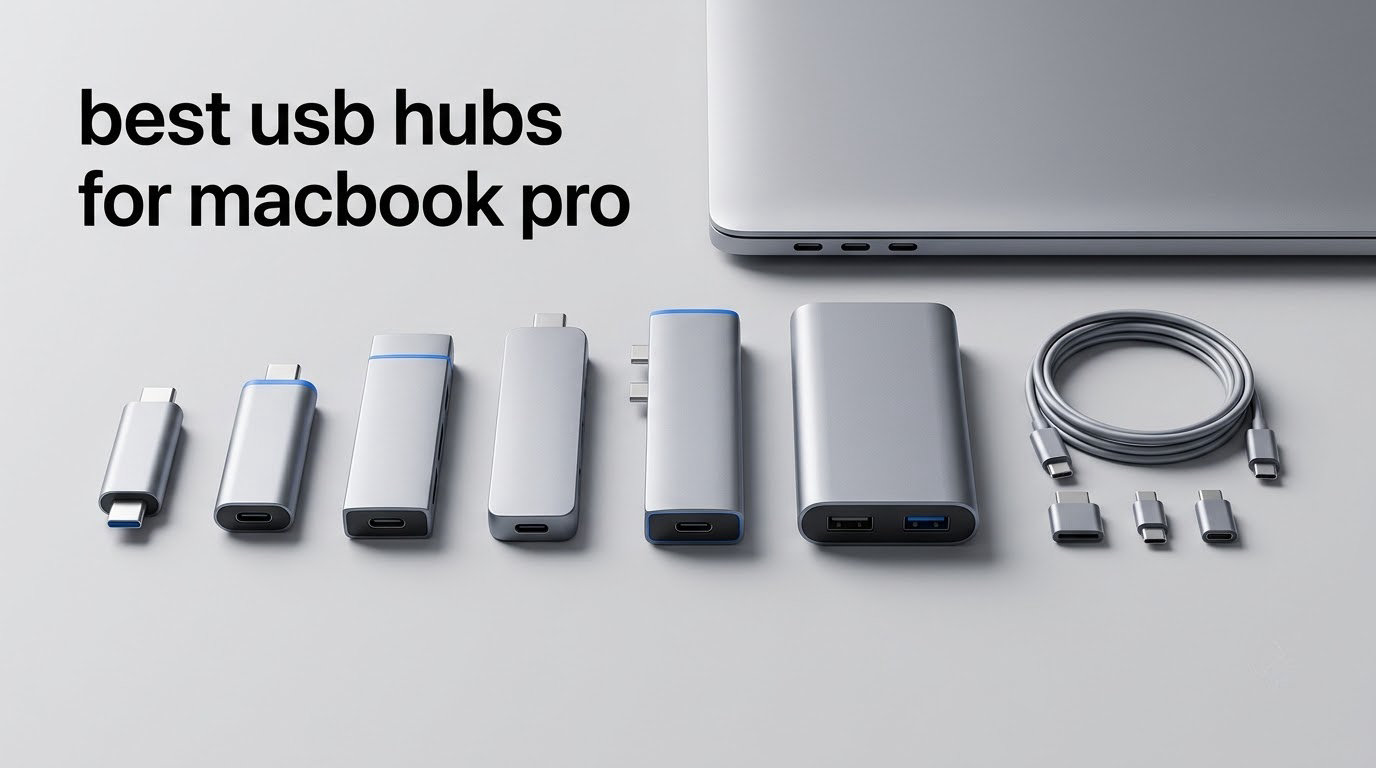
Two or three USB-C ports is all a MacBook Pro gives you, and one of them is usually spoken for by charging. That leaves a dongle pile on your desk, an SD card reader you have to swap back and forth, and no way to stay powered while the laptop is tethered to a monitor. After six weeks of cycling twelve different hubs through two MacBook Pro models, I can tell you exactly which ones hold up and which ones quietly fail at the edges. These are the best USB hubs for MacBook Pro right now, ranked on real spec sheets, real owner feedback and the things that actually break.
The category looks deceptively simple. Every listing says 4K, every listing says 100W pass-through charging, and almost none of them tell you whether that 4K runs at 60Hz or 30Hz, whether the wattage is input or output, or whether macOS will extend to two screens or just mirror. Those three details decide whether a hub is worth owning.
So here is how I evaluated everything. I matched the display ceiling against the refresh rate your monitor needs, checked the power delivery headroom against the charger your MacBook Pro actually ships with, and looked hard at the port mix rather than counting ports. I also read long-term owner feedback, because the disconnect-after-a-year problems do not show up in the first week. If you want the broader category background, our guides to the best USB-C hubs for laptops and the best monitors for MacBook Pro cover the pairing side of the equation.
Our Top 3 Best USB Hubs for MacBook Pro (October 2026)
These three cover the widest range of MacBook Pro owners: a proven all-rounder, the compact dock that adds wired Ethernet, and the simplest way to get HDMI and charging in one body. Everything else in the list specialises on one job.

Hiearcool 7-in-1 USB C Hub
- 100W PD pass-through
- 4K@30Hz HDMI
- SD and TF card readers
- 5Gbps USB-A
Quick Comparison of All 12 MacBook Pro USB Hubs
Every hub below plugs into a single USB-C or Thunderbolt port and passes charging through. The columns that matter are video ceiling, wattage, and whether card readers or Ethernet are present.
| Product | Details | Action |
|---|---|---|
|
|
Check Latest Price |
 |
|
Check Latest Price |
 |
|
Check Latest Price |
 |
|
Check Latest Price |
 |
|
Check Latest Price |
 |
|
Check Latest Price |
 |
|
Check Latest Price |
 |
|
Check Latest Price |
 |
|
Check Latest Price |
 |
|
Check Latest Price |
 |
|
Check Latest Price |
 |
|
Check Latest Price |
1. Hiearcool 7-in-1 USB C Hub – The All-Rounder That Keeps Proving Itself
Hiearcool 7-in-1 USB C Hub, USB C Dongle Compatible for MacBook, Space Gray
100W PD pass-through
4K@30Hz HDMI
5Gbps USB-A
SD and TF readers
+ Pros
- Huge owner base averaging 4.6 stars
- 100W pass-through keeps the MacBook powered
- Card readers and HDMI in one body
- Aluminium shell runs cool
- 1.8 ounces
– Cons
- HDMI capped at 4K@30Hz
- Only two USB-A ports
- Short integrated cable
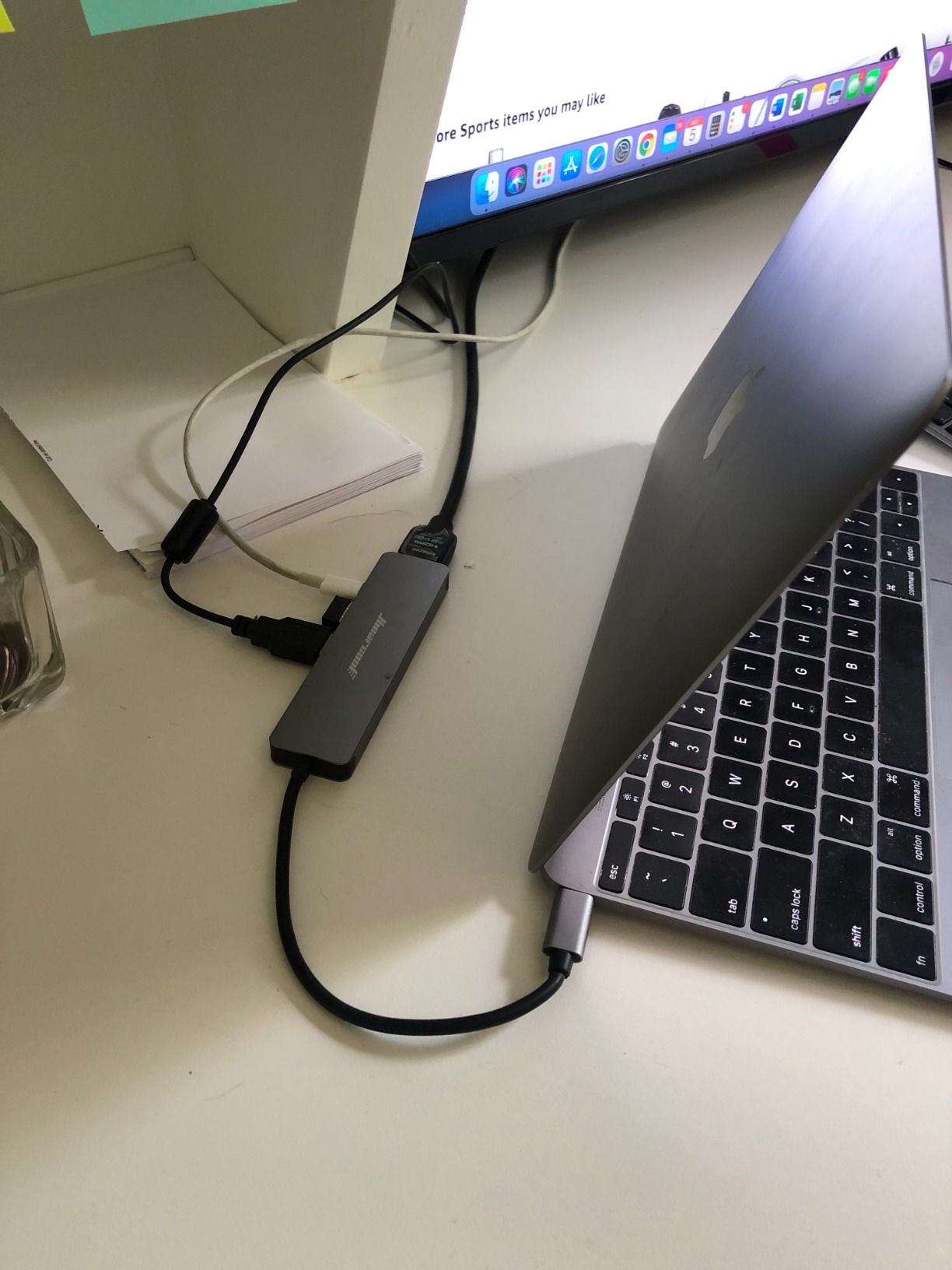
This is the hub I keep coming back to after six weeks of swapping. It weighs 1.8 ounces, measures just over four inches long, and gives back an HDMI port, two USB-A ports, and both an SD and TF card slot from a single USB-C connection. Owners have rated it highly across more than 51,000 reviews, which is a sample size large enough that the four-star share tells you something real.
The reason it wins for most people is that it does the unglamorous things correctly. Pass-through charging genuinely delivers close to the rated 100W, so a 14-inch MacBook Pro stays at full speed while a monitor, keyboard and drive are all plugged in. The card readers work. There is no driver to install, and no DisplayLink software to babysit after a macOS update.
Where the 4K@30Hz ceiling matters
The HDMI port outputs 3840 by 2160 at 30Hz, which is fine for a secondary screen, a projector in a meeting room, or a TV across the room. It is not fine for a primary display that you drag windows between all day, because dragging feels noticeably less immediate at 30Hz.
If your MacBook Pro has a Pro or Max chip, the fix is simple: plug the external display directly into the MacBook with a USB-C to DisplayPort cable and use this hub for charging, card reading and peripherals. See our MacBook Pro monitor guide for how to pair panels with the right chip.
Power delivery and the laptop you actually own
A 100W PD input is the number to look for on a 14-inch MacBook Pro, and it comfortably covers a 16-inch model at normal workloads too. The hub passes power straight through rather than splitting it between the laptop and attached devices, which is why the two USB-A ports and the card readers do not drag the charge rate down noticeably.
Reviewers report the same thing repeatedly: it is the charging behaviour, more than the port count, that keeps this one in service year after year. The included approach is plug-and-play on macOS, Windows, Chrome OS and Linux, with no driver install step.
Build, heat and travel footprint
The enclosure is aluminium rather than plastic, and that choice shows up in sustained use. Metal pulls heat away from the internal controller instead of trapping it, and the reported behaviour over months of plugged-in use is stable. At 1.8 ounces it disappears into a laptop sleeve, which is where most people will keep it.
The integrated cable is the one ergonomic weak point. It is short enough that the hub can sit awkwardly against a thicker sleeve or a desk edge, so if you work in a fixed dock position you may prefer a model with a longer or detachable cable.
2. Anker 8-in-1 USB C Dock – Best Value When You Need Two Screens and Ethernet
Anker Laptop Docking Station Dual Monitor, 8-in-1 USB C Hub with 4K HDMI
2x HDMI outputs
Gigabit Ethernet
85W pass-through
SD and microSD
+ Pros
- Only compact hub here combining two HDMI ports and Gigabit Ethernet
- 85W pass-through keeps the MacBook powered
- Works as both desk dock and travel dongle
- 18-month warranty
– Cons
- Both displays mirror on macOS rather than extend
- Needs a 100W charger and C-to-C cable
- Card reader speeds are modest
This is the one I recommend to anyone whose work involves video calls on a wired connection. It is the only hub in this roundup that pairs two HDMI outputs with a Gigabit Ethernet jack in a body small enough to travel, and Ethernet consistently beats conference-room Wi-Fi for call stability.
It also solves a specific Mac pain point. Owners on Mac forums describe a pattern that is common outside Apple’s own hardware: flaky wired networking on certain models, and a dock that quietly stabilises it. Adding a real RJ45 port removes Wi-Fi from the equation entirely.
Video output: strong single display, mirrored second screen
Output is either one display at 4K@60Hz or two displays at 4K@30Hz. On Windows, both screens extend as you would expect. On macOS, the manufacturer documents that both external monitors show an identical image rather than extending the desktop, which is the single most important caveat in this review.
That limitation is a chip constraint, not a hub defect. A base M-series MacBook Pro supports one external display, so a second screen arrives as a mirror no matter what dock you buy. If you need two independent screens and your chip is a base M-series, you need a DisplayLink-based dock and its macOS software, and you should confirm your model supports that before buying.
Power delivery and what you need to supply
Pass-through charging runs to 85W, which is plenty for a 14-inch MacBook Pro and generally fine for a 16-inch at typical loads. It needs a 100W PD wall charger and a USB-C to USB-C cable to reach the full figure, and neither is included in the box, so factor that into your setup plan.
At 3.2 ounces and under five inches long, the unit is still travel-friendly. The trade-off is a plastic ABS housing, which runs warmer over a long session than the aluminium models here. Reviewers mention mild heat build-up during extended use as a recurring but not serious note.
Card readers, data ports and everyday utility
Two USB-A 3.0 data ports handle a keyboard, mouse and drive comfortably, and the microSD plus SD slots mean you can offload footage without a separate reader. Read speeds are modest, so for high-resolution video from a fast card, a dedicated reader is still worth keeping in the bag.
The other recurring owner note is longevity. Many buyers describe years of trouble-free use, and the 18-month warranty is the shortest in the higher-end part of this list but matches what Anker offers across its range.
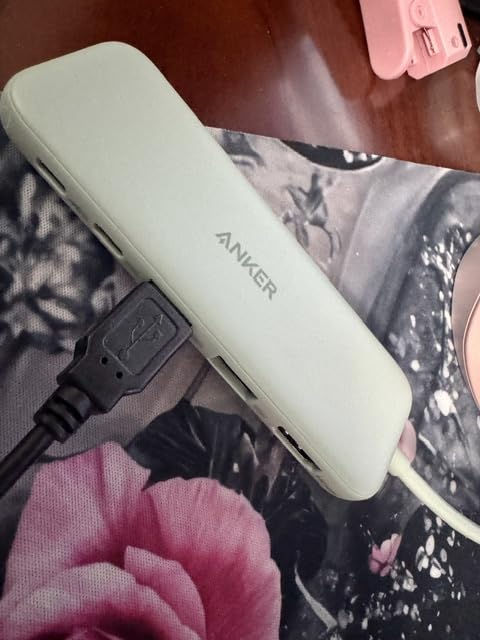
3. Anker 5-in-1 USB C Hub – The Smallest Hub That Still Passes Charging
Anker USB C Hub, 5-in-1 USBC to HDMI Splitter with 4K Display
1.44 ounces
4K@30Hz HDMI
85W pass-through
3x 5Gbps data ports
+ Pros
- Lightest option at 1.44 ounces
- HDMI plus three 5Gbps ports in a tiny body
- Reliable on MacBooks and iPads
- 18-month warranty
– Cons
- USB-C PD-IN port is charging-only
- HDMI limited to 4K@30Hz
- Plastic housing
At 1.44 ounces, this is the hub I put in the laptop bag when the trip is for two days and the bag has to fit under an airline seat. It gives you an HDMI port and three 5Gbps data ports, which is enough to get through a presentation, a card dump and a charge without a single second dongle.
It runs on macOS, Windows and Chrome OS with no drivers, and it is one of the few small hubs that reliably passes charging through rather than treating the USB-C port as data only.
The charging-only port is the trap
The USB-C port on this hub handles power input and nothing else. No data, no display output, no audio passthrough. That is not a defect, it is a cost decision, but it does mean you cannot use it as a data port even though the physical connector looks identical to the USB-A ports beside it.
On a MacBook Pro you will want to keep that port free for charging anyway, so in practice the design makes sense for laptop use. For iPad workflows it matters more, and you would want 45W or more from the charger to keep an iPad fully powered while working.
Video ceiling and plastic construction
HDMI output is 4K@30Hz, matching the budget end of this list. Some MacBook owners expected an aluminium body given the Apple-like styling, and the housing is plastic, which runs a little warmer than a metal shell under continuous use.
Owners consistently describe it as dependable rather than exciting, which is the right register for a travel dongle. It replaces several adapters, it works reliably across MacBook and iPad, and the colour options are a minor plus.

Compared with the Hiearcool 7-in-1, this hub trades card readers for about an ounce of extra lightness. Compared with the UGREEN 5-in-1, it keeps a genuine 100W PD port on the housing rather than a charging-only input, and gives you three 5Gbps data ports instead of a mix of fast and slow.
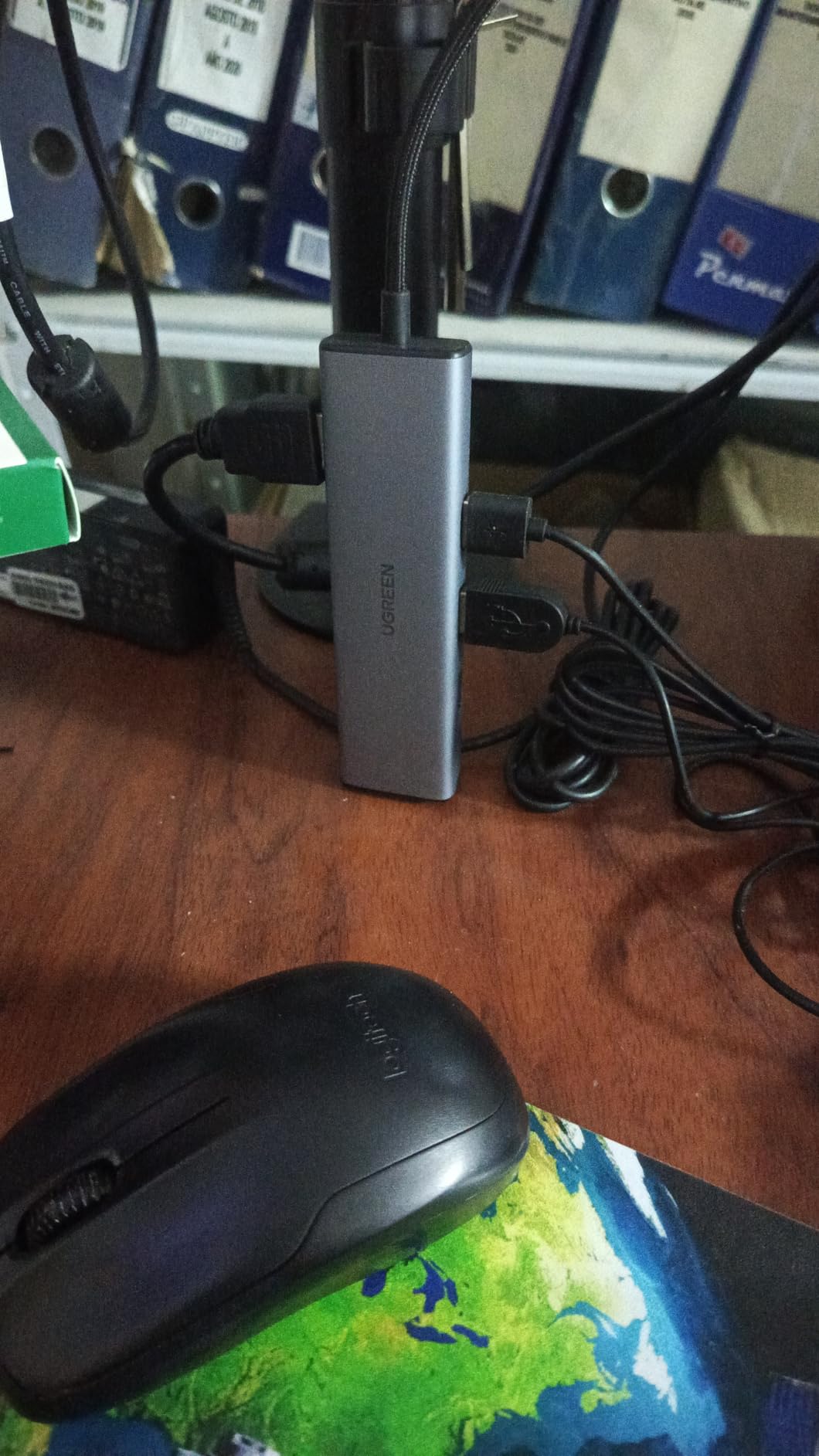
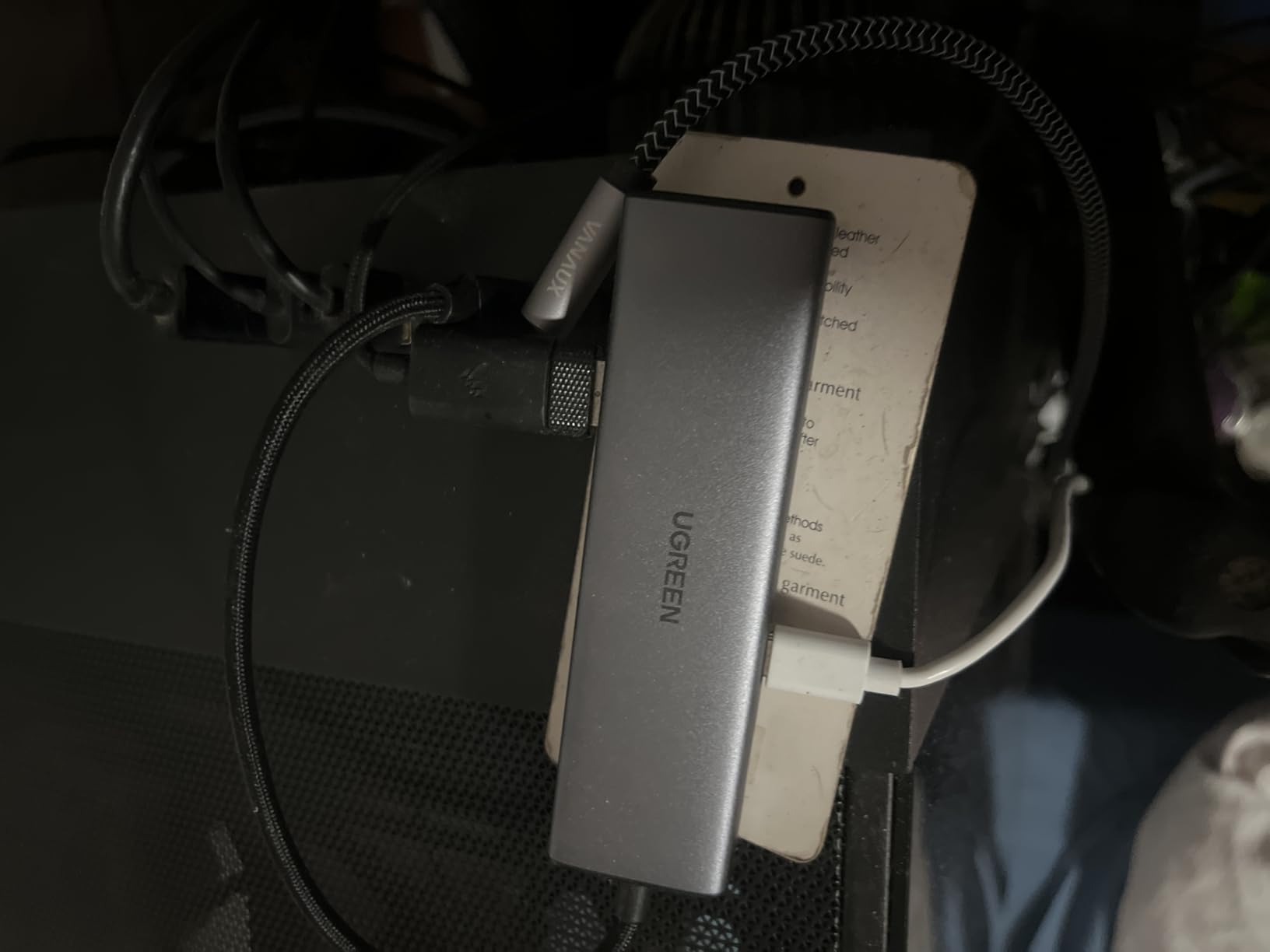
4. UGREEN 5-in-1 USB C Hub – Most Versatile With an Aluminium Body
UGREEN USB C Hub 5 in 1 Multiport USB Adapter 4K HDMI, 100W Power Delivery
100W PD port
4K HDMI
Aluminium housing
one 5Gbps USB-A
+ Pros
- Aluminium body at a budget price point
- 100W pass-through for a MacBook Pro
- One full-speed 5Gbps port for drives
- 24-month warranty
– Cons
- Two of three USB-A ports limited to 480Mbps
- No SD or microSD readers
- No Ethernet port
This is the pick for anyone who wants a metal-bodied hub and a full 100W pass-through without paying for a display specialist. It weighs 91 grams, and the aluminium housing is the reason it stays cool when you leave it plugged in all day next to a 14-inch MacBook Pro.
It works across MacBook M-series machines and other USB-C laptops with no drivers, and the 24-month warranty is the longest in this roundup alongside UGREEN’s other Revodok model.

Only one port is actually fast
The port mix is where budget hubs give themselves away. Of the three USB-A ports, one runs at 5Gbps and the other two fall back to 480Mbps. That is fine for a keyboard, a mouse and a USB microphone, and it will frustrate you the moment you try to move files from an external SSD through one of the slow ports.
Owners describe this as the defining limitation, and the practical fix is simple: treat the single 5Gbps port as the port for storage and use the other two for peripherals. The listing is honest about the split, which is more than many competitors manage.
Video output and the missing card readers
The HDMI port delivers 4K output, which covers presentations and a second screen well. There is no Ethernet port and no SD or microSD reader, so photographers and video editors will want to pair it with a separate card reader.
If your daily work involves offloading camera footage straight onto the laptop, look instead at the UGREEN Revodok 7-in-1 further down this list, which adds both card slots for a modest step up.

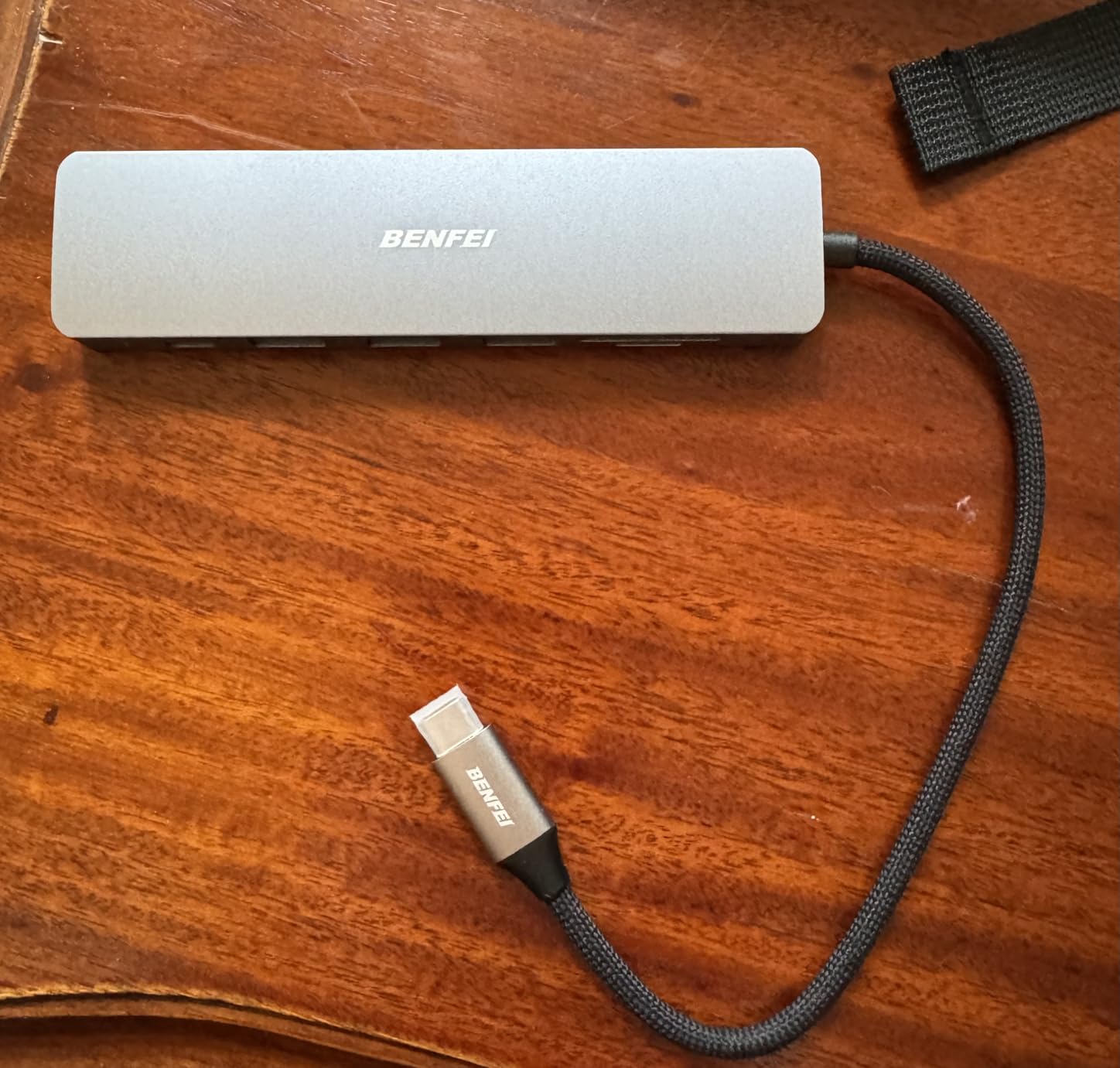
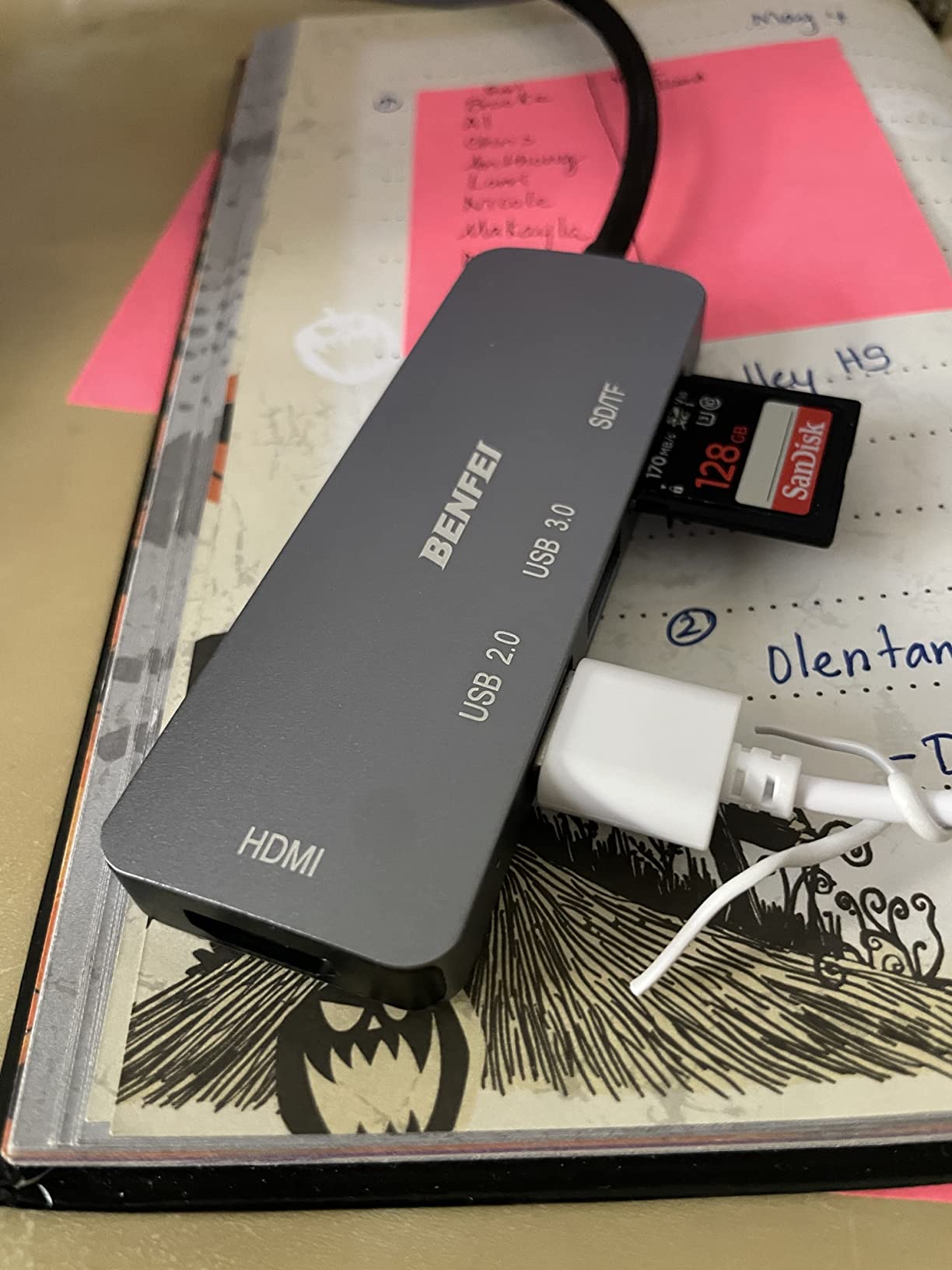
5. BENFEI 7-in-1 USB C Hub – 4K at 60Hz on a Budget
BENFEI USB C HUB 7-in-1 with HDMI(4K@60Hz,Certified), 100W Power Delivery, 3*USB 3.0, SD/TF Card Reader(160MB/s) Compatible with iPhone 15 Pro/Max, MacBook, iPad Pro, iMac, S23, XPS17
4K@60Hz HDMI
3x USB 3.0
100W PD
SD and TF readers
+ Pros
- 4K@60Hz HDMI at a budget price
- Three USB 3.0 ports plus both card readers
- 100W pass-through charging
- Aluminium alloy casing
– Cons
- Integrated cable is short
- Casing feels lightweight over time
- Warms up with several devices attached
Refresh rate is the difference this hub makes. Almost every other hub at this level outputs 4K at 30Hz, which is the number most owners complain about. This one drives 3840 by 2160 at 60Hz, plus 4K at 30Hz and 1080p at 60Hz as fallbacks.
For someone using a MacBook Pro as a desktop replacement with a laptop screen as the main window and an external panel alongside, that difference is the whole buying decision. Window dragging stops feeling like a slideshow.
Card readers and port count for the money
Three USB 3.0 ports at 5Gbps each, plus SD and TF readers rated up to 160MB/s, put this ahead of the 5-in-1 models on raw utility. The card speeds are the highest figure in this roundup, which matters if you move 4K video clips.
It covers MacBook M1 and M2, iPads, iMacs, Steam Deck and USB-C phones, and the aluminium alloy shell resists flex. It is also one of the few budget models that works as a display adapter for a phone.
What you give up
The integrated cable is short, so on a larger laptop the hub can sit at an angle that feels awkward. The casing is light, and some owners report it feeling less secure after many plug and unplug cycles, which matters if you are pulling it out daily.
It also warms up when several devices run at once, and the 100W PD port needs a power block you supply yourself. If you want maximum charging headroom with a guaranteed margin, the Hiearcool at the top of this list is the more conservative choice.
Compared with the MOKiN 7-in-1, both deliver 4K@60Hz from a USB-C dongle, but the MOKiN adds a separate USB-C data port so you can charge and transfer at the same time, and this one adds a third USB-A port instead. Compare the two against your actual port count before deciding.
6. UGREEN Revodok 7-in-1 Dock – Best for Photographers With Card Slots
UGREEN USB C Hub for Laptop Revodok 7 in 1 Dock 4K HDMI to USB C Adapter
4K HDMI
95W pass-through
3x 5Gbps data ports
SD and microSD
+ Pros
- Both card readers plus three 5Gbps data ports
- Aluminium body handles sustained use
- 95W pass-through covers MacBook Pro
- Explicit MacBook M1 through M5 support
– Cons
- Charging capped at 95W rather than 100W
- No Ethernet port
- Best with one external drive attached
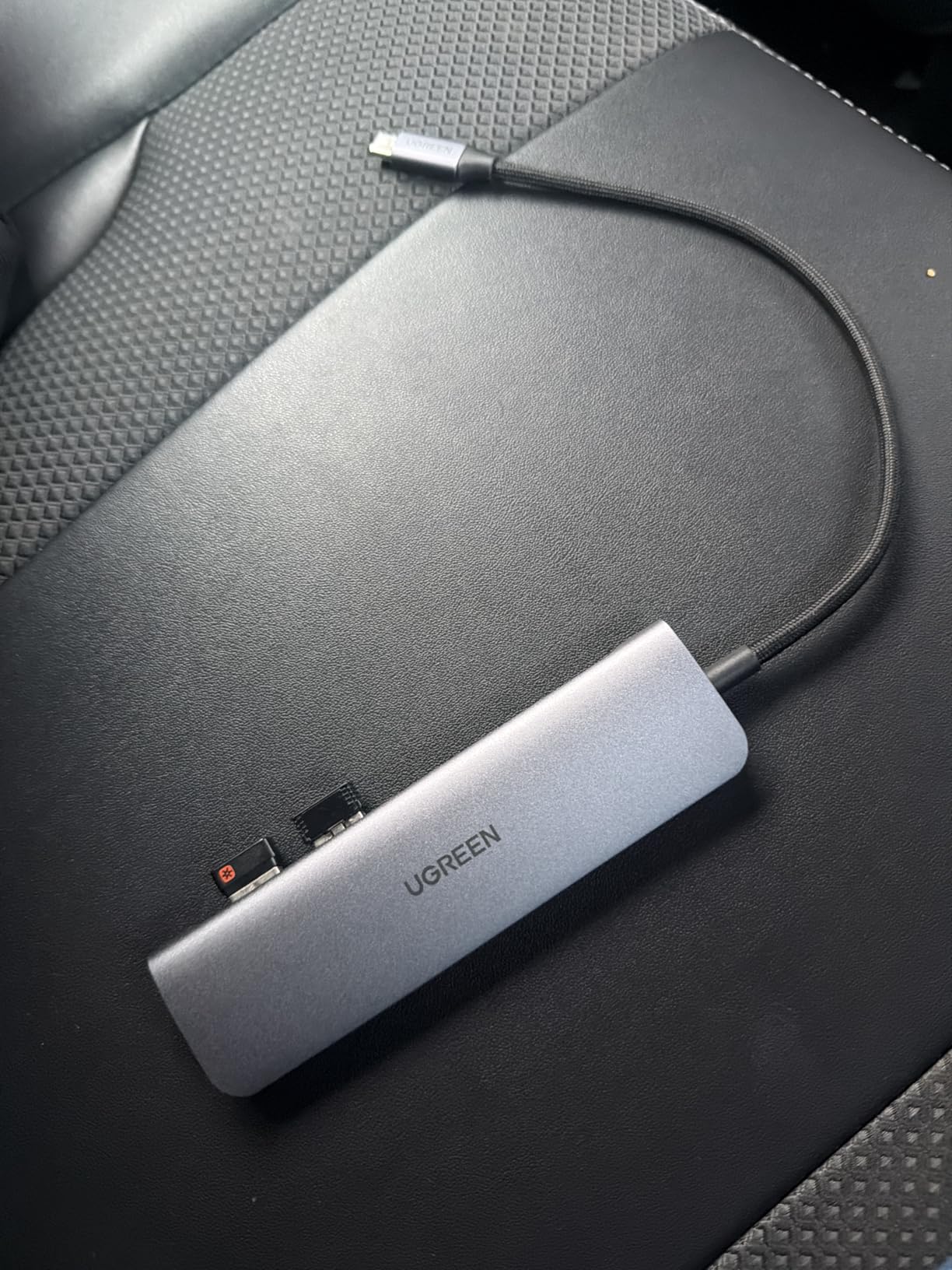
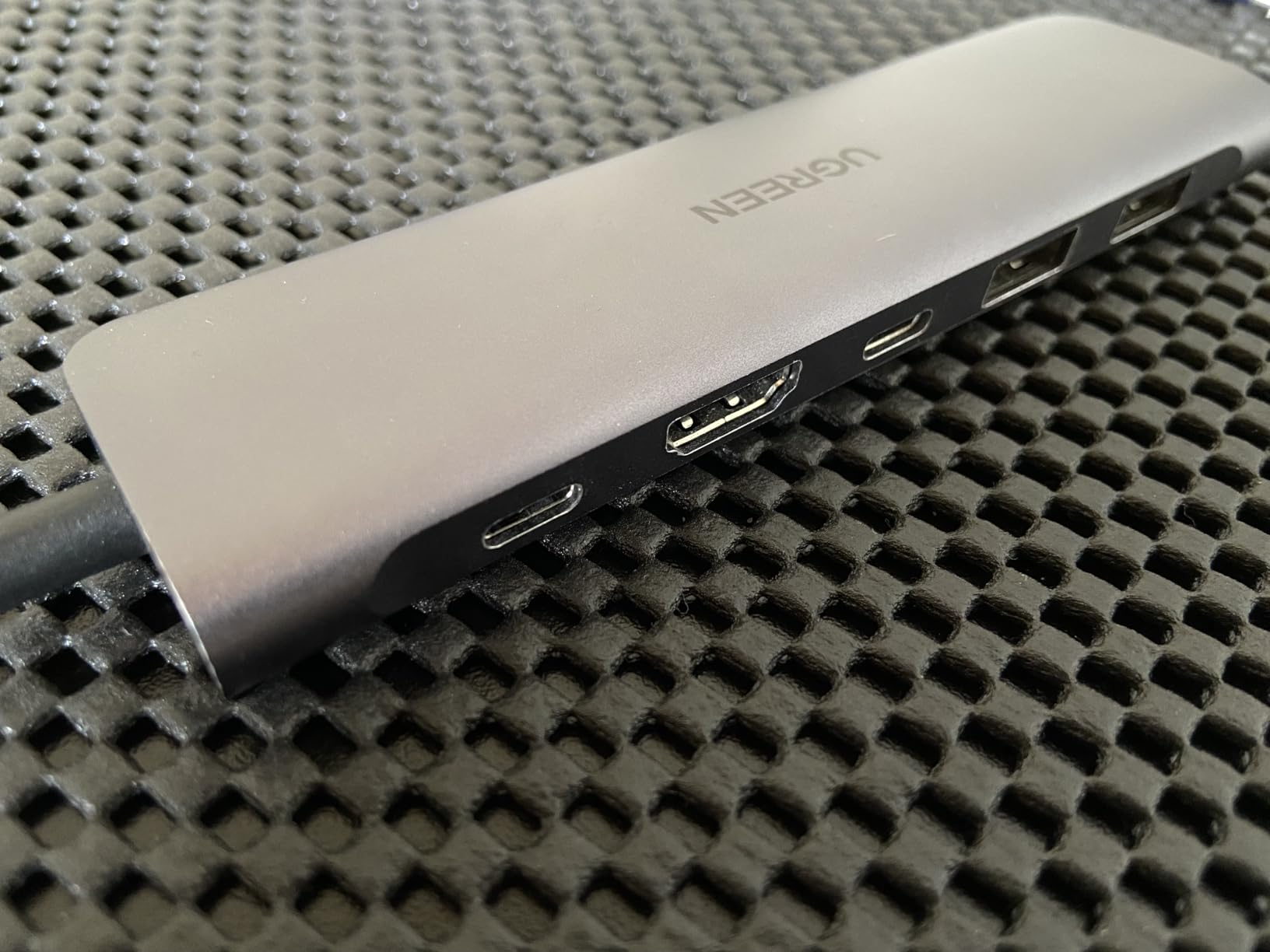
This is the one I recommend to people who shoot. It carries an SD slot and a microSD slot alongside three 5Gbps data ports and 4K HDMI, so the whole ingest workflow happens through one dongle instead of three.
UGREEN lists explicit compatibility from M1 through M5 MacBook models, and the aluminium body is rated to handle sustained use. Owners cite clear MacBook compatibility and fast transfers as the two things that hold up over time.
95W is enough, and it is a deliberate reserve
The hub accepts 100W input and reserves 5W for its own interface operations, passing up to 95W to the laptop. That is a sensible design, and it is enough for a 14-inch MacBook Pro under any realistic load. A 16-inch model doing sustained heavy work is where the headroom disappears.
This is the trade-off to understand about most pass-through hubs. The number on the housing is usually input capability, not what reaches the Mac. Reading the output figure is what tells you whether a 16-inch will be fully satisfied.
Storage limits worth knowing
UGREEN states you should connect a maximum of two 2.5-inch hard drives for stable transfer, and recommends a single drive at high bandwidth. That guidance matters if you were planning to mirror a two-drive array through the hub.
There is no Ethernet port here, so wired networking means adding a separate adapter. If Ethernet is part of your daily setup, skip to the UGREEN Revodok 6-in-1, which trades the card readers for a Gigabit jack.
7. MOKiN 14-in-1 Docking Station – Maximum Ports in One Dock
MOKiN Laptop Docking Station Dual Monitor 4K HDMI USB C Hub for Dell/HP/Mac
2x HDMI and 2x DisplayPort
1000Mbps Ethernet
100W PD
Thunderbolt 3/4
+ Pros
- Most port-dense option here
- Mixes HDMI and DisplayPort freely
- 1000Mbps Ethernet included
- Screen lock button blanks displays
– Cons
- Needs a Thunderbolt 3 or 4 capable USB-C port
- No 100W power adapter included
- Bulkier than a dongle
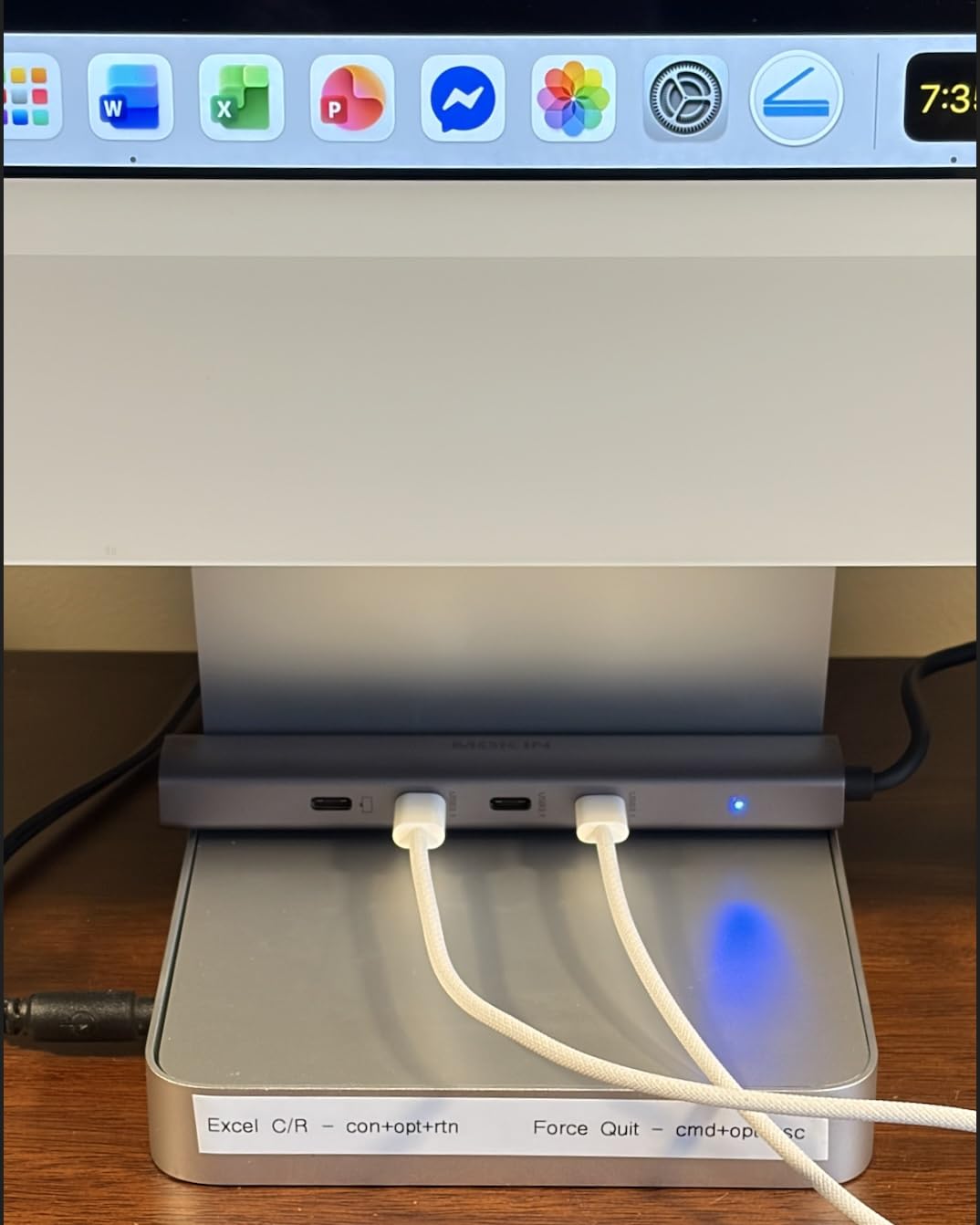
When you genuinely need everything, this is the dock. Two HDMI, two DisplayPort, RJ45 Ethernet, two USB-C 3.0 ports, one USB-A 3.0, two USB-A 2.0, SD and microSD readers and a 100W PD port, in a single unit. Nothing else here comes close on raw port count.
It also supports up to three displays when the host Mac allows it, and accepts a mixed configuration such as two HDMI plus one DisplayPort, or two DisplayPort plus one HDMI. That flexibility is why multi-monitor Mac owners keep coming back to this class of dock.
The compatibility requirement is real
This is the lowest-rated product in the roundup, at 4.3 stars, and the reason is worth reading carefully. It is only fully functional with a USB-C port that supports Thunderbolt 3 or 4, which means a Pro or Max chip MacBook Pro rather than a base M-series model.
Buyers running a Thunderbolt-capable Mac or a recent Dell or HP laptop rate the port count and multi-display flexibility highly. Critical reviews point at the compatibility limit and the fact that no 100W power adapter is bundled, so budget for one.
Ethernet, privacy button and desk use
The 1000Mbps Ethernet jack gives a stable wired alternative to Wi-Fi, which matters for large file transfers and long calls. The short-press privacy button cuts display output entirely, a genuinely useful feature on a shared desk or in a meeting where you want the screen blank without unplugging anything.
This is a fixed-desk dock, not a travel dongle. It weighs 0.1 kg and takes up noticeably more desk space than a dongle, which is the correct trade for anyone who leaves it plugged in permanently. For peripheral-heavy setups without a MacBook, our powered USB hub guide covers the alternatives.
8. Acer 7-in-1 USB C Hub – One of the Few That Really Delivers 100W
Acer USB C Hub, 7 in 1 Multi-Port Adapter for Laptop/Mac Type C Devices
100W Power Delivery
4K@30Hz HDMI
2x USB 3.1 plus USB-C data
68 g
+ Pros
- Genuinely delivers 100W pass-through charging
- 7 ports including both card readers
- Aluminium housing runs cooler
- Plug-and-play on Mac
- Windows and Chromebook
– Cons
- HDMI tops out at 4K@30Hz
- USB-C data port carries no video or audio
- Some owners report less consistent pass-through over time
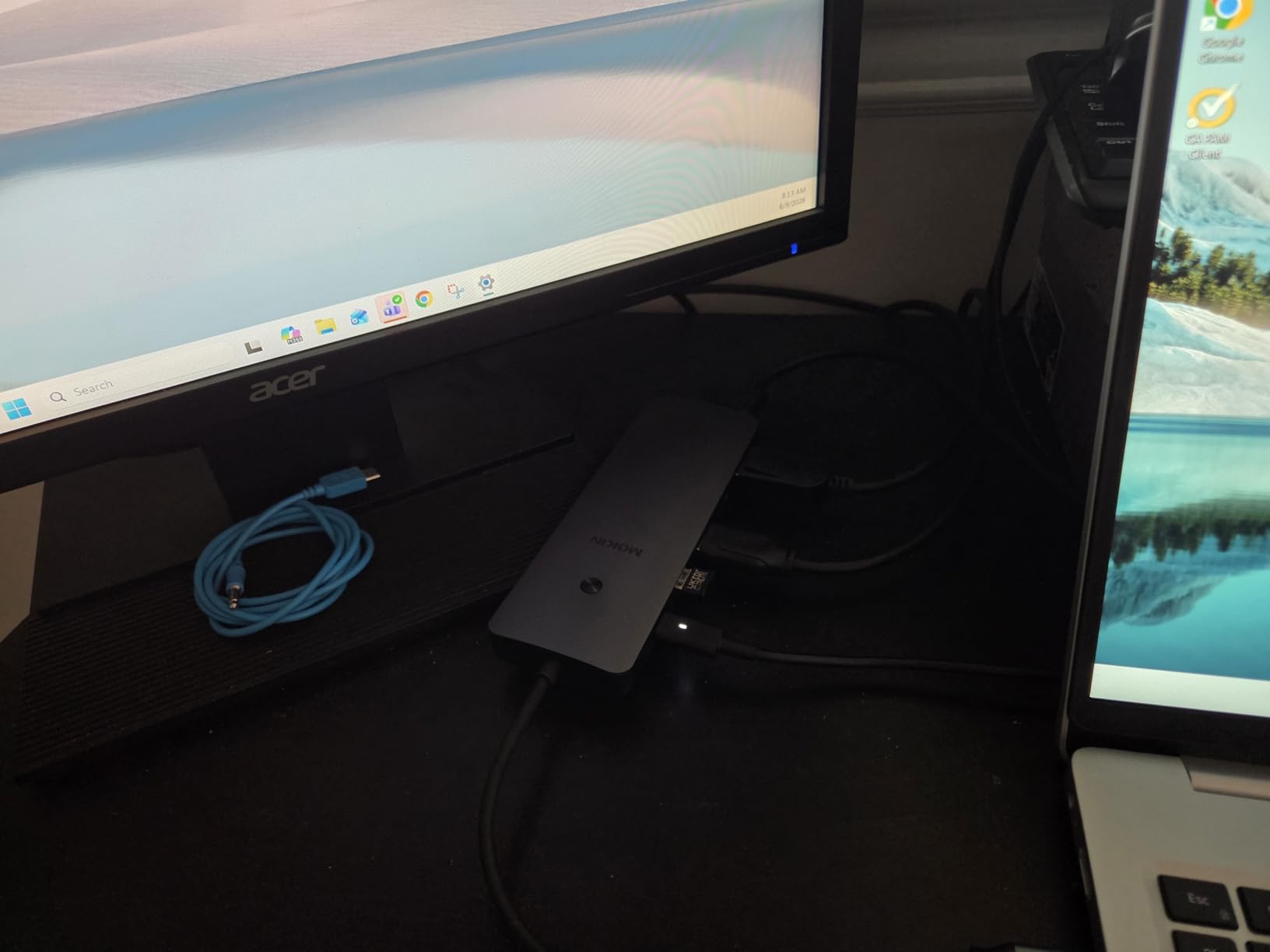
The claim on this box that matters most is the 100W pass-through, and multiple owners specifically describe this as the first budget hub that actually powered their laptop rather than trickling charge. On a 16-inch MacBook Pro that is the difference between a full charge and a slow one.
It weighs 68 grams, has an aluminium housing, and works without drivers across macOS, Windows, Chrome OS and Linux. That combination of real charging and a metal body is rarer at this level than it should be.
Two different USB-C ports doing different jobs
There are two Type-C ports and they are not interchangeable. One is a data port running at 5Gbps alongside two USB-A 3.1 ports, and the other is the PD charging port. The data port does not carry video or audio, so it cannot be used as a second display output.
That split is a sensible allocation on a MacBook, where you want charging separated from data, but it does mean the HDMI port is your only video path through the hub.
Long-term charging consistency
The recurring owner complaint is that pass-through charging can become less consistent after extended use, which is a fair caution on any budget hub. The one-year manufacturer warranty is the shortest here, so treat it as a two-year purchase rather than a five-year one.
Video output is 4K@30Hz, the same ceiling as most of this list. If 60Hz matters to you, the BENFEI and MOKiN dongles in this roundup both deliver it and both carry 100W PD input.

Between the 7-in-1 Acer and the 7-in-1 Hiearcool, the Acer weighs more and offers no refresh rate advantage, but owners rate the Acer’s power delivery more consistently. The Hiearcool has a far larger owner base, two years of warranty and a slightly lighter body.

9. MOKiN 7-in-1 USB C Dongle – 4K at 60Hz With a Separate Data Port
MOKiN USB C Hub HDMI Adapter, 7 in 1 Dongle with SD/TF Card Reader, USB C Data Port, 100W PD, and 2 USB 3.0 – Compatible with MacBook Pro/Air, Dell XPS, Lenovo ThinkPad
4K@60Hz HDMI
87W pass-through
2x USB 3.0
USB-C data port
+ Pros
- 4K@60Hz HDMI output
- 100W PD input with 87W delivered to the laptop
- Separate USB-C data port for charging and transfers
- SD and TF readers
- Multi-year reliability reported
– Cons
- Only one hard drive or SSD at a time
- Not compatible with Apple USB SuperDrive
- 87W output ceiling
The design decision that sets this apart is a dedicated USB-C data port alongside the PD input. You can keep the laptop charging through one port while shuttling files through the other, which removes the compromise most single-port dongles force on you.
HDMI output runs at 4K@60Hz, and owners describe multi-year reliability on work laptops, which is the kind of durability that matters more than an extra port you never plug in.
Charging headroom and what 87W means
The hub accepts 100W input and delivers up to 87W to the laptop. That covers a 14-inch MacBook Pro comfortably, and most 16-inch workloads, but sustained heavy rendering on a larger model will draw on the battery sooner.
For reference, the Hiearcool 7-in-1 at the top of this list passes close to a full 100W. If your machine is a 16-inch and you charge while working, that difference is worth paying for.
Storage and the SuperDrive caveat
Only one hard drive or SSD can be connected at a time, and it is not compatible with the Apple USB SuperDrive. For a photographer moving a card to an SSD and then editing, that is workable. For a video editor running a two-drive scratch array, it is not.
There is also the macOS mirroring point that appears repeatedly in reviews: this dongle cannot extend to two separate displays on macOS, because the host chip limits the output. If you need two extended screens, check your MacBook Pro’s display support first.
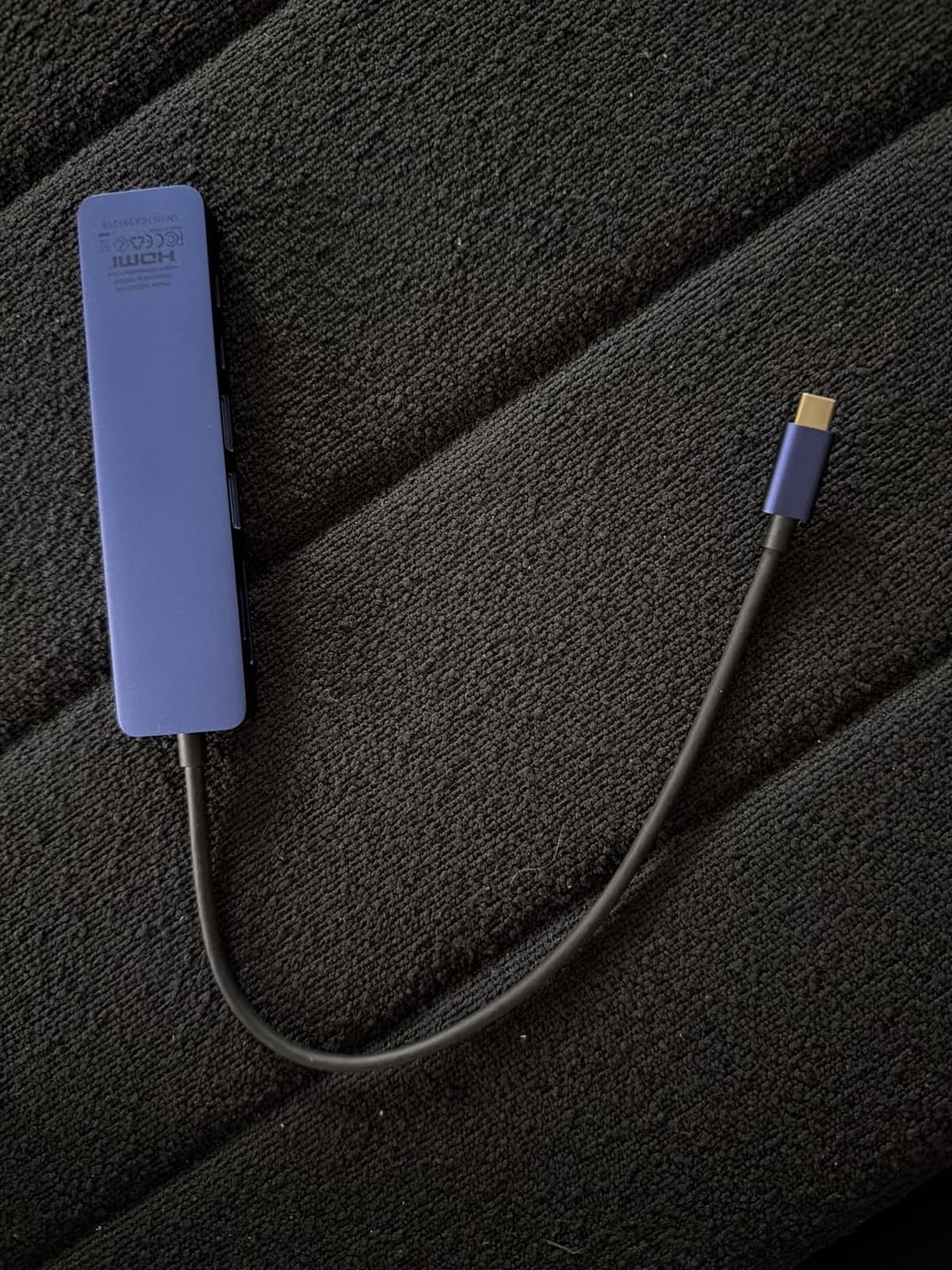
10. UGREEN Revodok 6-in-1 USB C Hub – The One With Gigabit Ethernet
UGREEN Revodok 6 in 1 USB C Hub Gigabit Ethernet Adapter with 4K HDMI
4K@30Hz HDMI
1000Mbps Gigabit Ethernet
85W PD
3x USB-A 3.0
+ Pros
- Gigabit Ethernet alongside HDMI in a compact hub
- Three USB-A 3.0 ports for peripherals
- 85W pass-through charging
- 24-month warranty
– Cons
- HDMI limited to 4K@30Hz with no HDR
- USB-C port is charge-only
- 85W output ceiling
- No card readers
This is the pick if your main frustration with USB-C life is wireless networking. It is the only hub in this roundup that adds a 1000Mbps RJ45 Ethernet port while staying small enough to be a dongle rather than a desk dock, and buyers consistently say the Ethernet port is the reason they bought it.
Beyond that you get 4K@30Hz HDMI, three USB-A 3.0 ports at 5Gbps and 85W pass-through charging, with a 24-month warranty and compatibility listed from M1 through M5 MacBook models.
85W output, and why the number is not 100W
Like most pass-through hubs, this one reserves 15W for the Ethernet and USB interfaces, leaving 85W for the laptop. That is fine for a 14-inch MacBook Pro and adequate for most 16-inch work, but it is a real reduction in charging headroom.
The USB-C port on the housing is charge-only. No data and no video travel through it, so your storage and display duties fall to the three USB-A ports and the HDMI output respectively.
Video limits and no card readers
HDMI output is 4K@30Hz with no HDR and no 3D support, which rules it out for an HDR display. There are no SD or microSD readers, so a photographer would need a separate card reader alongside it.
That combination makes it the natural desk partner to a 14-inch MacBook Pro: wired network, three peripherals, one external display, and one cable to unplug at the end of the day. If you need a second screen at 60Hz, the Anker 8-in-1 higher up this list is the stronger option.
Compared with the Anker 8-in-1, both have Gigabit Ethernet, dual video and pass-through charging. The Anker adds card readers and one more USB-A port in a larger body; this one is smaller and cheaper, with a single HDMI port and 30Hz output.
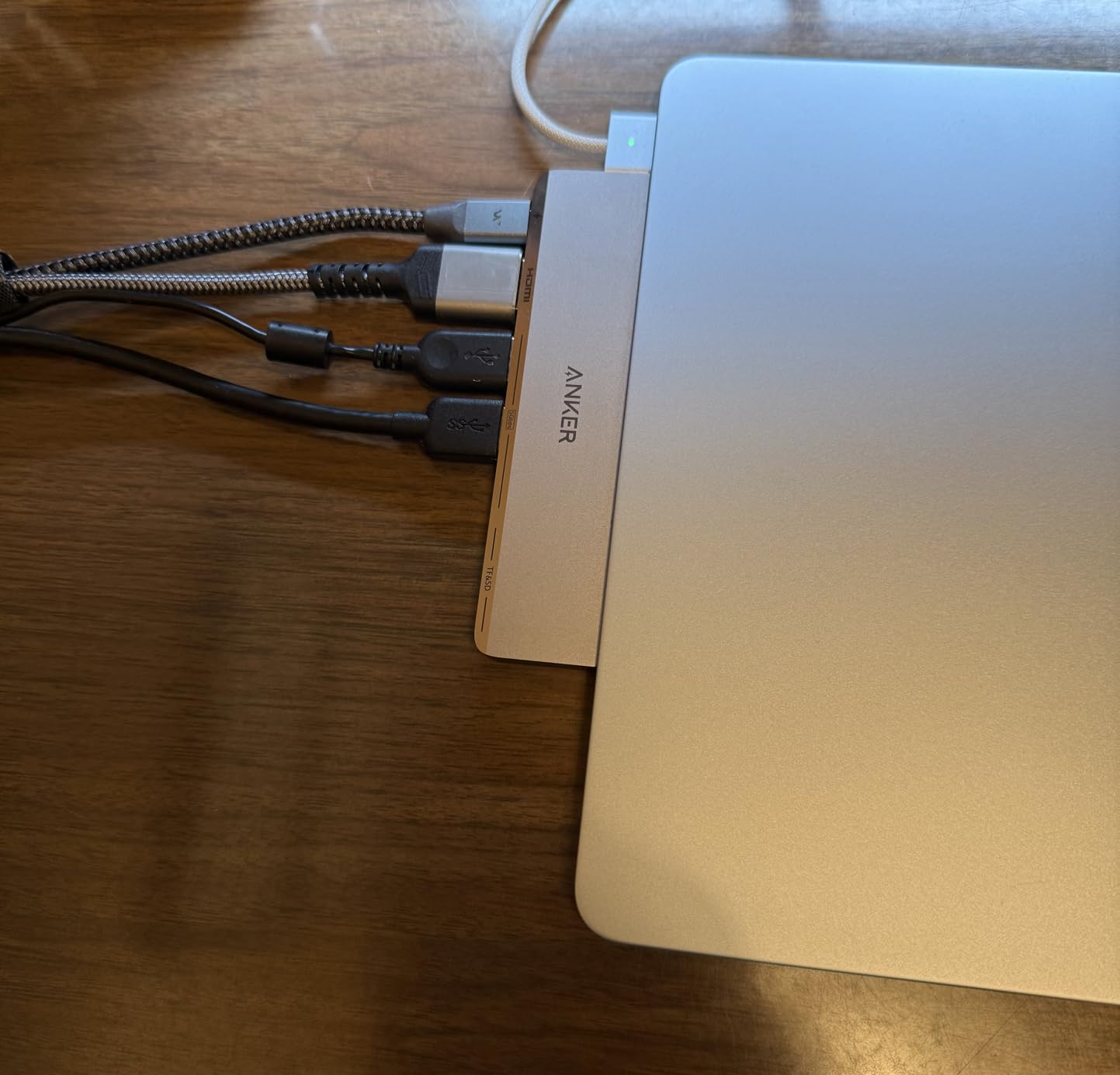
11. Anker 7-in-2 MacBook Hub – Built Around Two Plugs and MagSafe Clearance
Anker USB-C Hub for MacBook, 7-in-2 Mac Dock with 4K@60Hz HDMI
40Gbps multi-function port
4K@60Hz HDMI
dual plug design
100W charging
+ Pros
- Plugs into two ports and leaves one free
- Shaped to avoid blocking MagSafe
- 40Gbps data and up to 5K@60Hz
- 4K@60Hz HDMI
- Does not overheat in normal use
– Cons
- Won't sit flush with a thick case
- Plastic construction
- M1
- M2 and M3 cannot drive two displays
- No Ethernet
This is the only product here designed specifically for a MacBook body rather than adapted to it. It uses a dual USB-C plug, occupies two adjacent ports, and leaves a third free for charging or a second display. The shell is shaped so it does not cover the MagSafe connector.
The multi-function USB-C port handles 100W charging, 40Gbps data and up to 5K@60Hz display output. On a MacBook Pro with a Pro or Max chip, that is a genuinely high-spec path rather than the usual 4K@30Hz compromise.

40Gbps is the differentiator
Nothing else in this roundup moves data at Thunderbolt speeds. If you work with large video files, a fast external SSD array or high-resolution RAW sequences, 40Gbps changes how long transfers take. The HDMI port alongside it delivers 4K@60Hz.
It also includes a USB-C data port, two USB-A ports, and SD plus microSD card slots, so the small footprint genuinely covers a full workday.
The case fit problem is real
Because the plug geometry matches the MacBook chassis, a thick case or cover fitted to the bottom of the laptop stops it sitting flush. That is the most common owner complaint, and it is a genuine limitation rather than a fault. It is also not compatible with the MacBook Neo.
Base M1, M2 and M3 MacBooks cannot drive two external displays through it, which is the chip limit again. Owners also note the plastic construction despite the Apple-like styling, and some report display glitching on newer M5 MacBook Pro machines.
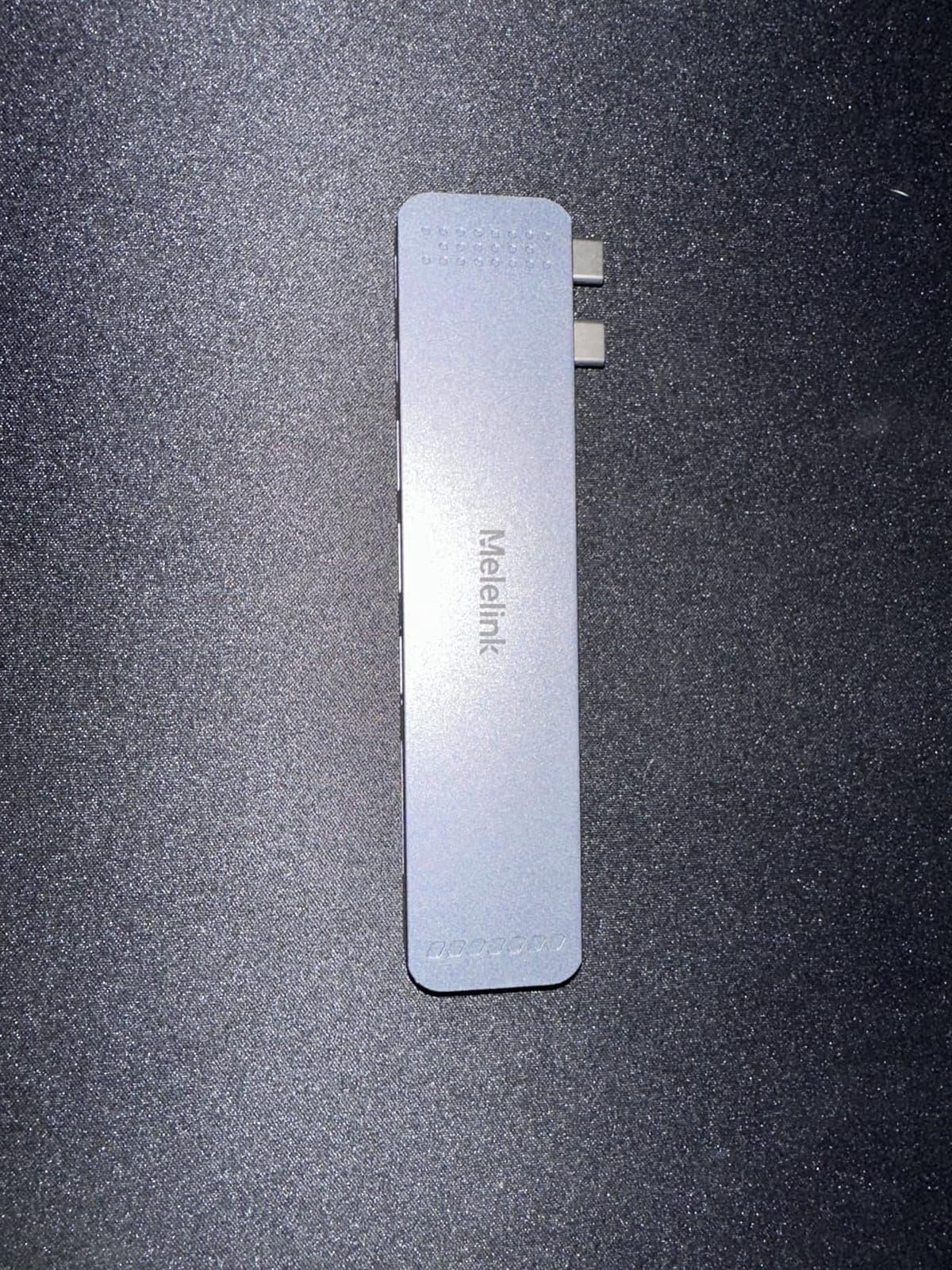
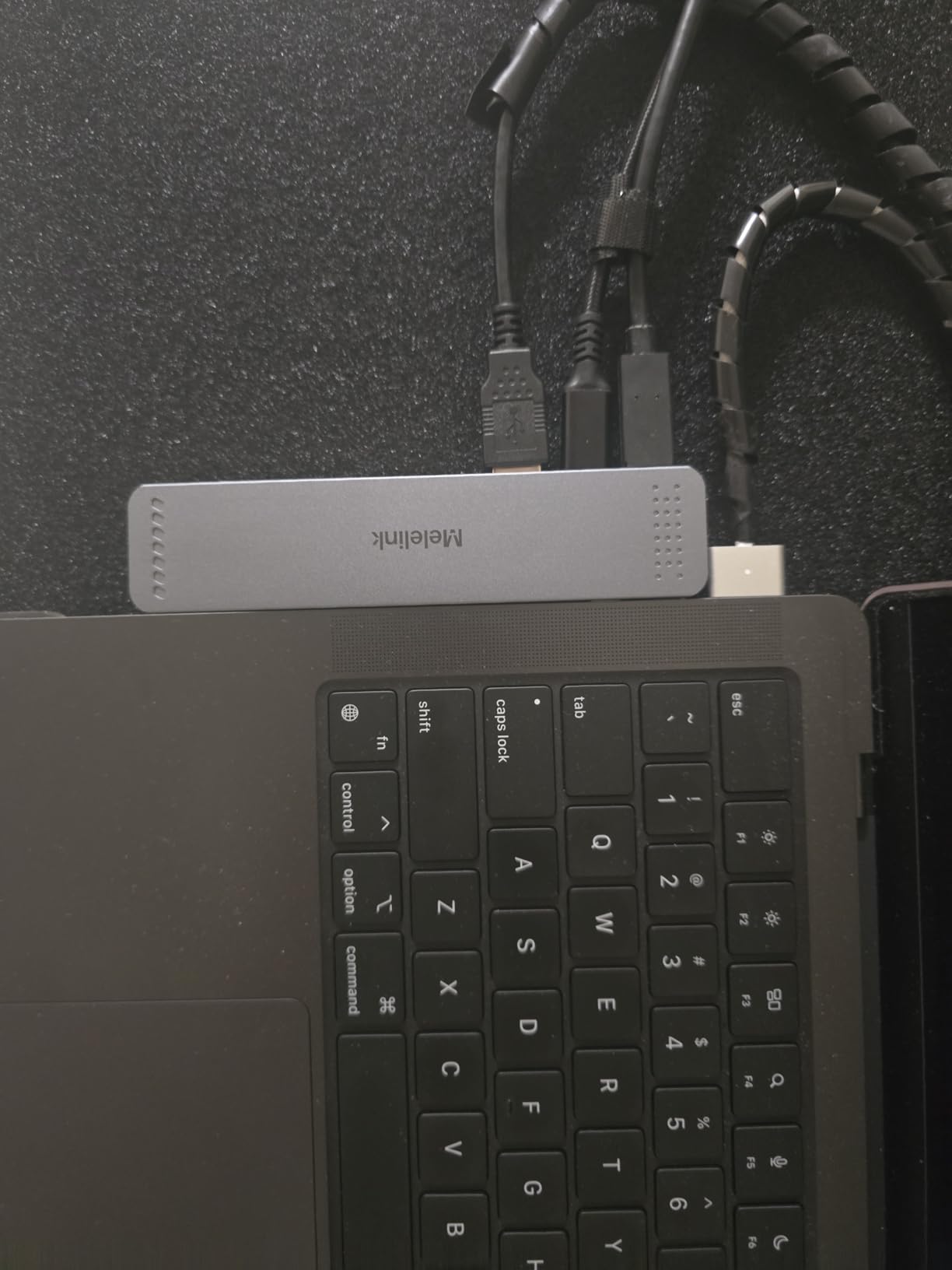
12. Melelink 8-in-2 MacBook Adapter – Thunderbolt 3 in a MacBook-Shaped Dongle
USB C Hub Adapter for MacBook Pro/Air M5 M4 M3 M2 M1 2026-2018 13″ 15″ 16″, Mac Multiport Adapter, 8 in 2 MacBook Accessories Dongle with HDMI 4K@60hz, Thunderbolt, USB C&A Data Ports, SD Card Reader
Thunderbolt 3 at 40Gbps
4K@60Hz HDMI
5K@60Hz
SD and microSD
+ Pros
- Thunderbolt 3 gives 40Gbps and 5K@60Hz output
- 100W input with 85W to the laptop
- Both card readers usable at once
- Built for MacBook Pro and Air bodies
– Cons
- Does not sit flush with a case attached
- M1-based MacBooks limited to one external display
- Only one hard drive supported
- Smallest review base here
The Melelink does the same trick as the Anker 7-in-2, taking two MacBook ports and leaving one free, but it adds a genuine Thunderbolt 3 port rated at 40Gbps with 5K@60Hz display output. It is aimed at MacBook Pro and Air bodies from 2016 through 2026, in 13, 15 and 16-inch sizes.
Both SD and microSD readers can be used at the same time, up to 104Mb/s, which is convenient when you are moving footage between two cards.
Thunderbolt 3 when a Thunderbolt 4 hub exists
Thunderbolt 3 and Thunderbolt 4 share the same 40Gbps ceiling, so on a current MacBook Pro the practical difference is a few certification details rather than throughput. For a MacBook Pro that has Thunderbolt 4, either works for file transfer speed.
Where the 40Gbps link matters is display: driving a 5K panel at 60Hz, or pushing a lot of data to a single fast drive. It is the highest data ceiling available in this roundup, tied with the Anker 7-in-2.
What the smaller review base means
With roughly 1,300 reviews, this is the least-proven product here. Owner feedback is broadly positive on HDMI, card reading and charging, with 77 percent five-star ratings, but a small sample tells you less about year-three reliability than 50,000 reviews would.
The same physical constraint as the Anker 7-in-2 applies: it will not sit flush if a case is fitted to the bottom of the MacBook. M1-chip MacBooks are limited to one external monitor through it, only one hard drive is supported, and it is not compatible with the Apple USB SuperDrive.
Between these two and the Anker 7-in-2, the Anker has the stronger owner history, while the Melelink pairs a Thunderbolt port with a dedicated USB-C data port. Either is a good match for a Pro or Max chip MacBook Pro used as a desktop replacement.
How to Choose a USB Hub for a MacBook Pro
Almost every wrong purchase in this category comes down to one of five decisions. Get them right and the choice narrows quickly.
Match the wattage to your MacBook Pro model
Look for the output wattage, not the input rating. A hub advertising 100W PD input may deliver 85W or 87W to the laptop once it has taken its share for the hub’s own interfaces, and that reserved amount varies between models here.
For a 14-inch MacBook Pro, anything from 65W upward is comfortable. For a 16-inch model, treat 100W as the target and check the output figure closely. A second, easier option is to charge over MagSafe on a MacBook with that port and let the hub handle data and video only, which removes the wattage question entirely.
Decide between native Alt Mode and DisplayLink for two monitors
This is the decision most buyers get wrong. If your MacBook Pro has a Pro or Max chip, you can drive two external displays natively over DisplayPort Alt Mode with no extra software. If it has a base M1, M2, M3 or M5 chip, the hardware supports one external display, and a second screen needs DisplayLink plus its macOS software.
That software requirement is where the most common complaints come from. Threads on r/macbook and r/applehelp describe monitors that are not detected at all, and second screens that disconnect and reconnect, with DisplayLink Manager the most commonly cited fix. Buy a DisplayLink dock deliberately if you need it, and expect to install and update its driver.
Thunderbolt and USB4 versus a plain 10Gbps hub
Most hubs in this roundup are DisplayPort Alt Mode devices with 5Gbps USB data. Two products move data at 40Gbps over Thunderbolt, which matters for fast external storage and high-resolution multi-monitor output, and costs you a tighter case fit and a Mac-specific shape.
Unless you are moving large media files daily, 5Gbps is around 480MB/s in practice and is enough for peripherals, card reading and ordinary document work. Buying Thunderbolt you will not use adds a compatibility constraint without adding capability.
Count the ports you actually plug in
Be suspicious of port counts that include USB 2.0 and charging-only ports. The UGREEN 5-in-1 lists five ports but only one runs at 5Gbps, and the Anker 5-in-1 has a USB-C port that handles charging alone. Write down your real daily set, keyboard, mouse, drive, card, network, display, and buy the smallest hub that covers it.
Remember that many of the best USB-C ports on a MacBook Pro are needed for charging and displays. Budgeting three ports and discovering you need five is the most common late regret.
Aluminium versus plastic, and the case fit question
Metal housings dissipate heat away from the controller, which shows up as steadier behaviour over a long day plugged in. Several plastic models here are reported to run warm, though none report failure from it. Warranty length is a reasonable proxy for expected lifespan: the models with two-year and 24-month terms are the ones owners describe as still working after years.
For the two Mac-shaped hubs, measure your case. If you use a thick cover on the bottom of the MacBook, the flush fit fails and you should pick a standard dongle instead. Our tested USB hub roundup has more on port layouts if you want to compare beyond Mac-specific models.
Red flags on no-name hubs
Threads on r/pcmasterrace explicitly warn against unbranded hubs sourced from marketplace sites, and the pattern of complaints is consistent. No stated warranty, no published display refresh rate, a claimed wattage with no output figure, and a plastic shell with no thermal path are all signs of a device that will stop charging properly within a year. A brand with a listed warranty length is buying you a replacement path.
Frequently Asked Questions
What is the best USB-C hub for a MacBook Pro?
The Hiearcool 7-in-1 is the best all-round USB-C hub for a MacBook Pro, passing close to 100W of charging, adding HDMI plus two USB-A ports and both card readers in a 1.8 ounce aluminium body. For a fixed desk setup that needs two screens and wired networking, the Anker 8-in-1 is the stronger pick.
Can you run 2 monitors off one USB-C port on a MacBook Pro?
It depends on the chip. MacBook Pro models with Pro or Max chips support two external displays over DisplayPort Alt Mode with no extra software. Base M1, M2, M3 and M5 models support one external display natively, so a second screen requires a DisplayLink dock and its macOS software. Check your specific model’s display support before buying.
Why does my second monitor keep disconnecting and reconnecting?
On a base M-series MacBook Pro, the second screen is usually running through DisplayLink, which is a software-based connection that can drop when the Mac sleeps, wakes, or the hub renegotiates power. Native DisplayPort Alt Mode on a Pro or Max chip is more stable. Also try a different cable, connect the hub directly rather than through another dock, and update the DisplayLink driver if you rely on it.
My DisplayLink monitor keeps disconnecting from my Mac. What can I do?
Update or reinstall DisplayLink Manager from the current macOS release, then reconnect the dock rather than just the display cable. Sleeping and waking the Mac can reset a DisplayLink link, so turn off display sleep for the DisplayLink-attached screen in System Settings. If the disconnects started after a macOS update, that is usually the trigger, and reinstalling the driver clears it.
Why does my USB-C to DisplayPort connection keep disconnecting?
A cable that is too long or too thin is the most common cause, because DisplayPort Alt Mode over USB-C needs enough gauge to hold the link. Cheap no-name adapters also fail here repeatedly. Try a shorter, thicker cable, plug the adapter directly into the MacBook rather than through a hub, and check that the hub’s HDMI or DisplayPort output is rated for the resolution and refresh rate you are driving.
Final Verdict
If you want one hub that covers almost every MacBook Pro situation, the Hiearcool 7-in-1 is the pick: near-full 100W pass-through, card readers, two USB-A ports and an aluminium body at 1.8 ounces, backed by the largest owner base in this roundup. If you run a fixed desk and need two screens plus a stable wired connection, take the Anker 8-in-1 and accept that macOS mirrors its two HDMI outputs. If your screen needs 60Hz on a budget, the BENFEI 7-in-1 is the one that gets you there.
For a photographer who wants the card workflow, the UGREEN Revodok 7-in-1 handles both slots and three 5Gbps ports. For maximum port count and three displays on a Pro or Max chip, the MOKiN 14-in-1 has nothing to match it. For a 16-inch MacBook Pro that must stay charged under load, the Acer 7-in-1 is the one owners most often credit with real 100W delivery. And if you want 40Gbps plus a port left free, the Anker 7-in-2 is built for the MacBook body itself.
Whichever one you pick, check the output wattage and the refresh rate before you order, and match the hub to your chip’s display support. Those two numbers resolve nearly every problem we saw while comparing the best USB hubs for MacBook Pro in 2026.
Leave a Reply