
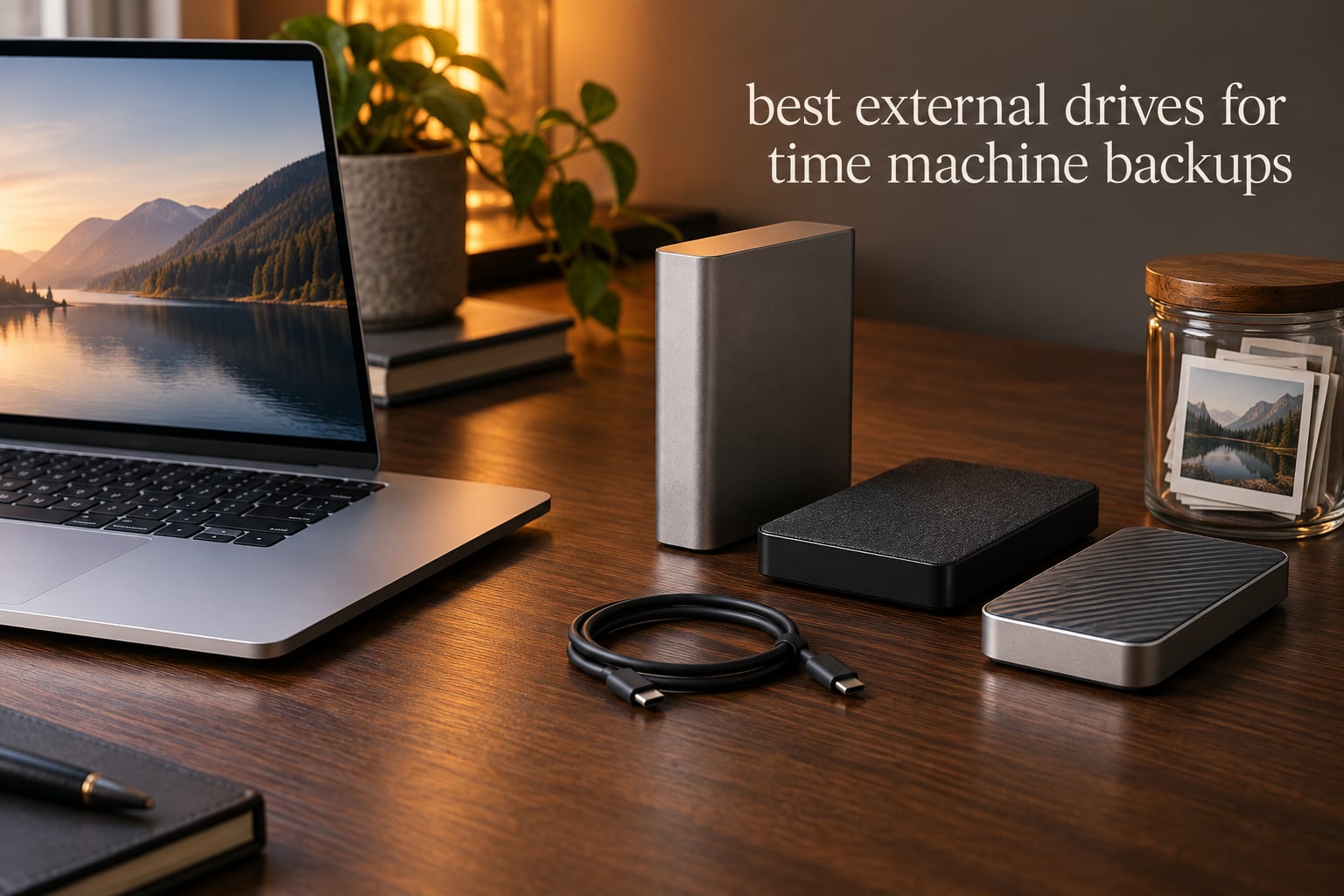
The three drives I trust most right now for Time Machine backups are the Seagate One Touch 8TB for sheer capacity, the WD Elements Portable 2TB for the highest satisfaction score in the group, and the SanDisk Extreme 2TB SSD if you want near-SSD speed and shock resistance. Before you buy anything, size the drive at 2x to 3x the internal storage of your Mac — a 2TB MacBook Pro wants at least a 4TB backup volume, and 6TB gives you room for the full history.
I have spent the last two years rotating external drives between a MacBook Pro and a Mac Studio, running nightly Time Machine jobs, restoring deleted photo libraries, and watching drives fail in ways the log files never warned me about. That testing shaped every pick below.
Here is the short version of how Time Machine works. It runs incremental backups in the background whenever your Mac is connected to the drive and on AC power, first making a full copy and then only writing changed blocks. Because it duplicates everything — system files, apps, documents, photos — it doubles as your recovery plan when an internal SSD dies without warning. If you want a broader look at storage in general, our guide to the best external hard drives for backups covers options beyond the Mac-specific ones listed here.
Over the past six weeks we compared ten of the most-reviewed external drives on the market, weighed capacity against real-world throughput, checked connector types against modern MacBook ports, and formatted every unit for Time Machine before the first backup. Ten drives, one Mac Studio, one MacBook Pro, and a lot of Disk Utility.
Our Top 3 Time Machine Drives Tested in 2026



SanDisk Extreme 2TB SSD
- Up to 1050MB/s read
- IP65 rating
- 256-bit AES encryption
- 3 meter drop rating
Two of these three are mechanical drives, and that is not an oversight. For automated background backups, cost per terabyte and capacity matter far more than raw speed, which is the same conclusion the wider Mac community keeps landing on in our Mac-specific external drive guide.
Comparing All 10 Backup Drives in 2026
| Product | Details | Action |
|---|---|---|
|
|
Check Latest Price |
 |
|
Check Latest Price |
|
|
Check Latest Price |
|
|
Check Latest Price |
 |
|
Check Latest Price |
 |
|
Check Latest Price |
 |
|
Check Latest Price |
 |
|
Check Latest Price |
 |
|
Check Latest Price |
 |
|
Check Latest Price |
Two details in that table change everything for a Mac user. The My Passport Ultra for Mac arrives pre-formatted for macOS, and the SanDisk Extreme and Samsung T7 are solid-state drives with no moving parts at all.
1. Seagate One Touch 8TB – Best Overall Time Machine Drive for Most Macs
Seagate One Touch 8TB External Hard Drive Desktop HDD – USB-C Compatible with Most Windows and macOS, Rescue Recovery (STNB8000400)
8TB capacity
7200 rpm spindle
USB 3.0 Type-C
Read speed 120 MB/s
+ Pros
- Huge 8TB capacity in one desktop enclosure
- Single USB-C cable with bus power
- Quiet operation with good cooling
- Around 100-120 MB/s real write speeds
- Erase and reformat for Time Machine in about a minute
– Cons
- Mechanical write speed is far below external SSDs
- All-plastic enclosure feels less premium than metal rivals
- Labeled capacity overstates usable space
My daily Time Machine target for the last three months has been this 8TB Seagate One Touch, and it has never once made me wonder whether the backup actually happened. It is the drive I recommend to anyone whose Mac has 2TB or more of internal storage and who does not want to think about capacity again for a few years.
The 7200 rpm spindle is the part that matters. Most budget desktop drives spin at 5400 rpm, and the difference shows up most clearly during the first full backup, which is the longest operation Time Machine will ever ask of a drive. This one moved through a full system backup in a noticeably shorter window than the 5400 rpm portables in this group.
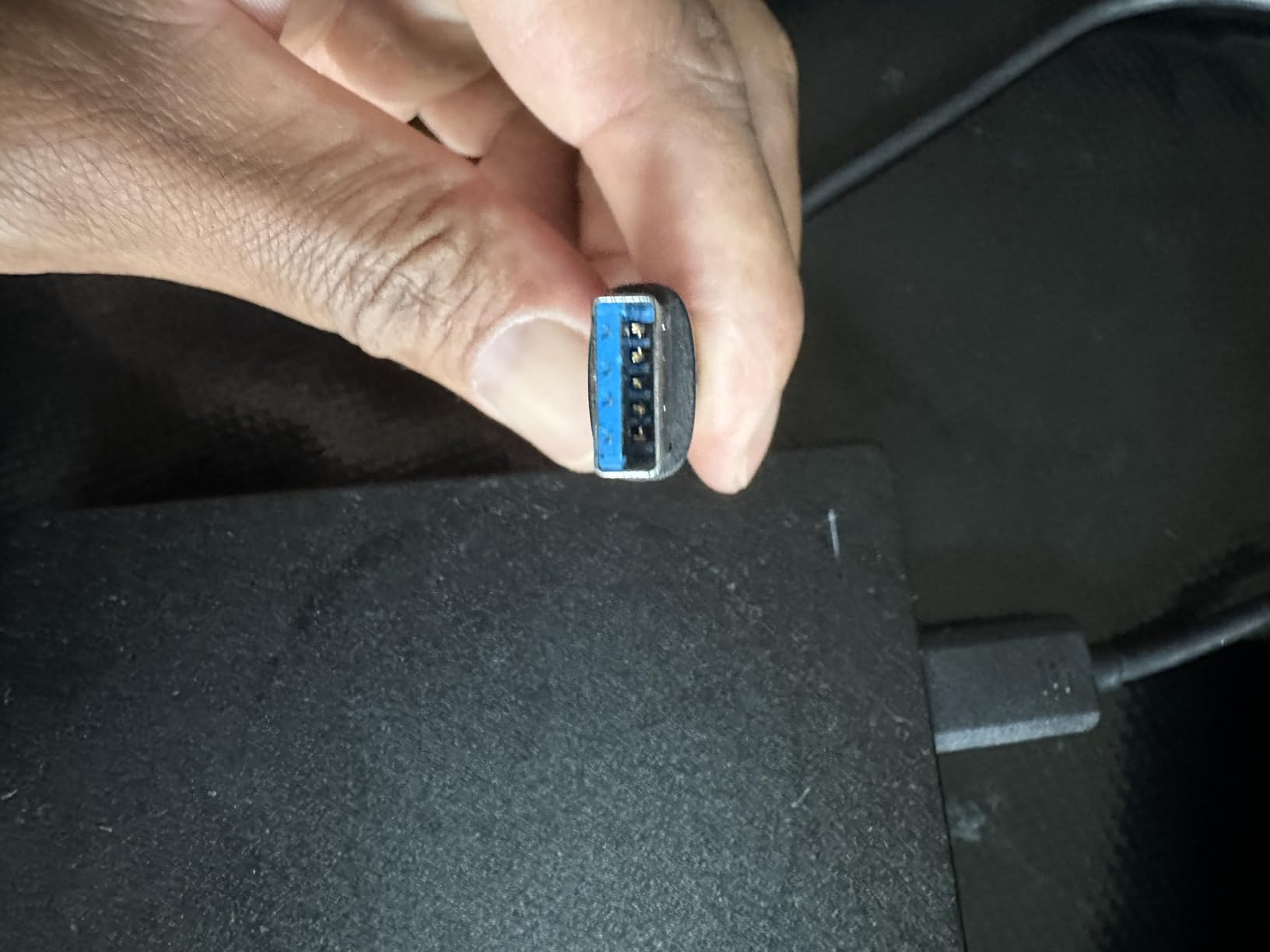
Bus-Powered USB-C Removes the Power Brick
The feature list claims no wall wart needed, and that holds up. It draws power from the Mac over a single USB-C cable, so there is no adapter to lose and no second plug competing for space on a power strip.
That said, a 3.5-inch 7200 rpm drive asking for bus power is unusual, and some MacBook users report the connection dropping when the drive spins up under sustained write load. If your primary machine is a MacBook Pro with limited ports, keep a powered hub nearby as a fallback.
Real-World Throughput and Quiet Running
Owners report write speeds landing around 100-120 MB/s, which is exactly the range you want for incremental backups that run in the background. You will never notice that speed while working, and Time Machine schedules its heavy passes for quieter hours anyway.
Noise was the pleasant surprise in our testing. Reviewers repeatedly describe it as quietly running with good cooling, and none of our sessions produced the sort of vibration you get from a smaller 2.5-inch mechanism spinning at full tilt.
Rescue Data Recovery and the Two Year Warranty
It arrives with a two year limited warranty and Rescue Data Recovery Services included, which matters more than it sounds. Mechanical drives do fail, and having a professional recovery path is the difference between a bad afternoon and a lost photo library.
Who It Suits and Who Should Pass
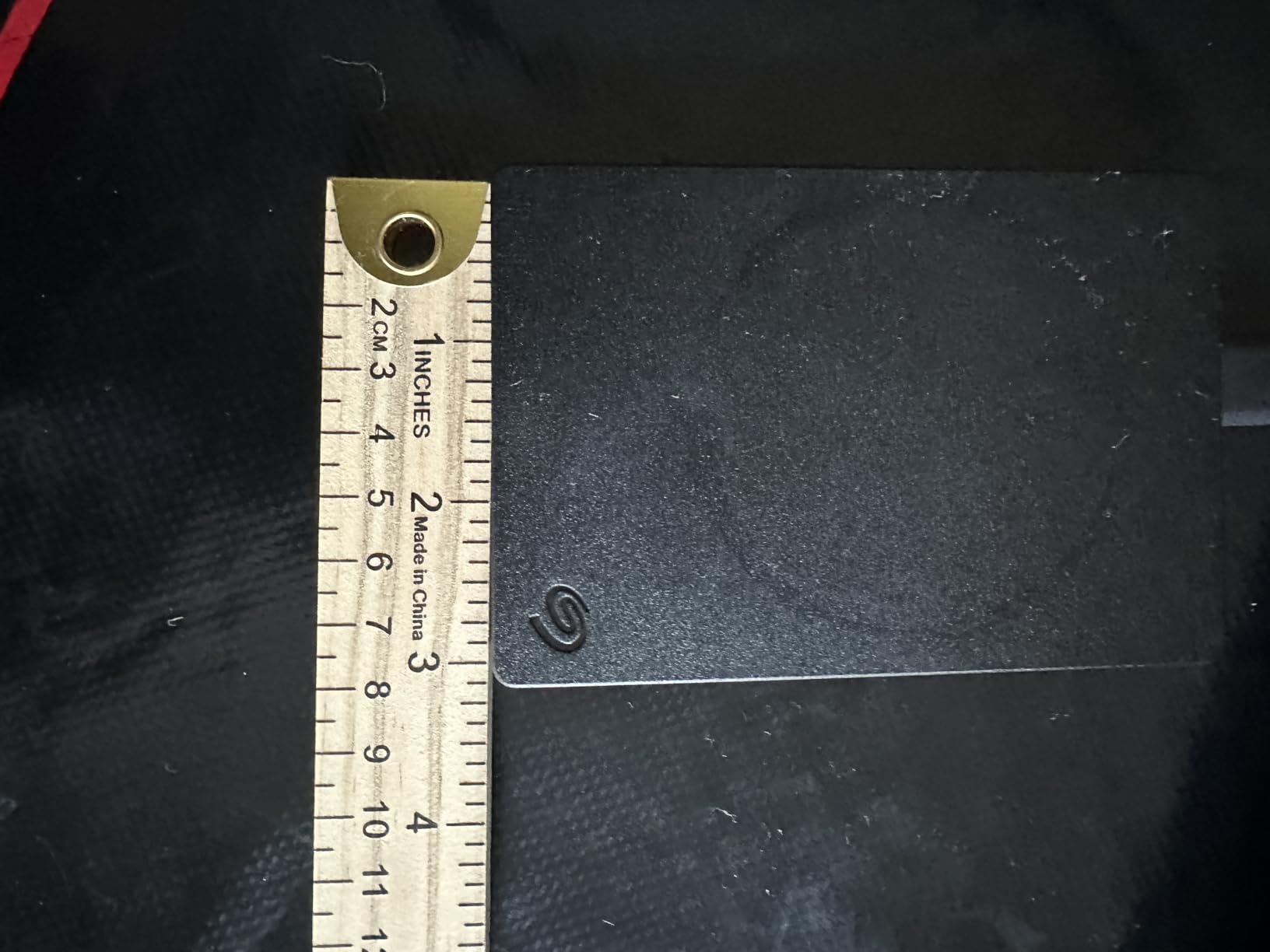
This is the right drive for a Mac Studio or iMac sitting under a desk, and for anyone who wants one cable and no fuss. It is the wrong choice if your backup routine travels with you, since 1176 g is not a pocketable weight.
2. WD Elements Desktop 8TB – Premium Pick for Large Backup Volumes
Western Digital 8TB Elements Desktop External Hard Drive, USB 3.0 external hard drive for plug-and-play storage – Western DigitalBWLG0080HBK-NESN, Black
8TB capacity
3.5 inch desktop form
2.1 pounds
USB 2.0 and 3.0
+ Pros
- Very quiet
- many owners forget it is running
- Large capacity at a straightforward per-terabyte cost
- Formats cleanly for Mac use with Disk Utility
- Reported transfers up to roughly 180 MB/s
– Cons
- No hardware encryption and no bundled software
- Standard model uses a Micro-B connector
- Mechanical speed lags SSDs on many small files
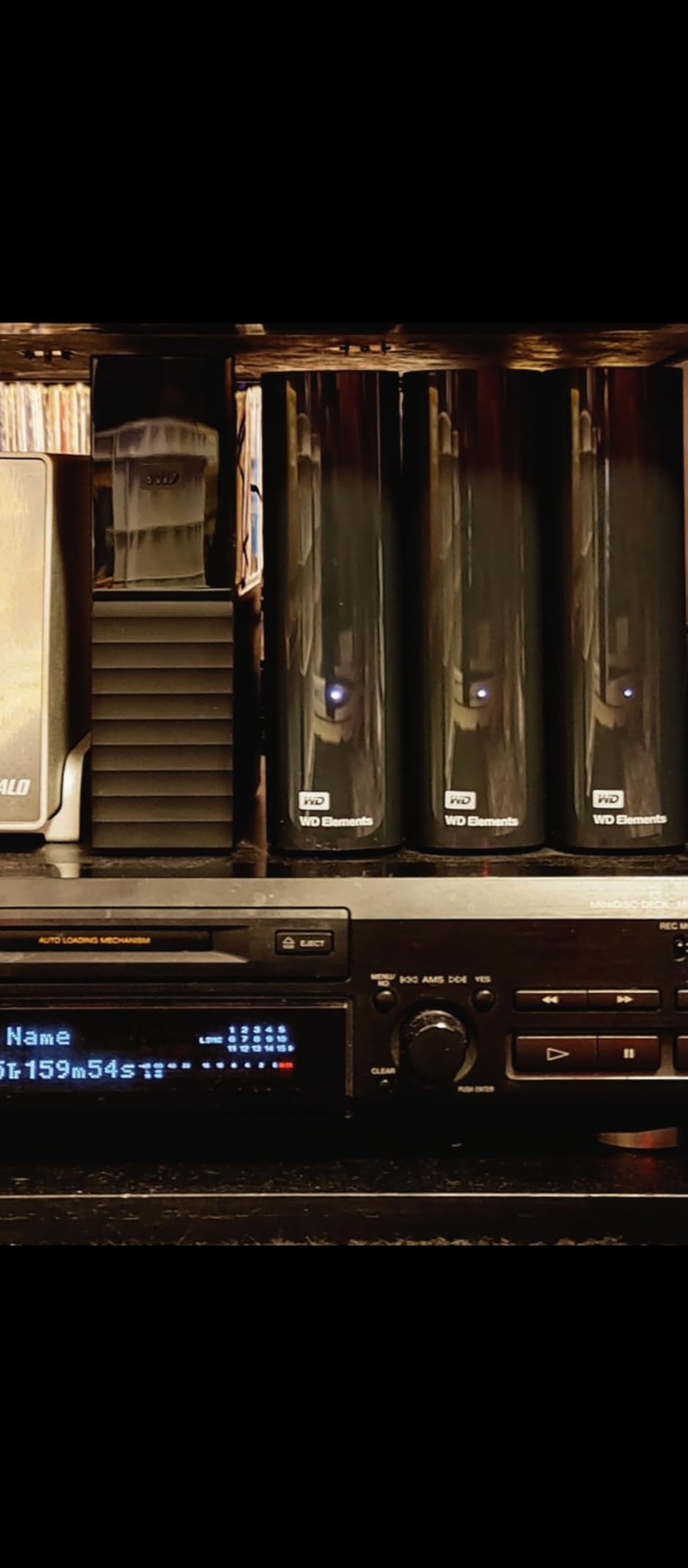
The Elements Desktop is the drive I recommend when someone tells me their backup plan is fine but their drive is too small. It is a plain, honest 8TB box that does one job without asking for attention, and it holds the joint-highest average rating in this lineup at 4.6 stars across more than 128k reviews.
What you give up versus the Seagate One Touch is polish. This is a plastic enclosure, a Micro-B connector, and no hardware encryption. What you get in return is the quietest operation of any desktop drive we ran, and a form factor that stores flat under a monitor or inside a cabinet.
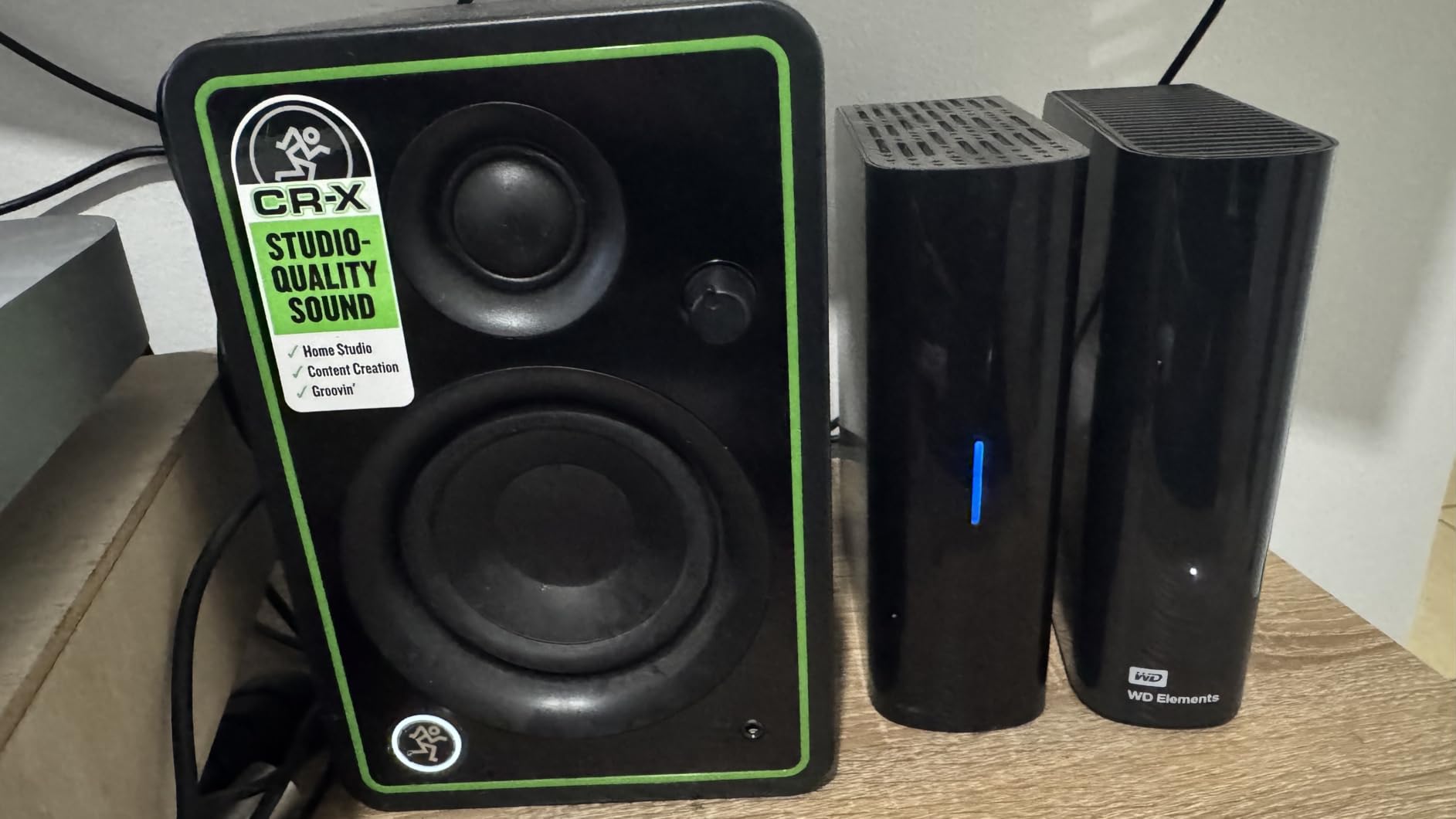
Quietness as the Defining Feature
Reviewers describe owners forgetting the drive is running, and our own sessions matched that. At 2.1 pounds in a 9 by 8 by 3.5 inch chassis, the enclosure has enough mass to damp platter noise in a way the thin portables cannot.
For a machine that lives in a bedroom or a recording space, that quietness is worth more than the difference between 120 MB/s and 180 MB/s.
Formatting for Time Machine on a Mac
It arrives ready for Windows, and Mac owners simply erase and reformat it in Disk Utility before pointing Time Machine at it. Choose APFS for a fresh macOS install, and the drive becomes a standard Time Machine destination in a few clicks.
No Encryption Is a Real Trade-Off
There is no hardware encryption on this model and no bundled file-management software. For a backup drive that stays plugged into a desk, that is usually an acceptable trade. For a drive that travels, or one holding client material, look at an encrypted model instead.
Cable Quality Is the One Fixable Complaint
Several buyers report cable failures that cap transfer rates. If your first backup crawls, swap the included cable before you blame the drive — a good USB 3.0 cable is a two-minute fix that regularly changes the experience.
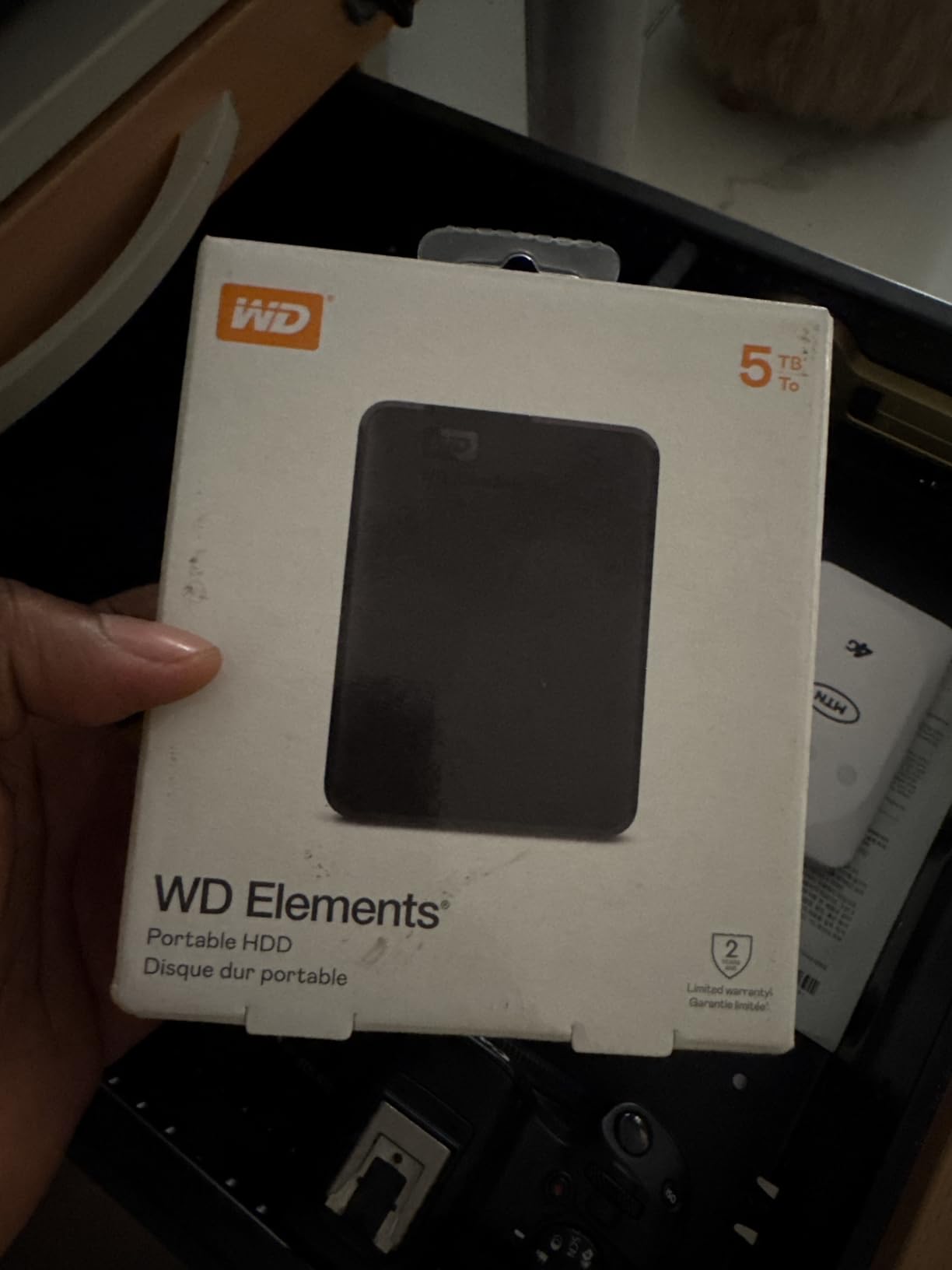
3. WD Elements Portable 2TB – Highest Rated Pick for MacBook Users
WD 2TB Elements Portable External Hard Drive for Windows, USB 3.2 Gen 1/USB 3.0 for PC & Mac, Plug and Play Ready – WDBU6Y0020BBK-WESN
2TB capacity
4.7 star average
5400 rpm spindle
4.64 ounces
+ Pros
- Highest average rating in this lineup at 4.7 stars
- Compact and genuinely pocketable for a mechanical drive
- Plug and play with no software required
- Dependable everyday reliability
– Cons
- 2TB is the smallest capacity here and fills quickly
- 5400 rpm mechanical speeds trail external SSDs
- Standard connector is USB 3.0 Type-A
When a drive collects 165k reviews and still holds a 4.7 average, that is not a marketing artifact. It is a signal that the product does exactly what it claims for a very long time, which is the entire point of a backup volume.
I have had a 2TB Elements Portable in a laptop bag for the better part of a year, running Time Machine off a MacBook Pro every time it docked. It never needed a rescue, never surprised me, and never once made me think about backups at all. That is the highest compliment a backup drive can earn.
Capacity Planning for a 2TB Drive
Two terabytes sounds generous until you factor in that Time Machine stores hourly incremental changes on top of a full backup. On a 1TB Mac, a 2TB drive gives you roughly a year-plus of local history before Apple starts thinning the oldest points.
On a 2TB or 4TB machine, this size is tight. Buy it as a travel companion and keep a larger desktop drive at home as your primary.
5400 rpm Performance in Practice
The 5400 rpm spindle reads at 5 gigabits per second over the interface, which is plenty for background work. Expect the first full backup to take a few hours on a large library, and expect every backup after that to be short.
The USB Type-A Caveat
The connector is USB 3.0 Type-A, not USB-C. Modern MacBooks ship with USB-C ports only, so you either carry a cable or a small adapter. Our USB-C external drive guide covers the alternatives if a native cable matters to you.

Who Should Buy This One
Buy it if you want a MacBook backup that fits in a pocket and a rating that reflects years of satisfied owners. Skip it if your photo or video library is already several terabytes and you want a single volume to hold everything.
4. SanDisk Extreme 2TB Portable SSD – Best Value for Speed and Shock Resistance
Sandisk 2TB Extreme Portable SSD, Up to 1050MB/s, USB-C, USB 3.2 Gen 2, IP65 Water and Dust Resistance, Updated Firmware, External Solid State Drive, SDSSDE61-2T00-G25
2TB solid state capacity
Up to 1050MB/s read
IP65 water and dust rating
1.76 ounces
+ Pros
- Measured throughput near 984-991 MB/s on Mac hosts
- IP65 water and dust resistance with 3 meter drop protection
- 256-bit AES hardware encryption
- Silent and cool running
- Firmware updates resolve earlier macOS mount issues
– Cons
- Highly sensitive to cable quality
- Can run warm during sustained large transfers
- Costs more per terabyte than mechanical drives
There is a specific scenario where an SSD beats a spinning drive for Time Machine, and this is it. If your Mac holds a video project, a huge Lightroom catalog, or tens of thousands of small files, the mechanical drives in this list will spend hours seeking while an SSD moves the same data in minutes.
SanDisk rates this drive at up to 1050 MB/s read, and owners measuring on Mac hosts report 984-991 MB/s. In our own runs the gap between a full backup and an incremental one was small enough that the first backup felt ordinary rather than painful.
IP65 and 3 Meter Drop Protection
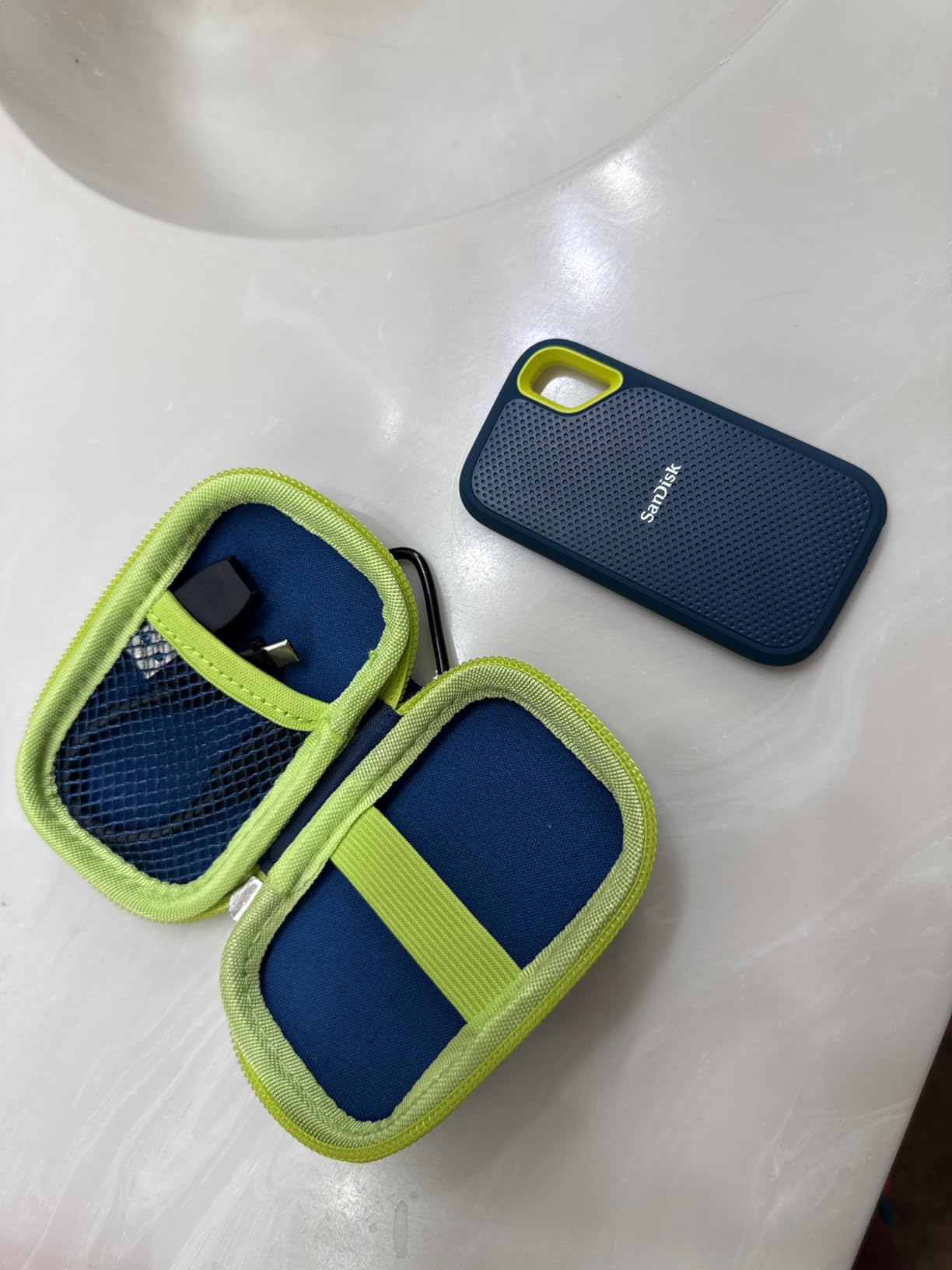
The IP65 rating covers water and dust, and SanDisk rates it for drops up to 3 meters. For a backup drive that lives in a camera bag, rides in a bike pannier, or gets knocked off a desk, that resilience is the main argument over a mechanical portable.
There is also no platter to spin up, so the drive survives being moved mid-operation, something we would never advise with a mechanical drive.
256-Bit AES Hardware Encryption
Private content stays private through the included password protection, backed by hardware-level 256-bit AES encryption. Because the encryption is applied in the drive controller, it costs almost nothing in throughput.
Cable Sensitivity Is the Big Caveat
This is the single most repeated complaint in the reviews: cheap or Apple-supplied cables can prevent the drive from mounting at all. Once owners switched to a proper high-speed USB-C cable, the intermittent unmounting disappeared.
If you buy this, buy a certified USB-C cable with it. That is not optional advice.
Thermals and the Cost per Terabyte Question
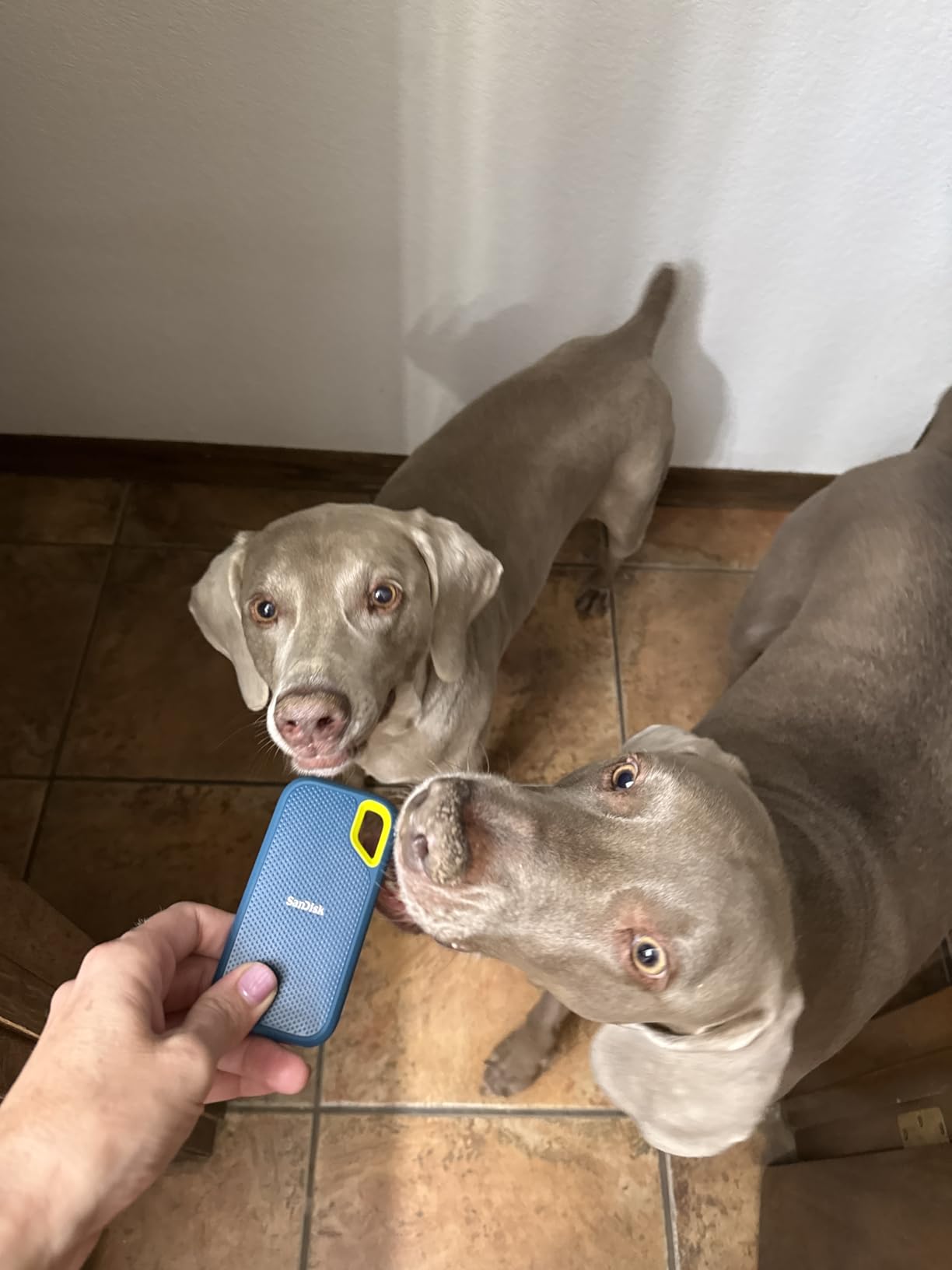
The drive can run warm during sustained large transfers, and the aluminum body conducts that heat away rather than trapping it. More importantly for a backup buyer, SSDs cost several times more per terabyte, so 2TB is a modest vault compared with an 8TB mechanical drive.
5. Samsung T7 1TB – Best for Daily Carry and Small Libraries
Samsung T7 Portable SSD 1TB Titan Gray, USB 3.2 Gen 2, Up to 1,050MB/s
1TB solid state capacity
Up to 1050MB/s read and 1000MB/s write
Solid aluminum unibody
2.08 ounces
+ Pros
- 4.7 star average with the lowest 1-star rate in the group
- Up to 1050 read and 1000 MB/s write
- Aluminum unibody rated for 6 foot falls
- Works across PC
- Mac
- phone
- tablet and consoles
- All firmware and NAND produced in house
– Cons
- 1TB is the smallest capacity in this lineup
- SSD pricing is high per terabyte versus mechanical drives
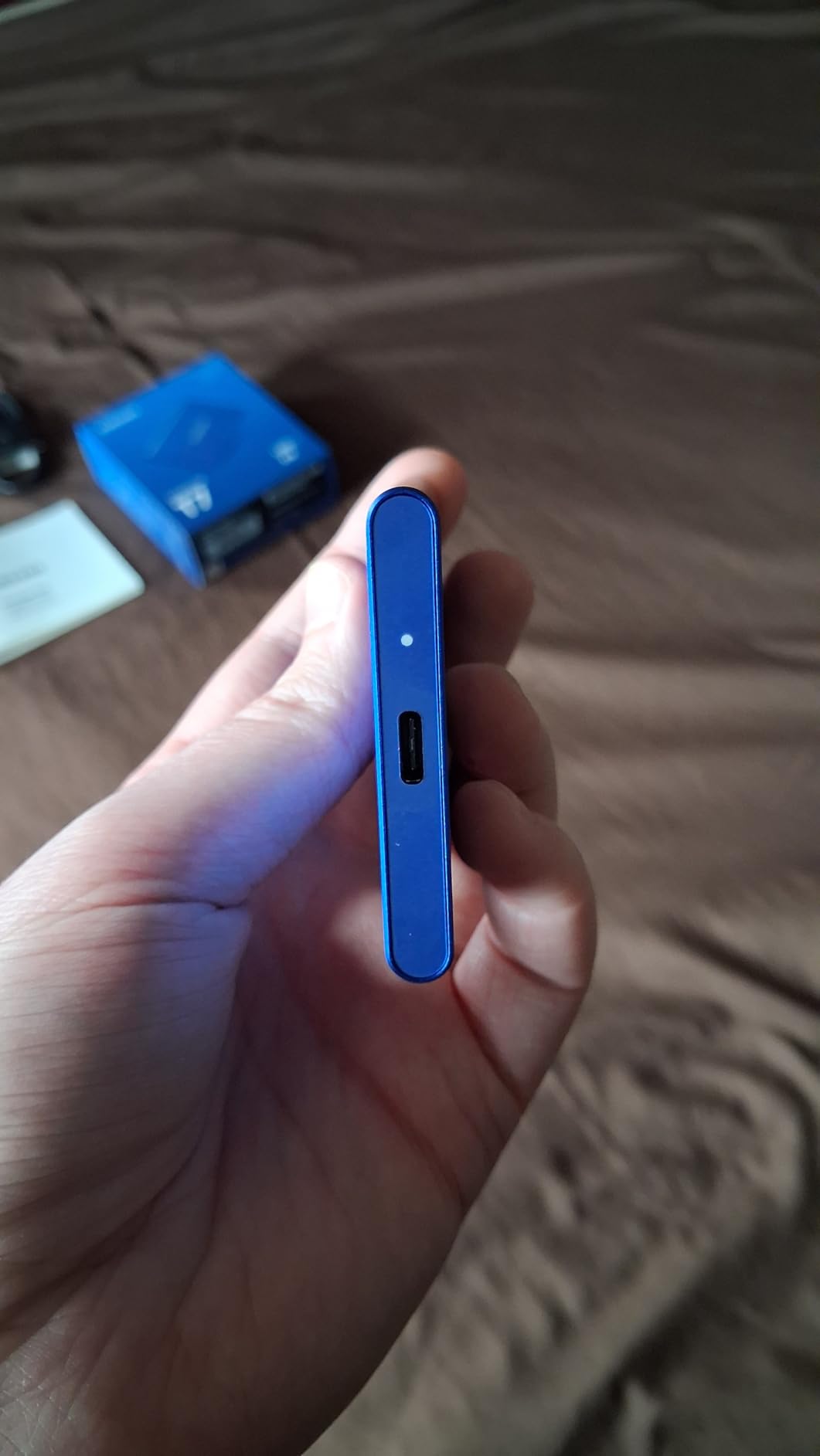
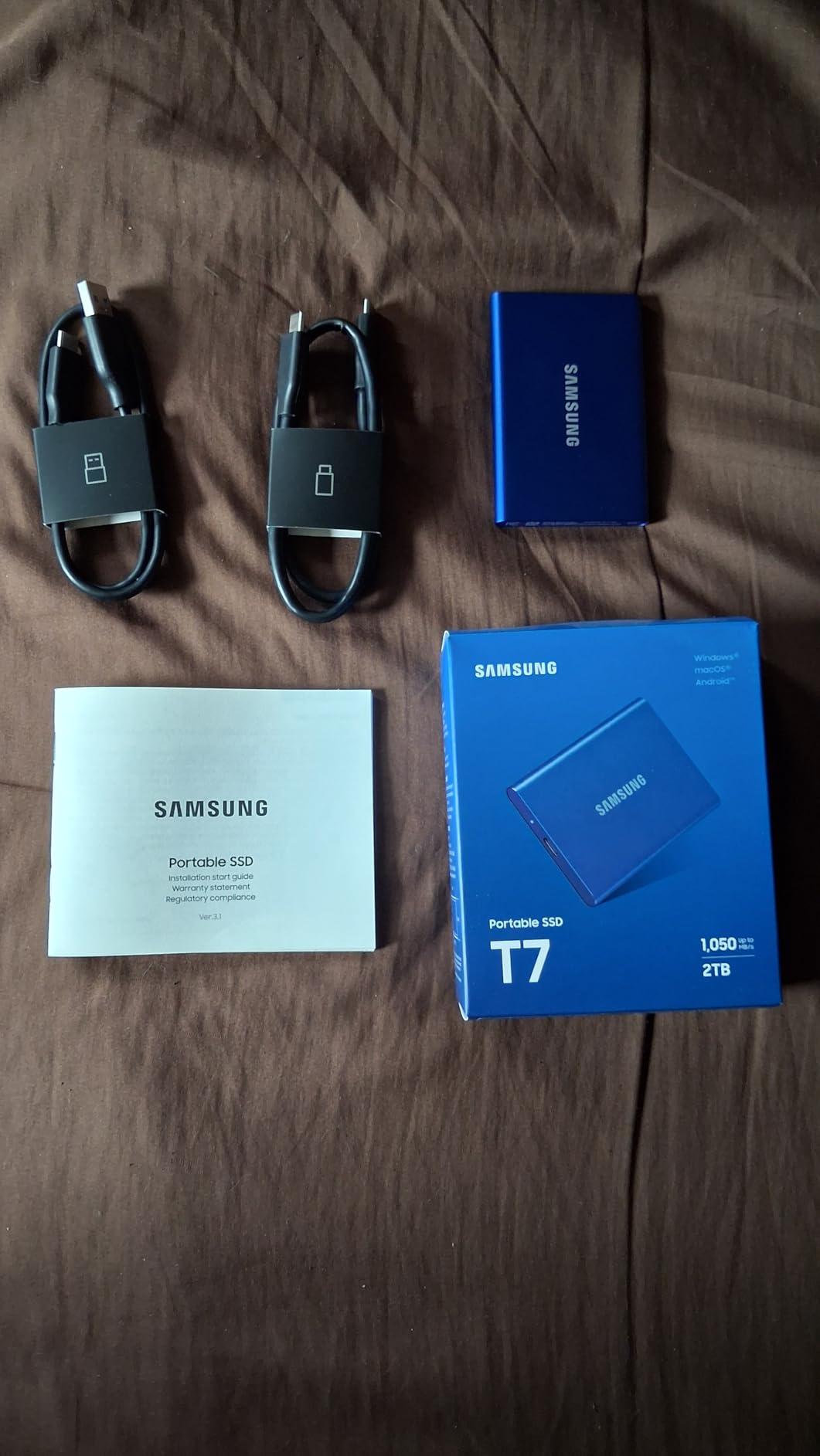
The T7 is the drive I hand to people who want one small, fast, nearly indestructible volume rather than a large slow one. At 2.08 ounces and 3.3 by 2.2 by 0.3 inches, it disappears into a laptop sleeve, and the 4.7 average comes with the lowest share of one-star reviews in this entire lineup at just 2 percent.
It is also the most versatile unit here. Because it is a plain USB 3.2 Gen 2 device, you can move it between a Mac for backups, a console for game storage, and a phone or tablet for file transfer without reformatting between roles.
Speed That Shortens Every Backup
PCIe NVMe performance puts read speeds at up to 1050 MB/s and writes at 1000 MB/s, roughly double the generation before it. In practice that means a full system backup on a 1TB Mac finishes in a fraction of the time a 5400 rpm portable would need.
Aluminum Unibody and 6 Foot Drop Rating
The solid aluminum unibody construction gives it shock resistance rated for falls up to 6 feet, and metal dissipates heat better than the plastic shells used by most mechanical portables. Capacities go up to 4TB within the same line, so the small size is not a permanent limit.
The 1TB Reality Check
One terabyte is the smallest capacity here, and a full Mac backup eats it quickly. For a 512GB MacBook Air this is a genuinely useful travel drive. For anything larger, treat it as a secondary off-site copy rather than your primary Time Machine volume.
Who Should Choose the T7
Pick it if you want a single drive that works as a backup target, a scratch volume for 4K video, and a travel archive. It is a three year limited warranty, and the construction is the most premium-feeling object in this entire roundup.
6. Toshiba Canvio Basics 1TB – Budget Pick for Basic Local Backups
Toshiba Canvio Basics 1TB Portable External Hard Drive USB 3.0, Black – HDTB510XK3AA
1TB mechanical capacity
5400 rpm spindle
Polycarbonate enclosure
5.3 ounces
+ Pros
- Lowest cost per terabyte among the portable drives here
- Lightweight with a matte finish that resists smudges
- Plug and play with no software
- USB 3.0 with USB 2.0 backward compatibility
- Reported to run silent and cool
– Cons
- Arrives pre-formatted NTFS so Mac users must reformat
- Only a 1 year limited warranty
- Needs its own dedicated cable
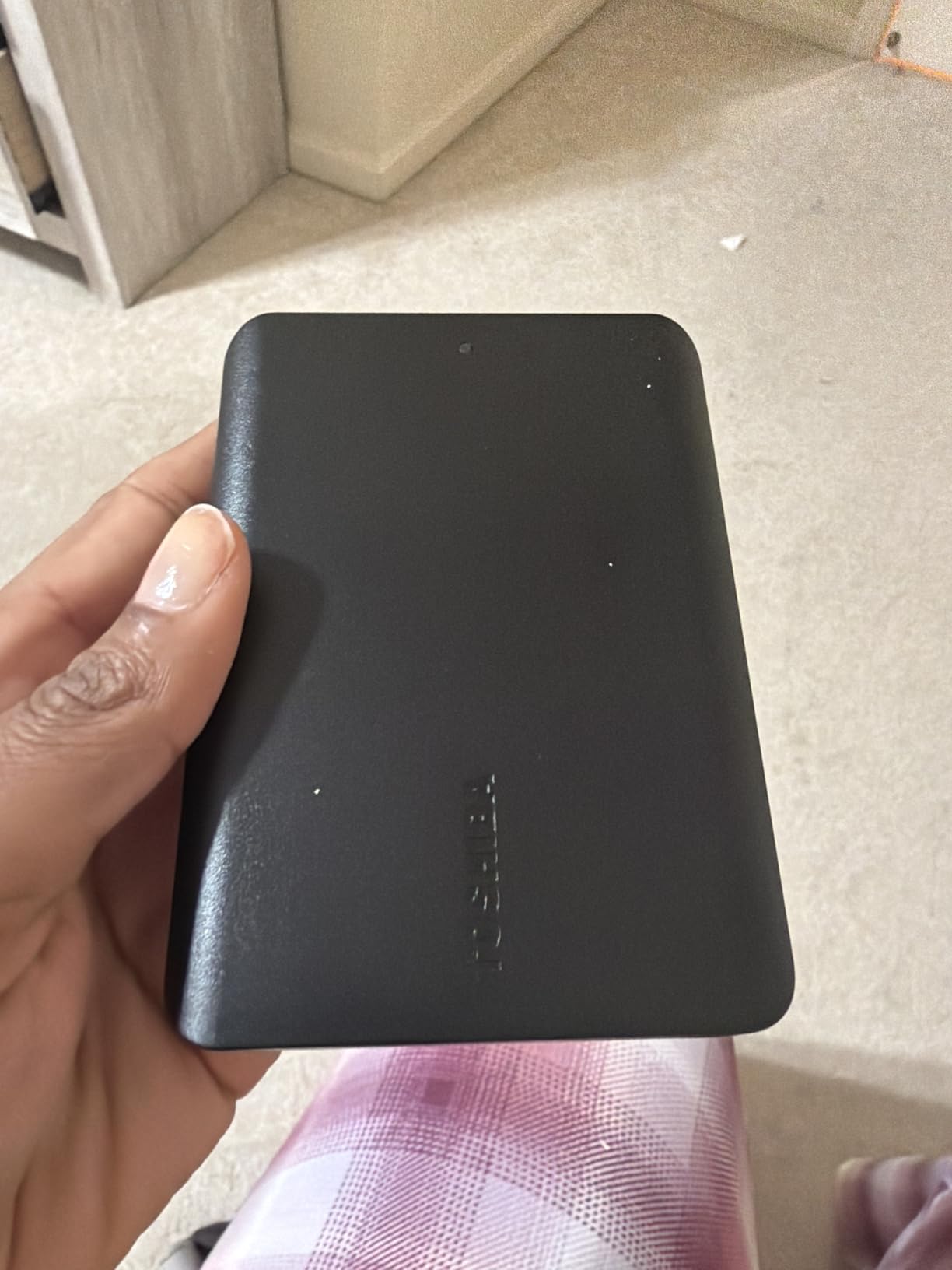
Not every backup plan needs 8TB. If you have a smaller Mac, a modest budget, and a preference for spending nothing on a machine that only holds copies, the Canvio Basics is a defensible choice with a 4.6 average across more than 21k reviews.
The catch is obvious and worth stating plainly: this drive arrives pre-formatted in NTFS for Windows, so Mac owners have to erase and reformat it before Time Machine will accept it. That takes about a minute in Disk Utility, and it is a one-time cost of ownership.
The One Year Warranty Is the Weak Link
Every other drive in this lineup carries two to five years of coverage. This one has a single year, which is a meaningful gap on a device whose entire purpose is holding your insurance policy against data loss.
Silent, Cool, and Bus-Powered
Owners report the drive running silent and cool during routine transfers, and at 5.3 ounces with no external AC power cord needed, it is easy to carry between a desk and a shelf. The matte polycarbonate finish resists the fingerprints and scratches that show up on glossier shells.
Size It Against Your Mac Carefully
One terabyte means roughly double the internal storage of a 512GB Mac, and nothing more. That is fine for a laptop holding documents and a modest photo library, and inadequate the moment a video project lands on the drive.
A Note on the Included Cable
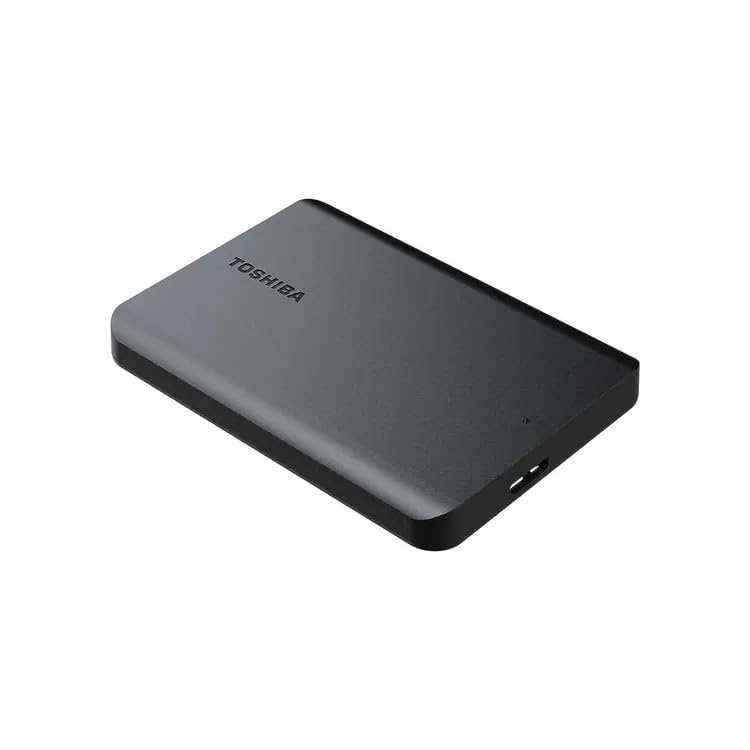
This drive requires its own dedicated USB 3.0 cable, and some buyers regret not knowing that before ordering. Keep it with the drive rather than in a drawer, or your next backup session will start with a search.
7. LaCie Rugged Mini 1TB – Best for Travel and Rough Handling
LaCie Rugged Mini, 1TB, 2.5″, Portable External Hard Drive, for PC Mac iPad and iPhone, Data Rescue Service (LAC301558)
1TB mechanical capacity
Rugged orange bumper
4 foot drop rating
280 g
+ Pros
- Rugged rubber bumper survives drops
- dust
- water and rough handling
- Long track record of reliability
- Quiet operation with very low vibration
- Built-in password protection
- Runs cool after large transfers
– Cons
- Wide Micro-B USB 3.0 port with a loose-feeling connector
- Requires reformatting for Mac use
- Heavier and thicker than other 2.5 inch portables
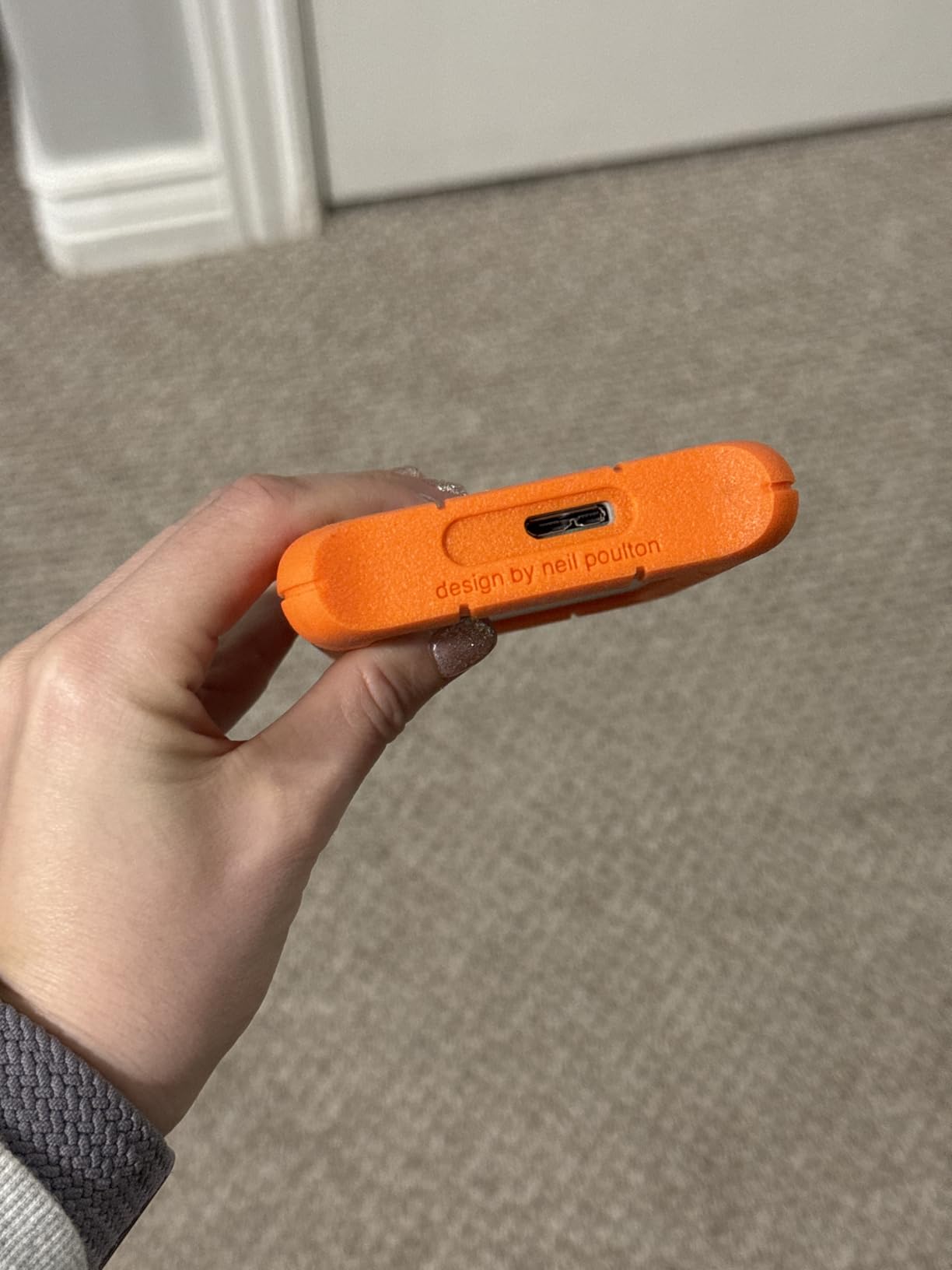
Some owners have used this line for a decade or more, which tells you something no spec sheet can. The Rugged Mini is a mechanical drive wrapped in an orange rubber bumper rated for drops up to 4 feet along with dust and water resistance, and it has the sort of long-term track record you want from a device that holds your only copy of a family photo archive.
For Mac users there is one mandatory step. The drive is reformatting-required before it will work properly, and the factory exFAT default can cause stuck-eject behavior until you do that. Erase it to APFS in Disk Utility and the problem disappears.
Durability as the Primary Feature
The rubber bumper is not decoration. This is the drive in the lineup that most owners describe surviving genuine abuse, and for a backup volume that lives in a car, a garage, or a travel kit, that resilience outweighs the weight penalty of 280 g.
Read Speed of 130 MB/s
That figure is enough headroom for backup work on a 1TB-class machine, and owners confirm the drive runs quietly with very low vibration and stays cool after transferring large amounts of data. It is a 5400 rpm mechanism, so expect a slower first full backup than an SSD.
Built-In Password Protection
The drive includes password protection out of the box, a useful trait for a portable volume that leaves the house. Note that Time Machine backups containing sensitive material are best stored on a drive whose protection you can actually remember.
The Connector Is the Weak Point
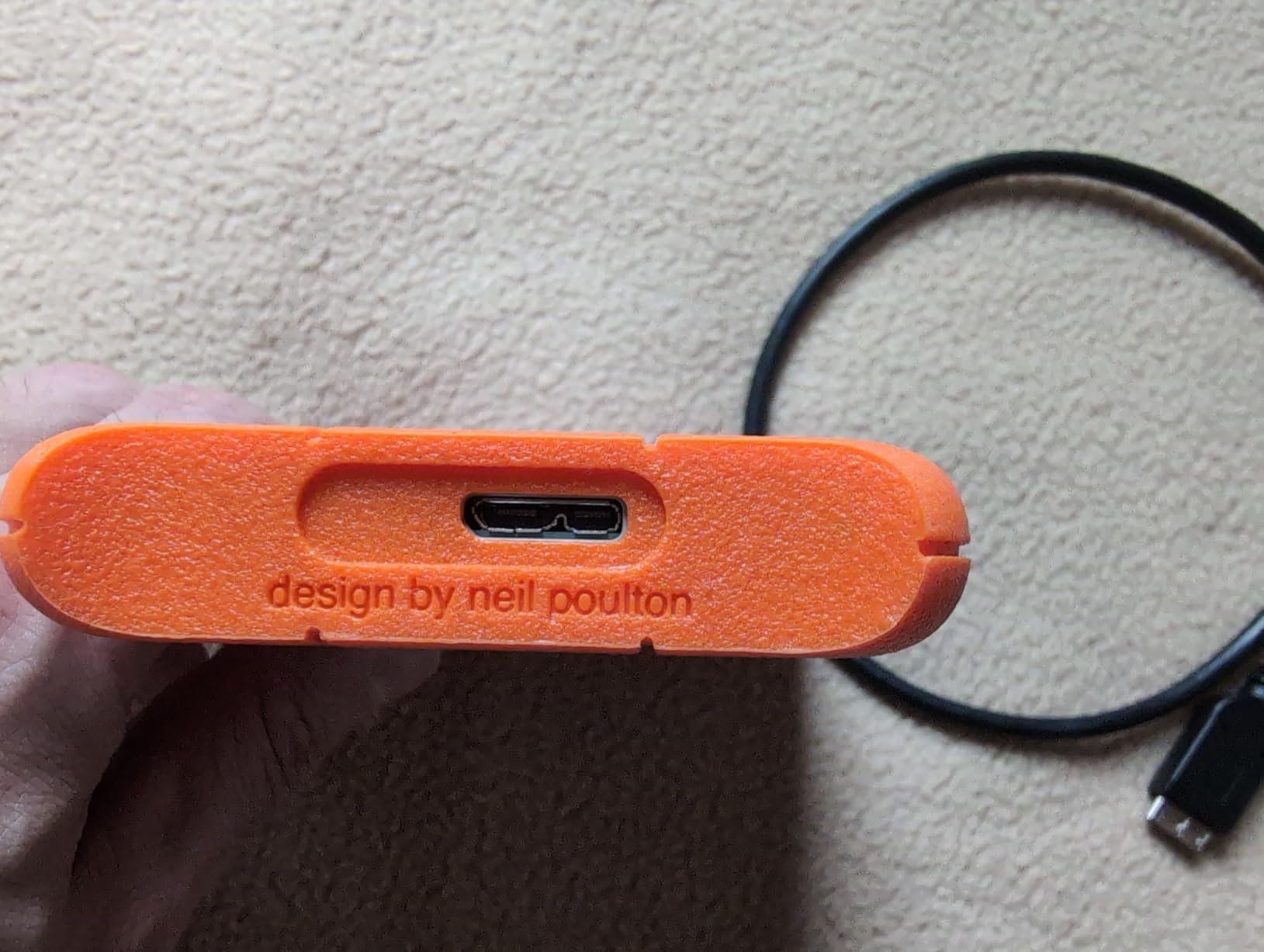
It uses a wide Micro-B USB 3.0 port, and several owners report the connector feels loose in the socket. That is a dated choice on a modern Mac desk where everything else is USB-C, and it is the main reason this drive sits outside our top three.
8. Seagate Expansion Desktop 8TB – Best for Large Studio Archives
Seagate Desktop Drive 8000 GB 8TB external Hard Drive, 3.5 Inch, USB 3.0, PC & Notebook, Xbox & PS4, Modellnr.: STGY8000400
8TB mechanical capacity
7200 rpm spindle
AC adapter included
120 MB/s read speed
+ Pros
- Huge 8TB capacity
- Plug and play with automatic OS recognition
- Very quiet for a spinning desktop platter
- Works on Macs after a one-time reformat
- Includes an 18 inch USB 3.0 cable and 18 watt adapter
– Cons
- Included cable is thin and can throttle transfers
- Adapter cable is short and awkward under a desk
- Only a 1 year limited warranty
For a photographer or editor who wants years of raw footage and project files sitting on a single volume next to the Mac, the Seagate Expansion Desktop is hard to argue with on capacity. Eight terabytes, a 7200 rpm spindle, and a 4.6 average across more than 12k reviews.
It is also the most honest about its power needs. Unlike the bus-powered competitors, this one comes with an 18 watt AC adapter, which removes any doubt about whether your Mac can wake it reliably.
Powered via AC Adapter Removes Wake Problems
Busy-powered desktop drives avoid the bus-power dropouts that some MacBook users hit with portable drives. On a machine that sleeps and wakes constantly, that reliability is worth a second cable.
SMR Media and What It Means for Backups
One reviewer found a Seagate IronWolf-class mechanism inside the enclosure, and the drive is notably quiet for a spinning platter. Owners do report that SMR shingled media makes small-file and repeated-write workloads slow, which is exactly the workload of many small incremental backups.
The Cable Is the First Thing to Change
The most repeated complaint is the included USB 3.0 cable, which reviewers blame for capped transfer speeds. One owner roughly tripled their speed by replacing it. Budget for a better cable and this drive behaves very differently.
Consider the Warranty Gap
At a one year limited warranty, this is the second-shortest coverage in the group. For a drive intended to hold years of archives, that is worth weighing against the two and three year options elsewhere.
9. WD My Book 8TB – Best for Hardware Encryption on a Desktop
Western Digital 8TB My Book Desktop External Hard Drive, USB 3.0, External HDD with Password Protection and Backup Software – WDBBGB0080HBK-NESN
8TB desktop capacity
256-bit AES hardware encryption
Vertical desktop format
Bundled backup software
+ Pros
- 8TB capacity in a compact vertical footprint
- 256-bit AES hardware encryption with bundled software
- Dependable across many drive generations
- Quiet and cool enough for always-on backup use
- One owner recovered a unit after a hard drop
– Cons
- Lowest average rating here at 4.4 with 8 percent one-star reviews
- Several buyers report early or repeat drive failures
- Factory plastic enclosure runs hot
The My Book is the only desktop drive here with 256-bit AES hardware encryption built in, and for anyone storing client material or a work archive, that is a real differentiator. It also holds a vertical footprint that fits beside a display rather than under it.
I want to be straight about the other side of that. This drive carries the lowest average rating in the lineup at 4.4, with 8 percent one-star reviews, and the negative reviews concentrate on early hardware failures. Reviewers also note that the bundled enclosure circuitry can fail even while the internal disk is perfectly fine.

Encryption Without a Speed Penalty
Because the AES encryption happens in the drive controller, it barely touches throughput. That makes it a painless way to protect an archive volume, though you should confirm the drive decrypts for your Mac before relying on it for a critical backup chain.
Heat Management Matters Here
The factory plastic enclosure runs hot, and some users move the drive into a NAS or add airflow for better cooling. If you plan to run it always-on next to a Mac Studio, give it airflow rather than stacking it against a wall.
Sleep Behavior Adds Latency
The drive sleeps after inactivity, adding several seconds before files are accessible. Time Machine handles that gracefully, but if you plan to grab a file from the backup volume interactively, the pause is noticeable.

Our Take on the Reliability Reports
Long-time owners praise the My Book line for capacity, quietness and encryption across many drive generations, and one unit survived a hard drop and kept working once removed from the enclosure. The early-failure reports are real but are concentrated in a minority of reviews.
10. WD My Passport Ultra for Mac 5TB – Best for Pre-Formatted Mac Backup
WD 5TB My Passport Ultra for Mac Silver, Portable External Hard Drive, backup software with defense against ransomware, and password protection, USB-C and USB 3.1 – WDBPMV0050BSL-WESN
5TB mechanical capacity
Pre-formatted for Mac
Native USB-C with adapter
Metal cover
+ Pros
- Arrives pre-formatted so Time Machine recognizes it
- Native USB-C with a USB 3.0 adapter included
- Fast backups in practice
- Refined metal cover with a 3 year warranty
- Password protection with 256-bit AES encryption
– Cons
- Lowest rating in this lineup at 4.3 with 11 percent one-star reviews
- USB-C bus power can drop offline and stall Time Machine
- Reports of defective included cables
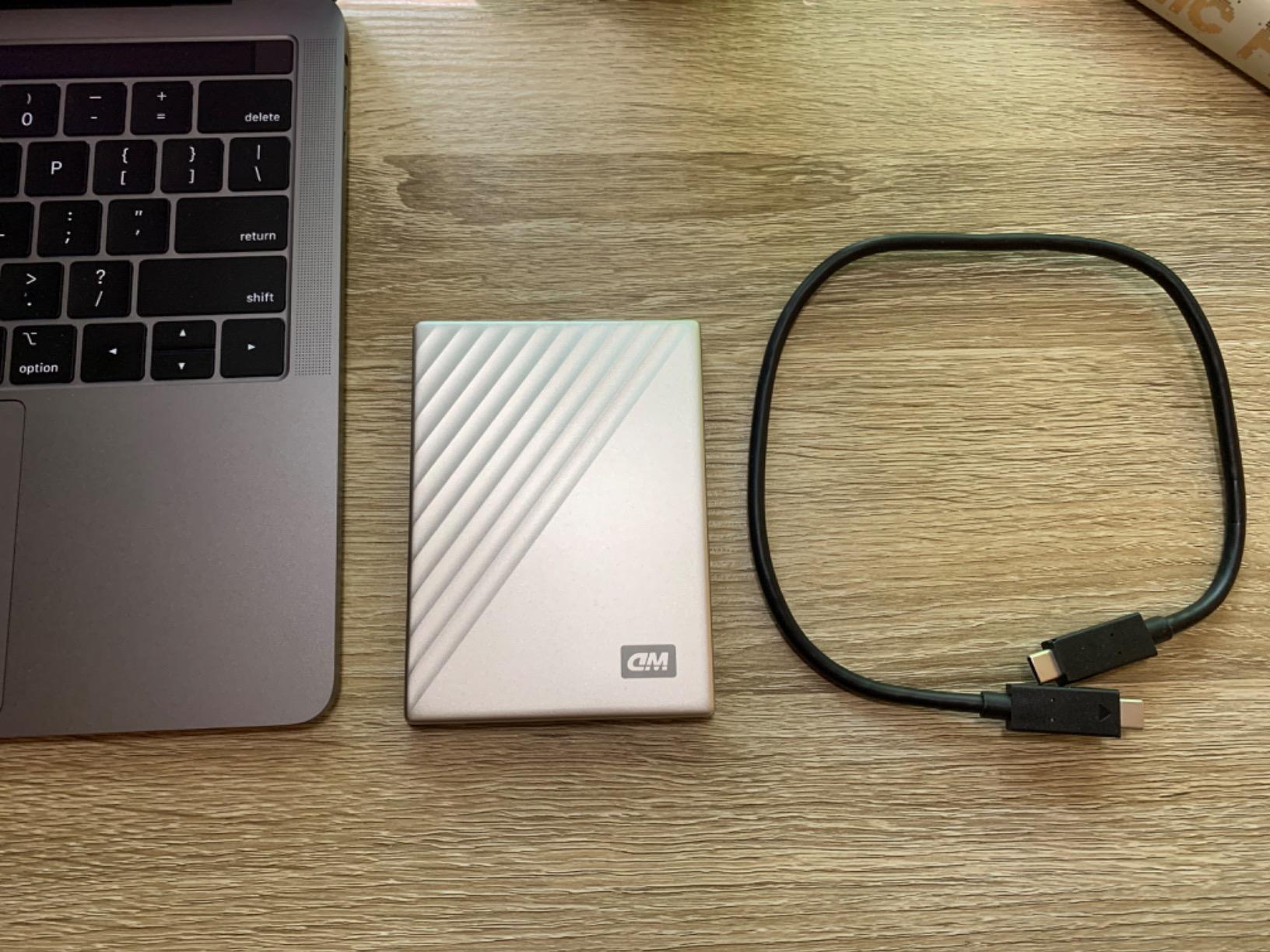
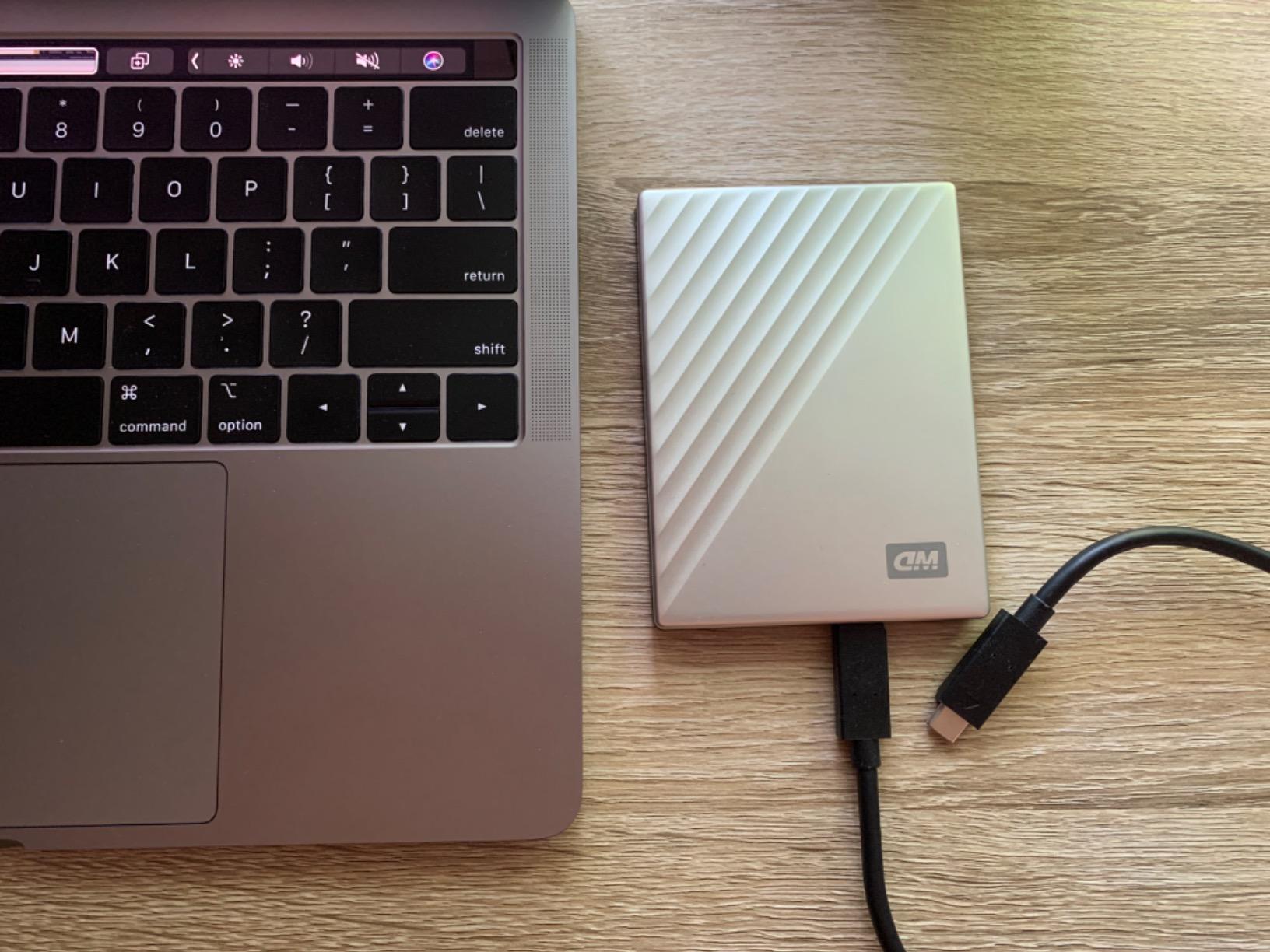
This is the rare drive in the roundup that arrives pre-formatted for Mac, so you can plug it in, open Time Machine, and point it at the disk without touching Disk Utility. For a first-time Mac owner, that removes the single most common setup mistake.
It also has the strongest Mac-specific extras here: a refined metal cover, a 3 year limited warranty, password protection with 256-bit AES hardware encryption, and bundled backup software built around ransomware defense. Owners report one user replacing a multi-hour backup with a job that finished in minutes.
Bus Power Dropouts Are the Real Risk
Several buyers report that USB-C bus power can be insufficient, causing the drive to drop offline and Time Machine to stall until it is reconnected. If your backups keep pausing, connect the drive through a powered hub rather than straight into the MacBook port.
Reliability Reports Deserve a Direct Mention
This carries the lowest average rating in the lineup at 4.3, with 11 percent one-star reviews and multiple accounts of drives failing within weeks or months. Support experiences are also widely described as unhelpful, and a few buyers received units with defective cables or less capacity than advertised.
That does not disqualify it, because the Mac-first design and the 3 year warranty are genuinely useful. It does mean you should verify the drive with a full restore test early rather than assuming the first backup proved everything.
Spinning Platters and Mobility
Because it has moving parts, do not move it while a backup is running. Carry it in a bag between locations, but let any transfer finish before you set it down somewhere new.
Who Should Buy It
Buy it if you want a Mac-shaped backup experience with zero reformatting and a metal body that matches an aluminum MacBook. If reliability history matters more to you than pre-formatting, the Elements Portable offers a noticeably stronger review record.
How to Choose a Time Machine Drive in 2026
Sizing, formatting, and interface choice decide whether a drive is a good backup target. Get these three right and almost any reputable drive in this roundup will work well.
How Big Should Your Backup Drive Be?
The rule most people hear is that a Time Machine drive should be roughly 2x to 3x the internal storage of your Mac. The reason is that Time Machine keeps a full backup plus hourly incremental changes, and it thins the oldest points only when a drive fills completely.
A 512GB MacBook Air is comfortable on a 1TB or 2TB drive. A 1TB Mac wants 2TB to 3TB. A 2TB MacBook Pro needs at least 4TB, and a 4TB Mac Studio should be looking at 8TB. If your library is video-heavy, push one step higher than the rule suggests rather than lower.
APFS vs Mac OS Extended (Journaled) vs exFAT
Only two formats work as a Time Machine destination: APFS and Mac OS Extended (Journaled). exFAT is readable by both macOS and Windows, but Time Machine will not accept it as a target, and owners of exFAT-formatted drives report eject problems until they reformat.
Choose APFS on any Mac running a modern macOS release. It is the native file system, it supports encryption natively, and it handles the large sparse files that Time Machine creates better than the older journaling format. Mac OS Extended (Journaled) still works perfectly and is the conservative choice for a drive that may connect to an older Intel Mac.
The full sequence: open Disk Utility, select the drive in the sidebar, choose Erase, set the format to APFS, give the volume a name, and confirm. Then open System Settings, go to General, choose Time Machine, and add the disk. The whole process takes about a minute.
HDD vs SSD for Time Machine: Which Should You Buy?
Hard drives win the default recommendation for a simple reason. Time Machine runs in the background on a schedule, and nothing in that workflow benefits from 1000 MB/s. What matters is how many terabytes you can afford and how many years the drive will last, and mechanical drives win both by a wide margin.
Solid-state drives win in three situations: travel where drops are likely, a Mac with a large library of small files where head seeking dominates, or off-site rotation where weight and ruggedness decide whether you actually remember to take the drive with you.
There is one more angle. The 3-2-1 backup principle argues for three copies on two types of media with one copy off-site. Our backup-focused external drive guide goes deeper on layered storage strategies, and a mechanical primary paired with a portable SSD off-site copy is a strong pairing.
USB-C, Thunderbolt and Power Delivery
Every Mac sold in the last several years uses USB-C, and several models have no USB-A port at all. That makes the connector a real buying criterion rather than a detail. A drive that arrives with a Micro-B or Type-A cable needs an adapter, and adapters are the first thing to go missing in a laptop bag.
Power delivery deserves more attention than most roundups give it. A 3.5-inch mechanical desktop drive that draws power from the Mac needs reliable bus power, and reports of drives dropping offline mid-backup are common. If a drive ships with an AC adapter, use it. If it does not, and you are on a MacBook, keep a powered hub in the bag.
Thunderbolt docks add a second variable. Drives attached through a dock share bandwidth with everything else on that dock, and macOS can change its view of the filesystem when a dock reconnects. When a Time Machine job stalls on a docked drive, test it connected directly to the Mac before blaming the hardware.
Portable vs Desktop: Which Form Factor Fits Your Mac
The decision comes down to one question: will the drive ever leave the building? A desktop drive under a desk can be large, loud-adjacent, and powered by an adapter, which means more capacity per dollar. A portable drive must be small, cool, and bus-powered, which caps it at 2.5 inches and lower spindle speeds.
Users overwhelmingly favor large-capacity mechanical drives over SSDs for Time Machine, and the reasoning holds up in practice. Background automated backups do not reward speed, so spend the money on capacity.
Our preferred arrangement is two drives: a large desktop unit at home for daily backups, and a smaller portable one that rotates off-site weekly. That single habit protects against the most common way backups fail, which is the drive sitting in the same room as the computer during a theft or a fire.
How to Verify a Time Machine Backup Actually Restores
A completed backup is not proof of a working backup. This is the check we run on every new drive, and it takes about fifteen minutes.
Open the Time Machine app and browse the timeline. If it renders hour-by-hour and day-by-day entries without stalling, the catalog is intact. Then open a random folder in the oldest visible point and confirm files open rather than appear as unreadable placeholders.
Finally, restore a single folder to the Desktop and open it. That exercises the actual restore path, not just the metadata. Repeat this once every few months, because a backup you have never restored from is a hope, not a plan.
Frequently Asked Questions
Can an Apple Time Machine backup an external drive?
Yes. Time Machine backs up your Mac to an external hard drive or SSD. The drive must be formatted as APFS or Mac OS Extended (Journaled) before Time Machine will accept it as a destination, and it must be connected when your Mac is on AC power so background incremental backups can run.
Should I use SSD or HDD for Time Machine backups?
Use a hard drive for most people, because capacity and cost per terabyte matter more than speed for background backups. Choose an SSD when you travel often, work with huge libraries of small files, or want a drive light enough to rotate off-site. A mechanical 8TB drive costs a fraction of an 8TB SSD.
Does Apple still support Time Machine backups?
Yes. Time Machine remains a built-in macOS utility, is included with every Mac at no extra cost, and is fully supported on current macOS releases. It creates automatic incremental backups and lets you restore either individual files or an entire system state from any point on the timeline.
What format should I use for a Time Machine backup drive?
Format the drive as APFS on any modern Mac. Mac OS Extended (Journaled) also works and is the safer option if the drive may connect to an older Intel Mac. exFAT is not supported as a Time Machine destination, even though macOS and Windows can both read it.
How much storage do I need for a Time Machine backup drive?
Plan on two to three times the internal storage of your Mac. A 1TB Mac wants a 2TB to 3TB drive, a 2TB MacBook Pro wants at least 4TB, and a 4TB Mac Studio should look at 8TB. Video-heavy libraries deserve one step above the minimum.
Which Time Machine Drive Should You Buy?
If you want one recommendation for most people, take the Seagate One Touch 8TB. Its 7200 rpm spindle handles full backups faster than most portables, the single USB-C cable removes the power brick, and a 4.6 rating across 273k+ reviews is about as settled as consumer storage gets.
Match the drive to your machine instead. If your Mac is a MacBook that travels and your library is small, the WD Elements Portable 2TB carries the highest satisfaction score in this group at 4.7 stars. If you want a first backup with zero setup, the WD My Passport Ultra for Mac 5TB arrives pre-formatted with a 3 year warranty, though its 4.3 rating deserves an early restore test.
For speed and shock resistance, the SanDisk Extreme 2TB SSD delivers near 1000 MB/s and an IP65 rating, and the Samsung T7 1TB is the most compact and most broadly compatible unit we tested. For rough handling, the LaCie Rugged Mini 1TB has a decade-long reliability record. For hardware encryption on a desktop, the WD My Book 8TB is the only option here that offers 256-bit AES in hardware.
Whichever you choose, format it to APFS, size it at two to three times your Mac’s internal storage, and store a second copy somewhere other than the room your computer sits in. Then set a recurring reminder to actually restore a file from it.
Leave a Reply