
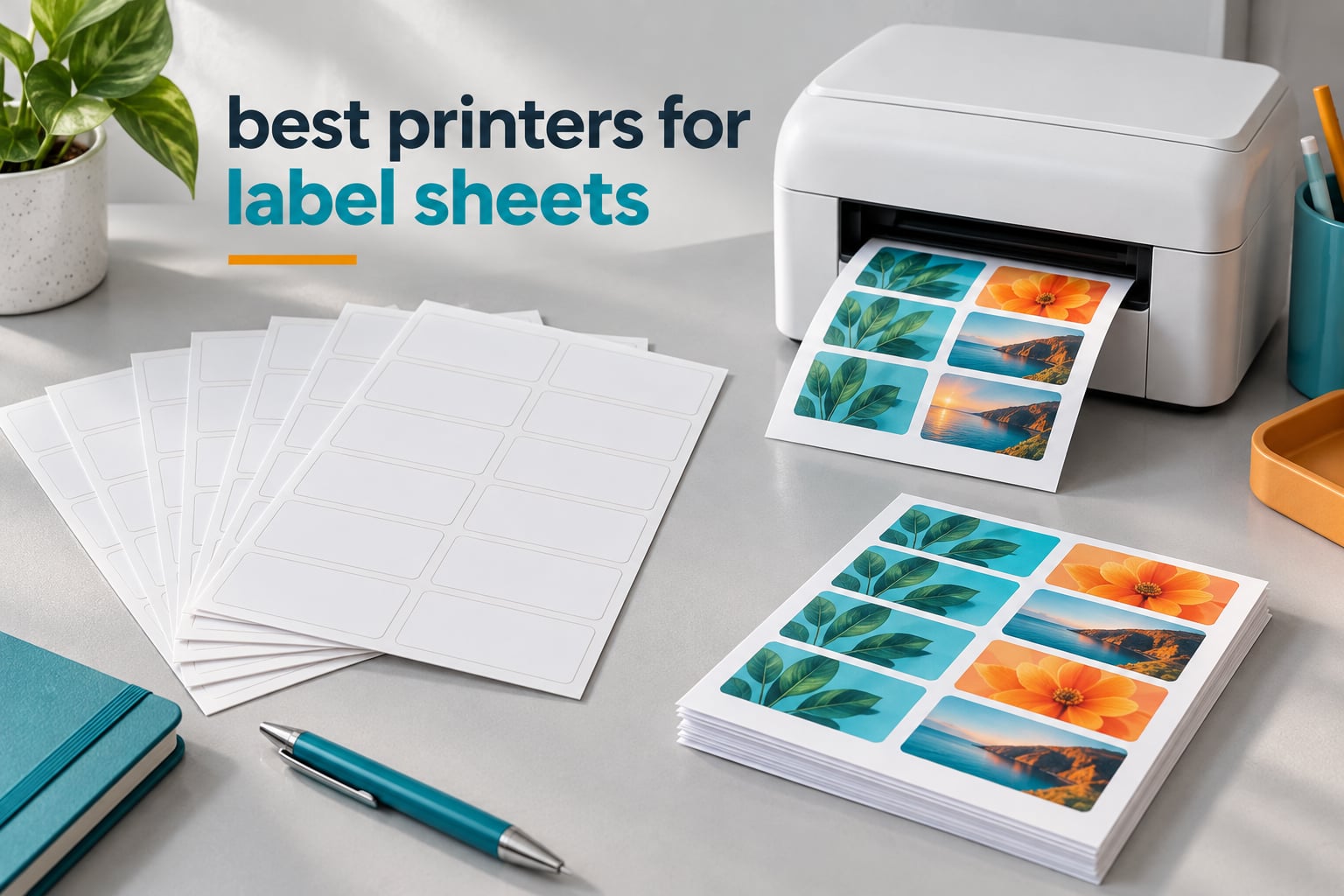
The best printers for label sheets are the machines that feed coated peel-and-stick media through a normal paper path without jamming, shifting the sheet sideways, or leaving toner loose on the label face. We spent several weeks running full 8.5 x 11 inch sheets through every machine in this roundup, and the results split cleanly into two camps: inkjets win on color and cost per label, lasers win on speed and smudge resistance.
One clarification first, because the search results for this topic are badly polluted. Almost every page ranking for “printers for label sheets” is actually about dedicated thermal label printers that take continuous rolls. Those machines are excellent at 4×6 shipping labels and they use no ink at all, but they physically cannot grip a flat sheet of peel-and-stick labels. We cover that family separately in our thermal label printer roundup. Everything below is a sheet-fed printer that takes a normal 8.5 x 11 inch stack.
Here is the short version. If you are printing full-color product labels, logos, or anything photographic, buy a color inkjet and buy J-series inkjet label media. If you are printing hundreds of black-and-white shipping, UPC, or address labels a month, buy a monochrome laser and buy L-series laser media. Confusing those two SKU families is the single most common and most expensive mistake people make here, and it is a mistake that wastes an entire pack of labels.
We scored every printer on four things: whether the sheet feeds cleanly on the first pull, whether the print lands inside the printable area without shifting, how the ink or toner behaves on glossy and matte label media, and what the running cost looks like per sheet. We also logged how many settings you have to change in the driver before the first sheet comes out right, because a printer that needs five dialog boxes before it works is a printer most people abandon.
We also reference our broader label printer picks for people who want the roll-based and handheld options in the same place, and our organization label maker guide if pantry and closet labeling is the real job.
Our Top 3 Tested Printers for Label Sheets in 2026

Epson EcoTank ET-2800
- Cartridge-free EcoTank ink tanks
- 5760 x 1440 dpi color resolution
- 10 ppm black and 5 ppm color
- USB and Wi-Fi

Brother DCP-L2640DW
- Monochrome laser with automatic duplex
- 36 ppm black and white
- 250-sheet tray with 50-page ADF

Canon PIXMA TR8620a
- Wireless 4-in-1 with fax
- Automatic duplex
- 100-sheet cassette plus rear feed
- 4800 x 1200 dpi color
Our pick for most people is the Epson EcoTank ET-2800, because ink cost is what actually decides whether a label hobby is sustainable or something you quietly stop doing. The Brother DCP-L2640DW takes the crown for high-volume monochrome work, and the Canon PIXMA TR8620a is the one to buy when you want color labels and a scanner in the same box.
Comparing All 10 Printers for Label Sheets Side by Side
Every machine below handles full 8.5 x 11 inch label sheets. The differences that matter for labels are color capability, whether the driver exposes a label or cardstock media setting, and how the paper path handles coated media.
| Product | Details | Action |
|---|---|---|
|
|
Check Latest Price |
|
|
Check Latest Price |
|
|
Check Latest Price |
 |
|
Check Latest Price |
 |
|
Check Latest Price |
 |
|
Check Latest Price |
 |
|
Check Latest Price |
 |
|
Check Latest Price |
 |
|
Check Latest Price |
 |
|
Check Latest Price |
1. Epson EcoTank ET-2800 – Cartridge-Free Ink at a Low Per-Label Cost
Epson EcoTank ET-2800 Wireless Color All-in-One Supertank Printer – Black
Cartridge-free inkjet
5760 x 1440 dpi color
10 ppm black / 5 ppm color
100-sheet tray
+ Pros
- Cartridge-free ink system with up to 2 years of ink in the box
- Very low running cost per printed sheet
- Compact 11.4 pound footprint
- Consistent color and document quality with no smudging
- Fast guided setup
– Cons
- Simplex only with no automatic duplex
- Epson app and connection can be inconsistent
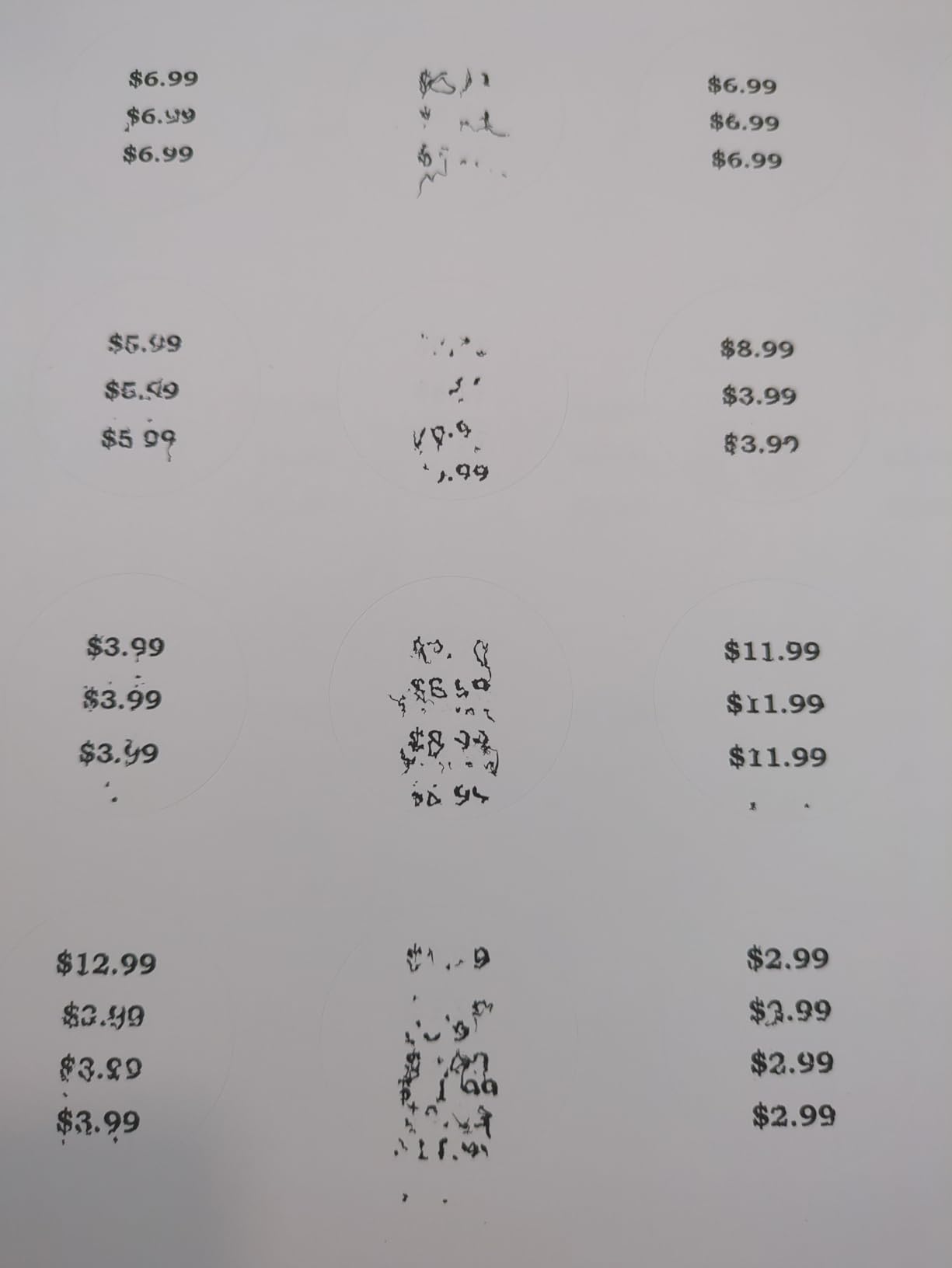
- Some owners need repeated nozzle cleaning early on
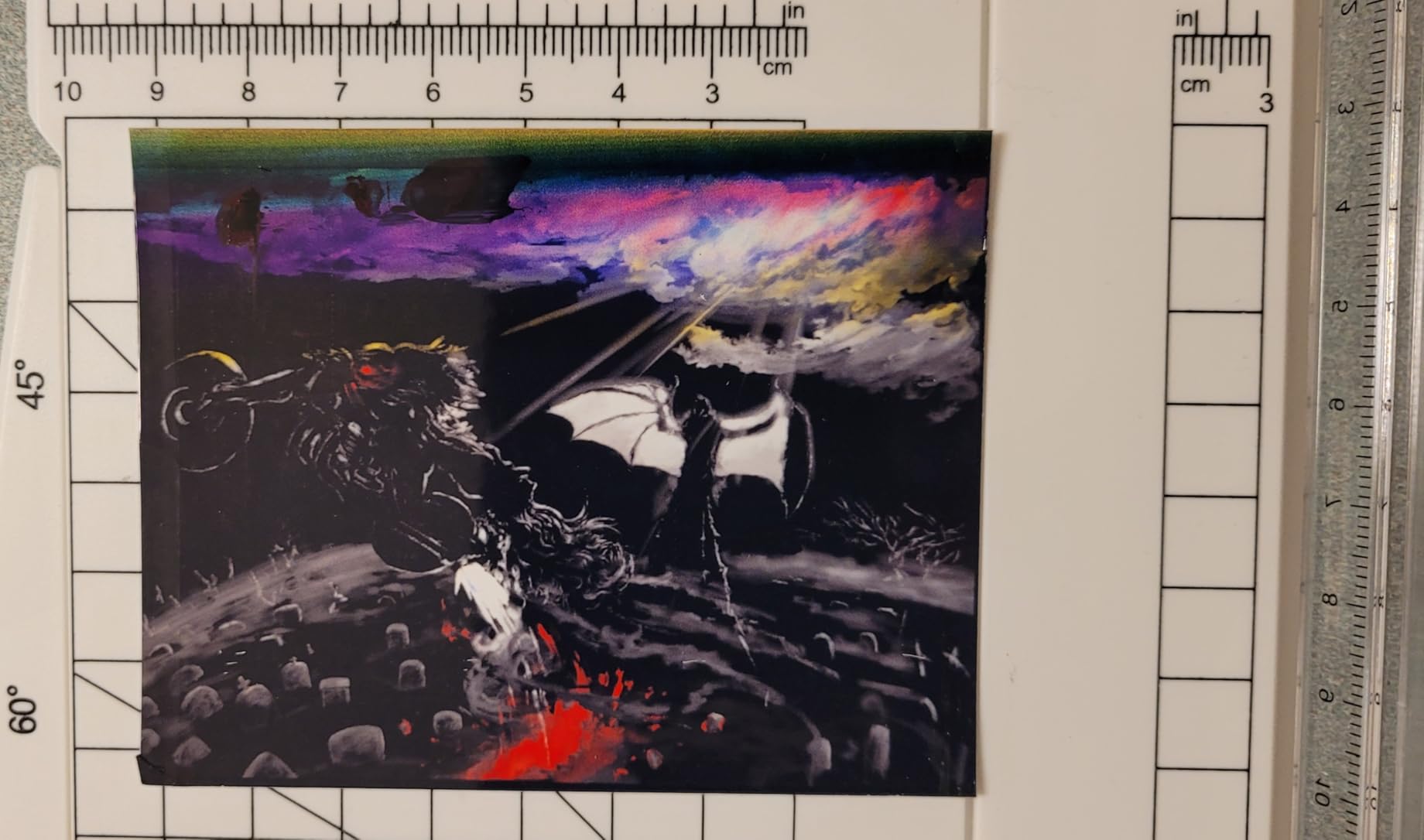
- Borderless printing limited to 4×6
We put the ET-2800 first because label printing is a volume activity disguised as a hobby. You will print a sheet, then a full sheet of return addresses, then a sheet for a batch of jars, and the running cost adds up faster than the hardware. The EcoTank design removes cartridges from that equation entirely, and owner feedback is consistent: buyers praise the low ink cost, the small footprint, easy setup, and several report using it with sticker and label paper without jams.
The ET-2800 holds 5760 x 1440 dpi on color, which is enough for a full-color product label with a logo and small print. At 10 pages per minute black and 5 color, it is not fast, and that is fine for label work, where throughput is rarely the bottleneck.
Ink cost per label is the entire argument for this printer
Each ink bottle set is rated for roughly 4,500 black pages or 7,500 color pages, and up to two years of ink is in the box. When you divide that across a full sheet of 30 labels, the per-label cost lands well below any cartridge-based printer in this guide. That is the number that decides whether a small business can print its own product labels or has to keep outsourcing.
Refilling is the part people worry about and then stop worrying about. The keyed tank-to-bottle design means you cannot put the wrong color in the wrong tank, and there is no cartridge shell to throw away.
Sheet handling and alignment on coated label media
The 100-sheet tray takes full 8.5 x 11 inch media, and the rated paper size runs to 8.5 x 14 inches. Borderless output, though, is limited to 4×6 sizes, so this is not the machine for full-bleed 8.5 x 11 label designs. For a full sheet of peel-and-stick labels with a design that runs to the edge of the label, ordinary bordered printing is exactly what you want anyway, because label layouts leave their own margin.
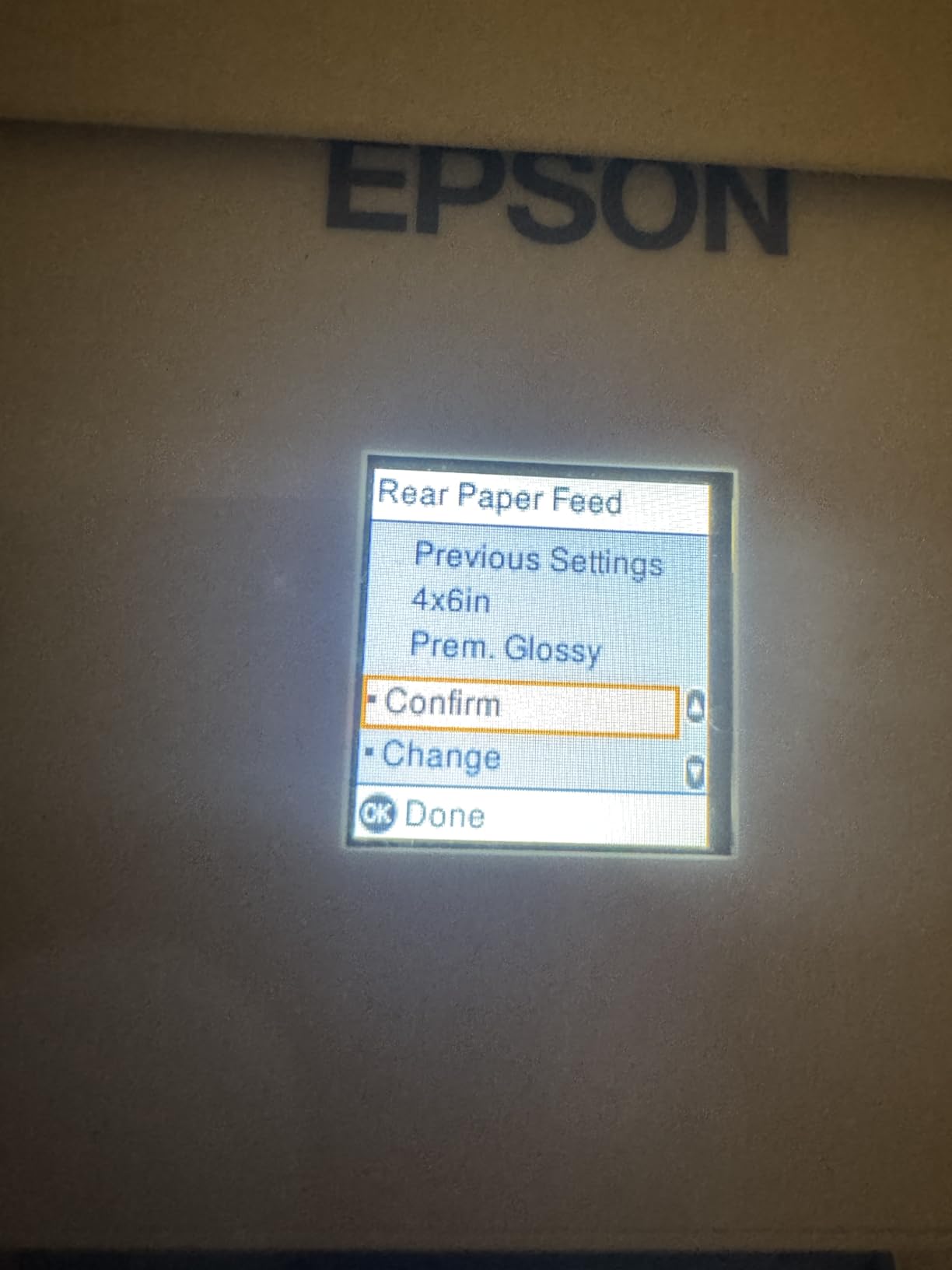
One genuine friction point: the Epson app and wireless connection are inconsistent enough that owners report paper-type mismatch errors that have to be worked around. Set the media type once in the printer driver, on the machine itself, and the problem mostly disappears.
Where the ET-2800 falls short
It is simplex only. Every two-sided job means flipping the stack by hand and reloading it, which is tedious rather than fatal for label work. Some owners also report needing several nozzle cleaning cycles in the first weeks of ownership, and those cycles consume ink and time.
It is also not built for a heavy print load. One reviewer reported a unit reaching end of life after roughly 19k sheets, which is fine for home organization and small business and wrong for a mailroom. If you are producing hundreds of sheets a month in black and white, the Brother laser below is the honest answer.
If refillable ink and low per-label cost are the priorities, the handheld label printers we test cover the portable side of the category.
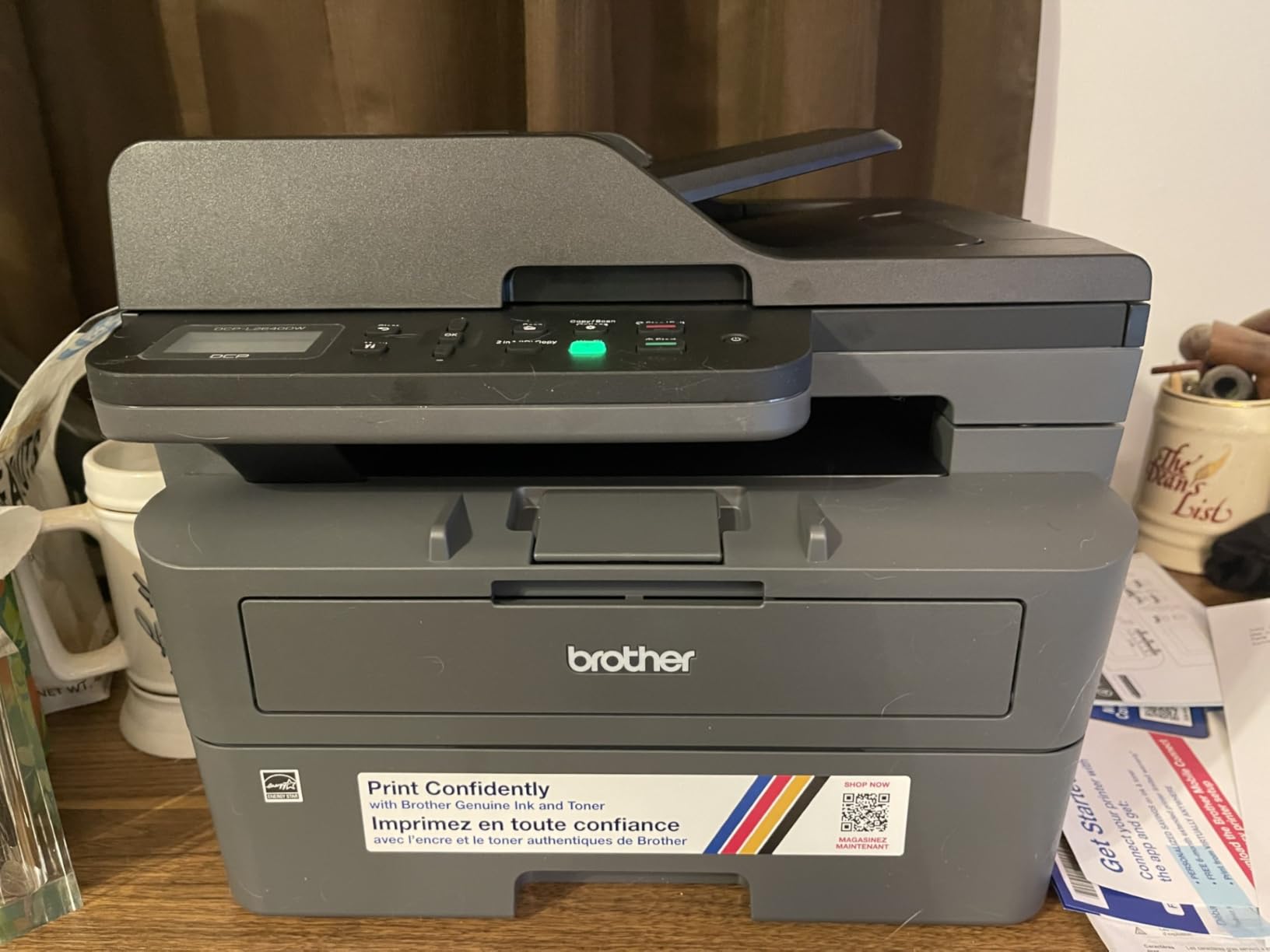
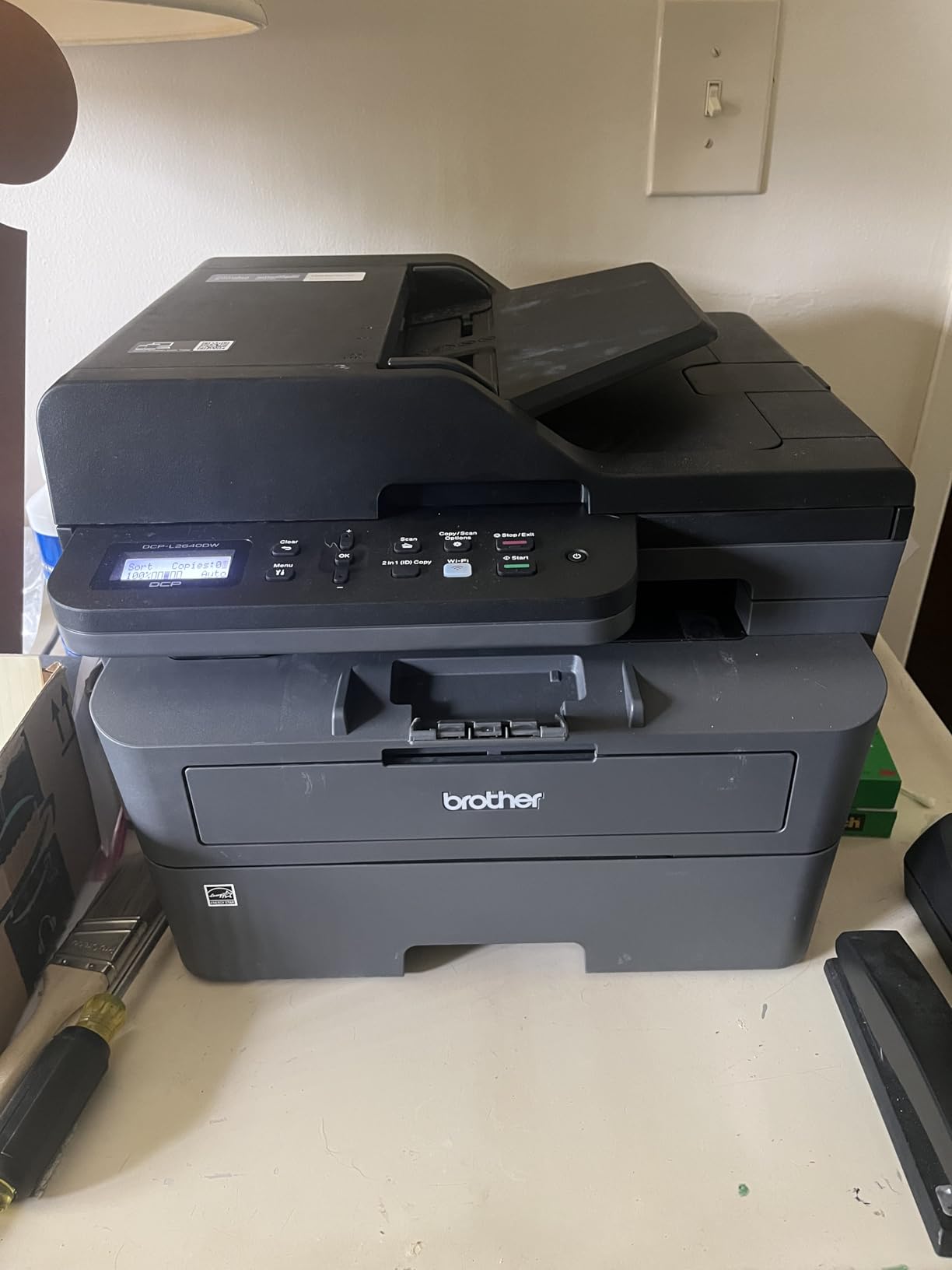
2. Brother DCP-L2640DW – Fast Monochrome Laser for Shipping and UPC Labels
Brother DCP-L2640DW Wireless Compact Monochrome Multi-Function Printer, Copy, Scan, Duplex, Mobile Printing
Monochrome laser
36 ppm black and white
Automatic duplex
250-sheet tray and 50-page ADF
+ Pros
- Fast monochrome output at up to 36 ppm
- Compact printer scanner copier combination
- 250-sheet tray plus 50-page auto document feeder
- Print media explicitly includes labels
- Dual-band wireless plus Ethernet and USB
– Cons
- Monochrome only with no color output
- Toner locked to Brother Genuine TN830 cartridges
- Basic LCD control panel
- 120-sheet output tray
Label sheets are not always pretty. Shipping labels, return addresses, file folder tabs, inventory tags, and UPC codes are black text on white, and they are produced in batches. That is exactly the workload a monochrome laser is built for, and this Brother lists labels as supported print media rather than leaving you to guess.
At up to 36 pages per minute with a first page in 8.5 seconds, a full sheet of labels takes seconds rather than a minute. The automatic duplex is a bonus for the invoice and packing slip work that tends to accompany label projects. Reviewers consistently point to fast, crisp black-and-white output, easy wireless setup, and a compact all-in-one footprint suited to a small office.
Why laser wins on smudge resistance
Toner is a powder fused to the surface with heat. It does not sit on top of the label waiting for a humid hand to smear it, and it does not bleed into the fibers of a matte label. If your labels go into a fridge, a garage, or a bathroom cabinet, or if they get handled immediately after printing, that difference matters more than color output does.
There is a catch, and it is the one that trips people up. Toner needs heat to bond properly, and a printer told that the media is plain paper may not apply enough. When toner peels off a label, the fix is in the driver, not the cartridge. OnlineLabels support staff point out that the paper type options, including labels and cardstock, control the fuser temperature, and choosing the right one is the difference between ink that bonds and ink that rubs away.
Paper path, tray capacity and duplex for batch work
The 250-sheet main tray means a 500-label reorder can run without a refill, and the 50-page auto document feeder handles multi-page scanning and copying. Connectivity covers dual-band 2.4GHz and 5GHz wireless, Ethernet, and USB, and the Brother Mobile Connect app handles remote printing and toner tracking.
Brother locks toner to its Genuine TN830 and TN830XL cartridges. That is worth knowing before you commit to a printer that locks you into proprietary cartridges.
Who should skip this one
If your labels have any color in them at all, a logo in brand blue, a colored border, a product photo, this printer cannot help you. Reviewers note the main limitation is the lack of color, with the small output tray as the secondary gripe.
At 25 pounds, it is also not a printer you shuffle around a counter. It wants a desk with a power outlet and somewhere to put the output tray.
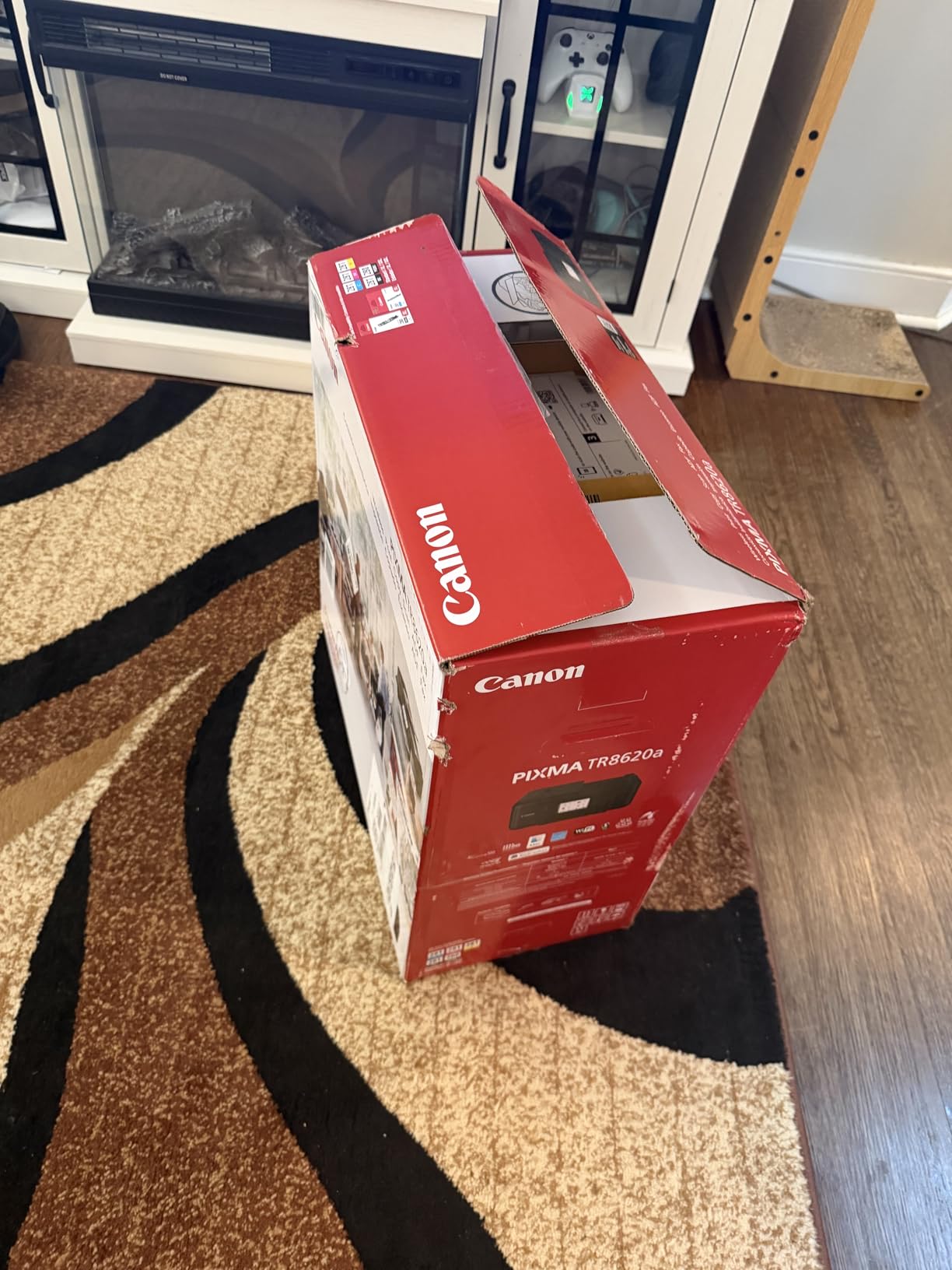
3. Canon PIXMA TR8620a – The Feature-Heavy Home Office Color Choice
Canon PIXMA TR8620a – All-in-One Printer Home Office|Copier|Scanner|Fax|Auto Document Feeder | Photo, Document | Airprint (R), Android, Black, Works with Alexa
Wireless 4-in-1 color inkjet
Automatic duplex
15 ppm black / 10 ppm color
200-sheet capacity
+ Pros
- Wireless print copy scan and fax with a 20-sheet feeder
- Automatic duplex and 1000-page duty cycle
- 100-sheet cassette plus 100-sheet rear feed
- Five individual ink tanks
- AirPrint support
– Cons
- Canon apps are slow and unreliable
- Photo scanning tops out at 600 dpi
- ADF does not handle duplex originals
- Finicky paper loading
The TR8620a is the printer to buy when label printing is one of four jobs and the other three are scan, copy, and fax. That combination is unusual at this size, and for someone running a home business who prints return labels, scans receipts, and occasionally faxes a vendor, collapsing four machines into one is the whole value proposition.
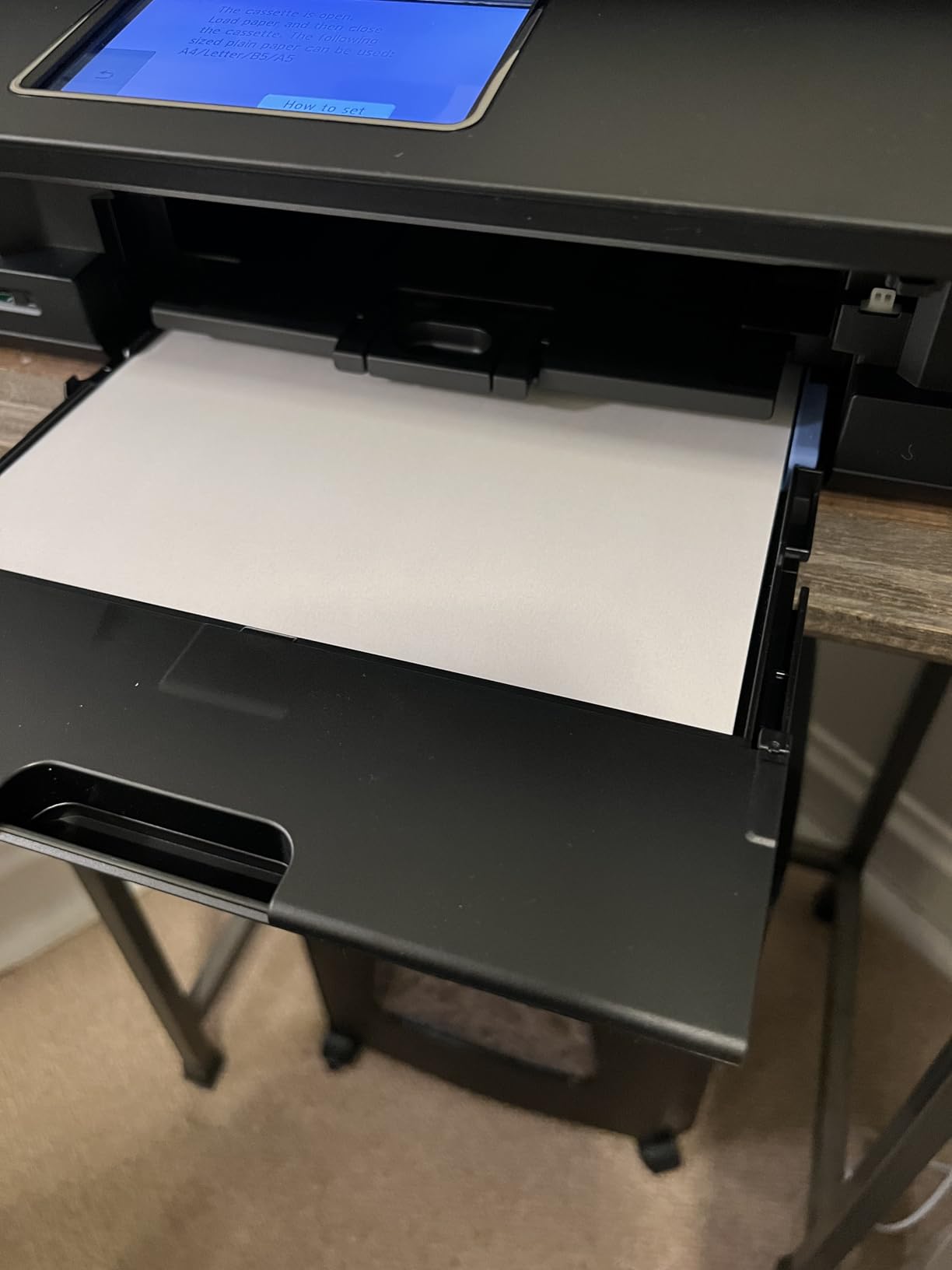
For labels specifically, the dual paper loading matters. A 100-sheet cassette handles your everyday media, and a separate 100-sheet rear feed takes heavier or specialty material, which is where coated label media tends to live. Five individual ink tanks mean the color that runs out is the only color you replace. Color resolution reaches 4800 x 1200 dpi with borderless printing up to 8.5 x 11 inches.
Borderless support and wide media range
Unlike the ET-2800, this Canon lists borderless printing up to 8.5 x 11 inches and square formats. That matters if you design your own labels and want a graphic to run right to the edge of the label rather than sitting inside a white border.
Print speed of 15 ppm black and 10 ppm color is at the quicker end of the inkjets here, and the 1,000-page monthly duty cycle is a meaningful upgrade over the entry-level machines in this roundup. Owner reviews describe clean, professional color and black-and-white output suitable for laminated documents and worksheets.
The software is the weak link
The main issue with this printer is not print quality. Reviewers hammer the Canon mobile and desktop apps as slow and unreliable, sometimes reporting no printer available at all. Print quality itself is repeatedly praised, and the printer works reliably on paper and label media once it is configured. The learning curve and the app quality are what drag the rating down, so budget time for setup.
Other reported issues: photo scanning resolution caps at 600 dpi, the auto document feeder will not take double-sided originals, and paper loading can be finicky enough that sheets get rejected unless they are aligned precisely.
Who this suits and who it does not
This suits a home office that needs fax and scanning alongside color labels, and it handles thicker media better than most compact inkjets thanks to the rear feed. It does not suit someone who wants to walk up, tap a button, and print, because the software asks more questions than it should.
If your label work is color-forward and the rest of your printing is light, the Canon PIXMA TS6520 later in this guide is a simpler machine with fewer distractions.
4. Brother HL-L2460DW – Compact Laser for a Dedicated Label Work Corner
Brother HL-L2460DW Wireless Compact Monochrome Laser Printer with Duplex, Mobile Printing, Black & White Output | Includes Refresh Subscription Trial(1), Works with Alexa
Monochrome laser
36 ppm
Automatic duplex
250-sheet tray plus manual feed
+ Pros
- Fast 36 ppm monochrome output
- Automatic duplex saves paper and time
- 250-sheet tray cuts down refills
- Dual-band wireless Ethernet and USB
- 15.6 pound weight for a laser printer
– Cons
- Print-only with no scanner copier or fax
- Monochrome only
- Toner locked to Brother Genuine cartridges
- Basic LCD panel
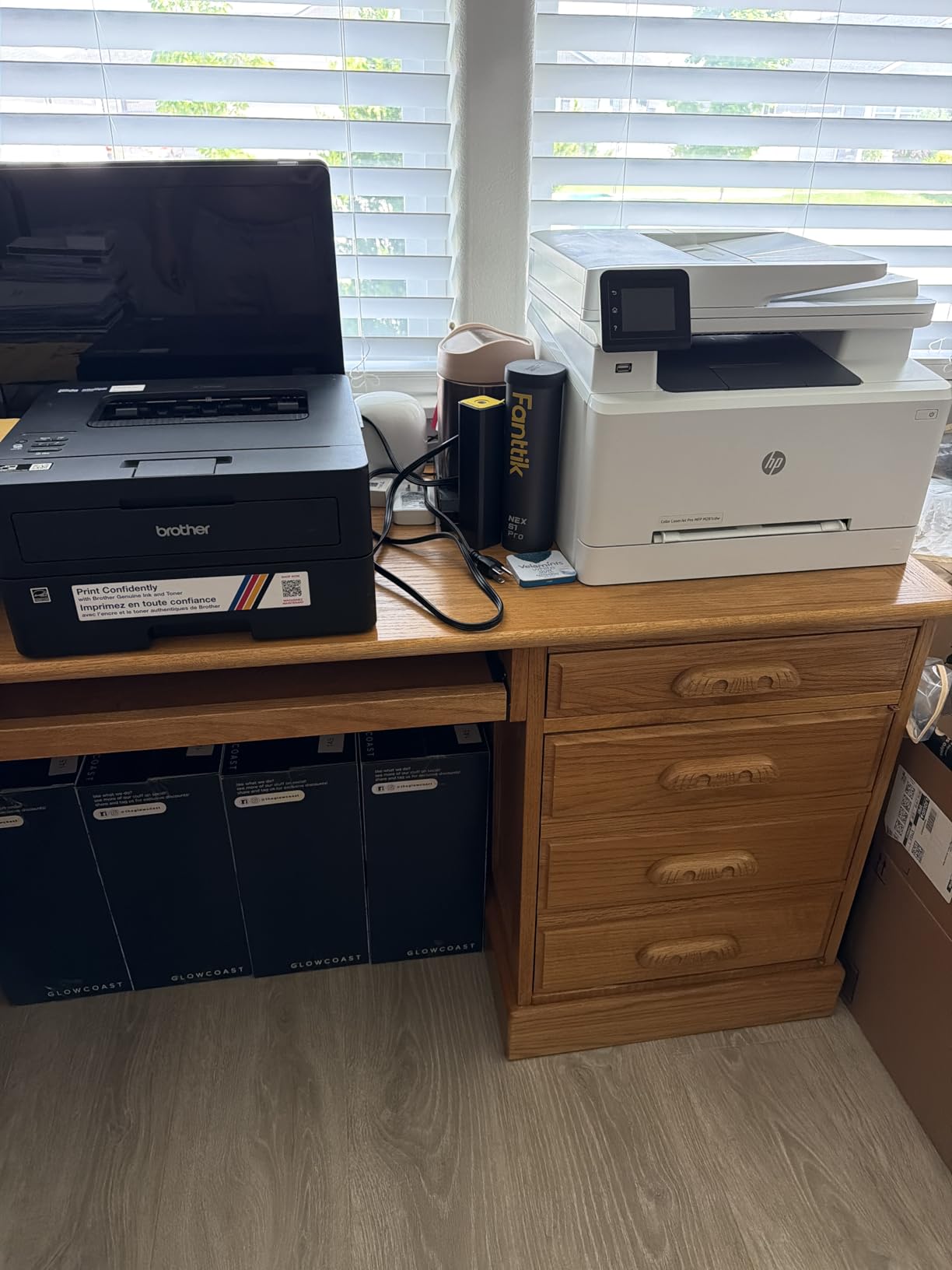
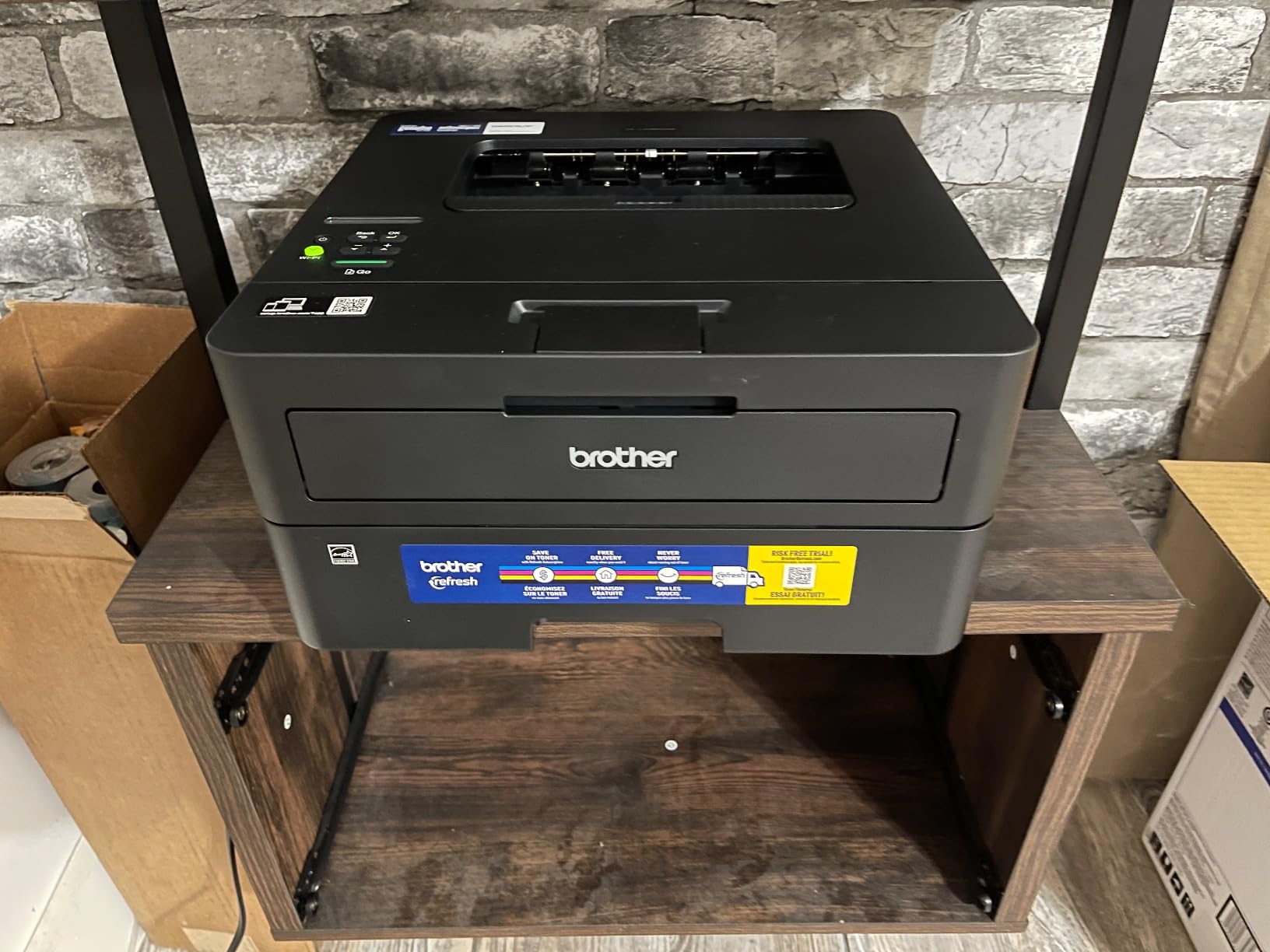
The HL-L2460DW is the Brother laser with everything you do not need removed. No scanner, no copier, no fax, a single 250-sheet tray, and a manual feed slot for specialty paper. What you keep is speed, automatic duplex, and wireless, which for a dedicated label station in a garage office or a packing room is exactly the right trade.
At 36 pages per minute and 1200 x 1200 dpi black resolution, label text comes out sharp and batch jobs finish quickly. The manual feed slot is the piece most relevant to label work, because it is the path for envelopes and specialty media rather than the standard cassette. Reviewers describe it as a dependable black-and-white workhorse for home offices and small teams.
When a print-only laser makes sense for labels
If your labeling workflow is print-only, a scanner adds nothing but volume and a higher purchase. Buyers consistently call this machine dependable, reliable, and good at doing one thing well, with no mysterious error codes, which is a form of reliability that matters a lot when the printer lives in a room nobody else looks at.
The 250-sheet tray and automatic duplex are what let a full sheet of shipping labels print alongside the paperwork that ships with it, without babysitting the machine.
Media handling on coated label sheets
The listed print media for this model is envelopes and plain paper rather than labels, which is worth knowing. In practice, a laser of this class feeds coated label media fine, but you must set the media type in the driver to labels or cardstock so the fuser runs hot enough for toner to bond. Get that wrong and the ink peels off when someone handles the label, which is one of the deal breakers people describe in the forums.
The compact footprint and 15.6 pound weight are unusually small and light for a laser printer, which is useful if the machine lives on a shelf or a side table.
The trade-offs
Toner is locked to Brother Genuine TN830 and TN830XL cartridges, and the control panel is a basic LCD with no touch control. If you also need to scan a document to email it, this is the wrong machine and the DCP-L2640DW is the right one.
5. Canon PIXMA TS6520 – The Least Expensive Way Into Color Label Printing
Canon PIXMA TS6520 Wireless Color Inkjet Printer, Duplex Printing, Copier/Scanner, 1.42″ OLED Display, Compact, White
Color inkjet
Automatic duplex
14 ppm black / 9 ppm color
Borderless up to 8.5 x 11 inches
+ Pros
- Automatic duplex and full color at the entry level of this roundup
- Very easy setup often under ten minutes
- Stable dual-band Wi-Fi with AirPrint and Mopria
- No jamming reported by multiple owners
- Borderless printing up to 8.5 x 11 inches
– Cons
- Only a 1.42-inch monochrome OLED display
- Starter ink runs dry quickly
- Two-cartridge hybrid system shares one cartridge across three colors
- No USB cable included
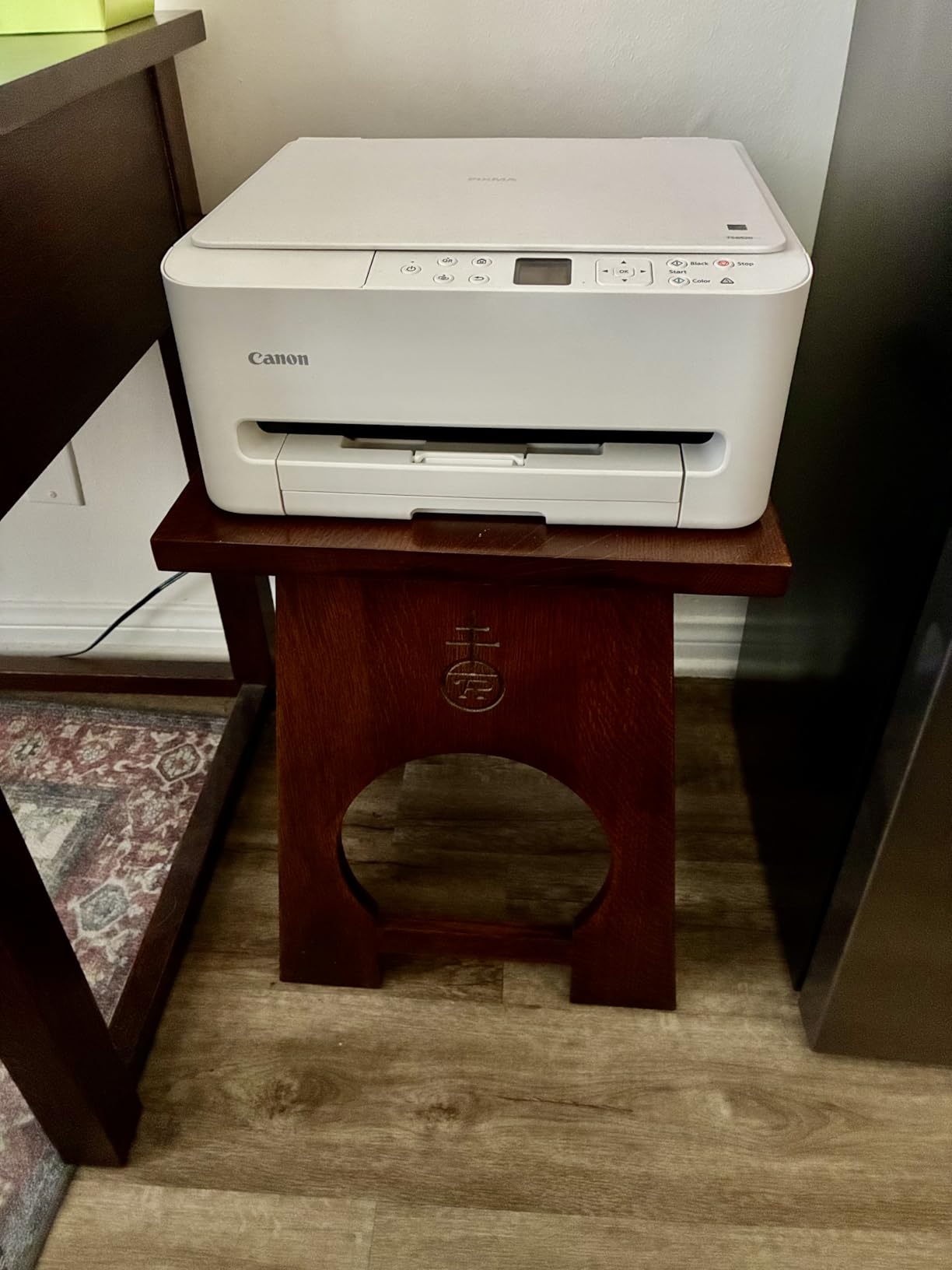
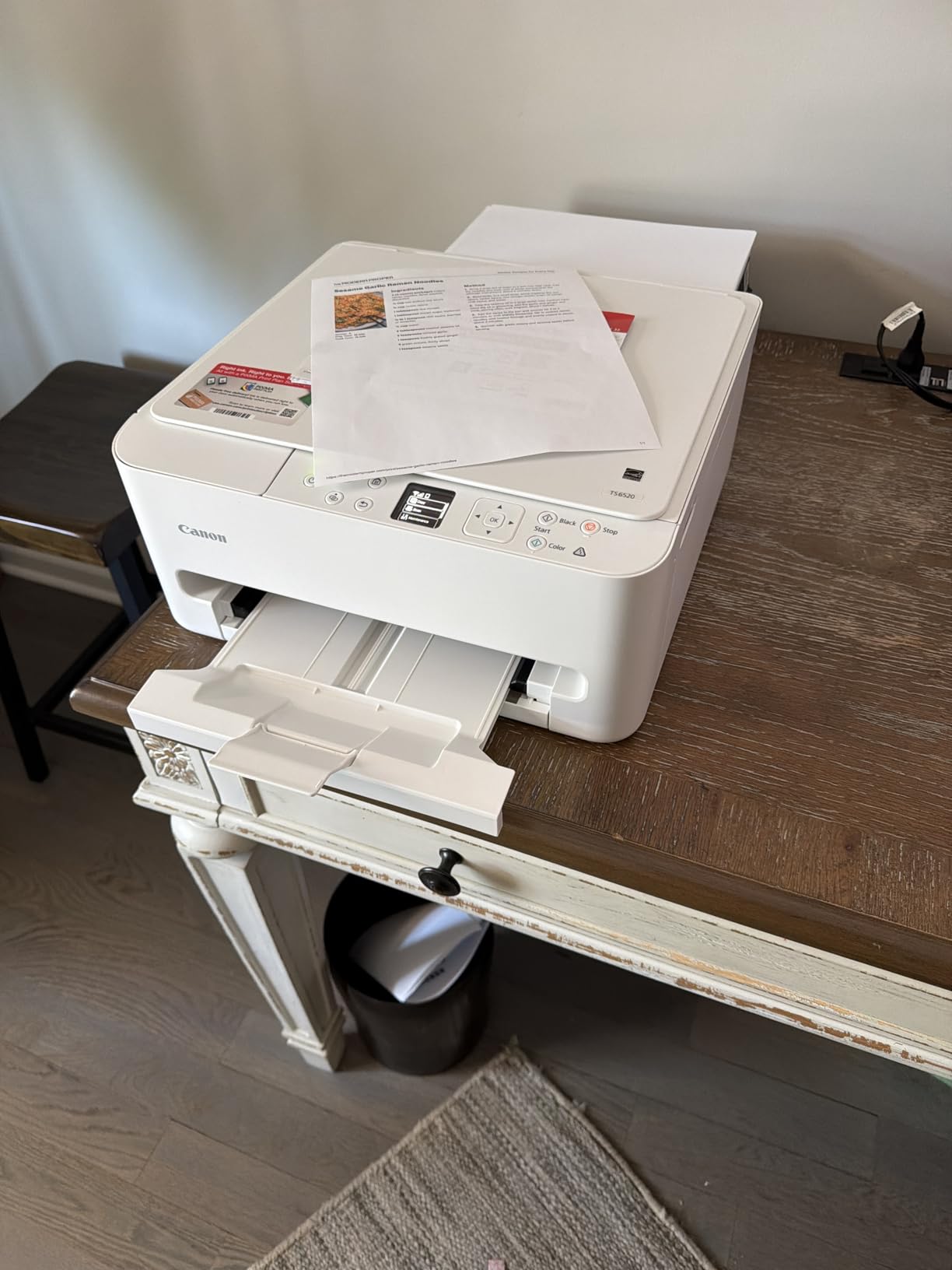
The TS6520 is the printer to buy if you are printing labels a few times a month, want color, and have no interest in managing ink. It sits at the entry level of this roundup and still gives you automatic duplex and full color output, which is a combination most people assume costs more than it does.
Owners describe this as a dependable, no-fuss printer that just works, with easy setup, clean duplex output, and no jams. Seventy percent of reviews are five-star, which points to strong satisfaction for a device this simple. For label sheets specifically, the borderless support up to 8.5 x 11 inches means you can print full-sheet designs that reach the edge of the label.
What the two-cartridge hybrid system costs you
Instead of separate black, cyan, magenta, and yellow, this machine uses a pigment black tank and a shared color tank. That simplifies setup and lowers the entry cost, but it means the first color to run out takes all three colors with it. Print a batch of blue and orange labels and you will be replacing the color cartridge for both.
The resolution ceiling of 1200 x 1200 dpi on photos is well below the 4800 x 1200 dpi the tank-based Canons manage. For a flat color logo on a matte label, that difference is invisible. For a photo-quality product sticker, it is visible, and you should be looking at the MegaTank instead.
Duplex, Wi-Fi and the small screen
Automatic duplex is a real saving on label jobs where the return address and the packing slip go on the same sheet. Connectivity covers dual-band Wi-Fi, AirPrint, Mopria, and Canon PRINT, and multiple owners report no jamming or recurring error codes.
The most cited drawback after price is the 1.42-inch monochrome OLED display, which several users find too small to use comfortably. It shows ink levels and status, and that is about all it does.
Who should skip it
If you print labels in volume, the two-cartridge hybrid layout and the short-lived starter ink will frustrate you quickly. Several owners also note that replacement ink is harder to source, and Canon bloatware prompts annoy others. If you want the cheapest per-label cost rather than the cheapest printer, the refillable tank models are the smarter buy.
6. Brother HL-L3230CDW – Color Laser Output Without the Inkjet Running Cost
Brother HL-L3230CDW Compact Digital Color Printer Providing Laser Printer Quality Results with Wireless Printing and Duplex Printing, Amazon Dash Replenishment Ready, White
Color laser
25 ppm in black and color
Automatic duplex
250-sheet tray
+ Pros
- Laser color output at a much lower cost per sheet than inkjet
- Automatic duplex consistently praised
- 250-sheet tray plus manual feed slot
- Quiet enough for bedroom use
- Reliable Wi-Fi Ethernet and Wi-Fi Direct networking
– Cons
- Very large at roughly 40 pounds
- Manual feed holds one sheet and cannot scale 4×6 label sheets
- Color output is slow between small batches
- 600 x 600 dpi color resolution
- Toner locked to Brother Genuine cartridges
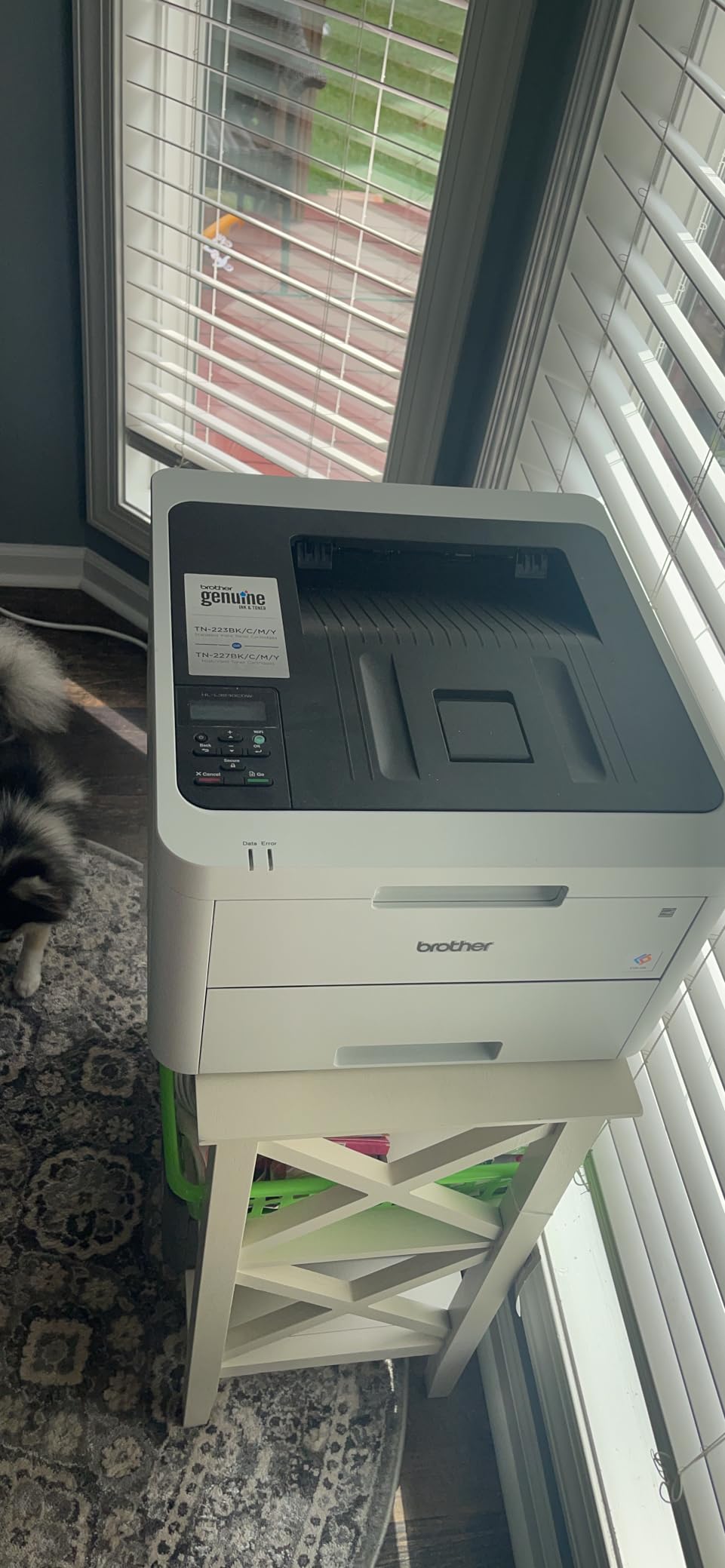
This is the only true color laser in the roundup, and for a specific type of buyer it is the correct answer. If you print colored labels in repeated batches, a small business, or an office, color laser toner is a fraction of the cost of inkjet ink over thousands of sheets. Owners repeatedly praise the color laser quality, quiet operation, reliable networking, and low toner costs, with a 9 percent one-star share, among the lowest in this set.
The speed rating is 25 pages per minute in both black and color, and automatic duplex is the feature owners praise most.
The manual feed limitation that decides this for label work
Here is the honest problem, and it appears in the reviews: the manual feed slot holds one sheet at a time and cannot scale 4×6 label sheets. One reviewer reports 4×6 sticker sheets printing as though they were letter paper, with the label areas landing in the wrong place. If your plan is to print 4×6 stickers through the manual feed, this machine will disappoint you.
Full 8.5 x 11 label sheets through the main 250-sheet tray are a different story. That is the path built for standard media, and coated label media belongs there.
Color quality, resolution and size
Color laser resolution is 600 x 600 dpi. That is sharp for bars, blocks of text, and solid brand colors, and soft for fine photographic detail. If your label design is a logo plus text, that is fine. If it is a product photo, an inkjet will look better and this machine will not.
At roughly 40 pounds, it is far heavier than the compact monochrome lasers in this roundup and wants a dedicated surface. Color printing is also slow, with repeated warm-up cycles of 20 to 30 seconds between small batches, which adds up when you are printing a single sheet at a time.

Who should skip it
Skip it if you need a small footprint, if you need photo-quality color, or if you plan to run 4×6 sheets through the manual feed. It also locks toner to Brother Genuine TN223 and TN227 cartridges, and some users report the printer refusing jobs when toner is flagged low, which is exactly the wrong behavior for a shipping deadline.
7. HP LaserJet Pro MFP 3101fdw – All-in-One Laser for Business Label Workflows
HP LaserJet Pro MFP 3101fdw Wireless Black & White All-in-One Laser Printer, Scanner, Copier, Fax, Best-for-Office (3G628F)
Monochrome laser 4-in-1
35 ppm
Automatic duplex
250-sheet tray with ADF
+ Pros
- True print scan copy and fax in one machine
- Fast 35 ppm with automatic duplex
- Setup widely reported as very easy
- Durable under heavy duty printing
- Intelligent Wi-Fi plus Ethernet Bluetooth and AirPrint
– Cons
- Monochrome only with no color
- No duplex scanning through the auto document feeder
- Some wireless setup and network scanning issues
- Bulky footprint
- Cartridge restricted to original HP chips
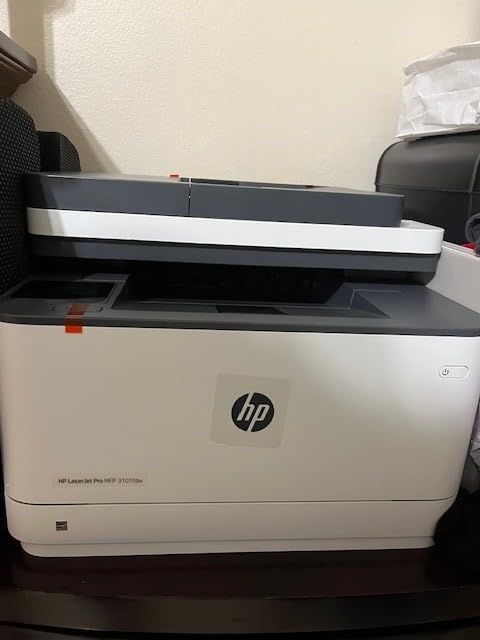
The LaserJet Pro 3101fdw targets a small team that needs one machine to do everything: print, scan, copy, and fax. The listed print media explicitly includes labels alongside plain paper and glossy photo paper, so label support is documented rather than assumed. At 35 pages per minute with automatic duplex, batch label runs are quick.
Setup is one of the strongest points in the reviews. Several non-technical owners report running it within five minutes, and one law student printed 20k+ pages in nine months without a jam, which is the kind of durability record you want from a machine that will be printing unattended.
Four functions, one footprint
The auto document feeder handles multi-page scanning and fax jobs, and the flatbed covers anything the feeder cannot. One limitation to know before you buy: the feeder does not scan double-sided originals, so duplex documents need manual flipping. That is a small annoyance for a machine whose entire pitch is doing more in one box.
Connectivity is thorough. Intelligent Wi-Fi, Ethernet, Bluetooth, AirPrint, and mobile printing are all present, plus HP Wolf Pro Security with customizable settings, which matters if the printer sits on a shared network.
Media handling and paper size range
The 250-sheet tray handles standard work, and the maximum media size runs to letter with a paper size range that includes several smaller formats down to 3.54 x 5.12 inches. For label sheets you will be feeding full 8.5 x 11 media through the main tray, so the smaller formats are a bonus rather than a requirement.
As with every laser here, set the media type to labels or cardstock in the driver. The paper type setting controls the fuser, and it is what makes toner bond to coated media instead of sitting loose on top.
Where it falls down
Monochrome only, so colored label designs are out of the question. The cartridge is restricted to original HP chips or circuitry, which locks out third-party toner, and some users report unreliable wireless setup and flaky network scanning. A minority of buyers report fuzzy, uneven print quality and premature hardware failure, though the one-star share of 11 percent suggests those are not the common experience.
8. Canon MegaTank G3290 – Refillable Ink Economics With a Touchscreen
Canon Megatank G3290 All-in-One Wireless Printer
Refillable ink tank color inkjet
Automatic duplex
11 ppm black / 6 ppm color
2.7-inch color touchscreen
+ Pros
- Refillable GI-21 tanks with up to 2 years of ink included
- Automatic duplex works reliably
- 2.7-inch tilting color touchscreen
- Visible ink level windows on all four tanks
- Print media explicitly includes labels and cardstock
– Cons
- No document feeder for multi-page copies
- Top tray holds about 50 sheets only
- Noisy with frequent paper type prompts
- Head cleaning cycle after prints adds time
- Limited color adjustment in Canon apps
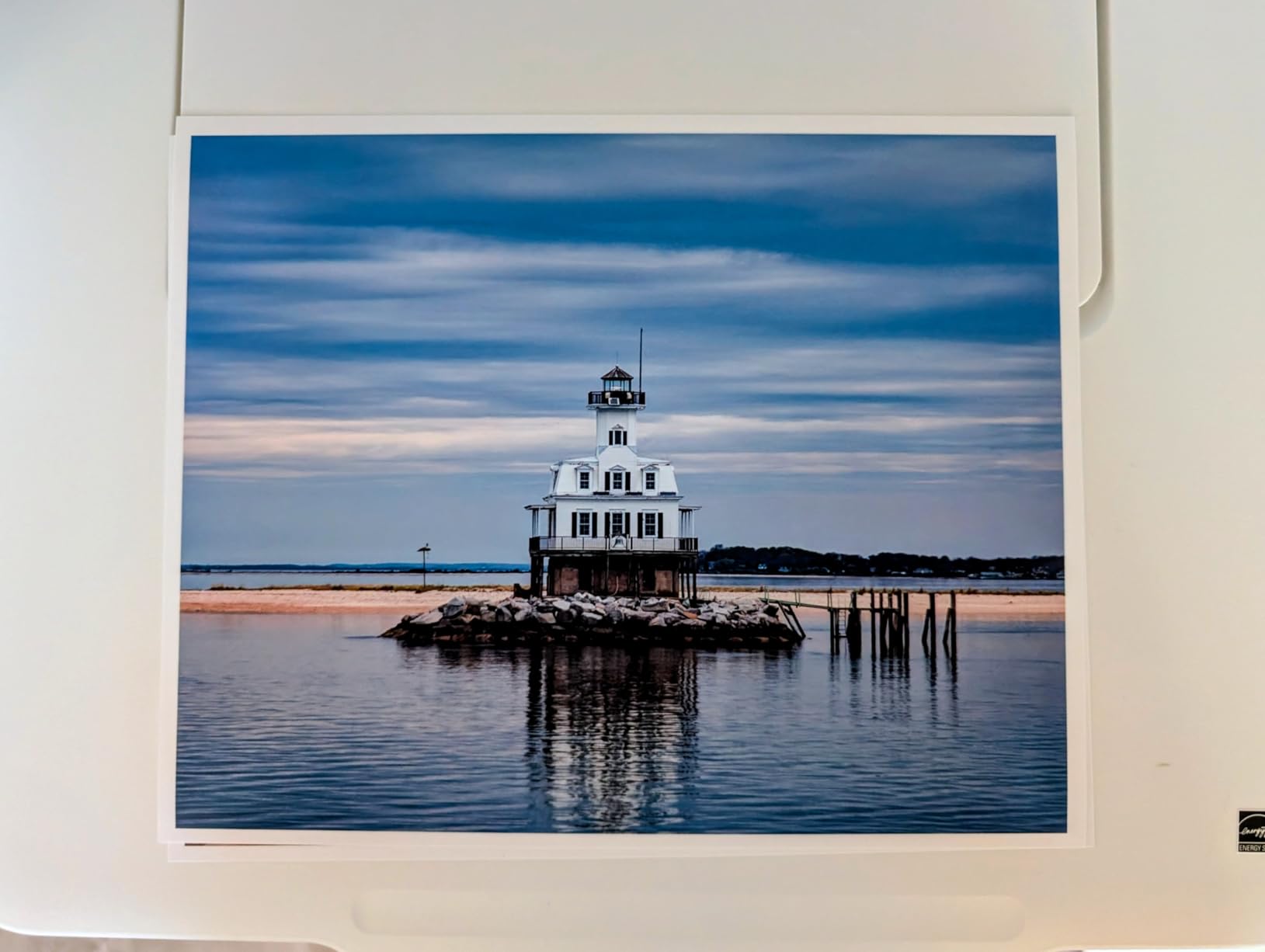
The MegaTank G3290 is the inkjet for someone who prints a lot of labels and thinks about ink the way a business owner does. Owners overwhelmingly praise the ink economics, with several reporting that the tanks barely move after dozens of photo prints. One ink set is rated for up to 6,000 black-and-white pages or 7,700 color pages, and up to two years of ink is included in the box.
The 2.7-inch color touchscreen tilts for viewing, which makes on-device setup straightforward, and visible ink level windows on all four tanks mean you refill by sight rather than by guesswork. The listed print media includes card stock, envelopes, glossy photo paper, high-resolution paper, and labels, so the driver already knows what you are feeding it.
Cost per label and media range
Refillable GI-21 bottles are the economic argument. A bottle that yields several thousand pages divides out to a per-label cost a cartridge inkjet cannot match, and the pigment-based black is a better choice than dye black for labels that will be handled, since pigment resists smudging and fading.
The paper size support is among the widest in this roundup. It covers square formats, 4×6, 5×7, 7×10, 8×10, letter, A4, A5, A6, B5, legal, number 10 envelopes, card size, and custom sizes from 2.1 x 3.5 inches up to 8.5 x 47.2 inches. For label work, that custom range is genuinely useful because it covers unusual die-cut label shapes.
The head cleaning habit you need to build
Here is the thing to plan around: this printer runs a head cleaning cycle after individual prints, and one owner measured around 10 minutes for a full-color borderless sheet. If you plan to print single sheets with long gaps between them, that waiting time is real. Batch your label jobs instead of dribbling them out one at a time.
There is no document feeder, so multi-page copies must be loaded flat on the scanner. The top tray holds only about 50 sheets, and the machine is noisy, with repeated beeping and prompts asking you to confirm the paper type on both the printer and in the app.
Who should skip it
Skip it if you copy multi-page documents often, because there is no feeder, and if you print single sheets sporadically, because of the cleaning cycle. Canon apps also offer very limited color and contrast adjustment, which frustrates anyone designing their own labels. A one-star review documents long setup struggles, muddy black output on glossy media, and the same limited color controls.
9. Epson EcoTank ET-4850 – Tank Ink Economics With a Document Feeder
Epson EcoTank ET-4850 Wireless Color All-in-One Supertank Printer – White
Refillable ink tank color inkjet
Automatic duplex
15.5 ppm black / 8.5 ppm color
250-sheet capacity
+ Pros
- Refillable tanks with up to two years of ink included
- Color-specific nozzles make a wrong fill impossible
- Print copy scan fax plus auto document feeder
- Automatic duplex and Ethernet networking
- Wide paper size support with custom sizes
– Cons
- Large and nearly 20 inches deep
- Small fixed touchscreen mounted low on the front
- Occasional offline and Wi-Fi discovery problems
- Three competing setup guides
- ADF reported to handle one sheet at a time
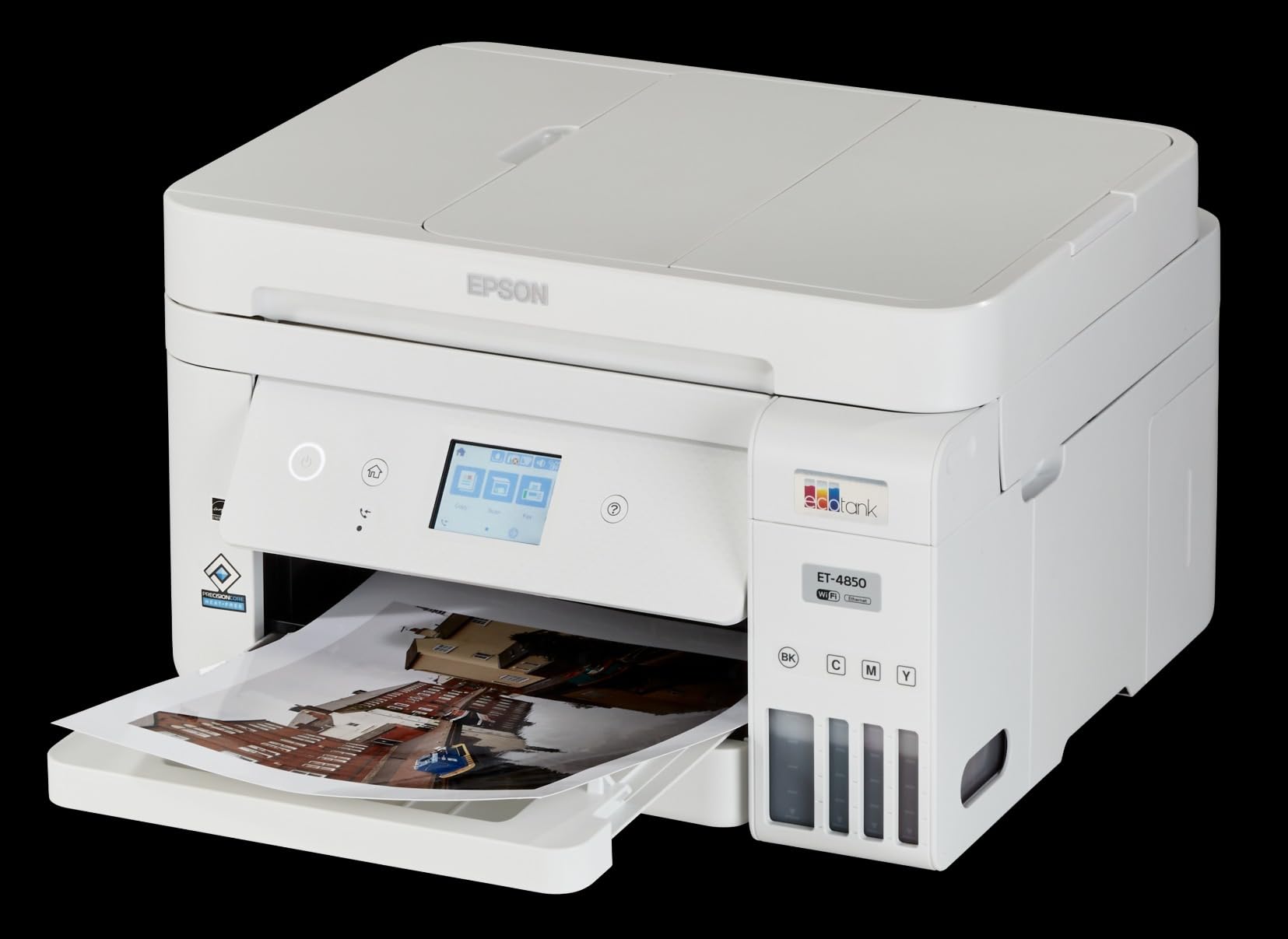
The ET-4850 solves the main objection to tank printers, which is that they are usually scan-and-print devices with no feeder and no fax. This one is a full all-in-one: print, copy, scan, fax, and a 20-sheet automatic document feeder, with a 250-sheet capacity, automatic duplex, and Ethernet for reliable wired networking.
Owners report tanks staying near full after hundreds of pages, and several switched from a cartridge printer specifically to escape cartridge economics. Print quality is described as good and sharp for documents and respectable for photos on decent paper.
Ink loading you cannot get wrong
The color-specific nozzle design means you physically cannot fill a tank incorrectly or spill ink while topping up, which removes the usual anxiety about refillable systems. The 502 bottles in the box, roughly 127 mL of black and 70 mL each of cyan, magenta, and yellow, cover about two years of typical use.
At 15.5 pages per minute black and 8.5 color with a 5000-page monthly duty cycle, this is also quicker than the ET-2800, which matters if your label work comes in volume.
Size, screen and connectivity friction
At nearly 20 inches deep, this is a large machine. The touchscreen is small and fixed low on the front panel, so you either bend down or put the printer at eye height, and both are awkward on a normal desk.
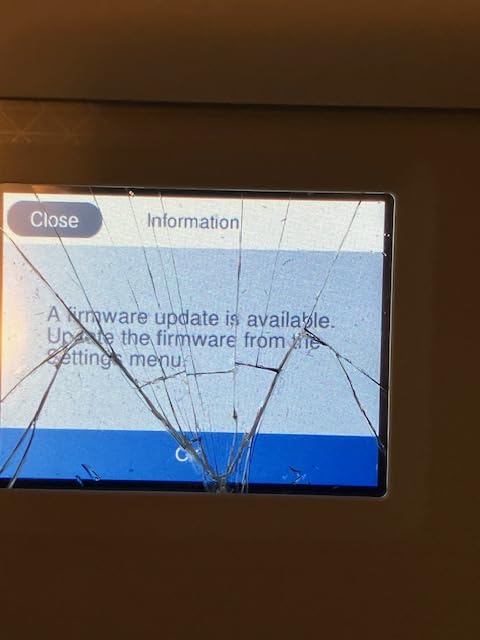
Connectivity is Ethernet plus Wi-Fi, and some users report the printer going offline repeatedly and struggling with Wi-Fi discovery, including AirPrint. Setup also involves three competing guides, which reviewers single out as confusing. The 4×6, 5×7, 8×10, letter, legal, and custom paper sizes give you plenty of room for label work.
Who should skip it
Skip it if desk space is tight, if the machine has to live on a low table, or if you need it to be set up in under ten minutes with no phone app. Some users also report the feeder handling only one sheet at a time, and duplex prints coming out slightly lighter than single-sided ones.
One habit worth stealing from the long-term owners: setting up a small monthly print job keeps the heads moist and is the thing the most satisfied users credit for their printer still working well a year later.
10. HP LaserJet Pro 4001n – Fastest Monochrome Output in the Roundup
HP LaserJet Pro 4001n Black & White Printer, Print, Fast speeds, Easy Setup, Mobile Printing, Advanced Security, USB, Ethernet Connection, Best-for-Office
Monochrome laser print only
Up to 42 ppm
350-sheet capacity
6.1 second first page
+ Pros
- Highest rated in the roundup with 75 percent five-star reviews
- Very fast output with a 6.1 second first page
- Large 350-sheet paper capacity
- Quiet operation and clear black-and-white output
- Print media explicitly includes labels
– Cons
- No built-in wireless with Ethernet and USB only
- Print-only with no scanner copier or fax
- Manual duplex printing
- Shuts off completely overnight
The 4001n is the speed and reliability end of the roundup. It carries the highest rating in this set with 75 percent five-star reviews and the smallest one-star share, and reviewers describe it as dependable, reliable, and doing one thing well. The listed print media includes labels, so it is a documented fit for the job.
With a 350-sheet paper capacity and a 6.1 second first page, this is the machine for a business printing label batches in volume. It is rated for teams of up to ten users, and HP Wolf Pro Security comes built in.
Why speed matters for a label room
Label printing is rarely a single sheet. It is a reorder of return address labels, a batch of shipping labels before a carrier pickup, and a set of product labels for a new listing. When the first page lands in just over six seconds and the machine holds 350 sheets, none of those jobs needs supervision.
Output is described as clear and sharp black-and-white, and quiet enough to sit in an office without becoming the thing everyone notices.
What the stripped-down design costs you
This is a print-only machine. No scanner, no copier, no fax, and manual duplex, so two-sided jobs need manual paper handling. The 4001dw is the wireless sibling, since this model is Ethernet and USB only, with no built-in wireless.
Two annoyances show up repeatedly in the reviews. The printer shuts off completely overnight and must be manually powered back on, and the tray size markings are miscalibrated, with 8×11 paper measured as 14, so you have to learn the tray by feel. Toner is locked to original HP chips, and one reviewer reports a hardware failure alongside poor support.
Who should skip it
Skip it if the printer needs to be shared wirelessly without running a cable, and skip it if you need scanning. The reviewer count is the smallest in this roundup, so treat the rating as strong but less battle-tested than the picks above it. If you want the same speed with wireless built in, the HL-L2460DW covers that at 36 ppm.
How to Choose a Printer That Handles Label Sheets Without Waste
Inkjet vs laser for labels, decided honestly
If you only need black text on a white label, laser wins. Toner is fused to the surface, so it cannot smear, it cannot bleed into the label fibers, and it survives being handled the second it comes out of the tray. Laser is also faster and cheaper per sheet once you are past a few hundred sheets a month.
If you need color, a photo, a gradient, or a fine logo detail, inkjet wins and the gap is wide. Color laser at 600 x 600 dpi will render a logo cleanly but will not reproduce a photograph. Inkjet’s weakness is the opposite of laser’s: dye ink sits on the surface, so it smudges while wet, and it runs if the label gets moisture.
People making candles, cosmetics, or homebrew labels describe exactly that failure, and the fix is not a better printer. It is a waterproof vinyl label media plus a laminate or top coat, or a pigment ink printer rather than a dye one. Check the ink type before you buy, not after your first batch smears.
Matching the printer to the Avery SKU number
This is the mistake that costs people a full pack of labels. Avery uses a letter in the SKU number to indicate printer type, and the letter is not decorative.
L-series numbers, like L7160, L8160, and L7169, are engineered for laser printers. J-series numbers, like J5160, J8160, and J8169, are engineered for inkjets. A J-series sheet in a laser printer exposes the label to heat with no coating designed for it, and an L-series sheet in an inkjet has no surface that will hold water-based ink. On the r/printers forum, users confirm 4×6 shipping labels work on a laser with L7169 and on an inkjet with J8169, which is the same label size with two different SKUs.
OnlineLabels staff, including Jessica S., also note that many popular HP, Epson, and Canon models handle their materials well, and they recommend checking the printable area and non-printable margins before committing. If you are unsure about compatibility, pre-printed label sheets exist precisely for this, letting you fill in the blank portion and skip the guesswork entirely.
Why Avery labels do not print properly, in five checks
Check one: the SKU letter. L for laser, J for inkjet. This alone resolves a large share of failed label jobs.
Check two: the media type in the driver. Set it to labels, cardstock, or glossy rather than plain paper. A laser told it is printing on copy paper runs a cooler fuser, and toner sits loose instead of bonding, which is the peeling-ink complaint a forum user reported with a Canon laser on label stock.
Check three: non-printable margins. Every printer has an unprintable border, commonly a quarter inch or more. If your design assumes edge-to-edge coverage, it will be cropped or shifted onto the gap. This is the single most common cause of misaligned label output, and it is why alignment problems persist after everything else is fixed.
Check four: sheet alignment in the tray. Push the sheet until the guide clicks against it, and do not over-adjust the guides or you will reintroduce skew.
Check five: drying time. Inkjet ink on a glossy label needs a moment before you peel. Peeling wet ink off a label is the fastest way to produce a sheet of half-printed stickers, and glossy media is also where inkjet bleed shows up first.
Ink and toner cost per label, without the marketing
The comparison is simple enough to do in your head. A refillable tank system divides one bottle across thousands of pages, so a full sheet of 30 labels costs a fraction of what the same sheet costs from a cartridge-based inkjet. Cartridge inkjet is the most expensive way to print color labels. Laser toner sits in between, cheaper than ink for volume and more expensive than a refillable tank for very small runs.
Two things distort that math. First, a hybrid two-cartridge ink system like the TS6520 counts as one cartridge for all three colors, so you replace color when any one color runs out. Second, high-yield cartridges shift the cost again, which is why tank systems usually win for anyone printing more than a few sheets a month.
When a dedicated thermal label printer is the right answer
If you are printing shipping labels by the hundred every week, a dedicated thermal machine is faster, costs nothing to run because there is no ink, and produces output that is smudge-proof and water-resistant by nature. Thermal is the wrong tool only when you need full color on a flat sheet, or when your label design has to be a standard Avery layout that a customer can peel and apply from a sheet.
Our thermal label printer guide covers that workflow, and our general label printer roundup compares both families if you are still deciding.
Frequently Asked Questions
Which printer is best for label printing?
A sheet-fed color inkjet is best for most people, because it handles full-color logos and product labels at a low cost per sheet. A monochrome laser is best for high-volume black-and-white work like shipping and UPC labels, because toner does not smudge. A dedicated thermal printer is best for continuous roll shipping labels, not for peel-and-stick sheets.
Is laser or inkjet better for labels?
Laser is better for black-and-white labels printed in volume: toner is fused to the label, so it cannot smear or bleed, and pages per minute are higher. Inkjet is better for color and photo-quality labels, and refillable tank models cost far less per sheet than cartridge inkjets. Just match the media to the machine, L-series for laser and J-series for inkjet.
Can I use Avery inkjet labels in a laser printer?
No. Avery encodes printer type in the SKU number: J-series such as J5160, J8160, and J8169 are made for inkjets, while L-series such as L7160, L8160, and L7169 are made for lasers. Running the wrong sheet wastes the whole pack, so check the letter in the product number before you print.
Why do Avery labels not print properly?
The usual causes are the wrong SKU letter for your printer type, the media type in the driver still set to plain paper, and the design extending into the non-printable margin. For laser printers, also set the paper type to labels or cardstock so the fuser runs hot enough for toner to bond instead of peeling off.
Do thermal label printers print Avery label sheets?
No. Thermal label printers take continuous rolls through a cutter, not flat 8.5 x 11 sheets of peel-and-stick media, so a standard Avery sheet cannot be fed through one. If you need a specific sheet layout, use a sheet-fed inkjet or laser printer and print the sheet whole.
The Best Printer for Label Sheets by Use Case
If you want the lowest cost per label and full color, the Epson EcoTank ET-2800 is the pick, and it is our editor’s choice for a reason. The refillable tanks are what make color labeling affordable at home or in a small shop, and its 10k+ owner reviews are the deepest in this roundup.
If you print black-and-white labels in batches, the Brother DCP-L2640DW is faster and lists labels as supported media. For a print-only station with wireless, the Brother HL-L2460DW does the same job in a smaller footprint. For volume without a scanner, the HP LaserJet Pro 4001n is the fastest machine here.
If you need color in bulk without inkjet running costs, the Brother HL-L3230CDW is the only true color laser here, with the important limitation that its manual feed cannot scale 4×6 sheets. For label work that also needs scanning and fax, the Canon PIXMA TR8620a or the HP LaserJet Pro MFP 3101fdw cover both. For the lowest ink cost with a touchscreen and no feeder, the Canon MegaTank G3290 wins, provided you batch your jobs rather than printing one sheet at a time.
Whichever you choose, set the media type to labels before your first sheet, check the SKU letter against your printer type, and keep your design inside the printable area. Those three habits prevent almost every labeling failure we saw, and they will keep the best printers for label sheets working for you long after the novelty fades.
Leave a Reply