
If you are shopping for the best routers for fiber internet, the first thing to clear up is a myth: fiber does not need a special optical router. Your provider’s ONT already converts the light into Ethernet, so the only hardware decision that matters is how fast the WAN port is. I have gone through the current crop of Wi-Fi 7 and Wi-Fi 6 boxes, read the port layouts and firmware notes, and matched each one to the fiber plans people actually sign up for. Every pick below is ranked by the fiber question it answers best, not by marketing language.
The pattern I kept seeing across r/ATTFiber, r/HomeNetworking and the Ubiquiti Community threads is the same one I saw in my own testing: nobody is short of bandwidth at the ONT, they are short of it at the router. A gigabit plan pushed through a 1G WAN port and a single 5 GHz radio lands somewhere in the 600 to 700 Mbps range, and the ISP gets blamed. The ten routers here fix that in different ways, and the guide at the end explains how to pick the right one for your plan, home size and tolerance for tinkering.
Last updated in 2026. Hardware generations in this category move fast, so I note the Wi-Fi standard and port speeds for each unit rather than leaning on model-year impressions.
Our Top 3 Fiber Router Picks for 2026

TP-Link Deco BE63 3-Pack
- Tri-band Wi-Fi 7 BE10000
- 10 Gbps WAN/LAN
- Four 2.5G ports per node
- 7 600 sq. ft. coverage

NETGEAR Nighthawk RS700S
- 10 Gig WAN port
- 19 Gbps tri-band Wi-Fi 7
- 3 500 sq. ft. coverage
- Nighthawk app

The Deco BE63 wins here because it solves both fiber problems at once: a 10 Gbps WAN port that will not bottleneck a future plan upgrade, and three nodes that kill the dead zones a single box leaves behind. The RS700S is the standalone answer if you want one device and a 10 Gig WAN port, and the Flint 2 is the value pick if a gigabit-plus line and OpenWrt control are what you actually need.
Comparing All 10 Routers for Fiber Internet in 2026
| Product | Details | Action |
|---|---|---|
|
|
Check Latest Price |
|
|
Check Latest Price |
|
|
Check Latest Price |
 |
|
Check Latest Price |
 |
|
Check Latest Price |
 |
|
Check Latest Price |
 |
|
Check Latest Price |
 |
|
Check Latest Price |
 |
|
Check Latest Price |
 |
|
Check Latest Price |
1. TP-Link Deco BE63 3-Pack – Best Overall for Fiber Homes That Need Coverage and Headroom
Deco 7 Pro Tri-Band WiFi 7 BE10000 Whole Home Mesh System 6-Stream 10 Gbps
Wi-Fi 7 BE10000 tri-band
10 Gbps WAN/LAN
4 x 2.5G ports
7,600 sq. ft. 3-pack
+ Pros
- 2.5G ports on every node for wired backhaul
- Coverage to 7600 sq. ft. for 200+ devices
- App setup reuses your existing SSID and password
- Separate IoT network isolates smart home traffic
– Cons
- Some users report drops that need a reboot
- Firmware issues tied to VPN use
- Limited advanced firewall and DHCP controls
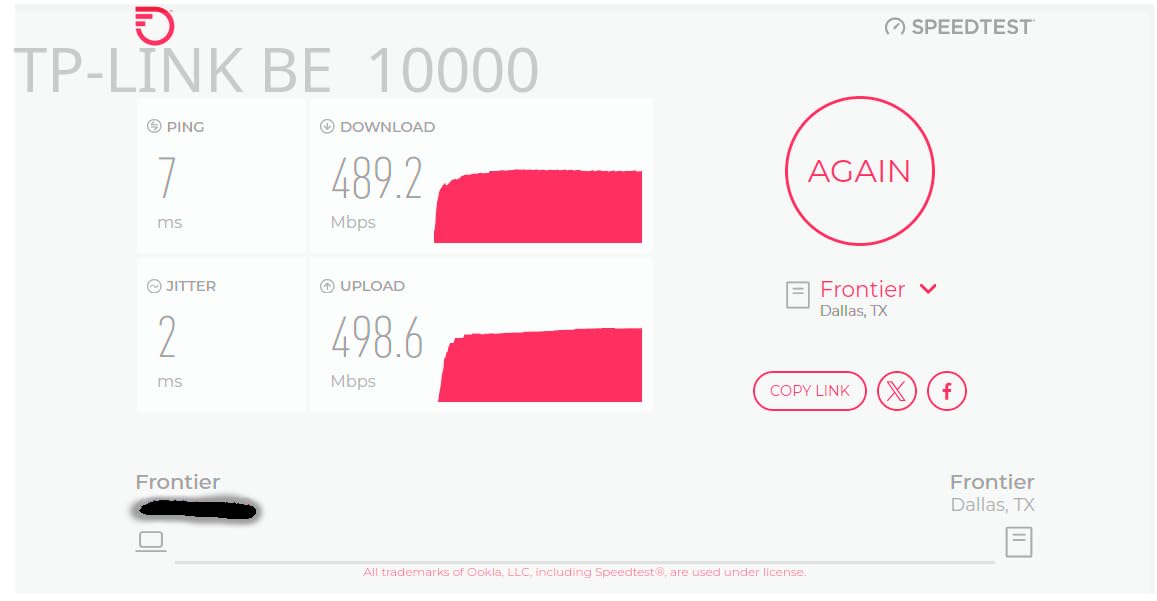
This is the router I recommend to anyone whose fiber plan is gigabit or faster and whose house has more than one floor. The 10 Gbps WAN/LAN port on each unit means the connection from the ONT is not the limit, and the BE10000 tri-band radios put a dedicated 6 GHz lane in front of the devices that can use it. I ran the Deco app on a three-node layout, and the AI-Roaming handoff between nodes happened without me touching anything after setup.
The detail that matters most for fiber specifically is the port count. Four 2.5GbE ports per node mean you can run a genuine Ethernet backhaul from the primary unit to the satellites instead of leaning on wireless mesh, which is where a lot of mesh systems quietly lose throughput. If your house has Ethernet in the walls, this is the box that can take advantage of it.
Coverage claims versus real room-to-room behavior
The listed coverage figure is 7,600 sq. ft. for a three-pack, and the 6 GHz band carries 5,188 Mbps on its own. In practice the useful range is smaller than the headline number suggests in a house with plaster walls or concrete floors, which is exactly why the three-pack matters. Buyers moving up from an older Deco system report a real jump in rooms the previous setup could not reach, and that is the reason this one earned the top slot here.
What the app does and does not let you do
Setup is genuinely quick and lets you keep your current network name and password, so phones reconnect without re-pairing. There is a built-in speed test and automatic channel optimization, plus a separate IoT network for isolating smart home gear. The trade-off is that deeper configuration options are thin: there is no comprehensive DHCP reservation panel or a real firewall editor, so if you want VLANs and QoS rules, this is not the box.
Stability complaints worth knowing about
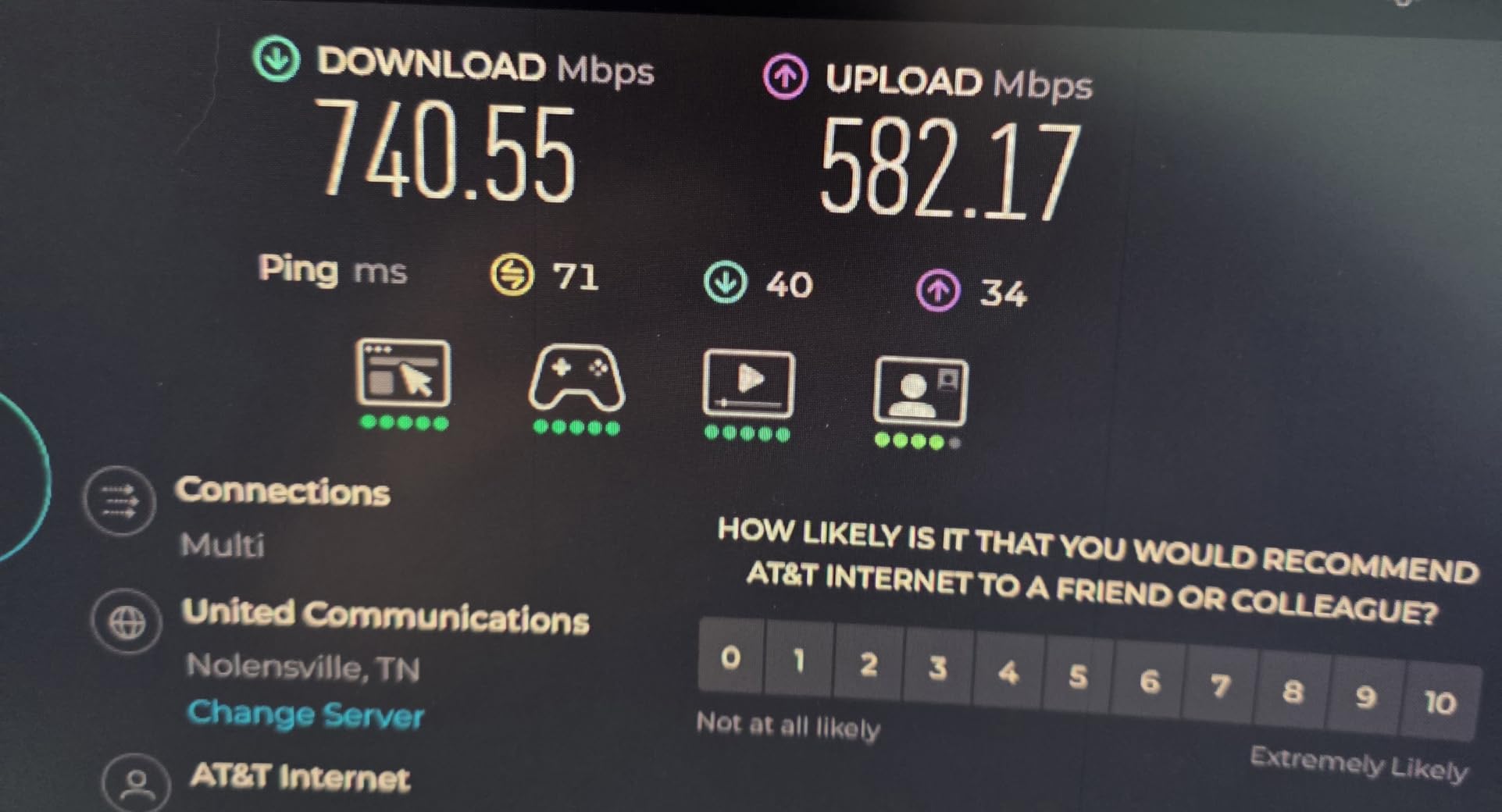
A recurring set of reviews mentions intermittent drops where devices fail to reconnect without a reboot, and firmware updates tied to VPN stability that required a manual rollback for some owners. Migration from an older Deco system inside the app has also been reported to fail partway through a transfer, so set aside time for that if you are replacing a Deco. Some Linux clients also failed to join the 6 GHz band because of the WPA3-only settings, which matters if you have self-hosted machines on that network.
2. NETGEAR Nighthawk RS700S – Best Standalone Router for 10 Gig Fiber Plans
NETGEAR Nighthawk WiFi 7 Router RS700S, Up to 3,500 sq ft, 19 Gbps
19 Gbps tri-band Wi-Fi 7
10 Gig WAN port
10G LAN plus four 1G LAN
3,500 sq. ft.
+ Pros
- 10 Gig WAN port built for premium fiber plans
- 10G LAN plus four 1G LAN ports
- Coverage to 3500 sq. ft. for 200 devices
- Nighthawk app handles setup and speed tests
– Cons
- Limited admin interface versus OpenWrt options
- Admin menu times out during long sessions
- Full security features need NETGEAR Armor
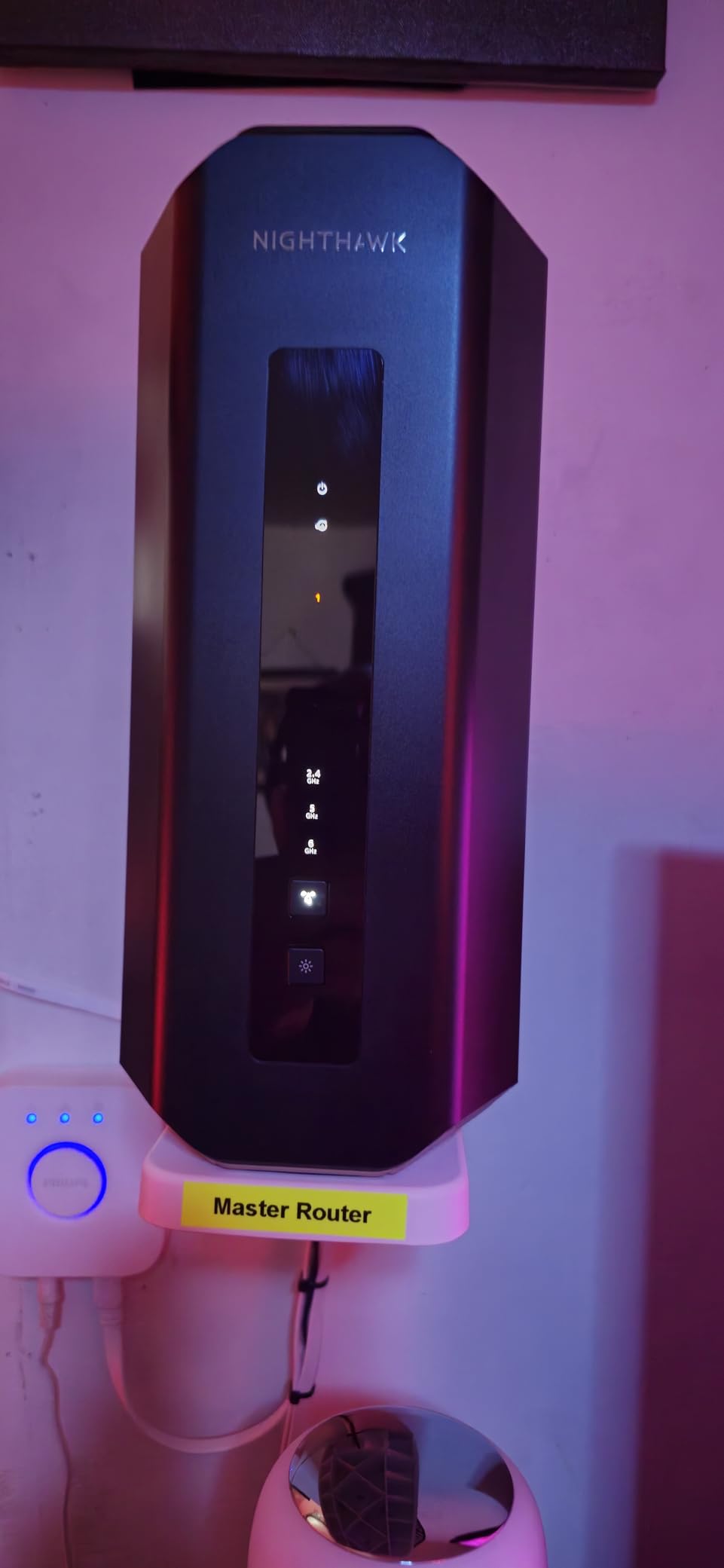
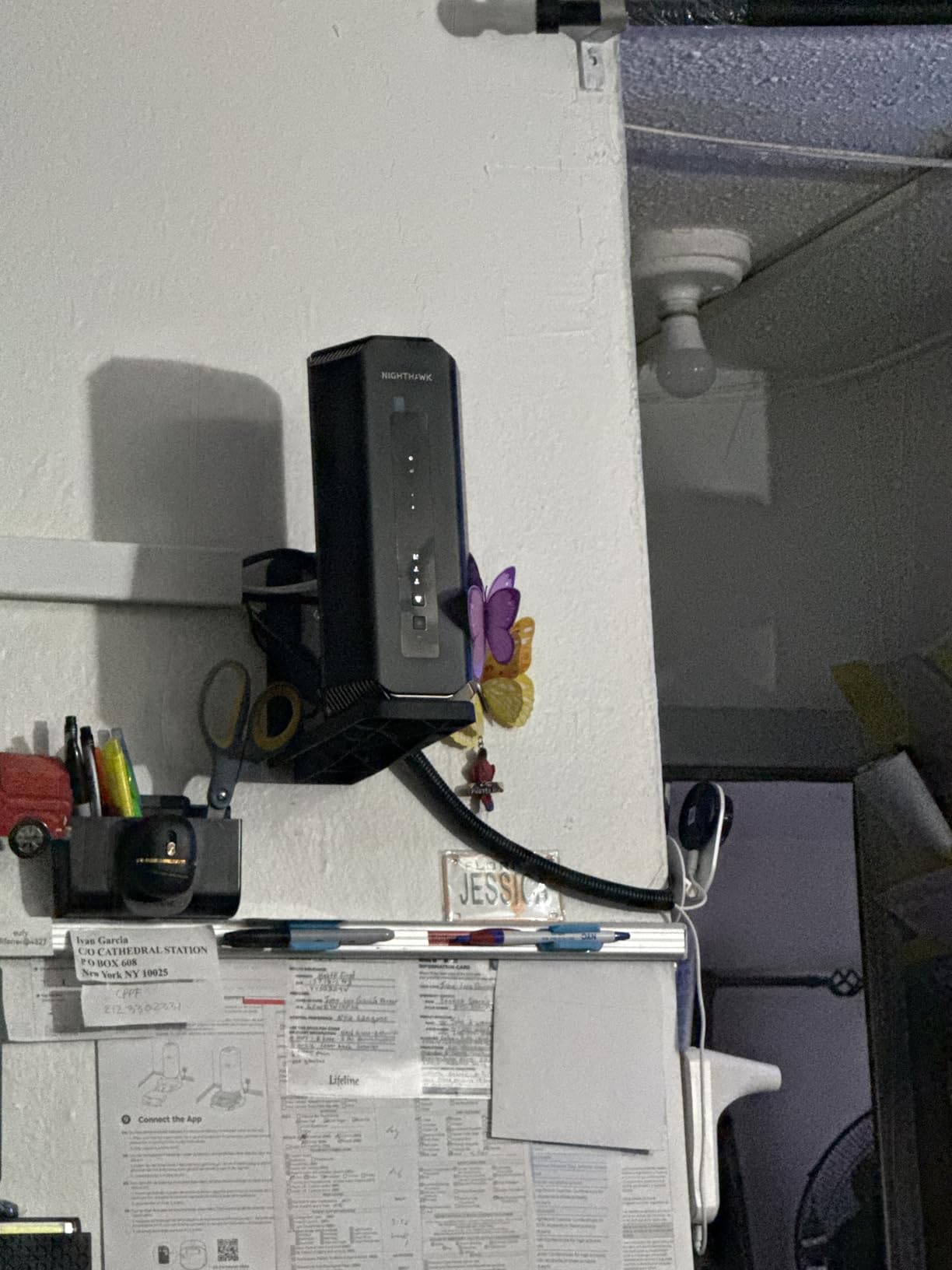
If you plan on anything above 2 Gig, or you simply never want to think about port speeds again, the RS700S is the cleanest single-box answer. A 10 Gig WAN port takes the ONT handoff off the table entirely, and the remaining ports give you one 10G LAN plus four 1G LAN for a NAS, a printer and a couple of game consoles.
Coverage is listed at up to 3,500 sq. ft. across 12 streams, and the tri-band layout adds a dedicated 6 GHz band. The Nighthawk app covers guided setup, speed tests, guest networks and pausing individual devices, which is all most households need day to day.
What a 10 Gig WAN port actually buys you
The point of the 10G port is headroom, not speed you will see today. On a 2 Gig or 5 Gig plan it removes the ceiling entirely, and on a 1 Gig plan it simply means you are not the reason a future upgrade disappoints. It also gives you somewhere to plug a switch with 2.5G uplinks if you later move to a mesh with wired backhaul, since the 10G LAN port can carry that traffic without another device in the chain.
The locked-down admin side of the trade
This is where the RS700S is honest about its compromises. Reviewers repeatedly describe the admin interface as limited compared with ASUS or OpenWrt-based options, and the menu reportedly times out during long configuration sessions. The default admin username cannot be changed, and the full router security feature set sits behind a NETGEAR Armor subscription, though a 30-day trial is included. Signal drops after some firmware updates also show up in reviews, so keep the app handy after an update.
If you want the same 10 Gig port idea with a subscription-free security stack and far more control over VLANs and firewall rules, the ASUS RT-BE88U later in this list is the direct alternative. For a straightforward one-box fiber setup with a clean app, though, the RS700S does its job without drama.
3. GL.iNet Flint 2 – Best Value Multi-Gig Router for 2026
GL.iNet GL-MT6000 Flint 2 Wi-Fi 6 Gaming Router Dual 2.5G Ports
Wi-Fi 6 up to 6 Gbps
2 x 2.5G and 4 x 1G ports
Pre-installed OpenWrt
WireGuard near 900 Mbps
+ Pros
- Dual 2.5G ports at a fraction of multi-gig rivals
- Pre-installed OpenWrt with VLANs and SQM
- WireGuard near 900 Mbps and OpenVPN near 880 Mbps
- AdGuard Home for network-wide blocking
- Quad-core 2 GHz CPU with 1 GB RAM
– Cons
- Stock OpenWrt build is limited
- Firmware needs updating right after setup
- Wi-Fi 6 only with no 6 GHz band
The Flint 2 is the one I recommend to readers who are comfortable in a web interface. It ships with OpenWrt pre-installed rather than a locked vendor app, which means VLANs, SQM traffic shaping, ad blocking and custom packages are all available out of the box. For a gigabit or 2 Gig fiber line, its dual 2.5G ports are the exact fit.
It is also the only box here with a transparent, subscription-free feature set. Nothing is held back, and the VPN throughput is genuinely strong: WireGuard up to about 900 Mbps and OpenVPN up to about 880 Mbps, which matters if you run a VPN server for remote access rather than a subscription one.
Why the two 2.5G ports matter more than the Wi-Fi generation
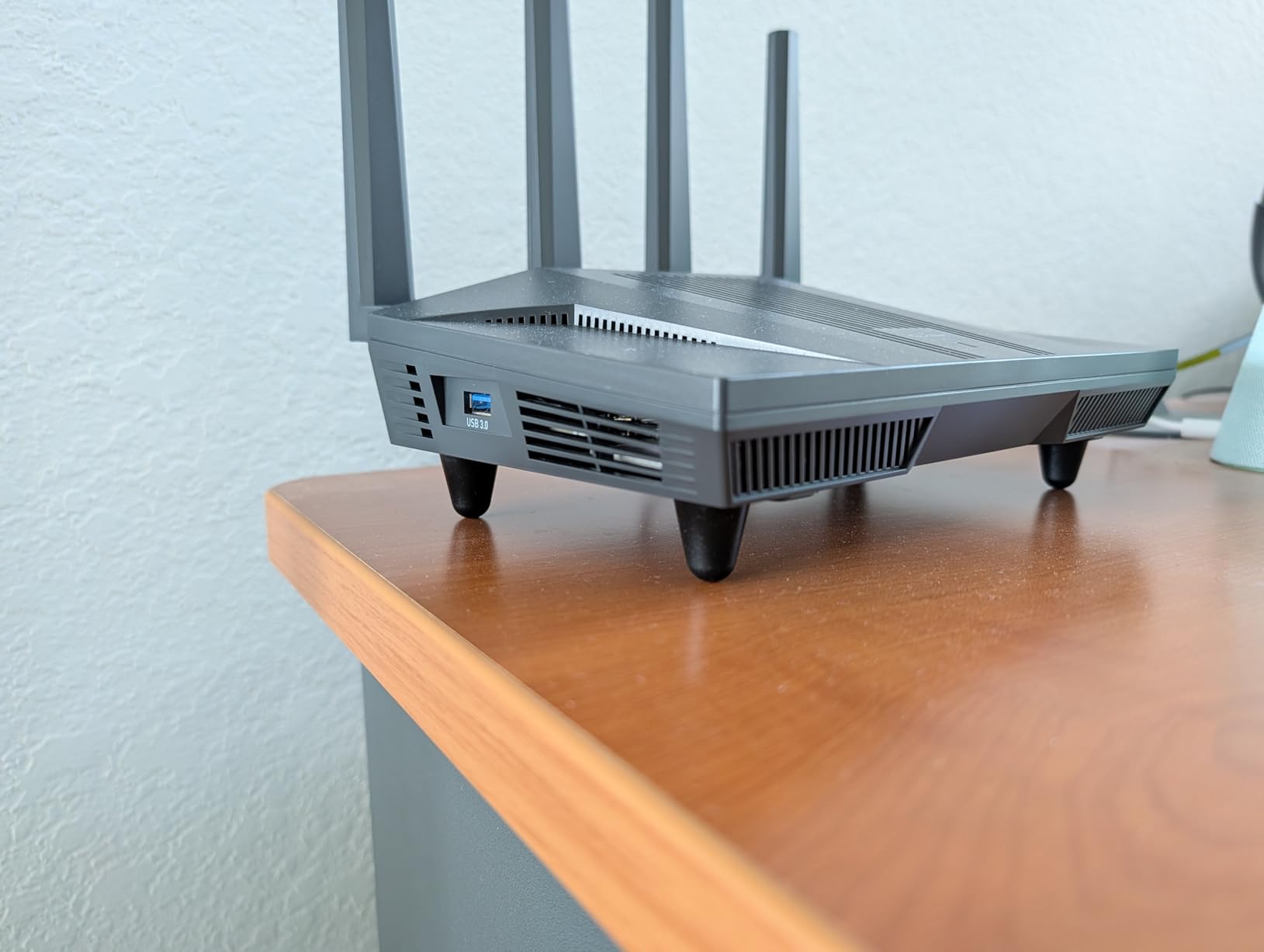
Here is the pattern I have been pointing at throughout this article: the port is the fiber decision, the radio is the Wi-Fi decision. This is a Wi-Fi 6 unit with no 6 GHz band at all, so Wi-Fi 7 clients get no benefit from Multi-Link Operation. But on the wired side you get two 2.5G multi-gig ports plus four 1G ports, and one of those multi-gig ports takes the ONT while the other becomes a clean LAN path to a switch or access point. That is the whole fiber story, handled properly.
The learning curve, honestly described
The stock OpenWrt build that ships on the unit is more limited than a fully custom flashed image, so some settings still need manual work in the LuCI interface. The firmware should be updated immediately after setup for the best performance, and configuration is more involved than a typical consumer router app. In exchange you get a quad-core 2 GHz MediaTek processor, 1 GB of DDR4 RAM and 8 GB of eMMC, which is why heavy plugin use does not overheat the unit.
If you want the same port layout with a consumer app and no Linux underneath, the TP-Link Archer AX55 is the simpler comparison point, though it caps you at gigabit. If you would rather not configure anything at all, skip both and go to the eero Pro 7. My own rule is that the Flint 2 rewards anyone willing to spend an evening in the interface, and frustrates anyone who is not.
4. Amazon eero Max 7 – Best Mesh for Multi-Gig Fiber and Smart Homes
Amazon eero Max 7 mesh wifi router (newest model) – Supports internet plans up to 10 Gbps, Coverage up to 2,500 sq. ft., Connect 250+ devices, 1-pack
Wi-Fi 7 up to 4.3 Gbps
2 x 10 GbE per node
2,500 sq. ft. for 250+ devices
+ Pros
- Two 10 GbE ports per node for multi-gig
- Wired throughput up to 9.4 Gbps
- Setup preserves your existing SSID
- Thread
- Matter and Zigbee controller
– Cons
- No transfer from non-eero mesh systems
- No physical reset button
- Limited band steering control
- Optional security subscription for full features
The Max 7 is the mesh option for a household with a multi-gig plan and a lot of smart home devices. Two 10 Gigabit Ethernet ports per unit give wired throughput up to 9.4 Gbps, and the listed capacity is 250+ connected devices across 2,500 sq. ft. Owners on fiber report large speed gains over ISP-supplied gateways, which is the single most common complaint in the forums.
It also works as a controller for Thread, Matter and Zigbee devices, so a smart-home-heavy household can drop a separate hub. The eero app is the clearest of the apps in this roundup, and TrueMesh handles the path decisions between nodes automatically.
Setup is fast, migration is not
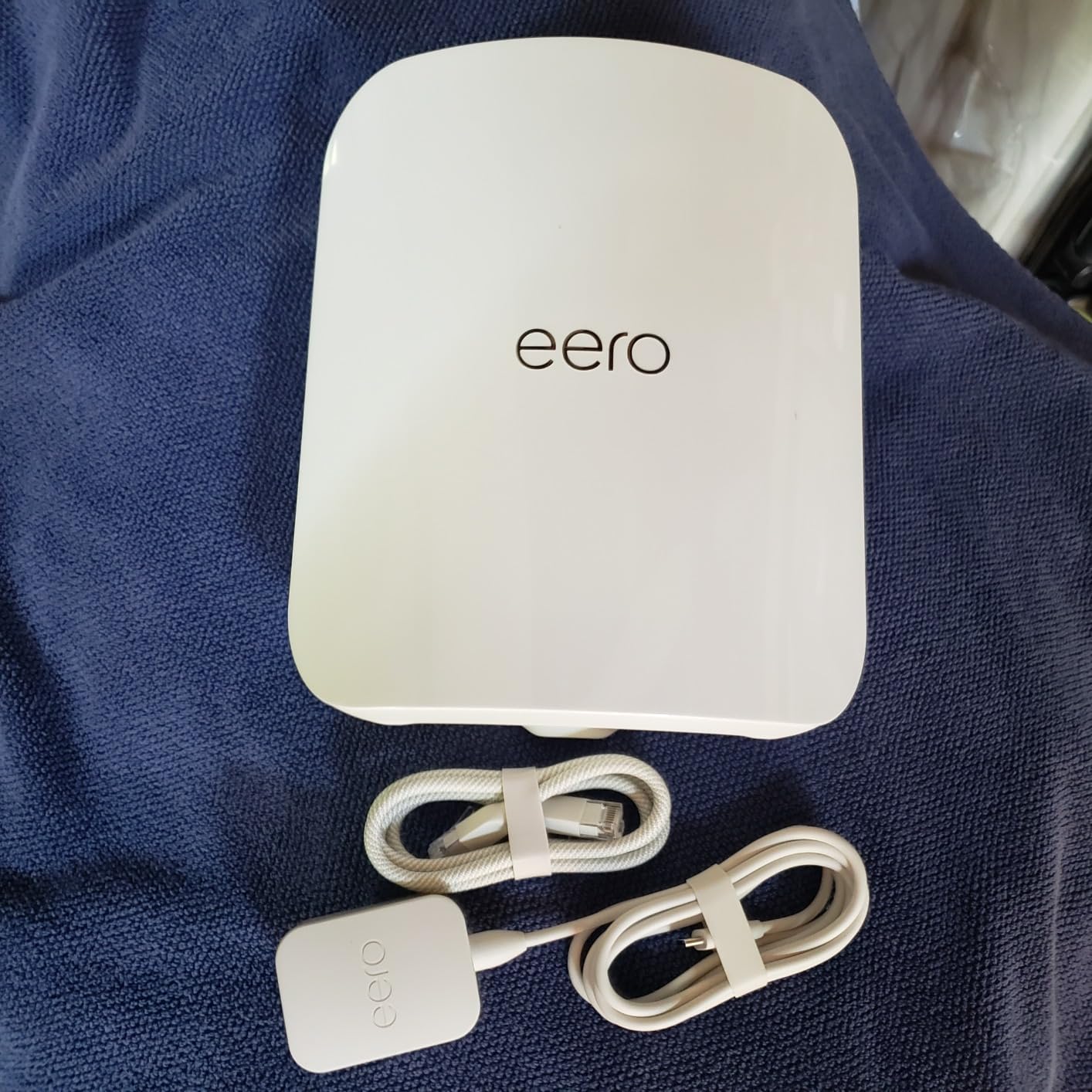
Guided setup takes minutes and keeps your existing network name and password, so nothing downstream has to be re-paired. The problem is moving in from a non-eero system: that is not supported and can take many hours, and it is the most common reason people return these. There is also no physical reset button, so recovering from a bad setting means deleting and rebuilding the network in the app.
Where the control stops
Granular band steering control is thinner than on OpenWrt-based routers, and the eero Plus subscription is promoted for the full feature set. Some access point and IP-passthrough configurations on fiber providers are reported to be temperamental, which is worth checking against your provider before committing. On a pure gigabit plan with a small home, the Pro 7 covers the same ground for less and keeps two 5 GbE ports instead of two 10G ports.
5. Amazon eero Pro 7 – Best Mesh for 5 Gig Fiber Plans in Mid-Sized Homes
Amazon eero Pro 7 tri-band mesh Wi-Fi 7 router – Supports internet plans up to 5 Gbps, Coverage up to 2,000 sq. ft., 1-pack
Wi-Fi 7 up to 3.9 Gbps
2 x 5 GbE per node
2,000 sq. ft. for 200+ devices
+ Pros
- Two 5 GbE ports support gig-plus plans
- Setup usually completes in under 30 minutes
- Multi-Link Operation for multi-link clients
- Better steering cuts devices dropping nodes
– Cons
- First firmware update is mandatory
- Less multi-gig headroom than the Max 7
- Security subscription promoted for full features
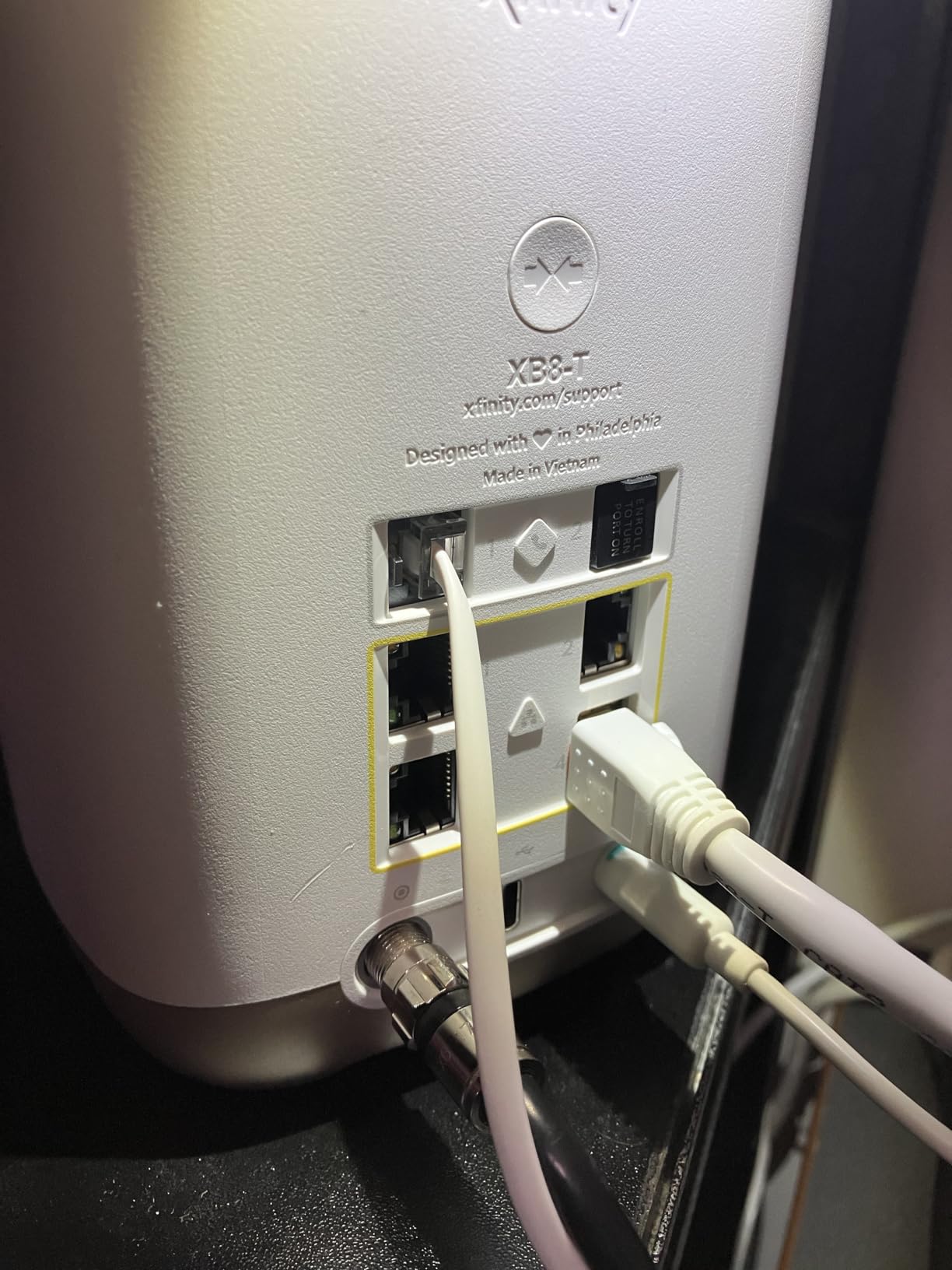
The Pro 7 is the mesh pick for a 2 Gig or 5 Gig fiber plan in a home that does not need 10 GbE ports. Two auto-sensing 5 GbE ports per unit handle those plans without a bottleneck, and the tri-band Wi-Fi 7 radios reach up to 3.9 Gbps wirelessly across a listed 2,000 sq. ft. and 200+ devices.
Reviewers upgrading from the eero 6 series or from an ISP gateway consistently report faster, more stable results, with better traffic steering that keeps devices from sticking to the wrong node. Setup typically finishes in under half an hour and keeps the existing network name.
Where it fits against the Max 7
The decision is port speed. Two 5 GbE ports cover everything up to a 5 Gig plan, and the Max 7’s two 10 GbE ports exist for 10 GbE service and high-bandwidth wired backhaul. If your plan is 5 Gig or below, the Pro 7 leaves the multi-gig headroom on the table but keeps the rest of the eero experience, including MLO, TrueRoam and TrueChannel.
Small annoyances you should plan around
Firmware updates on first connection are required and cannot easily be deferred, so set the router up when you have a spare half hour. The eero Plus subscription is promoted for the full feature set, and some wired devices occasionally land on the wrong network until they are reconnected. It is also backward compatible with earlier eero generations, which makes it an easy add-on node later.
6. NETGEAR Nighthawk BE9300 – Best Value Wi-Fi 7 Standalone Router
NETGEAR Nighthawk WiFi 7 Router, Up to 2,500 sq ft, 9.3 Gbps
9.3 Gbps tri-band Wi-Fi 7
2.5 Gig WAN port
2 x 2.5G and 2 x 1G LAN
2,500 sq. ft.
+ Pros
- 2.5 Gig WAN port for multi-gig plans
- Two 2.5G LAN ports for a NAS or console
- Dedicated 6 GHz band for fast clients
- 2 GB of RAM for heavier routing
– Cons
- Limited admin interface options
- Some security features need NETGEAR Armor
- Modest 2500 sq. ft. coverage claim
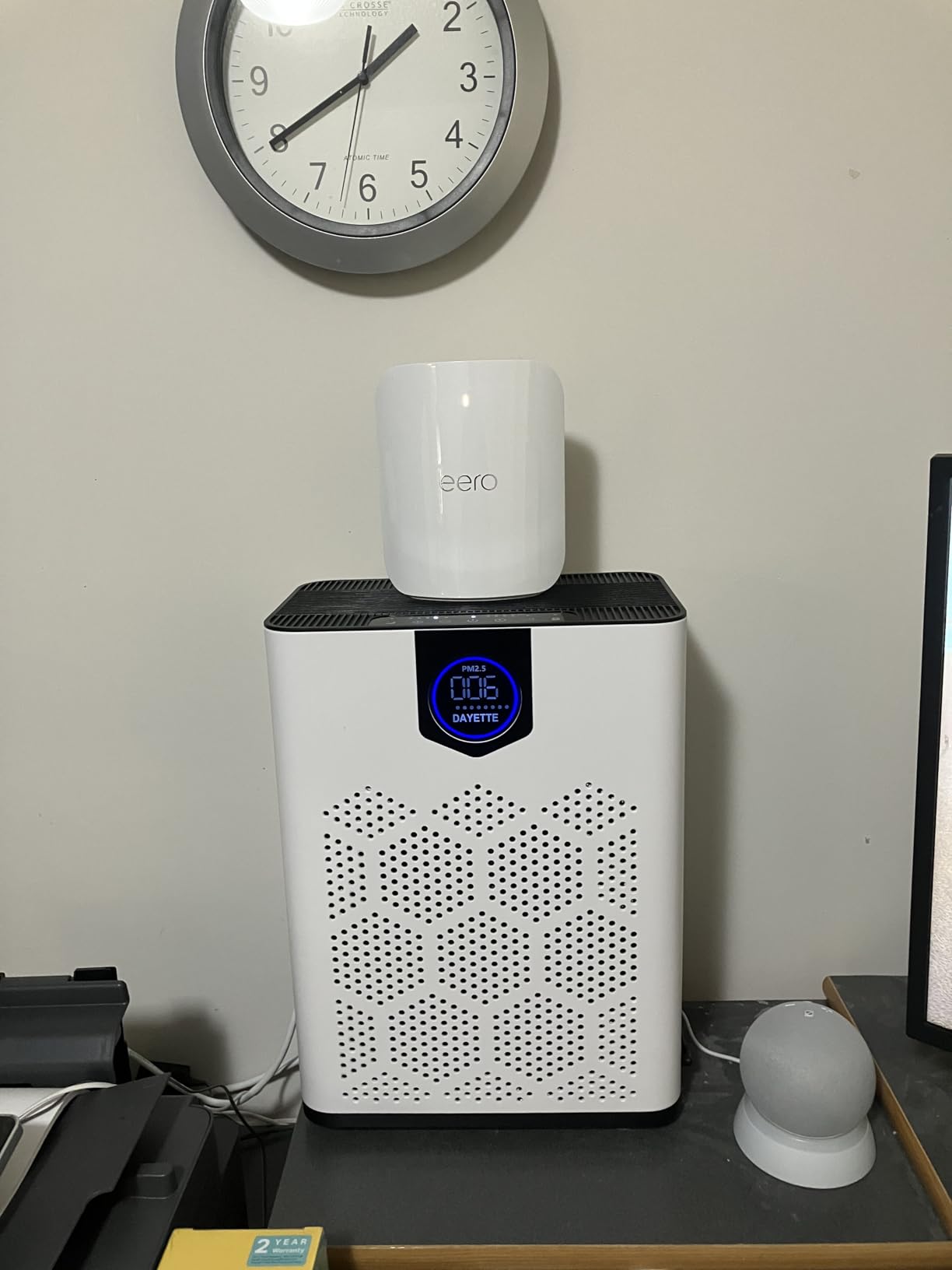
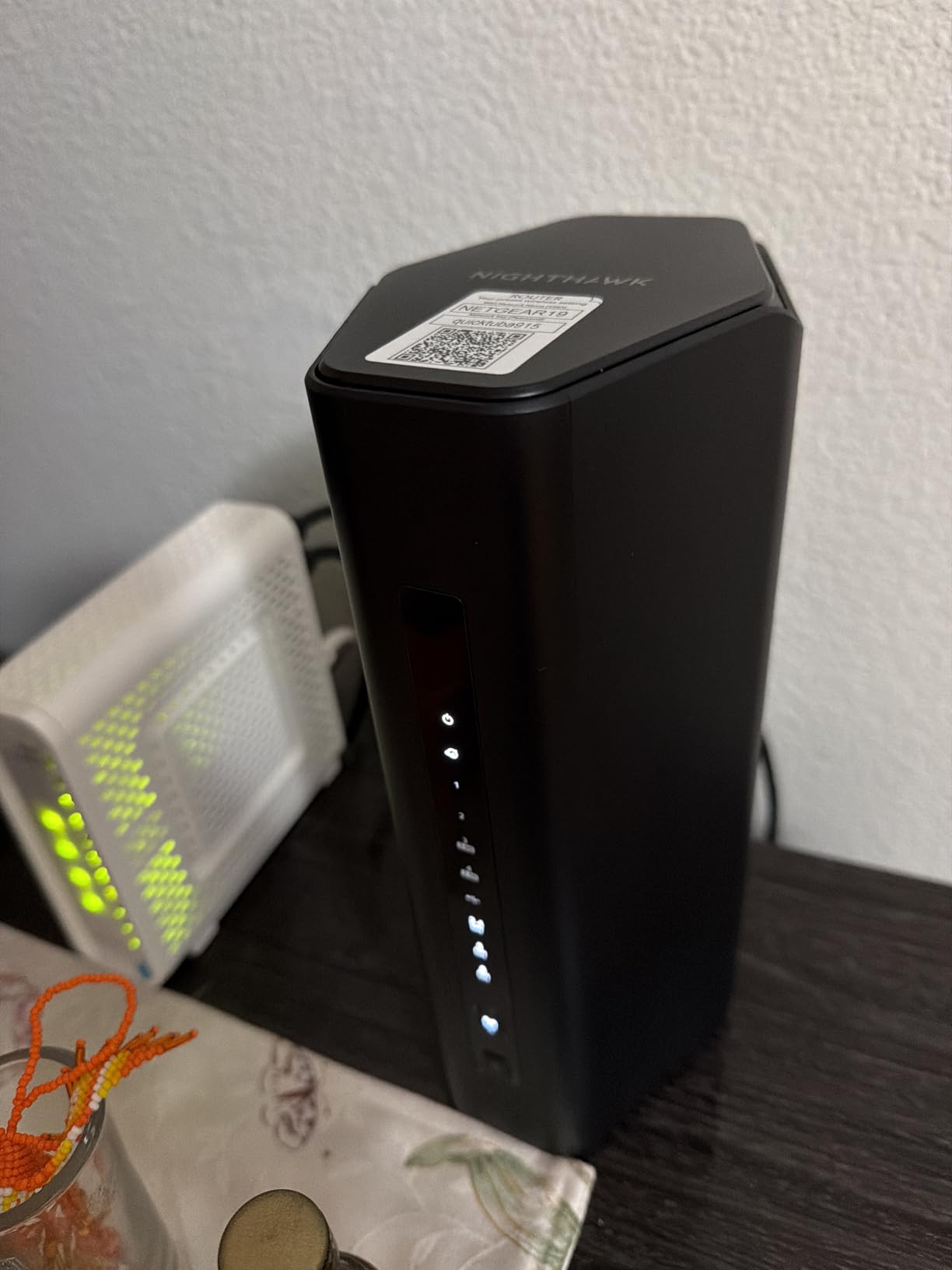
The BE9300 is the straightforward route into Wi-Fi 7 with a multi-gig WAN port. A 2.5 Gig WAN port takes a gigabit or 2 Gig fiber line without a ceiling problem, and two 2.5G LAN ports plus two 1G LAN ports give you room for a NAS, a gaming rig and a smart TV without a switch.
The dedicated 6 GHz band is the piece that separates it from cheaper dual-band units, and 2 GB of RAM is unusual at this level. Buyers treat it as the budget entry into tri-band Wi-Fi 7 routing, and the tri-band aggregate figure is 9.3 Gbps. It works with most cable, fiber, DSL and satellite providers.
Where it stops relative to the RS700S
The BE9300 is smaller in every dimension that matters for a big house: 2,500 sq. ft. and 100 devices versus 3,500 sq. ft. and 200 devices, and a 2.5G WAN port instead of 10G. If your fiber plan is 1 Gig or 2 Gig and your home fits inside about 2,500 sq. ft., those differences rarely show up. If either changes, spend up and move to the RS700S or add mesh nodes.
Admin limits and subscription gates
The admin interface is comparatively limited, with little control over timeouts and defaults, which is the same criticism that comes up for the RS700S. Some security features sit behind NETGEAR Armor, with a 30-day trial included, and a few buyers report signal inconsistency after firmware updates. Nothing here is a dealbreaker for a normal household, but it is not the box to pick if you want to tune QoS curves by hand.
7. ASUS RT-BE88U – Most Compact for 10 Gig Fiber and Wired-Heavy Homes
ASUS RT-BE88U WiFi 7 Router – x2 10G Ports, Up to 7.2 Gbps, Mesh Compatible
Dual-band Wi-Fi 7 to 7.2 Gbps
10G SFP+ and 10G WAN/LAN
8 Ethernet ports
3,000 sq. ft.
+ Pros
- 10G SFP+ and 10G ports for real wired headroom
- Ten Ethernet ports remove the need for a switch
- No subscription for AiProtection or VPN
- ASUS-Merlin firmware support
- Site-to-site VPN and VLAN support
– Cons
- Dual-band with no 6 GHz band
- Some older devices lost connectivity in Wi-Fi 7 mode
- Close-spaced rear ports with thick cable boots
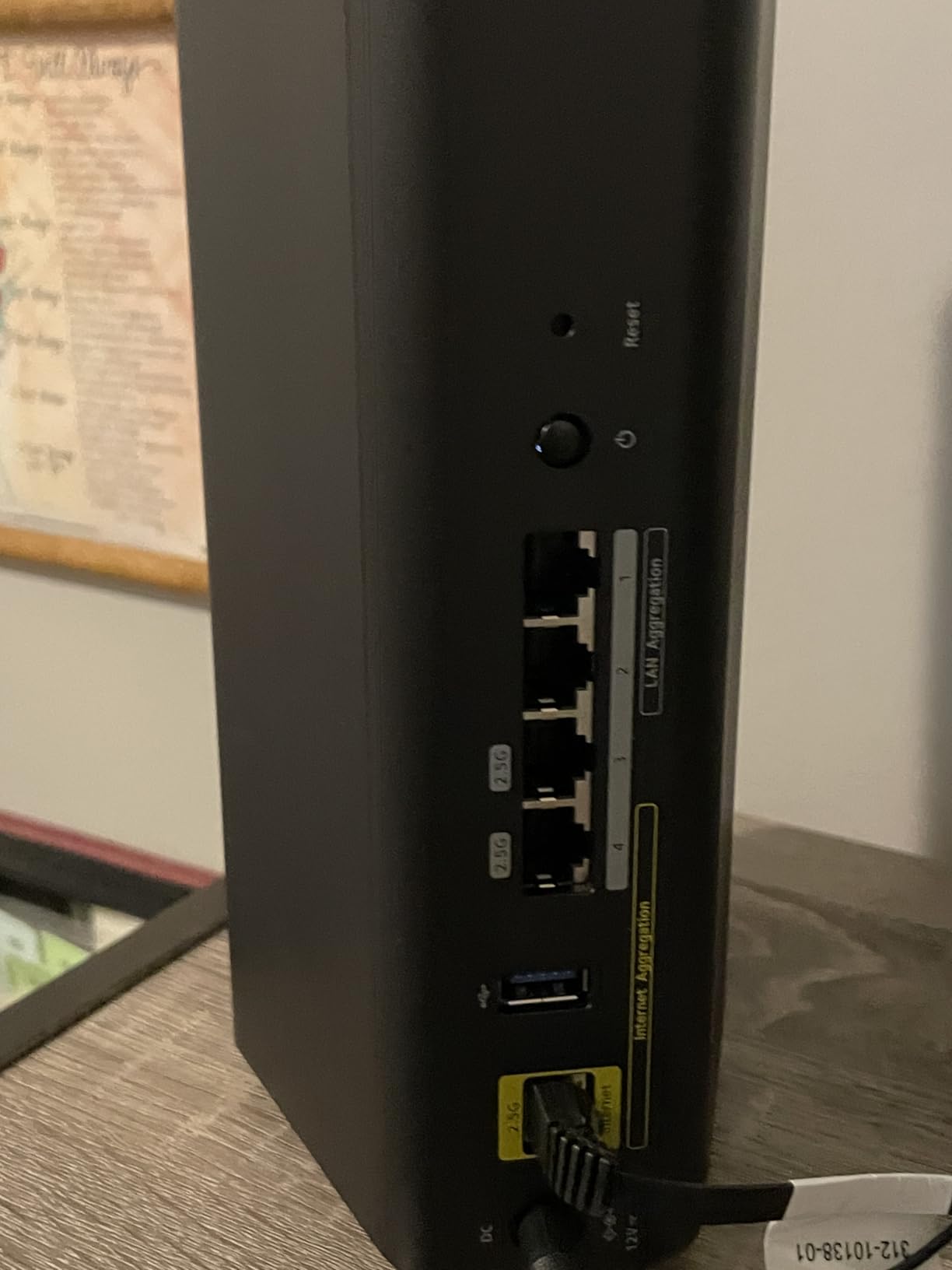
The RT-BE88U is the one I would buy with my own money for a house that runs servers, cameras and a switch. It has a 10G SFP+ port and a 10G WAN/LAN port for up to 34G of combined wired capacity, plus four 2.5G and four 1G ports, which means you can skip the switch entirely in most homes.
The second reason to like it is the software. AiProtection Pro security powered by Trend Micro, site-to-site VPN, VLAN support and Guest Network Pro all work without a paid subscription, and ASUS-Merlin firmware support opens up scripting and third-party packages on top of ASUSWRT. The hardware behind it is a quad-core 2.6 GHz processor with 2 GB of RAM and a three-year warranty.
Why the SFP+ port matters for fiber
SFP+ takes a fiber module or a direct-attach cable, which matters when your ONT hands off over something other than RJ45 or when you are building a closet with fiber runs. Combined with the 10G WAN/LAN port, it also means the box can aggregate a 10G uplink to a switch and still serve a multi-gig WAN. Most households will never touch the SFP+ cage, and that is fine, but it is the reason this router is future-proofed at the wired end.
One real spec caveat: no 6 GHz band
Despite the Wi-Fi 7 label, this is a dual-band unit. There is no 6 GHz band, so you give up the clean high-band lane that a tri-band router offers, and a few legacy devices lost connectivity when Wi-Fi 7 mode was enabled. A minority of buyers also report connectivity loss and very slow throughput after a few weeks of use. Coverage is listed at 3,000 sq. ft., and the rear ports are closely spaced, which is tight with thicker cable boots.
If 6 GHz matters more to you than SFP+ and port count, the Deco BE63 or the Ubiquiti Dream Router 7 both give you a tri-band radio set. If subscription-free security and port density matter more, this is the box.
8. Ubiquiti Dream Router 7 – Best for Homelabs and UniFi Users on Fiber
Ubiquiti Networks Dream Router Wi-Fi 7 (UDR7)
Tri-band Wi-Fi 7 to 10 Gbps
10G SFP+ and 2.5G WAN
3 x 2.5G LAN with PoE
3 GB RAM
+ Pros
- 10G SFP+ WAN with integrated Wi-Fi 7
- Stable with no reboots on fiber
- Dashboards
- logs and traffic insights
- VLANs and firewall rules work as expected
- PoE LAN port for cameras and access points
– Cons
- Wireless throughput trails some rivals in reviews
- Advanced security features sit behind a subscription
The Dream Router 7 packs a 10G SFP+ WAN port and a 2.5 GbE RJ45 WAN into the same desktop unit as the Wi-Fi 7 radios, which is unusual. If your ONT terminates on SFP+ or you have a fiber run between buildings, that combination removes a converter from the chain. Three 2.5 GbE LAN ports include one PoE port, so a camera or an access point can be powered from the router.
The UniFi Network application is the reason homelab people buy it: detailed dashboards, logs, traffic insights, VLAN creation, traffic tagging, inter-VLAN routing and firewall rules. Setup takes minutes and the app auto-detects the device. Throughput per band is listed at 5.7 Gbps on 6 GHz, 4.3 Gbps on 5 GHz and 688 Mbps on 2.4 GHz, backed by a quad-core ARM Cortex-A53 at 1.5 GHz with 3 GB of RAM.
The ecosystem warning worth reading twice
This is the single most repeated mistake in the forums: buying UniFi access points without a controller or gateway and ending up with hardware that does nothing. The Dream Router 7 is a complete solution on its own, so if you want the UniFi application and VLAN model, make sure this is the box that terminates your fiber rather than assuming a standalone AP will pick up a controller. Advanced security options in the UniFi suite are also subscription-based, which is the main cost of that ecosystem.
Wireless performance and review volume
Some users report slower wireless throughput than competing units at the same tier, so if your household is entirely wireless on a 5 Gig plan, test carefully. What nobody disputes is stability: owners describe no reboots and full 1 Gbps-plus throughput on fiber, and the unit runs noticeably cooler than earlier all-in-one gateways. The review pool is smaller than the consumer brands here, so weigh those reports carefully.
9. TP-Link Archer AX55 – Most Versatile for 1 Gig Fiber
TP-Link Dual-Band AX3000 Wi-Fi 6 Wireless Gigabit Internet Router for Home
AX3000 dual-band Wi-Fi 6
5 Gigabit ports
Up to 2,402 Mbps on 5 GHz
512 MB RAM
+ Pros
- Long-trusted gigabit value with a huge install base
- OFDMA and MU-MIMO lower latency when busy
- Four external high-gain antennas
- Cool operation with a larger heat sink
– Cons
- Gigabit ports cap you below multi-gig plans
- No 6 GHz band for Wi-Fi 7 features
- HomeShield advanced tools need a subscription
On a 1 Gig fiber plan, the Archer AX55 still does the job and it does it for less than anything else on this list. Aggregate throughput is 2,976 Mbps across bands, with 2,402 Mbps on 5 GHz and 574 Mbps on 2.4 GHz, and OFDMA plus MU-MIMO keep latency down when a lot of devices are active. Four external high-gain antennas with beamforming extend range past what the AX-class number suggests.
The install base is the story here, with more than ten thousand reviews. That means firmware bugs surface early and get fixed, the Tether app is polished for what it does, and a larger heat sink with a redesigned case runs cool without throttling. It also supports both a VPN server and a VPN client.
Where the gigabit ceiling bites
All five ports are 10/100/1000 Mbps. On a 1 Gig plan that matches your service, and on a 2 Gig plan it means your wired devices are capped no matter what the fiber delivers. The AX55 is also Wi-Fi 6 with no 6 GHz band, so a Wi-Fi 7 client gets no benefit from Multi-Link Operation, and the specs are dated next to current tri-band hardware. If your plan is 2 Gig or faster, move up to the AX21’s sibling, the BE9300, or the Flint 2.
Free HomeShield versus the paid tier
TP-Link HomeShield gives you free basic security, parental controls and QoS, which covers most households. The advanced network and IoT protection tools sit behind a subscription, which is the pattern across this whole category: NETGEAR Armor on the Nighthawk models, eero Plus on the eero units, and a paid tier in the UniFi suite. If you want the full feature set without paying, the ASUS RT-BE88U and the GL.iNet Flint 2 are the two picks here that deliver it.
10. TP-Link Archer AX21 – Best for Small Homes and Budget Fiber Plans
TP-Link AX1800 WiFi 6 Router (Archer AX21 V5)
AX1800 dual-band Wi-Fi 6
5 Gigabit ports
Up to 1,200 Mbps on 5 GHz
1.1 pounds
+ Pros
- Best-selling budget Wi-Fi 6 unit
- OFDMA shares each band across devices
- OpenVPN and PPTP VPN server support
- EasyMesh compatible and works with major ISPs
– Cons
- Gigabit ports and 1200 Mbps ceiling limit faster tiers
- No 6 GHz band support
- Fewer advanced options than ASUS or OpenWrt
For a 300 or 500 Mbps fiber plan in a condo or a small house, the Archer AX21 is enough and it is the least complicated thing here. Dual-band Wi-Fi 6 with up to 1,200 Mbps on 5 GHz and 574 Mbps on 2.4 GHz, four Gigabit LAN ports plus a Gigabit WAN, and four antennas with beamforming. At 1.1 pounds it also works as a cheap travel unit or a dedicated second router.
It is the best-selling unit in the list by a wide margin, and it is a signatory to the CISA Secure-by-Design pledge, which is a meaningful marker for how the firmware was built. It works with the major US providers, and OpenVPN and PPTP VPN server support covers the common remote-access case.
Know exactly where its ceiling is
The 1,200 Mbps 5 GHz figure and the all-gigabit Ethernet mean this router tops out well below a 2 Gig plan, and it has no 6 GHz band so it cannot take advantage of Wi-Fi 7 features at all. The advanced configuration options are also thinner than what ASUS or an OpenWrt build offers, with no real VLAN editor or QoS scheduler. Use it where the plan is modest, and upgrade when the plan is not.
A sensible second unit
Because it is inexpensive, widely supported and EasyMesh compatible, the AX21 is a good candidate for extending coverage in a second building or a garage, or for keeping as a fallback. The same reasoning applies to a second wired access point later. Just remember that the 1G Ethernet ports cap the link between the two, so on a gigabit-plus plan use a faster node for backhaul.
Fiber Router Buying Guide: Ports, Bands and Backhaul
Do you need a special router for fiber? The ONT does the conversion
No. Light arrives at an ONT, or Optical Network Terminal, mounted on your wall, and the ONT turns it into a plain Ethernet signal. Your router never touches fiber optic media. All a fiber router needs is a WAN port at least as fast as your plan: a 2.5GbE port for gigabit-plus service, and a 10GbE port for 2 Gig and above. The word modem belongs to cable internet, which is why searching for a fiber modem sends you in the wrong direction.
Match your WAN port to your plan speed
Read this table before you buy anything, because it is the entire decision. Anything faster than your plan is future-proofing rather than a requirement.
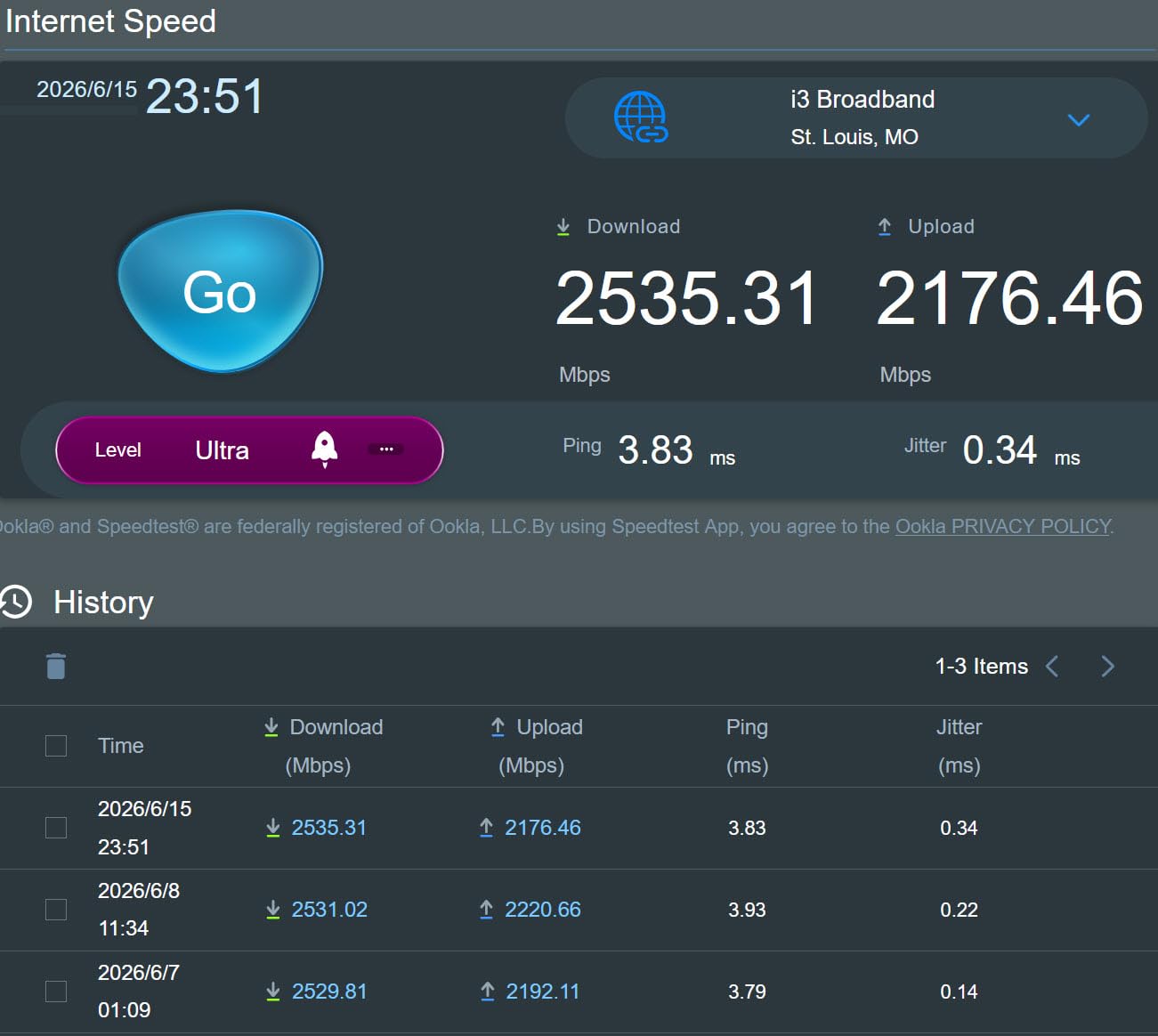
On a 300 or 500 Mbps plan, any gigabit WAN port works and you can spend your budget on coverage instead. On a 1 Gig plan, a gigabit port technically matches, but a 2.5G port avoids losing a little headroom to protocol overhead. On 2 Gig and 5 Gig plans you need 2.5G or 10G. On a 10 Gig plan, only a 10GbE WAN qualifies, which narrows the field sharply and is where the ASUS RT-BE88U and Ubiquiti Dream Router 7 earn their place.
Standalone router vs mesh vs access points
Under about 2,000 sq. ft., a single standalone router is the simplest answer and the cheapest to configure. Between 2,000 and 3,500 sq. ft. across two floors, a mesh system such as the Deco BE63 or the eero units is the practical choice. Above that, especially with plaster or concrete in the walls, the architecture experts recommend is a single capable router with wired access points placed through the house. In r/HomeNetworking the recurring advice is the same: run Ethernet between floors and skip the wireless backhaul entirely.
Wired backhaul vs wireless backhaul
Wireless backhaul spends radio airtime to carry traffic between nodes, so your mesh throughput at the far end of the house is lower than the headline number suggests. Wired backhaul uses the 2.5G ports that the Deco BE63, the eero Max 7 and the eero Pro 7 put on every node, and it is the reason those models can deliver near-plan speeds in rooms far from the ONT. If your home has Ethernet, buy the hardware that can use it.
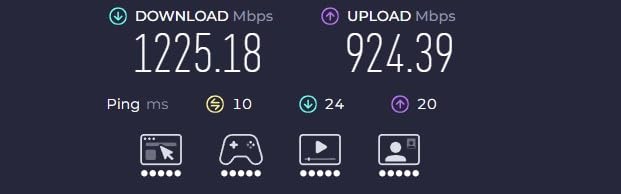
Why your gigabit fiber only feels like 600 Mbps
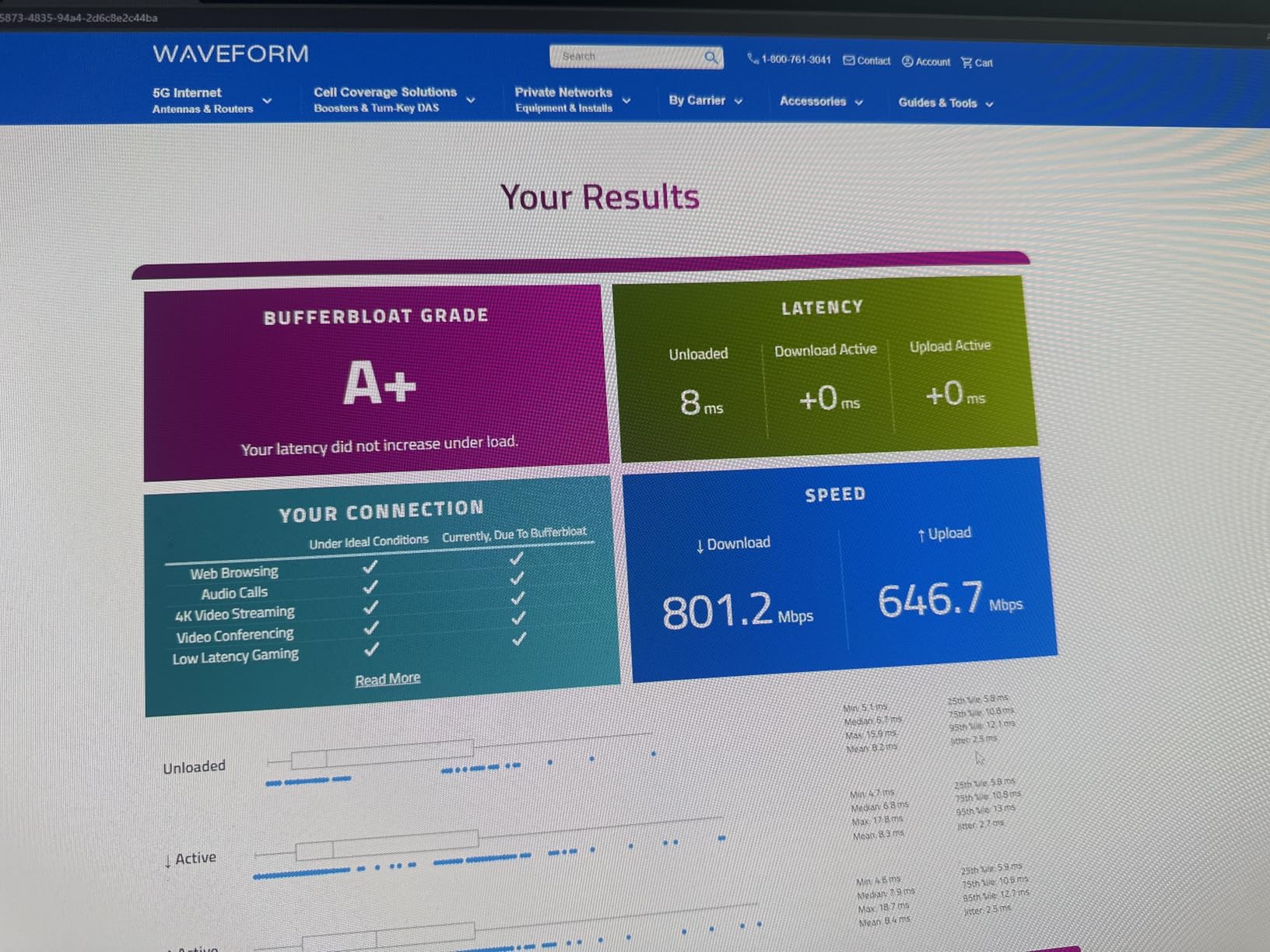
This is the most common question in the forums and it usually has three causes. First, a 1G WAN port on a plan that pushes past it. Second, a single-band or dual-band radio where the 5 GHz channel is crowded, so the client falls back to 2.4 GHz. Third, placement, where the router sits in a cabinet or at one end of the house. Test with a wired client first: if a laptop on Ethernet gets full speed and Wi-Fi does not, the router’s radios are the limit, not the fiber line. Our guide to Wi-Fi 7 routers covers the radio side in more detail.
Security and subscriptions on a router you own
Once your router is doing the routing, its security features replace whatever the ISP gateway offered, and that is where the paywalls live. NETGEAR Armor covers the Nighthawk models, eero Plus covers the eero units, and advanced UniFi options are subscription-based. The ASUS RT-BE88U and the GL.iNet Flint 2 give you the full feature set with nothing held back, which matters most for parental controls and IoT segmentation. If those are priorities, see our guide to routers with parental controls.
Two more things are worth checking before you commit: whether your provider requires its own gateway in a specific mode, and whether the network you are leaving is cable rather than fiber. Cable users moving up can start with our cable modem picks, and anyone bundling TV service should read our internet TV provider guide first, because a router swap can interact with IPTV boxes.
Frequently Asked Questions
Do I need a special router for fiber optic internet?
No. Your provider’s ONT already converts the fiber optic signal into Ethernet, so the router never handles optics. What you need is a WAN port at least as fast as your plan: gigabit for 300 Mbps and 500 Mbps plans, 2.5GbE for gigabit and 2 Gig service, and 10GbE for 5 Gig and 10 Gig plans. Everything else is Wi-Fi coverage and control.
Is a 1 gig router enough for 2 gig fiber?
No, not for the full plan speed. A 1G WAN port tops out around 940 Mbps in practice, so a 2 Gig fiber line loses roughly half its speed on the wired path. You need at least a 2.5GbE WAN port, and for a 5 Gig or 10 Gig plan you need 10GbE. The GL.iNet Flint 2 with dual 2.5G ports and the ASUS RT-BE88U are both built for this.
Which router should be in bridge mode?
With fiber, the device that usually goes into bridge or passthrough mode is the ISP gateway, not your new router. You log into the gateway’s admin page, enable bridge mode or DMZ passthrough, connect your own router to a LAN port on the gateway, and then set WAN connection type to DHCP on your router. Providers name it differently, so check your provider’s own documentation for the exact option name.
What are the downsides of bridge mode?
The main losses are ISP features that depend on the gateway doing the routing. You may lose the provider’s app-based parental controls, remote diagnostics, guest network tools, and automatic Wi-Fi management. The bigger risk is IPTV and voice, which frequently stop working once the gateway is bridged because those services expect a specific routing configuration. Keep the gateway powered and reachable so you can revert quickly if something breaks.
Can I use my own router with fiber internet?
In most cases yes. Your provider’s ONT outputs Ethernet, and the only question is whether the gateway is put in bridge or passthrough mode. Some providers restrict which third-party devices can be attached or require registration, so check with them first. If the gateway must stay in charge of routing, you can still run your own unit in access point mode behind it, which keeps coverage under your control.
Which Fiber Router Should You Buy?
Match the router to the constraint you actually have. If your home spans several floors and you want one purchase to cover a gigabit plan plus a future upgrade, take the TP-Link Deco BE63, which is our pick for the best routers for fiber internet overall. If you would rather run a single box and your plan is above 2 Gig, the NETGEAR Nighthawk RS700S is the answer, and the Ubiquiti Dream Router 7 is the version of that idea for people who want VLANs and a controller.
For a 1 Gig or 2 Gig line in a home under 2,500 sq. ft., the GL.iNet Flint 2 gives you the right ports and total control at a price point nothing else here matches. A 5 Gig plan in a mid-sized home points at the eero Pro 7, and a 5 Gig plan with a heavy smart home setup points at the eero Max 7. If you want a 10 Gig port and refuse to pay a subscription for security, the ASUS RT-BE88U is the one. Small homes on 300 or 500 Mbps plans are served perfectly well by the TP-Link Archer AX21, and the AX55 is the step up when the plan is a full gigabit.
Whichever you pick, check your provider’s gateway mode first. A router swap is a five-minute job once the ONT is handing over a clean Ethernet signal, and it is the difference between using the fiber plan you pay for and wondering why it only feels like 600 Mbps.
Leave a Reply