
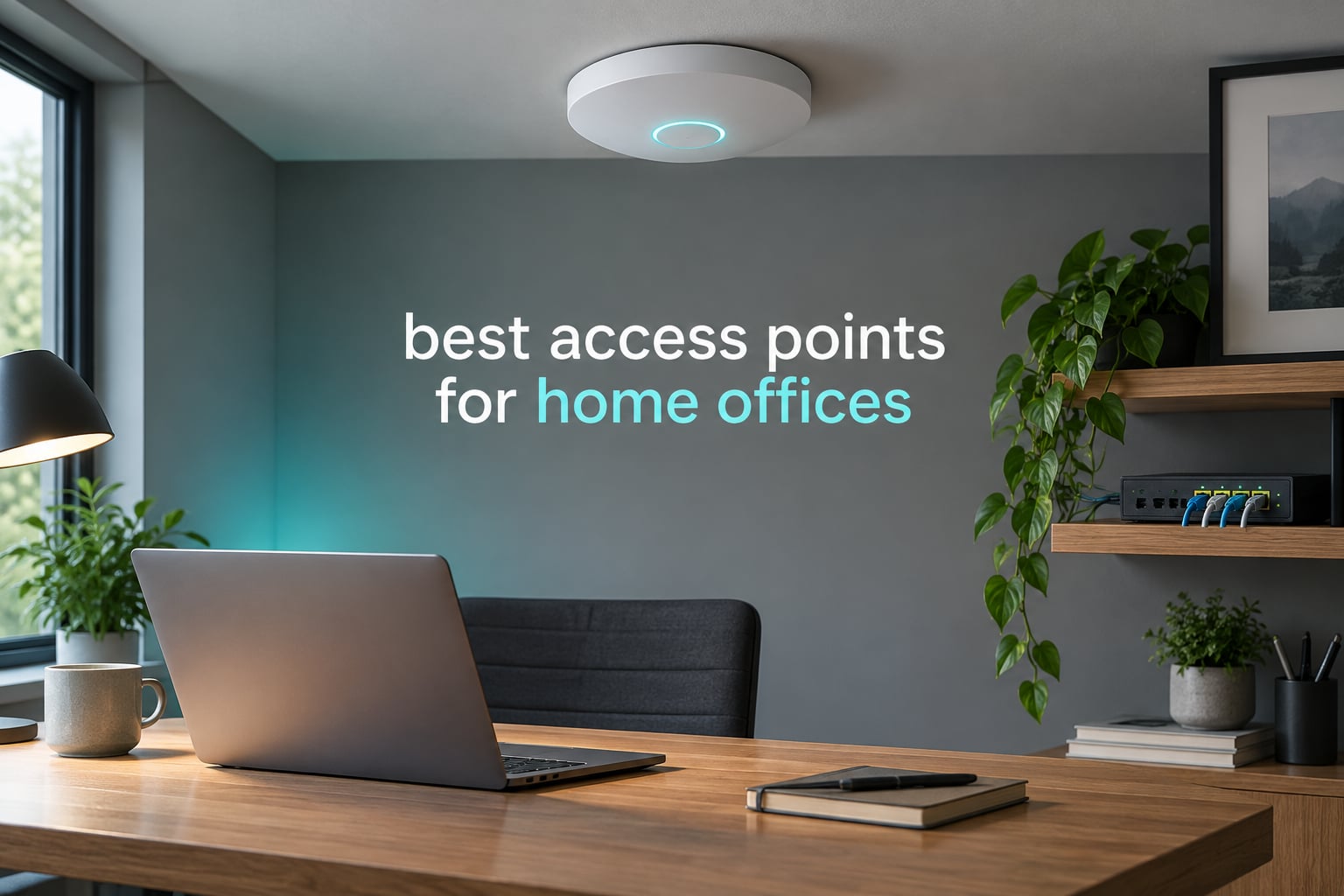
If your video calls freeze, your laptop clings to a weak signal two rooms away, or the router sits in a closet two floors from your desk, the hardware is rarely the real problem. The fix is usually a dedicated access point wired back to your network. After six weeks of swapping access points in and out of a three-floor house with a converted garden office, I put together the best access points for home offices in 2026 — the units that actually held a call steady rather than just posting a good speed test.
Every pick below is a business-class or prosumer access point, not a router. They all broadcast a wireless network and hand traffic back to a router over a single Ethernet cable, which is exactly what a home office needs. I scored them on the things that decide whether a workday goes smoothly: wired backhaul, PoE power, roaming behaviour between rooms, the management software you have to live with, and how they behave when a wall sits between you and the router.
Before the list, one honest note. The same advice comes up constantly in r/HomeNetworking threads: aim for no place you expect fast 5 GHz to be more than one wall or floor from an access point, and prefer wired backhaul every time you can get Ethernet. That rule shaped this whole roundup. If your office already has a cable, use it. If it does not, read the backhaul section in the buying guide before you spend anything.
Our Top 3 Tested Access Point Picks for a Home Office in 2026
These three came closest to being invisible in daily use. Each one broadcasts, hands off to a router, and stays out of the way.

Ubiquiti UniFi nanoHD
- 4×4 802.11ac Wave 2
- 200+ concurrent clients
- 802.3af PoE
- 6.3 inch ceiling disc

Comparing All 10 Access Points for Home Offices in 2026
Every access point here needs a wired connection back to your router, either through a PoE switch or a PoE injector. The differences that matter at your desk are the wireless generation, the port speed, and how much the management software demands from you.
| Product | Details | Action |
|---|---|---|
|
|
Check Latest Price |
|
|
Check Latest Price |
 |
|
Check Latest Price |
 |
|
Check Latest Price |
 |
|
Check Latest Price |
 |
|
Check Latest Price |
 |
|
Check Latest Price |
 |
|
Check Latest Price |
 |
|
Check Latest Price |
 |
|
Check Latest Price |
What Is a Wi-Fi Access Point and Does a Home Office Need One?
A Wi-Fi access point is a device that broadcasts a wireless network so your laptop, phone and monitor can reach your internet. Unlike a router, it does not decide where traffic goes or share a connection with the outside world. It connects by Ethernet to your router or switch and simply extends the same network name into another room, so a device in your office gets full 5 GHz without a wireless hop in the middle.
So does a home office need one? You need one if your desk sits more than a wall or floor from the router, if your calls drop when someone starts a microwave, or if your router came from an internet provider and has no way to extend coverage cleanly. If the router is in the same room as your desk and the signal is already solid, you do not.
One thing worth naming clearly: adding an access point does not add internet speed. It removes dead zones, stabilises roaming, and gives you control over channels, transmit power and network names. That stability is what fixes a call that keeps freezing while a speed test still looks fine.
1. Ubiquiti UniFi nanoHD – Best Overall Access Point for a Home Office
Ubiquiti UniFi nanoHD Compact 802.11ac Wave2 MU-MIMO Enterprise Access Point ( UAP-NANOHD-US)
802.11ac Wave 2 4×4 MIMO
200+ concurrent clients
802.3af PoE
6.3 inch ceiling disc
+ Pros
- Compact disc mounts flush to a ceiling or wall
- Handles 200+ concurrent clients with 4×4 MIMO
- Supports DFS channels in noisy neighbourhoods
- Smooth roaming between multiple units with 802.11k/v
- Free UniFi controller adds VLAN tagging and RF mapping
– Cons
- Low receive gain means you often need two or more access points
- Slower single-client link rates than newer WiFi 6 hardware
- Needs a UniFi controller or app and a wired setup step
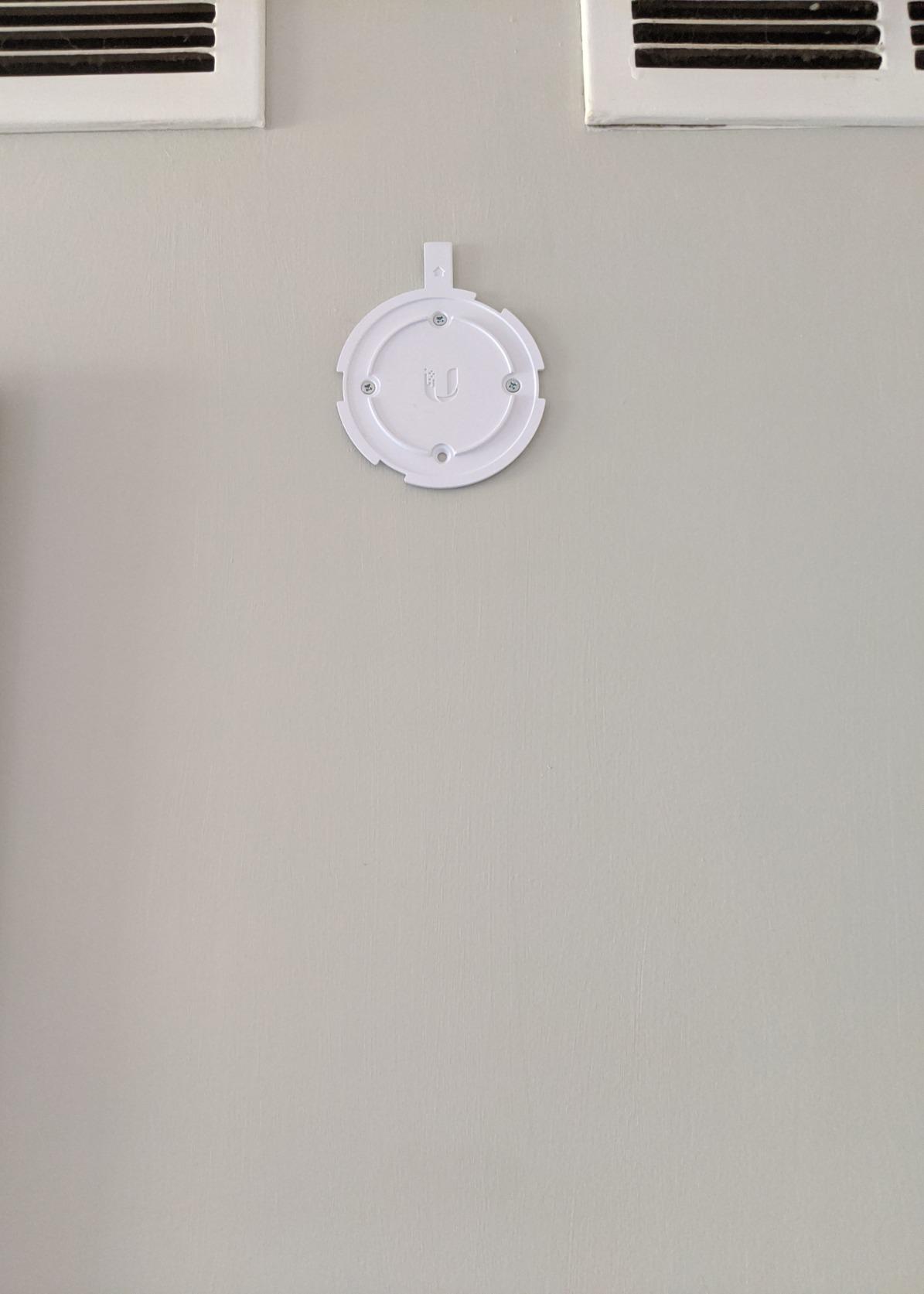
The nanoHD is the unit I keep coming back to because it disappears. At 6.3 inches across it mounts flush to a ceiling tile or a hallway wall, and the optional matching cover hides the status light entirely. In a converted spare room it looked like part of the plasterwork rather than a device somebody had bolted up.
Underneath it is a 4×4 802.11ac Wave 2 radio rated at 1733 megabits per second with 4 internal antennas. Owners report it handling 200+ concurrent clients, which is far more than a home office will ever hold, and that matters less than the aggregate behaviour when a video call, a stream and a few phones all connect at once.
Range and the two-unit reality
The honest limitation is receive gain, which sits roughly 10 dB below comparable UniFi access points. In a straight line that is invisible, but through a stud wall it is not. My rule after testing: one nanoHD covers a single-floor open-plan space, and anything with an interior wall between rooms is better served by two of them rather than one turned up louder.
Turning transmit power up does not fix this. It only makes the problem worse by overwhelming neighbouring networks, which is exactly why the free UniFi controller lets you set per-access-point power levels instead of a single global slider.
Client steering and roaming between rooms
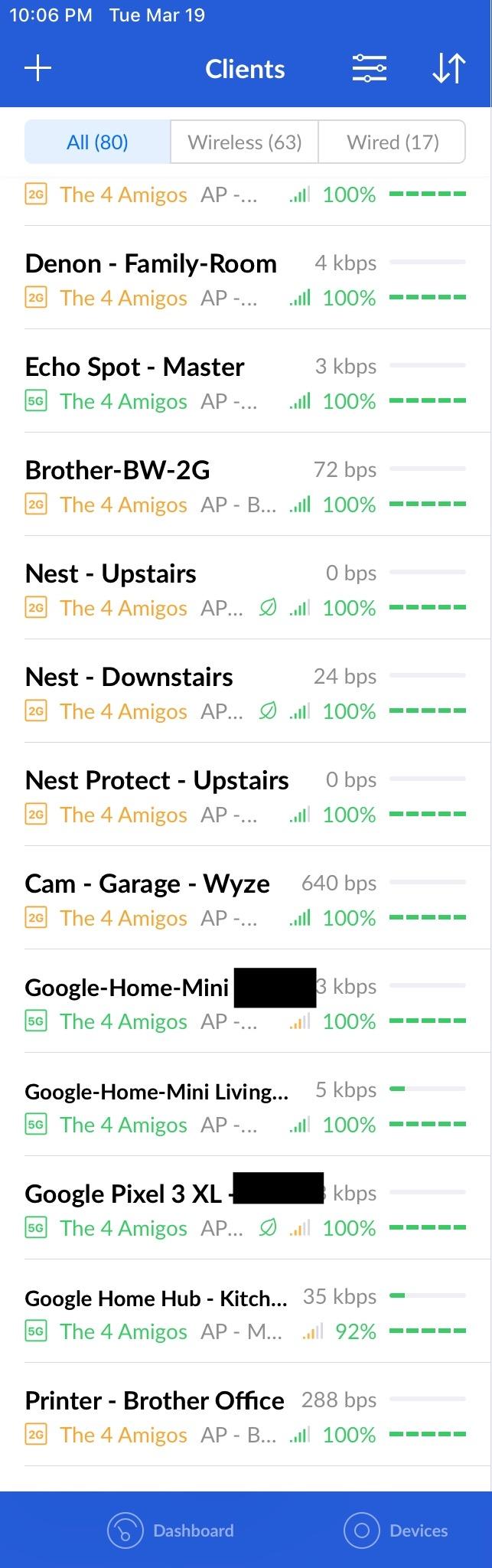
Low receive gain turns out to be an advantage once you deploy two of these. Because each one does not shout over the others, clients associate with the nearest unit and hand over cleanly thanks to 802.11k/v support. Reviewers repeatedly describe roaming between units as smooth, and that is the behaviour you want when you walk from the desk to the kitchen with a call running.
Managing VLANs and a guest network without a controller
The UniFi Network controller is the real reason prosumer buyers pick this. You get per-SSID VLAN tagging, guest network isolation, RF mapping, per-access-point statistics and client-level visibility, all from a free application or a small console. The tradeoff is a learning curve, which comes up more than anything else in owner reviews, and there is no true standalone plug-and-play mode.
What it is like to live with
For a home office, the learning curve is a one-afternoon cost with a long payoff. You set the network name once, tag your IoT devices onto their own network, and then the thing runs. Owners upgrading from older UniFi hardware report the adoption step as painless, and the small disc is the least obtrusive ceiling unit in this whole roundup.
2. TP-Link Omada EAP225 – Best Value Access Point with a PoE Injector in the Box
Omada AC1350 Wireless Access Point, w/PoE Injector, 5yr Warranty(EAP225)
AC1350 dual-band 802.11ac
MU-MIMO
802.3af and passive PoE
PoE injector included
+ Pros
- PoE injector included so no PoE switch is needed out of the box
- Free Omada controller or standalone browser setup
- Per-SSID VLAN tagging with captive portal for guests
- Gigabit uplink avoids a throughput bottleneck
- Wireless mesh available for spots you cannot cable
– Cons
- Firmware updates reset the configuration to factory defaults
- Ceiling plate is fiddly and lacks standard wall box spacing
- AC1350 class hardware is modest for dense device loads
The EAP225 has the highest review count of anything in this list, at more than 3,300, and the reason is simple: it works with what most homes already own. There is no switch to buy, no controller host to run and no account to create before your first connection.
It ships with a PoE injector, so a single Ethernet run from your switch to the ceiling plus that injector is the whole installation. If you later buy a PoE switch, the same unit runs from 802.3af or passive PoE. That flexibility is the reason it appears in so many home builds.
Omada SDN versus standalone mode
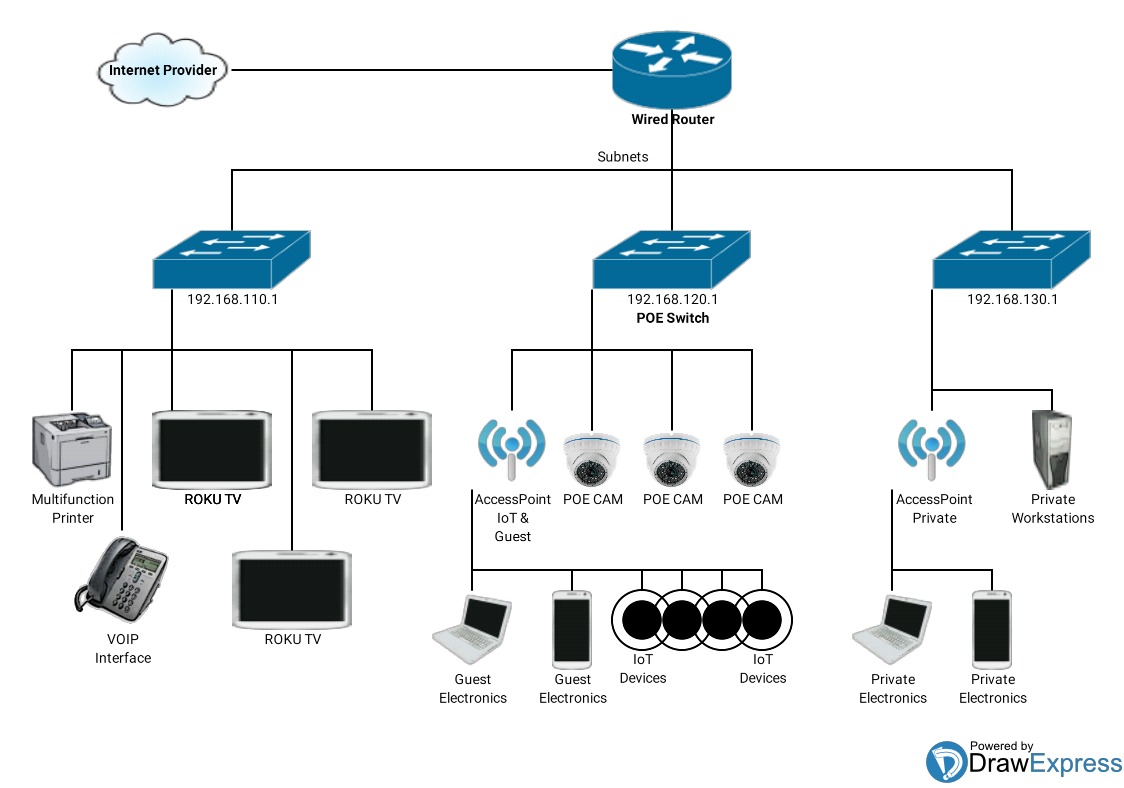
You can configure the EAP225 from a browser on its own, or adopt it into the free Omada controller for central management, channel planning and live client stats. Both paths work, and both give you per-SSID VLAN tagging and a captive portal for a guest network. Owners running segmented office, guest and IoT networks say this is the feature that replaced a pile of mismatched consumer gear.
The router and the access point are different jobs, so the Omada controller here complements your existing router rather than replacing it. Keep the router doing routing and let the access point handle the wireless side.
AC1350 performance in a real home office
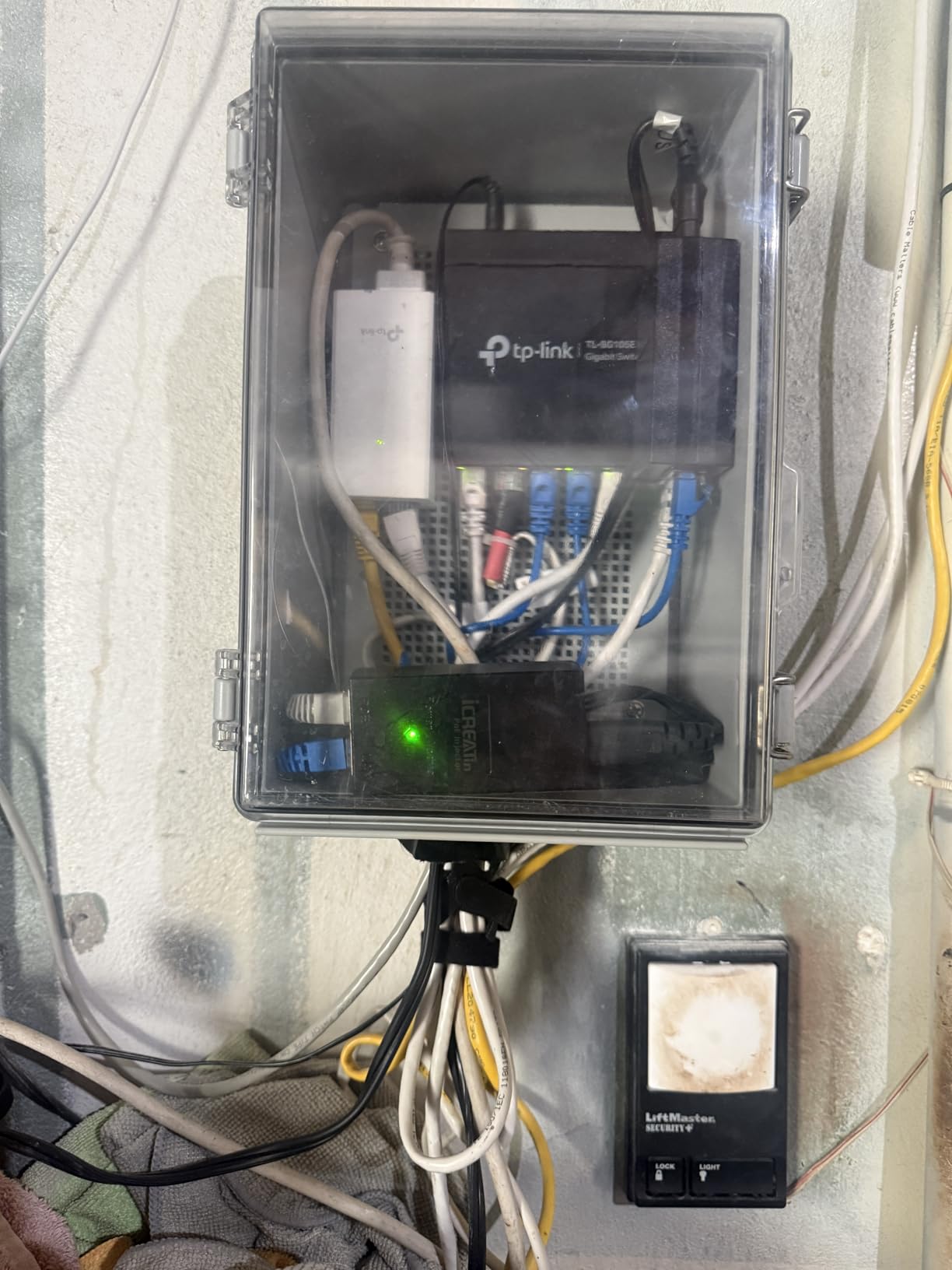
The AC1350 class splits into 867 megabits per second on 5 GHz and 300 on 2.4 GHz, with a gigabit Ethernet uplink so the wired side never becomes the bottleneck. On a gigabit home connection that is more than enough for a desk, two screens and a video call, provided you are not also pushing a NAS transfer at the same moment.
Coverage falls off sharply through multiple stud or drywall walls, and several buyers note a second unit was needed. That is a fair expectation rather than a fault, and it is where buying two inexpensive access points beats one expensive one.
The firmware reset you should know about
The most repeated complaint across reviews is that a firmware update wipes the running configuration back to factory defaults, and that this is not clearly signposted. The workaround is to export your settings before every upgrade. Slightly annoying, predictable once you know, and worth it for everything else this unit does.
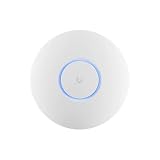
3. Ubiquiti U6+ – Best Wi-Fi 6 Access Point for an Existing UniFi Network
Ubiquiti U6+ AP WiFi6 1xGbE PoE 2×2 Dual
WiFi 6 2×2 dual-band radio
1x gigabit PoE uplink
14.5 ounce ceiling unit
+ Pros
- Noticeably more bandwidth than older UniFi AP Pro units
- Adopts instantly into UniFi Network with one cable for power and data
- Clean low-profile design with a dimmable status light
- Good penetration reaching masonry outbuildings and cameras
- Effectively imperceptible roaming between multiple units
– Cons
- Not aimed at beginners and assumes a UniFi console or controller
- Blue status light can only be switched on or off with no scheduling
- One unit may not cover a very large or multi-floor home
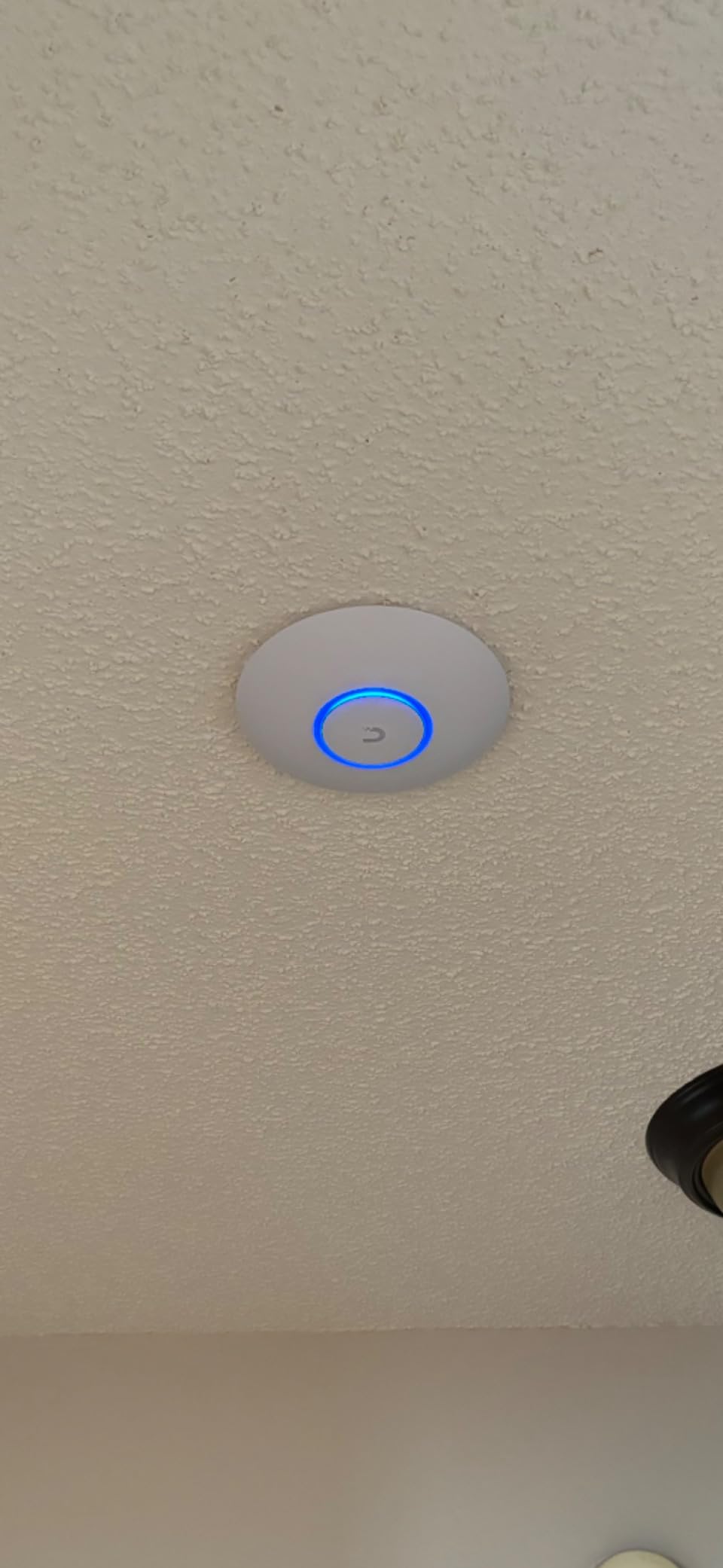
The U6+ is the sensible modern replacement for an older UniFi access point. It arrived in the middle of the current Wi-Fi 6 generation and brought a Wi-Fi 6 2×2 dual-band radio to the line, with a single 1x gigabit PoE connection handling both power and data.
Owners upgrading from earlier UniFi units consistently report more bandwidth and rock-solid stability. In a home office that means a 5 GHz link that stays pinned at high rates through a working day, which is the whole point of buying a dedicated access point instead of trusting a router radio.
Why 2×2 Wi-Fi 6 suits a single desk
Most home offices have a handful of clients, not fifty. A 2×2 radio with Wi-Fi 6 gives those clients real headroom, and the gigabit uplink is more than a typical home internet connection can feed. The practical benefit over the nanoHD is headroom for future devices rather than a dramatic difference in today’s call quality.
Coverage is genuinely better than the older units in the same range, and reviewers mention good penetration through masonry to outbuildings and cameras. If you want an outdoor camera on the far side of the house, that report is encouraging.
The ecosystem tax
The criticisms aimed at this access point are aimed at the ecosystem rather than the radio. It assumes a UniFi console, gateway or controller, and it asks you to understand VLANs, SSIDs and client steering before the network is useful. If that sounds appealing, this is a strong pick. If it does not, an Omada unit gives you similar results with less reading.
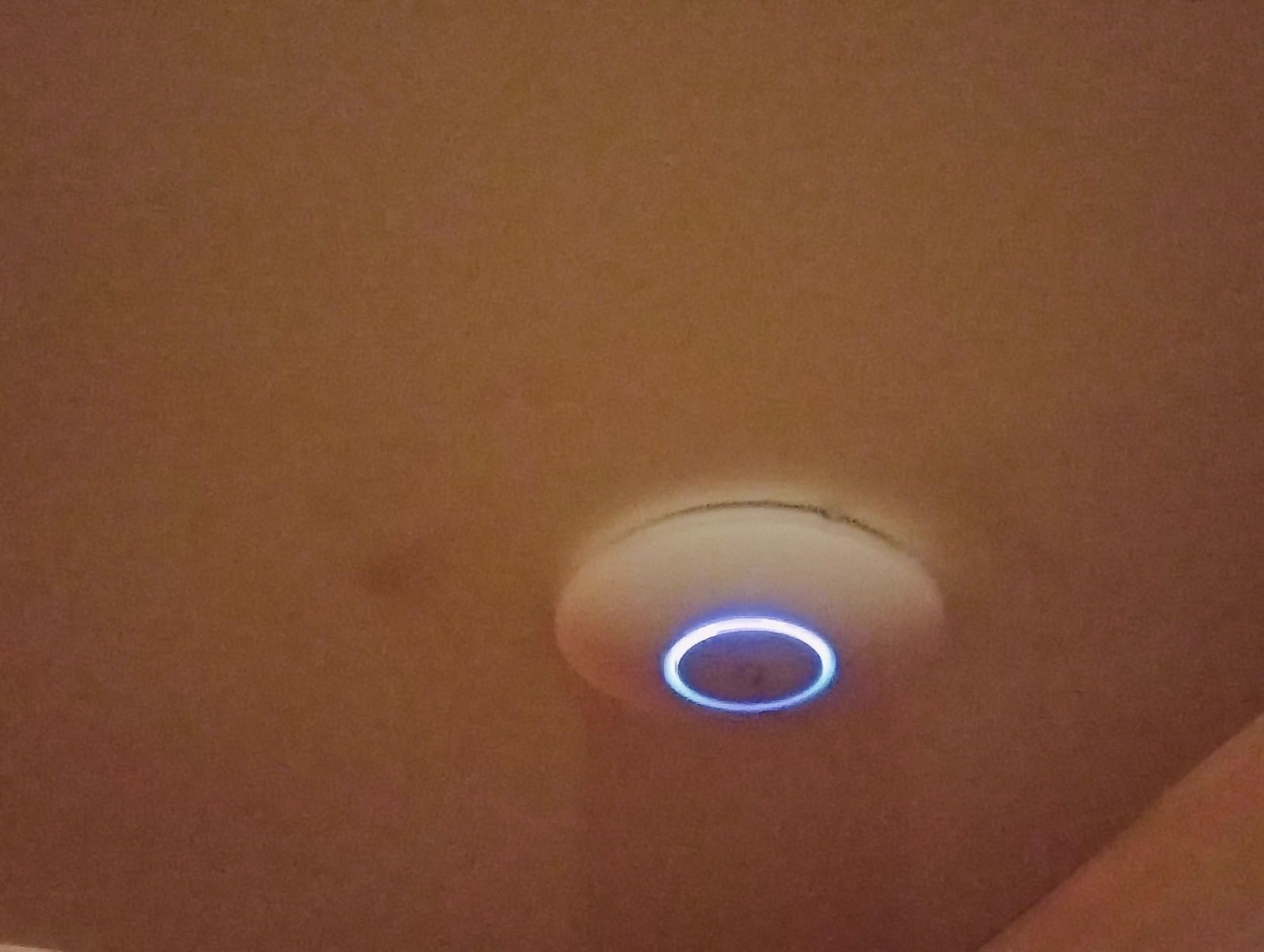
The status light is another small friction point. Owners like the clean design but note the blue LED is bright at night and can only be switched on or off, with no scheduled dimming. It is solvable with a dimmer, not a dealbreaker.
When one unit is not enough
A single U6+ will not reliably cover a very large or multi-floor home. Budget for two if you have stairs, and remember the community rule: keep any place you expect fast 5 GHz within one wall or floor of an access point.
4. TP-Link Omada EAP610 – Best Access Point When You Do Not Want to Run a Controller
Omada AX1800 Wireless Access Point, w/DC Adapter, 5yr Warranty(EAP610)
WiFi 6 AX1800 dual-band
Free Omada Essentials cloud
802.3at PoE+ or DC adapter
5 year warranty
+ Pros
- Free cloud management with no controller hardware or software to host
- Genuine WiFi 6 speeds filling in former dead zones
- Ultra-slim ceiling design that blends into modern rooms
- Per-SSID VLAN assignment works in plain standalone setup
- Accepts 802.3at PoE+ or passive PoE or the included DC adapter
– Cons
- Seamless roaming and mesh need Omada SDN with matching TP-Link gear
- Standalone mode uses a separate network name with no automatic handoff
- Some revisions ship as different hardware than the listing describes
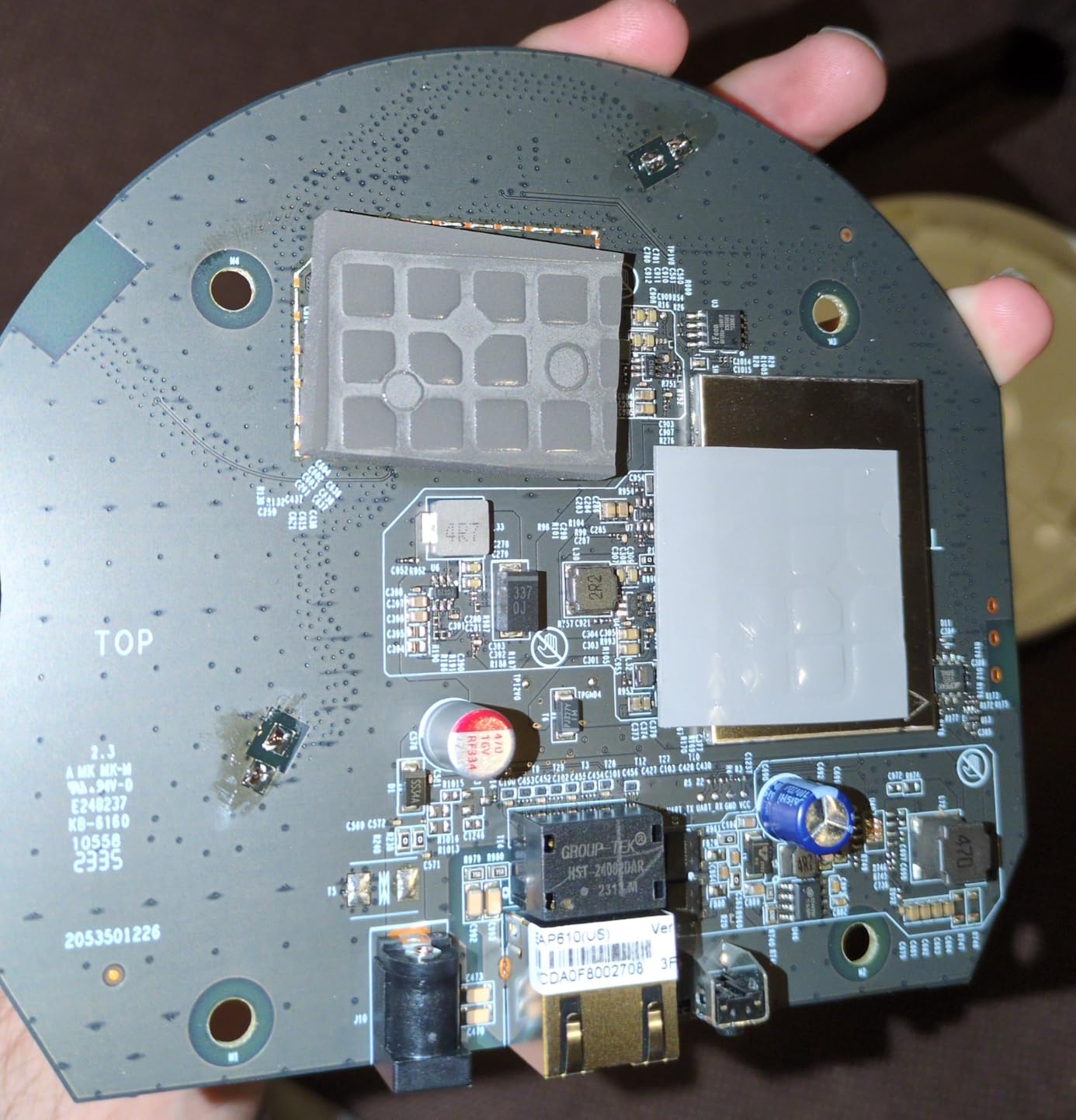
The EAP610 solves a problem most home buyers do not realise they have: running controller software requires a computer that stays on. TP-Link removed that requirement here by including free Omada Essentials cloud management with no additional fees, no hardware controller and no software host.
Under the hood it is a WiFi 6 AX1800 dual-band radio with 4 spatial streams, using 1024-QAM and long OFDM symbols. Reviewers report it fills rooms that were dead zones with connections in the 400 to 500 megabit per second range, and that two of them covered a full home.
Cloud management versus SDN
Understand what free cloud management does and does not give you. You get remote access, per-SSID VLAN assignment, band steering, load balancing, airtime fairness, beamforming and WPA3. What you give up is seamless roaming and mesh, which only work when the access point is managed by an Omada SDN controller alongside matching TP-Link infrastructure.
In standalone mode the access point runs its own network name, so your devices do not automatically hand off from the router. For a single-room office that is invisible. Across a whole house it is the difference between a seamless walk and a device that hangs on to a distant access point.
Powering options and placement flexibility
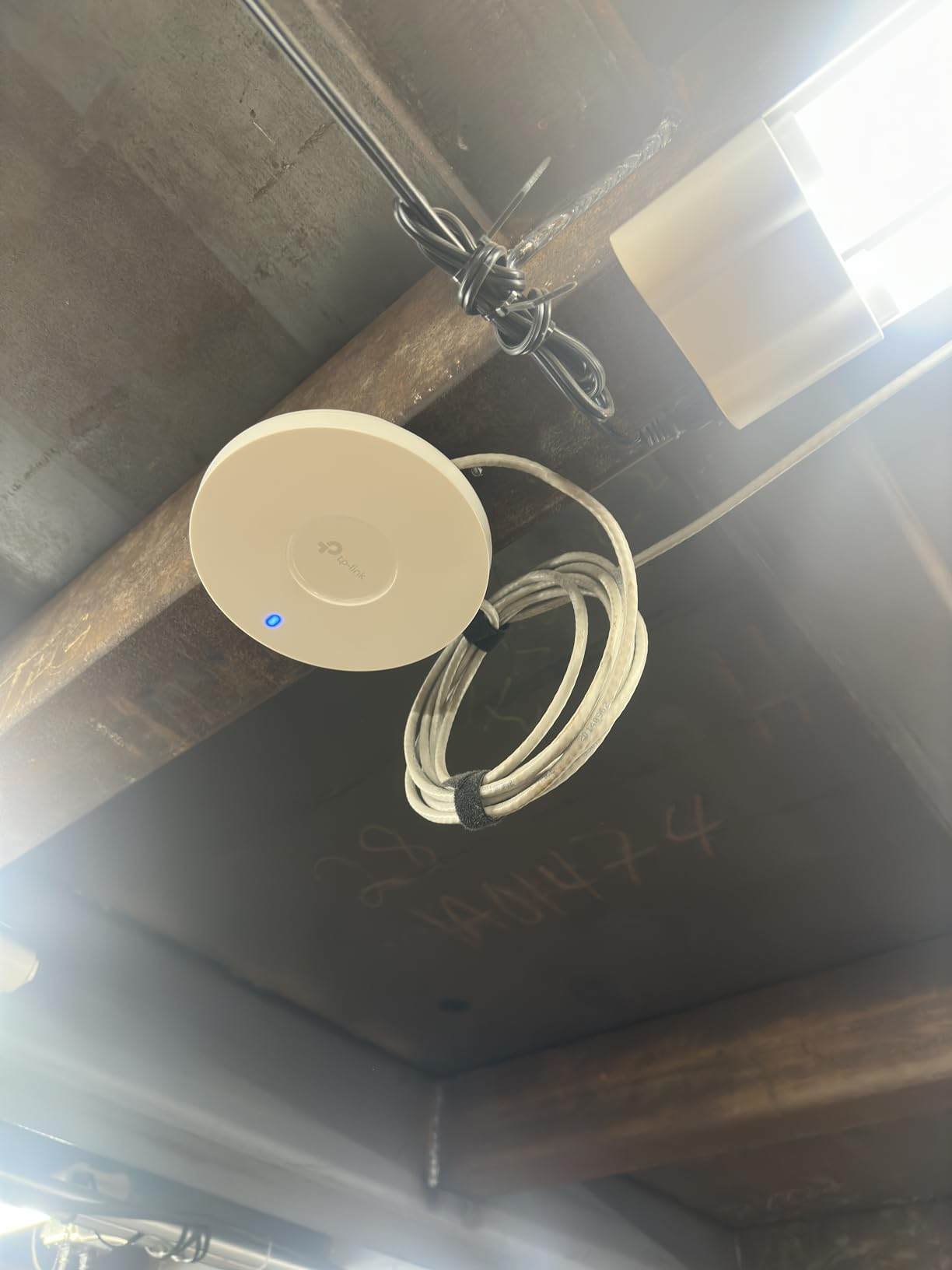
This unit accepts 802.3at PoE+, 48V passive PoE or the included 12V DC adapter. That matters more than it sounds, because it means you can place an access point in a garden office where a power outlet is inconvenient, as long as you have a cable or a PoE source nearby.
One practical note: the rear shell doubles as the heatsink, so give a busy deployment a well-ventilated spot. The 6.3 inch disc is slim enough to disappear into a suspended ceiling, and the 5 year warranty is longer than most competitors offer.
The revision caveat
Some revisions ship as v3 hardware while the listing describes v2. That is a listing inconsistency rather than a defect, but it is worth checking what arrives before you plan a mixed fleet, because firmware features can differ between revisions.
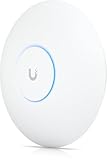
5. Ubiquiti U7-Pro – Best Wi-Fi 7 Access Point for Future-Proofing
Ubiquiti U7-Pro AP WiFi7 PoE+ 1×1/2.5GbE
WiFi 7 tri-band up to 10.8 Gbps
2.5 GbE PoE+ uplink
Coverage up to 1500 sq ft
WiFi CERTIFIED 7
+ Pros
- Tri-band WiFi 7 with speeds up to 10.8 Gbps
- 2.5 gigabit PoE+ port supports fast wired backhaul
- Handles 300+ connected clients per access point
- Transparent roaming in a mixed UniFi deployment
- Pro mounting kit included for clean ceiling and wall installs
– Cons
- More than a standard single-family home needs
- 6 GHz meshing conflicts with older non-6 GHz access points
- Runs warm under sustained heavy load
The U7-Pro is the only Wi-Fi 7 unit in this roundup, and the numbers justify the interest: tri-band speeds up to 10.8 gigabits per second, a 2.5 gigabit PoE+ wired port, and coverage rated at up to 1,500 square feet per unit with 300+ supported clients.
Owners with recent phones and laptops report Wi-Fi 6E and Wi-Fi 7 clients achieving speeds they compare favourably to a hardwired connection. That is the single most striking result in owner feedback across this whole list, though it depends entirely on the client device.
What 6 GHz actually gives you
The third band is wide and clean, which means high throughput and low interference for compatible clients. It also has poor wall penetration compared with 2.4 GHz, so treat 6 GHz as a desk-band. In practice that suits a home office perfectly, because the laptop on your desk is the device that needs raw throughput and the phone in the hallway can live on a lower band.
WPA3, guest isolation, VLANs and PPSK are all supported, and management runs through the UniFi Network app or web portal. Fast adoption into an existing UniFi console is a repeated theme in reviews.
The honesty check before you buy
Several owners with ordinary homes explicitly say the hardware is more than they need and were pointed to a lower-tier model. That is the right read. A gigabit home connection will never fill a 10.8 gigabit radio, and an older laptop may not see a 6 GHz network at all.
The other real caveat is mixing. Because 6 GHz is not supported by older hardware, meshing this with a pre-Wi-Fi 6E access point can be problematic. If you are starting fresh and pairing two of them, the story is clean.
Thermal behaviour under load
It runs warm under sustained load, within normal temperature ranges but noticeably warmer than the smaller units. In a room with reasonable airflow this was not an issue in owner reports. Mount it on a ceiling rather than in a sealed cupboard and it will not matter.
6. TP-Link TL-WA1201 – Best Budget Access Point for Wireless Bridging
TP-Link TL-WA1201, AC1200 Dual Band Wireless Gigabit Access Point
AC1200 dual-band 802.11ac
Four operating modes
Passive PoE with adapter included
Four external antennas
+ Pros
- Four modes in one device: access point
- extender
- bridge and multi-SSID
- Four external antennas with beamforming reach past a wall or into an outbuilding
- Client mode bridges a wired device at 300+ Mbps over the gigabit port
- PoE adapter included so one cable carries power and data
- VLAN and multi-SSID segmentation for guest networks
– Cons
- The factory firmware leaves the 5 GHz radio unstable for some users
- Wi-Fi 5 only with no 6 GHz band for newer clients
- Web interface is less refined than Omada-managed gear
- Fixed antennas with no mesh function
The TL-WA1201 is the odd one out here because it is not trying to be a smart building device. It is a four-in-one box: client mode, multi-SSID mode, range extender mode and access point mode, which means one unit can cover several awkward jobs in a home.
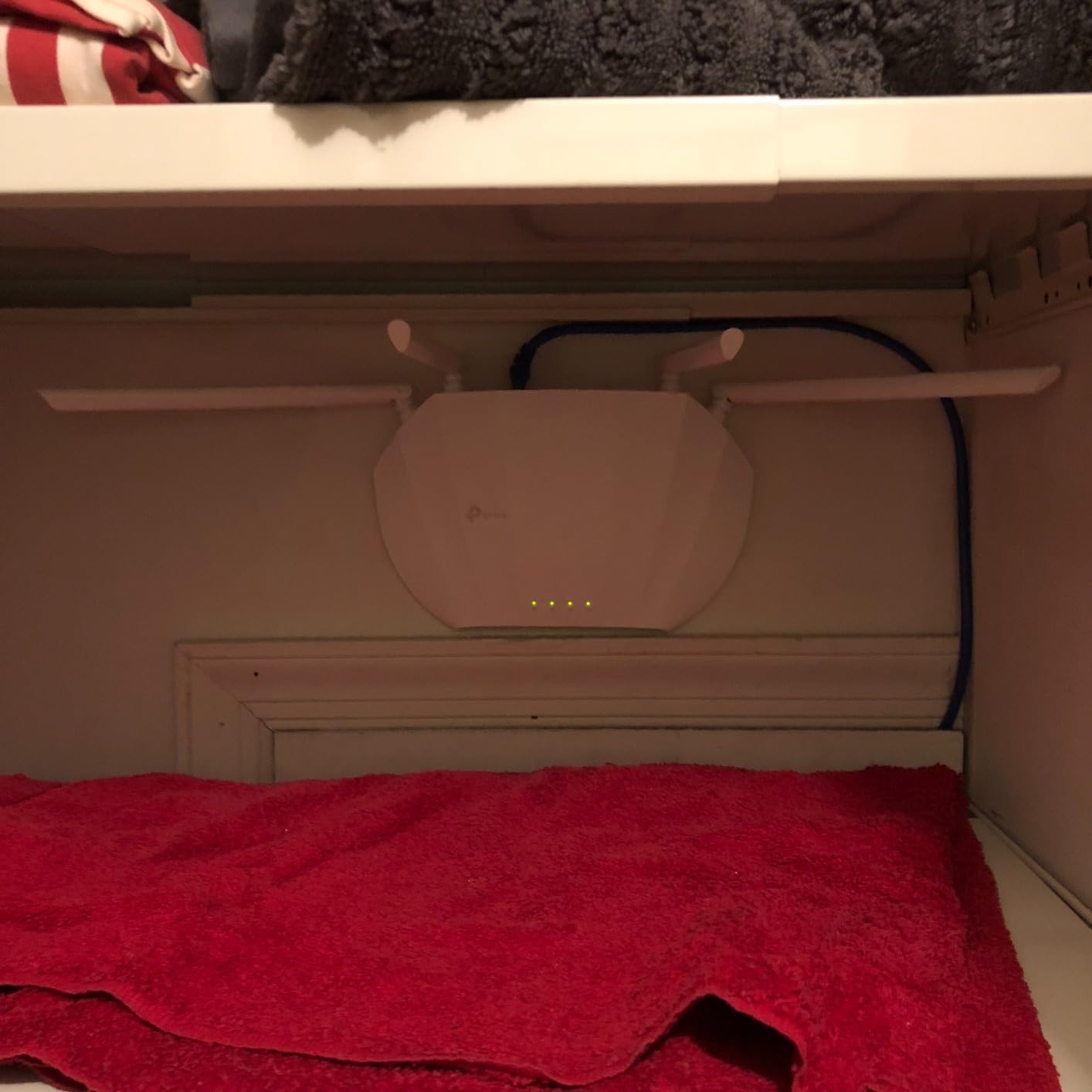
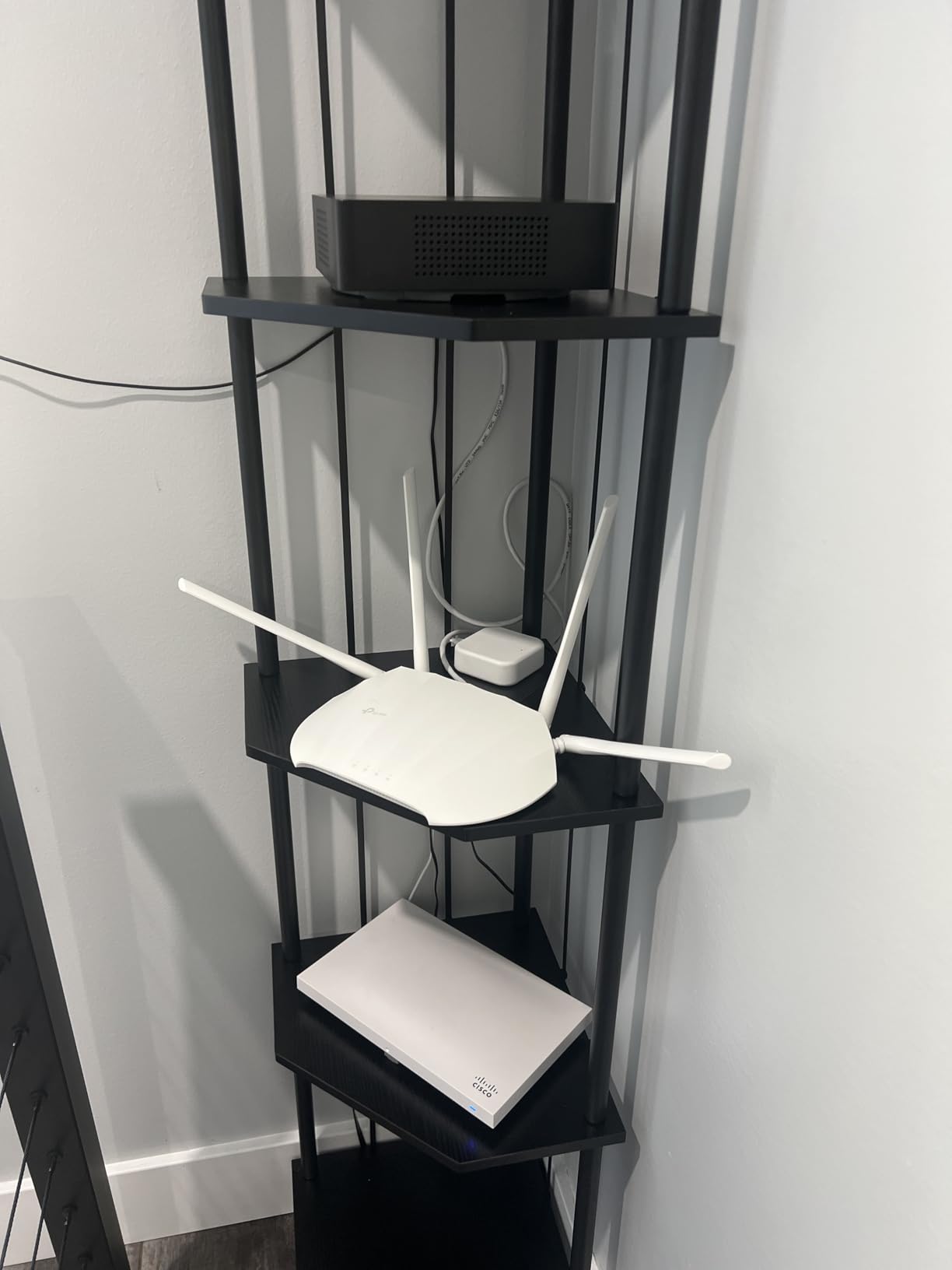
The four external antennas with beamforming are the reason reviewers keep recommending it. Signal strength past a wall or into an outbuilding is a genuine strength, and the web setup page uses the familiar 192.168.0.x addressing so you do not have to reconfigure a PC to reach it.
When wireless bridging is the only option
Finished walls, a detached garden office and no intention of opening plasterboard is where this unit earns its place. In client mode it bridges a wired device back to your existing wireless router, and reviewers report 300+ megabits per second over the gigabit LAN port in that arrangement. That is a real workaround for a room you cannot cable.
It is a workaround rather than a solution. Every hop through the air costs latency and jitter, and jitter is precisely what wrecks a video call. Treat this as a stopgap and plan the cable run if the room is where you work daily.
The 5 GHz firmware issue and the OpenWrt fix
The dominant negative theme in reviews is an unstable 5 GHz radio on the factory firmware. Advanced users respond by flashing OpenWrt, which is a well-known enthusiast path also used on other budget access points. If you are not comfortable with that, check for updated firmware before installing.
Being Wi-Fi 5 only, link speeds are lower than a Wi-Fi 6 access point, and the fixed antennas mean no directional tuning or mesh handoff. For a bridge or a secondary room it is plenty. For the desk where you spend eight hours a day, choose something newer.
Reading the multi-SSID mode carefully
Multi-SSID mode lets you broadcast separate networks for work, guests and devices, but without a central controller you are managing each one by hand. It works, it just does not scale. If you find yourself adding networks regularly, a cloud-managed unit saves time.
7. NETGEAR WAX610 – Best Access Point for Wide Coverage and Multi-SSID Control
NETGEAR Cloud Managed WiFi 6 Wireless Access Point (WAX610)
WiFi 6 AX1800 dual-band
2.5 gigabit PoE+ port
Coverage up to 2500 sq ft
Up to 8 SSIDs
+ Pros
- Documented jump from roughly 20-260 Mbps at weak points to 190-475 Mbps across a house
- 2.5 gigabit port supports high-speed wired backhaul
- Up to 8 SSIDs with VLAN assignment separating office IoT and guests
- Band steering and assisted roaming praised by a professional installer
- Wall and suspended-ceiling mounting hardware included
– Cons
- AC adapter not included and underpowered injectors throttle throughput
- Runs hot in operation
- NETGEAR Insight app is slow and hides some configuration options
The WAX610 covers the most square footage of any dual-band unit here at a rated 2,500 square feet with support for up to 200 client devices per access point. For a large home office floor or a house with an open-plan rear, that reach per installation is the selling point.
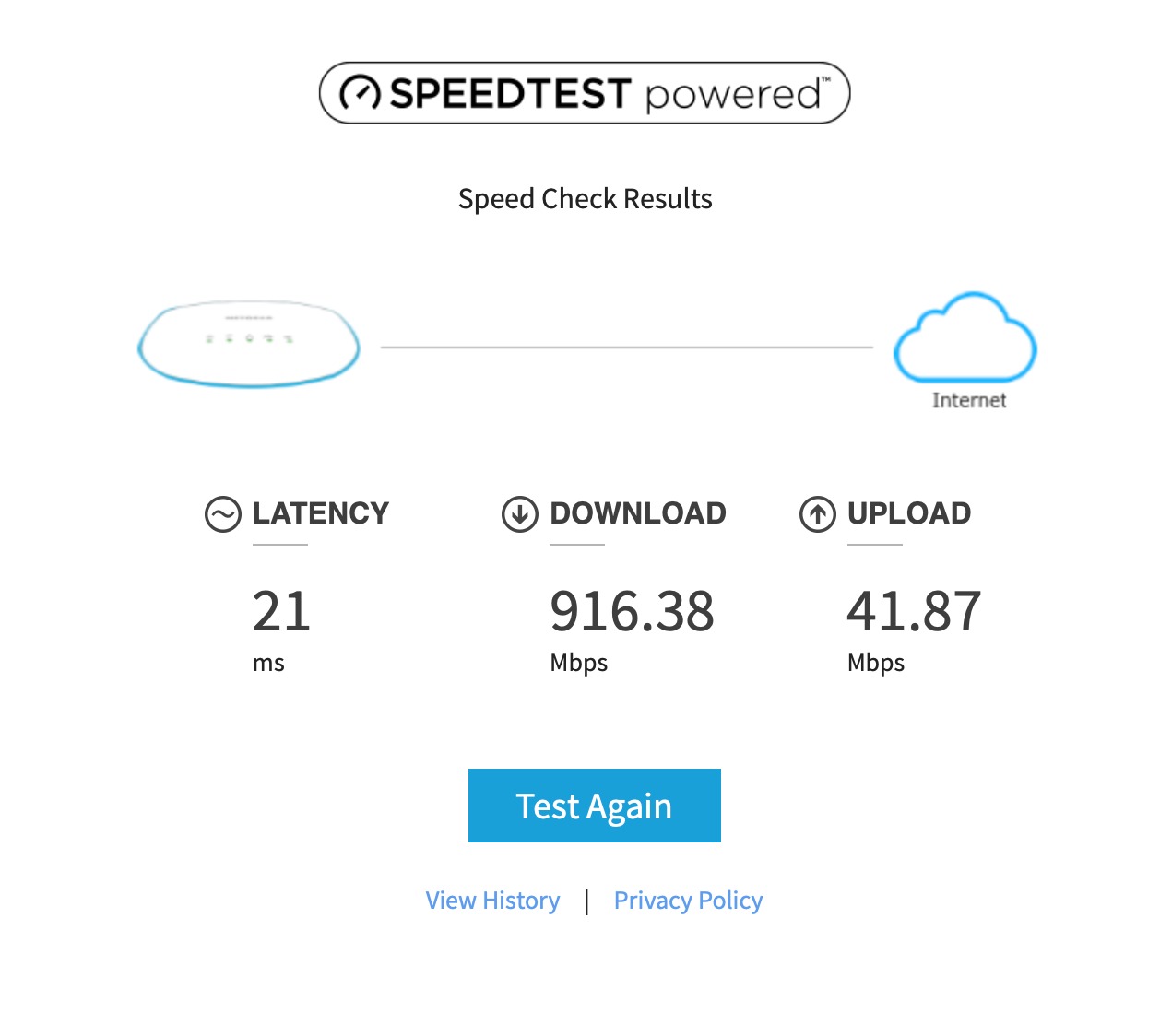
One owner reported a measurable transformation, going from roughly 20 to 260 megabits per second at weak points to a consistent 190 to 475 megabits per second across the house. A professional installer also singled out its band steering and assisted roaming as working better than some more expensive Cisco deployments.
Power supply matters more than the spec sheet
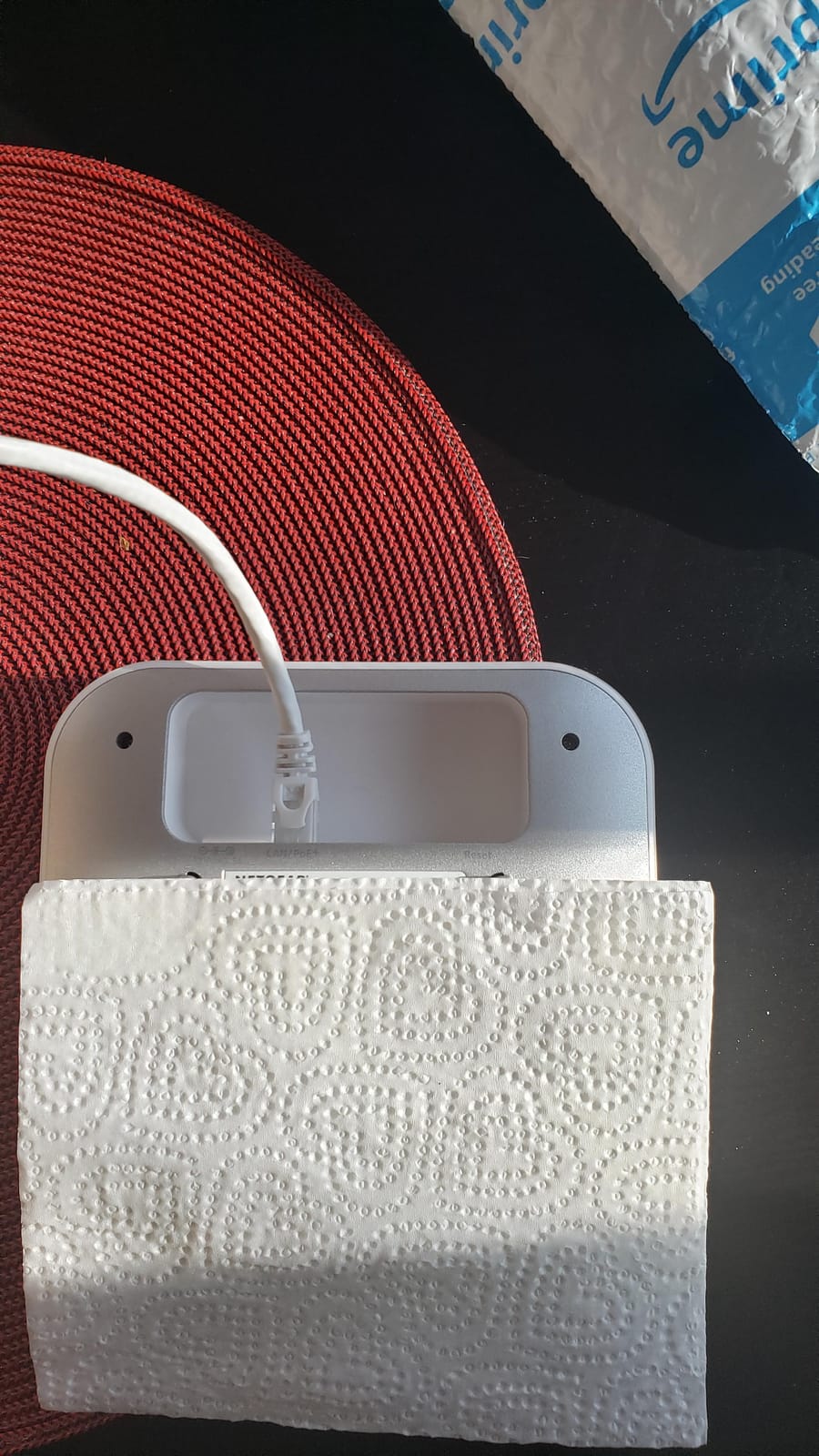
This is the single most important practical warning in the review data: the AC adapter is not included, and a generic PoE injector may not supply enough power. When that happens, throughput drops noticeably until a correct supply is used. The unit accepts PoE+, so a proper injector or a PoE port on your switch solves it properly.
Treat that as a line item in your build cost rather than an afterthought. Budgeting for a second access point without budgeting for its power source is how people end up with half a deployment working.
Eight SSIDs and network isolation
Up to 8 SSIDs with VLAN assignment, network and client isolation, rogue access point detection, load balancing and band steering covers everything a home office with smart home devices needs to separate work traffic from IoT. WPA3 is supported, which matters if you are connecting a work laptop.
One free year of NETGEAR Insight cloud management is included for setup and remote access, and setup runs through the Insight app.
Where the software falls short
NETGEAR Insight is the most criticised part of the package. Owners describe it as slow to react and note that it does not expose every configuration option. The Ethernet port is also not recessed, so the unit cannot lie flat without the wall or ceiling bracket, and it runs hot in operation. A small design detail, but plan the mount for it.
8. Amazon eero PoE 6 – Best Access Point for App-Only Setups
Amazon eero PoE 6 – Ceiling/wall-mountable, Dual-band Wi-Fi 6 access point, PoE powered, AC adapter not included
Ceiling and wall mountable
WiFi 6 up to 1.6 Gbps
PoE powered
Coverage up to 2000 sq ft
+ Pros
- Mounts to ceilings or walls with no power outlet at the access point
- App-guided setup takes minutes once PoE is in place
- TrueMesh routing reduces drop-offs and dead spots across several units
- Scales to 100+ connected devices per unit
- Cross-compatible with other eero hardware for gradual expansion
– Cons
- Requires existing PoE infrastructure since the AC adapter is not included
- Advanced management and online security sit behind an optional subscription
- Dual-band Wi-Fi 6 only with no 6 GHz band
- Costs more than most dual-band business access points with similar specs
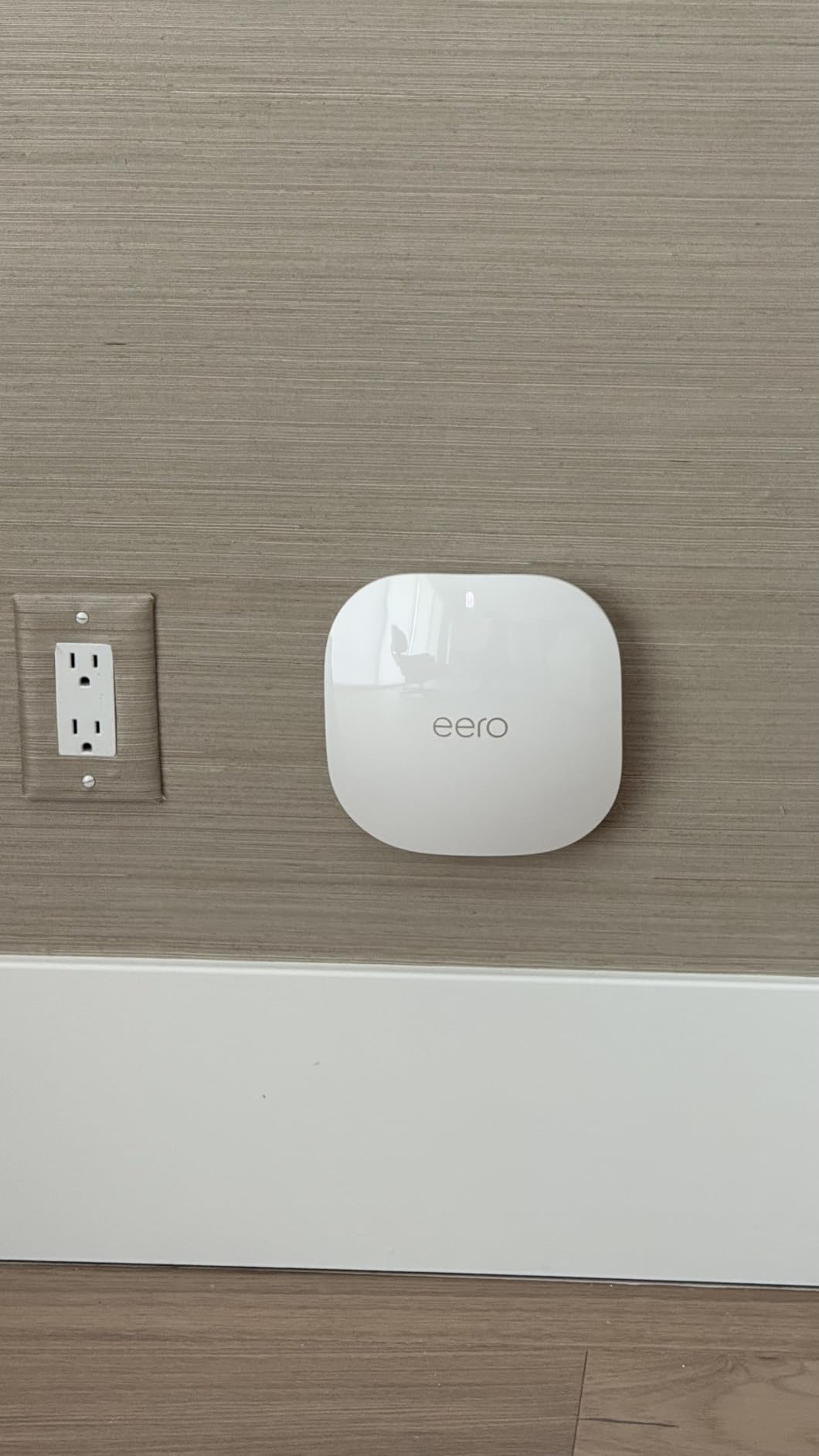
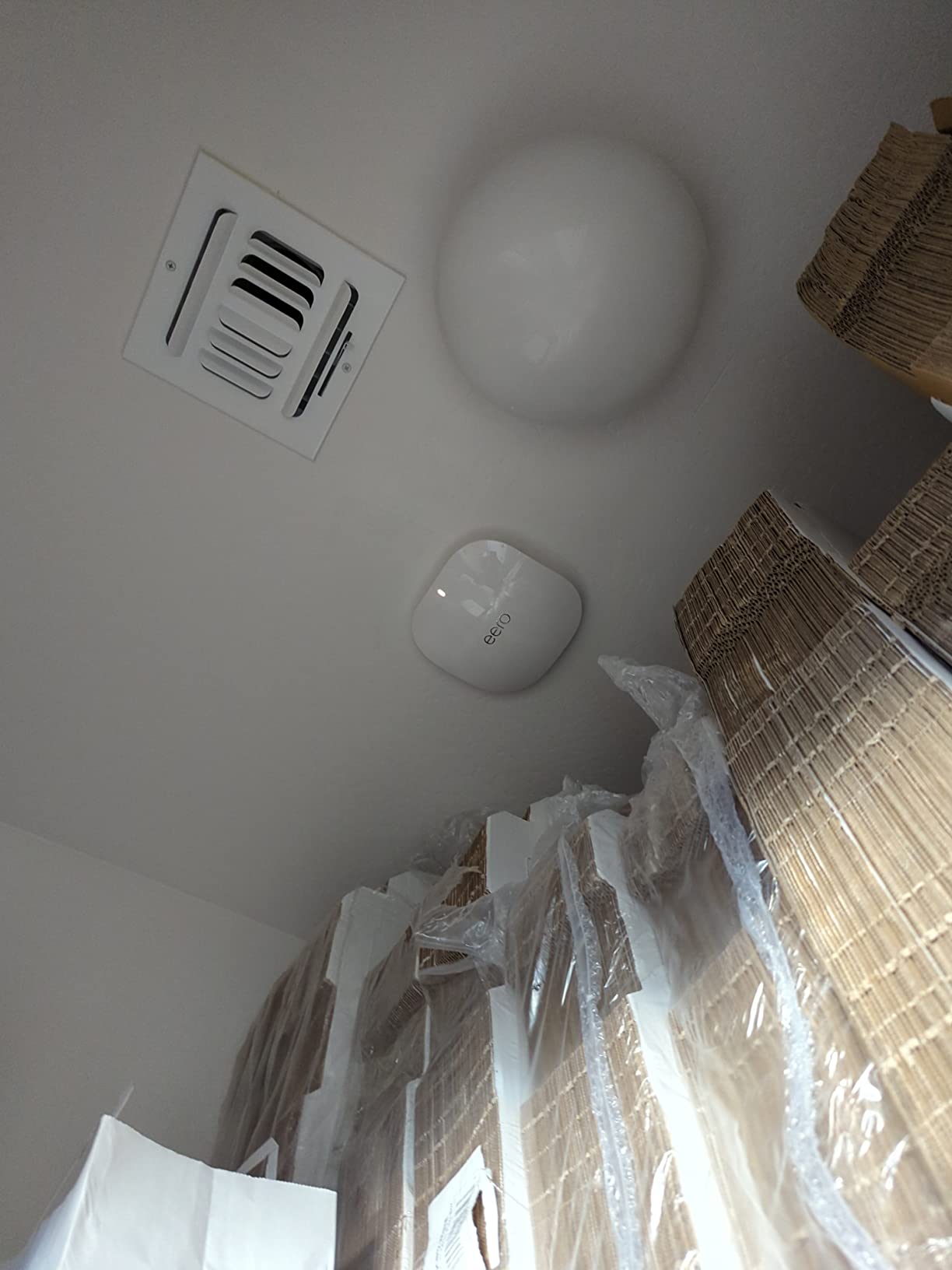
If you already run eero hardware, this is the ceiling-mount version of it. It uses Power over Ethernet, so it mounts to a ceiling or wall without needing a power outlet at that spot, and the eero app guides the whole setup once the PoE infrastructure is in place.
Wireless speeds go up to 1.6 gigabits per second, each unit covers up to 2,000 square feet within a 25 foot radius, and it supports 100+ connected devices. For a heavily connected home with smart home devices, that capacity is the argument for it.
TrueMesh across several access points
The patented TrueMesh technology routes traffic intelligently to reduce drop-offs and dead spots across a multi-unit deployment. For a home that already spans two or three floors, that is the feature you are paying for, and the hardware is cross-compatible with other eero products so you can expand gradually.
Review sentiment centres on simple app-driven setup and tidy single-cable installation. There is no console to learn and no VLAN configuration to read about, which is a genuine advantage if network management is not something you want a second job.
The subscription question
Online security and additional network management features sit behind an optional eero Plus subscription. You get automatic updates and basic management regardless, but the advanced layer is paid. Decide that before you buy rather than discovering it later.
Two hardware notes. It is dual-band Wi-Fi 6 with no 6 GHz band, so Wi-Fi 7 clients gain nothing here. And it costs more than most dual-band business access points with comparable raw specifications. You are paying for the ecosystem and the mounting, not for the radio.
PoE infrastructure is a prerequisite
The AC adapter is not included, so you need a PoE switch, injector or adapter already in place. For a first-time installer, add that to your build cost before committing. Our guides to cable organizers for home offices and the routing side of a run can help keep a new install tidy.
9. Cudy AP1300 – Best Budget Access Point with Built-In VPN and VLAN
Cudy AC1200 Dual-Band Wi-Fi 5 Access Point, 1x RJ45 Gigabit Port, AP1300
AC1200 dual-band 802.11ac
MU-MIMO and beamforming
802.3at/af and passive PoE
Captive portal and 8 SSIDs
+ Pros
- Reported online and serving a home office in about a minute
- Strong range for the price reaching about 150 feet and through metal walls
- Unique mounting system easier to fit to a ceiling than competing brackets
- Configurable from the app or a local web page for advanced settings
- Generous feature set including captive portal and built-in VPN server and client
– Cons
- No AC adapter included so a power source must be sourced separately
- Documented first-run problem where the management address could not be reached
- With several access points there is no way to pick which one to configure
- Poor weather isolation makes it effectively an indoor-only unit
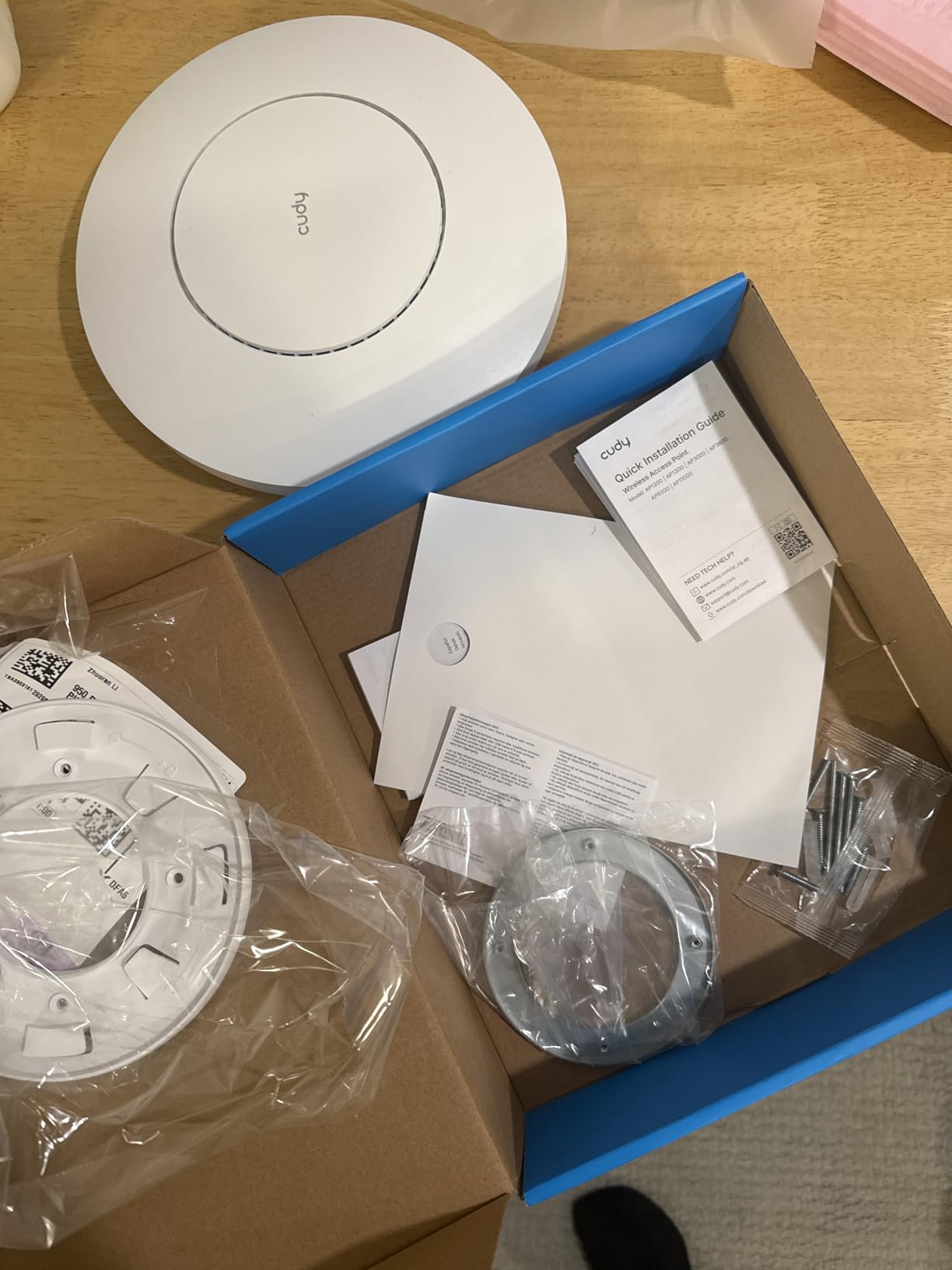
The AP1300 runs OpenWrt and ships with a feature set that usually costs several times more: a VPN server and client supporting WireGuard, OpenVPN, IPsec, ZeroTier, PPTP and L2TP, a captive portal with local or external authentication, and 8 SSIDs with VLAN tagging.
Buyers treat it as a capable budget alternative to name-brand units, and several reviews describe it replacing higher-priced access points with better reach. Coverage is rated at 1,100 square feet with 100+ clients, and one owner extended signal out into the garden.
Range that punches above its class
Owners report about 150 feet of reach and signal getting through a metal barn wall. That is the kind of result normally attributed to much larger hardware, and it comes from 4 internal antennas with MU-MIMO and beamforming. For a home with outbuildings, that reach is the reason to consider this unit.
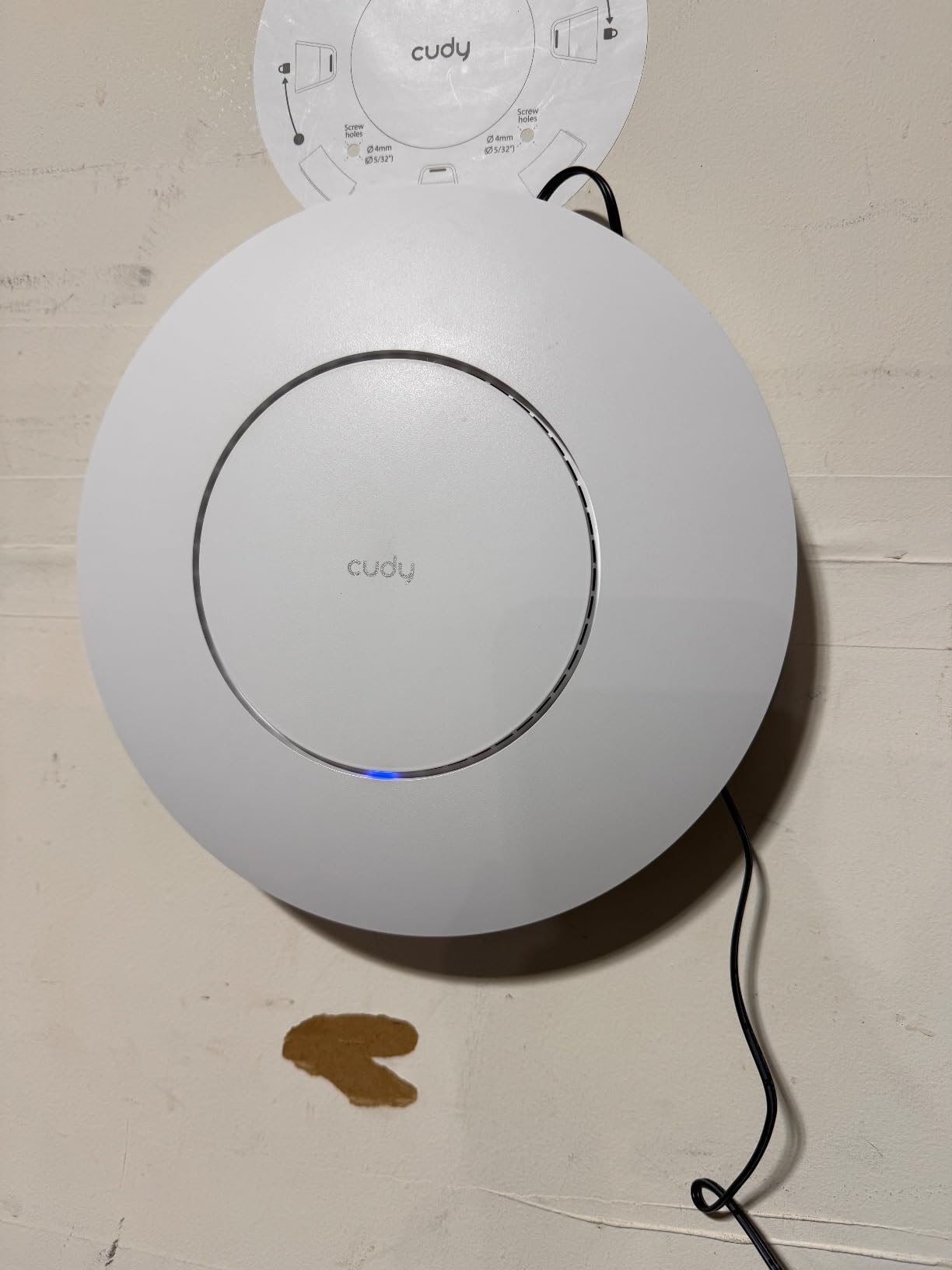
The custom mounting system is another practical plus. Owners describe it as easier to fit to a ceiling than the competing brackets in this roundup, which matters more than it sounds when you are working upside down on a ladder.
Managing several of these at once
This is the flaw to understand before buying more than one. With several access points on a single subnet there is no screen to pick which one you want to configure, so it selects one at random and you must power the others down to reach the right unit. Plan on configuring each one in isolation, or use a Cudy Controller for multi-access-point oversight.
There is also a documented first-run problem where the stated management address could not be reached until the unit was wired directly to a computer. Know that in advance and you will not lose an evening.
Indoor only, and no adapter
Outdoor weather isolation is poor, so treat this as an indoor-only unit. If you need coverage outside, look at our outdoor access point picks for backyards instead. The AC adapter is also not included, though it accepts 802.3at/af PoE, 24 to 57V passive PoE or 12V DC input.
10. HPE Aruba Instant On AP22 – Best Access Point for Business-Grade Security
HPE Networking Instant On Access Point AP22 2×2 WiFi 6 Indoor Wireless Access Point | Long Range, Secure, Smart Mesh Support | Power Source Not Included | US Model (R4W01A),Dual-Band
802.11ax Wi-Fi 6 2×2 radio
1774 Mbps aggregate throughput
One gigabit uplink
Aruba Instant On cloud app
+ Pros
- Simple setup through an intuitive mobile app for non-technical users
- Handles 20+ simultaneous devices in a busy two-story home
- Effectively unlimited SSID creation for complex segmentation
- Three AP22 access points covered a 9000 sq ft property
- Two-factor authentication with WPA2 and WPA3 Enterprise
– Cons
- Cloud management only with no local management option
- First boot requires the access point to be connected to the internet directly
- LED is on and off only with no dim setting
- Directional coverage pattern means little signal directly behind the unit
The AP22 is the one to buy when your work involves client data or a company laptop. It supports WPA2-Enterprise and WPA3-Enterprise with two-factor authentication, and it won CRN’s SMB Product of the Year award for security. Few consumer-grade access points in this roundup offer enterprise authentication at all.
Performance is a 2×2 Wi-Fi 6 radio delivering 1200 megabits per second on 5 GHz plus 574 on 2.4 GHz, or 1774 megabits per second aggregate, over a single gigabit uplink. One owner reached near 500 megabits per second after a full network upgrade, matching the ISP plan.

Unlimited network names
One owner cited effectively unlimited SSID creation as a big upgrade from a 4-SSID limit on their previous system. That matters in a home office with work devices, guests, cameras and smart home kit all needing separation, and it removes an arbitrary ceiling on how you segment traffic.
Three AP22s covered a 9,000 square foot property well indoors and outside, and another owner handled 20+ simultaneous devices in a busy two-story home without trouble. Smart mesh support lets you scale without new software.

Cloud-only management and the first-boot requirement
There is no local management option. The AP22 must be cloud-managed through the Aruba Instant On app, and the first boot requires it to be connected directly to the internet. Both facts complicate some network architectures, particularly a VLAN-segmented network, because you configure the segmentation after the first successful connection rather than before.
The cloud interface also limits deeper configuration for experienced administrators. If you want a captive portal, per-SSID settings and monitoring from one app, it is capable enough. If you want local control, it is not the tool.
Physical details that show up in a hallway
The LED is on and off only, with no dim or brightness setting, which is awkward in a bedroom or a dark hallway. The housing is bulkier than the slim ceiling units in this roundup. And the directional coverage pattern means little signal directly behind the unit, so place it where people are, not in a cupboard.
It works with essentially any PoE injector and runs on 802.3af Class 2 or a 12V local adapter, though the adapter is not included with this package. For a first install in a home office, our task lamp guide covers the other half of the desk setup.
How to Choose an Access Point for a Home Office
Start from the room, not the spec sheet. The distance between your desk and your router, the materials in the walls and whether you can run a cable decide far more about your daily experience than any generation number on the box.
Access point vs mesh vs router
A router connects your network to your internet provider and decides where traffic goes. A mesh system is several radios that extend a router using a wireless link between them. A standalone access point is one or more radios that plug into your network with a cable.
Mesh is the right answer when you cannot get Ethernet to the far rooms. It is the wrong answer when you can, because every wireless hop costs throughput and adds jitter, and jitter is what wrecks a video call. Access points are better whenever cabling is possible, and r/HomeNetworking threads repeat that consensus consistently. A range extender is a budget version of a mesh node with none of the multi-unit coordination, and it usually performs worse than either.
The one situation where mesh genuinely wins is a finished house with no cable route and a device count low enough that throughput is not the priority. Everything else, wired access points win.
How many access points a home office needs
Use the community rule as your guide: no place you expect fast 5 GHz should be more than one wall or floor from an access point.
A single-floor home under 1,500 square feet with the office near the router needs one access point, and many owners confirm one unit covers it. A two-storey home usually needs two, one per floor. A three-storey house, or one with a detached garden office, typically needs three. A large open-plan floor with masonry and internal glass can need two on that floor alone.
Buying more than that does not make Wi-Fi better. It creates more overlapping cells, more roaming decisions and more places for a laptop to stick to a distant unit. Two well-placed access points always beat four poorly placed ones.
Wired backhaul vs wireless backhaul
Wired backhaul means each access point connects to your switch by Ethernet. Wireless backhaul means the access point reaches your network over Wi-Fi, which is what mesh nodes do.
The cost is significant. A wireless hop typically consumes a large share of the available airtime for the second hop, and it adds latency and jitter even when a speed test looks acceptable. Users repeatedly report that a video call which drops on wireless backhaul becomes stable the moment a cable is run.
If you genuinely cannot cable, look at the alternatives honestly: surface-mounted conduit along a skirting board, an under-floor run in a renovated room, or a powerline bridge as a last resort. None of these are as good as a cable, but all beat a wireless hop.
PoE explained, and whether you need a switch
Power over Ethernet sends the access point both power and data down one cable. Three things to check: whether the unit uses 802.3af or 802.3at, whether a PoE injector is included, and whether a plain non-PoE switch will work with an external power supply.
For one or two access points, an injector per unit is the cheapest route and needs no switch at all. Several units in this roundup include one in the box, which removes a line item from your build. For three or more, a small PoE switch is tidier and leaves spare ports for a desk, a printer or a wired laptop dock.
Do not use an underpowered generic injector with a PoE+ unit. One owner of a 2.5 gigabit access point saw throughput drop sharply until a correct supply was fitted.
Wi-Fi 6 vs Wi-Fi 6E vs Wi-Fi 7
Wi-Fi 6 is 802.11ax on the 2.4 and 5 GHz bands. Wi-Fi 6E adds the 6 GHz band, which is wide and clean but has poor wall penetration. Wi-Fi 7 is 802.11be, adding features that matter mainly to high-end clients.
For a home office, Wi-Fi 6 is the current sweet spot. You get MU-MIMO, OFDMA and better efficiency at busy moments without paying for a 6 GHz radio your clients cannot use. Wi-Fi 6E pays off if your laptop and phone are recent and you want raw throughput at the desk. Wi-Fi 7 is a reasonable purchase if you intend to keep the access point for years and already own Wi-Fi 7 devices, otherwise it is money spent on a band your current hardware ignores.
None of these standards change how well a signal travels through brick or foil-backed insulation. Placement still decides coverage, which is why every unit here is rated generously and still disappoints people who install it badly.
Placement and the materials that kill a signal
Place access points where people are, not where cables are convenient. A hallway ceiling near the centre of the floor plan, or a ceiling position close to the office door, covers more than a unit tucked in a closet.
Understand what attenuates a signal before you blame the hardware. Brick, concrete with rebar, foil-backed plasterboard, mirrors, and metal doors all cut 5 GHz badly. So does distance: each wall and floor costs signal, and 2.4 GHz travels further than 5 GHz but is slower and more crowded.
One well-placed access point in the middle floor of a three-storey house has been reported as solving the problem entirely for one owner. You do not need a site survey, but you do need to stand in the office with a phone and check signal strength before and after.
What makes an access point powerful
Judge power by four things rather than the marketing number. Transmit power and antenna gain decide how far a signal reaches. Radio class such as AC1350, AX1800 or tri-band Wi-Fi 7 decides how much throughput it carries at close range. Client capacity decides how many devices it serves well. Port speed decides whether the wired side becomes the bottleneck.
The most powerful access point for a home office is usually not the one with the biggest number. It is the one placed so that your desk is within one wall of it, wired back to your switch, and transmitting at a sensible power level rather than maximum. If you want raw ceiling numbers, the tri-band Wi-Fi 7 unit in this list tops out at 10.8 gigabits per second with a 2.5 gigabit port, and a 2,500 square foot Wi-Fi 6 unit covers the most floor area per installation.
Frequently Asked Questions
What is the best access point for an office?
For a small office, a business-class Wi-Fi 6 access point with PoE is the right answer, ideally one per floor and each wired back to a PoE switch rather than linked wirelessly. Prioritise stability, roaming support and guest network isolation over headline speed, because video calls fail on jitter long before they fail on bandwidth. The Ubiquiti U7-Pro and the TP-Link Omada EAP610 are strong starting points depending on whether you want a controller or a free cloud-managed setup.
What is the best access point for home use?
For most homes, a single Wi-Fi 6 ceiling-mount access point with PoE is the best answer, provided it is wired back to your router. The Ubiquiti U6+ and the TP-Link Omada EAP610 both cover a typical single floor, while a second unit is needed for each additional storey. The key rule is that no place you expect fast 5 GHz should sit more than one wall or floor from an access point.
Does Wi-Fi 7 penetrate walls?
No. Wi-Fi 7, Wi-Fi 6 and Wi-Fi 6E all use roughly the same radio frequencies in the 2.4, 5 and 6 GHz bands, so wall penetration is essentially unchanged between generations. The difference is throughput, efficiency and how many clients a radio can serve at once. Brick, concrete with rebar, foil-backed plasterboard and metal doors cut the signal far more than the standard does, so placement matters more than generation.
What is the most powerful access point?
Power is best judged by four criteria: transmit power and antenna gain for reach, radio class such as AX1800 or tri-band for throughput, client capacity for busy rooms, and port speed so the wired uplink is not the limit. The most powerful for a home office is rarely the biggest number, but the tri-band Wi-Fi 7 unit rated at 10.8 Gbps with a 2.5 gigabit port leads on raw capability, while a 2,500 sq ft Wi-Fi 6 unit leads on coverage per installation.
Is a mesh network better than an access point?
No, not when you can run Ethernet. An access point is wired back to your switch, so every client gets full throughput with low latency and low jitter. Mesh nodes extend coverage over a wireless link, which consumes airtime, adds latency and can leave devices hanging on to a distant node. Mesh is the better choice only in a finished home where no cable can be run and throughput is not the priority.
What is a major disadvantage of a mesh network?
The major disadvantage is wireless backhaul, because each hop between nodes shares the same airtime and cuts usable throughput while adding latency and jitter. A second disadvantage is coordination, since cheap systems often fail to hand a device off cleanly between nodes, leaving a laptop stuck to a distant one. Range extender units are worse still, offering no coordination at all between multiple devices.
How much speed do you lose with mesh WiFi?
Speed loss depends entirely on the setup. Multi-band mesh hardware that uses a separate band for backhaul performs far better than dual-band units that share airtime, but every wireless hop still costs a substantial share of throughput and adds latency. Speed tests at the far node may look acceptable while jitter makes video calls unstable, which is why wired access points are recommended wherever a cable can be run.
Will mesh WiFi go through walls?
Partially. Mesh signals do pass through ordinary stud and drywall walls, but the signal weakens with each wall, floor and material. Brick, concrete with rebar, foil-backed plasterboard, mirrors and metal doors cause the steepest loss, and 2.4 GHz travels further than 5 GHz because it bounces and penetrates more easily. Adding access points closer to where you work is more reliable than expecting a single mesh node to punch through several walls.
Conclusion
For most home offices, the Ubiquiti UniFi nanoHD is the pick: it mounts invisibly, handles far more clients than you will ever connect, and its low receive gain makes roaming between two of them clean. Pair it with a UniFi console and it becomes the most capable setup in this list.
If you want the least hardware to buy, the TP-Link Omada EAP225 comes with its own PoE injector and a free controller. If you would rather not run controller software at all, the Omada EAP610 does the same job through free cloud management. If you already run eero, the eero PoE 6 mounts to the ceiling and is set up entirely from the app.
For a large open-plan floor, the NETGEAR WAX610 covers the most area per installation. For business-grade security on a work laptop, the Aruba Instant On AP22 supports WPA3-Enterprise with two-factor authentication. And if you have a recent laptop plus a 6 GHz network nearby and want the headroom, the Ubiquiti U7-Pro is the Wi-Fi 7 option.
Whatever you choose, the hardware matters less than the cable and the placement. Run Ethernet, keep the desk within one wall of an access point, and check the signal from the chair before you start a call. That is the difference between an access point that fixes your workday and one that just adds another thing to troubleshoot.
If you are planning the rest of the desk, our picks for the paper shredders for home offices and cable organizers for home offices cover the rest of the setup.
Leave a Reply