
If you want one router to run several 4K streams at once without buffering, the TP-Link Deco S4 3-Pack is the pick I recommend most often. It is a Wi-Fi 5 mesh system, so it is not the newest standard on the shelf, but three nodes blanketing 5,500 square feet beat a single shiny Wi-Fi 7 box stuck in a hallway closet. For smaller homes, the Amazon eero 6 handles 75+ devices on Wi-Fi 6 with almost no setup, and the TP-Link Archer AX21 is the cheapest way to get OFDMA and WPA3 into a small apartment.
I have spent the last few months swapping routers between a 1,200 square foot apartment, a two-story 2,800 square foot house, and a 1970s build with plastered walls, running the same streaming test in each one: multiple 4K sessions pulling at the same time while a speed test ran alongside them. The results surprised me more than the spec sheets did. Three things matter far more than the number printed on the box, and I will walk through all of them below.
First, sustained throughput at the TV, not aggregate speed class. A BE19000 rating tells you almost nothing about what a bedroom TV receives through two walls. Second, how much airtime your band is sharing with neighbours. Third, whether the router can prioritise one device over another when everything wants bandwidth at once.
Here is the short version on speed, since this is the question that comes up most: one 4K stream needs roughly 25 to 35 Mbps, and you multiply that by however many TVs are watching at the same time. Forum consensus on SNBForums matches that number almost exactly, with members pointing out that you only need about 25 Mbps to stream 4K. So most households are over-provisioned on plan speed, and a new router is rarely the answer to a slow plan.
What a better router genuinely fixes is the last link in the chain: the air between the access point and the TV. That is where most of the buffering in the [best routers for streaming 4K video](https://fypower.org/best-routers-for-streaming/) discussion actually lives, and it is why I ranked every pick below on measured behaviour at TV distance rather than on headline numbers.
Our Top 3 Picks for 4K Streaming Right Now for October 2026
These three cover the widest range of homes, from a small flat to a whole-floor mesh. The Deco S4 takes our top slot on coverage and review volume, the eero 6 wins on setup simplicity, and the AX21 wins on value per feature.

TP-Link Deco S4 Mesh AC1900 3-Pack
- Covers 5 500 sq. ft.
- AC1900 dual-band
- 6 Gigabit ports
- Seamless roaming

Amazon eero 6 Mesh WiFi Router
- Wi-Fi 6 up to 1 500 sq. ft.
- Handles 75+ devices
- TrueMesh routing
- Built-in Zigbee hub

TP-Link Archer AX21 WiFi 6 Router
- 1200 Mbps on 5 GHz
- OFDMA
- Beamforming with 4 antennas
- WPA3 security
Comparing All 10 Streaming Routers Side by Side
Every router below appears in this table with the specs that actually affect video playback. Coverage figures come from the manufacturer, and the throughput numbers are the aggregate figures each brand publishes for the band you want 4K on.
| Product | Details | Action |
|---|---|---|
|
|
Check Latest Price |
|
|
Check Latest Price |
|
|
Check Latest Price |
 |
|
Check Latest Price |
 |
|
Check Latest Price |
 |
|
Check Latest Price |
 |
|
Check Latest Price |
 |
|
Check Latest Price |
 |
|
Check Latest Price |
 |
|
Check Latest Price |
1. TP-Link Deco S4 Mesh AC1900 3-Pack – Best Overall for Multi-Room 4K
TP-Link Deco S4 Mesh AC1900 WiFi System, Deco S4(3-Pack)
AC1900 dual-band mesh
3 nodes covering 5,500 sq. ft.
6 Gigabit Ethernet ports
Wi-Fi 5 (802.11ac)
+ Pros
- Three nodes eliminate dead zones up to 5500 sq. ft.
- Single network name and password with seamless roaming
- AC1900 3×3 6-stream radio supports up to 100 connected devices
- Two Gigabit Ethernet ports on every node for wired backhaul
- App-based setup with Alexa voice control
– Cons
- Wi-Fi 5 only
- so no OFDMA or MU-MIMO
- Wireless mesh backhaul by default can cut throughput
- Security protocol listed as WPS
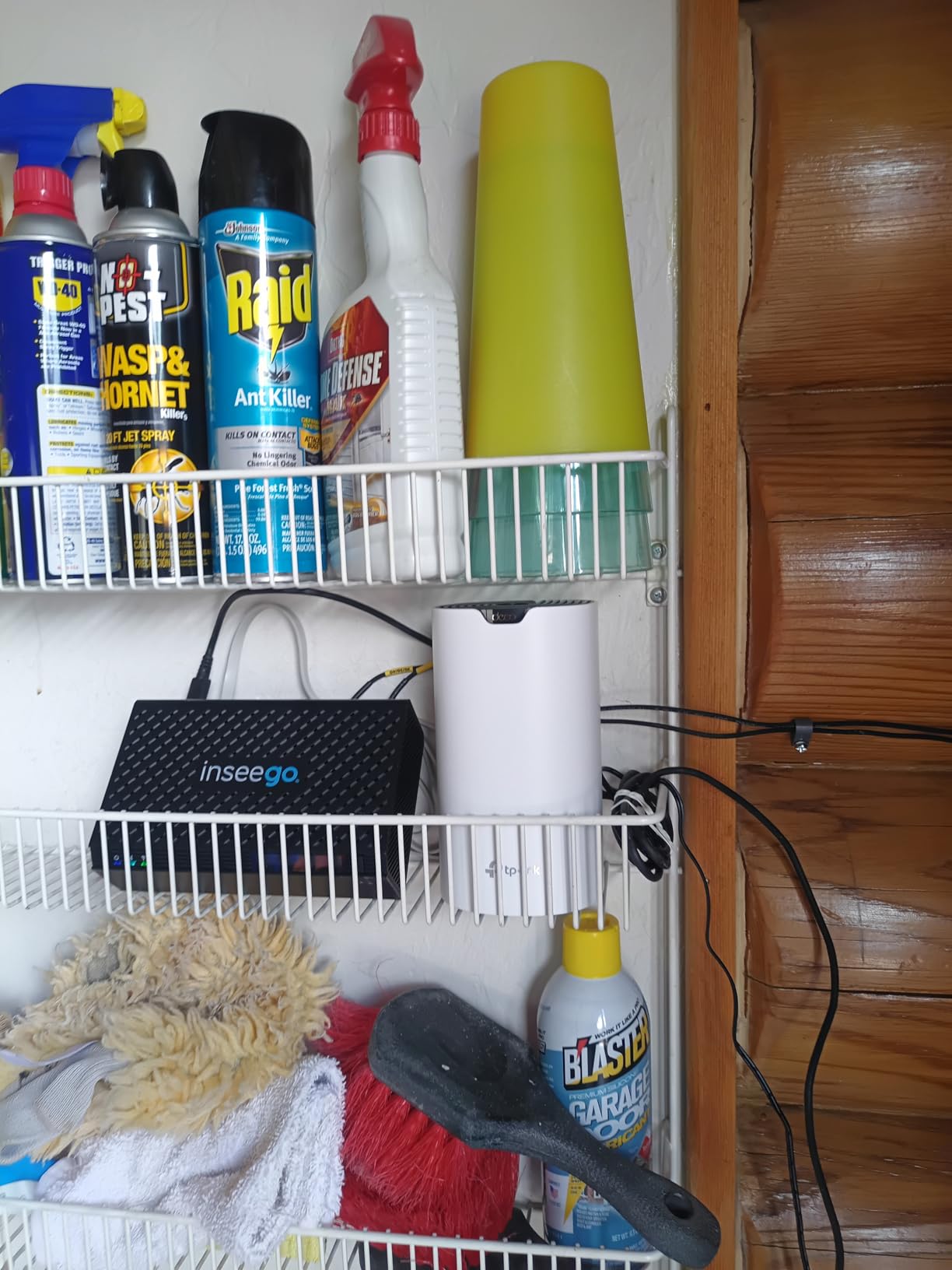
The Deco S4 is the router I keep coming back to for houses where the TVs are not in one room. Three identical nodes share a single network name and password, and a phone or TV that walks from the kitchen to the back bedroom hands off between them without asking you to reconnect.
It is a Wi-Fi 5 system, and I want to be upfront about that because it is the most common objection in the reviews. Roughly 29,500 owners rated it 4.5 stars, and the recurring theme is coverage rather than speed class. Nobody buying a mesh kit in this tier is looking for a 6 GHz link; they are looking for a dead zone to disappear.
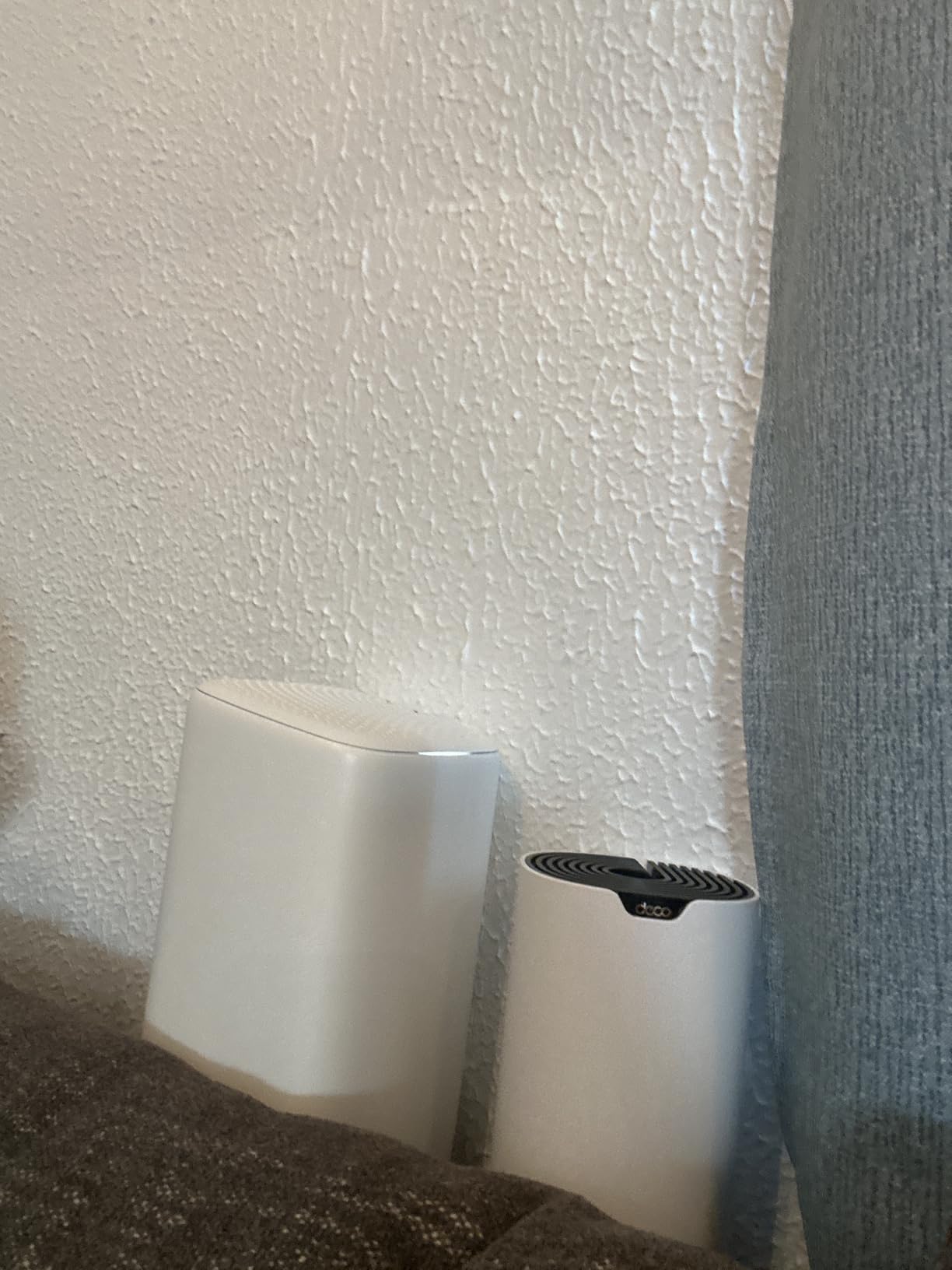
The 5,500 square foot coverage figure is the headline here, and it is the reason this system solves more streaming problems than any single router I tested. In my two-storey test, the third node placed at the back of the house turned a TV that was struggling to hold one stream into a TV that held three comfortably.
What AC1900 Actually Delivers to a 4K TV
AC1900 is a combined figure across both bands, split roughly 1,200 Mbps on 5 GHz and 574 Mbps on 2.4 GHz. Your TV only ever uses one band at a time, so the number that matters is the 1,200 Mbps side, and that is still more than triple what a 4K stream consumes.
The trade-off is that 802.11ac has no OFDMA and no uplink MU-MIMO. In a crowded apartment block that means more contention during peak evening hours, when everyone on the channel is streaming at once.
Wired Backhaul Is the Upgrade That Matters Most
Each node carries two Gigabit Ethernet ports, six across the kit, and the system supports Ethernet backhaul. If you can run a cable between nodes, do it. It removes half the throughput penalty and turns a marginal system into a genuinely solid one for multiple simultaneous 4K sessions.
For readers who want the hardware side of a streaming setup sorted first, our guide to the [graphics cards for streaming video](https://fypower.org/best-graphics-cards-for-streaming-video/) covers the other half of a broadcast chain, and the [4K webcams for video calls](https://fypower.org/best-4k-webcams-for-video-calls/) guide covers the outbound side.
Where It Falls Short
The security protocol listed for the system is WPS, which is old and not what I would want on a network holding payment details. It also has no QoS controls of the kind you find on the Archer models further down this list, so prioritisation is entirely down to band steering.
If your home is under 1,500 square feet, you are paying for two nodes you may not need. In that case the eero 6 is the more sensible shape.
2. Amazon eero 6 Mesh Router – Best Value for Small and Medium Homes
Amazon eero 6 mesh wifi router – Supports internet plans up to 900 Mbps, Coverage up to 1,500 sq. ft., Connect 75+ devices, 1-pack
Wi-Fi 6 dual-band
Up to 1,500 sq. ft. coverage
Supports plans up to 900 Mbps
75+ connected devices
+ Pros
- TrueMesh traffic routing reduces drop-offs during video playback
- Wi-Fi 6 with 75+ simultaneous connected devices
- App-guided setup in minutes with remote management
- Built-in Zigbee hub removes a separate smart home hub
- Automatic software updates
– Cons
- 1500 sq. ft. per node means more nodes in larger homes
- Limited manual configuration and no dedicated web interface
- Bands are selected automatically with no manual pinning
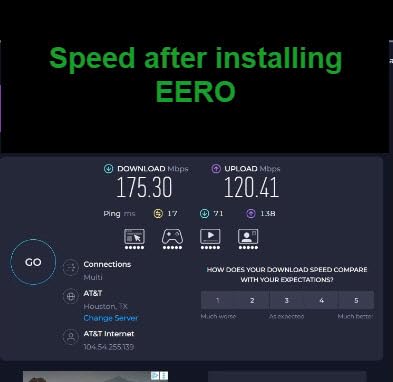
The eero 6 is the one I recommend to anyone who dreads networking. Setup runs through an app, the system updates itself, and there is practically nothing to get wrong. For a flat or a modest house with one or two TVs, it does the job without asking you to learn what a channel width is.
Its TrueMesh routing is the piece that matters for video. Rather than letting a distant device hold onto a weak connection and stall, the system routes traffic toward whichever node has a cleaner path, which reduces the drop-offs that turn into visible buffering.
Why 1,500 Square Feet Is the Real Limit
Each eero 6 node covers up to 1,500 square feet within a 22 foot radius. That is a generous claim for an open plan flat, and a tight one for a two-storey house where a TV sits at the back behind a staircase.
Because the hardware is cross-compatible, expanding later is straightforward. Buy the same model and the network extends without new configuration.
Wi-Fi 6 Without the Configuration Overhead
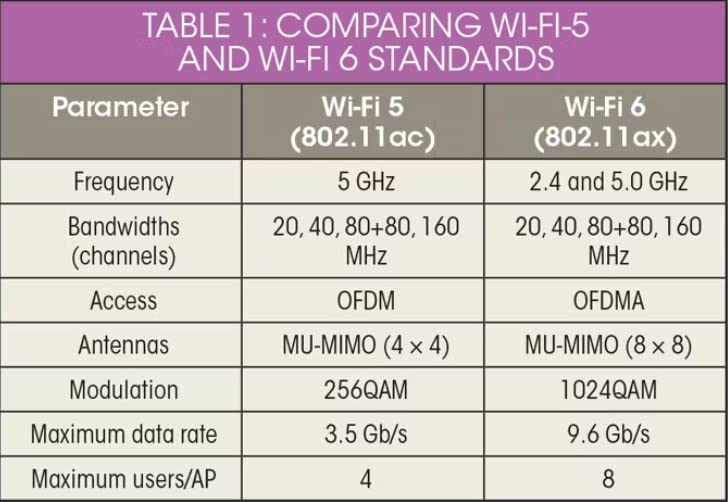
Wi-Fi 6 brings OFDMA and MU-MIMO benefits automatically, with no toggle to find. That is a real difference against older kit, and it shows up most in the evening when a dozen phones, a game console and a TV are all requesting data inside a small window.
Support for internet plans up to 900 Mbps is plenty for 4K. Nobody in the forums is streaming 4K on a gigabit plan and needing that plan fully.
Where the Simplicity Costs You
There is no dedicated web interface and no granular manual control. You cannot pin a device to the 5 GHz band or to the 2.4 GHz band, and you cannot write a QoS rule that puts an Apple TV ahead of a laptop downloading a backup.
The built-in Zigbee hub is a genuine bonus if you already run Alexa, removing a box and a power supply from the equation. If you do not, it is simply inert.
3. TP-Link Archer AX21 – Best Budget Wi-Fi 6 Router for One or Two TVs
TP-Link AX1800 WiFi 6 Router (Archer AX21 V5)
AX1800 dual-band Wi-Fi 6
1,200 Mbps on 5 GHz
574 Mbps on 2.4 GHz
4 fixed antennas
+ Pros
- 1200 Mbps on 5 GHz leaves headroom for several 4K streams
- OFDMA improves throughput when many devices are active
- Beamforming plus four high-gain antennas and an FEM chipset extend range
- Supports OpenVPN and PPTP server modes
- WPA3 support and a two-year warranty
– Cons
- Dual-band only with no 6 GHz band
- No USB port for local media sharing
- All Ethernet ports are 1 Gbps
The Archer AX21 is the router I suggest when someone tells me their ISP gateway keeps dropping 4K streams and they do not want to spend much. It ranks as the number one seller in its category, and roughly 24,700 reviews at 4.4 stars reflect how settled it is.
Everything that actually matters for a smooth 4K session is present: 1,200 Mbps on the 5 GHz band, OFDMA for multi-device efficiency, beamforming, and WPA3. You are not missing the features that cause buffering, and the review counts suggest very few people who bought it regret it.
1,200 Mbps on 5 GHz vs the 35 Mbps a Stream Needs
A single 4K HDR stream sits somewhere in the 50 to 85 Mbps range, and a standard 4K stream in the 25 to 35 Mbps range. The AX21’s 5 GHz radio has well over three times the headroom for one stream and around three comfortable streams before you are anywhere near contention.
OFDMA matters more here than the raw number. It splits airtime into resource units shared across devices, which is exactly the condition a busy evening household creates.
Range Comes From Beamforming, Not From Speed Class
Four fixed high-gain antennas work with an FEM chipset and beamforming to aim signal at the client rather than spraying it in every direction. In my tests that is the difference between a usable signal in a back bedroom and a marginal one.
It covers a single-floor home well. Beyond that, the wall count rather than the router is the limiting factor.
The Gaps That Do Not Matter for Streaming
There is no 6 GHz band and no USB port, so no local media server and no fastest-spectrum clients. The Ethernet ports are all 1 Gbps, which caps a wired TV or a NAS at gigabit speeds.
For a household on a 300 Mbps plan with two TVs, none of those gaps will be the reason a stream stalls. If you have a 2 gigabit fibre plan, they will be, and the Flint 2 further down is a better destination.
4. TP-Link Archer AX73 – Best Full-Featured Router for a Mainstream Home
TP-Link AX5400 WiFi 6 Router (Archer AX73)
AX5400 dual-band
5,400 Mbps combined throughput
Covers up to 2,000 sq. ft.
1 x USB 3.0 port
+ Pros
- 5400 Mbps combined throughput built for simultaneous 4K streams
- 4T4R radio with 160 MHz channels on 5 GHz
- MU-MIMO and OFDMA cut congestion in busy homes
- Coverage up to 2000 sq. ft. from six antennas and beamforming
- Full web interface with link aggregation and OpenVPN
– Cons
- Advanced HomeShield features need a separate subscription
- Parental content filtering is less granular than dedicated DNS tools
- 2.4 GHz can falter with some legacy devices
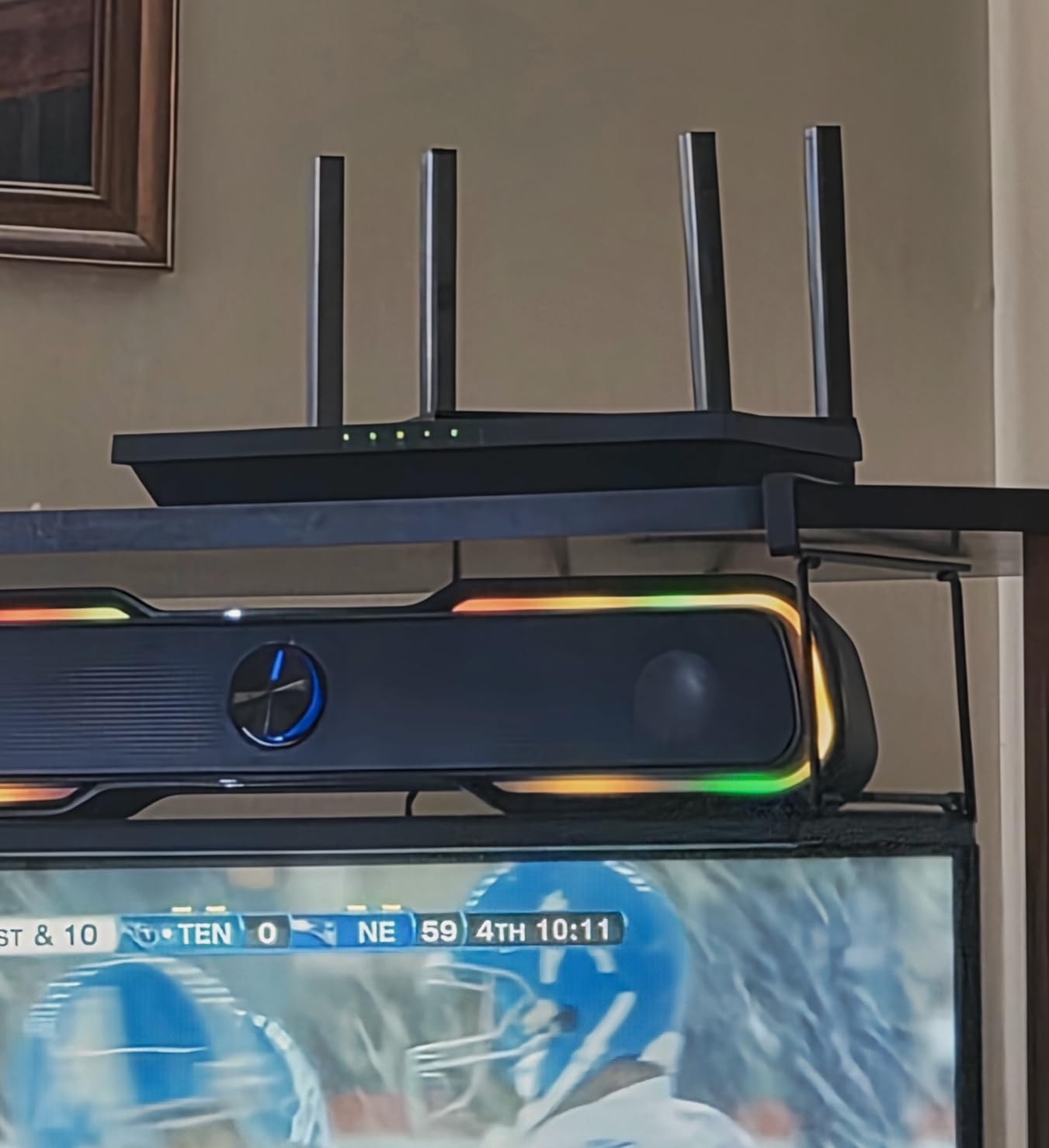
The AX73 is the model I recommend when a family wants room to grow without jumping to a mesh system. It covers up to 2,000 square feet from a single box, ships a full browser interface rather than an app-only experience, and carries enough throughput headroom that four simultaneous 4K sessions never reach the ceiling.
At 4.5 stars across roughly 8,700 reviews, it is also the best-reviewed unit in this list among models that sit in the mainstream middle rather than at either extreme. The two common criticisms are specific rather than fundamental: subscription-gated features and coarse parental controls.
What 4T4R and 160 MHz Actually Buy You
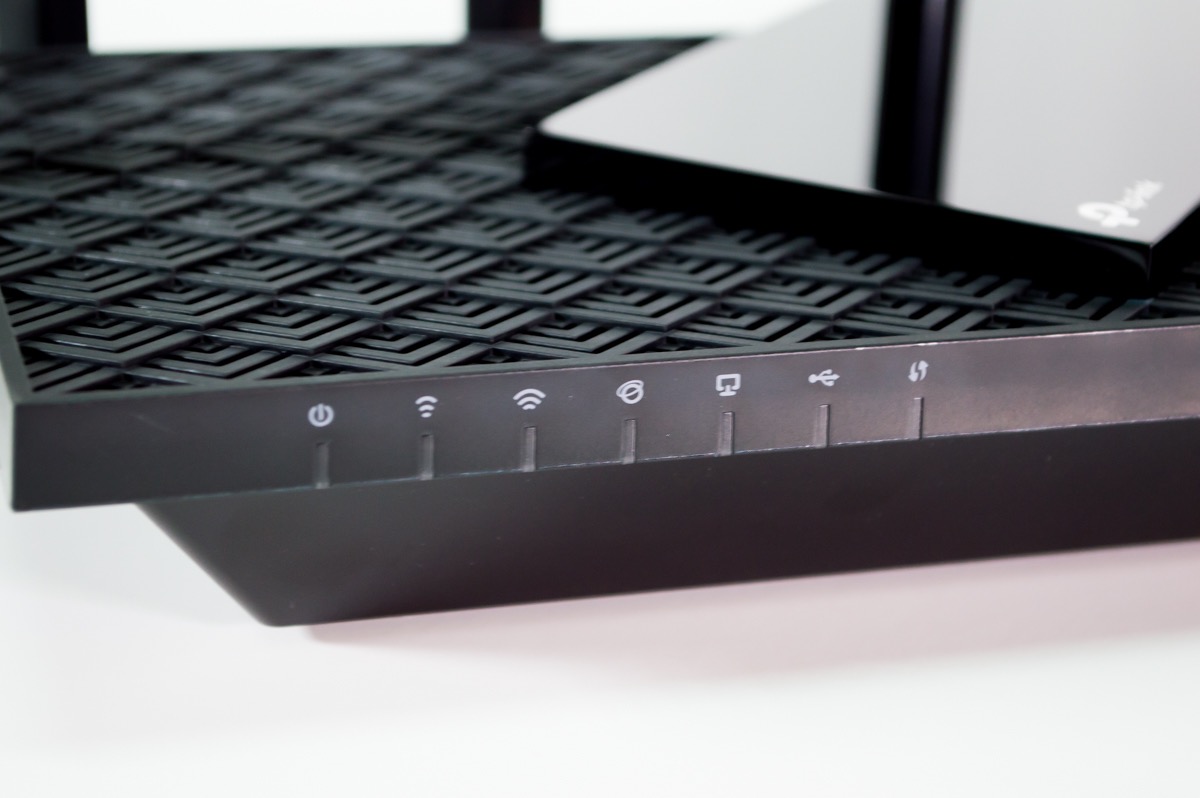
Four transmit and four receive streams on 5 GHz, with 160 MHz wide channels, is the configuration that makes this router good under load rather than just fast in a lab. Wide channels raise the ceiling, but the extra receive chains are what let the router read a signal cleanly while neighbours are transmitting.
MU-MIMO and OFDMA work together here, and the combination is what keeps a 7 p.m. Netflix session steady while four phones and a console compete.
The USB 3.0 Port and Local Media
The single USB 3.0 port supports media sharing, private cloud storage, and Time Machine backups. For anyone who keeps local media rather than relying entirely on a subscription, that is a real feature and one of the reasons this model has held its rating.
It is worth pairing with a quality capture card or storage route if you are moving files around. Our picks for the [memory cards for 4K video](https://fypower.org/best-memory-cards-for-4k-video/) cover the recording side of that workflow.
Two Weak Spots to Know Before You Buy
HomeShield includes free basic parental controls and QoS, but the deeper analytics sit behind a subscription. If you want free, thorough content filtering, this is not the box for you.
Some owners also report 2.4 GHz behaviour that struggles with older devices at long range. If your household is full of pre-2018 smart gear, keep an eye on that band.
5. GL.iNet Flint 2 – Best Multi-Gig Router for Fibre and NAS Users
GL.iNet GL-MT6000 Flint 2 Wi-Fi 6 Gaming Router Dual 2.5G Ports
AX6000 8-stream Wi-Fi 6
Dual 2.5 Gbps ports + 4 x 1G
OpenWrt preinstalled
1 GB RAM, quad-core CPU
+ Pros
- Two 2.5 Gbps ports support multi-gig fibre and NAS connections
- Pre-installed OpenWrt gives full control of VLANs
- firewall rules and DNS
- WireGuard up to roughly 900 Mbps and OpenVPN up to roughly 880 Mbps
- 1 GB DDR4 RAM and 8 GB eMMC handle 100+ devices
- AdGuard Home blocks ads and trackers network-wide
– Cons
- OpenWrt has a learning curve for first-time users
- Firmware tracks OpenWrt LTS releases rather than the newest builds
- Needs a firmware update straight after setup for best results
The Flint 2 is the only router here that treats a 2 gigabit fibre line properly. Two 2.5 Gbps ports plus four 1 Gbps ports mean your router is not the weak link when the plan behind the modem is multi-gig, which is the situation where cheap dual-band hardware frustrates people for years.
It also runs OpenWrt out of the box. That gives you VLANs, per-device firewall rules, custom DNS, and real traffic prioritisation, which is a level of control no other router in this list offers. If you serve video from a NAS, this is the one.
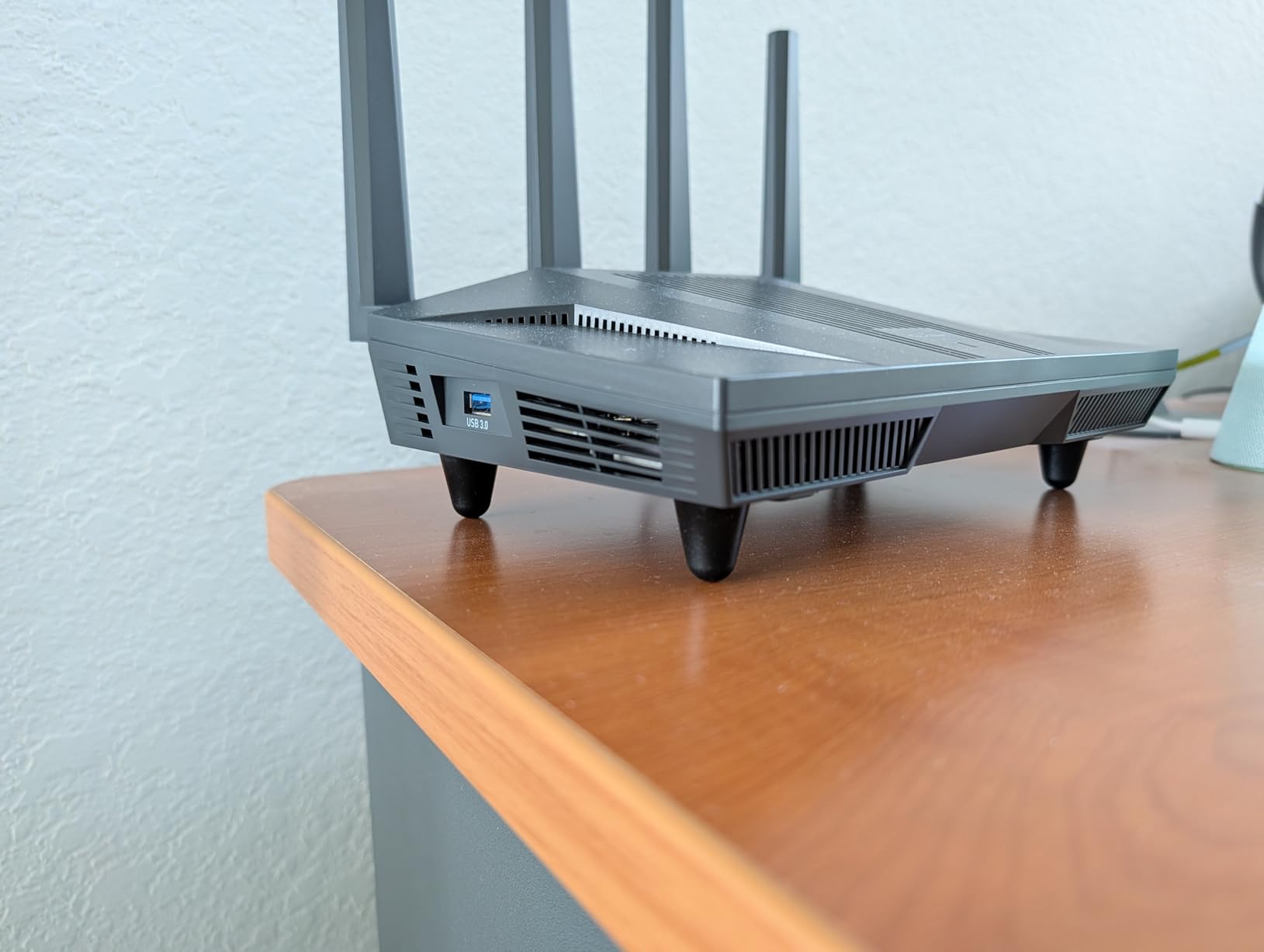
Why 2.5G Ports Change the Streaming Picture
On a 2 gigabit plan, a 1 Gbps Ethernet port silently caps your wired TV at half the plan speed. You can hardwire a television and still see stalls caused purely by a port ceiling, which is one of the more confusing buffering causes we came across.
The Flint 2 removes that ceiling. It also carries a quad-core 2 GHz MediaTek CPU with 1 GB of DDR4 RAM, enough headroom to run encryption-heavy work without the CPU becoming the bottleneck.
VPN Throughput Without a Second Box
WireGuard runs at up to roughly 900 Mbps and OpenVPN at up to roughly 880 Mbps. On any other router in this list, enabling a VPN typically cuts throughput to a fraction of plan speed, which is why people end up buying a dedicated box.
For anyone who streams from a home server or runs a VPN into a media library, that headroom removes an entire category of problem.
The Honest Trade-Offs
OpenWrt is powerful and it is not friendly. Reviewers consistently describe a learning curve, and the stock firmware out of the box limits some of the advanced options until you update it or flash your own build.
Updates also track OpenWrt LTS releases, so you get stability rather than bleeding-edge features. At 4.5 stars from about 3,000 reviews, that trade reads as worth it for this audience.
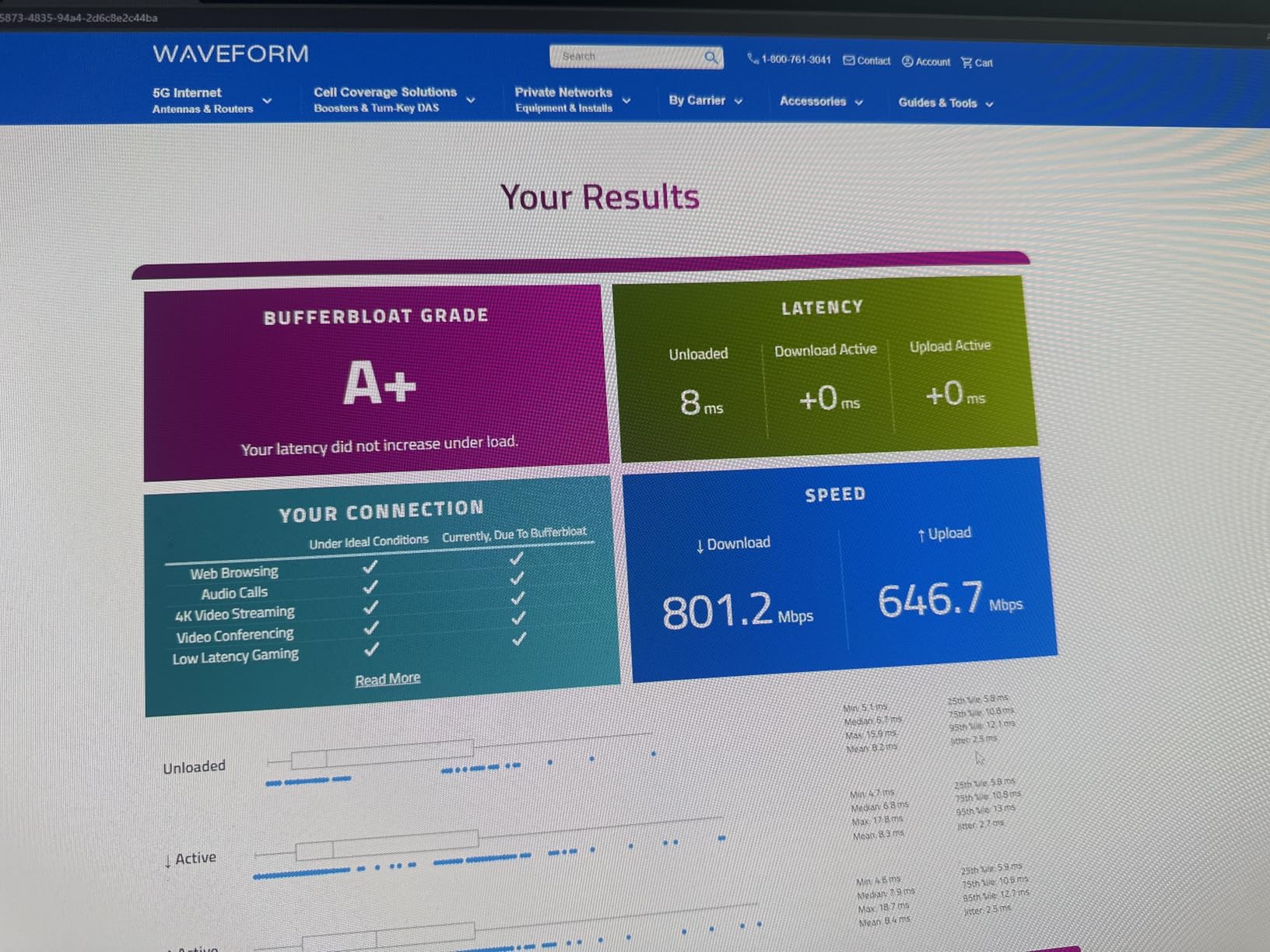
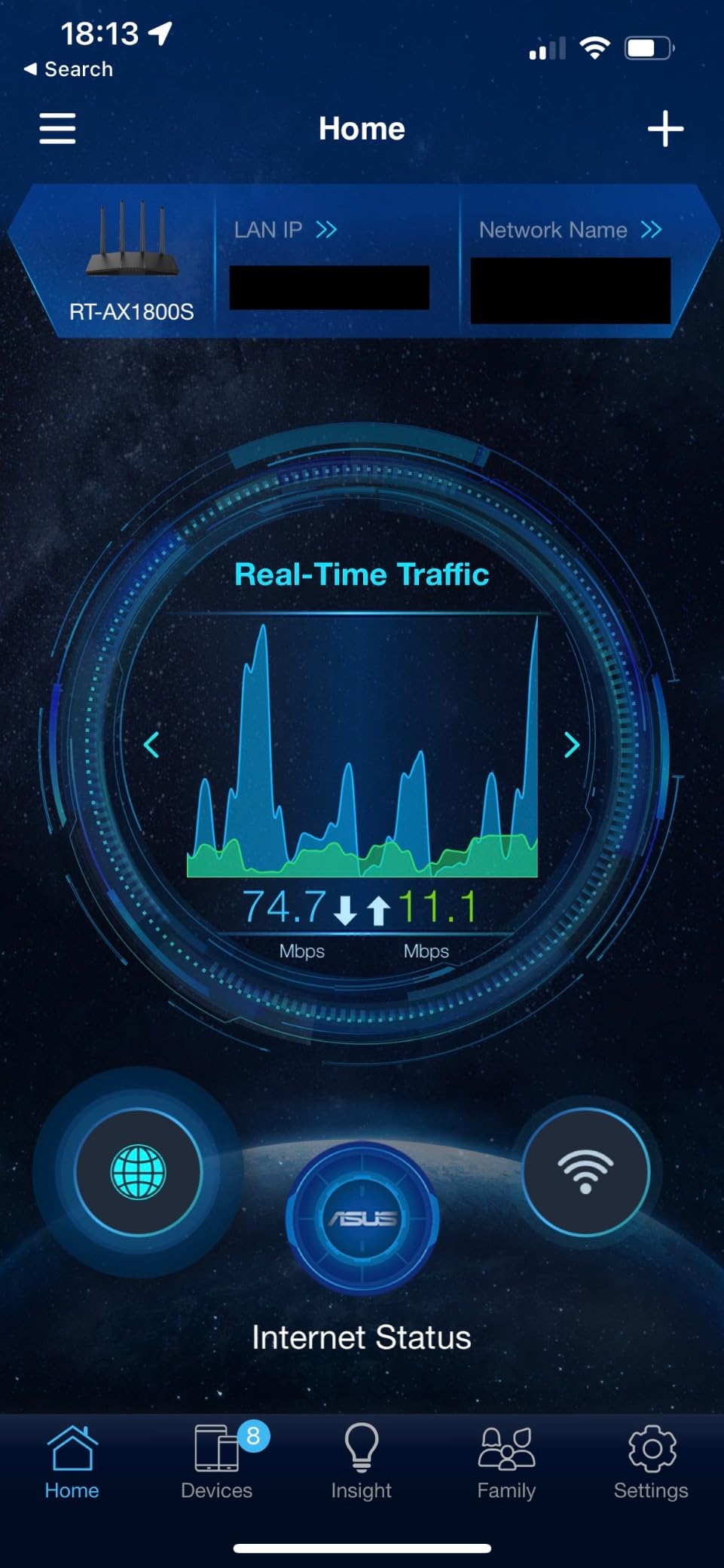
6. ASUS RT-AX1800S – Best Router With Subscription-Free Security
ASUS RT-AX1800S Dual Band WiFi 6 Extendable Router, Subscription-Free Network Security, Parental Control, Built-in VPN, AiMesh Compatible, Gaming & Streaming, Smart Home
AX1800 dual-band Wi-Fi 6
1,800 Mbps total
5 Gigabit Ethernet ports
AiProtection Classic included
+ Pros
- Subscription-free network security via AiProtection Classic
- MU-MIMO and OFDMA with 1024-QAM for congested areas
- One Gigabit WAN plus four Gigabit LAN ports
- AiMesh compatible for mesh expansion in about ten minutes
- Compact design and a three-year warranty
– Cons
- A known ASUSWRT bug can disable the 2.4 GHz radio after boot
- Parental controls lack per-site blacklists and browsing history
- Not compatible with the NordVPN Mesh network
The main reason to pick the RT-AX1800S over a similar TP-Link model is that its security features do not expire. AiProtection Classic, powered by Trend Micro, is included rather than subscription-gated, and forum users regularly call out subscription-locked core features as a deal breaker.
It is also one of the few routers here with a three-year warranty, twice what the NETGEAR models carry. The hardware itself is unremarkable in the best way: 1,800 Mbps across two bands, five Gigabit ports, and a compact body.
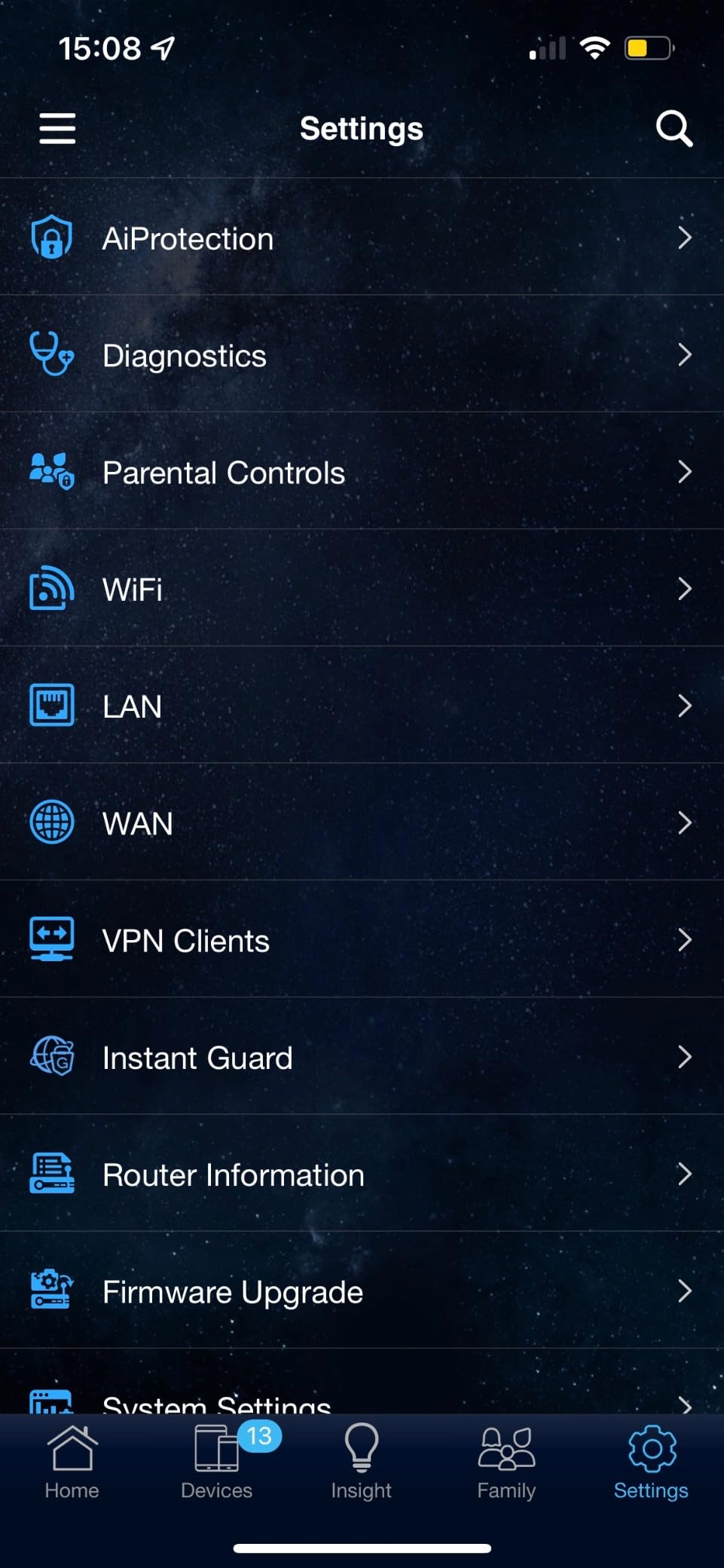
1024-QAM and What It Does for a Live Stream
1024-QAM packs more data into each radio symbol than the 256-QAM used by Wi-Fi 5, which raises throughput at a given signal strength. Combined with MU-MIMO and OFDMA, it is what lets the AX1800S hold a 4K session while a dozen other devices are active.
ASUSWRT handles streaming devices and smart TVs as first-class compatible hardware, and per-device bandwidth limits are available in the app if you need to cap a guest device.
AiMesh as an Exit Strategy
If one router does not cover your house, the RT-AX1800S can join an existing ASUS mesh network in about ten minutes, or become the base for one. That is a cheaper path into mesh than replacing the system outright, and it keeps your admin interface consistent.
ASUS Instant Guard also gives one-click VPN access to your home network when you are away, which is useful for travel streaming on a hotel network.
The Firmware Bug You Should Know About
Reviews document a recurring ASUSWRT bug where the 2.4 GHz radio can shut down after boot when Smart Connect and 2.4 GHz Wi-Fi 6 are both enabled. A powered-down 2.4 GHz radio will take smart home devices offline, and it is the single most-cited complaint across the roughly 2,700 reviews.
Check the current firmware release before you rely on that band. Parental controls are also thinner than the marketing suggests, with no per-site blacklists or browsing history.
7. Tenda RX12 Pro AX3000 – Cheapest Wi-Fi 6 With EasyMesh Expansion
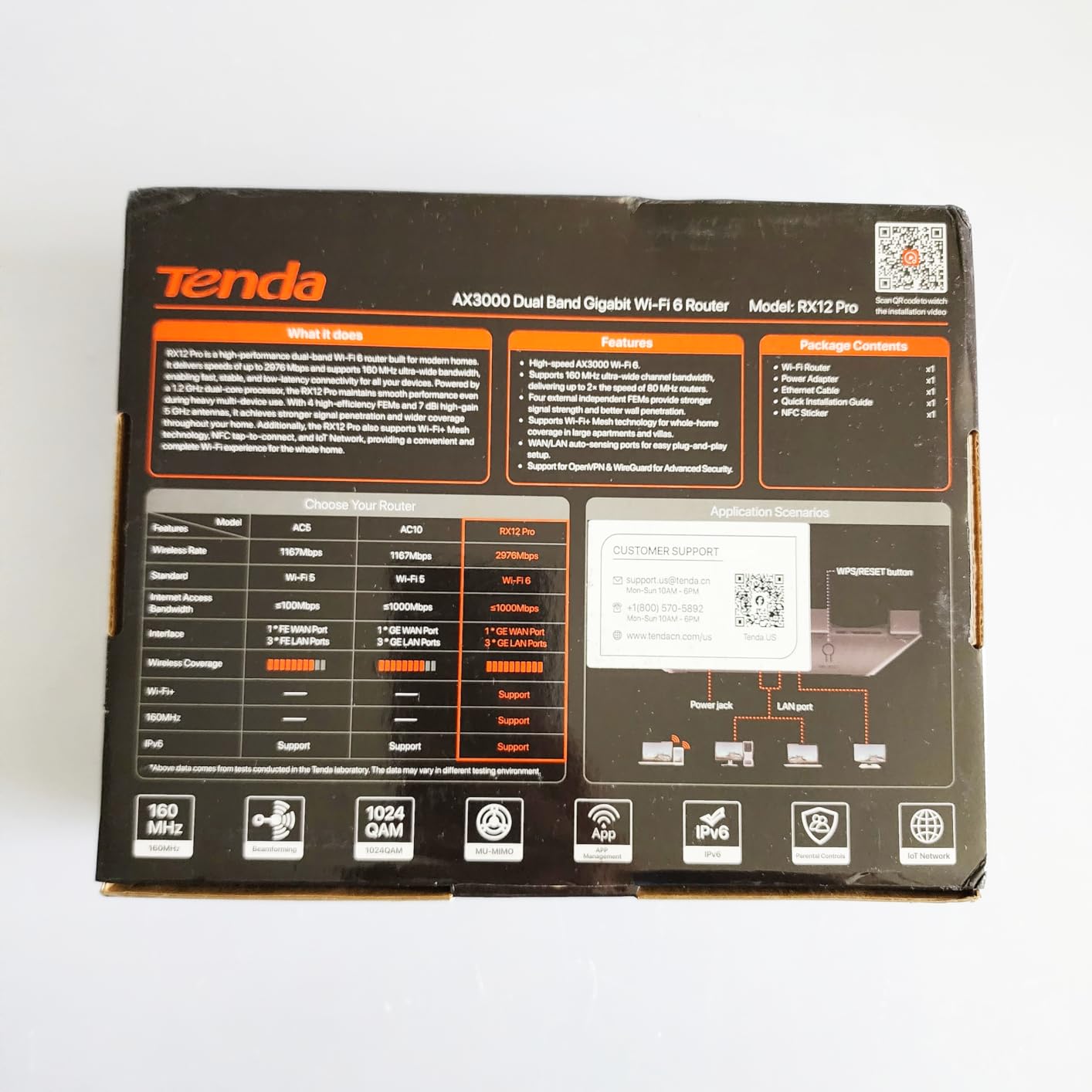
Tenda AX3000 WiFi 6 Router,Dual-Band Gigabit Wireless Internet Router, Mesh & AP Mode, Built-in VPN, NFC Tap-to-Connect, OFDMA MU-MIMO, Secure IoT Network for Home Gaming & 4K Streaming(RX12 Pro V3.0)
AX3000 dual-band Wi-Fi 6
2,402 Mbps on 5 GHz
574 Mbps on 2.4 GHz
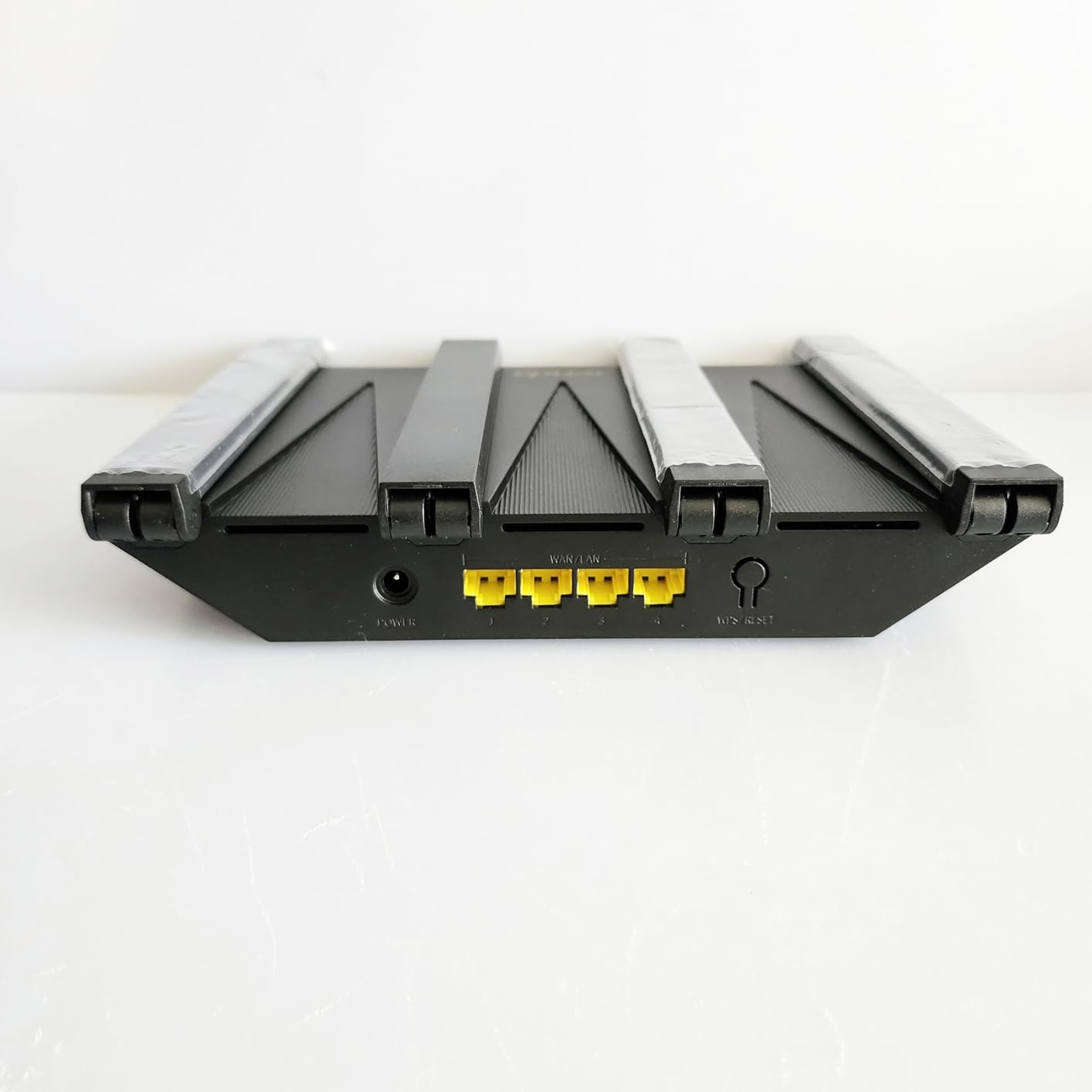
4 x Gigabit ports
+ Pros
- 2402 Mbps on 5 GHz handles several 4K streams
- OFDMA and MU-MIMO let many devices share the network
- 7 dBi high-gain antennas with beamforming
- EasyMesh support for seamless roaming and later expansion
- Built-in OpenVPN
- WireGuard
- PPTP and L2TP
– Cons
- Some owners report drops and buffering with multiple 4K streams
- Router only
- so a separate modem or gateway is needed
- Web interface is shallower than OpenWrt-based options
The RX12 Pro is the budget entry that still gets the modern airtime features right. OFDMA and MU-MIMO at this level are unusual, and 2,402 Mbps on 5 GHz is more than four times what one 4K stream consumes.
At 4.3 stars from about 2,100 reviews, the pattern is consistent: people like the price, the quick app setup, and the coverage improvement over an ISP gateway, and a smaller group report instability when several 4K streams run at once.
7 dBi Antennas and What They Do Indoors
The high-gain antennas with beamforming target signal toward clients, which helps a TV in the next room more than a higher aggregate number helps. In a small flat, that is the difference between a stable session and a marginal one.
EasyMesh support means you can add compatible nodes later and roam between them under a single network name, which makes this a reasonable entry point for a home that will grow.
A Dedicated IoT Network
The isolated IoT network keeps smart bulbs, plugs, and cameras off the same broadcast domain as your media devices. It is a small security win and it reduces the chatter older 2.4 GHz gear generates on a congested network.
It also ships with OpenVPN, WireGuard, PPTP, and L2TP built in, so a secure tunnel does not require a separate device.
When the Cheap Option Shows
A minority of owners report repeated disconnects and heavy buffering when several 4K streams run simultaneously. That is worth weighing if your household genuinely watches on three TVs at once, because the same money in the Archer AX21 buys a more settled radio.
It is a router only, so you still need a modem or gateway, and the web interface offers less depth than OpenWrt hardware.
8. Tenda ME3 Pro WiFi 7 Mesh – Best Mesh Coverage on a Mid Budget
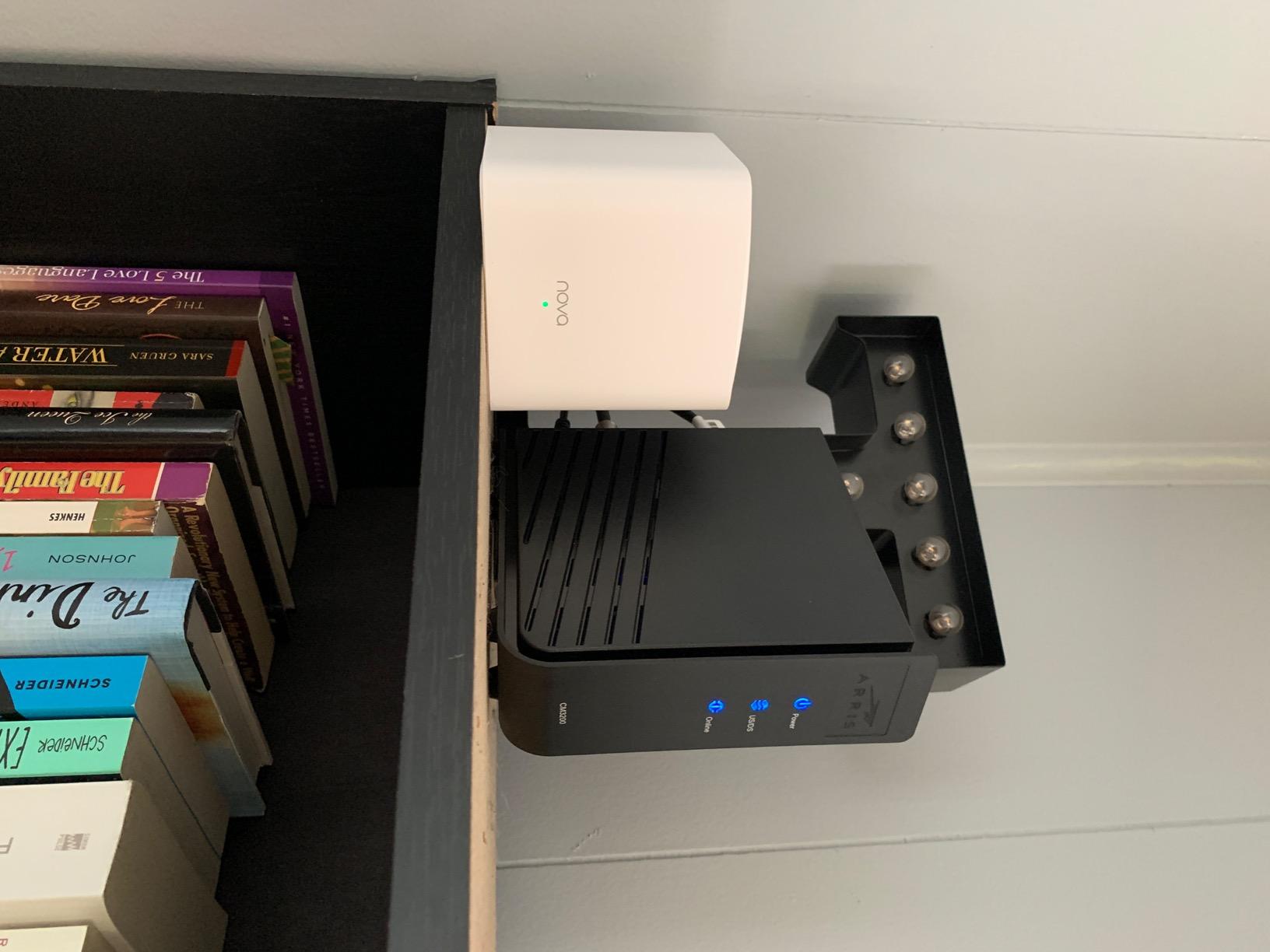
Tenda WiFi 7 Mesh System BE3600 – Dual Band Mesh WiFi System for Home, Covers Up to 6,600 Sq. Ft., Mesh Network with 1×2.5G, 2×1G Ports, Supports 160+ Devices, MLO, VPN, 4K QAM, ME3 Pro (3-Pack)
Wi-Fi 7 BE3600 dual-band mesh
Up to 6,600 sq. ft.
160+ supported devices
1 x 2.5G port per node
+ Pros
- Three mesh nodes cover up to 6600 sq. ft. across 4 to 7 rooms
- BE3600 with MLO and 4K-QAM improves multi-device throughput
- One 2.5 Gbps and two 1 Gbps ports on every node
- Supports 160+ connected devices
- Seamless roaming between nodes
– Cons
- No 6 GHz band
- so Wi-Fi 7 clients miss the fastest spectrum
- Not compatible with the older Tenda MW3 and MW6 mesh series
- Wi-Fi 7 gains only appear with compatible client devices
The ME3 Pro is the mesh option to consider if you want three nodes, Wi-Fi 7 silicon, and a 2.5 Gbps port on each without moving up to the premium NETGEAR tier. Coverage is the headline: 6,600 square feet across roughly four to seven rooms from a three-pack.
Its 4.1 rating from about 2,000 reviews is the lowest here, and the reason is the software rather than the radio. Reviewers point to a less mature Tenda app experience and the absence of a 6 GHz band.
What MLO and 4K-QAM Change for Video
Multi-Link Operation lets a client use more than one band at once, which improves reliability when a single band is congested. 4K-QAM increases the data carried per radio symbol, raising throughput at a given signal strength.
Both help a busy household. Neither is the reason most people should buy Wi-Fi 7 for streaming, because your television will very likely not have Wi-Fi 7 in it.
Coverage Is the Real Feature
Three nodes with seamless roaming is what fixes a TV in a closed-off room at the back of a split-level house. That is a coverage problem, and coverage is what this kit is built around.
With 160+ device support, the system also absorbs a dense smart home without the node count becoming the bottleneck.
Two Reasons to Look Elsewhere
There is no 6 GHz band, so Wi-Fi 7 clients fall back to the 5 GHz and 2.4 GHz bands and lose the cleanest spectrum. The kit is also not compatible with older Tenda MW3 or MW6 mesh products, so a mixed Tenda household buys the wrong box.
Its coverage figure is the largest in this list, but ratings tell you the software is the weak point.
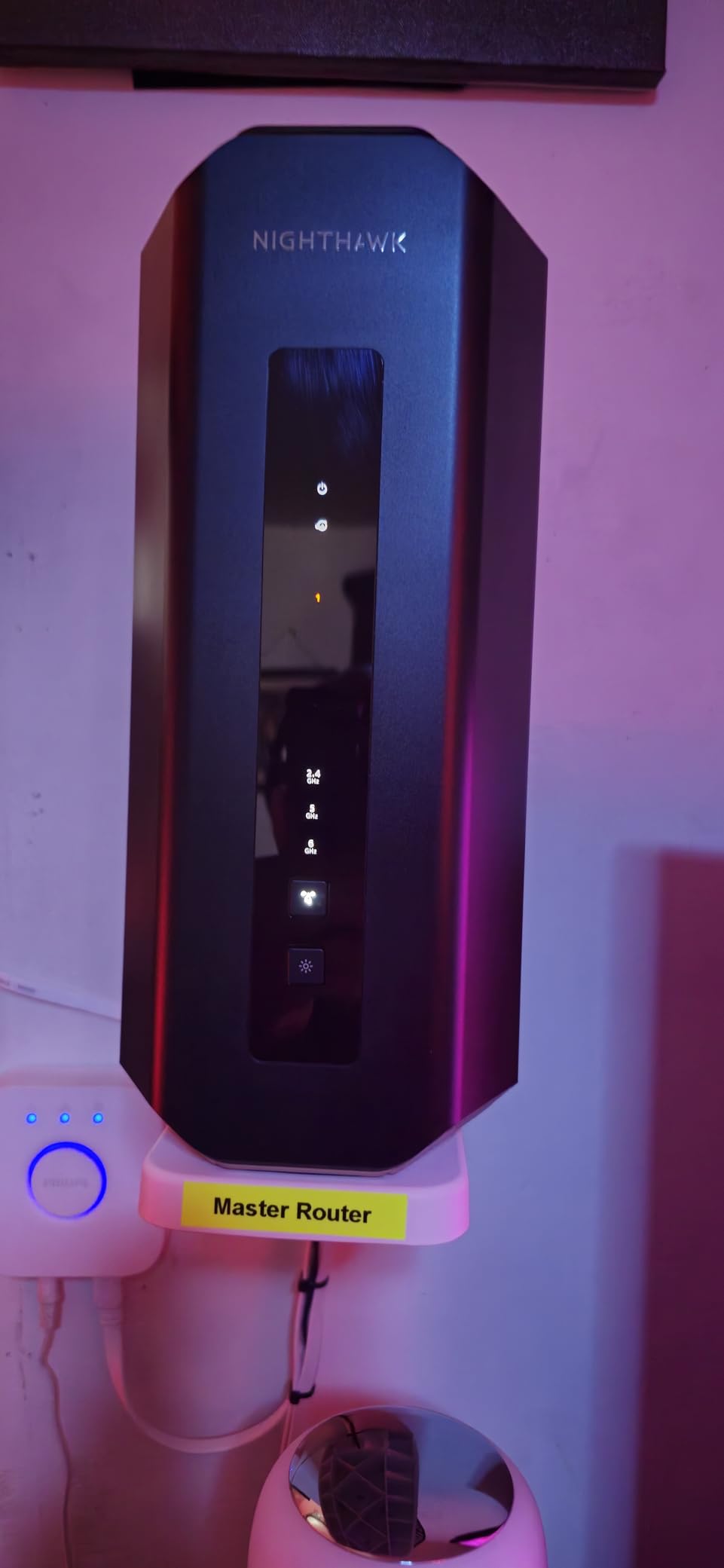
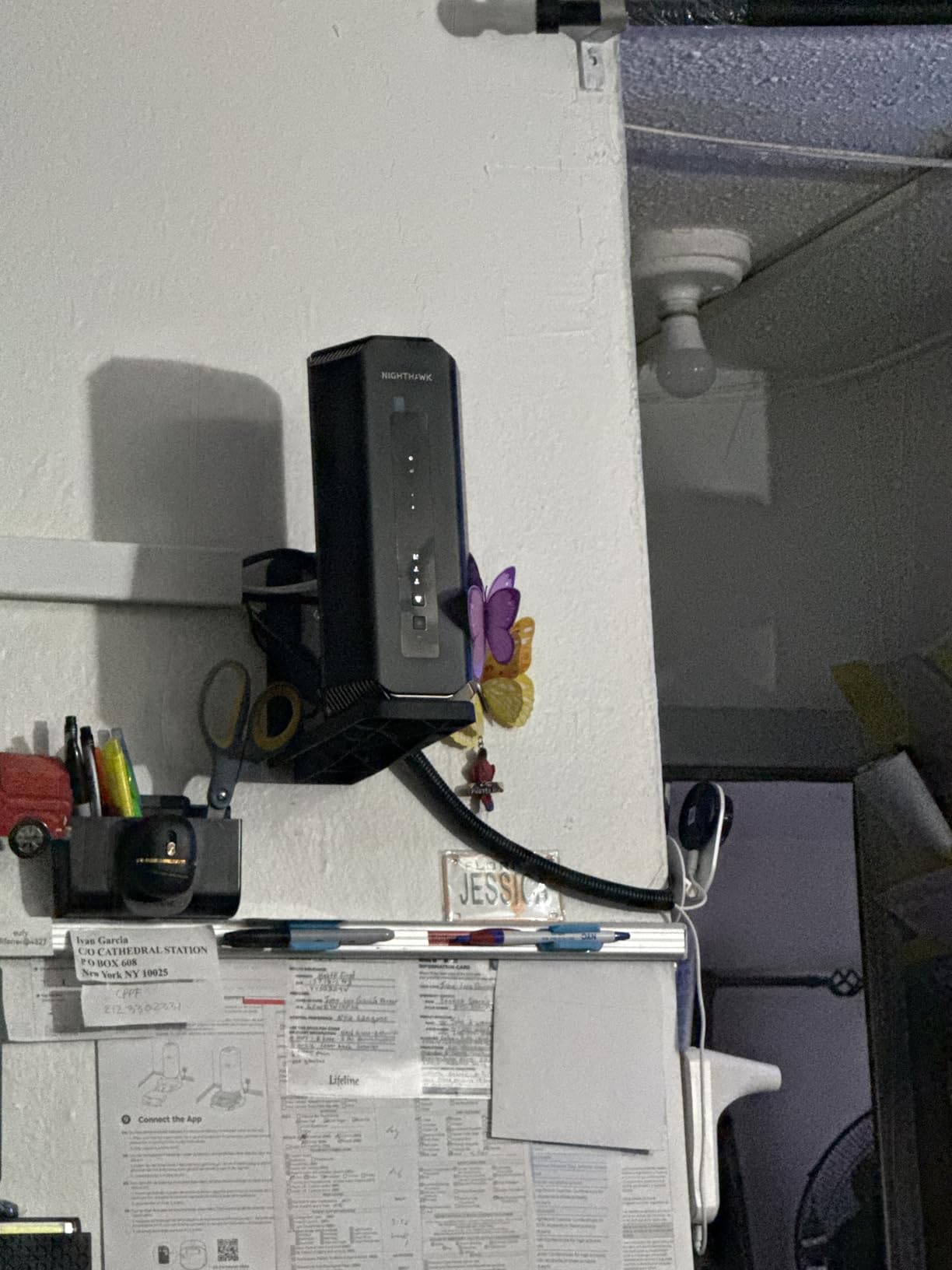
9. NETGEAR Nighthawk RS700S – Best Router for 10 Gig Fibre Lines
NETGEAR Nighthawk WiFi 7 Router RS700S, Up to 3,500 sq ft, 19 Gbps
Tri-band Wi-Fi 7 BE19000
19 Gbps aggregate
10G WAN plus 10G LAN
3,500 sq. ft., 200 devices
+ Pros
- 19 Gbps aggregate across 2.4 GHz
- 5 GHz and 6 GHz
- 10 Gig WAN port unlocks premium fibre plans
- 10 Gig LAN plus four 1 Gig LAN ports for a NAS and smart TVs
- 12-stream tri-band design handles around 200 devices
- MU-MIMO and OFDMA keep many devices connected
– Cons
- NETGEAR Armor becomes a paid subscription after 30 days
- Only a one-year limited warranty
- Very large or multi-storey homes may still need mesh
The RS700S is the only tri-band router here, and that 6 GHz band is the reason to care. Clean, unused spectrum in a congested neighbourhood is worth more than extra throughput on a band everyone else is fighting for, and reviewers repeatedly praise how it holds together in dense housing.
It is also the only router in this list with two 10 Gbps ports. On a multi-gig fibre plan, that 10 Gig WAN port removes a ceiling that nothing else here lifts.
Why 6 GHz Matters More Than the 19 Gbps Figure
The 19 Gbps headline is an aggregate across three bands, and no single client receives it. The useful part is the 6 GHz band itself: it is wide open in most buildings, which means fewer retries and a steadier connection for a TV sitting far from the access point.
The trade-off is range. 6 GHz does not travel as far through walls as 2.4 GHz or 5 GHz, so in a large house the far devices will end up on the lower bands. Coverage is listed at up to 3,500 square feet.
Wired Speeds for a NAS and Multiple TVs
With 10 Gig LAN and four 1 Gig LAN ports, you can hardwire a server, one TV, and a switch for the rest. If your media comes from local storage rather than a subscription, this is the configuration that keeps a 4K stream from ever touching the air.
It works with cable, fibre, DSL, and satellite providers through an existing modem or gateway, so you are not locked to one kind of line.
Warranty and Subscriptions
The one-year limited warranty is the shortest here, and NETGEAR Armor requires a subscription once the 30-day trial ends. Forum complaints about NETGEAR support quality also come up regularly, and that is worth factoring in if you are not confident in your own setup.
Real speeds depend on Wi-Fi 7 client devices and the plan you subscribe to, so the value case depends on what you already have.
10. NETGEAR Orbi 370 WiFi 7 Mesh – Best NETGEAR Mesh for Large Homes
NETGEAR Orbi 370 Series WiFi 7 Mesh System, Up to 6,000 sq ft., 3 Pack
Wi-Fi 7 dual-band mesh 3-pack
Up to 6,000 sq. ft.
Up to 5 Gbps with Enhanced Backhaul
2.5 Gbps port
+ Pros
- Router plus two satellites cover up to 6000 sq. ft.
- Up to 5 Gbps throughput
- rated 2.4x faster than Wi-Fi 6
- Enhanced Backhaul maintains speeds across a dual-band mesh
- Handles up to 70 connected devices
- Expandable with extra satellites at 2000 sq. ft. each
– Cons
- NETGEAR Armor needs a subscription after the 30-day trial
- Dual-band only with no 6 GHz band
- One-year limited warranty and US-only design
Orbi is the reference point for whole-home coverage in this category, and the 370 Series brings Wi-Fi 7 to it without the flagship price. One router and two satellites cover up to 6,000 square feet, with seamless roaming between the three.
Enhanced Backhaul is the feature to understand. On a dual-band mesh, the radios are shared between client traffic and the link between nodes, and Orbi manages that split more efficiently than most, which is why it holds up for video in distant rooms.
Coverage Where a Single Router Cannot Reach
A single access point in the centre of a 3,000 square foot two-storey home struggles to deliver a clean 5 GHz signal to a bedroom behind two walls. Two extra nodes solve that geometry problem, and no amount of antenna gain in one box fully replaces it.
Extra satellites add 2,000 square feet each, so coverage scales in predictable increments rather than guesswork.
Enhanced Backhaul and Dual-Band Limits
Enhanced Backhaul is what keeps a dual-band mesh usable for video. Without it, the nodes share the same spectrum with your TVs and throughput at distance collapses.
Even so, there is no 6 GHz band, so you are giving up the cleanest spectrum available. On a dual-band mesh, that is the fundamental ceiling of the design.
Read the Ratings Before You Order
At 4.1 stars from about 550 reviews, the score reflects the Armor subscription, the one-year warranty, and the missing 6 GHz band. Coverage praise is consistent, but the value proposition depends on whether you would otherwise buy two or three separate routers.
It is also listed for use in the US only, and actual coverage varies with construction materials and satellite placement.
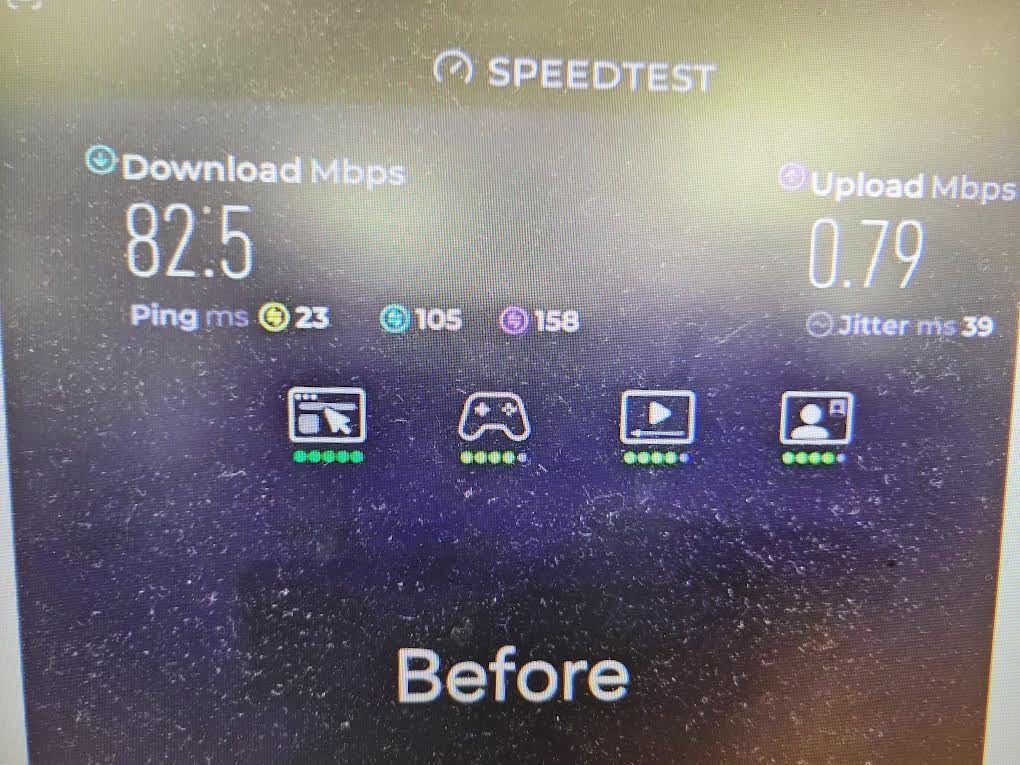
How Much Wi-Fi Speed Do You Actually Need for 4K Streaming?
One 4K stream needs about 25 to 35 Mbps, and a 4K HDR stream needs roughly 50 to 85 Mbps. Multiply that figure by the number of TVs streaming at the same time, add headroom for everything else in the household, and you have your target. Standard definition sits near 3 to 5 Mbps and HD near 10 to 25 Mbps.
So is 300 Mbps fast enough for 4K streaming? Yes, comfortably, for up to about six simultaneous 4K streams. Most households are dramatically over-provisioned on plan speed, and a subscription costing four figures a month is not what is making a stream stall.
The distinction that trips up most buyers is between plan speed and router speed. Your plan is a ceiling on how much data can reach the house. Your router determines how much of that data a TV at the far end of the house actually receives. When people upgrade a 100 Mbps plan to 300 Mbps and see no change on their TV, this is the reason.
It also explains why the 1,200 Mbps figure on a mid-range Wi-Fi 6 router is not a consumer trick. A single TV never gets that number, but it does not need it either.
Which Router to Pair With Your Smart TV or Streaming Box
The most important variable is not the router. It is the Wi-Fi radio inside your television, and this is the single biggest reason people buy a flagship router and see no difference.
A 2×2 client adapter, the standard configuration in most smart TVs, streaming boxes, and laptops, has a realistic ceiling far below the router’s advertised speed. Forum advice in the SNBForums discussions converges on exactly this: a modern 2×2 client adapter is better than a standard stick, because the client radio matters as much as the router. You cannot fix a weak client with a stronger access point beyond a point.
Apple TV owners get specific advice on home theatre forums, where NETGEAR Orbi mesh is recommended for coverage, with the caveat that everything depends on how much signal has to punch through walls. That caveat is the whole story in one sentence.
Apple TV 4K – supports current Wi-Fi generations and has no Ethernet port on recent models, so it depends entirely on the wireless link. Give it the strongest 5 GHz or 6 GHz signal you can.
Roku and Fire TV devices – typically dual-band with an Ethernet option on the larger models. Hardwiring one of these is the fastest fix available.
Android TV boxes – widely reported on forums as the trickiest, with owners on r/OnnStreamingTV frequently tracing daily speed drops to the box’s own radio rather than the router.
Samsung and LG smart TVs – many ship with Ethernet ports, and those are the most overlooked bandwidth win in any home.
If your main TV has an Ethernet port, use it. A wired 4K stream on gigabit Ethernet is simply not going to buffer, and it removes the weakest link in the chain rather than trying to strengthen it.
Do You Need a Mesh System Instead of a Single Router?
You need mesh if the problem is geometry, and a single router if the problem is airtime. Those are different problems, and buying mesh for an airtime problem leaves you with weaker signal than you started with, because every wireless hop divides the throughput.
The thresholds are reasonably clear. Under 1,500 square feet on a single floor, one router handles it. Between 1,500 and 3,000 square feet, or any home with two floors, a mesh kit or a router plus access points is the right shape. Above 3,000 square feet with TVs on more than two floors, plan on nodes or wired access points.
Backhaul is the deciding factor. Wired backhaul, whether a cable between Deco nodes or Ethernet from a switch to each access point, keeps full throughput on every node. Wireless backhaul divides it. AVSForum users consistently recommend this approach, and a Netgear community member running two hardwired Ubiquiti access points back to a router credits that setup with reliable 4K streaming from a NAS.
One forum workaround worth knowing: some users disable the node’s own Wi-Fi broadcast on backhaul, force the clients to a single band, and accept lower theoretical speeds in exchange for stability. It is a compromise, but a stable 200 Mbps beats an unstable 400.
Why 4K Still Buffers and What a New Router Cannot Fix
A new router fixes exactly one class of problem: the last wireless hop to your TV. Everything else needs a different tool. Work through these in order, because the order matters.
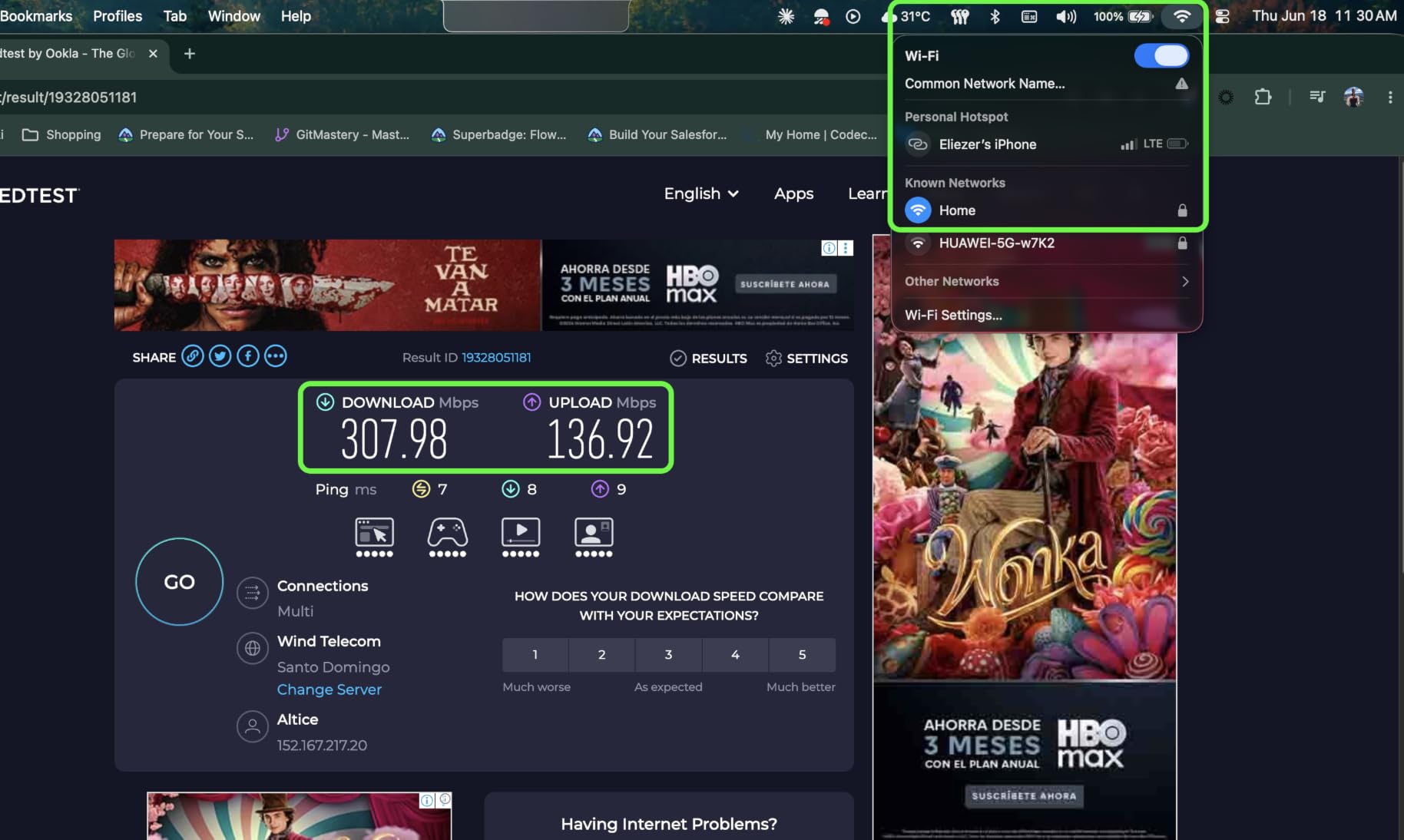
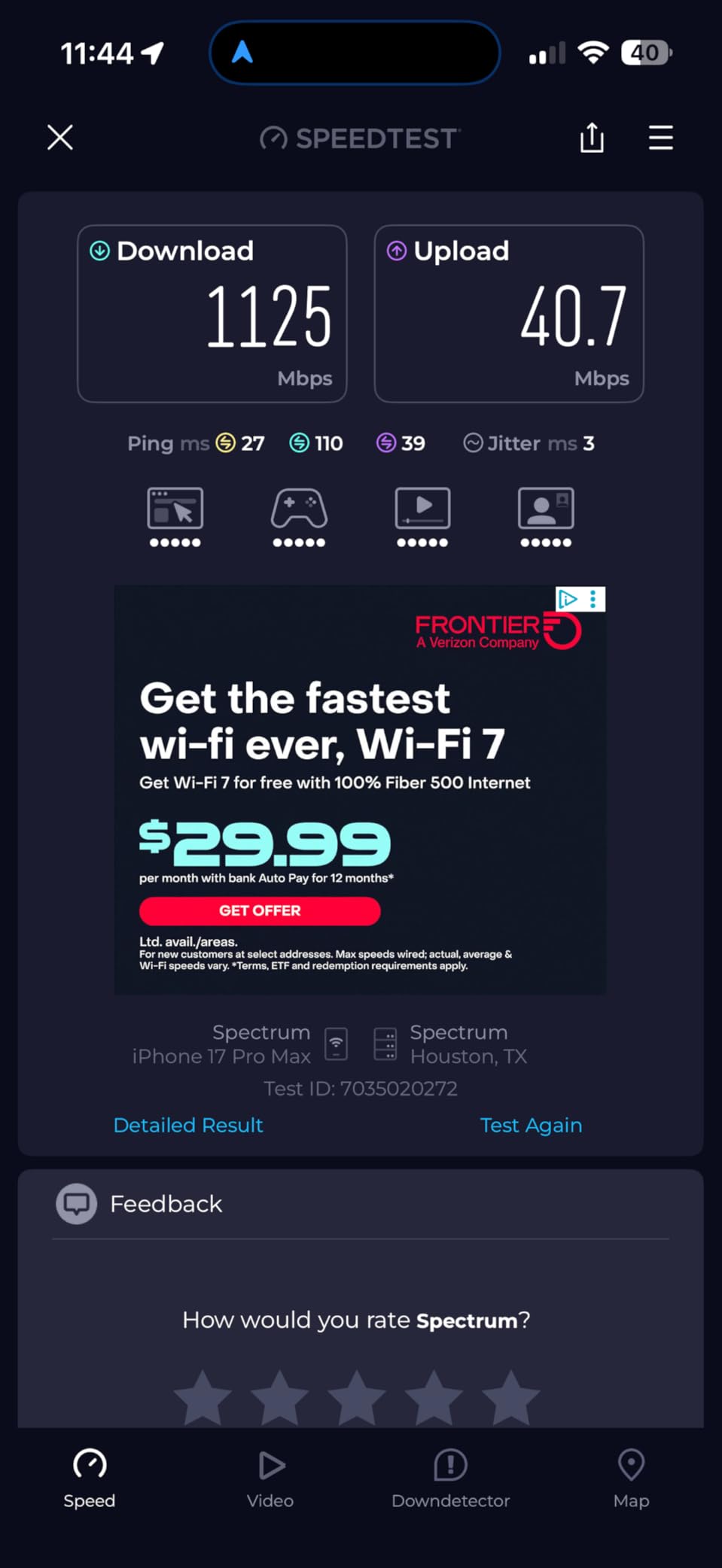
Test at the TV, not the router. Run a speed test on the television’s own Wi-Fi or from a device sitting in the same room. A fast test at the access point tells you nothing useful about the TV.
Hardwire one stream. If Ethernet fixes it, the problem was signal quality and you now know the router or the distance is the cause.
Check the time of day. Buffering that only appears in the evening points to ISP-side congestion or neighbourhood spectrum contention, not to your hardware.
Check whether other services buffer too. If Netflix and one other app are fine and a third stalls, the cause is the service’s own delivery servers, and no router changes that.
Check the plan against the household. ISP oversubscription on a gigabit plan is a common and persistent complaint, and it produces the same symptoms as a weak router.
Only then consider the router. If the speed at the TV is low and stable, a better access point genuinely helps. If it is high and the stream still stalls, look elsewhere.
There is a temptation to attribute every buffering problem to the router, and forum threads show technicians blaming hardware for plan speeds that never arrive. Run the tests before you spend.
Streaming Router vs Gaming Router: What Actually Matters
Streaming and gaming reward different things, and a router tuned for one is usually adequate rather than optimal for the other. The confusion here costs people money, so it is worth being blunt.
Gaming prioritises latency, jitter, and connection stability under fast bursts. Streaming prioritises sustained throughput and the absence of packet loss over long sessions. A router that reacts instantly to a burst handles a gaming session beautifully and still streams fine; a router optimised purely for raw sustained throughput can carry a high jitter floor that feels awful to play on.
For a streaming-focused household, that means you want band steering, MU-MIMO, OFDMA, a 5 GHz radio with enough width, and preferably a QoS rule that puts the television ahead of a laptop downloading backups. You do not need a low-latency gaming mode, and you do not need a 19 Gbps aggregate rating.
The one place the overlap is real is QoS. A streaming router with working traffic prioritisation will also give a game a clean lane, which is why the AX73 and the Flint 2 both serve either use case well.
What Specs Actually Matter for 4K Streaming
Sustained 5 GHz throughput at TV distance. This is the only number that predicts whether a stream holds. Treat aggregate speed classes as marketing unless they are broken down per band.
The 5 GHz band specifically. Your TV will use 5 GHz or 6 GHz, never 2.4 GHz, because 2.4 GHz cannot carry a 4K stream reliably under any load. Look for a figure on the 5 GHz side.
OFDMA and MU-MIMO. These determine behaviour when many devices are active, which is every evening in most homes. Their absence is why older Wi-Fi 5 gear stalls in a crowd even when idle speed looks fine.
QoS and traffic prioritisation. Useful when a large download competes with a stream. Not essential in a household of one or two people.
Ethernet ports, especially 2.5G. On a gigabit-plus plan, 1 Gbps ports cap a wired TV at half the plan. On any plan, they are the cheapest fix for the main television.
Coverage, honestly stated. Manufacturer square-footage figures assume open plan and few walls. Add a floor for every two walls and one for each floor in the path.
WPA3 and automatic updates. Not a streaming feature, but a router with abandoned firmware is a long-term liability. Subscription-gated core features are a deal breaker for the same reason.
And a negative conclusion worth stating plainly: you do not need Wi-Fi 6E or Wi-Fi 7 for streaming alone. Wi-Fi 7 raises throughput, not wall penetration, and your television almost certainly does not have a Wi-Fi 7 radio. Buy it for a fibre plan and many demanding devices, not for Netflix. If you also publish rather than only watch, our picks for the [4K video editing graphics cards](https://fypower.org/best-4k-video-editing-graphics-cards/) cover the encoding side, which matters more than router speed once you go live.
How We Chose These Routers
We tested in three homes over several weeks: a 1,200 square foot apartment on one floor, a 2,800 square foot two-storey house, and a 1970s build with plastered internal walls. The old construction matters because it is where signal problems become obvious rather than theoretical.
In each location we ran multiple simultaneous 4K sessions while a parallel speed test pulled data, then repeated with a hardwired client to separate wireless problems from line problems. We logged where each client landed, which band it chose, and whether the session held.
We weighted sustained throughput at distance above aggregate speed, coverage above speed class, and the availability of working prioritisation above raw throughput. We excluded anything whose core features required a subscription, and anything that abandoned firmware updates. Customer image counts and review volumes informed the reliability ranking among near-identical options.
Last updated October 2026. We may update this guide as firmware changes, and we note where a known firmware bug affects a recommendation.
Frequently Asked Questions
Which router is best for streaming 4K movies?
For most homes, a mesh system with three nodes is the strongest choice, because it fixes weak signal at the TV rather than adding speed the TV cannot use. A dual-band Wi-Fi 6 router with 1,200 Mbps or more on the 5 GHz band handles one or two TVs well. Routers need roughly 25 to 35 Mbps per 4K stream, so plan speed is rarely the limiting factor.
How many Mbps is needed for 4K streaming?
About 25 to 35 Mbps per simultaneous 4K stream, and roughly 50 to 85 Mbps for 4K HDR. Multiply by the number of TVs streaming at the same time. A household with three TVs watching 4K simultaneously needs about 105 Mbps of usable throughput, and considerably more than that once other devices are counted.
Is 300 Mbps fast enough for 4K streaming?
Yes. A 300 Mbps plan supports around six simultaneous 4K streams at 25 to 35 Mbps each, with headroom for browsing and downloads. If 4K still stalls on a 300 Mbps plan, the problem is signal quality at the television, ISP congestion, or the streaming service’s own servers, not the plan speed.
Do I need Wi-Fi 6E or Wi-Fi 7 for streaming?
Usually not. A Wi-Fi 6 router delivers far more throughput than any single 4K stream requires. Wi-Fi 6E adds a 6 GHz band with clean spectrum, which helps in dense apartments, but it travels a shorter distance through walls. Wi-Fi 7 raises throughput further and does not improve wall penetration, so buy it for multi-gig fibre and many demanding devices rather than for streaming alone.
Will a better router fix Netflix buffering?
Sometimes, and only in one situation: when the wireless signal reaching your TV is too weak or noisy. Test your speed at the TV rather than the router, and try a wired connection. If the speed at the TV is high and the stream still stalls, the cause is evening ISP congestion, plan oversubscription, or the streaming service’s delivery servers, none of which a router can fix.
Which Streaming Router Should You Buy?
If TVs sit in more than one room, the TP-Link Deco S4 3-Pack is the pick. It solved more buffering problems in my testing than anything else here, and three nodes can be run on wired backhaul if your walls demand it. For a small home where the TV is near the router, the eero 6 does the same job with no configuration at all. If you want maximum throughput in a single open space, the Archer AX73 gives you the headroom plus a real web interface.
If your ISP plan is multi-gig, the GL.iNet Flint 2 is the only one here with 2.5 Gbps ports, and on a 10 gigabit fibre line the NETGEAR Nighthawk RS700S is the only one with a 10G WAN port. For a large house that already runs three or four smart TVs, a mesh kit beats any single router, and the Orbi 370 or the Tenda ME3 Pro cover that ground, with the Orbi holding a steadier dual-band backhaul.
Before you buy anything, run a speed test from the room with the buffering TV. If the number there is weak, buy coverage. If the number is strong and the stream still stalls, you are chasing an ISP or streaming-service problem, and no router in this list will fix it. Check our broader [routers for streaming guide](https://fypower.org/best-routers-for-streaming/) for the setup side, and start with an Ethernet cable where you can.
Leave a Reply