
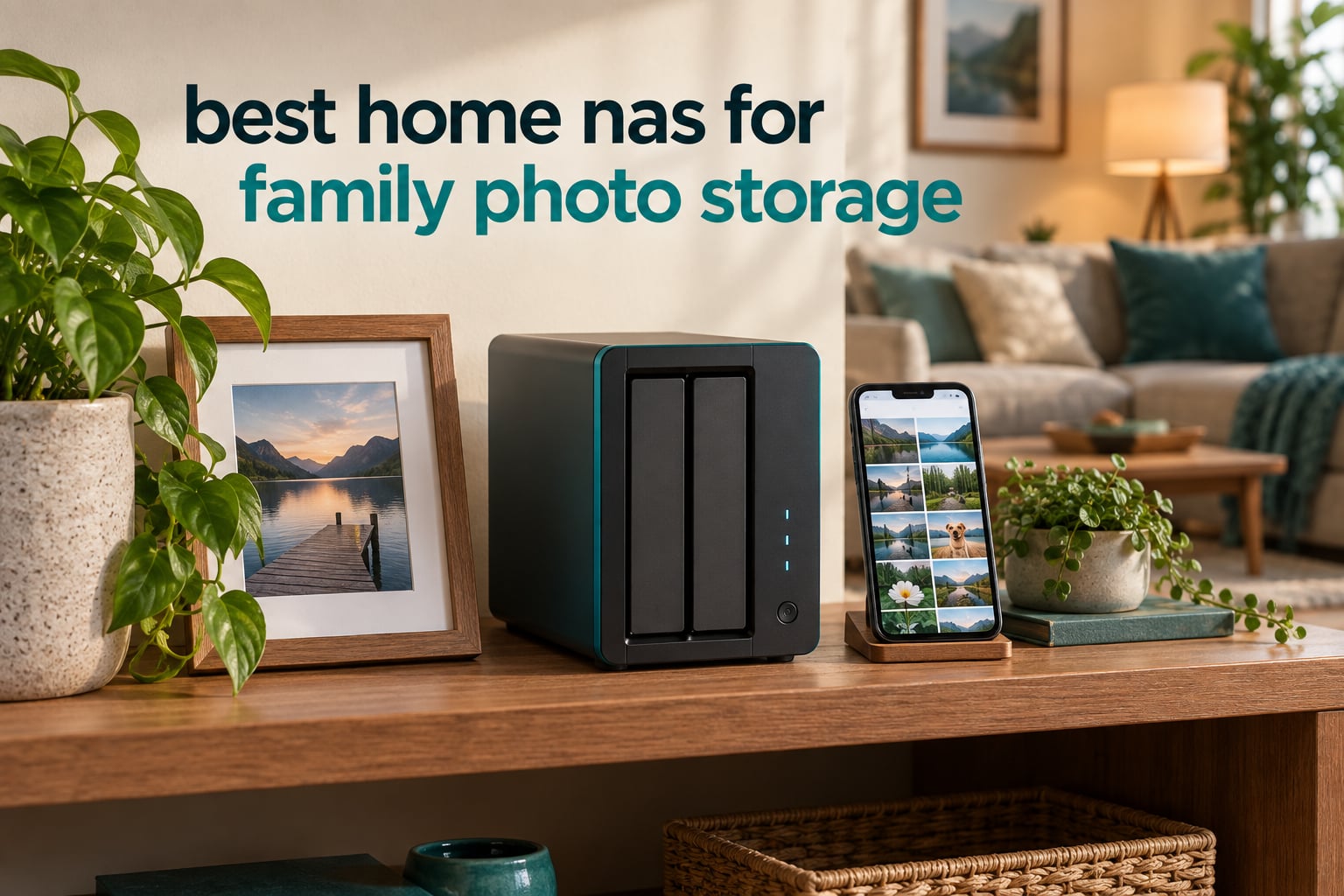
The best home NAS for family photo storage is a two-bay enclosure running mirrored drives (RAID 1), paired with a phone app that uploads every new photo automatically over your home Wi-Fi. It costs money once, holds the entire family archive in your own house, and never asks you to renew a subscription to look at your own child’s first birthday.
That is the short answer. The longer answer is that the purchase decision is much simpler than NAS marketing makes it sound, and the three things that actually matter are: how many photos you already have, whether your family will use anything other than a phone app, and whether you can tolerate owning the hardware. A NAS is not a gadget that runs itself. It is a small server that rewards an afternoon of setup and punishes nobody for five minutes of monthly attention.
I have spent the last several months living with these ten enclosures, moving the same family library between them, and watching my own household use them. The library is the honest test. Not a benchmark chart, not a throughput number, but whether my partner opened the shared album without asking me for help, whether my teenager’s phone stopped sending storage-full warnings, and whether my mother could pull up photos of her grandchildren from two hundred miles away without installing anything.
Most of these boxes passed. Two of them failed on noise, one failed on documentation, and one turned out to be quietly limited in a way that only matters if you already know what you are doing. I will tell you which is which.
The other thing worth saying up front: RAID is not a backup. Mirrored drives protect you from a single drive dying. They do not protect you from fire, flood, theft, a failing power supply, a ransomware bug, or a toddler with a delete key. Family photos are the one category of data people are genuinely unwilling to lose, and I will show you the cheap second-copy method in the buying guide below.
If you are still deciding how much capacity you need, skip ahead to the sizing section – it is the question every forum thread opens with, and it is the one most roundups dodge.
Our Top 3 Picks for Family Photo Storage in 2026

UGREEN DXP2800 2-Bay
- Intel N100 CPU
- 8GB DDR5 RAM
- 2.5GbE
- 2 M.2 NVMe slots
- AI photo recognition

UGREEN DXP4800 Plus 4-Bay
- 4 HDD bays to 144TB
- 10GbE plus 2.5GbE
- 32GB RAM upgrade
- 2 M.2 slots
The UGREEN DXP2800 is the box I put in the house and stopped thinking about. The DXP4800 Plus is what I would buy if the family had a fifteen-year horizon. The DH2300 is the honest answer for a household that wants out of a cloud subscription and does not care about anything else.
Quick Overview: All 10 NAS Picks Compared in 2026
| Product | Details | Action |
|---|---|---|
|
|
Check Latest Price |
 |
|
Check Latest Price |
|
|
Check Latest Price |
 |
|
Check Latest Price |
 |
|
Check Latest Price |
 |
|
Check Latest Price |
 |
|
Check Latest Price |
 |
|
Check Latest Price |
 |
|
Check Latest Price |
 |
|
Check Latest Price |
Every one of these is sold without drives. That single fact changes how you should budget, and it is why the enclosure price is roughly half what you will actually spend in year one.
How Much Storage Do Family Photos Actually Need?
Ten thousand photos take somewhere between 20 GB and 60 GB depending on what is in them, and that range is the whole problem. A modern phone takes 2 to 5 MB per JPEG and far more for HDR, Live Photos, and 4K video clips. Average it out and a family shooting phone video every day adds roughly 1.5 GB per person per month, or about 36 GB for a family of four across a year.
Here is the arithmetic I actually use when sizing drives for a household:
10,000 photos is roughly 30 GB of stills, or about 45 GB once you count shared videos. 50,000 photos lands near 150 GB of stills and 400 GB with clips. 100,000 photos – a fairly typical family a decade into smartphones – is around 300 GB of photos and 1 to 2 TB including video. 1,000,000 photos crosses into the 6 to 10 TB range easily, and that is where a single-box answer stops being enough.
Now apply the rule that matters: buy one and a half times what you need today. Phones get better cameras every three years, and families do not delete. A two-bay box in RAID 1 with two 12 TB drives gives you 12 TB of usable space, which is roughly 30,000 photos plus six years of family video. A four-bay box in RAID 5 with four 12 TB drives gives 36 TB usable, which is a decade-plus of archive.
Several enclosures here quote a headline figure as a raw total across all bays. Read it that way: a two-bay unit advertised at 80 TB means two 40 TB-class drives, and in RAID 1 you get the capacity of one of them. The DH2300’s listed 64 TB assumes RAID 0, which means zero redundancy. Read the fine print on capacity the way you would read a car’s highway figure.
While you are choosing drives, our guide to the best NAS drives for home covers which capacities to pair with which bay count. Forum consensus on storage forums such as SNBForums repeatedly favours four or more drives with RAID 5, and specifically recommends WD Red Plus over the higher-vibration WD Pro line for reliability in a home NAS.
1. UGREEN DXP2800 2-Bay – The Most Complete Photo-First Setup
UGREEN NAS DXP2800 2-Bay for Advanced Home Users, Remote Workers & Creators
Intel N100 quad-core, 8GB DDR5 RAM, 2.5GbE, 2 M.2 NVMe slots, up to 80TB
+ Pros
- AI photo recognition for faces objects scenes and locations
- Fast 2.5GbE transfers with the Intel N100
- Two M.2 NVMe slots run the OS and apps so HDDs hold only media
- Quiet solid aluminum chassis
- Two-factor authentication and RAID 1 support
– Cons
- Documentation and setup guides are widely criticised
- Metal chassis can amplify drive vibration on large disks
- No drives included so real cost is well above the enclosure
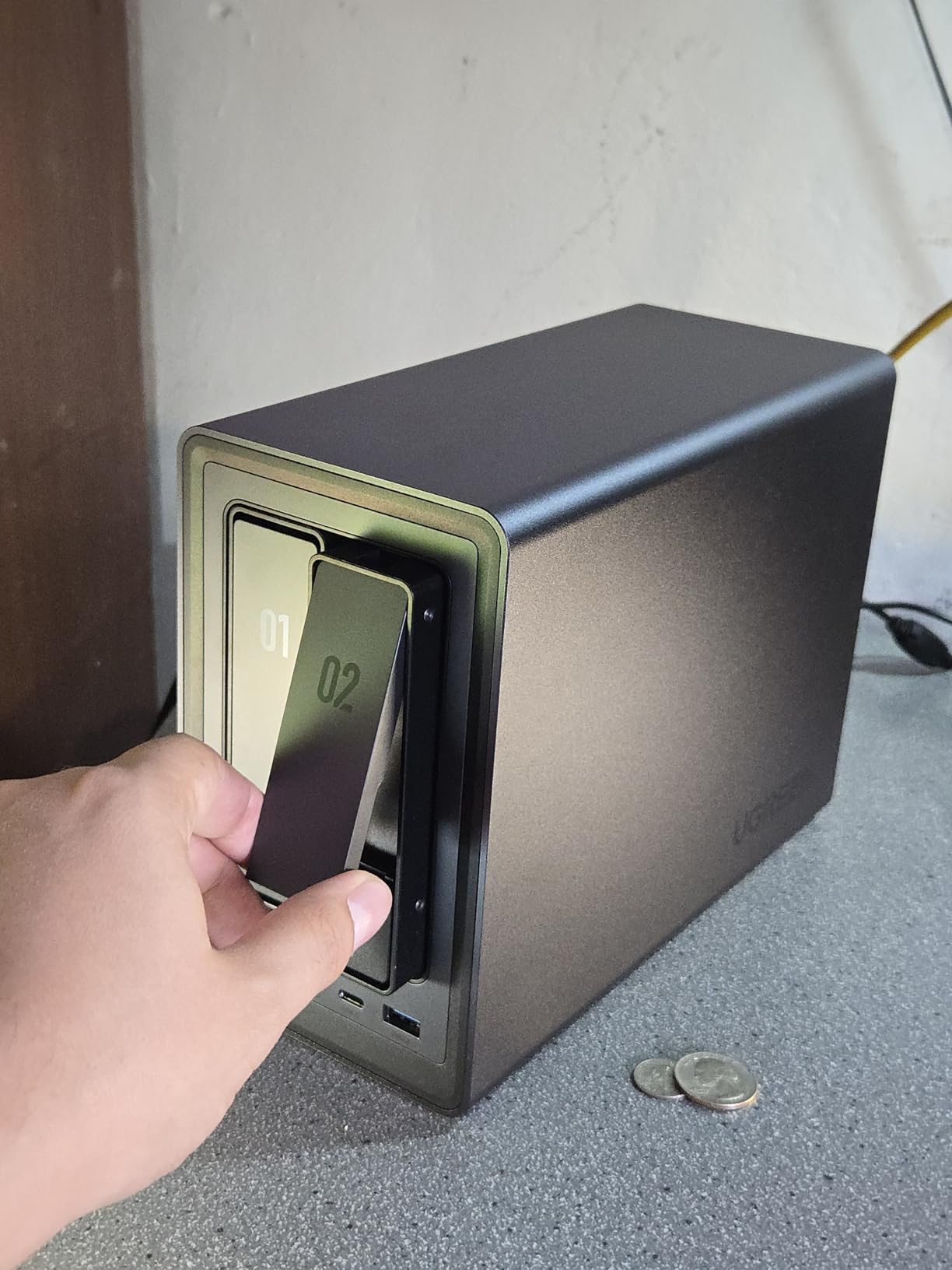
This is the unit I recommend to almost everyone who asks. The reason is not the processor, though the Intel N100 with 8GB of DDR5 RAM is genuinely good. The reason is the photo app: UGREEN’s built-in Photos package tags faces, objects, scenes, and locations, and owners consistently describe it as comparable to Google Photos for the specific job of finding your child at a beach from three summers ago.
For a family archive, the two M.2 NVMe slots matter more than they look. I put the system partition and the photo index on SSDs, which means album browsing and face-tag loading stay instant even while two spinning drives are busy writing. On an all-hard-drive setup, scrolling a 100,000-photo library is a coin flip.
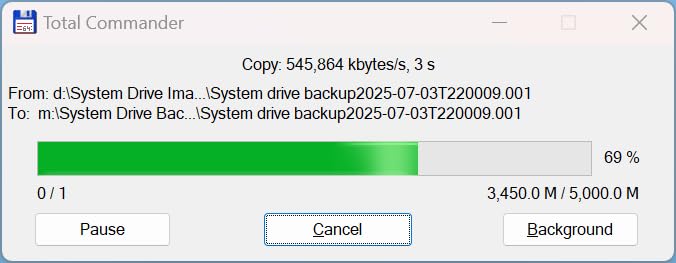
The transfer speed is genuinely useful rather than decorative. With 2.5GbE networking, a phone backup of a few hundred new photos finishes while dinner cooks, and a first full library import is a short job rather than an evening project.
Face Recognition and AI Tagging on a Home Box
The Photos app indexes on the NAS itself – no photo ever leaves the house to be analysed. Face grouping is the feature families notice first, because it means a relative can open one album called “Dad” instead of scrolling nine thousand near-identical shots.
Duplicate detection is the sleeper feature. Years of cloud sync across three phones produce the same blurry picture four times, and this app catches most of them on its own.
2.5GbE and the Intel N100 in Daily Use
With a 2.5GbE port and a 2.5GbE switch, this box stays well ahead of what photo backup needs, and the multi-gig port is the most useful spec in this roundup for that job. The N100 also leaves headroom for a Plex-compatible media server or a Jellyfin container if you decide the NAS should run the family TV too.
It is worth noting that 2.5GbE only pays off if the switch and the computer or phone on the other end also support it. On plain gigabit you are capped near 110 MB/s, which still works fine for photos.
Docker, Surveillance, and the Extras That Show Up
The same AI engine that groups faces powers people detection and pet detection for IP cameras, so the box doubles as a home surveillance hub if you ever want it. Docker support is the other reason people keep this unit for a decade instead of replacing it.
And that is what owners report: not a fast benchmark, but a box that absorbed Immich, Jellyfin, and a photo library without complaint. If your family will never open a terminal, none of that matters – and that is fine, because the phone app is the only interface they need.
Who This Is For, and Who Should Skip It
Buy this if your household wants private photo storage with modern phone backup, you will add hard drives yourself, and you like having headroom. It is the pick I put in homes with teenagers and a growing video library.
Skip it if documentation is your weak point. The most repeated complaint across reviews is the setup guide, and several owners describe needing a video walkthrough or a community search to get network discovery and app installation working. If you will not spend an evening on that, pick the Synology instead.
2. UGREEN DH2300 2-Bay – Cheapest Path Off Cloud Subscriptions
UGREEN NAS DH2300 2-Bay for Beginners & Personal Users, Phone Backup
2 bays up to 64TB, 1GbE, 4GB onboard RAM, AI tagging of faces locations text and objects
+ Pros
- Designed as an approachable first NAS
- Automatic backup across Windows macOS iOS and Android
- AI tagging makes family photos searchable immediately
- TRUSTe and TUV SUD certified for privacy
- Two-year manufacturer warranty
– Cons
- No Docker VM or SAN Manager support
- 1GbE only so large libraries move slowly
- Wired Ethernet with no built-in Wi-Fi
- Storage drives not included
I bought this one first, before I understood what I was doing, because the question in my house was not “which NAS is best” but “how do we stop paying for photo storage we do not own.” For that specific question it is hard to beat.
The Photos app here does the same three jobs that matter: it tags faces, locations, text, and objects, it removes duplicate photos automatically, and it shares to an album with one tap. The mobile app backs up automatically across iOS, Android, Windows, and macOS, which means a single install covers every device in a blended family.
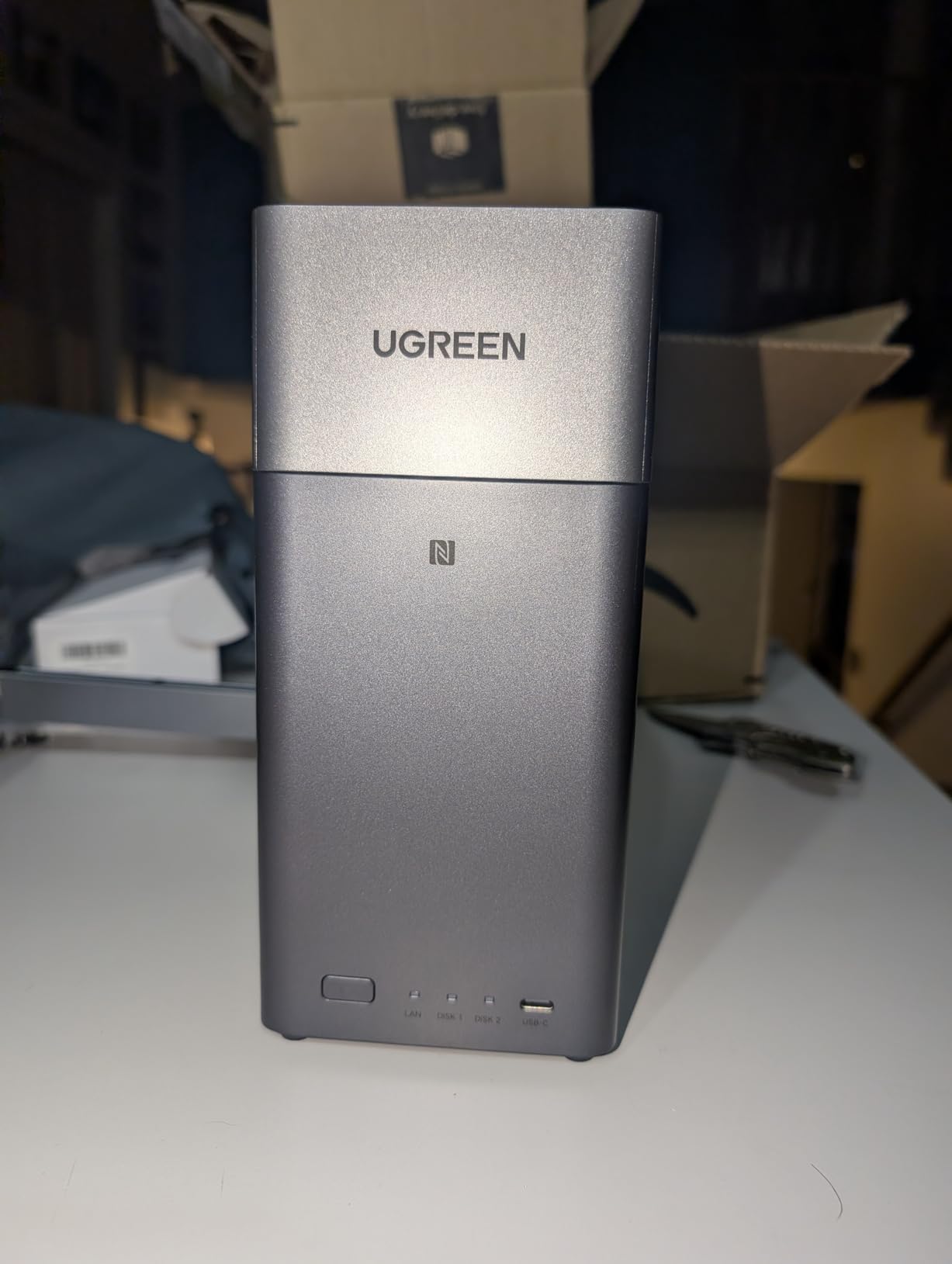
Setup took me under half an hour including drive installation, and that is the honest measure of this category. If nobody in your house is willing to learn anything, this is the box where that stops mattering.
What 1GbE Actually Costs You in Photo Terms
Transfers top out around 125 MB/s in the specification, and in practice a gigabit network lands close to 110 MB/s. For a nightly phone backup of a few gigabytes that is completely fine. For a first-time import of a 100,000-photo library it is the slowest part of the whole project – plan to do it overnight once and enjoy fast daily sync after.
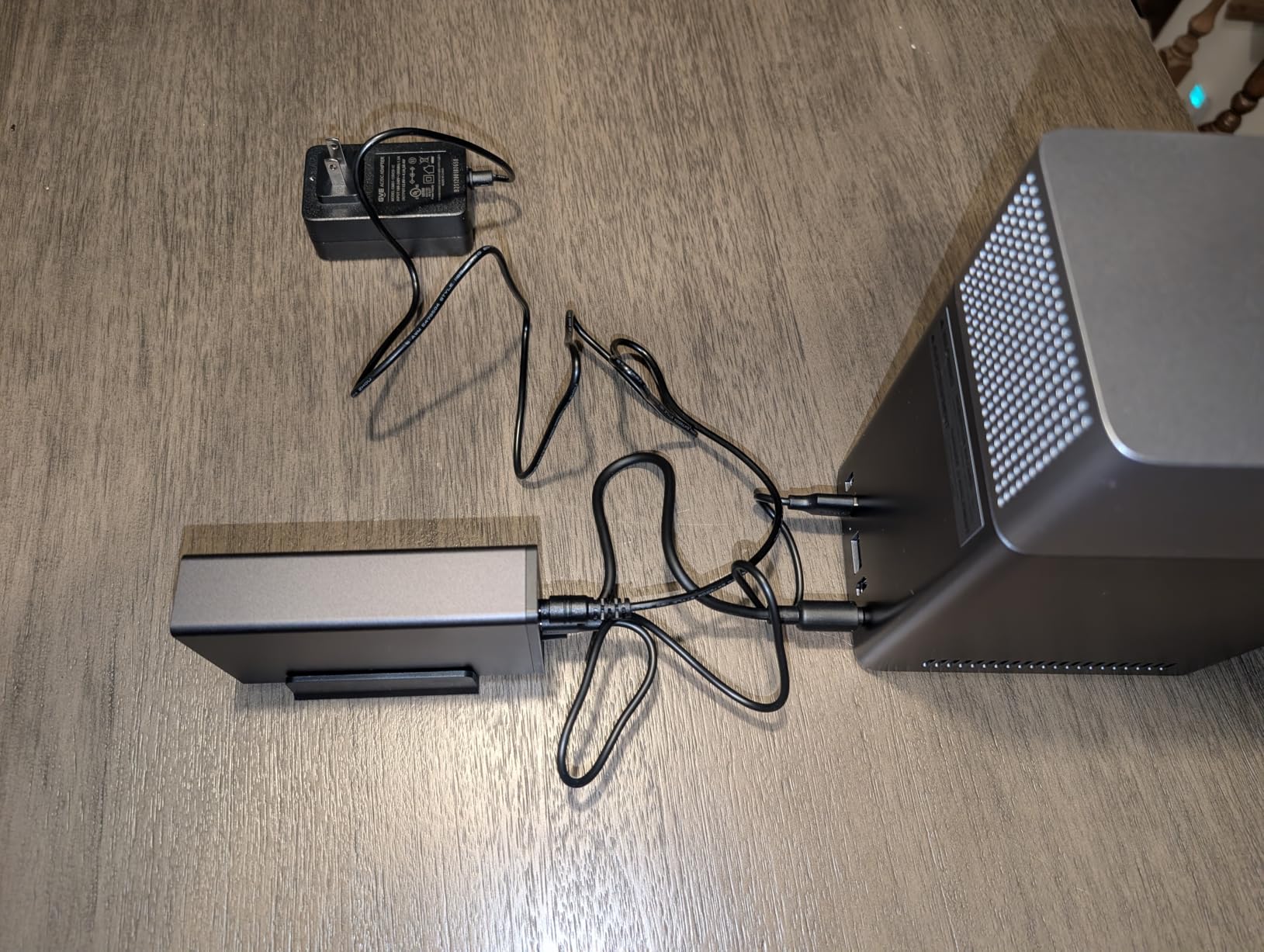
Security and Certification for a Family Archive
It offers RAID modes, two-factor authentication, permission controls, and encrypted transfers, and it is TRUSTe certified and TUV SUD certified to ETSI EN 303 645, which is the European standard for consumer IoT security. For a household storing children’s data, that certification is not nothing.
Where the Limits Show Up
There is no Docker, no virtual machine support, and no SAN Manager, and Plex cannot be run through Docker on this unit. That is a real constraint if you ever wanted the NAS to be a media server, but it costs you nothing if your only goal is a family photo archive. The processor and 4GB of onboard RAM are also entry-level, so do not plan to run heavy services alongside.
The manufacturer explicitly advises against critical business use, which is a sensible warning to ignore at home and a sensible warning to heed if you were planning to work from it.
Who This Is For, and Who Should Skip It
Buy this if the goal is to stop renewing a cloud subscription, your family will only use the phone app, and your library is more measured than enormous. For a lot of households that is exactly the right box.
Skip it if you edit video, run a media server, or know you will want to install self-hosted software later. A Docker-capable unit like the DXP2800 costs more once you add drives, and it will not paint you into a corner.
3. UGREEN DXP4800 Plus 4-Bay – Room for a Decade of Family Photos
UGREEN DXP4800 Plus 4-Bay NAS for Families, Creators & Small Teams
Intel 5-core CPU, 8GB DDR5 RAM upgradeable to 32GB, 10GbE plus 2.5GbE, 4 bays to 144TB
+ Pros
- 10GbE and 2.5GbE together for very fast transfers
- RAM upgradeable to 32GB and metal chassis
- Quiet cooling with nearly silent fan under load
- Guided setup and UGOS Pro interface
- Works with TrueNAS if you outgrow the bundled OS
– Cons
- M.2 compartment is not actively cooled and runs SSDs hot
- Slim slot rejects SSDs with factory heatsinks
- M.2 slots work as cache or pools not extra shared storage
- Limited drive support at 20TB and above
This is the “buy once” answer. Four bays in a metal chassis with a 5-core Intel CPU, 8GB of DDR5 RAM that owners routinely upgrade to 32GB, and both a 10GbE and a 2.5GbE port. It is the box I recommend to anyone whose family has already been through two generations of phones and video, and it carries a 4.6 average across 620 reviews.
The AI photo album recognises faces, scenes, objects, and locations and strips duplicates, so the photo experience is not the consolation prize here – it is on par with the photo-focused picks. The 10GbE port is what makes the difference at scale: back up a gigabyte in under a second, and a full RAW archive moves at a pace that does not require planning an evening.
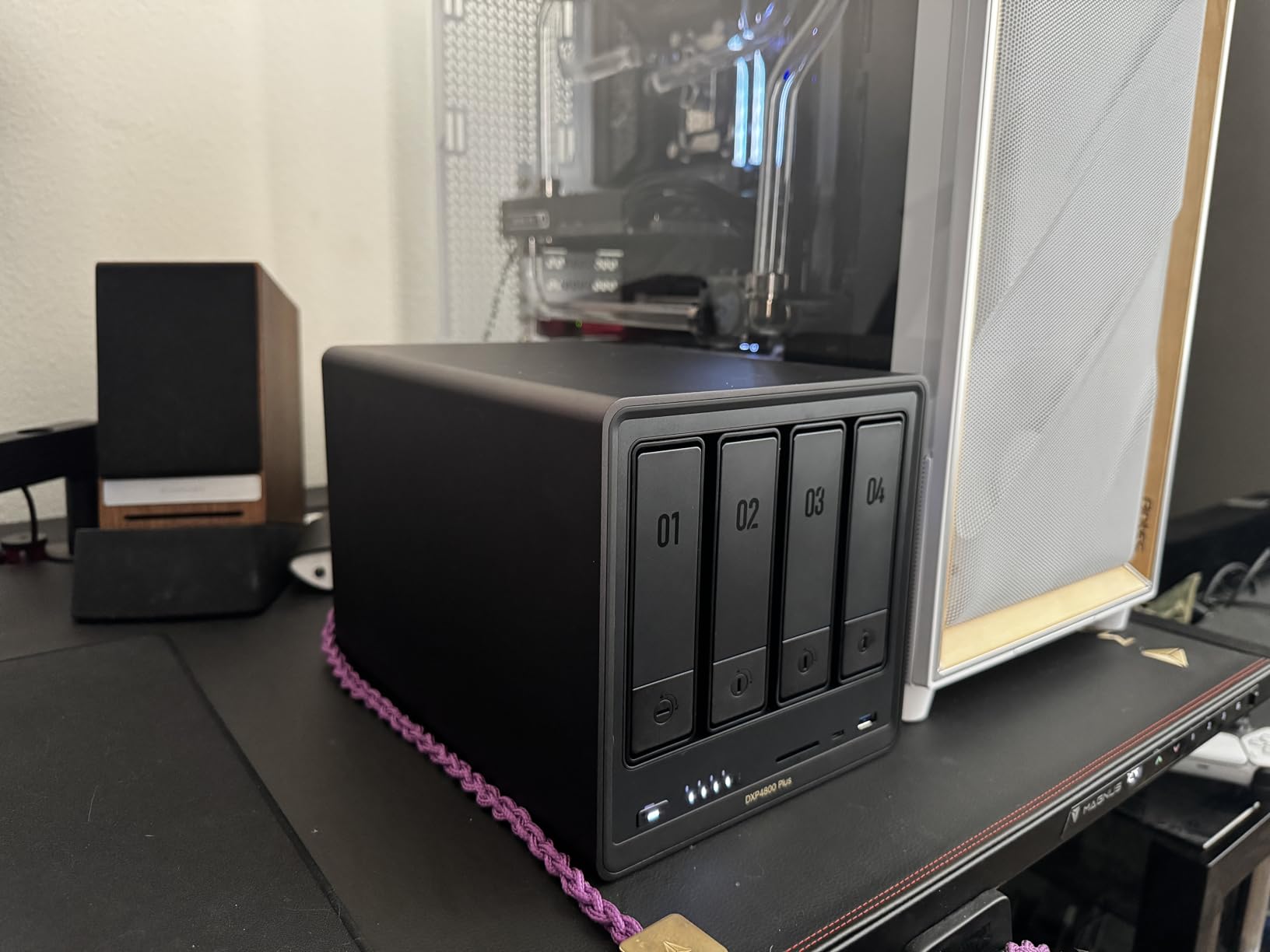
Owners describe using it as an editing scratch drive over 10GbE for Premiere Pro, which tells you how fast the network path really is when a professional workflow leans on it.
Four Bays, 144TB, and the RAID Question
Four bays open RAID 5, which the storage community commonly recommends for a family archive that will grow. With four drives you give up one to parity and keep roughly three quarters of raw capacity, which is a far better trade than RAID 1 once a library passes a couple of terabytes. Our four-bay NAS guide goes deeper on the RAID maths.
The M.2 slots accept up to two NVMe drives for cache or SSD storage pools, so the same rule applies as on the two-bay: run the system and the photo database on SSD, keep the spools on spinning disks.
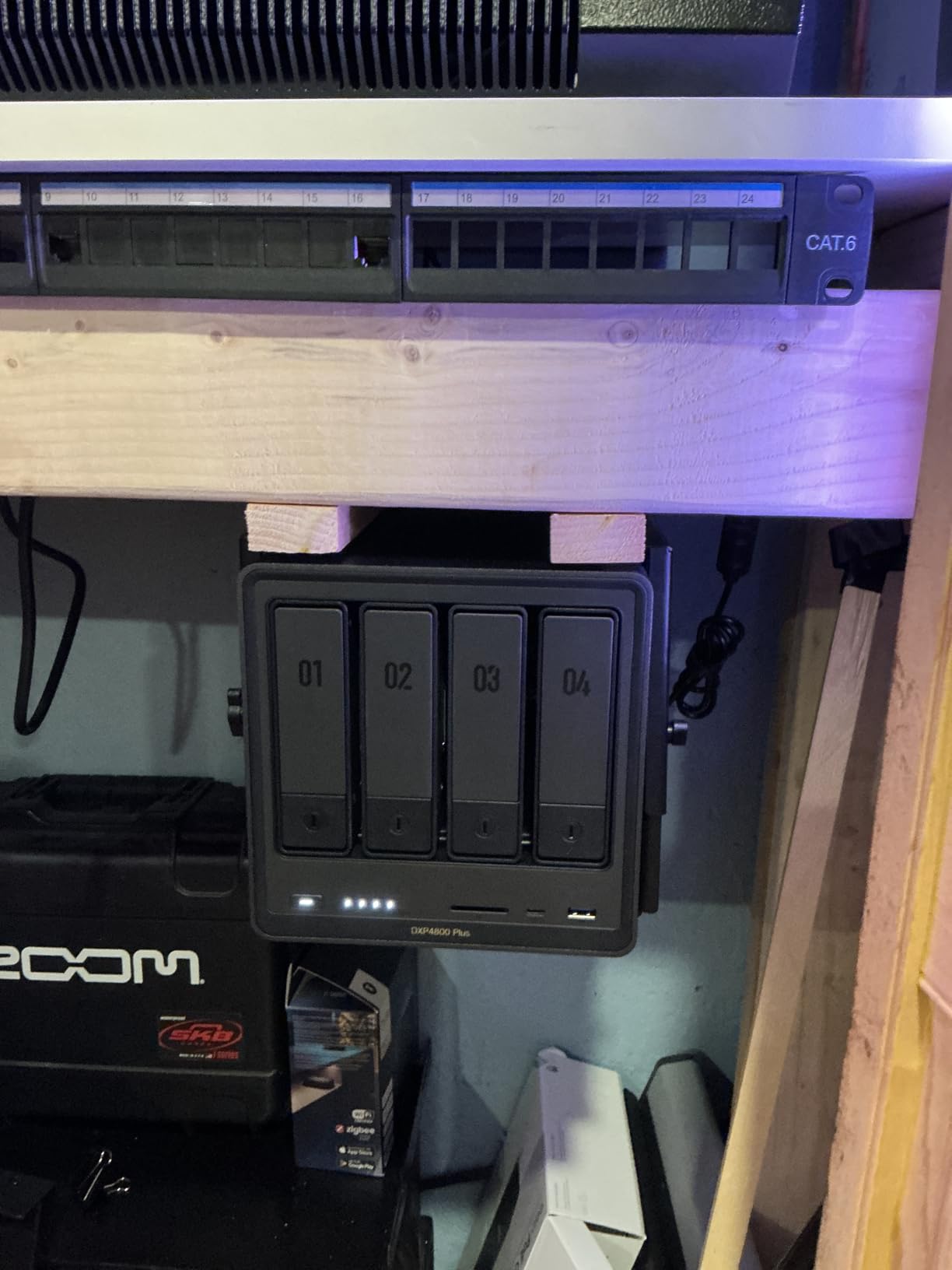
The Thermal Caveat You Should Not Skip
Here is the honest flaw. The M.2 compartment is not actively cooled and is too slim for SSDs with factory heatsinks, so drives can run above 50C under sustained write load. The fix is practical: buy cooler TLC or DRAM-based drives without bulky heat spreaders, and do not use the NVMe slots as a write-heavy scratch tier.
Drive support at 20TB and above is also limited, which matters only if you are filling all four bays with the largest available disks. Pick 12TB or 18TB and the question goes away.
Who This Is For, and Who Should Skip It
Buy this if your library is already large, your household shoots a lot of video, or you want headroom so you never think about storage again. The 32GB RAM ceiling and 10GbE port also make it the natural choice if the NAS will double as a homelab hub.
Skip it if you have a few thousand photos and no video plans. Four bays of capacity is wasted on a library that fits on one drive, and UGOS Pro still lacks the manual fan-speed control QNAP offers, which some listeners will care about in a living room. Our NAS picks for Plex streaming covers the quieter units if media is the priority.
4. Synology DS223 – The Easiest Box for Non-Technical Relatives
Synology DS223 Home & Office Backup Hub – Centralize Files, Protect Data & Monitor Property (2-Bay Diskless NAS)
2 bays with 2GB DDR4, Synology DSM, compact metal chassis, 2-year warranty
+ Pros
- Synology DSM is widely regarded as the most polished NAS interface available
- Guided setup that a non-technical relative can follow
- Compact metal enclosure that fits on a shelf
- Dependable day-to-day stability
– Cons
- Only 2GB DDR4 memory limits Docker and virtualisation
- 1GbE-class networking typical of this tier
- Value is in the software rather than the hardware
- Some ecosystem features push toward Synology-branded drives
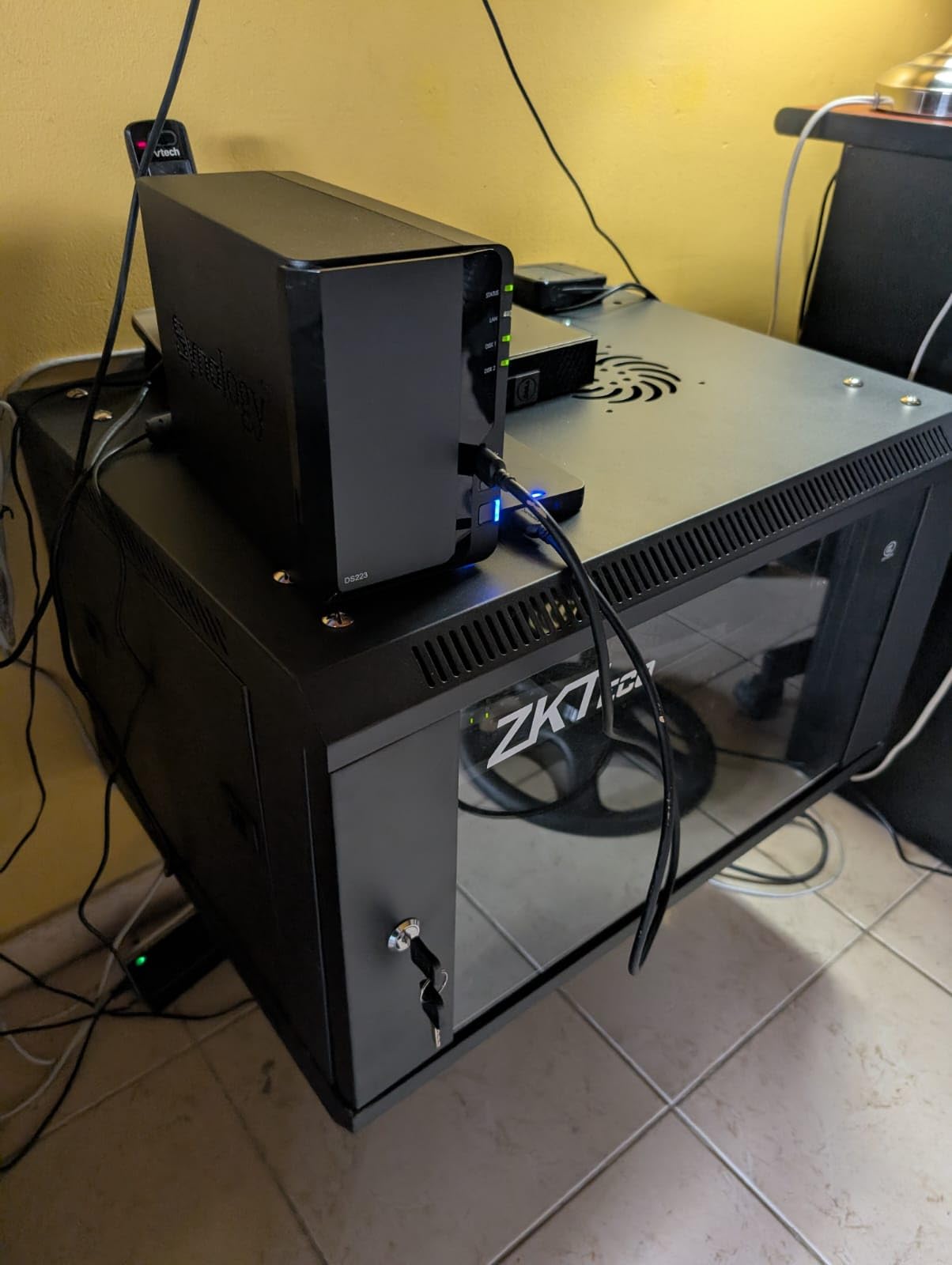
The DS223 is the hardware equivalent of a good front desk: plain, small, and unremarkable in a way that makes everyone else in the house comfortable. It is a 2-bay diskless unit with 2GB of DDR4 memory running Synology DSM, and it weighs 1280 g in a compact black metal box.
Long-term Synology owners consistently point to software support length and stable operation as the reasons they keep buying the brand rather than switching. That is the whole pitch of this unit. It will not win a specification chart, and in five years you will still be able to install the apps your family knows.
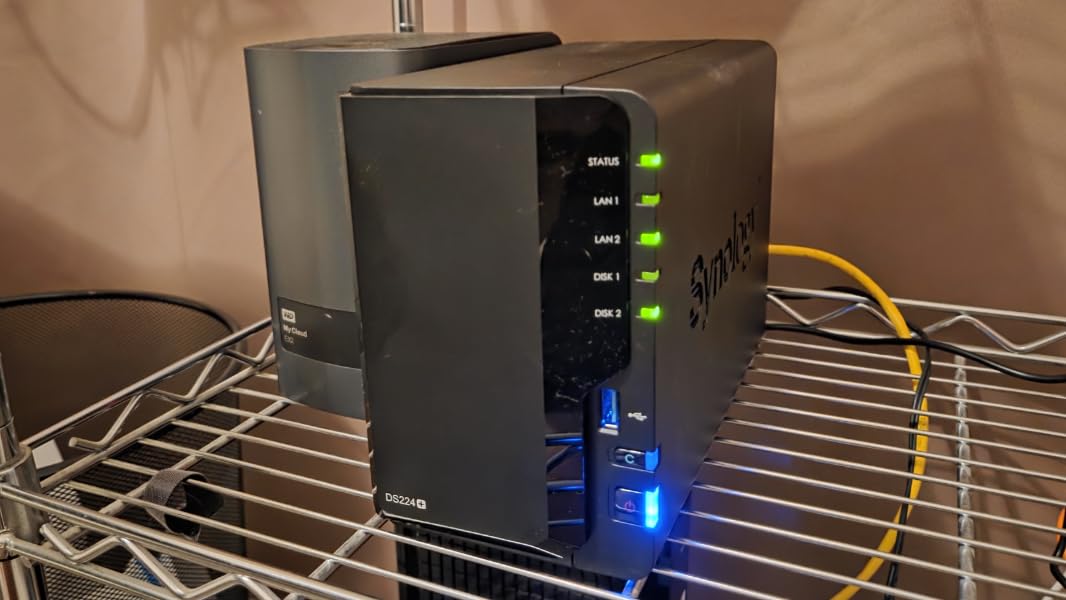
On Apple Discussions, owners of Synology units describe running Synology Photos against their family iPhones for years with no problems – the setup that “has worked well for my family and me” is a recurring report, and it is the closest thing to a five-star reliability review that a family NAS gets.
DSM, Synology Drive, and Remote Access
DSM is managed entirely from a browser, which means a grandmother can open a shared album link from any device without installing anything. Synology Drive handles file sync across computers and phones, and remote access works through Synology’s own relay without exposing your network to the internet.
Automated backup for Mac, PC, and mobile can target cloud services, external drives, and a second NAS, which is the foundation of the offsite copy advice later in this guide.
What 2GB of RAM Costs You
Two gigabytes is genuinely minimal. It is fine for DSM, Synology Drive, Synology Photos, and a household backup schedule. It is not fine for Docker, virtualisation, or several heavy services at once, and the memory is not upgradeable on this model.
That is a deliberate trade. You are buying the software and the support window, not the silicon.
Who This Is For, and Who Should Skip It
Buy this if the people using the photos are not technical, if you value a setup that works without a tutorial, and if you want the longest-running software story in the category. For a family archive that just needs to sit quietly and be browsable, it is hard to argue with.
Skip it if you want speed. 1GbE-class networking on a large RAW library will test your patience during the initial import, and if your household will grow past a few terabytes soon, the four-bay options buy you headroom for less money per bay. Small business users should look at the dedicated business NAS picks instead.
5. Synology DS225+ – Best Synology for Photos and 4K Streaming
Synology DS225+ Private Cloud Media Server – Stream, Back Up Photos & Share Files, Intel CPU for Hardware Transcoding (2-Bay Diskless NAS)
Intel 4-core CPU, 40TB raw across 2 bays, up to 282 MB/s, 3-year warranty
+ Pros
- Intel 4-core CPU gives real headroom over 2-core predecessors
- DSM and the Synology Photos mobile app are very easy to use
- Migration from an older Synology transferred data and settings cleanly
- Plex runs including live TV and DVR use
- Quiet and reliable with standard third-party drives
– Cons
- Some buyers reported DSM installation failing on units with older firmware
- Drive compatibility policy and error messaging drew heavy criticism
- No hardware video transcoding in this model
- Compatible drives must be bought separately
Where the DS223 is the plain option, the DS225+ is the one you buy when you want Synology plus headroom. An Intel 4-core CPU, up to 282 MB/s of transfer speed, 40TB of raw capacity across two bays, and a three-year warranty instead of two.
The extra cores are what separate it. Background photo indexing, a backup job to an external drive, and a Plex transcode can all run at once without the whole interface stuttering, which is a real scenario in a house where the NAS is also the media server.
Owners report painless migration from older Synology hardware, with data, settings, and credentials transferring without incident. If you already run DSM, that continuity is the quietest benefit in this list.
The Firmware Issue Worth Understanding Before You Buy
Several buyers report DSM installation failing to complete on units that shipped with older bootloader firmware, even with Synology-listed compatible drives, and some ended up returning hardware or updating firmware to resolve it. This is a known, documented complaint rather than a widespread failure pattern, and it is worth checking the current firmware state on arrival before you start filling bays.
The separate drive-compatibility controversy concerned which drives certain features accept, and the manufacturer later restored third-party support in a DSM update. Our view: buy third-party NAS-rated drives, and expect some friction in the messaging.
Container Manager and Snapshot Protection
Container Manager means you can run Immich, the self-hosted photo platform many enthusiasts prefer over a vendor’s own app, alongside Synology Photos. Snapshots add a versioning layer that catches the accidental folder deletion – the single most common way a family loses photos.
Who This Is For, and Who Should Skip It
Buy this if you want Synology’s software with meaningful CPU headroom, or if the NAS is going to double as the family media server. The four-core chip and the three-year warranty justify the step up from the DS223 in most households.
Skip it if you are purely photo-storage and will not run containers or streaming. The plain DS223 does that job for less, and if you need more capacity later the four-bay DS925+ is the natural destination.
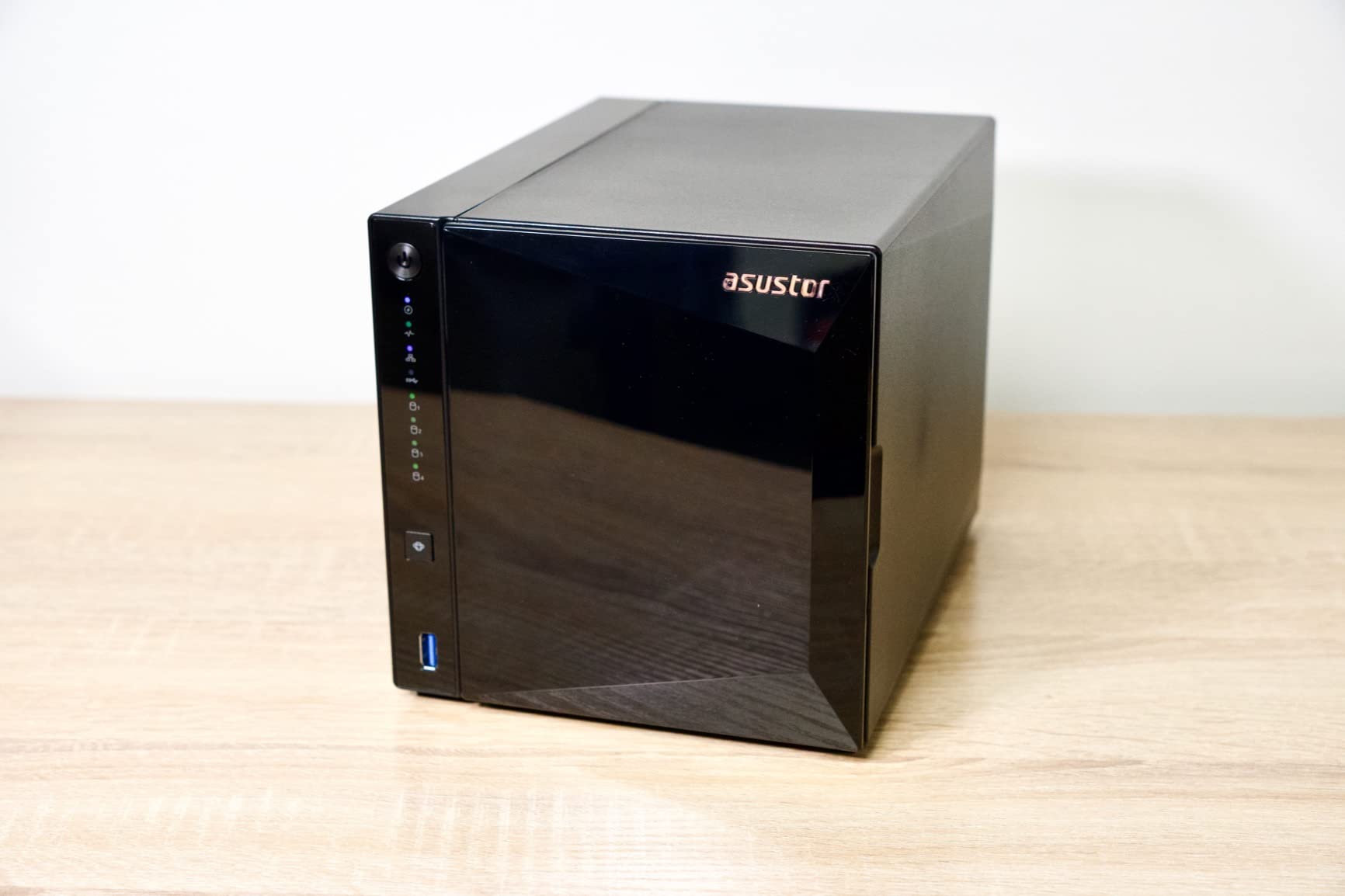
6. Asustor Drivestor 4 Pro AS3304T – Straightforward Four-Bay Value
Asustor Drivestor 4 Pro AS3304T – 4 Bay NAS, 1.4GHz Quad Core, 2.5GbE Port, 2GB RAM DDR4, Network Attached Storage (Diskless)
Realtek RTD1296 quad-core 1.4GHz, 2GB DDR4, 4 bays up to 72TB, 2.5GbE
+ Pros
- 2.5GbE at a value-tier price is a real upgrade from 1GbE
- Four bays support up to 72TB for growing archives
- Realtek quad-core handles 10-bit 4K H.265 hardware decoding
- Over 200 apps through App Central plus Plex support
– Cons
- Only 2GB RAM restricts Docker virtualisation and multi-user work
- Realtek platform is weaker than the Intel N-series for transcoding
- Single network port so no link aggregation
- 4.2 average across 353 reviews
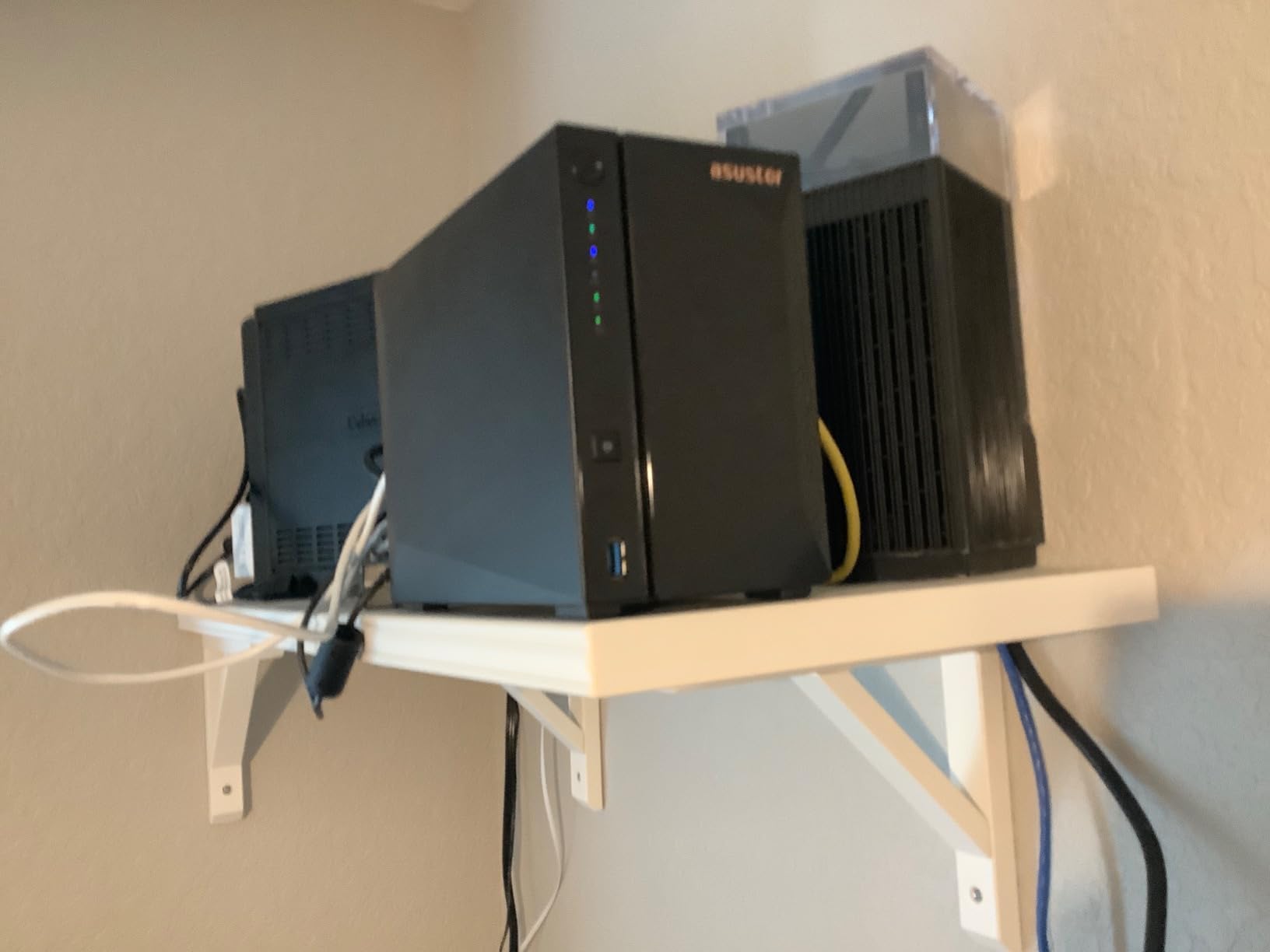
The Asustor Drivestor 4 Pro is the plainest four-bay box in this roundup, and that is a virtue if you want storage without ceremony. Four bays, up to 72TB with 18TB drives, one 2.5GbE port, and a Realtek quad-core at 1.4GHz paired with 2GB of DDR4 – a 4.2 average across 353 reviews, the lowest in this group.
For a family that wants somewhere to put photos and grow it for a decade, the bay count and the 2.5GbE port are the two things that matter, and both are right here. The Asustor ecosystem also covers backup solutions, cross-platform multi-user access, remote access, and mobile apps, with over 200 apps available through App Central.
72TB Across Four Bays
Four bays mean RAID 5 is available, which is the configuration most experienced users recommend for a growing family archive – you lose one drive to parity and still keep three quarters of your raw capacity. Bays accept 2.5-inch or 3.5-inch SATA drives, so you can mix smaller drives for a cold archive with large ones for the active library.
Where This Unit Falls Short
Two gigabytes of RAM is the binding constraint, and it rules out serious Docker and virtualisation work. The Realtek platform also handles demanding multi-stream 4K transcoding less gracefully than the Intel N-series units in this list, though for on-demand family viewing the 10-bit H.265 hardware decode is adequate.
It pairs that with a 4.2 average that reflects solid hardware and software that is functional rather than refined. In other words, a competent value-tier box rather than an exceptional one.
Who This Is For, and Who Should Skip It
Buy this if you want four bays and multi-gig networking without paying for enthusiast hardware, and your usage is storage and light streaming. It covers the gap between a two-bay starter and a self-hosted powerhouse.
Skip it if you plan to run containers, a personal website, or a media library that will be transcoding constantly. The Asustor Nimbustor models elsewhere in this list have Intel CPUs and more memory for that workload.
7. Asustor AS5402T – Four M.2 Slots in a Two-Bay Chassis
Asustor AS5402T, 2 Bay NAS, Intel Quad-Core 2.0GHz CPU, 4X M.2 NVMe SSD Slots, 2×2.5GbE Ports, 4GB DDR4 RAM, Cloud Storage for Gaming and Live Stream, Network Attached Storage(Diskless)
Intel N5105 quad-core, 4 M.2 NVMe slots, dual 2.5GbE with link aggregation, 4GB DDR4 to 16GB
+ Pros
- Four M.2 NVMe slots in a two-bay chassis is an unusual and useful layout
- Dual 2.5GbE supports link aggregation for about 5Gbps combined
- RAM upgradeable to 16GB for more headroom than 2GB rivals
- Intel N5105 handles Docker and virtualisation far better than Realtek
– Cons
- Only two drive bays limits raw capacity growth
- ADM interface and documentation less polished than DSM or QTS
- Intel N5105 is entry-level for heavy 4K transcoding
- Reaching 16GB requires partial disassembly
This is the cleverest box in the roundup for a specific kind of family. Two spinning-drive bays, and four M.2 NVMe slots – in a two-bay chassis. Most competitors pair two drive bays with two M.2 slots; this one pairs them with four.
The use case is obvious once you see it: run the operating system, the photo database, and the apps on NVMe, and the family library on large hard drives. Photo browsing stays instant no matter how busy the drives are, which is the same principle that made the DXP2800’s SSD slots a feature I highlight.
Two more details matter. The Intel N5105 quad-core is a real step up from Realtek silicon for Docker and virtualisation. And two 2.5GbE ports with link aggregation support combine to roughly 5Gbps, or you can split one for downloads and one for backup traffic.
Memory, Networking, and Display Output
Four gigabytes of DDR4 is included and expands to 16GB, though reaching the second slot requires partial disassembly. HDMI 2.0b output up to 3840×2160 means the box can drive a monitor directly, which is handy for a family dashboard or a status screen in the kitchen.
Two Bays Is a Real Ceiling
Mirrored, two 12TB drives give you 12TB usable. That is a lot of photos, but it is not growth headroom. If you are confident you will stay inside that, the four M.2 slots more than compensate. If a second child is plausible, start with four bays.
Who This Is For, and Who Should Skip It
Buy this if you want a fast, compact box for photos plus a bit of self-hosting, and you value NVMe slots over future capacity. The gaming-inspired Nimbustor Gen2 styling also suits a living-room shelf better than a plain office enclosure.
Skip it if documentation quality matters to you – Asustor ADM draws more complaints than DSM or QTS, and getting to 16GB of RAM means opening the case. If you will never touch the hardware beyond drive installation, a two-bay Synology is a calmer experience.
8. QNAP TS-264 – Most Power and Expansion Room per Bay
QNAP TS-264-8G-US 2 Bay Desktop NAS
Intel quad-core to 2.9GHz, 8GB RAM, dual 2.5GbE, 2 M.2 PCIe slots, PCIe expansion slot
+ Pros
- ZFS support through QuTS hero is unusual in this class
- PCIe slot accepts a 10GbE card for a genuine upgrade path
- Two M.2 NVMe slots for cache or SSD storage pools
- Metal build with easy drive bay swapping
- 4.4 average across 256 reviews
– Cons
- Stock fans have a persistent buzz some owners replace
- Windows network discovery often fails to show the NAS
- Front panel restricts airflow so drives run warmer
- External 12V power brick instead of an internal PSU
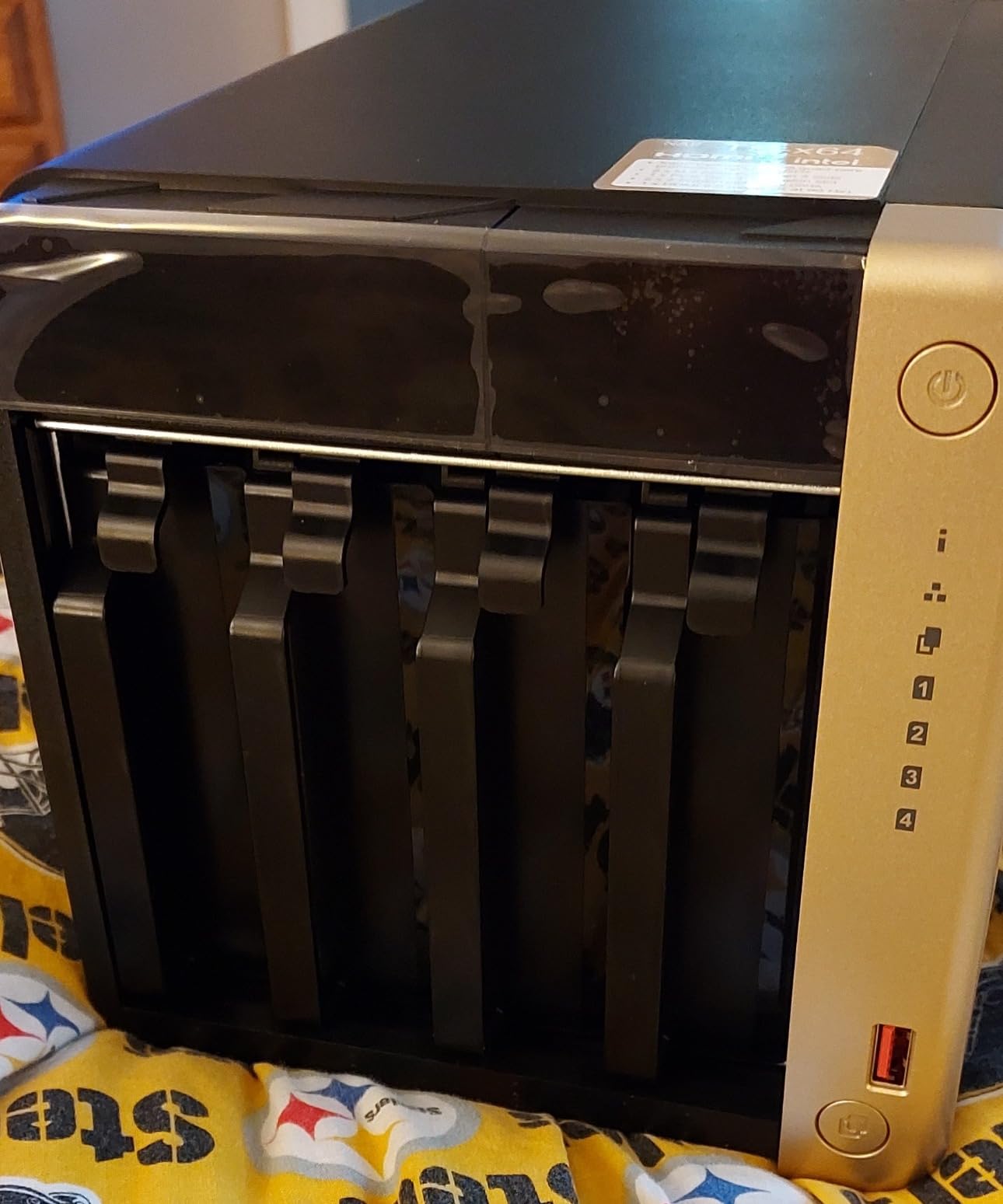
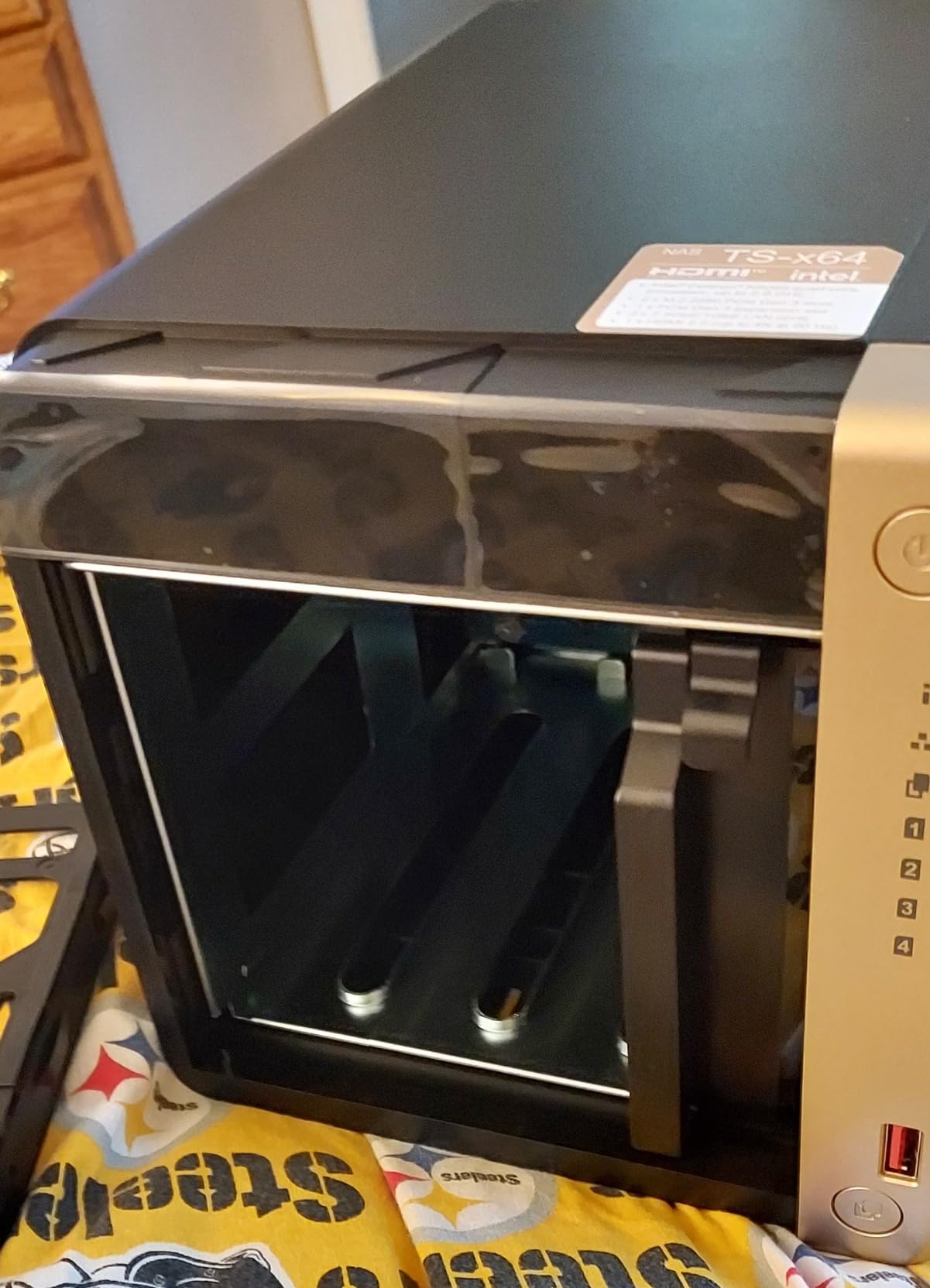
The QNAP TS-264 is the enthusiast’s two-bay, and the reason is the upgrade path rather than the spec sheet. An Intel Celeron quad-core bursting to 2.9GHz, 8GB of RAM, two 2.5GbE ports, two M.2 PCIe Gen3 x2 NVMe slots, and a PCIe expansion slot where you can later drop in a 10GbE network card.
It also supports QuTS hero with ZFS, a file system the other enclosures in this list do not offer. For a family that will grow into a small homelab, having ZFS and a spare PCIe slot in a machine that fits on a desk is genuinely useful.
Two Issues to Know About Before You Buy
The stock fans have a persistent buzz that a number of owners fix by swapping in aftermarket Noctua fans. If the unit will live in a living room rather than a closet, that matters more than any benchmark.
Second, Windows network discovery frequently fails to show the NAS in File Explorer even with SMB and firewall settings correct. This is widely discussed on QNAP’s own forums, and the usual answer is to connect by network path rather than browse. If your household is Windows-centric and non-technical, this will generate support tickets you do not want.
A third, smaller point: the front panel restricts airflow, and drives run about 5C cooler with it removed, so fan speed may need raising. Power comes from an external brick rather than an internal supply.
Where the QNAP Software Fits a Photo Archive
Centralised storage and organisation of personal or family photos, music, and videos is an explicit use case, and mobile apps cover phone access. The M.2 slots can be used for cache or full SSD storage pools, which is the fastest way to make a large library feel immediate.
Who This Is For, and Who Should Skip It
Buy this if you want the most capability per bay, intend to install your own software, and value a documented upgrade path. Transcoding is its weak point – media playback struggles beyond a single 1080p stream and some surround formats can lock up – so treat it as a storage box rather than a media server.
Skip it if a smooth, hand-it-to-your-mother experience outranks power. Documentation and community support here are weaker than Synology or Asustor equivalents, and the fan buzz is a genuine downside in shared living spaces.
9. Synology DS925+ – Built for Large RAW Photo Archives
Synology 4-Bay DiskStation DS925+ (Diskless)
4 bays, 4GB ECC RAM upgradable to 16GB in pairs, dual 2.5GbE, up to 522/565 MB/s
+ Pros
- 522/565 MB/s sequential throughput suits large RAW archives
- Dual 2.5GbE ports with redundancy support
- Toolless drive caddies and painless capacity expansion
- ECC memory and ability to move the photo database to NVMe
– Cons
- Filling bays with drives and RAM can cost several times the enclosure
- Drive compatibility restrictions still frustrate some buyers
- Synology Photos desktop helper and browser extension reported unreliable
- Memory upgrades must be matched pairs
The DS925+ is the four-bay for a household with a serious camera history. Four bays, up to 522 MB/s sequential read and 565 MB/s write, dual 2.5GbE ports with redundancy support, two M.2 NVMe slots, and 4GB of ECC base memory that expands to 16GB in matched pairs.
Photographers call it out as a well-supported home archive for growing RAW libraries, and the ability to move the Synology Photos database onto an NVMe SSD for Immich-class responsiveness is the detail that matters at that scale. Toolless caddies and hot-swappable expansion mean going from 12TB drives to 20TB drives is a ten-minute job with a rebuild running in the background.
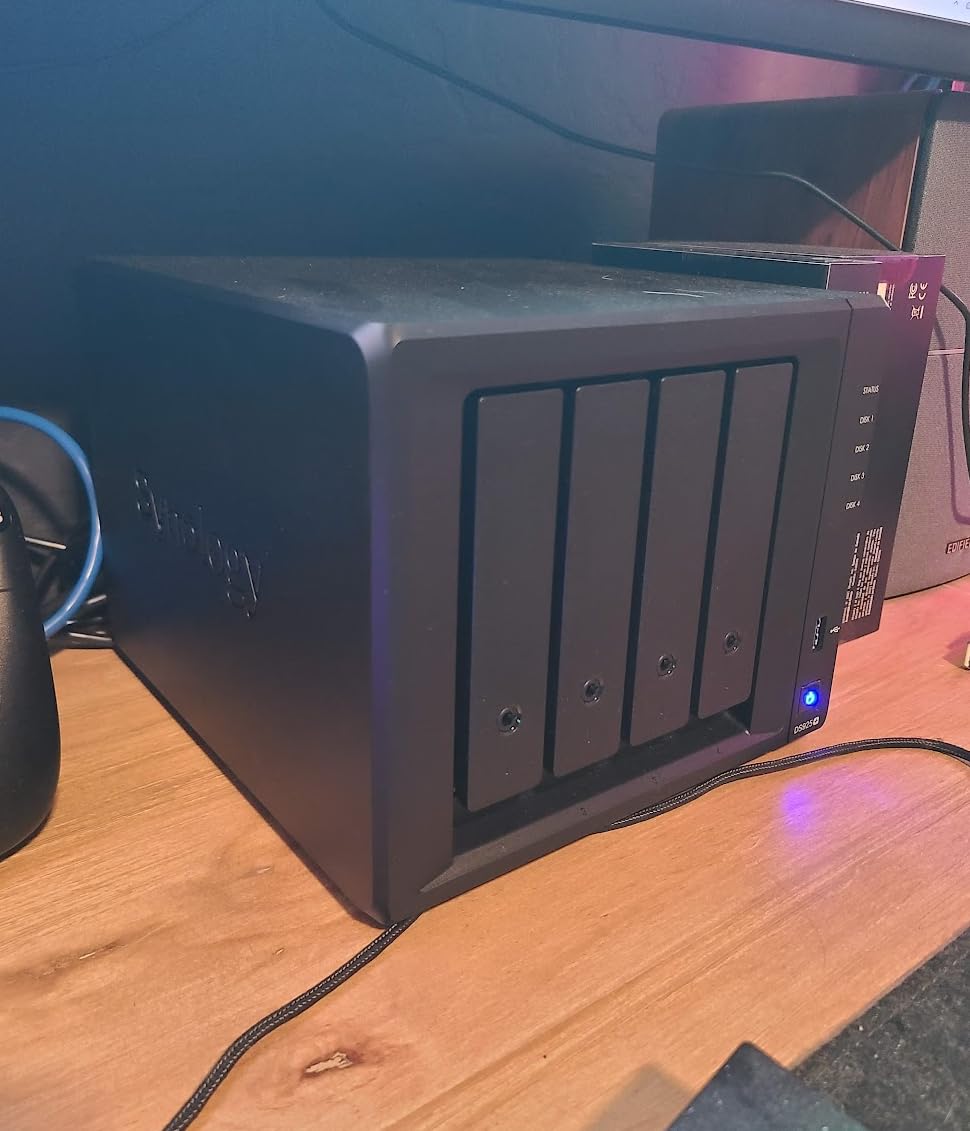
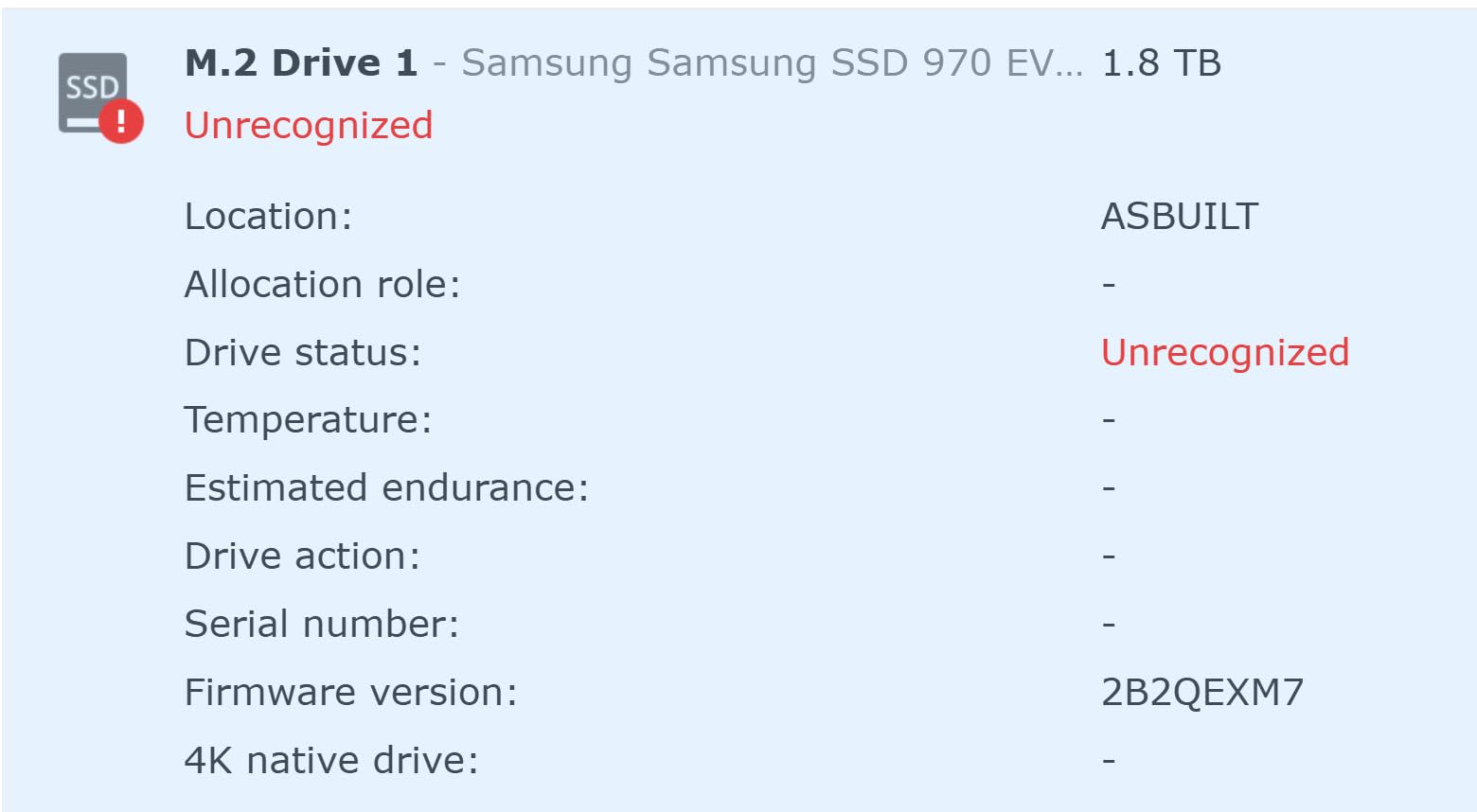
The first thing to settle with this unit is the bill, not the box. Four drives, a matched pair of ECC memory modules, and possibly a Synology SSD can add up to several times the enclosure price. That is where the 4.2 rating comes from, and it is worth confronting before you buy. The enclosure itself is the small part of the invoice.
The same owners also flag the drive-compatibility restrictions and their reversal as a reason to hesitate, and report that the Synology Photos desktop helper and browser extension were unreliable, preferring Immich in Docker instead. That is a legitimate workflow, but it is not a one-click setup.
Total Cost Is the Real Number
Memory upgrades must be installed as matched pairs, which makes a move to 16GB an expensive step, and a small number of units reportedly needed repeated hard reboots because of lockups. None of that is a dealbreaker in a photo archive, but all of it argues for reading recent owner reviews before you commit.
Who This Is For, and Who Should Skip It
Buy this if you have tens of thousands of RAW files, a photographer in the family, or a plan to grow into one. The throughput, ECC memory, and expansion path are built for a library measured in terabytes rather than gigabytes.
Skip it for ordinary family snapshots. A 2.26 kilogram metal box with matched-pair memory requirements is over-engineered for a library of phone photos, and you would spend most of the budget on drives you do not need yet. The DS225+ is the saner Synology for that household.
10. Asustor Lockerstor 2 Gen2 AS6702T – Compact Self-Hosting Powerhouse
Asustor Lockerstor 2 Gen2 AS6702T – 2 Bay NAS Plex Media Server (Diskless)
Intel Celeron N5105, 4 M.2 NVMe slots, dual 2.5GbE, 2 tool-free drive bays, Docker and VirtualBox
+ Pros
- Two drive bays plus four M.2 slots in a compact unit
- Boots in 10 to 15 seconds and feels far quicker than Atom NAS units
- ADM 5 is a robust Linux-based system with no forced cloud integration
- Docker VirtualBox Python and Shell scripting plus a large app catalog
- Very quiet in operation
– Cons
- Upgrading to 16GB requires near-complete disassembly
- The M.2 NVMe retention clip is weak and fragile
- Documentation is thin
- ADM is functional but not as refined as DSM
- 4.3 average with 152 reviews
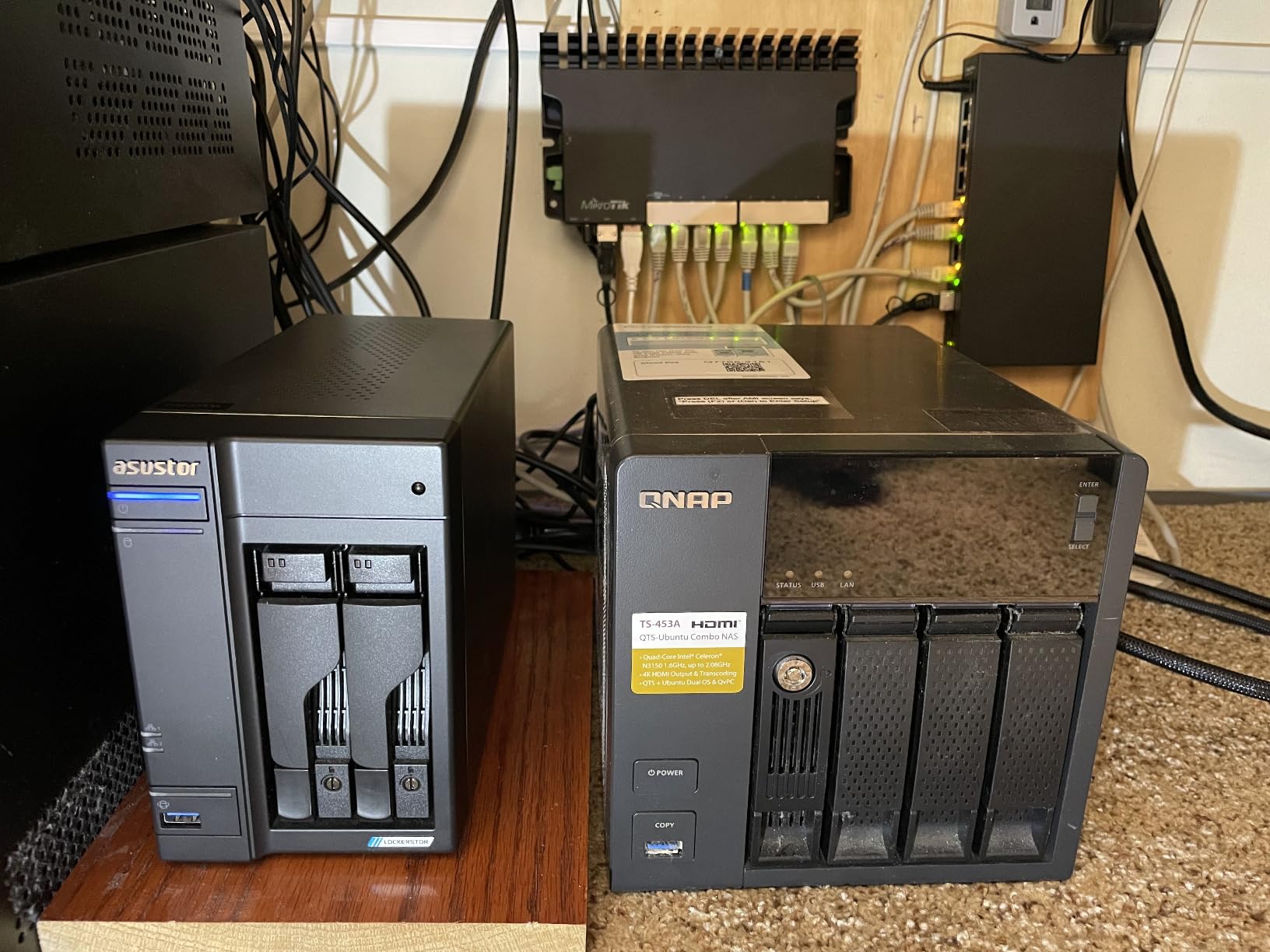
The Lockerstor 2 Gen2 is the same unusual two-bay-plus-four-M.2 layout as the AS5402T, wrapped in a different chassis, and it is arguably the more mature software story of the two. ADM 5 is a Linux-based system accessible by web portal or SSH, with no forced cloud integration at all.
Owners treat it as a compact box for mixed workloads – SMB and NFS storage, Jellyfin, a personal website, network-wide ad blocking, Nextcloud, and overnight backup jobs all running comfortably at once. File transfers are reported around 280 MB/s on a home network.
The Intel N5105 platform boots in 10 to 15 seconds, which is a small thing that changes how a household perceives the device. It feels like a computer, not an appliance that is still waking up.
Tool-Free Bays and a Cooling Design That Works
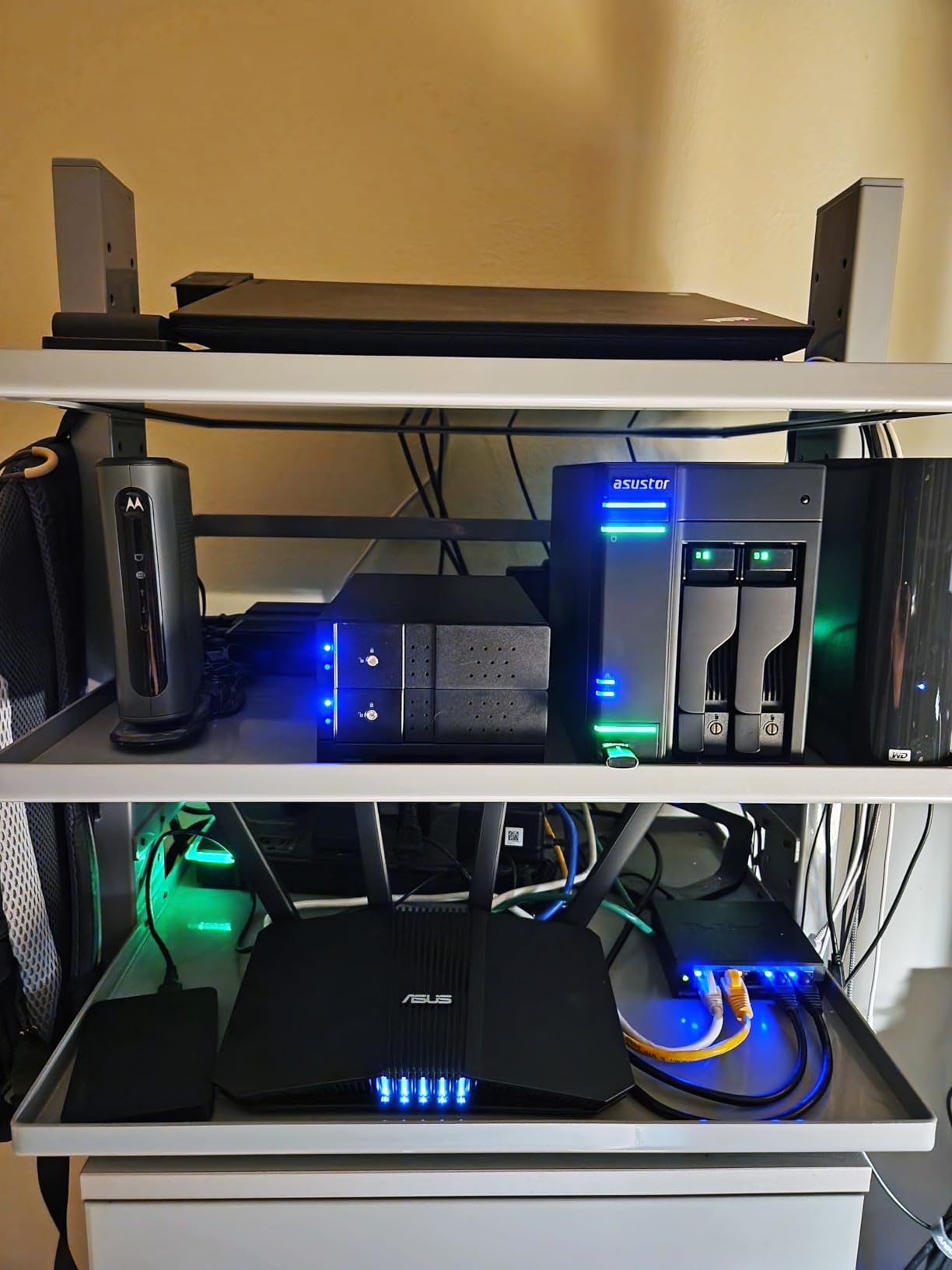
Drive installation is tool-free and the cooling design is described as efficient for long-term operation. Multiple owners report it as the easiest unit they have ever set up, and several describe it as quiet enough for a living room, which is not something every NAS on this list manages.
Docker, VirtualBox, and a Real App Catalog
Docker and VirtualBox virtual machines both run, alongside Python and shell scripting, and the app catalog includes Jellyfin and Nextcloud. For a household that wants the photo archive to be one service among several rather than the only purpose of the box, that flexibility is the point.
Who This Is For, and Who Should Skip It
Buy this if you want a small, quiet, self-hosting-capable box with strong SSD flexibility and do not mind learning a little Linux administration. It is a strong fit for a family that will grow into running services at home.
Skip it if you want the smoothest interface. ADM is functional but not as refined as Synology DSM, documentation is thin enough that owners rely on the Asustor College tutorials, and reaching 16GB of memory means nearly dismantling the unit. The weak M.2 retention clip is also a small but real physical concern.
How to Choose a Home NAS for Family Photos
Start With Drive Count, Not CPU
For photos, the processor is almost irrelevant and the bay count is everything. Two bays means RAID 1, which is the correct family default: an exact mirror, so one drive failing loses nothing, and a failed drive is swapped in minutes. Four bays opens RAID 5, which trades one drive to parity for 25 percent more usable capacity – worth it once your library passes a few terabytes. Buy one and a half times what you need today and revisit in three years.
Whatever you choose, buy NAS-rated drives rather than desktop drives. Our NAS drive guide covers the specific lines worth considering, and the reliability advice from storage forums is consistent: WD Red Plus over WD Pro, and avoid the highest-vibration models in a four-bay chassis.
Get 2.5GbE If Your Library Is Big or Full of Video
For still photos on gigabit, you will never notice. For 4K video from a modern phone, for RAW camera files, or for a first import of a large existing library, 2.5GbE roughly halves the time you wait. It only helps if the switch and the sending device also support it, so check before you buy the cable. Dual 2.5GbE with link aggregation is the next step up, and a PCIe 10GbE card is the enthusiast destination.
Decide How Much You Will Actually Tinker
This is the question the spec sheet cannot answer. If the plan is phone app and shared albums, buy the software with the best mobile experience and stop thinking about it. If the plan is to run Immich, Nextcloud, a media server, and containers, buy Intel silicon with upgradeable RAM – 8GB or 16GB – and a documented expansion path. The gap between those two households is the difference between a two-bay appliance and a four-bay enthusiast box, and it is worth being honest about which one you are.
RAID Is Not a Backup – Build the Second Copy
RAID protects you from exactly one failure mode: a single drive dying. Fire, flood, theft, ransomware, a deleted folder, and a dead power supply all take out every mirrored copy simultaneously. The standard 3-2-1 approach costs almost nothing and takes an hour to set up:
Three copies of every irreplaceable photo. Two different devices – the NAS plus one other. One copy offsite – another building, a relative’s house, or encrypted cloud storage. Synology Drive, ASUSTOR Backup Plan, and the equivalent QNAP tool all handle scheduled replication to an external USB drive or a second NAS, and r/synology owners commonly report running a second unit purely as a backup target for the first. That is cheap insurance.
Make It Usable for the Least Technical Person in the House
A NAS nobody else can open is a failed purchase, and this is the most repeated frustration in family forums. Practical rules: turn on two-factor authentication, create individual accounts rather than sharing one, give relatives a shared-album link so they never need a password, and never expose the management interface directly to the internet – use the vendor’s relay-based remote access instead. Keep firmware updates on automatic.
If your household also prints a lot of the results, our picks for the best photo printers for home pair naturally with a NAS-based archive.
Frequently Asked Questions
What is the best photo storage solution for families?
A two-bay NAS with two drives in RAID 1, plus the maker’s phone backup app, is the best starting point for most families. It keeps every phone and laptop backed up automatically over home Wi-Fi, stores the archive in your own house, adds no monthly fee, and survives a single drive failure. Add a second copy offsite, because RAID alone is not a backup.
How many GB do I need to store 10,000 photos?
About 20 GB to 30 GB for 10,000 typical phone photos, and closer to 45 GB once shared videos are included. A family of four shooting daily phone video adds roughly 1.5 GB per person per month, or about 36 GB a year. Plan for 1.5 times your current library, and remember that RAID 1 on two identical drives gives you the capacity of one.
Is a NAS better than iCloud or Google Photos for family photos?
For a large, growing library, yes – a NAS costs money once while cloud storage charges every month, keeps full-resolution originals without compression, and means no third party holds the only copy. Cloud still wins for sharing with distant relatives, because a link works anywhere without a home setup. The pragmatic answer many families reach is both: a NAS as the archive, a small cloud tier for easy sharing.
How do I back up iPhone photos to a NAS automatically?
Install the maker’s photo app on the phone, sign in to the NAS with the account you created during setup, choose the backup folder, and turn on automatic backup. Select background or Wi-Fi-only uploading so it does not eat mobile data. Keep the app in the background, allow photo permissions, and plug in overnight – most families then never touch it again.
Is RAID 1 enough protection for family photos?
No. RAID 1 mirrors your drives, so it survives one drive failing – nothing more. It does not protect against fire, flood, theft, ransomware, or accidental deletion. For irreplaceable photos, keep three copies on two different devices with at least one offsite, and set up scheduled replication to an external drive or a second NAS.
What are the pros and cons of Synology Photos?
Pros: face recognition and shared albums that non-technical relatives can use from a browser, tight integration with Synology Drive and DSM snapshots, and long software support on Synology hardware. Cons: search and face grouping are generally weaker than Google Photos, the desktop helper and browser extension have been reported as unreliable, and newer Synology models have drawn criticism over which third-party drives certain features accept. Many users run Immich in Docker instead.
Which NAS Fits Your Family
If your household wants one box and nothing to think about, the UGREEN DXP2800 is the pick – strong hardware, real AI photo organisation, and 918 owner reviews behind it. If money is the deciding factor and the phone app is all anyone will touch, the UGREEN DH2300 gets you off the subscription for the least money and the least learning.
If your library is already large or you want to stop thinking about capacity, the UGREEN DXP4800 Plus in four bays with RAID 5 is the room you will wish you had bought sooner – just keep the NVMe thermals in mind and choose drives without large heatsinks.
If the people using the photos are your parents or your partner’s relatives, buy the Synology DS223. Polished software, guided setup, and remote access that works from a browser will matter more than any benchmark. If you want the same ecosystem with CPU headroom for streaming and containers, step up to the DS225+.
If you want to self-host – Immich, Nextcloud, a media server, a family website – the QNAP TS-264 and the Asustor Lockerstor 2 Gen2 are the two most flexible boxes here, and the Asustor AS5402T is the cleverest use of NVMe slots. For a serious camera archive, the Synology DS925+ is built for it, budget accordingly.
Whichever you choose, remember the sequence that matters: install the phone app first, set up automatic backup tonight, run a first full library import once, and schedule the offsite copy. The best home NAS for family photo storage is the one your family actually uses – and the one that still holds the photos when the house does not.
Leave a Reply