
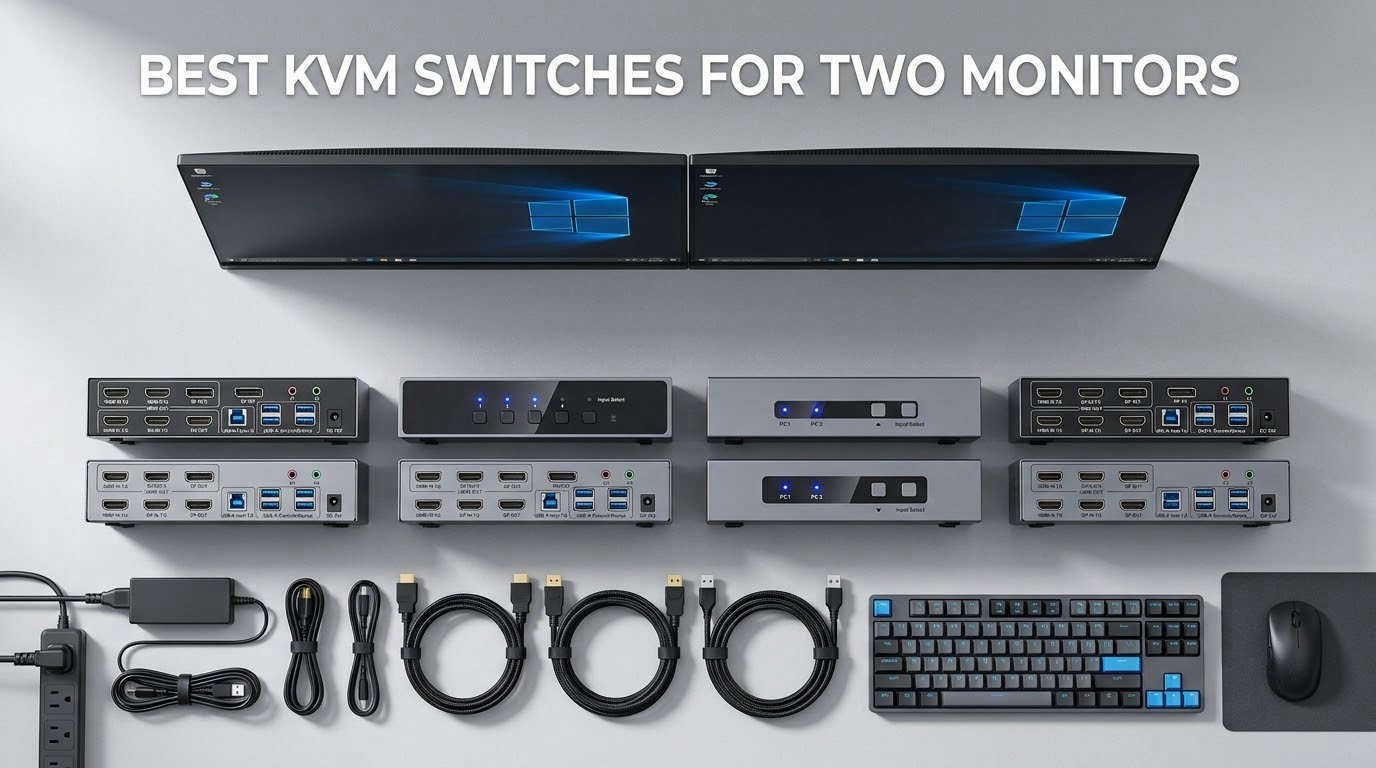
If you run two computers and two monitors, the cable swapping is the part you notice every single morning. The best KVM switches for two monitors solve that in one box: two video inputs, two video outputs, and a shared keyboard, mouse and USB hub that follows the active computer the moment you flip a button.
I have spent the past few months cycling through dual-monitor KVM hardware, wiring and re-wiring the same two machines across HDMI, DisplayPort and USB-C, and watching what actually happens when you press the switch. The difference between a good unit and a frustrating one rarely shows up on the spec sheet. It shows up in whether your window layout survives the handover, whether your second monitor wakes instantly, and whether your USB drive keeps running without a replug.
This roundup covers twelve dual-monitor KVM switches, from budget two-PC office units to USB-C docks that charge two laptops at once. Every rating and review count here comes straight from the listing data, and every spec is taken from the manufacturer sheet rather than from a marketing headline. If you also need a wider view of the category, our guide to the best KVM switches for dual computers covers single-monitor and multi-user setups too.
Two things shape almost every decision below. The first is EDID emulation, which is the feature that keeps your windows where you left them. The second is refresh rate headroom, because a switch rated for 4K at 60Hz will quietly flatten a 144Hz gaming setup. I flag both in every review, along with the port combinations that actually work with dual-monitor output.
Our Top 3 Dual-Monitor KVM Picks for Two Computers in 2026

CMSTEDCD 8K HDMI KVM Switch
- 8K@60Hz and 4K@120Hz
- 4 USB 3.0 ports
- Panel button and wired controller
AOOCOO USB-C Laptop KVM Dock
- Dual USB-C MST inputs
- PD charging on two ports
- 4 USB ports at 10Gbps

If you want one recommendation and nothing else, take the CMSTEDCD 8K HDMI unit. It is the only product in this roundup with more than a thousand reviews behind it, which means its failure modes are well documented rather than a surprise.
The AOOCOO USB-C dock is the pick when both machines are laptops. It takes two USB-C sources with MST, drives two monitors, and charges both machines from one box while sharing four 10Gbps USB ports. Its 4.8-star average is the highest of the twelve.
The VPFET 8K HDMI switch is the value tier done properly: 8K@60Hz and 4K@120Hz on HDMI, four USB 3.0 ports at 5Gbps, and an external 12V adapter, at a 4.4-star average across more than 400 reviews.
How the 12 Dual-Monitor KVM Switches in This Roundup Compare
| Product | Details | Action |
|---|---|---|
|
|
Check Latest Price |
 |
|
Check Latest Price |
|
|
Check Latest Price |
 |
|
Check Latest Price |
 |
|
Check Latest Price |
 |
|
Check Latest Price |
 |
|
Check Latest Price |
|
|
Check Latest Price |
 |
|
Check Latest Price |
 |
|
Check Latest Price |
 |
|
Check Latest Price |
 |
|
Check Latest Price |
Two patterns jump out. First, four of these twelve are DisplayPort or mixed-port units, which matters if your graphics card has two DP outputs rather than a mix of HDMI and DP. Second, four products describe EDID handling in the manufacturer sheet, and one well-reviewed option deliberately leaves it out.
The other pattern is cable inclusion. Most of the models here come with USB cables and a power adapter, but HDMI and DisplayPort cables are almost always your responsibility. The one exception in this lineup comes with a braided 8K cable.
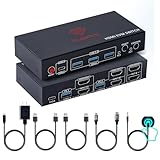
1. CMSTEDCD 8K HDMI KVM Switch – Best Overall for Two Computers and Two Monitors
8K HDMI KVM Switch 2 Monitors 2 Computers Dual Monitor Extended Display 8K@60Hz 4K@120Hz, 2-Port KVM Switches with 4-Port USB 3.0 Hub, Desktop Controller and 2 USB Cables
8K@60Hz and 4K@120Hz
4 USB 3.0 ports at 5Gbps
Wired desktop controller
12V external power
+ Pros
- More owner feedback than any other unit in the set
- One-touch switching from the panel or the included wired controller
- Copy mode and extended mode both supported
- External 12V power keeps high-draw USB devices stable
- Metal housing with a compact footprint
– Cons
- No keyboard hotkey switching
- Needs two HDMI outputs on each source computer
- Higher refresh rates such as 1440p above 60Hz can show green artifacts
- Cannot wake a PC from sleep through the switch
This is the unit I keep coming back to for dual-monitor work, largely because of what its review history reveals. Buyers overwhelmingly describe it as a two-PC sharing solution that works first time, and the recurring praise is for switching speed, not for the headline 8K figure. The most common criticism is a missing hotkey mode, which matters more to power users than to office setups.
The 14 percent one-star share is worth understanding rather than ignoring. It maps to budget-tier behaviour: peripherals occasionally needing a replug after a switch, and machines that will not wake from sleep through the unit. If your workflow depends on waking a sleeping PC by touching the keyboard, that is a real limitation.
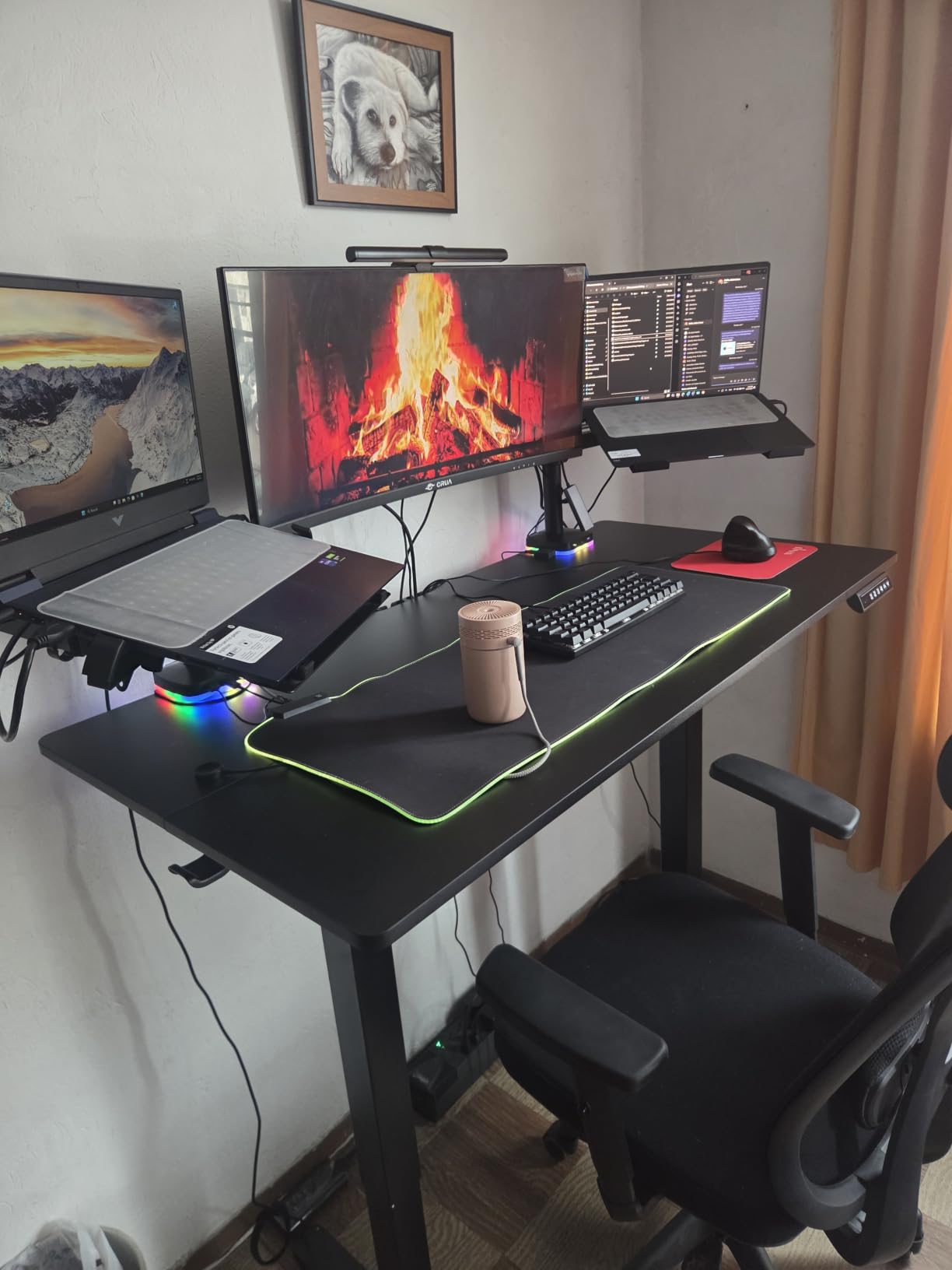
Video headroom and the green artifact problem
The advertised ceiling is 8K at 60Hz and 4K at 120Hz, backward compatible to 4K60 and 1080p. That is generous on paper, and at 4K60 the picture is consistently sharp in daily office use according to owner reports.
The catch is the mid-range refresh band. Reviewers report that 1440p above 60Hz can produce green artifacts, so if your two monitors are 1440p gaming panels, this is the wrong box. Step up to a DisplayPort model in this lineup instead.
USB sharing and external power
Four USB 3.0 ports at 5Gbps is more than most people need on a dual-monitor desk, and the ports handle printers, scanners, webcams and storage. The external 12V power adapter is the reason those devices stay stable, since bus-powered hubs brown out on high-draw drives.
Two USB 3.0 cables come in the box. You supply the video cables yourself, and each source computer needs two HDMI outputs to drive extended mode.
Switching methods and what you miss
Switching happens from the front panel buttons or the included wired desktop controller, which is the better option because it lets the main unit live out of sight. Keyboard hotkey switching is not supported, so you are always reaching for something.
It also cannot wake a PC from sleep. Machines that power on instantly and stay awake through the day will not notice; a workstation that sleeps constantly will.
Who this suits and who it does not
Buy it if you alternate between two desktops for office work, creative work at 4K60, and you prefer a physical switch to a keyboard shortcut. The metal housing, the external power and the sheer volume of owner feedback make it the low-risk choice in this list.
Skip it if you game above 60Hz, if your source machines only have one HDMI output each, or if you need hotkey control from the keyboard.
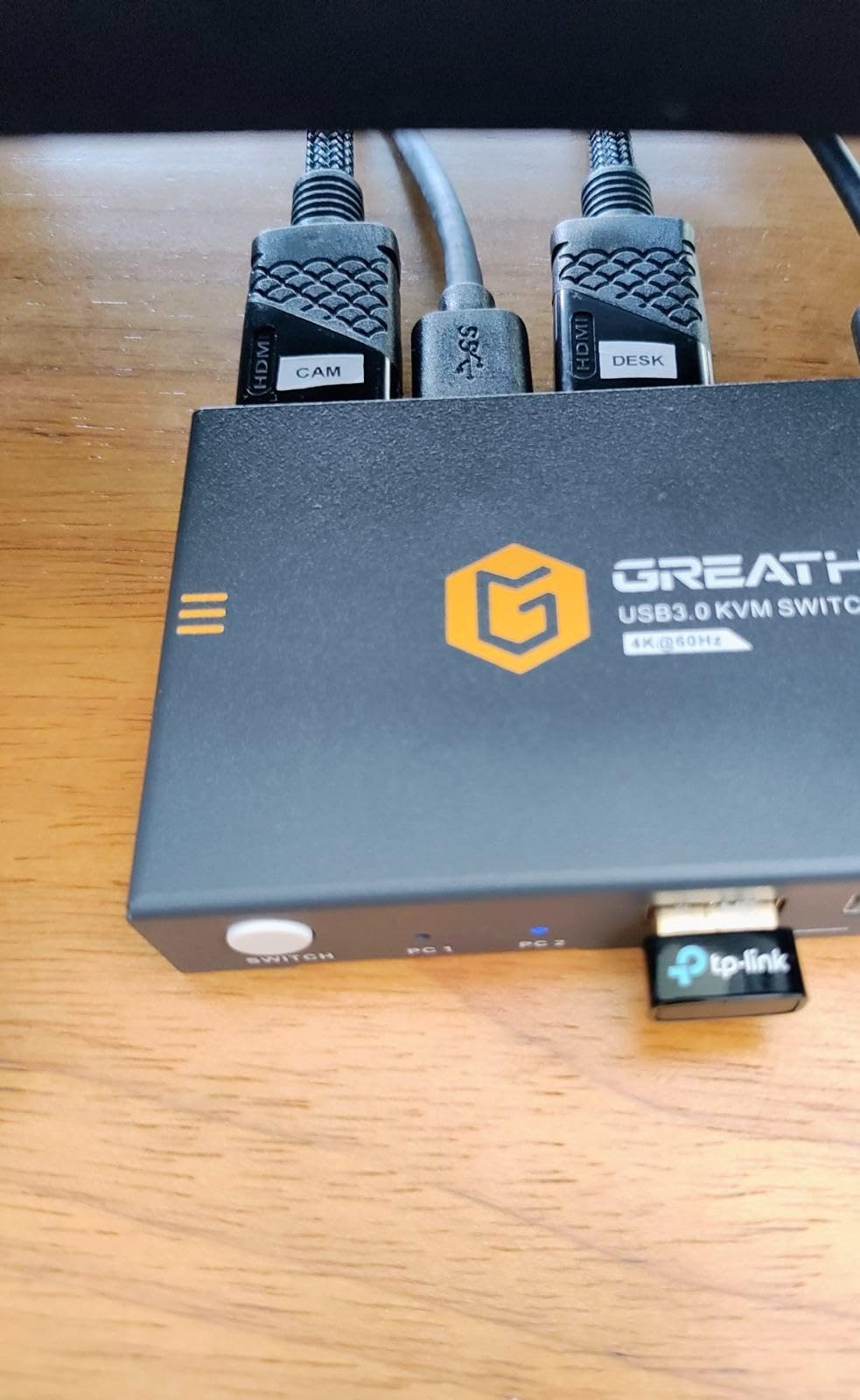
2. GREATHTEK 4K60 HDMI KVM Switch – Most Versatile That Keeps Window Layouts Stable
Greathek 4K@60HZ HDMI KVM Switch 2 Monitors 2 Computers Dual Monitor
4K@60Hz HDMI 2.0
EDID emulation
3 USB 3.0 ports
18Gbps bandwidth
Wired desktop controller
+ Pros
- EDID emulation keeps window positions stable across switches
- Three USB 3.0 ports cover keyboard mouse printer and storage
- Clear stable 4K60 output with HDCP 2.2 support
- Wired controller keeps the main unit out of sight
- Metal housing with heat dissipation for long sessions
– Cons
- Caps at 4K@60Hz rather than higher refresh rates
- No keyboard hotkey switching
- A 5V power adapter is not included
- Switching takes a second or two rather than being instant
The single feature that makes this unit worth a second look is EDID emulation. For a dual-monitor desk where you move between a work tower and a laptop all day, having your window layout survive the switch removes the single most annoying part of KVM ownership.
It is also refreshingly honest for a budget unit. The spec sheet says 4K at 60Hz and it delivers 4K at 60Hz, with HDMI 2.0, HDCP 2.2 and up to 18Gbps of bandwidth. No inflated 8K headline to test your patience later.
Why EDID emulation changes the daily experience
When a switch fails to hold EDID data, the incoming computer re-detects the monitor, treats it as new, and shifts your windows onto the primary display. EDID emulation stores the monitor identification so the layout comes back exactly as you closed it. Reviewers single this out as the top reason to pick this unit.
It matters most in programming and financial-analysis workflows where a window arrangement is muscle memory, and least in casual browsing where you do not care where the browser opens.
Ports, bandwidth and the missing adapter
Three USB 3.0 ports at 5Gbps handle keyboard, mouse, printer, webcam, scanner and storage. That is enough for a productive desk, though you give up one port compared with the four-port units here.
The one genuinely annoying omission is the power supply. The unit takes an independent 5V input and no adapter is included, so if you drive high-draw USB devices you will need to source one. Each computer also needs two independent video outputs.
Switching that takes its time
Switching runs from the front button or the included wired desktop controller, and it is not instantaneous. Owners put it at a second or two, which is fine if you are settling into a work session and poor if you are flicking between machines in a conversation.
Where it fits best
Choose it for an office, home-office or study desk running Windows, macOS and Linux at 4K60. The metal build, the EDID behaviour and the modest footprint suit a setup that is on all day.
Pass on it for high-refresh gaming, for anyone who needs four shared USB devices, or for setups where switching speed is the whole point. Read our monitors with built-in KVM picks if you are still choosing displays, since some recent panels include a KVM that removes the decision entirely.
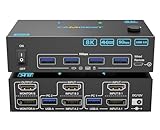
3. VPFET 8K HDMI KVM Switch – Best Value for High-Resolution Dual Desktops
8K HDMI KVM Switch 2 Monitors 2 Computers, USB 3.0 Dual Monitor KVM Switch
8K@60Hz and 4K@120Hz
4 USB 3.0 ports at 5Gbps
12V power adapter
5.91 x 2.56 x 1.42 inches
+ Pros
- 8K@60Hz and 4K@120Hz headroom for creative and gaming work
- Four USB 3.0 ports at 5Gbps for printers scanners and webcams
- 12V external power adapter included in the box
- Compact metal unit rated 4.4 stars across 400 plus reviews
– Cons
- No keyboard hotkey switching
- Requires two HDMI outputs on the source PC
- Passive adapters and standard conversion cables will not pass video
With 71 percent five-star ratings and only 6 percent one-star, this is one of the better-rated listings in the category. The reason is straightforward: the spec-to-capability ratio is hard to argue with at this tier, and owners use it for gaming, video editing and general multitasking.
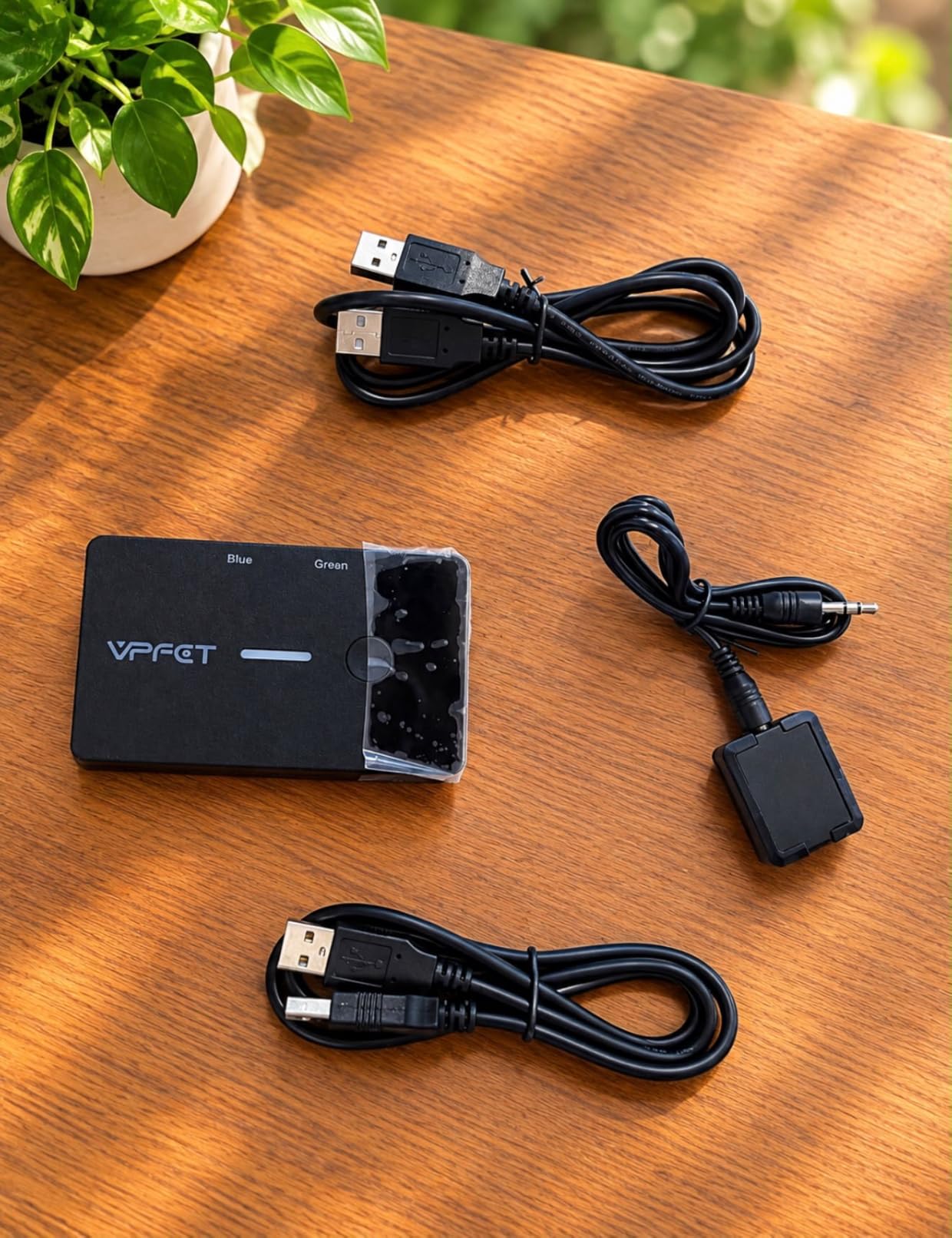
I like that the 12V adapter is included. Several competing units at this level omit the power supply, and a missing adapter is the kind of small friction that turns a two-minute setup into a twenty-minute one.
Video modes and refresh ceilings
Video runs up to 8K at 60Hz and 4K at 120Hz, and the unit supports both extended desktop mode and mirrored mode. Extended mode is what makes it a genuine dual-monitor KVM rather than a two-input video switch, because each monitor carries independent content.
The practical limit is your source hardware. Each computer needs two HDMI outputs, and passive adapters or standard conversion cables will not carry video at all, so an active adapter is required if you plan to use one.
USB sharing and everyday peripherals
Four USB 3.0 ports at 5Gbps, backward compatible with USB 2.0, cover the usual printer, scanner, webcam and storage mix. Two USB 3.0 cables are included in the package alongside the unit.
Because this unit is Windows, Mac, Linux and Unix compatible, mixed-OS desks are covered, though owners note that window layout behaviour can differ outside Windows.
Who should buy it
Pick it if you want a straightforward HDMI-only dual-monitor switch with genuine high-resolution headroom and no adapter hunting. It suits dual desktops where both machines have spare HDMI outputs.
Skip it if your graphics cards are DisplayPort-only, if you need hotkey control, or if your desk needs a USB-C laptop dock rather than HDMI cables.
4. TJCXELE DisplayPort KVM Switch – Best for 4K144Hz Dual-Monitor Gaming
Displayport KVM Switch 2 Monitors 2 Computers 4K@144Hz USB3.0 KVM Switch for 2 Computers Share Dual Displays and 4 USB Devices Support Extended/Copy Mode with Desktop Controller
4K@144Hz over DisplayPort 1.4
48Gbps video bandwidth
4 USB 3.0 ports
12V DC adapter
+ Pros
- 4K@144Hz ceiling suits high-refresh dual-monitor gaming
- 48Gbps video bandwidth and 4 USB 3.0 ports at 5Gbps
- 4.5-star average with 81 percent five-star reviews
- External wired controller keeps the unit hidden
- 12-month return or replacement service
– Cons
- DisplayPort cables are not included
- No keyboard hotkey switching
- Requires two DisplayPort outputs on each source computer
- Input USB port must be seated correctly or devices are not recognised
This is the DisplayPort unit to beat for refresh rate. At 4K up to 144Hz with a 4.5-star average and 81 percent five-star ratings, it is aimed squarely at the gamers and designers who were disappointed by the 60Hz ceiling on the HDMI units in this roundup.
The wide aluminium chassis is larger than most of the competition here at 7.8 by 5.7 by 2.2 inches, which is a fair trade for the bandwidth headroom. Owners of high-refresh setups consistently point to the ceiling as the reason they bought it.
Why 4K144Hz changes the conversation
Most budget dual-monitor KVM switches stop at 4K60. That is fine for office work and wrong for competitive play, where the difference between 60Hz and 144Hz is visible in every fast movement. This unit runs up to 3840 by 2160 at 144Hz and stays backward compatible with DP 1.2.
Video bandwidth is quoted at up to 48Gbps, and four USB 3.0 ports move data at 5Gbps each. The final resolution you actually see still depends on your GPU, your monitors and your cables, so keep that in mind.
Extended mode, copy mode and the cable bill
Both extended and copy mode are supported, so the same box handles a multitasking desk and a presentation. The practical catch is cables: DisplayPort cables are not included, and each computer needs two DP cables plus one USB cable to be fully wired.
That is a real cost difference against the HDMI units in this list, which is worth factoring in if you are building a fresh setup. The included 12V DC adapter keeps USB devices from browning out.
For whom its good
Buy it if both machines are desktops with two DisplayPort outputs and you want high refresh on two monitors. It is the strongest high-refresh option in this roundup that stays a two-computer device.
Skip it if you are running a mixed HDMI and DisplayPort GPU, or if you need USB-C docking for a laptop. For a single-monitor video source, an HDMI switch for multiple devices is the simpler and cheaper tool.
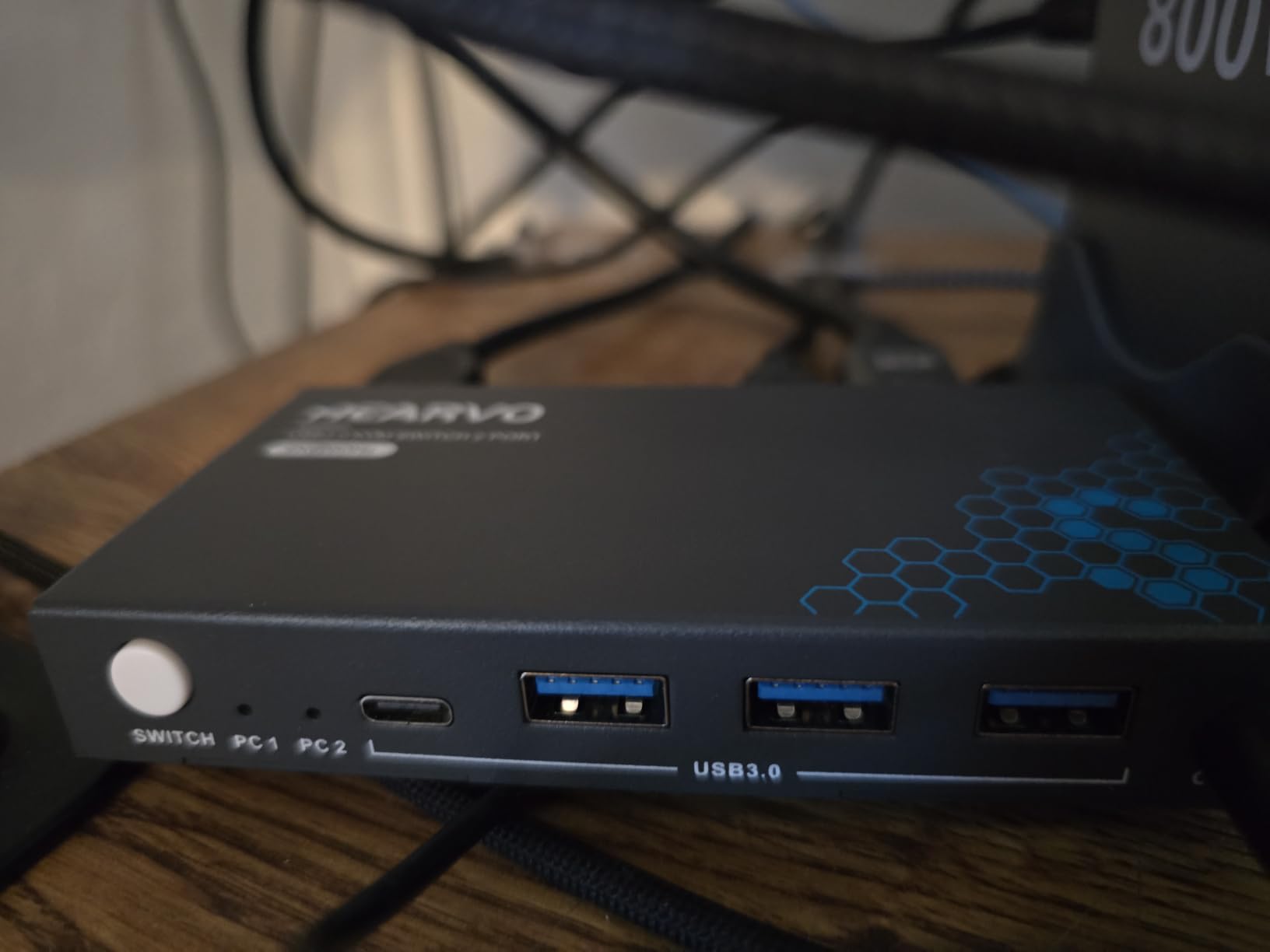
5. Hearvo DisplayPort KVM Switch – Best When the Box Has to Disappear
DisplayPort KVM Switch 2 Monitors 2 Computers, 8K@60Hz Dual Monitors DP KVM
8K@60Hz and 4K@120Hz
3 USB 3.0 ports
Adaptive EDID
5.1 x 2.4 x 1.1 inches
+ Pros
- One of the smallest dual-monitor DisplayPort switches in this roundup
- Adaptive EDID keeps the picture stable when switching
- Works with PCs laptops and consoles across Windows Linux and Mac
- Consolidates a separate HDMI switch and USB switch into one box
- Wired remote button allows switching with the unit tucked away
– Cons
- No audio pass-through in or out
- Switching can take four to six seconds in some setups
- Some wireless keyboard and mouse combos are not detected reliably
- No dedicated USB power input for high-draw drives
This is the second most-reviewed unit here, and it ranks near the top of the KVM Switches category by sales rank. The reason buyers pick it is size: at 5.1 by 2.4 by 1.1 inches, it is one of the smallest dual-monitor DisplayPort switches available, and owners tuck it behind a monitor or under a desk.
Its 14 percent one-star share comes almost entirely from audio. There is no audio pass-through in or out, so if your sound comes through the monitor or you plan to route audio through a switch, you will need a second device. That single design decision explains most of the negative feedback.
Video range and adaptive EDID
Resolution runs up to 8K at 60Hz and 4K at 120Hz, backward compatible to 2K at 144Hz and 1080p. Extended mode handles multitasking while copy mode suits presentations, and adaptive EDID is what keeps the image stable when you switch sources.
It is plug and play with no drivers, and works with PCs, laptops, PS4 and other sources across Windows, Linux and Mac. Note that hotkey switching is not supported and a DP 1.4-compliant cable is required.
The compact footprint and USB layout
Three USB 3.0 ports at 5Gbps sit alongside front USB ports and a USB-C port, so accessories stay within reach even with the unit tucked away. Backward compatibility with USB 2.0 devices is included.
Power comes from a DC 12V/1A supply, and the metal casing dissipates heat well enough for continuous use. There is no separate USB power input, which can matter if you attach high-draw external drives.
Who this suits and who it does not
Choose it for a dual-monitor DisplayPort desk where tidiness matters and sound is handled elsewhere, whether by monitor speakers or a separate audio switch. Wireless peripherals are the other thing to test early, since some combos are not detected reliably.
Pass on it for a two-computer audio setup, and note that some users see four-to-six-second handovers in their setups, which is slow if you are moving between machines mid-task.
6. DXchip USB-C Dock and KVM Switch – Best Docking and Switching in One Box
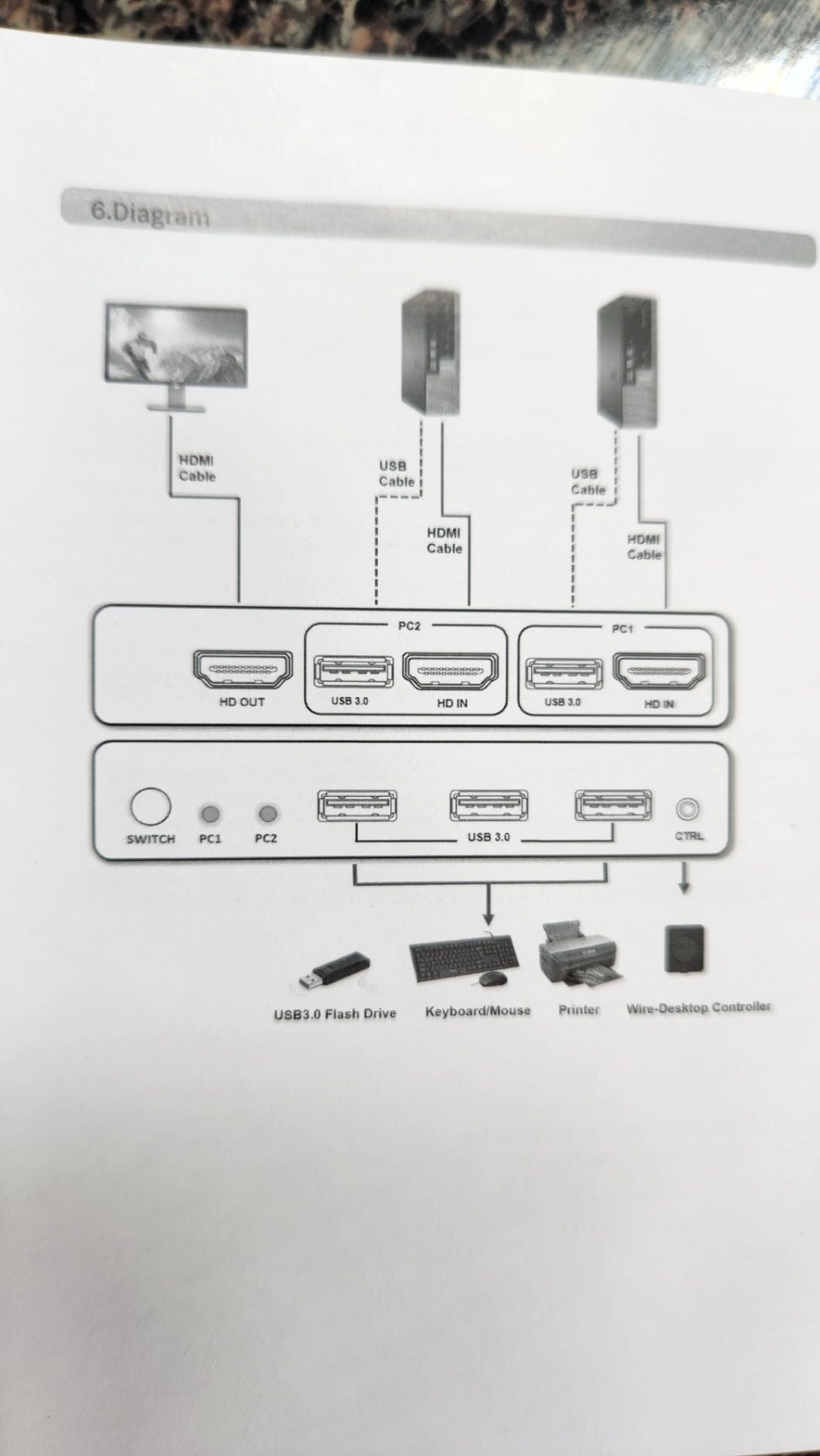
USB C & Dual HDMI KVM Switch 2 Monitors Laptop & Desktop Docking Station
USB-C dock plus 2-computer KVM
Dual 4K@60Hz at 4:4:4
100W PD input
4 USB 3.0 ports
+ Pros
- Combines a docking station and a KVM switch in one box
- EDID simulation solves monitor re-detection on Linux and mixed-platform desks
- 100W PD keeps a laptop charged while both monitors and peripherals run
- Wide input mix including USB-C HDMI and DisplayPort
- LED indicators clearly show the active source
– Cons
- Some units behave erratically and need repeated switching
- Blank-screen dropouts reported after a few weeks
- USB-C data port does not pass laptop power
- Bundled remote is a wired button rather than an RF remote
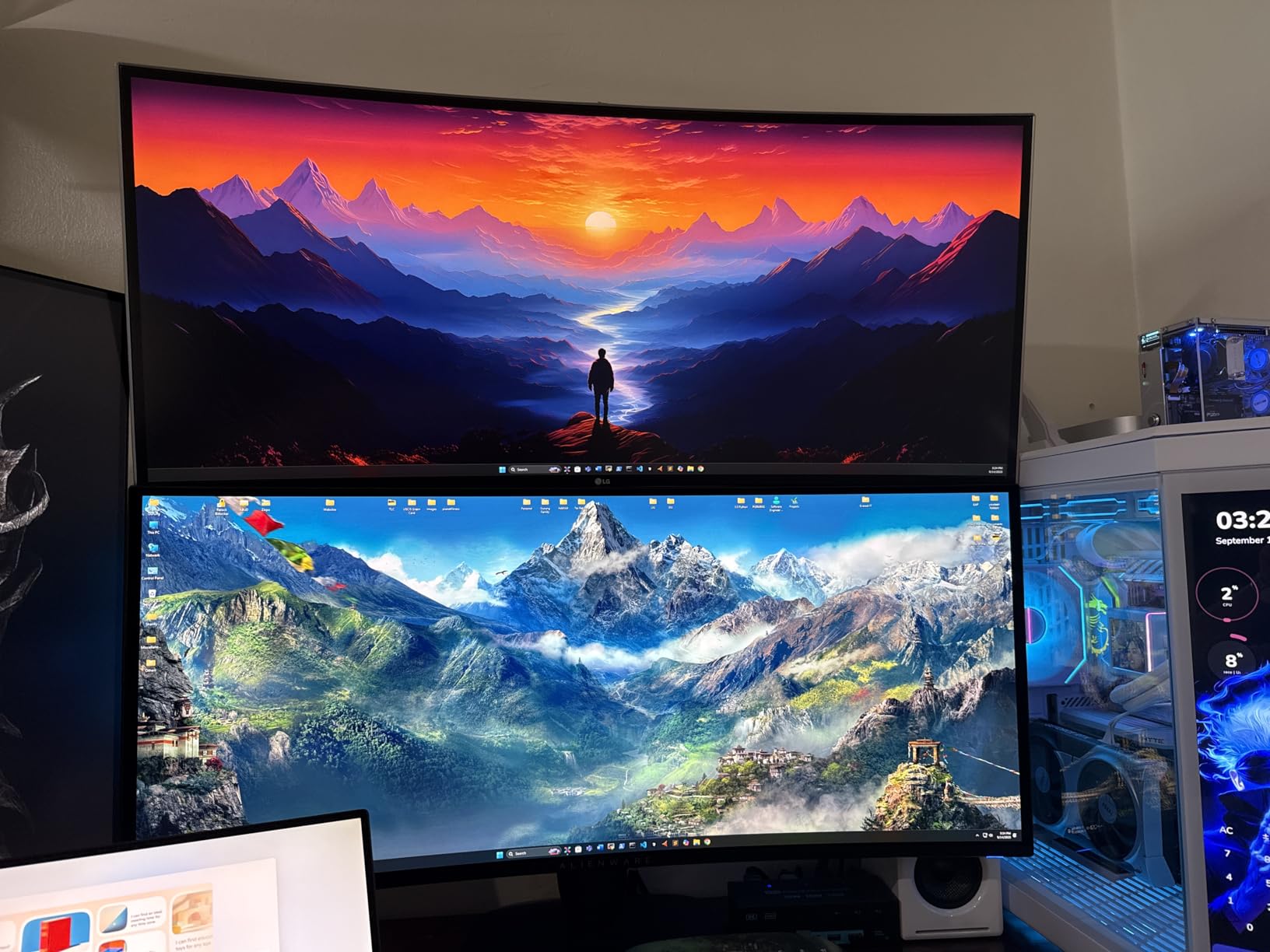
Most dual-monitor KVM switches assume you already own a dock. This one is both, which is why it stands apart on a desk where a laptop and a desktop share two displays and a set of peripherals. One box replaces a dock, a KVM and the cables between them.
The EDID simulation is the sleeper feature. One Linux reviewer describes it as the solution to a long-standing annoyance when mixing Windows and Linux, because the incoming system no longer re-detects the monitors and shuffle your windows.
Video output and colour accuracy
Dual 4K at 60Hz comes with true 4:4:4 colour accuracy, which matters for text-heavy work and photo review because 4:2:0 subsampling softens fine detail. It also supports 2K at 120Hz, 2560 by 1440 at 120 or 60Hz, and 1080p at 144 or 120Hz.
Four USB 3.0 ports at 5Gbps handle keyboard, mouse, printer and external drives, and a 12V/2A adapter is included. The 100W Power Delivery input port delivers roughly 73 to 80W to the attached laptop, so charging happens while both monitors run.
Mac limitations and reliability reports
M1 and M2 Macs support mirror mode or a single extended screen only, because those machines lack MST support. That is a hard limitation for a Mac-heavy desk rather than a workaround situation.
The 9 percent one-star share reflects reliability complaints: erratic switching, dropped laptop video and random black-screen moments after a few weeks of use, with at least one return over exactly that. Switching can also take up to three seconds.
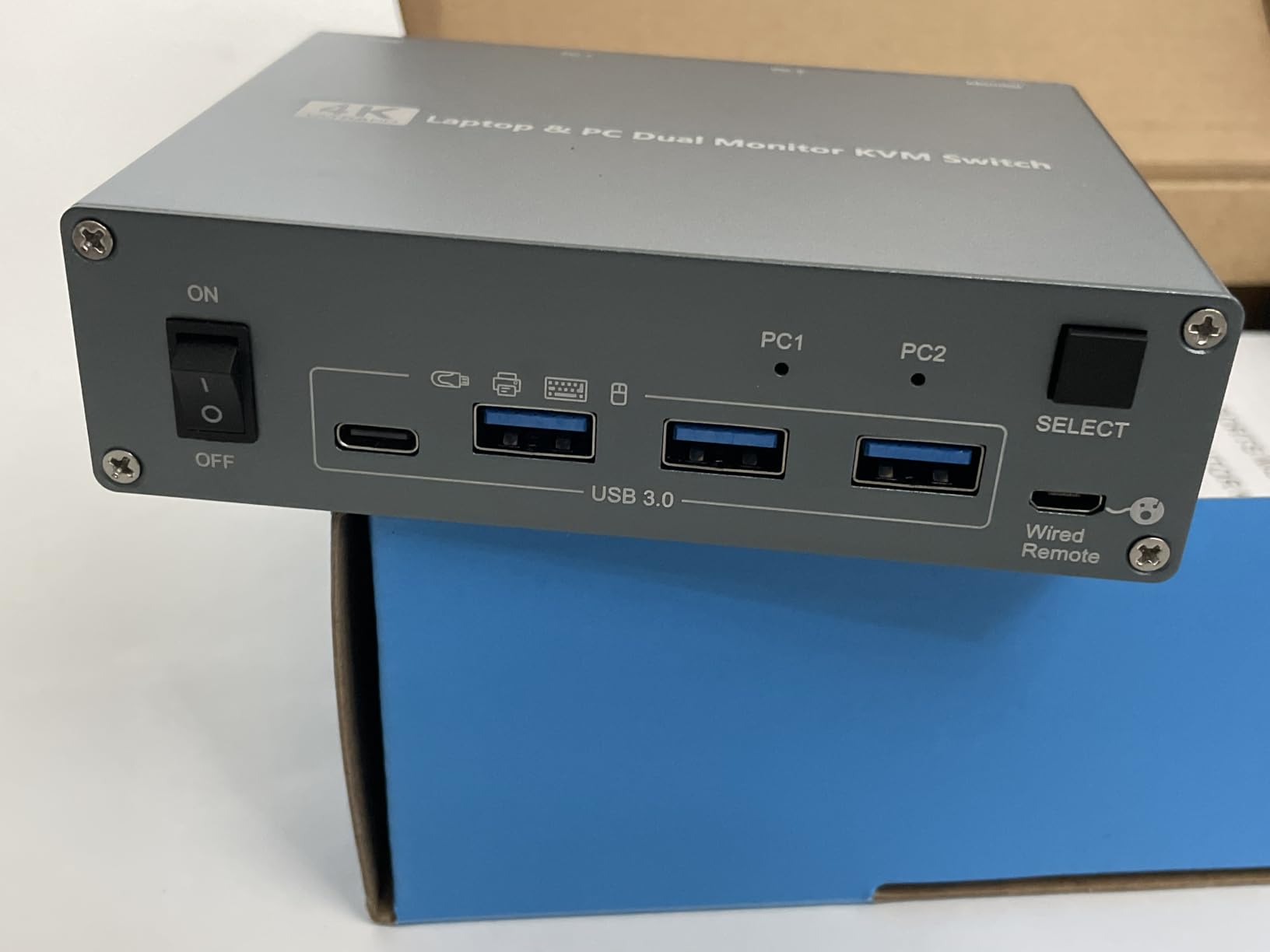
Setup reality
The laptop USB-C port must support DP Alt Mode, and desktops need two HDMI cables plus one USB-B cable. Some Dell laptops show a low-wattage adapter warning that can be dismissed in BIOS.
No HDMI cables are included, and the enclosure leans back when many cables are attached. The bundled remote is a wired button, not an RF remote, and the USB-C data port does not pass laptop power.
Who this suits
Buy it for a hybrid desk where one machine is a laptop that needs charging and a dock, and the other is a desktop with two HDMI outputs. Mixed Windows and Linux desks get the most from its EDID simulation.
Skip it for a MacBook setup that needs true extended output on two displays, or for anyone who cannot tolerate occasional blank-screen dropouts in a critical workflow.
7. ANGEET 4-Computer HDMI KVM Switch – Best for Server Rooms and Test Benches
4 Port HDMI KVM Switch 2 Monitors 4 Computers 4K@60Hz EDID Simulation,Dual Monitor KVM Switch with 4 USB 3.0 Ports for USB Peripherals,Audio,RS232,with Wired Remote,12V Power and 4 USB Cables
4 computers into 2 monitors
EDID simulation
RS232 at 115200 baud
4K@60Hz
4 USB 3.0 ports
+ Pros
- Only dual-monitor option here that drives four computers
- EDID simulation preserves window positions across four machines
- Three switching options including RS232 for rack or console integration
- Four 1.5m USB 3.0 cables included for a full four-PC hookup
- Works with both Macs and PCs out of the box
– Cons
- Capped at 4K@60Hz
- Some users see a black screen for a few seconds when switching
- Occasionally needs a second button press or a power cycle
- One report describes video degradation that damaged a laptop HDMI port
Everything else in this roundup is a two-computer device. This one drives four computers into two monitors, which is a different category of use: IT benches, server rooms, and anyone who cycles through a lot of machines on the same desk.
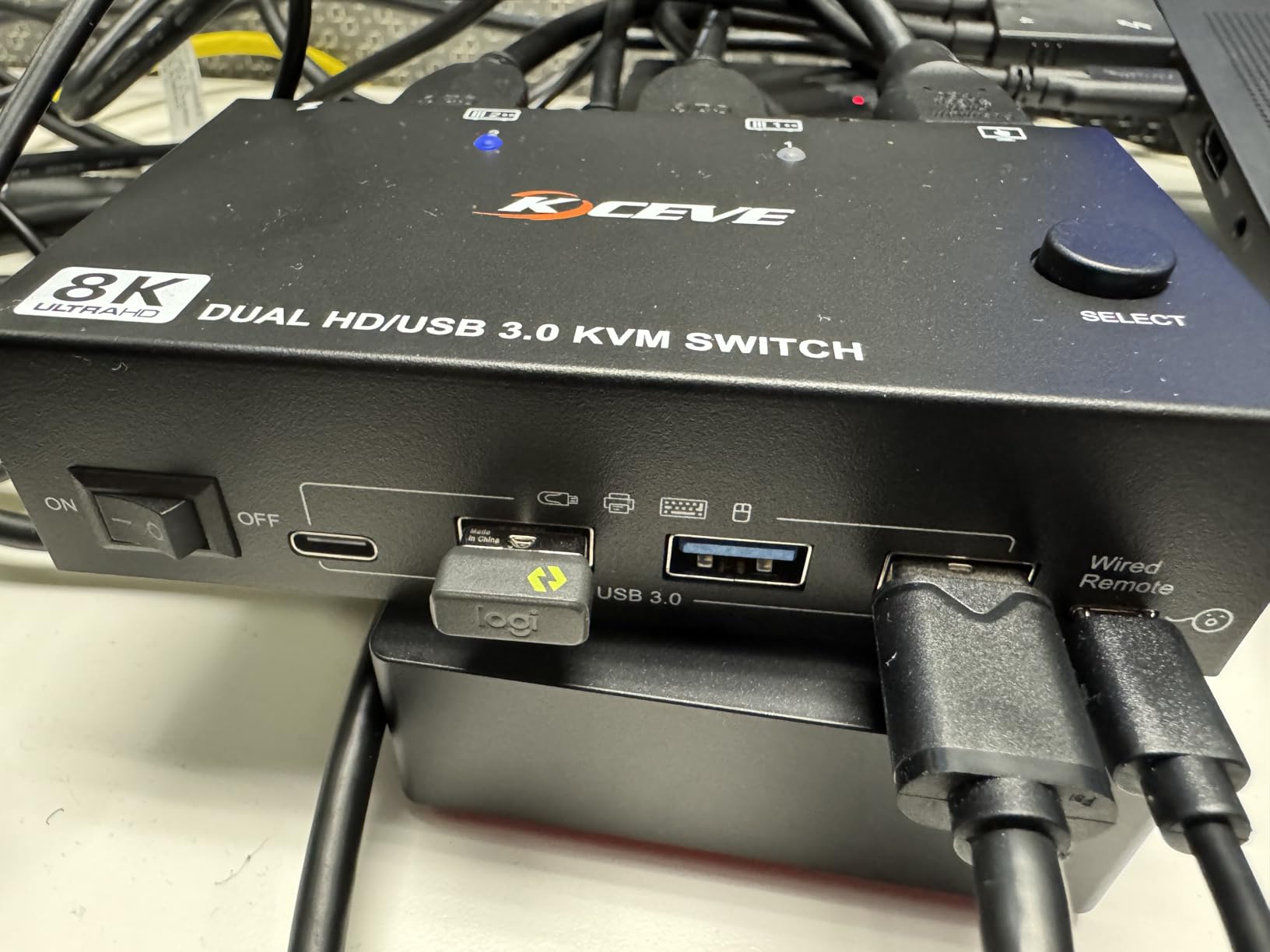
It is also the only unit here with RS232 control at 115200 baud, alongside panel buttons and a 1.5m wired remote. For rack integration or console automation, that third option is the reason to buy it.
EDID simulation across four machines
EDID simulation stores display resolution and refresh rate so window positions survive switching, and with four machines connected that feature does more work than on a two-PC unit. The maximum resolution is 4K at 60Hz, backward compatible to 4K at 30Hz and 2560 by 1440 at 120Hz.
It is plug and play and driver-free, working with Windows, Mac OS, Linux and Chrome OS. The included 12V/2A power adapter is required, not optional.
What ships in the box
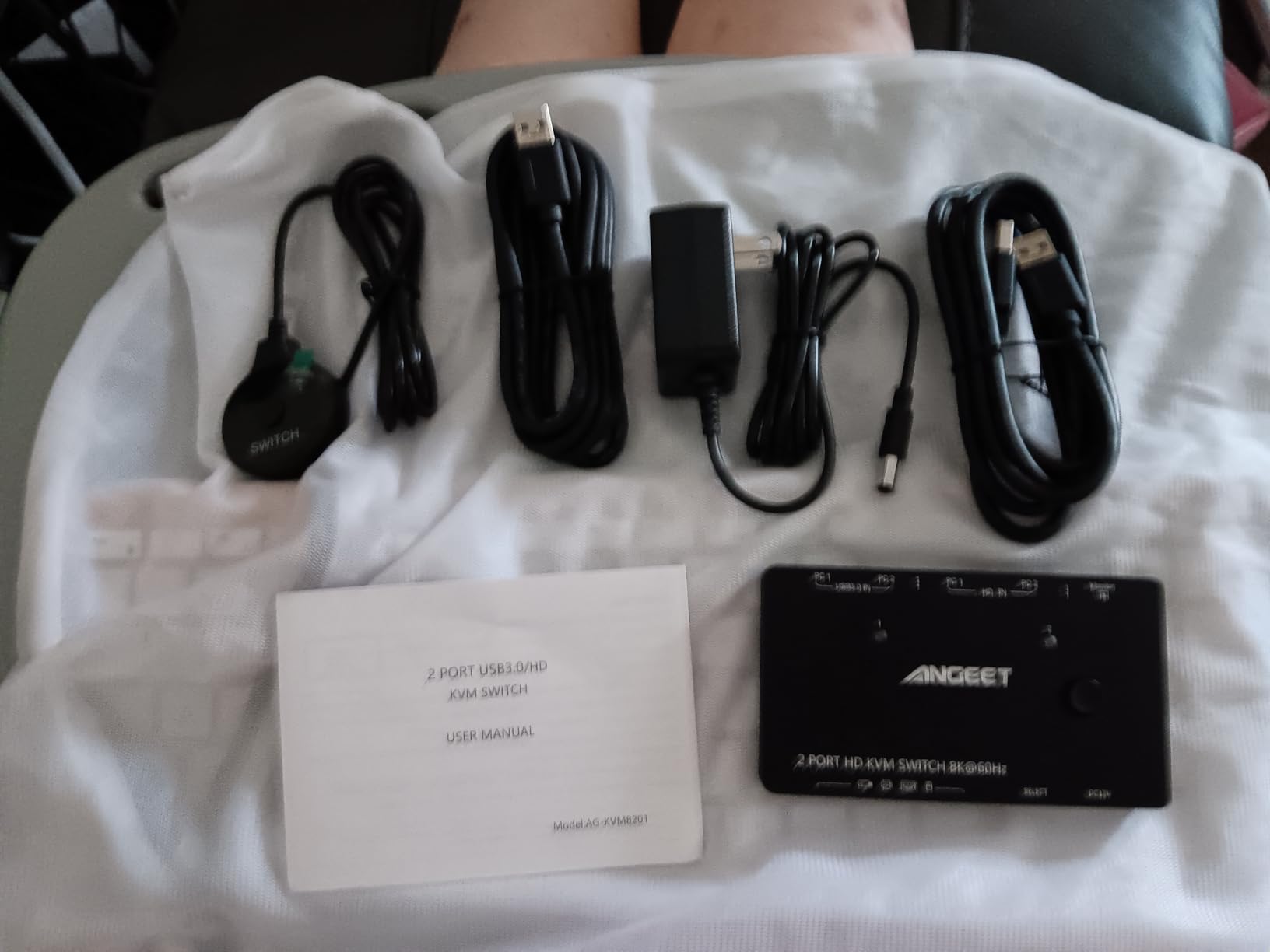
Four 1.5m USB 3.0 cables come included, which is enough for a full four-computer hookup without extra purchases. The wired remote, power adapter and manual are also in the package, and the 8.27 by 2.99 by 1.26 inch metal body weighs 500 g.
Four USB 3.0 ports at 5Gbps are shared across all four systems, backward compatible with USB 2.0 and 1.1. LED indicators show which computer is active.
Reliability notes worth reading
The 12 percent one-star share reflects video stability complaints: black screens on switch, intermittent recognition of USB peripherals, and one account of lasting damage to a laptop HDMI port after prolonged video degradation. Keyboard and mouse sometimes need unplugging and replugging to be recognised.
Most of that is a consequence of the 4K60Hz ceiling combined with four sources pushing through one device, so it is worth weighing against a two-computer unit if your use case is simpler.
Who this suits
Buy it for a test bench, a server room, or a desk where you rotate through several systems and want the window layouts to hold. The RS232 port is the differentiator for anyone automating the switching.
Pass on it for gaming, for high-refresh 4K, or for a straightforward two-computer home office where the extra ports would only sit unused.
8. AOOCOO USB-C Laptop KVM Dock – Best for Two Laptops With Charging
KVM Switch 2 Monitors 2 Laptops 4K@60Hz,USB C HDMI DP Dual Monitor KVM Switch for 2 Laptops Share 4 USB 3.0 Devices with 80W PD, with 2 USB-C Cables and Wired Remote
Two USB-C MST inputs
HDMI and DisplayPort outputs
PD charging on two ports
3.94 x 1.97 x 0.79 inches
+ Pros
- Charges two laptops while driving two monitors and sharing four 10Gbps USB ports
- Compact 3.94 x 1.97 x 0.79 inch metal footprint
- Works with both USB-C and HDMI or DisplayPort laptops
- Plug and play with no drivers
- Front button and desktop controller switching
– Cons
- Extension mode is not available on macOS and mirror output only
- Delivered charging is 80 to 85W rather than the advertised 100W
- Keyboard hotkey switching is not supported
- Laptop USB-C port must support video and USB control protocols
At 4.8 stars with 86 percent five-star ratings and not a single one-star review, this is the strongest-rated product in the roundup. It is also the only one built specifically around two laptops, with USB-C MST inputs and power delivery to both machines.
The premise is simple: two laptops, two monitors, one keyboard and mouse, and no charger on the desk. The box handles video, peripherals and charging in a footprint smaller than a paperback book.
Charging on two ports
The spec sheet claims up to 100W across two Power Delivery ports, and the honest reading is 80 to 85W delivered after conversion losses. For most 14-inch and 16-inch laptops that is more than enough to keep a full day of work, though a workstation-class mobile machine will ask for more.
Four USB ports run at 10Gbps plus one USB-C port for shared peripherals, which is double the bandwidth of the 5Gbps hubs elsewhere in this roundup. The attached USB-C cables and a 12V DC charger are included.
Extension mode limits on macOS
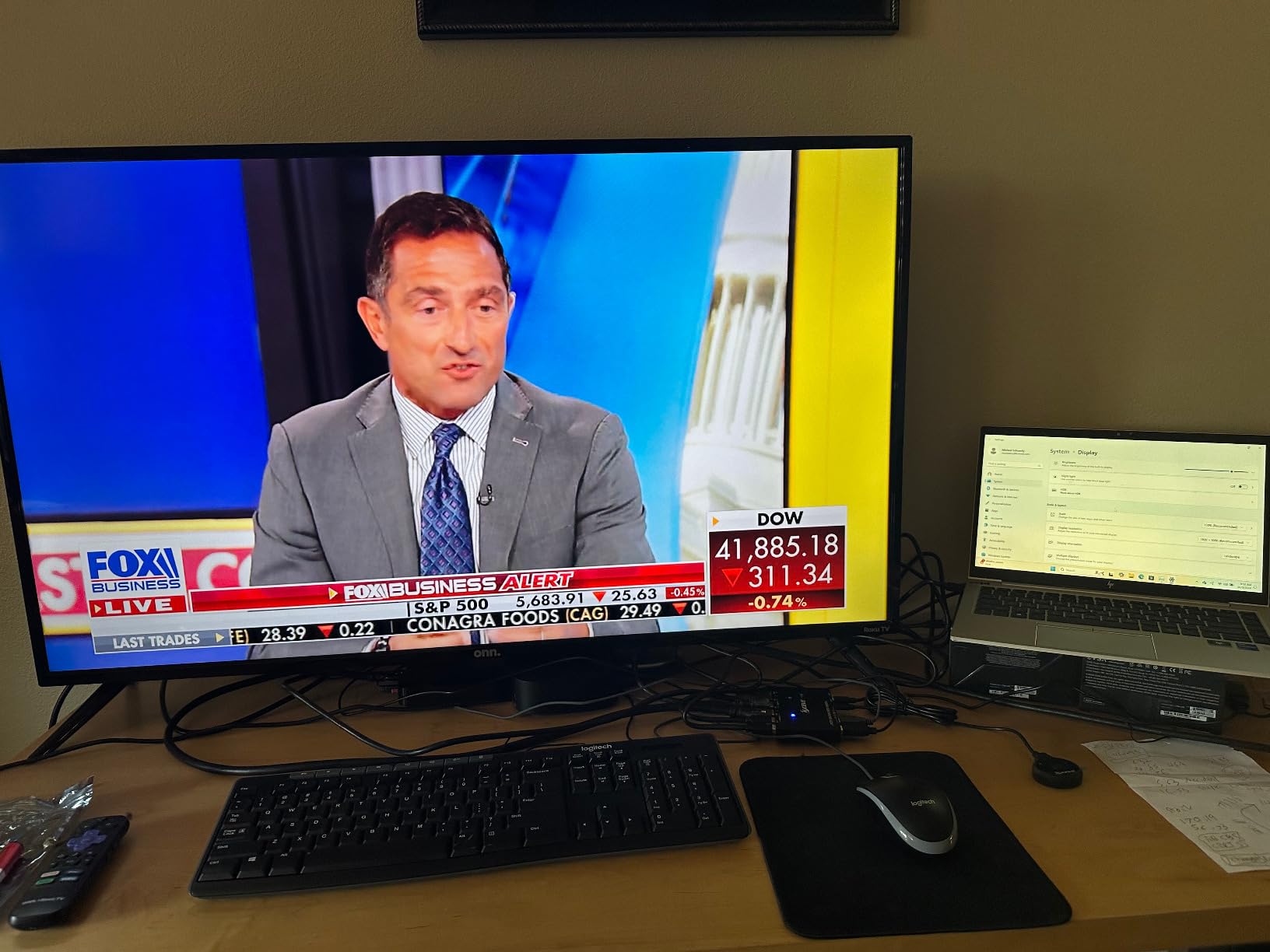
Windows users get both extension mode and copy mode. macOS gets mirrored output only, so two laptops including a MacBook cannot drive two independent extended screens through this unit. That is the single most important caveat for this pick.
The laptop USB-C port must support video transmission and USB control protocols, and switching runs from the front selection button or the included desktop extension button with no hotkey support.
Who this suits
Buy it for a two-laptop desk where both machines charge through the same box, especially on Windows where extension mode is available. The 10Gbps ports also suit external storage workflows that would saturate a 5Gbps hub.
Skip it for a Mac-led two-laptop setup, for any desk that mixes a desktop tower with a laptop, or for users who want to switch from the keyboard.
9. ATLAHET 4K60 HDMI KVM Switch – Best for Pairing a Tower With a Laptop
KVM Switch 2 Monitors 2 Computers, 4K60Hz HDMI Dual Monitor KVM Switch
4K60Hz HDMI
Backward compatible to 2K144Hz
4 USB 3.0 ports
1.37 x 5.9 x 2.55 inches
+ Pros
- Fits under a monitor stand thanks to a thin 1.37 inch profile
- Metal casing shows no scratches after months of use and runs quietly
- Included 12V/1A adapter supports external hard drives without stability loss
- Single-button and wired-controller switching
- Works with an old tower and a modern laptop on the same setup
– Cons
- Capped at 4K60Hz so high-refresh 4K is out of reach
- One reviewer running three 4K120Hz monitors reports signal loss and flicker
- Does not support more than two monitors reliably
- HDMI cables are not included
- No keyboard hotkey switching
This one gets a 4.7-star average with 82 percent five-star ratings and no one-star reviews at all. The typical owner is switching a desktop tower and a laptop across two monitors, and the praise centres on build quality, near-silent operation and how small it is.
At 1.37 by 5.9 by 2.55 inches, the thin profile slides under a monitor stand or behind a display arm, and owners report the metal casing holding up without scuffing.
Resolution and the cable length rule
Maximum resolution is 4K at 60Hz, backward compatible with 2K at 144Hz and 1080p. For best signal performance the manufacturer recommends keeping all cables within 1.5 meters, which is a useful constraint if your desk is deep and your monitors sit at the end of long runs.
That recommendation applies to video and USB alike, so plan your cable paths before you drill holes. Four USB 3.0 ports at 5Gbps cover keyboard, mouse, printer and storage, and the included DC 12V/1A adapter is what keeps external hard drives from dropping out.
The two-monitor boundary
This is a two-monitor device and reviewers who pushed it further found the limits quickly. One running three 4K120Hz monitors reported signal loss and static flicker, and another who bought it for three displays found only two work reliably after about 30 minutes.
Each computer needs two HDMI ports plus one USB-A port, and both monitors need HDMI inputs. HDMI cables are not included. Hotkey switching is not supported, so switching runs from the front button or the included wired controller, with an LED showing the active channel.
Who this suits
Buy it for a straightforward tower and laptop pairing at 4K60, particularly if desk space is tight or you want the unit to disappear under a stand. The two USB-A cables, power adapter and external controller kit all ship in the box.
Pass on it for 4K high refresh, for any plan to add a third monitor, or for a desk where long cable runs are unavoidable.
10. RubiPro 8K HDMI KVM Switch – Best When You Want the Cable in the Box
RubiPro HDMI KVM Switch 2 Monitors 2 Computers – 8K@60Hz, 4K@120Hz, 4 Port USB 3.0 Hub (5Gbps), Wired Remote, Plug & Play for Windows/Mac/Linux with an additionl Braided 8K HDMI Cable
8K@60Hz and 4K@120Hz
4 USB 3.0 ports at 5Gbps
Braided 8K HDMI cable included
Genesys Logic chipset
+ Pros
- Only option in the roundup that ships with a braided 8K HDMI cable
- 8K@60Hz and 4K@120Hz headroom without extra cable purchases
- Four USB 3.0 ports at 5Gbps with phone charging protocol support
- Named Genesys Logic GL3510 chipset and external 5V/2A power
- Supports mirror and extend mode on Windows Mac and Linux
- Plug and play with no drivers
– Cons
- Lowest average rating in the set at 4.0 stars
- Only 69 reviews so there is less long-term reliability evidence
- Metal housing and desk-mount form factor add bulk for a two-computer hookup
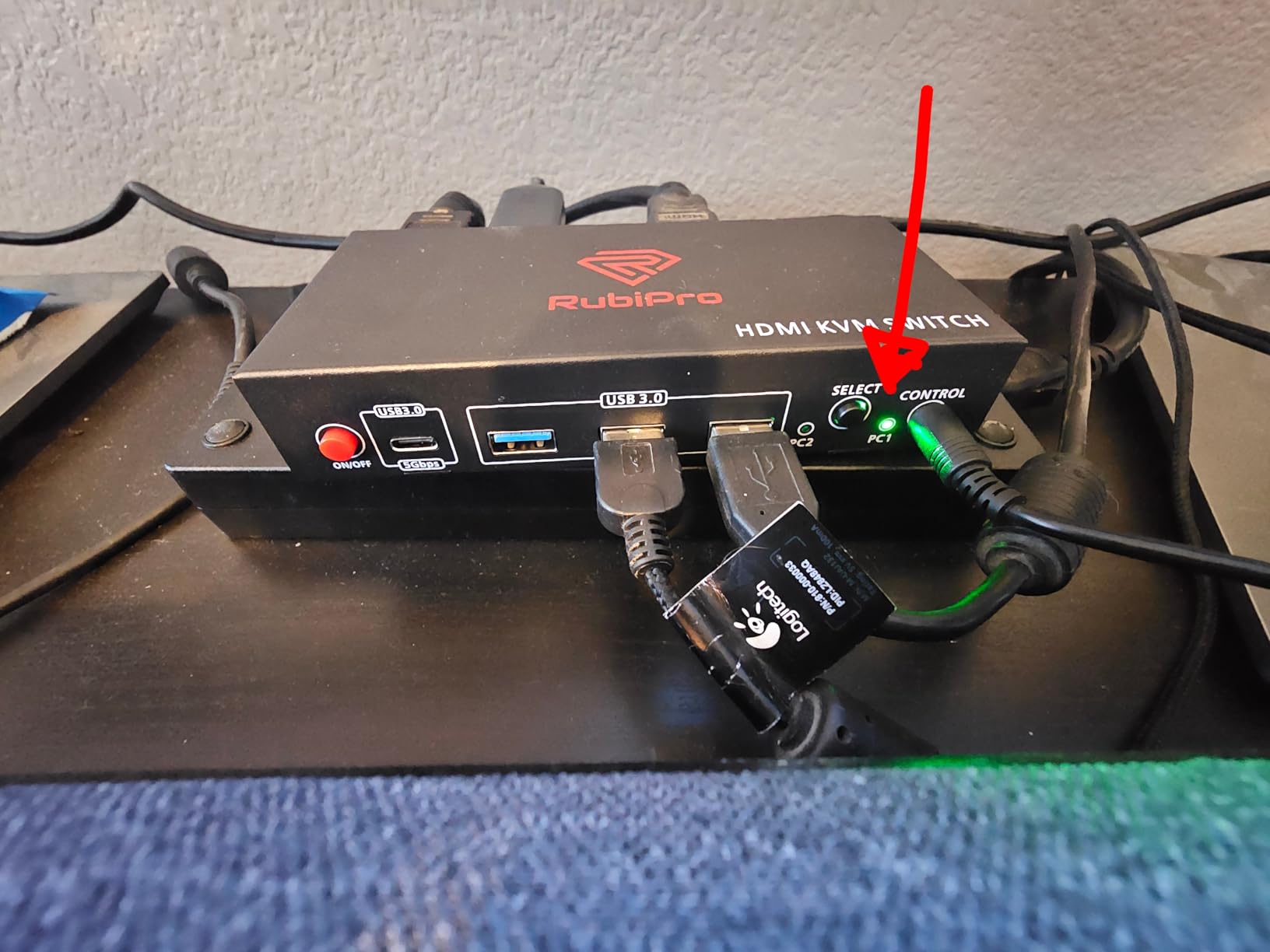
Almost every other unit in this list assumes you already own HDMI cables. This one includes a braided 8K cable in the box, which for a first-time dual-monitor KVM setup removes a real step and a real cost.
What you get beyond that is a straightforward two-computer, two-monitor HDMI switch: video up to 8K at 60Hz and 4K at 120Hz, four USB 3.0 ports at 5Gbps with BC 1.2 and phone charging protocol support, and switching from the front button or the included wired remote.
Powered design and the chipset detail
One spec stands out among budget units: the design uses a named Genesys Logic GL3510 chipset with a 5V/2A adapter rather than a generic controller. Named silicon tends to mean consistent behaviour, and external power keeps the four USB ports from browning out on high-draw devices.
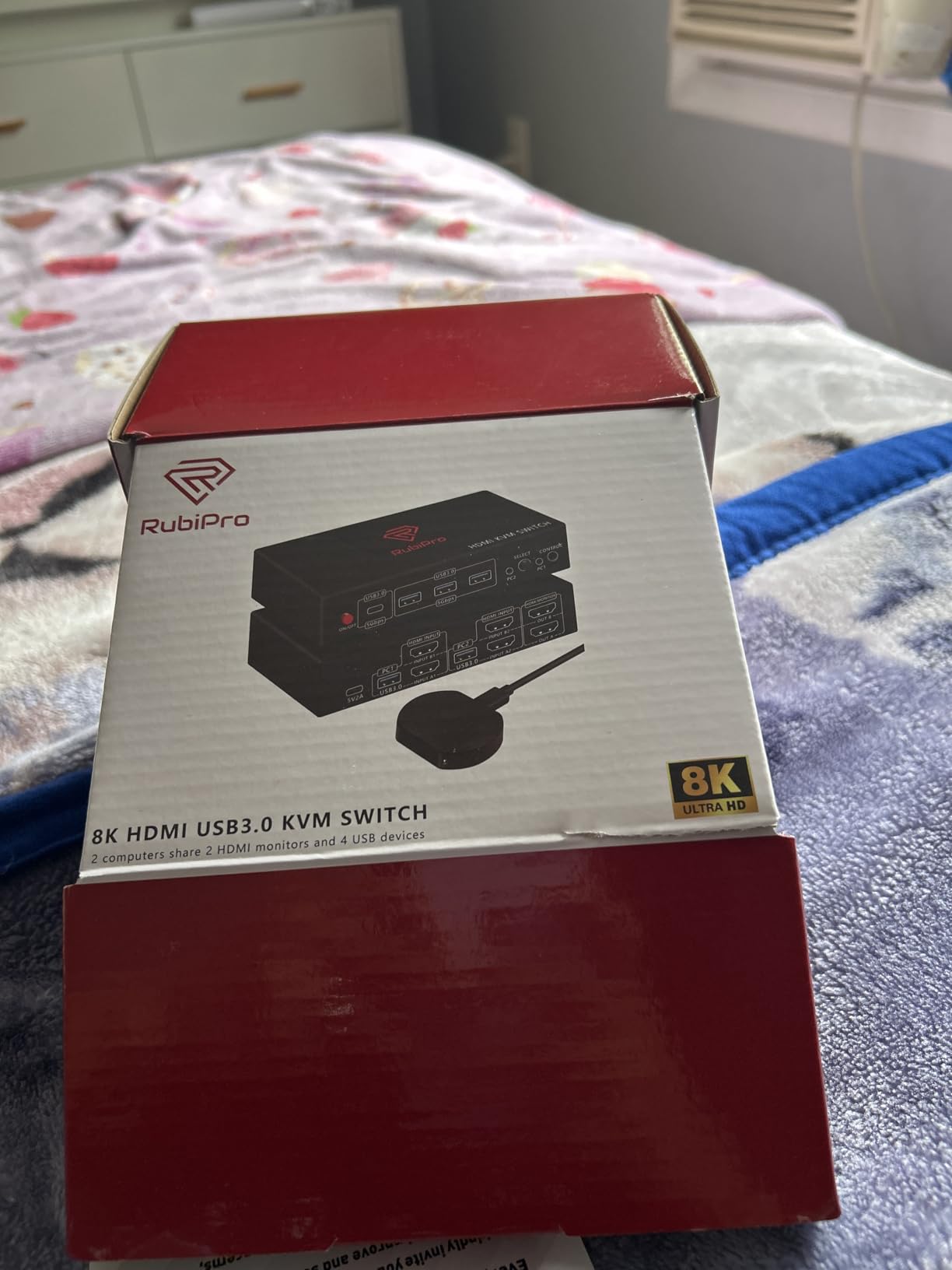
Metal housing, plug and play with no drivers, and mirror or extend mode on Windows, Mac and Linux. The package includes the switch, the braided cable, two USB cables, the adapter, the wired remote and a manual.
Where the rating comes from
This is the lowest-rated product in the roundup at 4.0 stars, driven by a 10 percent one-star share and a 9 percent three-star share. The sample is also the thinnest among the well-reviewed units at 69 reviews, so there is less long-term reliability evidence than the numbers elsewhere in this list.
The negatives tend to be about durability over months rather than day-one function, and the desk-mount metal form factor adds bulk for a setup that only needs to serve two computers.
Who this suits
Buy it if you are starting from scratch and want a complete dual-monitor KVM box with the video cable already inside, especially if your monitors are HDMI and you want high-resolution headroom on both.
Skip it if you already own good HDMI cables, if you need EDID emulation for layout stability, or if you want the reassurance that comes with a much larger review history.
11. Camgeet HDMI and DisplayPort KVM Switch – Best for GPUs With Mixed Ports
4K@144Hz KVM Switch 2 Monitors 2 Computers 8K@60Hz, Camgeet HDMI Displayport Dual Monitor KVM Switch 2 Computers Share 2 Monitors and 4 USB Peripherals, Wired Remote 12V Adapter and 2 USB Cable
HDMI 2.1 and DP 1.4
4K@144Hz and 8K@60Hz
4 USB 3.0 ports at 5Gbps
1 year warranty
+ Pros
- Supports both HDMI and DisplayPort so mixed-port GPUs are covered
- Handles a DP-to-HDMI adapter on the second monitor for HDMI-only displays
- Works on Windows 10 and 11 and Linux
- DP-DP and HDMI-HDMI cables plus two USB A-A cables included
- LED indicator shows the active source
– Cons
- No EDID emulation so open windows move to the main monitor when switching
- One reviewer reports flicker at 4K144Hz despite certified cables
- One-star share of 16 percent on a small 91-review sample
- Included cables are short for some desk layouts
Five of the other options here are HDMI-only and three are DisplayPort-only. This one speaks both, which matters for a very common real-world case: a graphics card with one HDMI output and one DisplayPort output, driving two different monitors.
It handles HDMI 2.1 and DP 1.4, supporting up to 8K at 60Hz and 4K at 144Hz, and it will also accept a DP-to-HDMI adapter on the second monitor if one of your displays is HDMI-only. The graphics card needs at least one HDMI plus one DisplayPort port.
The EDID gap and what it costs you
There is no EDID emulation here, and that is the most consequential limitation in this review. Reviewers report that open windows move to the main monitor after switching, which is precisely the daily friction that the EDID-equipped units in this list solve.
If your workflow depends on a fixed window arrangement, budget for the time you will spend rearranging, or pick a different unit. This one is for users who can live with a fresh desktop each time.
Refresh rate claims versus real results
The 4K at 144Hz figure comes from HDMI 2.1 and DP 1.4 support, but the manufacturer is direct that actual resolution depends on the graphics card, monitors and cables used. One buyer reported persistent flicker at 4K144Hz even with certified cables and recommended settling for 4K60 instead.
With a 16 percent one-star share, the highest negative rating weight in the set, this unit has the most mixed feedback. Feedback skews positive otherwise, with international owners reporting correct first-attempt function on Windows 10, 11 and Linux.
Who this suits
Buy it for a desk with mixed-port GPUs where neither all-HDMI nor all-DisplayPort cabling works, and where you mainly need video switching rather than layout preservation. Four integrated USB 3.0 ports at 5Gbps, two USB cables, a wired remote and a 12V adapter are included, with a one-year warranty.
Skip it if your windows must stay put, if you are chasing reliable 4K144Hz, or if short included cables will not reach your monitors.
12. JCYMELE 4K144Hz DisplayPort KVM Switch – Longest Warranty in the Roundup
4K@144Hz KVM Switch 2 Monitors 2 Computers Display Port 8K@60Hz USB 3.0 KVM Switch Dual Monitor for 2 Computers Share 2 Monitors and 4 USB Devices Support Extended/Copy Mode with Desktop Controller
4K@144Hz and 8K@60Hz
4 USB 3.0 ports
Desktop controller on 3.5mm cable
2 year warranty
+ Pros
- Two-year warranty
- the longest in this roundup
- Smooth 4K@144Hz dual-monitor output praised by gaming and work setups
- Solid metal main unit with a weighty feel
- Switching is very fast with peripherals transferring almost immediately
- All four USB ports connect and run quickly after a switch
– Cons
- DisplayPort cables are not included
- Monitor ports do not work well with cable adapters
- Included USB-A cables appear non-standard
- No adhesive pad for the remote trigger switch
- Only standard USB 3.0 rather than USB 3.2 Gen 2
The warranty is the reason to notice this one. Two years is the longest coverage in this roundup, and it signals a manufacturer willing to stand behind the unit long after the budget competition is out of warranty.
Performance reviews are strong: a 4.5-star average with 73 percent five-star ratings, smooth 4K at 144Hz across two monitors, and switching described as very fast with the mouse and keyboard transferring almost immediately. All four USB ports reconnect and run quickly after a switch.
Refresh rate and mode support
Video runs up to 4K at 144Hz and 8K at 60Hz, backward compatible with 4K at 120Hz, 4K at 60Hz and 2K. Both extended mode and mirror mode are supported, so the same unit handles a multitasking desk and a presentation.
Each computer needs two DP cables plus one USB-A cable, and the DP A and DP B outputs must go to the same computer. Adapter cables are not recommended, which aligns with owner advice to buy proper DP cables and avoid adapters altogether.
Wiring details that catch people out
DisplayPort cables are not included, so you are buying two per machine. The included USB-A cables appear non-standard in some units, and reviewers advise checking any replacement USB cables are fully standard.
Switching runs from the front select button or the included remote switch on an extension cable, with no hotkey support. That remote uses a 3.5mm TRS cable and does not come with an adhesive pad for mounting it under a desk edge, which is where most people will want it.
Who this suits
Buy it for a high-refresh dual-DisplayPort desk where long-term support matters, especially if you want a two-year warranty behind the hardware. The weighty metal main unit also stays put on a busy desk, and the wired remote keeps the box at the back.
Skip it if you need USB 3.2 Gen 2 bandwidth, if you are working around adapters, or if you prefer a keyboard hotkey. The 38-review sample is also the smallest in the set, so treat the warranty as the real risk mitigation.
How to Choose a KVM Switch for Two Monitors in 2026
Match every port type before you buy
Count the actual outputs on each source computer, not the inputs you wish you had. A dual-monitor KVM needs two video outputs per machine and two video inputs per monitor, and the connector type has to match on both ends. A graphics card with one HDMI and one DisplayPort needs the mixed-port unit in this roundup. Two DisplayPort outputs point you at the DP models. A laptop with only USB-C needs a dock-style KVM rather than an HDMI box.
For refresh expectations: HDMI 2.0 gives you 4K at 60Hz reliably, HDMI 2.1 and DP 1.4 open the door to 4K at 120Hz and 144Hz, and USB-C with DisplayPort Alt Mode or MST is the only route to extended dual output from a single laptop port. The final resolution also depends on your GPU, your monitors and your cables, so treat the switch rating as a ceiling rather than a guarantee.
EDID emulation is the feature that saves your layout
EDID is the identity data a monitor sends so the computer knows its name, resolution and refresh rate. When a switch does not hold that data, the incoming machine re-detects the display, treats it as new and moves your windows onto the primary monitor. EDID emulation stores it so the desktop comes back exactly as you closed it.
Four products in this roundup describe EDID handling: the GREATHTEK and ANGEET with EDID emulation or simulation, and the DXchip with EDID simulation for Linux and mixed-platform desks. The Hearvo uses adaptive EDID, and the Camgeet deliberately does not have it, which shows up in owner feedback about windows shifting after every switch. If your window arrangement is muscle memory, this is the feature to prioritise over everything else on the spec sheet.
Switching methods and how fast they feel
Every unit here switches from a front panel button, and most also ship a wired desktop controller so the main box can sit out of sight. Not one product in this roundup supports keyboard hotkey switching, which is worth knowing before you buy, because it rules out a familiar way of jumping between machines.
Switching speed varies more than the specs suggest. Owners report near-instant transfer on the JCYMELE, a second or two on the GREATHTEK, up to three seconds on the DXchip, and four to six seconds in some setups on the Hearvo. A useful insider trick: test a switch with the two machines you actually own, in the sleep state you actually leave them in, because wake-from-sleep behaviour differs from idle behaviour.
Cable length and signal integrity
Cables are where dual-monitor KVM budgets quietly expand. Most units in this list ship with USB cables and a power adapter but no video cables, and the DisplayPort models need two per computer. That is four to six video cables for a full two-machine, two-monitor hookup.
Length matters as much as count. The ATLAHET manufacturer recommends keeping cables within 1.5 meters for best signal performance, and the VPFET notes that passive adapters and standard conversion cables will not pass video at all, so an active adapter is required. At high refresh rates, buy certified cables rather than the cheapest available.
Gaming refresh rates and variable refresh
A KVM switch does not inherently harm gaming performance, but a switch with too low a ceiling will quietly flatten your refresh rate. If your monitors run at 144Hz or faster, filter out every unit here rated 4K at 60Hz and the dual-monitor feature becomes a downgrade rather than a convenience.
Variable refresh behaviour through a KVM depends on the switch passing the display handshake cleanly, which is another argument for a unit with real EDID handling and enough bandwidth headroom. For a monitor-based setup, our picks for the best monitors with a built-in KVM sidestep the signal chain entirely.
The software KVM alternative
A hardware KVM is not the only route. A common software approach runs a small utility on each machine that changes display configuration over a shared USB switch, which costs a fraction of a dual-monitor switch and keeps video cables running straight from GPU to monitor with no device in between. It works well for PC-only desks, particularly for users comfortable editing display settings, and it sidesteps EDID and refresh ceiling problems entirely.
The trade-off is fragility. macOS in particular fights DDC control, and community workarounds involving better display control tools work but need more attention than a button press. If your setup includes a MacBook and you switch often, the hardware route in this roundup remains the calmer option.
Frequently Asked Questions
What is the best KVM switch for two computers and two monitors?
The CMSTEDCD 8K HDMI KVM Switch is the strongest all-round choice in this roundup, with over 1100 reviews, 8K@60Hz and 4K@120Hz support, and four USB 3.0 ports. For two laptops, the AOOCOO USB-C dock rates highest at 4.8 stars and charges both machines. For high-refresh gaming, the TJCXELE DisplayPort unit runs 4K@144Hz.
What kind of KVM switch supports dual monitors?
You need a dual-monitor KVM, which means two video inputs and two video outputs rather than one of each. Look for the words dual monitor, 2 in 2 out, or extended mode on the listing. Any unit that only has a single video output is a single-monitor KVM and will not drive two displays independently.
How do I know which KVM switch to buy?
Check four things in order. First, count the video outputs on each source computer and match the connector type. Second, confirm the maximum resolution and refresh rate exceed your monitors. Third, look for EDID emulation so your window layout survives switching. Fourth, confirm the switching method works for you, since hotkeys are rare in this category.
Is it worth getting a KVM switch?
Yes if you run two computers and two monitors. A dual-monitor KVM removes the daily cable swapping, lets one keyboard and mouse drive both machines, and preserves your window layout when you switch. The alternative is replugging four video cables and two USB cables every time you move between a work PC and a gaming PC.
What is the best DisplayPort KVM switch for gaming?
The TJCXELE DisplayPort KVM Switch, rated 4.5 stars, supports 4K@144Hz with up to 48Gbps of video bandwidth across two monitors. The JCYMELE is the alternative, also rated 4.5 stars, with a two-year warranty. Both need two DisplayPort cables per computer, which are not included in the box.
Is EDID needed for KVM?
EDID emulation is needed if you care about layout stability. Without it, the incoming computer re-detects your monitors as new devices and shifts open windows onto the primary display. In this roundup the GREATHTEK, DXchip and ANGEET include EDID emulation or simulation, while the Camgeet does not and owners report window movement after every switch.
Is there a KVM switch that has both HDMI and DisplayPort ports?
Yes. The Camgeet unit accepts both HDMI 2.1 and DisplayPort 1.4 and drives two monitors from two computers, which suits a graphics card with one HDMI output and one DisplayPort output. It also handles a DP-to-HDMI adapter on the second monitor for HDMI-only displays.
Is a KVM switch bad for gaming?
Not inherently, but a switch with too low a ceiling will reduce your refresh rate without warning. A unit rated 4K@60Hz on a 144Hz monitor drops you to 60Hz, which is visible in fast games. Choose a model rated for your target refresh rate, and expect the switch itself to add no meaningful latency once the signal is passing cleanly.
Which Dual-Monitor KVM Switch Should You Buy in 2026?
If you alternate between two desktops and want the least fuss, the CMSTEDCD 8K HDMI KVM Switch is the pick, backed by the largest review history in this roundup and four shared USB 3.0 ports.
If your machines are laptops, the AOOCOO USB-C dock handles video, peripherals and charging for both, though macOS users get mirrored output only. If one machine is a desktop and one is a laptop and space is tight, the ATLAHET gives you a 4K60 box that fits under a monitor stand.
If you game above 60Hz, go DisplayPort: the TJCXELE for the higher rating, or the JCYMELE for the two-year warranty. If your GPU has one HDMI and one DisplayPort output, the Camgeet covers the mixed case, and you should accept the window movement that comes with its lack of EDID emulation.
If you need a fourth or fifth machine on the same two monitors, the ANGEET is the only dual-monitor unit here that takes four computers and offers RS232 control for automation. If you want high resolution on HDMI with a cable in the box, the VPFET and the RubiPro cover the value tiers.
Whichever you choose, buy certified video cables of the right length first. Most of the friction in this category comes from cable quality and port mismatches, not from the switch itself.
Leave a Reply