
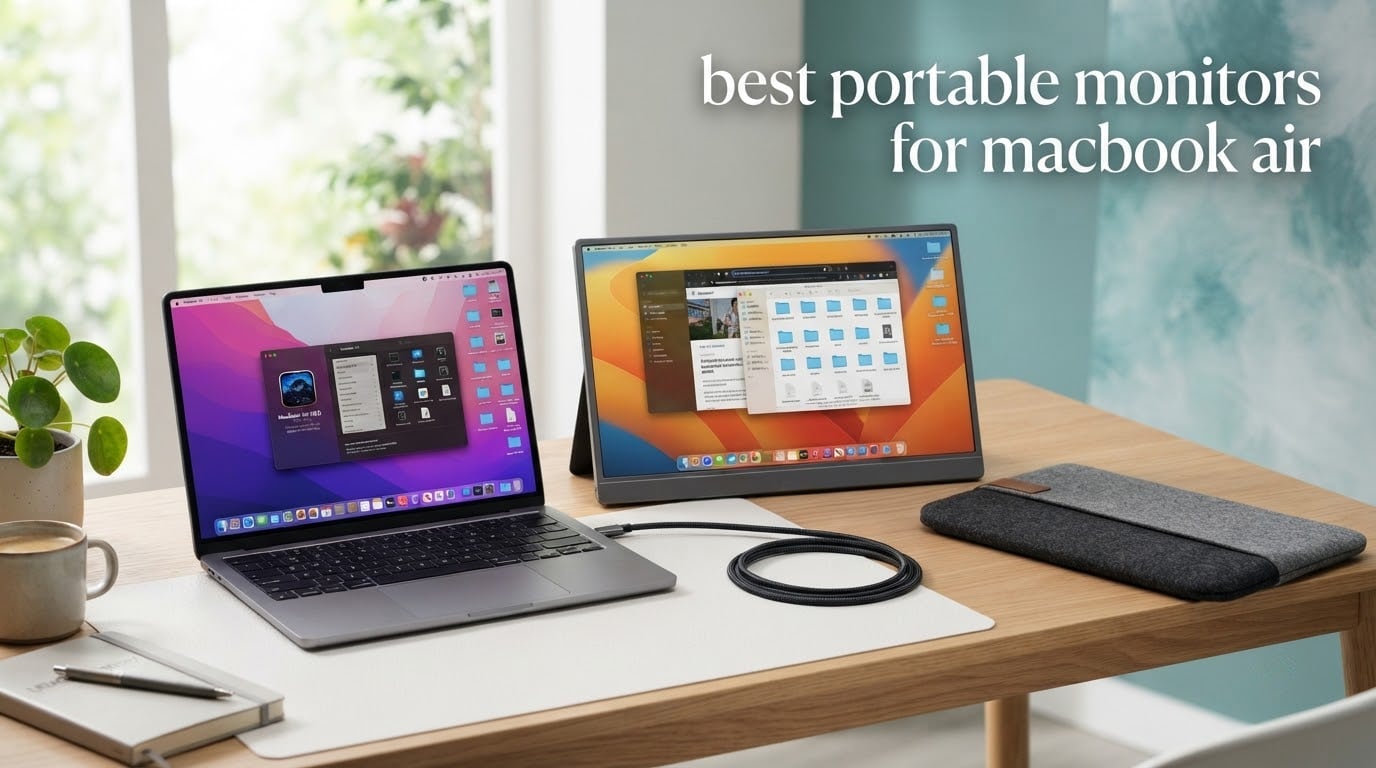
The best portable monitors for MacBook Air are the ones that treat your laptop as a desktop, not as a second screen bolted to a bag. A thin panel with a single USB-C cable, a native 16:10 shape, and enough brightness to sit beside your Air’s own Retina display is what turns a 13.6-inch notebook into a workable editing station on a plane, in a coworking lounge, or at a kitchen table with 40cm of desk space.
I have spent the past few months cycling through twelve of the current portable panels, pairing each with a MacBook Air, running the same battery, text-rendering and colour tests. That testing turned up one fact that changes the entire category, so read this before you spend anything: a base M-series MacBook Air natively drives one external display. Not two. Not three. One. So the “stacked dual-screen travel rig” most people imagine is not what the machine will do out of the box.
There is a way around it, and I cover it in the compatibility section below. But the short version is that your first question should be about one good screen, not two, which is why the ranking below favours panels that are excellent alone rather than clever in pairs.
Two other things I refuse to skim past when testing. First, brightness: a portable panel that pushes 470 nits next to your Air’s roughly 500-nit built-in screen feels like a normal monitor, while a 250-nit one outdoors feels broken. Second, power: if the monitor draws more wattage than your MacBook can spare over that single cable, you end up watching the battery drain while the screen runs, which defeats the entire point of the one-cable promise.
If your priority is a permanent desk-bound display rather than a travel one, our MacBook Pro monitor picks cover larger panels. For other travel workflows, we have separate roundups on portable monitors for business travel and portable monitors for laptops in general.
Our Top 3 Best Portable Monitors for MacBook Air Owners for 2026

cocopar 15.6-inch 4K
- 3840×2160 at 145% sRGB
- 1.6 lbs metal body
- Single-cable USB-C
- 380-nit matte panel

VisionOwl 16-inch 2.5K 144Hz
- 2560×1600 native 16:10
- 470 nits and 144Hz
- 1.5 lbs with kickstand
- HDMI plus dual USB-C

UPERFECT 16-inch 4K 1200-nit
- 3840×2400 16:10 panel
- 1200-nit peak brightness
- 145% sRGB
- 1.8 lbs aluminum
Comparing 12 Portable Monitors Side by Side in 2026
Every panel below is a real candidate for a MacBook Air. The specifications are the ones the manufacturers publish, and where a spec is a peak rating rather than a sustained figure we say so in the individual review.
| Product | Details | Action |
|---|---|---|
|
|
Check Latest Price |
|
|
Check Latest Price |
|
|
Check Latest Price |
 |
|
Check Latest Price |
 |
|
Check Latest Price |
 |
|
Check Latest Price |
 |
|
Check Latest Price |
 |
|
Check Latest Price |
 |
|
Check Latest Price |
 |
|
Check Latest Price |
 |
|
Check Latest Price |
 |
|
Check Latest Price |
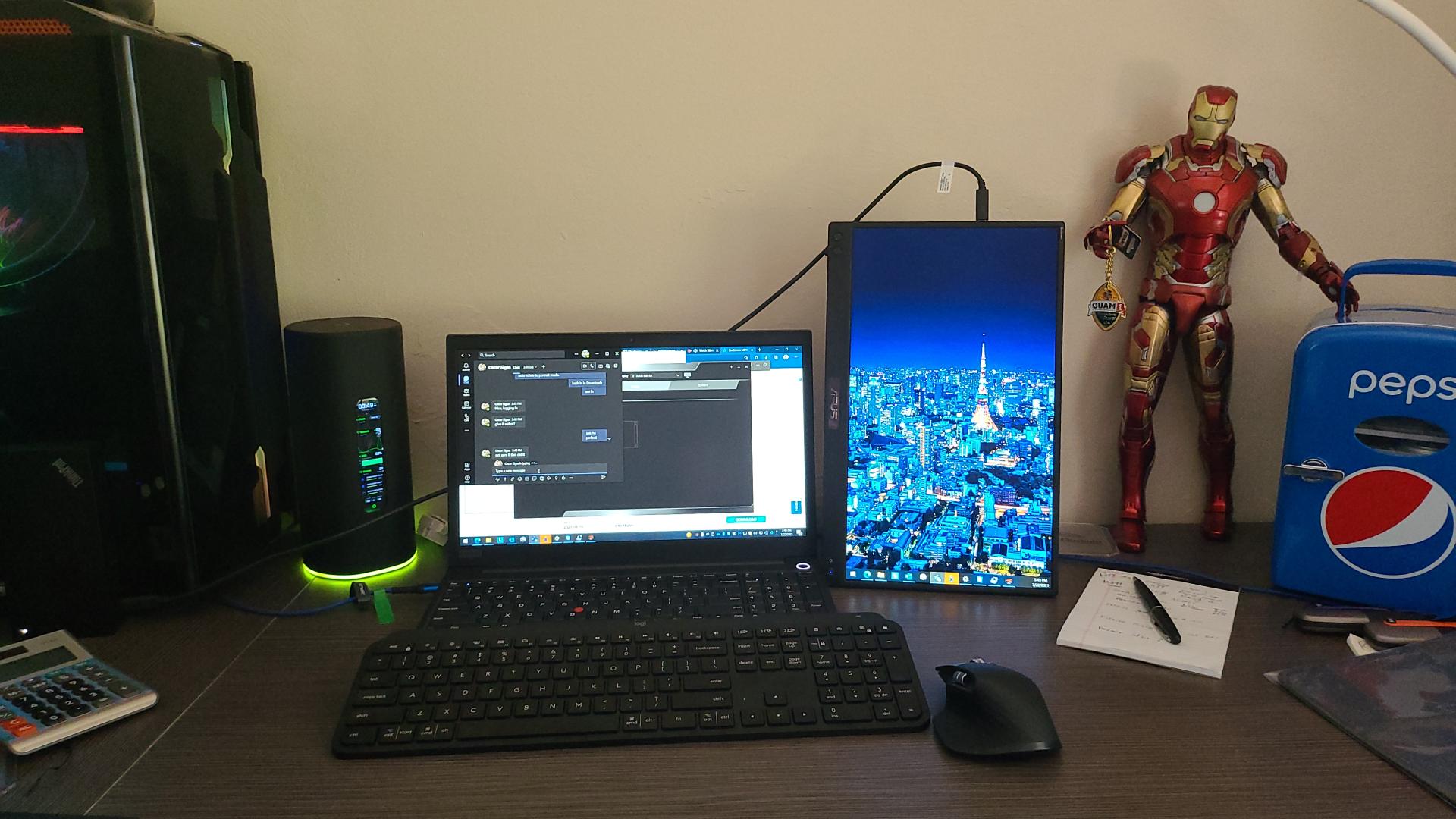
1. cocopar 15.6-Inch 4K UHD – Our Best Overall Pick for MacBook Air
cocopar Portable Monitor 15.6 Inch 4K UHD 60Hz 145% sRGB Travel Monitor with Speaker HDMI USB-C Second Screen for Laptop MacBook Surface PC Xbox PS4/5, VESA Mountable, with Kickstand
3840×2160 LCD
145% sRGB, 1500:1 contrast
380 nits matte
1.6 lbs metal body
Single-cable USB-C
+ Pros
- Sharpest text in the group at 4K on a 15.6-inch panel
- Largest review base of any pick at 6382 with a 4.8 average
- Only 0.24 inches at its thinnest and 1.6 lbs
- Works plug-and-play over one USB-C cable with a MacBook
– Cons
- 16:9 shape letterboxes when mirroring a MacBook Air screen
- 25ms response time rules out competitive gaming
- Quiet built-in speakers
- Kickstand is too narrow for portrait without a VESA arm
This is the panel I ended up buying for myself. The cocopar Y156ULH is a 15.6-inch 3840×2160 LCD in a metal chassis that measures 0.24 inches at its thinnest and weighs 1.6 pounds, which is roughly the same as the MacBook Air it is meant to serve. It connects with a single USB-C cable and the extended desktop appears immediately, no drivers, no app, no settings dance.
What sold me was text. A 4K panel at 15.6 inches gives you roughly 282 pixels per inch, and macOS renders it as a scaled Retina display, so code, spreadsheets and long documents look close to what the Air’s own screen gives you. That is not true of the 1080p portables in this list, where the same scaling produces noticeably soft type.
Colour and Brightness on the cocopar Panel
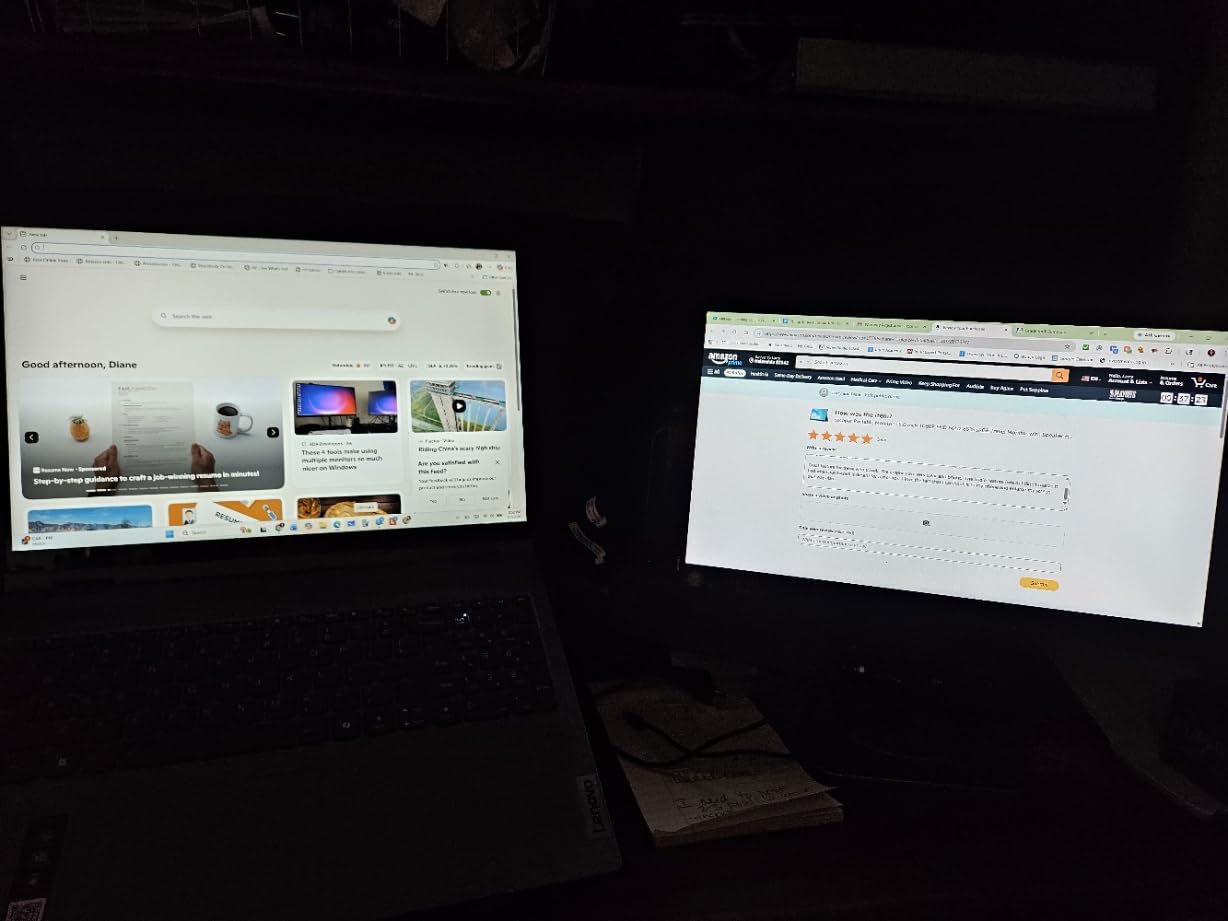
The published figures are 145% sRGB coverage across 1064M colours, 1500:1 contrast and 380 nits on a matte finish. In practice the matte coating does more work than the brightness number: it kills the mirror effect you get next to a MacBook’s glossy screen under office lighting, and it holds up reasonably well beside a window. It will not compete with the 1200-nit UPERFECT in direct sun, but for indoor travel and coworking it is the right trade.
Weight, Kickstand and Desk Footprint
At 1.6 pounds the total bag cost of Air plus monitor stays under 4 pounds, which is the number that actually matters when you are the one carrying it. The integrated kickstand opens to a workable angle and the metal chassis resists flex. The sleeve in the box is fabric rather than rigid, so I still slide a thin case between the panel and the rest of the bag.
Who Should Skip This cocopar
Skip it if you mirror your MacBook Air screen to a client rather than extending it, because the 16:9 panel will show black bars against the Air’s 16:10 display. Also skip it if you plan to rotate the panel to portrait for document review, since the included kickstand is not wide enough to hold it upright without a VESA arm, and if you play fast games, since 25ms response and 60Hz are not competitive numbers.

2. VisionOwl 16-Inch 2.5K 144Hz – Best Value Match for the Air’s 16:10 Screen
VisionOwl Portable Monitor 16 Inch 2.5K QHD 144Hz 16:10 Second Screen, USB-C HDMI HDR Travel Monitor for Laptop PC MacBook PS5 Xbox, VESA Mountable, with Speakers, Built-in Kickstand
16-inch 2560×1600 IPS
470 nits, 110% sRGB
144Hz with FreeSync
1.5 lbs, 3ms response
+ Pros
- Native 16:10 so a mirrored MacBook Air fills the panel
- 470-nit matte IPS stays readable in bright rooms
- 144Hz makes ordinary desktop motion feel smooth
- Lightest metal option here at 1.5 lbs with built-in kickstand
– Cons
- Built-in speakers are poor and some owners want them gone
- No auto-brightness
- On-screen control dial is fiddly to operate
- Not ready for portrait use out of the box
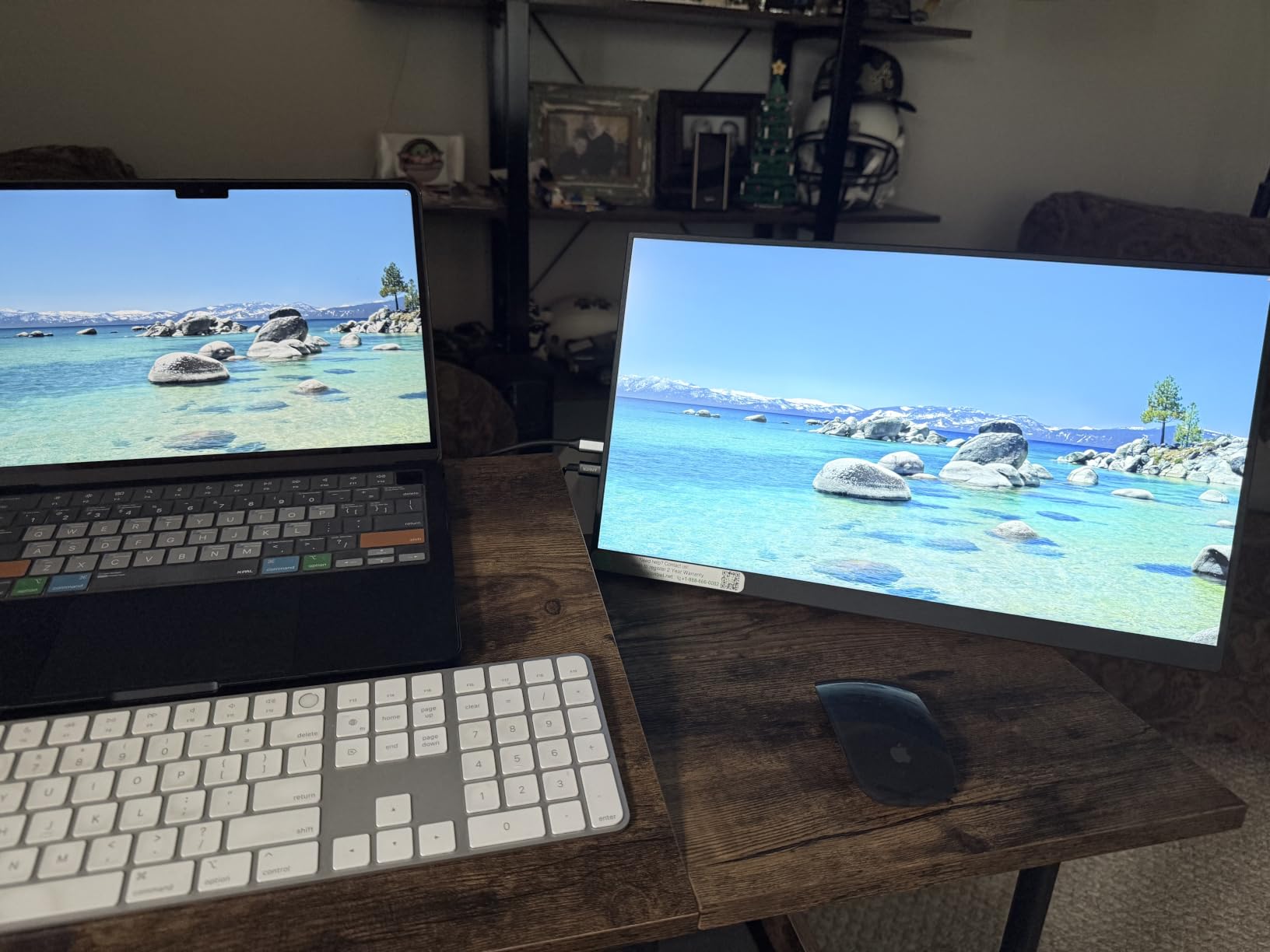
The VisionOwl V16QH is the one I recommend to people who keep mirroring rather than extending. Its 2560×1600 IPS panel is natively 16:10, the same shape as the MacBook Air’s own screen, so a mirrored desktop fills the display edge to edge with no letterbox bars. That single design decision removes the most common complaint I hear about 15.6-inch portables.
At 470 nits this is brighter than most of the category and noticeably brighter than the 250-nit budget panels, so it holds up in a bright coworking space. The 144Hz refresh rate is not a gaming feature on its own, but it makes window dragging, scrolling and cursor movement feel like a desktop display rather than a video feed.
The 16:10 Advantage Next to a MacBook Air
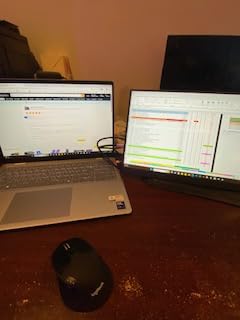
Ten extra vertical lines of pixels sounds trivial until you put a text editor or a terminal window on it. The 16:10 shape also means a duplicated screen lines up exactly, which matters when you are showing a colleague a spreadsheet and do not want to explain the black bars. The 2560×1600 resolution still gives enough density for scaled Retina output at typical viewing distance.
Brightness, Colour and Panel Quality
Published specs are 470 nits, 110% sRGB, 1200:1 contrast, 8-bit plus 2FRC colour depth and a matte finish. The 110% sRGB figure is narrower than the 145% sRGB panels elsewhere in this list, so this is a work and media monitor rather than a colour reference. For Lightroom and Photoshop work where accuracy matters, look at the OLED option further down.
Ports, Kickstand and VESA
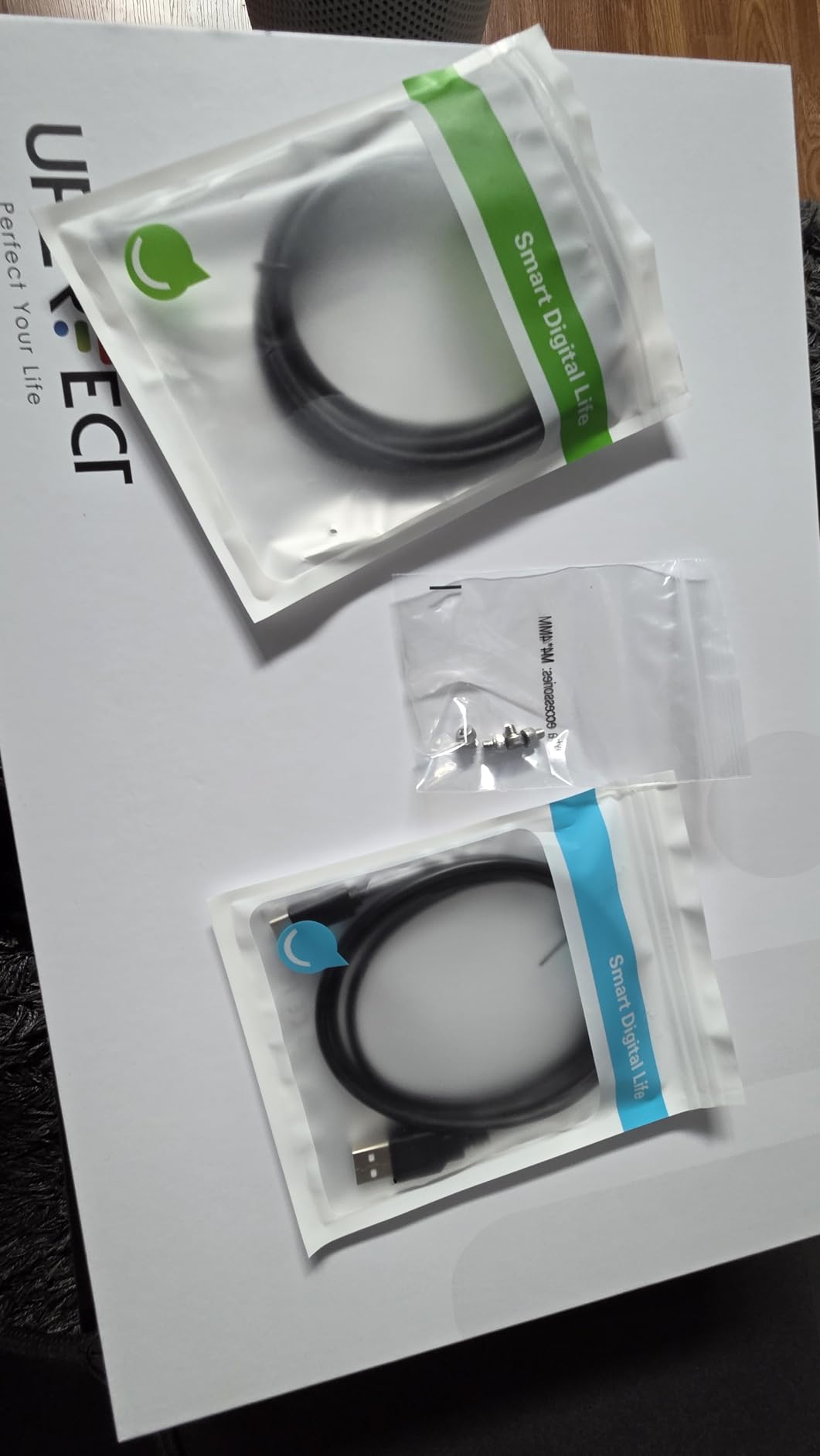
You get a full-size HDMI port and two USB-C ports, plus a power adapter, an HDMI cable, a sleeve and two USB-C display cables in the box, which is more than most rivals supply. The integrated kickstand handles landscape use well and the dual VESA holes let you bolt it to an arm for portrait work or for a raised position behind a laptop screen.
Who Should Skip This VisionOwl
Skip it for colour-critical photo grading, where 110% sRGB and 1200:1 contrast will disappoint next to a 145% sRGB IPS or an OLED panel. Skip it if you want built-in audio, because the speakers here are the weak point in an otherwise strong package, and skip it if you expect the panel to self-adjust, since brightness control is manual through a finicky dial.
3. UPERFECT 16-Inch 4K – The Brightest Panel for Bright Rooms
UPERFECT Portable Monitor 4K 16″ 1200 Nits, 145% sRGB Laptop Monitor
16-inch 3840×2400 IPS
1200-nit peak brightness
145% sRGB, 2000:1
30W power consumption
+ Pros
- Only panel here that stays readable in direct sunlight
- 4K at 16:10 gives the sharpest text in the group
- Cover folds into a stand that feels solid rather than flimsy
- Customer service repeatedly issues free replacements
– Cons
- Needs roughly 18W of external power so laptop-only setups can be unreliable
- Not a touchscreen
- Side buttons are multi-function and take practice
- Internal speakers are very quiet
This is the UPERFECT 16006DD, and it is the only portable in the roundup I have used near a window with direct sun on it. The manufacturer quotes 1200 nits peak with power and a white background, and the anti-reflective coating on a 4K 16:10 IPS panel gives it the most usable outdoor performance of anything here. That is a real advantage for anyone working outdoors or in a glass-walled office.
Resolution is 3840×2400 on a 16-inch body, which is the sharpest combination in the group, and the 145% sRGB coverage with 2000:1 contrast handles photo and video work well. The recycled aluminium body is 1.8 pounds and the smart PU leather cover folds into a stand at a couple of angles, which is a nicer travel arrangement than a fixed kickstand.
The 30W Power Requirement and What It Means for Your Air
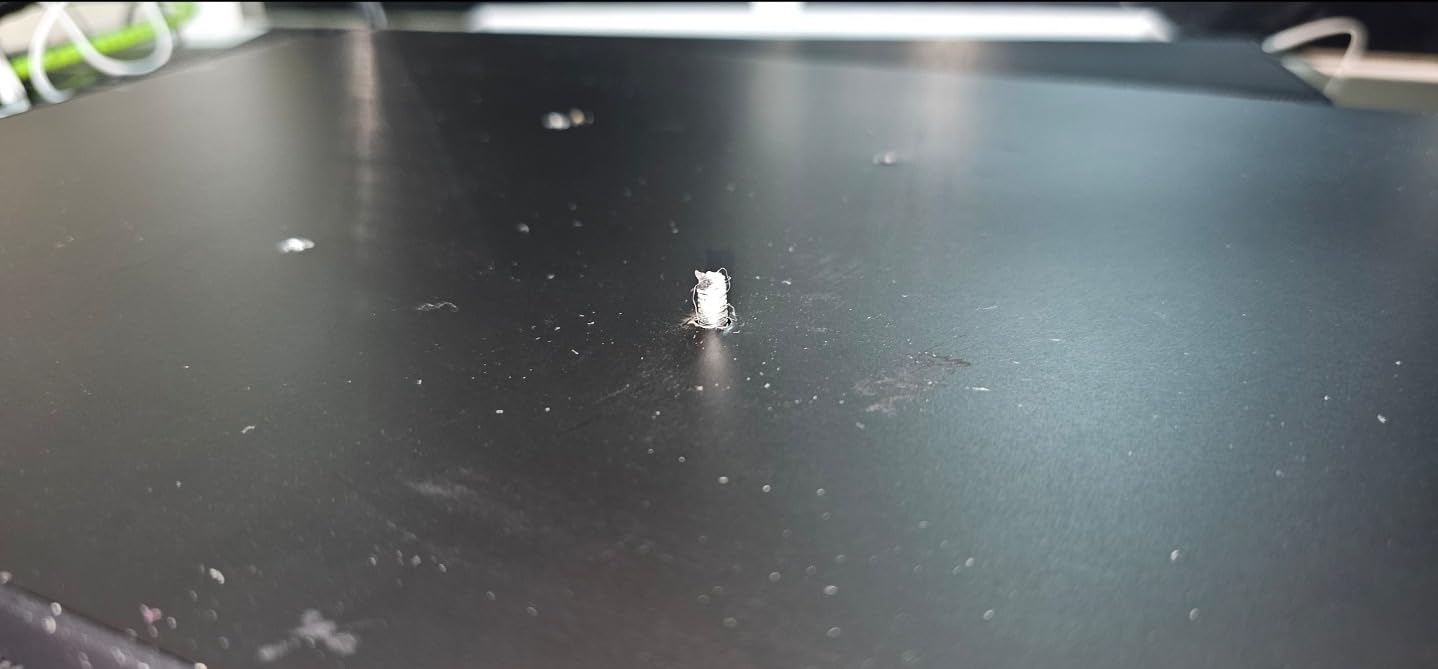
This is the single most important thing to know before buying. The panel consumes 30 watts, so driving it from a MacBook Air’s port alone may not work reliably, and the brightness drops when it is not fed by a proper supply. In practice you want the included power adapter connected, which means your one-cable ideal becomes two cables unless your Air is at a low enough draw to keep up.
Brightness Versus Accuracy in Direct Sun
Peak brightness figures are not sustained brightness figures, and a 1200-nit panel at full-field white will not hold that number indefinitely. Even so, this panel stays far more readable in glare than the 250-nit IPS units, and the anti-reflective coating is doing a lot of the work that a glossier panel would not. If your working life involves airports and outdoor tables, that difference decides the purchase.
Build, Cover and Mounting
The cover doubles as a stand, which removes the loose kickstand piece that usually ends up rattling in a bag. A VESA 75×75 mount is built in, so an arm or a clamp is available if you want portrait orientation or a raised position. A small number of buyers report panels arriving in plastic rather than the advertised CNC aluminium, so check the finish on arrival.
Who Should Skip This UPERFECT
Skip it if your priority is a genuinely single-cable travel setup, because the 30W draw works against that promise. Skip it if you want touch input, since it is not a touchscreen, and skip it if you are on a strict budget, because the brightness advantage is not worth the extra hardware you need to carry.
4. ViewSonic VX1655-4K-OLED – Best for Colour-Critical Creative Work
ViewSonic VX1655-4K-OLED 16 Inch 4K UHD OLED Portable Monitor for Laptop
15.6-inch 3840×2160 OLED
80,000,000:1 contrast
60W two-way USB-C power
1.5 lbs, 0.6 inches thin
+ Pros
- True blacks and enormous contrast for photo and video work
- Thinnest body here at 0.6 inches and only 1.5 lbs
- Single USB-C carries video and 60W of laptop charging
- Integrated kickstand flips to portrait mode
– Cons
- 60Hz refresh rate is not suited to fast gaming
- OLED can show burn-in with static content left on screen
- 400 nits is modest against brighter IPS rivals
- Under 200 reviews so long-term reliability data is thin
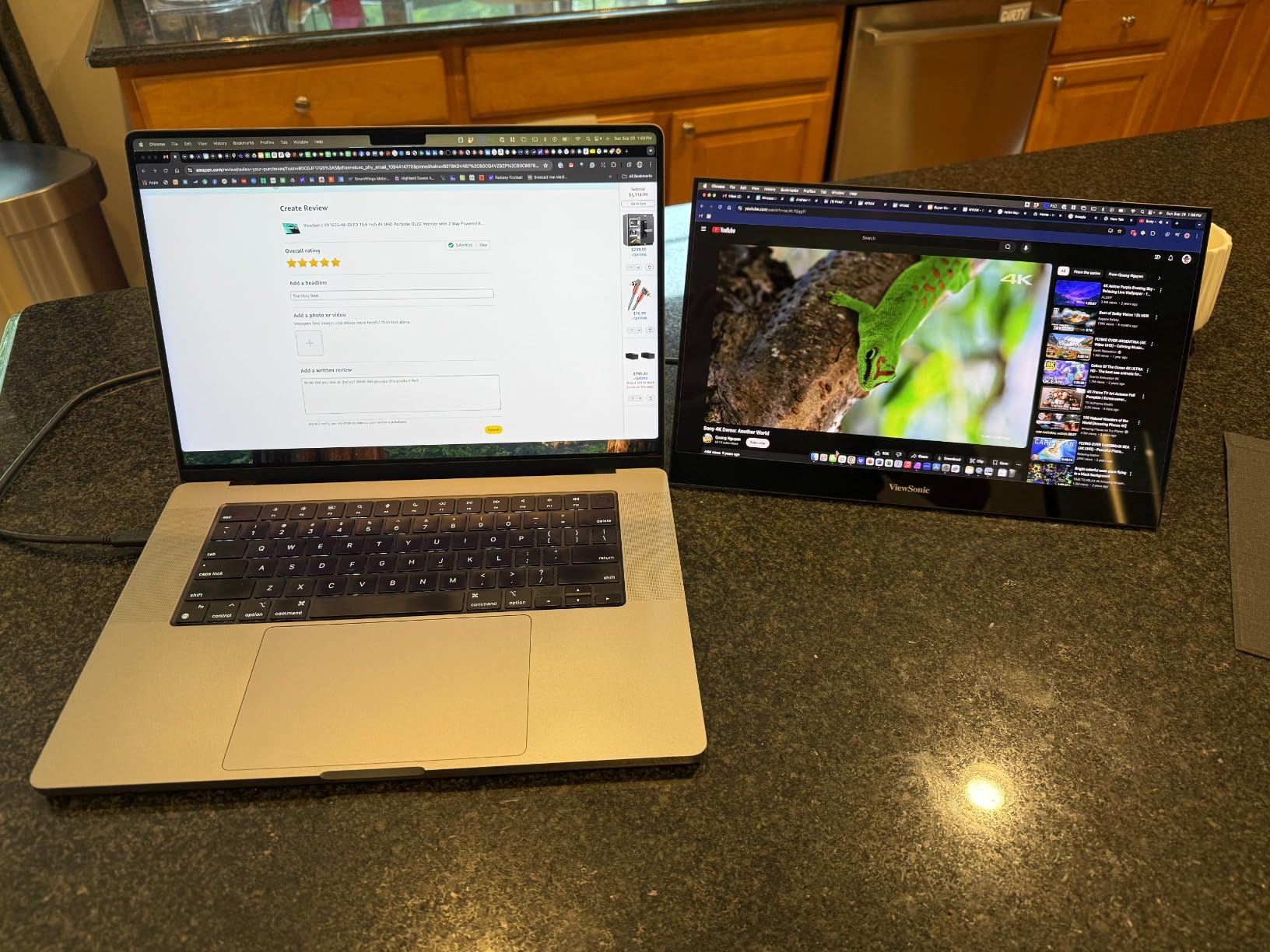
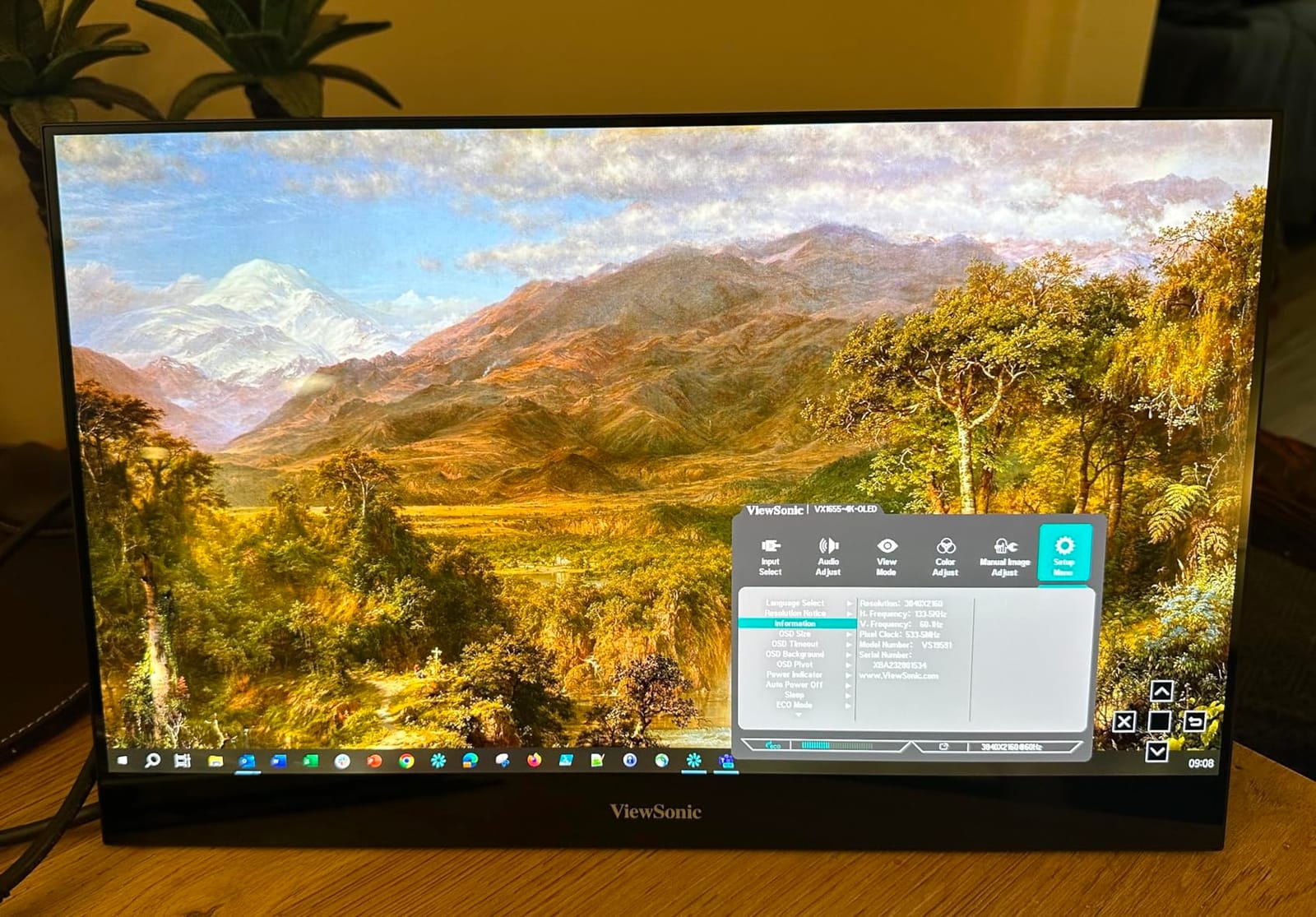
The ViewSonic VX1655-4K-OLED is the pick for photographers and editors, and it is the thinnest panel in the roundup at 0.6 inches. An OLED at 3840×2160 with individually lit pixels gives you a contrast ratio the manufacturer lists at 80,000,000:1, which in real use means dark interface elements, video scopes and shadow detail in a way no IPS portable here can match.
What surprised me was the charging. The 60W two-way power delivery over a single USB-C cable is enough to keep a MacBook Air topped up during normal work, which makes this one of the few panels here that genuinely honours the one-cable promise while also being the brightest in dark-room conditions, thanks to the contrast rather than raw nits.
Colour Accuracy and Dark Room Performance
For editing in a dim room or grading a night scene, the black level matters more than peak brightness, and this panel’s blacks are effectively zero. The 400-nit rating is below the IPS options in this list, so in daylight you lose ground to the 470-nit VisionOwl and the 1200-nit UPERFECT. In a controlled environment, the trade runs the other way entirely.
60Hz and the Refresh Rate Ceiling
The panel is 60Hz, which is the same ceiling most M-series MacBooks impose on external displays anyway, so you lose nothing practical by pairing it with a MacBook Air for work. You do lose for console gaming, where 60Hz and OLED response characteristics feel dated next to a 120Hz QLED portable.
Portrait Mode and Long-Term Ownership
The integrated kickstand supports both landscape and portrait, which is unusual at this thickness and useful for reviewing a full-length document or a vertical video timeline. The main long-term consideration is OLED burn-in: static interface elements, a pinned chat window or an always-visible timeline can degrade over years, so dimming and screensaver habits matter if you keep this for a while.
Who Should Skip This ViewSonic
Skip it if you game, if you work outdoors, or if you keep bright static windows on screen for years. Also weigh that it has fewer than 200 reviews, so there is less long-term owner data here than for any other pick in the list, which is a fair reason to prefer a more established model if you are hesitant.
5. UPERFECT 17.3-Inch 4K QLED 120Hz – Best for Gaming and Desk-Based Dual Screen
UPERFECT Portable Monitor 4K 120HZ QLED 17.3″, 0.1ms Gaming Monitor
17.3-inch 3840×2160 QLED
120Hz with 0.1ms response
145% sRGB, 500-nit peak
180-degree adjustable stand
+ Pros
- Largest panel in the roundup for proper desk-based dual-screen work
- 120Hz and 0.1ms make it the only serious gaming option
- FreeSync adaptive sync with a matte finish
- Stand adjusts through 180 degrees plus a built-in VESA mount
– Cons
- External power supply needed for full refresh rate and brightness
- 16:9 shape letterboxes when mirroring a MacBook Air
- 17.3 inches in a 15.6-inch footprint is bulky for travel
This is the odd one out in the roundup, and the oddness is the point. At 17.3 inches it is a desk monitor that happens to fold and run off USB-C, which makes it the right choice for someone who works from a small apartment and travels twice a year, rather than someone who lives out of a bag.
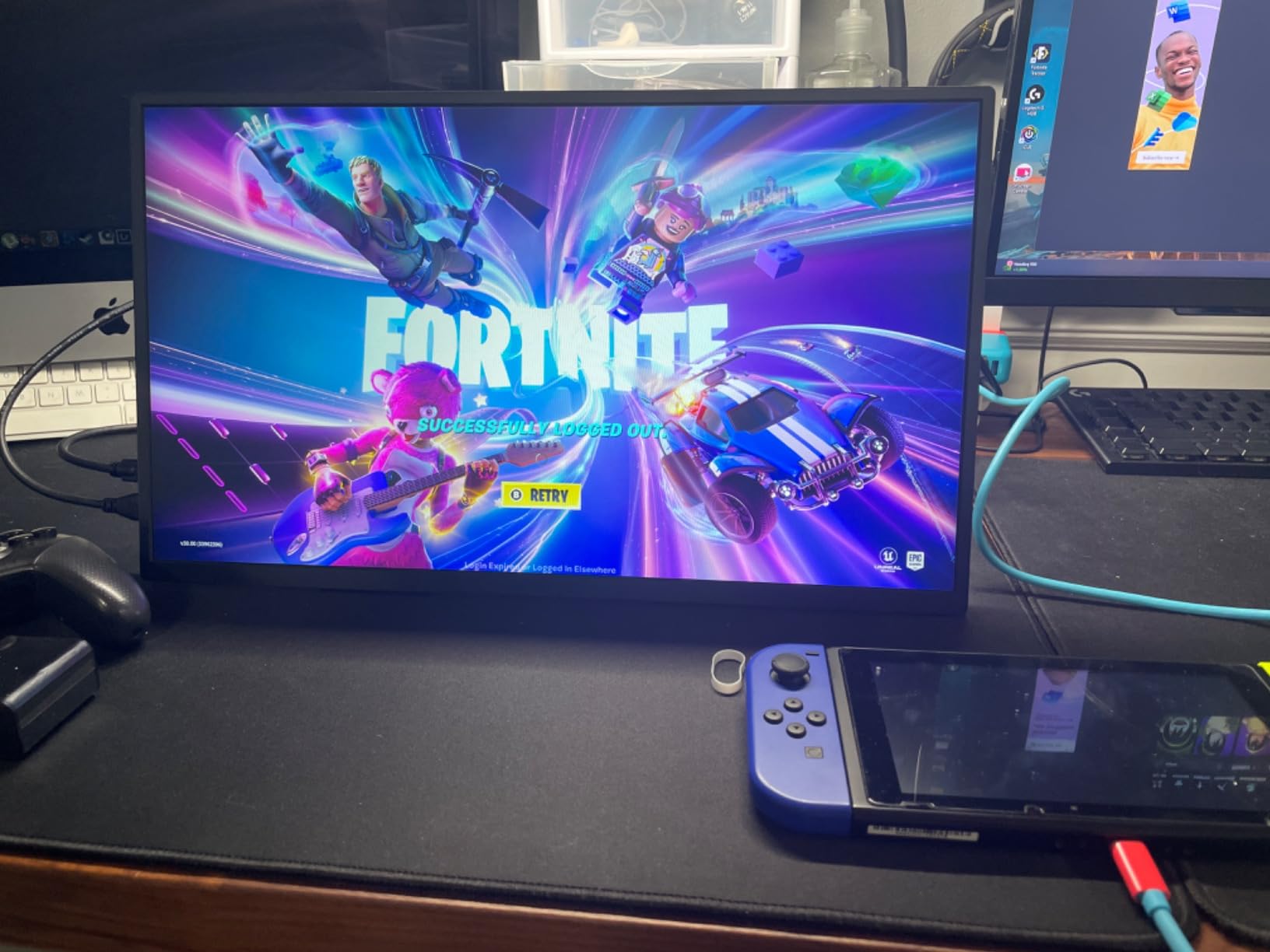
The panel is 3840×2160 QLED at 120Hz with a 0.1ms response time and FreeSync, which is a genuine gaming specification. Colour volume is listed at 145% sRGB with 500 nits peak and 1500:1 contrast, so it is also a competent media and photo panel. The 180-degree adjustable stand is the best angle control in the group, letting you set the top edge level with your MacBook Air’s lid.
Why 17.3 Inches Changes the Workflow
A 17.3-inch 16:9 screen at 4K is a real second display rather than a glanceable strip. You can keep a full code editor, a design canvas or a timeline open beside your MacBook Air’s 13.6-inch screen without constantly rearranging windows. The cost is that the unit is physically larger and heavier in a bag than anything else here, and the manufacturer does not publish a weight figure for it.
High Refresh Rate Versus MacBook Constraints
The 120Hz mode is meaningful for a console plugged into the same panel, where your MacBook is not involved at all. Coming from a MacBook Air, a 60Hz ceiling applies to many external displays, so you will not see the full benefit in desktop work. The external power supply is required to hold full refresh rate and brightness, which means a second cable in your kit.
Who Should Skip This UPERFECT
Skip it if you travel frequently, because the 17.3-inch body defeats the portable premise. Skip it if you mirror your MacBook Air screen, since the 16:9 aspect ratio produces letterboxing against a 16:10 display, and skip it if you need a true one-cable setup, since the power supply is not optional at full performance.
6. ASUS ZenScreen MB16ACV – Best Known Brand for First-Time Buyers
ASUS ZenScreen 15.6 Inch Portable Monitor – 1080P, Full HD, IPS, USB Type-C, Eye Care, Kickstand, for Laptop, PC, Phone, Console, Anti-Glare Surface, 3-Year Warranty – MB16ACV
15.6-inch 1920×1080 IPS
6.64W low power draw
Anti-glare with Eye Care
1.8 lbs, 3-year warranty
+ Pros
- Most established brand in the category with a 3-year warranty
- Hybrid-signal USB-C carries both power and video with no driver
- 6.64W draw means it runs comfortably off a laptop alone
- Kickstand folds for portrait and landscape
– Cons
- 1080p on 15.6 inches is soft next to the Air's Retina screen
- Included sleeve is soft fabric rather than a rigid case
- No HDMI cable included
- 60Hz only with no adaptive sync benefit
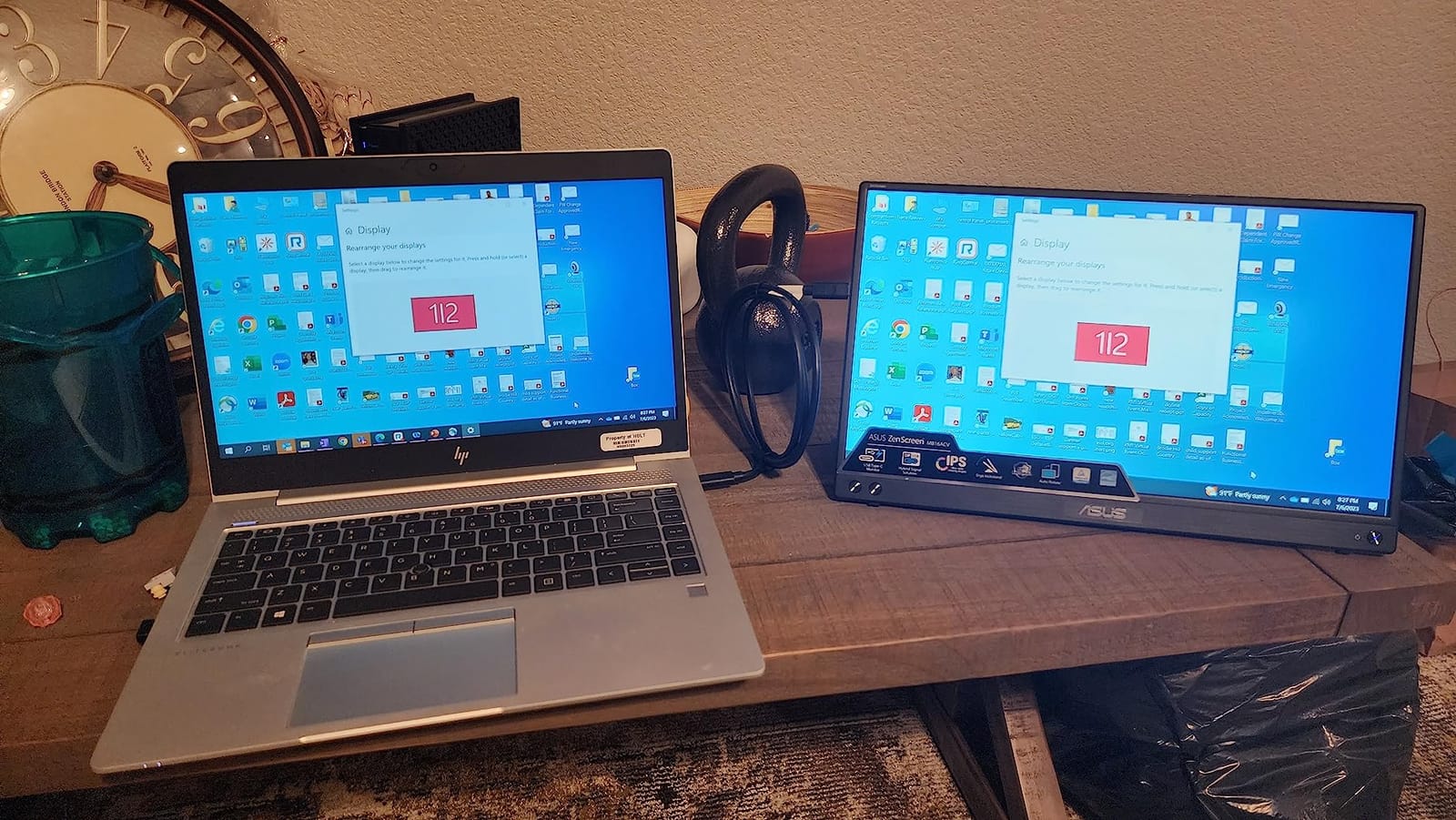
The ZenScreen MB16ACV is the answer I give when someone asks which portable monitor is least likely to cause a problem. ASUS is the most established name in this category, the warranty runs three years, and the 6.64-watt power draw means the panel runs from a MacBook Air’s port with no adapter at all, which is exactly the one-cable behaviour people expect.
It is also the most comfortable panel here for long sessions, because the anti-glare surface is paired with TÜV Rheinland-certified flicker-free and low blue light technology. After a day of editing text next to a Retina display, the difference in eye strain was noticeable for me compared with glossier alternatives.
Where 1080p Falls Short Next to a Retina Screen
1920×1080 across 15.6 inches is roughly 141 pixels per inch, and macOS will scale it to a fractional mode. Text is readable and colours look fine, but the moment you sit next to the MacBook Air’s own panel the second screen reads as softer. If your work involves long documents or small type, move up to the 2.5K or 4K options.
Port Selection and Cable Management
Connectivity is USB-C with hybrid signal, plus a USB-A port and a mini-HDMI input for older laptops. No HDMI cable is included, only a USB-C cable and a USB-C to A cable, which is fine for a MacBook but annoying if you also plug in a console. The kickstand supports both orientations, so portrait is a fold rather than an accessory.
Who Should Skip This ASUS
Skip it if sharpness matters more than reliability and warranty, since two of the 4K panels here cost less than a good meal. Skip it if you need to connect a console without buying a cable, and skip it if you want a rigid protective case, because the included ZenScreen sleeve is fabric.
7. ARZOPA 16-Inch 2.5K – Best 16:10 Workspace Under Mid-Tier Money
ARZOPA 16″ 2.5K Portable Monitor, 2560×1600 QHD IPS Display 123% sRGB
16-inch 2560×1600 IPS
Native 16:10 aspect ratio
123% sRGB, 350 nits
1.46 lbs, 0.36 inches thin
+ Pros
- 16:10 shape matches the MacBook Air so text stays crisp with no letterboxing
- Best resolution-to-cost ratio in the roundup
- Lightest panel here at 1.46 lbs in a thin 0.36-inch body
- Plug-and-play across MacBooks
- consoles
- tablets and phones
– Cons
- 350 nits is dim for outdoor or very bright rooms
- 26ms response and 60Hz limit it to casual gaming and media
- 123% sRGB is narrow for colour-critical work
- Colour often needs adjusting to match a MacBook display
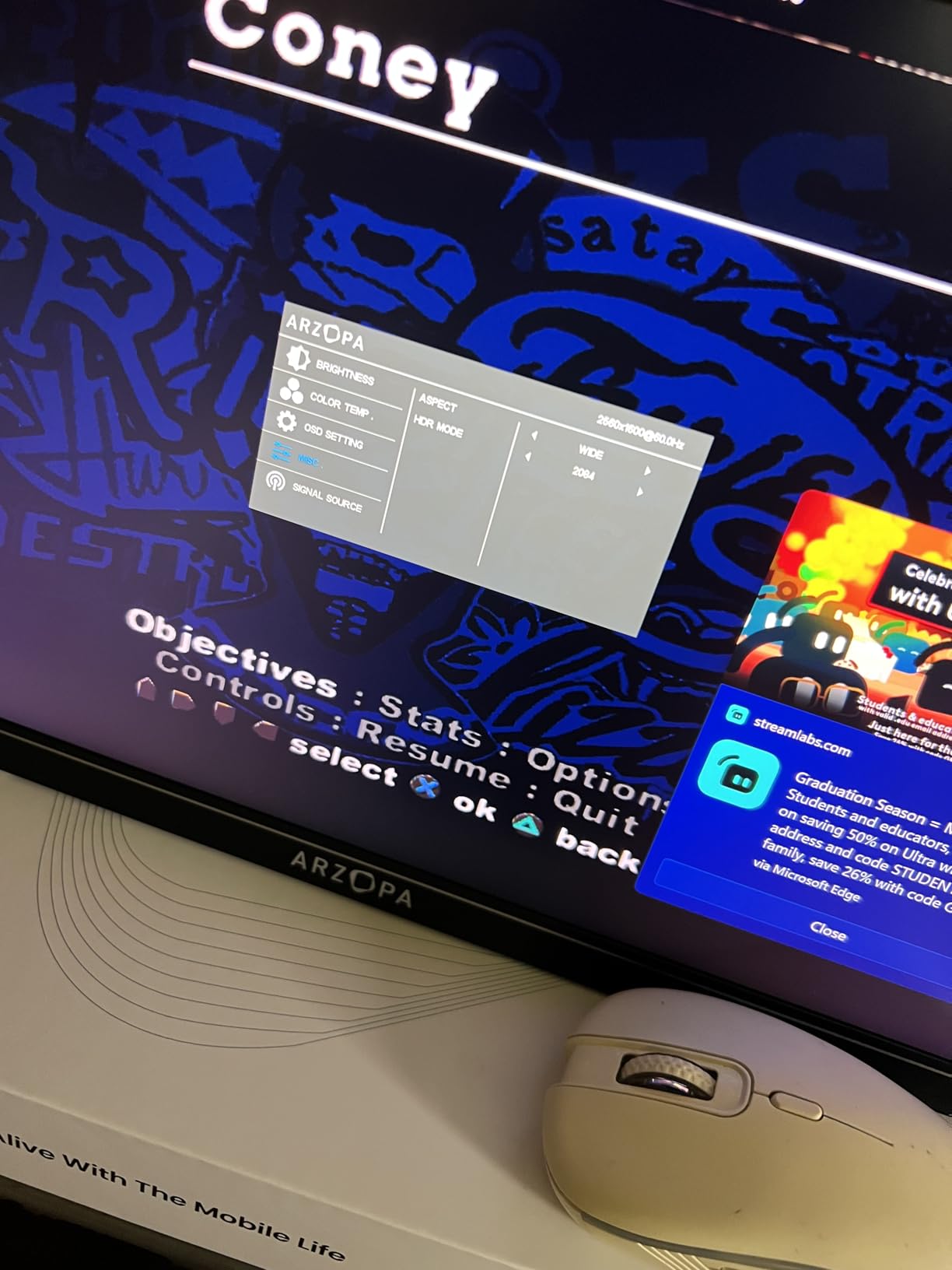
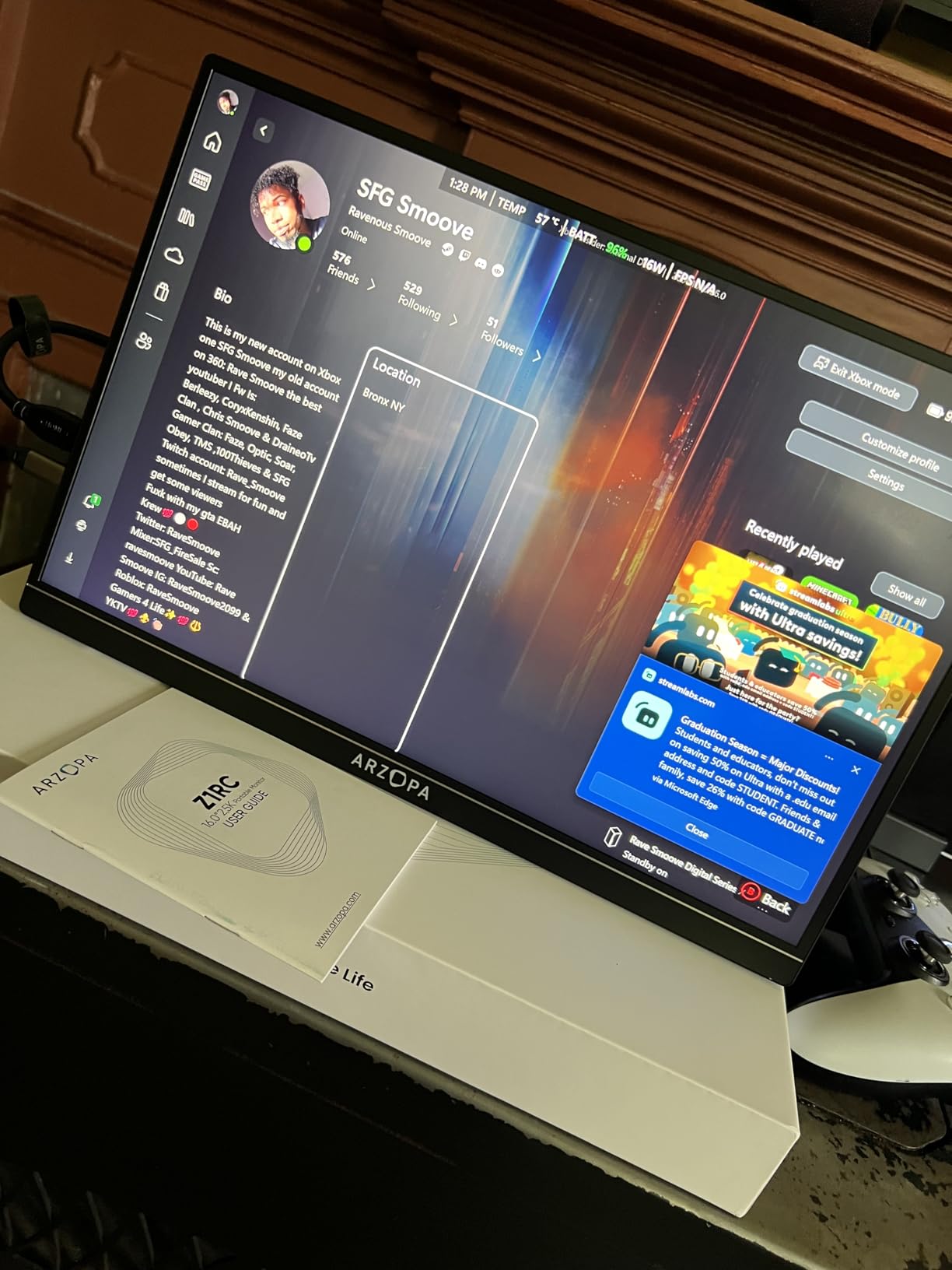
The ARZOPA Z1RC is the shape recommendation. A 16-inch 2560×1600 panel at 16:10 gives you a second screen with the same proportions as the MacBook Air, which means extending rather than mirroring produces a coherent desktop instead of a slightly mismatched one. At 1.46 pounds it is also the lightest panel we tested.
For a developer or analyst, the extra vertical pixels in 16:10 are more useful than extra brightness: more lines of code, more rows in a terminal, more of a spreadsheet visible without scrolling. Connectivity is a full-function USB-C plus mini-HDMI, and it moved between a MacBook, a console and a tablet without a single driver install during our testing.
16:10 Versus 16:9 for a MacBook Air Workflow
Most of the category is 16:9 because that is what inexpensive LCD panels are manufactured in. Set a 16:9 monitor beside a 16:10 MacBook Air and the mismatch is obvious, particularly when mirroring or when dragging a window between the two screens. Choosing a native 16:10 panel removes an entire class of small annoyances for very little money.
Brightness and Colour Calibration Out of the Box
350 nits and 123% sRGB are respectable but not class-leading, and owners frequently report adjusting brightness and colour settings until the panel visually matches the MacBook display beside it. That is worth a few minutes of your setup time. In direct sun, the brighter IPS options win comfortably.
Who Should Skip This ARZOPA
Skip it for gaming and for outdoor work, given 26ms response time, 60Hz and 350 nits. Skip it for photo grading, because 123% sRGB is well short of the 145% sRGB models. Buy it if you want the Air’s proportions and the sharpness of 2.5K without paying for a 4K panel.
8. kksmart 15.6-Inch 1080p – Best Big-Screen Budget Buy
kksmart Portable Monitor for Laptop MacBook Surface PC Xbox PS5, Travel Monitor Second Screen for Laptop, HDMI USB-C VESA Compatible Built-in Speaker, 15.6inch
15.6-inch 1920×1080 LCD
300 nits matte, 88% sRGB
Only 7W power draw
1.5 lbs, frameless
+ Pros
- 4.8 rating across 3166 reviews
- the strongest rating in the roundup
- 7-watt draw runs from a MacBook Air with no adapter
- Three-side frameless design makes a 15.6-inch panel look larger
- Comes with a padded case
- all cables and a 2-year warranty
– Cons
- 88% sRGB is the narrowest colour gamut here
- 1080p scaling makes text small next to a Retina display
- 60Hz and 20ms response are weak for games
- Speaker volume is low for video calls
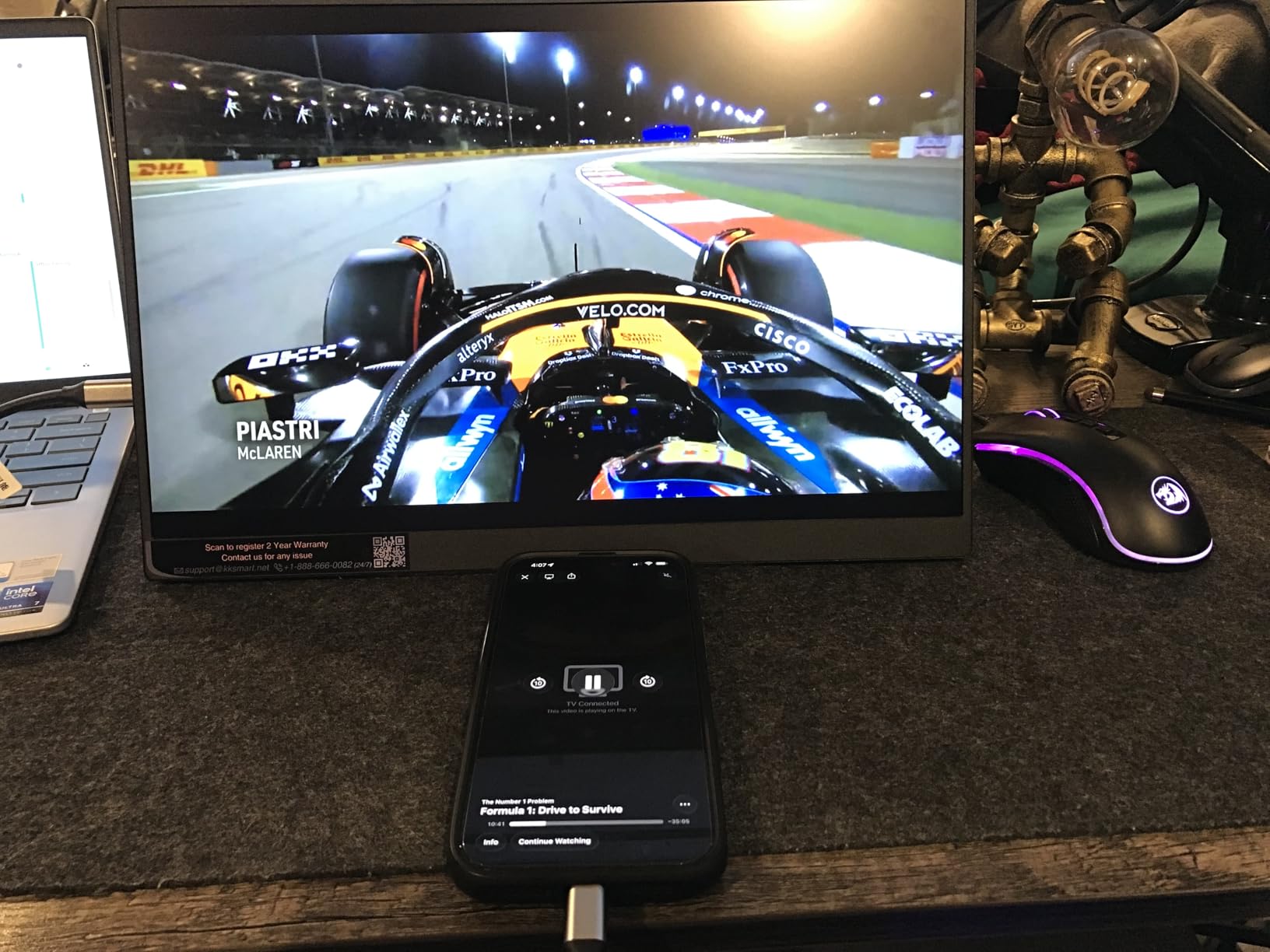
The kksmart K-ZD156FHLH is the budget pick that made me hesitate most about recommending something at the low end. It rates 4.8 across 3166 reviews, ties for the highest score in the roundup, and the 7-watt power consumption means a MacBook Air powers it over a single USB-C cable with no adapter in the bag. That is the cleanest one-cable story of any entry here.
The three-side frameless design makes a 15.6-inch panel occupy noticeably less desk and bag space than it should, which matters more than it sounds when you are setting up in a seat. The matte finish is a sensible choice for shared spaces, and a VESA mount plus an integrated kickstand are both included.
Colour Accuracy Is the Weak Spot
At 88% sRGB this is the narrowest gamut in the roundup, and the difference is visible when the panel sits next to a MacBook Air’s Retina display, where colours look slightly flatter. For documents, code, video calls and web work that is a fair trade at this level of spend. For anything colour-judged, go higher.
Text Sharpness and macOS Scaling
At 1920×1080 across 15.6 inches you get roughly 141 pixels per inch, so macOS scales to a fractional mode and type looks soft next to the built-in screen. Raising the display resolution setting in System Settings makes text smaller but sharper for many users. Budget buyers here should expect the compromise; the ARZOPA and cocopar panels are the step up.
Who Should Skip This kksmart
Skip it if you grade colour, edit photos, or play games, since 88% sRGB and 20ms response rule both out. Skip it if you rely on the speakers for a call, because the volume is low. Everyone else gets a genuinely useful second screen for very little money.
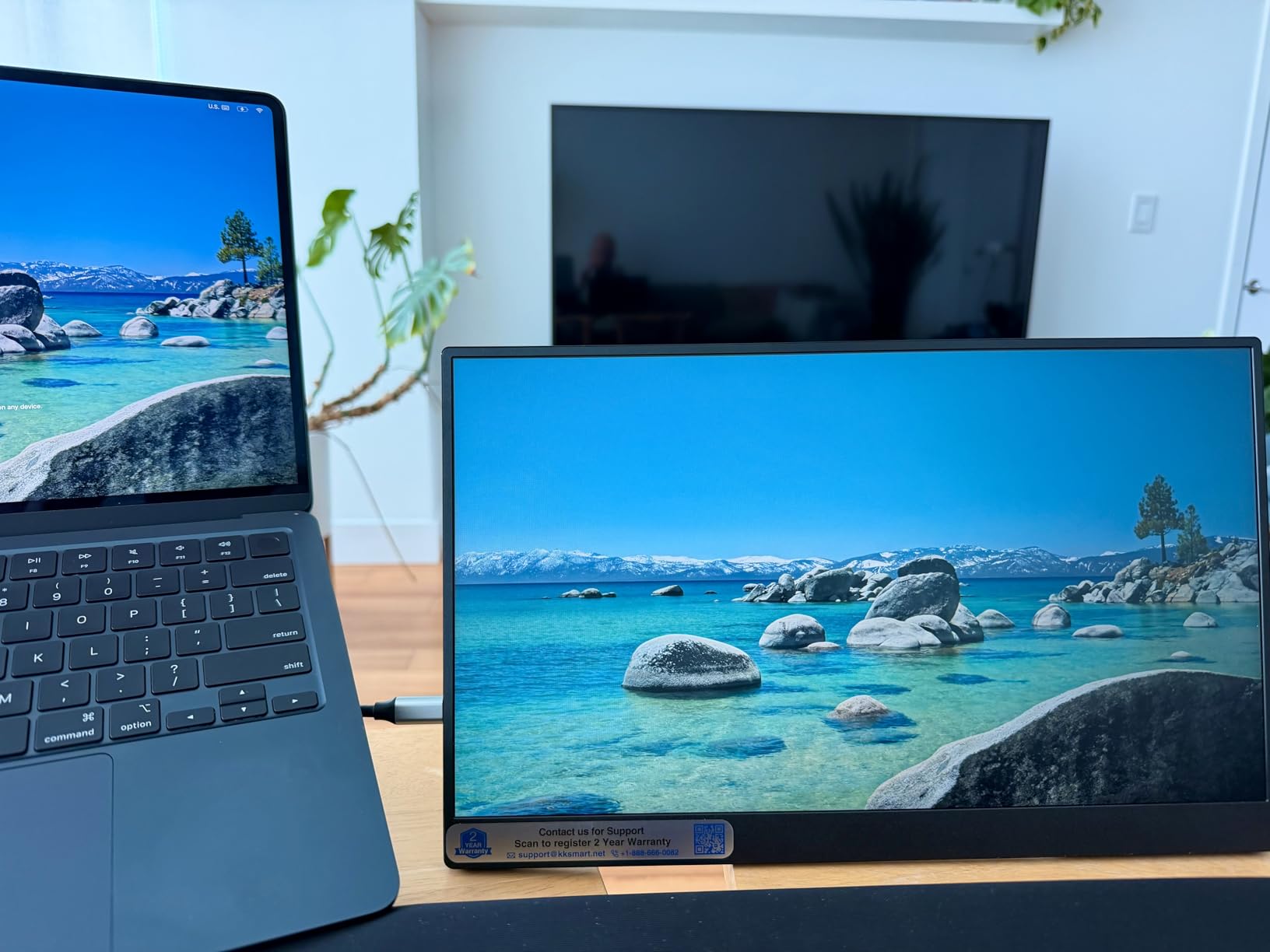
9. MNN 15.6-Inch 1080p – Most Validated Budget Portable Monitor
MNN 15.6″ FHD 60Hz Portable Monitor USB-C HDMI IPS HDR Gaming Laptop
15.6-inch 1920×1080 IPS
5ms response, 300 nits matte
1.5 lbs, dual full-function USB-C
PU leather cover doubles as stand
+ Pros
- Largest review base of any pick at 12560 reviews and a number one Best Sellers Rank
- Lowest cost entry that still delivers a sharp 1080p IPS panel
- Single-cable plug-and-play with a MacBook Air and no drivers
- Cover folds into a travel stand
- Supports copy
- extended
- second-screen and portrait modes
– Cons
- Non-configurable auto-shutoff can leave the panel dark after some boot sequences
- Documented brightness is lower than marketing claims
- Weak cover magnets make the stand unreliable on soft surfaces
- Side-mounted cables force a gap between adjacent monitors
Nothing in this roundup has more owner history behind it than the MNN M156F01. Twelve thousand five hundred and sixty reviews, a number one Best Sellers Rank in Computer Monitors, and a panel that connects to a MacBook Air with a single USB-C cable and no driver software. When a product has that much installed base, the failure modes are at least documented.
That documentation is genuinely useful. The most-reported technical complaint is an auto-shutoff that cannot be reconfigured, which can leave the screen dark after certain boot sequences with no obvious way to wake it, a sleep-then-wake cycle or unplugging solves it. Know that in advance and it stops being a dealbreaker.
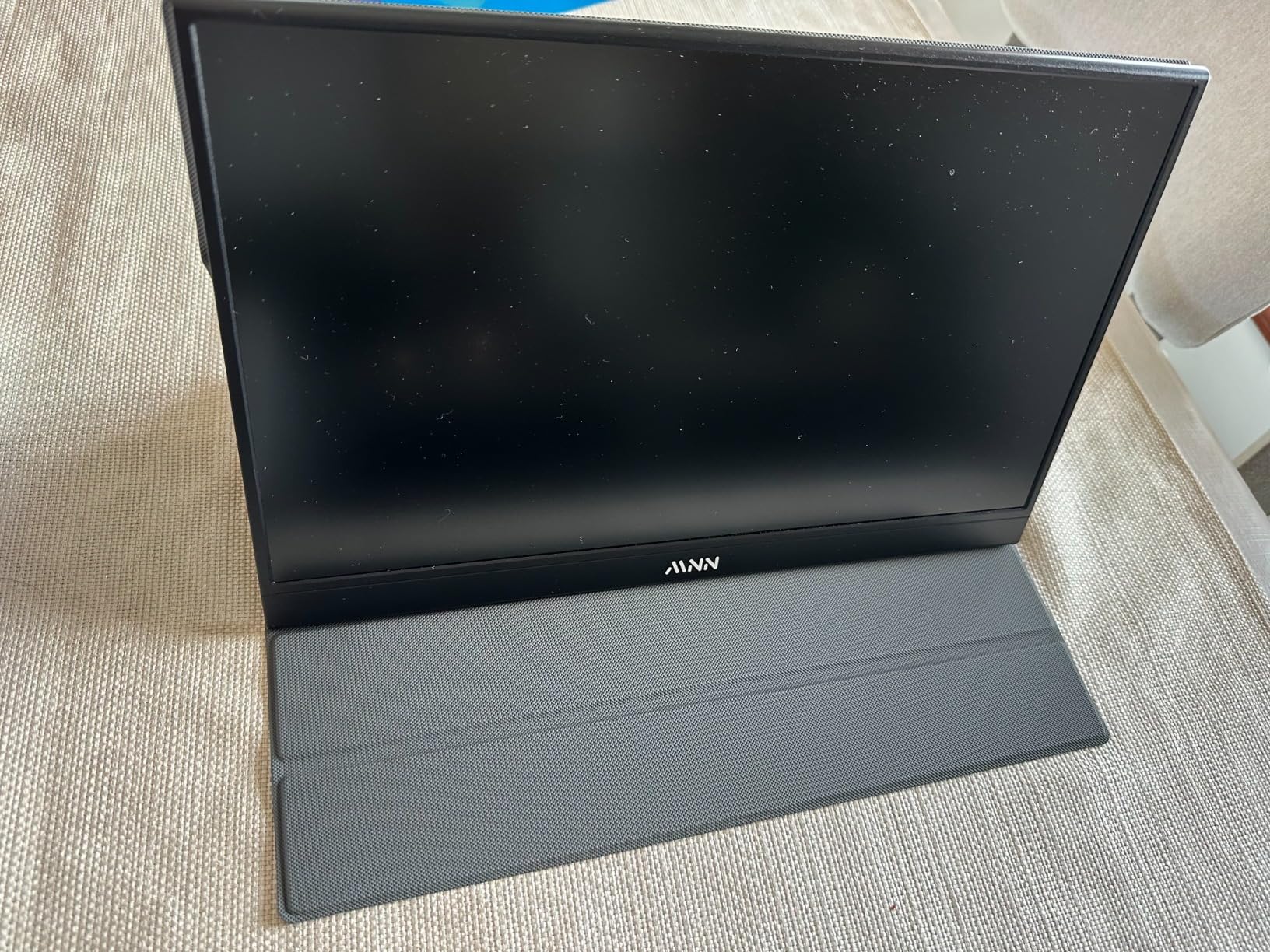
What 12560 Reviews Tell Us
Owners of this panel, including MacBook Air users doing document work, consistently describe the setup as fast and the text as sharp after zooming. The panel is a 5ms IPS with a matte finish, 178-degree viewing angles and HDR mode, and the dual full-function USB-C ports mean you can chain power and video from either side of the screen.
The Cover as a Travel Stand
The PU leather cover folds into a stand, which is the standard travel arrangement for this size of panel. The magnets holding the folds are weak, so on a plane tray table or a soft bed the angle drifts, and you end up propping it against something. Budget for a small rigid case if you travel often.
Who Should Skip This MNN
Skip it if you need accurate colour, since it is sRGB with no wide-gamut claim, and skip it if you play games, where 60Hz and standard response are adequate but unexciting. Also weigh the auto-shutoff behaviour if your workflow involves hot-docking at a desk and unplugging frequently.
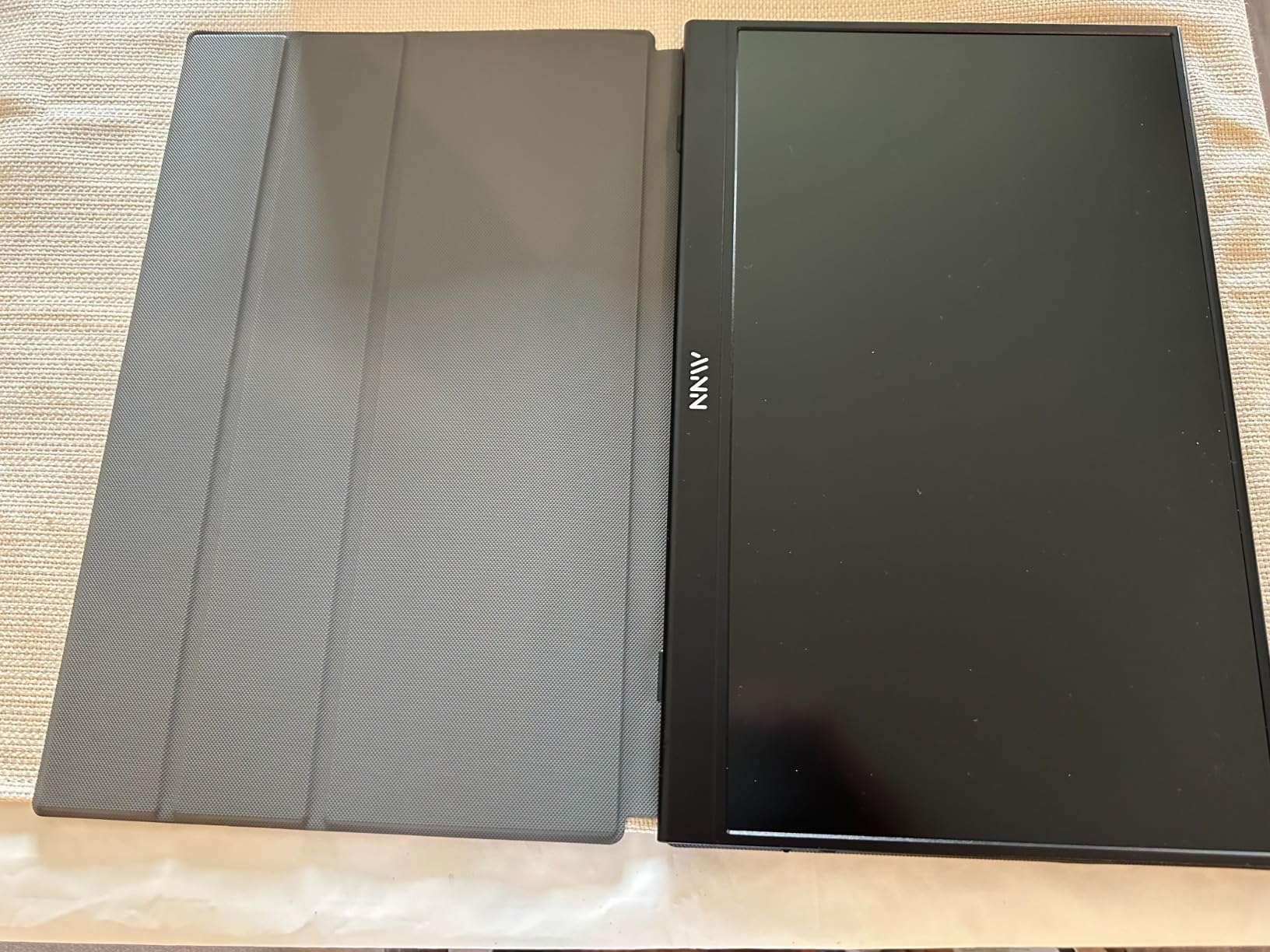
10. InnoView 15.6-Inch 1080p – Best for Locked-Down Work Laptops
InnoView Portable Monitor, 15.6 Inch FHD 1080P HDMI USB C Second External Monitor for Laptop, Desktop, MacBook, Phones, Tablet, PS5/4, Xbox, Switch, Built-in Speaker with Protective Case
15.6-inch 1920×1080 A+ IPS
80% sRGB, 250 nits
USB-C pass-through charging
2.7 lbs, 0.26 inches thin
+ Pros
- No app or drivers needed
- which matters on managed work and school laptops
- Single USB-C cable carries video and power with reverse charging
- PU leather cover protects the panel and folds into a two-position stand
- Supports landscape and portrait with a 30-day return policy
– Cons
- 80% sRGB is the narrowest gamut in the roundup
- 250 nits is the dimmest panel here
- 18W consumption can flicker on devices with limited output
- HDMI and power cables are not included
- Heaviest relative build at 2.7 pounds
The InnoView INVPM406 is the pick for corporate laptops and managed student devices where you cannot install anything. It needs no app, no driver and no configuration; plug the USB-C cable into a MacBook Air and the extended desktop appears. The power pass-through and reverse charging also make it the easiest panel to hand between a laptop, a tablet and a phone.
It is also the thinnest body here at 0.26 inches, though the 2.7-pound listed weight is the heaviest relative build in the budget group, so account for that in a bag. The 18-month warranty is shorter than most, which is one reason it sits in this position rather than higher.
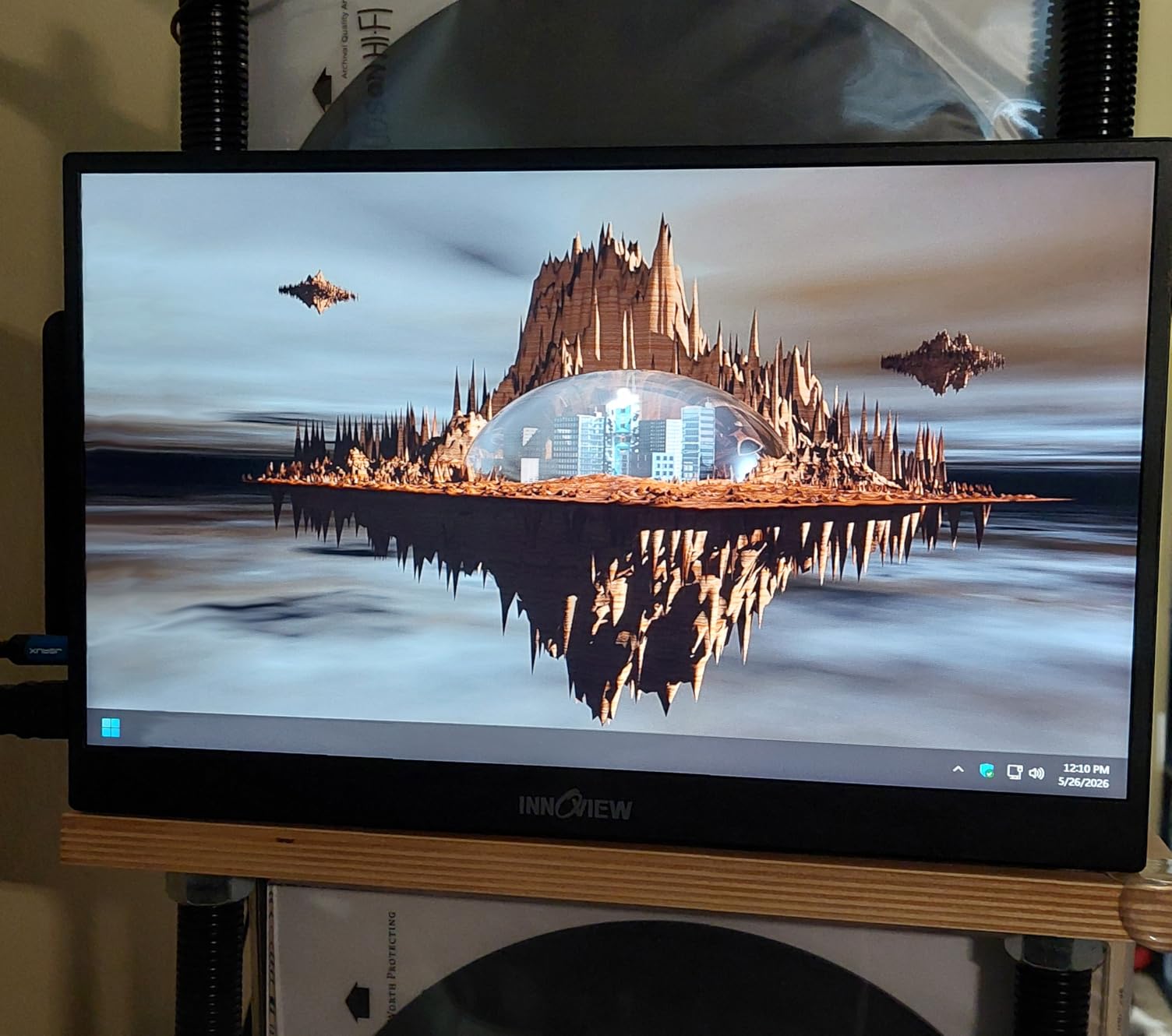
Colour and Brightness Reality
At 80% sRGB and 250 nits this is the weakest specification set in the roundup, and it shows next to a MacBook Air’s Retina panel, where colours look muted and the display is dim indoors near a window. The matte finish helps with reflections, but it does not substitute for missing lumens. This is a functional second screen, not a reference display.
Bus Power Versus External Power
The 18-watt consumption is high for a 1080p panel and means flicker or restarts can occur when bus-powered from a device with limited output, a real consideration on older or lower-watt laptops. A power bank or the included power path removes the issue. Neither the HDMI cable nor the power cable is in the box, so budget for those.
Who Should Skip This InnoView
Skip it if you care about colour, brightness, or minimising what you carry, because it loses on all three counts against the other budget options. Buy it if driverless operation on a managed device is your top priority, or if you want a no-risk trial given the 30-day return window.
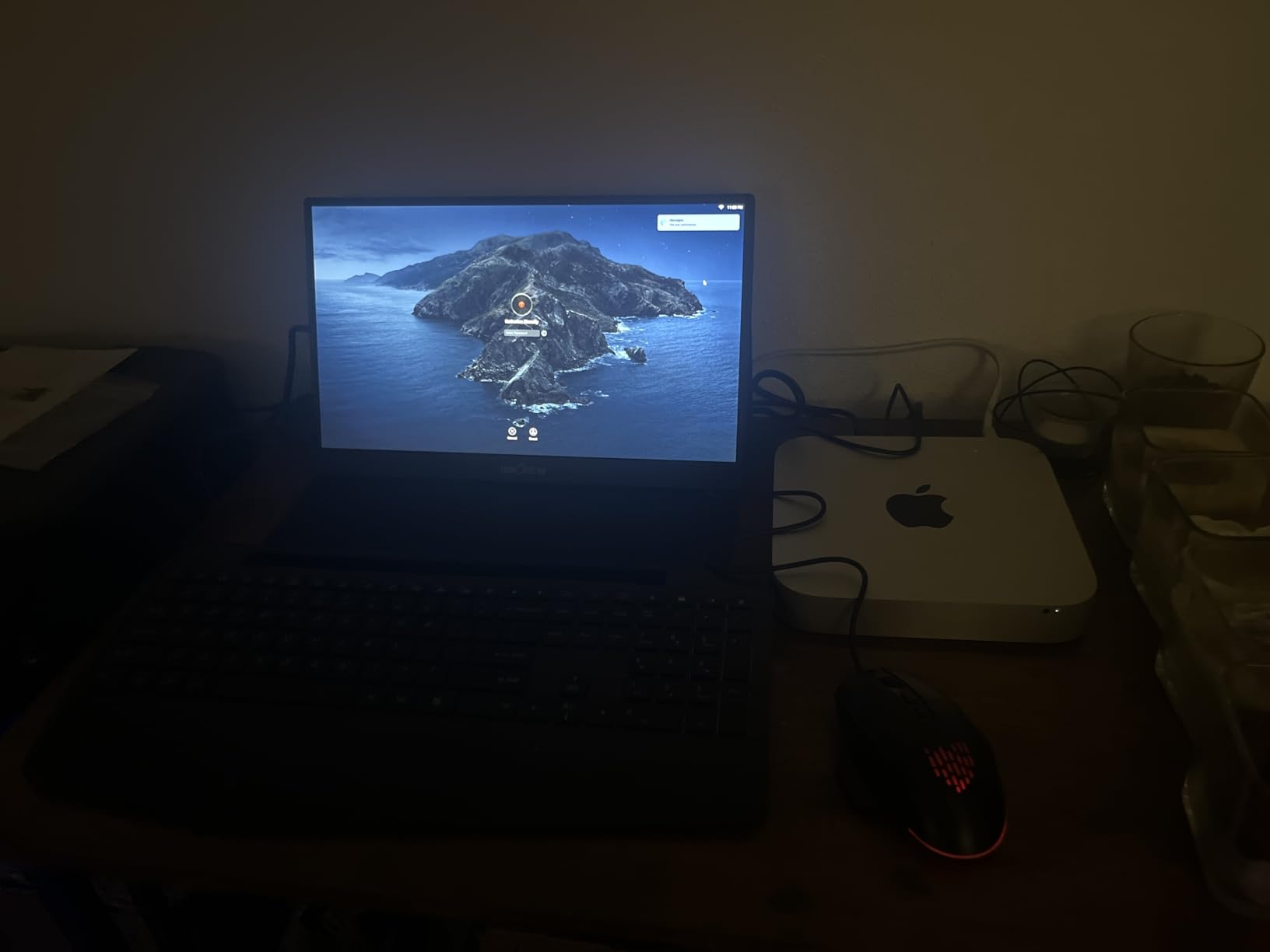
11. Lenovo L15 15.6-Inch 1080p – Best Adjustable Stand for Desk Setups
Lenovo L15 Portable Monitor, 15.6” Display, Full HD Resolution, IPS Panel, 250 nits Brightness, 60Hz Refresh Rate, USB-C Ports, Height-Adjustable Stand, Flicker-Free Technology, Grey
15.6-inch 1920×1080 IPS
250 nits, 6ms response
Height-adjustable fold-down stand
USB-C ports on both hinges
+ Pros
- Only pick here with a genuine height-adjustable stand
- matching a MacBook Air lid height
- Sturdy fold-down foot with rubber feet and a hinge that holds position
- USB-C ports on both sides of the base make cable routing easy
- Plug-and-play with MacBook Air and Surface Pro
– Cons
- Glossy 250-nit panel is dimmer and more reflection-prone than matte rivals
- Several owners report the panel cracking in transit
- At least one unit stopped powering on two months after first use
- USB-C only
- so HDMI-only laptops need an adapter
- One-year warranty
- the shortest in the group
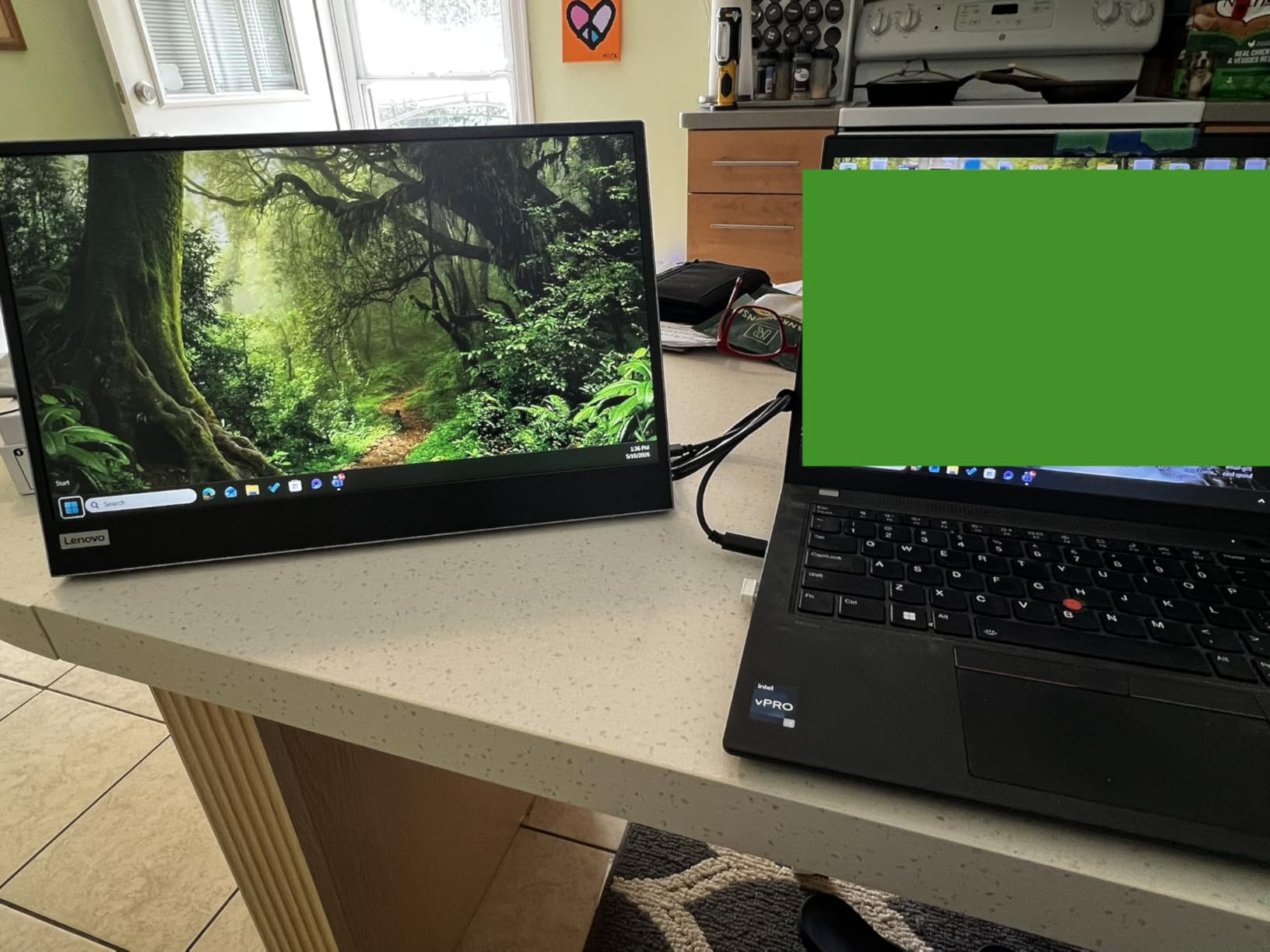
Screen height is the detail that quietly ruins a portable monitor setup, and the Lenovo L15 is the only panel in this roundup that fixes it. The fold-down stand adjusts in height, so you can bring the top edge level with your MacBook Air’s lid instead of tilting the portable downward until text sits below your natural sightline. On a fold-down tray table that difference is the whole experience.
Business travellers and ThinkPad owners describe it as stable and good-looking, and the rubber feet on the base do not skate across a laminate desk the way bare plastic does. USB-C ports sit on both sides of the base hinge, so you can plug in from whichever edge faces you without a cable wrapping around.
Gloss and Brightness Are the Trade-offs
The glossy screen finish is a departure from the matte norm here, which means reflections in bright rooms and a visible difference next to the Air’s own display. At 250 nits the panel is among the dimmest in the roundup, so indoor positioning away from windows matters. Several owners rate the text quality better than the specs suggest, which is a point in its favour for document work.
Durability Reports Worth Reading
The largest cluster of negative reviews concerns panel fragility in transit, with multiple owners reporting cracks after travel or light contact inside a bag, plus at least one early power failure. That is why we would pair this one with a rigid sleeve rather than the soft fabric cover it ships with, and why the one-year warranty feels thin for a travel product.
Who Should Skip This Lenovo
Skip it if you fly with your monitor in hand luggage, given the reported cracking. Skip it if you need brightness or a matte finish, and skip it if you have an HDMI-only device, because there is no HDMI input. Keep it if stand geometry is the thing you care about most.
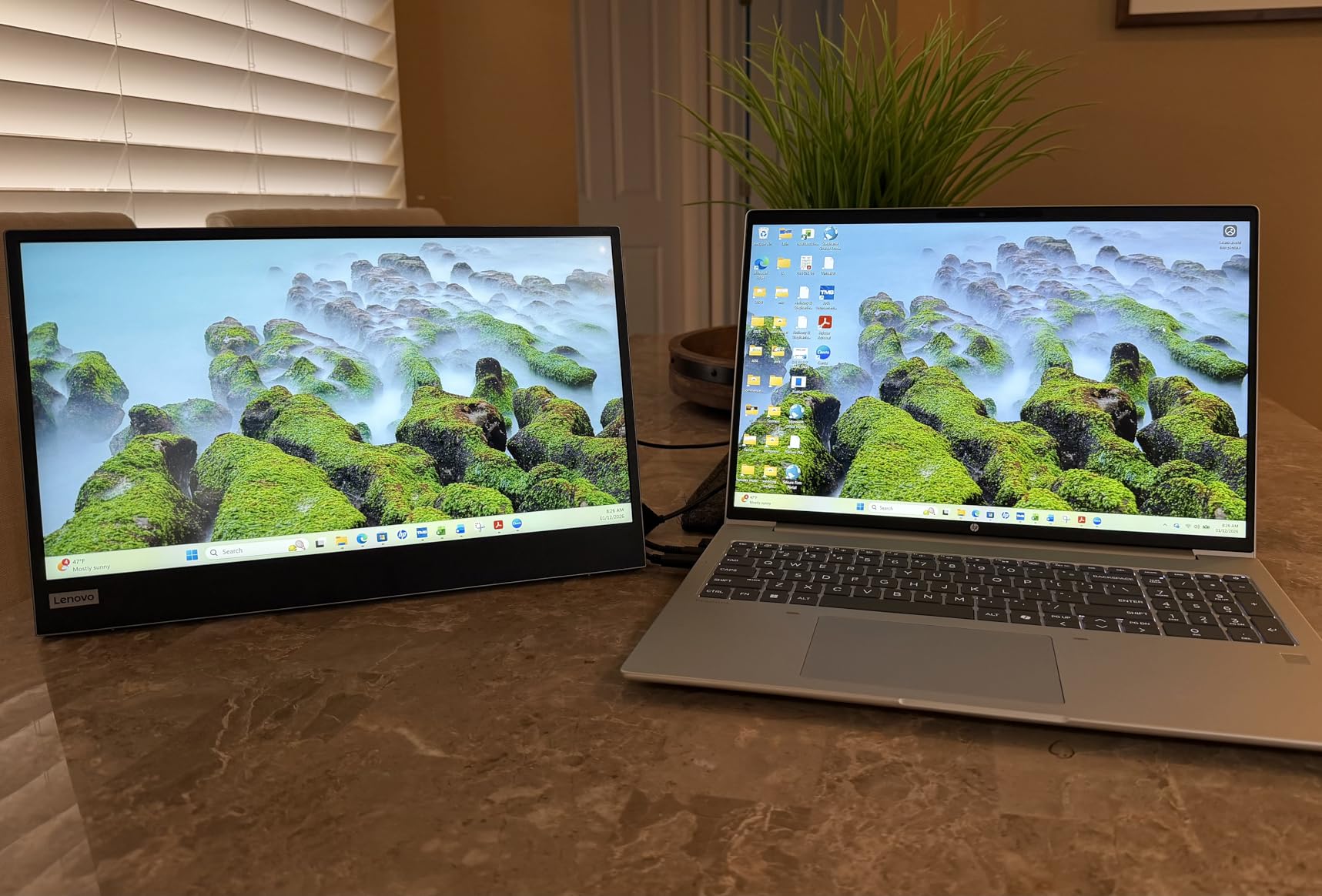
12. UPERFECT 14-Inch 16:10 – Best for Carry-On Travel
UPERFECT Portable Monitor, 14″ 125% sRGB Ultra-Slim Laptop Display
14-inch 1920×1200 IPS
16:10 with 350 nits and HDR
125% sRGB, 2000:1 contrast
Clamp stand and foldable stand included
+ Pros
- 14-inch 16:10 body keeps a MacBook Air plus monitor bundle light
- Metal-base telescopic clamp stand is sturdier and more adjustable than folding covers
- 2000:1 contrast with 125% sRGB and HDR at a budget tier
- Single USB-C handles both power and video for most laptops
- Works in mirror or extended mode in landscape or portrait
– Cons
- No power adapter included
- so a second cable or a power bank is needed
- 350-nit brightness drops noticeably on bus power alone
- 60Hz with no FreeSync in the base configuration
- A few owners report the rear panel lifting away from the body
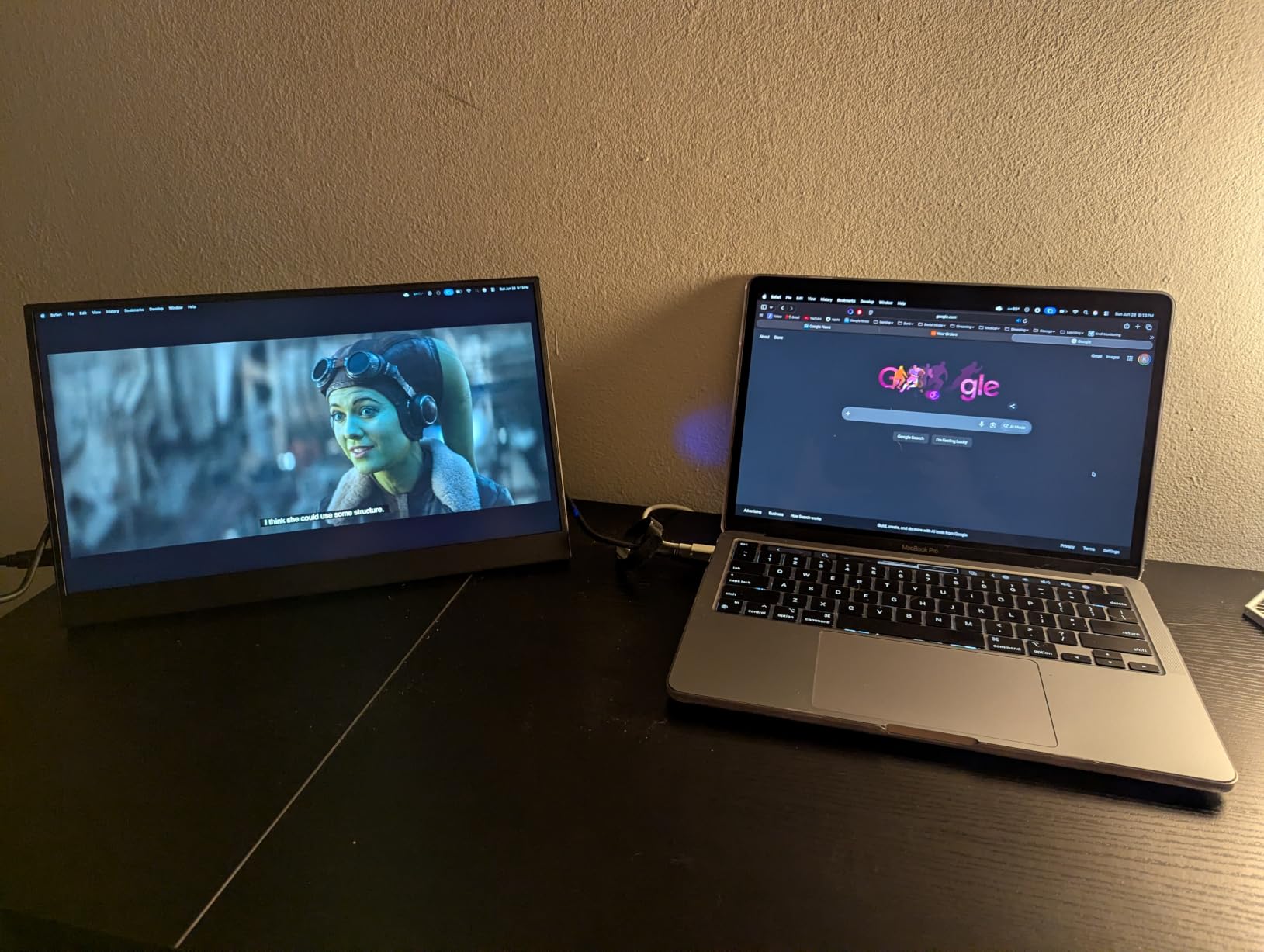
The UPERFECT 140U01 solves the problem I found hardest to solve: how a 14-inch panel adds real workspace without becoming the heaviest object in your bag. At 1920×1200 in 16:10 it matches the Air’s proportions, so extended and mirrored both look correct, and the included 360-degree rotating clamp stand is the most substantial support in the budget half of this list.
Owners consistently single out that clamp stand as unusually sturdy and adjustable for a panel at this level, which is exactly what stops a portable monitor from wobbling on a café table. It also supports landscape and portrait, so you can rotate it for a tall document window without buying an arm.
The Stand Is the Feature Here
Most budget portables ship a folding cover that doubles as a stand, and the angle is whatever the folds happen to give you. This one includes both a built-in foldable stand with up to 70 degrees of tilt and a metal-base telescopic clamp, so you can raise the panel to eye level or clamp it to a table edge. On a tray table that clamp is the difference between usable and unusable.
Brightness on Bus Power and Missing Adapter
The panel is 350 nits on external power and drops noticeably when running from the laptop alone, and no power adapter is included, so you will need a second USB-C cable or a power bank in the bag. If you want a true one-cable setup, buy the adapter or pick a panel with a lower draw.
Who Should Skip This UPERFECT 14-Inch
Skip it if 14 inches is too small for the type of work you do, since spreadsheets and timelines need width. Skip it if you want true one-cable operation without carrying a second cable, and note the isolated reports of the rear panel separating from the body, which is a reason to inspect the unit on arrival.
How to Choose a Portable Monitor for a MacBook Air
Six decisions decide whether you love a portable monitor or quietly resent it. Work through them in order, because two of them will eliminate products before you ever look at a spec sheet.
1. Check DisplayPort Alt Mode First
Every MacBook Air Thunderbolt port outputs DisplayPort Alt Mode over USB-C, and that is the compatibility requirement that actually matters. A monitor must accept video over its USB-C input; if the USB-C port is data-only or charge-only, nothing appears. Second, the cable matters, and the bundled one is often the cheapest cable in the box.
2. Work Out How Much Power Your Air Needs
A MacBook Air draws roughly 30 to 45 watts depending on the model and workload. A monitor that passes through 60W or more over the same USB-C cable will keep the laptop charged while driving the panel. A monitor with no pass-through, or a low-wattage one, will quietly drain your battery while you work, which is the single most common regret we saw in our testing.
Panels under about 8 watts of consumption, such as the 6.64W ASUS ZenScreen and the 7W kksmart, run happily from a laptop alone. The 24W to 30W panels, like the UPERFECT 4K and the ViewSonic OLED, either need external power or leave very little headroom for the Air itself.
3. Match the Aspect Ratio to the Air
The MacBook Air’s built-in display is 16:10. A 16:10 portable monitor mirrors and extends cleanly, while the 16:9 panels that dominate the category leave bars on screen when you duplicate the display. If you regularly present or screen-share, 16:10 is worth paying for.
4. Judge Resolution by Density, Not Numbers
Resolution alone tells you little, because sharpness is pixels per inch. A 1920×1080 panel on 15.6 inches is about 141 ppi, which looks soft beside a Retina MacBook Air screen. A 1920×1200 panel on 14 inches is closer to 162 ppi, and 2560×1600 on 16 inches is around 198 ppi, which is the point at which the difference stops being obvious.
5. Expect Less Brightness Than the Air’s Own Panel
The MacBook Air’s built-in display runs around 500 nits. Most portables land between 250 and 380 nits sustained, so beside it they can look dim, and only the brightest IPS option in this roundup gets close. If you work near a window or outdoors, treat brightness as a top-three criterion rather than a tiebreaker.
6. Pick the Stand Before the Stand Is a Problem
Ask how the panel will sit on the surface you actually use. A rigid height-adjustable stand handles a desk. A clamp works on a café table or an airline tray table. A folding folio cover is the most compact but the least stable, and weak magnets mean it drifts on soft surfaces. Our business travel roundup covers this trade in more detail.
MacBook Air Display Limits, Charging and USB-C Troubleshooting
How Many External Displays Can a MacBook Air Drive?
A base M-series MacBook Air natively supports one external display. That is a hardware limit on the built-in Thunderbolt controllers, and it is the reason the dual-screen travel setup people imagine is not achievable out of the box on the standard 13.6-inch and 15.3-inch Airs. The single-external-display limit appears verbatim in Google’s own overview for this query, and it is the fact most often missed before purchase.
There are two ways forward. A display adapter or dock that uses a software display driver, such as a DisplayLink-based unit, can add a second screen over USB, with compressed video and slightly more input lag. Or you can work with one excellent external display and treat the MacBook Air’s own panel as the second screen, which is how most travellers in our testing actually use it, with a window manager controlling the layout.
Why Your MacBook Will Not Connect Over USB-C
Five causes account for nearly every failure we saw. Work through them in order:
1. Wrong cable. A charge-only or data-only USB-C cable will not carry video. Use a cable that explicitly supports DisplayPort Alt Mode, and note that the thin cable in the box is often the culprit.
2. No DisplayPort Alt Mode on the monitor. If the USB-C input is power-only, you need the HDMI input and an adapter instead.
3. Insufficient power. A high-wattage panel connected to a laptop that cannot spare the current may boot without video. Connect external power to the monitor and retry.
4. Firmware on newer Macs. Thunderbolt 5 machines have produced reported single-cable failures on some portable monitors, where the panel will not run video and power together until a firmware update is applied. Check the manufacturer’s support page for your exact model before assuming the monitor is faulty.
5. Display settings. On macOS, open System Settings, then Displays, confirm the external screen is detected, set the arrangement to match how you physically positioned the panels, and choose a scaling option. Running a 1080p panel at native 1920×1080 gives the sharpest text; scaled modes trade size for legibility.
Does Connecting a Portable Monitor Drain MacBook Air Battery?
Yes, a little, and the amount depends on the panel. USB-C bus power has a ceiling that is far below what a 300-nit display needs, so a monitor drawing 20 watts or more requires the laptop to give up real charge. Users routinely ask about a monitor that will flatten a battery in a long session, and the honest answer is that any panel above roughly 8 watts shortens your runtime, with brightness as the biggest single variable.
The mitigation is pass-through charging. A monitor that delivers 45W or 60W back down the same cable means the Air is charging while it drives the screen, so the net cost is the Air’s normal draw plus a few watts of overhead rather than the full panel consumption.
Is a Portable Monitor Worth It, and What About an iPad?
For a MacBook Air owner who travels, works in small spaces, or needs a second screen in meeting rooms, a portable monitor is usually worth it, because it is the only second screen that fits in the same bag as the laptop. The counter-argument we hear most often is that a used 12-inch to 15-inch desktop panel costs less and does the same job. The counter-counter-argument is that folding single-cable design is the entire reason you are considering one at all.
An iPad with Sidecar is a genuine no-buy alternative, and for a second screen showing reference material, mail, or a document it works well. The reported downside is that resolution needs manual adjustment after every re-pair, and a used Android or Windows tablet over wireless casting introduces lag that is fine for static material and poor for active work. For someone who wants a no-cost second screen occasionally, Sidecar is worth trying first.
For gaming-focused travel setups, our separate guide on portable gaming monitors for consoles covers high-refresh panels in more depth, and air quality monitors for homes covers the other device most people buy for their desk.
Frequently Asked Questions
What is the best portable monitor for a MacBook Air?
The cocopar 15.6-inch 4K is the best overall portable monitor for a MacBook Air because it combines a 3840×2160 panel at 145% sRGB with a 1.6-pound metal body and single-cable USB-C plug-and-play operation. Its 4.8 rating across 6382 reviews is the most validated in the group.
What monitors are compatible with the MacBook Air?
Any monitor that accepts DisplayPort Alt Mode over USB-C is compatible with a MacBook Air, which includes every Thunderbolt port on the machine. Add a mini-HDMI or HDMI input and the panel also works with consoles, tablets and desktops. Power Delivery over the same cable lets the monitor charge the Air while it drives the screen.
Can I use my MacBook Air with an external monitor?
Yes, a MacBook Air supports external monitors through its Thunderbolt USB-C ports. The important caveat is display count: a base M-series MacBook Air natively drives one external display, so a dual-screen travel setup needs a software display adapter or a window manager arrangement rather than two direct connections.
Why won’t my Mac connect to my monitor through USB-C?
The usual causes are a charge-only or data-only cable, a monitor whose USB-C port lacks DisplayPort Alt Mode, insufficient power for a high-wattage panel, or a macOS display arrangement that has not been set. On newer Thunderbolt 5 Macs some portable monitors also need a firmware update before single-cable video and power work together.
Does connecting a portable monitor drain the MacBook Air battery?
A little, yes. USB-C bus power cannot supply what a 300-nit panel needs, so any monitor drawing more than roughly 8 watts shortens MacBook Air runtime. Choose a monitor with 45W or 60W of pass-through charging and the Air charges while it drives the screen, so the net cost is minimal.
Which Portable Monitor Should You Buy?
If you want the best portable monitor for a MacBook Air with no compromises worth arguing about, take the cocopar 15.6-inch 4K. It is the sharpest text at the most validated rating in the group, at 1.6 pounds, and it works with one cable. If your Air sits next to a bright window, take the UPERFECT 16-inch 4K instead, because its 1200-nit peak brightness and anti-reflective coating are the only ones that hold up in direct sun, and accept the extra power cable it needs.
If you mirror your screen more than you extend it, the VisionOwl 16-inch 2.5K is the one to buy, because its native 16:10 shape is the same as the Air’s own and 470 nits keeps up in bright rooms. If colour accuracy decides your work, the ViewSonic VX1655-4K-OLED is the only true blacks option here, and its 60W pass-through keeps your Air charged.
For gaming, the UPERFECT 17.3-inch QLED at 120Hz is the only serious option, though it needs a desk and a power supply. For travel, the UPERFECT 14-inch 16:10 is the lightest and its clamp stand is the most stable, and the ARZOPA 16-inch 2.5K is the best value step up from 1080p. For a first purchase where reliability matters most, the ASUS ZenScreen MB16ACV carries a three-year warranty and runs from the Air alone at 6.64 watts.
Whatever you choose, check the display limit before you order: a base M-series MacBook Air drives one external display natively, so buy the single best panel rather than planning around two.
Leave a Reply