
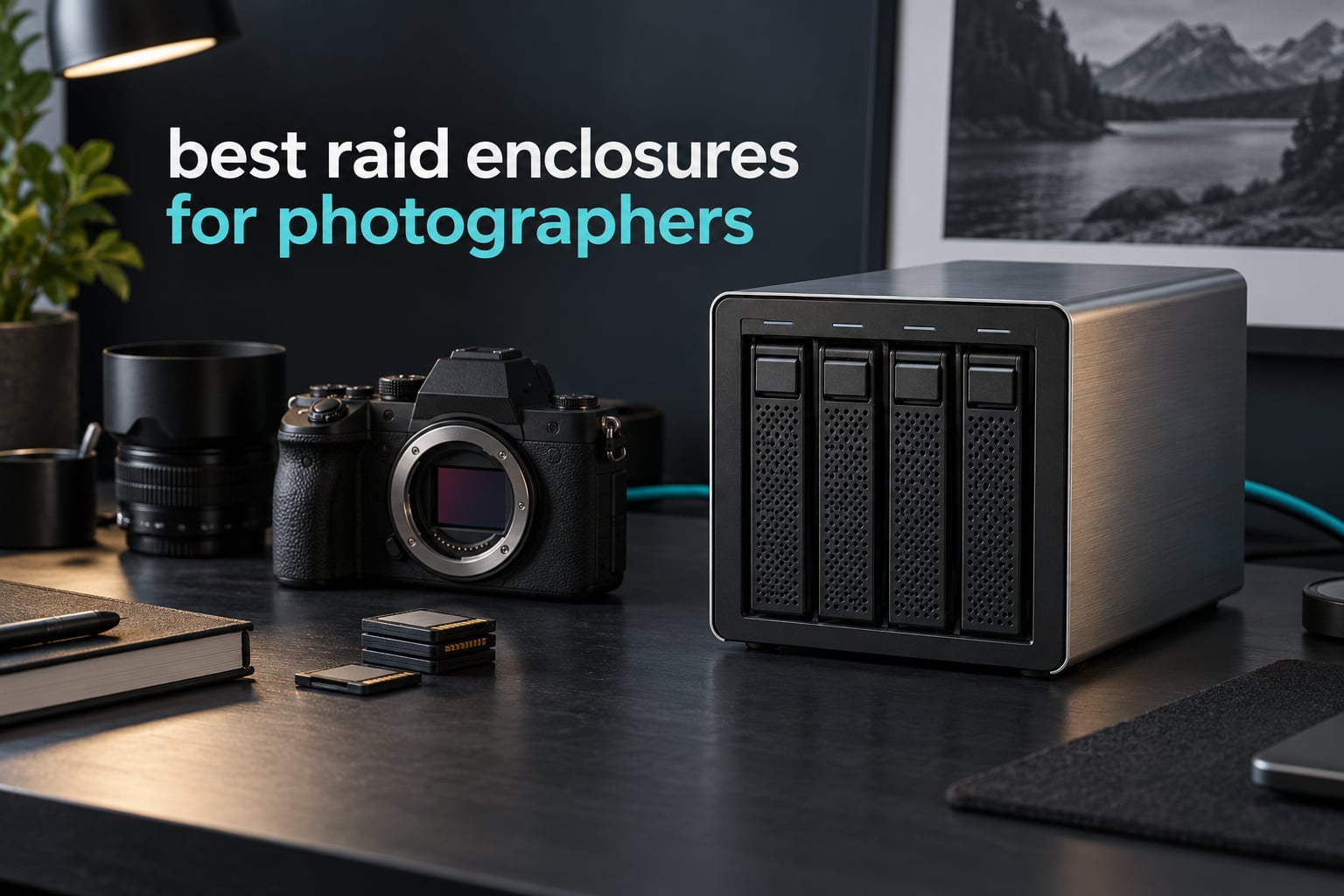
Choosing the best RAID enclosures for photographers comes down to one uncomfortable fact: every shoot you deliver is a set of single files that exist nowhere else. One card fails, one drive dies, one enclosure controller gives out, and years of billable work are gone. I have assembled ten direct attached storage enclosures, compared their bay counts, RAID levels, sustained throughput and warranty terms, and broken down exactly which photographer each one suits.
Before the picks, here is what most roundups skip. RAID is not a backup. A RAID array protects you from a single drive failure and nothing else. Fire, flood, theft, accidental deletion, a dead controller and ransomware all take the whole array with them. If you take one thing from this guide, take the 3-2-1 rule: three copies of your images, on two different types of media, with one copy kept somewhere you are not.
I have also left out the fluff. Several competing lists pad their rankings with single-drive portable SSDs that have nothing to do with RAID at all. Everything below is a genuine multi-bay array that combines two or more drives into one volume, and every speed figure is the sustained number from the manufacturer or from reported real-world testing rather than a burst figure pulled from a spec sheet.
RAID Is Not a Backup: The Rule That Comes Before Any Purchase
RAID exists to keep a working volume available when a disk dies. That is all. It is an availability tool, not an archive, and it should never be the only place your photographs exist. The framing matters more in photography than in almost any other field, because unlike a database or a build server, a lost RAW file cannot be regenerated.
The 3-2-1 rule applied to a photo archive
The rule is simple enough to write on a sticky note and post above your desk.
Three means three independent copies. Your working array counts as one. Your offsite or cloud copy is the second. Your cold spare sitting in a drawer, or your delivered archive on a client drive, is the third.
Two means two different media types. An array of spinning disks plus a cloud bucket qualifies. Two copies on two partitions of the same four-disk array does not, because a controller failure or a dropped array takes both at once.
One means one copy that is genuinely off the premises. Syncing to a drive inside the same studio is a mirror, not a backup. Photographers who follow the rule report the same relief every time: the array stops being a source of anxiety and goes back to being a tool.
That offsite copy also has to physically travel somewhere. A drive left in the same vehicle as the camera body is one accident away from gone, which is why our camera backpack picks for photographers are worth checking before a multi-day location shoot.
Hardware RAID versus SoftRAID versus OS RAID: what happens when the controller dies
This is the failure mode almost no roundup covers, and it is the one that should influence your purchase most.
In a hardware RAID enclosure, a chip inside the box owns the array. If that chip dies, your drives may still contain every byte of your photographs, but the array metadata needed to reassemble them lives on the failed controller. Recovery then requires an identical enclosure or a specialist data recovery service. Data-storage forum regulars raise this exact risk repeatedly, and many of them deliberately avoid hardware RAID boxes for irreplaceable data, preferring host-controlled or NAS-based arrays where the filesystem metadata is readable by any machine.
SoftRAID, bundled with some enclosures here, moves the array logic to your operating system. The downside is setup friction and the loss of hot-swap guarantees during rebuilds. The upside is real: if the box dies, you can move the drives to another machine and rebuild the array with the same software. That recoverability argument is the single strongest reason Mac-centric photographers often choose software RAID boxes over cheaper hardware RAID competitors.
Whichever route you pick, the mitigation is the same and it is cheap. Document your RAID level and drive order, keep the original array configuration notes somewhere offline, and hold a cold spare of an identical capacity drive on the shelf.
Why you should never edit a Lightroom catalog off a NAS
Network attached storage is excellent for an archive and wrong for scratch. Lightroom and Capture One both scatter small database writes across the working volume, and those writes are latency-sensitive. Over a network, each one waits on a round trip, and you feel it as a spinning beach ball every time you switch views or commit an edit.
The working pattern that holds up is simple: a fast direct attached enclosure for the catalog and the current shoot, plus a NAS or cloud service as the archive that runs in the background. If you already run a NAS, our picks for NAS drives built for photographers are worth a look before you size the archive side.
Our Top 3 Best RAID Enclosures for Photographers in 2026
We picked these three as the strongest combination of rating, review volume and specification. The QNAP TR-004 leads because it carries the largest review base in the roundup and a flexible hardware controller. The OWC ThunderBay 4 leads on speed. The ORICO four-bay leads on features per bay.

Comparing All 10 RAID Enclosures Side by Side
Every enclosure below is a genuine multi-bay RAID chassis. Note that several arrive diskless, which means you are buying four or eight drives separately, and that the fastest Thunderbolt numbers assume a host with a Thunderbolt port.
| Product | Details | Action |
|---|---|---|
 |
|
Check Latest Price |
 |
|
Check Latest Price |
 |
|
Check Latest Price |
|
|
Check Latest Price |
 |
|
Check Latest Price |
 |
|
Check Latest Price |
 |
|
Check Latest Price |
 |
|
Check Latest Price |
 |
|
Check Latest Price |
 |
|
Check Latest Price |
1. QNAP TR-004 – The Most Forgiving Four-Bay Array for Everyday Photo Work
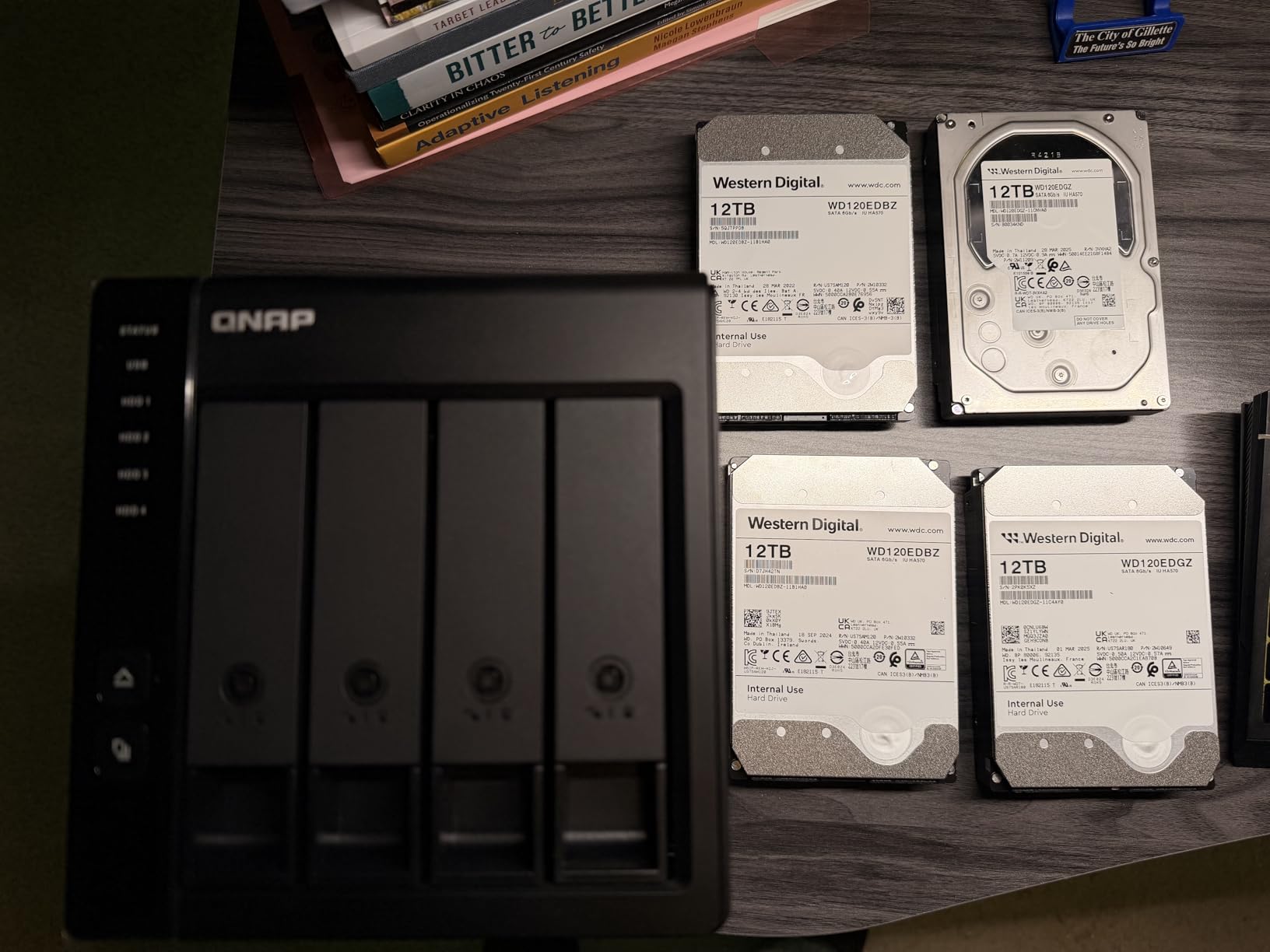
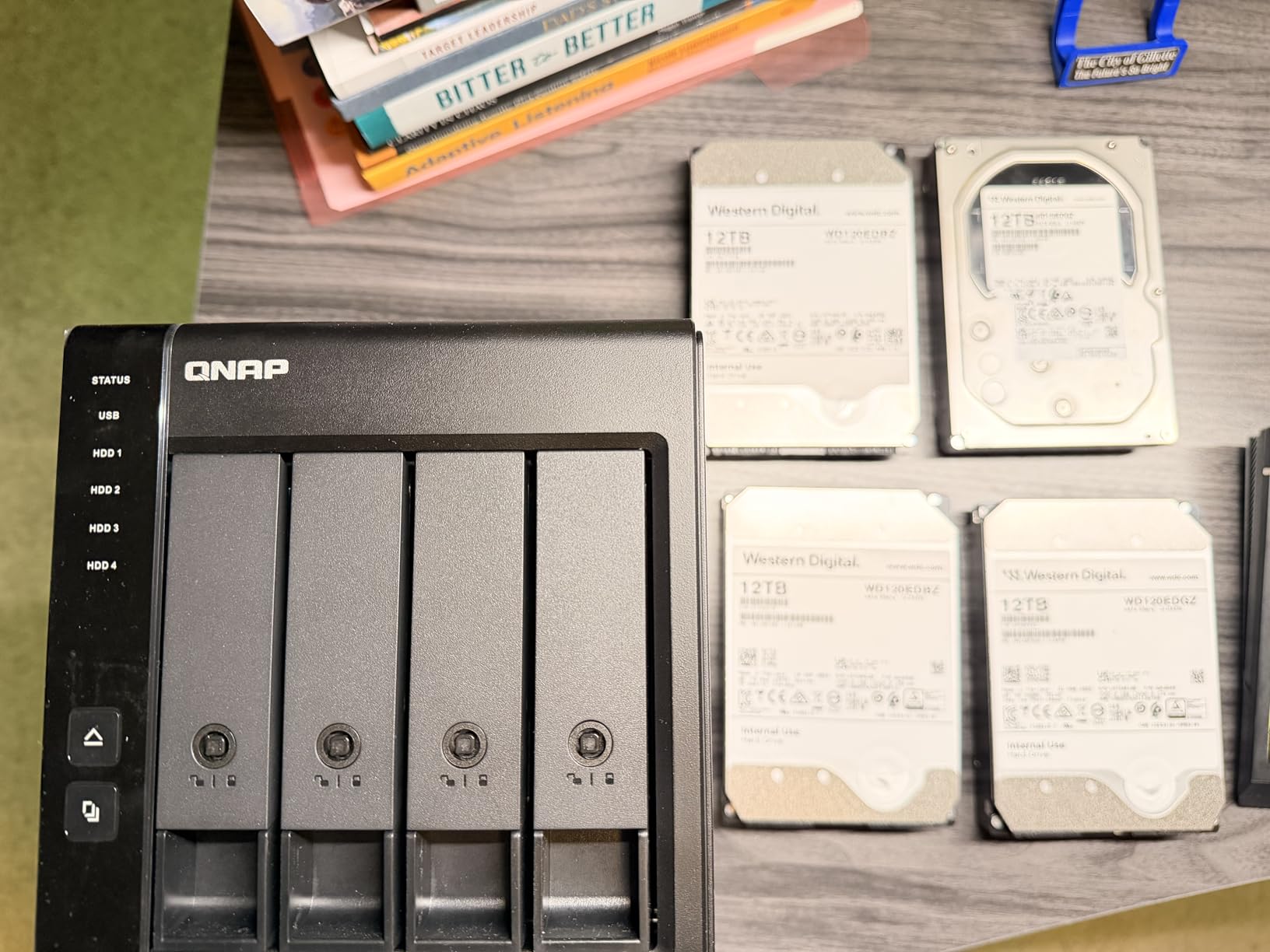
QNAP TR-004 4 Bay USB Type-C Direct Attached Storage (DAS) with hardware RAID (Diskless)
4 x 3.5-inch SATA bays
USB Type-C at 5Gbps
Hardware RAID 0, 1, 5, JBOD and individual disks
2 year warranty
+ Pros
- Hardware RAID controller with 0
- 1
- 5
- JBOD and single-disk modes
- Metal compact four-bay chassis with lockable drive trays
- Doubles as standalone DAS
- NAS backup target or QNAP expansion unit
- Largest review base in this roundup at 652 reviews
– Cons
- USB Type-C bandwidth caps throughput below Thunderbolt enclosures
- Arrays cannot be merged into an existing QNAP NAS pool
- Arrays are not portable to other devices or NAS models
- No hot-swap
- card reader or display output
This is the box I keep coming back to. It has 652 reviews behind it, which sounds unremarkable until you look at the rest of the field, where several enclosures are carrying fewer than 20. That volume of real ownership history means the failure modes are documented rather than hypothetical, and it arrived at a review average of 4.2 out of 5.
The controller is the reason most photographers land here. It handles RAID 0, RAID 1, RAID 5 and JBOD, plus individual disks, and the selection happens in firmware rather than through host software. For a working library where you want RAID 5 across four drives, that is a clean setup path with no licence to buy and no driver to install.
Owners also use it as a camera-card offload and backup target, which is a smart dual purpose. Fill it with four matching CMR drives in RAID 5, copy a card to it twice before you wipe the card, and you have a verified second copy on arrival back at base.
What the USB Type-C ceiling really costs you
The TR-004 runs at 5Gbps over USB Type-C, and the listed media speed is 375MB/s. That ceiling is the price of the flexibility. A Thunderbolt enclosure can push past 1500MB/s, but it needs a Thunderbolt host and a direct connection.
For RAW libraries and card offload, 5Gbps is genuinely adequate. Four spinning drives at 7200RPM will not feed a 5Gbps port anyway. It becomes the wrong choice only if you are cutting 8K ProRes and pulling multi-stream footage straight off the array.
Hardware RAID 5 across four matching drives
RAID 5 across four bays gives you the usable capacity of three drives with tolerance for one failure. That is the configuration most photographers should run here, and it is exactly why this box belongs on a shortlist for a photo archive while two-bay options do not.
The metadata lives on the enclosure controller, so treat the array notes seriously. Write down the drive order and the RAID level, and hold one identical cold spare. Rebuilds on four large drives take hours, and you do not want to discover during that window that you cannot remember which bay was which.
Where it fits into a QNAP studio, and where it does not
Reviewers highlight that it works three ways: standalone over USB, as a backup target for a QNAP NAS, or as an expansion unit for one. That flexibility is real and useful in a small studio that already runs QNAP hardware.
The limitation is equally clear. An array built in the TR-004 cannot be merged into an existing QNAP NAS pool or volume, and it cannot be migrated to another TR-004 or a NAS model. If you expect to fold this array into a larger system later, plan for that now rather than later.
Its lockable drive bays are an underrated detail for anyone whose array lives in a shared space, and the metal chassis is small enough to sit beside a desktop rather than under it.
2. LaCie 2big Dock RAID 8TB – Built-In Card Readers for Tethered Offload
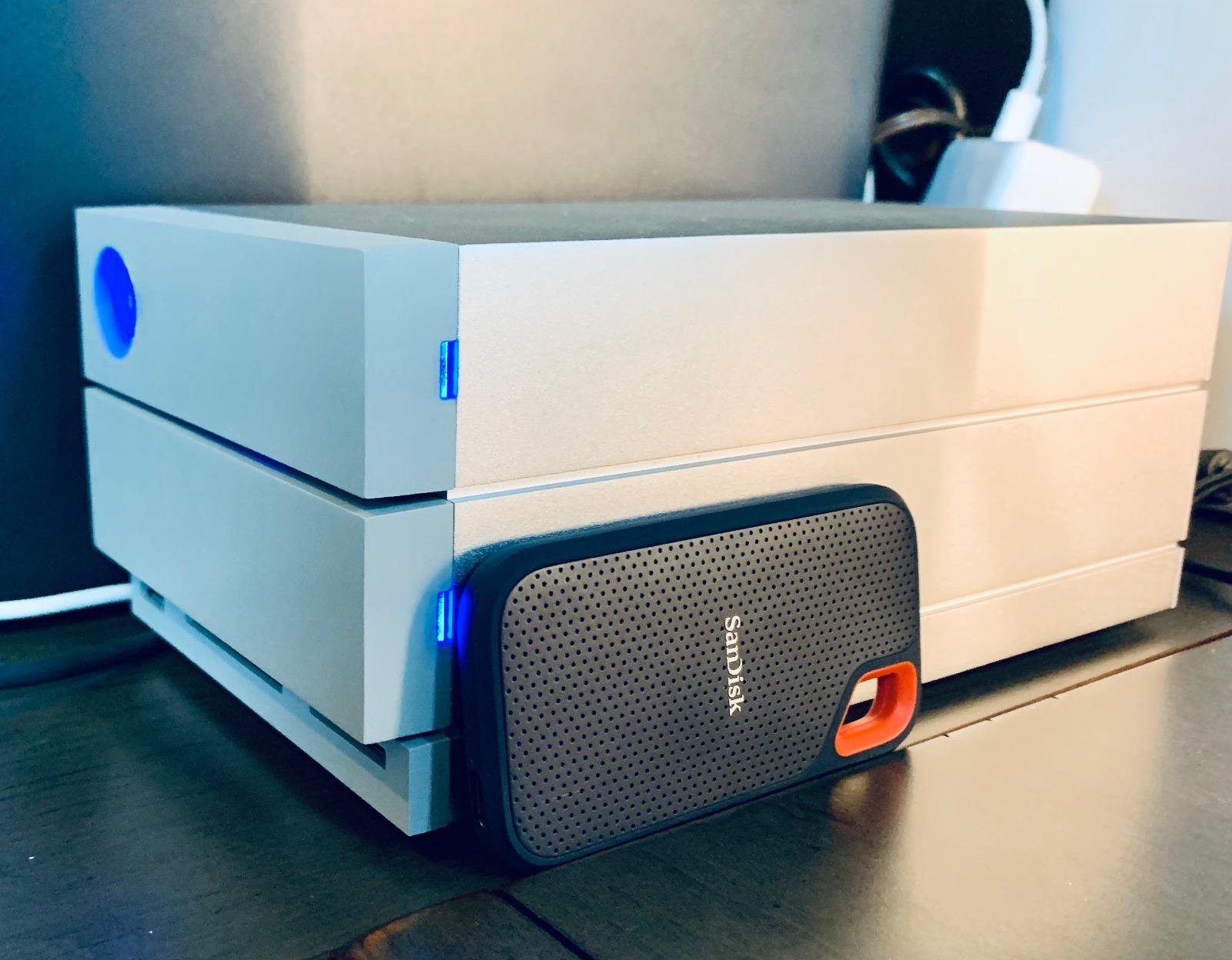
LaCie 2big Dock RAID 8TB External RAID Hard Drive HDD with SD Card CF Card Slots, for Mac and PC Desktop Data Redundancy Thunderbolt 3 USB-C USB 3.0, 1 Month Adobe CC, Data Recovery (STGB8000400)
2 bays with hot-swappable IronWolf Pro drives
Thunderbolt 3 plus DisplayPort
SD and CF card slots, USB 3.0 hub
Speeds up to 440MB/s
+ Pros
- SD and CF card slots alongside Thunderbolt
- a USB hub and DisplayPort
- Populated with hot-swappable IronWolf Pro enterprise drives
- Dual Thunderbolt 3 ports and a USB hub for a one-cable workflow
- Five-year warranty with Rescue recovery services included
– Cons
- Fixed capacity with no upgrade path
- RAID limited to 0 and 1 only
- Realised throughput often below the 440MB/s claim
- 19 percent of reviews are one-star
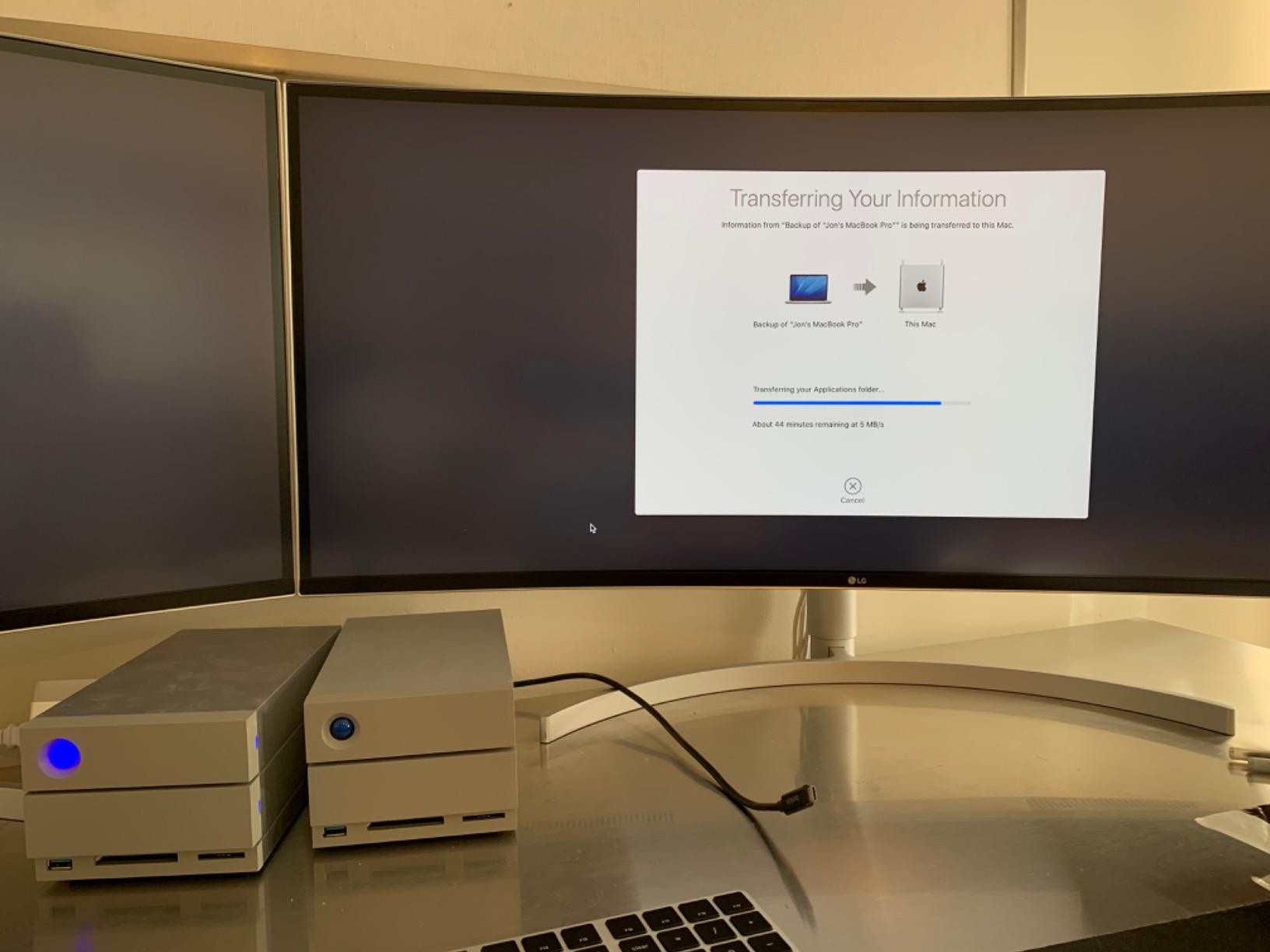
The LaCie 2big Dock is the only enclosure in this roundup with both SD and CF card slots built into the chassis, alongside a Thunderbolt dock, a USB hub and DisplayPort in the same box. If you shoot on a body that writes to both, you can go from card to mirrored array without a separate reader, a second cable or a second device sitting in the middle of the desk.
It arrives populated with hot-swappable IronWolf Pro enterprise-class drives, so there is no assembly and no sourcing step. That matters for photographers who are not confident picking NAS-rated drives, and for anyone who wants a working ingest station the same afternoon the box arrives.
The rest of the dock is built around a laptop-first workflow: dual Thunderbolt 3 ports for daisy chaining, a USB 3.0 hub for charging and offloading, and DisplayPort for driving a high-resolution monitor from one cable.
RAID 0 and RAID 1 only, and what that means for an archive
The step-by-step wizard configures RAID 0 or RAID 1. There is no RAID 5 and no JBOD. For a two-bay box that is not a technical failure, it is a design limit, but it does mean this cannot be your only archive.
In RAID 1 it writes two copies of everything, which is genuinely valuable on location. The moment a card leaves the camera, you have two copies on spinning disks before the card is formatted. In RAID 0 it gives you roughly 440MB/s of speed but zero tolerance, and for that reason RAID 0 should never hold the only version of a client shoot.
Real-world speed versus the 440MB/s headline
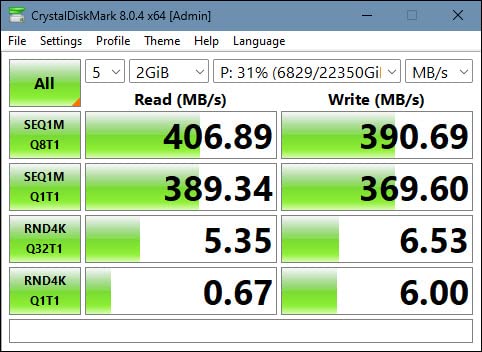
That 440MB/s figure is the most common complaint in the reviews. Buyers report real transfers falling short, which is the usual story with two-bay Thunderbolt arrays: two drives rarely exceed what the platter physics can deliver, and overhead takes a cut.
Even so, the dock is fast enough that most photographers never notice. Card ingest at CFast speeds, tethered capture and a working Lightroom catalog all sit comfortably inside what two IronWolf Pro drives can stream.
Portability, weight and the one-cable desk setup
At 4.7 pounds this is one of the few enclosures here you can genuinely pack into a case. Most eight-bay boxes weigh enough that you move them once. The 2big Dock is a candidate for location work, and Rescue recovery services are among the longest coverage terms in this category.
The 19 percent share of one-star reviews is among the highest here, and it clusters around the speed claim and the fixed capacity. Neither of those matters if you buy it for card offload rather than for maximum throughput.
3. SanDisk Professional G-RAID 2 36TB – Maximum Capacity in Two Bays
SanDisk Professional 36TB G-RAID 2 – Enterprise-Class 2-Bay Desktop Drive, 7200RPM Ultrastar drive inside, Thunderbolt 3, USB-C, HDMI Port, Hardware RAID – SDPH62H-036T-NBAAD
2 x 7200RPM Ultrastar enterprise drives
36TB capacity, up to 500MB/s read
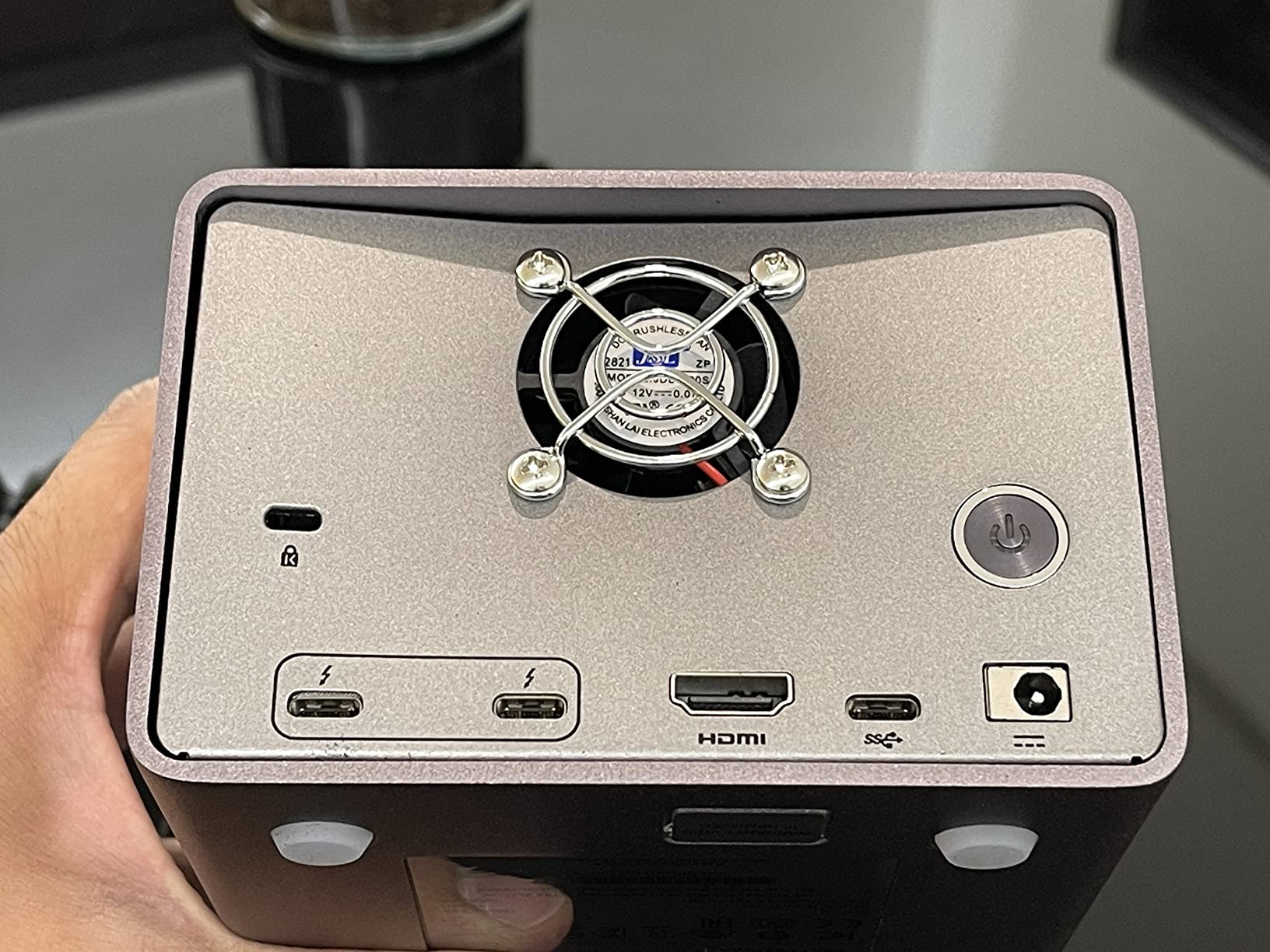
Dual Thunderbolt 3 and one USB-C port
5 year limited warranty
+ Pros
- Factory-populated with dual 7200RPM Ultrastar drives for 36TB in two bays
- Up to 500MB/s read speed for high-resolution photo and 4K and 8K timelines
- Dual Thunderbolt 3 ports allow daisy-chaining five more devices
- Five-year warranty and a long reliability record with video editors
– Cons
- Very high cost for a two-bay array with only 0
- 1 and JBOD options
- 7200RPM drives are audibly noisy and draw more power
- Small number of reviews report an early drive failure
- Front logo light cannot be dimmed
Capacity per bay is the story here. Two 7200RPM Ultrastar enterprise drives give you 36TB in a two-bay desktop chassis, which is where this box sits in the range between a four-bay and an eight-bay. Photographers with a multi-decade archive and a modest need for raw throughput tend to gravitate here.
It arrives configured in RAID 0 for performance and can be rebuilt as RAID 1 for mirroring, or kept as separate individual drives if you prefer to manage them yourself. Dual Thunderbolt 3 ports mean you can daisy-chain up to five more devices behind it.
Reviews are consistently positive on speed and setup simplicity, with several owners noting it ended years of juggling multiple single drives on a desk. The rating is 4.2 from 146 reviews.
Why 7200RPM matters and where it annoys
The Ultrastar drives inside spin at 7200RPM. That is the direct cause of both the headline speed and the headline noise. Slower 5400RPM NAS drives are quieter and cheaper per terabyte but will not feed a Thunderbolt port, so on a desktop unit the choice is effectively made for you.
The power draw is higher as well, and reviewers mention audible seek noise in a shared room. If your edit suite is also your bedroom, that is a genuine downside rather than a footnote.
RAID 0 as a shipping default deserves attention
Out of the box the array is RAID 0, which means zero redundancy until you rebuild it as RAID 1. On a two-bay unit that rebuild halves your usable capacity to 18TB, which is the honest trade for a mirror.
Treat the shipping configuration as a starting point rather than a plan. Decide your RAID level before you copy anything irreplaceable onto it, because converting later means moving everything again.
Long-term reliability and the warranty
The five-year limited warranty is among the longest here, and the brand has a long-standing record with video editors who keep arrays in continuous use. A small tail of reviews still reports a drive failing inside a year, and one buyer received a unit whose management software was no longer distributed.
That software detail is worth flagging for any hardware RAID box. Management utilities age badly. If the array can be rebuilt from an operating system instead, a dead utility is an inconvenience rather than a crisis.
4. OWC ThunderBay 4 – The Fastest Four-Bay Option in the Roundup
OWC ThunderBay 4 0TB Thunderbolt 40Gb/s Four-Bay Storage Enclosure
4 drive bays at up to 1527MB/s
Dual Thunderbolt 3 ports
RAID 0, 1, 4, 5 and 1+0 selectable at the front
3 year warranty
+ Pros
- Up to 1527MB/s sustained throughput
- far ahead of the 10Gbps USB enclosures here
- RAID level set from a front switch with no SoftRAID licence needed
- Silent aluminium chassis that runs cool with mixed drives
- Dual Thunderbolt 3 ports and a 3 year warranty
– Cons
- Requires Thunderbolt
- drops to USB speeds on other hosts
- Only 94 reviews
- below the sample size of most picks
- Diskless so drives must be sourced and installed separately
- No integrated card readers for offload
The ThunderBay 4 sits at 4.3 from 94 reviews with no three-star ratings at all, a distribution that tells you something useful: almost nobody who owns one has a lukewarm opinion.
Where it separates itself is throughput. Up to 1527MB/s sustained is only reachable with SSD drives in the bays, since no set of spinning platters will produce it. Populate it with four SSDs and you have a working volume that outruns any single NVMe drive.
The aluminium chassis is described as ultra quiet and dissipates heat well enough to mix spinning and solid state drives in the same enclosure, which is unusual and genuinely useful when you want an SSD scratch partition and HDD archive space side by side.
RAID selection at the front panel, without a licence
The RAID level is chosen with a switch on the front of the chassis: RAID 0, 1, 4, 5 and 1+0, which is RAID 10. Nothing else is required on the host side.
That matters more than it sounds. Several competing enclosures require host software, which means a licence, a rebuild step and a background process running while your catalog is open. A front-panel controller keeps the array self-contained, at the cost of the controller-failure risk we covered earlier.
SSD versus hybrid population
With four SSDs you get the quoted speed and a Lightroom catalog that never stalls. With two SSDs and two HDDs, you split the array into a fast partition for current work and a slower partition for the archive.
Watch the noise. Four spinning drives in an aluminium shell will be audible in a quiet room, and mixing in 7200RPM enterprise drives makes it worse. SSD populations are the quieter option.
Who should pass on it
If you do not own a Thunderbolt host, this box drops to USB speeds and you are paying for bandwidth you cannot use. If you shoot on cards and want a reader built into the chassis, it has none.
Also weigh the 94-review base. It is the thinnest sample among the picks with strong ratings, and diskless units produce less feedback because the configuration varies per buyer.
5. OWC Mercury Elite Pro Dual – The Hub That Solves the Tethered Desk
OWC Mercury Elite Pro Dual with 3-Port Hub 0TB RAID USB 10Gb/s Enclosure
2 bays, USB 3.2 Gen 2 10Gbps
One Type-C and two Type-A ports for cameras and readers
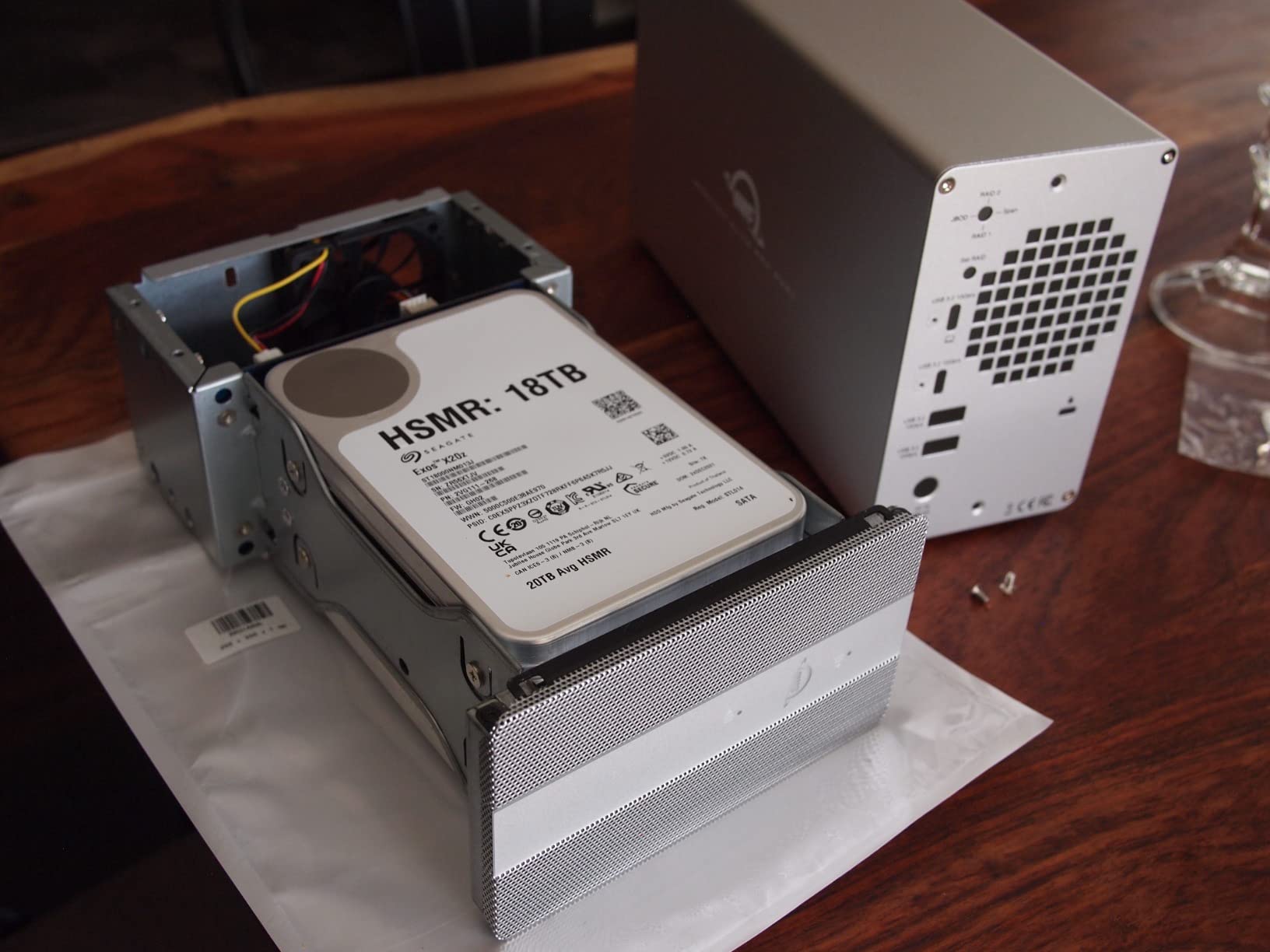
Hardware RAID 0, 1, Span or JBOD
Aluminium chassis with 30dB fan
+ Pros
- Three-port hub lets a tethered camera
- card reader and drive run off one cable
- Hardware RAID 0
- 1
- Span and JBOD set with a rear switch
- Aluminium chassis stays cool and looks good on a desk
- Reported 490 to 530MB/s with two enterprise drives in RAID 0
– Cons
- Full metal construction amplifies drive seek noise
- Several buyers returned units over the volume
- macOS sleep issue where drives only recover after unplugging
- About 15 second spin-up delay on each host access
- Listed with no manufacturer warranty
This is the most interesting desk object in the roundup. The three-port hub is the reason to buy it: a tethered camera, a card reader and the array itself all run from a single cable to the computer, which removes the pile of adapters that otherwise occupies a studio desk.
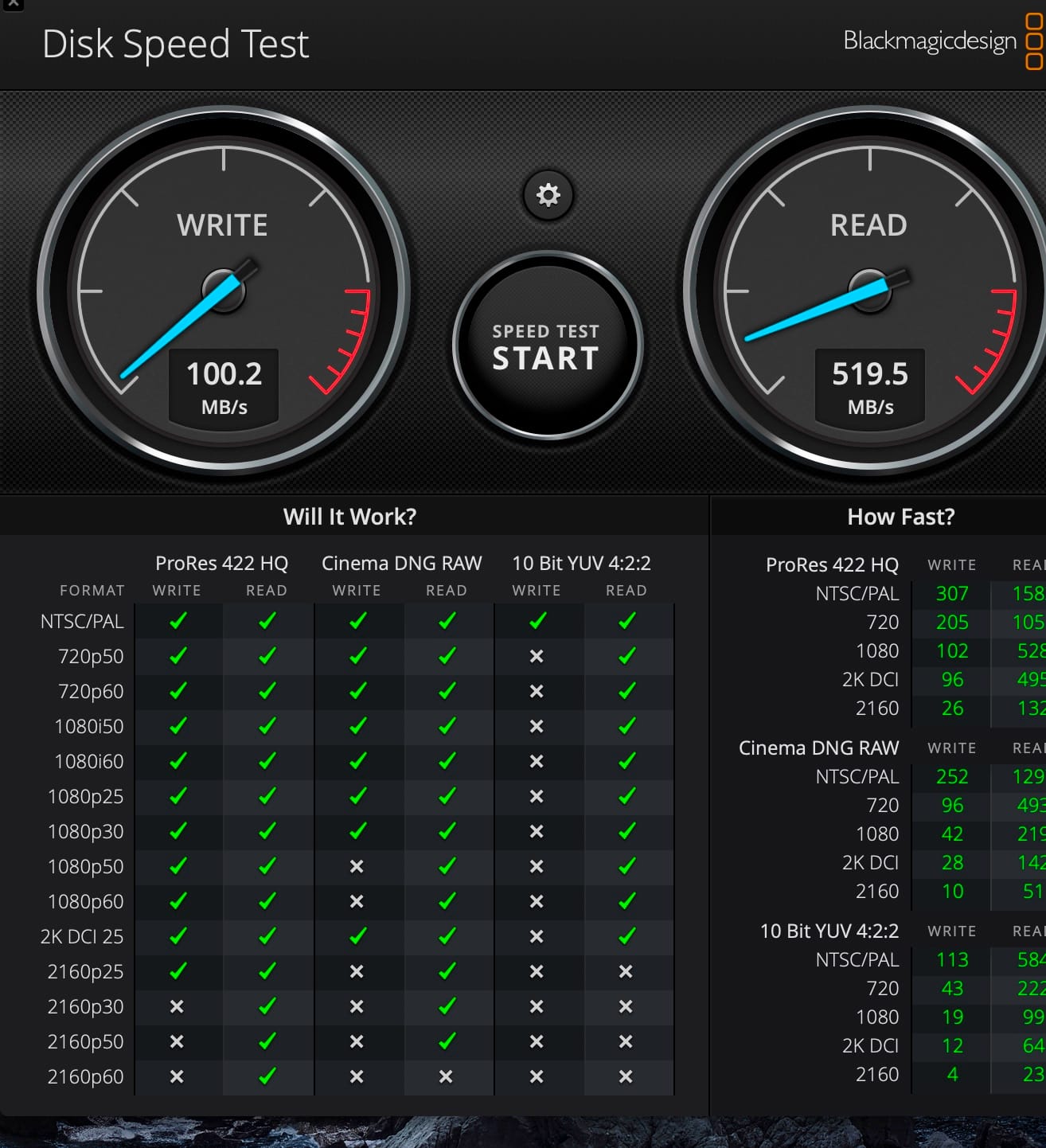
The RAID switch on the back offers RAID 0, RAID 1, Span and JBOD. Reported throughput with two enterprise drives in RAID 0 sits at 490 to 530MB/s, which is close to what the Thunderbolt sibling manages despite a 10Gbps USB link.
The 3.9 rating from 84 reviews is among the lower averages here, and the negative reviews concentrate on noise and a macOS sleep issue rather than on speed.
The noise problem is a metal problem
The chassis is metal, and a metal case does not dampen drive seek noise, it amplifies it. Several buyers returned units specifically over the volume, and photographers working from home at night will hear the difference.
If noise matters more than looks, a steel or ABS chassis elsewhere on this list is the safer choice for a quiet room.
The macOS sleep and wake behaviour to know about
There is a known macOS behaviour where the drives power down after inactivity and only recover when the unit is unplugged and replugged. Buyers also report roughly a 15 second spin-up delay each time the host accesses the array, and JBOD mode stalling transfers while the second drive wakes.
One macOS report also describes the RAID mode not persisting reliably across reboots and reverting to JBOD, which is the kind of failure that erodes trust fast. If you work primarily on Mac, factor this in before you rely on it for a working catalog.
No warranty is a real drawback
The listing carries no manufacturer warranty. That is the single most consequential fact on this card, and for an array holding irreplaceable photographs it is a poor trade no matter how good the hub is.
Our broader hardware notes on RAID systems, including how we weigh controller risk across formats, are covered in our RAID systems overview.
6. SABRENT DS-2BCR – The Fastest Card Ingest Path for CFast Shooters
SABRENT USB-C Dual 3.5in SATA RAID Dock + CFast/SD Reader (DS-2BCR)
2 bays with USB Type-C interface
CFast 2.0 up to 550MB/s and SD UHS-II up to 270MB/s
RAID 0, 1, JBOD or single mode
1 year limited warranty
+ Pros
- CFast 2.0 and SD UHS-II readers built in with no separate reader needed
- Hardware RAID 0
- 1 and JBOD plus single mode in a compact two-bay body
- Cooling fan included
- Locking key prevents accidental tray ejection during transfers
– Cons
- Lowest average rating here at 3.8 with 19 percent one-star reviews
- USB Type-C on a 10Gbps host cannot deliver the claimed 1000MB/s with spinning media
- Only a one-year limited warranty
- Card reader and drive bays share one controller
If you shoot CFast 2.0, this dock has the fastest ingest path in the roundup at up to 550MB/s from the card, with SD UHS-II alongside it at 270MB/s. Both formats plug straight into the front and copy straight to the mirrored array behind them.
The 3.8 rating across 179 reviews is the lowest average of the ten, with 19 percent of reviews at one star. The complaints cluster around build quality, cooling adequacy and a headline speed that needs a 20Gbps host to materialise.
None of that changes the equation for a CFast shooter, though. The alternative is a separate reader plus a separate cable plus an enclosure, and this collapses all three into one unit.
RAID 1 as the on-location verification mirror
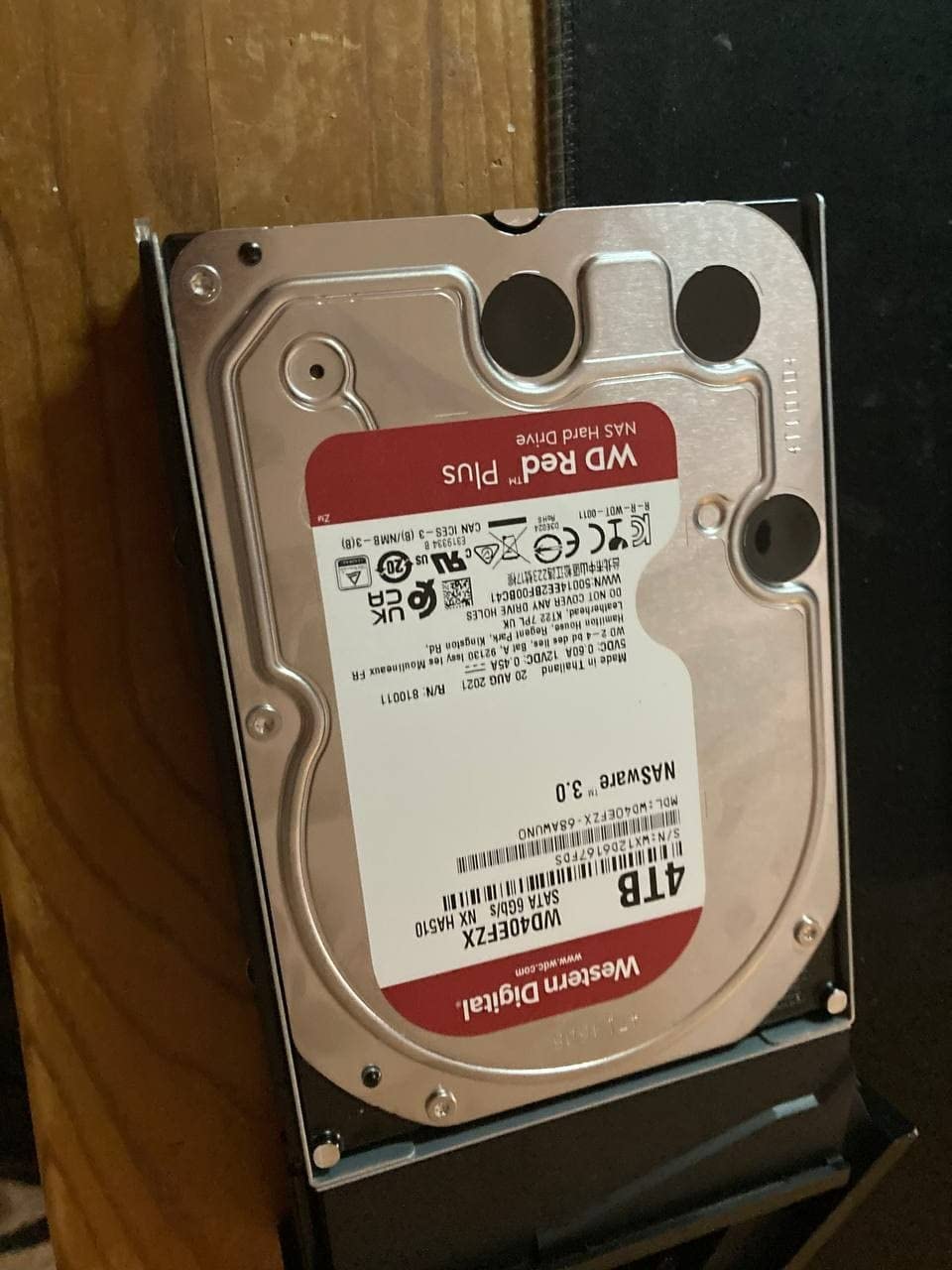
RAID 1 across two bays writes both drives simultaneously, which is the correct configuration for ingest. Copy a card, watch both drives fill, then format the card.
The included locking key prevents accidental tray ejection during a transfer, which sounds trivial until you have pulled a live drive mid-copy. It is a small piece of engineering that tells you something about how the product was designed.
Why the 1000MB/s claim needs a caveat
The 1000MB/s figure assumes a 20Gbps host port. On a typical 10Gbps Type-C host, the bus itself cannot carry it, and with spinning media you will see substantially less.
The card reader and the drive bays also share one controller, so a heavy card ingest and an active array workload contend for the same bandwidth. Sequence your transfers rather than running both at once.
Where the one-star reviews come from
Buyers report cooling adequacy concerns, which matters in a two-bay chassis running two hot drives back to back. The one-year limited warranty is the shortest coverage on this list.
For photographers who shoot CFast, the readers justify it. For everyone else, a two-bay enclosure with a longer warranty is the safer buy.
Compatibility and form factor
It accepts 2.5-inch and 3.5-inch SATA III drives and stays backward compatible with SATA I and II media, and it runs on Windows, Mac and Linux with a front USB 3 Type-A expansion port alongside.
At 8.4 by 4.7 by 3.3 inches and 3 pounds, it is one of the more portable enclosures here and easy to move between a home edit suite and a location kit.
7. SanDisk Professional G-RAID Project 2 24TB – Built for 8K and ProRes Workflows
SanDisk Professional 24TB G-RAID Project 2 – External Hard Drive HDD, Thunderbolt 3, USB (10Gbps), 7200RPM Ultrastar Hard Drive, Up to 480MB/s Read – SDPHK2H-024T-NBAAD
2 x 7200RPM Ultrastar drives, 24TB
Thunderbolt 3 and USB 3.2 Gen 2×1
PRO-BLADE SSD Mag slot for scratch capacity
540MB/s read and 490MB/s write
+ Pros
- Up to 540MB/s read
- the top rated read speed per bay in this roundup
- PRO-BLADE SSD Mag slot adds fast scratch and cache capacity without another box
- Compact footprint with Thunderbolt 3 and a 10Gbps USB-C fallback
- Five-year limited warranty
– Cons
- Only 20 reviews
- among the thinnest evidence bases here
- Arrives configured in RAID 0 so there is no redundancy until rebuilt
- Several reviewers report the 24TB configuration failing within a year
- Loud 7200RPM mechanical design at a very high cost
The 4.4 rating here is among the highest in the roundup, but it sits on only 20 reviews. Read that as directional rather than established. Production users describe it as fast and rugged for video editing and family archiving, and the critical reviews are as severe as they come.
Read speed of up to 540MB/s from two 7200RPM Ultrastar drives is what makes it a natural fit for 8K and ProRes timelines rather than for stills work.
The PRO-BLADE SSD Mag slot is the quietly clever feature. You add an SSD to the chassis and get fast scratch or cache capacity without buying a second enclosure, which is exactly the split an edit-heavy workflow needs.
The RAID 0 default and the early-failure reports
It arrives configured in RAID 0 for performance. That is fine for footage you can reshoot and unacceptable for footage you cannot, so rebuild it as RAID 1 before the first important copy.
Several reviewers report the 24TB configuration failing within a year, with slow replacement turnaround from support. One describes catastrophic data loss on a unit that failed in 40 days. This is precisely why the 3-2-1 rule sits at the top of this guide rather than in a footnote.
Thunderbolt 3 with a 10Gbps fallback
Thunderbolt 3 at 40Gbps is the intended path. The USB 3.2 Gen 2×1 fallback at 10Gbps means the box still works on a USB-C laptop, at roughly a quarter of the speed.
Color-coded cable indicators stop you from pairing the wrong lead, which is a small quality-of-life touch that matters when two USB-C cables sit next to a Thunderbolt port.
Where it fits in the studio
At 24TB with a Mag slot on top, this works well as a mid-tier station: two large drives for the current project, an SSD in the Mag slot for cache, and an offsite copy running in the background.
Capacities scale to 48TB on the larger configuration, and the 7200RPM noise is a constant companion. Users who returned it did so mostly for reliability rather than speed.
8. OWC ThunderBay 8 – Eight Bays and Software RAID You Can Move
OWC ThunderBay 8 Eight-Bay Thunderbolt 40Gb/s Storage Enclosure w/ SoftRAID
8 bays for 2.5 or 3.5-inch drives
Up to 2586MB/s, dual Thunderbolt 3 ports
SoftRAID Premium included, also supports Apple RAID
Daisy-chain six enclosures for up to 1152TB
+ Pros
- Eight bays plus daisy-chaining covers very large RAW and video archives in one footprint
- Up to 2586MB/s
- the highest headline throughput here
- Thumb-screw release trays make hot drive swaps fast on location
- Bundled three-year SoftRAID Premium means no extra licensing
– Cons
- RAID is software-based rather than a hardware controller
- Only a one-year limited warranty
- Eight-bay chassis is physically large and needs ventilation when loaded
- Only 58 reviews limits long-term reliability data
Eight bays is the answer to the storage wall that hits mid-career photographers, where the archive has outgrown any single drive and rebuilding the library annually is not viable. The ThunderBay 8 accepts 2.5 or 3.5-inch drives in all eight bays and daisy-chains up to six enclosures for a theoretical 1152TB.
Its headline figure of up to 2586MB/s leads the roundup, though as with the four-bay sibling you need SSDs in the bays to approach it.
MacRumors users running OWC ThunderBay enclosures routinely debate RAID 5 against RAID 6 for photo and video libraries, and that debate is exactly the right one at eight bays, where RAID 5 rebuilds run long enough to worry you.
Software RAID is the recovery argument
This one bundles OWC SoftRAID Premium for three years and also supports Apple RAID and Windows Disk Management. The trade is honest: setup takes more steps than a front-panel hardware controller, and rebuilds need the host machine awake.
What you gain is recoverability. If this enclosure fails, the array metadata lives in software, so you can move the drives to another machine and rebuild the same array with the same tools. For irreplaceable images, that is worth the extra setup friction, and it is the main reason we include this box for Mac users.
Hot swaps, trays and ventilation
Thumb-screw release trays make swapping a failed drive fast without tools, which is the difference between a ten-minute repair and an afternoon. On location that matters.
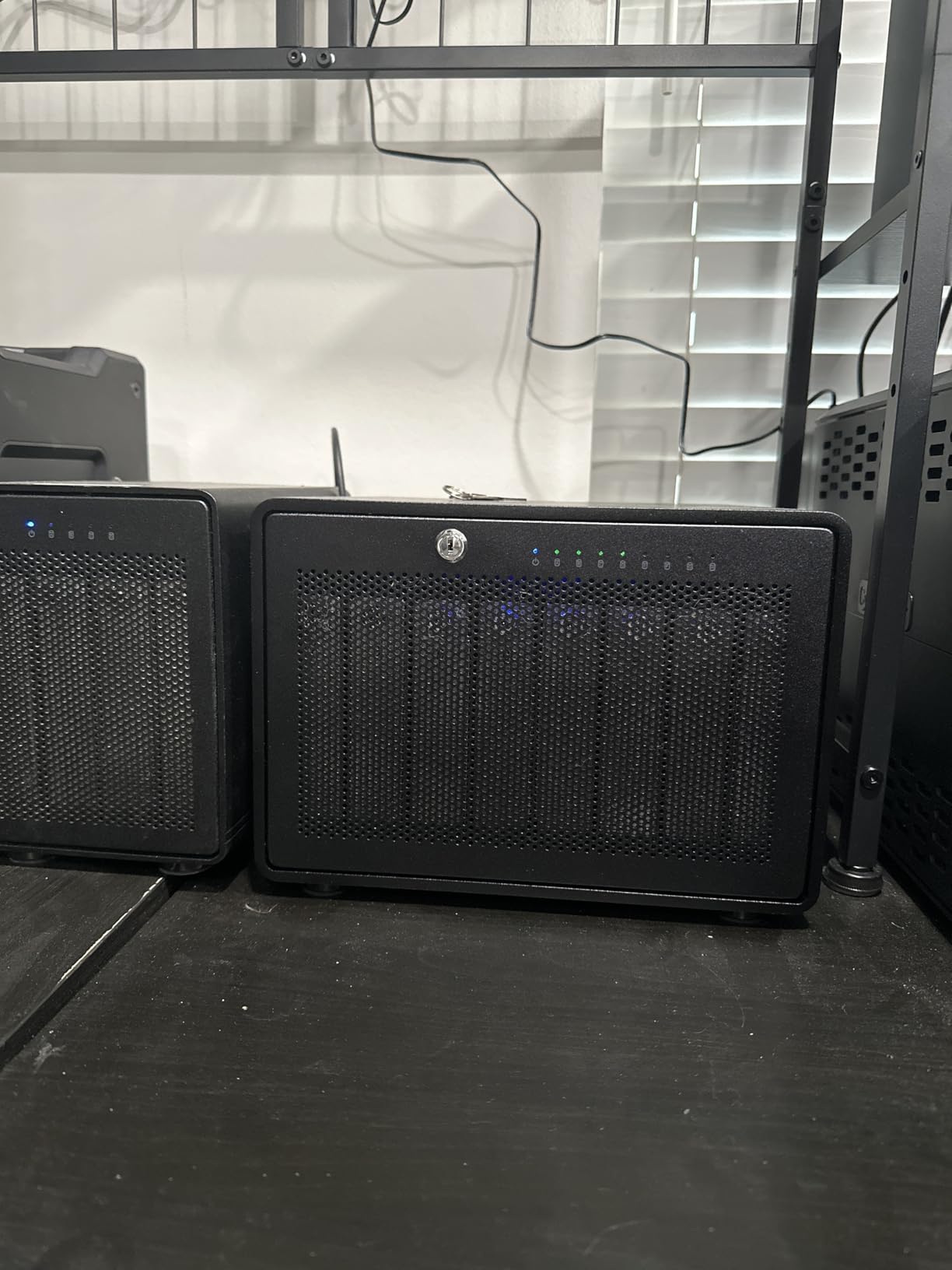
The chassis is 9.4 by 10.2 by 7.1 inches and weighs 7.3kg empty. With all eight bays loaded it needs airflow above and around it, and it will not sit on a shelf next to a router.
RAID 5 or RAID 6 at eight bays
Across eight drives, RAID 5 gives you seven drives of usable capacity and tolerance for one failure. RAID 6 drops to six and tolerates two. On large disks, a RAID 5 rebuild can run long enough that a second failure becomes a real risk, which is the argument the MacRumors debates keep returning to.
Our verdict is RAID 6 for archives and RAID 5 for a working library with a separate verified backup.
9. ORICO 4 Bay 20Gbps – Six RAID Modes and the Most Headroom per Bay
ORICO 4 Bay 20Gbps RAID Hard Drive Enclosure USB 3.2 Gen2X2
4 bays on USB 3.2 Gen 2×2 at 20Gbps
JMS591 bridge chip, 6 RAID modes
Hot-swappable carriers, up to 104TB
Integrated 150W power supply
+ Pros
- 20Gbps USB with the JMS591 controller delivering roughly 2000MB/s on SSD arrays
- Integrated 150W power supply removes the external brick and handles full-bay spin-up
- Six RAID modes with hot-swappable carriers and up to 104TB capacity
- 74 percent five-star reviews and a 4.4 average
– Cons
- Full 20Gbps needs a USB4 or 3.2 Gen 2×2 host
- as Thunderbolt hosts cap at 10Gbps
- RAID management software is not valid for macOS 27
- so arrays must be created on Windows first
- Changing RAID mode erases the drives
- Manufacturer site and driver downloads are hard to navigate
The ORICO four-bay is the specification outlier here. USB 3.2 Gen 2×2 at 20Gbps with the upgraded JMS591 bridge chip moves data faster than a 10Gbps Thunderbolt port on most laptops, and reviewers report roughly 2000MB/s on SSD arrays in RAID 0 and RAID 5.
It also supports six RAID modes, which is the widest set in this roundup: RAID 0, RAID 1, RAID 5, RAID 10, JBOD and Normal. Capacity reaches 104TB across four 3.5-inch bays at 26TB per drive.
The 4.4 rating comes with 74 percent of reviews at five stars, a high share of the ten.
The host port requirement is not optional
That 20Gbps only materialises on a USB4 or USB 3.2 Gen 2×2 port. Thunderbolt 3 and Thunderbolt 4 hosts cap at 10Gbps, so on a Mac with two Thunderbolt ports and nothing else, this box runs at half its advertised speed.
Check what your machine actually has before you fall for the headline number.

The macOS 27 management gap and the Windows-first workflow
ORICO’s RAID management software is no longer valid for macOS 27, which means arrays have to be created on Windows first and then used on a Mac. That is an awkward constraint for a Mac-only studio and the most consistent software complaint in the reviews.
The wider pattern of criticism is support material: the manufacturer website and driver downloads are widely described as hard to navigate. Budget time for it.
Power, cooling and drive compatibility
The integrated 150W power supply is a genuine advantage. It removes the external brick and handles the spin-up surge when all four bays start at once, which is where many budget four-bay boxes trip over.
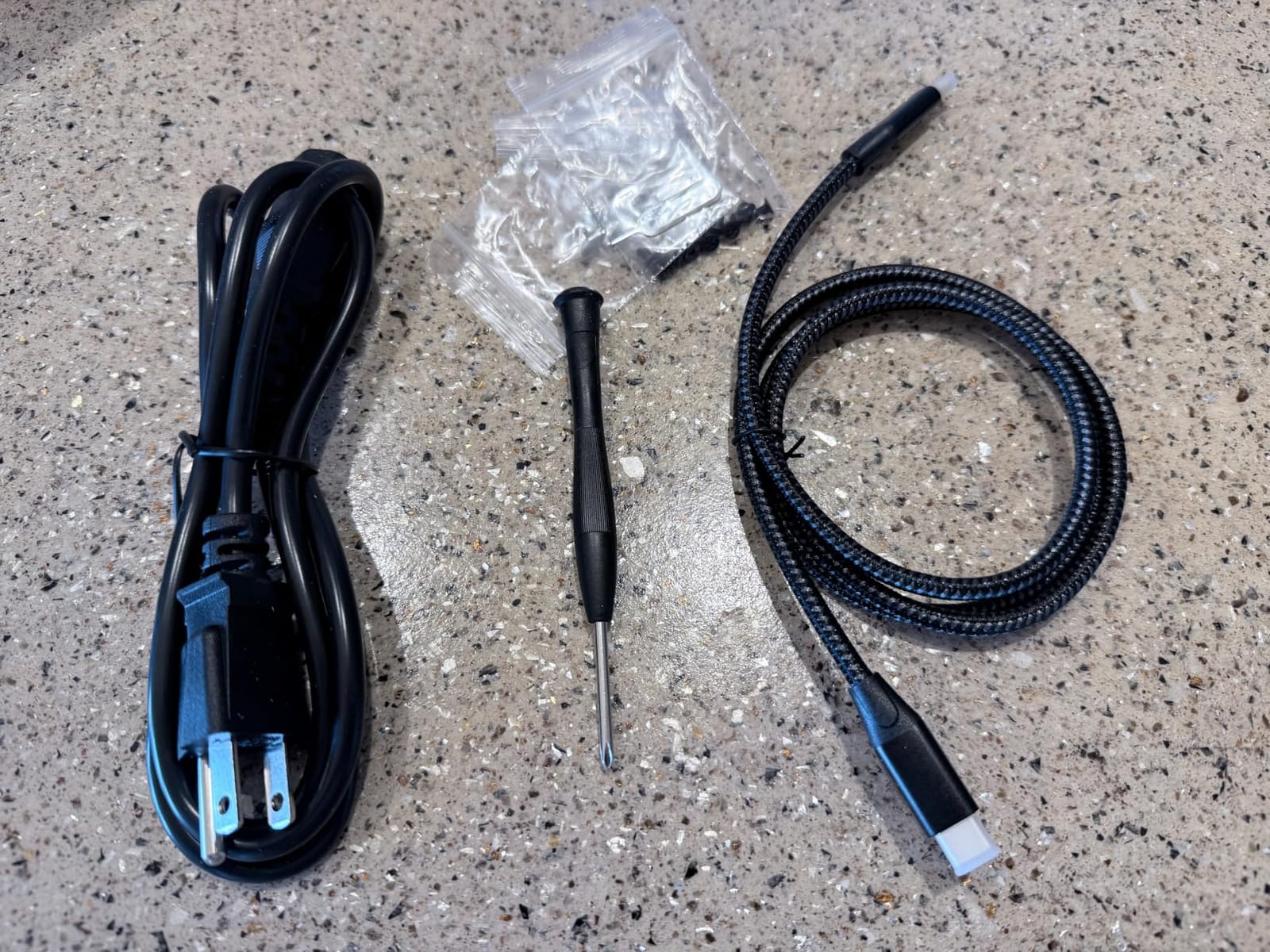
Cooling comes from an aluminium alloy chassis, a large-area grille and a 45dB low-noise fan. Hot-swappable carriers are supported, and arrays built on older chipsets can be carried forward without rebuilding, which saves a great deal of copying at eight-terabyte-per-drive sizes.
Changing RAID mode erases the drives, so plan the level before you load anything. The bundled cable can limit write speed, so replacing it is worth the five minutes.
10. ACASIS 40Gbps Hybrid – HDDs and NVMe in the Same Chassis
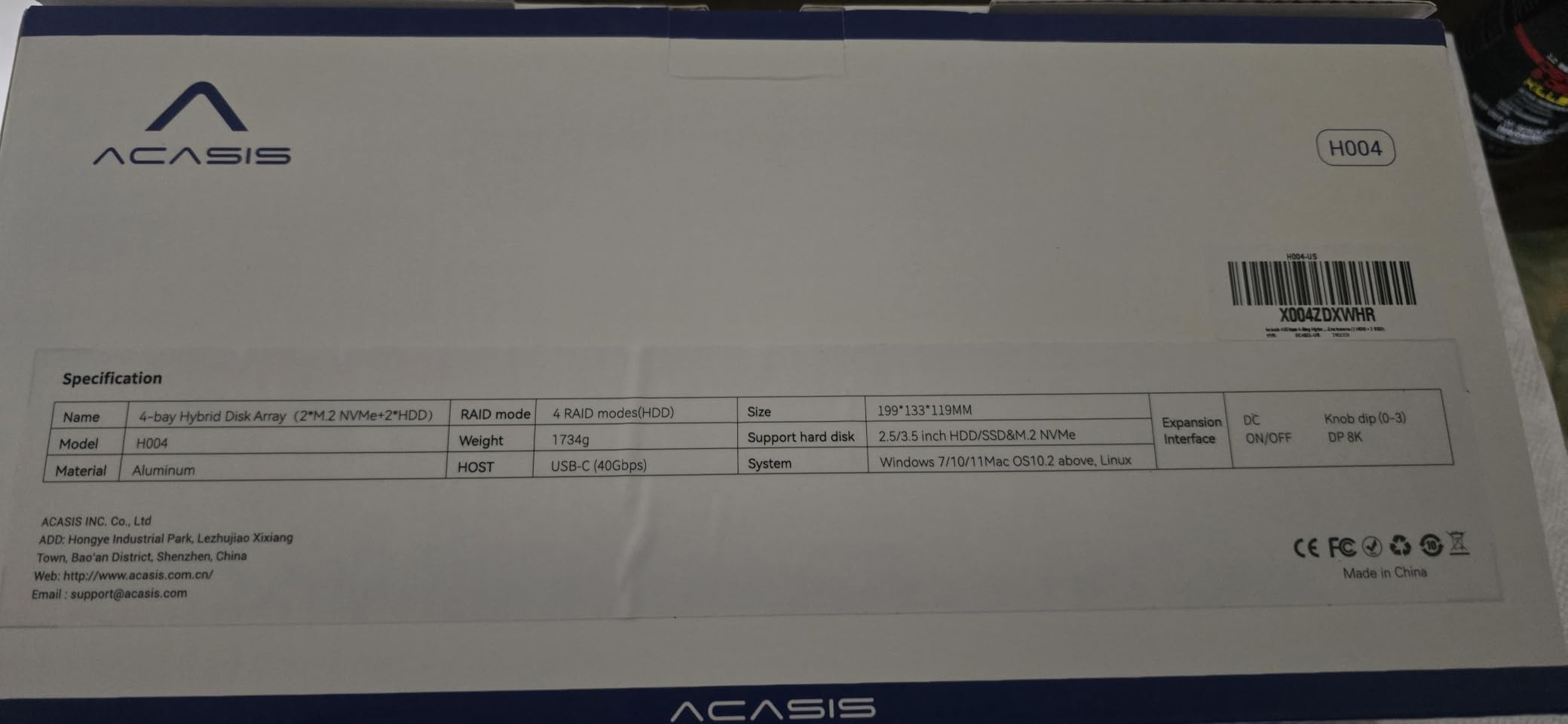
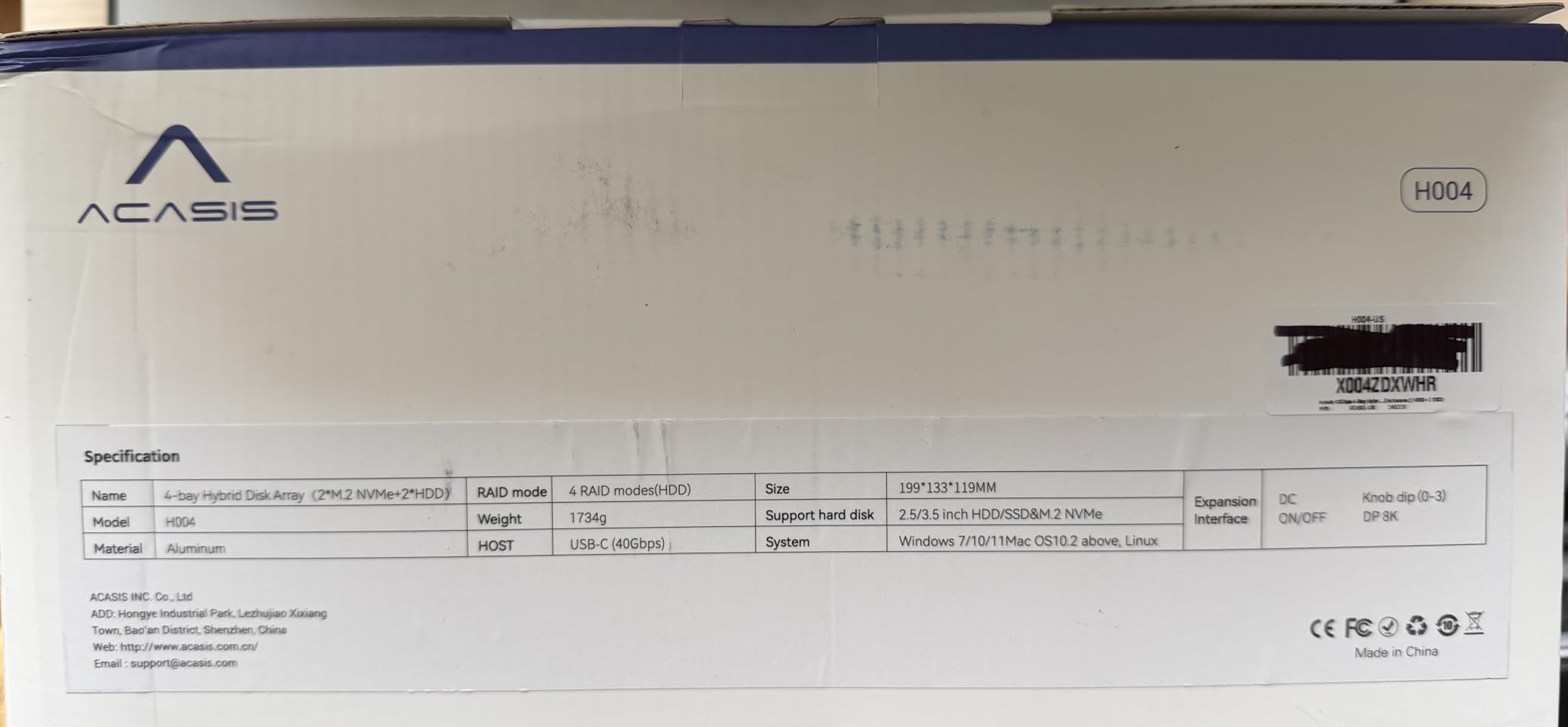
ACASIS 40Gbps 4-Bay Hard Drive Enclosure, RAID Enclosure with Dual-Bay HDD Enclosure for 3.5/2.5″ SATA HDD/SSD+Dual-Bay NVMe Enclosure, USB4 Hard Drive Dock Compatible with USB4, Thunderbolt 3/4/5
2 SATA HDD bays plus 2 NVMe bays
USB4 40Gbps host interface
Hardware RAID 1 on HDDs, software RAID 0 on NVMe
Up to 78TB in LARGE mode, 8K@60Hz output
+ Pros
- Only enclosure here mixing two SATA HDD bays with two NVMe bays in one 40Gbps USB4 box
- Hardware RAID 1 for HDD redundancy and software RAID 0 for NVMe speed in one chassis
- Display output supports 8K@60Hz for on-set review and editing
- Up to 78TB unified in LARGE mode across all four bays
– Cons
- Only 16 reviews
- the smallest review base of any pick
- Full 40Gbps needs Thunderbolt 3 or 4
- Thunderbolt 5 or USB4 plus RAID mode
- NVMe capacity limited to 8TB per bay against 30TB per SATA bay
- 96W power supply is the lowest here
The ACASIS hybrid solves a problem none of the other enclosures address. In one aluminium chassis you get two 3.5-inch SATA bays holding up to 30TB each for archive, and two NVMe bays for 2230 to 2280 SSDs at up to 8TB each for a fast scratch volume.
The RAID split is the interesting part. Hardware RAID 1 mirroring on the HDDs gives archive redundancy with no host software, while software RAID 0 on the NVMe pair gives cache speed. In LARGE mode both halves merge into a single volume of up to 78TB.
The 3.9 rating rests on just 16 reviews, the smallest base here, so treat it as directional. What is genuinely new about the design is the hybrid bay layout and the 8K@60Hz display output for on-set review.
Where a hybrid layout actually helps
The argument is workload separation inside one box. Spinning drives take the archive and the long-term cold storage, NVMe drives take the Lightroom catalog and any footage that needs to scrub fast.
One chassis also means one cable, one power supply and one device to manage, which is the same desk-cleanliness argument that makes the OWC dual appealing to tethered shooters.
The 40Gbps claim and its conditions
Full 40Gbps throughput requires a Thunderbolt 3, Thunderbolt 4, Thunderbolt 5 or USB4 host port and the array in RAID mode. On an ordinary USB-C port it will not get there, so verify your host port before ordering.
Asymmetry in capacity is worth noting: 30TB per SATA bay against 8TB per NVMe bay. That is the correct balance for archive plus scratch, but it is the wrong balance for a scratch-heavy workflow.
Power budget and evidence
The included 96W supply is modest for a chassis rated for four high-spinning drives. Aluminium construction and an active cooling fan handle thermals.
With 16 reviews and 14 percent of them at one star, there is no established long-term reliability pattern yet. If your archive is the priority, a four-bay box with a longer warranty and a larger review base is the more conservative choice, and our home studio RAID guide covers that tier in more detail.
How to Choose a RAID Enclosure for Photo Work
Six decisions separate a good purchase from an expensive mistake. Work through them in order and the rest of the specification becomes obvious.
Interface speed: Thunderbolt 3 and 4 against 10Gbps USB
Match the interface to your workload, not to the marketing. Thunderbolt 3 and Thunderbolt 4 run at 40Gbps, USB4 matches that on newer hosts, and USB 3.2 Gen 2 sits at 10Gbps. USB 3.2 Gen 2×2 reaches 20Gbps but only on ports that explicitly support it.
For card offload, a catalog and archive work, 10Gbps is plenty and the cheaper boxes win. For 8K and ProRes editing, or for moving a full shoot from multiple cards at once, Thunderbolt is the only comfortable answer. Always check that the host computer has the port you are buying for.
Bay count: 2, 4 or 8 and how much you can grow into
Two bays means RAID 1 mirroring and nothing else. That is acceptable for on-location ingest verification, where the goal is two copies before you wipe a card, and inadequate as your only archive.
Four bays is the minimum for RAID 5, which is the smallest array where one drive failure leaves you with a full copy of everything. Eight bays takes you to RAID 5 or RAID 6 at archive scale, with long rebuilds as the trade.
Buy for the array you will run in three years, not the one you need this month. Photographers who outgrow a two-bay box usually pay to move their data twice.
Which RAID level a photographer should run
RAID 0 stripes across drives for speed and has zero redundancy. Never use it for an archive.
RAID 1 mirrors pairs of drives. Useful for card offload verification and small working sets, and it is the fastest way to get two copies of a shoot onto spinning disks.
RAID 5 needs at least three drives and tolerates one failure. Four bays is the practical minimum for photographers, giving three drives of usable capacity.
RAID 6 needs at least four and tolerates two failures, at the cost of two drives of capacity. Above eight terabytes per drive, where rebuilds run for days, that second failure tolerance starts to matter more than the capacity.
RAID 10 needs at least four drives and mirrors pairs while striping across pairs. It gives the best of both and is the usual choice for a working library that also needs to be fast.
Which drives to put inside: CMR and PMR, never SMR
This is where most data is actually lost. SMR drives write by overlapping tracks, which makes sequential writes fine and rebuilds and random access terrible. In a parity array, a slow rebuild raises the odds that a second drive fails before the first is replaced.
Buy CMR or PMR drives for any RAID 5 or RAID 6 array. NAS-rated drives such as IronWolf and WD Red Plus are built for continuous multi-bay workloads and carry vibration-resistant firmware. Enterprise 7200RPM drives like the Ultrastar units inside the populated enclosures here cost more but run cooler and last longer.
Match capacities across bays. Mixing sizes in a parity array quietly leaves the smallest drive’s capacity partly unused, and keep one identical cold spare on the shelf.
Diskless or pre-populated, and what the drives really cost
Diskless enclosures are cheaper boxes and more flexible ones. You choose your drives, match them yourself, and can mix NAS-rated and enterprise media. Populated units arrive ready to use with the warranty covering the whole system.
Either way, check whether drives are included before you compare two products. It is the most common confusion in this category, and it is why listings that quote a low headline figure sometimes describe a box with nothing in it.
DAS versus NAS, and when you should skip RAID entirely
Use direct attached storage for the working volume and a NAS for the archive. Editing from a NAS introduces network latency into every database write, which shows up as constant stutter in Lightroom and Capture One.
Also consider not buying RAID at all. If your library fits on one fast external SSD, a single drive is simpler, quieter and faster than any multi-bay array, and you can spend the difference on an offsite backup instead. RAID becomes worthwhile once one drive can no longer hold the archive, or once the cost of losing a single drive to a single failure is unacceptable.
Whichever path you take, plan your laptop choice alongside it. If you are buying a new machine for fieldwork, our laptop picks for photographers cover the ports you will actually be connecting to.
Frequently Asked Questions
What is the best RAID drive for a photographer?
For most working libraries, a four-bay hardware RAID enclosure running RAID 5 across four matching CMR drives is the best balance. RAID 5 gives you the usable capacity of three drives while surviving one drive failure, which is the smallest array that keeps a complete copy of your images after a disk dies. Use RAID 1 in a two-bay box only for card offload verification on location, RAID 0 only for footage you can reshoot, and RAID 6 when you are above eight terabytes per drive and rebuilds run long enough that a second failure becomes a real risk.
What is the 3-2-1 backup rule for photos?
Keep three copies of your images, on two different types of media, with one copy stored somewhere physically separate. A RAID array counts as one copy, not three. Your second copy belongs on different media such as cloud object storage or a NAS, and your third copy should be off-site entirely. The rule exists because RAID protects against exactly one event: a single drive failing. Fire, flood, theft, ransomware, accidental deletion and controller failure all take every copy inside the array at once.
How many GB do 10,000 photos take up?
It depends entirely on file type. Roughly 10,000 RAW files from a modern high-resolution body typically need 80GB to 120GB, while 10,000 full-size JPEGs usually need 20GB to 40GB, and 10,000 edited exports in a compressed format need only a few gigabytes. A RAW-heavy working catalog is why photographers reach the first storage wall quickly, which is the point at which a multi-bay RAID enclosure starts to make sense rather than another single external drive.
Which NAS is best for a photographer’s storage needs?
For archiving, any NAS running a current firmware with a drive bay count that lets you add storage over time will serve well, and the priority is drive choice rather than brand: CMR or PMR NAS-rated drives such as IronWolf or WD Red Plus, never SMR. A NAS is the wrong tool for your working catalog, because network latency turns every database write into a wait and Lightroom will stutter constantly. Use direct attached storage to edit from and a NAS to archive to, running the second as a background copy.
What happens to my photos if a RAID enclosure controller fails?
In a hardware RAID enclosure, the array metadata lives on the controller chip, so a failed controller can leave your data intact but unreadable without either the same enclosure or a specialist recovery service. In SoftRAID or operating-system RAID the metadata is readable by any machine, so you can move the drives elsewhere and rebuild the array, which is why Mac-centric photographers often accept the extra setup for that recoverability. Either way, record your RAID level and drive order offline and keep a cold spare of identical capacity.
Which RAID Enclosure Should You Buy in 2026?
If you want one box and little else, buy the QNAP TR-004. Its hardware controller covers RAID 0, 1, 5 and JBOD across four bays, the lockable metal chassis is compact, and 652 reviews make it the most thoroughly proven pick here.
If speed on a Thunderbolt host is the deciding factor and you will populate it with SSDs, the OWC ThunderBay 4 reaches up to 1527MB/s with the RAID level set from a front switch. If you want the widest feature set and 20Gbps, the ORICO four-bay gives you six RAID modes and hot-swappable carriers, provided your computer has a USB4 or Gen 2×2 port.
If you shoot CFast, the SABRENT dock has the fastest card ingest in the roundup. If you need an eight-bay archive, the OWC ThunderBay 8 and its bundled SoftRAID give you the recoverability Mac photographers value. And if one dead drive would end your week, remember that none of these is a backup. Pick the array, then build the 3-2-1 plan around it.
Leave a Reply