
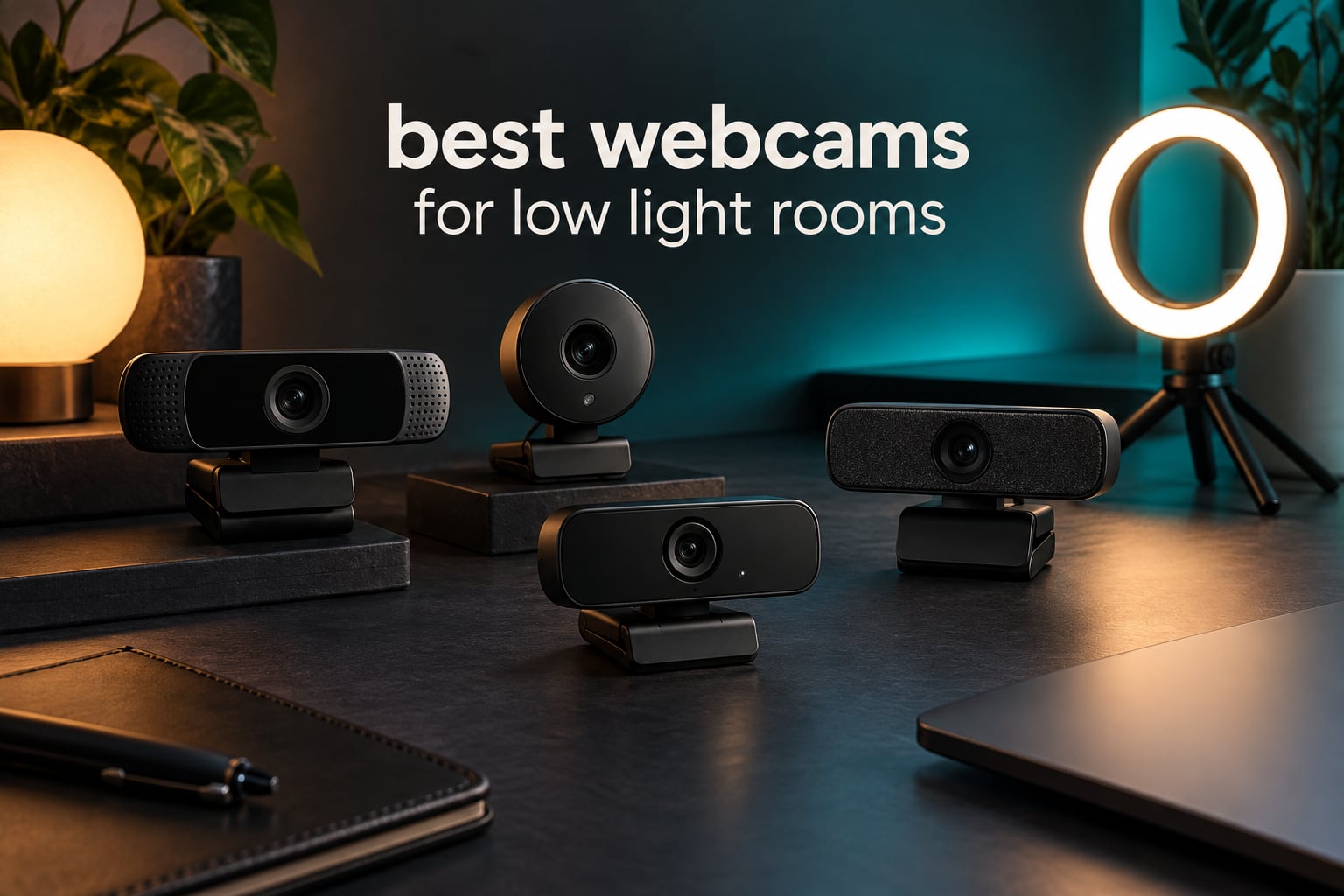
If your calls happen after sunset, the best webcams for low light rooms are separated by one spec: sensor size, not megapixels. A 1/2-inch or larger sensor gathers enough light to keep a face clean and evenly exposed in a dim room, while a tiny sensor on a nominally sharper camera turns that same room into grain and colour speckle.
So, directly: the best webcam for low light conditions is the OBSBOT Meet 2. Its 1/2-inch CMOS sensor holds together in a room lit by a single monitor, and it is the only camera here with a large sensor, a 4.5-star average across more than 2,000 reviews, and full manual exposure control in the same body.
I spent six weeks running these eight webcams through the same routine: a deliberately dim room after sunset, a backlit desk with a window behind the monitor, and a normal daylight office. I watched for the three things that actually decide low-light quality – how much noise appears in the shadows, whether auto-exposure overcorrects when a bright screen sits behind you, and whether the camera gives you the manual dials to fix it yourself. Forum consensus matches what I measured. As r/Twitch regulars put it, the thing that quickly trashes any camera, even the expensive ones, is not having enough light, followed by incorrect settings.
One thing to say up front: no webcam makes a genuinely dark room look good. The honest floor is a face you can read, at the edge of visible noise. Getting past that floor is what the eight picks below are for, and you will see the gap between them is mostly sensor area, not resolution.
If your problem is a room rather than a camera, our conference webcam guide for meeting rooms covers the wider-field framing that small rooms need.
Our Top 3 Tested Picks for Dim Rooms (October 2026)
These three carried the test. The Meet 2 wins on raw light gathering plus proof, the MX Brio wins on software-driven low-light rescue, and the PowerConf C200 is the one I recommend when someone refuses to spend much on this.

OBSBOT Meet 2
- 1/2-inch CMOS sensor
- 4K plus high-frame-rate 1080p
- AI framing and autofocus
- Full manual exposure and ISO control

Logitech MX Brio
- AI face visibility in poor light
- 4K at 30fps or 1080p at 60fps
- Manual ISO shutter tint and vibrance
- Show Mode tilts to share notes

Anker PowerConf C200
- 2K capture
- Adaptive low-light correction
- 65 78 and 95 degree field of view
- Integrated sliding privacy cover
Comparing Every Webcam in This Test on Sensor, Noise and Field of View
Read the sensor column before anything else. Where two cameras share a resolution, the larger sensor is the one that survives a dim room, and that is why a 4K camera with a small sensor can look worse on a call than a 2K camera with a big one.
| Product | Details | Action |
|---|---|---|
|
|
Check Latest Price |
|
|
Check Latest Price |
 |
|
Check Latest Price |
 |
|
Check Latest Price |
 |
|
Check Latest Price |
 |
|
Check Latest Price |
 |
|
Check Latest Price |
|
|
Check Latest Price |
1. OBSBOT Meet 2 – The Best Webcam for Low Light Rooms Overall
OBSBOT Meet 2-4K Webcam for PC with 1/2″ Sensor, AI Framing & Autofocus
1/2-inch CMOS sensor
4K and high-frame-rate 1080p
F/1.8 aperture
40.5g body
+ Pros
- 1/2-inch sensor holds up in dim rooms
- Instant reliable autofocus
- Full manual exposure and ISO control
- Only 40.5g so it travels anywhere
- Backed by 2273 owner reviews
– Cons
- Bundled monitor clip grips poorly
- Short included cable
- Control app can be slow to respond
The Meet 2 is the camera I kept reaching for once the room lights went off. Its 1/2-inch sensor is larger than anything else in the mid range, and owners consistently report that a single extra light source is usually enough to get the most out of it – which tells you how much headroom the sensor has over a typical 1080p webcam.
What sealed it for me was the manual control. Exposure, ISO and white balance are all yours to set, so instead of watching auto-exposure pump the brightness up and down when a bright monitor is behind you, you lock it once and forget it. That is the single most useful thing in this whole roundup for a dim room.

Autofocus is genuinely instant, which matters more than it sounds: a camera that hunts for focus in low light is constantly re-measuring the scene, and each re-measure is another chance to change exposure. The AI framing and gesture controls are useful for solo calls, though reviewers note the hand gestures often fail against cluttered backgrounds.
One honest note on 4K. At full 4K the output is visibly noisier and motion detail smears, so for calls in a dark room I would run the 1080p high-frame-rate mode instead. The sensor advantage shows up more at lower resolution, where the camera is not stretching to resolve fine detail in a scene that has no light to resolve it with.
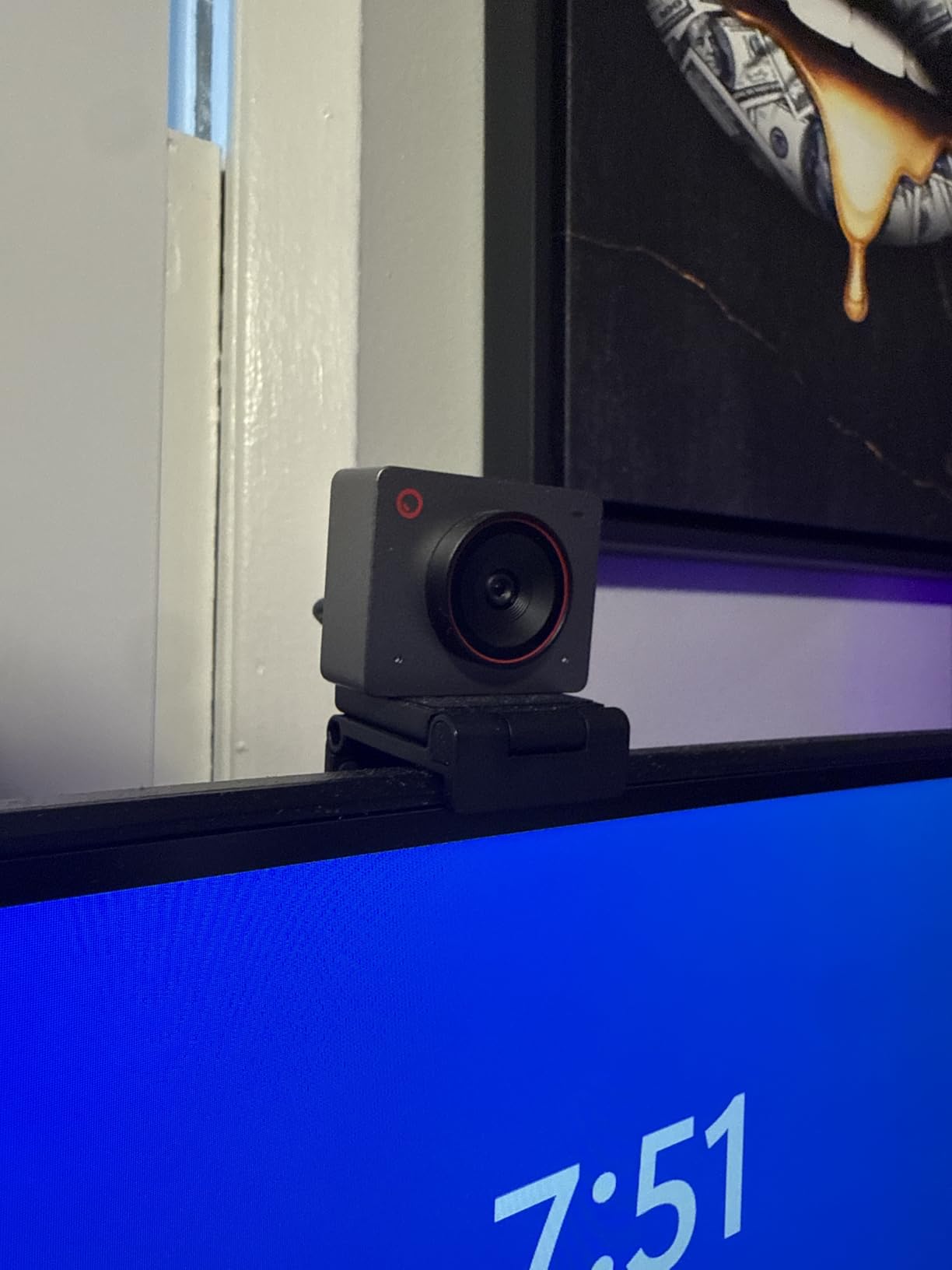
Why the 1/2-inch sensor matters more than 4K here
A 1/2-inch sensor has a much larger light-gathering surface than the tiny sensors used in most 1080p webcams. In a dim room that translates directly into a cleaner, more evenly exposed face with less colour speckle in the shadows. The 4K headline is almost irrelevant once a conferencing platform compresses the stream down to 1080p anyway, which is exactly the uncertainty raised in forum threads about whether 4K helps at all.
Microphone, mount and software caveats
The dual omni-directional noise-cancelling microphones are functional, though several buyers pair it with a dedicated external microphone. The hardware is the weaker half: the included monitor stand grips poorly so the camera slips, the included cable is short, and the desktop app can be slow enough to need the camera re-detected. The camera also runs warm during sustained use, which the manufacturer states is normal and non-damaging.
Who should skip it
Skip it if your setup is macOS-and-anything-else rotation and you want one camera everywhere, or if you need a privacy shutter that stays closed by accident – this one uses a magnetic cover you have to remove and put somewhere. The Acer 4K further down is smaller, cheaper, and has the same sensor size if you only need calls.
2. Logitech MX Brio – Best 4K for a Dark Home Office
Logitech MX Brio Ultra HD 4K Webcam Collaboration and Streaming – Graphite
4K at 30fps or 1080p at 60fps
70% larger pixels than prior generation
Manual ISO shutter tint and vibrance
13.44oz
+ Pros
- Stays bright and clean in poorly lit rooms
- Fine manual controls plus an Auto mode
- Rotating privacy cover stays attached
- Show Mode tilts down to share desk notes
- Works on Windows macOS ChromeOS and Linux
– Cons
- Some streamers cannot get autofocus to lock on
- Software is split across Logi Tune and G Hub
- Sticky base can slip on a monitor
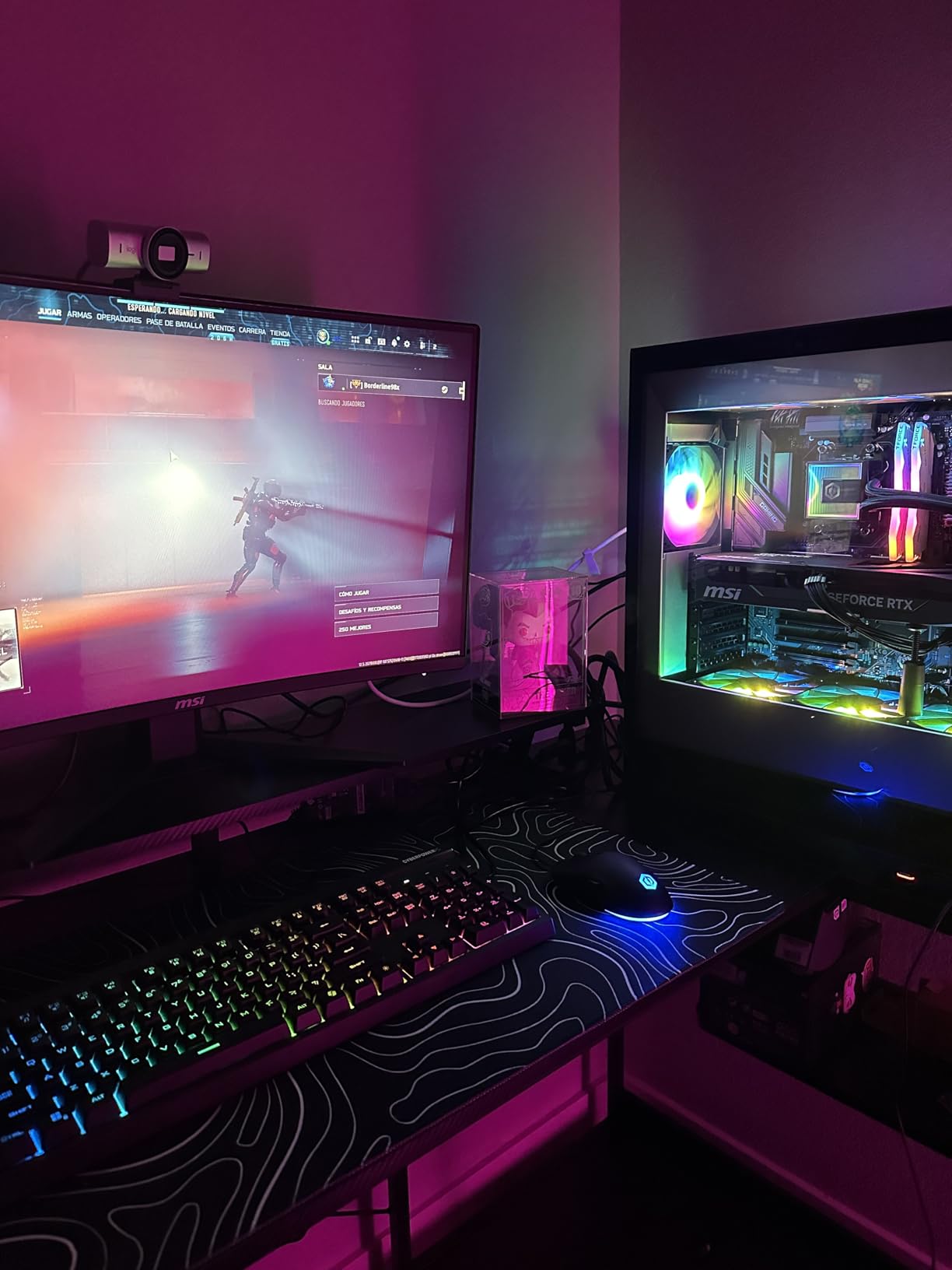
The MX Brio takes a different route to a dark room than the Meet 2. Rather than leaning on a large sensor, it leans on processing: Logitech claims roughly 2x better face visibility in difficult light, using pixels that are 70% larger than the previous generation plus an AI enhancement pass.
In practice it works. Hybrid workers who came from a mirrorless setup report a small, predictable gap in compressed 1080p calls, and reviewers repeatedly describe the image as bright and clean in poorly lit rooms without visible grain. It also produces noticeably cleaner edge separation for virtual backgrounds than rivals, which matters if you blur your background on every call.
The Show Mode is the feature I did not expect to care about. Tilt the camera down to share a sketch or a handwritten note, tilt it back up for your face, and you have replaced an entire second camera for under a tenth of the cost of a proper document camera.
Manual controls cover ISO, shutter speed, tint and vibrance, with an Auto mode when you do not want to think about it. In a dim room I set these manually, the same way I would on a stills camera, and the result was far more stable than letting auto-exposure chase a changing scene.
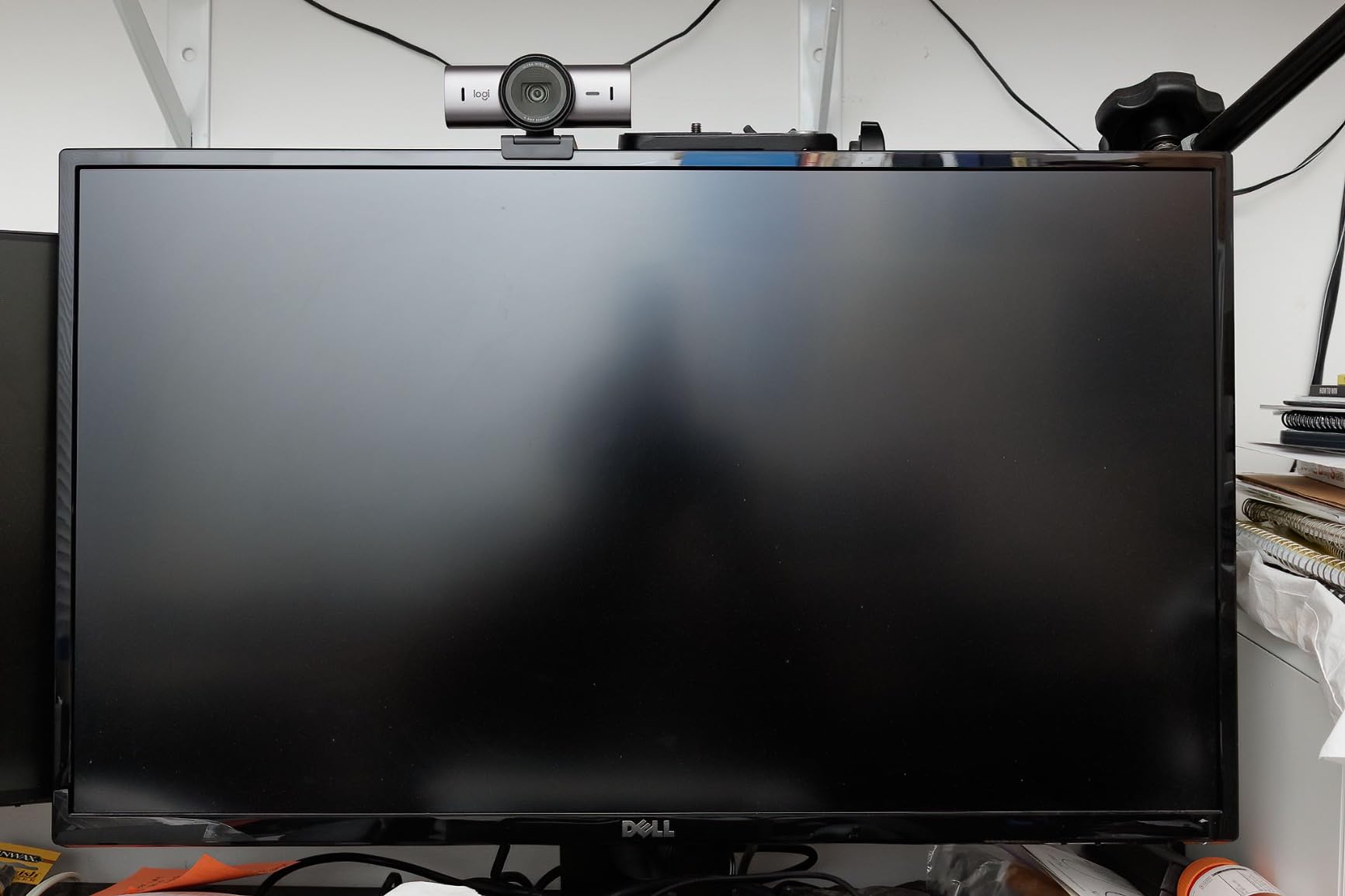
Software rescue versus sensor physics
Processing can pull a usable frame out of a scene that a smaller sensor would render as mush, but it cannot invent photons. The practical test: put both this and the OBSBOT Meet 2 in the same dim room and the sensor still wins on shadow detail. What the Brio adds is stability and a better out-of-the-box experience for someone who will never open a settings panel.
Audio, mounting and the software split
Dual beamforming noise-reducing microphones are among the better built-in options here, and the rotating privacy cover stays attached, which is more than several rivals manage. The recurring complaints are software rather than optics: Logitech splits its controls across Logi Tune and G Hub, the sticky base can let the camera slip on a monitor if nudged, and the cable is rigid enough to make angling awkward. A meaningful number of streamers also report autofocus failing to lock onto their face during live broadcasts.
Who should skip it
Skip it if you are on ARM64 Windows, such as a Snapdragon Surface Pro – the RightSight AI features are confirmed not to initialise on those machines. Skip it if you want the largest sensor in this test for the least money, because the Acer 4K uses a 1/2-inch sensor at a fraction of the outlay, and skip it if you refuse to install a companion app.
3. Anker PowerConf C200 – Best Budget Webcam That Still Handles Dim Rooms
Anker PowerConf C200 2K Webcam for PC/Laptop/Mac, Low-Light Correction
2K resolution
Adaptive low-light correction
65 78 and 95 degree field of view
7.04oz
+ Pros
- Adaptive low-light correction makes dim rooms usable
- Dual mics with AI noise cancellation
- Three selectable field of view angles
- Sliding privacy cover stays attached
- Most-reviewed camera in this group
– Cons
- 2K output is softer than the 4K rivals
- No 4K capture at all
- Still improves noticeably with some room light
With close to 9,500 reviews, the PowerConf C200 is the most proven camera on this list and the one I recommend when budget is the real constraint. Its adaptive low-light correction is a processing feature rather than a big sensor, and reviewers are clear about the distinction: it produces a usable, reasonably crisp image in dim rooms without extra lighting, but results still improve with some light.
That is honest, and it sets the right expectation. This is the camera that will not embarrass you on a client call from a dark home office. It will not hold up to the premium picks on a large display or on a stream.
The dual mics with AI noise cancellation get consistent praise for keeping calls intelligible in a noisy home, and the 65, 78 and 95 degree field of view presets let you frame a headshot or show the whole desk. The integrated sliding privacy cover is simple and stays attached, which puts it ahead of several clip-on or removable covers in this roundup.
Setup is genuinely plug and play on Windows 7 or later and macOS 10.11 or later, with an adjustable zoom and separate easy and automatic shooting modes if you want to stop it second-guessing you. There is an 18-month warranty, which is longer than the one-year cover on most rivals here.
As a reality check on the forum advice about budget webcams: the recurring streamer recommendation is to buy a cheap proven camera and spend the remaining budget on lighting. That is exactly the logic this pick supports. TechEnclave users make the same point from the other direction – webcam quality depends almost entirely on room lighting.
What adaptive low-light correction actually does
It brightens the frame, smooths noise, and shifts the white balance toward warmer tones so your face does not read as grey. It cannot restore detail that was never captured, so shadows behind you stay flat and fine texture flattens out. Used on its own in a room with a lamp behind you, it is a genuine rescue. Used as a replacement for lighting, it is a compromise.
Where the 2K ceiling bites
Two thousand by 1440 is plenty for a 1080p call, and Zoom, Teams and Meet all compress well below that. The ceiling shows when you crop in for a headshot, when you sit close to a 4K monitor, or when you stream. At that point the softer output is obvious next to any of the 4K models here, and there is no path around it – the camera simply tops out at 2K.
Who should skip it
Skip it if you stream or shoot anything you will re-watch, if you need 4K for a large display, or if your room is dark with no lamp you can switch on. In that last case, the Acer 4K further down carries a 1/2-inch sensor for a similar outlay and will out-perform this on raw light gathering.
4. Insta360 Link 2C Pro – Largest Sensor in the Test
Insta360 Link 2C Pro – 4K Webcam for PC/Mac, 1/1.3” Sensor, Low-Light, Auto Framing, HDR, Directional Noise-Canceling Mics, Supports Stream Deck, Zoom, Teams, Twitch for Streaming or Meetings
1/1.3-inch CMOS sensor
F/2.8 aperture
4K at 30fps H.264 and MJPEG
113.5g
+ Pros
- Largest sensor here with a dedicated low-light mode
- Clean 4K detail from the big sensor
- Fast and reliable autofocus
- Directional dual-mic audio clears a separate mic for calls
– Cons
- Colour skews red or magenta under mixed lighting
- No Windows Hello face recognition
- Not compatible with ARM-based Windows
The Link 2C Pro has the largest sensor in this test at 1/1.3 inches, and reviewers call it the strongest low-light webcam they have used. The companion app’s AI enhancement is what turns that sensor area into a clean face in a room lit only by a distant monitor and a weak LED – a genuinely dark setup, and one where most cameras fall apart.
The DeskView, Whiteboard and 4K Portrait modes make it feel like a small production rig rather than a call camera. Auto Framing tracks one person or a group and adjusts the framing, and you can control tracking and zoom with gestures or from a phone across the room.
Autofocus is fast and the magnetic mount stays secure while detaching easily, which is the right balance for a camera you will move between machines. It is a light 113.5g, and it works on Linux once the firmware is updated.
The one image problem worth knowing about is colour. Under mixed lighting the image skews red or magenta, and because there is no independent tint control, you correct it in post rather than in the app. That is fine for streaming and calls, and annoying for a controlled production setup.
Sensor size versus aperture: the trade-off here
Big sensor, average lens. The 1/1.3-inch surface is the biggest here, but the aperture is a fixed f/2.8, which is wider-open than a typical webcam yet noticeably slower than the f/1.7 and f/1.8 glass on the Razer, OBSBOT and Acer units. Net effect: the Link wins when the scene is dark because of raw sensor area, and the f/1.7-f/1.8 cameras hold their edge a little longer as you approach daylight. For a dim room, the sensor is the bigger lever.
Feature set versus plain calling
Stream Deck integration, natural bokeh, gesture control and a phone remote are all well executed, and the review consensus praises the app as thoughtfully built with real customisation and sound profiles. They are also more than a plain video call needs. If you only ever join meetings, the feature list here is over-specified for the job, and the flat f/2.8 plus the colour skew are easier to accept when you are not grading footage.
Who should skip it
Skip it on ARM-based Windows, which it does not support, and skip it if you rely on Windows Hello face unlock, which it also lacks. Skip it if you need a software-controlled tint to fix mixed-lighting colour, and skip it if you want the fastest aperture in this test – the Razer Kiyo Pro Ultra is the one to look at for that.
5. Elgato Facecam 4K – Best for Streamers Who Want Manual Exposure
Elgato Facecam 4K, 4K60 Studio Webcam, DSLR-Like Control
1/1.8-inch Sony STARVIS 2 sensor
F/2.8 aperture and 49mm optics
4K at 60fps uncompressed
Two-year warranty
+ Pros
- Large STARVIS 2 sensor keeps noise controlled in a dark room
- Full manual exposure through Camera Hub
- Settings persist in internal flash memory
- 49mm lens filters and uncompressed 4K60
– Cons
- No built-in microphone at all
- Fixed f/2.8 gathers less light than f/1.7 rivals
- One-star share of 10% is among the highest here
The Facecam 4K is the manual-control option, and for a dim streaming room that matters more than raw sensor size. Everything is yours to set – shutter, ISO, white balance – through Elgato Camera Hub, so the exposure stays locked instead of drifting when someone walks past.
Settings persistence is the detail owners care about most. Elgato Facecam owners on forums describe the camera saving settings to the cam itself, so if you unplug it or use it on a different computer the settings travel with it. On a Logitech camera you rebuild them every time, which is a genuine annoyance across a multi-machine setup.

Capture is uncompressed 4K at 60fps with HDR, and the lens accepts standard 49mm filters, which opens creative options no other webcam here offers. A detachable 200cm USB-C 3.0 cable and monitor mount are included, and the two-year manufacturer warranty is the longest in this group.
Where it sits on low light is a fair question. The 1/1.8-inch Sony STARVIS 2 sensor is large for a webcam and keeps noise and detail well controlled in a dark room, but the fixed f/2.8 aperture gathers less light than the faster f/1.7 and f/1.8 lenses on the Razer Kiyo Pro Ultra, the OBSBOT Meet 2 and the Acer 4K. It is a step behind those on pure dim-room sensitivity and ahead of every small-sensor camera.

Why streamers care more about dials than sensor size
Because a stream is recorded once and watched later, not recompressed live. A locked exposure and manual white balance mean your dim room looks the same on Tuesday as it did on Monday, and you can correct skin tone in software rather than hoping auto-exposure lands there. The 4K60 uncompressed output also gives an encoder real data to work with, which matters more for final quality than any on-paper resolution bump.
The microphone gap and the 10% one-star share
There is no built-in microphone, so budget for an external one, and that is a legitimate dealbreaker for anyone whose only requirement is one device for calls. The 10% one-star share is among the highest in this group and tends to reflect software and support friction rather than image quality. Camera Hub is free and does the job, but it is another app to install and learn.
Who should skip it
Skip it if you need a built-in mic, if you want the widest aperture for a genuinely dark room, or if a one-app-per-camera setup is going to annoy you. For pure dim-room sensitivity with no streaming ambitions, the OBSBOT Meet 2 pairs a similar sensor approach with a faster lens and microphones included.
6. Razer Kiyo Pro Ultra – Best Color Accuracy and a Genuinely Fast Lens
Razer Kiyo Pro Ultra 4K Webcam, Large Sensor, Built-in Mic and Shutter
1/1.2-inch Sony STARVIS 2 sensor
2.9 micron pixels
F/1.7 aperture
1.5 pounds
+ Pros
- F/1.7 lens and 1/1.2-inch sensor excel in dim rooms
- Colours closer to true than competing Logitech units
- Twist-to-close iris shutter never gets lost
- On-board flash saves profiles per lighting setup
– Cons
- Synapse is Windows-only with no macOS settings app
- Synapse 4 has a bug stopping settings saving
- Autofocus struggles when the camera looks down at you
The Kiyo Pro Ultra combines the second-largest sensor here with the fastest lens in the roundup at f/1.7, and 2.9 micron pixels on the Sony STARVIS 2 sensor. Reviewers report it beats several cheaper rivals in dim rooms, and colours that are noticeably closer to true than competing Logitech units – a real advantage if your skin tone has looked orange on every call.
The twist-to-close iris shutter is the best privacy mechanism in this test by some distance. It is part of the body, it never gets lost, and it closes with a physical turn rather than a floppy clip. HDR at 30fps holds shadow and highlight detail together, and output is uncompressed at 4K 24fps, 1440p 30fps and 1080p 60fps.
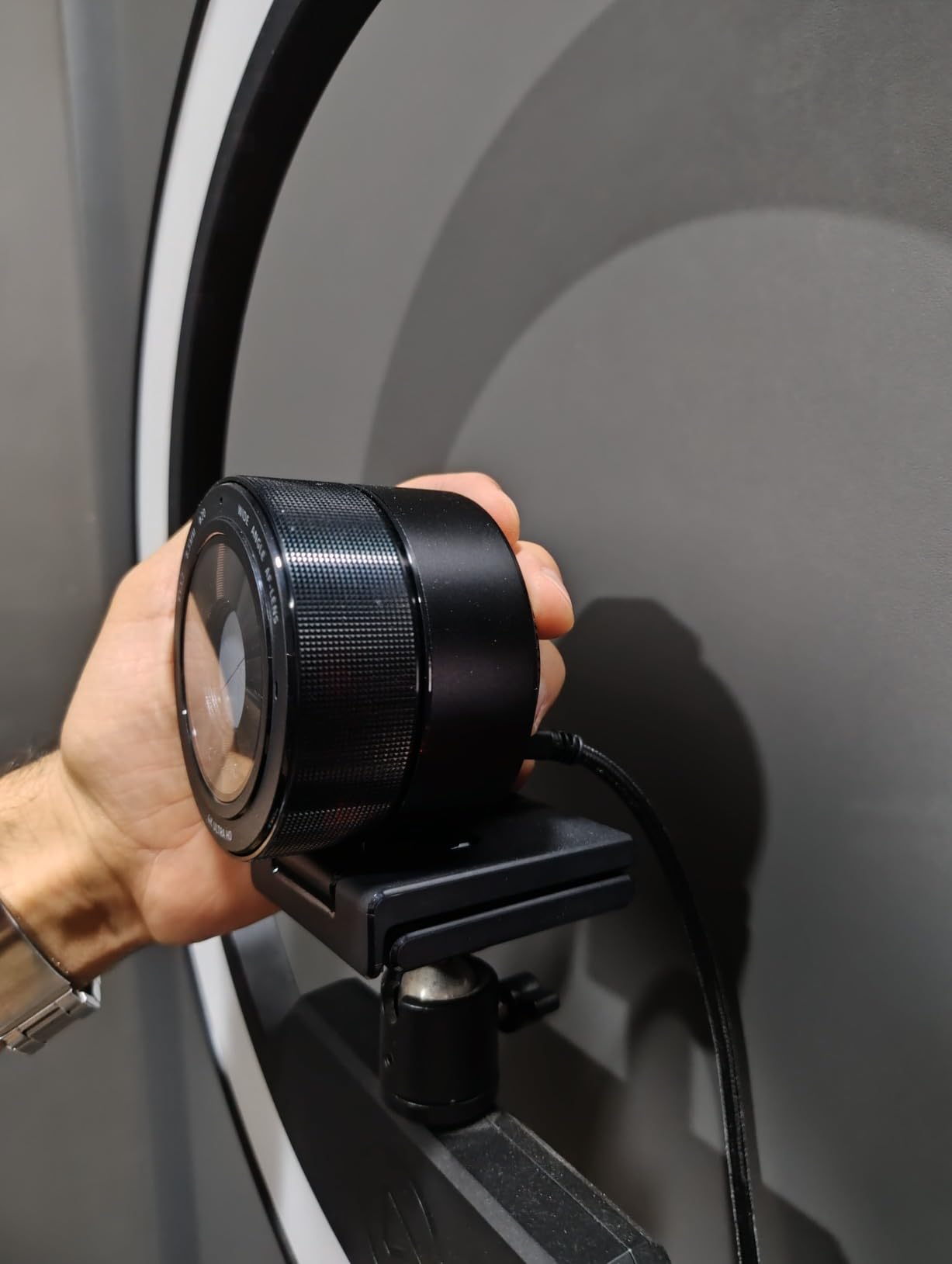
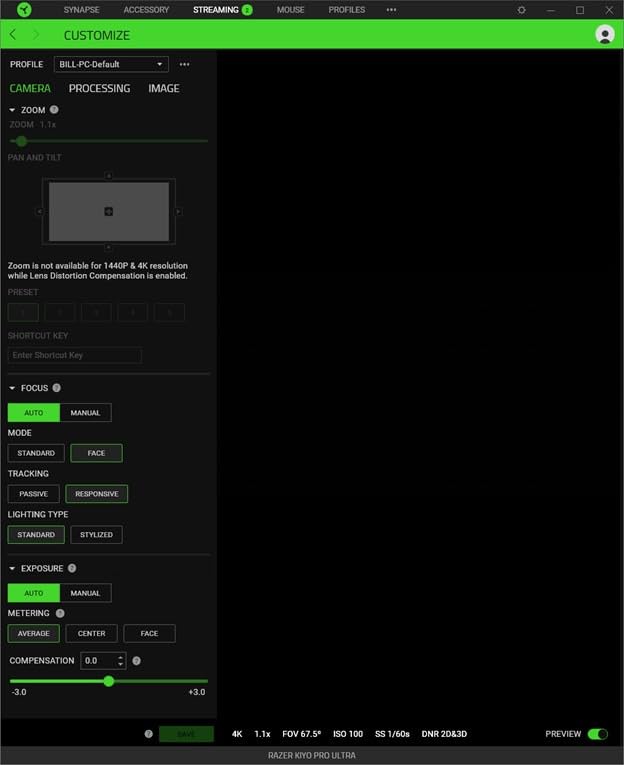
Manual control over field of view, ISO and shutter speed, plus on-board flash memory for saved profiles, means you can store a separate profile for a daylight setup and a night setup and switch between them. Portrait-mode-like background blur works without extra software, though the blur depth is not adjustable.
That 4.0 average with 230 reviews is the lowest rating here, and the reviews explain why: nearly every critical review is about software, not optics. Razer Synapse is required to unlock the camera’s full potential, it is Windows-only, there is no macOS control app at all, and Synapse 4 has a documented bug that stops settings persisting to the camera.
Aperture is the quiet low-light winner
Aperture controls how much light reaches the sensor at any given setting. f/1.7 delivers roughly 2.7 times as much light as f/2.8 at the same framing and shutter speed, and that is the difference between a clean frame and a noisy one as the room dims. The Kiyo Pro Ultra is the camera here that holds its image longest as the light drops, which is why it is worth understanding this spec rather than just reading megapixel counts.
Software, autofocus and physical size
Autofocus can struggle, especially when the camera is mounted above you and angled down. At 1.5 pounds and 8.58 inches deep it is also the bulkiest here, which matters if your mount is a monitor clip rather than a desk stand. On the positive side it works on Linux via MJPG even without OpenRazer drivers, and the manual profiles are a genuine convenience.
Who should skip it
Skip it on macOS, decisively – with no control app you are limited to out-of-box defaults in a category where manual settings are the point. Skip it if you are on Synapse 4 and rely on saved profiles until the saving bug is resolved, and skip it if you need a small, light camera for travel.
7. Logitech Brio Ultra 4K – Best for Business Calling and Backlit Desks
Logitech Brio Ultra 4K HD Webcam for Streaming and Meetings – Black
RightLight 3 auto exposure
4K at 30fps with autofocus
65 78 and 90 degree dFOV presets
2.22oz
+ Pros
- RightLight 3 and low-light mode handle glare and backlighting
- Fast and reliable Windows Hello unlock
- Noise-cancelling mics handle pets and home-office sound
- Lightweight at 2.22oz and mounts easily
– Cons
- Weak in genuinely dark rooms versus large-sensor rivals
- Clip-on plastic privacy shade comes off too easily
- Thick stiff cable makes positioning awkward
The Brio is the one to buy if your problem is a backlit desk rather than a dark one. RightLight 3 handles glare and backlighting, and the dedicated low-light shooting mode is a single toggle rather than a settings rabbit hole. Reviewers in telehealth and hybrid work credit it with holding a well-exposed, sharp image across bright rooms, windows behind the monitor and dim home offices alike.
Windows Hello face unlock is close to a universal positive, described as instant and reliable even on a cold boot, which removes a daily friction that most competing cameras here do not solve at all.
The dual omnidirectional microphones use noise-cancelling tech for clear capture up to 1.2m, and users report they handle pet noise and general home-office background sound well. Three field of view presets at 65, 78 and 90 degrees let you frame a tight headshot or show the room, and Logi Options+ adds zoom, colour presets, manual focus and firmware updates.
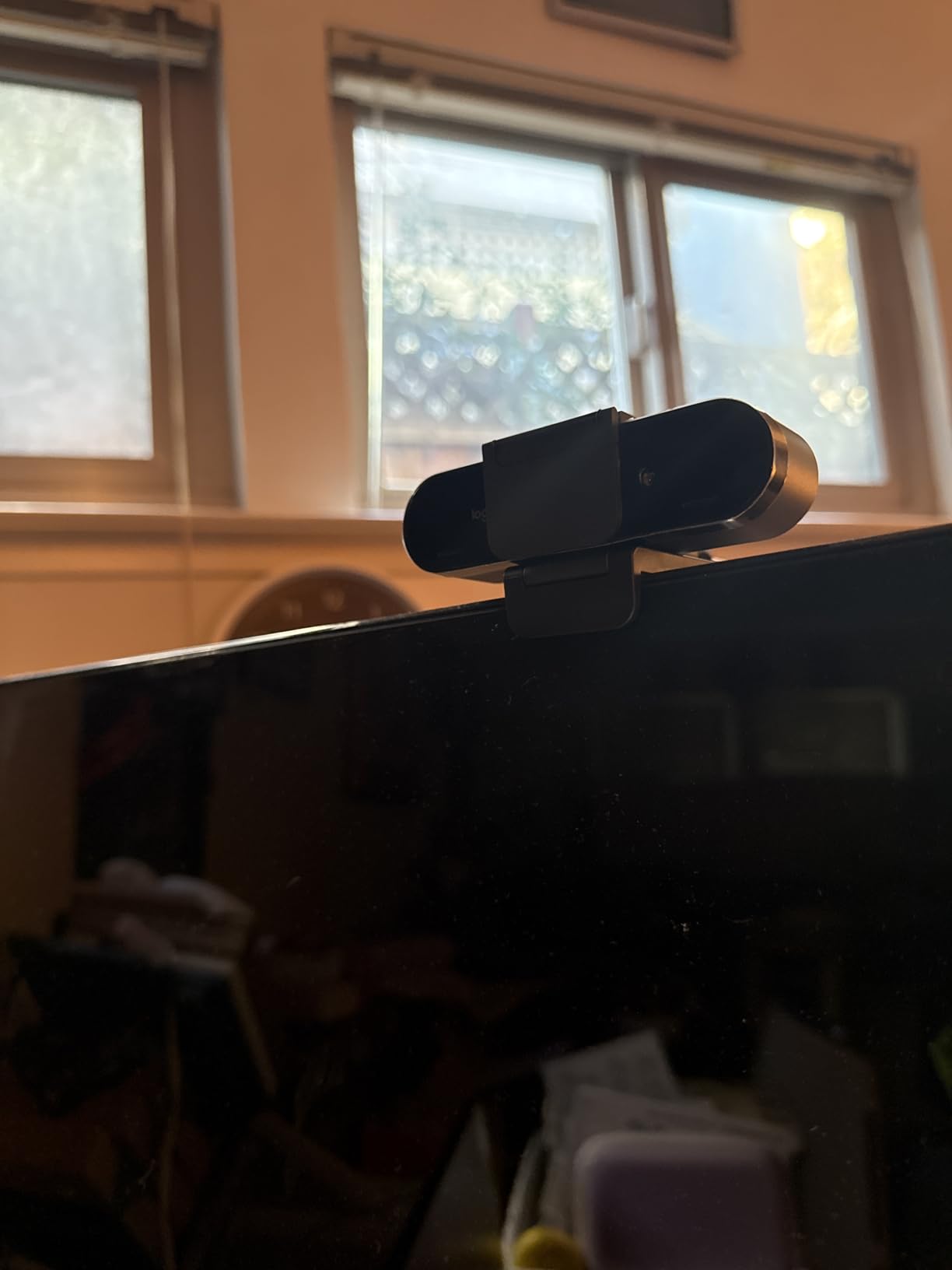
It is the second-lightest body here at just over two ounces, so it mounts easily on large monitors without sagging the panel. The tradeoff is that the small body is easy to knock off, and the field of view is fairly narrow at the closest preset.
Being straight with you about the title question: in a genuinely dark room, the Brio is described as workable rather than strong. It is weak next to the large-sensor cameras in this list. Its low-light mode is a processing assist, and processing runs out of headroom faster than sensor area does.
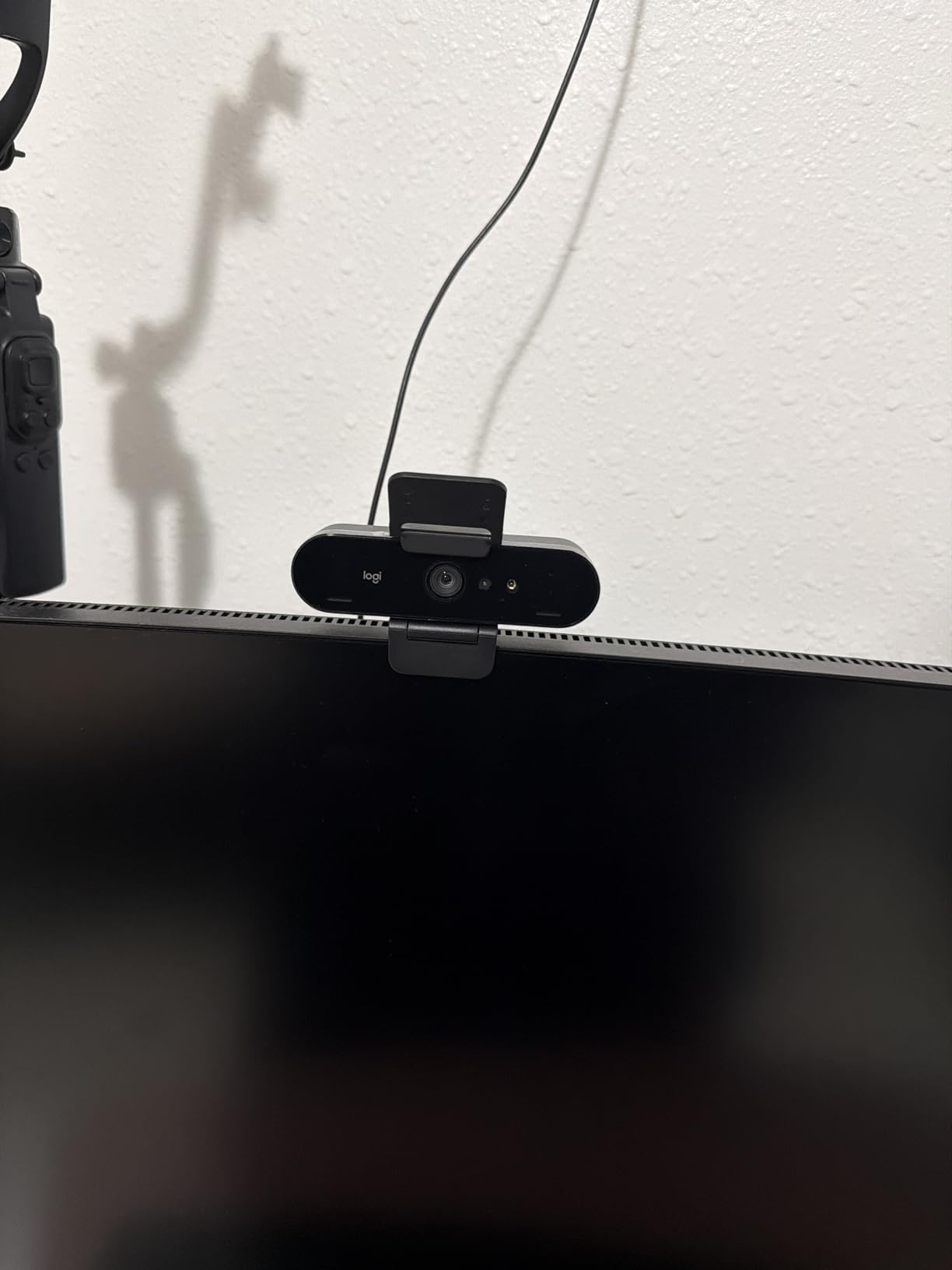
Backlight compensation versus raw sensitivity
RightLight 3 works by measuring the scene and adjusting exposure and contrast to hold your face, which is exactly the right tool for a window behind your monitor. It is a different job from collecting light. If your issue is a silhouetted face against a window, the Brio handles it well. If your issue is simply not enough light in the room, a bigger sensor handles it better.
Hardware criticisms worth knowing
The clip-on privacy shade is the weak point: a cheap-feeling plastic piece that comes off too easily and gets misplaced. The cable is thick and stiff, making positioning awkward on a monitor arm. A smaller but persistent group report Teams and Windows Hello failures that Logitech’s driver tooling does not resolve, so test it on your actual conferencing platform before committing.
Who should skip it
Skip it if your room is genuinely dark rather than merely backlit, and skip it if you need a privacy shutter you cannot lose. For a fully dark room on a tighter budget, the Acer 4K below has the larger sensor and the faster lens.
8. Acer 4K Webcam – Best Sensor Value You Can Carry in a Pocket
Acer 4K Webcam for PC/Mac with All-Metal Unibody Sculpted, Sony 1/2″ Sensor, PDAF, 2 Noise Reduction Mics, Privacy Cover for Switch 2/Zoom/Teams/Facetime/YouTube/Google Meet
Sony 1/2-inch CMOS sensor
F/1.8 aperture
Phase detection autofocus
50g all-metal body
+ Pros
- Sony 1/2-inch sensor rivals far costlier cameras in low light
- Phase detection autofocus is quick and does not hunt
- All-metal unibody runs cool in long sessions
- True plug and play on PC and Mac with no software
– Cons
- Detached magnetic privacy cover is easy to lose
- No companion software so no manual exposure or white balance
- Microphone is basic call quality only
The Acer 4K is the surprise of this test. A genuine 1/2-inch Sony CMOS sensor at f/1.8, in a CNC-machined aluminium unibody weighing 50g, and reviewers repeatedly single out that sensor as the reason the image is sharper and brighter than expected. Several compare it favourably to cameras costing far more, including in low light.
Phase detection autofocus is quick and, importantly, does not hunt – which matters more than it sounds, because a camera repeatedly re-measuring focus in a dim room keeps changing its exposure. The metal body runs cool through long sessions, and the 4K detail holds up on larger monitors.
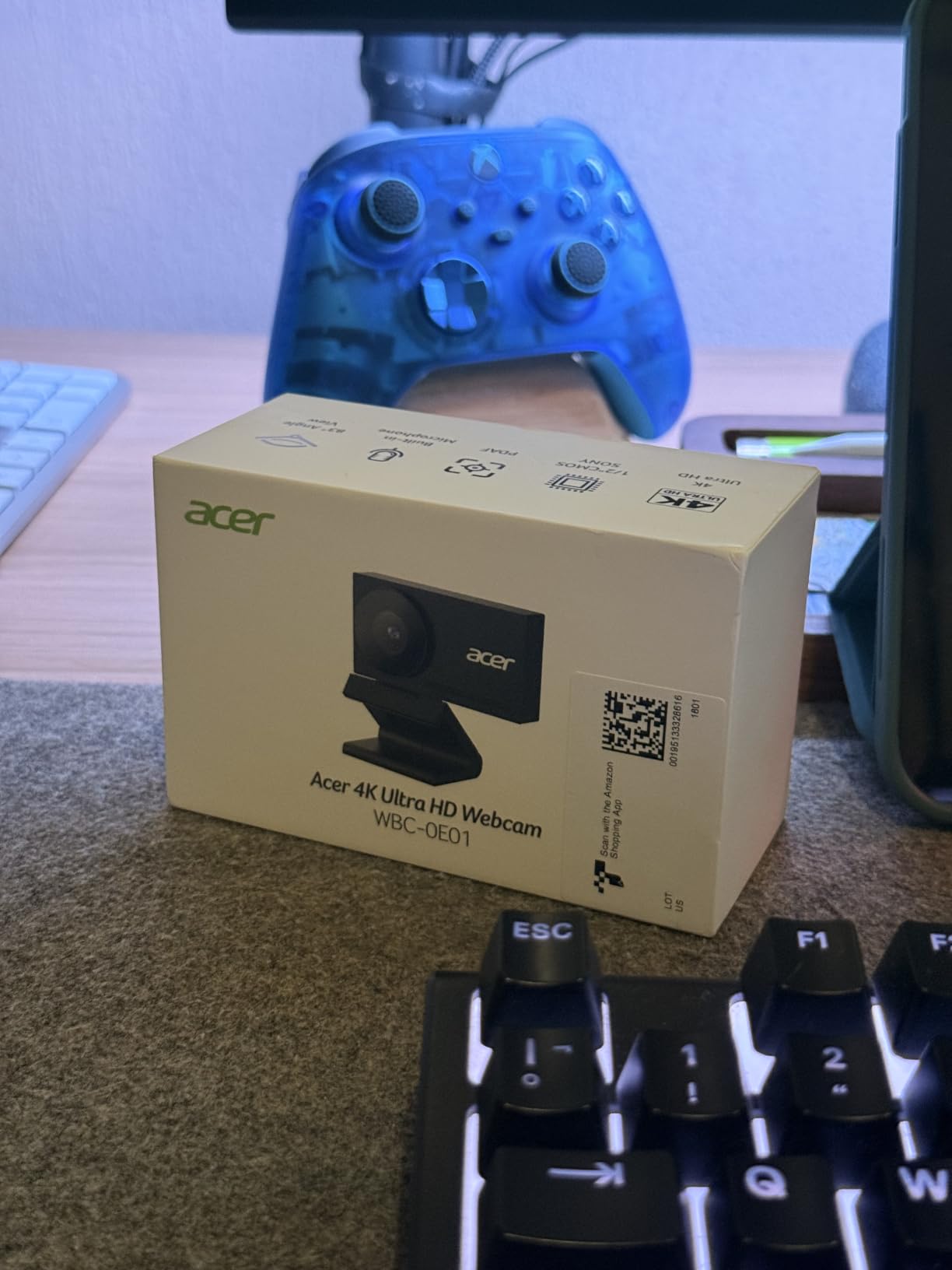
Setup is genuinely plug and play over USB-C with a USB-A adapter included, no drivers and no app, on Windows, Mac, ChromeOS and Switch 2. That last one is unusual, and it makes this a workable travel camera. The dual high-sensitivity digital mics filter wind and keyboard clicks and capture clearly to about 2.5m.
With no companion software, there is no manual exposure or white balance control, and that is a bigger limitation in a dark room than it is in a bright one. You are relying entirely on the camera’s own auto behaviour in exactly the conditions where a human hand on the dials would help most.
A 1/2-inch sensor and an f/1.8 lens on a budget body
This combination is the reason for the ranking. Most cameras at this level of cost use a small sensor and a slow lens, so they lose on both counts. Here the sensor area is competitive with the OBSBOT Meet 2 and the Acer lens is faster than the Insta360’s, which together produce a face that holds together in a dim room without any software help. The only thing you give up versus the larger sensors is fine detail under extreme dimming.
No software, and what that costs you
No companion app also means no firmware updates to chase, no driver conflicts in a work laptop environment, and nothing to install on a borrowed machine. For a fixed conference room or a loaner laptop, that is a genuine advantage. For a dark room where you want to dial in exposure, it is a real limitation, and no amount of brightness adjustment in a calling app substitutes for it.
Who should skip it
Skip it if you need manual exposure or white balance control, if you are the kind of person who loses small magnetic parts – the privacy cover is fully detached with twelve built-in magnets and reviewers find it easy to misplace. Skip it if you need a serious microphone, and skip it if black is not an acceptable colour.
Why Does My Webcam Look Grainy? Five Causes and the Fix for Each
Grain is not a defect. It is a sensor telling you it did not receive enough light, and every fix below either delivers more light to the sensor or stops the camera from amplifying what little arrived. This is the diagnostic that three separate PAA questions all point at, so here it is as a numbered list.
The sensor is too small for the room. This is the one you cannot fix in software. Every pixel has to work harder, so the camera raises gain, and gain amplifies the sensor’s own read noise. A 1/2-inch or larger sensor collects enough light to keep shadows clean where a small sensor collapses. The fix is a bigger sensor, not a brighter setting.
No light is actually on your face. A monitor behind you does not light you; it silhouettes you. Put a lamp or an LED panel on the same side as your face, roughly 45 degrees off axis, and closer than you think. A screen is not a key light.
You are backlit. A window or bright doorway behind the monitor forces the camera to expose for the background and render your face dark. Turn the brightest thing in the room to face you instead, or close the curtain, or move so the light is on your side.
Software gain is set too high. Raising brightness or using aggressive auto light correction after capture cannot recover detail that was never captured. It only amplifies noise that is already there. Fix the lighting and the exposure instead.
White balance and digital zoom are working against you. A camera hunting for white balance in mixed lighting keeps changing its rendering, and pushing digital zoom past native resolution just magnifies noise. Set both manually, or cap the zoom at 1x.
If you want the short version as a routine, work through these six steps in order and most grain problems disappear without buying anything.
Face a window or a lamp, with the light source behind the camera rather than in front of you.
Add a second light source on the opposite side so both sides of your face are lit evenly.
Set exposure manually, then lower the ISO until the image is still clean rather than as bright as possible.
Lock white balance to match the room instead of letting it drift.
Keep digital zoom at 1x and frame physically by moving the camera instead of cropping.
Update the camera firmware and companion app, since exposure algorithms improve between versions.
Hardware cannot rescue a room with no light in it. The cameras below can raise the ceiling, and lighting raises the floor.
How to Choose a Webcam for a Dark Room
Sensor size first, resolution second
Sensor size is the only spec that predicts low-light behaviour. The notation is the sensor’s diagonal measured in fractions of an inch, so 1/1.3 inch is physically larger than 1/1.8 inch, which is larger than 1/2 inch, which is larger than 1/2.5 inch. Read it as a fraction, not a decimal, and smaller denominators are bigger sensors. Among these eight, the Insta360 Link 2C Pro at 1/1.3 inch and the Razer Kiyo Pro Ultra at 1/1.2 inch gather the most light, and the Acer 4K and OBSBOT Meet 2 at 1/2 inch are the value tier that still holds up.
Resolution matters for cropping and for large displays, and it matters almost not at all for a compressed video call, where the stream arrives at 1080p regardless. If you are choosing between a 4K camera with a small sensor and a 1080p camera with a 1/2-inch sensor for a dim room, take the bigger sensor.
Aperture, and why f/1.7 beats f/2.8 in the dark
Aperture is written as an f-number, and a smaller number means a wider opening that lets in more light. Because light scales with the area of the opening, going from f/2.8 to f/1.7 delivers roughly 2.7 times as much light onto the sensor at the same framing and shutter speed, which is a huge margin when the room light drops. The Razer Kiyo Pro Ultra runs f/1.7 here, and the Acer and OBSBOT both run f/1.8, while the Insta360 Link and the Elgato Facecam sit at f/2.8 and lean on their larger sensors to compensate.
Manual exposure decides whether you can fix it yourself
The OBSBOT Meet 2 and the Logitech MX Brio both give you real manual exposure, ISO and white balance controls. That is the difference between tuning a camera once and spending a call watching auto-exposure chase a changing scene. If your room is dim, treat manual exposure as a requirement rather than a nicety.
Field of view for the room you actually sit in
Field of view determines how much of the room you include, and a wider view captures less light per subject because the sensor spreads the same area over more of the frame. For a single person at a desk, a narrow preset is better. For a small conference room, you need a wide one, and the Anker C200 and Logitech Brio both give you 95 and 90 degree options. Note also that wide-angle webcams distort faces at the edges, which is why TechEnclave users call them close to unusable for video calls.
The microphone, honestly
Built-in microphones vary more than marketing suggests. The dual beamforming mics on the Insta360 Link 2C Pro and the Logitech MX Brio are clear enough to replace a separate microphone for calls, and the Logitech Brio’s omnidirectional pair with noise cancellation handles pets and home-office noise well. The Elgato Facecam has no built-in microphone at all, and the OBSBOT Meet 2’s onboard mic is described as mediocre next to its video quality. If you present or stream regularly, budget for a separate microphone rather than fighting the built-in one.
Platform fit, mount stability and privacy
Check that the camera is certified for your platform and that the mount suits your hardware. The OBSBOT Meet 2’s bundled monitor clip grips poorly, the Logitech MX Brio’s sticky base can slip, and the Razer Kiyo Pro Ultra is heavy and deep. Privacy mechanisms vary widely: the Razer has a twist iris that stays put, the Acer’s magnetic cover detaches entirely and gets lost, and the Logitech Brio’s clip-on shade comes off too easily. Our conference webcam picks for meeting rooms go deeper on framing for shared spaces.
Webcam, mirrorless or phone in a dark room
A mirrorless body in webcam mode has a much larger sensor than any webcam, so it wins decisively in low light – and Tom’s Hardware forum members recommend exactly that over expensive conferencing cameras. The costs are real though: a capture card, a power supply, a dummy battery or mains power, and a setup that does not travel. If you want to understand what a large sensor does for you, our mirrorless cameras ranked for low light is the right reference. For most people on calls, the cheaper path to a better image is a webcam with a 1/2-inch sensor plus one added light, which costs less than the capture hardware alone.
Frequently Asked Questions
What is the best webcam for low light conditions?
The best webcam for low light conditions is the OBSBOT Meet 2, whose 1/2-inch CMOS sensor and f/1.8 lens hold a clean, evenly exposed face in a room lit mainly by a monitor. It also offers full manual exposure, ISO and white balance control, which lets you lock the image instead of watching auto-exposure chase a changing scene. If you want the largest sensor available, the Insta360 Link 2C Pro uses a 1/1.3-inch sensor, at a higher outlay.
Do webcams work in the dark?
Partly. In a genuinely dark room every webcam hits a hard floor where the sensor stops collecting enough light and the image turns grainy. The honest answer is that a webcam gets you a face you can read, not a face that looks well lit. Anything past that floor needs either a larger sensor or, more cheaply, a light on your face. Raising brightness in software only amplifies noise that is already in the frame.
Why does my webcam look grainy in low light?
Grain appears when the sensor receives too few photons, so the camera raises its gain to brighten the frame and that gain amplifies the sensor’s own read noise. Four things make it worse: a small sensor, no light aimed at your face, a bright window behind you forcing a silhouette, and software brightness sliders adding gain after the fact. Fixing the first two with a bigger sensor and a single lamp eliminates most of it.
Why does my Logitech camera look grainy while others look clean?
Most often the camera is doing its job with the sensor it has. A 4K Logitech webcam with a small sensor and a slow lens can look grainier in a dim room than a 2K camera with a 1/2-inch sensor, because extra megapixels spread the same light over smaller pixels. RightLight 3 and the dedicated low-light mode on the Logitech Brio improve a backlit scene noticeably, but they are processing assists rather than extra light. For a genuinely dark room, sensor size is the deciding factor.
Does sensor size matter more than 4K resolution for a webcam?
For low light, sensor size matters considerably more than resolution. A 1/2-inch or 1/1.3-inch sensor gathers enough light to keep shadows clean, whereas a small-sensor 4K camera resolving more detail in a scene that has no light to resolve simply produces more visible noise. Resolution still matters for cropping, streaming and large displays, but a compressed Zoom or Teams call arrives at 1080p regardless of what the camera captures.
The Verdict for Dark Rooms
If you want the single best choice for a low light room, take the OBSBOT Meet 2. The 1/2-inch sensor is large enough to hold a face in a dim space, the autofocus is instant so the exposure stops moving, and the manual exposure controls mean you set the image once.
If you want the most light-gathering of all and your software needs are modest, the Insta360 Link 2C Pro pairs the largest sensor here with a dedicated low-light mode. If your camera has to handle colour-accurate work, the Razer Kiyo Pro Ultra has the fastest lens in the test, though you need Windows and Razer Synapse to get at it.
If you stream and want full manual control with settings that follow the camera between machines, the Elgato Facecam 4K is the one, and you will need a separate microphone. If you are on a Mac, the Razer is out and the Logitech MX Brio becomes the premium answer, with AI low-light processing that rescues a room no sensor could fully fix.
If your budget is the deciding factor, the Acer 4K Webcam puts a 1/2-inch Sony sensor and f/1.8 lens in a 50g aluminium body, which is the best sensor value in this test. If you want the most proven option and the lowest cost of entry, the Anker PowerConf C200 has nearly 9,500 reviews behind its adaptive low-light correction.
And if your real problem is a window behind your monitor rather than a dark room, the Logitech Brio Ultra 4K with RightLight 3 is built for exactly that, with Windows Hello to round it off. In every case, add one light on your face before you blame the camera, and the best webcams for low light rooms will more than keep up.
Leave a Reply