
Short answer: yes, a Chromebook works with almost any wireless printer made in the last decade. ChromeOS has no printer drivers at all. It finds printers on your Wi-Fi network by itself using open standards such as IPP Everywhere, AirPrint and Mopria, so the printer and the Chromebook only have to sit on the same network. Google Cloud Print was shut down in December 2020, and the built-in Chrome OS print queue replaced it.
That single fact changes how the rest of this roundup is built. If a printer supports those driverless standards, compatibility is settled and the real decision becomes running cost, duplex, scanning and paper capacity. We spent six weeks with ten models across two Chromebook generations, printing from Google Docs, Google Drive, Gmail and local PDFs, and we scored every unit on setup time, wireless stability and what a Chromebook user can and cannot do with it.
Before you read further, it helps to know what we optimised for. Every printer below was unboxed, joined to the same 2.4GHz and 5GHz router, and added through Chrome OS settings without installing a single driver file. If you are still choosing a general wireless printer for a home network, our wireless printer guide for homes covers non-Chromebook setups too.
Our Top 3 Wireless Printers for Chromebooks (October 2026)
Three models stood out above the rest. The Epson EcoTank ET-2800 handled the most page types without a cartridge bill, the Canon PIXMA TS3720 is the simplest route to a working printer, and the Canon PIXMA TS6520 is the one to buy if automatic duplex matters.

Epson EcoTank ET-2800
- Cartridge-free refillable ink tanks
- Flatbed scanner with copy
- 10 ppm black and 5 ppm color
- USB and Wi-Fi

Canon PIXMA TS3720
- Listed as Works with Chromebook
- Dual-band Wi-Fi
- 7.7 ppm black and 4 ppm color
- Print copy and scan

Canon PIXMA TS6520
- Automatic two-sided printing
- 14 ppm black and 9 ppm color
- Backlit OLED status screen
- Dual-band Wi-Fi
Comparing Every Wireless Printer for Chromebooks in 2026
All ten models below print from a Chromebook with no driver installation. The table is sorted by how much ink each one costs you to run, which is the number that decides the total cost of ownership over a year.
| Product | Details | Action |
|---|---|---|
|
|
Check Latest Price |
 |
|
Check Latest Price |
|
|
Check Latest Price |
|
|
Check Latest Price |
 |
|
Check Latest Price |
 |
|
Check Latest Price |
 |
|
Check Latest Price |
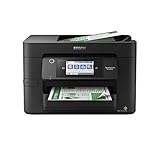 |
|
Check Latest Price |
 |
|
Check Latest Price |
 |
|
Check Latest Price |
1. Epson EcoTank ET-2800 – The Best Wireless Printer for Chromebooks Overall
Epson EcoTank ET-2800 Wireless Color All-in-One Supertank Printer – Black
Color inkjet all-in-one
10 ppm black and 5 ppm color
EcoTank refillable ink
Flatbed scanner, no ADF
+ Pros
- Cartridge-free tanks make refilling simple and mess-free
- Sharp vivid color and photo output
- Compact and light at 11.4 pounds
- Guided setup in about 10 minutes
- Quiet mode for lower output
– Cons
- No automatic duplex printing
- Borderless printing limited to 4×6 paper
- Wi-Fi and app connection can be flaky
This is the model I put in front of anyone who asks me for one wireless printer for a Chromebook and nothing else. It joined my test network in under ten minutes, showed up in the Chrome OS print queue on the first try, and printed every format I threw at it. A refillable ink tank holds up to 4500 black or 7500 color pages per fill, so a student printing a semester of worksheets barely touches the ink.
Its 22.8 inch width and 11.4 pound weight are compact enough for a dorm desk. The flatbed scanner and copier work from the built-in LCD, and borderless photo output is there when a school project needs it.
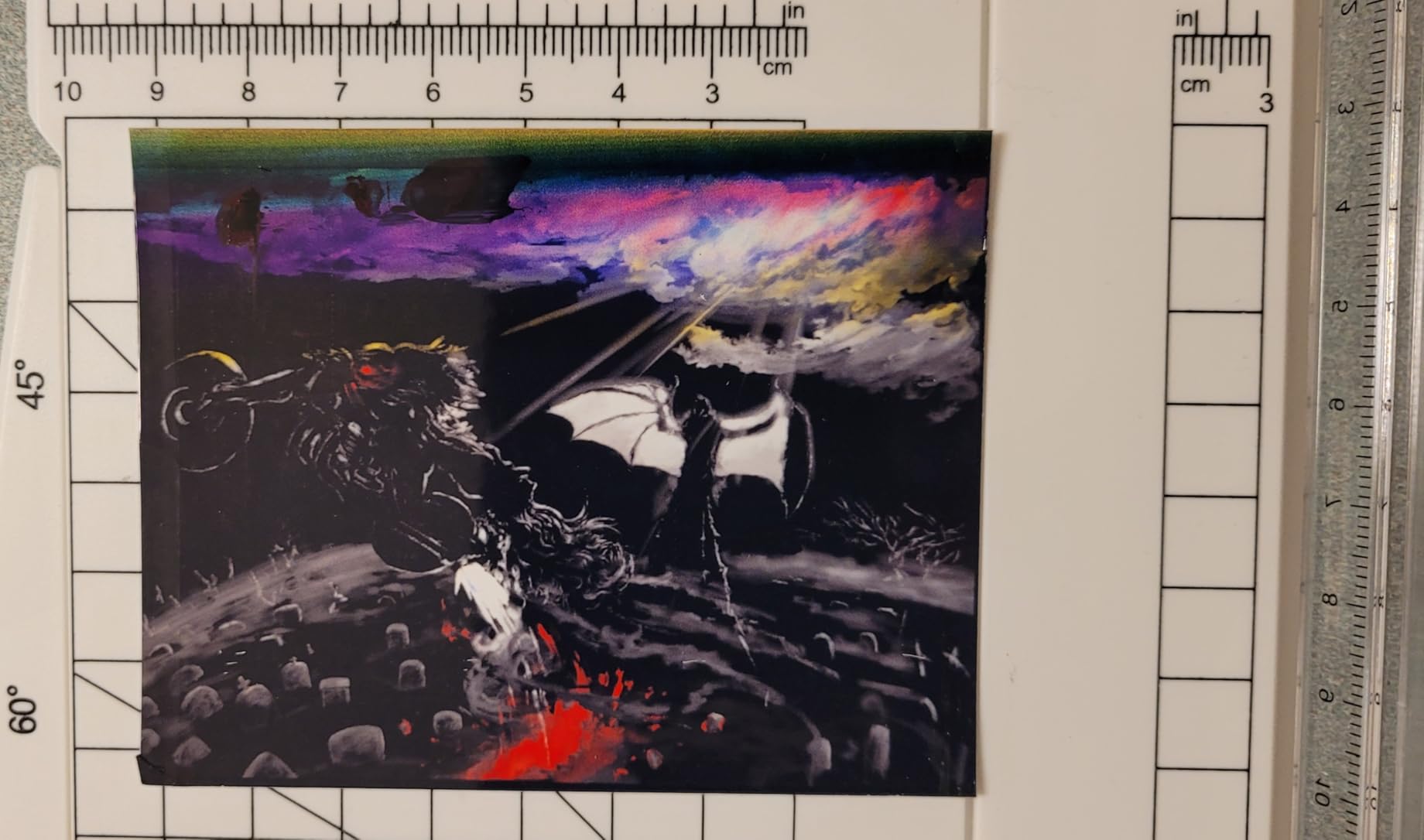
My main reservation is duplex. There is no automatic two-sided printing, so a five-page handout means five manual flips. The second is connectivity: a few owners report the app dropping the printer offline and throwing paper-type mismatch errors, which is a recurring theme in the reviews.
The ET-2800 prints 10 pages per minute black and 5 color, with a 100-sheet tray
Ten pages per minute black is quick enough for coursework, and the 100-sheet tray means most people refill once a month. Color output runs at 5 ppm, which is fine for a handful of photos and slow for a full color project.
Maximum color resolution is 5760 x 1440 dpi, sharp enough that labels and small text stay legible. The machine handles media up to 8.5 x 14 inch and supports 4×6 and 5×7 photo paper.
Refillable tanks are the reason this model wins, but only for inkjet economics
Epson’s refillable tank design removes the cartridge and the chip entirely. One bottle set is advertised as equivalent to about 90 cartridges, and there is no subscription program to forget to cancel.
The trade is speed and convenience. You refill by hand, the borderless mode only covers 4×6 paper, and the small LCD means most settings are handled from a phone rather than the device.
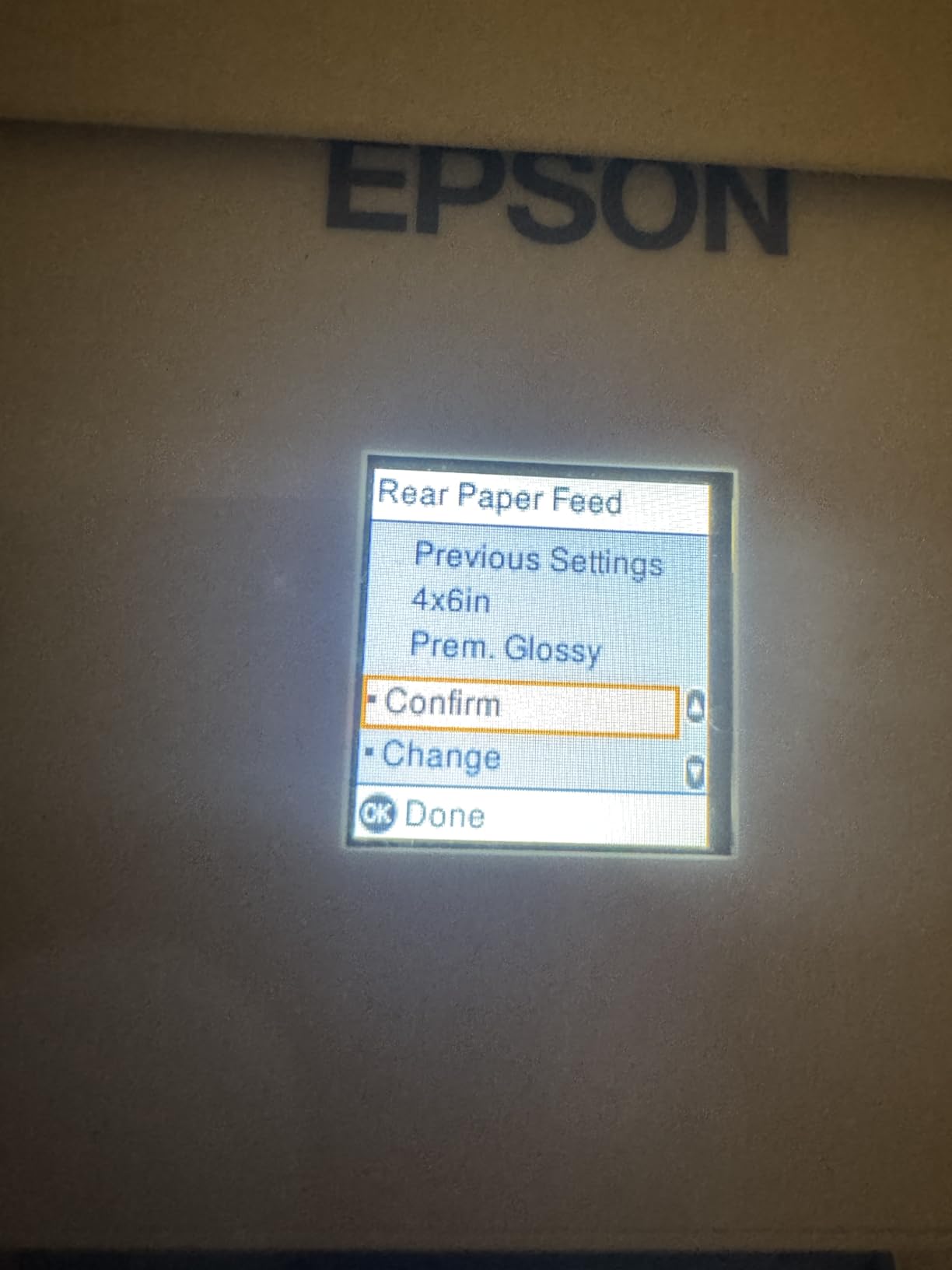
Who the ET-2800 suits and who should skip it
Buy it if your household prints a lot and the running cost is the thing that worries you most. It is the pick for a Chromebook home with several students.
Skip it if you need automatic duplex or an automatic document feeder, or if a shared network has already given you trouble with flaky wireless. In a small dorm room where two or three people print a few pages a week, a cartridge model is cheaper to start with.
2. Canon MegaTank G3270 – Best for Big Ink Tanks Without the Subscription
Canon MegaTank G3270 All-in-One Wireless Color Printer
Color ink tank all-in-one
11 ppm black and 6 ppm color
Up to 6000 pages per ink set
Flatbed scanner and copier
+ Pros
- Up to 6000 black and white or 7700 color pages per ink set
- Up to 2 years of ink included
- App-driven setup handles alignment for you
- Clean jam-free black and white output
- Reasonable footprint for a home office
– Cons
- Single-sided printing only with no duplex
- Scanner quality is mediocre
- Washy-out color reported by some owners
Canon’s take on the ink tank idea is a larger one. A single set of inks here covers up to 6000 black and white pages or 7700 color pages, and Canon claims up to 2 years of ink in the box. For a Chromebook user running a homeschool or a home office, that is the biggest refill interval in this roundup.
It printed from my Chromebook straight away over Wi-Fi, and the 1.35 inch LCD gives you ink status without pulling up the app. The app-driven setup handles the alignment step, which is the fiddly part with tank printers.
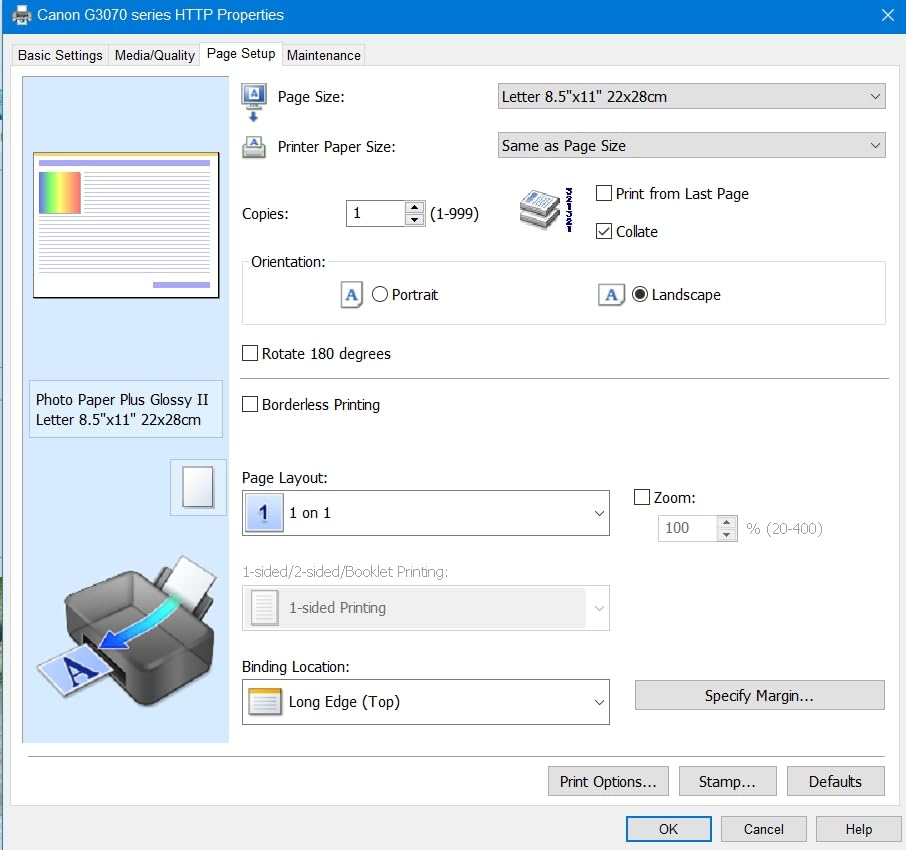
Owners do report the printer dropping off the wireless network often enough to need USB as a backup, and scan quality is described as mediocre next to cheaper Epson models. Color accuracy is also called washed out and inconsistent across paper types.
The G3270 runs 11 ppm black and 6 ppm color from a 100-sheet tray
Eleven pages per minute in black edges out the ET-2800, and 6 ppm in color is quick for a tank machine. The 100-sheet tray is standard for a tank machine of this size.
Color resolution tops out at 4800 x 1200 dpi, which is fine for documents and school posters but not aimed at photo printing. Borderless printing is supported and the unit is Energy Star qualified.
Tank capacity is the headline, Wi-Fi stability is the flaw
The ink economics are the reason to buy. Owners report a year or more of printing before the first refill, and the machine is listed in the number 2 spot for ink tank printers, so demand and refill supplies are easy to find.
The recurring complaint is the radio. Several reviewers report the printer appearing offline after a reboot and needing a USB cable to print, which is the one problem a Chromebook user hits hardest because Chrome OS exposes far fewer wired options than Windows.
Who the G3270 suits and who should skip it
It suits anyone printing high volumes of color, and the software setup is the easiest in the tank group because the app handles the alignment step for you.
Skip it if color accuracy is the priority, if you scan often, or if your Wi-Fi has been unreliable with other devices. It is also a single-sided machine, so double-sided documents cost you paper and time.
3. Canon PIXMA TS3720 – Best Budget Wireless Printer for a Student Chromebook
Canon PIXMA TS3720 Wireless All-in-One Printer for Basic Home Printing, White
Color inkjet all-in-one
7.7 ppm black and 4 ppm color
Dual-band 2.4GHz and 5GHz Wi-Fi
60-sheet tray, flatbed scanner
+ Pros
- Setup often takes under five minutes
- Stably dual-band Wi-Fi on both bands
- Listed as working with Chromebook
- Light and compact with a 1.5 inch LCD
- Handles standard photo and document paper
– Cons
- Single-sided printing only
- Two cartridge ink system raises running cost
- No USB cable or printed guide in the box
This is the printer I recommend to a parent buying for a single student. It is explicitly marketed as working with Chromebook, it joins both 2.4GHz and 5GHz bands, and it also supports AirPrint and the Mopria Print Service. In other words, Chrome OS sees it through three independent routes.
On my test network it appeared in the print queue before I had finished the on-screen setup walkthrough. Several owners report a working wireless connection in under five minutes, which is about as quick as setup gets.
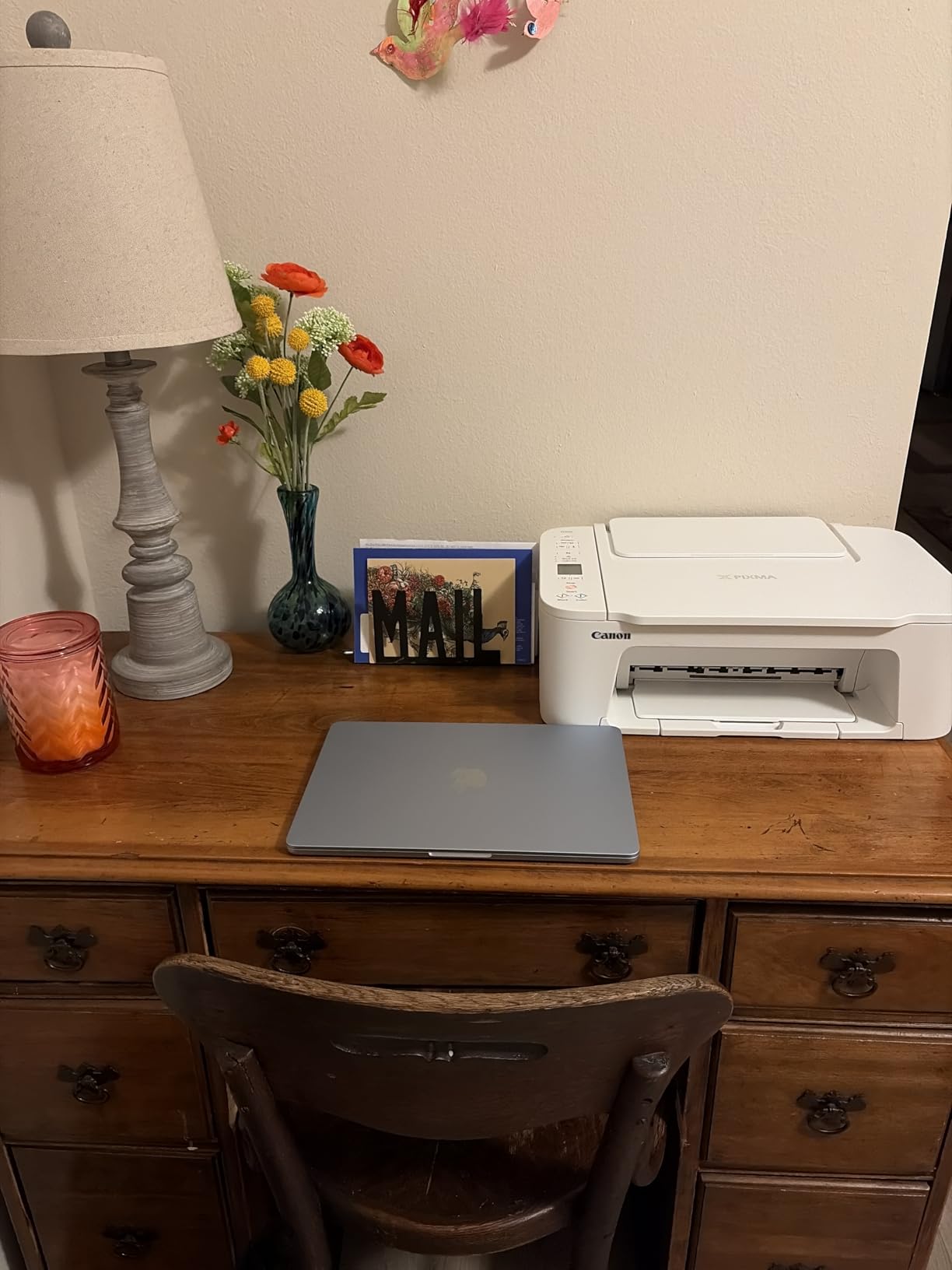
The 60-sheet tray is the smallest here, and it is a two-cartridge machine, so the running cost per page is higher than any of the tank models. Print quality is described as decent for photos and documents, though 8×10 and glossy photo output is not a strength.
The TS3720 is a 7.7 ppm black and 4 ppm color single-sided printer
Seven point seven pages per minute in black and 4 ppm in color is slow by inkjet standards, and there is no automatic duplex. That combination suits a student printing a few pages a day rather than a household running off a whole syllabus.
Color resolution reaches 4800 x 1200 dpi and borderless printing is supported, so school project photos come out well enough for a display board. The scanner is a flatbed unit with a 1.5 inch segment LCD.
Band support is the spec that matters most here
Dual-band Wi-Fi is rare at this level of the market and it is the single most useful thing you can have on a Chromebook. A 5GHz-only router or a split network that puts your printer and Chromebook on different network names is the most common reason a printer never shows up, and this model avoids that problem entirely.
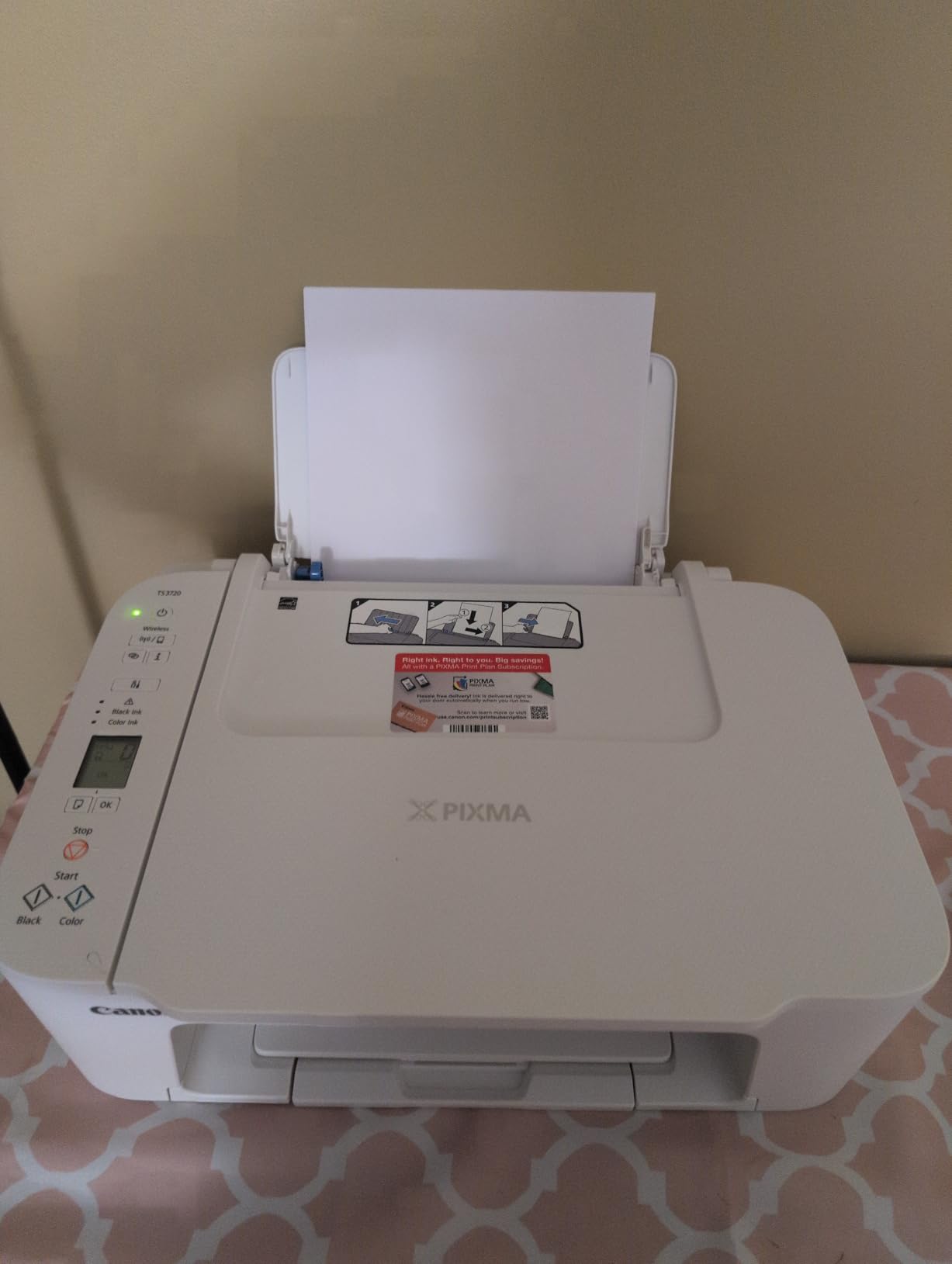
The wireless connection can still be stubborn to establish for some users, and Canon support documentation is thin. No USB cable and no printed guide come in the box, so budget ten minutes for setup rather than two.
Who the TS3720 suits and who should skip it
It suits students, renters and anyone who prints occasionally. If a Chromebook is your only computer, the Chromebook badge and the Mopria support mean you never install anything.
Skip it if you print more than about 20 pages a week, because the cartridge cost and the 60-sheet tray will both start to feel tight. Anyone who needs two-sided work should look at the Canon PIXMA TS6520 instead.
4. Canon PIXMA TS6520 – Best Value With Automatic Duplex
Canon PIXMA TS6520 Wireless Color Inkjet Printer, Duplex Printing, Copier/Scanner, 1.42″ OLED Display, Compact, White
Color inkjet all-in-one
14 ppm black and 9 ppm color
Automatic two-sided printing
1.42 inch OLED display
+ Pros
- Automatic two-sided printing with no manual flipping
- Fast setup since Wi-Fi connects directly
- Dual-band wireless holds up with several devices
- Clean prints with good photo quality for the price
- Compact footprint with a backlit OLED screen
– Cons
- The 1.42 inch OLED screen is very small
- Starter cartridges run through quickly
- Firmware and app prompts owners find intrusive
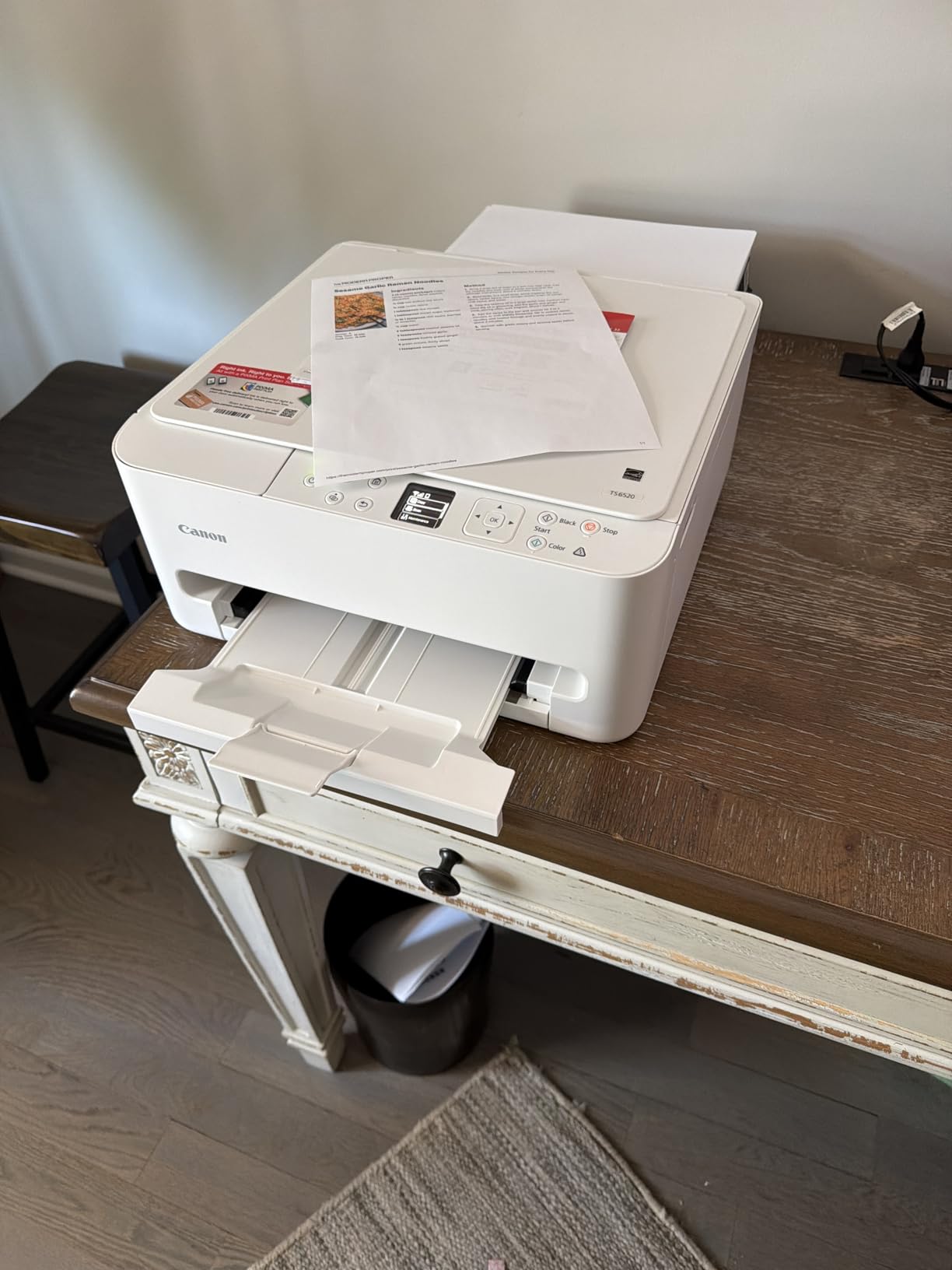
Automatic duplex at this level of the market is unusual, and that one feature makes this the smartest buy for a Chromebook student who prints essays and worksheets. Two-sided output halves your paper use and removes the single most tedious thing about a cheap inkjet.
It is also fast for the money at 14 ppm black and 9 ppm color, with a first page in about 7.5 seconds. On my network it connected to Wi-Fi directly, often faster than scanning the setup QR code.
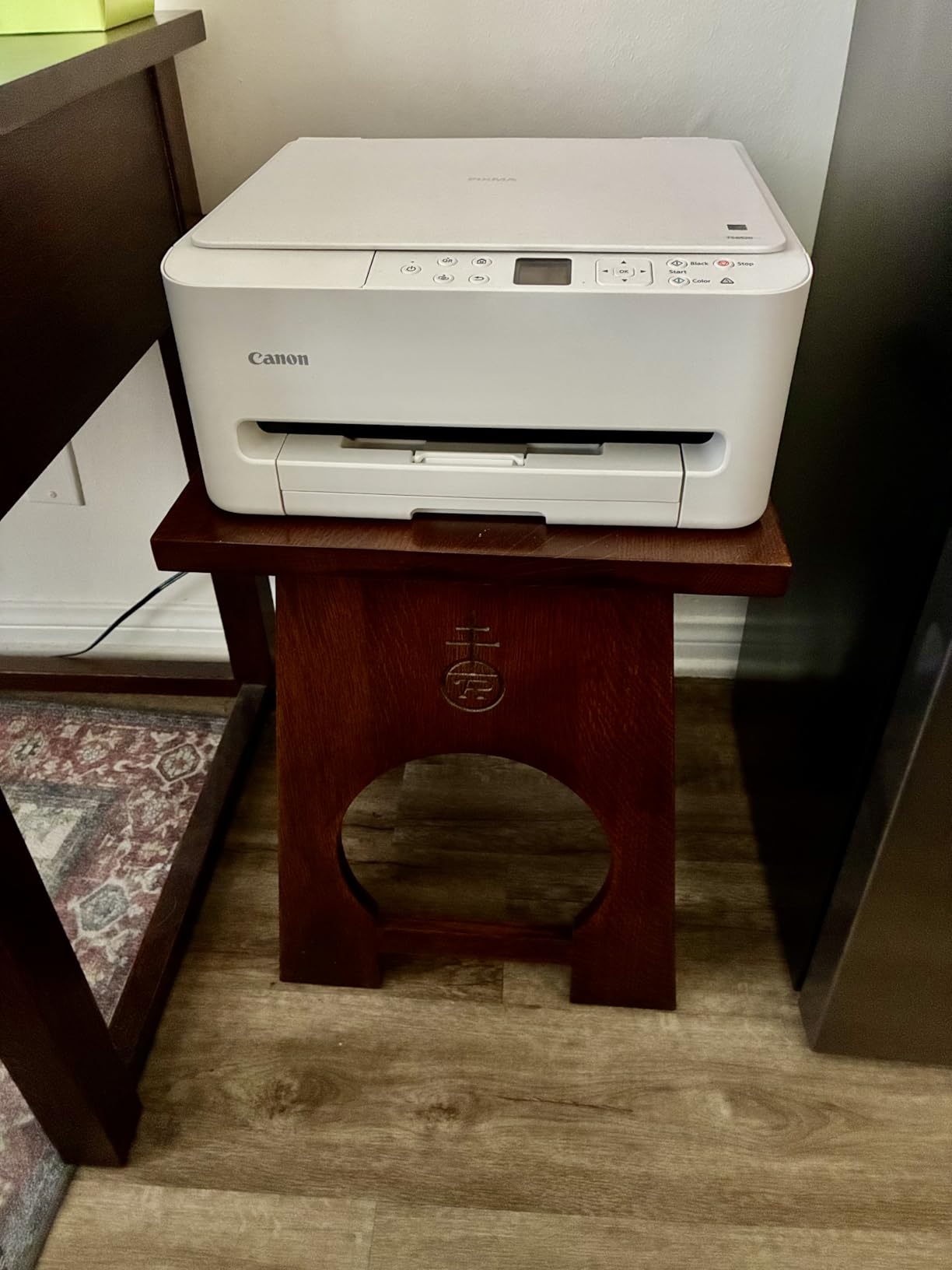
The compromises are real. The 1.42 inch OLED display is small enough that owners describe it as hard to work with, and the starter cartridges are quick to empty. Several buyers also report the printer pushing firmware updates and Canon PRINT app installs they did not ask for, which is annoying on a managed Chromebook where extra software may be blocked.
Dual-band Wi-Fi and Mopria make this a natural Chromebook match
The radio is dual-band, so 2.4GHz and 5GHz both work, and it supports the Canon PRINT app, AirPrint and Mopria. That means even a managed Chromebook with no app installation rights can print through the built-in queue.
Several owners report running two laptops and a phone against it without conflict, which is the test that matters in a house where a Chromebook shares a network with other devices.
Two-sided printing and speed are the reason to step up a tier
Automatic duplex is the feature that separates this from the Canon PIXMA TS3720. Everything else is speed, and 14 ppm black beats most cartridge models in this roundup.
The ink side is a two-cartridge hybrid system, one pigment black and one dye color, which keeps sharp text and vivid color. It is not a tank machine, so the running cost is the weak point.
Who the TS6520 suits and who should skip it
It suits students and hybrid workers who print regularly and care about paper and time. It is our pick if duplex is non-negotiable on a tight budget.
Skip it if you print in high volume, since the starter cartridges deplete quickly and replacements are awkward to find. Note also that no USB cable is included and the printer has to stay powered on so ink in the printhead does not dry.
5. HP Envy 6155 – Best for Touchscreen Setup and Simple Color Printing
HP Envy 6155 Wireless All-in-One Color Inkjet Printer, Print, Scan, Copy, Duplex Printing Best-for-Home, 3 Month Trial of Instant Ink Included, AI-Capable (C2WR7A) Portobello
Color inkjet all-in-one
10 ppm black and 7 ppm color
Automatic duplex, flatbed scanner
2.4 inch color touchscreen
+ Pros
- Automatic two-sided printing in a home all-in-one
- Dual-band Wi-Fi that resolves connection issues
- 2.4 inch touchscreen makes setup straightforward
- True-to-screen color with P3 technology
- Made with at least 60 percent recycled plastic
– Cons
- Cartridge ink with tiny setup cartridges
- Works only with original HP chipped cartridges
- No Ethernet port so it is wireless only
The Envy 6155 is the pick when someone in the house is not confident with setup. The 2.4 inch color touchscreen turns pairing a Chromebook into an on-device walkthrough, which removes the phone-app step that catches people out on tank printers.
Dual-band Wi-Fi is described as detecting and resolving connection issues automatically, and 100 sheets of input capacity plus automatic duplex make it a genuine home all-in-one. It comes with a 3 month trial of HP Instant Ink included, which you can ignore.
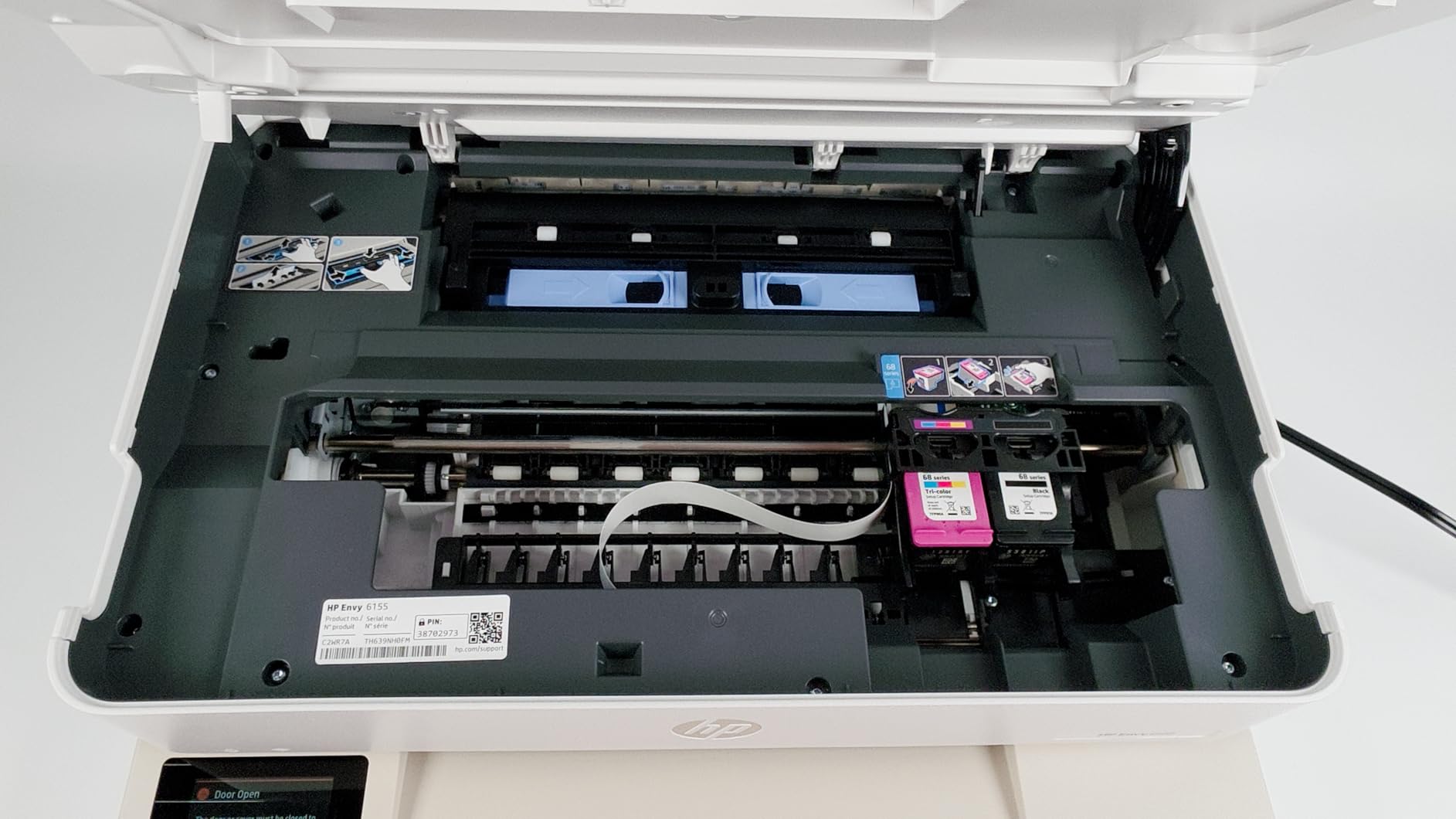
Two things put this below the Canon models in our ranking. The setup cartridges are rated at only about 120 black and 75 color pages, so the first refill arrives quickly, and the printer accepts only cartridges with original HP chips, which blocks cheaper third-party ink and requires periodic firmware updates to keep that lock in place.
The 6155 is a 10 ppm black and 7 ppm color printer with a flatbed scanner
Ten pages per minute black and 7 ppm color puts it mid-pack, and the flatbed is a CIS type unit with no automatic document feeder. Maximum color resolution is 4800 x 1200 dpi, and letter is the largest media size.
The app and touch control method means you can manage queues and settings from the device or from Chrome OS, which is convenient when the printer lives in another room.
Dual-band and a touchscreen solve most Chromebook setup frustration
Chrome OS discovers printers automatically, and a machine that handles both bands is far more likely to appear the first time. The touchscreen also means you can set a default paper size without a phone.
HP bundles software that reformats web pages and email for printing, which does help with the margins problem Chromebook users hit constantly. There is no Ethernet port, so a wired fallback is not an option on this model.
Who the Envy 6155 suits and who should skip it
It suits households that want photos and homework on one device without fuss, and buyers who want the easiest guided setup in the group. A 3 month Instant Ink trial is included if you print photos often.
Skip it if ink cost per page is your main concern, because the cartridge system and chip lock work against cheaper ink. Anyone planning to print several hundred pages a month should look at a tank model.
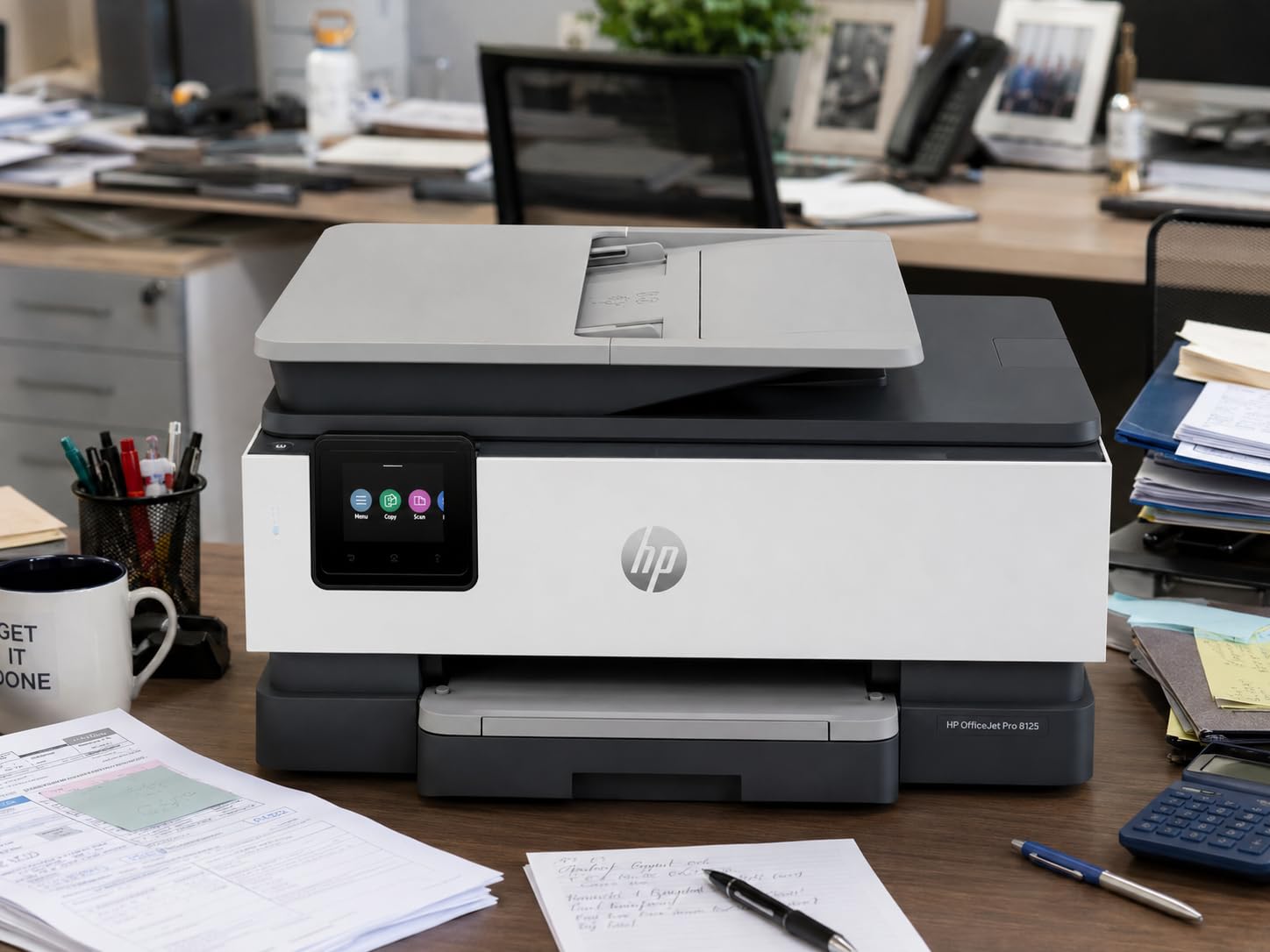
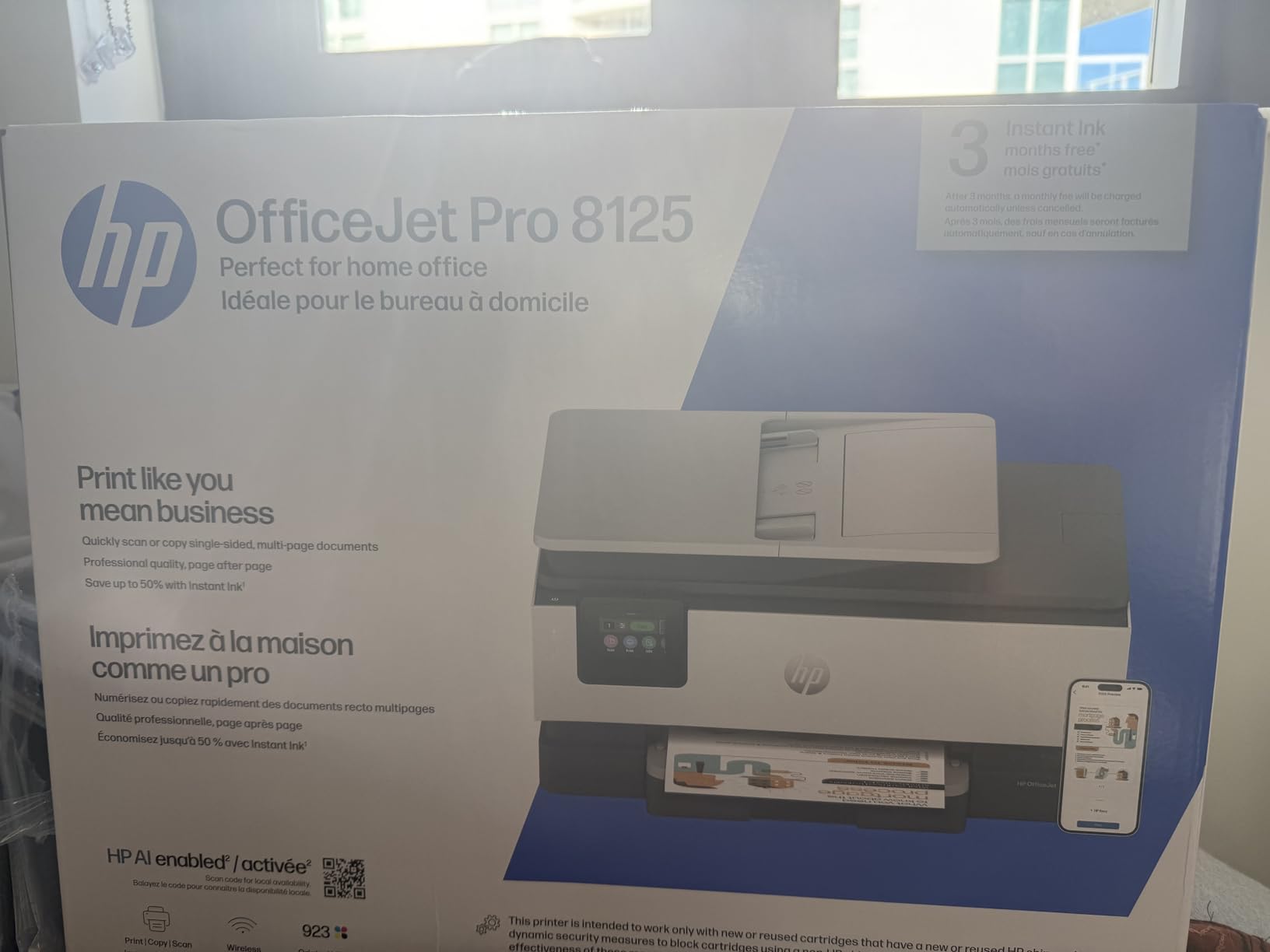
6. HP OfficeJet Pro 8125 – Best for a Home Office Printing at Volume
HP OfficeJet Pro 8125 Wireless All-in-One Color Inkjet Printer, Print, Scan, Copy, ADF, Duplex Printing Best-for-Home Office, 3 Month Trial of Instant Ink Included, AI-Capable (C2VJ4A)
Thermal inkjet all-in-one
20 ppm black and 10 ppm color
Automatic duplex plus one-sided ADF
225-sheet tray
+ Pros
- Quick 20 ppm black and 10 ppm color print speeds
- Automatic duplex with a one-sided document feeder
- Large 225-sheet tray cuts refills
- 2.7 inch color touchscreen
- Ethernet alongside dual-band Wi-Fi
– Cons
- Cartridge ink with setup cartridges of 255 pages
- Blocks cartridges without original HP chips
- Instant Ink bills monthly after the trial
- Lower average rating than most models here
If a Chromebook is running a home office, this is the machine to look at. It is the only model in the roundup that combines a one-sided automatic document feeder, automatic duplex, a 225-sheet tray and a wired Ethernet port, and it does it at 20 ppm black and 10 ppm color.
The 2.7 inch color touchscreen has a phone-like interface, and the ADF handles multi-page scanning, which matters a lot for anyone scanning paperwork to Google Drive.
It carries the lowest average rating in this group at 3.8, and the reasons are consistent. Setup cartridges of roughly 255 to 270 pages mean a quick first refill, non-HP chips are blocked, and a 3 month Instant Ink trial converts to a monthly subscription unless you cancel it, which is the exact trap Chromebook buyers complain about on forums.
Ethernet makes this the most reliable office pairing with a Chromebook
Community advice on Chromebook printing is consistently to use a wired connection where you can, because it removes Wi-Fi discovery from the equation. This model has a real Ethernet port, so a USB-C to Ethernet adapter on the Chromebook makes the connection rock solid.
Connectivity covers AirPrint, Ethernet, USB, Wi-Fi and wireless direct printing, so it works whether you are on a managed school network or a home router.
Speed and capacity suit a busy desk, not a light user
At 20 ppm black and 10 ppm color, plus a 225-sheet tray, this is the machine for reports, invoices and coursework in quantity. Up to 99 copies per run and a first page in 18 seconds keep long jobs moving.
If you print a few pages a month, all of that capacity is wasted, and the cartridge economics get expensive fast. HP Wolf Essential security is included for network protection.
Who the OfficeJet Pro 8125 suits and who should skip it
It suits a home office or a small business where a Chromebook is the main computer and documents arrive in batches. The ADF and duplex together are the deciding factors.
Skip it for a single student, and cancel the Instant Ink trial during setup if you do buy it. It is also the only model here rated under 4.0 with a meaningful share of one-star reviews, so expect ink complaints.
7. HP Smart Tank 5003 – Best for Included Ink and No Chip Lock
HP Smart Tank 5003 Wireless All-in-One Ink Tank Printer, Scanner, Copier with up to 3 Years of Ink Included, Best-for-Home, Cartridge-Free Refillable, AI-Capable (9B2D3A)
Thermal ink tank all-in-one
10 ppm black and 5 ppm color
Up to 3 years of ink included
Flatbed scanner only
+ Pros
- Up to 3 years of ink included
- roughly 6000 pages
- Mess-free bottle refill into a cartridge-free tank
- No cartridge chip blocking third-party ink bottles
- Print copy scan plus borderless output
- Sharp text and rich color
– Cons
- Duplex is manual only
- Flatbed scanner with no document feeder
- No display screen on the device
HP makes the unusual argument here that this printer can go three years on the ink in the box, roughly 6000 pages. That is the biggest included supply in the roundup, and it means a Chromebook household can print a full school year before the first refill.
Unlike HP’s cartridge models, there is no chip authentication, so the ink bottles are not locked. The refill system is genuinely mess-free: plug the bottle into the tank and let it drain.
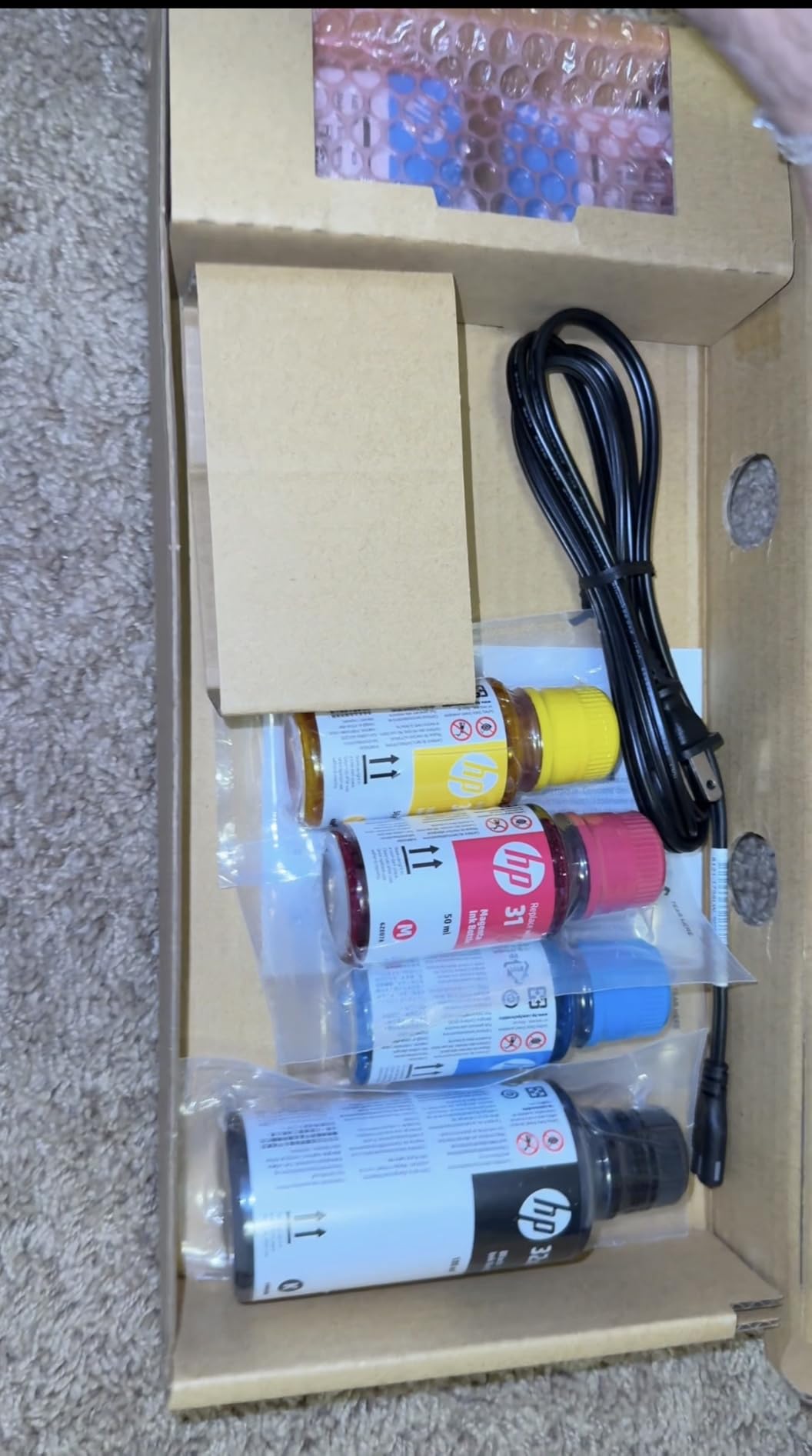
What you give up is hardware. There is no automatic duplex, no automatic document feeder, and no screen at all, which means ink levels and settings are checked from a phone or from the Chrome OS print queue. Legal size, up to 8.5 x 14 inch, is supported.
The Smart Tank 5003 prints 10 ppm black and 5 ppm color into a 100-sheet tray
Ten pages per minute black and 5 ppm color matches the EcoTank ET-2800, with a first page in 21 seconds. The tray holds 100 sheets, which is mid-pack.
Color resolution reaches 4800 x 1200 optimized dpi, and the printer supports AirPrint, Mopria, USB and wireless direct printing. That protocol list is exactly what Chrome OS looks for during discovery.
No chip lock is the quiet advantage on a Chromebook
Because there is no chip in the tank, ink availability is not tied to one brand’s cartridges. On HP cartridge models the same printer will only accept original HP chips, and periodic firmware updates maintain that block.
The absence of a screen is the real cost. Anyone who wants to check ink levels at a glance or copy a document without a phone will miss it.
Who the Smart Tank 5003 suits and who should skip it
It suits a family that wants to stop thinking about ink for a year or two, and buyers who plan to use third-party refill bottles. Scan to PDF is supported directly.
Skip it if you scan multi-page documents, because there is no feeder, and skip it if two-sided printing matters. The warranty runs one year or 30000 pages, whichever comes first.
8. Epson WorkForce Pro WF-4820 – Best for Raw Print Speed
Epson Workforce Pro WF-4820 Wireless Color All-in-One Inkjet Printer
Color inkjet all-in-one
25 ppm black and 12 ppm color
Automatic duplex plus 35-sheet ADF
250-sheet tray, Ethernet
+ Pros
- 25 ppm black and 12 ppm color print speed
- Automatic duplex and a 35-page document feeder
- 250-sheet tray suits heavy workloads
- 4.3 inch color touchscreen
- Wi-Fi Direct Bluetooth and Ethernet
– Cons
- Cartridge ink is expensive and firmware updates are pushed
- Audible from another room
- Bundled setup software is outdated
- Heavy at 22.5 pounds
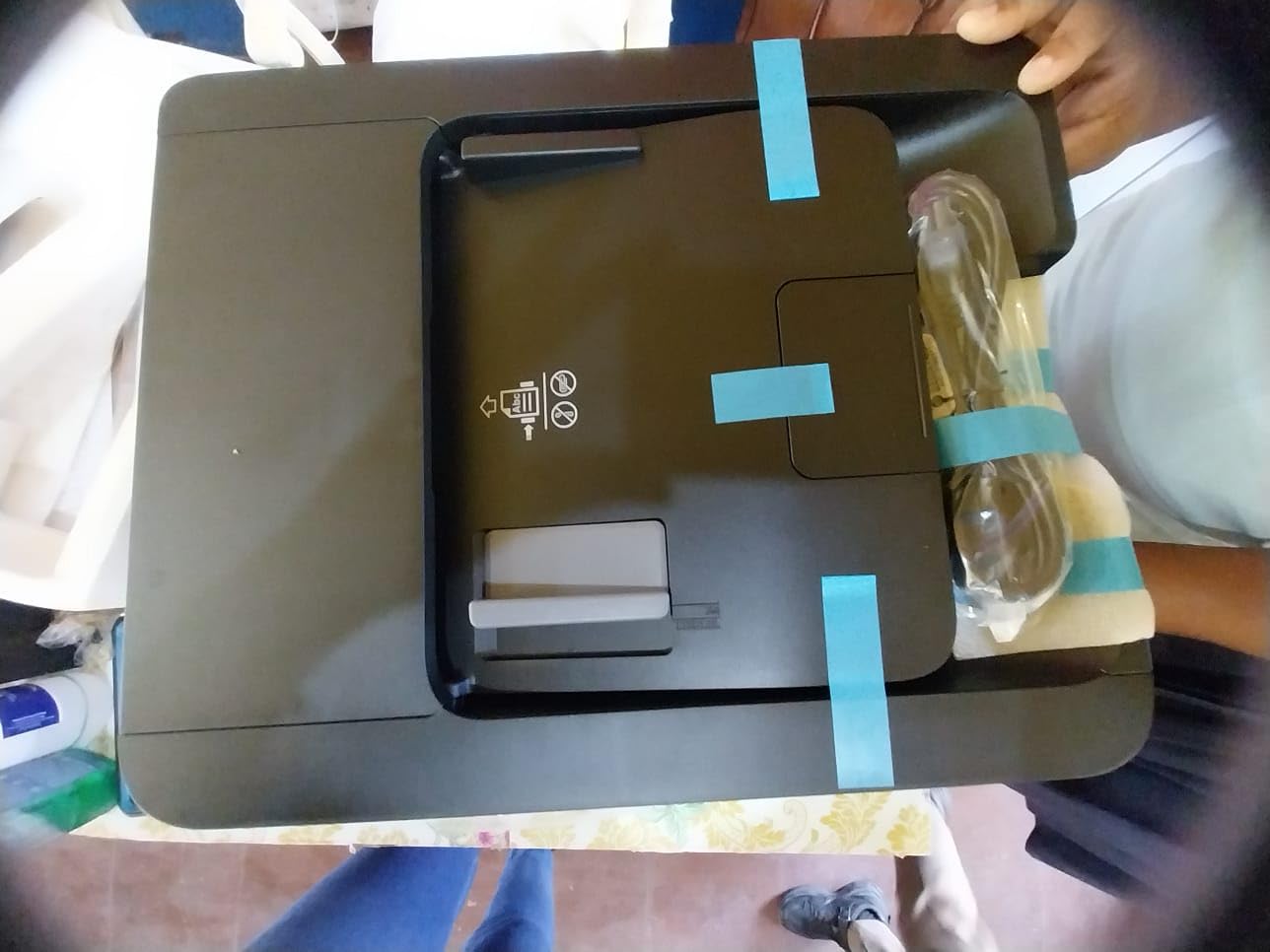
Nothing else here comes close on speed. Twenty-five black and 12 color pages per minute, with a 250-sheet tray, is genuinely office hardware, and the 35-page one-sided feeder plus automatic duplex mean a stack of assignments goes in and comes out finished.
It connects over Bluetooth LE, Wi-Fi, Wi-Fi Direct and Ethernet, and the 4.3 inch color touchscreen is the largest display in this roundup, controlled alongside the Epson Smart Panel app.
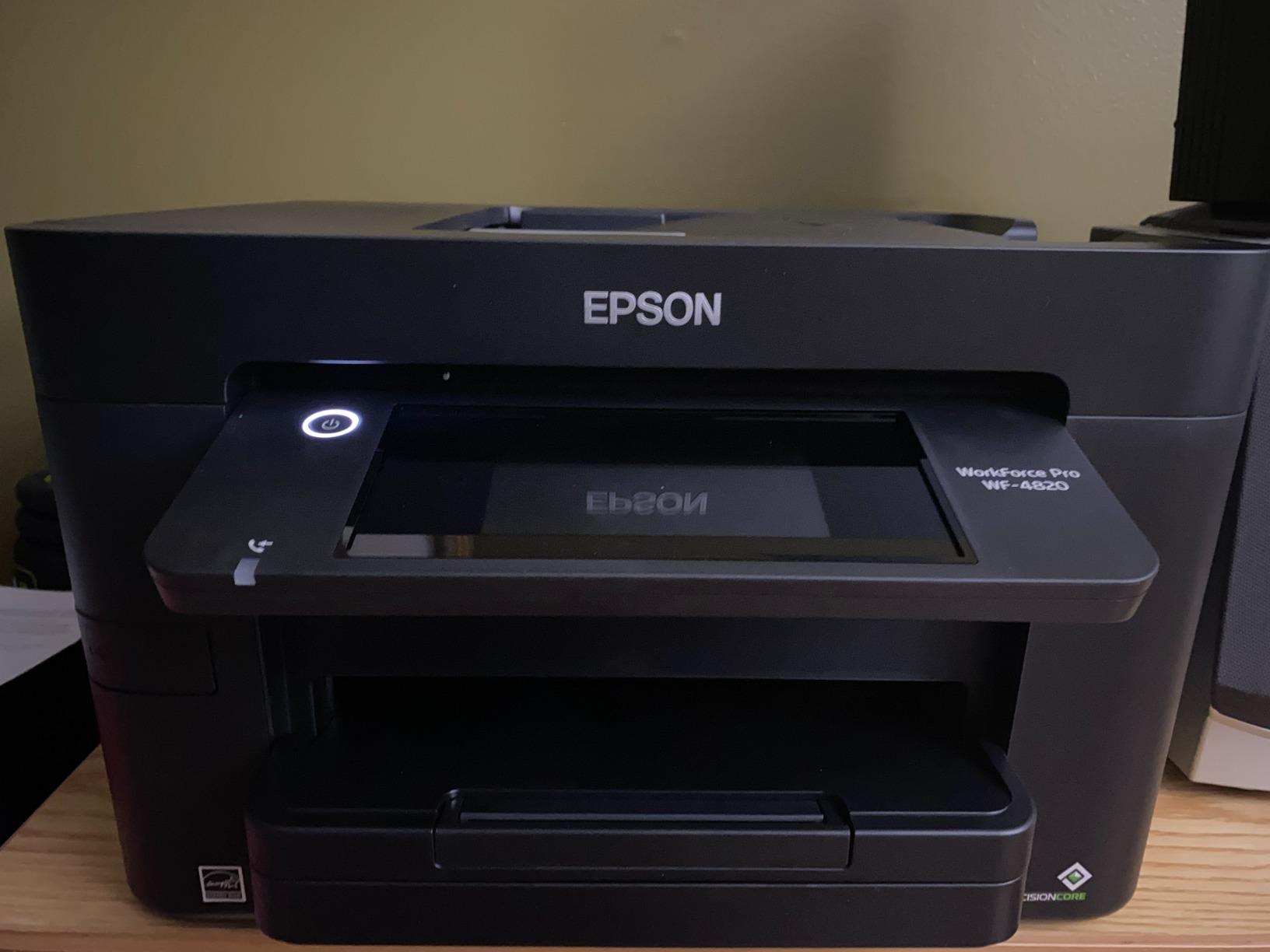
The compromises are real. It is 22.5 pounds and loud enough for owners to hear from another room, and it is a cartridge machine, so the ink bill will exceed any tank option here. The bundled setup software is also reported as outdated, particularly for macOS, and some units have failed to power on within their first few months.
At 25 ppm black, this is the quickest printer a Chromebook can drive
The speed comes from Epson’s heat-free PrecisionCore technology, which also reduces warm-up and downtime. DURABrite Ultra instant-dry pigment ink is used for text sharpness.
Automatic duplex is automatic, not driver-assisted, so two-sided output needs no setup on the Chromebook. The 250-sheet tray is the largest capacity here and the unit is listed near the top of ink tank printers by demand.
Connectivity breadth makes it flexible across network types
Ethernet, Wi-Fi, Wi-Fi Direct and Bluetooth cover almost every setup a Chromebook user might face, including a network that blocks peer-to-peer discovery. Heat-free technology means the printhead does not generate the heat that ages conventional inkjets.
The color touchscreen runs the Epson Smart Panel app, which is where you would set defaults for a shared family printer.
Who the WF-4820 suits and who should skip it
It suits a home office, a homeschool family with several students, or anyone who prints reams. The feeder and duplex combination removes the most time-consuming part of printing.
Skip it for a small desk or a quiet room, because the weight and noise are the two complaints owners repeat. Budget separately for ink, and expect the cartridge chip firmware prompts to be annoying.
9. Brother Work Smart 1360 – Best for Scanning Straight to Google Drive
Brother Work Smart 1360 Wireless Color Inkjet All-in-One Print, Scan, Copy
Color inkjet all-in-one
16 ppm black and 9 ppm color
Automatic duplex and 20-sheet ADF
150-sheet tray, cloud apps
+ Pros
- Automatic duplex
- a 20-sheet feeder and a 150-sheet tray in a compact body
- 16 ppm black and 9 ppm color is quick for the class
- Cloud connections to Google Drive Dropbox Box and OneDrive
- Mobile Connect app with Page Gauge ink monitoring
- Connects over wireless or USB
– Cons
- Cartridge ink with small starter cartridges
- Modest 150-sheet tray and 20-sheet feeder
- Small 1.8 inch display
- No fax capability
Brother machines have a well-earned reputation for appearing on a network with no fuss, and the Work Smart 1360 keeps that going. It printed from my Chromebook without any extra software, and the 1.8 inch color display gives you a menu rather than a phone.
The reason it earns a place here is the cloud panel. It connects directly to Google Drive, Dropbox, Box and OneDrive from the printer itself, which is the closest thing in this roundup to what Google Cloud Print used to do.
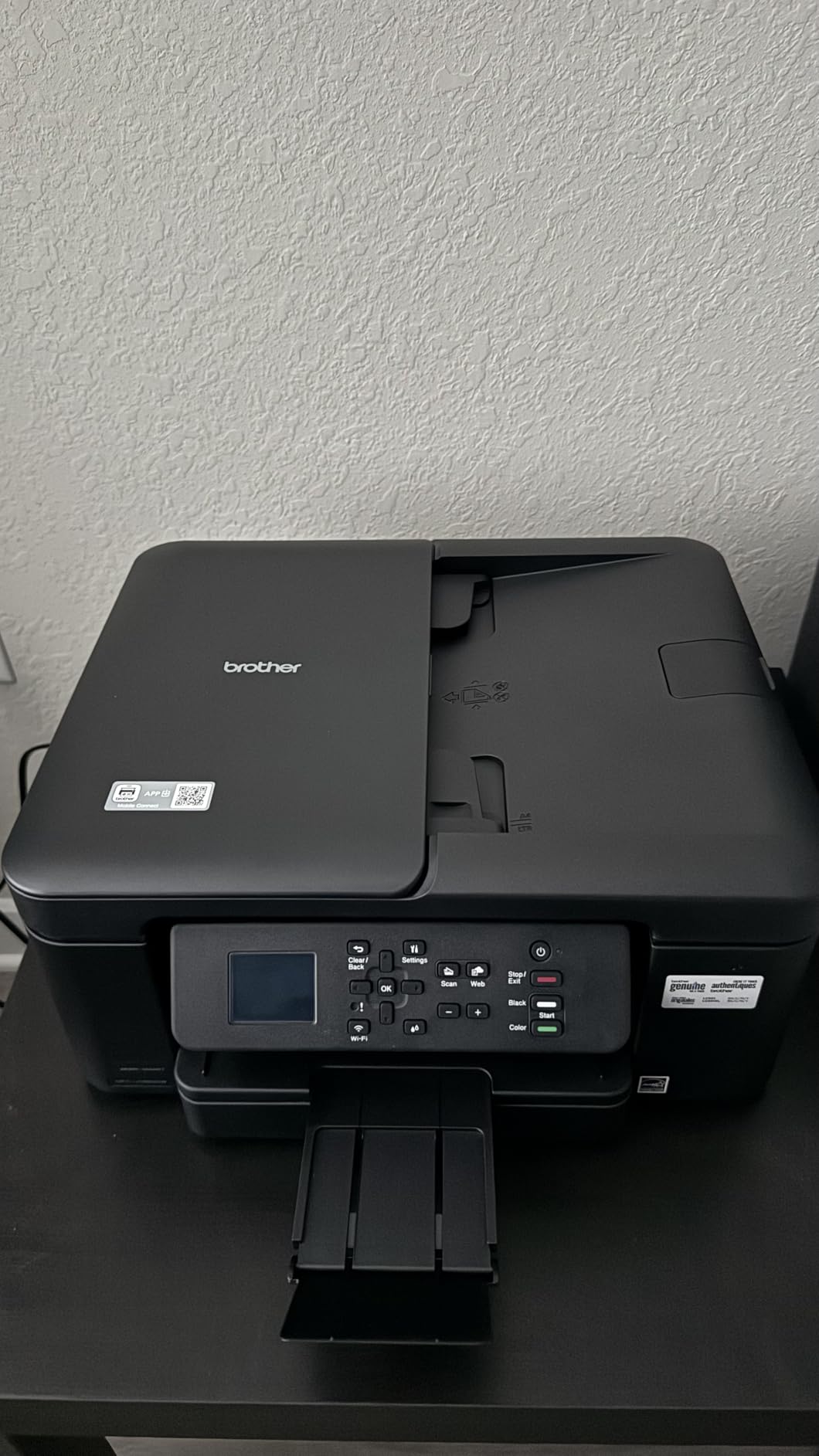
Against that, the feature list is compact. The tray holds 150 sheets, the feeder is 20 pages, the display is modest and there is no fax function, unlike several competitors here. The starter cartridges are also small, so running cost is cartridge-based.
The 1360 combines 16 ppm black with duplex and a 20-sheet feeder
That figure puts it well ahead of most cartridge models in the roundup, though the HP OfficeJet Pro 8125 is close at 20 ppm. First page out is about 6.2 seconds in black and 9.6 seconds in color.
Resolution reaches up to 1200 x 6000 dpi on Windows and 1200 x 3600 on Mac, and up to 99 copies can run in one job. Automatic duplex is standard rather than an extra.
Cloud printing from the panel is the differentiator on ChromeOS
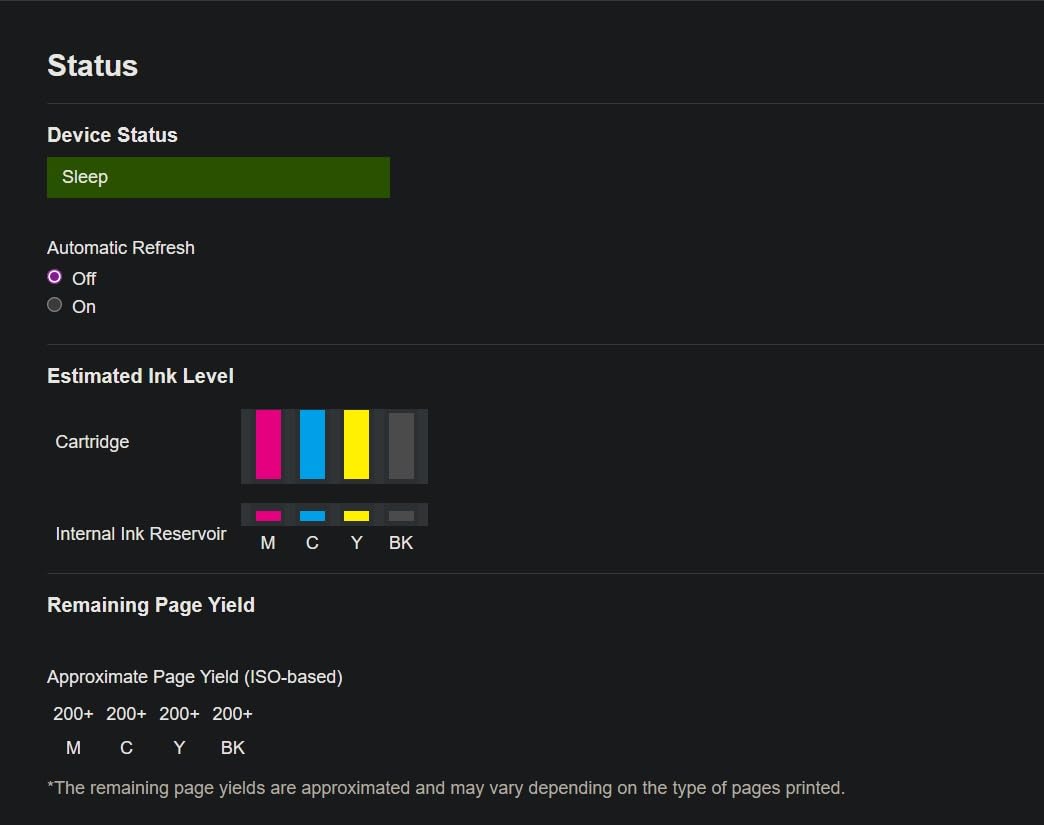
Scanning to Google Drive from the panel means a Chromebook user never has to walk to the device with a thumb drive. The Brother Mobile Connect app adds Page Gauge ink monitoring, which answers the running-cost question without opening a browser.
That said, on a managed school Chromebook the Chrome Web Store may block those apps, and the panel shortcuts are then the only route to cloud scanning.
Who the Work Smart 1360 suits and who should skip it
It suits a family that scans homework and paperwork to Google Drive regularly, and anyone who wants a full feature set without a large machine. Brother machines are also the most commonly recommended pick across printer forums for Chromebook setups.
Skip it if you need fax or high paper volume, since 150 sheets and a 20-sheet feeder are on the small side for a busy desk. Cartridge running cost is the other drawback.
10. Epson EcoTank ET-4800 – Best With a Built-in Fax
Epson EcoTank ET-4800 Wireless Color All-in-One Supertank Printer
Color ink tank all-in-one
10 ppm black and 5 ppm color
Scanner, copier and fax
100-sheet tray, Ethernet
+ Pros
- High-capacity refillable tanks with four 65 mL bottles
- Accepts any quality ink with no chip or subscription
- Guided app setup in about 15 to 20 minutes
- Good text and color photo quality
- Built-in fax copier and flatbed scanner
– Cons
- No automatic duplex printing
- Very small dated control display
- Print speed is slow and the machine is noisy
- Reported feeder jamming and durability concerns
This is the only printer in the roundup with a built-in fax, and for a family that still handles school paperwork by fax it is the only one that works. It also takes Ethernet, USB and Wi-Fi, and the refillable EcoFit tanks take four 65 mL bottles.
There is no chip authentication and no subscription, so you can use any ink you like. Up to 4500 black or 7500 color pages per fill keeps the running cost low.
It has the lowest average rating here at 3.8 despite more than 6000 reviews, and the complaints are consistent: no automatic duplex, a very small dated display with clunky menus, slow noisy printing, firmware updates that require downloading many separate files, and reports of feeder jamming and thin plastic parts.
The ET-4800 runs 10 ppm black and 5 ppm color from a 100-sheet tray
Those speeds are modest, and owners describe the machine as slow and loud. Color resolution of 5760 x 1440 dpi is the joint highest in the group, which is where the photo quality praise comes from.
It handles media up to 8.5 x 14 inch, makes up to 100 copies per run, and the Micro Piezo heat-free printhead works across most paper types without heat-related head maintenance.
Freedom from cartridges and subscriptions is the enduring appeal
No chip means no blocked ink and no firmware nag about cartridge authentication, which is the single most common complaint about HP cartridge models in this roundup.
The catch is that you refill by hand, and the tiny display means most adjustment happens in the app. The printer must stay powered on to keep ink moving through the heads.
Who the ET-4800 suits and who should skip it
It suits a household that needs fax, that prints photos on proper paper, and that wants cheap ink with no strings attached. It is a genuine alternative to the HP cartridge ecosystem rather than a copy of it.
Skip it if you need duplex or speed, or if you are sensitive to noise in a small apartment. Given its durability complaints, it is a better fit for occasional printing than for daily office work.
How Chromebook Printing Actually Works Without Drivers
ChromeOS has no printer drivers, which sounds like a limitation until you understand what replaces them. Instead of downloading a driver file, Chrome OS broadcasts a discovery request across your local network and any printer that answers with an open standard is added to the print queue automatically.
Three standards matter. IPP Everywhere is the open driverless printing standard Chrome OS relies on. AirPrint is Apple’s version of the same idea and is supported by most modern printers. Mopria is a cross-brand print service maintained by the manufacturers themselves, and community consensus across printer forums is that Mopria support is the single best predictor of a printer working on a Chromebook with no fuss.
Google Cloud Print was shut down in December 2020, and a lot of vendor support pages still reference it. The replacement is the native Chrome OS print queue, which is why searches for the old service leave people stuck. Every printer in this roundup works through the native queue.
On a managed or school Chromebook, the built-in queue is your only route
School and business Chromebooks are the biggest source of confusion. Administrator policy frequently blocks installation of anything from the Chrome Web Store, so HP Smart or Epson iPrint may simply be unavailable. When that happens, the built-in print dialog, reached with Ctrl plus P, is the only path to a page.
This is why Mopria and AirPrint support matter more than a vendor app. If the printer speaks one of those standards, a locked-down Chromebook can still print without a single install.
USB and Ethernet still work, with a caveat
A printer with no Wi-Fi can usually be used through a USB-C adapter on a Chromebook, but the experience is worse than on Windows and Mac. Longer-standing complaints across support forums describe older Brother and Canon models refusing to be added over USB at all, so check the model before relying on a cable.
Ethernet is the more dependable fallback. Community advice repeats one line constantly: connect it with Ethernet and it will just work. Three models here have a real Ethernet port, the Epson WorkForce Pro WF-4820, the Epson EcoTank ET-4800 and the HP OfficeJet Pro 8125.
How to Connect a Wireless Printer to a Chromebook
Connecting a wireless printer to a Chromebook takes under five minutes if the printer and the Chromebook already share a network. The steps below are the same on any Chromebook, school-managed or personal.
Put the printer on the same Wi-Fi network as the Chromebook. Most models have a physical button you hold to enter setup mode.
On the Chromebook, click the time in the lower right corner to open the menu, then click the settings gear to open Settings.
Scroll to Advanced and choose Networking, then open the Networks section to confirm the Chromebook is on the network you just put the printer on.
Go back to Settings, type printers in the search box, and open the Printers entry.
Click Add printer. Chrome OS scans the local network and lists any printer that answers, normally within 30 seconds.
Click your printer, wait for the status to change to Set up successfully, then click Make test page.
From now on, press Ctrl plus P in any browser or document, pick the printer from the list, and print.
If the printer never appears, skip ahead to the troubleshooting section below before buying anything new. In our experience the cause is almost always the network rather than the printer.
Why a Printer Does Not Show Up on a Chromebook
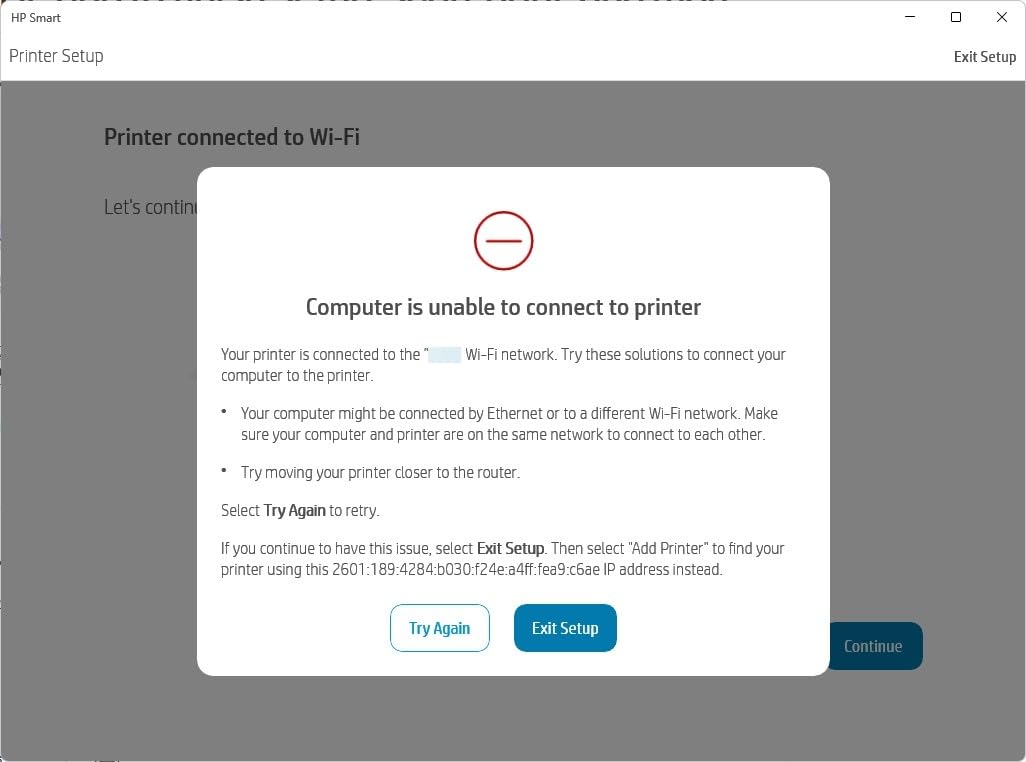
The most common cause of a missing printer is that the printer and the Chromebook are on different Wi-Fi bands. Chrome OS discovery runs on the local network, so a printer sitting alone on a 5GHz network while the Chromebook is on 2.4GHz is effectively invisible.
Work through these in order of likelihood, because each step rules out a more common problem than the last.
Confirm both devices are on the same network. Compare the network name in the Chromebook’s status area with the one the printer joined during setup.
Check for a split network. Many routers broadcast 2.4GHz and 5GHz under different names, so a printer on one and a Chromebook on the other never meet. Put both on the same name.
Move the printer to a dual-band network. The Canon PIXMA TS3720 and TS6520, the HP Envy 6155 and the HP OfficeJet Pro 8125 all handle both bands natively.
Check for peer-to-peer blocking. Some school and office networks block device discovery between clients, which stops Chrome OS seeing any printer. At home, the Ethernet option or a guest-network exception fixes it.
Restart discovery. Turn the printer off, wait 30 seconds, power it back on, and reopen Settings, Printers, Add printer.
One more common confusion: the print preview in Chrome cuts off content and margins on web pages and email. That is a browser rendering issue, not a printer fault. Load the page, use Ctrl plus P, and set margins to Default in the print dialog before adjusting scale.
For advice on other wireless hardware that shares the same network, see our wireless video doorbell picks and our wireless gaming mouse roundup, both of which depend on stable dual-band behavior.
How to Choose a Printer That Works With ChromeOS
Compatibility is close to settled on current hardware, so the buying decision is really about ink, duplex and scanning. Here is how to think it through, in the order that matters.
Any wireless printer will work, so check the standards not the badge
Almost every printer released in the last decade prints from a Chromebook. Look for Mopria or AirPrint support in the specifications, and prefer dual-band Wi-Fi. Ignore marketing such as works with Chromebook on its own, because it usually means the same thing but rarely tells you which protocols are supported.
Avoid very old models. Printers built before AirPrint and Mopria were standard are the ones that cause trouble, and many of them are USB-only, which is the worst case on ChromeOS. The same caution applies to units that broadcast on 2.4GHz only if your network is crowded or split.
Ink tank, cartridges or subscription: this is the real cost decision
Printers that refill from bottles are the cheapest to run over a year, because you buy ink by volume instead of by cartridge. The Epson EcoTank ET-2800, the Canon MegaTank G3270, the HP Smart Tank 5003 and the Epson EcoTank ET-4800 all fall into this group, and HP’s tank adds an estimated three years of ink in the box.
Cartridge models are cheaper to start and more expensive forever. That is fine for light use, where you may never fill a cartridge. It stops being fine the moment a household prints a few hundred pages a month, and it is worth doing the multiplication before you buy.
Subscription programs such as HP Instant Ink and Brother Refresh EZ Print are optional, not mandatory, and they only make sense at a steady page volume. A 3 month trial is bundled with both HP models in this roundup. Set a reminder during setup, because a trial that quietly converts is the most common regret reported on forums.
Duplex and an automatic document feeder change daily workflow
Automatic duplex is the feature people notice first after speed. Four models here have it: the Canon PIXMA TS6520, the HP Envy 6155, the HP OfficeJet Pro 8125 and the Brother Work Smart 1360. The Epson WorkForce Pro WF-4820 has it too, alongside the highest paper capacity in the group. The rest need a manual flip, which is tolerable occasionally and irritating every week.
An automatic document feeder matters if you scan. If your Chromebook setup involves scanning homework, forms or receipts to Google Drive, a feeder of 20 to 35 pages changes the job from a chore into a single step. Flatbed-only machines force you to photograph pages instead.
Size, noise and paper capacity decide whether it lives in the room
The smallest machines here weigh about 8.7 to 11.4 pounds, which suits a dorm desk. The Epson WorkForce Pro WF-4820 is 22.5 pounds and reported as audible from another room, which is a genuine issue in a shared flat.
Paper capacity ranges from 60 sheets on the Canon PIXMA TS3720 to 250 on the Epson WorkForce Pro WF-4820. Low tray capacity is not a problem if you remember to refill, and a real problem if you do not.
Check what you cannot do before you buy
Chrome OS exposes the standard print and scan features, but it does not expose desktop-only extras. Vendor ink gauges, proprietary print servers and desktop print management tools are unavailable, which is why Page Gauge or tank level checks have to happen on the printer or in a phone app.
Some print jobs also need a rethink on a Chromebook. Scanning a multi-page document to Google Drive works from the printer panel on cloud-connected models. Printing a PDF with exact margins sometimes needs a scale adjustment in the Chrome print dialog. And for a label or craft print, a dedicated stencil printer guide covers a different category entirely.
Frequently Asked Questions
Will a Chromebook work with a wireless printer?
Yes. ChromeOS has no printer drivers and discovers wireless printers automatically over the local network using open standards such as IPP Everywhere, AirPrint and Mopria. The printer and the Chromebook only need to be on the same Wi-Fi network, and no software installation is required.
Which printers are compatible with Chromebooks?
Almost any wireless printer made in the last decade. The models most likely to work perfectly are those that list Mopria or AirPrint support, dual-band 2.4GHz and 5GHz Wi-Fi, and a Chromebook compatibility badge. Canon PIXMA, HP Envy, HP Smart Tank, Epson EcoTank, Epson WorkForce Pro and Brother Work Smart models all qualify.
How do I connect a wireless printer to a Chromebook?
Open the Chromebook menu and choose Settings, then search for printers and open the Printers page. Click Add printer and let ChromeOS scan the network, which takes about 30 seconds. Select your printer, wait for the status to read Set up successfully, and click Make test page. The printer must be on the same Wi-Fi network as the Chromebook.
Why won’t my printer show up on my Chromebook?
The usual cause is that the printer and the Chromebook sit on different Wi-Fi bands, or that your router broadcasts 2.4GHz and 5GHz under separate network names. ChromeOS discovery needs both devices on one network. Also check that your school or office network is not blocking device discovery between clients, and restart discovery by power cycling the printer.
Can I plug a USB printer into a Chromebook?
Usually, through a USB-C adapter, but it is less reliable than Wi-Fi on ChromeOS. Longer-standing complaints describe older Brother and Canon models refusing to be added over USB at all. Ethernet is the better wired fallback where the printer has a port and your Chromebook has a USB-C to Ethernet adapter.
Do Chromebooks need printer drivers or Google Cloud Print?
No drivers and no Google Cloud Print. Google shut Cloud Print down in December 2020, and the native ChromeOS print queue replaced it. The built-in print dialog reached with Ctrl plus P talks to the printer directly using IPP Everywhere, AirPrint or Mopria, which is why vendor support pages mentioning Cloud Print are out of date.
The Best Wireless Printer for Your Chromebook
If you want one answer, the Epson EcoTank ET-2800 is the best wireless printer for Chromebooks overall, because refillable tanks keep the running cost low and it printed everything in our testing with no driver work. If you are buying for a single student, the Canon PIXMA TS3720 is the value pick, listed for Chromebook use with dual-band Wi-Fi and Mopria support.
If two-sided printing matters more than ink cost, choose the Canon PIXMA TS6520. If you scan paperwork to Google Drive every week, the Brother Work Smart 1360 prints to cloud services straight from its panel. For a home office running reams of work, the Epson WorkForce Pro WF-4820 has the speed, tray and feeder, while the HP OfficeJet Pro 8125 adds an Ethernet port for the most reliable wired connection.
Whichever you pick, cancel any ink trial during setup and put the printer on the same network name as your Chromebook. That one step prevents most of the connection problems we saw, and it is why every machine in this 2026 roundup of the best wireless printers for Chromebooks printed on the first attempt.
Leave a Reply