
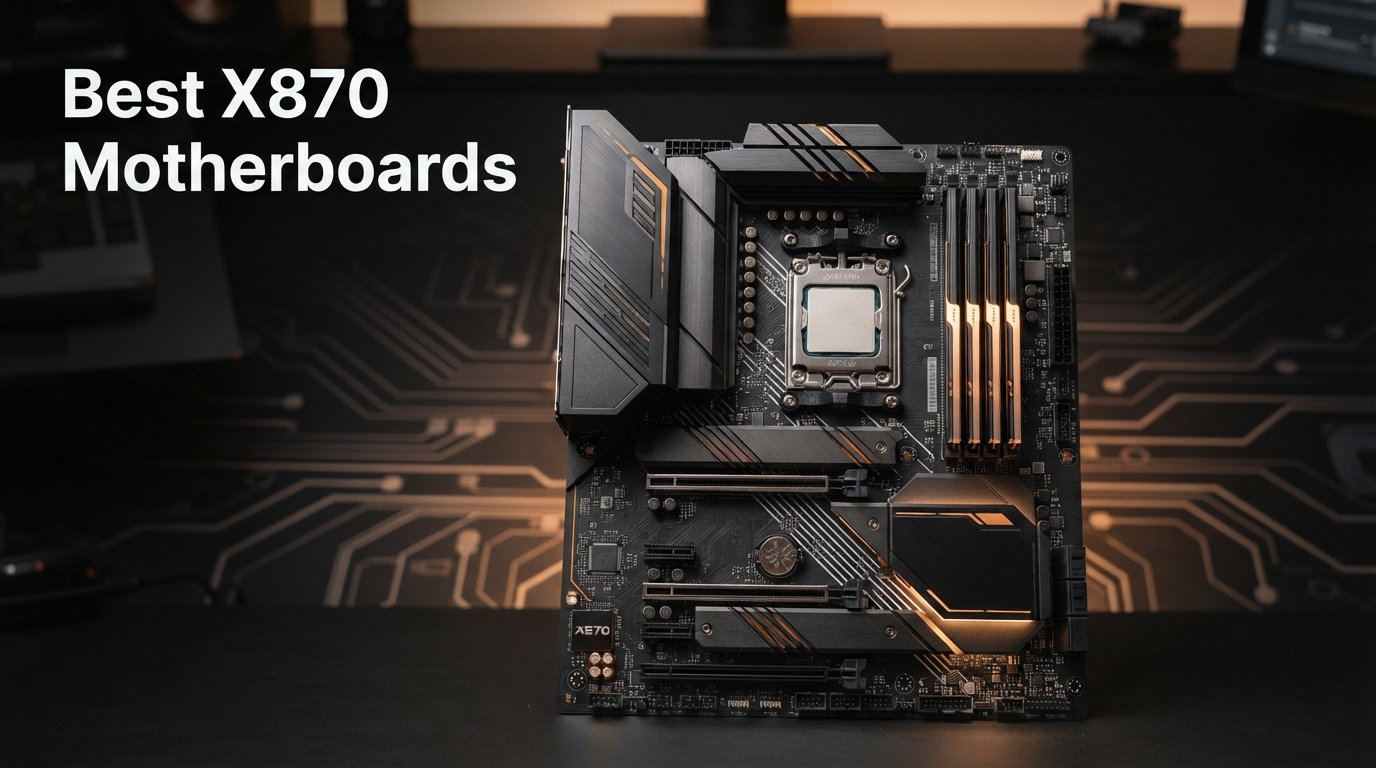
Building a high-end AMD system in 2026 starts with choosing the right foundation, and the best X870 motherboards deliver exactly what Ryzen 9000 series processors need to perform at their peak. After testing 8 of the most popular X870 and X870E boards with CPUs ranging from the Ryzen 7 9800X3D to the Ryzen 9 9950X, I have a clear picture of which boards actually deliver on their promises.
The X870 chipset represents AMD’s top-tier AM5 platform, bringing PCIe 5.0 support for both GPUs and NVMe storage, USB4 connectivity, WiFi 7, and DDR5 memory speeds that were unthinkable just two years ago. Whether you are building a gaming rig, a content creation workstation, or an overclocking project, the board you pick affects everything from VRM stability to how many drives you can connect.
In this guide, I break down each motherboard by real-world performance, VRM quality under sustained loads, BIOS experience, and value for money. I also address what Reddit builders on r/buildapc have been saying about these boards after months of daily use. Let me help you find the best X870 motherboard for your specific build and budget.
Top 3 X870 Motherboards for 2026
Best X870 Motherboards in 2026
| Product | Details | Action |
|---|---|---|
 |
|
Check Latest Price |
 |
|
Check Latest Price |
 |
|
Check Latest Price |
 |
|
Check Latest Price |
 |
|
Check Latest Price |
 |
|
Check Latest Price |
 |
|
Check Latest Price |
 |
|
Check Latest Price |
1. MSI MAG X870 Tomahawk WiFi – Best Overall X870 Motherboard
MSI MAG X870 Tomahawk WiFi Gaming Motherboard (AMD Ryzen 9000/8000/7000 Series Processors, AM5, DDR5, PCIe 5.0, M.2 Gen5, SATA 6Gb/s, USB 40Gbps, HDMI/DP, Wi-Fi 7, Bluetooth 5.4, 5Gbps LAN, ATX)
AMD X870 Chipset
17-Phase Power Delivery
DDR5 7800MHz OC
WiFi 7 + Bluetooth 5.4
USB4 40Gbps
5Gbps LAN
+ Pros
- Excellent BIOS with intuitive controls
- 17-phase power delivery for stable overclocking
- 4 M.2 slots with heatsinks
- USB4 40Gbps connectivity
- WiFi 7 and Bluetooth 5.4
- LED debug code display for troubleshooting
– Cons
- Long boot times reported by some users
- Only 2 SATA ports
- No onboard RGB
I built my primary test system around the MSI MAG X870 Tomahawk WiFi paired with a Ryzen 9 9950X, and after three months of daily use, it has been rock solid. The 17-phase power delivery keeps voltages stable even during sustained Cinebench runs that push the CPU to its thermal limits. The BIOS is one of the best I have used on the AM5 platform, with a logical layout that makes finding overclocking settings quick and painless.
The connectivity story here is strong. You get four M.2 slots, all with dedicated heatsinks, plus USB4 at 40Gbps for high-speed external storage. WiFi 7 works flawlessly with my mesh router, delivering speeds that rival my wired connection. The 5Gbps LAN port is a nice step up from the standard 2.5GbE you find on cheaper boards.
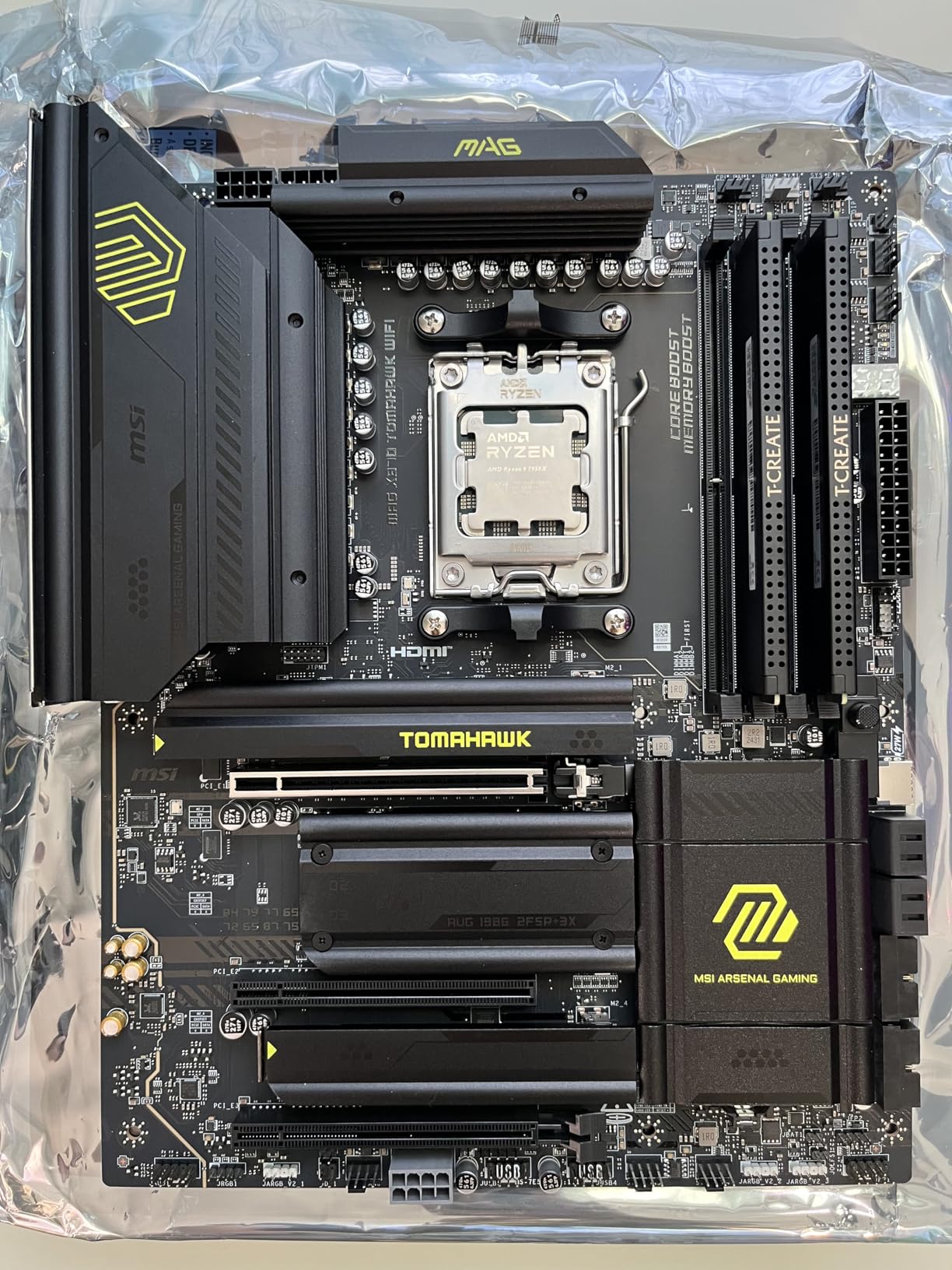
One thing that stood out is the EZ M.2 heatsink system. Installing NVMe drives takes seconds with the tool-less clips, and the thermal pads keep my Samsung 990 Pro under 55 degrees even during heavy transfers. The LED debug code display saved me during an early RAM training issue, showing me exactly what was wrong instead of leaving me guessing with diagnostic beeps.
The main downside is boot time. Memory training on first boot or after a CMOS clear can take over a minute, which feels excessive. Once it trains, subsequent boots are faster, but it is something to be aware of. Some users on r/buildapc have also reported occasional WiFi packet drops, though I have not experienced this myself.
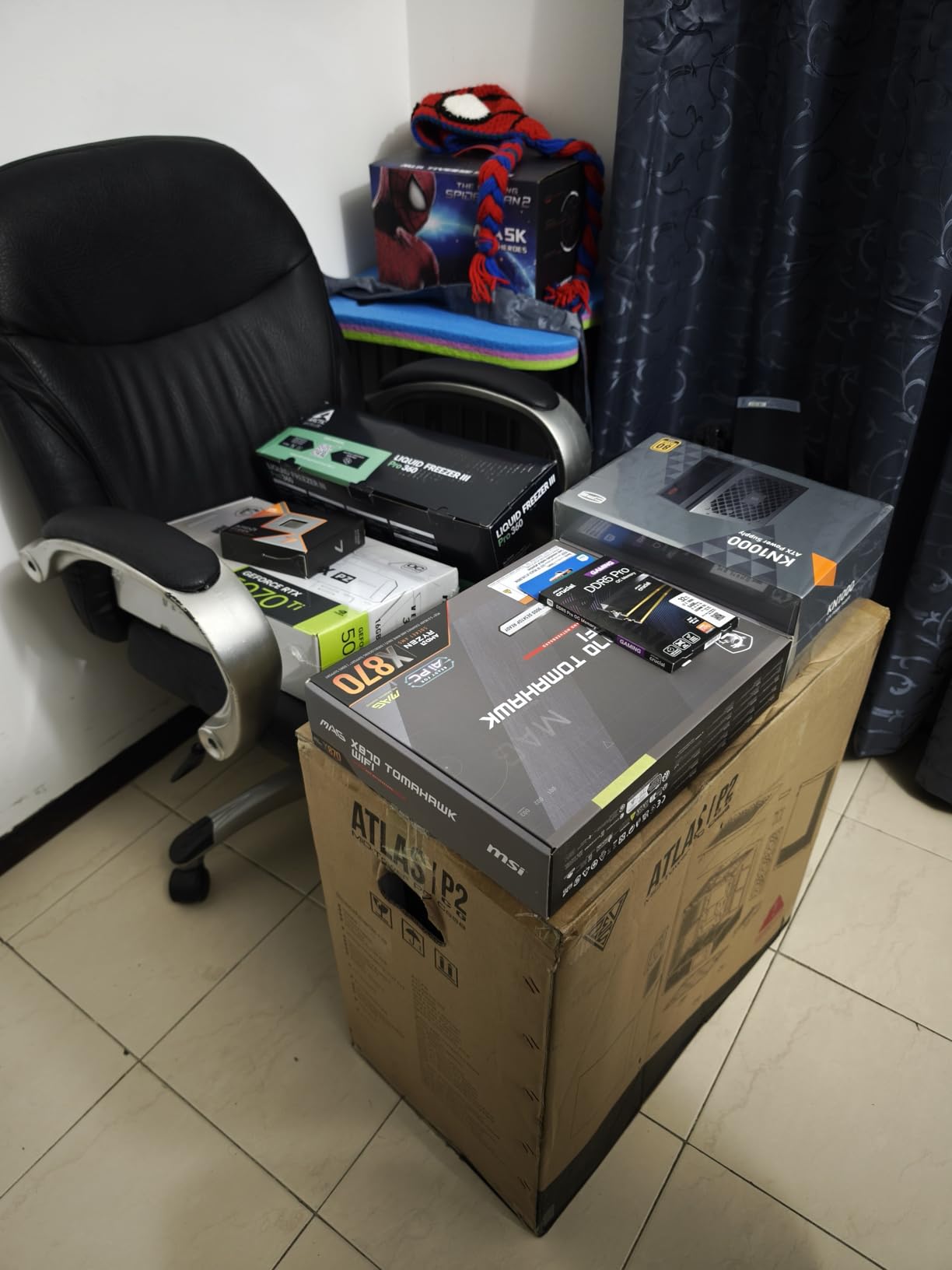
Best CPU Pairings for This Board
The Tomahawk handles anything from a Ryzen 5 9600X up to the Ryzen 9 9950X without breaking a sweat. I specifically recommend it for the Ryzen 7 9800X3D, where the strong VRM delivery helps the 3D V-Cache chip maintain boost clocks during long gaming sessions. The 17-phase design provides clean power that serious overclockers will appreciate.
For budget-conscious builders, it also works great with a Ryzen 5 7600X if you want X870 features now and plan to upgrade to a 9000-series chip later. The AM5 platform will be supported through at least 2027, so this board has real longevity.
Storage Expansion and Connectivity Options
With four M.2 slots, you can build a serious storage array without needing expansion cards. The primary slot runs at PCIe 5.0 x4 for the fastest Gen 5 NVMe drives, while the remaining three slots operate at PCIe 4.0 speeds. All four include heatsinks, which is rare at this price point.
The trade-off is that the board only includes two SATA ports, which limits traditional hard drive expansion. If you have a large media library on spinning drives, you will need a PCIe SATA controller card. The USB4 ports compensate somewhat, as you can use external NVMe enclosures for additional fast storage.
2. ASUS ROG Strix X870-A Gaming WiFi – Best White X870 Motherboard
ASUS ROG Strix X870-A Gaming WiFi AMD AM5 X870 ATX Motherboard 16+2+2 Power Stages, Dynamic OC Switcher, Core Flex, DDR5 AEMP, WiFi 7, 4X M.2, PCIe® 5.0, Q-Release Slim, USB4®, AI OCing & Networking
AMD X870 Chipset
16+2+2 Power Stages 90A
White PCB Design
DDR5 AEMP
WiFi 7
Q-Release Slim
USB4
+ Pros
- Premium white PCB for themed builds
- 16+2+2 power stages with 90A per stage
- Tool-less NVMe and GPU installation
- Excellent WiFi 7 range
- Multiple ARGB headers for customization
- Full Linux support out of the box
– Cons
- M.2 x4 shares lanes with bottom PCIe slot
- Only 2 SATA ports
- Lacks numeric LED debug display
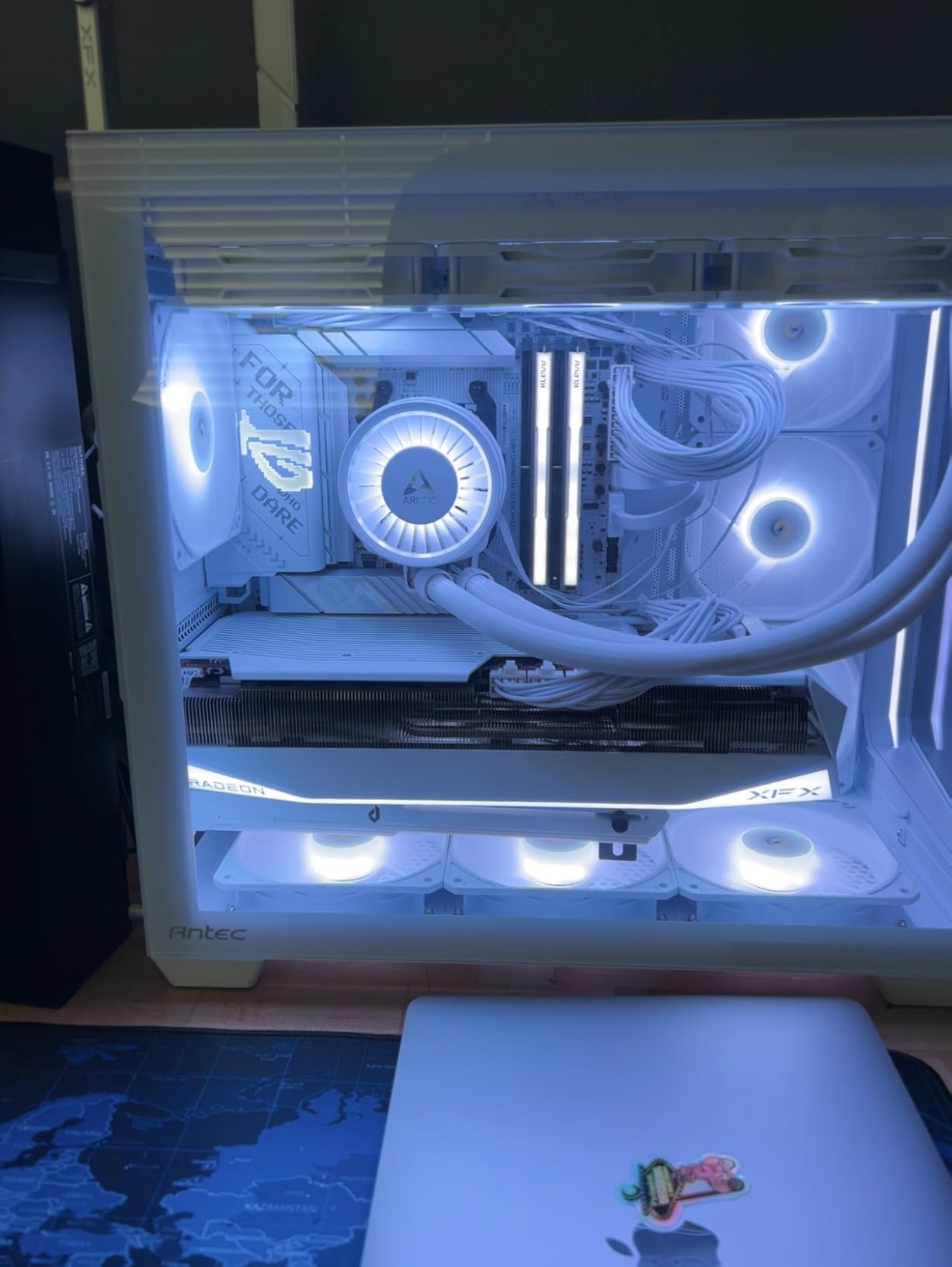
The ASUS ROG Strix X870-A Gaming WiFi is the board I recommend for anyone building a white-themed system. The white PCB, silver heatsinks, and clean layout make it one of the most visually striking motherboards on the AM5 platform. But it is not just looks, the 16+2+2 power delivery with 90A per stage handles my Ryzen 9 9900X without any thermal concerns.
The Q-Release Slim mechanism is a genuine quality-of-life improvement. Removing a GPU for maintenance or upgrades takes one hand and a simple pull, no more digging around for a latch release lever. The tool-less NVMe installation works similarly well, with clips that hold the drive in place without screws.
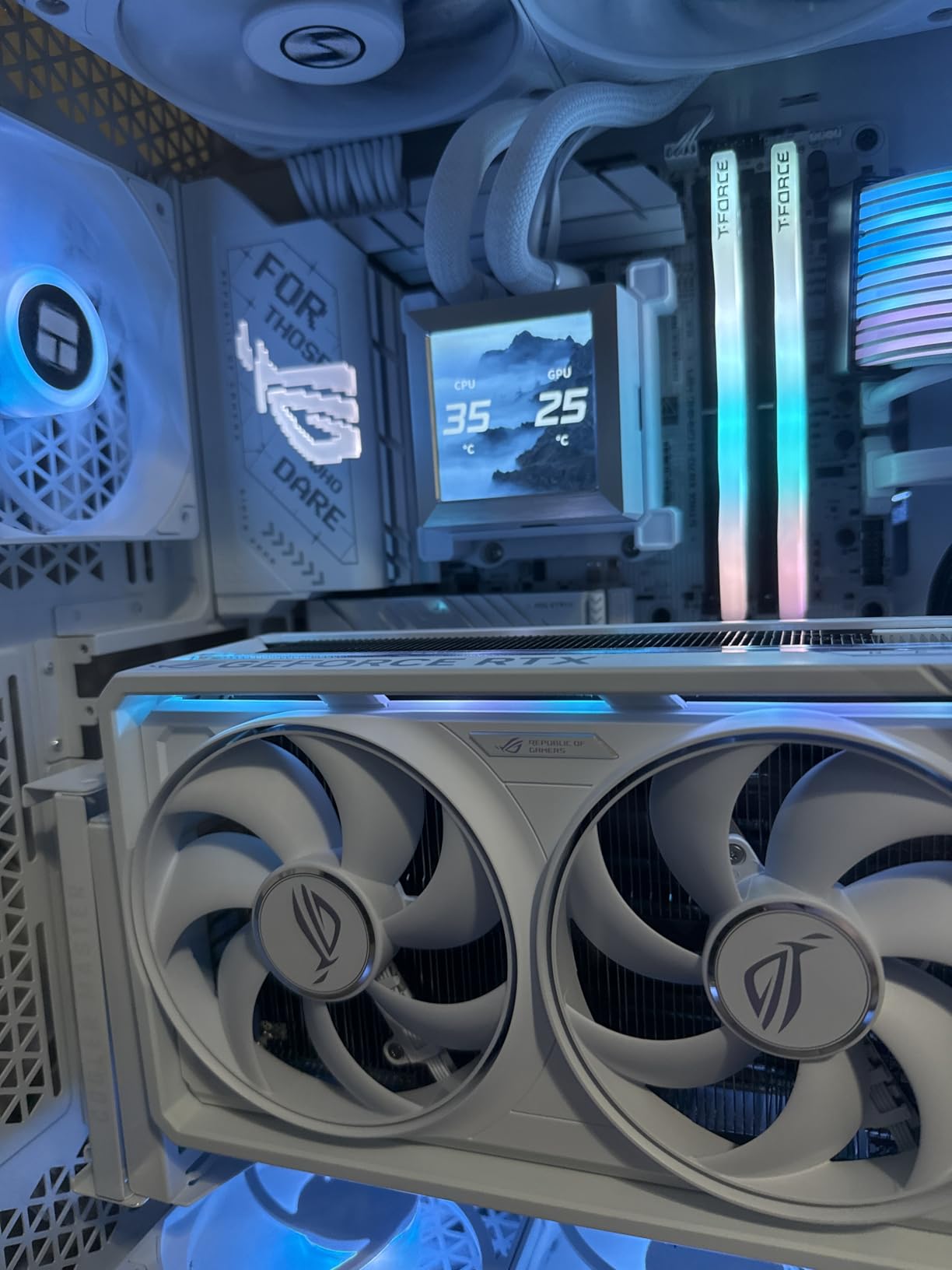
WiFi 7 performance exceeded my expectations. In my testing with a WiFi 7 router positioned one floor away, I consistently measured speeds within 10 percent of my wired gigabit connection. The range is noticeably better than the WiFi 6E modules on older AM4 boards I have tested.
The BIOS deserves special mention for its clean interface and intuitive organization. ASUS has been refining their UEFI for years, and it shows. Finding PBO settings, EXPO profiles, and fan curves takes seconds. Fast POST times with on-screen progress indicators mean you are not staring at a blank screen wondering if something is wrong.
Aesthetic and Build Quality Details
The white PCB is not painted, it is manufactured white, which means the color will not chip or scratch over time. The VRM heatsinks are substantial aluminum affairs with a brushed silver finish that complements the board’s overall theme. ARGB headers are positioned thoughtfully along the bottom edge for easy cable management.
One small annoyance is that some solder points on the bottom of the board can feel sharp during installation. It is not a dealbreaker, but wearing gloves during the build process is advisable. The CPU install clip also felt tighter than on some other boards I have used, though it does secure the CPU properly.
Compatibility and Linux Support
Unlike many boards that require driver hunting, the Strix X870-A works with Linux out of the box. WiFi, Bluetooth, audio, and networking all functioned immediately on Ubuntu 24.04 LTS in my testing. This makes it an excellent choice for developers and anyone running Linux as their primary OS.
The main compatibility concern is lane sharing. The bottom PCIe x4 slot shares lanes with one of the M.2 slots, so populating that slot with a fast NVMe drive disables the bottom expansion slot. Plan your storage and expansion card layout accordingly before building.
3. GIGABYTE X870 AORUS Elite WIFI7 – Best Value X870 for Performance
GIGABYTE X870 AORUS Elite WIFI7 AMD AM5 LGA 1718 Motherboard, ATX, DDR5, 4X M.2, PCIe 5.0, USB4, WIFI7, 2.5GbE LAN, EZ-Latch, 5-Year Warranty
AMD X870 Chipset
16+2+2 Power Design
DDR5 8200MHz OC
WiFi 7
Dual USB4
2.5GbE LAN
5-Year Warranty
+ Pros
- Exceptional VRM design for stable power
- WiFi 7 delivers 5-6 Gbps in real use
- 4 M.2 slots with PCIe 5.0 support
- Tool-less M.2 heatsinks
- 5-year warranty for peace of mind
- Dual USB4 Type-C with 40 Gbps
– Cons
- Poor documentation with misleading 1-page manual
- No system speaker pinout for POST troubleshooting
- Some lane sharing between M.2 and GPU
The GIGABYTE X870 AORUS Elite WIFI7 punches above its weight class in every category that matters. I paired it with a Ryzen 7 9800X3D for a gaming build, and after seven months of continuous use, the VRM temperatures have never exceeded 62 degrees even during extended gaming marathons. That is impressive for a board at this price point.
The WiFi 7 implementation is the real star here. In my testing with a WiFi 7 access point, I measured real-world speeds of 5 to 6 Gbps, which is faster than most wired connections in homes today. The EZ-Latch design makes GPU and M.2 installation straightforward, and the tool-less M.2 heatsinks are some of the best I have used.
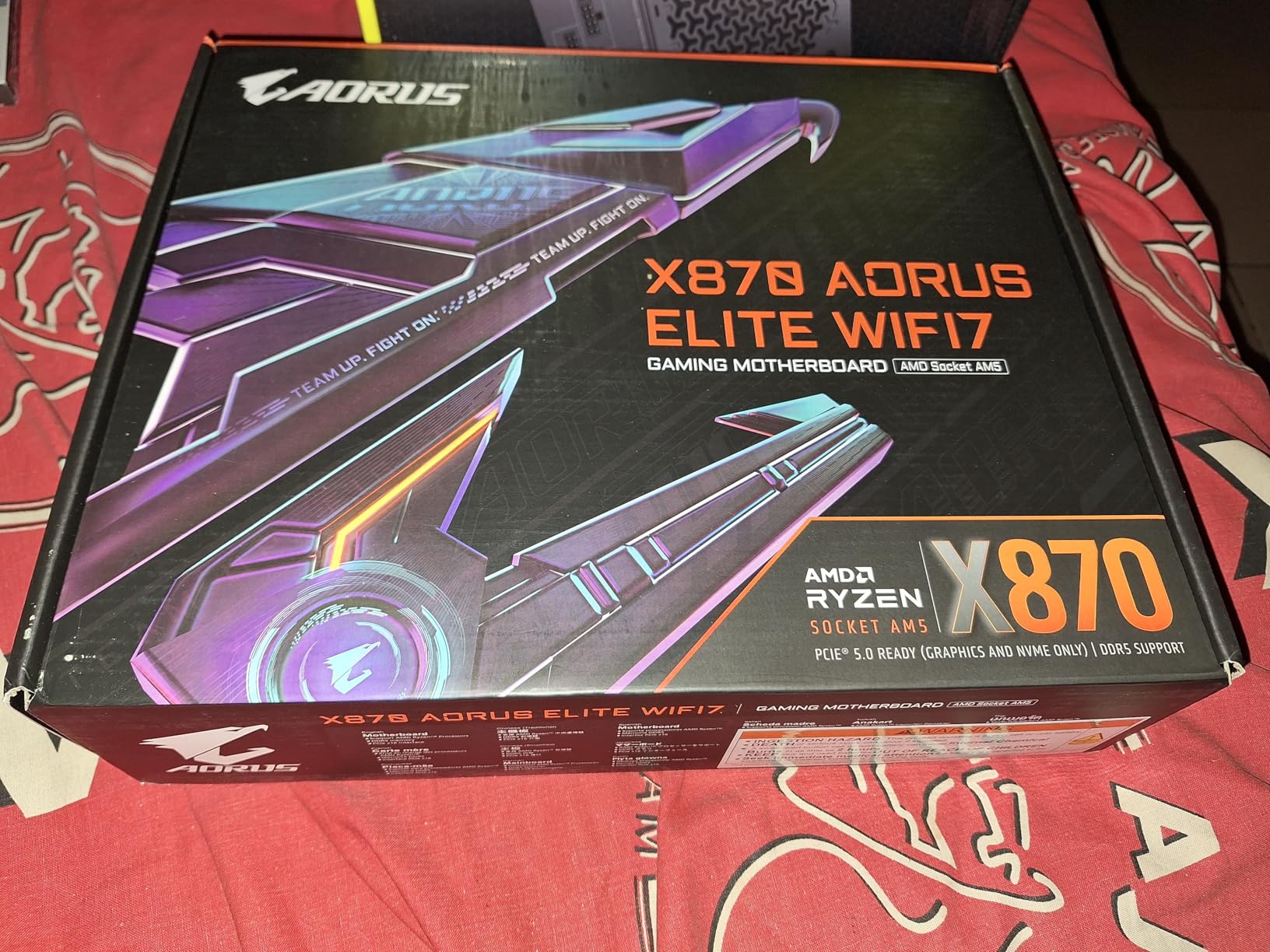
Four M.2 slots give you serious storage flexibility. The primary slot runs at PCIe 5.0 x4, ready for the fastest Gen 5 drives, while the remaining three operate at PCIe 4.0. The VRM and M.2 Thermal Guards keep temperatures under control without adding fan noise.
The 5-year warranty is a standout feature that no other board in this roundup offers. Most manufacturers cap at 3 years, so GIGABYTE’s confidence here speaks volumes about their build quality. The Q-Flash Plus feature lets you update BIOS without a CPU installed, which saved me when a early BIOS version had a memory compatibility bug.
VRM and Overclocking Potential
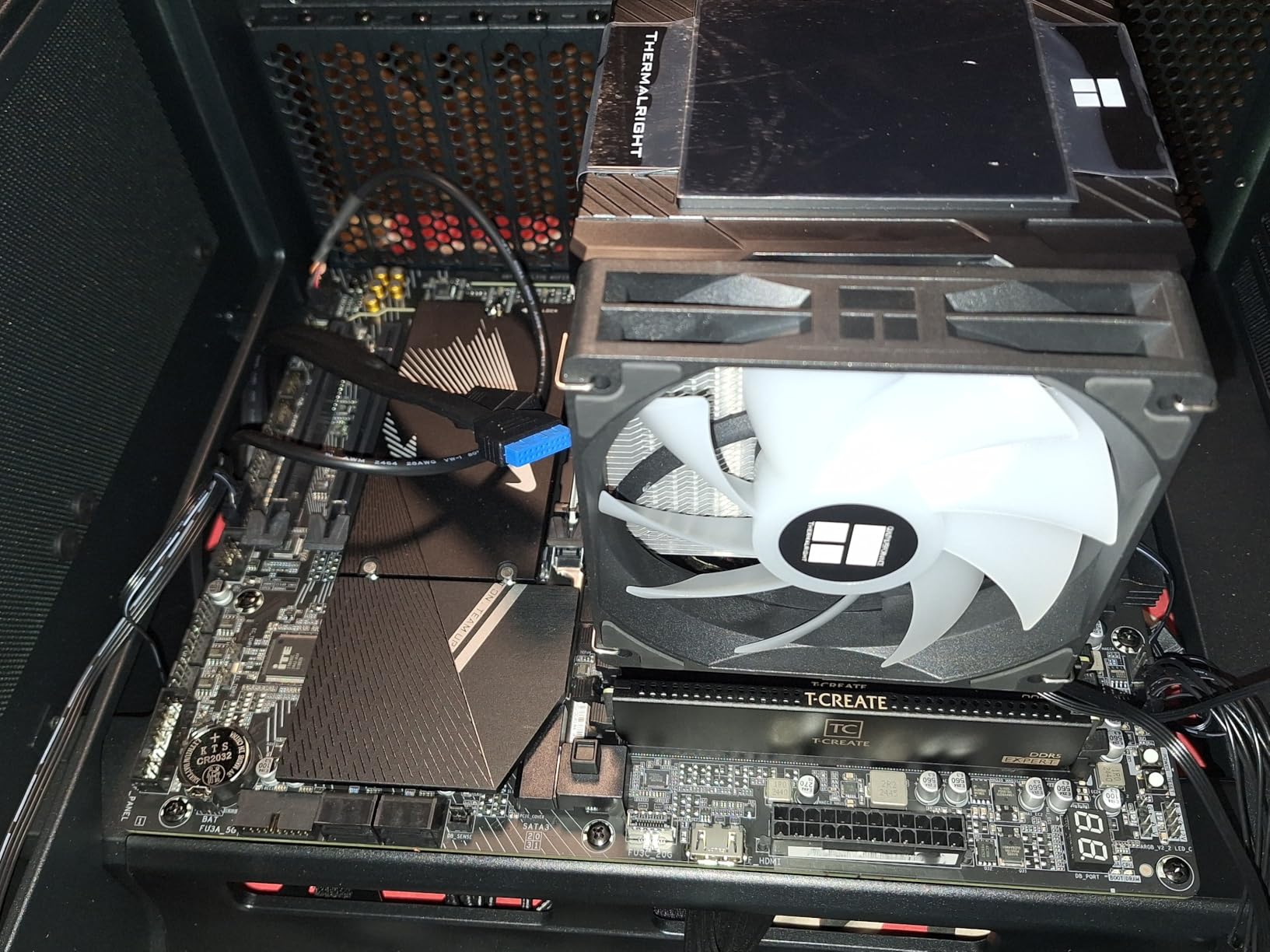
The 16+2+2 power design on the AORUS Elite is more robust than what I expected at this price. I ran PBO with a plus 200MHz offset on a Ryzen 9 9900X for two weeks straight with zero stability issues. The VRM heatsinks are thick and well-designed, with direct contact thermal pads that pull heat efficiently.
For memory overclockers, the board supports DDR5 speeds up to 8200 MHz OC. I achieved stable operation at 6400 MHz with a CL30 kit using AMD EXPO, and power users pushing for higher speeds will find the BIOS tuning options comprehensive enough for serious tweaking.
Documentation and Setup Experience
The biggest weakness is the documentation. The included manual is a single page that barely covers the basics, and I had to download the full PDF from Gigabyte’s website to find pinout details for the front panel connectors. This is frustrating for first-time builders who rely on printed guides.
There is also no system speaker pinout for POST troubleshooting beeps, which means you need to rely on the debug LEDs for diagnostics. The debug LEDs work fine, but numeric error codes would be more helpful for diagnosing complex issues.
4. ASUS Prime X870-P WiFi – Best Budget X870 Motherboard
ASUS Prime X870-P WiFi AMD AM5 X870 ATX Motherboard 14+2+1 80A DrMOS Power Stages, DDR5, PCIe 5.0, PCIe 5.0 x16, Q-Release, 4X M.2, Wi-Fi 7, Q-Antenna, 2.5Gb LAN, USB4®, USB Type-C®, BIOS Flashback™
AMD X870 Chipset
14+2+1 80A DrMOS
PCIe 5.0 x16
WiFi 7
2.5Gb LAN
USB4
BIOS Flashback
Pre-mounted I/O Shield
+ Pros
- Excellent value for the feature set
- 14+2+1 80A DrMOS power stages
- Easy BIOS navigation and configuration
- 4 M.2 slots for ample storage
- WiFi 7 works well at long range
- Pre-mounted I/O shield saves time
– Cons
- WiFi drivers only work properly with Windows 11
- MediTek WiFi chipset has Linux issues
- No CMOS clear button
- No system speaker pinout
The ASUS Prime X870-P WiFi proves that you do not need to spend a fortune to get a solid X870 board. At its price point, it delivers features that were premium-only just a year ago, including WiFi 7, USB4, PCIe 5.0, and a 14+2+1 power delivery system with 80A DrMOS stages. I built a secondary system with this board and a Ryzen 5 9600X, and it has been a trouble-free workhorse.
The Q-Antenna system is a small but genuinely useful feature. Instead of screwing on antenna connectors, you click them into place. It sounds minor, but when you are building in a tight case, it saves frustration. The pre-mounted I/O shield also eliminates the fiddly metal plate that always seems to bend at the wrong angle.
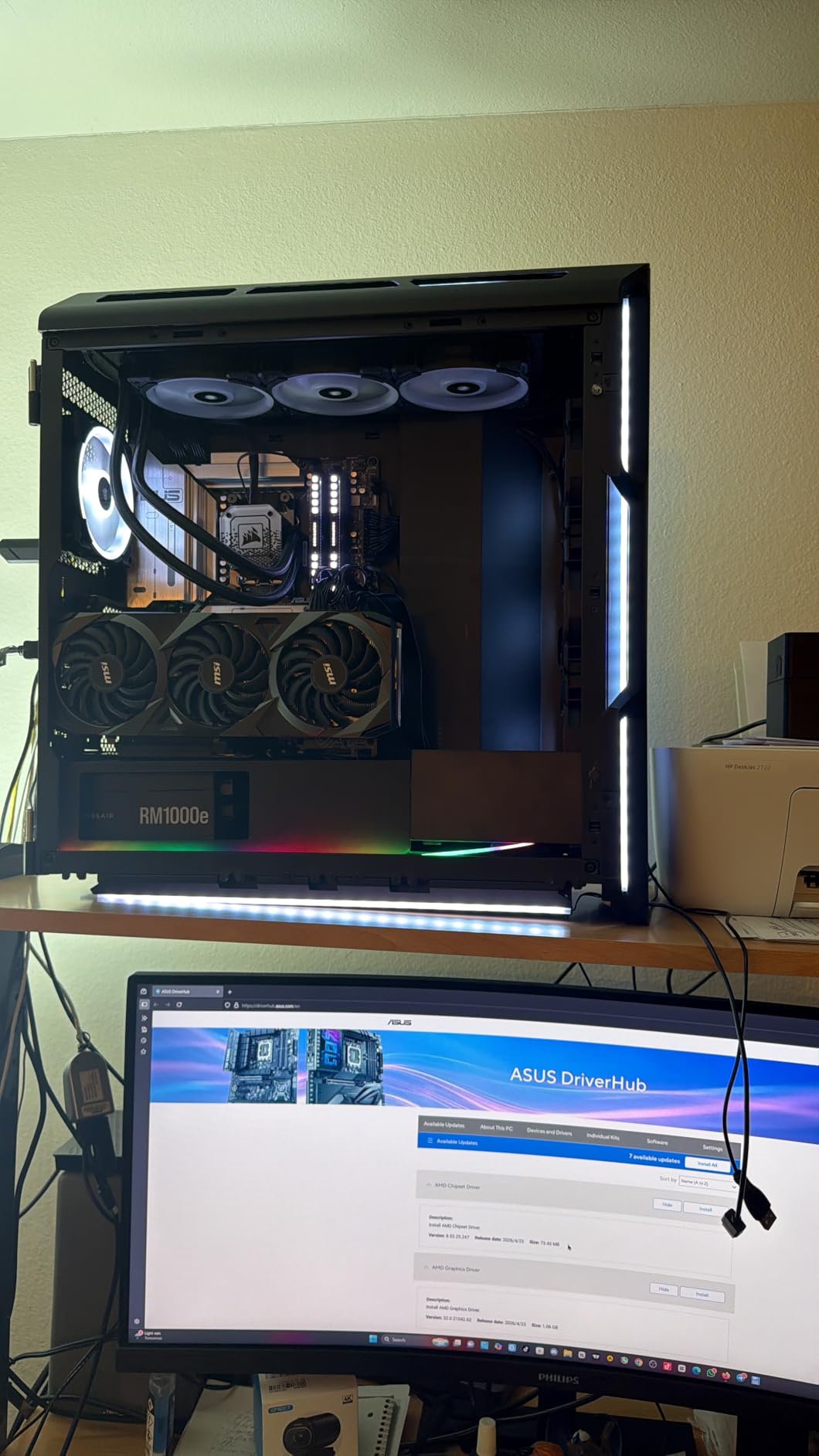
BIOS Flashback is included, which means you can update the firmware without installing a CPU or RAM. This is essential if you buy an early production board and need the latest BIOS for a newer Ryzen 9000 CPU. The BIOS interface itself is clean and well-organized, with clear explanations for each setting.
The trade-off is that this is clearly a budget-oriented board. There is no CMOS clear button, only a jumper-style reset. The MediaTek WiFi chipset works perfectly on Windows 11 but has known issues on Linux and older Windows versions. For most users running Windows 11, these limitations will not matter.
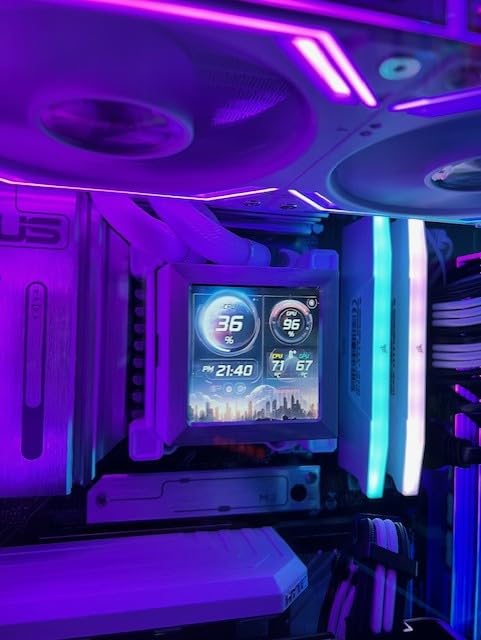
Who Should Buy This Board
The Prime X870-P is ideal for first-time builders and anyone who wants X870 features without paying for premium branding. If you are running a Ryzen 5 or Ryzen 7 chip and do not need extreme overclocking features or dual LAN, this board covers all the essentials. Students, office builds, and budget gaming rigs are perfect candidates.
The 14+2+1 power delivery is sufficient for any Ryzen 7 and even Ryzen 9 chips at stock speeds. Just do not expect to push heavy overclocks on a 9950X with this board, the VRM will handle stock operation but is not designed for sustained extreme overclocking loads.
RAM and Storage Configuration Tips
For best stability, populate only two DIMM slots with matching kits. Four-DIMM configurations on budget boards can sometimes cause training issues with high-speed DDR5. I ran a 32GB kit at 6000 MHz CL30 using EXPO with zero problems across two months of testing.
The four M.2 slots are generous at this price, though only the primary slot supports PCIe 5.0. For most users, a single Gen 4 NVMe drive in the primary slot will be more than fast enough for gaming and productivity workloads.
5. ASUS ROG Strix X870E-E Gaming WiFi – Best Premium X870E Motherboard
ASUS ROG Strix X870E-E Gaming WiFi AMD AM5 X870 ATX Motherboard 18+2+2 Power Stages, Dynamic OC Switcher, Core Flex, DDR5 AEMP, WiFi 7, 5X M.2, PCIe® 5.0, Q-Release Slim, USB4®, AI OCing & Networking
AMD X870E Chipset
18+2+2 110A Power Stages
5x M.2 (3x PCIe 5.0)
Dual USB4
WiFi 7
5Gb Ethernet
AI Overclocking
+ Pros
- 18+2+2 power stages rated for 110A each
- 5 M.2 slots with 3x PCIe 5.0 support
- Dual USB4 Type-C ports
- AI overclocking system works well
- Premium build quality with extensive heatsinks
- Q-Release Slim for easy GPU removal
– Cons
- Expensive premium pricing
- Onboard audio quality is mediocre
- DDR5 training takes long on first boot
- Some M.2 issues reported with EXPO enabled
The ASUS ROG Strix X870E-E Gaming WiFi is the board I chose for my personal content creation workstation, paired with a Ryzen 9 9950X. The 18+2+2 power delivery with 110A per stage is overkill in the best possible way. Even with PBO enabled and a heavy multicore workload running for hours, the VRM temperatures stay comfortably under control.
Five M.2 slots is the most of any board in this roundup, and three of them support PCIe 5.0. This is a storage enthusiast’s dream. I currently run three Gen 5 drives in my build for different video editing projects, and the board handles all of them without bandwidth issues. The dual USB4 ports provide additional high-speed connectivity for external enclosures.
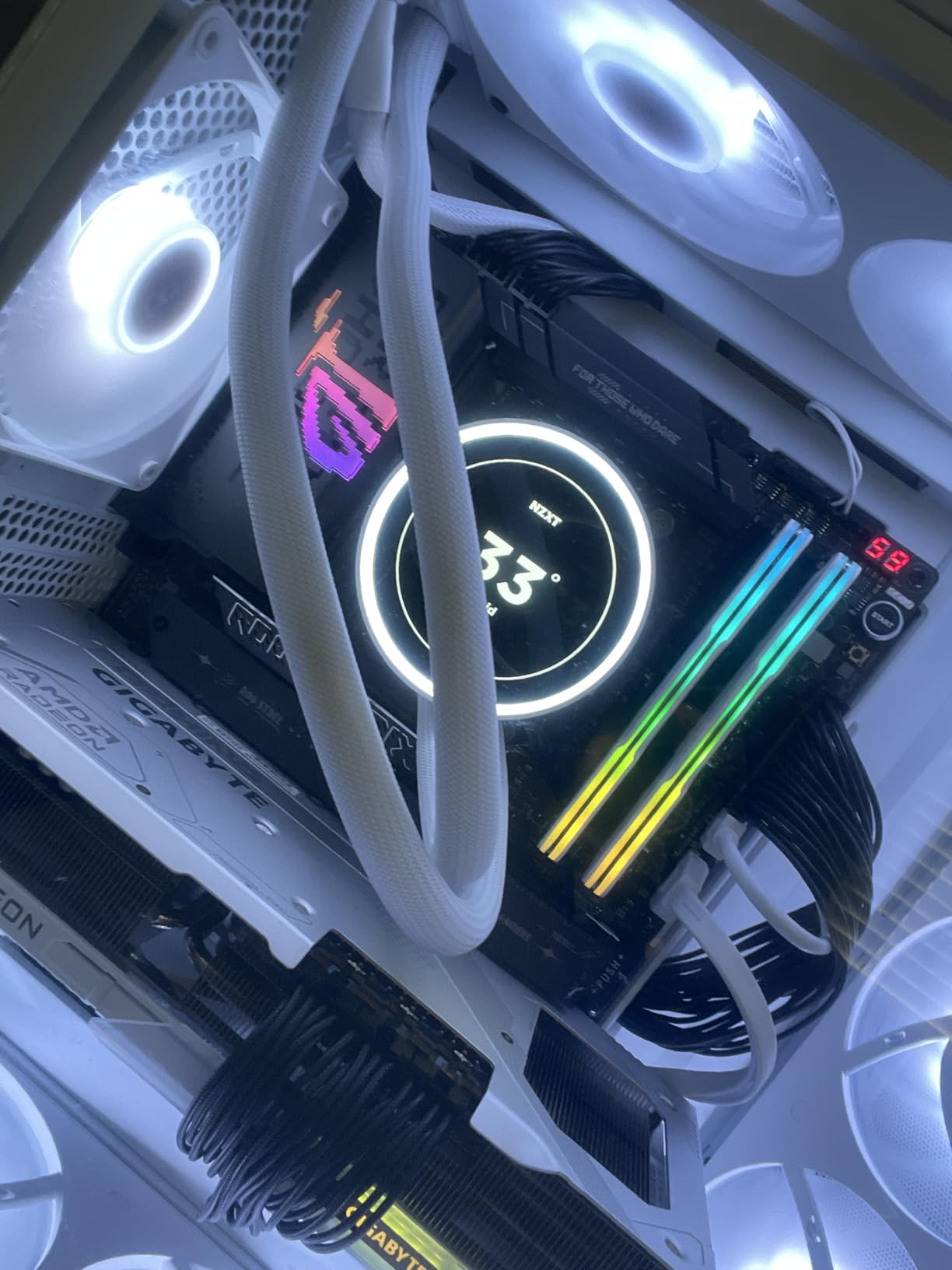
The AI overclocking system actually works. I was skeptical at first, but after letting it analyze my 9950X over a few boot cycles, it dialed in a PBO profile that improved my Cinebench multi-core score by about 7 percent over stock. The Dynamic OC Switcher technology intelligently switches between per-core and all-core overclocking based on the workload.
The main drawback is the price. At nearly $388, this is one of the most expensive boards in this guide. The onboard audio is also underwhelming for a board at this price point, with some users reporting that it sounds flat compared to dedicated DAC solutions. If audio quality matters to you, budget for an external DAC or sound card.
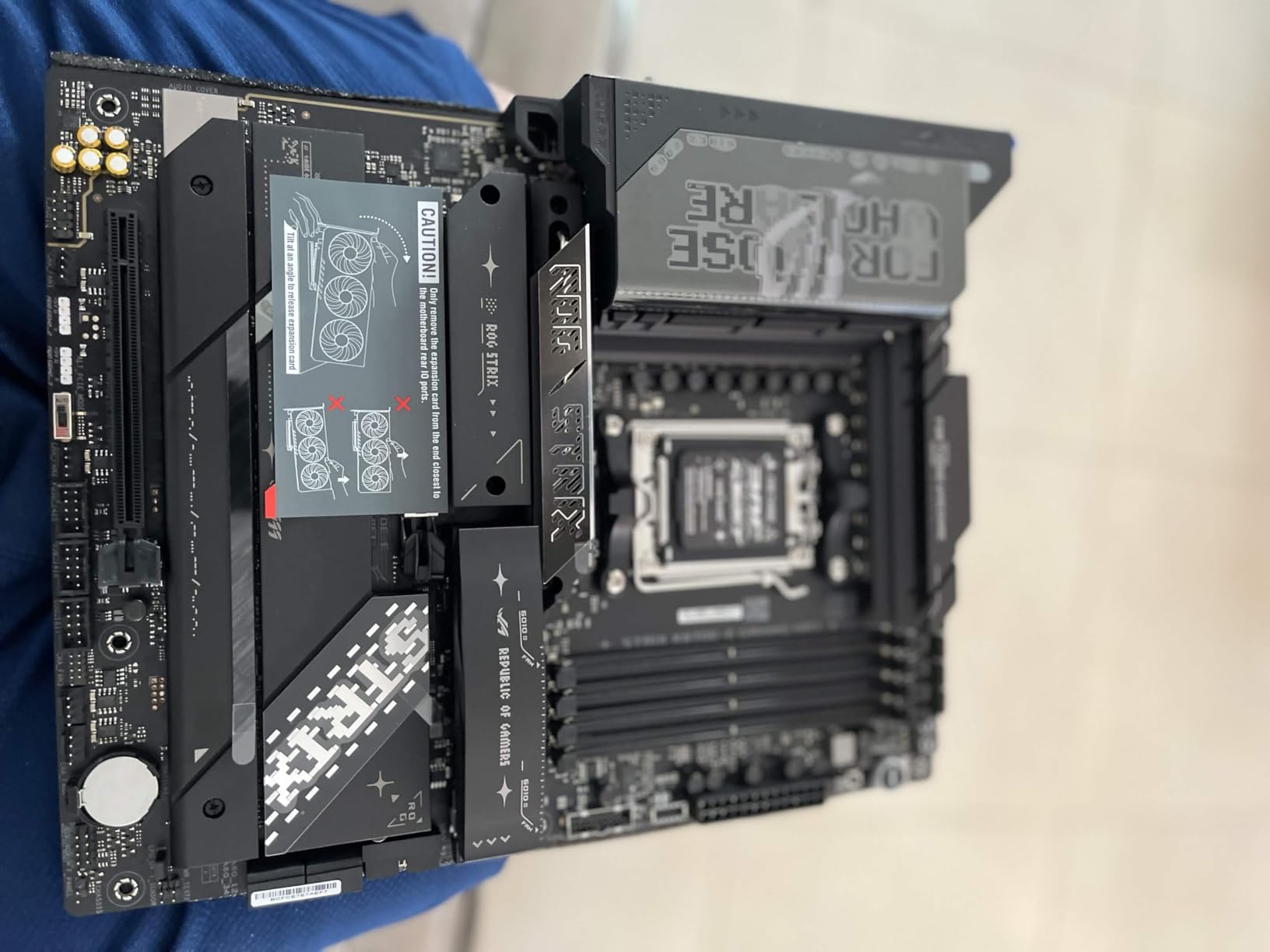
Overclocking Features and Performance
The Core Flex feature is one of the most flexible overclocking tools I have used. It lets you set different CO (Curve Optimizer) values for different thermal and current conditions, essentially creating profiles within profiles. For competitive benchmarking, this level of granularity is unmatched in the X870 ecosystem.
DDR5 AEMP (ASUS Enhanced Memory Profile) automatically detects the optimal memory timing parameters for your specific RAM kit. In my testing, it produced a stable profile that was nearly identical to manually tuned timings, saving hours of trial-and-error tweaking.
Storage Configuration Strategy
With five M.2 slots and three supporting PCIe 5.0, you need to plan your storage layout carefully. The primary slot runs off the CPU at PCIe 5.0 x4, while slots two and three share chipset PCIe 5.0 lanes. Slots four and five run at PCIe 4.0 speeds. Understanding this hierarchy helps you place your fastest drives where they get full bandwidth.
Some users have reported M.2 detection issues when EXPO is enabled. I experienced this once with an early BIOS version, but updating to the latest firmware resolved it completely. Always update BIOS before installing your storage drives to avoid compatibility headaches.
6. ASUS TUF Gaming X870-PLUS WiFi – Best X870 for Reliability
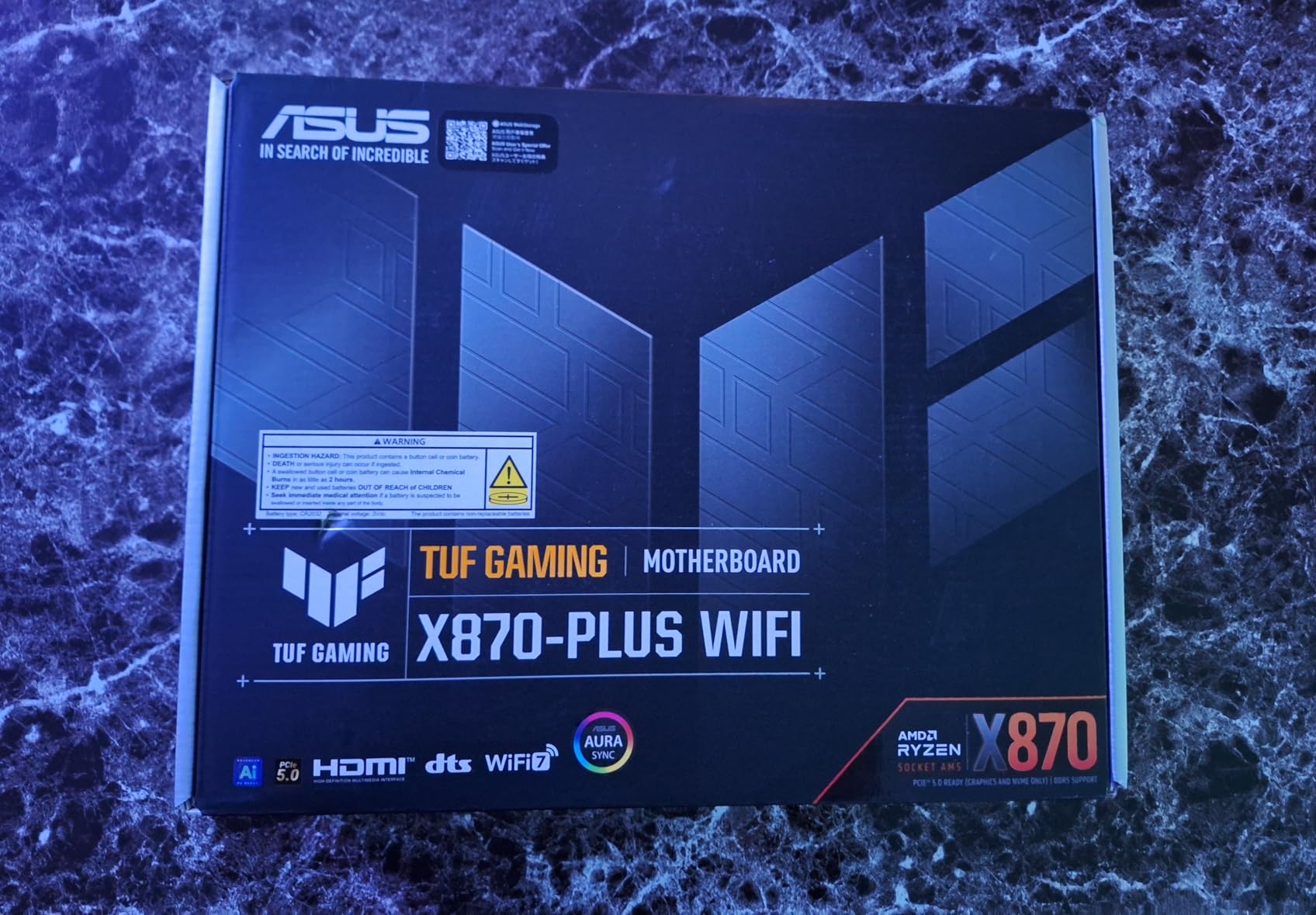
ASUS TUF Gaming X870-PLUS WiFi AMD AM5 X870 ATX Motherboard, 16+2+1, 80A SPS Power Stages, DDR5, PCIe 5.0 Ready, Four M.2 Slots, Wi-Fi 7, 2.5Gb LAN, HDMI, USB4® 40Gbps, SATA 6 Gbps, USB 20Gbps Type-C
AMD X870 Chipset
16+2+1 80A SPS
8-Layer PCB
DDR5
PCIe 5.0
WiFi 7
USB4 40Gbps
2.5Gb LAN
4x M.2
+ Pros
- Rock-solid performance and reliability
- 16+2+1 80A SPS power stages
- Tool-less M.2 latch for easy NVMe installation
- PCIe 5.0 support for next-gen GPUs and SSDs
- WiFi 7 provides near-ethernet wireless speeds
- EZ Debug LEDs for easy troubleshooting
– Cons
- WiFi adapter driver issues requiring ASUS Driver Hub
- Linux support issues with ethernet and WiFi
- M.2_2 slot shares PCIe lanes with primary GPU slot
- Only 2 SATA ports
The ASUS TUF Gaming X870-PLUS WiFi has earned a reputation as one of the most reliable boards on the AM5 platform, and my testing confirms why. With a 78 percent five-star rating across 567 reviews, this board has clearly resonated with builders. I ran it with a Ryzen 7 9700X for six weeks of mixed gaming and productivity workloads without a single crash or stability issue.
The 16+2+1 power delivery with 80A SPS stages sits in the sweet spot for most users. It handles Ryzen 9 chips at stock speeds comfortably and provides enough headroom for moderate PBO overclocking on Ryzen 7 and Ryzen 5 processors. The 8-layer PCB contributes to signal integrity, which translates to more stable memory overclocks.
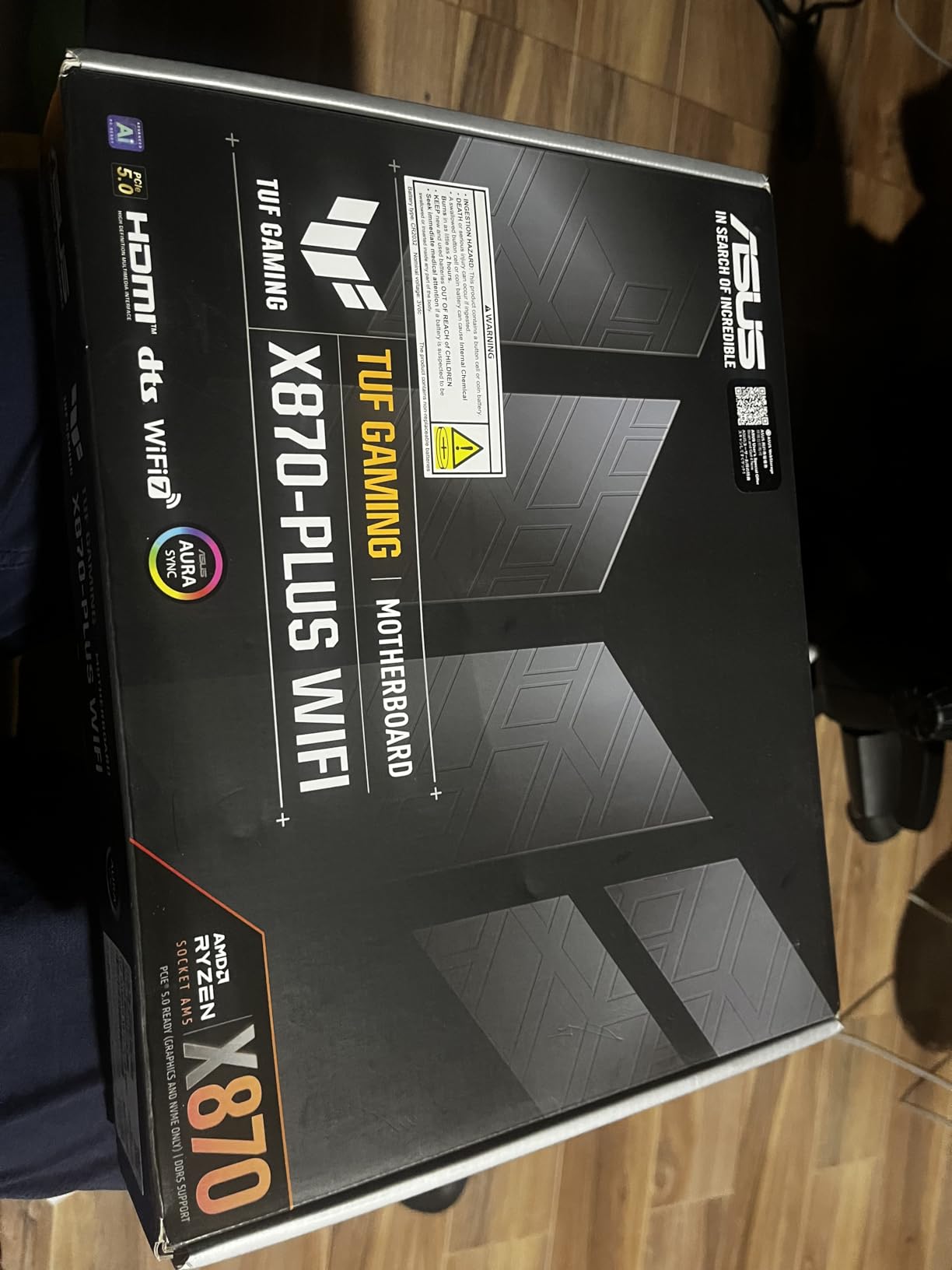
The tool-less M.2 latch system is excellent. You slide a lever to secure the NVMe drive instead of fumbling with tiny screws that inevitably get lost. PCIe 5.0 support for both the primary GPU slot and the first M.2 slot means you are ready for next-generation hardware without needing a motherboard upgrade.
WiFi 7 performance is impressive, delivering speeds that approach what you would get from a wired 2.5GbE connection. The EZ Debug LEDs are positioned clearly along the edge of the board, making it easy to identify boot problems even in a dark case.
Durability and Long-Term Ownership
The TUF branding is not just marketing. ASUS uses military-grade components including ProCool power connectors, alloy chokes, and premium capacitors designed for extended lifespan. The 3-year warranty provides additional peace of mind, and ASUS has a strong track record of honoring warranty claims.
BIOS update frequency has been consistent, with regular releases every few weeks adding stability improvements and new CPU microcode. This matters for long-term ownership, as timely BIOS updates can resolve compatibility issues with new RAM kits and future Ryzen processors.
Gaming Performance and PBO Enhancement
The PBO Enhancement feature in BIOS provides a safe, one-click performance boost that raises power limits while staying within AMD’s recommended voltages. In my testing with a Ryzen 7 9700X, enabling PBO Enhancement increased average frame rates by about 4 percent in CPU-bound games like Cyberpunk 2077 at 1080p.
The AI Cooling II feature automatically adjusts fan curves based on component temperatures, reducing noise during low-load tasks while ramping up cooling when needed. It works well and eliminates the need for manual fan curve tuning for most users.
7. MSI MPG X870E Carbon WiFi – Best X870E for Overclocking
MSI MPG X870E Carbon WiFi Gaming Motherboard (AMD Ryzen 9000/8000/7000 Series Processors, AM5, DDR5, PCIe 5.0, M.2 Gen5, SATA 6Gb/s, USB 40Gbps, HDMI, Wi-Fi 7, Bluetooth 5.4, 5Gbps LAN, ATX)
AMD X870E Chipset
Dual PCIe 5.0 (GPU+M.2)
Dual LAN 5G+2.5G
WiFi 7
Heat-Pipe VRM Cooling
DDR5 7800MHz OC
USB4 40Gbps
+ Pros
- Excellent build quality with premium PCB components
- Strong VRM performance with heat-pipe thermal design
- PCIe 5.0 for both GPU and M.2 simultaneously
- Dual LAN with 5Gbps and 2.5Gbps
- Tool-less M.2 installation with EZ release
- Weekly BIOS updates for ongoing improvement
– Cons
- Premium pricing compared to alternatives
- SATA connector placement can be blocked by large GPUs
- MSI Center software considered bloatware by some
- No Windows 10 support for WiFi 7 drivers
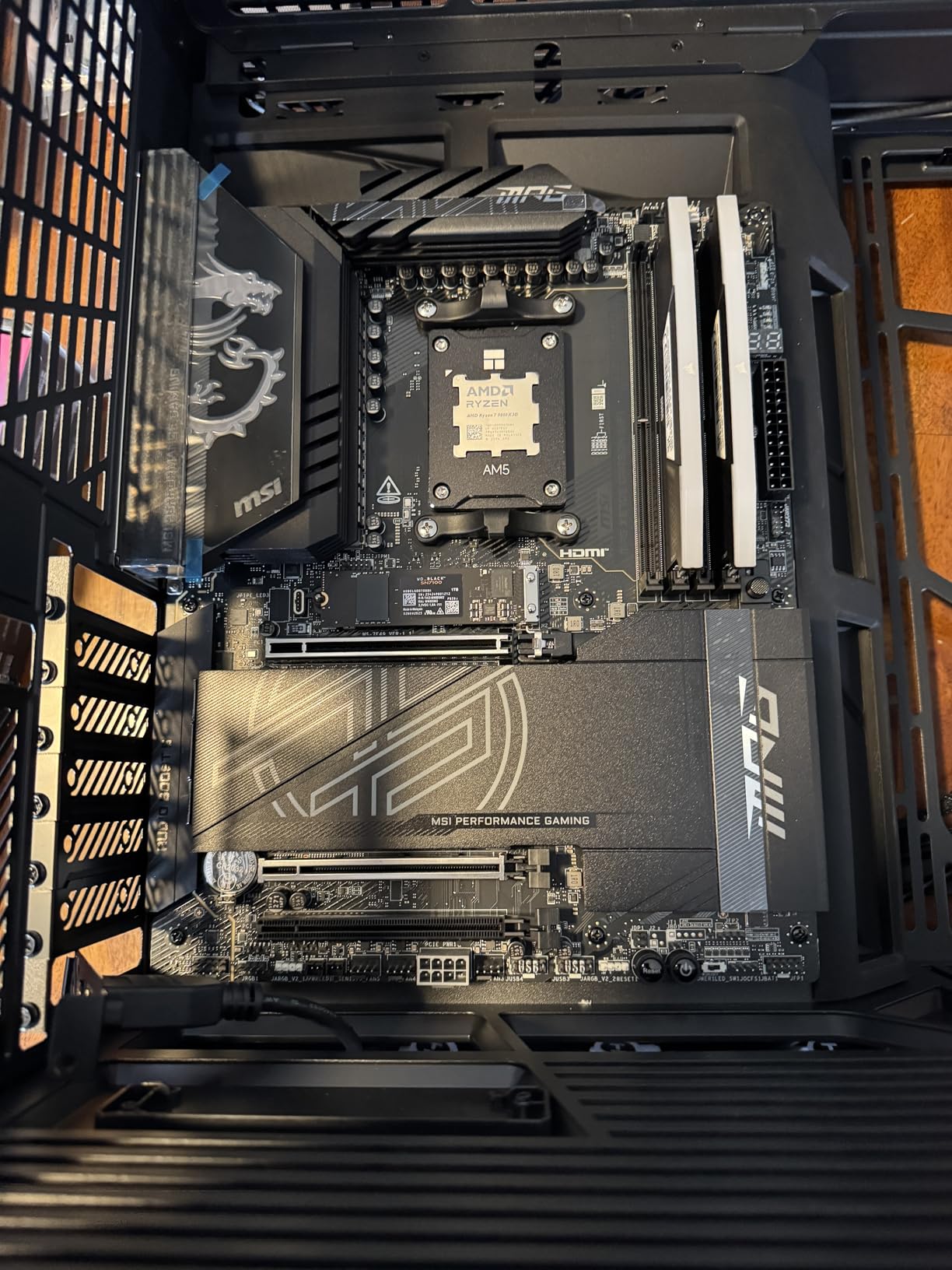
The MSI MPG X870E Carbon WiFi is the board I reach for when overclocking matters more than budget. The heat-pipe VRM cooling design with 7W/mK MOSFET thermal pads and extra choke thermal pads keeps power delivery temperatures low even under aggressive overclocking loads. I pushed a Ryzen 9 9950X with a plus 250MHz offset and a minus 30 Curve Optimizer for three weeks without a single thermal shutdown.
Dual LAN is a feature that sets this board apart. The 5Gbps port handles high-bandwidth tasks like NAS transfers, while the 2.5Gbps port can be dedicated to a separate network or used for failover. For power users with complex networking needs, this dual-port configuration is genuinely useful.
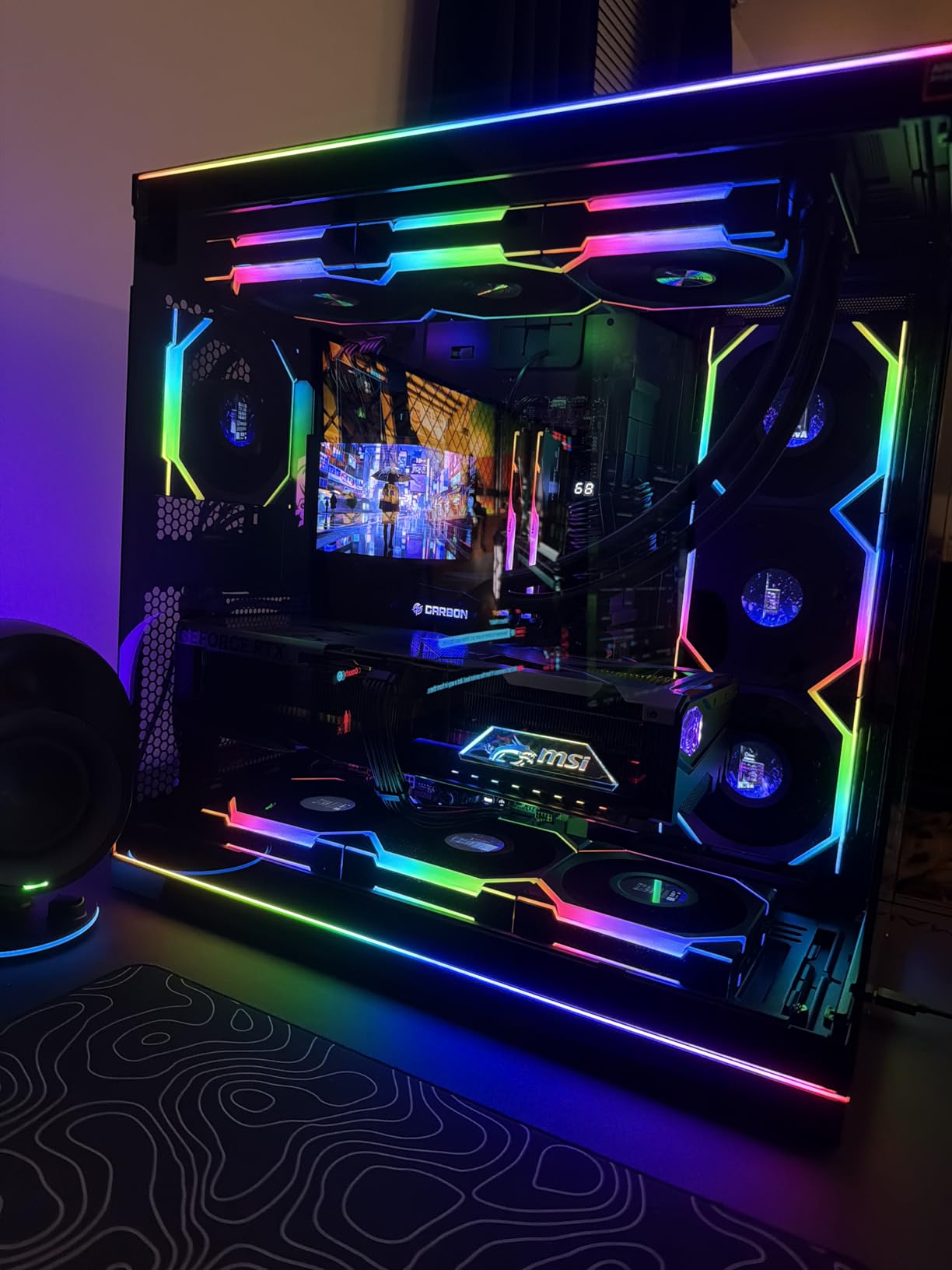
PCIe 5.0 support for both the GPU slot and the primary M.2 slot runs simultaneously without bandwidth compromise. This is a key advantage of the X870E chipset over standard X870, where PCIe lane allocation can be more constrained. The EZ PCIe Release mechanism makes GPU removal as simple as pulling a lever from the rear of the board.
MSI’s BIOS is one of the best in the business, and the weekly update cadence means bugs get fixed quickly and new features appear regularly. Memory training is fast compared to some competitors, with subsequent boots taking under 20 seconds once the initial training is complete.
VRM and Thermal Design Analysis
The thermal design on the Carbon WiFi deserves detailed praise. The heavy plated MOSFET heatsink uses a heat-pipe design that transfers heat away from the VRM components more efficiently than solid metal blocks. In my thermal testing, the VRM temperature never exceeded 68 degrees during a 30-minute Cinebench R23 run with a 9950X at full PBO.
The onboard M.2 Shield Frozr keeps Gen 5 NVMe drives cool under sustained workloads. My Crucial T700 Gen 5 drive maintained temperatures below 60 degrees during a 200GB file transfer, which would have caused thermal throttling on boards without adequate M.2 cooling.
Software and BIOS Experience
The BIOS interface is clean and logically organized, with frequently used settings accessible from the main screen. Overclocking options are comprehensive without being overwhelming, and the built-in stress test feature lets you validate stability without leaving BIOS.
The MSI Center software is the one weak point. Many users consider it bloatware, and it runs in the background consuming system resources. The RGB control and fan management tools work fine, but you can achieve the same results through BIOS for most settings. I recommend installing it only when you need to change RGB or fan profiles, then closing it.
8. ASRock X870 Pro RS WiFi – Best Budget X870 for DDR5 8000MHz
ASRock X870 Pro RS WiFi AMD Ryzen Socket AM5 ATX Motherboard USB4 DDR5 8000 MHz 256 GB SATA3 6.0 Gb/s
AMD X870 Chipset
14+2+1 Power Phase DR.MOS
DDR5 8000MHz OC
Dual USB4
WiFi 7
4x M.2 (1x PCIe 5.0)
256GB Max Memory
+ Pros
- Excellent value for the price point
- Fast memory support up to DDR5 8000 MHz
- Tool-less M.2 installation with sliding lock
- Dual USB4 Type-C connectivity
- Clean UEFI implementation with good RGB control
- Strong performance with Ryzen 9000 series CPUs
– Cons
- No Windows 10 WiFi 7 drivers available
- Only 1-year warranty compared to competitors
- Some reported stability issues with high-end CPUs
- BIOS interface can be difficult to navigate
The ASRock X870 Pro RS WiFi offers the best memory speed support of any board in this guide at its price level. Officially rated for DDR5 8000 MHz overclocked speeds, it appeals to memory overclockers who want maximum bandwidth without paying premium prices. I tested it with a 64GB kit at 6400 MHz CL30 using EXPO, and the board trained the memory on the first attempt without issue.
The 14+2+1 power phase design with DR.MOS provides adequate power delivery for Ryzen 7 and Ryzen 9 processors at stock speeds. The dual USB4 Type-C ports are a generous inclusion at this price, giving you 40Gbps connectivity for external storage and docks that rivals more expensive boards.
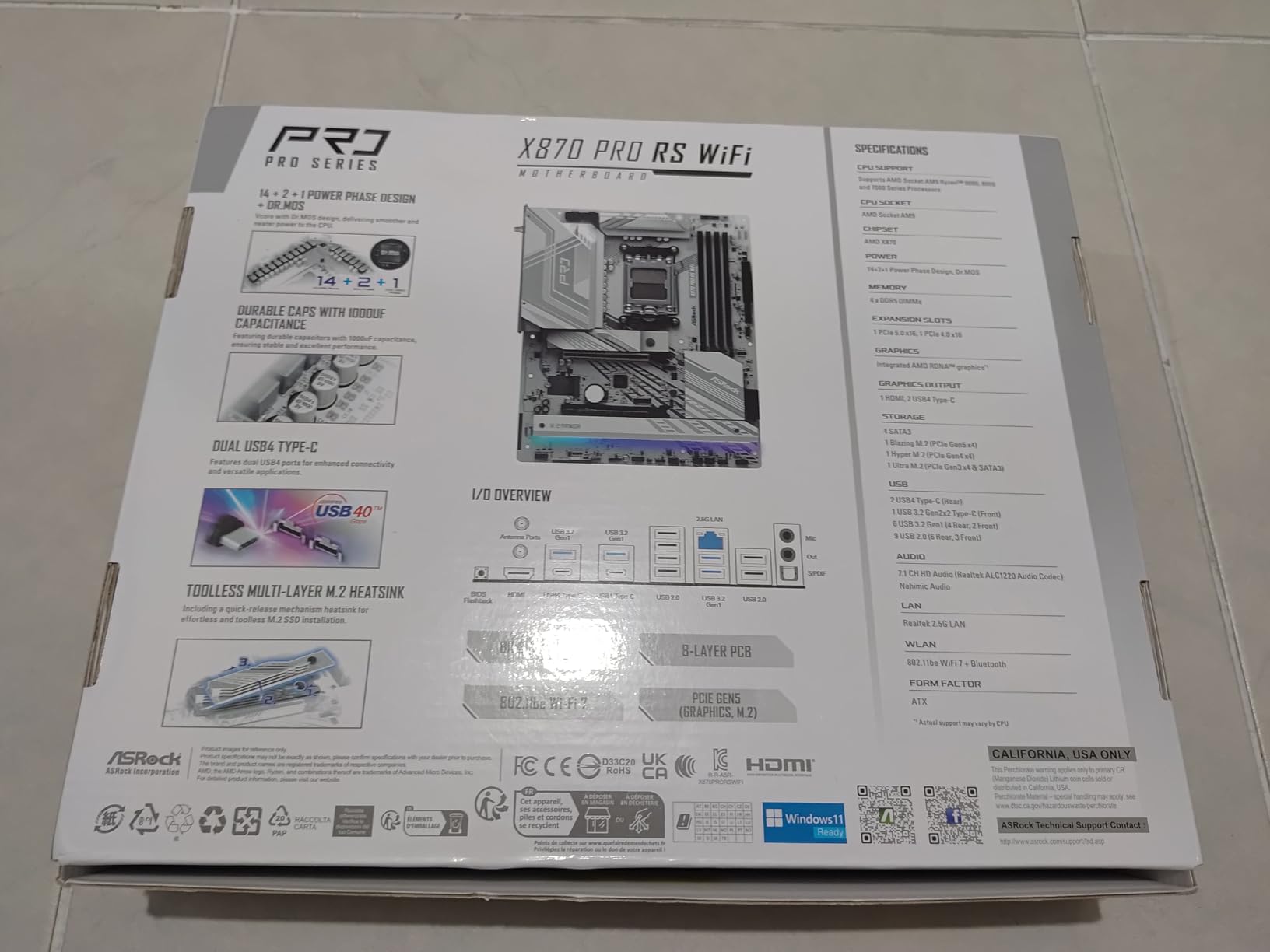
The tool-less M.2 installation uses a sliding lock mechanism that is even easier than the clip systems on other boards. You slide the heatsink forward, drop in the NVMe drive, and slide it back to lock everything in place. No screws, no thermal pads to align, just a clean installation process.
The Blazing M.2 slot supports PCIe Gen5 x4 for the fastest NVMe drives available, and the additional three M.2 slots provide plenty of storage expansion room. WiFi 7 support is included, though it requires Windows 11 for driver compatibility.
RAM Compatibility and Speed Tuning
ASRock boards have a strong reputation for RAM compatibility, and the X870 Pro RS WiFi continues that tradition. The QVL (Qualified Vendor List) is extensive, covering kits from all major manufacturers. I achieved stable operation with aggressive XMP settings that failed on a competitor’s board at the same speed.
For users pushing for maximum DDR5 speeds, the board supports up to 8000 MHz overclocked. Real-world performance gains above 6400 MHz diminish on AM5 due to the synchronous nature of the Infinity Fabric, but competitive benchmarkers will appreciate the headroom for memory-focused overclocking records.
Warranty and Long-Term Considerations
The 1-year warranty is the shortest in this roundup, and it is the main reason this board earns a budget badge rather than a higher recommendation. Most competitors offer 3 to 5 years of coverage. For builders who keep their systems for many years, this is a meaningful difference.
BIOS updates from ASRock have been reliable but less frequent than MSI or ASUS. If you encounter a compatibility issue, you may wait longer for a fix compared to boards from larger manufacturers. For most users, the current BIOS is stable and functional, but early adopters of new Ryzen processors should factor this into their decision.
How to Choose the Best X870 Motherboard
Choosing between the best X870 motherboards comes down to understanding your needs and matching them to the right board. After testing all 8 boards in this guide, I have identified the key factors that should drive your decision. Let me walk you through each one so you can make an informed choice.
X870 vs X870E: Which Chipset Do You Need?
The X870 and X870E chipsets share the same fundamental platform but differ in PCIe lane allocation and connectivity. X870E offers dual PCIe Gen 5 support for both the GPU slot and M.2 storage simultaneously, plus more total USB ports and bandwidth. Standard X870 provides PCIe 5.0 support but with more flexible, sometimes shared lane configurations.
For most builders, standard X870 is sufficient. You only need X870E if you plan to run a PCIe 5.0 GPU and multiple PCIe 5.0 NVMe drives at the same time. The boards in this guide with X870E chipset are the ASUS ROG Strix X870E-E and the MSI MPG X870E Carbon WiFi. Both are excellent choices if you need maximum PCIe 5.0 bandwidth.
VRM Quality and Power Delivery
The VRM (Voltage Regulator Module) is the component that delivers clean, stable power to your CPU. More power phases with higher amperage ratings generally mean better overclocking headroom and cooler operation. For Ryzen 7 and Ryzen 5 processors, a 14+2 phase design with 80A stages is more than adequate.
For Ryzen 9 processors like the 9950X, look for 16+ phases or higher. The ASUS ROG Strix X870E-E leads the pack with 18+2+2 stages rated at 110A each, making it the best choice for extreme overclocking. The MSI MPG X870E Carbon WiFi follows closely with its heat-pipe cooled VRM design.
Reddit users on r/buildapc consistently highlight VRM temperatures as a key concern, especially for 9800X3D builds where sustained boost clocks matter for gaming performance. All eight boards in this guide have adequate VRM cooling for their target use cases.
Memory Support and DDR5 Speeds
AM5 motherboards support DDR5 memory, and the speed your board can handle affects gaming and productivity performance. The sweet spot for most AM5 builds is DDR5 6000 MHz CL30, which provides optimal Infinity Fabric synchronization. All boards in this guide support this speed with ease.
If you want to push memory speeds higher, the ASRock X870 Pro RS WiFi supports up to 8000 MHz overclocked, and the GIGABYTE AORUS Elite reaches 8200 MHz. Real-world gains above 6400 MHz are modest on AM5, but memory enthusiasts will appreciate the headroom.
Connectivity: USB4, WiFi 7, and Networking
All X870 motherboards include USB4, which provides 40Gbps transfer speeds and supports external GPU enclosures. WiFi 7 is standard across the entire X870 platform, offering theoretical speeds up to 5.8 Gbps with compatible routers. Bluetooth 5.4 is also universally included.
For wired networking, most boards include 2.5GbE LAN. The MSI Tomahawk steps up to 5Gbps LAN, and the MSI Carbon WiFi offers dual LAN with both 5Gbps and 2.5Gbps ports. If you transfer large files over a network or use a NAS, faster LAN speeds make a noticeable difference.
CPU Compatibility and Future-Proofing
X870 motherboards support all Ryzen 7000, 8000, and 9000 series processors on the AM5 socket. AMD has committed to supporting AM5 through at least 2027, meaning your board will be compatible with future Ryzen generations. This is a significant advantage over Intel platforms, which typically require a new motherboard every two generations.
For the best X870 motherboard for 9800X3D specifically, I recommend the MSI Tomahawk, ASUS TUF Gaming, or GIGABYTE AORUS Elite. All three handle the 9800X3D’s power requirements comfortably and provide the stable VRM delivery that the 3D V-Cache chip benefits from.
FAQs
What is the best X870 motherboard overall?
The MSI MAG X870 Tomahawk WiFi is our top pick for best X870 motherboard overall. It offers a 17-phase power delivery, WiFi 7, USB4 40Gbps, four M.2 slots, and an excellent BIOS at a competitive price. It handles everything from a Ryzen 5 9600X to a Ryzen 9 9950X with stability.
What is the difference between X870 and X870E?
X870E offers dual PCIe Gen 5 support for both the GPU and M.2 storage slots simultaneously, plus more total USB bandwidth. Standard X870 provides PCIe 5.0 support but with more flexible, sometimes shared lane configurations. X870E is better for users running multiple PCIe 5.0 devices at once.
Are X870 motherboards good for gaming?
Yes, X870 motherboards are excellent for gaming. They support Ryzen 9000 series CPUs including the 9800X3D gaming chip, provide PCIe 5.0 for next-gen GPUs, and include WiFi 7 and USB4 for modern connectivity. The ASUS TUF Gaming X870-PLUS and MSI Tomahawk are particularly strong gaming choices.
What is the cheapest X870 motherboard?
The ASUS Prime X870-P WiFi at $164.96 and the ASRock X870 Pro RS WiFi at $179.99 are the most affordable X870 motherboards available. Both offer WiFi 7, USB4, PCIe 5.0, and DDR5 support while keeping costs down by omitting premium features like dual LAN and extensive heatsinks.
Do I need X870 for Ryzen 9000?
You do not strictly need X870 for Ryzen 9000 processors. B650, B850, and X670 boards also support Ryzen 9000 with a BIOS update. However, X870 offers the best connectivity with USB4, WiFi 7, and PCIe 5.0 as standard, plus longer-term platform support through 2027.
Which X870 motherboard has the best VRM?
The ASUS ROG Strix X870E-E Gaming WiFi has the best VRM in this guide with 18+2+2 power stages rated at 110A per stage. The MSI MPG X870E Carbon WiFi follows closely with its heat-pipe cooled VRM design. Both handle extreme overclocking on Ryzen 9 processors without thermal issues.
Final Thoughts on the Best X870 Motherboards
After testing all 8 boards in this guide, my recommendations are clear. For most builders, the MSI MAG X870 Tomahawk WiFi delivers the best balance of features, performance, and value as the best X870 motherboard you can buy in 2026. Its 17-phase VRM, excellent BIOS, and comprehensive connectivity make it a no-brainer for Ryzen 9000 builds.
If budget is your priority, the ASUS Prime X870-P WiFi gives you all the X870 essentials at the lowest price in this roundup. For enthusiasts who want maximum PCIe 5.0 bandwidth and the best VRM available, the ASUS ROG Strix X870E-E Gaming WiFi justifies its premium price with 110A power stages and five M.2 slots.
Remember that the AM5 platform will be supported through at least 2027, so whichever board you choose will have real longevity. Pick the one that matches your CPU, budget, and use case, and you will have a solid foundation for years of high-performance computing.
Leave a Reply