
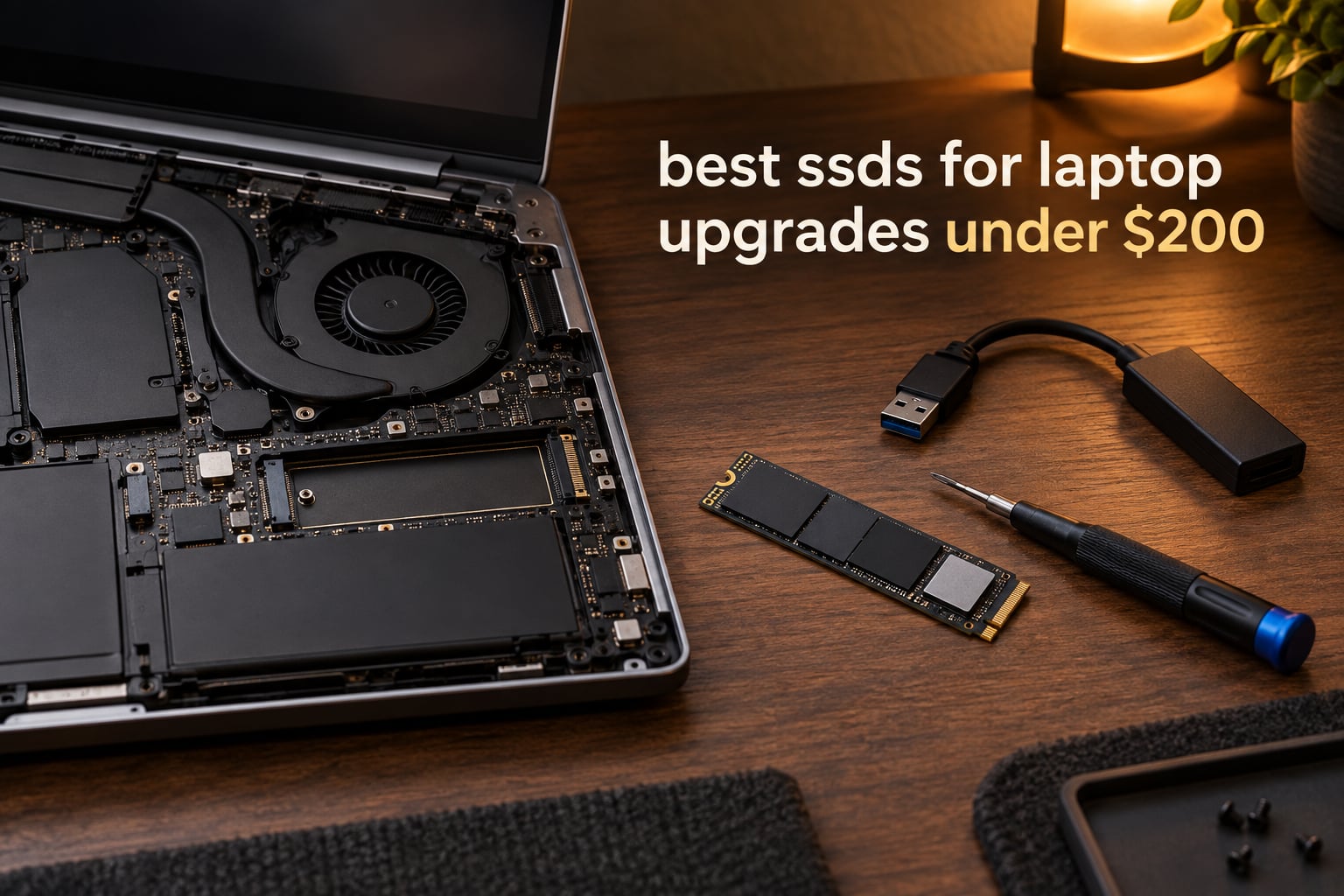
For most people, the best SSDs for laptop upgrades under a 200-dollar budget are PCIe 4.0 M.2 2280 NVMe drives with TLC NAND. The Kingston NV3 1TB is the one we fit first, but the drive that suits your laptop is decided by one question: does your M.2 slot speak NVMe, and how long a drive does it physically take? Get that wrong and a perfectly good drive will either not fit or never appear in the BIOS.
I have spent the last few years buying storage for ageing ThinkPads, business ultrabooks and family laptops, and the mechanical failure I have watched most often is not a bad drive. It is a good drive in the wrong slot. A 2280 NVMe stick slides into an older laptop’s SATA-only M.2 connector with zero resistance, the installer screws it down, and the machine simply ignores it. No error, no warning, just a boot from the old drive and a new stick sitting there useless.
That failure is so common it has its own thread on r/buildapc and repeated coverage in the Tom’s Hardware forums, which is why this guide is organised the way it is. The compatibility framework comes first, the eight drives come second. If you already know your slot takes M.2 2280 NVMe and your budget is 200 dollars, skip straight to the cards and start with the comparison table.
Two context notes before we get into it. First, the storage market has been unusually volatile: NAND pricing has climbed sharply on heavy AI datacentre demand, and Micron has stepped back from the consumer Crucial SSD business, which affects how long some of these lines will be made. That makes the buy-now-versus-wait question a real one rather than a rhetorical one, and I answer it in the buying guide. Second, some model names have changed under shoppers’ feet, so I list both names where they differ.
Last updated in October 2026. All eight drives below were selected from listings at or under the 200-dollar ceiling for the drive itself, and every speed, capacity and endurance figure quoted comes from the manufacturer specification and the owner review history rather than from a spec roundup. If you want a broader look before you commit, our SSD picks for laptops covers the premium end too.
Our Top 3 Best Laptop Upgrade Picks Under 200 Dollars (October 2026)
These are the three we keep coming back to when someone asks for one drive, one laptop, and a firm budget ceiling.

Kingston NV3 1TB
- PCIe 4.0 x4 up to 6000 MB/s read
- Single-sided M.2 2280 design
- DRAM-less with HMB

Crucial P310 1TB
- Up to 7100 MB/s read and 6000 MB/s write
- Micron G8 NAND
- Backward compatible with Gen3 systems

WD Green SN350 1TB
- QLC NAND for the lowest cost per gigabyte
- Up to 3200 MB/s read
- WD SSD Dashboard health monitoring
All 8 Laptop SSDs Side by Side at a Glance
Every drive in this roundup, with the interface and NAND type that decides where it can actually be used.
| Product | Details | Action |
|---|---|---|
|
|
Check Latest Price |
|
|
Check Latest Price |
|
|
Check Latest Price |
 |
|
Check Latest Price |
 |
|
Check Latest Price |
 |
|
Check Latest Price |
 |
|
Check Latest Price |
 |
|
Check Latest Price |
Check Your M.2 Slot Before You Buy a Drive
M.2 is the physical shape of the drive, NVMe and AHCI are the protocols it speaks. They are not the same thing, and most of the confusion in this category comes from treating them as interchangeable. M.2 describes a small card roughly the width of a stick of gum with a connector along one edge. NVMe is the protocol built for flash memory over PCI Express, and AHCI is the older protocol that SATA drives use. A drive can be M.2-shaped and speak AHCI, M.2-shaped and speak NVMe, or shaped like a 2.5-inch rectangle and speak AHCI.
Here is the part that catches people. Many older laptops have an M.2 slot wired for SATA only. An NVMe drive is the same physical size and uses the same connector, so it slides in perfectly and is never detected. There is no error message, no beep, nothing in the BIOS. On Acer models in particular, forum users report that the M.2 slot exists but the machine will only ever run it at the speed of the SATA port, if it detects it at all.
The second trap is length. M.2 drives are named for their dimensions in millimetres: the first number is width, the second is length. A 2280 is 22mm wide and 80mm long, and it is what almost every laptop with a modern NVMe slot takes. A 2242 is 42mm long and a 2230 is 30mm long, and they turn up in slim ultraportables and in a few business machines where a full-length card simply will not fit under the thermal shield. Buying a 2280 for a 2230 slot means the drive physically will not go in, which at least fails loudly.
So how do you find out what your laptop takes, in plain order of reliability?
Start with the manufacturer’s service manual or hardware maintenance document. Every major laptop brand publishes one, and the MSI and Dell support forums both point users at these documents as the authoritative answer. Look for the storage expansion section; it will usually name the supported form factor, the maximum capacity, and whether the slot is NVMe, SATA, or both.
Check the marketing specification sheet for the exact model number. Configuration variants of the same laptop line often ship with different storage hardware, so the sticker on the base of the machine matters more than the product family name.
Look inside Windows before you buy. Open Device Manager and expand Disk drives, or run the disk management tool. If you have a removable drive present, right-click it, open Properties, and read the bus type. It will say NVMe or SCSI or SATA. That tells you what the current drive speaks, and on most laptops it tells you what the slot accepts.
Enter the BIOS or UEFI setup and look at storage information. Many machines list detected drives and the interface they are using. This is the most direct confirmation you can get short of opening the chassis.
Check whether the storage is even replaceable. Ultrathin laptops increasingly solder storage directly to the motherboard. If the manufacturer’s documentation lists no removable storage, no drive in this guide will help, and the answer is an external drive or a different machine.
One more practical check that almost nobody does: measure the clearance. Some ultrathin laptops use a thin thermal pad or a shield that assumes a single-sided board. A double-sided drive with a thick NAND stack on the back may not fit under it, and you will discover this only after the shield is already on. Prefer a drive listed as single-sided unless you know your chassis can take more.
And if the drive is soldered, an external USB-C enclosure is the realistic route to extra storage. One warning if you go that way: many budget enclosures reformat the drive to a 4Kn sector size, which can break disk imaging into and out of the enclosure. Format to 512e if you plan to clone through one.
1. Kingston NV3 1TB – The Default Answer for Most Laptop Upgrades
Kingston NV3 1TB M.2 2280 NVMe SSD | PCIe 4.0 Gen 4×4 | Up to 6000 MB/s | SNV3S/1000G
M.2 2280 PCIe 4.0 x4
6000 MB/s read, 4000 MB/s write
1TB, 3-year warranty
+ Pros
- Runs near its advertised Gen4 x4 speeds
- Ships Acronis cloning software so the migration is one program
- Single-sided board fits tight laptop slots
- Stays cool under sustained load with no throttling
– Cons
- DRAM-less design means very large write transfers can dip
- Endurance is modest next to premium TLC Gen4 drives
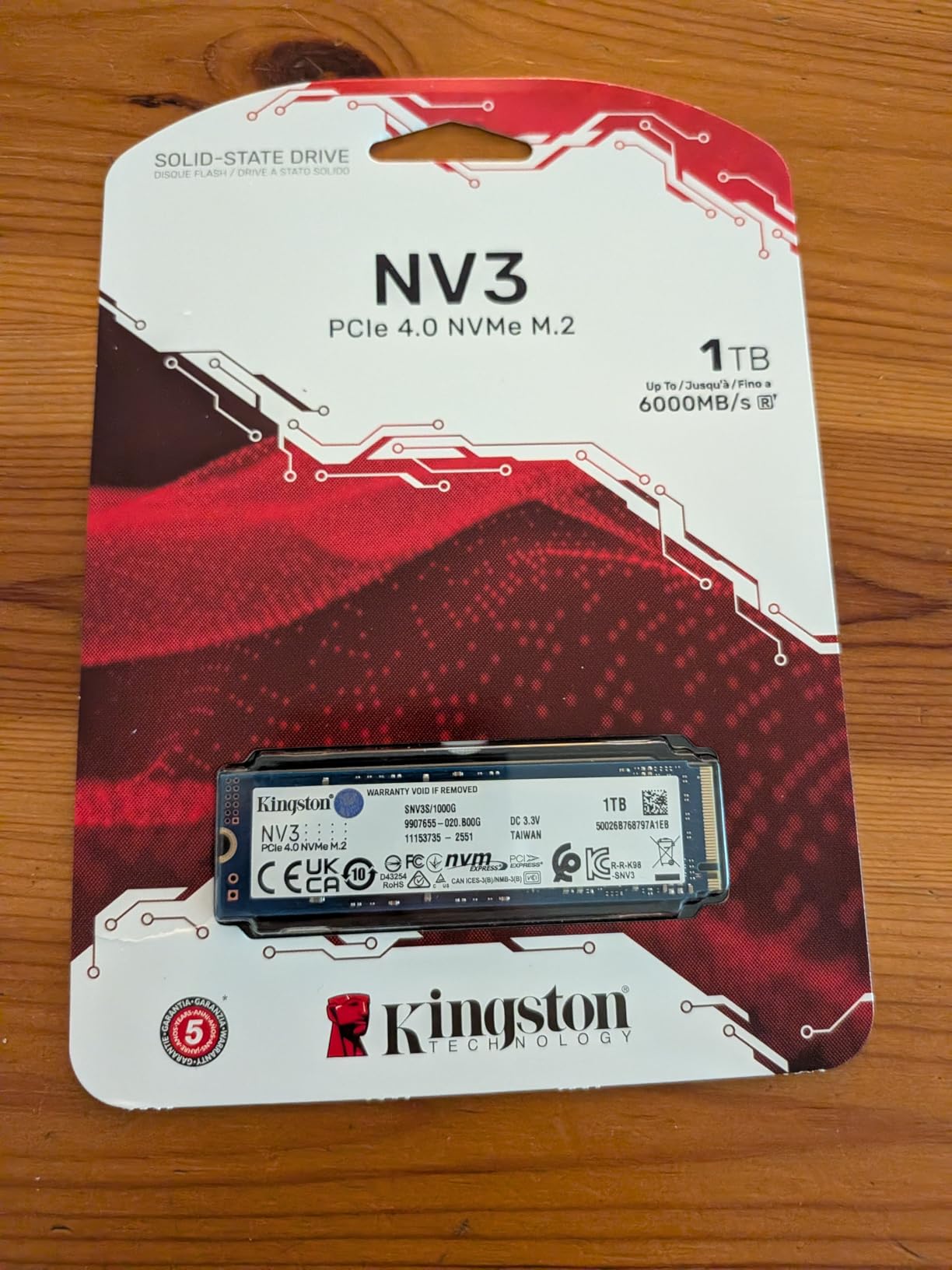
The NV3 is the drive I reach for when someone hands me a laptop with a standard M.2 2280 NVMe slot and no other requirements. It rates at up to 6000 MB/s sequential read and 4000 MB/s write on a PCIe 4.0 x4 interface, it is a DRAM-less design using a host memory buffer, and it weighs 4.54g on a single-sided board. In a laptop, that combination is close to ideal: fast enough that nothing in normal use is bottlenecked by storage, and physically undemanding enough to fit a tight bay.
What tips it for upgrade work specifically is the bundled Acronis cloning software. Most of the friction in a laptop SSD swap is not the hardware, it is moving an existing Windows installation across without losing programs and settings, and having a cloning utility already on the drive removes a step that sends people to forums looking for a free alternative. Owners report near-instant recognition on first boot with no BIOS changes and no driver fiddling.
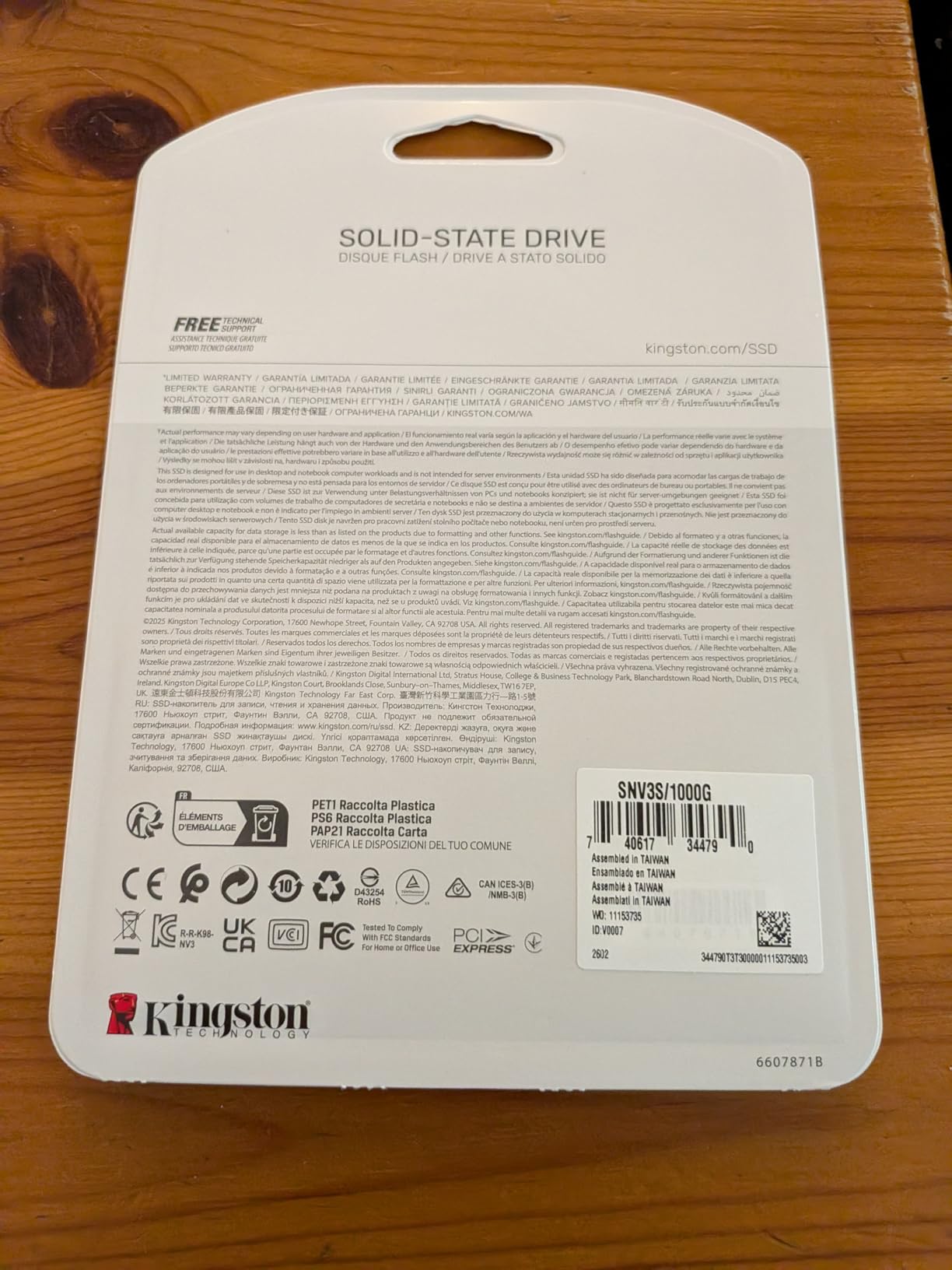
The review history is unusually deep for a drive at this level, and the long-term reports are the interesting part. Reviewers who have had the NV3 for ten months or more, running close to 70% full, report no crashes and no corruption, with only minor slowdowns on very large 50GB transfers. Eighty-eight percent of ratings are five star, with three percent one star, which is a healthy spread for a budget part.
Sequential Speed and How It Behaves in a Gen4 Slot
In a PCIe 4.0 laptop the NV3 has plenty of headroom, and reviewers measuring their units see throughput close to the rated figures. In a PCIe 3.0 slot it drops back to whatever that slot can deliver, which on most Gen3 laptops is around 3500 MB/s. That is still several times a SATA drive, so a Gen3 laptop owner gains most of the real-world benefit of the upgrade even though the headline number falls.
DRAM-Less and HMB in Day-to-Day Use
There is no dedicated DRAM cache on this drive, so the controller borrows a slice of system memory through the host memory buffer to hold the mapping table. For boot drives, application launching and normal file work, that is a good trade. It becomes visible when you copy very large files in one continuous run, which is exactly the sustained-write case the missing DRAM makes less graceful. Our advice for laptops is to keep the system drive for the OS and apps and use a second bay for bulk transfers.
Thermals and Battery Life in a Thin Chassis
Owners running the NV3 under sustained load report roughly 42 to 48C with no thermal throttling, which matters more in a laptop than in a desktop because the drive shares a cooling path with the CPU. That figure sits in a comfortable band: high enough to be working, low enough that the controller is not being forced to cut speed. For a business laptop that spends its day unplugged, a drive that stays in the mid-40s under load is a sensible choice.
Who Should Skip It
Skip the NV3 if your workload is constant multi-gigabyte writes, such as a video editing scratch disk or a machine churning through project libraries all day. It is also the wrong pick for a laptop whose slot is SATA-only, and wrong for a 2230 or 2242 bay. In those cases move to the WD Green SN350 for a Gen3 slot, or one of the 2.5-inch SATA drives further down.
2. WD Green SN350 1TB – The QLC Budget Route
Western Digital 1TB WD Green SN350 NVMe Internal SSD Solid State Drive – Gen3 PCIe, QLC, M.2 2280, Up to 3,200 MB/s – WDS100T3G0C
M.2 2280 PCIe Gen3 NVMe
3200 MB/s read, 2500 MB/s write
1TB QLC NAND, 3-year warranty
+ Pros
- Gives NVMe boot speed at the lowest cost per gigabyte in this lineup
- Shock resistant with no moving parts
- WD SSD Dashboard for health monitoring
- Slim M.2 2280 fits standard laptop slots
– Cons
- QLC NAND means lower write endurance and slower sustained writes
- PCIe Gen3 caps sequential speed well below Gen4 drives
The SN350 is the drive to buy when the priority is getting an NVMe boot drive into a laptop for the least money, and the workload is ordinary. It is QLC NAND on a PCIe Gen3 interface, rated at up to 3200 MB/s read and 2500 MB/s write, in a slim M.2 2280 form factor at 7.5g. For a laptop that currently runs a mechanical hard drive, that is a transformative change for very little outlay.
The QLC label is the whole argument, in both directions. QLC stores four bits per cell, so more data fits on the same die and the drive costs less to make. The cost is endurance and sustained-write behaviour, which is why the endurance figure is much lower than the TLC drives in this list. For an operating system drive that is read constantly and written in small bursts, that trade is a good one. For a machine writing hundreds of gigabytes a day, it is not.
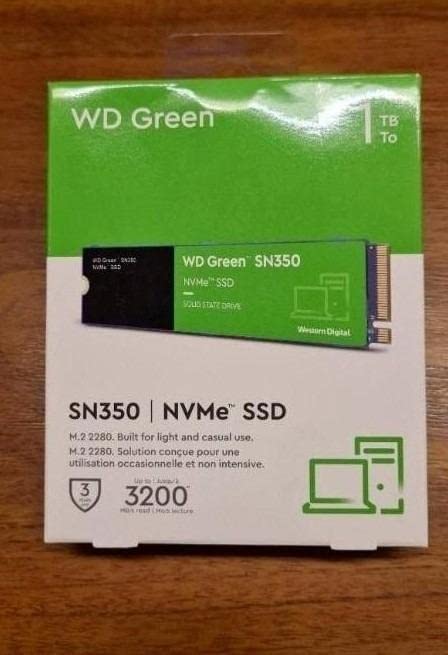
Buyers describe it as a straightforward, dependable daily-driver upgrade, with 84 percent five-star and 11 percent four-star ratings. Feedback clusters around easy installation, fast boot, quick app loading and quiet operation. If you have been living with a spinning drive, the gap between this and what came before is far larger than the gap between this and a Gen4 TLC stick.
QLC NAND and What It Changes for You
Nobody should treat QLC as a scam. It is a deliberate manufacturing trade that moves cost from write endurance to price. What you give up is headroom: the single-threaded SLC cache that lets a burst write run at full speed is smaller relative to capacity, so once that cache is exhausted a long continuous write slows to a fraction of the rated figure. If your laptop holds a Windows install, applications and a normal document workload, you will almost never hit that wall.
Generation Mismatch: Gen3 in a Gen4 Laptop
The SN350 is a Gen3 part, so in a laptop with a Gen4 slot it will run at the Gen3 ceiling. Owners still report large real-world gains over a SATA drive, and for a lot of laptop upgrades that is the entire point. What you give up is headroom for the next machine you might carry these files into, and headroom for large transfers. Our NVMe roundup covers the faster generations in more depth.
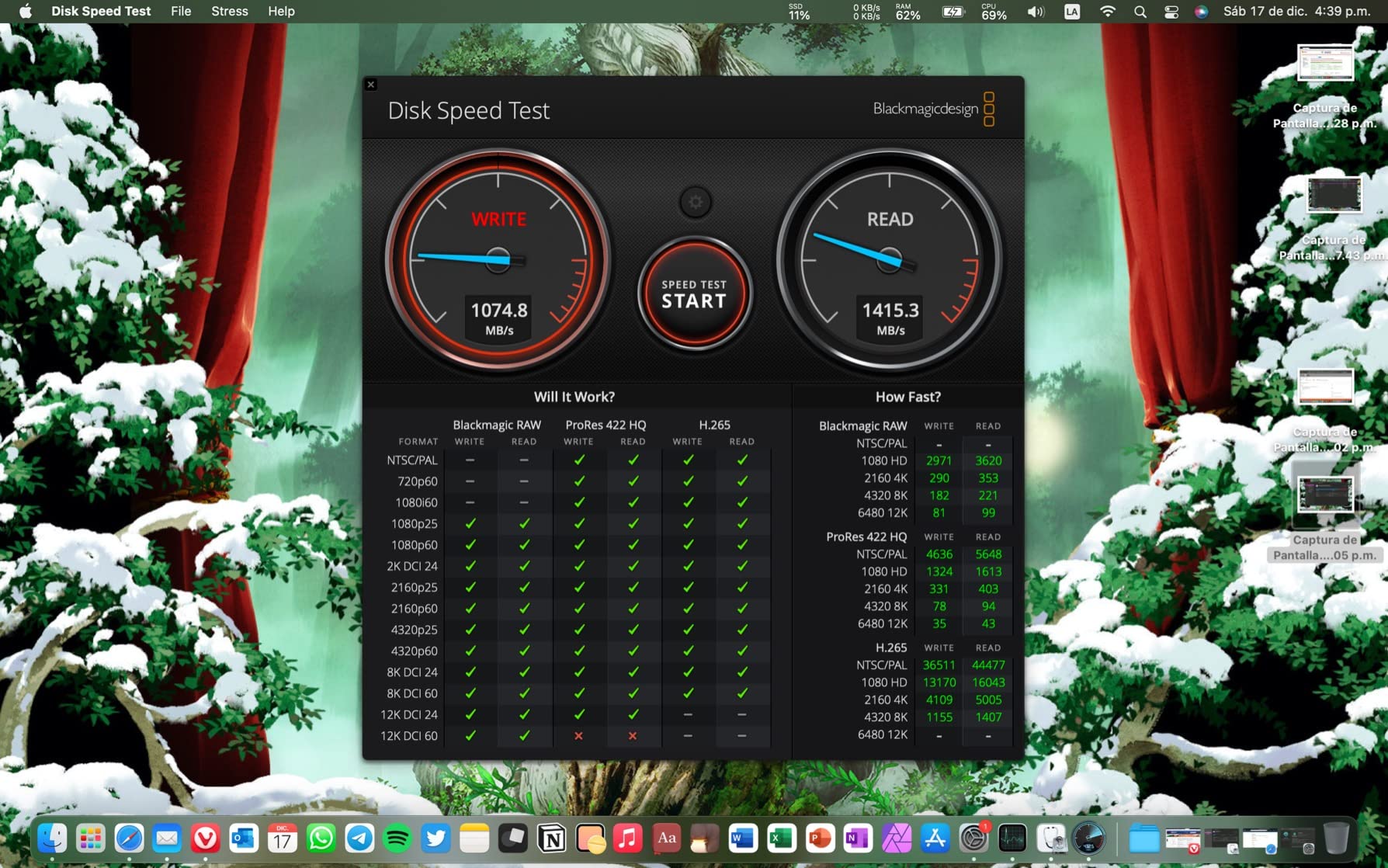
Fit, Size and Monitoring Software
At 7.5g and a standard 2280 footprint, it slots into the same bay as any other M.2 NVMe drive in this list. The downloadable Western Digital SSD Dashboard utility reports drive health and remaining life, which matters more for a budget QLC part than a premium one because the endurance budget is the thing you are spending. Check it twice a year rather than never.
Who Should Skip It
Skip the SN350 if you move large project files for a living, if you want the drive to double as scratch storage, or if you are buying for a machine you intend to resell in a few years and care about long-term endurance. For those cases the Crucial P310 or the WD Black SN7100 is the better spend of the same budget.
3. Crucial P310 1TB – The Fastest Rated Drive in the Lineup
Crucial P310 1TB SSD, PCIe Gen4 NVMe M.2 2280, Up to 7,100MB/s, for Laptop, Desktop (PC), & Handheld Gaming Consoles, Includes Acronis Data Recovery Software, Solid State Drive – CT1000P310SSD801
M.2 2280 PCIe 4.0 x4
7100 MB/s read, 6000 MB/s write
1TB Micron G8 NAND, 5-year warranty
+ Pros
- Delivers close to its rated read and write figures
- Backwards compatible with PCIe Gen3 systems
- Cool and low power suited to laptops and handhelds
- Explicit compatibility with handheld gaming consoles
– Cons
- Least headroom left in a strict laptop upgrade budget
- Buyers note the cost has risen noticeably since purchase
The P310 carries the highest rated sequential throughput of any drive here, at up to 7100 MB/s read and 6000 MB/s write over a PCIe 4.0 x4 interface. It uses Micron G8 NAND, weighs 10g, and ships with Acronis data recovery software. Owners consistently report a transformative upgrade: instant recognition, quick boot, stable operation with no crashes, and a responsiveness gain you notice in the first week.
The compatibility list is unusually broad for an internal drive. The manufacturer names laptops, desktops, workstations and handheld gaming consoles including the ROG Ally X, Lenovo Legion Go, AYANEO Kun and Steam Deck. That is relevant if you own a handheld, because the same 2230 or 2280 slot logic applies and the console will happily run a 1TB M.2 drive as secondary storage.
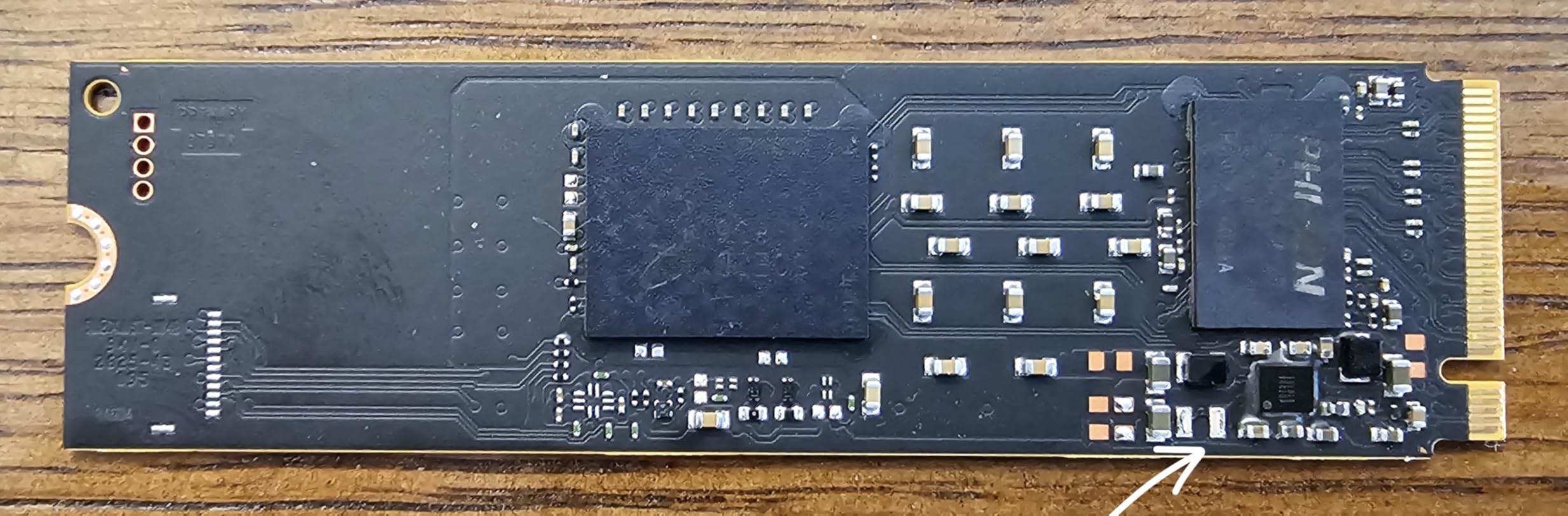
What makes this a strong laptop recommendation is the backward compatibility. In a Gen3 laptop the P310 still delivers roughly 3100 MB/s, which means a Gen3 machine is not excluded from buying it. Owners running multiple drives commonly use one for the game library and one for backups, and cite the value for that secondary-storage role positively. Eighty-eight percent of ratings are five star.
Rated Speed Against What a Laptop Can Actually Use
It is worth being honest about the top end. A 7100 MB/s figure is a burst number for sequential reads, and most laptop workloads are not sequential reads. In practice the difference between this and a 6000 MB/s drive shows up in large file copies and in machines that are not storage-bottlenecked elsewhere. The real reason to choose it is the write figure and the margin it leaves you on a Gen4 slot.
Thermal Behaviour and Power Draw in Laptops
Reviewers describe it as running cool and low power, which is the property that matters in a chassis with no airflow of its own. The P310 is a good fit for a thin laptop or a handheld console where sustained write speed matters more than peak burst speed, because staying cool is what keeps the write speed from collapsing. A drive that throttles in a small enclosure gives you a large number on the box and a small number in practice.
Micron G8 NAND and Long-Term Ownership
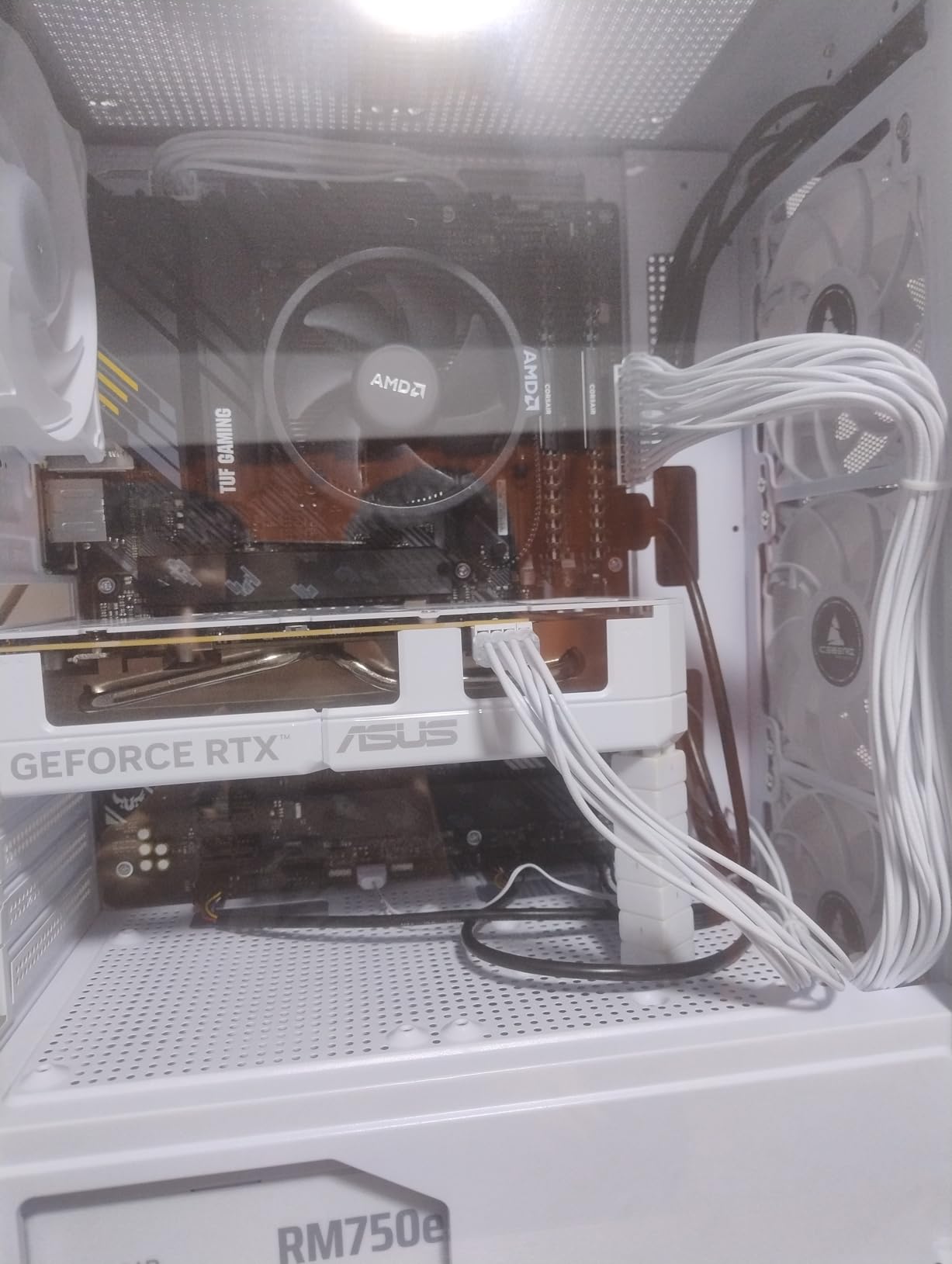
G8 is Micron’s own NAND rather than a third-party controller and die combination, and the five-year limited warranty is the longest in this lineup. That matters for a drive you are cloning an operating system onto, because the warranty term and the expected service life are aligned rather than short. It is also the one reason to consider the Crucial name carefully right now: Micron has been winding down its consumer SSD retail business, so a long warranty is only as good as the vendor behind it. A five-year warranty on a line that is being discontinued is a consideration, not a deal-breaker, but it is one.
Who Should Skip It
Skip the P310 if your budget is strict and you only need a working boot drive, because it sits at the expensive end of the 1TB options here. It is also the wrong buy for a Gen3-only machine that will never leave that laptop, and for any chassis that needs a single-sided board in a very tight space.
4. WD Black SN7100 1TB – Best Power Efficiency on Battery
WD_Black SN7100 1TB NVMe SSD – Gen4 PCIe, M.2 2280, Up to 7,250 MB/s Read Speed, Up to 6,900 MB/s Write Speed, Next Gen TLC 3D NAND, for Laptops, Handheld Gaming Devices – WDS100T4X0E
M.2 2280 PCIe Gen4 NVMe
7250 MB/s read, 6900 MB/s write
1TB TLC 3D NAND, single-sided
+ Pros
- Real-world throughput measured close to spec
- True TLC 3D NAND handles random 4K workloads well
- Excellent power efficiency for laptops and handhelds
- Runs cool and needs no heatsink
- High endurance rating of up to 2400 TBW
– Cons
- No dedicated DRAM cache so heavy write tasks trail premium Samsung and Crucial models
- Management software does not yet recognize every capacity
The SN7100 is the one I recommend when the laptop spends most of its day on battery. It is a PCIe Gen4 drive using true TLC 3D NAND, rated at up to 7250 MB/s read and 6900 MB/s write, and at 4.54g with a 3.14 by 0.86 by 0.04 inch footprint it is a single-sided board that fits where thicker drives will not. The manufacturer’s own material claims up to 100% better power efficiency than the previous generation, built explicitly for laptops and handheld gaming devices.
It also has the highest average rating in this group, at 4.8 stars across more than 6,500 reviews, with 87 percent five-star. Reviewers highlight near-spec sequential speeds, cool and efficient operation in cramped laptop and handheld chassis, strong random IOPS for code and database workloads, and reports of two years of failure-free 24/7 use in Linux laptops. The minor complaints are throttling on very long 64GB stress tests and gaps in the management software.
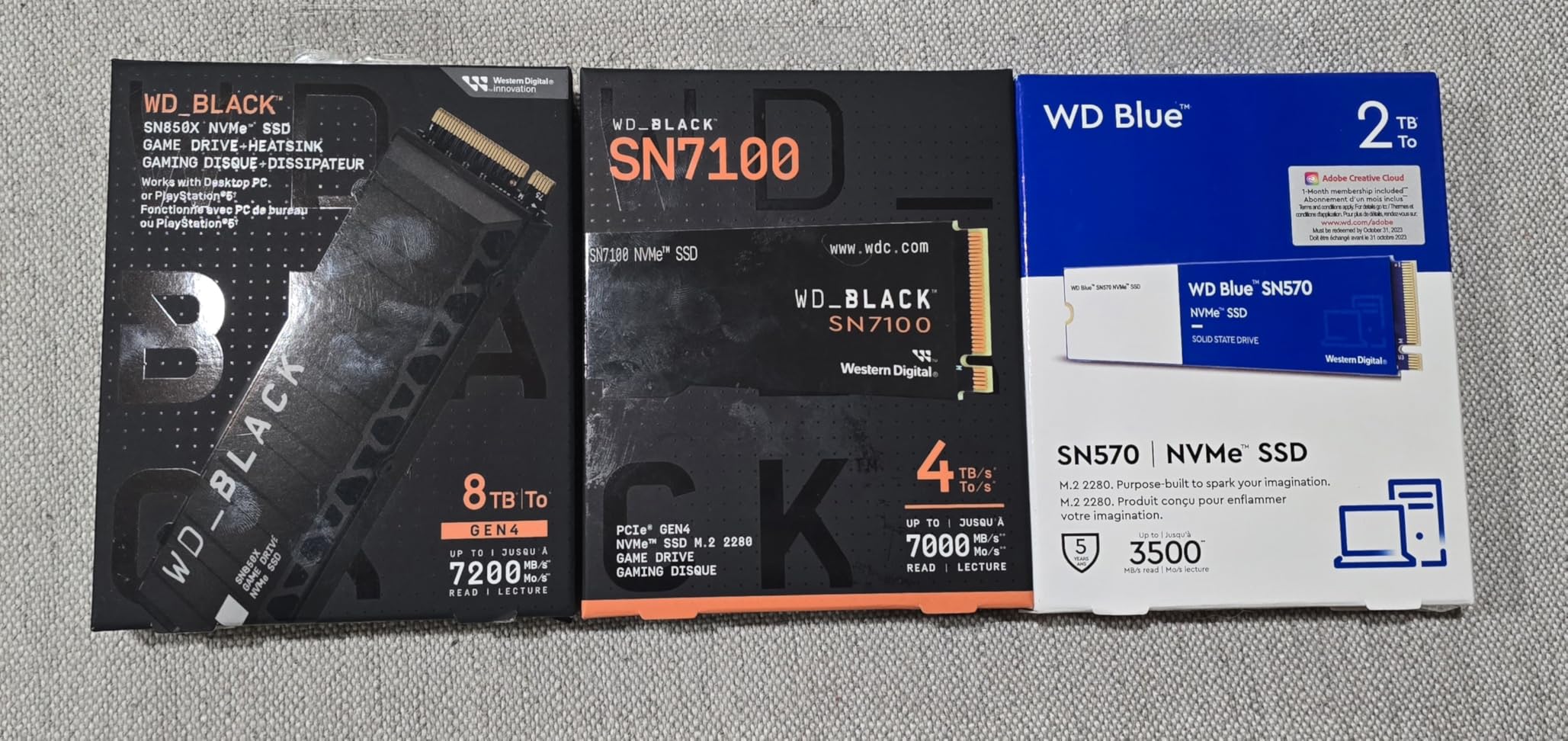
One naming note that catches people out: this drive has been replaced by the newer SANDISK Optimus GX 7100. If you see both names in different listings, they are the same product lineage following the Western Digital and SanDisk brand consolidation, not a scam and not a downgrade. Search on whichever name your seller uses.
TLC 3D NAND Against the QLC Alternatives
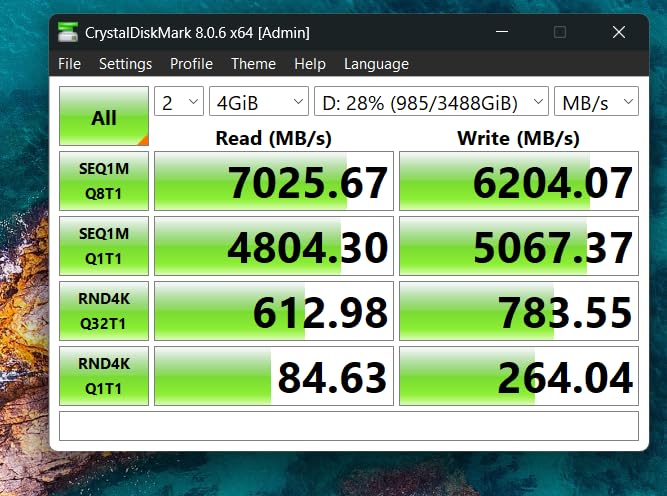
This is the specification that matters most for a laptop used for real work. TLC stores three bits per cell, so it writes more slowly per cell than QLC but tolerates far more write cycles before cells wear. Measured throughput lands near 7000 MB/s read and 6200 MB/s write.
Why Power Efficiency Decides It for Battery Laptops
A drive is on power whenever the machine is on, and in a thin chassis with a shared cooling path the drive’s heat also becomes the system’s heat. The SN7100 sits at roughly 30C idle and under 60C under sustained load with no heatsink required, which means it is not adding meaningful thermal load to an already constrained body. For someone whose laptop is their office, that is a daily difference rather than a benchmark number.
Endurance and the TBW Question
Endurance is quoted at up to 2400 TBW on the 4TB model, which is the highest figure any drive in this guide advertises. TBW means terabytes written before the rated write endurance is consumed, and mapping it to real life means doing a little arithmetic rather than repeating a number. A student writing 20GB a day uses about 7TB a year. A creator moving 500GB daily is in a different category entirely. Check the figure on the capacity you are actually buying, not the one on the family.
Who Should Skip It
Skip the SN7100 if you are on a strict budget, since it sits near the ceiling of this list, and skip it if your main workload is long continuous writes, where the lack of a dedicated DRAM cache shows. If you want the same TLC behaviour for less, the Kingston NV3 is the sensible substitute.
5. PNY CS900 1TB – SATA for Laptops With a 2.5-Inch Bay
PNY CS900 1TB 2.5″ SATA III Internal SSD
2.5-inch SATA III drive
535 MB/s read, 515 MB/s write
1TB, 3-year warranty
+ Pros
- Sits right at the SATA III ceiling for both reads and writes
- Dramatically faster boot and app load than a mechanical drive
- Ultra-low power consumption suits laptops
- Backwards compatible with SATA II systems
– Cons
- SATA III bandwidth is far below any NVMe option
- Needs a 2.5-inch bay or a caddy and not an M.2 slot
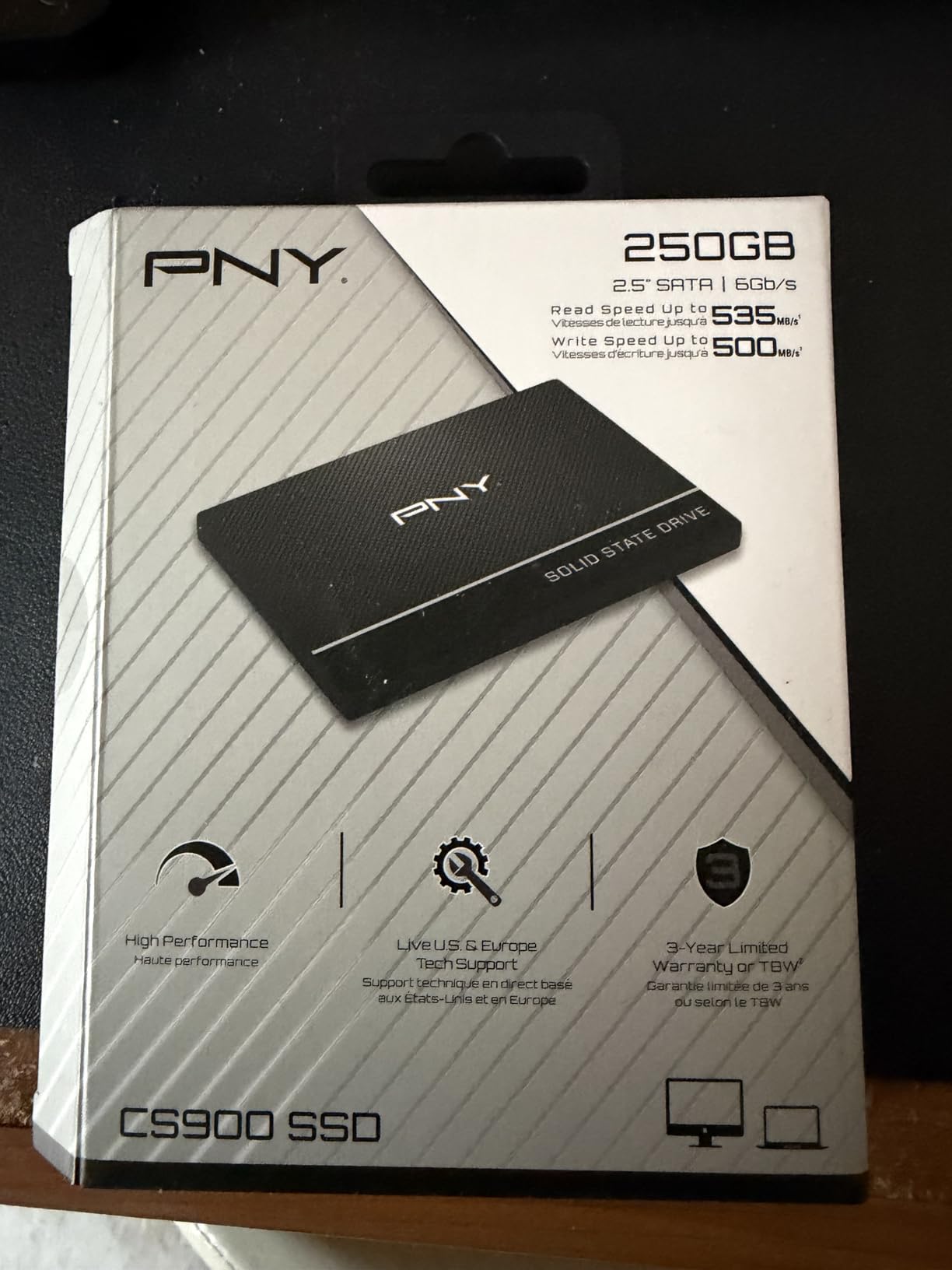
The CS900 exists for a specific and still very common situation: a laptop built before the NVMe era, with a 2.5-inch bay and no M.2 slot at all. It runs at up to 535 MB/s read and 515 MB/s write, which is the practical ceiling of the SATA III interface, so there is no headroom being wasted. At 0.06kg and 3.94 by 2.75 by 0.28 inches it drops into an existing bay or a caddy with nothing else to buy.
Buyers treat it as a dependable budget upgrade for older laptops and desktops, reporting much faster boots and app loads with stable operation. Eighty-six percent five-star and eight percent four-star reflects broad satisfaction for a mainstream SATA part rather than excitement about benchmarks. That is the correct expectation: nobody buys a 2.5-inch SATA drive for speed, they buy it to stop waiting.
When SATA Is the Right Answer and NVMe Would Be a Mistake
Forum consensus on the Tom’s Hardware boards is straightforward: the M.2 slot is either SATA or NVMe, and you cannot mix them. If your machine has no M.2 slot at all, an NVMe drive is not a cheaper option, it is a different product that will not fit. The 2.5-inch SATA route also wins on power draw, which owners consistently praise, and it remains the simplest swap in a laptop with an optical bay you can repurpose with a caddy.
What SATA Speed Means for an Older Laptop
On a machine with a mechanical hard drive, 500 MB/s is a change you feel immediately in every part of the interface. On a machine that already has a small SATA SSD, the same swap buys you capacity rather than speed, which is a different and still worthwhile upgrade. The practical limit is that no amount of care gets SATA past roughly 550 MB/s, so if your laptop also has an NVMe-capable M.2 slot, that slot is the better place to spend the money.
Fitting, Backwards Compatibility and Extras
The drive is backwards compatible with SATA II 3Gb/s systems, so it will work in older laptops whose original drive ran at half this speed. It weighs essentially nothing and draws very little power. No cables, screws or brackets come in the box, which for a caddy-mounted installation means a short shopping list before you start.
Who Should Skip It
Skip the CS900 if your laptop has any working M.2 slot at all, or if you plan to move the drive into a newer machine within a couple of years. It is also the wrong choice for a laptop with a 2230 bay, and for anyone transferring multi-terabyte libraries where the interface ceiling is a genuine bottleneck rather than a theoretical one.
6. Silicon Power 1TB – Endurance-Conscious Gen3 M.2 Pick
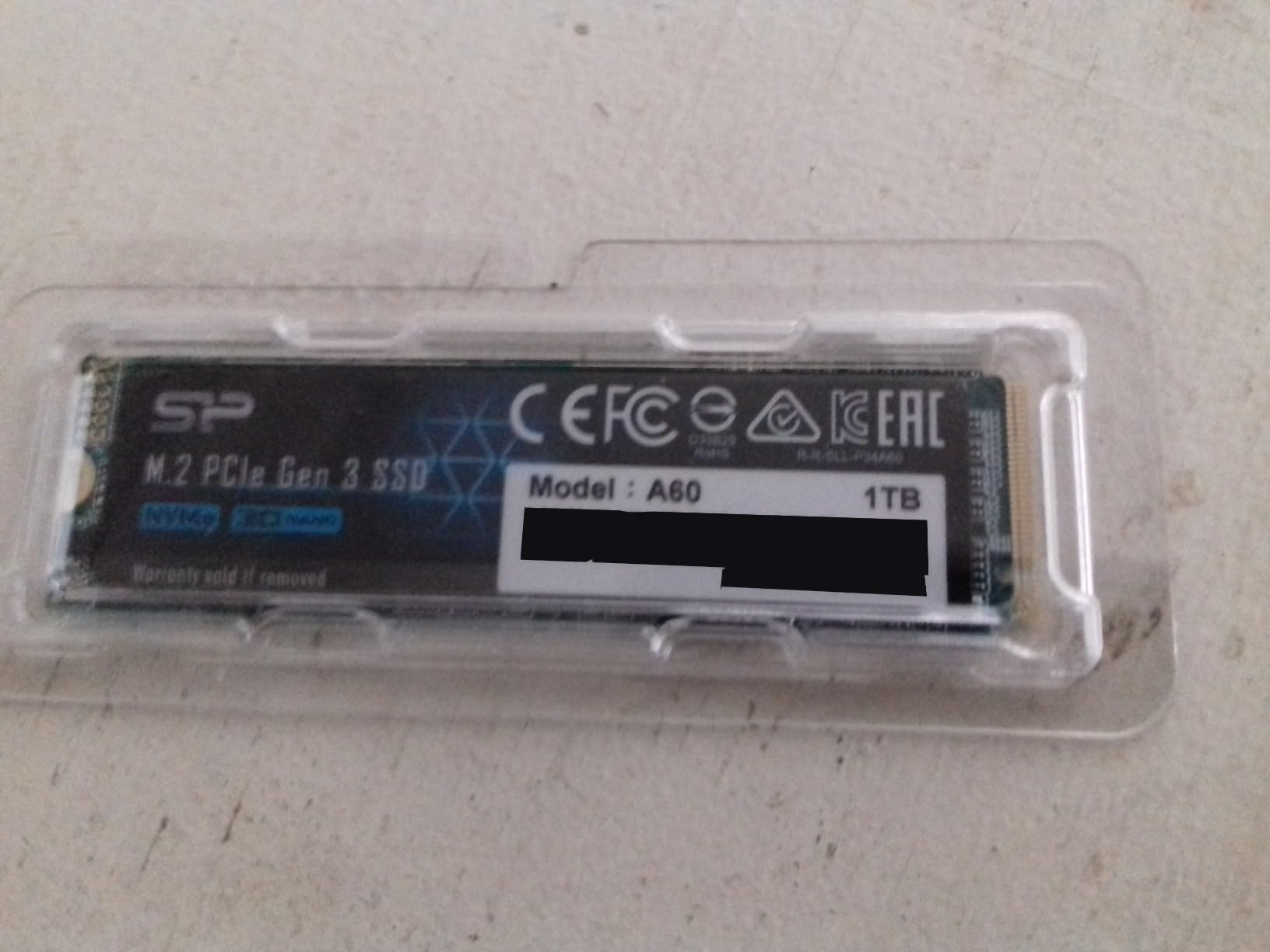
Silicon Power 1TB – NVMe M.2 PCIe Gen3x4 2280 SSD (SP001TBP34A60M28)
M.2 2280 PCIe Gen3 x4
2200 MB/s read, 1600 MB/s write
1TB, 600 TBW endurance
+ Pros
- Decent Gen3 x4 throughput for the outlay
- 1TB capacity in a standard M.2 2280 form factor
- Works in both laptops and desktops with an M-key slot
– Cons
- 600 TBW is modest next to newer TLC Gen4 drives
- Sequential throughput well below Gen4 alternatives
- M.2 mounting screw is not included with the drive
This is the Gen3 M.2 option for a laptop whose slot tops out at the older generation. It runs a PCI Express 3.0 x4 link at up to 2200 MB/s read and 1600 MB/s write, in a standard 80mm M.2 2280 form factor at 8.53g. For a machine bought when Gen3 was current, the drive slot was designed around exactly this class of hardware.
The endurance figure is the interesting specification here, and it cuts against expectations. The drive is rated at 600 TBW with a warranty based on whichever limit comes first, the warranty length or the TBW limit. Compared with the 2400 TBW quoted by the WD Black SN7100 family, that is a quarter of the budget, and it is the main reason this drive is not the first recommendation for a Gen3 machine.
Owners see it as a capable budget NVMe drive that delivers noticeably faster boots and app loads than SATA, with good stability reported over long use. Sentiment is more muted than the premium rivals, at 81 percent five-star and 6 percent one-star, and the difference tracks the lower endurance and the slower Gen3 link rather than any reliability problem.
Gen3 Performance and the Real Ceiling
2200 MB/s sounds modest against a 7000 MB/s figure, and against a modern Gen4 laptop it is. But set it against the SATA alternative at 535 MB/s and it is roughly four times the throughput, which is the comparison that actually applies if your laptop’s slot is Gen3. In a Gen4 slot the same drive works fine and simply runs slower than the link allows, which is a legitimate outcome when a drive is bought to fill a second bay rather than to boot the system.
The M-Key Requirement and the Missing Screw
Two practical details before you buy. The drive requires an M-key M.2 connector and has no B notch, so it will not drop into a B-key or B+M key slot used by some wireless modules and some older laptops. And the M.2 retention screw is not supplied with the drive, because it normally lives on the motherboard. On a ThinkPad or a Dell that has been opened before, the screw is usually still in the chassis; on a machine that has never been opened, plan on sourcing one.
When This Is the Right Drive
Pick this one when the laptop is a business machine you intend to keep for years, the slot is Gen3 x4, and you want an NVMe boot drive without stepping up to a Gen4 part the slot cannot use. The combination of a documented TBW figure and a warranty tied to it is at least honest, which is more than can be said for several cheaper listings that quote no endurance at all.
Who Should Skip It
Skip it if your slot is Gen4, where a Gen4 TLC drive costs the same or less and gives you several times the throughput and much more endurance. Also skip it for a B-key slot, and for anyone who wants the cheapest possible route to an NVMe boot drive, where the QLC WD Green SN350 is the better trade.
7. fanxiang S101 1TB – The Most Validated Drive in the List
fanxiang S101 1TB SSD SATA SSD 1TB Internal Solid State Drive SATA III 6Gb/s 2.5″ SSD, UP to 520MB/s, 3D NAND TLC, Upgrade Laptop PC and Desktops
2.5-inch SATA III, TLC 3D NAND
520 MB/s read, 480 MB/s write
1TB, 3-year warranty
+ Pros
- TLC NAND gives better write endurance than QLC budget drives
- Around 520 MB/s saturates the SATA III interface
- Boots at least 50% faster than a mechanical hard drive
- Works on Windows
- Linux and Mac OS
- Very high review volume from long-term owners
– Cons
- SATA III bandwidth only
- One owner reported a failure after years in a hot PS4
- No enclosure or adapter cables included
The S101 is the drive with by far the deepest owner history in this list, at more than 23,000 reviews, which makes it the most validated choice here by a wide margin. That matters more than usual for a lesser-known brand name. When a 2.5-inch SATA drive fails, the pattern tends to be one of two things: the controller, or the NAND under sustained heat. A long public record of units still running at unchanged speeds after years is worth paying attention to.
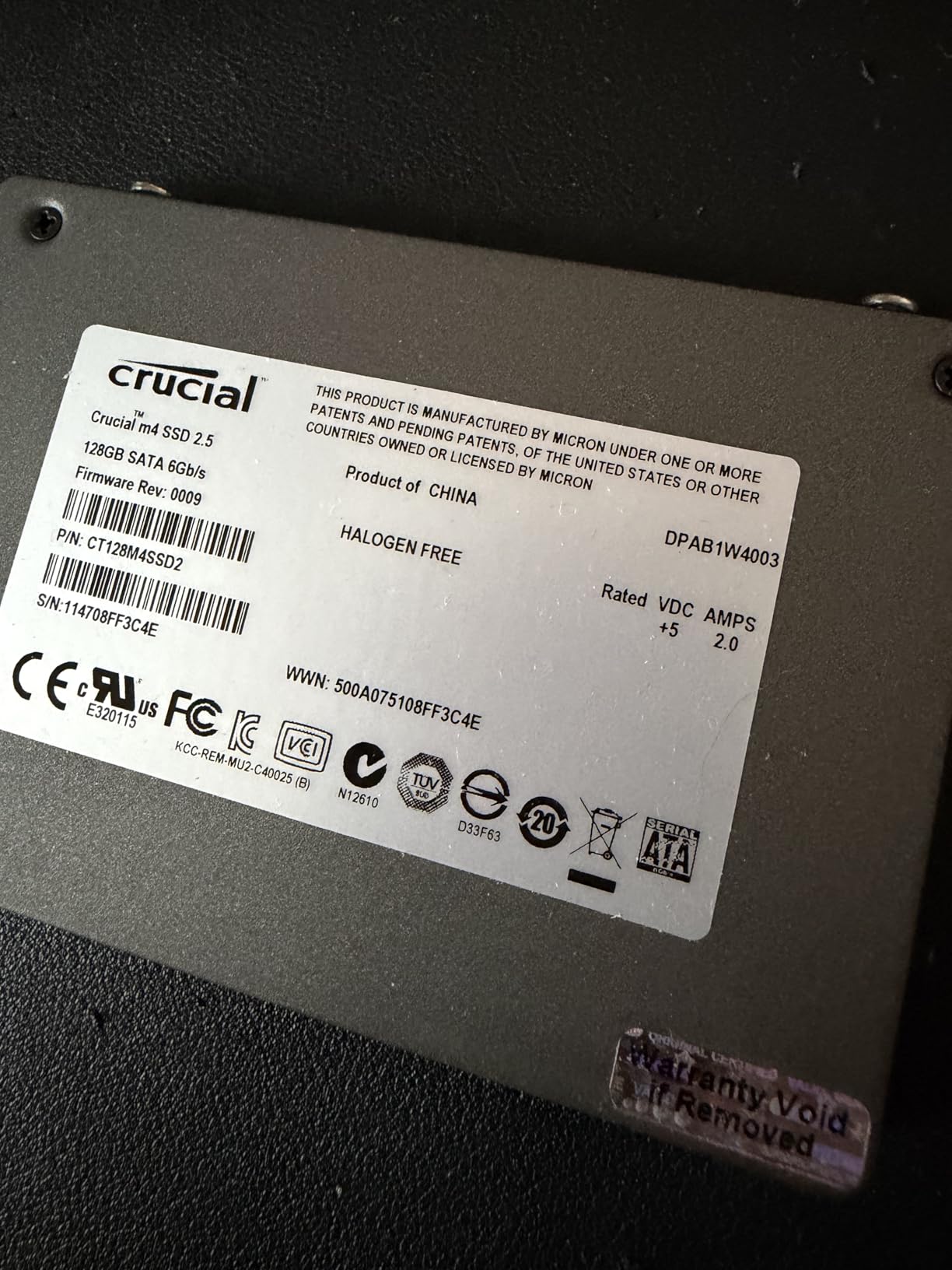
On paper it is a 2.5-inch SATA III drive rated at 520 MB/s read and 480 MB/s write, built on 3D NAND TLC. That TLC detail is what separates it from most of the budget SATA crowd, and it is why we picked it as the 2.5-inch recommendation rather than one of the cheaper QLC options. It works across desktops, laptops and all-in-one PCs running Windows, Linux or Mac OS, at 2.08 ounces in a standard 3.94 by 2.72 by 0.28 inch body.
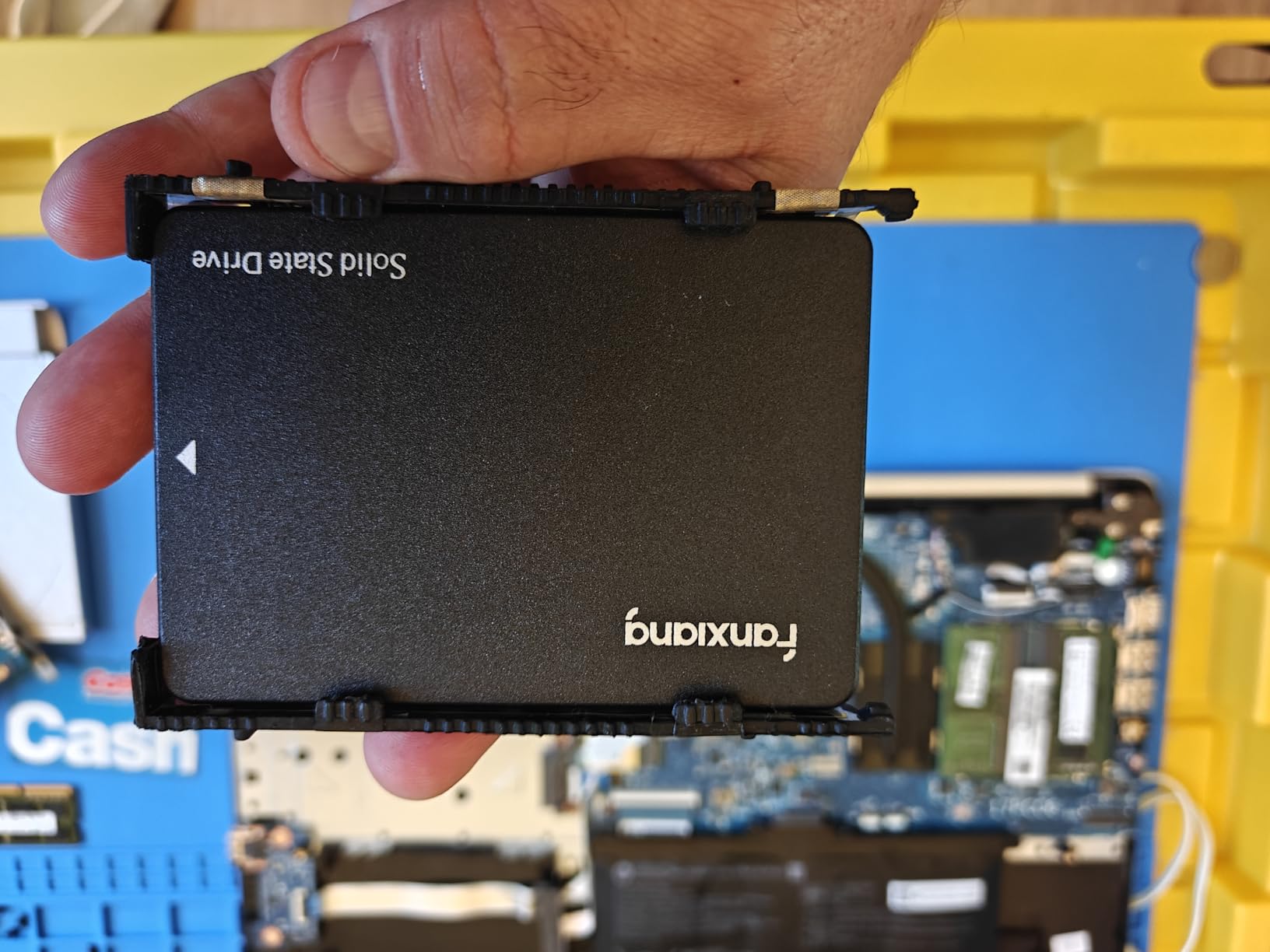
Owners use it to revive ageing laptops, older iMacs and Mac Pro machines, camera hubs and consoles, reporting instant speed gains, plug-and-play recognition and years of steady performance. Ratings sit at 79 percent five-star and 6 percent one-star, and the durability complaints cluster specifically around hot consoles, which is a fair warning to anyone planning to seal one inside a PS4 or a densely packed enclosure.
Why TLC Matters in a Budget SATA Drive
At the SATA III ceiling, the bottleneck is the interface, not the flash, so TLC and QLC look identical on a sequential benchmark. The difference only appears when the drive is written hard for a long time, which is exactly when QLC’s lower write endurance becomes a liability. A laptop OS drive is read constantly and written in small bursts, so either works, but the TLC part gives you more room for the occasional large copy or restore.
Where It Gets Used and What to Watch
The compatibility list is the widest of any drive in this roundup, and the 2.08-ounce weight makes it suitable for anything from a thin laptop to a Mac Pro. The one recurring negative in the review history is sustained heat: an owner reported a drive failing after years inside a PS4, possibly from the ambient temperature in that enclosure. If your installation is a sealed, poorly ventilated box, keep an eye on it rather than assuming any SATA drive is interchangeable.
Review Volume as a Buying Signal
More than 23,000 reviews at a 4.5 average is a different kind of evidence from 4,000 reviews at 4.6. One lets you see the failure modes, the heat sensitivity and the long-term consistency across thousands of units in many different machines. The second is a smaller sample with more variance. When a brand is unfamiliar to you, the size of the installed base is worth as much as the star rating, and this is the largest installed base on the list.
Who Should Skip It
Skip the S101 if your laptop has an NVMe-capable M.2 slot, since you would be leaving most of the machine’s potential unused. It is also the wrong choice for a sealed hot enclosure, and for anyone who needs sustained write throughput for video or disk imaging work.
8. Timetec 1TB – The Thin Chassis Refresh
Timetec 1TB SSD 3D NAND SATA III 6Gb/s 2.5 Inch 7mm (0.28″) Read Speed Up to 550 MB/s SLC Cache Performance Boost Internal Solid State Drive for PC Computer Desktop and Laptop (1TB)
2.5-inch SATA III, 7mm thin
550 MB/s read, 500 MB/s write
1TB, 3-year warranty
+ Pros
- 7mm profile fits slim laptops and tight 2.5-inch bays
- Hits the SATA III ceiling in both directions
- Supports S.M.A.R.T. TRIM wear-leveling and ECC
- 1 million hours MTBF
- Windows macOS and Linux support
– Cons
- Uses QLC NAND so sustained heavy writes slow down
- SATA III bandwidth only
- Cables screws and brackets are not included
The Timetec is the pick for a laptop so thin that drive thickness is a genuine constraint. At 7mm, or 0.28 inches, it is the thinnest 2.5-inch drive here and will drop into slim bays and tight caddies where a 9mm drive would sit proud or not seat at all. That physical clearance is the whole reason to buy it over an otherwise similar SATA option.
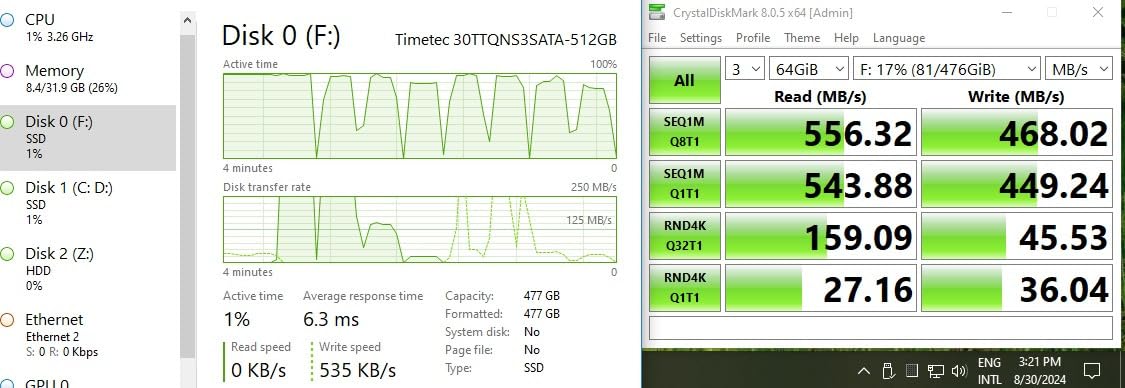
On paper it hits the SATA III ceiling with up to 550 MB/s read and 500 MB/s write, supported by SLC cache technology for burst performance. It lists a 1,000,000 hour MTBF, support for S.M.A.R.T., TRIM, garbage collection, wear-leveling, RAID and ECC, and backwards compatibility all the way down to SATA I. Owners use it to revive older laptops, iMacs, mini PCs and hard-drive-based consoles, reporting instant recognition, fast boots and smooth transfers.
SLC Cache and What It Hides
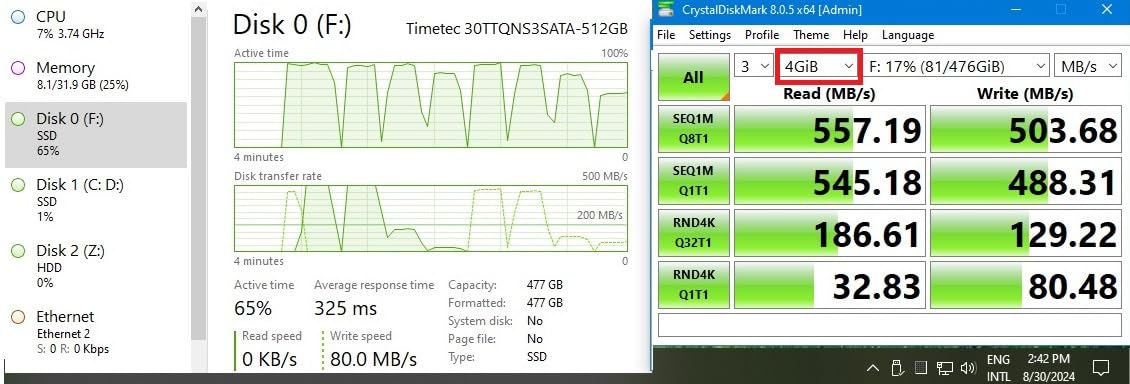
Reviewers make a fair point that deserves repeating: an SLC cache can mask real large-file write speeds. The burst figure you see in the first few gigabytes is the cache doing its job, and the sustained figure after that is the honest one. For an operating system drive that reads far more than it writes, this is not a problem. For a scratch disk or an image-writing workflow, it is, and the QLC underneath is the reason.
Capacity That Fits the Budget
At 1TB, with roughly 953GB formatted and available, this is one of the larger usable capacities in the 2.5-inch SATA group at this budget. Our 2TB SSD picks go into the detail on when a step up in capacity beats a step up in interface.
Operating System Coverage and Extras
The listed compatibility spans Windows 11 down to XP, Server 2003, macOS 10.4 and later, and Linux 2.6.33 or newer, with a three-year limited warranty and free technical support. Nothing is included in the box: no cables, no screws, no brackets. Budget ten minutes and a small parts list before you start, and check whether your machine expects a proprietary caddy.
Who Should Skip It
Skip the Timetec if your bay is not tight, because a thicker drive with better sustained write behaviour is often the same money. It is the wrong pick for a machine with an M.2 slot, and for anyone using the drive as scratch storage or a disk-imaging target. Buy it for the fit, not for the flash.
What Actually Matters When You Buy a Budget Laptop SSD
Specification sheets reward the reader who knows which numbers decide the outcome. Here is the short list that does, in the order we would check them.
1. M.2 Length and Keying: The Two Questions That Decide Everything
Length first. A 2280 drive is 22mm wide by 80mm long and fits the overwhelming majority of modern laptop slots. A 2242 is 42mm long, a 2230 is 30mm long, and both appear in slim machines and in some business laptops where the thermal shield leaves no room for a full-length card. The number is printed in the product name, and the manufacturer’s service manual will tell you which one your model takes. Check this before you check anything else, because a wrong answer here means the drive never goes in the box.
Keying second. Most laptop M.2 slots are M-key, which is what an NVMe drive uses. B-key and B+M key slots exist on older laptops and on some wireless modules, and an M-key-only drive will not fit them. The Silicon Power drive in this list has no B notch at all, which narrows where it can go.
2. Protocol and Lane Count: Why an NVMe Drive Can Be Invisible
M.2 is the shape. NVMe is the protocol. AHCI is the older protocol SATA uses. An M.2 slot that is wired for SATA only uses AHCI over two PCIe lanes, and an NVMe drive plugged into it will fit perfectly, secure perfectly, and never be seen by the BIOS. This is the single most reported storage mistake in the forums, and the fix costs nothing beyond reading the manual first. The manufacturer’s hardware maintenance document is authoritative; a retailer listing is not.
Lane count matters for speed rather than compatibility. A Gen4 x4 slot gives a Gen4 drive its full rated throughput. A Gen4 x2 slot, common in some mid-range laptops, gives you roughly half. A Gen3 x4 slot in an older laptop limits everything to Gen3 speeds, so buying a Gen4 drive for it is money spent on a number you will never see.
3. TLC Versus QLC, and Why It Is Not a Quality Question
TLC stores three bits per cell, QLC stores four. More bits per cell means more capacity per die and a cheaper drive, which is the entire point of a QLC part. The cost is write endurance and a smaller sustained-write margin, because the cache has less room relative to the capacity being written. In this list the WD Green SN350 and the Timetec are QLC; the Crucial P310, WD Black SN7100 and fanxiang S101 are TLC or Micron G8 NAND.
The right choice depends on the write pattern. A boot drive, a school laptop, a browser and an office suite: QLC is fine and cheaper. A creator moving large media libraries, a video editor using a scratch disk, a machine running virtual machines that write constantly: pay for TLC. Most people upgrading a laptop are in the first group, which is why a QLC drive is a legitimate recommendation here rather than a compromise.
4. DRAM-Less Designs and the Host Memory Buffer
Budget NVMe drives ship without their own DRAM cache. To hold the flash mapping table they borrow a slice of system memory through the host memory buffer, HMB, which is fast enough for everyday work. Three of the drives here use this approach, including the one we recommend most often. Where it shows is sustained heavy writing, where a drive with dedicated DRAM holds its figure and a DRAM-less drive dips. If your day involves copying hundreds of gigabytes, that is the deciding specification.
5. TBW, Warranty and What a Realistic Lifespan Looks Like
TBW is the total amount of data the drive is rated to write over its life. Warranty length is how long the manufacturer will replace it. They are different things, and some drives end on whichever limit arrives first, which is the case for the Silicon Power drive here at 600 TBW. To turn TBW into years, divide by your daily write volume: someone writing 20GB a day is comfortably inside a 600 TBW budget, while someone writing 500GB a day is not. Check the figure for the capacity you are buying, because endurance scales with capacity and the number on a smaller drive is not transferable.
6. One Terabyte or Two: The Capacity Question Nobody Asks Until It Is Too Late
A Windows install with a reasonable application set eats 150 to 250GB before you have stored a single personal file, and a game library runs to 50GB and up per title. So 1TB is workable for a student with documents and streaming habits, and tight for anyone with a large media library. In this lineup every drive is a 1TB part, so the honest advice is to buy the largest capacity you can at the NAND type you need, and to treat capacity as the thing you will regret rather than speed.
7. Cloning Versus a Clean Install
Two ways to get Windows onto the new drive, and the choice is about data risk. Cloning copies everything: programs, settings, files, exactly as they were. It takes longer, and if the clone fails partway you may have to start over. A clean install puts a fresh Windows on the new drive and gives you a clean system with none of the accumulated software baggage, but it means reinstalling everything and restoring your files from a backup.
Clone if you want the machine back the way it was today, which is what most people upgrading a working laptop want. Clean-install if the old machine is slow in ways that suggest software problems rather than storage problems. Either way, back up first. For cloning, use the utility bundled with the drive where there is one, the Kingston NV3 and the Crucial P310 both ship Acronis, and a free alternative if your drive has none. Do the clone from a USB-to-SATA or USB-to-NVMe adapter while the old drive is still in place, verify the new boot works, and only then wipe the original.
8. Thermals, Power Draw and Thin Laptops
In a thin chassis the drive shares a cooling path with the processor, and a drive that throttles costs you both sustained write speed and system performance. Look for measured temperatures rather than headline speed, and treat a drive that runs cool under load as a better laptop choice even if its peak number is lower. The SN7100 at roughly 30C idle and under 60C sustained, and the NV3 at roughly 42 to 48C under load, are both comfortable in that sense. If your laptop ships with a thermal pad or a shield over the slot, check that a single-sided drive clears it.
9. Should You Buy Now or Wait for Prices to Fall?
The honest answer is that nobody can promise prices fall, and the current situation argues against waiting on hope. NAND pricing has climbed sharply on sustained AI datacentre demand, and Micron has been stepping back from the consumer Crucial SSD business, which reduces competitive pressure on the remaining brands. Prices move in response to supply and demand cycles that last quarters, not weeks, and by the time a drop is widely reported, the buyers who waited have usually been joined by everyone else.
So buy when the machine needs it. If your laptop still has a mechanical hard drive, an NVMe drive under this ceiling is a transformative upgrade at a level that was higher a year ago and may not come back soon. If you are simply shopping for a second drive on a healthy machine, add it to a list and set a target figure for the capacity you want. Our budget SSD roundup tracks the wider market if you want a second opinion on timing.
Frequently Asked Questions
Can I use an NVMe drive in an M.2 SATA slot?
No. An NVMe drive is the same physical size as an M.2 SATA drive and uses the same connector, so it will slide in and secure correctly, but the slot cannot speak the NVMe protocol. The laptop will simply not detect it, with no error message. Check the manufacturer’s service manual or hardware maintenance document for your exact model to see whether the slot is NVMe, SATA, or a combo that accepts both.
Are NVMe and M.2 the same thing?
No, and the difference causes most upgrade mistakes. M.2 is the physical form factor, describing the size and shape of the card. NVMe is the protocol the drive uses to talk to the host over PCI Express. AHCI is the older protocol used by SATA drives. So an M.2 drive can speak either NVMe or AHCI, and a 2.5-inch SATA drive speaks AHCI without being M.2 at all.
Is a 2.5-inch SATA SSD fast enough for a laptop?
For most purposes, yes, provided the laptop does not have an NVMe-capable M.2 slot. A 2.5-inch SATA III drive tops out around 500 to 550 MB/s, which is a night-and-day difference from a mechanical hard drive. But if your laptop has an M.2 slot that supports NVMe, an NVMe drive delivers several times more throughput for a similar outlay, so the SATA route is the fallback rather than the first choice.
Do I need a heatsink for an NVMe SSD in a laptop?
Almost never. Laptop M.2 slots normally sit under a thermal pad or a thin shield, and a well-behaved drive manages its own temperature. The WD Black SN7100 runs at roughly 30C idle and under 60C sustained without any heatsink, and the Kingston NV3 holds around 42 to 48C under load with no throttling. A metal heatsink under a laptop shield often does more harm than good by adding height the chassis cannot spare.
Should I clone my hard drive or install Windows fresh on a new laptop SSD?
Clone if you want the machine to come back exactly as it is, with all programs and settings intact, which is what most people upgrading a working laptop want. Clean-install if the machine is slow in ways that point to software rather than storage. Back up before either. The Kingston NV3 and the Crucial P310 both bundle Acronis cloning software, and cloning through a USB adapter lets you verify the new drive boots before wiping the original.
The Right Drive Depends on Your Slot, Not the Spec Sheet
Take the pick that matches the laptop in front of you. If it has a standard M.2 2280 NVMe slot and you want one safe default, the Kingston NV3 is the answer: near-rated Gen4 throughput, a single-sided board, bundled cloning software, and a review history deep enough to trust. If your machine tops out at Gen3 or you want the lowest cost per gigabyte for a boot drive, the WD Green SN350 does the job on QLC NAND. If you work on the machine away from mains power all day, the WD Black SN7100’s power efficiency and TLC endurance justify the extra spend.
If your laptop has no M.2 slot at all, the form factor decides everything: the PNY CS900 for a normal 2.5-inch bay, the fanxiang S101 when you want TLC rather than QLC in that same bay, and the Timetec when the chassis is tight enough that a 7mm drive is the only one that will seat. The Silicon Power is for a Gen3 x4 M.2 laptop where you would rather not spend on a Gen4 part the slot cannot use.
Whichever you choose, confirm the slot type and the maximum supported length from the manufacturer’s own service manual before you order, and keep the original drive until the new one has booted and your files are verified. NAND pricing has been moving upward rather than down for a while now, and a laptop that still has a mechanical hard drive in it is losing an hour a day to a drive that was never going to get faster. The best SSDs for laptop upgrades under 200 dollars are still within reach in 2026; the wrong slot is not fixable after the box is open.
Leave a Reply