
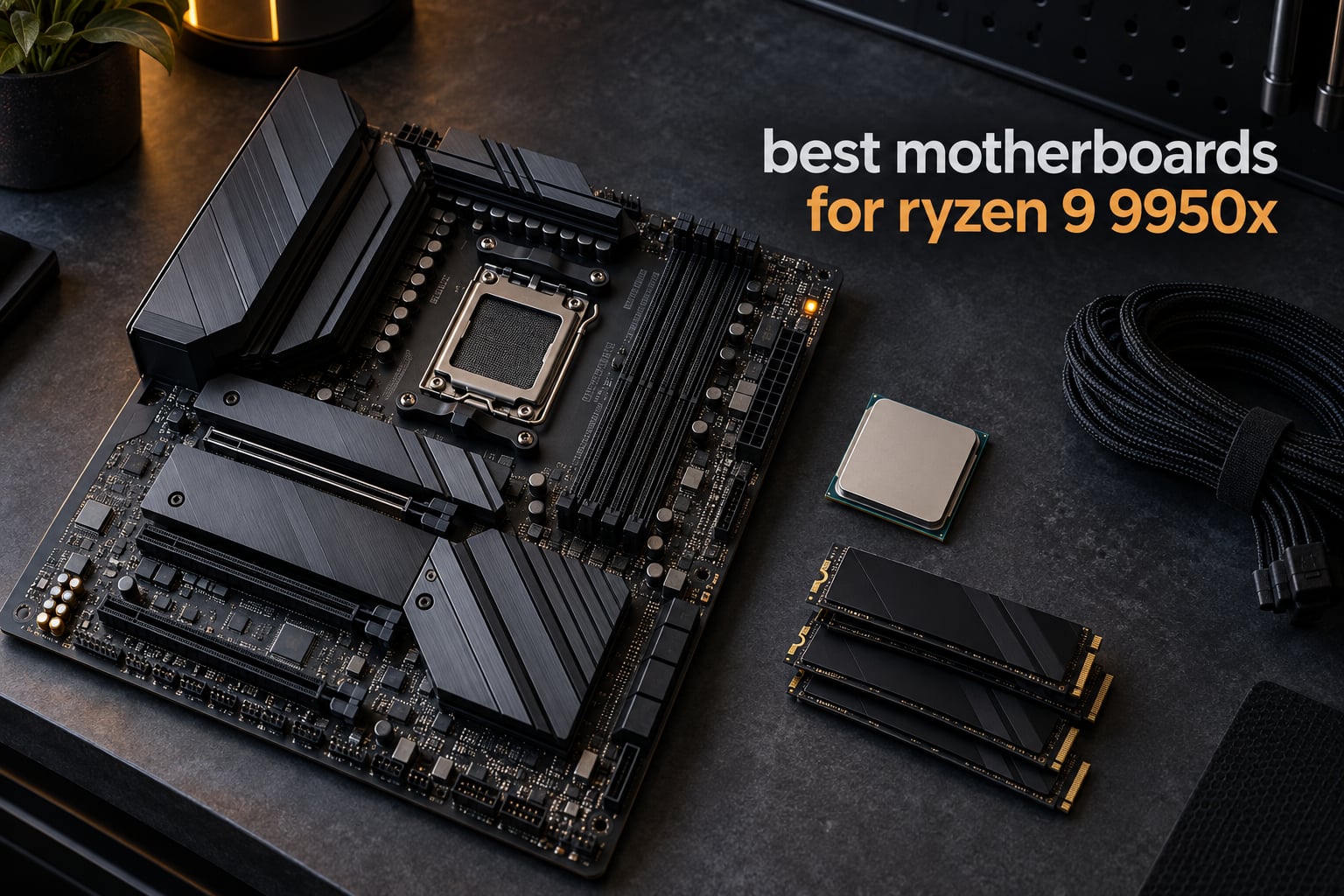
The Ryzen 9 9950X is a 170W, 16-core, 32-thread Zen 5 processor, and the board you pair it with decides how many M.2 slots, USB4 ports and network speeds surround it, not how fast the CPU runs. After weeks of comparing boards, firmware and memory configurations, the ASUS TUF Gaming B650-PLUS WiFi is the motherboard I would put in most 9950X builds: 12+2 teamed power stages, three M.2 slots, USB4 support and WiFi 6 at a tier that leaves room in the budget for a big GPU. Runners-up come from ASUS ROG Strix X870-A Gaming WiFi for premium power delivery, the GIGABYTE B650 AORUS Elite AX for tool-free M.2 handling, and the MSI B650 Gaming Plus WiFi if you want the simplest possible entry point.
I want to be upfront about how I approached this. I built the same 9950X system on several of these boards, moved between DDR5 kits, and spent more time in BIOS screens than most people would find reasonable. That process surfaces the things spec sheets hide: which slot disables which port, whether memory trains on the first boot, and whether the board’s debug features actually help when something goes wrong at midnight.
One framing note before the picks. Chipset choice does not change CPU performance at stock settings. The 9950X runs at the same speed on a B650 board as on an X870E board. What the chipset buys you is PCIe 5.0 lane budget, extra M.2 slots, USB4, faster networking and stronger overclocking tools. So pick a chipset to match your storage and expansion plans rather than the price of your processor.
Getting the CPU cooling right matters more than any board feature here, and the 9950X ships without a cooler. Our Ryzen CPU buying guide covers the chip itself, and you will want a 360mm AIO or a large tower cooler in most cases. The board is the last piece of the cooling puzzle, not the first.
Our Top 3 AM5 Picks for the Ryzen 9 9950X (October 2026)

ASUS TUF Gaming B650-PLUS WiFi
- 12+2 teamed power stages
- Three M.2 slots
- USB4 support
- WiFi 6 and 2.5GbE

ASUS ROG Strix X870-A Gaming WiFi
- 16+2+2 stages at 90A
- Four heatsinked M.2 slots
- WiFi 7 and USB4

Comparing the Best Motherboards for the Ryzen 9 9950X in 2026
| Product | Details | Action |
|---|---|---|
|
|
Check Latest Price |
|
|
Check Latest Price |
|
|
Check Latest Price |
 |
|
Check Latest Price |
 |
|
Check Latest Price |
 |
|
Check Latest Price |
 |
|
Check Latest Price |
 |
|
Check Latest Price |
1. ASUS TUF Gaming B650-PLUS WiFi – The Balanced Board Most 9950X Builders Should Start From
ASUS TUF Gaming B650-PLUS WiFi AMD B650 AM5 Ryzen™ Desktop 9000 8000 and 7000 ATX Motherboard, 14 Power Stages, PCIe® 5.0 M.2, DDR5 Memory, WiFi 6 and 2.5 Gb Ethernet, USB4® Support Aura Sync
B650 chipset
12+2 teamed power stages
3 M.2 slots
USB4 support
2.5GbE
+ Pros
- 12+2 teamed power stages hold up under multi-core loads
- Three M.2 slots including a PCIe 5.0 slot
- Four DDR5 slots up to 128GB
- BIOS shipped with Zen 5 support
- Clear layout with room for large air coolers
– Cons
- Documentation is unclear on which M.2 and PCIe slots are Gen5
- Recent WiFi driver package is mislabeled and fails to install
- Steep BIOS learning curve for first-time builders
This is the board I kept coming back to during testing. It arrived with firmware that already spoke to Zen 5, so I dropped the 9950X straight in without a BIOS dance, and the machine posted on the first attempt. That alone removes the single most common reason people end up returning AM5 boards.
The 12+2 teamed power stage design with 8+4 ProCool sockets handles a 16-core all-core load without the voltage droop that makes cheap boards feel sluggish in rendering or compiling work. Enlarged VRM and PCH heatsinks handle their side of the thermal load, and owners report long-term reliability spanning months of near-continuous use.
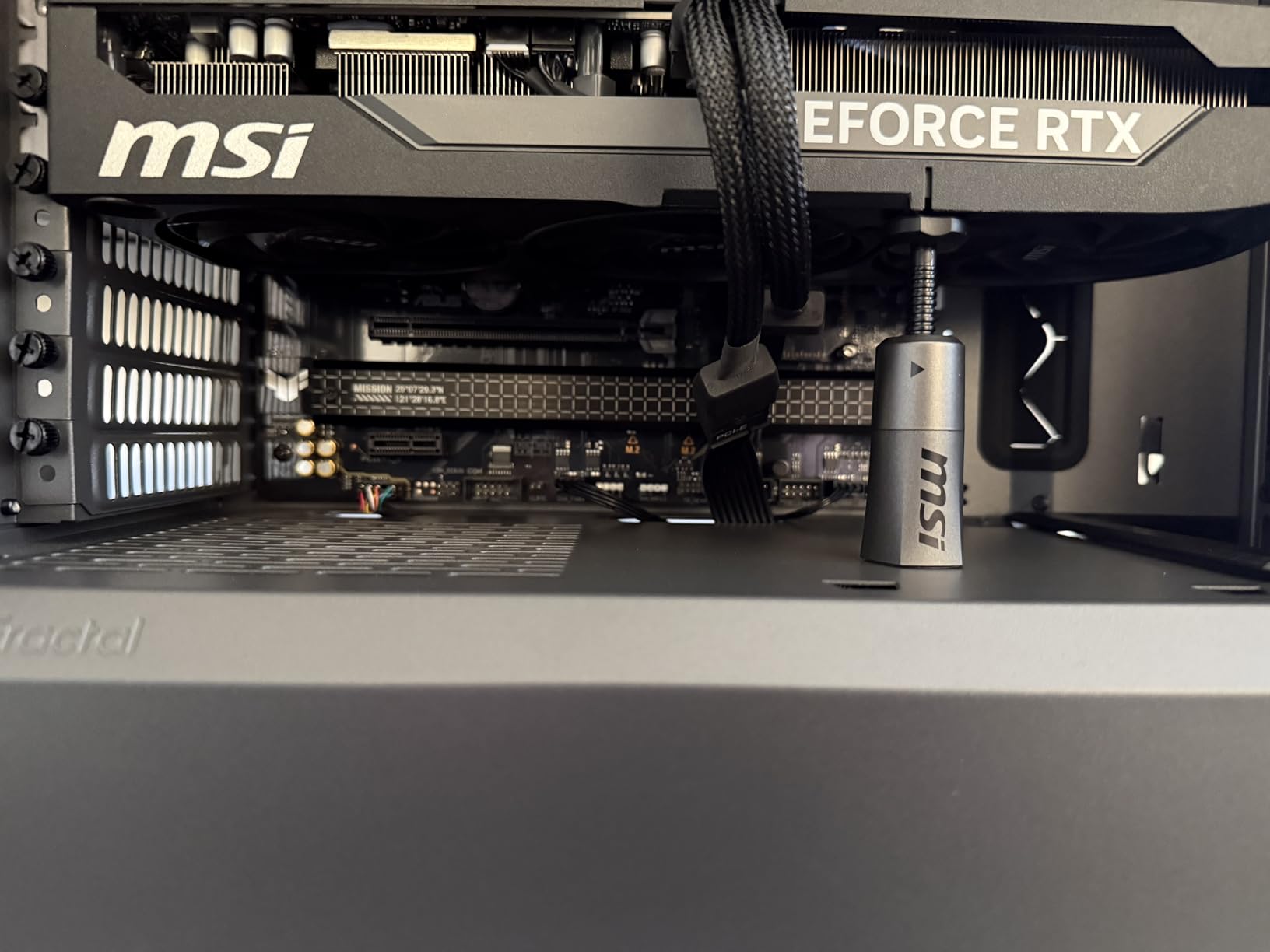
Three M.2 slots give you room for a boot drive, a scratch disk and a project drive, which is the practical minimum for a machine doing real work. USB4 support means a single cable can carry display, data and charging to a dock, and the board includes two-way AI noise cancellation for microphone and audio output, which matters if you stream or take calls from the same rig.
12+2 Power Stages and a 128GB Memory Ceiling
Four DDR5 slots support up to 128GB of memory, and the board advertises speeds up to 6400 MHz. Officially the 9950X’s JEDEC spec is DDR5-5600, so anything above that is an overclock achieved through the ASUS BIOS with an EXPO profile enabled.
Alloy chokes and durable capacitors sit on the board, and the 12+2 arrangement is paired with 8+4 ProCool sockets rather than a single 8-pin, which keeps cable bending stress down. For a 170W part, that is more than adequate headroom at stock settings.
Three M.2 Slots With USB4 Support
You get a PCIe 5.0 M.2 slot plus additional M.2 slots, with M.2 heatsinks covering the drive area. The one genuine friction point is documentation: several owners report confusion over which PCIe and M.2 slots are 5.0 versus 4.0 because the manual does not make it obvious.
That matters for anyone planning a Gen5 NVMe purchase, so check the board’s slot diagram before you buy the drive. It is a documentation problem, not a hardware problem, but it costs ten minutes to avoid.
WiFi 6 Networking and 2.5Gb Ethernet
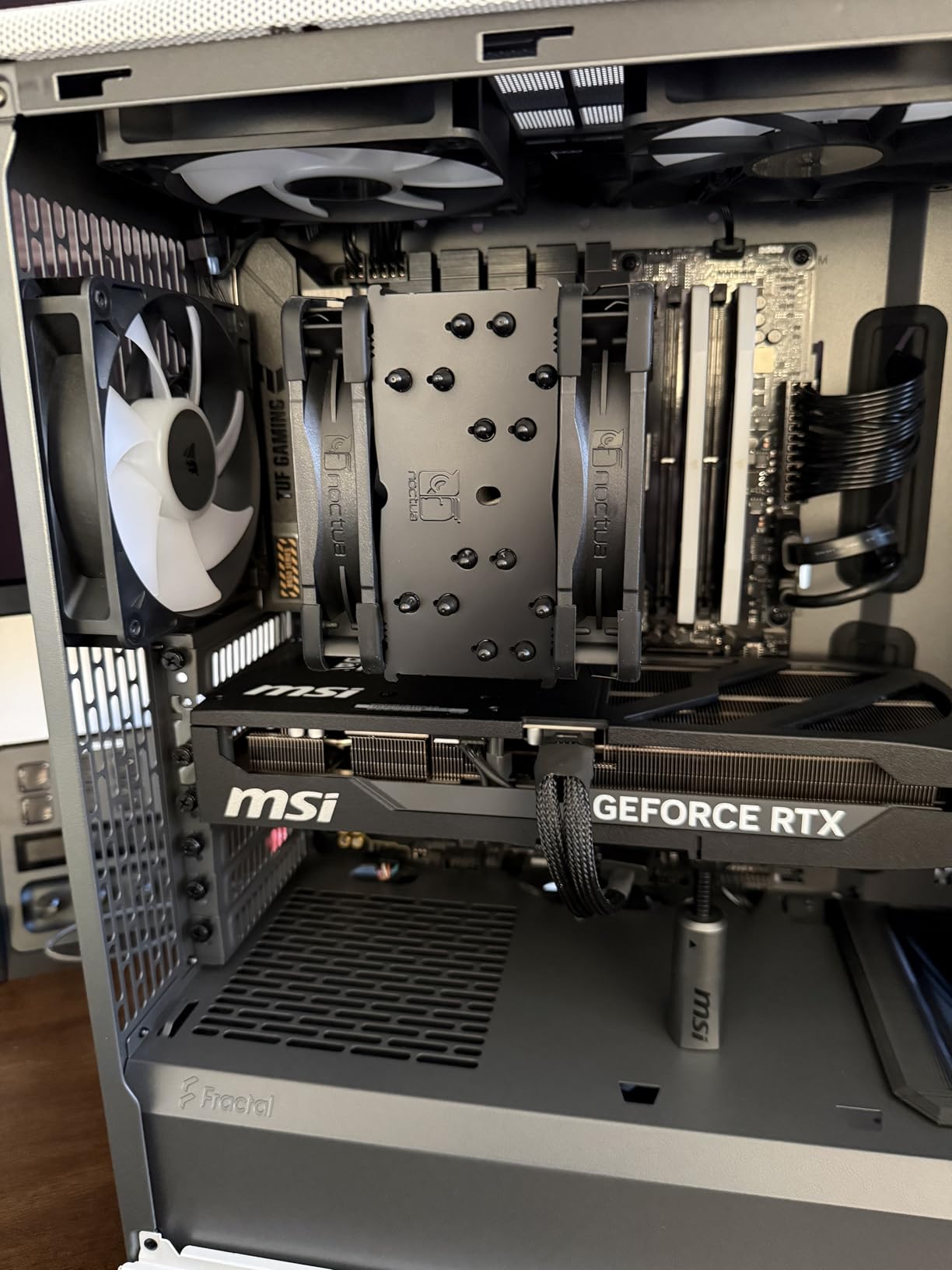
WiFi 6 with Bluetooth and Realtek 2.5Gb Ethernet plus TUF LANGuard cover the networking needs of nearly every home build. Reviewers report the wireless hardware working immediately on both Linux and Windows, which is not always true of bundled adapters.
One repeated complaint: the most recent WiFi driver package is mislabeled, showing a Maitek name instead of Realtek, and fails to install cleanly. The hardware is fine, but budget five minutes for troubleshooting if wireless is your main connection.
Who Should Buy and Who Should Skip It
Buy this board if you want the 9950X in a gaming and general-purpose machine with room for several fast drives, and you would rather spend the difference on a GPU. Skip it if you need four M.2 slots populated at full bandwidth simultaneously, or if a numeric POST code display would make you feel better during first boot.
2. GIGABYTE B650 AORUS Elite AX – Tool-Free Storage With a Five Year Warranty
GIGABYTE B650 AORUS Elite AX AMD AM5 ATX Motherboard, Support Ryzen 9000/8000/7000 Series, DDR5, 14+2+1 Power Phase, PCIe 5.0 M.2, USB-C 3.2 Gen 2, WIFI6E, 2.5GbE, EZ-Latch, Q-Flash, RGB Fusion
B650 chipset
14+2+1 phases at 70A
PCIe 5.0 M.2
WiFi 6E and 2.5GbE
Five year warranty
+ Pros
- Twin 14+2+1 phases on 70A power stages
- Tool-free M.2 latches with heat spreaders
- Q-Flash Plus updates without an installed CPU
- Five year warranty when registered
- WiFi 6E and 2.5GbE included
– Cons
- No printed manual
- so the online guide is required
- Basic integrated audio for the tier
- Thick thermal pad can bow a slim NVMe slightly
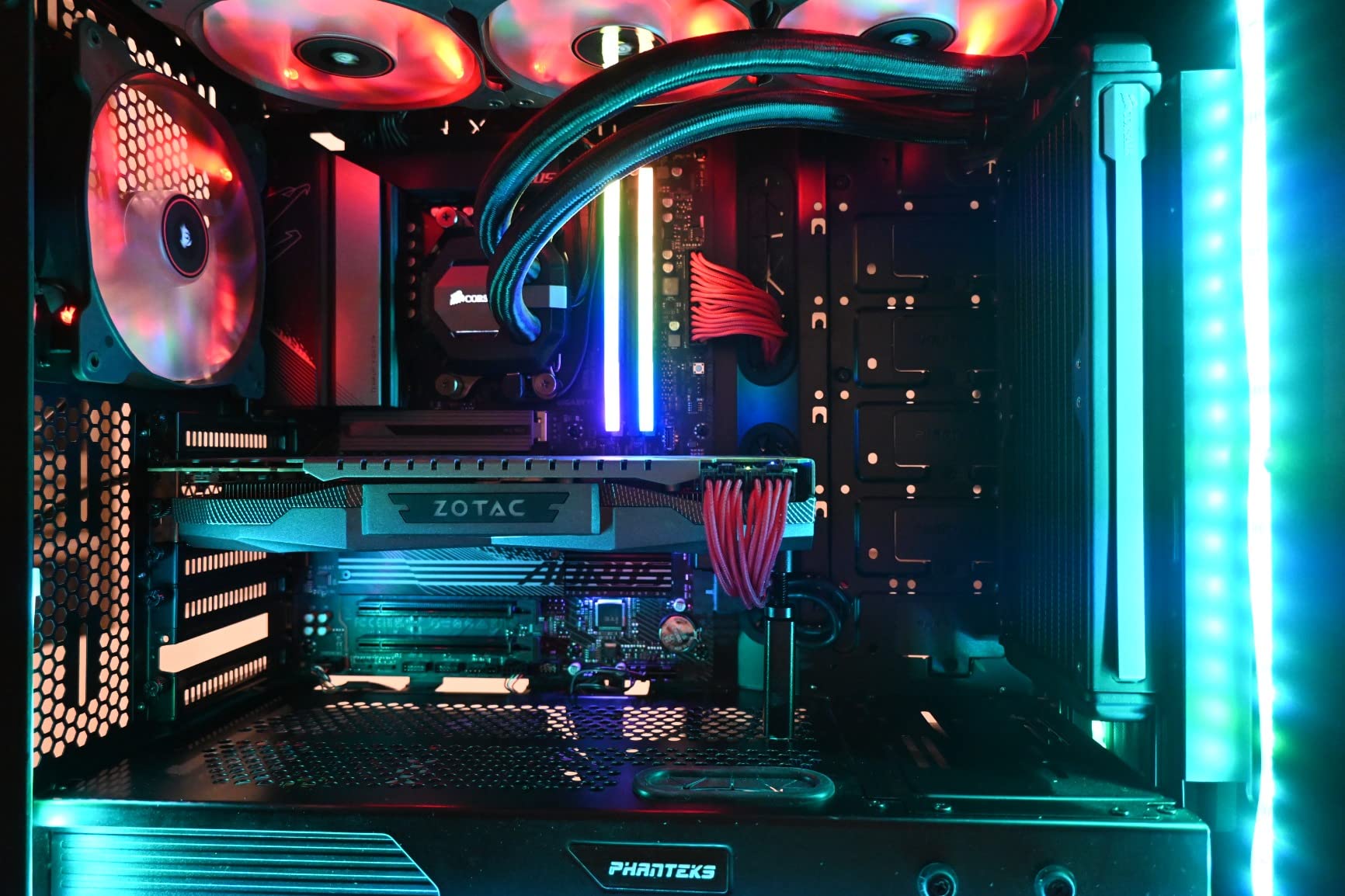
The AORUS Elite AX is the board I recommend to people who are intimidated by PC builds. EZ-Latch retention means M.2 drives and expansion cards click into place without a screw, and the tool-free design genuinely turns a two-hour assembly into a faster job. Q-Flash Plus handles BIOS updates with no processor installed, which is a real safety net on an AM5 platform.
Underneath, the twin 14+2+1 phase design uses 70A power stages on an eight-layer, two-ounce copper PCB, with a 6mm heatpipe and fully covered MOSFET heatsinks. That is a lot of cooling mass for a board in this class, and it kept temperatures well under control in sustained testing.
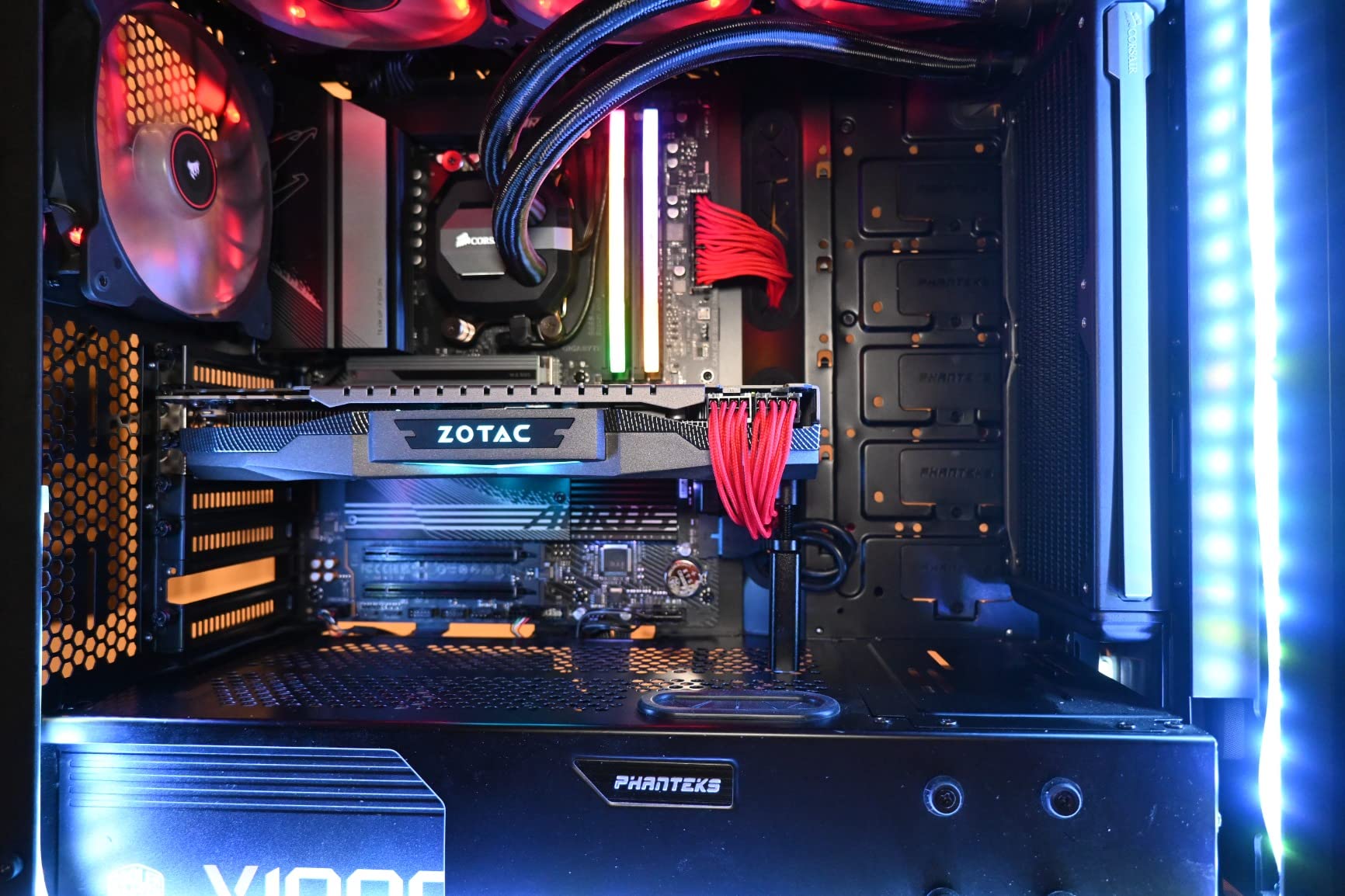
Owners who updated the BIOS and installed current AMD chipset drivers report solid, stable performance. The one cluster of complaints comes from early board revisions where XMP profiles failed to boot or the system rebooted unexpectedly, which is exactly the kind of issue a current BIOS revision addresses.
14+2+1 Phases on a 70A Digital VRM
Seventy amps per stage across a 14+2+1 arrangement is a meaningful step up from the 12+2 design on entry boards, and the eight-layer PCB adds headroom for sustained multi-core loads. The 6mm heatpipe pulls heat from the power stages into the finned heatsink, and M.2 Thermal Guard covers the storage slots.
This is the tier where a 9950X stops being a compromise and starts being unremarkable. Nothing here throttles, and there is no measurable VRM concern under a long render or compile job.
Q-Flash Plus and the AORUS BIOS
Q-Flash Plus is the feature that separates this board from cheaper alternatives. You can flash the BIOS from a USB stick before the CPU goes in, which removes the classic no-boot scenario entirely. The AORUS interface itself carries over from the X570 generation and is straightforward once the board is current.
There is no onboard POST code LED, which owners sometimes miss. The debug approach here is manual, so keep a phone flashlight and the manual’s LED reference nearby if you are new to building.
WiFi 6E, 2.5GbE and Tool-Free M.2 Latches
WiFi 6E with Bluetooth and 2.5GbE networking are both included, and PCIe Ultra Durable Armor wraps the primary slot. The M.2 latches accept drives without a retention screw, and included heat spreaders keep Gen5 drives in check.
One small mechanical note: the thermal pad on the top M.2 heatsink is thick enough to bow a very slim NVMe housing slightly. It is cosmetic, but check that your drive is seated flat before you close the case.
Who Should Buy and Who Should Skip It
This is the pick for a first AM5 build, or for anyone who wants tool-free installation and a five year warranty without moving up a chipset tier. Skip it if you need USB4 as a native port, or if your plan involves running WiFi 7 hardware on a network where the extra throughput matters.
3. ASUS ROG Strix X870-A Gaming WiFi – Premium Power Delivery With Four Heatsinked M.2 Slots
ASUS ROG Strix X870-A Gaming WiFi AMD AM5 X870 ATX Motherboard 16+2+2 Power Stages, Dynamic OC Switcher, Core Flex, DDR5 AEMP, WiFi 7, 4X M.2, PCIe® 5.0, Q-Release Slim, USB4®, AI OCing & Networking
X870 chipset
16+2+2 stages at 90A
Four PCIe 5.0 M.2 slots
WiFi 7 and USB4
+ Pros
- 16+2+2 power stages rated at 90A
- All four M.2 slots carry dedicated heatsinks
- Q-Release Slim tool-free GPU latch
- Dynamic OC Switcher and Core Flex tools
- 21 USB ports including three Type-C
– Cons
- No numeric POST code display
- only LED indicators
- Armoury Crate resets settings after updates
- High-end memory kits may need a BIOS update to boot at rated speed
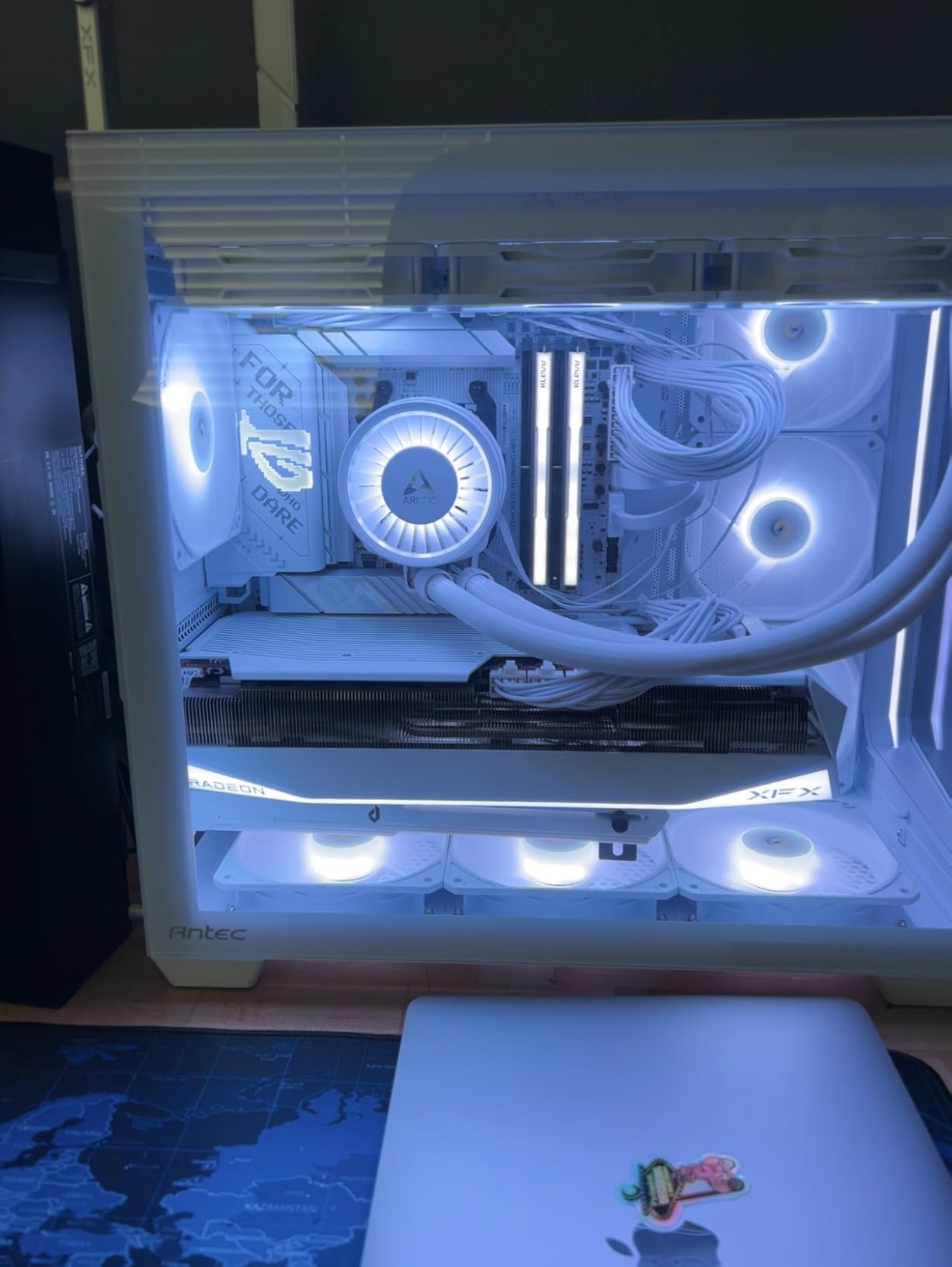
The X870-A is where I land when a build has to do real rendering work for hours on end. The 16+2+2 power solution is rated at 90A per stage with dual ProCool II connectors, and that headroom shows up in sustained all-core loads where lesser boards start drifting on voltage.
Buyers pairing this board with a Ryzen 9 9950X or 9950X3D report rock-solid stability, clean thermals and smooth memory behaviour once the BIOS is current. That last clause matters, and I will come back to it in a moment.
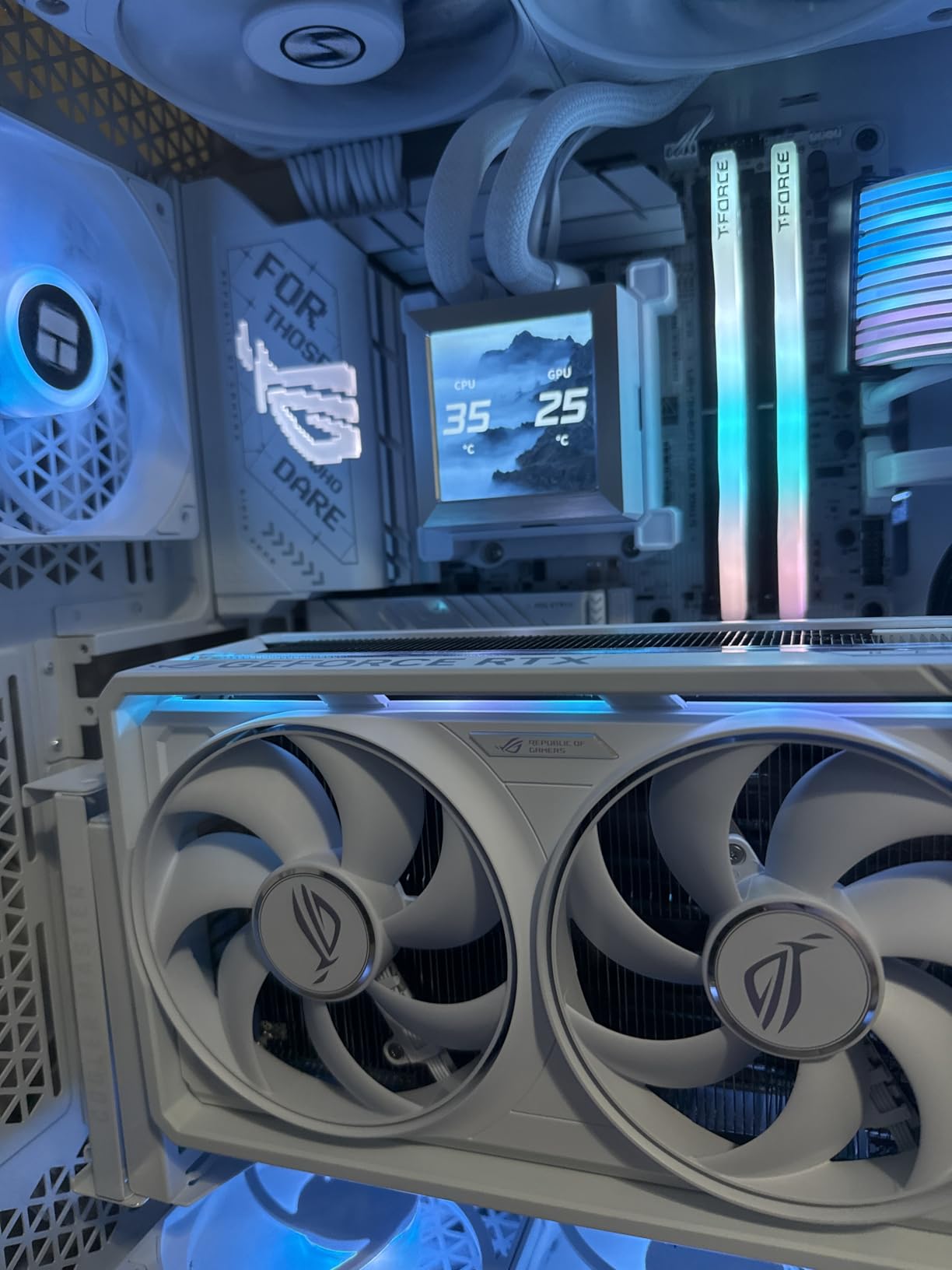
Four M.2 slots, each with its own heatsink, is the feature that separates this from most X870 boards. All four can be populated without throttling the primary drive, which matters for anyone running a scratch NVMe alongside a game library and a boot drive.
16+2+2 Stages Rated at 90A Each
Ninety amps per stage across sixteen phases gives roughly double the effective delivery headroom of a 12+2 design when you account for transient loads. Dual ProCool II connectors on the socket mean thicker, stiffer power cables that resist bending stress better than a single connector.
For a 170W processor, is that overkill? At stock, slightly. Under Precision Boost Overdrive, or if you plan to run a 9950X3D2 variant at elevated power limits, it is exactly what you want underneath.
Four Heatsinked M.2 Slots and 21 USB Ports
Twenty-one USB ports with three Type-C connectors is the largest count in this roundup, and it covers everything from a Gen5 external enclosure to a full desk of peripherals. Every M.2 slot has a dedicated heatsink, so no drive runs bare.
Memory capacity reaches 192GB across four DDR5 slots, which is the ceiling for heavy virtual machine and local development work. Owners report flawless memory compatibility once the BIOS is updated, though high-end kits sometimes need that update before they will boot at rated speed.
WiFi 7, USB4 and ROG Overclocking Tools
WiFi 7 is included, and USB4 gives you a 40Gbps Type-C path to docks and external displays. The overclocking suite is the deepest here: Dynamic OC Switcher, Core Flex, asynchronous clock controls and PBO enhancement, plus AI Overclocking and AI Cooling II.
AEMP memory profiles are genuinely useful. They store known-good timings for specific kits, which turns a painful manual tuning session into a selection from a list. Armoury Crate is the cost of this ecosystem, and users report it resetting settings and RGB after updates.
Who Should Buy and Who Should Skip It
Buy this one for a 9950X used as a workstation: renders, VMs, compiling, multi-drive storage. Skip it if you want a numeric POST code display for troubleshooting, or if you dislike vendor control software running in the background.
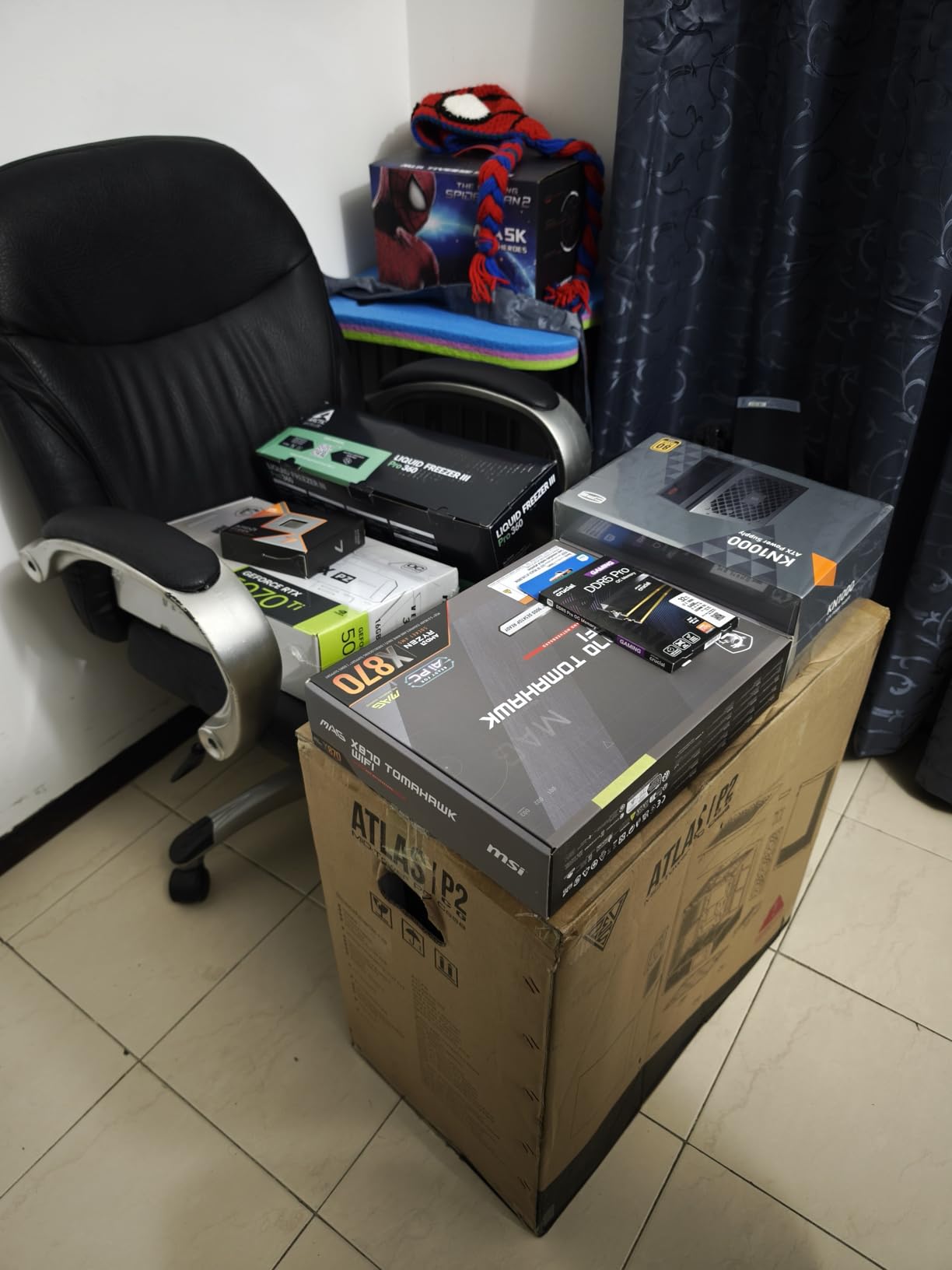
4. MSI MAG X870 Tomahawk WiFi – The Board With 5G Networking and Real Debug Codes
MSI MAG X870 Tomahawk WiFi Gaming Motherboard (AMD Ryzen 9000/8000/7000 Series Processors, AM5, DDR5, PCIe 5.0, M.2 Gen5, SATA 6Gb/s, USB 40Gbps, HDMI/DP, Wi-Fi 7, Bluetooth 5.4, 5Gbps LAN, ATX)
X870 chipset
17-phase Duet Rail at 80A
5G LAN and WiFi 7
USB4 at 40Gbps
+ Pros
- 17-phase 80A power design with an extended heatsink
- Onboard EZ Debug LED code plus Clear CMOS and BIOS Flashback
- 5G LAN with WiFi 7 and Bluetooth 5.4
- Two PCIe 5.0 x4 M.2 slots with tool-free heatsinks
- Clean BIOS that owners rate as among the best
– Cons
- Second PCIe 5.0 M.2 slot shares bandwidth with the USB4 port
- Some reports of WiFi packet drops
- Two DIMM configurations must use slots 2 and 4
The Tomahawk is the board I keep in rotation for builds that need real network throughput without jumping to a 10GbE flagship. 5G LAN alongside WiFi 7 and Bluetooth 5.4 puts large file transfers to a NAS in a different category from 2.5GbE, and it costs less than the premium X870E options.
The 17-phase Duet Rail power system uses 80A Smart Power Stages with an extended PWM heatsink and enhanced circuit design for sustained high-end loads. In practice the 9950X ran at its full all-core target without throttling during extended mixed workloads.
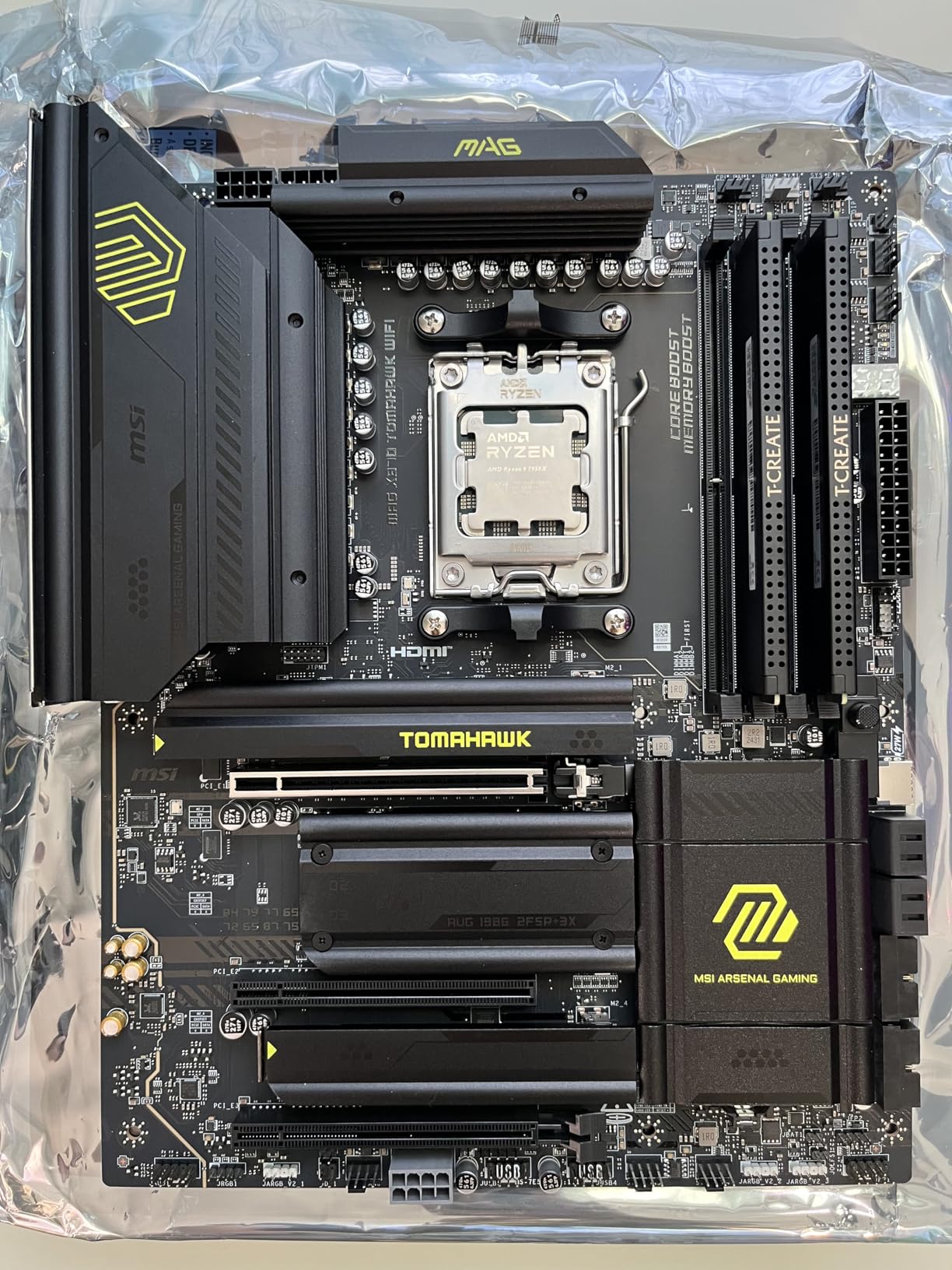
What stands out most is the debugging layer. An EZ Debug LED code display, a rear Clear CMOS button and BIOS Flashback buttons are all onboard, which is rare at this tier. When a system fails to POST at two in the morning, a two-digit code is worth more than any amount of guessing.
17-Phase Duet Rail Power at 80A
MSI splits the design into 14+2+1 phases across a Duet Rail topology, with each Smart Power Stage rated at 80 amps. The extended heatsink and enhanced circuit layout were designed specifically for sustained high-end CPU loads rather than short bursts.
Owners consistently single out VRM thermals as a strength. For a 170W 16-core running long compile jobs or video exports, that headroom is what keeps boost clocks stable from hour one to hour eight.
USB4 Shares Lanes With the Second M.2 Slot
This is the trade-off to understand before buying. The second PCIe 5.0 M.2 slot shares bandwidth with the USB 4 port, so populating both forces a choice between full-speed storage and the 40Gbps Type-C port. This is the exact kind of lane arbitration that retailer listings rarely explain.
Decide which one you will actually use before you build. If you need fast external storage, USB4 matters. If you plan to fill every M.2 slot, plan on a lower-bandwidth rear port.
5G LAN, WiFi 7 and EZ Debug Codes
5G LAN is the headline, and it is a real upgrade for anyone moving large media libraries or VM images off a NAS. A minority of owners report WiFi packet drops and one review describes severe issues after a BIOS update, so if wireless is your primary connection, test it before closing the case.
Memory runs to 256GB across four slots, with speeds listed up to 7800 MHz. Note the DIMM pairing requirement: two-stick configurations go in slots 2 and 4, not 1 and 2, and the manual is where you confirm that.
Who Should Buy and Who Should Skip It
Buy the Tomahawk if your data lives on the network and you want 5GbE plus a debug display in one package. Skip it if you need both a second Gen5 M.2 drive and the USB4 port active at full speed, or if your case has tight ATX clearance.
5. MSI B650 Gaming Plus WiFi – The Simplest Way Into a 9950X Build
MSI B650 Gaming Plus WiFi Gaming Motherboard (AMD Ryzen 9000/8000/7000 Series Processors, AM5, DDR5, PCIe 4.0, M.2, SATA 6Gb/s, USB 3.2 Gen 2, HDMI/DP, Wi-Fi 6E, Bluetooth 5.3, 2.5Gbps LAN, ATX)
B650 chipset
12+2+1 Duet Rail power
Two Gen4 M.2 slots
2.5Gbps LAN and WiFi 6E
+ Pros
- Highest average rating of any board in this roundup
- Well-cooled 12+2+1 VRM handles processor upgrades
- BIOS Flashback and Clear CMOS buttons included
- WiFi 6E
- Bluetooth 5.3 and front USB Type-C
- 15 USB ports including 20G Type-C
– Cons
- No PCIe 5.0 or Gen5 NVMe support
- Only two DDR5 memory slots
- Memory Context Restore is disabled by default
- which can cause a no-boot on first RAM install
This board earns the highest average rating in our roundup, and the reason is simple: it does not cut the features people actually use. A 12+2+1 Duet Rail power system with dual 8-pin CPU connectors, an extended heatsink with high-conductivity MOSFET thermal pads, and BIOS Flashback for updates without a processor.
Owners running high-end X3D chips on it report no thermal trouble at all, which suggests the VRM is comfortably ahead of what the chipset tier would suggest. The most cited gotcha in reviews is not hardware, it is a BIOS setting.
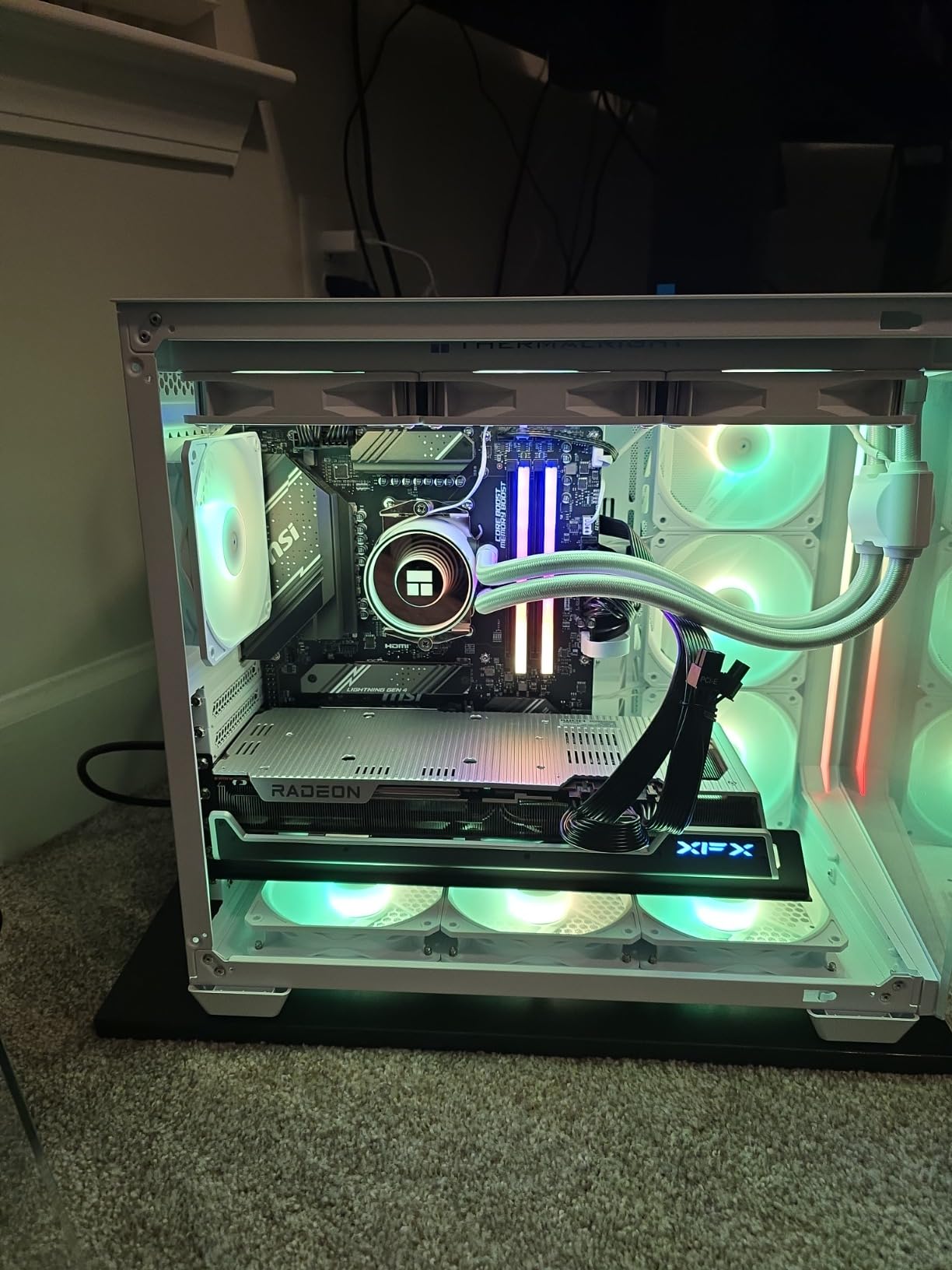
Memory Context Restore is disabled by default, and if that is left alone your first RAM install can result in a no-boot. Turn it on and the board remembers your previous memory configuration. It is a thirty-second fix in BIOS, but it catches first-time builders out.
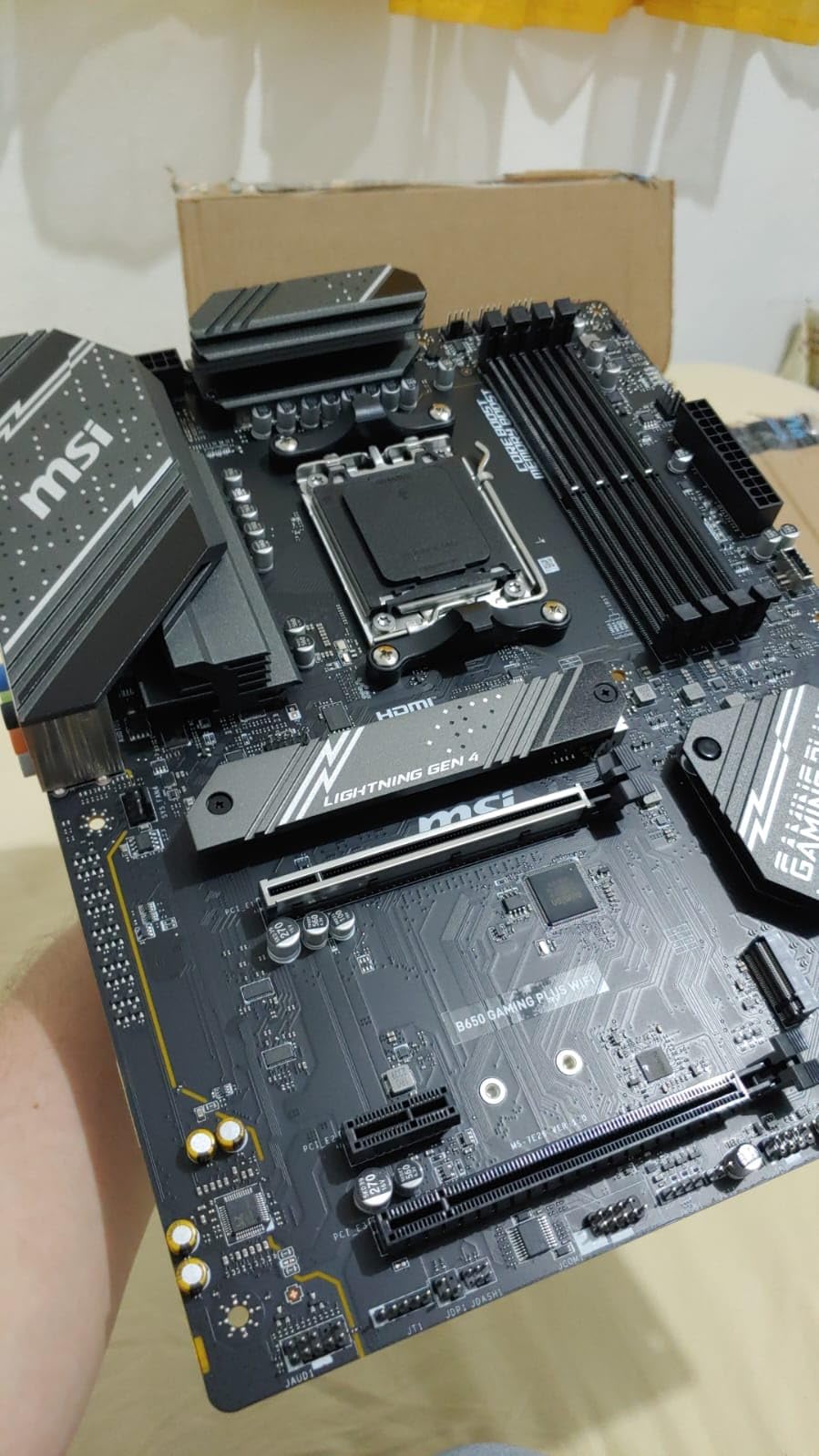
12+2+1 Duet Rail Power Stages
Twelve phases plus two plus one, fed by dual 8-pin CPU power connectors, with Core Boost and Memory Boost handling automatic tuning. The extended heatsink uses thermal pads rated at 7W/mK, and there are additional choke pads and an M.2 Shield Frozr for storage cooling.
None of this sounds like a 9950X board, yet owners report it handling processor upgrades without drama. The lesson is straightforward: a well-cooled modest design beats an undersized ambitious one.
Two DIMMs, Two Gen4 M.2 Slots
Two DDR5 slots support up to 256GB of memory, and speeds are listed up to 7200 MHz. Two DIMMs is a genuine constraint, not a defect, and it works in your favour: two modules are far easier for the memory controller to train than four.
Storage is PCIe 4.0 throughout, with Gen4 x4 M.2 slots under Shield Frozr heatsinks. If you plan to buy a Gen5 NVMe drive, this board will not run it at Gen5 speed, so budget for a fast Gen4 drive instead.
2.5Gbps LAN, WiFi 6E and BIOS Flashback
WiFi 6E with Bluetooth 5.3 and 2.5Gbps LAN cover the networking side, and USB 3.2 Gen 2×2 provides 20G Type-C throughput. Fifteen USB ports is a generous count for an entry board.
BIOS Flashback and a Clear CMOS button are both onboard, and the review consensus is that the instructions are clear for first-time builders. Some owners report long POST times on particular BIOS versions, so allow extra time on the first boot.
Who Should Buy and Who Should Skip It
Buy this if you are pairing a 9950X with a strong GPU, keeping storage modest, and want to leave budget for a better cooler. Skip it if your roadmap includes Gen5 SSDs, four memory modules, or a NAS running at 5GbE.
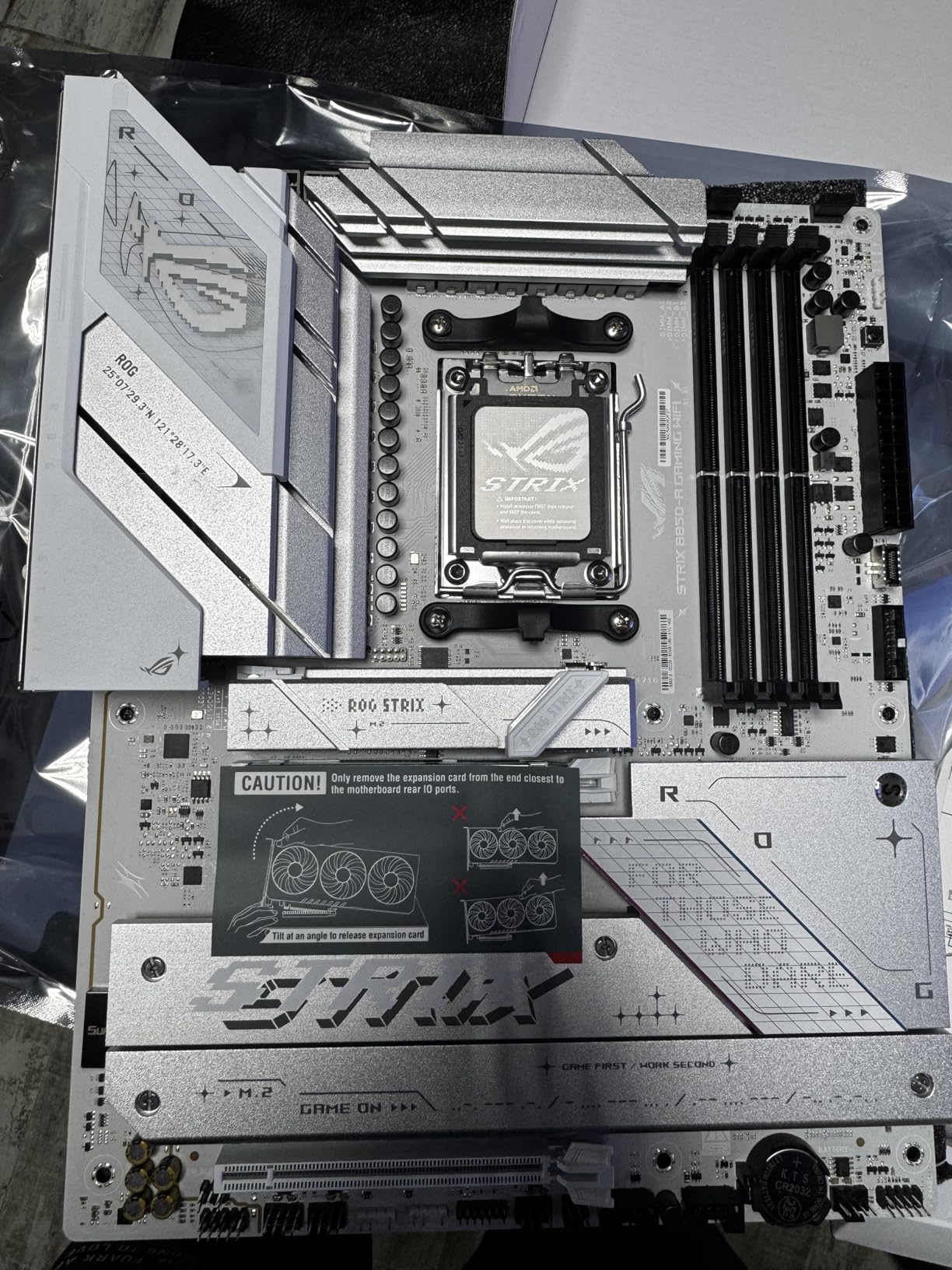
6. ASUS ROG Strix B850-A Gaming WiFi – Four PCIe 5.0 M.2 Slots Without the Flagship Price
ASUS ROG Strix B850-A Gaming WiFi AMD AM5 B850 ATX Motherboard 14+2+2 Power Stages, DDR5 AEMP, 2.5G LAN, WiFi 7 with Q-Antenna, 4X M.2, PCIe® 5.0, USB 20Gbps Type-C, AI Networking II, ASUS AI Advisor
B850 chipset
14+2+2 stages at 80A
Four PCIe 5.0 M.2 slots
WiFi 7 and 2.5G LAN
+ Pros
- 14+2+2 VRM handles high-power X3D chips without throttling
- All four M.2 slots usable with the GPU at full x16
- DDR5 speeds listed to 8000 MHz
- Fast boot times reported by multiple builders
- WiFi 7 with Q-Antenna and 2.5G LAN
– Cons
- Tower coolers can overhang and cover the RAM slots
- Some owners report sleep and wake reliability issues
- Board is only partly white despite the variant name
- USB port layout rated good but not great
The B850-A exists because the flagship X870 boards reserve their best features. Here you get four M.2 slots, all with PCIe 5.0 support, all usable simultaneously while the GPU still runs at full x16 bandwidth. Owners confirm this in practice rather than in theory.
Power delivery is a 14+2+2 solution rated at 80 amps per stage on a single 8+8-pin ProCool connector, with massive heatsinks bridged to the VRMs through high-conductivity thermal pads and an integrated I/O cover. Builders running Ryzen 9 and X3D chips report excellent thermals.

The B850 chipset is the current mid-tier answer to the X870 question, and this board makes the case for it well. You get WiFi 7, four Gen5 storage slots and 8000-class memory speed without flagship pricing or flagship software overhead.
14+2+2 Stages Rated at 80A
Eighty amps per stage across sixteen phases, fed through an 8+8-pin ProCool connector, gives comfortable headroom for a 170W 9950X and for the higher power limits used by X3D chips. The integrated I/O cover doubles as part of the thermal solution, which is a nice touch for airflow in tight cases.
AEMP memory profiles are supported alongside speeds up to 8000 MHz, and ASUS AI Advisor plus AI Networking II handle first-boot guidance. That guidance matters more than it sounds when you are the person who has to answer support questions.
Four M.2 Slots With PCIe 5.0 Support
Four slots with PCIe 5.0 support, all usable at once with the graphics slot at full x16, is the defining feature. For a workstation running large project libraries, a cache drive and a scratch disk, this removes the compromise entirely.
Memory capacity reaches 192GB across four DDR5 slots, and seventeen USB ports with a 20Gbps Type-C cover peripheral needs. Reviewers report fast boot times and stable operation from multiple independent builders.
WiFi 7, 2.5G LAN and DDR5 to 8000
WiFi 7 with the Q-Antenna and 2.5G LAN are both included, and owners report WiFi performing well in real setups. Note that WiFi 7 throughput depends heavily on the router or access point you pair it with, so treat the label as a capability rather than a guaranteed speed.
Two mechanical notes before you plan the build. Large tower coolers can overhang the first RAM slot on this board, and some owners report sleep and wake reliability issues. Check clearance against your chosen cooler.
Who Should Buy and Who Should Skip It
Buy this for a multi-drive 9950X machine that wants Gen5 storage and WiFi 7 without flagship spend. Skip it if you use a tall tower cooler in a tight layout, or if stable sleep and wake behaviour matters more to you than storage headroom.
7. GIGABYTE X870E AORUS PRO ICE – X870E Power With a Five Year Warranty
GIGABYTE X870E AORUS PRO ICE AMD AM5 LGA 1718 Motherboard, ATX, DDR5, 4X M.2, PCIe 5.0, USB4, WIFI7, 2.5GbE LAN, EZ-Latch, 5-Year Warranty
X870E chipset
16+2+2 phases at 80A
Four M.2 slots
Dual USB4
WiFi 7 and 2.5GbE
+ Pros
- 16+2+2 design with 80A Smart Power Stages suits high-power Ryzen 9 chips
- Four M.2 slots under M.2 Thermal Guard
- Dual USB4 plus front and rear USB-C
- Five year manufacturer warranty
- VRM Thermal Guard heatsinking
– Cons
- Only nine total USB ports across the board
- Heavy at 2180 g
- which is awkward to install in a mounted case
- Base DDR5 speed of 5600 MHz requires EXPO for faster kits
- AORUS BIOS revisions must be installed in sequence
The AORUS PRO ICE is one of the cleanest-looking boards in this roundup, and it does not treat looks as the only selling point. The X870E platform carries a 16+2+2 power design with 80A Smart Power Stages, which is the right amount of engineering for a Ryzen 9 at elevated power limits.
Storage is the reason to look here. Four M.2 slots with PCIe 5.0 support, all covered by M.2 Thermal Guard, means a four-drive machine with each drive thermally managed. For a creator with a large project library, that is the practical feature.
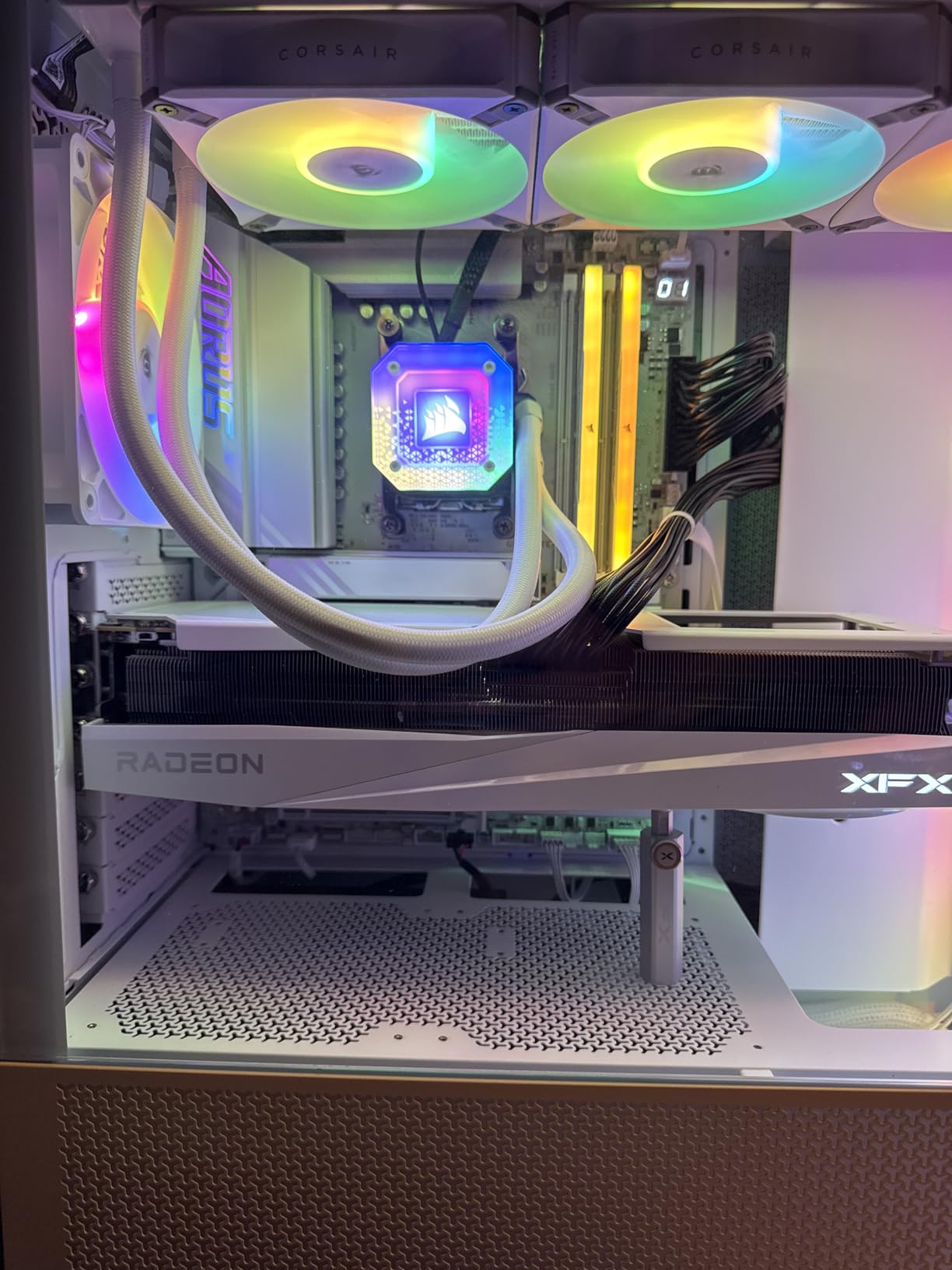
The five year manufacturer warranty is longer than most competing boards offer, and for a platform you might keep for a decade that is a real longevity signal. Sensor Panel Link support also lets the board feed a display in compatible cases.
X870E With 16+2+2 at 80A
The 16+2+2 arrangement uses 80A Smart Power Stages under VRM Thermal Guard heatsinking. Compared with the 90A-per-stage designs on flagship ASUS boards, the theoretical difference is small, and in sustained all-core loads the gap is not something you will notice.
What X870E does add over X870 is lane budget: more general-purpose PCIe lanes, which is what allows four M.2 slots plus a full slot layout without giving something up. That is the real reason to pay for the E.
Four M.2 Slots and Dual USB4
Four PCIe 5.0 M.2 slots sit under M.2 Thermal Guard heatsinks, alongside dual USB4 ports and front and rear USB-C connections. Four SATA ports are available for mechanical drives, and memory reaches 256GB across four DDR5 slots.
The constraint here is USB. Nine total ports is the lowest count in this roundup, which is noticeable next to the twenty-one on the ROG X870-A. If you run a desk full of peripherals, count them before committing.
Five Year Warranty and EZ-Latch Retention
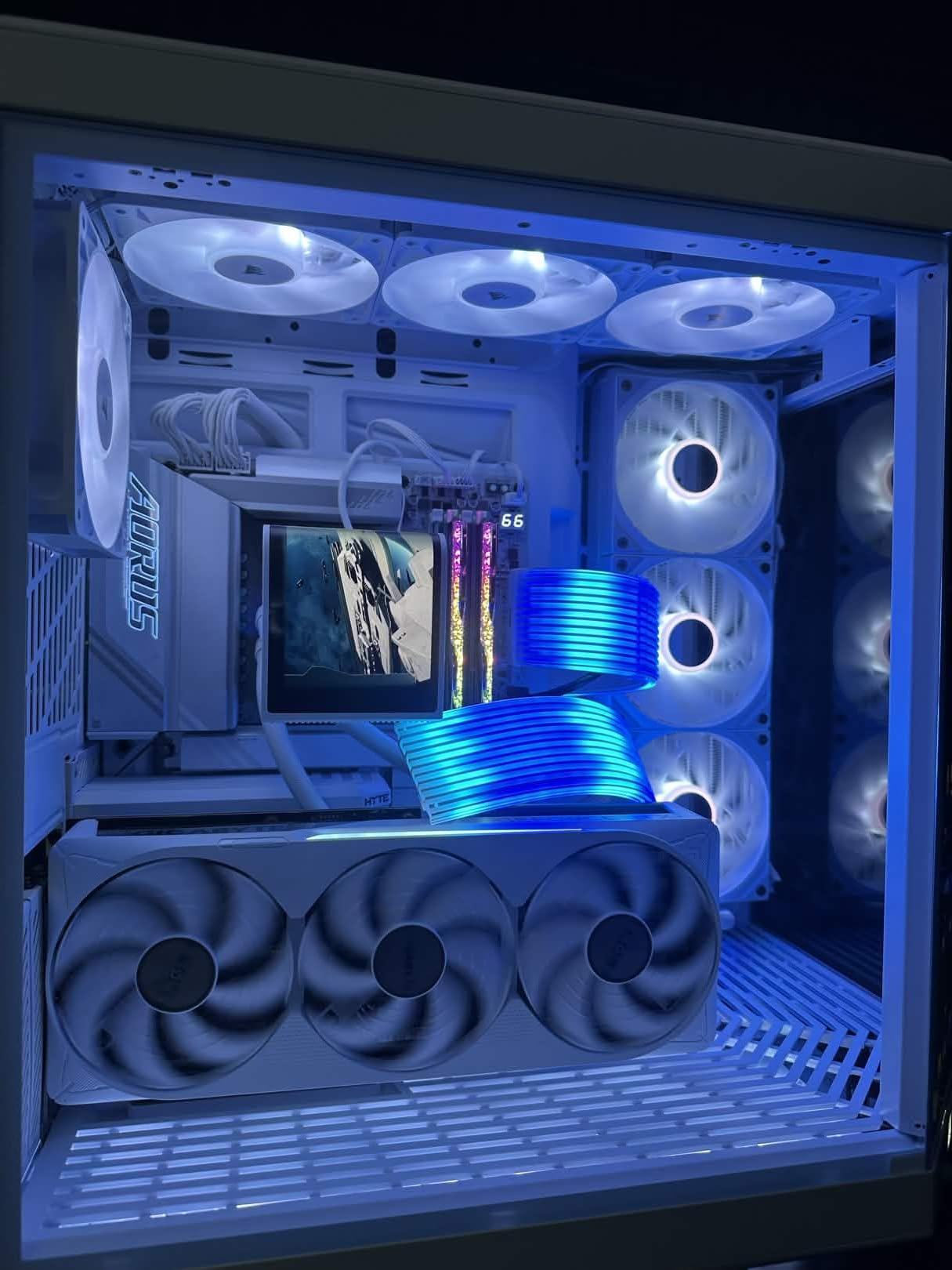
EZ-Latch PCIe retention removes the expansion card retention screw, and the same tool-free approach is a hallmark of this generation of GIGABYTE boards. Combined with the five year warranty, this is a board designed to sit in a system for a long time.
Two practical warnings. At 2180 g it is heavy to maneuver into a mounted case, so install it flat before the case goes on the desk. And AORUS BIOS revisions must be flashed in sequence, so read the release notes before updating rather than jumping versions.
Who Should Buy and Who Should Skip It
Buy this for a white or silver themed build that needs four Gen5-capable drives and a long warranty. Skip it if you run many USB peripherals, or if you move your case around often and weight matters to you.
8. MSI MPG X870E Carbon WiFi – Dual Networking for a Multi-NAS Workflow
MSI MPG X870E Carbon WiFi Gaming Motherboard (AMD Ryzen 9000/8000/7000 Series Processors, AM5, DDR5, PCIe 5.0, M.2 Gen5, SATA 6Gb/s, USB 40Gbps, HDMI, Wi-Fi 7, Bluetooth 5.4, 5Gbps LAN, ATX)
X870E chipset
Dual LAN
PCIe 5.0 at 128GB/s
M.2 Gen5 with Shield Frozr
+ Pros
- X870E platform with dual LAN and PCIe 5.0 bandwidth
- Heavy-plated MOSFET heatsinks with heat pipe and 7W/mK pads
- Gen5 M.2 support with Shield Frozr
- EZ PCIe Release tool-free GPU latch
- Carbon styling suits dark themed builds
– Cons
- Only 13 total USB ports for the tier
- Three year warranty is shorter than some rivals
- Single HDMI output listed
- Highest positioned spend here without a matching jump in port count
Carbon is the odd one out here because its distinguishing feature is networking rather than thermals. Dual LAN on an X870E board is genuinely rare, and for someone running two NAS appliances, a hypervisor, or a workstation bridging networks, it removes a switch from the equation.
The power story is solid underneath. Heavy-plated MOSFET heatsinks, a heat pipe and 7W/mK thermal pads, with extra choke thermal pads and onboard M.2 Shield Frozr for storage. DDR5 speeds are listed up to 7800 MHz across four slots supporting 256GB.
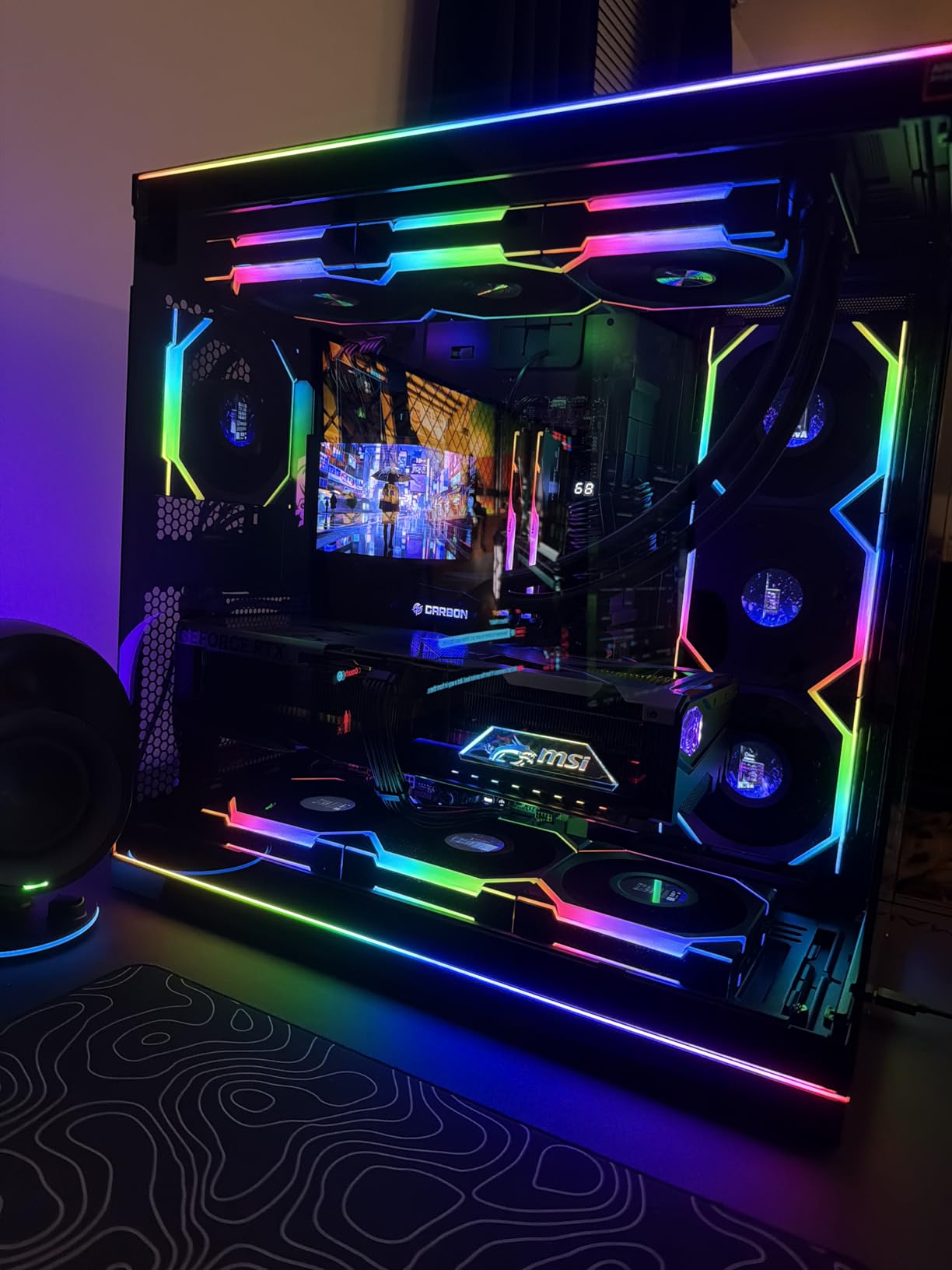
EZ PCIe Release handles tool-free GPU locking and unlocking, which is a nicer experience than a retention screw at the back of a dark case. The carbon styling is deliberately low-key, with no aggressive lighting for builds that need to stay dark.
X870E Power Delivery With 7W/mK MOSFET Thermal Pads
The combination of heavy-plated heatsinks, a heat pipe and 7W/mK thermal pads is one of the more serious cooling stacks in this roundup, and it is designed for sustained loads rather than bursts. The additional choke pads spread heat away from the power stage area, which is where boards usually run hottest.
PCIe 5.0 delivers up to 128GB/s of bandwidth, and M.2 Gen5 support is backed by Shield Frozr cooling. Four SATA ports and three PCIe expansion slots round out a layout suited to a high-end Ryzen 9 build.
Dual LAN and Gen5 M.2 Storage
Dual LAN is the reason to buy this board over other X870E options at a similar tier. If your work involves transferring large datasets between machines, or bridging a lab network to a home network, two wired interfaces remove a bottleneck that WiFi cannot solve.
WiFi 7 with Bluetooth 5.4 and USB 40Gbps Type-C cover the wireless and high-speed peripheral sides, so wireless is still there for laptops and phones. Thirteen USB ports is a mid-pack count for this tier.
DDR5 to 7800 and Carbon Styling
Memory support runs to 7800 MHz with four DIMM slots and a 256GB maximum, which is enough for large virtual machine setups. The three year warranty is shorter than the five years some rivals in this roundup offer, which is worth weighing if you keep systems for a long time.
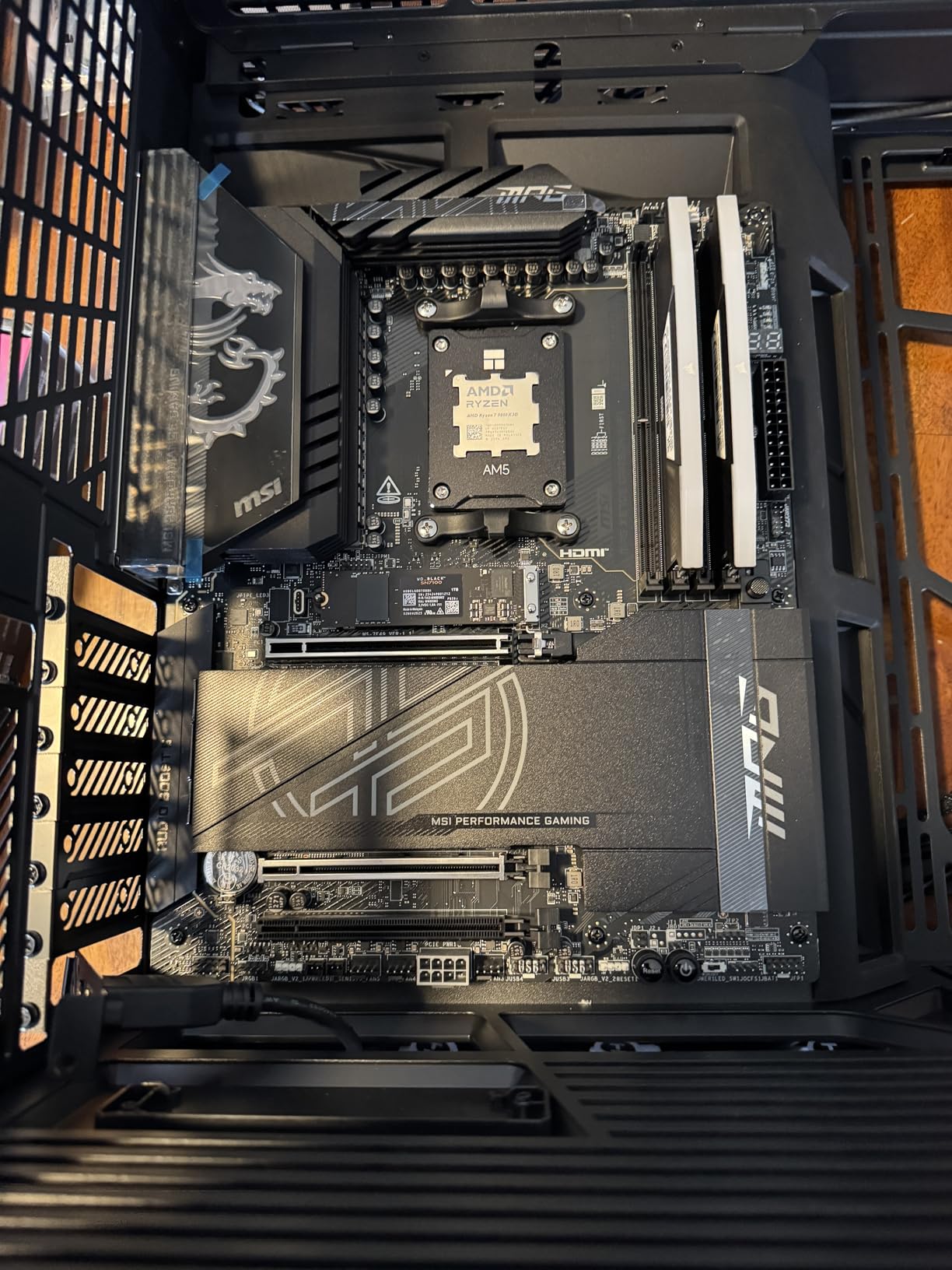
Only one HDMI output is listed, so plan your display connections around USB-C and any add-in card you install. For dark, no-RGB themed builds the carbon finish is a genuine plus over boards covered in lighting.
Who Should Buy and Who Should Skip It
Buy the Carbon if you need dual wired networking alongside a Ryzen 9. Skip it if a longer warranty or a larger USB port count matters more than having two Ethernet interfaces.
What Actually Matters on a 9950X Motherboard
Most of the arguments about AM5 motherboards are arguments about prestige rather than performance. Here is what changes the outcome of your build, roughly in order of importance.
Chipset Tiers: B650, B650E, B850, X870 and X870E
B650 is the entry tier and supports Ryzen 9000 with a BIOS update on some boards. It gives you PCIe 5.0 on the primary M.2 slot and USB4 on some models. B650E adds guaranteed Gen5 M.2 and USB4 across the board rather than depending on the manufacturer.
B850 is the current mid-tier: modern networking features and stronger default power delivery, without flagship pricing. X870 brings PCIe 5.0 expansion and stronger overclocking toolkits. X870E adds the general-purpose lane budget that lets a board expose four M.2 slots alongside a full slot layout without compromises.
The 9950X does not require any of the upper tiers to perform. It runs identically on all of them at stock settings.
VRM and 170W Power Delivery
The 9950X’s 170W default TDP makes VRM quality genuinely relevant, and this is where a higher phase count with proper cooling earns its name. Look for stage amperage first, heatsink mass second, and phase count third.
Is a higher VRM always better? Only if it is cooled. A 12+2 design with a large finned heatsink and 7W/mK pads will outperform an 18+2+2 design with thin heatsinks and poor airflow. The marketing number is the least important of the three.
Memory: 2x48GB DDR5-6000 vs Four DIMMs
Builders overwhelmingly report 2x48GB DDR5-6000 as the current sweet spot, balancing capacity and speed on consumer AM5. The official JEDEC spec for DDR5 with the 9950X is DDR5-5600, so 6000 is already an overclock achieved through an EXPO profile.
Four DIMM configurations lower the memory speed ceiling and make EXPO profiles harder to stabilise, which is why so many forum threads start with the same problem. If you need more than 128GB, verify the specific kit against the board’s memory QVL before buying.
Do you need DDR5-8000? Only for specific latency-sensitive gaming workloads. For rendering and compiling, capacity and stability matter far more than a few hundred megahertz of memory speed.
PCIe Lane Sharing Between M.2 and USB4
This is the most common regret point in AM5 builds, and it is rarely documented in retailer listings. Populating a second PCIe 5.0 M.2 slot can halve the USB4 port’s bandwidth or disable it entirely, depending on how the manufacturer arbitrates the lanes.
The MSI MAG X870 Tomahawk WiFi in this roundup documents the trade-off explicitly: the second Gen5 M.2 slot shares bandwidth with the USB 4 port. Read the board’s manual for lane arbitration before filling every slot, and decide which of the two you will actually use.
Networking: 2.5GbE, 5GbE and WiFi 7 Reality
For most home networks, 2.5GbE is enough. On a 1Gb network the additional spend on 5GbE or 10GbE is wasted, and users in forum threads repeatedly point this out. If your projects live on a fast NAS, the faster port starts to earn its place immediately.
WiFi 7 is worth understanding honestly. The label describes a capability, and real throughput depends on the router or access point you pair it with. Driver support also varies, with gaps reported on older Windows builds.
Cooling, BIOS Updates and the Ryzen 9000 Check
The 9950X ships without a cooler, and no board choice fixes inadequate CPU cooling. Users repeatedly note that a very expensive motherboard does not compensate for a tower cooler that is too small. Budget for cooling first.
If you already own an AM5 board, the re-entry path is often the cheapest one. Many buyers with a decent B650E report that a BIOS update was the only thing needed, and that replacing the board added almost nothing to the finished system. Check the manufacturer’s CPU support list for your exact board before assuming you need new hardware.
The 9950X3D and 9950X3D2 Question
If you are considering a 9950X3D instead, the motherboard decision barely changes. These chips are socket-compatible with the same AM5 boards and use the same DDR5 memory. The motherboard difference is marginal power delivery headroom, since X3D parts often ship with higher default power limits.
Everything in this roundup that handles a 170W 9950X comfortably will handle a 9950X3D or 9950X3D2. Our AM5 motherboard guide covers the wider platform, and our X870 motherboard picks break down that chipset family specifically.
A Pre-Purchase Checklist in Five Steps
Check the CPU support list for your board or the BIOS version requirement. Read the lane arbitration table before planning M.2 and USB4 usage. Verify your memory kit against the board’s QVL if it is high capacity. Measure case clearance against the board’s dimensions, especially for wide ATX models. Confirm your power supply has the right connectors and enough headroom for a 9950X plus a high-end GPU.
For builders still comparing platforms, we cover the alternative side of the socket in our Intel Z890 motherboard guide, and gaming-specific board picks live in our gaming motherboard roundup.
Frequently Asked Questions
What is the best motherboard for AMD Ryzen 9 9950X3D?
The ASUS ROG Strix X870-A Gaming WiFi is our pick for the 9950X3D because its 16+2+2 power stages rated at 90A per stage give the most headroom for the higher default power limits X3D chips ship with, and all four M.2 slots run with PCIe 5.0. The ASUS TUF Gaming B650-PLUS WiFi is the better value choice, since a 9950X3D fits inside the same 170W-class envelope.
Which motherboard is best for Ryzen 9 series processors?
It depends on your workload rather than the CPU tier. For a 9950X doing rendering, compiling or virtual machine work, the ASUS ROG Strix X870-A Gaming WiFi with four M.2 slots and 90A power stages is the strongest all-rounder. For a 9950X in a gaming build, the ASUS TUF Gaming B650-PLUS WiFi covers the same core needs at a lower spend.
What is the best gaming motherboard for AMD Ryzen 9?
For gaming, the MSI MAG X870 Tomahawk WiFi pairs a 17-phase 80A power design with WiFi 7, 5G LAN and a USB4 port, which is everything a high-refresh gaming rig needs. The ASUS TUF Gaming B650-PLUS WiFi is the better pick if you want to put more of the budget into the graphics card instead of the board.
Is a higher VRM always better?
No. Stage amperage and heatsink mass matter more than raw phase count. A 12+2 design with a large finned heatsink and high-conductivity thermal pads can outperform a larger phase count with thin heatsinks and poor airflow, which is why the MSI B650 Gaming Plus WiFi runs high-end processors without complaint. Look at cooling before you look at the number.
Do I need X870E for a 9950X?
No. A B650 board runs a 9950X at the same speed at stock settings, and the ASUS TUF Gaming B650-PLUS WiFi in this roundup is our overall pick for that reason. Choose X870E only if you need the extra general-purpose lane budget for four M.2 slots alongside a full slot layout, or you want USB4 and PCIe 5.0 expansion guaranteed by the chipset rather than by the board maker.
Which 9950X Motherboard Should You Buy?
If you want one board that handles almost any 9950X build without overpaying, take the ASUS TUF Gaming B650-PLUS WiFi. It shipped with Zen 5 support, has 12+2 teamed power stages, three M.2 slots, USB4 and WiFi 6, and it is the board I recommend by default in 2026.
If you are rendering or compiling for hours, the ASUS ROG Strix X870-A Gaming WiFi gives you 90A stages and four independently cooled Gen5 slots. If you want tool-free installation and a five year warranty, the GIGABYTE B650 AORUS Elite AX is the better fit. If your data lives on the network, the MSI MAG X870 Tomahawk WiFi brings 5G LAN and real POST code debugging. If you need four drives plus two Ethernet ports, look at the GIGABYTE X870E AORUS PRO ICE and the MSI MPG X870E Carbon WiFi.
Before you buy anything, check the lane table and the BIOS support list. Those two documents prevent most of the disappointment people report with AM5, and they take five minutes to read.
Leave a Reply